USER MANUAL UR 2300 TITAN
(GB) Instructions ▶ 2
Inserting the batteries
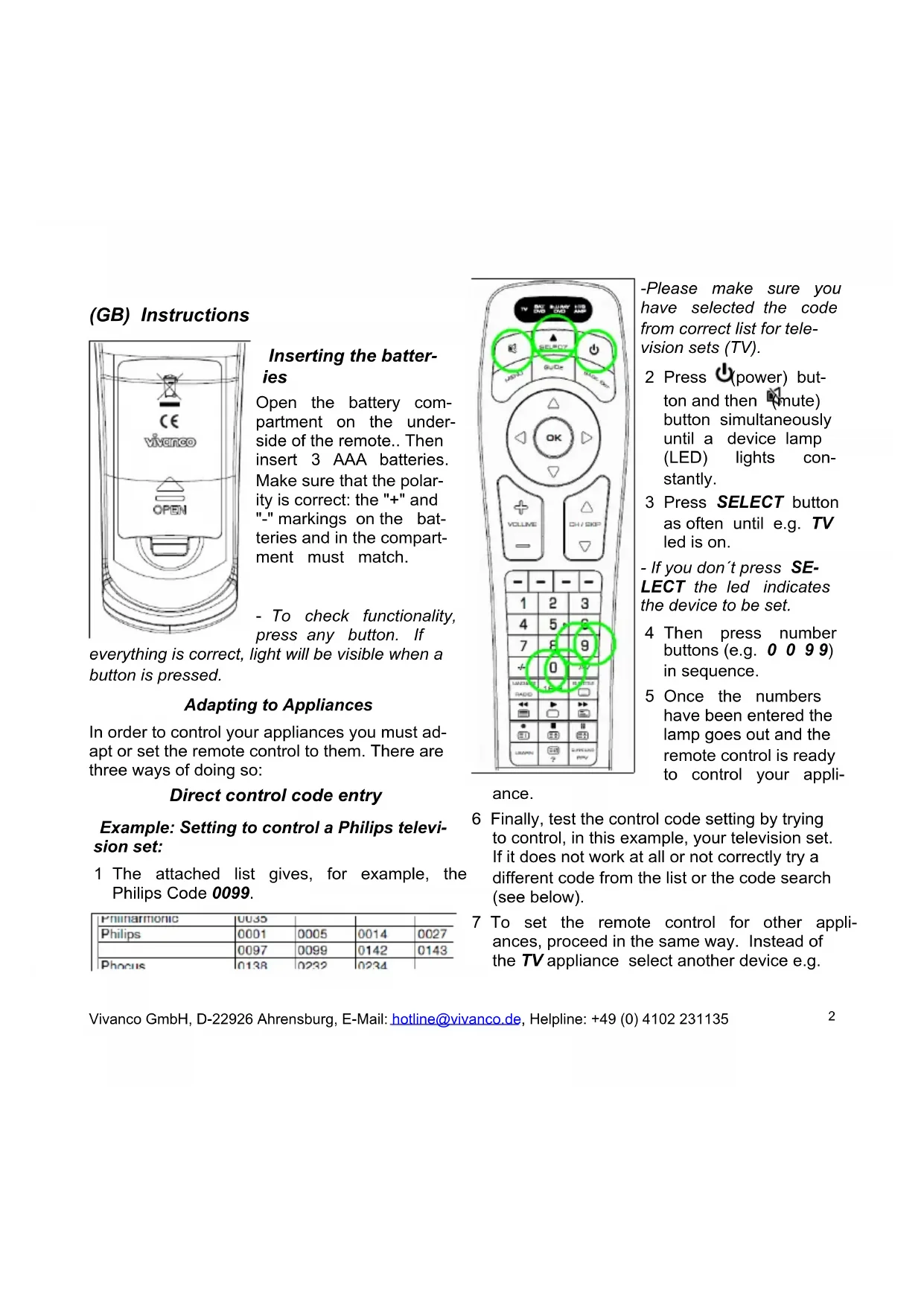
Open the battery compartment on the underside of the remote.. Then insert 3 AAA batteries. Make sure that the polarity is correct: the "+" and "-" markings on the batteries and in the compartment must match.
- To check functionality, press any button. If
everything is correct, light will be visible when a button is pressed.
Adapting to Appliances
In order to control your appliances you must adapt or set the remote control to them. There are three ways of doing so:
Direct control code entry
Example: Setting to control a Philips television set:
1 The attached list gives, for example, the Philips Code 0099.
| Phinamarmonic | 0035 | | | |
| Philips | 0001 | 0005 | 0014 | 0027 |
| 0097 | 0099 | 0142 | 0143 |
| Phocus | 0138 | 0232 | 0234 | |
text_image
TV NET BUNNY USB
DNS DND AM
SELECT
HND Guide MDC On
OK
VOLUME CH/SDP
1 2 3
4 5 6
7 8 9
✓ 0 ✓
LUXED RADI 12 BUTTER
← ▶ ▶ ▶
● ■ ■ ■
LEAPIN 25 CABBAGE
? PV
-Please make sure you have selected the code from correct list for television sets (TV).
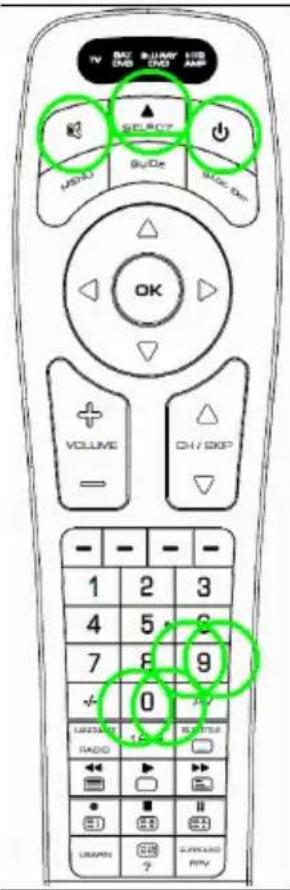
2 Press ⏻(power) button and then 📋mute) button simultaneously until a device lamp (LED) lights constantly.
3 Press SELECT button as often until e.g. TV led is on.
- If you don't press SELECT the led indicates the device to be set.
4 Then press number buttons (e.g. 0 0 9 9) in sequence.
5 Once the numbers have been entered the lamp goes out and the remote control is ready to control your appli-
ance.
6 Finally, test the control code setting by trying to control, in this example, your television set. If it does not work at all or not correctly try a different code from the list or the code search (see below).
7 To set the remote control for other appliances, proceed in the same way. Instead of the TV appliance select another device e.g.
SAT/DVB (SAT, DECODER), DVD/BLU RAY or HTS/AMP(UR 2400 only).
- You terminate the mode by pressing button or by code input interruption of more than 10 seconds.
- If lamp flashes twice code was not accepted and code input can be started again.
Code search
If the brand of your appliance is not in the list or none of the codes given fits, we recommend a code search.
Manual and Automatic code search
text_image
TV
OFF
DBB
FULLY
COLD
HRS
AMP
OK
OFF
ON
OFF
ON
OFF
VOLUME
DH/EXP
4 2 2
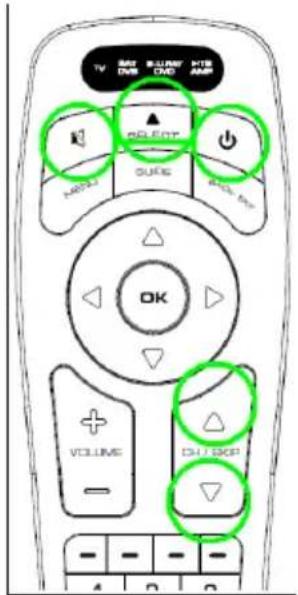
or CH/SKIP▼ button about any 1 second so often until the appliance, e.g. your TV reacts by power off.
- You can invert search direction by changing from button ▲ to ▼ and vice versa.
- If your appliance has switched itself off, you must switch it on again, e.g. on the appliance or with the original remote control, to continue searching.
- When your appliance reacts you can also try out other buttons, except ▲ or ▼ or OK, without interrupting the search. If some buttons do not work properly, simply continue searching by pressing ▲ or ▼ again.
6 Enable and disable Automatic code search : Press and hold ▲ or ▼ button until device lamp (LED) turns off. Then one power on/off command per code is send out, one after the other and device led is flashing. Switch to Manual Code Search again by pressing any button, except 📋 or OK.
7 When your appliance reacts correctly, press 📂 (or OK) button, for end of searching and saving of found code. The lamp (LED) goes out.
- The last code entered remains stored. The search stops after approx. 30 seconds of inactivity or at end of code list.
Code identification
You can read off the 4-digit codes you have set at any time:
1 Press SELECT button as often until e.g. TV led is on.
2 Press (power) button and then 1, 2, 3 or 4 button simultaneously depending on the part
of the code you want to read off.
For example, if you press + and the set code is e.g. 1234, the lamp blinks once after +1 is pressed to indicate that the thousands figure is 1. All you have to do is to count. The hundreds figure is indicated after pressing +2, e.g. it blinks 2 times for the 2 in 1234. The tens figure is indicated after is pressed, e.g. it blinks 3 times for the 3 in 1234. The unit figure is indicated after is pressed, e.g. it blinks 4 times for the 4 in 1234.
- There will be no flash in case of 0 indication..
Learning of Missing Control Functions (UR 2400 only)
The LEARN function is used to supplement the preprogrammed codes. The standard code may provide most of functions needed, but you may miss some button functions. Or you didn't find any functioning preprogrammed code for a device. You can capture up to 206 button function codes, max. 40 per device. The last captured function will overwrite the previous. learnt.
1 For learning of button codes you must use a functioning original remote controller. Please use fresh batteries for both remote controls.
2 Please point the original remote control transmitter LED towards the receiver LED of UR 2400 (placed on top, same as transmitter LED). Distance of LEDs between both remotes shall be approximately 1-2 cm and must be in straight line of sight.
– Sometimes you have to move the remotes a
bit too and fro while learning, in order to find right positions.
3 Press the LEARN button for about 3 seconds until the LED (lamp) turns on.
4 Press SELECT button to select to be controlled device as often until TV LED is on.
5 Press and release the target button on the UR 2400, that you want to learn (reprogram) (e.g. POWER), the LED starts flashing.
6 Press and hold the source button on the original remote control (e.g. POWER) until the LED on your UR 2400 remote control stops flashing and changes to on again. That indicates that a new function code, e.g. POWER, has been learnt.
7 Repeat steps 5 to 6 for capturing more button functions.
8 Press and release LEARN button for exit of learning mode.
- The controller will exit the learning mode automatically after about 10 seconds of inactivity.
- Memory full indication: If the memory is full, the LED flashes 2 times and then a programmed button can be overwritten.
1 Press LEARN button and then 1 button simultaneously until a device lamp (LED) lights constantly.
2 Press SELECT button to select device, which belongs to the to be deleted button function as often until e.g. TV LED is on.
3 Press the button of which the captured function shall be deleted, e.g. 3, briefly. The LED will flash once and the learnt button function is deleted.
4 Press and release LEARN button for exit of deletion mode.
1 Press SELECT button to select device, which all learnt button codes shall be deleted, as often until requested device LED e.g. TV is on.
2 Press LEARN button and then 3 button simultaneously until device lamp (LED) goes out. Then release buttons. LED will flash twice. All learnt button functions of selected device will be deleted.
1 Press (power) button and then VOLUME+ button simultaneously until device lamp (LED) lights constantly.
2 Press SELECT button to select the device, which always shall be used for volume control, as often until requested device LED, e.g. TV, is on.
3 Press OK (or ) button
1 Press (power) button and then VOLUME-button simultaneously until device lamp (LED)
lights constantly.
2 Press 0 button and punch through will be disabled
Program Macros (Home Cinema Application)
(UR 2400 only)
You can program up to 5 sequences, called macros, of up to 16 control commands each to be output on pressing on one single button.
1 Press LEARN button and then ⏻(power) button simultaneously until a device lamp (LED) lights constantly.
2 Press SELECT button to select the device mode on which you like to set a macro button, e.g. until TV LED is on.
3 Press any button except LEARN and SELECT, e.g. RED, which you like to operate a macro sequence. LED flashes twice and then stays on.
4 Program the macro sequence, e.g. "All Devices Off", by pressing buttons SELECT TV, (power), SELECT SAT/DVB, (power), SELECT BLURAY/DVD, (power), SELECT HTS/AMP, (power).
- When memory is full LED flashes twice and macro input is terminated.
5 Press LEARN button to save macro and terminate input mode.
6 Test macro by pressing the selected macro button, e.g. RED. Then all devices shall be switched off one after another.
- You can program up to 4 further macro sequences.
Delete Macros
1 Press LEARN button and then ⏻ (power) button simultaneously until a device lamp (LED) lights constantly.
2 Press SELECT button to select the device mode on which you like to delete a macro button, e.g. until TV LED is on.
3 Press the button which operates the to be deleted macro, e.g. RED, for about 3 seconds until LED flashes twice.
4 Press LEARN button to save macro and terminate input mode.
Backlight
1 Press (power) button and then CH/SKIP▼ button simultaneously until device lamp (LED) flashes twice and light is switched off.
2 Press (power) button and then CH/SKIP▲ button simultaneously until device lamp (LED) flashes twice and light is switched on.
Operation
You operate your universal remote control basically in exactly the same way as if you were using the original remote control., As the symbols on a universal remote control could differ from those on the original remote controls, you may have to try out all the buttons in order to find the right functions.
Specifications
Batteries: 3 x AAA batteries, R03, UM4
Range: max. 7 m
Not for 400 kHz equipment
2-year works guarantee
Should your remote control cease to work within 2 years of purchasing, you will receive a free replacement from Vivanco. Exceptions: missing codes, deliberate destruction and normal wear and tear of the housing and buttons.
text_image
TV
SIN
DIB
BULLRY
DIO
RDS
AMP
OFF
ON
CURE
FULL BOX
OK
VOLUME
DH/EXP
4 2 2
Anular a função Punch through