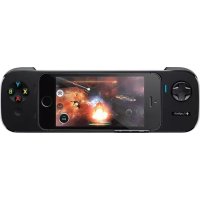
PowerShell Controller - Docking station LOGITECH - Free user manual and instructions
Find the device manual for free PowerShell Controller LOGITECH in PDF.



| Product type | Docking station with game controller for iPhone/iPod touch |
| Brand | Logitech |
| Model | PowerShell Controller |
| Compatibility | iPhone 5, iPod touch (5th generation) with iOS 7 or later |
| Connectivity | Lightning connector for connection to Apple device |
| Power supply | Rechargeable internal battery via micro-USB port (cable included) |
| Simultaneous charging | Yes, thanks to the high-capacity battery switch |
| Charging indicator | Logo G: red for low battery, solid blue for full charge, flashing during charging |
| Game controller | Eight-directional analog D-pad, analog front and back buttons, pause button |
| Sleep function | iPhone sleep button present on the controller |
| Audio output | Audio output port with headphone extension cable included |
| Included accessories | iPod touch adapter, micro-USB charging cable, headphone extension cable |
| Wrist strap attachment | Eyelet for wrist strap (strap not included) |
| Camera opening | Present to facilitate device removal |
| Maintenance and cleaning | Clean with a dry soft cloth. Do not use liquid or abrasive products. |
| Safety instructions | Use only an Apple power adapter (5V - 1A) for charging |
| Spare parts and repairability | Replaceable battery at end of life (removal illustrated in the manual) |
Frequently Asked Questions - PowerShell Controller LOGITECH
User questions about PowerShell Controller LOGITECH
0 question about this device. Answer the ones you know or ask your own.
Ask a new question about this device
Download the instructions for your Docking station in PDF format for free! Find your manual PowerShell Controller - LOGITECH and take your electronic device back in hand. On this page are published all the documents necessary for the use of your device. PowerShell Controller by LOGITECH.
USER MANUAL PowerShell Controller LOGITECH
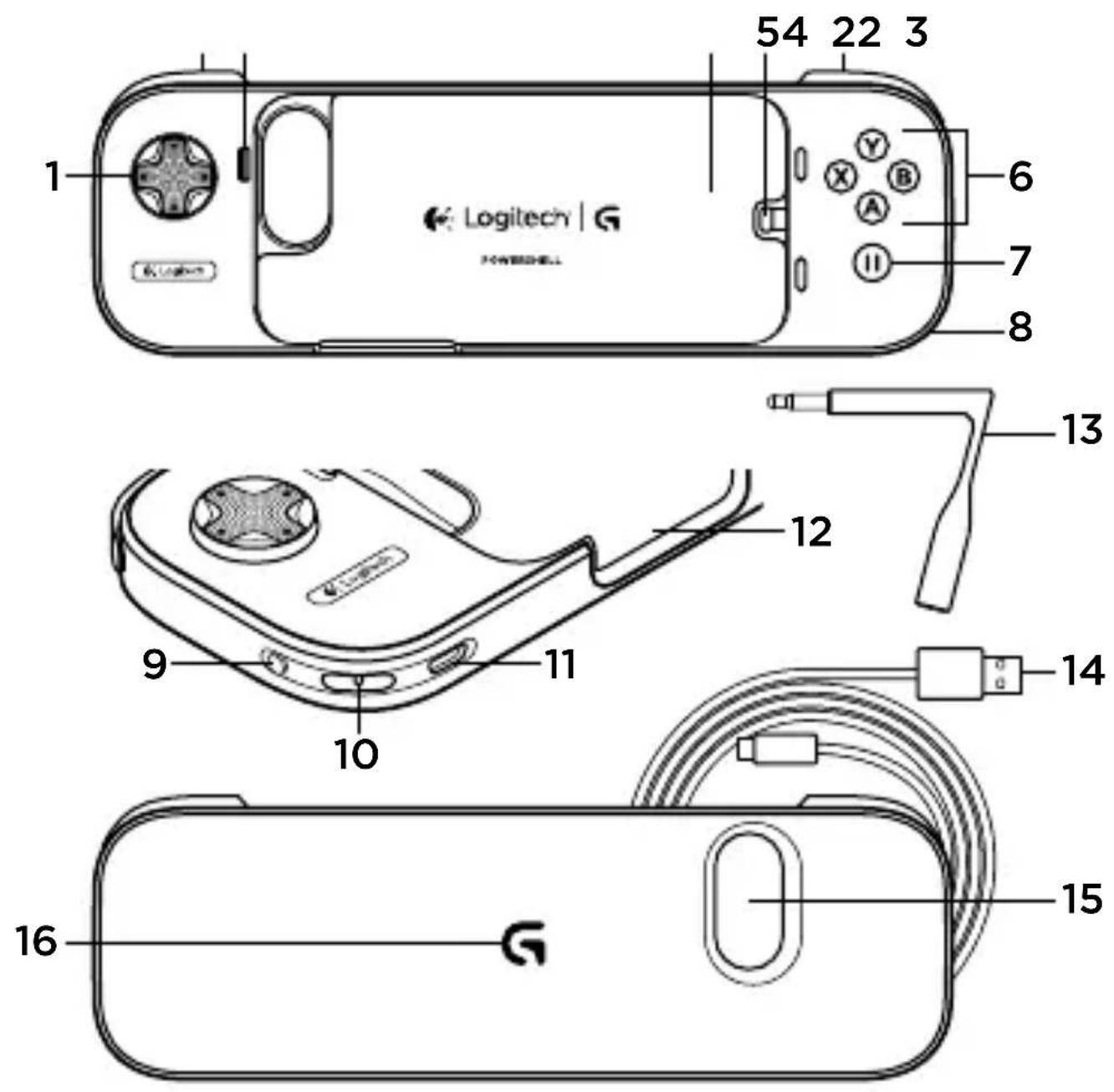
- 8-Way Analog D-Pad
- Analog shoulder buttons
- iPhone Sleep/Wake button
- iPod touch adapter
- Lightning connector
- Analog buttons
- Pause button
- Audio Jack access port
- Extended battery on/off switch
- Wrist strap mount (wrist strap not included)
- Micro-USB charging port
- iPhone/iPod touch volume and ring/silent switch access
- Headset extender cable
- Micro-USB charging cable
- Camera opening
- Battery indicator
Getting Started
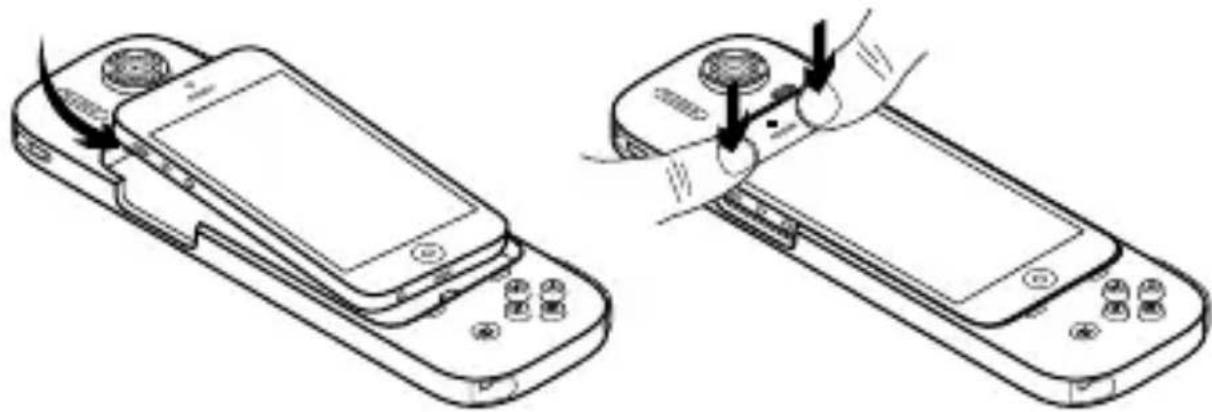
iPhone:
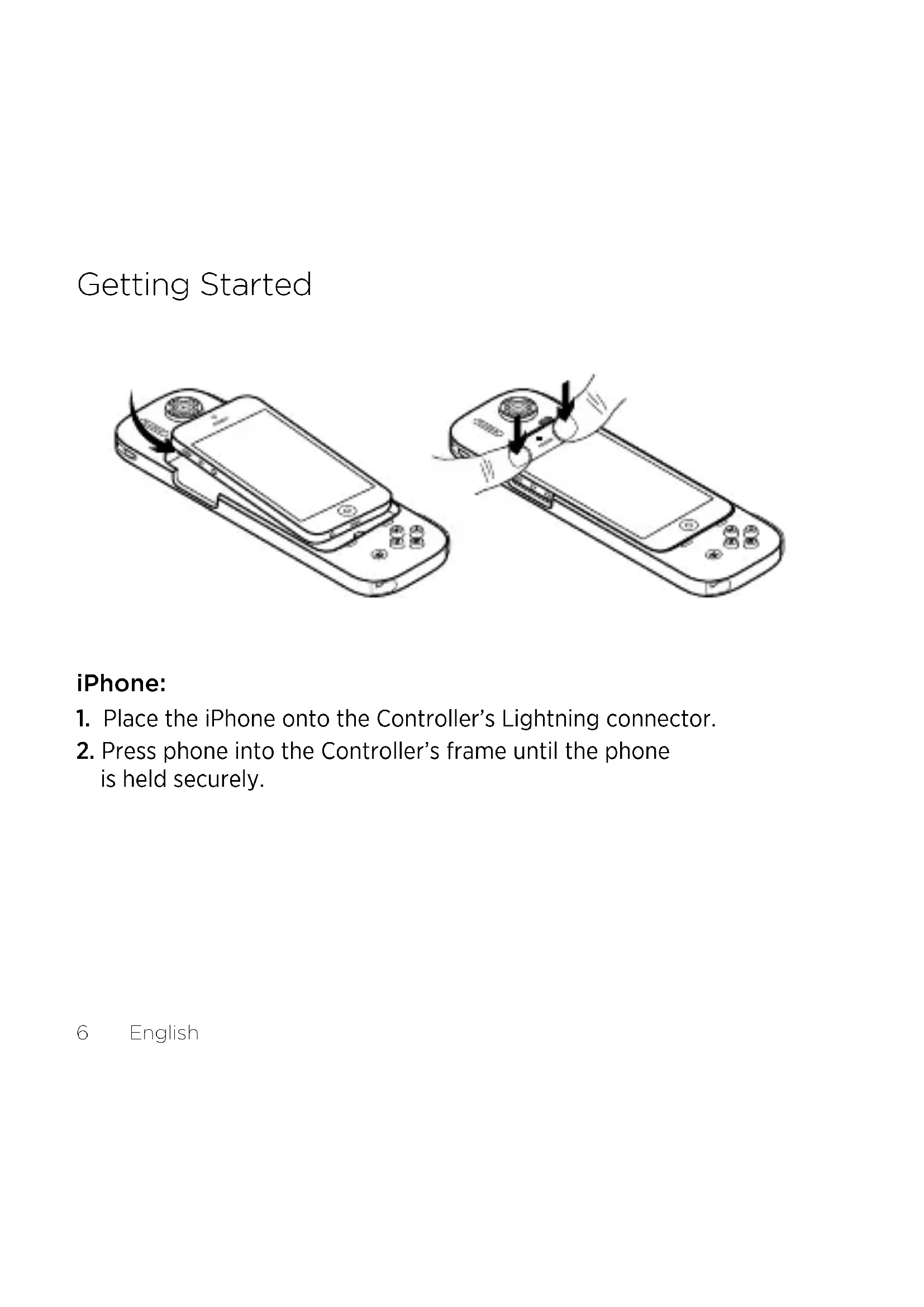
- Place the iPhone onto the Controller's Lightning connector.
- Press phone into the Controller's frame until the phone is held securely.
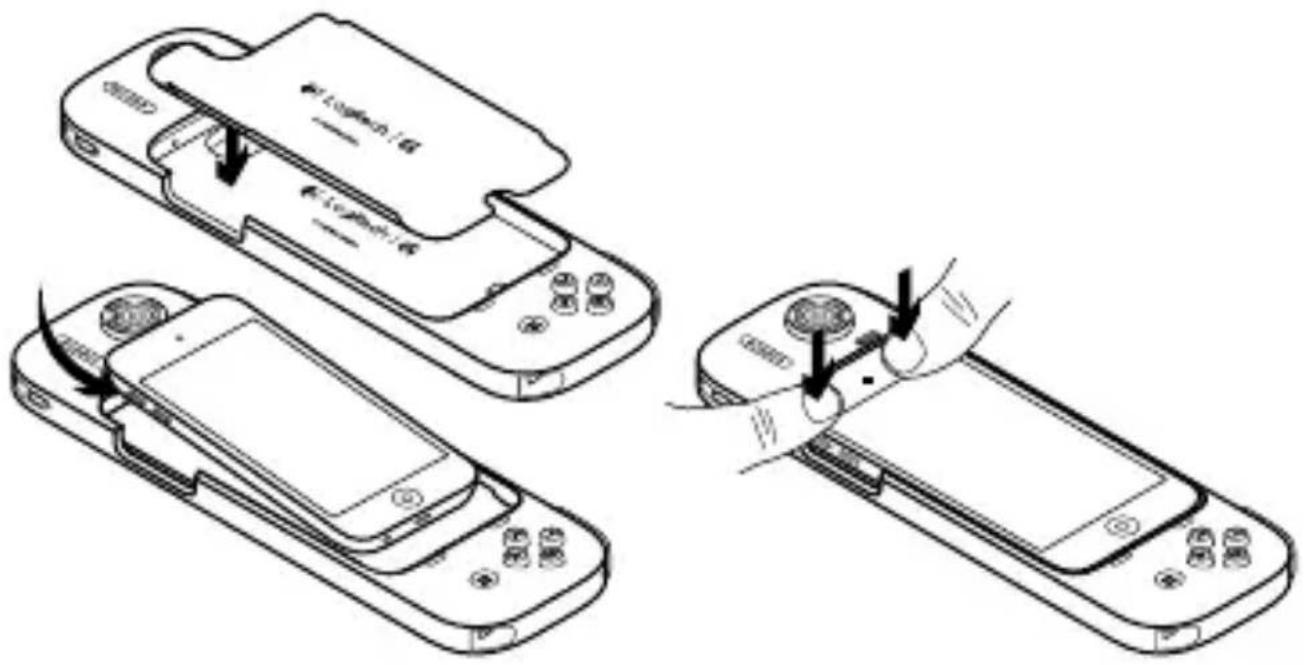
iPod touch:
- Place iPod touch adapter into the body of the Controller's cradle. Note: Insert the iPod touch adapter so that the G pull-tab rests behind the Lightning connector.
- Place the iPod touch onto the Lightning connector.
- Press the iPod touch into the Controller's frame until the iPod touch is held securely.
Using your Controller
- Use the Controller to play iOS 7 games.
- To use a headset with your Controller, insert the included headphone extender cable into the audio jack access port.
- To extend your iPod touch or iPhone battery, simply move the Extended Battery switch to "On".
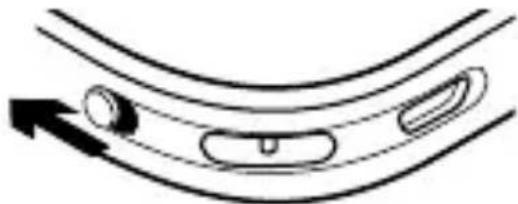
- When the Controller's battery needs to be charged, the G logo on the back will turn red. Please charge your Controller when possible.

Removing your iPod touch or iPhone from your Controller
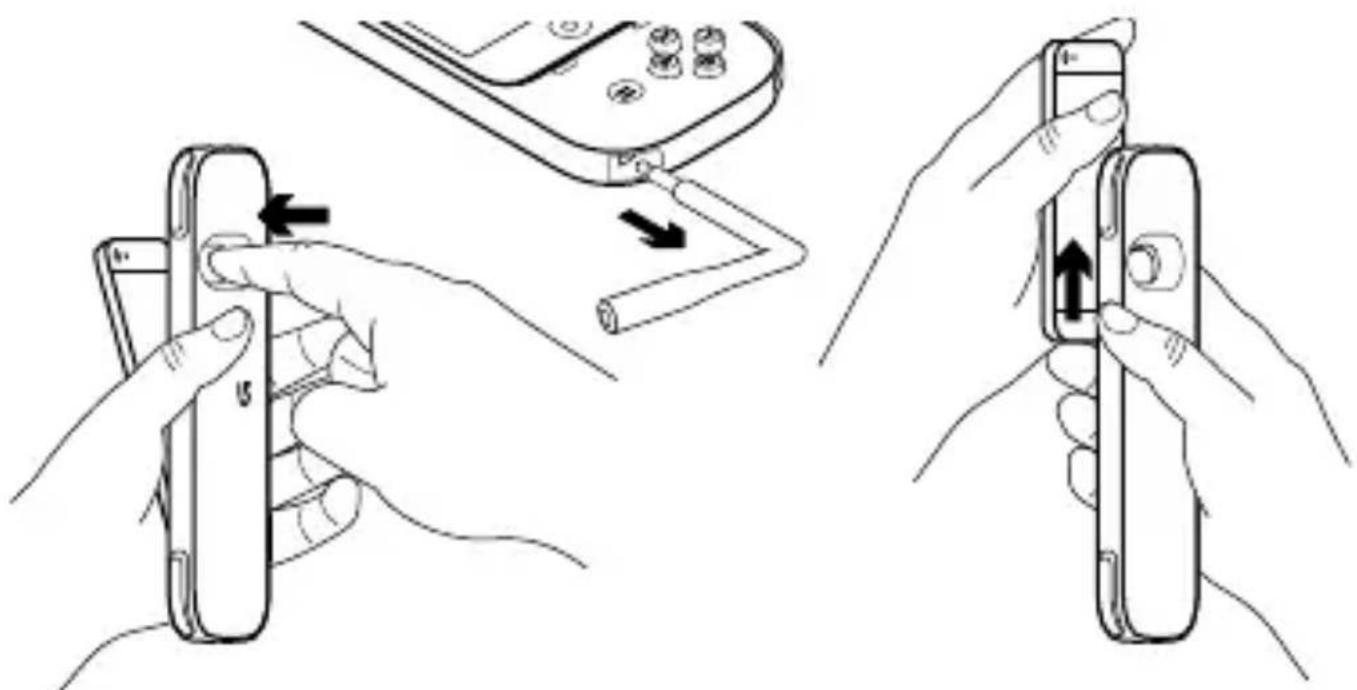
- Remove any headphones or other audio jack devices from the headset port.
- Over a table, hold your Controller and press through the camera opening until the iPhone or iPod touch rotates slightly out of the Controller's frame.
- Once the iPhone or iPod touch is slightly out of the frame, pull your Apple device directly away from the Lightning connector.
Charging your Controller
-
Plug your USB charging cable into your iPhone or iPod AC adapter*.
-
Plug the micro-USB connector into the Controller's charging port.
-
The G logo will blink while charging. Once the Controller is fully charged, the G logo will glow solid blue. Your Controller is now charged.
-
To charge your iPhone or iPod touch while charging your Controller, make sure to set the Extended Battery switch to On.
-
Only use Apple power adapters compatible with iPhone 5 or iPod touch (5th generation).
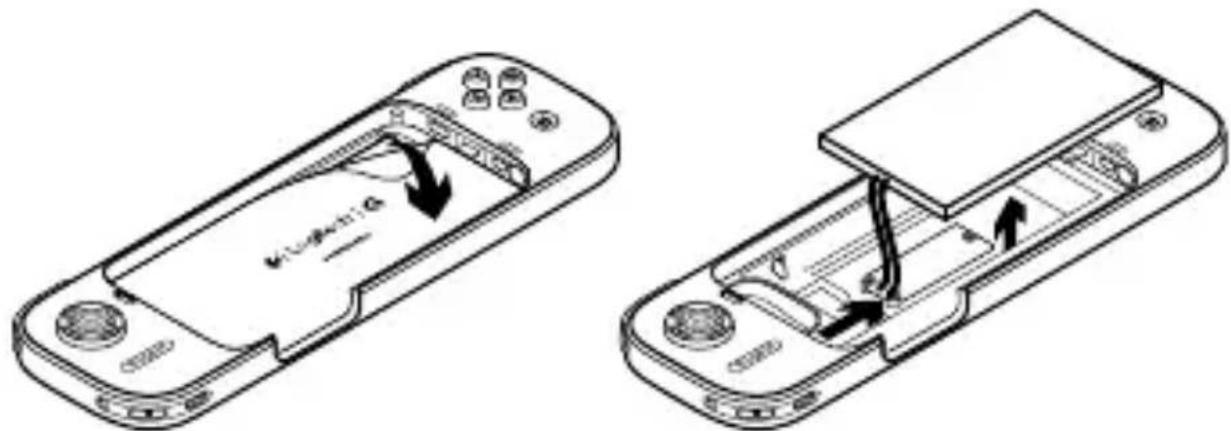
Note: At the end of product life remove battery as shown.
Troubleshooting
My Controller isn't working with my iPhone/iPod touch
- Ensure you are running iOS 7 or later.
- Make sure your game supports the game controller feature.
- Make sure your Controller is fully charged.
I can't remove my iPhone/iPod touch from the Controller
- Remove the headset adapter or any other plug from the audio jack access port.
- Three inches over a soft surface, gently press through the camera opening to release from Controller's frame.
My iPhone or iPod touch isn't charging properly
- Make sure you are using the original AC adapter included with your iPod touch/iPhone, or make sure you are using a USB AC adapter providing 5V 1A of power output.
- Set the Extended Battery switch to On.
- Try a different USB port or AC adapter.
This product may affect cellular and wireless performance while in use.
12 Deutsch
French: +32-(0)2 200 64 40
Česká Republika +420 239 000 335
Danmark +45- 38 32 31 20
Lausanne, Switzerland
Eastern Europe
English: 41-(0)227614025
Logitech|G
www.logitech.com
"Made for iPod" and "Made for iPhone" mean that an electronic accessory has been designed to connect specifically to iPod, or iPhone respectively, and has been certified by the developer to meet Apple performance standards. Apple is not responsible for the operation of this device or its compliance with safety and regulatory standards. Please note that the use of this accessory with iPod or iPhone may affect wireless performance.
© 2013 Logitech. All rights reserved. Logitech, the Logitech logo, and other Logitech marks are owned by Logitech and may be registered. All other trademarks are the property of their respective owners. Logitech assumes no responsibility for any errors that may appear in this manual. Information contained herein is subject to change without notice.
620-005537.003
- Getting Started
- iPhone:
- iPod touch:
- Using your Controller
- Removing your iPod touch or iPhone from your Controller
- Charging your Controller
- Troubleshooting
- My Controller isn't working with my iPhone/iPod touch
- I can't remove my iPhone/iPod touch from the Controller
- My iPhone or iPod touch isn't charging properly
- Logitech|G
Brand : LOGITECH
Model : PowerShell Controller
Category : Docking station