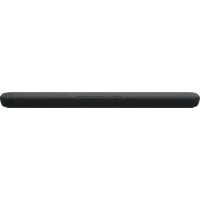
YAS109 - Soundbar YAMAHA - Free user manual and instructions
Find the device manual for free YAS109 YAMAHA in PDF.


| Product type | Soundbar |
| Brand | YAMAHA |
| Model | YAS-109 |
| Dimensions (W x H x D) | 890 x 53 x 131 mm |
| Weight | 3.9 kg |
| Power supply | Mains (power cord included) |
| Power consumption | 30 W |
| Speakers | 2 full-range speakers + dual built-in subwoofers |
| Output power | 60 W |
| Supported audio formats | DTS Virtual:X, DTS Digital Surround, Dolby Digital |
| Connectivity | HDMI (ARC), HDMI input, digital optical, Ethernet, Bluetooth, Wi-Fi |
| Functions | 3D Surround, Clear Voice, Bass Extension, Movie/TV/Music/Sports/Game modes |
| Control | Remote control, Sound Bar Controller app, Amazon Alexa voice commands |
| Video compatibility | 4K HDR passthrough, ARC |
| Included accessories | Remote control with battery, power cord, optical audio cable, spacers, mounting template, quick start guide, safety brochure |
| Maintenance and cleaning | Clean with a soft, dry cloth. Do not use chemical products. |
| Safety | Do not expose to moisture, do not open the device, use only included accessories. |
| Spare parts and repairability | Contact Yamaha after-sales service for repairs. Parts not provided separately. |
Frequently Asked Questions - YAS109 YAMAHA
User questions about YAS109 YAMAHA
0 question about this device. Answer the ones you know or ask your own.
Ask a new question about this device
Download the instructions for your Soundbar in PDF format for free! Find your manual YAS109 - YAMAHA and take your electronic device back in hand. On this page are published all the documents necessary for the use of your device. YAS109 by YAMAHA.
USER MANUAL YAS109 YAMAHA
Front Surround System
Part names and functions 10
Remote control 13
PREPARATION 14
1 Preparation 14
Connections 14
3 Turing on the unit 16
4 Connecting to a network 16
PLAYBACK 17
Basic procedure for playback 17
Selecting sound preferences 18
Useful features for playback 19
Listening to audio from a Bluetooth device 20
Streaming services 20
Operating the unit using voice commands
(Amazon Alexa) 21
About this Quick Start Guide
This Quick Start Guide was created for users of this unit. It primarily covers the following.
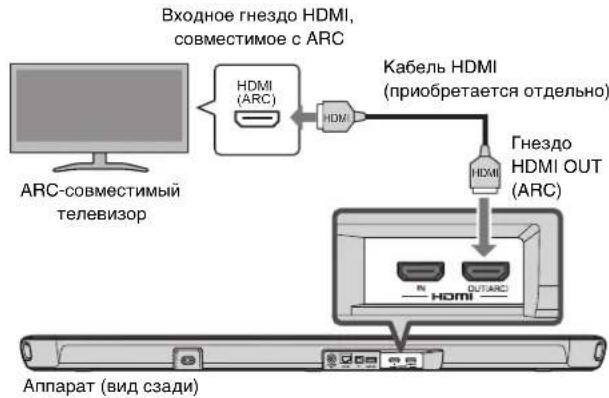
- Connecting a TV that supports Audio Return Channel (ARC), and A/V devices such as those for streaming media
- Connecting to a wireless network
Basic use
Amazon Alexa
This document provides step-by-step instructions for installation and playback. Refer to the Owner's Manual on the Yamaha website for troubleshooting or when more information is required.
Follow one of the methods described below to view the latest Owner's Manual.
In HTML format
-
Scan the QR code found on the front cover of this document.
-
Visit the following website: https://manual.yamaha.com/av/19/yas109/
In PDF format
Visit the following website: https://download.yamaha.com/
[For U.S. customers only]
Visit the following website for additional information, FAQ's, downloads such as "Owner's Manual" and product updates: http://usa.yamaha.com/support/
Notice for content in this manual
This manual uses the following signal words for important information:
■NOTICE
Indicates points that you must observe in order to prevent product failure, damage or malfunction and data loss, as well as to protect the environment.
■NOTE
Indicates notes on instructions, restrictions on functions, and additional information that may be helpful.
- The illustrations and screenshots in this document are for instructional purposes only. For any information on devices other than this unit, refer to each device's respective documentation.
-
TRADEMARKS:
-
DTS, the Symbol, DTS and the Symbol together, DTS Digital Surround, and DTS Virtual:X are registered trademarks or trademarks of DTS, Inc. in the United States and/or other countries. © DTS, Inc. All Rights Reserved.
- Amazon, Alexa, Amazon Music, Kindle and all related logos are trademarks of Amazon.com, Inc. or its affiliates.
- App Store is a service mark of Apple Inc.
Android and Google Play are trademarks of Google LLC. - The Bluetooth® word mark and logos are registered trademarks owned by Bluetooth SIG, Inc. and any use of such marks by Yamaha Corporation is under license. Other trademarks and trade names are those of their respective owners.
-
QR Code is a registered trademark of DENSO WAVE INCORPORATED in Japan and in other countries.
-
The terms HDMI, the HDMI Logo, and High-Definition Multimedia Interface are trademarks or registered trademarks of HDMI Licensing LLC in the United States and other countries.
-
In this manual, iOS and Android mobile devices are collectively referred to as "mobile devices". The specific type of mobile device is noted in explanations as needed.

INTRODUCTION
This unit is a front surround system with its built-in subwoofoers that allows for the enjoyment of superior sound quality from video played on a TV connected to the unit.
Features
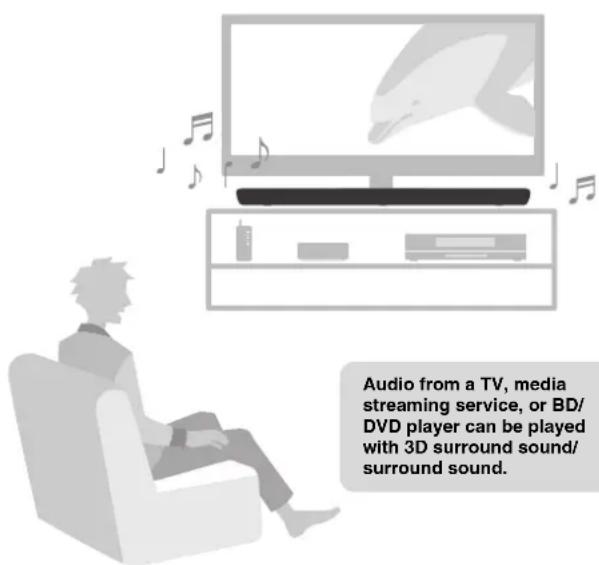
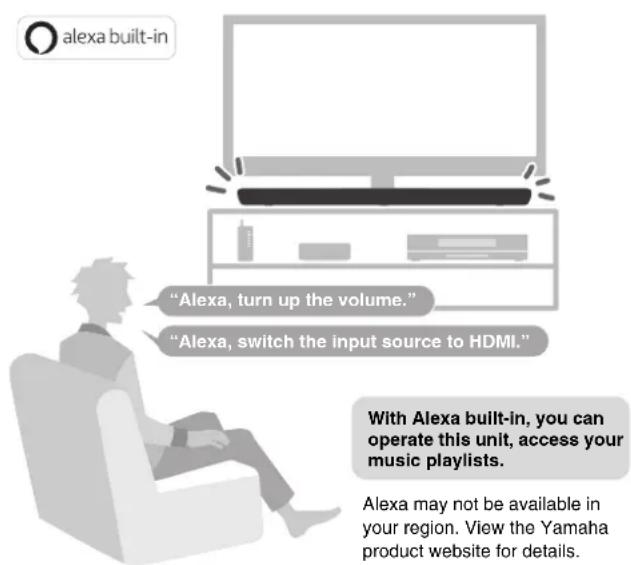
Play surround sound Ask Alexa to control the unit
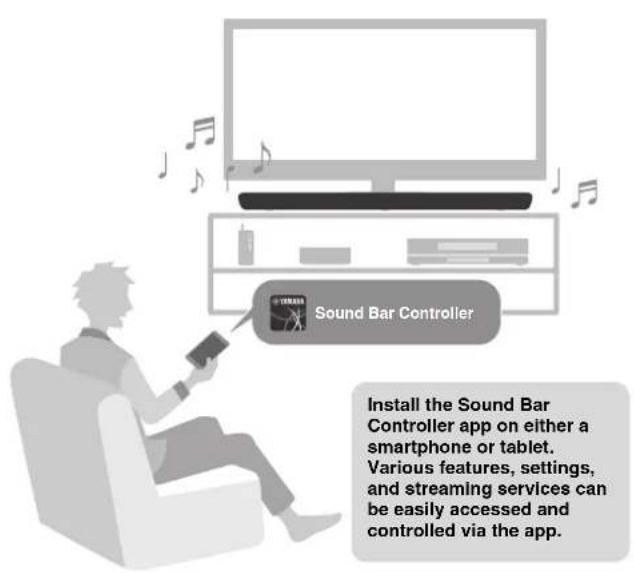
Easy operation with the smartphone app
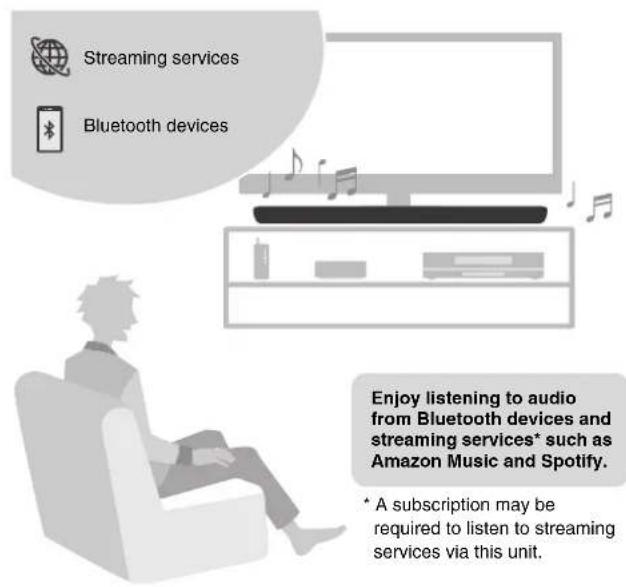
Listen to audio from Bluetooth devices and streaming services
3D surround playback
This unit supports virtual 3D surround sound technology called "DTS Virtual:X". Surround sound can be heard not only from horizontal directions, but also from varying heights when this unit's 3D surround mode is enabled, creating a virtual acoustic environment. This provides a greater sense of cohesion between audio and video, for a sense of being surrounded by sounds coming from ahead, behind, the left and right, and even above for an immersive visual and auditory experience.
Transmission of 4K high dynamic range (HDR) video
Enjoy 4K High Dynamic Range (HDR) content from HDR-compatible sources such as a TV, media streaming device, gaming console, or set-top box.
HDMI control function
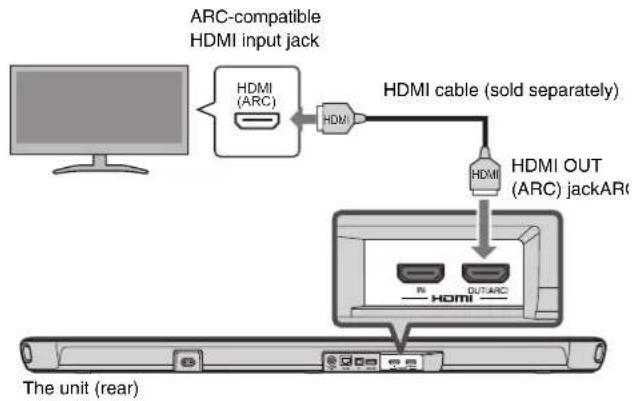
Link functions of a TV and the unit are available using the TV's remote control. When a TV that supports Audio Return Channel (ARC) is used, this ARC-compatible unit can be connected to the TV via a single HDMI cable.
Bass Extension
The bass extension feature boosts bass levels for more impactful sound.
Clear Voice
The clear voice function makes speech, such as dialog and narration, clearer.
Accessories
Make sure you have received all of the following accessories.

The unit (YAS-109)
Remote control

Power cord
A CR2025 Lithium battery has already
been inserted into the remote control.

Optical digital audio cable
Use when connecting the unit to a TV that does not support ARC.

Spacers (x 2/sheet)
Use when mounting the unit on a wall.

Mounting template
Use when mounting the unit on a wall.

Quick Start Guide (this booklet) Safety Brochure

NOTE
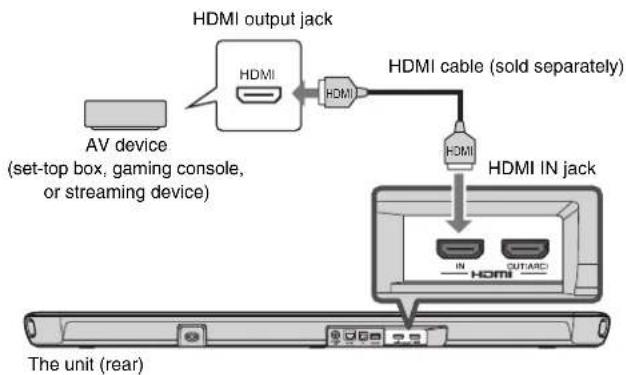
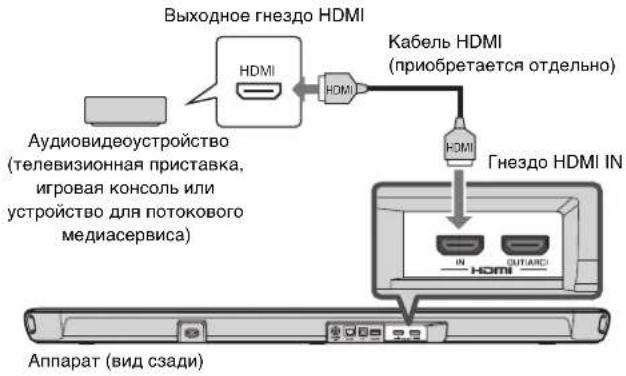
- HDMI cables are not supplied with the unit. Use the HDMI cables purchased separately.
- The Owner's Manual is available on the Yamaha website. Scan the QR code found on the front cover of this document to visit the website. For more information, see page 4.
Part names and functions
Front/top panel
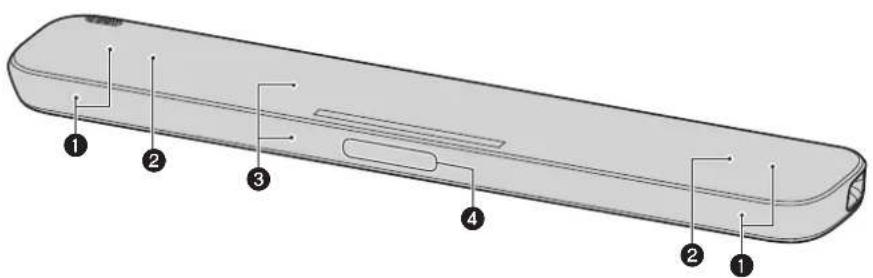
1Speakers
Dual built-in subwoofer
The built-in subwoofoers are located in the top part of the unit.
Remote control sensors
Receive infrared (IR) signals from the remote control of the unit (p.13).
4 Microphones
Used to interact with Alexa.
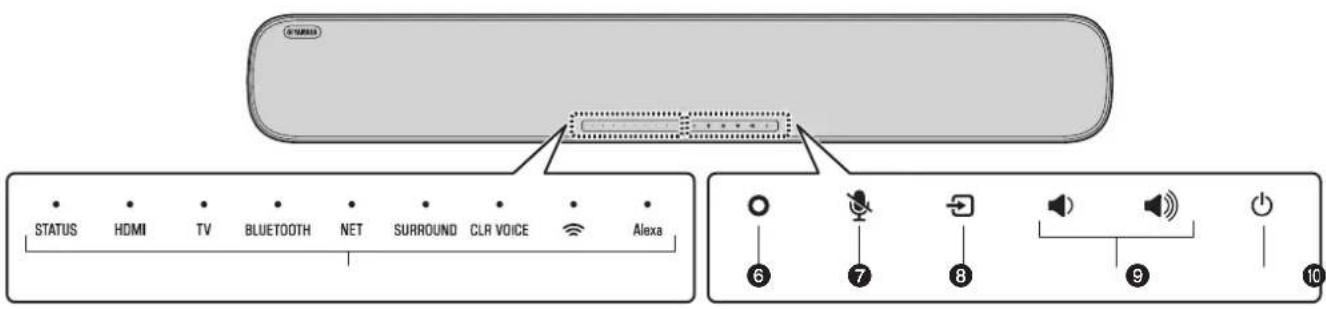
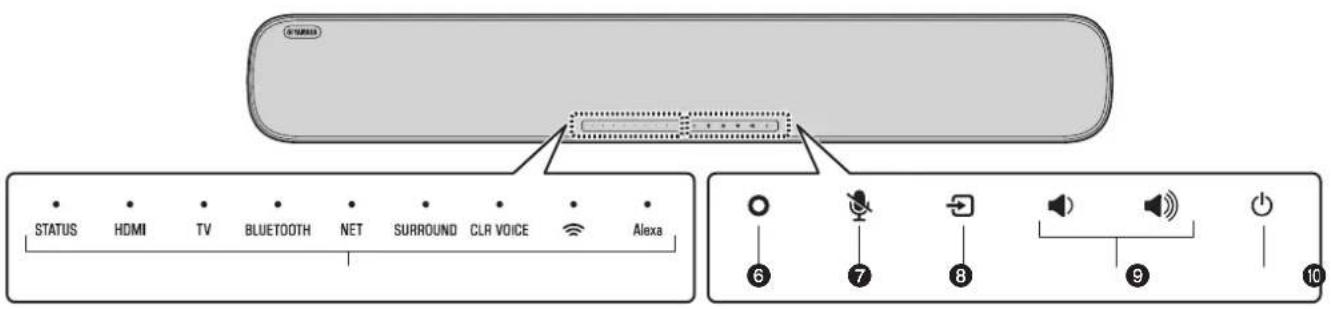
Indicators
The indicators on the top panel flash or glow to show the operation and setting status. In this document, indicator status, such as off, glowing, and flashing, are shown as the illustrations below.

Off

Glows

Flashes
6(Alexa)
Manually wake Alexa to enable a voice command (p.21).

(Microphones disabled)
Touch to disable the microphones. Alexa will not respond to utterances while the microphones are disabled. Disable the microphones to maintain privacy. Touch again to enable the microphones (p.21).

(input)
Select an input source (p.17).

/volume+/-)
Adjust the volume (p.17).

(power)
Turn on or off the unit.
Rear panel
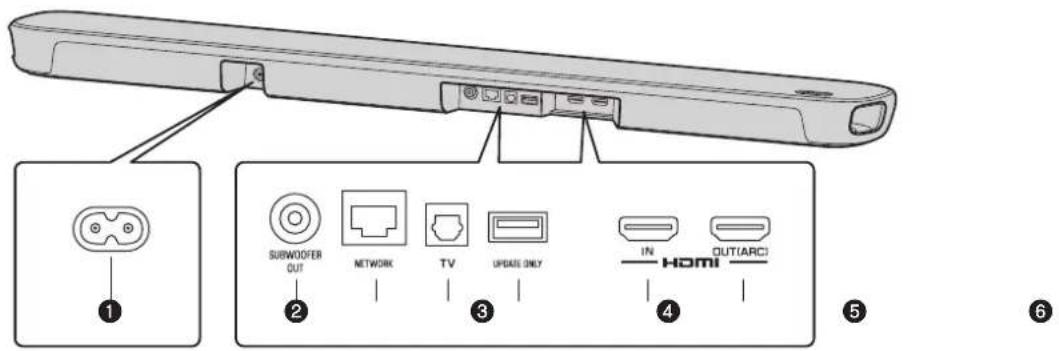
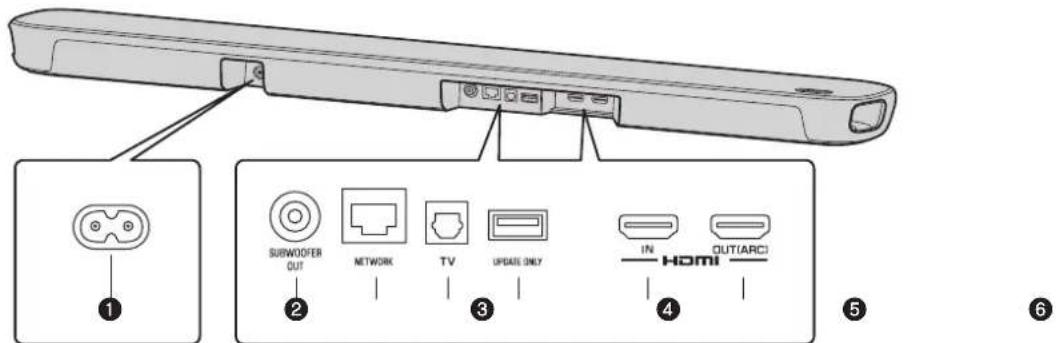
Power connector
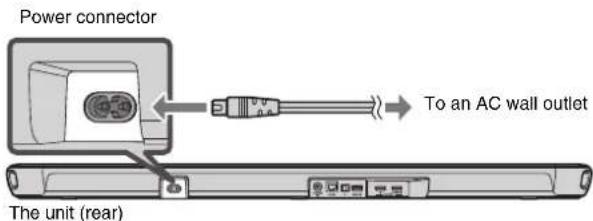
Connect the power cord of this unit (p.15).
SUBWOOFER OUT jack
For connecting to an external subwoofer with an RCA mono cable.
3 NETWORK jack
For connecting to a network with an ethernet cable (sold separately).
4TV input jack
For connecting to a TV that does not support ARC. This jack cannot be used when the unit is connected to an ARC-compatible TV.
UPDATE ONLY jack
Use to update this unit's firmware, if necessary. Refer to the instructions supplied with the firmware for details.
HDMI IN jack
Connect to an HDMI-compatible AV device to input video/audiosignals (p.15).
7HDMI OUT (ARC) jack
Connect to an HDMI (ARC)-compatible TV to output video/audiosignals (p.15).TV audio signals can also be input through this jack.
Remote control
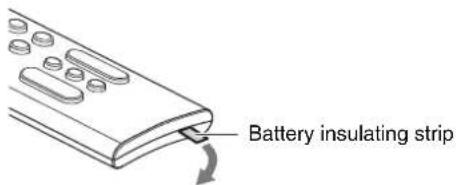
Preparing the remote control
Remove the battery insulating strip before attempting to use the remote control.
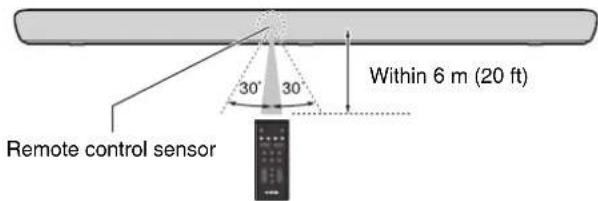
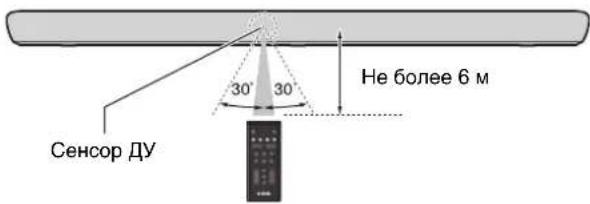
Operating range of the remote control
Operate the remote control within the range as shown below.
PREPARATION
1 Preparation
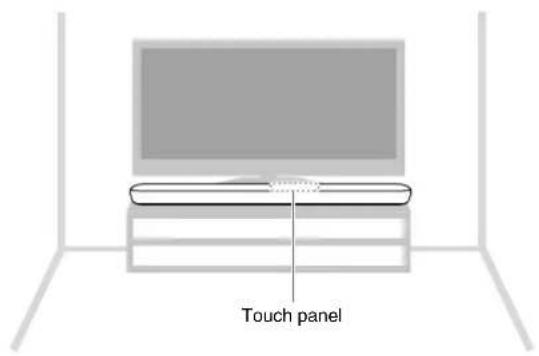
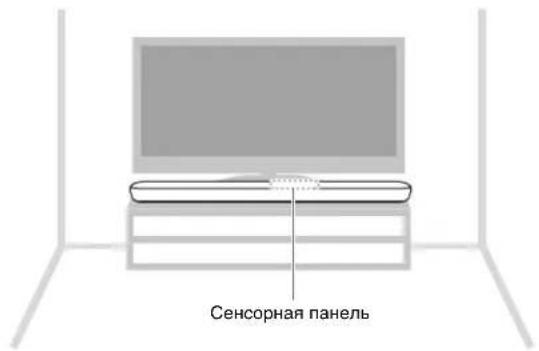
Installing the unit on a TV stand
Install the unit as shown below.
2 Connections
Overview
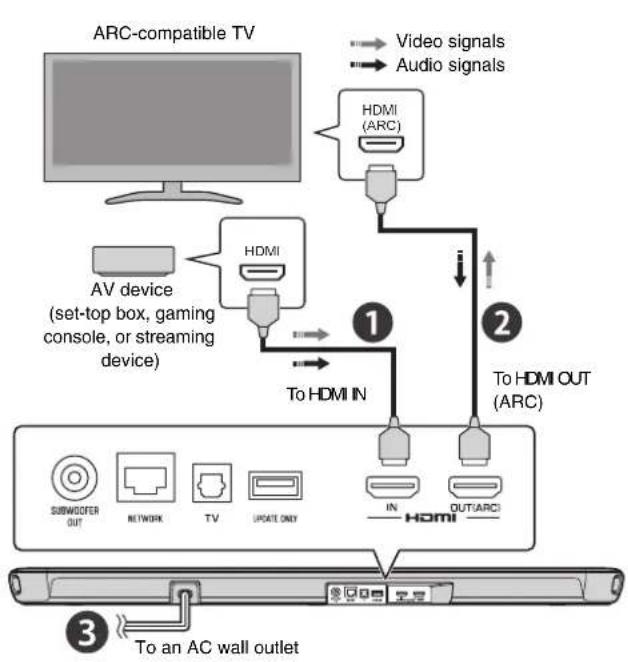
Connecting an AV device
Connect a streaming device, set-top box, or other AV device to the unit. If only a TV will be connected, skip this step and proceed to step 2.
Connecting an Audio Return Channel (ARC) compatible TV
3 Connecting the power cord
After all connections are complete, connect the supplied power cord to the power connector on the unit and then plug the power cord into an AC wall outlet.
3 Turing on the unit
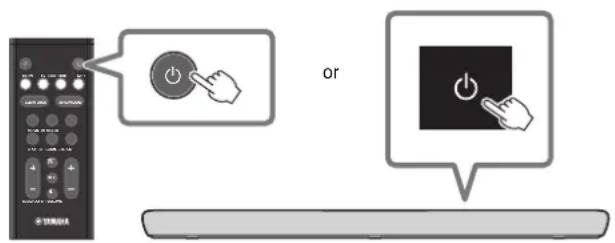
Press on the remote control or touch on the unit to turn on the unit.
When the unit is turned on, the STATUS indicator goes off.
Turned off (standby)

Glows (white or red)

Turned on

Off
■ NOTE
To turn off the unit, press on the remote control or touch on the unit again.
4 Connecting to a network
A network connection allows you to play various streaming services via the unit, and to talk with Amazon Alexa to operate this unit, or to play music.
The Sound Bar Controller app for mobile devices is required to configure and operate network functions. Search for "Sound Bar Controller" on the App Store or Google Play.
Follow the app's on-screen instructions to connect the unit to a network.
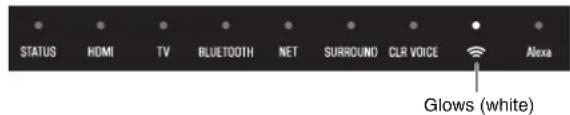
The ≈ indicator on the unit glows when the unit is connected to a wireless network.
NOTE
- Follow the app's on-screen instructions to enter your Amazon account information to use Amazon Alexa.
- When the unit is connected to a network for the first time after purchase, the unit's firmware is updated to the latest firmware version.
PLAYBACK
Basic procedure for playback
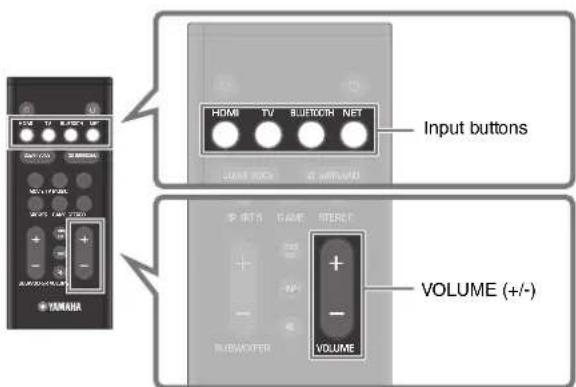
1 Turn on the external devices (such as a TV or media streaming device) connected to the unit.
2 Use the input buttons to directly select an input source to be played.
HDMI: Sound from a device connected to the HDMI IN jack TV: TV audio
BLUETOOTH:Sound from a Bluetooth device NET: Audio from streaming services
3 Start playback on the external device selected in step 2.
4 Press VOLUME (+/-) to adjust the volume.
■ NOTE
When the unit is connected to a TV via HDMI cable as described in this document, the TV's remote control can be used to perform the following operations.
- Turn on/off
Both the TV and the unit turn on/off at the same time. - Switch input sources
The unit's input source switches accordingly when the TV's input source is switched.
- Switch the audio output device
The audio output device can be switched to the TV or the unit. - Adjust volume
The unit's volume can be adjusted when the TV's audio output is set to the unit.
Selecting sound preferences
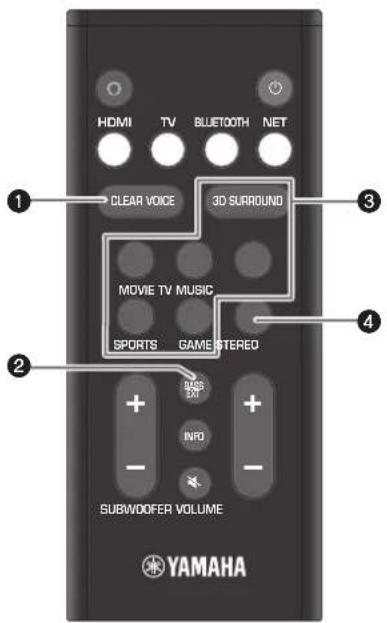
CLEAR VOICE button
Press the button to enable or disable the clear voice function.
Human voices such as lines in movies and TV shows are heard clearly when the function is enabled.
BASSEXT button
Press the button to enable or disable the bass extension function.
You can enjoy enhanced bass sound and more powerful sound when the function is enabled.
3D SURROUND button and surround mode buttons
3D SURROUND button
3D surround playback and surround playback switch alternately each time the button is pressed.
When 3D surround playback is selected, DTS Virtual:X makes it possible to hear sound not only from horizontal directions, but also from varying heights.
3D surround playback

Glows (blue)
Surround playback

Glows (white)
Surround mode buttons
Select the surround mode (MOVIE, TV, MUSIC, SPORTS, or GAME) best suited to the content viewed or listened to when 3D surround sound playback or surround playback is enabled.
4STEREO button
Press the button to switch to 2-channel stereo playback.

Off
Useful features for playback
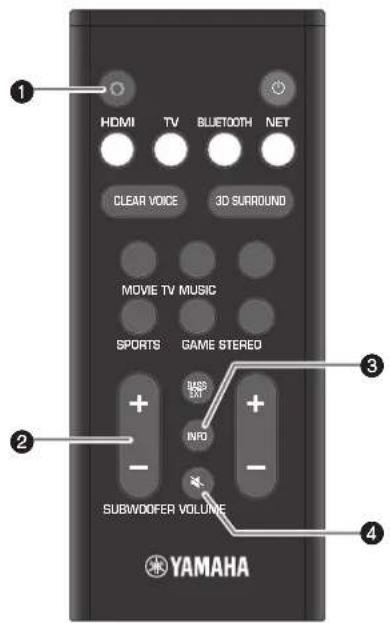
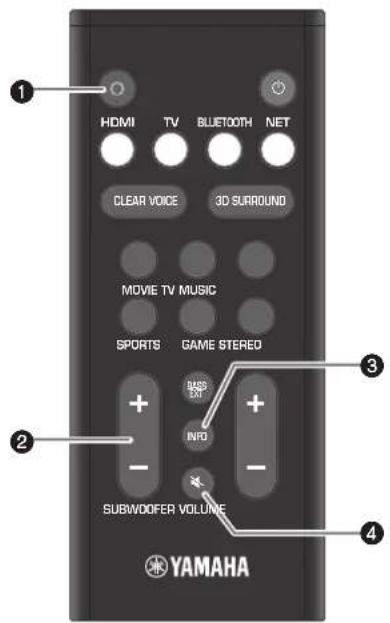
Alexa button
Manually wake Alexa to enable a voice command.
SUBWOOFER (+ / - ) button
Adjust the volume of the subwoofer.
3INFO button
Confirm the type of audio signal being played, as well as settings for functions.
4 (mute) button
Mute the audio output. Press the button again to unmute.
Listening to audio from a Bluetooth device
Audio content from a Bluetooth device (such as a smartphone, tablet, laptop, or digital music player) can be played through this unit over a wireless connection.
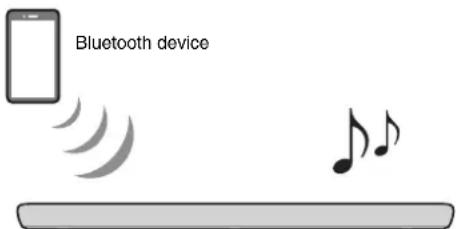
1 Press BLUETOOTH to select "Bluetooth" as the input source.
2 On the Bluetooth device, enable the Bluetooth function.
The Bluetooth device list appears on the Bluetooth device.
3 Select this unit in the list.
"YAS-109 Yamaha" is displayed in the list.
4 Play content with audio on the Bluetooth device.
The unit will begin playing audio from the Bluetooth device.
Streaming services
Audio content distributed by various streaming services over the Internet can be played via the unit. Use the Sound Bar Controller app (p.16) to select content to play from a streaming service. See the Sound Bar Controller app for details.
See the product information page on the Yamaha website regarding which streaming services are currently supported by this unit.
NOTE
- A subscription may be required to listen to streaming services via this unit. For information on a particular streaming service, visit that service's website.
- Service is limited to certain areas.
- Services supported by the unit may not be available in some regions in which the unit is sold.
- Services may change or be discontinued without notice. Please note that Yamaha Corporation is in no way responsible for, and will not be held liable for, streaming services or issues arising from their use.
Operating the unit using voice commands (Amazon Alexa)
You can talk to Amazon Alexa on your unit. With Alexa, you can ask to play music, hear the news, check weather, control smart home devices, and more.
An Amazon account is required to use Amazon Alexa and the unit must be connected to a network. Use the Sound Bar Controller app to enter your Amazon account information and log into the service.
Alexa can perform the following operations with the proper voice commands.
- Switching input sources
- Adjusting (muting) the volume
- Selecting and listening to streaming services See the product information page on the Yamaha website regarding which streaming services are currently supported by this unit.
NOTE
Service is limited to certain areas.
- Services supported by the unit may not be available in some regions in which the unit is sold.
- See the product information page on the Yamaha website for the latest information.
- A subscription may be required to listen to Amazon Music or Amazon Kindle on this unit. For more information, visit the Amazon website.
- For information on other streaming services, visit the websites of those service providers.
- A smart hub (sold separately) may be required to connect smart home devices that will be controlled via the unit.
For example, just ask:
Adjust the volume
"Alexa, turn up the volume."
"Alexa, turn down the volume."
Switch input sources
"Alexa, switch the input source to HDMI."
Listen to streaming content from Amazon Music
"Alexa, play some jazz music."
Operate playback
"Alexa, play next song."
"Alexa, stop the music."
"Alexa, what is this song?"
Check the weather
"Alexa, what's the weather?"
Set a timer
"Alexa, set a timer for 10 minutes."
Table des matieres
A propos de ce
https://download.yamaha.com/
Accentuation des graves
Commander la lecture
4K High Dynamic Range (HDR)-Sendungen
Buchse SUBWOOFER OUT
https://download.yamaha.com/
7HDMI OUT (ARC)-jack
Knappar for surroundlage
"Alexa, play some jazz music."
Hantera upspelning
"Alexa, play next song."
"Alexa, stop the music."
"Alexa, what is this song?"
Kontrollera vadret
"Alexa, what's the weather?"
Stalla in en timer
"Alexa, set a timer for 10 minutes."
Indice
https://download.yamaha.com/
https://download.yamaha.com/
Mudar as fontes de entrada
"Alexa, switch the input source to HDMI."
"Alexa, play some jazz music."
Opere a reproducao
"Alexa, play next song."
"Alexa, stop the music."
"Alexa, what is this song?"
Verifique o tempo
"Alexa, what's the weather?"
"Alexa, set a timer for 10 minutes."
Inhoud
Overdeze Snelstartgids 130
INLEIDING 132
Kenmerken 132
Accessoires 135
https://download.yamaha.com/
"Alexa, play some jazz music."
Algemene bediening
"Alexa, play next song."
"Alexa, stop the music."
"Alexa, what is this song?"
Weerbericht
"Alexa, what's the weather?"
Timer instellen
"Alexa, set a timer for 10 minutes."
Copepkne
O6 3tOMdoKymeTe KpaTkoepykoBOdCTBO no haay pa6oTbI ....148
BBEDEHNE 150
Oco6eHHocTn 150
Akecccyapbl 153
Ha3BaHnKOMnHOHeTOB INxΦyHKuIN 154
Iyblny 157
POnIroTOBKA 158
1 PnodrotOBka 158
2 PoiokloueHna 158
3 BkIoueHne annapata 160
4ПоdkлioуенkeКceTn 160
BOCINPOU3BEDEHNE 161
OchOBHnA npoEpya DnI BOCnpOn3BedeHn 161
Bb6op npednoTntelhblx Hactpoek 3Byka 162
Iope3hble fhykunn DnBocnpon3BeHeHna 163
IpocnyuBaHne aydno cycTroBb Bluetooth 164
PiToKOBble cepBncbl 164
YnpaBneHne annapaTOM c nOmoIbIO rOLOCOBbIX KOMaHd (Amazon Alexa) 165
PpHMaet HpKaPachBie CnHaJIbI OT NybTa Y annapata (c.157).
4MnKpOoHbI
Ncnonb3yioTc nIaB3aIMoJeCTBnC Alexa.
VHdNkAtopbi
HnDnKaTOpbHaBepxHeNaHEnMnraIOTnHrOpHT HnpepbIBHO,OTobpaKaoncoTOrHneonepaunnHaCTpoiKn.B DaHHOM DOKyMeHTe COCToHnIHnDKaTopa,HanPmep BbIKIOueH,ropNTuMraeT,OTobpaKaIOTcKaKHa HIIIOCTpaUNx HNXe.

BbiknIOueH

Topnt

Muraet
6(Alexa)
BpyHyIO aKTHBpyTe Alexa dIN BKNIOHEnr rONOCBOI KOMAnDbI (c.165).

(MnKpofoHbIOTKIOueHbI)
KoCHNTecb dIa OTKnIOUeHnMkPOpOHOB. Alexa He 6ydet pearnpoBaTb Hapeb, noka MKNPOpOHbl OTKnIOUeHbI. OTKIOUHTe MKNPOpOHbl dIa COXpaHHeHH KOnHnDEHuaNBocTH. KoCHNTecb eue pa3 dIa BkIOUeHH MKNPOpOHOB (c.165).

(BXoD)
BbIbepuTe nCTOuHnK BxoJHO rHana (c.161).

/(rpomKocTb+/-)
PerynipovBka rpoMkoCTn (c.161).

(NiTuHne)
BkIIOUeHHe IIN BbIKIOUeHHe annapaTa.
3aHnaHaHeIb
Pa3bem NtTaHn
PoiKluoyHHe uHpya nHTaHn 3TOrAnnapata (c.159).
2Γhe3do SUBWOOFER OUT
IINIOKIIIOHENK BHEHEMy cABBypepy C NOMOIOMOHOKAeBRA
3Γhe3do NETWORK
Дяюкlioоникети cnoomoboceteborokabela Ethernet (npoadaetcotdelloho).
4Bxoadhoe rhe3do TV
ДяnoКиQuHЯK TeneBn3opy,He noДepeKnaBoUoemy ARC.Данhoe rHe3do He MoKet nCNoJb3ObaTbCBA TOM CnyHae,Kordaannapat noKluOHeK ARC-CoBMeCTmOMy TeneBn3opy.
5Γhe3do UPDATE ONLY
NcnoB3yETcIgO6HOBHeHnB BCTpoEHOro npOrpAMMHorO
0e6ceHn 3TOr aannapata, B cnyae Heo6xOaMocTn.
DononHtEnbHbe CBeEHn CM. B DOKyMeHTaun, npInaraemOn
K BCTpoEHHompy npOrpAMMHOMy oecneHnIO.
⑥Hne3D0HDMI IN
IoiKIOHHe HDMI-COBMeCTHMOro ayINOBnDEOyCtPOiCTBa IaBbDA BInDeo/ayINOCnHAnOB (c.159).
7Γhe3doHDMIOUT(ARC)
ПоdkнючteКHDMI(ARC)-cobmecTUMomyTeJeBn3OpyДпВьЮда Виdeo/aaydnoCINrHaNoB(c.159).Yepe3To rHe3doTaKKe MOxHO BBOIDt b aydnoCINrHaNbI TeNeBn3Opa.
NyIbT IY
IoproTOBka npIbTa dy
Ipeep nCnObl3oBaHnem nyIbTa Dy ydaIInTe I3OnpuyuO npoknaKky 6aTapeeKn.
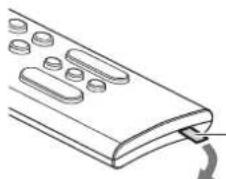
N30IpyuOaH npoknaKa 6aTapeKn
Dnana3oH deiCTBna nylbTa Dy
IcnoB3ynte nyt B npedeJax nokaahhbx Hnke dana3oHOB.
ПОДГOTOBKA
1 Nodrotobka
YcTaHOBKa annapaTa Ha Tym6e TeneBu3opa
YcTaHOBnTe annapaT, KaK nOKa3aHo HnKe.
2 NopdknloueHna
0630p
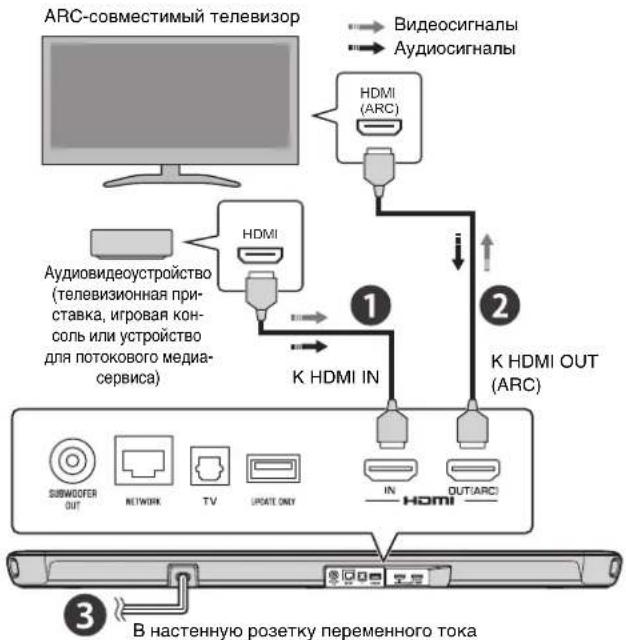
1 PoiKJIIOUeHHe ayDnOBuDeoYcTpoICTB
IopKnHOnTe K annapaTy ycTpoiCTBO nH noTOKOBOro MeDnacepBnca, TeBn3NHOHyO npCTabky mN dpYroe ayDnOBnDeooycTpoiCTBO. Ecn 6yDenToNkNoUeH ToNbKo TeneBn3Op, nponyctnte 3TO T war n nepeNdnte K wary
2 Повлочен TeJeBn3opa, COBmecTUMoro C Audio Return Channel (ARC)
Ione3hbleyHKcnnIraBocnpOn3BeDeHnA
Khonka (Alexa)
BpyHyIO aKTHbPyyTe Alexa dNBAKJIIOUeHnI TOJOCOBKO KOMaHdbI.
2 Khonka SUBWOOFER (+/-)
PerynipOBka rpoMkoCTn ca6bypepa.
3Khonka INFO
PpOBepbTe TIN BOCnpoN3BODMIMOaayNoCnHana, a TaKKe HAcTPOKn dIaФyHKn.
KhONKa (OTKnHoueHne 3Byka)
BbIKIOHHe HBeIbOIMMOro 3Byka.ⅡnBOCCTaHOBJEHN rPOMKocTn 3BykaHaKMITE 3Ty KONkY CHOBA.
PpocnyuBaanne aydno c yctpoiCTBa Bluetooth
AyINOKOHTc yCTPOINCTBa Bluetooth (HapnMep, CmapTpOHa, PJIaHWEta, NOPTaNBHOKOMNbOTepa INIuCnPpOBORO My3bIKaNBHO NpONrpbIBaTeN) MOKeT BOCnPoIN3BOIDNTbCR Ha daHHOM annapaTe Uepe3 6ecnpoBDOHe NOkNIOueHne.


1 Haxmnte BLUETOOTH, UTObI BbIbpaTb B KaueCTBe nctouHnka BXoJHoro CnHana «Bluetooth».
2 BkIIOHTe FyHKcHIO Bluetooth Ha yCTpOncTBe Bluetooth.
Ha yctpoCTBe Bluetooth noBnTcA cnCOK yctpoCTB Bluetooth.
3 BbIbepuTe daHHbI annapaT B cHncke.
B cπncke 6yndet oTo6paKeHo «YAS-109 Yamaha»
4 Bocnpoun3BeNTe KOHTeT c aydno Ha yctponCTBe Bluetooth.
AnnapaT HaHET BOCPON3BedeHne ayDnocnHaHa c yctpOCTBa Bluetooth.
TOKOBbie cepBncbl
Yepe3 daHHbI annapaT MoXHO BOCpON3BOOHTb ayDnOKoHTeH, pacnpoctpaHaemb pa3NHyBIMn NOtOKOBIMn cepBnCAMn Yepe3 INHePHeT. IcNoJIb3yIte npIoNOxHne Sound Bar Controller (c.160) dIy BblOpa KOHTeHTa, BOCpON3BOIDMOrO Yepe3 noTOKOBi cepBnC. CM. npIoNOxHne Sound Bar Controller dIy noJUeyHn nOdp6Ho IHΦopMaun.
Cm. cTpaHcy CnHOpMaueHoe n3JeHn Ha Be6-caTe YamaHaIINONYeHHN CBeEHN O TOM, KaKHe NToKOBbE cepBNCbIB HAcTOaH MOMENT NOdepkXbIoTc DaHHbIM aNNapaTom.
ПИМЕЧАНЕ
-ДпглрсушваньnotOKOBbIX cepBcOB uepe3 daHHbI annapaT moKET notpe6oBaTbc nOДnCka.ДпглпolyeHn INФopMaUN O KOHKpeTHOM NOTOKOBm cepBnCE NOceTne Be6caIT 3TOrO cepBnca.
CepBnC orpaHnueH dna onpeJeHbIX oNlaTei.
CepBcbl, noDpeKnaBaemble daHbIM annapatOM, moryT 6blHeNoCTynHb B HeKOToPbix perHOHax, B KOToPbix npOaH annapaT.
CepBncblMOYb6bITbN3MeHeHbIINnPnOCTaHOBJIeHb6e3 yBeDOMJeHH.NMeTe BnDy,HToYamaHcCorporation H B KOEM Cnyae He NmEeT O6raHHOCTeN He HeceT OTBeTCTBeHHOCTu 3a NtOKOBbIE CepBncblINn PpO6NeMb1, BO3HNKUne pnp INNcNOJb3OBAHnn.
Ynpablenne annapatom c nomoosbIo roIocobix komaHd (Amazon Alexa)
BbMOKETe ROBOpNTb C Amazon Alexa Ha annapaTe. C nomoubIbO Alexa Bb MOKETe NnonpocITb BOCPON3BOOpNTb My3bIKy, y3HabATb HOBOCTN, IPOBepaTb nOroY, ynpabnTb ycTpoiCTBaMm yMHORO DOMA MHOROE dpyroe.
ДиИспоьзовангАmazonAlexa Heo6xOДмmaуЧетанЗлсь Amazon n annapatdoJKeH 6bIb noKKnIOUeH K cTeN.ИспОь3yTe npINOJOKeHneSoundBarControllerДЯВBOda INHΦOpMaUNOcBoei yuETHOzANCnAmazonnperINCTpaUNBcePBUce.
C NOMOUsIO COOTBETCTBYUOnx IONOCOBbIX KOMaHd Alexa MoKet BbINOHHTb CNeDyUOnne Oepaun.
- PepeKNIUOHeHne ICTOCHNkoB BXODHO CnHaHa
- PerynipOBKa rPOMKOcTn (npurJyWeHne 3Byka)
- Bb6op n npocnyuBnHae NOTOKOBx cepBncOB Cm. cTpaHnUc HnOpMaueNe 06 n3eHn Ha Be6-caIte YamaHa IINIPOJyHnCBeDeHn O TOM, KaKHe NtOKOBxie cepBncB b HactoHm MOMENT NODEpXnBAOTCAdHHbIM annapaTOM.
PIMMEUHNE
CepBnC orpaHnueH dIa onpeJeHbIX oNbaTei.
CepBcbl, noDpeKmbMaBHe daHHbIM aannapatOM, MoryT 6blb HeoCTynHb B HeKOtOpbIX perHOHaX, B KOtOpbIX npOaH annapaT.
- CM. nocneHNO IHΦopMaIHO Ha INΦopMaIHOH O CTpaHnue o npOyKTE Ha Be6-caHTe Yamaha.
-Дя npocnyuBaHnA Amazon Music nnn Amazon Kindle ha
ДанHom annapate MoKet notpe6oBaTcR noDnMCka.Дя
нolyeHnДдОннHTeBHoN INHΦopMaUN NOcTe Be6-caT
Amazon.
-ⅡIINHINHOPMaUNOpyNXNOTOKOBIXCEPBNCAX NOCETHTeBe6-caNTbIPoBaNDEPOB3TNXCEPBNCOB.
-ДИРNOKIIUOHeHnYcTpoIcTByMHOrODOMa,ynpaBHeHne KOTOpbIMN6yTeTocuJeCTBnATbcHpe3daHHbAnnapaT, MoXeTNotpe6oBaTaCmApT-Xa6(npoJaTeCOnOTdEnbHo).
Hanpimep, npocTo nonpocute:
Perylnpobka rpoMkoctn
"Alexa, turn up the volume."
"Alexa, turn down the volume."
IpeeknueHHe nctOuHKnOB BXoHOro CnHaHa
"Alexa, switch the input source to HDMI."
IpocnyuwbHne notokoboro KOHTeTa c Amazon Music
"Alexa, play some jazz music."
YnpabJIeHHe BocPon3BeHeHem
"Alexa, play next song."
"Alexa, stop the music."
"Alexa, what is this song?"
PpOBepKa nOrOdbi
"Alexa, what's the weather?"
YcTaHOBKa TaHMepa
"Alexa, set a timer for 10 minutes."
目录
关于本快速启动指南 166
说明 168
功能 168
配件 171
部件名称与功能 172
遥控器 175
准备工作 176
https://download.yamaha.com/
[仅限于美国客户]
"Alexa, play some jazz music."
操作播放
"Alexa, play next song."
"Alexa, stop the music."
"Alexa, what is this song?"
查看天气
"Alexa, what's the weather?"
设置计时器
"Alexa, set a timer for 10 minutes."
Yamaha Global Site
https://www.yamaha.com/
Yamaha Downloads
https://download.yamaha.com/
Manual Development Group
© 2019 Yamaha Corporation
Published 05/2019发行 KSOD-A0
VQX1A2110Z
G


- PREPARATION 14
- PLAYBACK 17
- About this Quick Start Guide
- In HTML format
- In PDF format
- [For U.S. customers only]
- Notice for content in this manual
- ■NOTICE
- ■NOTE
- INTRODUCTION
- Features
- Play surround sound Ask Alexa to control the unit
- Easy operation with the smartphone app
- Listen to audio from Bluetooth devices and streaming services
- 3D surround playback
- Transmission of 4K high dynamic range (HDR) video
- HDMI control function
- Bass Extension
- Clear Voice
- Accessories
- NOTE
- Part names and functions
- Front/top panel
- Indicators
- 6(Alexa)
- (Microphones disabled)
- (input)
- /volume+/-)
- (power)
- Rear panel
- Power connector
- SUBWOOFER OUT jack
- NETWORK jack
- 4TV input jack
- UPDATE ONLY jack
- HDMI IN jack
- 7HDMI OUT (ARC) jack
- Remote control
- Preparing the remote control
- Operating range of the remote control
- PREPARATION
- Preparation
- Installing the unit on a TV stand
- Connections
- Overview
- Connecting an AV device
- Connecting an Audio Return Channel (ARC) compatible TV
- Connecting the power cord
- Turing on the unit
- ■ NOTE
- Connecting to a network
- PLAYBACK
- Basic procedure for playback
- Selecting sound preferences
- CLEAR VOICE button
- BASSEXT button
- 3D SURROUND button and surround mode buttons
- 3D SURROUND button
- Surround playback
- Surround mode buttons
- 4STEREO button
- Useful features for playback
- Alexa button
- SUBWOOFER (+ / - ) button
- 3INFO button
- (mute) button
- Listening to audio from a Bluetooth device
- Streaming services
- Operating the unit using voice commands (Amazon Alexa)
- Adjust the volume
- Switch input sources
- Listen to streaming content from Amazon Music
- Operate playback
- Check the weather
- Set a timer
- Table des matieres
- A propos de ce
- Accentuation des graves
- Commander la lecture
- 4K High Dynamic Range (HDR)-Sendungen
- Buchse SUBWOOFER OUT
- 7HDMI OUT (ARC)-jack
- Knappar for surroundlage
- Hantera upspelning
- Kontrollera vadret
- Stalla in en timer
- Indice
- Mudar as fontes de entrada
- Opere a reproducao
- Verifique o tempo
- Inhoud
- INLEIDING 132
- Algemene bediening
- Weerbericht
- Timer instellen
- Copepkne
- BBEDEHNE 150
- POnIroTOBKA 158
- BOCINPOU3BEDEHNE 161
- VHdNkAtopbi
- (MnKpofoHbIOTKIOueHbI)
- (BXoD)
- /(rpomKocTb+/-)
- (NiTuHne)
- 3aHnaHaHeIb
- Pa3bem NtTaHn
- 2Γhe3do SUBWOOFER OUT
- 3Γhe3do NETWORK
- 4Bxoadhoe rhe3do TV
- 5Γhe3do UPDATE ONLY
- ⑥Hne3D0HDMI IN
- 7Γhe3doHDMIOUT(ARC)
- NyIbT IY
- IoproTOBka npIbTa dy
- Dnana3oH deiCTBna nylbTa Dy
- ПОДГOTOBKA
- Nodrotobka
- YcTaHOBKa annapaTa Ha Tym6e TeneBu3opa
- NopdknloueHna
- 0630p
- PoiKJIIOUeHHe ayDnOBuDeoYcTpoICTB
- Повлочен TeJeBn3opa, COBmecTUMoro C Audio Return Channel (ARC)
- Ione3hbleyHKcnnIraBocnpOn3BeDeHnA
- Khonka (Alexa)
- Khonka SUBWOOFER (+/-)
- 3Khonka INFO
- KhONKa (OTKnHoueHne 3Byka)
- PpocnyuBaanne aydno c yctpoiCTBa Bluetooth
- TOKOBbie cepBncbl
- ПИМЕЧАНЕ
- Ynpablenne annapatom c nomoosbIo roIocobix komaHd (Amazon Alexa)
- PIMMEUHNE
- Perylnpobka rpoMkoctn
- IpeeknueHHe nctOuHKnOB BXoHOro CnHaHa
- IpocnyuwbHne notokoboro KOHTeTa c Amazon Music
- YnpabJIeHHe BocPon3BeHeHem
- PpOBepKa nOrOdbi
- YcTaHOBKa TaHMepa
- 目录
- 关于本快速启动指南 166
- 说明 168
- 准备工作 176
- [仅限于美国客户]
- 操作播放
- 查看天气
- 设置计时器
Brand : YAMAHA
Model : YAS109
Category : Soundbar