USER MANUAL SoundTouch Wireless Link BOSE
natural_image
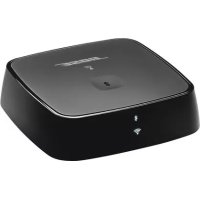
Black BOSE brand electronic device with wireless signal icon and Bluetooth symbol (no readable text beyond branding)
Please read and keep all safety, security, and use instructions.

Bose Corporation hereby declares that this product is in compliance with the essential requirements and other relevant provisions of Directive 2014/53/EU and all other applicable EU directive requirements. The complete declaration of conformity can be found at: www.Bose.com/compliance
Important Safety Instructions
- Read these instructions.
- Keep these instructions.
- Heed all warnings.
- Follow all instructions.
- Do not use this apparatus near water.
- Clean only with a dry cloth.
- Do not install near any heat sources such as radiators, heat registers, stoves, or other apparatus (including amplifiers) that produce heat.
- Unplug this apparatus during lightning storms or when unused for long periods of time.
- Refer all servicing to qualified personnel. Servicing is required when the apparatus has been damaged in any way, such as power-supply cord or plug is damaged, liquid has been spilled or objects have fallen into the apparatus, the apparatus has been exposed to rain or moisture, does not operate normally, or has been dropped.

This symbol means there is uninsulated, dangerous voltage within the product enclosure that may constitute a risk of electrical shock.

This symbol means there are important operating and maintenance instructions in this guide.
WARNINGS/CAUTIONS
- To reduce the risk of fire or electrical shock, do NOT expose this product to rain, liquids or moisture.
- Do NOT expose this product to dripping or splashing, and do not place objects filled with liquids, such as vases, on or near the product.
- Keep the product away from fire and heat sources. Do NOT place naked flame sources, such as lighted candles, on or near the product.
- Do NOT make unauthorized alterations to this product.
- Do NOT use a power inverter with this product.
- Do NOT use in vehicles or boats.
- Use this product only with the power supply provided.
- Where the mains plug or an appliance coupler is used as the disconnect device, the disconnect device shall remain readily operable.
- The product label is located on the bottom of the product.
NOTE: This equipment has been tested and found to comply with the limits for a Class B digital device, pursuant to Part 15 of the FCC Rules. These limits are designed to provide reasonable protection against harmful interference in a residential installation. This equipment generates, uses, and can radiate radio frequency energy and, if not installed and used in accordance with the instructions, may cause harmful interference to radio communications. However, there is no guarantee that interference will not occur in a particular installation. If this equipment does cause harmful interference to radio or television reception, which can be determined by turning the equipment off and on, the user is encouraged to try to correct the interference by one or more of the following measures:
- Reorient or relocate the receiving antenna.
- Increase the separation between the equipment and receiver.
- Connect the equipment into an outlet on a circuit different from that to which the receiver is connected.
- Consult the dealer or an experienced radio/TV technician for help.
Changes or modifications not expressly approved by Bose Corporation could void the user's authority to operate this equipment.
This device complies with part 15 of the FCC Rules and with ISED Canada license-exempt RSS standard(s). Operation is subject to the following two conditions: (1) This device may not cause harmful interference, and (2) this device must accept any interference received, including interference that may cause undesired operation.
This device complies with FCC and ISED Canada radiation exposure limits set forth for general population.
This equipment should be installed and operated with a minimum distance of 20 cm between radiator and your body. This transmitter must not be co-located or operating in conjunction with any other antenna or transmitter.
This device for operation in the 5150 - 5250 MHz is only for indoor use to reduce the potential for harmful interference to co-channel mobile satellite systems.
W52/W53 Indoor Only
The product, in accordance with the Ecodesign Requirements for Energy Related Products Directive 2009/125/EC, is in compliance with the following norm(s) or document(s): Regulation (EC) No. 1275/2008, as amended by Regulation (EU) No. 801/2013.
| Required Power State Information | Power Modes |
| Standby Networked Standby |
| Power consumption in specified power mode, at 230V/50Hz input | ≤0.5 W Wi-Fi^ : ≤2.0 W | Bluetooth ^ : ≤2.0 W |
| Time after which equipment is automatically switched into mode | ≤2 hours ≤20 minutes |
| Power consumption in networked standby if all wired network ports are connected and all wireless network ports are activated, at 230V/50Hz input | N/A ≤2.0 W |
| Network port deactivation/activation procedures. Deactivating all networks will enable standby mode. | Wi-Fi and Bluetooth: Deactivate by pressing and holding the Control button on the back of the unit until the Wi-Fi® and Bluetooth® indicators turn off. Activate by pressing the Control button. |
The external power supply provided with the product, in accordance with the Ecodesign Requirements for Energy Related Products Directive 2009/125/EC, is in compliance with the following norms(s) or documents(s): Commission Regulation (EU) 2019/1782.
| Manufacturer Bose Products B.V. | |
| Commercial registration number 36037901 | |
| Address | Gorslaan 601441 RG PurmerendThe Netherlands |
| Model identifier AFD5V-1C-DC-WD | |
| Input voltage 100V-240V | |
| Input AC frequency 50Hz/60Hz | |
| Output voltage 5V DC | |
| Output current 1A | |
| Output power 5W | |
| Average active efficiency 74.8% | |
| Efficiency at low load (10%) 68.4% | |
| No-load power consumption 0.06W | |
For Europe:
Frequency bands of operation 2400 to 2483.5 MHz, 5150 to 5350 MHz, and 5470 to 5725 MHz.
Maximum transmit power less than 20 dBm EIRP.
Maximum transmit power is below regulatory limits such that SAR testing is not necessary and exempt per applicable regulations.
This device is restricted to indoor use when operating in the 5150 to 5350 MHz frequency range in all EU Member States listed in the table.
 |
| BE DK IE UK FR CY SK HU AT SE | | | | | | | |
| BG | DE | PT | EL | HR | LV | LT | MT | PL | |
| CZ | EE | FI | ES | IT | RO | LU | NL | SI | |
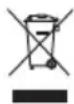
This symbol means the product must not be discarded as household waste, and should be delivered to an appropriate collection facility for recycling. Proper disposal and recycling helps protect natural resources, human health and the environment. For more information on disposal and recycling of this product, contact your local municipality, disposal service, or the shop where you bought this product.
China Restriction of Hazardous Substances Table
| Names and Contents of Toxic or Hazardous Substances or Elements |
| Toxic or Hazardous Substances and Elements |
| Part Name | Lead (Pb) | Mercury (Hg) | Cadmium (Cd) | Hexavalent (CR(VI)) | Polybrominated Biphenyl (PBB) | Polybrominated diphenylether (PBDE) |
| PCBs X 0 0 0 0 0 | | | | | | |
| Metal Parts X 0 0 0 0 0 | | | | | | |
| Plastic Parts 0 0 0 0 0 0 | | | | | | |
| Cables X 0 0 0 0 0 | | | | | | |
| This table is prepared in accordance with the provisions of SJ/T 11364.O: Indicates that this toxic or hazardous substance contained in all of the homogeneous materials for this part is below the limit requirement of GB/T 26572. |  |
| X: Indicates that this toxic or hazardous substance contained in at least one of the homogeneous materials used for this part is above the limit requirement of GB/T 26572. |
Date of Manufacture: The eighth digit in the serial number indicates the year of manufacture; "0" is 2010 or 2020.
China Importer: Bose Electronics (Shanghai) Company Limited, Part C, Plant 9, No. 353 North Riying Road, China (Shanghai) Pilot Free Trade Zone
EU Importer: Bose Products B.V., Gorslaan 60, 1441 RG Purmerend, The Netherlands
Taiwan Importer: Bose Taiwan Branch, 9F-A1, No.10, Section 3, Minsheng East Road, Taipei City 104, Taiwan Phone Number: +886-2-2514 7676
Mexico Importer: Bose de México, S. de R.L. de C.V., Paseo de las Palmas 405-204, Lomas de Chapultepec, 11000 México, D.F. Phone Number: +5255 (5202) 3545

This product is capable of receiving automatic security updates from Bose. To receive automatic security updates, you must complete the product setup process in the SoundTouch® App and connect the product to the Internet. If you do not complete the setup process, you will be responsible for installing security updates that Bose makes available.
License Disclosures
You can view the license disclosures that apply to the third-party software packages included with your adapter through the SoundTouch ^® app or by using your product's IP address.
SoundTouch® app
- From within the app, select > Settings > About > Legal.
- Select the applicable license type.
IP address
-
Obtain your product's IP address using one of the following methods:
-
SoundTouch® app: From within the app, select ≡ > Settings > About. Select your adapter to view the IP address.
-
Wireless router: Refer to your router owner's guide for more information.
-
On a device connected to your wireless network, open a browser window.
- Go to /licenses.pdf to view the applicable license disclosures and EULA.
Amazon and all related logos are trademarks of Amazon, Inc. or its affiliates.
Apple and the Apple logo are trademarks of Apple Inc., registered in the U.S. and other countries. App Store is a service mark of Apple Inc.
The Bluetooth ^® word mark and logos are registered trademarks owned by Bluetooth SIG, Inc. and any use of such marks by Bose Corporation is under license.
Google Play is a trademark of Google LLC.
This product contains the iHeartRadio service. iHeartRadio is a registered trademark of iHeartMedia, Inc.
This product is protected by certain intellectual property rights of Microsoft. Use or distribution of such technology outside of this product is prohibited without a license from Microsoft.
This product incorporates Spotify software which is subject to third-party licenses found here: www.spotify.com/connect/third-party-licenses
Spotify is a registered trademark of Spotify AB.
SoundTouch and the wireless note design are trademarks of Bose Corporation in the U.S. and other countries.
Wi-Fi is a registered trademark of Wi-Fi Alliance ^® .
Bose Corporation Headquarters: 1-877-230-5639
©2020 Bose Corporation. No part of this work may be reproduced, modified, distributed, or otherwise used without prior written permission.
What's in the Carton
Contents 9
Initial Setup
Placement guidelines.... 10
Cable options 11
Connect the SoundTouch ^® Wireless Link to your audio system.... 12
Option 1: Optical.... 12
Option 2: AUX 13
Option 3: Analog.... 14
Connect to AC power.... 15
SoundTouch® App Setup
Download and install the SoundTouch® app.... 16
SoundTouch ^® Owner's Center 16
Existing SoundTouch® Users
Add the speaker to an existing account.... 17
Connect the speaker to a new network.... 17
Preset Personalization
Set a preset.... 18
Play a preset 18
Bluetooth® Connections
Connect your mobile device.... 19
Disconnect a mobile device.... 20
Reconnect a mobile device.... 20
Connect using the Bluetooth feature on your mobile device 20
Clear the SoundTouch® Wireless Link pairing list.... 20
Use the SoundTouch® app.... 20
Cabled Device Connections
Connect to the AUX connector.... 21
Status Indicators
Bluetooth indicator 23
Wi-Fi® indicator.... 23
Advanced Features
Disable Wi-Fi® capability.... 24
Re-enable Wi-Fi® capability 24
Care and Maintenance
Clean the SoundTouch® Wireless Link 25
Replacement parts and accessories.... 25
Limited warranty information 25
Technical Information.... 25
Troubleshooting
Try these solutions first.... 26
Other solutions 26
Reset your SoundTouch ^® Wireless Link.... 28
Remove an AC power adapter.... 28
SETUP connector.... 29
Alternate Setup
Set up your SoundTouch® Wireless Link using a computer 30
Before you begin 30
Computer Setup.... 30
Contents
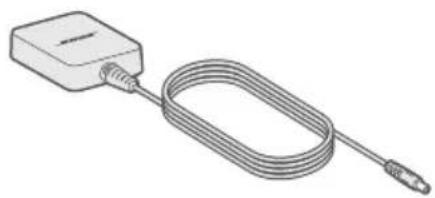
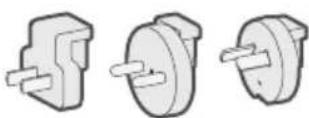
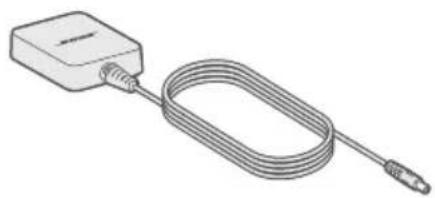
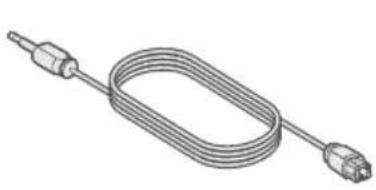
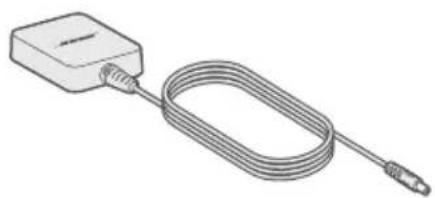
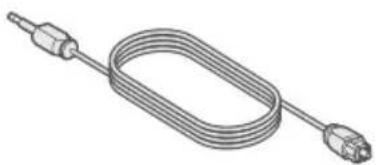
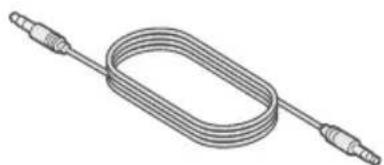
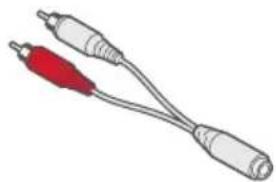
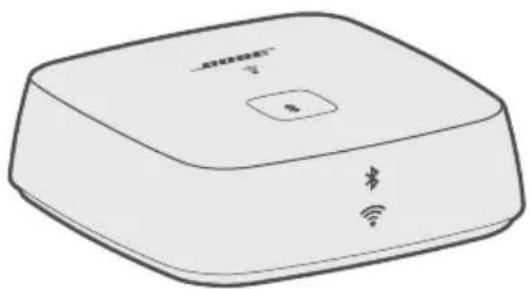
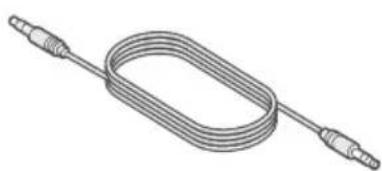
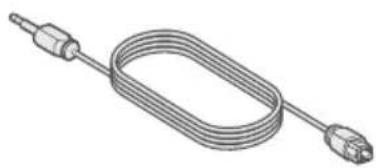
Confirm that the following parts are included:
natural_image
Illustration of a white wireless router with a square top and two labeled ports (no text or symbols beyond branding)
natural_image
Line drawing of a rectangular device connected to a coiled cable with a connector (no text or symbols)
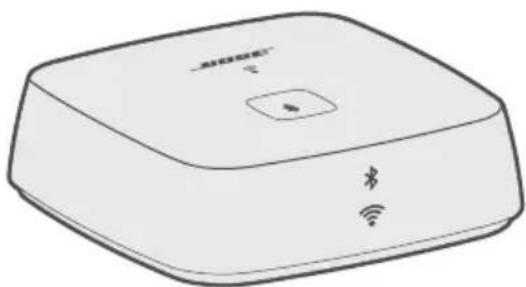
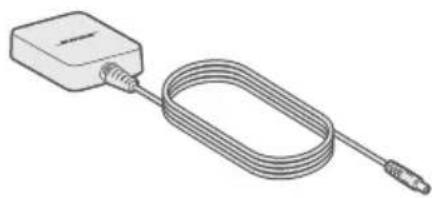
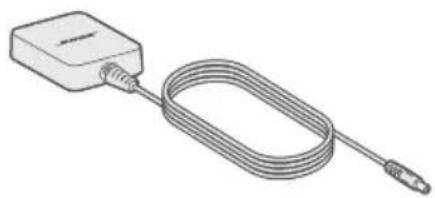
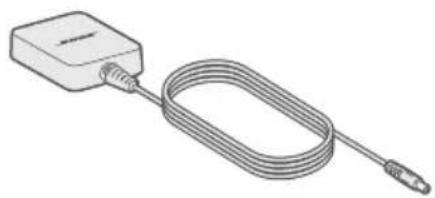
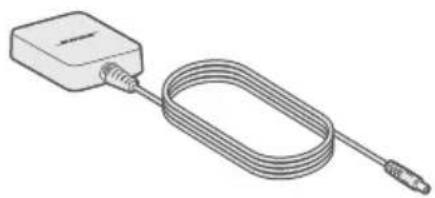
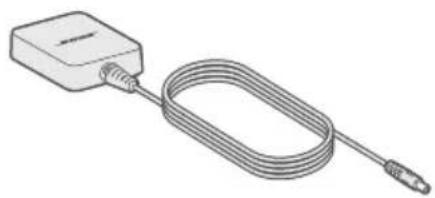
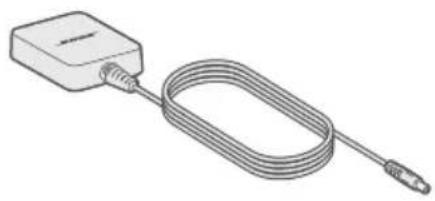
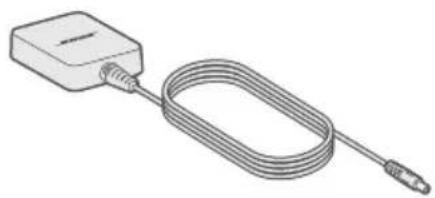
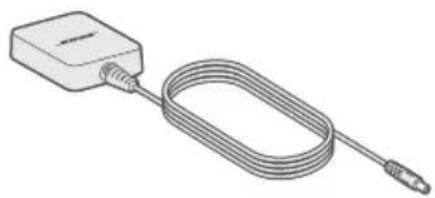
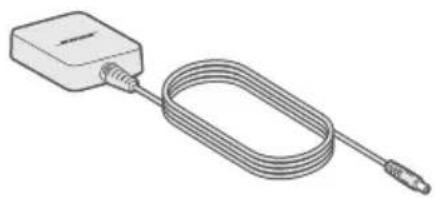
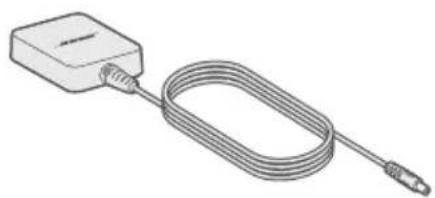
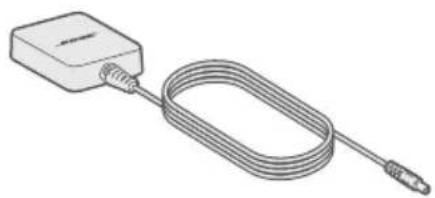
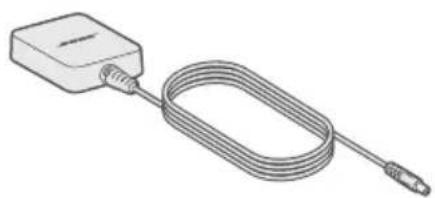
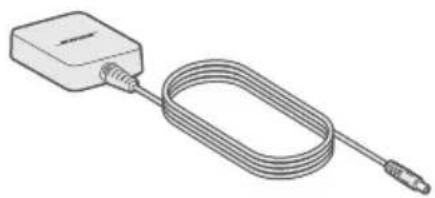
Bose® SoundTouch® Wireless Link adapter Power supply
natural_image
Illustration of a coiled electrical sensor or probe with two connectors (no text or symbols)
natural_image
Illustration of a coiled electrical cable with two connectors (no text or symbols)
natural_image
Illustration of two audio/video cables with a red connector (no text or symbols)
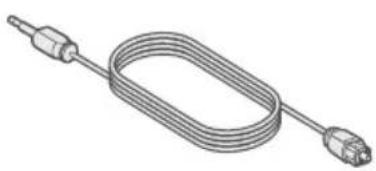
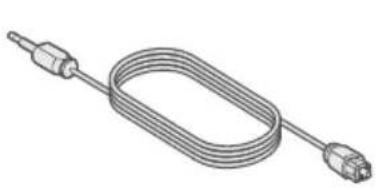
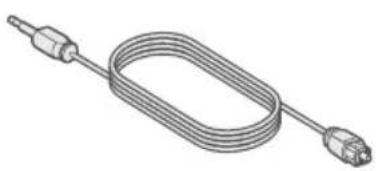
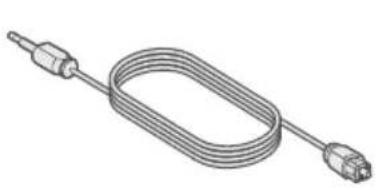
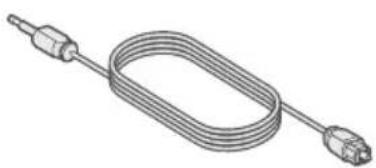
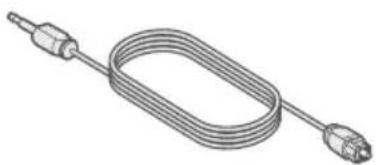
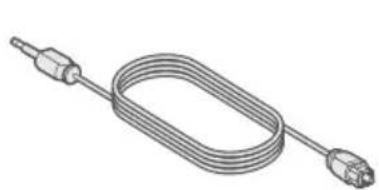
Optical to mini-optical cable
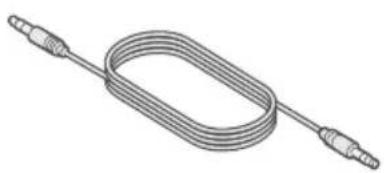
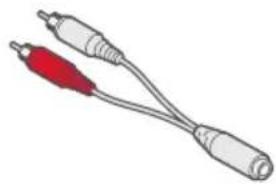
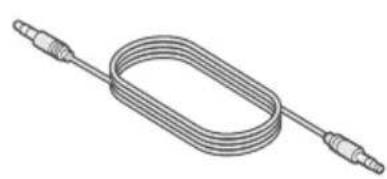
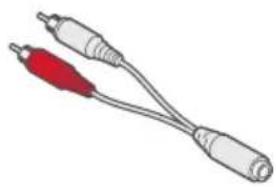
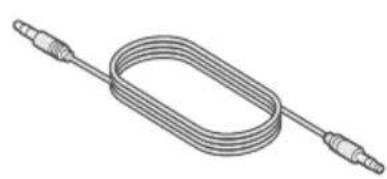
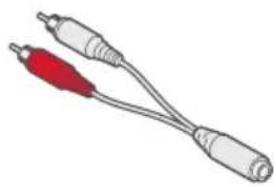
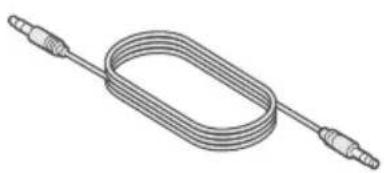
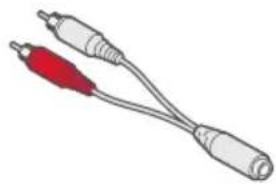
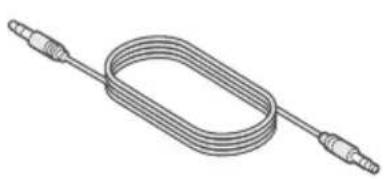
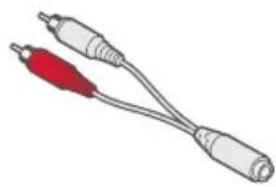
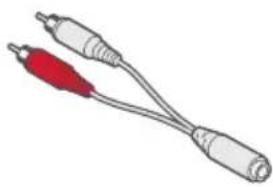
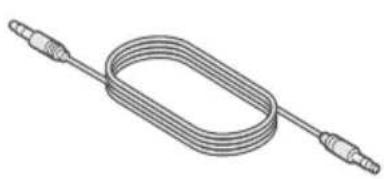
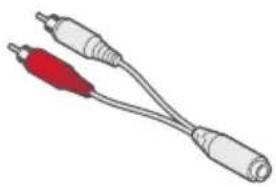
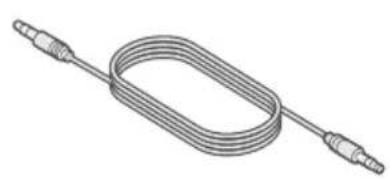
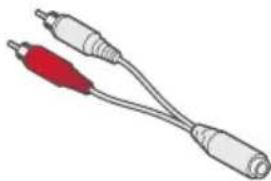
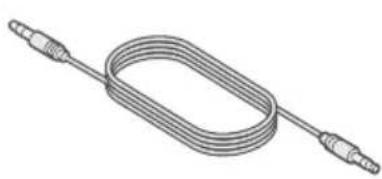
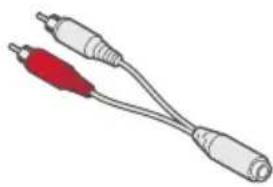
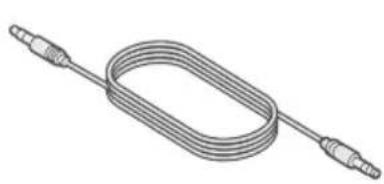
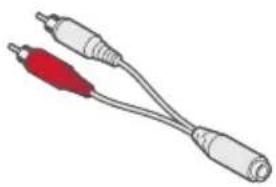
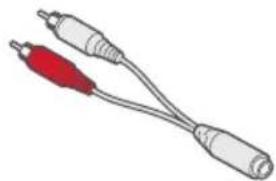
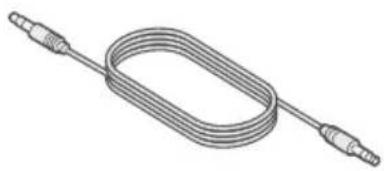
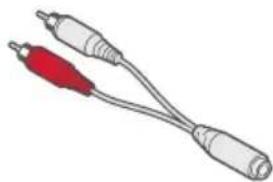
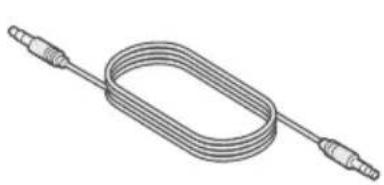
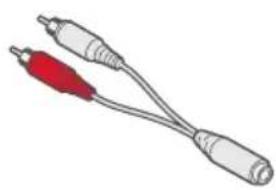
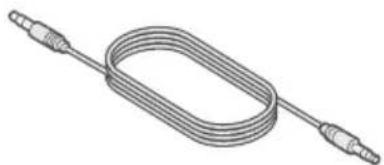
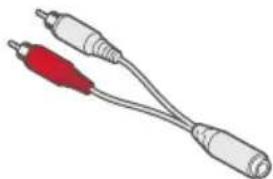
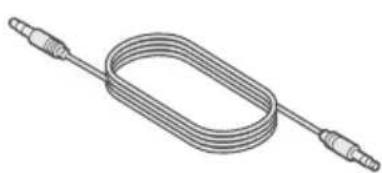
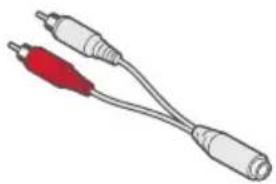
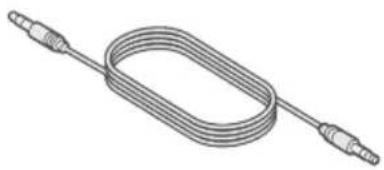
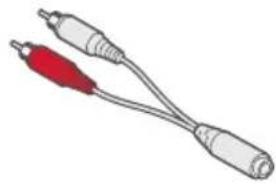
3.5 mm stereo cable 3.5 mm female to RCA cable
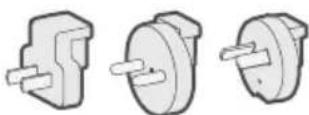
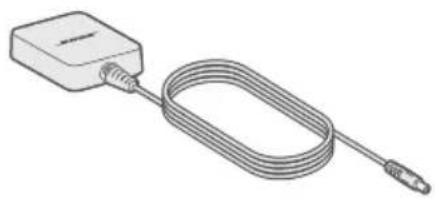
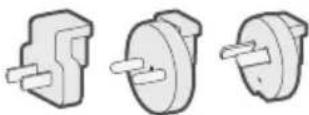
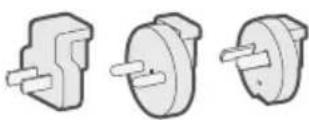
AC power adapters (provided only in certain regions)
Note: If any part of the product is damaged, do not use it. Contact your authorized Bose dealer or Bose customer service.
Visit: global.Bose.com/Support/STWL
Placement guidelines
To avoid interference, keep other wireless equipment 1 – 3 ft. (0.3 – 0.9 m) away from your SoundTouch® Wireless Link. Place your SoundTouch® Wireless Link outside and away from metal cabinets, and direct heat sources.
- Place your SoundTouch® Wireless Link on its rubber base on a stable and level surface.
- Do NOT place your SoundTouch® Wireless Link on top of audio/video equipment (receivers, TVs, etc.), or any other object that may generate heat. Heat generated by these items may result in poor system performance.
- Do NOT place any objects on top of your SoundTouch® Wireless Link.
- Make sure there is an AC (mains) outlet nearby.
Cable options
Connect your SoundTouch® Wireless Link to your audio system using one of three cable options.
The optical to mini-optical cable is the preferred method for connection.
Note: Your product ships with three cables. Use only one connection option.
Your audio system's connector panel may not appear as shown. Look for the shape or color of the connector.
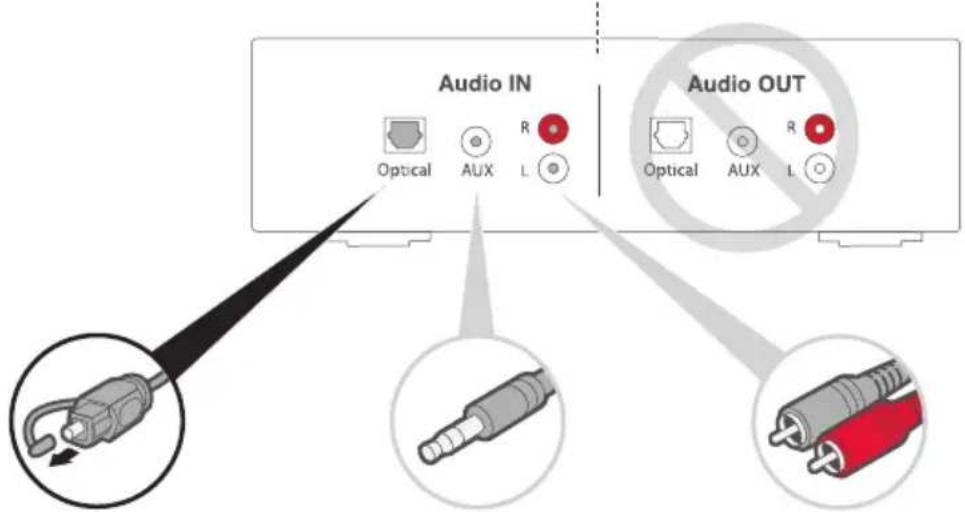
Option 1:
Optical (preferred)
For optical audio, use the optical to mini-optical cable.
Option 2:
AUX
If no optical connector is available, use the 3.5 mm stereo cable.
Option 3:
Analog
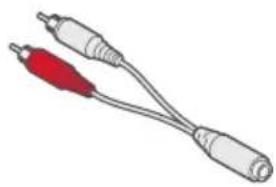
If no optical or AUX connector is available, use the 3.5 mm female to RCA cable and 3.5 mm stereo cable.
Connect the SoundTouch® Wireless Link to your audio system
After connecting your audio system, connect the other end of the audio cable to your SoundTouch® Wireless Link.
Note: Use only one connection option.
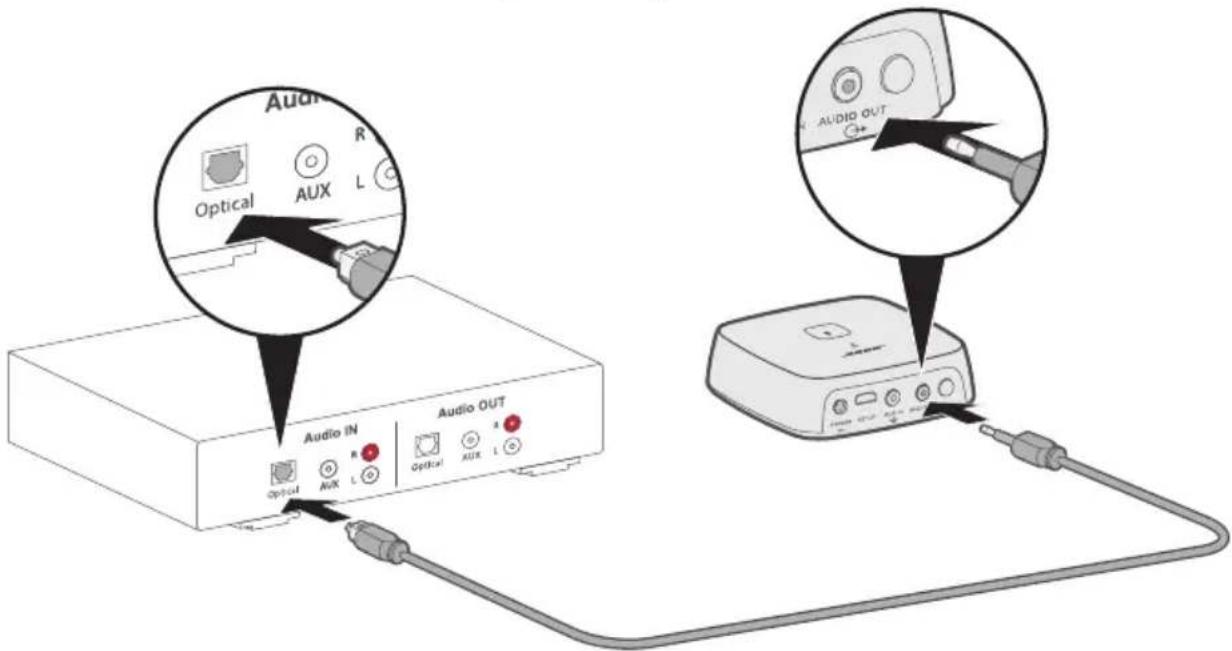
Option 1: Optical
The optical to mini-optical cable is the preferred connection to your system.
Note: Make sure you have removed the protective cap from both ends of the optical cable. Inserting the plug in the wrong orientation can damage the plug and/or the connector.
- Insert the optical end of the cable into the optical IN connector on your audio system.
- Insert the other end into the connector on your SoundTouch® Wireless Link.
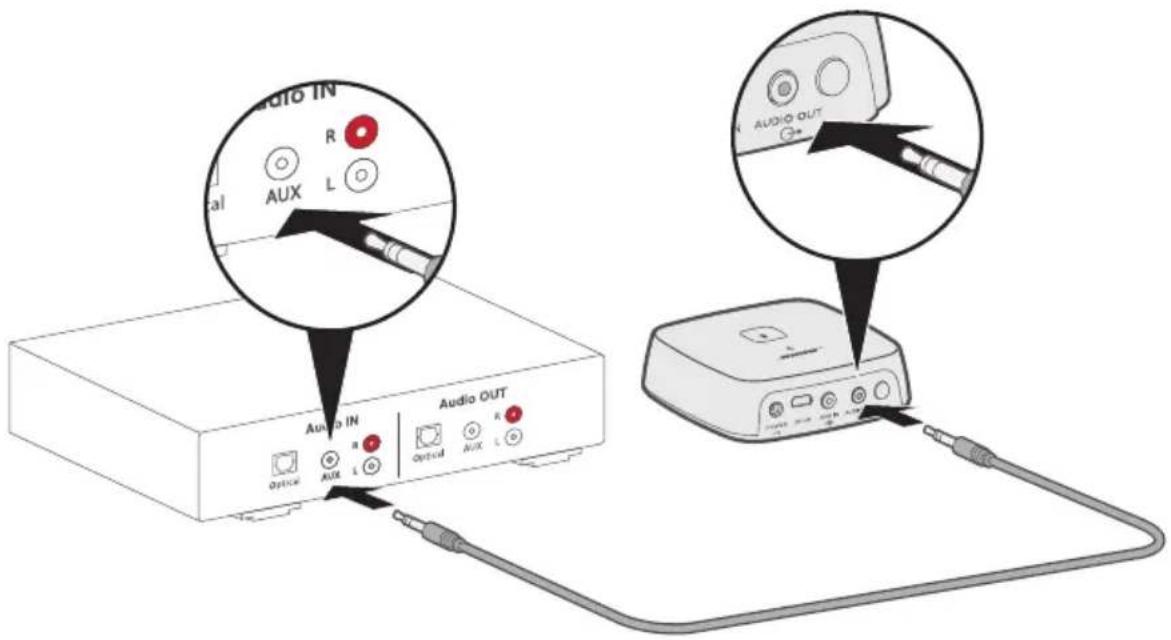
Option 2: AUX
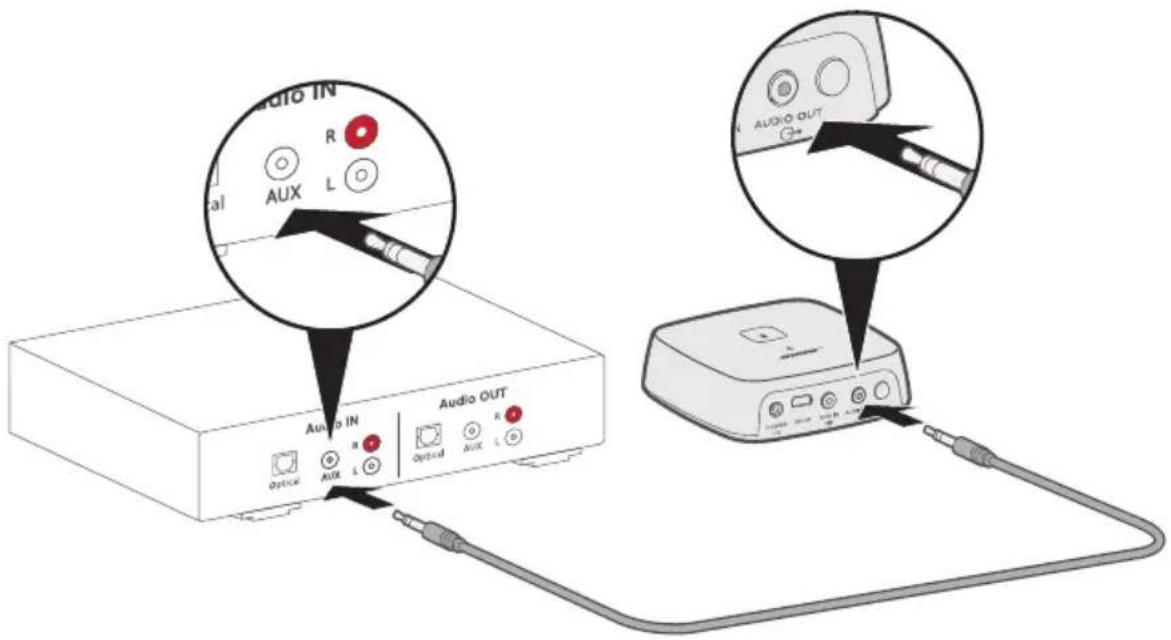
To make an AUX connection, use the 3.5 mm stereo cable.
- Insert one end of the cable into the 3.5 mm AUX IN connector on your audio system.
- Insert the other end into the connector on your SoundTouch® Wireless Link.
Option 3: Analog
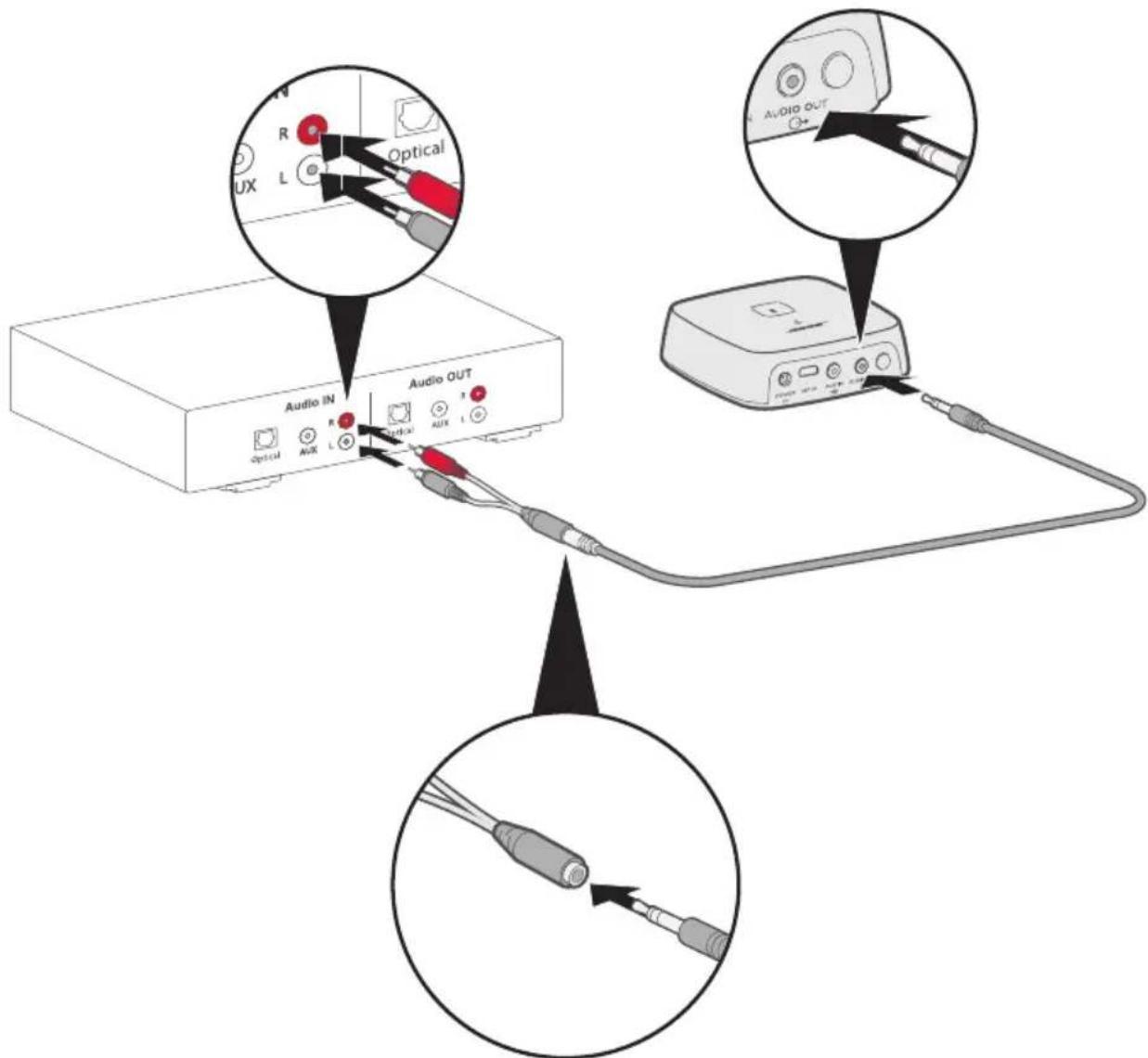
To make an analog connection, connect the 3.5 mm female to RCA cable to the 3.5 mm stereo cable.
- Insert the analog ends of the cable into the RCA (red and white) connectors on your audiosystem.
- Insert the other end into the connector on your SoundTouch® Wireless Link.
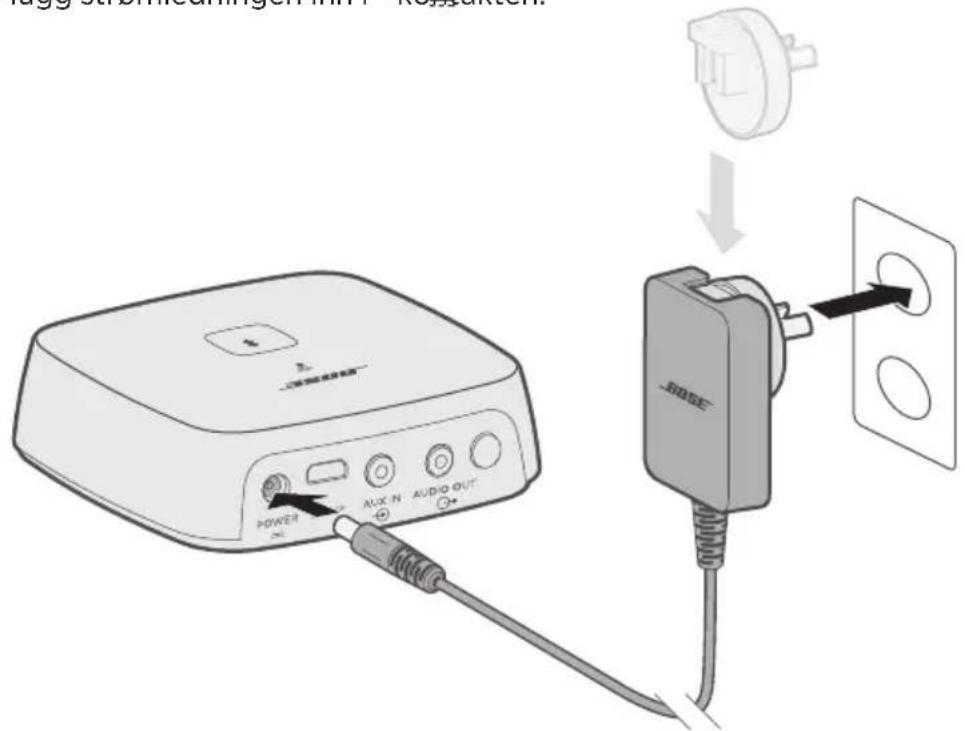
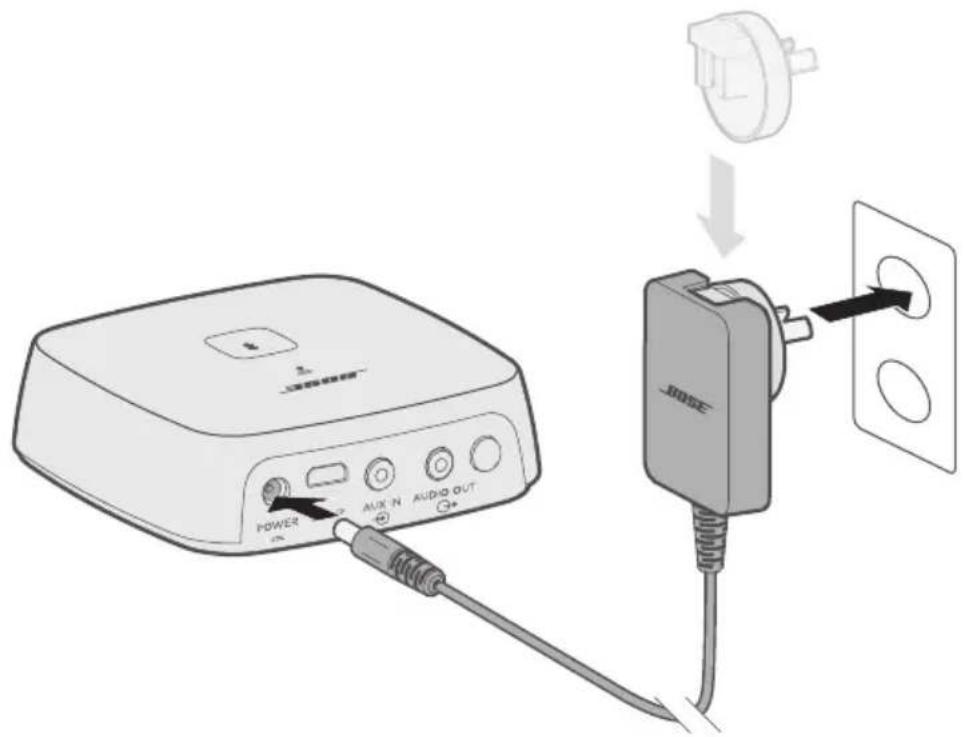
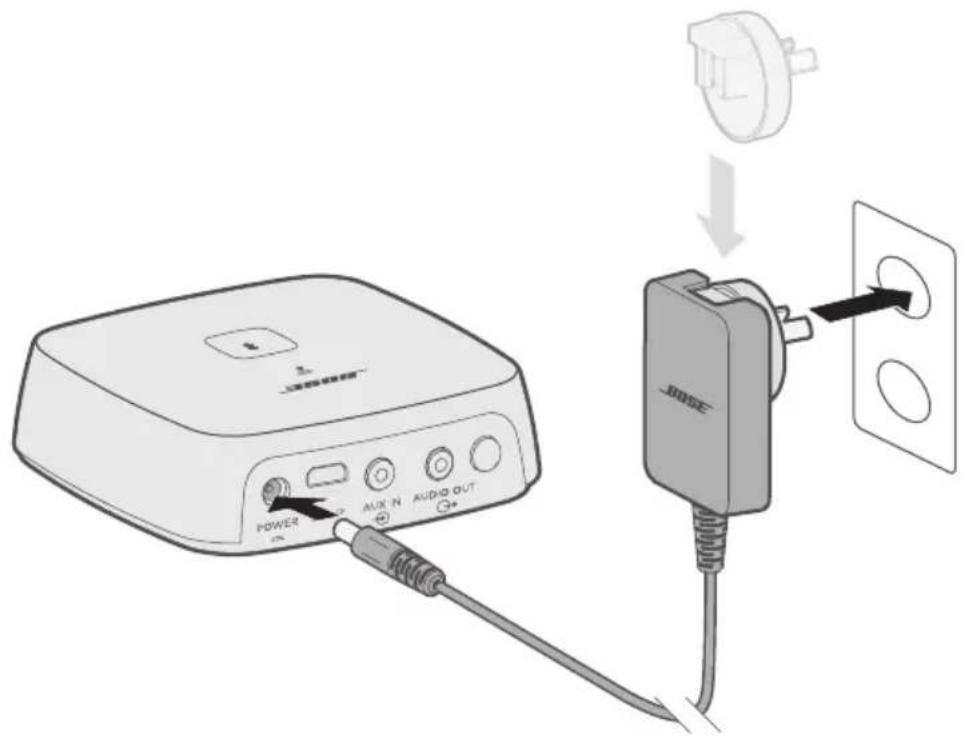
Connect to AC power
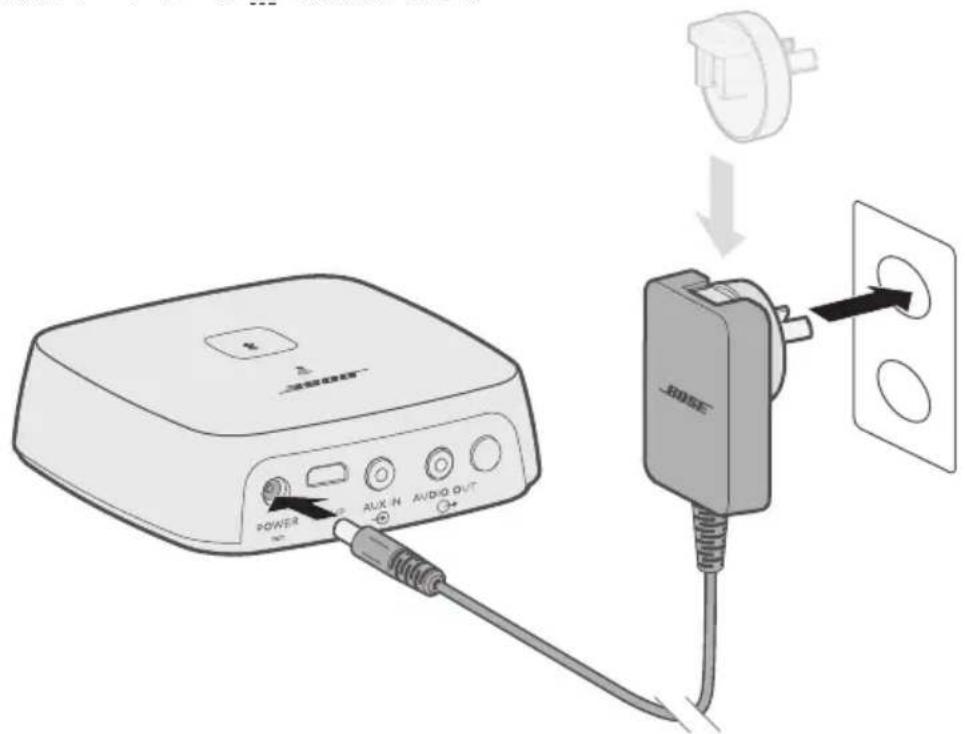
- Plug the power cord into the POWER connector.
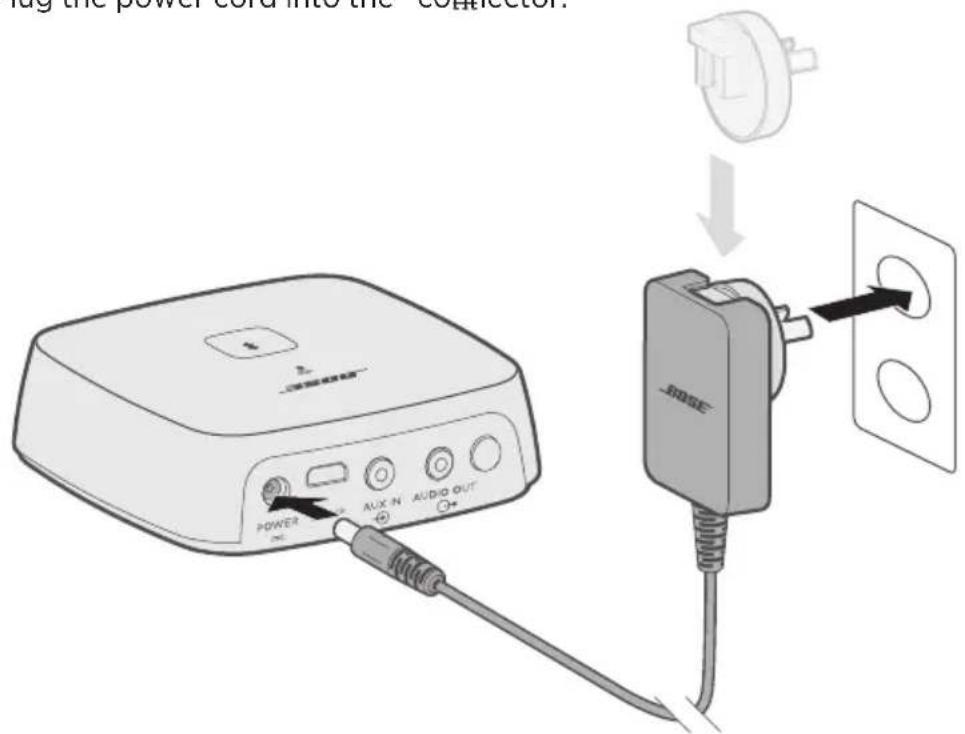
- Plug the other end into a live AC power (mains) outlet.
Note: If necessary, attach the AC power adapter for your region.
The SoundTouch ^® app lets you set up and control SoundTouch ^® from your smartphone, tablet or computer. Using the app, your smart device acts as a remote for your SoundTouch ^® Wireless Link.
From the app, you can manage your SoundTouch ^® settings, add music services, explore local and global Internet radio stations, set and change presets, and stream music. New features are added periodically.
Note: If you have already set up SoundTouch ^® for another speaker, see “Existing SoundTouch ^® Users” on page 17.
Download and install the SoundTouch® app
On your smartphone or tablet, download the Bose® SoundTouch® app.
SoundTouch® app
• Apple users: download from the App Store
- Android™ users: download on the Google Play™ store
- Amazon Kindle Fire users: download from the Amazon Appstore for Android



Follow the instructions in the app to complete setup, including adding the speaker to your Wi-Fi network, creating a SoundTouch® account, adding a music library and using music services.
Once you set up the speaker on your home Wi-Fi network, you can control it from any smartphone or tablet on the same network.
Note: For instructions on using a computer for setup, see page 30.
Tip: Once you set up the speaker on your home Wi-Fi network, you can control it from any smartphone or tablet on the same network. Download the SoundTouch® app on the smart device. You must use the same SoundTouch account for all devices connected to your speaker.
SoundTouch ^® Owner's Center

global.Bose.com/Support/STWL
This website provides access to the owner support center, which includes: owner's manuals, articles, tips, tutorials, a video library, and the owner community where you can post questions and answers.
Add the speaker to an existing account
If you have already set up SoundTouch ^® on another speaker, you do not need to download the SoundTouch ^® app again.
From within the app, select > Settings > Add or Reconnect Speaker.
The app guides you through setup.
Connect the speaker to a new network
If your network information changes, add your speaker to your new network. You can do this by putting your speaker into setup mode.
- From within the app, select >Settings >Speaker Settings and select yourspeaker.
- Select CONNECT SPEAKER.
The app guides you through setup.
You can personalize six presets to your favorite streaming music services, stations, playlists, artists, albums or songs from your music library. You can access your music, at any time, with a simple touch of a button using the SoundTouch® app.
Before using presets, note the following:
- You can set presets from the app and the remote control.
- If the preset source is your music library, make sure the computer storing your music library is on and connected to the same network as the SoundTouch® speaker.
- You cannot set presets in Bluetooth mode or AUX mode.
Set a preset
-
Stream music using the app.
-
While the music is playing, press and hold a preset in the app.
Note: For information on using the SoundTouch® app to play your presets, visit: global.Bose.com/Support/STWL
Play a preset
Once you personalize your presets, press a preset in the app to play it.
Bluetooth wireless technology lets you stream music from Bluetooth smartphones, tablets, computers or other devices to your SoundTouch® Wireless Link. Before you can stream music from a mobile device, you must connect the mobile device with your SoundTouch® Wireless Link.
Note: You can also pair a mobile device using the SoundTouch® app.
Visit: global.Bose.com/Support/STWL
Connect your mobile device
- Press and hold the Bluetooth button * until the Bluetooth indicator slow blinks white.
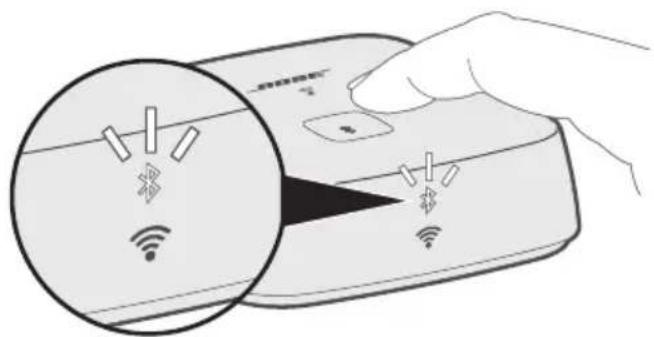
Make sure the Bluetooth indicator is slowly blinking white before you pair your mobile device.
- On your mobile device, turn on the Bluetooth feature.
Tip: The Bluetooth menu is usually found in the Settings menu.
- Select your SoundTouch® Wireless Link from the mobile device list.
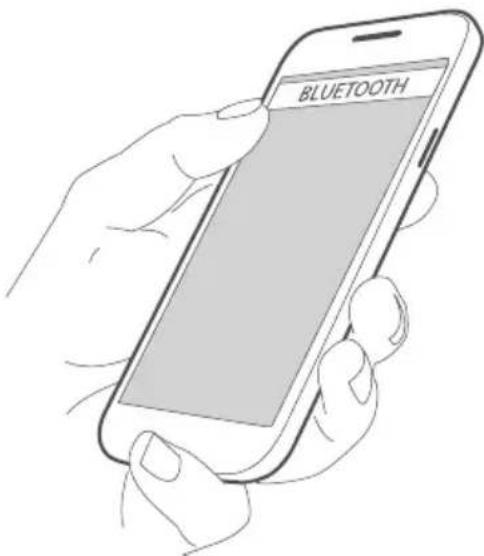
Once connected, the Bluetooth indicator glows solid white.
Disconnect a mobile device
Turn off the Bluetooth feature on your mobile device.
Reconnect a mobile device
Press the Bluetooth button * The Bluetooth indicator blinks white.
Your SoundTouch® Wireless Link tries to reconnect with the most recently connected mobile device.
Note: The mobile device must be within range and powered on.
Connect using the Bluetooth feature on your mobiledevice
- On your mobile device, turn on the Bluetooth feature.
Tip: The Bluetooth menu is usually found in the Settings menu.
- Select your SoundTouch® Wireless Link from the mobile device list.
Clear the SoundTouch® Wireless Link pairinglist
You can store up to eight paired mobile devices in your SoundTouch® Wireless Link's pairing list.
-
Press and hold ✝ for 10 seconds, until the Bluetooth indicator double-blinks white.
-
Delete your SoundTouch® Wireless Link from the Bluetooth list on your mobile device.
Use the SoundTouch® app
You can also clear the pairing list using the app.
-
From within the app, select >Settings >Speaker Settings and select your SoundTouch® Wireless Link.
-
Open the Bluetooth menu item and clear the pairing list.
Connect to the AUX connector
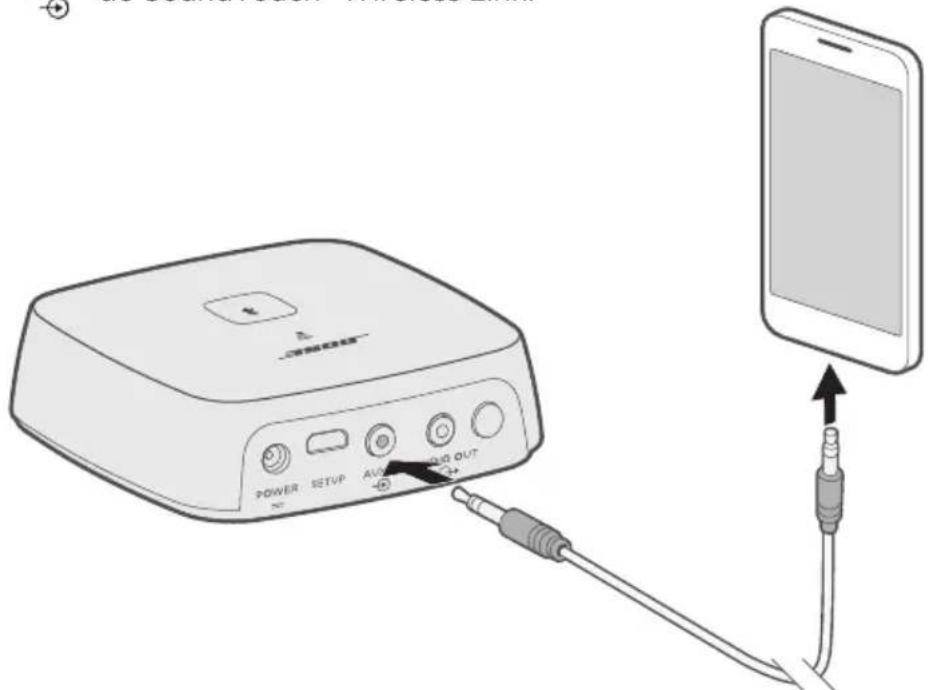
You can connect the audio output of a smartphone, tablet, computer or other type of audio device to your speaker's AUX connector. The AUX connector accepts a 3.5 mm stereo cable plug (second cable not provided).
- Using a 3.5 mm stereo cable, insert one end of the cable to the connector on your SoundTouch® Wireless Link.

-
Insert the other end of the cable into the 3.5 mm connector on your mobile device.
-
From within the app, select the speaker tray at the bottom of the screen.
The speaker tray appears.
- From the speaker tray, select AUX.
The SoundTouch ^® Wireless Link is now in AUX mode.
The front of your SoundTouch® Wireless Link has a series of indicators that show system status. Lights under the indicators glow according to system state (see page 23).
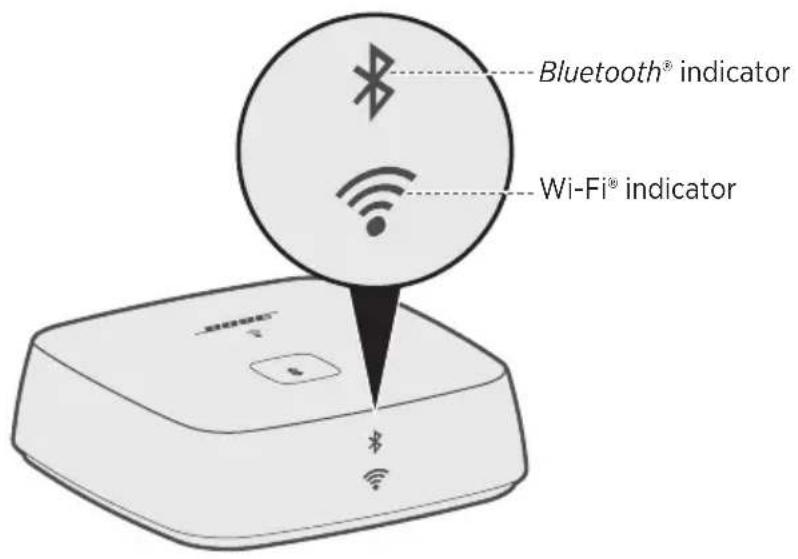
Bluetooth indicator
| Indicator activity | System state |
| Slow blinking white Ready to connect |
| Blinking white Connecting |
| Solid white Connected | |
Wi-Fi® indicator
| Indicator activity | System state |
| Blinking white Searching | for Wi-Fi® network |
| Solid white (dim) Power | -saving mode and connected to Wi-Fi network |
| Solid white (bright) System | is on and connected to Wi-Fi network |
| Solid amber System is in setup mode |
| Blinking fast amber Firmware error - Contact Bose customer service |
| Off Networking disabled |
Disable Wi-Fi® capability
Disabling Wi-Fi ^® also disables the Bluetooth feature.
- Press and hold the Control button (8 - 10 seconds).
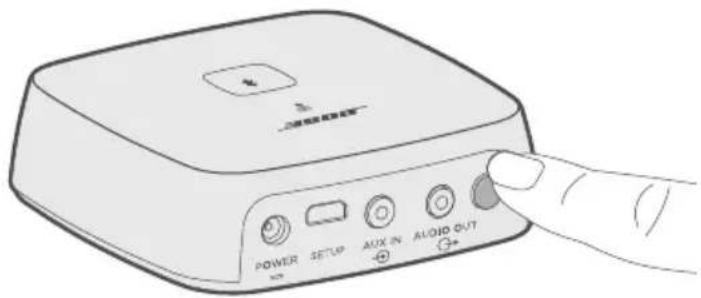
- When the Wi-Fi indicator turns off, release the Control button.
Re-enable Wi-Fi® capability
Re-enabling Wi-Fi ^® also re-enables the Bluetooth feature.
Press the Control button until the Wi-Fi indicator turns on (two seconds).
Clean the SoundTouch® Wireless Link
- Clean the surface of your SoundTouch® Wireless Link with a soft, dry cloth.
- Do not use any sprays near your SoundTouch® Wireless Link. Do not use any solvents, chemicals, or cleaning solutions containing alcohol, ammonia or abrasives.
- Do not allow liquids to spill into any openings.
Replacement parts and accessories
Replacement parts and accessories can be ordered through Bose customer service. Visit: global.Bose.com/Support/STWL
Your product is covered by a limited warranty. Visit our website at global.Bose.com/warranty for details of the limited warranty.
To register your product, visit global.Bose.com/register for instructions. Failure to register will not affect your limited warranty rights.
Power supply rating
Input: 100-240V, 50/60Hz, 0.3 A (region specific AC input connector only allows some connections)
Try these solutions first
If you experience problems with your SoundTouch® Wireless Link:
- Connect your SoundTouch® Wireless Link to AC (mains) power.
- Secure all cables.
- Verify the state of the system status indicators (see page 22).
- Move your SoundTouch® Wireless Link and any paired systems away from possible interference (wireless routers, cordless phones, televisions, microwaves, etc.).
- Move your SoundTouch® Wireless Link within the recommended range of your wireless router or mobile device for proper operation.
If you could not resolve your issue, see the table below to identify symptoms and solutions to common problems. If you are unable to resolve your issue, contact Bose® customer service.
Other solutions
The following table lists symptoms and possible solutions to common problems.
| Symptom Solution |
| Cannot complete network setup | Select correct network name and enter password.Connect the device and SoundTouch® Wireless Link to the same Wi-Fi® network.Place your SoundTouch® Wireless Link within range of the router.Enable Wi-Fi on the device (mobile or computer) you are using for setup .Close other open applications.If using a computer for setup, check firewall settings to ensure that the SoundTouch® app and SoundTouch® Music Server are allowed programs.Restart your mobile device or computer and your router.Reset your SoundTouch® Wireless Link (see page 28).If your router supports both 2.4GHz and 5GHz bands, make sure both the device (mobile or computer) and SoundTouch® Wireless Link are connecting to the same band.Uninstall the app, reset your SoundTouch® Wireless Link (see page 28), and restart setup. |
| Cannot connect to network | If your network information has changed or to connect your SoundTouch® Wireless Link to another network, see page 17. |
| Intermittent or no audio | Plug the audio cable into the connector on the SoundTouch®AUX INWireless Link, not (not applicable for cabled devices).Plug the audio cable into a connector on your audio system labeled Audio Input or Audio IN, not Audio Output or Audio OUT.Stop other audio or video streaming applications.Unmute or increase volume on your mobile device.Unplug the power cord; reconnect after one minute.If your SoundTouch® Wireless Link is on top of audio/video equipment (receivers, TVs, etc.), or any other object that may generate heat, move your SoundTouch Wireless Link to another location.Restart your mobile device or computer and your router. |
| Cannot playBluetoothAudio | Set up the SoundTouch® app first and perform all system updates.Connect a mobile device (see page 19).Clear your SoundTouch® Wireless Link pairing list (see page 20).Try connecting a different mobile device.On your mobile device:Disable and re-enable the Bluetooth feature.Remove your SoundTouch® Wireless Link from the Bluetooth menu.Pair again.Refer to your mobile device's documentation.See “Intermittent or no audio.” |
| SoundTouch® Wireless Link audio is out of sync with other SoundTouch® systems | You may need to adjust the audio settings to synchronize your systems:In the SoundTouch® app, select >Settings >Speaker Settingsand select your SoundTouch® Wireless Link.Select Advanced Setup.Adjust the audio of your SoundTouch® Wireless Link so it plays in sync with other systems in the same group. |
Reset your SoundTouch® Wireless Link
Factory reset clears all source and network settings from your SoundTouch® Wireless Link and returns it to original factory settings.
Your SoundTouch ^® account and presets still exist but are not associated with your SoundTouch ^® Wireless Link unless you use the same account to set it up again.
- Unplug the power cable.
- Press and hold the Control button while reconnecting the power cable.
- Release the Control button when the Wi-Fi® indicator is solid amber.
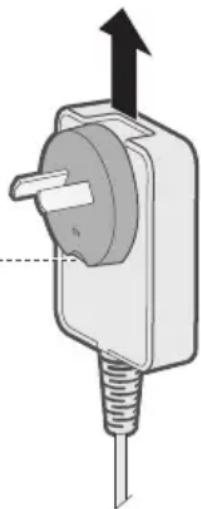
Remove an AC power adapter
Lift the adapter up and off.
Your adapter may have a release tab. Press the tab up to release.
natural_image
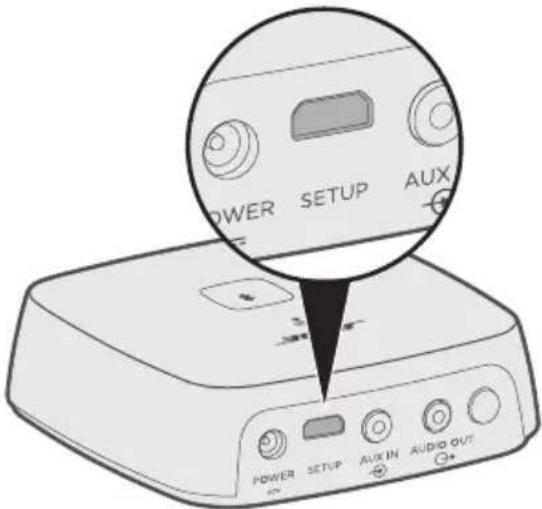
Diagram of a plug with an arrow indicating upward motion, showing internal components and a wire (no text or symbols)
SETUP connector
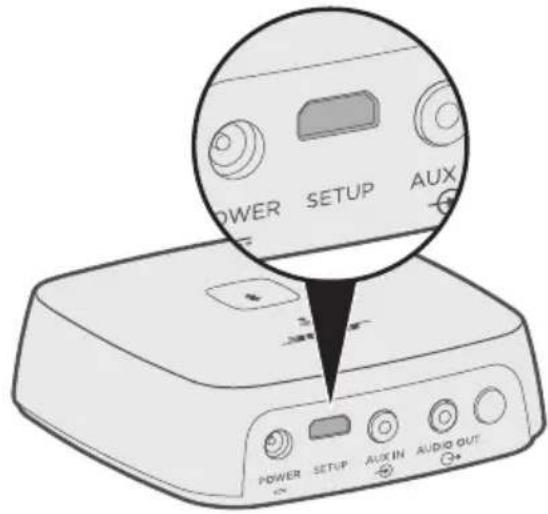
The Connector is for service use and computer setup only (see page 30). Unless instructed, do not insert any cables into this connector.
Set up your SoundTouch® Wireless Link using a computer
You can set up your SoundTouch® Wireless Link using a computer rather than a smartphone or tablet.
Before you begin
- Position your SoundTouch ^® Wireless Link next to your computer.
- Make sure your computer is on your Wi-Fi® network.
- Obtain a USB A to USB Micro B cable (not provided).
Notes:
- A USB A to USB Micro B cable is commonly used for charging mobile devices. You can also purchase this part at your local electronics store. If you don't have this cable, contact Bose® customer service to receive this part. Refer to the contact sheet in the carton
- The USB connector on the back of your SoundTouch® Wireless Link is for computer setup only. The USB connector is not designed to charge smartphones, tablets, similar devices, or the SoundTouch® Wireless Link itself.
Computer Setup
During setup, the app prompts you to temporarily connect the USB cable from the computer to your SoundTouch® Wireless Link. Do not connect the USB cable until the app instructs you to do so.
-
Plug the power cord into an AC (mains) power outlet.
-
On your computer, open a browser and go to:
global.Bose.com/Support/STWL
Tip: Use the computer where your music library is stored.
- Download and run the SoundTouch ^® app.
The app guides you through setup.
- After setup is complete, disconnect the USB cable from your computer and from your SoundTouch® Wireless Link. Move your SoundTouch® Wireless Link to its permanent location.
Importør i Kina: Bose Electronics (Shanghai) Company Limited, Part C, Plant 9, No. 353 North Riying Road, Kina (Shanghai) Pilot Free Trade Zone
Importør i EU: Bose Products B.V., Gorslaan 60, 1441 RG Purmerend, Holland
Importør i Taiwan: Bose Taiwan Branch, 9F-A1, No.10, Section 3, Minsheng East Road, Taipei City 104, Taiwan Telefonnummer: +886-2-2514 7676
Importar i Mexico: Bose de México, S. de R.L. de C.V., Paseo de las Palmas 405-204, Lomas de Chapultepec, 11000 México, D.F. Telefonnummer: +5255 (5202) 3545
Bose Corporation Headquarters: 1-877-230-5639
SoundTouch ^® Owner's Center 16
Eksisterende SoundTouch®-brugere
natural_image
Line drawing of a beige wireless router with a square top and two ports (no text or symbols)
natural_image
Line drawing of a USB cable with a rectangular connector (no text or symbols)
Bose® SoundTouch® trådløs link adapter Strømforsyning
natural_image
Illustration of a U-shaped coiled cable with two connectors (no text or symbols)
natural_image
Illustration of a coiled electrical or mechanical component with two connectors (no text or symbols)
natural_image
Illustration of two audio/video cables with red and gray connectors (no text or symbols)
Mulighed 2: AUX
Brug 3,5 mm-stereokablet for at oprette en AUX-tilslutning.
Mulighed 3: Analog
SoundTouch® Owner's Center

global.Bose.com/Support/STWL
Kontrollér, at Bluetooth-indikatoren blinker langsomt hvidt, inden du parrer din mobile enhed.
natural_image
Diagram of a plug with an arrow indicating upward motion, showing internal components and a wire (no text or symbols)
SETUP-stik
China-Import: Bose Electronics (Shanghai) Company Limited, Part C, Plant 9, No. 353 North Riying Road, China (Shanghai) Pilot Free Trade Zone
EU: Bose Products B.V., Gorslaan 60, 1441 RG Purmerend, Niederlande
Taiwan: Bose Taiwan Branch, 9F-A1, No.10, Section 3, Minsheng East Road, Taipei City 104, Taiwan Telefonnummer: +886-2-2514 7676
Mexiko: Bose de México, S. de R.L. de C.V., Paseo de las Palmas 405-204, Lomas de Chapultepec, 11000 México, D.F. Telefonnummer: +5255 (5202) 3545
Sicherheitshinweise

natural_image
Line drawing of a beige wireless router with a small screen and WiFi symbol (no text or labels)
natural_image
Line drawing of a USB cable with a rectangular connector (no text or symbols)
natural_image
Illustration of a U-shaped coiled cable with two connectors (no text or symbols)
natural_image
Illustration of a coiled electrical or mechanical component with two connectors (no text or symbols)
natural_image
Illustration of two audio/video cables with red connectors (no text or symbols)
Option 2: AUX
Option 3: Analog
global.Bose.com/Support/STWL
natural_image
Illustration of a hand holding a remote control with wireless signals and icons, no text or symbols present.
natural_image
Diagram of a plug with an arrow indicating upward motion, showing internal components and a wire (no text or symbols)
SETUP-Anschluss
global.Bose.com/Support/STWL
Importeur in China: Bose Electronics (Shanghai) Company Limited, Part C, Plant 9, No. 353 North Riying Road, China (Shanghai) Pilot Free Trade Zone
Importeur in de EU: Bose Products B.V., Gorslaan 60, 1441 RG Purmerend, Nederland
Importeur in Taiwan: Bose Taiwan Branch, 9F-A1, No.10, Section 3, Minsheng East Road, Taipei City 104, Taiwan Telefoonnummer: +886-2-2514 7676
Importeur in Mexico: Bose de México, S. de R.L. de C.V., Paseo de las Palmas 405-204, Lomas de Chapultepec, 11000 México, D.F. Telefoonnummer: +5255 (5202) 3545
SoundTouch ^® Owner's Center.... 16
natural_image
Line drawing of a wireless router device with no text or symbols
natural_image
Line drawing of a USB cable with a rectangular connector (no text or symbols)
Bose® SoundTouch® Wireless Link-adapter Voeding
natural_image
Illustration of a coiled electrical sensor or probe with two connectors (no text or symbols)
natural_image
Illustration of a coiled electrical cable with two connectors (no text or symbols)
natural_image
Illustration of two audio/video cables with a red connector (no text or symbols)
Optisch-naar-mini-optisch-kabel
Optie 2: AUX
Optie 3: Analoog
SoundTouch ^® Owner's Center

global.Bose.com/Support/STWL
natural_image
Diagram of a plug with an arrow indicating upward motion, showing internal components and a wire (no text or symbols)
SETUP-aansluiting
global.Bose.com/Support/STWL
Importador en China: Bose Electronics (Shanghai) Company Limited, Part C, Plant 9, No. 353 North Riying Road, China (Shanghai) Pilot Free Trade Zone
natural_image
Line drawing of a wireless router device with WiFi signal icon (no text or symbols)
natural_image
Line drawing of a USB cable with a rectangular connector (no text or symbols)
natural_image
Three types of electrical connectors shown in line drawings: a USB cable, a U-tube connector, and a red-orange terminal plug (no text or symbols present)
Cable óptico a óptico mini Cable estéreo de 3,5 mm Cable hembra de 3,5 mm a RCA
Opción 1:
Óptico (preferido)
Opción 2: AUX
Opción 3: Analógica
global.Bose.com/Support/STWL
Si experimenta problemas con el SoundTouch® Wireless Link:
natural_image
Diagram of a plug with a screw and upward arrow indicating direction (no text or symbols)
Conector SETUP
global.Bose.com/Support/STWL
Maahantuoja Kiinassa: Bose Electronics (Shanghai) Company Limited, Part C, Plant 9, No. 353 North Riying Road, China (Shanghai) Pilot Free Trade Zone
Maahantuoja EU:ssa: Bose Products B.V., Gorslaan 60, 1441 RG Purmerend, The Netherlands
Maahantuoja Taiwanissa: Bose Taiwan Branch, 9F-A1, No.10, Section 3, Minsheng East Road, Taipei City 104, Taiwan Puhelin: +886-2-2514 7676
Maahantuoja Meksikossa: Bose de México, S. de R.L. de C.V., Paseo de las Palmas 405-204, Lomas de Chapultepec, 11000 México, D.F. Puhelinnumero: +5255 (5202) 3545
Turvallisuustiedot

natural_image
Line drawing of a beige wireless router with a square top and two ports (no text or symbols)
natural_image
Line drawing of a USB cable with a rectangular connector (no text or symbols)
Bose® SoundTouch® Wireless Link -sovitin Virtalähde
natural_image
Line drawing of a U-shaped electrical connector with two connectors (no text or symbols)
natural_image
Line drawing of a coiled electrical or mechanical component with two connectors (no text or symbols)
natural_image
Illustration of two audio/video cables with red connectors (no text or symbols)
Vaihtoehto 2: AUX
global.Bose.com/Support/STWL
natural_image
Diagram of a plug with an arrow indicating upward motion, showing internal components and a wire (no text or symbols)
Asetusliitäntä
natural_image
Line drawing of a rectangular electronic device with a central button and two wireless icons at the bottom (no text or symbols)
natural_image
Illustration of a USB cable with a rectangular connector and terminal connector (no text or symbols)
natural_image
Line drawing of a U-shaped electrical sensor or probe with two connectors (no text or symbols)
natural_image
Illustration of a coiled electrical or mechanical component with two connectors (no text or symbols)
natural_image
Illustration of two audio/video cables with red connectors (no text or symbols)
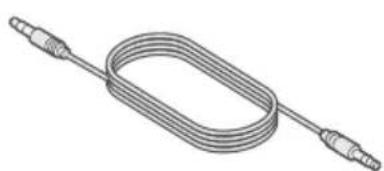
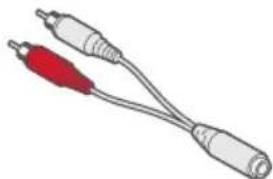
Option 2 : AUX
global.Bose.com/Support/STWL
natural_image
Illustration of a hand holding a remote control with wireless signal icons, no text or symbols present
natural_image
Diagram of a plug with an arrow indicating upward motion, no text or symbols present
Connecteur SETUP
Importatore per la Cina: Bose Electronics (Shanghai) Company Limited, Part C, Plant 9, No. 353 North Riying Road, China (Shanghai) Pilot Free Trade Zone
natural_image
Line drawing of a beige wireless router with a square top and two ports (no text or symbols)
natural_image
Illustration of a USB cable with a rectangular connector and terminal connector (no text or symbols)
natural_image
Line drawing of a U-shaped electrical connector with two connectors (no text or symbols)

natural_image
Line drawing of a coiled electrical cable with two connectors (no text or symbols)
natural_image
Illustration of two audio/video cables with a red connector (no text or symbols)
Opzione 2: AUX
global.Bose.com/Support/STWL
natural_image
Diagram of a plug with an arrow indicating upward motion, showing internal components and a wire (no text or symbols)
Connettore SETUP
global.Bose.com/Support/STWL
Kínai importör: Bose Electronics (Shanghai) Company Limited, Part C, Plant 9, No. 353 North Riying Road, Kína (Shanghai) Pilot Free Trade Zone
EU-importör: Bose Products B.V., Gorslaan 60, 1441 RG Purmerend, The Netherlands
Tajvani importör: Bose Taiwan Branch, 9F-A1, No.10, Section 3, Minsheng East Road, Taipei City 104, Taiwan Phone Number: +886 -2 -2514 7676
Mexikói importör: Bose de México, S. de R.L. de C.V., Paseo de las Palmas 405-204, Lomas de Chapultepec, 11000 Mexico, D.F. Telefonszám: +5255 (5202) 3545
natural_image
Line drawing of a beige wireless router with a square top and two ports (no text or symbols)
natural_image
Line drawing of a USB cable with a rectangular connector (no text or symbols)
natural_image
Illustration of a U-shaped coiled cable with two connectors (no text or symbols)
natural_image
Line drawing of a coiled electrical cable with two connectors (no text or symbols)
natural_image
Illustration of two audio/video cables with red connectors (no text or symbols)
2. lehetőség: AUX
global.Bose.com/Support/STWL
natural_image
Illustration of a hand interacting with a remote control device, showing signal icons and power lines (no text or symbols)
natural_image
Diagram of a plug with a screw and upward arrow indicating direction (no text or symbols)
Importør for Kina: Bose Electronics (Shanghai) Company Limited, Part C, Plant 9, No. 353 North Riying Road, Kina (Shanghai) Pilot Free Trade Zone
Importør for EU: Bose Products B.V., Gorslaan 60, 1441 RG Purmerend, Nederland
Importør for Taiwan: Bose Taiwan Branch, 9F-A1, No.10, Section 3, Minsheng East Road, Taipei City 104, Taiwan. Telefon: +886 -2 -2514 7676
Importor for Mexico: Bose de México, S. de R.L. de C.V., Paseo de las Palmas 405-204, Lomas de Chapultepec, 11000 México, D.F. Telefonnummer: +5255 (5202) 3545
natural_image
Line drawing of a beige wireless router with a small screen and WiFi symbol (no text or labels)
natural_image
Line drawing of a USB cable with connector (no text or symbols)
Bose® SoundTouch® Wireless Link-adapter Strømforsyning
natural_image
Illustration of a U-shaped coiled cable with two connectors (no text or symbols)
natural_image
Line drawing of a coiled electrical or mechanical component with two connectors (no text or symbols)
natural_image
Illustration of two audio/video cables with red and gray connectors (no text or symbols)
Alternativ 1: Optisk (foretrukket)
Bruk den optiske til minioptiske kabelen for optisk lyd.
Alternativ 2: AUX
Hvis ingen optisk kabel er tilgjengelig, bruker du den 3,5 mm stereokabelen.
Alternativ 3: Analog
Alternativ 2: AUX
Hvis du vil bruke en AUX-tilkobling, bruker du den 3,5 mm stereokabelen.
- Sett den ene enden av kabelen inn i den 3,5 mm AUX-inngangen på lydsystemet.
- Sett den andre enden inn i -kontakten på SoundTouch® Wireless Link.
Alternativ 3: Analog
Koble til strøm
- Plugg strømledningen inn i -kontakten.
- Plugg den andre enden inn i en stikkontakt.
Merk: Bruk adapteren for ditt område ved behov.
SoundTouch®-appen lar deg konfigurere og styre SoundTouch® fra en smarttelefon, et nettbrett eller en datamaskin. Fra appen fungerer smartenheten din som en fjernkontroll for SoundTouch® Wireless Link.
global.Bose.com/Support/STWL
natural_image
Illustration of a hand holding a remote control device with wireless signals and icons (no text or symbols)
Bluetooth-indikatoren lyser hvitt när tilkoblet.
natural_image
Diagram of a plug with a screw and upward arrow indicating direction (no text or symbols)
SETUP-kontakt
SETUP-kontakten er bare beregnet på serviceformål (se side 30). Ikke koble kabler til denne kontakten med mindre du får beskjed om dette.
Du kan konfigurere SoundTouch® Wireless Link ved hjelp av en datamaskin i stedet for smarttelefon eller nettbrett.
Før du begynner
Importer — Chiny: Bose Electronics (Shanghai) Company Limited, Part C, Plant 9, No. 353 North Riying Road, China (Shanghai) Pilot Free Trade Zone
Importer — UE: Bose Products B.V., Gorslaan 60, 1441 RG Purmerend, Holandia
Importer — Tajwan: Bose Taiwan Branch, 9F-A1, No.10, Section 3, Minsheng East Road, Taipei City 104, Tajwan, numer telefonu: +886-2-2514 7676
Importer — Meksyk: Bose de México, S. de R.L. de C.V., Paseo de las Palmas 405-204, Lomas de Chapultepec, 11000 México, D.F. Numer telefonu: +5255 (5202) 3545
natural_image
Line drawing of a beige wireless router with a square top and two ports (no text or symbols)
natural_image
Line drawing of a USB cable with connector (no text or symbols)
natural_image
Illustration of a coiled electrical sensor or probe with two connectors (no text or symbols)
natural_image
Illustration of a coiled electrical or mechanical component with two connectors (no text or symbols)
natural_image
Illustration of two audio/video cables with a red connector (no text or symbols)
Opcja 2: AUX
Opcja 3: analogowe
global.Bose.com/Support/STWL
W przypadku problemów z adapterem SoundTouch® Wireless Link:
natural_image
Diagram of a plug with an outlet and screw base, showing upward force direction (no text or symbols)
Złącze SETUP
Importador na China: Bose Electronics (Shanghai) Company Limited, Part C, Plant 9, No. 353 North Riying Road, China (Shanghai) Pilot Free Trade Zone
Importadora na União Europeia: Bose Products B.V., Gorslaan 60, 1441 RG Purmerend, The Netherlands
Importadora em Taiwan: Bose Taiwan Branch, 9F-A1, No.10, Section 3, Minsheng East Road, Taipei City 104, Taiwan
Número de telefone: +886-2-2514 7676
natural_image
Line drawing of a beige wireless router with a square top and two ports (no text or symbols)
natural_image
Line drawing of a rectangular device connected to a coiled cable with a connector (no text or symbols)
natural_image
Line drawing of a U-shaped electrical connector with two connectors (no text or symbols)
natural_image
Line drawing of a coiled electrical cable with two connectors (no text or symbols)
natural_image
Illustration of two audio/video cables with red connectors (no text or symbols)
Opção 1:
Opção 2: AUX
Opção 3: Analógica
global.Bose.com/Support/STWL
AUX IN do SoundTouch® Wireless Link.
Visite: global.Bose.com/Support/STWL
natural_image
Diagram of a plug with an outlet and screw base, showing upward force direction (no text or symbols)
Conector SETUP
global.Bose.com/Support/STWL
Kinaimportör: Bose Electronics (Shanghai) Company Limited, Part C, Plant 9, No. 353 North Riying Road, China (Shanghai) Pilot Free Trade Zone
Importör, EU: Bose Products B.V., Gorslaan 60, 1441 RG Purmerend, Nederländerna
Importör, Taiwan: Bose Taiwan Branch, 9F-A1, No.10, Section 3, Minsheng East Road, Taipei City 104, Taiwan
Telefon: +886 -2 -2514 7676
Importör, Mexico: Bose de México, S. de R.L. de C.V., Paseo de las Palmas 405-204, Lomas de Chapultepec, 11000 México, D.F. Telefon: +5255 (5202) 3545

Bose Corporation Headquarters: 1-877-230-5639
natural_image
Line drawing of a wireless router device with WiFi signal icon (no text or symbols)
natural_image
Line drawing of a USB cable with a rectangular connector (no text or symbols)
natural_image
Illustration of a coiled electrical sensor or probe with two connectors (no text or symbols)
natural_image
Line drawing of a coiled electrical cable with two connectors (no text or symbols)
natural_image
Illustration of two audio/video cables with red connectors (no text or symbols)
Optisk-till-mini-optisk kabel 3,5 mm stereokabel 3,5 mm kabel hona-till-RCA
Alternativ 2: AUX
Alternativ 3: analog
Om du vill göra en analog anslutning ansluter du 3,5 mm kabeln hona-till-RCA till 3,5 mm stereokabeln.
global.Bose.com/Support/STWL
natural_image
Diagram of a plug with a screw and outlet, showing an upward arrow indicating direction (no text or symbols present)
SETUP-kontakt
global.Bose.com/Support/STWL
natural_image
Line drawing of a beige wireless device with a square top and two ports marked with Wi-Fi symbols (no text or labels)
natural_image
Line drawing of a rectangular device connected to a coiled cable with a connector (no text or symbols)
แหล่งจ่ายไฟ
natural_image
Illustration of a coiled electrical sensor or probe with two connectors (no text or symbols)
natural_image
Line drawing of a coiled cable or tube with two connectors (no text or symbols)
สายเคเบิลสเตอริโอ
3.5 มม.
natural_image
Illustration of two audio/video cables with a red connector (no text or symbols)
ทางเลือก 2: AUX
global.Bose.com/Support/STWL
natural_image
Diagram of a plug with an arrow indicating upward motion, showing internal components and a wire (no text or symbols)
ช่องเสียบ SETUP
중국 수입업체: Bose Electronics (Shanghai) Company Limited, Part C, Plant 9, No. 353 North Riying Road, China (Shanghai) Pilot Free Trade Zone
EU 수입업체: Bose Products B.V., Gorslaan 60, 1441 RG Purmerend, The Netherlands
대만 수입업체: Bose Taiwan Branch, 9F-A1, No.10, Section 3, Minsheng East Road, Taipei City 104, Taiwan
전화 번호: +886-2-2514 7676
멕시코 수입업체: Bose de México, S. de R.L. de C.V., Paseo de las Palmas 405-204, Lomas de Chapultepec, 11000 México, D.F. 전화 번호: +5255 (5202) 3545
보안 정보

Bose Corporation Headquarters: 1-877-230-5639
natural_image
Line drawing of a wireless router device with WiFi and Wi-Fi symbols (no text or labels)
natural_image
Illustration of a rectangular device connected to a coiled cable with a connector (no text or symbols)
전원 공급장치
natural_image
Illustration of a coiled electrical sensor or probe with two connectors (no text or symbols)
광-미니 광 케이블
natural_image
Illustration of a coiled electrical cable with two connectors (no text or symbols)
3.5mm 스테레오케이블
natural_image
Illustration of two audio/video cables with red and gray connectors (no text or symbols)
3.5mm 암-RCA 케이블
옵션 1:
광(권장)
옵션 2: AUX
옵션 3: 아날로그
AC 전원 연결
global.Bose.com/Support/STWL
natural_image
Diagram of a plug with an arrow indicating upward motion, showing internal components and a wire (no text or symbols)
SETUP 커넥터
natural_image
Line drawing of a beige wireless router with a square top and two ports (no text or symbols)
natural_image
Line drawing of a rectangular device connected to a coiled cable with a connector (no text or symbols)
Bose® SoundTouch® Wireless Link 适配器 电源
natural_image
Illustration of a coiled electrical sensor or probe with two connectors (no text or symbols)
natural_image
Illustration of a coiled electrical cable with two connectors (no text or symbols)
natural_image
Illustration of two audio/video cables with red connectors (no text or symbols)
选项1:
光纤(首选)
光纤音频使用光纤与迷你光缆的连接。
选项2:
AUX
选项 2: AUX
选项 3: 模拟
接通交流电源
- 将电源线插入 连接器中。
- 将另一端插入通电的交流(市电)插座中。
global.Bose.com/Support/STWL
natural_image
Diagram of a plug with an arrow indicating upward motion, showing internal components and a wire (no text or symbols)
SETUP(安装)连接器
natural_image
Line drawing of a beige wireless router with a square top and two ports (no text or symbols)
natural_image
Line drawing of a rectangular device connected to a coiled cable with a connector (no text or symbols)
Bose® SoundTouch® Wireless Link 配接器 電源供應
natural_image
Illustration of a U-shaped coiled cable with two connectors (no text or symbols)
光纖與迷你光纜的連接
natural_image
Line drawing of a coiled electrical cable with two connectors (no text or symbols)
3.5 公釐立體聲連接線
natural_image
Illustration of two audio/video cables with red connectors (no text or symbols)
3.5 公釐母對 RCA 連接線
交流電源配接器(僅在特定地區提供)
選項1:
光纖(偏好)
光纖音訊使用光纖與迷你光纜的連接。
選項2:
AUX
選項 2:AUX
選項 3:類比
接通交流電源
1. 將電源線插入連接器中。
global.Bose.com/Support/STWL
natural_image
Diagram of a plug with an arrow indicating upward motion, showing internal components and a wire (no text or symbols)
SETUP(安裝)連接器
global.Bose.com/Support/STWL
提示:使用存儲了音樂庫的電腦。
中国における輸入元: Bose Electronics (Shanghai) Company Limited, Part C, Plant 9, No. 353 North Riying Road, China (Shanghai) Pilot Free Trade Zone
EUにおける輸入元: Bose Products B.V., Gorslaan 60, 1441 RG Purmerend, The Netherlands
台湾における輸入元: Bose Taiwan Branch, 9F-A1, No.10, Section 3, Minsheng East Road, Taipei City 104, Taiwan
Phone Number: +886 -2 -2514 7676
Bose Corporation Headquarters: 1-877-230-5639
natural_image
Line drawing of a beige wireless router with a square top and two labeled buttons (no text or symbols on the device body)
natural_image
Line drawing of a rectangular device connected to a coiled cable with a connector (no text or symbols)
natural_image
Illustration of a coiled electrical sensor or probe with two connectors (no text or symbols)
光角型 - 光ミニケーブル
natural_image
Line drawing of a coiled electrical cable with two connectors (no text or symbols)
3.5 mm ステレオ音声ケーブル
natural_image
Illustration of two audio/video cables with red connectors (no text or symbols)
オプション1:
光デジタル接続(推奨)
オプション2: AUX端子接続
オプション3: アナログ接続
電源に接続する
- 電源コードを 端子に接続します。
global.Bose.com/Support/STWL
natural_image
Diagram of a plug with an outlet and screw base, showing upward force direction (no text or symbols)
SETUP端子
global.Bose.com/Support/STWL
natural_image
Line drawing of a rectangular electronic device with a central button and two wireless icons at the bottom (no text or symbols)
natural_image
Line drawing of a USB cable with a rectangular connector (no text or symbols)
natural_image
Illustration of a coiled electrical sensor or probe with two connectors (no text or symbols)
natural_image
Line drawing of a coiled electrical or mechanical component with two connectors (no text or symbols)
natural_image
Illustration of two audio/video cables with a red connector (no text or symbols)
विकल्प 1:
ऑप्टिकल (पसंदीदा)
विकल्प 2: AUX
विकल्प 3: एनालाँग
AC बजली से जोड़ें
global.Bose.com/Support/STWL
natural_image
Diagram of a plug with a screw and outlet, showing an upward arrow indicating direction (no text or symbols present)
कनेक्टर सेटअप
global.Bose.com/Support/STWL
Импортер в Китае: Bose Electronics (Shanghai) Company Limited, Part C, Plant 9, No. 353 North Riying Road, China (Shanghai) Pilot Free Trade Zone
Импортер в ЕС: Bose Products B.V., Gorslaan 60, 1441 RG Purmerend, The Netherlands
Импортер в Тайване: Bose Taiwan Branch, 9F-A1, No.10, Section 3, Minsheng East Road, Taipei City 104, Taiwan номер телефона: +886-2-2514 7676
Импортер в Мексике: Bose de México, S. de R.L. de C.V., Paseo de las Palmas 405-204, Lomas de Chapultepec, 11000 México, D.F. Номер телефона: +5255 (5202) 3545
natural_image
Line drawing of a beige wireless router with a square top and two ports (no text or symbols)
natural_image
Line drawing of a rectangular device connected to a coiled cable with a connector (no text or symbols)
natural_image
Illustration of a coiled electrical sensor or probe with two connectors (no text or symbols)
natural_image
Line drawing of a coiled electrical cable with two connectors (no text or symbols)
natural_image
Illustration of two audio/video cables with a red connector (no text or symbols)
Вариант 1:
оптическое
(предпочтительный)
global.Bose.com/Support/STWL
natural_image
Diagram of a plug with an arrow indicating upward motion, showing internal components and a wire (no text or symbols)
Разъем SETUP
No. 353 North Riying Road, China (Shanghai) Pilot Free Trade Zone
Bose Products B.V., Gorslaan 60, 1441 RG Purmerend, The Netherlands : مستورد الاتحاد الأوروبي
Bose Taiwan Branch, 9F-A1, No.10, Section 3, Minsheng East Road, :
Taipei City 104, Taiwan
www.spotify.com/connect/third-party-licenses
natural_image
Line drawing of a rectangular device connected to a coiled cable with a connector (no text or symbols)
natural_image
Line drawing of a rectangular electronic device with a central button and two wireless icons at the bottom (no text or symbols)
Bose® SoundTouch® Wireless Link

natural_image
Illustration of two audio/video cables with red connectors (no text or symbols)
natural_image
Line drawing of a coiled electrical or mechanical component with two connectors (no text or symbols)
natural_image
Illustration of a U-shaped coiled cable with two connectors (no text or symbols)
AUX :2ocyار رقم
natural_image
Diagram of a plug with a black arrow indicating upward motion, showing internal components and a wire (no text or symbols)
Wireless Link 🟢 Wireless Link 🟢 Wireless Link 🟢 Wireless Link 🟢 Wireless Link 🟢 Wireless Link 🟢 Wireless Link 🟢 Wireless Link 🟢 Wireless Link 🟢 Wireless Link 🟢 Wireless Link 🟢 Wireless Link 🟢 Wireless Link 🟢 Wireless Link 🟢 Wireless Link 🟢 Wireless Link 🟢 Wireless Link 🟢 Wireless Link 🟢 Wireless Link 🟢 Wireless Link 🟢 Wireless Link 🟢
إعداد الكمبيوتر
global.Bose.com/Support/STWL