ManualGo.com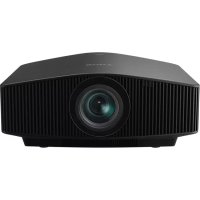
VPLVW870ES - Projector SONY - Free user manual and instructions
Find the device manual for free VPLVW870ES SONY in PDF.


Download the instructions for your Projector in PDF format for free! Find your manual VPLVW870ES - SONY and take your electronic device back in hand. On this page are published all the documents necessary for the use of your device. VPLVW870ES by SONY.
USER MANUAL VPLVW870ES SONY
This Quick Reference Manual explains the installation and basic operations for projecting pictures. Before operating the unit, please read this manual thoroughly and retain it for future reference.Refer to “About Indicators” as necessary.For details on the operations, refer to the Operating Instructions contained in the supplied CD-ROM. About the Quick Reference Manual Preparing.................................................................. Page 3 Installing the Unit................................................... Page 4 Connecting the Unit.............................................. Page 6 Projecting ................................................................. Page 7 Error Handling About Indicators......................................................................... Page 8 Step 1 Step 2 Step 3 Step 4 Using the CD-ROM manualThe manual can be read on a computer with Adobe Reader installed.You can download Adobe Reader free from the Adobe website. 1 Open the index.html file in the CD-ROM. 2 Select and click on the manual that you want to read. If you have lost or damaged the CD-ROM, you can purchase a new one from your Sony dealer or Sony service counter.Adobe and Adobe Reader are trademarks of Adobe Systems Incorporated in the United States and/or other countries. NotePreparing
Check the carton to make sure it contains the following items:
- Safety Regulations (8)
- Operating Instructions (CD-ROM) (1) Caution about handling the remote control
- Handle the remote control with care. Do not drop or step on it, or spill liquid of any kind onto it.
- Do not place the remote control in a location near a heat source, a place subject to direct sunlight, or a damp room. Preparing Step 1 Checking the Supplied Accessories Inserting the Batteries into the Remote Control Push and slide to open.Insert the batteries E side first. GBInstalling the Unit
1 Position the unit so that the lens is parallel to the screen. 2 After connecting the AC power cord to the unit, plug the AC power cord into a wall outlet. After connecting the AC power cord to the unit, the ON/STANDBY indicator may blink in orange.You may not be able to control the unit while the indicator is blinking, but this is not a malfunction. Wait until it stops blinking and remains lit in red. 3 Press the ?/1 (On/Standby) button to turn on the unit. 4 Project an image on the screen, then adjust the focus, size, and position. a Adjust the focus. Press the LENS ADJUSTMENT (FOCUS) button to display the Lens Focus adjustment window (test pattern). Then adjust the focus of the picture by pressing the M/m/</, button. b Adjust the picture size. Press the LENS ADJUSTMENT (ZOOM) button to display the Lens Zoom adjustment window (test pattern). Then adjust the size of the picture by pressing the M/m/</, button. c Adjust the picture position. Press the LENS ADJUSTMENT (SHIFT) button to display the Lens Shift adjustment window (test pattern). Then adjust to the proper position of the picture by pressing the M/m/</, button. To adjust the tilt of the installation surface If the unit is installed on an uneven surface, use the front feet (adjustable) to keep the unit level.
- If the unit is tilted up or down, the projected image may be trapezoidal.• Be careful not to catch your finger when turning the front feet (adjustable). Installing the Unit Step 2 Note Rear of the unitLights in red.Front of the unitFlashes in green for tens of seconds and then lights in green.Front of the unitNotesFront feet (adjustable) Tu r n t o adjust.Installing the Unit
Lens adjustment window (test pattern) 1.78:1 (16:9) 2.35:1 1.85:1 1.33:1 (4:3) The dashed lines show the screen sizes of each aspect ratio. For more information, refer to “Connections and Preparations” in the Operating Instructions contained in the supplied CD-ROM.Connecting the Unit
When making connections, be sure to do the following:
- Turn off all equipment before making any connections.
- Use the proper cables for each connection.
- Insert the cable plugs properly; poor connection at the plugs may cause a malfunction or poor picture quality. When pulling out a cable, be sure to pull it out from the plug, not the cable itself.
- Refer to the operating instructions of the connected equipment. Connecting the Unit Step 3 Right side of the unitEquipment with HDMI output connectorsto HDMI outputHDMI cable (not supplied)Computer: Video signal flowAV amplifierSpeakersto HDMI inputUse a Premium High Speed HDMI cable on which the cable type logo is specified. For more information, refer to “Connections and Preparations” in the Operating Instructions contained in the supplied CD-ROM.Projecting
1 Turn on both the unit and the equipment connected to the unit. 2 Press INPUT to display the input palette on the screen. 3 Select the equipment from which you want to display images. Press INPUT repeatedly or press M/m/ (enter) to select the equipment from which to project. 1 Press the ?/1 (On/Standby) button. The message “POWER OFF?” appears. 2 Press the ?/1 (On/Standby) button again before the message disappears. The ON/STANDBY indicator flashes in green and the fan continues to run to reduce the internal heat. The fan stops and the ON/STANDBY indicator changes from flashing green to remaining red. The power is turned off completely, and you can disconnect the AC power cord. Never disconnect the AC power cord while the indicator is flashing. Tip You can turn off the unit by holding the ?/1 (On/Standby) button for about 1 second, instead of performing the above steps. Press one of the CALIBRATED PRESET buttons. Projecting Step 4 Projecting the Picture Turning Off the Power Note Selecting the Picture Viewing Mode Setting items DescriptionCINEMA FILM 1 Picture quality suited to reproducing the highly dynamic and clear images typical of master positive film.CINEMA FILM 2 Picture quality suited to reproducing the rich tone and color typical of a movie theater, based on the “CINEMA FILM 1.”REF A picture quality setup suitable for when you want to reproduce faithfully the original image quality, or for enjoying image quality, without any adjustment.TV Picture quality suited for watching TV programs, sports, concerts, and other video images.PHOTO Ideal for projecting still images taken with a digital camera.GAME Picture quality suited to gaming, with well-modulated colors and fast response.BRT CINE Picture quality suited for watching movies in a bright environment, such as a living room.BRT TV Picture quality suited for watching TV programs, sports, concerts, and other video images in a bright environment, such as a living room.USER Adjusts the picture quality to suit your taste then saves the setting. The factory default setting is the same as “REF.”CALIBRATED PRESET buttonsFor more information, refer to “Projecting” in the Operating Instructions contained in the supplied CD-ROM.Error Handling
The ON/STANDBY or WARNING indicator lights up or flashes if there is any trouble with your projector. If there is any problem or an error message appears on the screen, refer to “Error Handling” in the Operating Instructions contained in the supplied CD-ROM. If the symptom persists even after carrying out the above methods, consult with qualified Sony personnel. If the indicator starts flashing in a way of other than the above, turn off, and then turn on the power with the ?/1 (On/Standby) button on the remote control or control panel of the unit. If the symptom is shown again, consult with qualified Sony personnel. Error Handling About Indicators Flashing/Lighting indicators The number of flashes Cause and Remedy Three times The unit does not light properly due to an abnormality of the light source and light source power. Turn off, then turn on the power after a while. If the symptom persists, consult qualified Sony personnel. Six times The unit detects a drop impact. If there is abnormality on the unit, consult with qualified Sony personnel. If there are no abnormalities on the unit, disconnect the AC power cord and check that the ON/STANDBY indicator turns off, then connect the AC power cord and turn the unit on. Eight times The lens is not securely attached. Consult with qualified Sony personnel. Twice The internal temperature is unusually high. Check to ensure that nothing is blocking the ventilation holes and the unit is not being used at high altitudes. Three times The fan is broken. Consult with qualified Sony personnel. Note ON/STANDBY indicatorWARNING indicator(Lights in red) (Flashes in red)(Flashes in red)Both indicators flash(Flashes in red) If there is any problem or an error message appears on the screen, refer to “Error Handling” in the Operating Instructions contained in the supplied CD-ROM.À propos du Guide de référence rapide