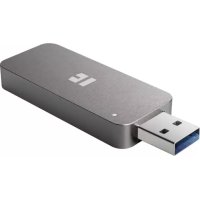
i.Gear SSDStick Prime - External hard drive TrekStor - Free user manual and instructions
Find the device manual for free i.Gear SSDStick Prime TrekStor in PDF.

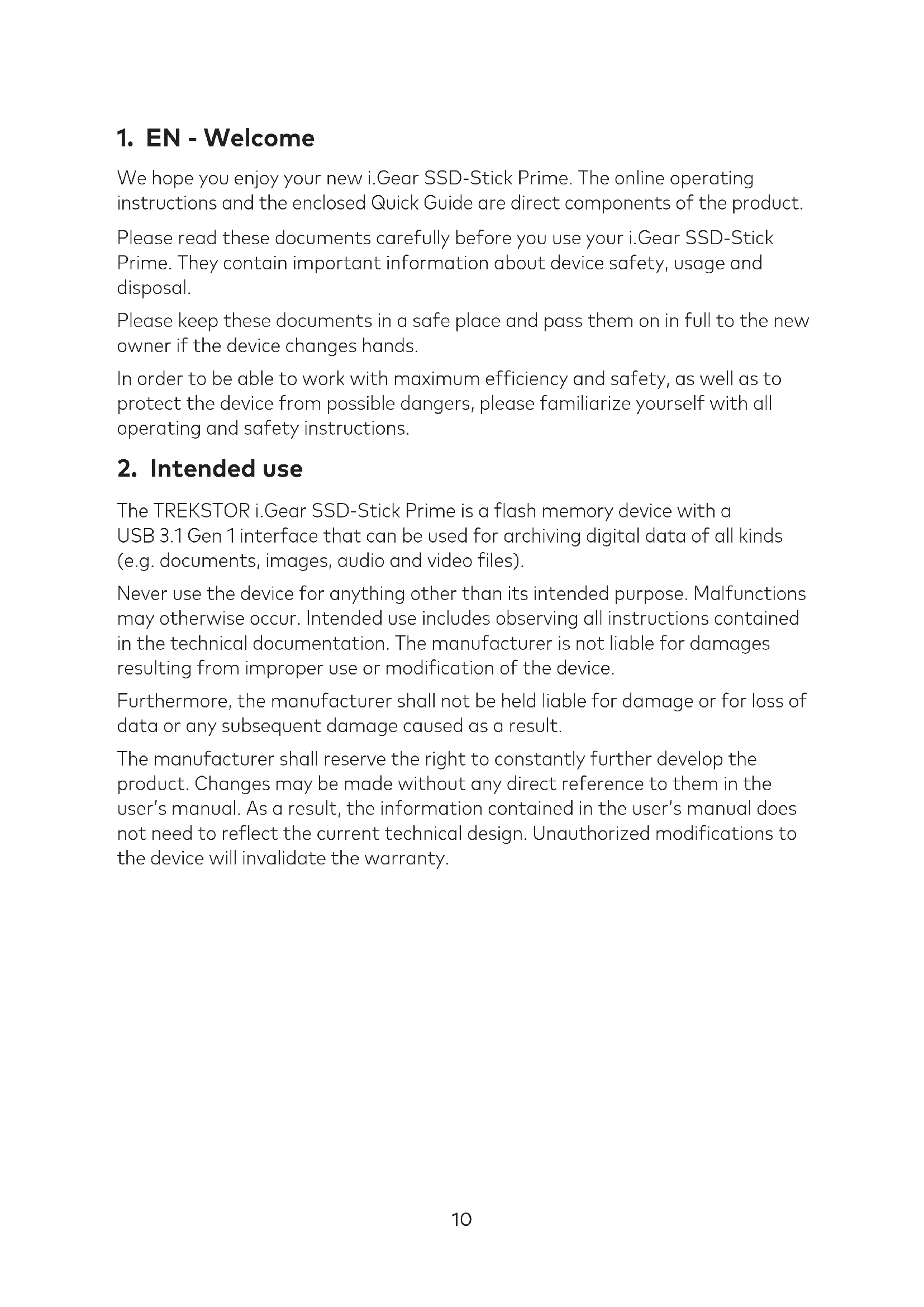


| Product type | External SSD hard drive |
| Brand | TrekStor |
| Model | i.Gear SSDStick Prime |
| Available capacities | 64 GB, 125 GB, 256 GB, 512 GB |
| Interface | USB-A 3.1 Gen 1 |
| Dimensions (L x H x D) | 72 × 25 × 8.5 mm (without cap) |
| Weight | 23 g |
| Material | Magnesium alloy |
| Color | Silver, gray |
| Power supply | Via USB port (bus powered) |
| Max. read speed | 420 MB/s |
| Max. write speed | 350 MB/s |
| Supported operating systems | Windows 10/8.1/8/7, Mac OS X 10.3+, Linux Kernel 2.6.x+ |
| Operating temperature | 5 to 45 °C |
| Relative humidity | 30% to 70% |
| Main functions | Storage and transfer of digital data |
| Included accessories | USB A-A extension cable, quick start guide |
| Care and cleaning | Clean with a dry cloth, avoid moisture and dust |
| Safety | Protect from electrostatic discharges, avoid condensation |
| Spare parts and repairability | No user-serviceable parts |
| Warranty | 24 months (statutory warranty) |
Frequently Asked Questions - i.Gear SSDStick Prime TrekStor
User questions about i.Gear SSDStick Prime TrekStor
0 question about this device. Answer the ones you know or ask your own.
Ask a new question about this device
Download the instructions for your External hard drive in PDF format for free! Find your manual i.Gear SSDStick Prime - TrekStor and take your electronic device back in hand. On this page are published all the documents necessary for the use of your device. i.Gear SSDStick Prime by TrekStor.
USER MANUAL i.Gear SSDStick Prime TrekStor
We hope you enjoy your new i.Gear SSD-Stick Prime. The online operating instructions and the enclosed Quick Guide are direct components of the product.
Please read these documents carefully before you use your i.Gear SSD-Stick Prime. They contain important information about device safety, usage and disposal.
Please keep these documents in a safe place and pass them on in full to the new owner if the device changes hands.
In order to be able to work with maximum efficiency and safety, as well as to protect the device from possible dangers, please familiarize yourself with all operating and safety instructions.
2. Intended use
The TREKSTOR i.Gear SSD-Stick Prime is a flash memory device with a USB 3.1 Gen 1 interface that can be used for archiving digital data of all kinds (e.g. documents, images, audio and video files).
Never use the device for anything other than its intended purpose. Malfunctions may otherwise occur. Intended use includes observing all instructions contained in the technical documentation. The manufacturer is not liable for damages resulting from improper use or modification of the device.
Furthermore, the manufacturer shall not be held liable for damage or for loss of data or any subsequent damage caused as a result.
The manufacturer shall reserve the right to constantly further develop the product. Changes may be made without any direct reference to them in the user's manual. As a result, the information contained in the user's manual does not need to reflect the current technical design. Unauthorized modifications to the device will invalidate the warranty.
3. Explanation of Safety Symbols and Keywords
This booklet uses the following safety symbols and keywords:
| WARNING | Indicates possible danger to life and/or danger of severe, irreversible injuries |
| CAUTION | Follow instructions to avoid injuries and material damage |
| NOTICE Follow instructions to avoid material damage | |
| i ADVICE | Additional information about using the device |
4. General Safety Information

WARNING
Risk of multiple injuries due to reduced physical, sensory, or mental capabilities and/or lack of knowledge or practical experience
Children and vulnerable individuals may only use the device under direct supervision.
Risk of suffocation and severe injuries from accessories and packaging materials
- Keep accessories and packaging materials out of reach of babies, young children, and pets.
- Do not insert accessories and/or parts of the device into orifices such as your mouth, ears, or eyes.
NOTICE
To avoid potential malfunctions and/or damage to the device caused by environmental factors, please note the following:
Exposing the device to electrostatic discharge can interrupt the data transfer between the device and the computer or impair the functions of the device. Should this happen, disconnect the device from the USB port and reconnect it.
No parts inside the device require maintenance or cleaning.
The recommended humidity for operating and storing the device is between 30 and 70 percent.
- The recommended ambient temperature for operating, charging and storing the device is between 5^ C and 30^ C. Temperatures above or below this may cause damage to the device.
- Protect the device from rapid temperature fluctuations. Condensation from humidity can damage the device and may result in danger to the user.
Do not expose your device to rain or to dripping or splashing water.
Use the device in a dust-free environment.
- Failure to observe this instruction shall render any guarantee claims.

ADVICE
The storage capacity indicated on the packaging and in the technical specifications refers to the total storage capacity of your device. The storage capacity of your device as indicated by the operating system may differ from the specified storage capacity, as a portion of the total storage is also used by the operating system and system applications.
5. Technical specifications
Capacity* (SSD): 64 GB, 125 GB, 256 GB, 512 GB
Interface: USB-A 3.1 Gen 1
Dimensions (W x H x D): approx. 72 x 25 x 8,5 mm
(without protective cap)
Weight: approx. 23 g
Material/Colour: Magnesium alloy/Silver, grey
More: protective cap
Supported operating systems: Windows 10 / 8.1 / 8 / 7, Mac® OS X
from 10.3, Linux® from Kernel 2.6.x
Max. data transfer rate** (read): 420 MB/s
Max. data transfer rate** (write): 350 MB/s
Temperatures: 5^ C to 30^ C
Relative humidity: 30% to 70%
- depending on model
** Data transfer rates are system- and capacity-dependent.

ADVICE
Please note that the drivers for the USB 3.0 port are not automatically installed with all operating systems. If you have any questions about the installation of these drivers, please contact the manufacturer of your computer or of the used USB 3.0 interface card.
6. Content
TREKSTOR I.GEAR SSD-STICK PRIME
USB A-A extension cable
Quick Guide
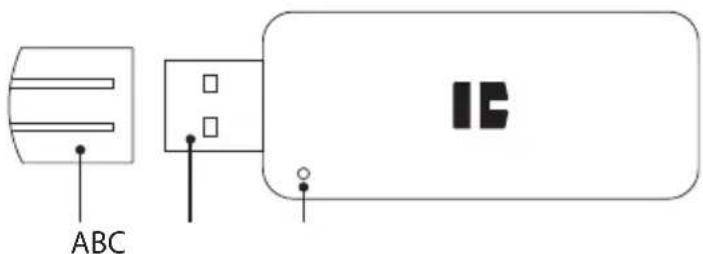
7. Controls and ports
8. Connect the SSD stick to the computer
The SSD stick can be connected to the computer directly or using the USB A-A extension cable included. The extension cable is used if the SSD stick cannot be connected to the computer directly for space reasons.
a) Remove the protective cap from the SSD stick.
b) Optional: Connect the SSD stick to the complementary end of the extension cable.
c) Connect the SSD stick or the extension cable to a compatible USB port on your computer.
The LED lights up, the SSD stick is recognised by your computer and displayed in disk management.

ADVICE
Use the function "Safely Remove Hardware" in order to remove the SSD stick from the computer in a proper fashion.
9. Notes on copyright and trademarks
Copyright law prohibits the copying of the content of this document (illustrations, reference documents etc.), as a whole or in part, without the permission of the copyright holder.
Microsoft, Windows and Windows 10 are either registered trademarks or trademarks of Microsoft Corporation in the United States and/or other countries.
TREKSTOR is a registered trademark of TREKSTOR Ltd. in the European Community and other countries. Copyright © 2018 TREKSTOR GmbH. All rights reserved.
Some product or company names mentioned elsewhere may be brand names or trade names of the respective proprietor.
10. Notes on disposal and recycling
Notes on disposal

This symbol indicates that this product contains components that are harmful to the environment and/or human health if not disposed of correctly. As the owner of a used electrical or electronic device, you may not dispose of this device together with assorted domestic waste.
Under European law you are required as a consumer to dispose of electronic waste and used batteries/appliances separately. As per national laws and provisions and/or EU Directives 2012/19/EU and 2006/66/EC, electronic waste and used batteries must be taken to the appropriate collection centers.
In EU member states, you can dispose of electrical or electronic equipment free of charge at special collection points near you. For more information, please contact your local authority or local authority. In some member states the retailer is obliged to take back the old equipment free of charge when buying new equipment. For further information, please contact your dealer.
Please note: Improper disposal of used appliances and batteries is a criminal offense in certain countries.
Notes on recycling

Your device and its sales packaging consist of valuable raw materials, which must be recycled in the interest of environmental protection.

Contact your city or municipal authority for information on the correct method of disposal.
Information on disposal in non-EU countries
These symbols only apply in the European Union. Information on proper disposal of these devices is available from your local competent authority or from the retailer.
11. Notes on the warranty
The statutory warranty period for consumer products is 24 months. There is no warranty beyond this. Unauthorised modifications to the device may void the warranty.
12. Support information
If you have questions about your product or problems, please proceed as follows:
- Carefully read the operating instructions.
Take a look at our FAQ section of our website, where you will find answers to the most frequently asked questions about your product. - Check whether you have entered the correct settings on your device using the product features and functions as points of reference.
- Consult the respective product detail page for up-to-date information on your product.
If you have taken these measures and the problem persists, please contact our service team directly.
Our professional service employees will discuss all of the additional necessary steps with you and provide individual support to help you quickly and easily continue to address your concern.
Directly contacting us, the manufacturer, via our service hotline or by filling out our service form allows us to address your concern more quickly and allows you to benefit from high-quality consulting and support.
You can find out how to reach our service team here:
13. Statement of Compliance with EU Directives
The manufacturer hereby confirms that the i.Gear SSD-Stick Prime device complies with the requirements and other relevant provisions of Directive 2014/30/EU.
14. Federal Communications Commission notice (US)
This Class B digital apparatus complies with, as applicable, Part 15 of the U.S. Federal Communications Commission (FCC) rules. Operation is subject to the following two conditions: (1) this device may not cause interference, and (2) this device must accept any interference received, including interference that may cause undesired operation.
1. IT - Benvenuto
Microsoft, Windows and Windows 10 are either registered trademarks or trademarks of Microsoft Corporation in the United States and/or other countries.
TREKSTOR is a registered trademark of TREKSTOR Ltd. in the European Community and other countries. Copyright © 2018 TREKSTOR GmbH. All rights reserved.
Microsoft, Windows and Windows 10 are either registered trademarks or trademarks of Microsoft Corporation in the United States and/or other countries.
TREKSTOR is a registered trademark of TREKSTOR Ltd. in the European Community and other countries. Copyright © 2018 TREKSTOR GmbH. All rights reserved.
Microsoft, Windows and Windows 10 are either registered trademarks or trademarks of Microsoft Corporation in the United States and/or other countries.
TREKSTOR is a registered trademark of TREKSTOR Ltd. in the European Community and other countries. Copyright © 2018 TREKSTOR GmbH. All rights reserved.
Microsoft, Windows and Windows 10 are either registered trademarks or trademarks of Microsoft Corporation in the United States and/or other countries.
TREKSTOR is a registered trademark of TREKSTOR Ltd. in the European Community and other countries. Copyright © 2018 TREKSTOR GmbH. All rights reserved.
Microsoft, Windows and Windows 10 are either registered trademarks or trademarks of Microsoft Corporation in the United States and/or other countries.
TREKSTOR is a registered trademark of TREKSTOR Ltd. in the European Community and other countries. Copyright © 2018 TREKSTOR GmbH. All rights reserved.
Microsoft, Windows and Windows 10 are either registered trademarks or trademarks of Microsoft Corporation in the United States and/or other countries.
TREKSTOR is a registered trademark of TREKSTOR Ltd. in the European Community and other countries. Copyright © 2018 TREKSTOR GmbH. All rights reserved.
Microsoft, Windows and Windows 10 are either registered trademarks or trademarks of Microsoft Corporation in the United States and/or other countries.
TREKSTOR is a registered trademark of TREKSTOR Ltd. in the European Community and other countries. Copyright © 2018 TREKSTOR GmbH. All rights reserved.
Microsoft, Windows and Windows 10 are either registered trademarks or trademarks of Microsoft Corporation in the United States and/or other countries.
TREKSTOR is a registered trademark of TREKSTOR Ltd. in the European Community and other countries. Copyright © 2018 TREKSTOR GmbH. All rights reserved.
64625 Bensheim, Germany

- Intended use
- Explanation of Safety Symbols and Keywords
- General Safety Information
- WARNING
- NOTICE
- ADVICE
- Technical specifications
- Content
- Controls and ports
- Connect the SSD stick to the computer
- Notes on copyright and trademarks
- Notes on disposal and recycling
- Notes on disposal
- Notes on recycling
- Information on disposal in non-EU countries
- Notes on the warranty
- Support information
- Statement of Compliance with EU Directives
- Federal Communications Commission notice (US)
- IT - Benvenuto
Brand : TrekStor
Model : i.Gear SSDStick Prime
Category : External hard drive