Powerwall 2 AC - Phone charger TESLA - Free user manual and instructions
Find the device manual for free Powerwall 2 AC TESLA in PDF.



User questions about Powerwall 2 AC TESLA
0 question about this device. Answer the ones you know or ask your own.
Ask a new question about this device
Download the instructions for your Phone charger in PDF format for free! Find your manual Powerwall 2 AC - TESLA and take your electronic device back in hand. On this page are published all the documents necessary for the use of your device. Powerwall 2 AC by TESLA.
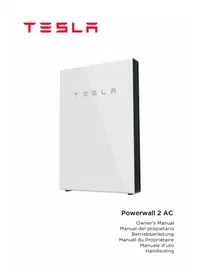
USER MANUAL Powerwall 2 AC TESLA
For the latest Powerwall documents in all supported languages, including the Warranty, visit www.tesla.com/support/powerwall.
To secure the full 10-year product warranty, Powerwall must be registered by completing the commissioning process and sending system information to Tesla.
Warning: Read this entire document before installing or using Powerwall. Failure to do so or to follow any of the instructions or warnings in this document can result in electrical shock, serious injury, or death, or can damage Powerwall, potentially rendering it inoperable.
PRODUCT SPECIFICATIONS
This manual applies to the following products:
Powerwall 2 AC (1092170-xx-x or 2012170-xx-x)
- Gateway (1099752-xx-x)
- Backup Gateway (1118431-xx-x)
- Gateway Meter (1112484-xx-x)
All specifications and descriptions contained in this document are verified to be accurate at the time of printing. However, because continuous improvement is a goal at Tesla, we reserve the right to make product modifications at any time.
The images provided in this document are for demonstration purposes only. Depending on product version and market region, details may appear slightly different.
ERRORS OR OMISSIONS
To communicate any inaccuracies or omissions in this manual, send an email to: energy-pubs@tesla.com.

ELECTRONIC DEVICE:DO NOT THROW AWAY
Proper disposal of batteries is required. Refer to your local codes for disposal requirements.

MADE IN THE USA



©2018 TESLA, INC. All rights reserved.
All information in this document is subject to copyright and other intellectual property rights of Tesla, Inc. and its licensors. This material may not be modified, reproduced or copied, in whole or in part, without the prior written permission of Tesla, Inc. and its licensors.
Additional information is available upon request. The following are trademarks or registered trademarks of Tesla, Inc. in the United States and other countries:
| TESLA | TESLA MOTORS | TESLA | POWERWALL |
All other trademarks contained in this document are the property of their respective owners and their use herein does not imply sponsorship or endorsement of their products or services. The unauthorized use of any trademark displayed in this document or on the product is strictly prohibited.
TABLE OF CONTENTS
IMPORTANT SAFETY INSTRUCTIONS 2
Symbols in This Document 2
General Information 2
Environmental Conditions 3
1. Powerwall Warranty 4
2. Care and Maintenance 4
Environmental Requirements 4
Care and Cleaning 4
Maintenance 4
3. Powerwall System without Backup 5
About Powerwall 5
Monitoring Your System 5
Overview 6
Operation 6
Troubleshooting 7
Technical Support 7
4. Powerwall System with Backup 8
About Powerwall 8
Monitoring Your System 9
Overview 10
Operation 10
Troubleshooting 11
Technical Support 12
5. What to Do in Case of an Emergency 12
6. System Information 13
IMPORTANT SAFETY INSTRUCTIONS
SAVE THESE IMPORTANT SAFETY INSTRUCTIONS
Powerwall installation and service require knowledge of high voltage electricity and should only be performed by Tesla Certified Installers. Tesla assumes no liability for injury or property damage due to repairs attempted by unqualified individuals or a failure to properly follow these instructions. These warnings and cautions must be followed when using Powerwall.
Symbols in This Document
This manual uses the following symbols to highlight important information:
WARNING: indicates a hazardous situation which, if not avoided, could result in injury or death.
CAUTION: indicates a hazardous situation which, if not avoided, could result in minor injury or damage to the equipment.
NOTE: indicates an important step or tip that leads to best results, but is not safety or damage related.
General Information
WARNING: Read this entire document before installing or using Powerwall. Failure to do so or to follow any of the instructions or warnings in this document can result in electrical shock, serious injury, or death, or can damage Powerwall, potentially rendering it inoperable.
WARNING: A battery can present a risk of electrical shock, fire, or explosion from vented gases. Observe proper precautions.
WARNING: This product can expose you to chemicals including cobalt and lithium compounds, which are known to the State of California to cause cancer and birth defects or other reproductive harm. For more information, visit www.P65Warnings.ca.gov. You cannot be exposed to these chemicals without opening the external casing. Only members of the Tesla Service team and other Tesla-certified technicians should open the external casing.
WARNING: Powerwall installation must be carried out only by Tesla Certified Installers who have been trained in dealing with high voltage electricity.
WARNING: Powerwall is heavy. Use of lift equipment is recommended.
WARNING: Use Powerwall only as directed.
WARNING: Do not use Powerwall if it is defective, appears cracked, broken, or otherwise damaged, or fails to operate.
WARNING: Before beginning the wiring portion of the installation, ensure that the Powerwall is switched off, and open any associated circuit breakers and disconnect switches (if applicable for the installation).
WARNING: Do not attempt to open, disassemble, repair, tamper with, or modify Powerwall. Powerwall and its components are not user serviceable. Batteries in Powerwall are not replaceable. Contact the Tesla Certified Installer who installed the system for any repairs.
WARNING: To protect Powerwall and its components from damage when transporting, handle with care. Do not impact, pull, drag, or step on Powerwall. Do not subject Powerwall to any strong force. To help prevent damage, leave Powerwall in its shipping packaging until it is ready to be installed.
WARNING: Do not insert foreign objects into any part of Powerwall.
WARNING: Do not expose Powerwall or its components to direct flame.
WARNING: Do not install Powerwall near heating equipment.
WARNING: Do not immerse Powerwall or its components in water or other fluids.
CAUTION: Do not use cleaning solvents to clean Powerwall, or expose Powerwall to flammable or harsh chemicals or vapors.
CAUTION: Do not use fluids, parts, or accessories other than those specified in this manual, including use of non-genuine Tesla parts or accessories, or parts or accessories not purchased directly from Tesla or a Tesla-certified party.
CAUTION: Do not place Powerwall in a storage condition for more than one (1) month, or permit the electrical feed on the Powerwall to be severed for more than one (1) month, without placing Powerwall into a storage condition in accordance with Tesla's storage specifications.
CAUTION: Do not paint any part of Powerwall, including any internal or external components such as the exterior shell or casing.
CAUTION: Do not connect Powerwall directly to photovoltaic (PV) solar wiring.
CAUTION: When installing Powerwall in a garage or near vehicles, keep it out of the driving path. If possible, install Powerwall on a side wall and/or above the height of vehicle bumpers.
Environmental Conditions
WARNING: Install Powerwall in a location that prevents damage from flooding.
WARNING: Operating or storing Powerwall in temperatures outside its specified range might cause damage to Powerwall.
WARNING: Do not expose Powerwall to ambient temperatures above 60^ (140°F) or below -30°C (-22°F).
CAUTION: Ensure that no water sources are above or near Powerwall, including downspouts, sprinklers, or faucets.
CAUTION: Ensure that snow does not accumulate around Powerwall.
1. Powerwall Warranty
Tesla Powerwall comes with a warranty whose term depends on the connection of Powerwall to the Internet.
To secure the full 10-year warranty for Powerwall, it must be reliably connected to the Internet to allow remote firmware upgrades from Tesla. If an Internet connection is not established or is interrupted for an extended period, and Tesla is unable to contact you, the warranty may be limited to 4 years.
For more information, refer to the Tesla Powerwall Warranty for your region at www.tesla.com.
2. Care and Maintenance
Environmental Requirements
Powerwall is capable of charging and discharging within the operating temperature range specified below. At the extremes of the temperature range, Powerwall may limit charge or discharge power to improve battery lifespan.
For best performance, the average ambient temperature over the system's lifetime should fall within the optimum temperature range specified below.
| Operating Temperature | -20°C to 50°C (-4°F to 122°F) |
| Optimum Temperature | 0°C to 30°C (32°F to 86°F) |
Care and Cleaning
If it is installed outside, keep the sides of Powerwall clear of leaves and other debris to maintain optimal airflow.
CAUTION: Do not lean on, stack anything on top of, or hang anything from Powerwall or from wires or conduit leading to Powerwall.
CAUTION: To clean Powerwall, use a soft, lint-free cloth. If needed, the cloth can be dampened with mild soap and water only.
CAUTION: Do not use cleaning solvents to clean Powerwall, or expose Powerwall to flammable or harsh chemicals or vapors.
Maintenance
Powerwall and the Gateway do not require pre-scheduled preventative maintenance. The only maintenance required by an owner is to keep the Powerwall unit free and clear of debris, especially around the air intake and exhaust.
3. Powerwall System without Backup
About Powerwall
Powerwall 2 AC is a fully-integrated AC battery system for residential or light commercial use. Its rechargeable lithium-ion battery pack provides energy storage for solar self-consumption, load shifting, or off-grid use. The Gateway controls the operation of the system and allows remote monitoring of energy usage.

Monitoring Your System
Using the Tesla app, you can monitor system operation from your mobile device, including the following:
Real-time power usage
Energy consumption history
- Relative amounts of energy used from solar, grid, and Powerwall storage
To download the latest version of the Tesla app, visit www.tesla.com.
Overview
A Powerwall 2 AC system includes the following components and features:

Operation
The Gateway provides control and monitoring capability through the Tesla app. During normal operation, Powerwall is controlled by the Gateway, and the Powerwall On/Off switch should remain in the ON position. When troubleshooting Powerwall operation, it may be necessary to turn off Powerwall or refer to its LED indicator to confirm that it is operating properly.
WARNING: Do not operate Powerwall unless all covers are in place.
WARNING: Do not disconnect anything from or add anything to Powerwall.
CAUTION: Do not try to communicate with Powerwall using third party tools or diagnostics between Powerwall and the Gateway.
Troubleshooting
If the system is not working correctly, perform the following steps.
CAUTION: Powerwall and the Gateway are not user-serviceable and must be repaired by a Tesla Certified Installer.
- Check the LED on the right side of Powerwall to determine its status:
| LED State | Indication |
| On (solid) | Powerwall enabled/Communication with the Gateway |
| On (flashing) | Powerwall enabled/No communication with the Gateway |
| On (pulsing) | Powerwall enabled and charging or discharging |
| Off | Powerwall not enabled or switched off |
If it is not possible to communicate with the Gateway through the Tesla app, ensure that the home Internet connection is working.
If the Gateway and Powerwall are both unresponsive:
- Turn off Powerwall by setting its switch to the OFF position.
- Turn off the AC breakers for the system (Gateway and Powerwall).
- Wait for at least one minute.
- Turn the AC breakers back on.
- Turn on Powerwall.
NOTE: The Gateway is capable of withstanding voltage surges up to 1kV (measured between line and ground or neutral and ground). If an event (such as a lightning strike) exceeds this threshold and causes the system to become unresponsive or the Tesla app to lose communication with the system, do the following:
- Turn off Powerwall.
- Turn off the AC breakers to the Gateway and Powerwall.
- Contact Tesla Support for assistance.
Technical Support
If you need further assistance, contact the Tesla Service team at the support phone number for your region. Support numbers for all regions are available at:
https://www.tesla.com/support/powerwall
Have the following information available when contacting Tesla:
- Owner name
Best way for Tesla to contact you (name, phone number, email) - Gateway and Powerwall serial numbers (see #6 "System Information")
- Brief description of the issue
4. Powerwall System with Backup
About Powerwall
Powerwall 2 AC is a fully-integrated AC battery system for residential or light commercial use. Its rechargeable lithium-ion battery pack provides energy storage for solar self-consumption, load shifting, off-grid use, or backup. The Backup Gateway controls the operation of the system, allows remote monitoring of energy usage, and controls interconnection with the electrical grid, automatically managing the transition to and from backup operation.
A Powerwall 2 AC Backup system can provide whole-home backup or partial-home backup.
In a whole-home backup system, the Backup Gateway is typically installed between the electrical service entry and the main panel:

In a partial-home backup system, the Backup Gateway is typically installed between the main panel and a subpanel dedicated to essential backup loads:

Monitoring Your System
Using the Tesla app, you can monitor system operation from your mobile device, including the following:
Real-time power usage
Energy consumption history
- Energy reserve for backup needs
- Relative amounts of energy used from solar, grid, and Powerwall storage
To download the latest version of the Tesla app, visit www.tesla.com.
Overview
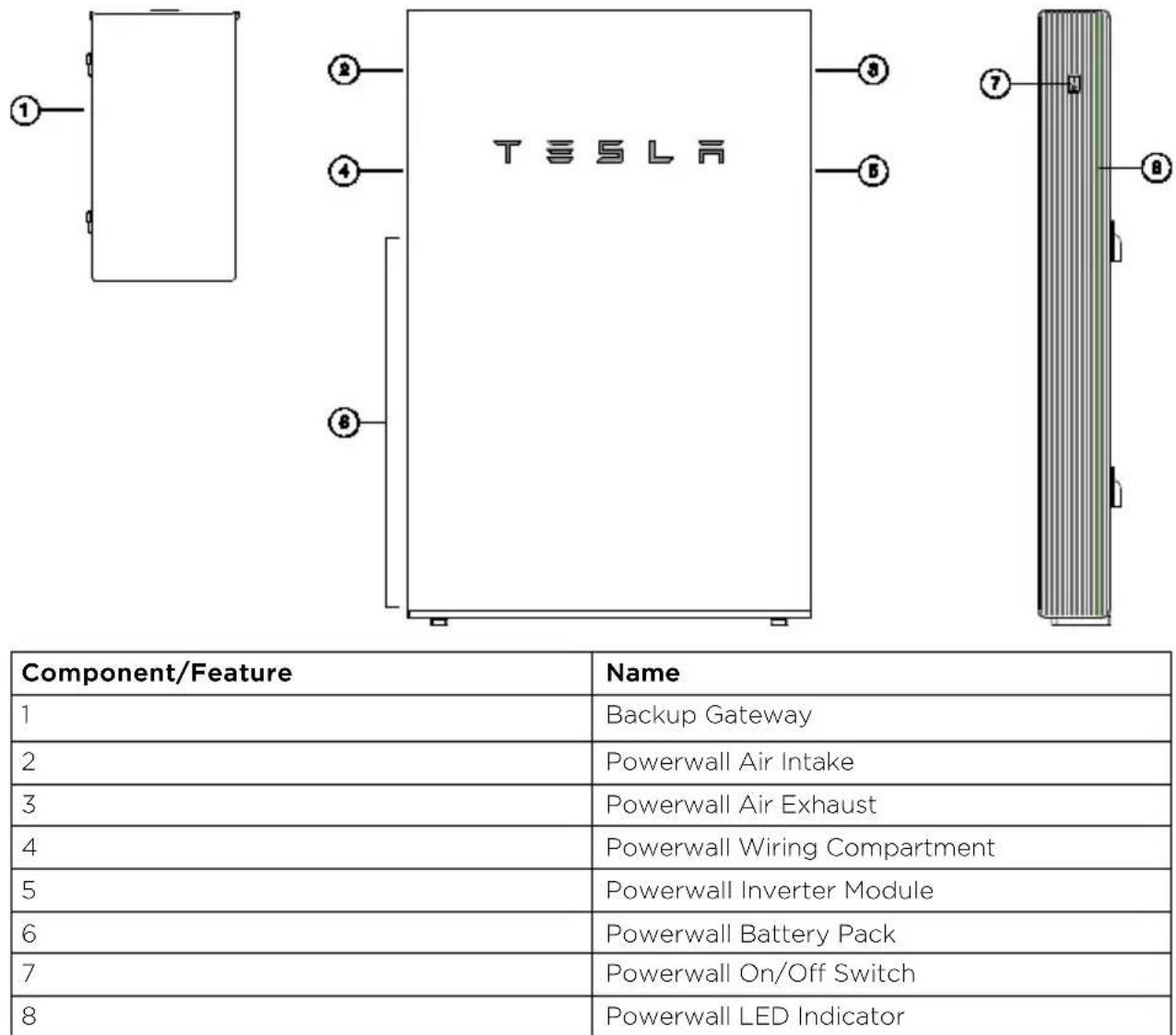
A Powerwall 2 AC Backup system includes the following components and features:
Operation
The Backup Gateway provides control and monitoring capability through the Tesla app. During normal operation, Powerwall is controlled by the Backup Gateway, and the Powerwall On/Off switch should remain in the ON position. When troubleshooting Powerwall operation, it may be necessary to turn off Powerwall or refer to its LED indicator to confirm that it is operating properly.

WARNING: Do not operate Powerwall unless all covers are in place.

WARNING: Do not disconnect anything from or add anything to Powerwall.

CAUTION: Do not try to communicate with Powerwall using third party tools or logistics between Powerwall and the Backup Gateway.
Troubleshooting
If the system is not working correctly, perform the following steps.

CAUTION: Powerwall and the Backup Gateway are not user-serviceable and must be retained by a Tesla Certified Installer.

- WARNING: Do not open the deadfront cover inside the Gateway. Exposed wiring can present a risk of electrical shock.
If a brownout or blackout is experienced during backup operation, reduce the loads and check that the load breakers have not opened.
Check the LED on the right side of Powerwall to determine its status:
| LED State | Indication |
| On (solid) | Powerwall enabled/Communication with Backup Gateway |
| On (flashing) | Powerwall enabled/No communication with Backup Gateway |
| On (pulsing) | Powerwall enabled and charging or discharging |
| Off | Powerwall not enabled or switched off |
If it is not possible to communicate with the Backup Gateway through the Tesla app, ensure that the home Internet connection is working.
- If the Backup Gateway has a Reset button, Tesla Support may direct you to restart the Gateway by pressing the button for at least one second. NOTE: if your system is disconnected from the grid, Powerwall will stop providing power while the Gateway is restarting.
If it is necessary to manually disconnect/reconnect to the grid, Tesla Support may direct you to operate the manual override switch in the Backup Gateway.

CAUTION: Do not remove the protective label or operate the manual override switch less directed to do so by Tesla Support. Improper operation of the manual override switch may damage the unit.
Turning off the system
If it is necessary to turn off or power cycle the Powerwall system, it must be done in the proper sequence.

A. WARNING: On Powerwall systems with interconnected solar, always turn off the solar heater or disconnect the solar source before turning off the Powerwall unit.
- Turn off or disconnect any interconnected solar generation system.
- Turn off Powerwall by setting its switch to the OFF position.
- Turn off the AC breaker to Powerwall.
- Turn off the AC breaker to the Backup Gateway (for whole-home backup systems, this may be a breaker inside the Backup Gateway)
- Wait at least one minute before turning the system back on.
Turning on the system
- Turn the AC breakers to Backup Gateway and Powerwall back on.
- Turn on Powerwall.
- Turn on or reconnect the solar generation system.

| Component | Name |
| 1 | Backup Gateway circuit breaker (in most whole-home backup systems) |
| 2 | Backup Gateway RESET button (Gateway version -H and later) |
| 3 | Backup Gateway manual override switch |
Technical Support
If you need further assistance, contact the Tesla Service team at the support phone number for your region. Support numbers for all regions are available at:
https://www.tesla.com/support/powerwall
Have the following information available when contacting Tesla:
Owner name
Best way for Tesla to contact you (name, phone number, email)
- Gateway and Powerwall serial numbers (see #6 "System Information")
- Brief description of the issue
5. What to Do in Case of an Emergency
In the event of any threat to health or safety, always begin with these two steps before addressing the other suggestions below:
- Immediately contact the fire department or other relevant emergency response team.
- Notify all people who might be affected and ensure that they can evacuate the area.
WARNING: Only perform the suggested actions below if it is safe to do so.
In case of fire:
- Turn off Powerwall, then turn off the AC breaker to Powerwall.
- Turn off the AC breaker to the Gateway.
- Acceptable fire extinguisher types are water, CO 2, and ABC. Avoid type D (flammable metal) extinguishers.
In case of flooding:
- Stay out of the water if any part of the battery, Gateway, or wiring is submerged.
- Turn off Powerwall, then turn off the AC breaker to Powerwall.
- Turn off the AC breaker to the Gateway.
If possible, protect the system by finding and stopping the source of the water, and pumping water away.
If any part of the unit was submerged, note the depth and duration of the flooding. - Contact Tesla Support to determine if the unit can be safely turned back on.
If Tesla Support has confirmed that it is safe to turn the unit back on, let the area dry completely before use.
If there is an unusual smell or smoke:
- Turn off Powerwall, then turn off the AC breaker to Powerwall.
- Turn off the AC breaker to the Gateway.
- Ensure nothing is in contact with Powerwall.
- Ventilate the room.
If Powerwall is making unusual noises:
- Turn off Powerwall, then turn off the AC breaker to Powerwall.
- Turn off the AC breaker to the Gateway.
Ensure that nothing is in the vent on either side of Powerwall or in the fan.
If Powerwall is leaking coolant:
WARNING: According to the U.S. Environmental Protection Agency, coolant can be absorbed through the skin and cause damage to internal organs. Ensure that it does not touch or enter any part of the body including, but not limited to, skin, eyes, and mouth.
- Turn off Powerwall, then turn off the AC breaker to Powerwall.
- Turn off the AC breaker to the Gateway.
- Ventilate the area.
When cleaning up spilled coolant:
- Wear safety goggles, rubber gloves, long trousers, a long sleeved shirt, and closed shoes.
- Avoid further coolant spills by putting a bucket under the leak. Powerwall holds up to 2.3 L (2.4 qt) of coolant.
- Pour cat litter, sawdust, or other absorbent material on the spill immediately. Allow the material to absorb as much of the coolant as possible.
Use paper towels to collect the used absorbent material and discard the soiled paper towels in a sealed plastic bag. Place the sealed plastic bag into the garbage. - Clean up anything that remains using soap and warm water.
In all cases, once the situation is stable, contact the Tesla Certified Installer who installed the system.
6. System Information
The serial numbers for your system are recorded on the inside back cover of this guide. Keep this information in the event your system requires service..
https://www.tesla.com/support/powerwall
https://www.tesla.com/support/powerwall
https://www.tesla.com/support/powerwall
Assistance technique
https://www.tesla.com/support/powerwall
https://www.tesla.com/support/powerwall
https://www.tesla.com/support/powerwall