40S357SFS - TV TESLA - Free user manual and instructions
Find the device manual for free 40S357SFS TESLA in PDF.


User questions about 40S357SFS TESLA
0 question about this device. Answer the ones you know or ask your own.
Ask a new question about this device
Download the instructions for your TV in PDF format for free! Find your manual 40S357SFS - TESLA and take your electronic device back in hand. On this page are published all the documents necessary for the use of your device. 40S357SFS by TESLA.
USER MANUAL 40S357SFS TESLA
Please read these instructions before operating your set and retain them for future reference.
UDHËZIM PËR PËR
WARNINGS AND PRECAUTIONS....4
PANEL BUTTONS 8
TERMINALS....9
REMOTE CONTROL FUNCTIONS 10
PERSONAL VIDEO RECORDING (REC) 12
ELECTRONIC PROGRAMME GUIDE (EPG) 13
INITIAL SETUP & HOME FEATURES 14
MENU CONTROL 16
Menu Operation.... 16
Picture 16
Sound 16
Installation 17
Setup 19
Time....20
Advanced....21
Network 21
USB CONTROL 21
USB Menu.... 21
Reminder When Using the USB Player 21
Movie Menu.... 22
Music Menu 23
Photo Menu 23
TROUBLESHOOTING....24
SPECIFICATIONS....26
Note
-
The graphics in this manual are only for reference.
-
Your TV's OSD may be slightly different with that shown in this manual.
-
The information in this document is subject to change without notice.
The manufacturer accepts no liability for damage resulting directly or indirectly from faults, incompleteness or discrepancies between the user manual and the product described.
- In dry environment due to static electricity, the product may be restart and return to the main OSD interface, USB player interface or the previous source mode, please continue to operate the TV as your will.
WARNINGS AND PRECAUTIONS
Read all of the instruction before operating the set. Keep the instruction for later use.
Important Safety Instructions
- Read these instructions – All the safety and operating instructions should be read before this product is operated.
- Keep these instructions – The safety and operating instructions should be retained for future reference.
- Read all warnings - All warnings on the appliance and in the operating instructions should be adhered to.
- Follow all instructions - All operating and use instructions should be followed.
- Do not use this apparatus near water – The appliance should not be used near water or moisture – for example, in a wet basement or near a swimming pool, and the like.
• Clean only with dry cloth.
- Do not block any ventilation openings. Install in accordance with the manufacturer's instructions.
- Do not install near any heat sources such as radiators, heat registers, stoves, or other apparatus (including amplifiers) that produce heat.
- Do not defeat the safety purpose of the polarized or grounding plug. A polarized plug has two blades with one wider than the other. A grounding plug has two blades and a third grounding prong. The wide blade or the third prong is provided for your safety. If the provided plug does not fit into your outlet, consult an electrician for replacement of the obsolete outlet.
- Protect the power cord from being walked on or pinched particularly at the plugs, convenience receptacles, and at the point where they exit from the apparatus.
• Only use attachments/accessories specified by the manufacturer.
- Use only with the cart, stand, tripod, bracket, or table specified by the manufacturer, or sold with the apparatus. When a cart or rack is used, use caution when moving the cart/apparatus combination to avoid injury from tip-over.
• Unplug the apparatus during lightning storms or when unused for long periods of time.
- Refer all servicing to qualified personnel. Servicing is required when the apparatus has been damaged in any way, such as power supply cord or plug is damaged, liquid has been spilled or objects have fallen into the apparatus, the apparatus has been exposed to rain or moisture, does not operate normally, or has been dropped.
- CAUTION: These servicing instructions are for use by qualified service personnel only. To reduce the risk of electric shock, do not perform any servicing that contained in the operating instructions unless you are qualified to do so.
- Do not install this equipment in a confined or building-in space such as a book case or similar unit, and remain a well ventilation conditions at open site. The ventilation should not be impeded by covering the ventilation openings with items such as newspaper, table-cloths, curtains etc.

Hot Danger. Please don't touch the area because a hot danger may exit.
- Caution - To prevent electric shock hazard, replace grille.
- Please refer the information on exterior bottom enclosure for electrical and safety information before installing or operating the apparatus.
• To reduce the risk of fire or electric shock, do not expose this apparatus to rain or moisture.
- The apparatus shall not be exposed to dripping or splashing and that no objects filled with liquids, such as vases, shall be placed on the apparatus.
- For the terminals marked with symbol of ^4 " may be of sufficient magnitude to constitute a risk of electric shock. The external wiring connected to the terminals requires installation by an instructed person or the used of ready-made leads or cords.
- To prevent injury, this apparatus must be securely attached to the floor/wall in accordance with the installation instructions.
- Danger of explosion if battery is incorrectly replaced. Replace only with the same or equivalent type.
- The battery (battery or batteries or battery pack) shall not be exposed to excessive heat such as sunshine, fire or the like.
- Listening to music at high volume levels and for extended durations can damage one's hearing. In order to reduce the risk of damage to hearing, one should lower the volume to a safe, comfortable level, and reduce the amount of time listening at high levels.
• Headsets should comply with EN 50332-2 requirements (Only for German).
- The mains plug/appliance coupler/direct plug-in adapter is used as disconnect device, the disconnect device shall remain readily operable.
- When not in use and during movement, please take care of the power cordset, e.g. tie up the power cordset with cable tie or something like that. It shall be free from sharp edges and the like that can cause abrasion of the power cordset. When put into use again, please make sure the power cordset being not damaged, If any damages found, please look for the service person to replace the power cordset specified by the manufacturer or have the same characteristics as the original one.
- Attention should be drawn to environmental aspects of battery disposal. Use of the apparatus in moderate climates.
- Protective earthing terminal. The apparatus should be connected to a mains socket outlet with a protective earthing connection.
• No naked flame sources, such as lighted candles, should be placed on the apparatus. To prevent the spread of fire, keep candles or other open flames away from the apparatus at all times.
- Means that the equipment is a Class II or double insulated electrical appliance. It has been designed in such a way that it does not require a safety connection to electrical earth.
• Using cabinets or stands recommended by the manufacturer of the television.
• Only using furniture that can safely support the television.
• Ensuring the television is not overhanging the edge of the supporting furniture.
- Not placing the television on tall furniture(for example, cupboards or bookcases) without anchoring both the furniture and the television to a suitable support.
- Not standing the television on cloth or other materials placed between the television and supporting furniture.
- Educating children about the dangers of climbing on furniture to reach the television or its controls.
- The apparatus should be provided with a restraining device such as a fixing point to facilitate restraining the apparatus from toppling forward.
Warning for Apparatus containing COIN / BUTTONCELL BATTERIES
WARNING
Do not ingest the battery, Chemical Burn Hazard
(The remote control supplied with) This product contains a coin/button cell battery. If the coin/button cell battery is swallowed, it can cause severe Internal burns in just 2 hours and can lead to death.
Keep new and used batteries away from children. If the battery compartment does not close securely, stop using the product and keep it away from children.
If you think batteries might have been swallowed or placed inside any part of the body, seek immediate medical attention.
WEEE Directive

Correct Disposal of this product. This marking indicates that this product should not be disposed with other household wastes throughout the EU. To prevent possible harm to the environment or human health from uncontrolled waste disposal, recycle it responsibly to promote the sustainable reuse of material resources. To return your used device, please use the return and collection systems or contact the retailer where the product was purchased. They can take this product for environmental safe recycling.
Positioning of the TV Set
- Install Display on solid horizontal surface such as a table or desk. For ventilation, leave a space of at least 10cm free all around the set. To prevent any fault and unsafe situations, please do not place any objects on top of the set. This apparatus can be used in tropical and/or moderate climates.

text_image
10CM 10CM 10CM 10CMOperating Environment
- Do not install this equipment in a confined space such as a bookcase or similar unit.
- Do not use the set near damp and cold areas, protect the set from overheating.
- Keep away from direct sunlight.
- Do not use the set near dust place.
- Do not attach candle to accessible opening area, to avoid flammable foreign material from entering the TV.
Precautions for Using Remote Control
- Use the remote control by pointing it towards the remote sensor. The items between the remote control and the remote sensor will interfere the normal operation.
- Do not make remote control vibrate violently. Also, do not splash liquid on the remote control, also do not put the remote control in high humidity place.
- Do not place remote control under direct sunlight which will cause deformation of the unit by heat.
- When the remote sensor is under direct sunlight or strong lighting, the remote control will do not work. If so please change the lighting or TV's position, or operate the remote control closer to the remote sensor.
Precautions for Using Battery
Improper using of the battery will cause leakage. So please do as the following methods and use carefully.
- Please note the batteries polarity, to avoid short circuit.
- When the battery's voltage is insufficient which affect the use range, you should replace new battery. Remove the batteries from the remote control unit if you do not intend to use it for a long time.
- Do not use different types of batteries (for example, Manganese and Alkaline batteries) together.
- Do not put the battery into fire, and charge or decompose the battery.
- Please dispose batteries abide by relevant environmental protection regulation.
WARNING: The batteries (battery pack or batteries installed) shall not be exposed to excessive heat such as sunshine, fire or the like.
Remote Control Battery Replacement
Place two AAA size batteries in the remote controls battery compartment, making sure to match the polarity markings inside the compartment.
Note: The images are intended for reference only. Actual items may differ.

natural_image
Simple line drawing of a folded paper or sheet with a circular arrow indicating a measurement or angle (no text or symbols)PANEI BUTTONS
Note: The images are intended for reference only.
Bottom view

text_image
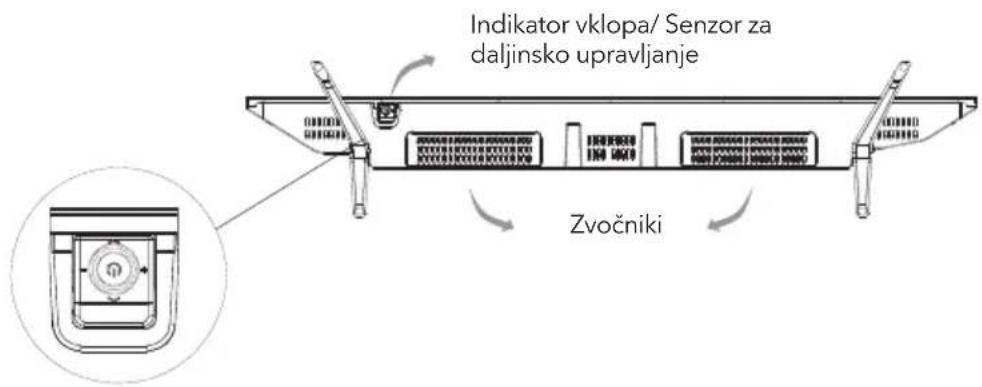
Power Indicator / Remote Sensor SpeakersPress middle button:
- In standby mode, press it to turn on the TV;
- Without OSD, press it to access source menu; press and hold for 5 seconds to turn the TV to standby;
- With OSD, short press it to confirm a selection; long press it to return or exit a menu / submenu.
Push left: decrease volume or go to left.
Push right: increase volume or go to right.
Push forward: channel up or go to above.
Push backward: channel down or go to below.
TERmINAIS
Note: The images are intended for reference only.

text_image
USB1 PCMCIA SERVICE ANTENNA IN AIRCABLE LNB S/PDIF HDM12 HDMI1/MHL SCART ① ② ③ ④-
S/PDIF OUT: Use a digital optical cable to connect your TV to a compatible audio receiver.
-
USB: USB port.
-
HDMI: Connect HDMI input signal from signal source such as DVD, HDMI3 port supports MHL and ARC function.
-
PC IN: Connect a PC to the TV by using a VGA cable.
-
PC AUDIO IN: Audio input for PC and Audio input for HDMI when the signal is DVI timing.
-
ANTENNA IN: Connect a coaxial cable to receive signal from the antenna, cable or satellite.
-
AVIN: Connect VIDEO input signal from signal source such as DVD.
-
EARPHONE: Audio output, speakers will be muted when earphone is plugged when select headphone.
-
PCMCIA: PCMCIA port.
-
LAN: Ethernet RJ45 Terminal.
REMOTE CONTROL FUNCTIONS
Remote Control

text_image
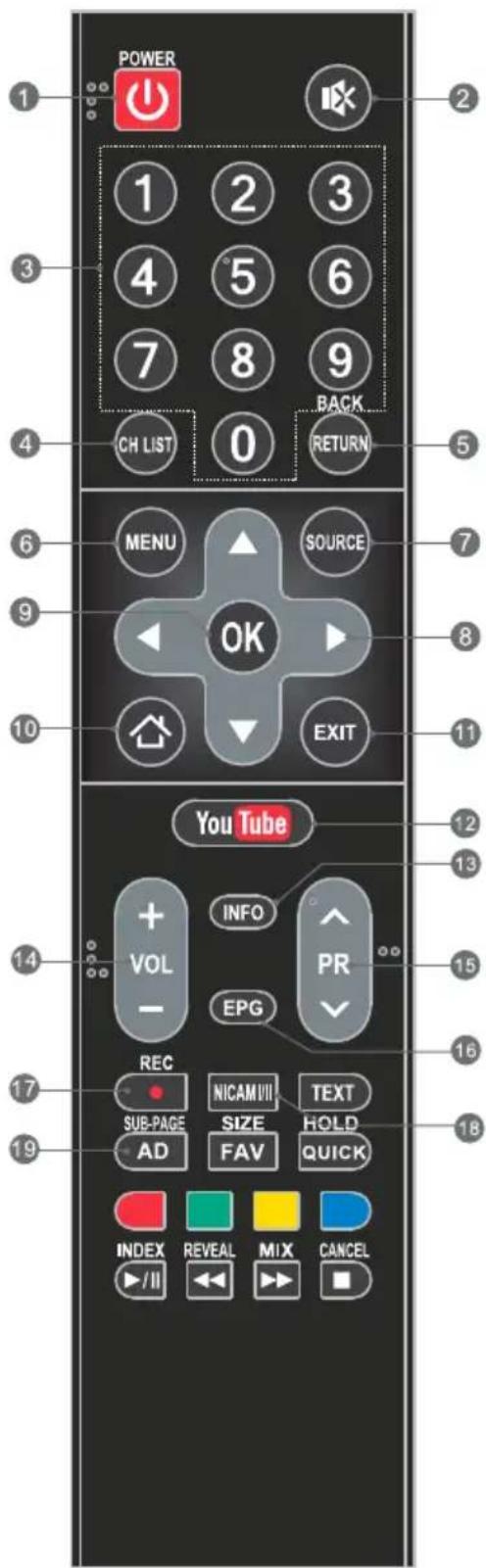
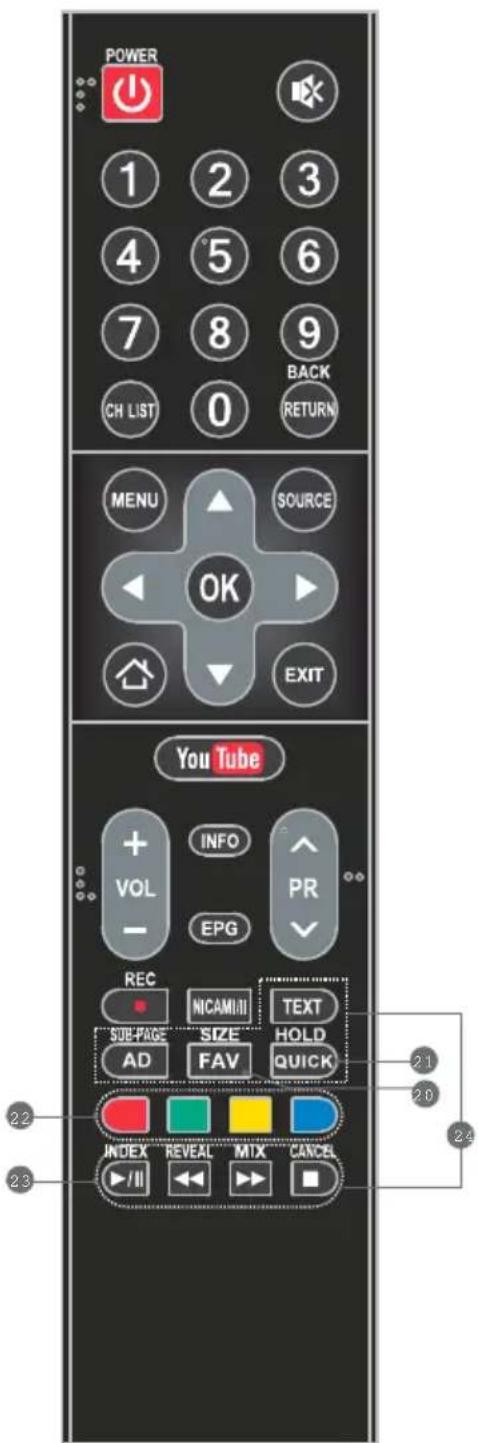
POWER 1 2 3 4 5 6 7 8 9 CH LIST 0 BACK RETURN MENU SOURCE OK EXIT YouTube + VOL INFO PR - EPG REC NICAM VIII TEXT SUB-PAGE SIZE HOLD AD FAV QUICK INDEX REVEAL MIX CANCEL ▶/II ▶▶ ▶■- POWER (⏻) Press to turn the TV on or to put it in standby.
- MUTE ( ) Press to mute or restore the volume.
- Numeric buttons Choose channel directly.
- CHN LIST Press to enter the channel list.
- RETURN (BACK) Press to go back to a previously viewed channel.
- MENU Enter the menu options.
- SOURCE Select the input source mode.
- Up/Down/Left/Right (▲ /▼/◄ /►) Navigate through the menu.
- OK Confirm the selection.
- HOME Press this button will access the home page, you can use the smart features, settings and media player etc.
- EXIT Exit the current menu.
- YouTube Access the YouTube.
- INFO Display information about current source.
- Volume Up/Down (VOL+/VOL-) Adjust the volume level.
- Program Up/Down (PR+/PR-) Change programs up or down.
- EPG Press to display the current EPG information in DTV mode.
- Record (REC) Press to record the current programme (available in DTV mode only).
- NICAM Press to select desired sound output depending on the broadcasting channel.
- AD (Audio Description) Press to turn on audio description. Narrator will describe to blind or visually impaired viewers what is happening on the screen. Press again to turn this function off (available in DTV mode only).

text_image
POWER 1 2 3 4 5 6 7 8 9 CH LIST 0 BACK RETURN MENU SOURCE OK EXIT YouTube + VOL INFO PR - EPG REC NICAMII TEXT SUB-PAGE SIZE HOLD AD FAV QUICK INDEX REVEAL MTX CANCEL /II20. FAV. (Favorite Channel)
Press to view your assigned favourite channels. Press Up/Down buttons to move through your assigned favourite channels. Press OK to confirm.
-
QUICK Access the quick menu.
-
Color buttons Press to execute the fast-link function in TV or DTV mode.
23. USB Play Control Buttons
Play & Pause (▶/II)
Press to pause playback, then press again to continue playback.
Stop (→)
Press to stop playback.
Fast Backward Button (◀)
Press to fast reverse.
Fast Forward (▶)
Press to fast forward.
TELETEXT BUTTONS
TEXT Press to enter or exit the teletext menu.
SIZE Enlarge the teletext display: Press this button once to enlarge upper half of the screen. Press this button again to enlarge lower half of the screen. Press this button again to return to normal screen size.
HOLD
Press to hold the teletext page on screen without update and changes. Press again to release the hold state.
SUB-PAGE
Press this button to enter or exit subpage mode (if subpage is available). Press Red / Green button to select the desired subpage.
INDEX Press this button to display index page.
REVEAL
Press this button to display concealed information, such as solutions to riddles or puzzles. Press gain to remove the information from the display.
MIX
Press this button to superimpose the teletext over the TV programme. Press again to return to normal teletext
CANCEL
Press this button to temporarily return to TV programme while searching for a Teletext page. When the search is done, the page number will be displayed on the upper left of the screen. Press again to return to the Teletext page.
In DTV mode and with a USB device properly plugged in, you can record the channel you are watching and view at a later, more convenient time. Use it to record a program when your viewing is interrupted or delayed.
IMPORTANT NOTE:
- Please insert an external high-speed storage devices into the appropriate USB port at the back of the TV, and make sure the device has enough free space.
- Before the recording, suggest to format your USB device to ensure the operating speed. In Option menu, select "REC File System" to format the USB device.
- During the recording, do not change channels or operate another function.
- If the signal is interrupted or removed, the recording will stop until the signal is established. This may cause you to lose program content.
- Please do not turn the TV OFF during recording. This will make the TV exit the REC and turn to standby.
- The file recorded can only be used in this TV, any copy communication is strictly prohibited.
- Use high-quality mobile device to record HD programs, otherwise the videos will be jammed during the playback.
- Back up all of the data in the USB storage device in case data was lost due to an unexpected accident. We do not assume any liability for the losses by misuse or malfunction. Data backup is consumer's responsibility.
- Only in DVB-T/T2 &DVB-C input source, record files can be played from REC_LIST.
Instant one-touch recording and playback
Press REC button to start the recording, at the same time below control bar will show at the bottom of the screen.

text_image
18:18:43 18:19:22 Total Time: 00:00:39 REC SHOW/HIDE- Want to watch the recorded video while recording the program, press left direction button to select ▶ and press OK button, the recorded video will start playing.
Select K or can fast backward or fast forward the playing.
- If want to stop and exit the recording, select and press OK button.
Timeshift
Time-shift is the recording of television programs to a storage medium (such as your USB device) for viewing at a later, more convenient time. Use it to record a program when your viewing is interrupted or delayed. If you want to leave a while and watch the program without missing the contents, you can press▶/■ button to stop the program, and press▶/■ button again to start watching when you come back.
Note:
- Before time-shift, you'd better format the USB device to ensure the enough space for recording.
- You can also set the preset time of recording in EPG function (Refer to next page).
ELECTRONIC PROGRAMmE GUIDE (EPG)
EPG stands for Digital Electronic Programme Guide. It is supplied by the programme providers and offers information about the programmes to be broadcast. You can access it in digital mode by pressing the EPG button on the remote control.
- Press the EPG button to enter the EPG interface. Current date and time will be displayed on the second bar from the top. On the list below, the channel you are currently watching will be highlighted.
- To check programmes to be broadcast in future, scroll up using the ▲ button to the date field. Use the ▶ button to select the date you want to check.
- Press the ▲ button to scroll up to the top bar in the display, then press the ▶ button to select "Time", you can check the program list of a channel of someday.

text_image
Programme Guide Thu 2015-11-17 1 SBS ONE 2 SBS TWO Trafficked - The Reckoning Trafficked - The Reckoning 3. SBS THREE Trafficked - The Reckoning 0 DEFAULT CH NAME Default Event Name 0 DEFAULT CH NAME Default Event Name 0 DEFAULT CH NAME Default Event Name 0 DEFAULT CH NAME Default Event Name 0 DEFAULT CH NAME Default Event Name RECORD INFO SCHEDULE REMIND ENTER OK INDEX CH PAGE MENU EXITSchedule
Press the yellow button to display the recording schedule list. You can delete an appointment by press the red button.
Reminder
Press the blue button to display a reminder menu. You can set up the remind time and repeat mode.

text_image
Schedule Setting Record 803 SBS3 2011-09-20 17:30-18:30 Trafficked - The Reckoning Year Month Day Hour Minute Start Time 2015 01 01 03. 04 End Time 2015 01 01 03. 04 Repeat Mode Once ENTER OK SAVE MENU BACKRecorder
Press the RED button to display the schedule setting menu. By using navigation buttons, set the schedule time by highlight the number of year, month, day, hour or minute and press OK button, then use up and down buttons to adjust the number. Using same method to set up the repeat mode, and then select SAVE" button to save the setting.
Info
Press the GREEN button to show information about the selected program.
INITIAL SETUP & HOME FEATURES
Initial setup
The first time you power on the TV, there will show a setup wizard, press ENTER button to start and finish following steps:
Step 1 Select the OSD language as you need;
Step 2 Select the environment between "HOME" and "STORE";
Step 3 Select the country;
Step 4 Set up the TV clock (time setting), default is "Auto Sync";
Step 5 Read the legal statements;
Step 6 Set up the network configuration;
Step 7 Start auto tuning to search for programs, when finished, the programs will be stored into memories and the initial setup will be completed.
NOTE: Before power on the TV, you need to connect the TV signal cable to the tuner terminal well on the back of the TV.
Home
Press Home button to access the home page. Use navigation and OK buttons to select and access a shortcut.
Mirashare (May not be available on some models)
Without a data cable, open the Wi-Fi button on your mobile phone, then select "Mirashare" on the home screen after pressing HOME button, contents on your mobile phone will be shared to the TV, you can enjoy the big screen viewing experience.
STEPS:
- Open the miracast function of your mobile phone;
- Find the TV name on the mobile phone and select it, the TV will pop out a dialog, accept it to connect Mirashare function, the contents on your mobile phone will be played on the TV.
Note: For some models, after selecting the TV name, the mobile phone and the TV can connect automatically.
Source
Select input source.
Network Applications
Such social applications as Facebook / YouTube / Twitter are provided for you. For example, select the Facebook icon on the home page, press OK can access.
TV Browser
Select the TV Browser icon on the home page and press OK to access the internet surfing. Features include speed dial and bookmarks etc.
Note:
- The browser may not support some web pages or videos due to network failure, difference of regions or service interruption, which has nothing to do with the TV.
- If the current page is still not fully opened (progress bar is not completed), other page is selected directly, the previous page won't be saved in history.
Media Player
Connect a USB device to the TV and select the Media Player on the home page, you can play a video/music/photo file in your USB on the TV.
Opera TV
It is an on-line application store made for TV. Open it you can experience various types of apps, such as News & Weather, Nature & Travel, Kids, Lifestyle, Sports, Music, Live TV & Video, Games, Movies & TV etc.
Home Media (May not be available)
Sharing videos, music and pictures in your mobile phone or PC to the TV, you need to connect the TV and your device to the same network.
Note 1 Some of the applications on the home page may not be available on some models, and this manual doesn't include the operation instructions of all applications on the home screen.
Note 2 If service providers upgrade or modify their servers, applications such as YouTube and Facebook may not function on this Television.
Note 3 Your remote control may not be compatible well with some network applications or fail due to service interruption, that has nothing to do with this TV.
Note 4
Network application contents and services are controlled by network application providers by means of networks and transmission facilities, which are subject to alteration, suspension, removal, termination or interruption, or invalid access at any time without further notice in that the manufacturer is unable to control or to be informed of the aforesaid change. The manufacturer makes a further declaration that it disclaims any responsibility or liability arising from customer's failure to use the network application contents and services caused by, including but not limited to, failure of network connection or communication lines, technological updates, or the alteration, suspension, interruption, termination, disabling, or removal of any contents or services by the network application providers etc.
Setting > Network > Wireless Connection/ Wired Connection
Wireless Connection
- Select "Wireless Connection" and press OK button, and then set "WLAN Switch" on;
- Wait a few seconds, the wi-Fi spots will be shown on the list, select and press OK button to open the interface of inputting password.
- Use navigation buttons to input the password, when finished, press the green button on the remote control to start the connection.
Wired Connection
- Connect the network cable to the LAN port at the back of the TV;
- Access main menu and select network sub-menu.
- Select "Wired Connection", and then select "Auto Input", wait a few seconds, the network configuration will be finished successfully.
Note: Before getting started, make sure that your router is working well.
mENU CONTROI
menu Operation
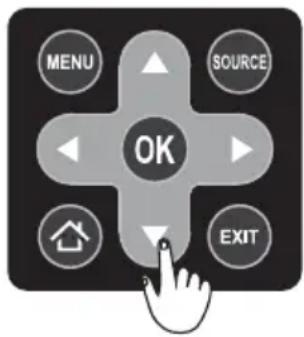
Press "MENU" key to enter the main menu.
Press the [◀] / [▶] key to select a menu.
Press the [▲] / [▼] key to select a menu.
Press "OK" key to enter the item.
Press "MENU" key to exit the item.
text_image
MENU SOURCE OK EXITNote: The below menu options are under TV sources.
Picture
Picture Mode: Select the appropriate picture mode for different purposes.
Backlight: Adjust backlight parameter of the TV.
Color Temperature: Select the overall color tone of the picture.
Dynamic Noise Reduction: Choose between Off, Low, Middle and Strong.
MPEG Noise Reduction: Choose between Off, Low, Middle and Strong.
Aspect Ratio: Select the appropriate display mode for different purposes. Some options may not be available under some sources and video content.
Dynamic Contrast: Set to On or Off as desired.
Picture Sensor: This feature adjusts the screen brightness automatically when the brightness of the image changes. If the image is at night, the screen will turn darker automatically; if the image is at daytime, the screen will turn brighter automatically.
Film Mode: Set to On or Off as desired.
Picture Reset: Reset the picture settings to default values.
Sound
Sound Mode Setting: Choose between Standard, Music, Movie, Sport, User.
Balance: Control the sound balance between the right and left speaker.
Auto Volume: Choose between On and Off.
Surround Sound: Turn virtual surround sound mode On or Off.
Analog Audio Output: This feature is used for selection of Headphone and Line Out.
Plug in a headphone to the headphone terminal of the TV, and you can listening through the headphone.
Digital Audio Output: This feature is used for selection of Auto and PCM. When connect a digital audio amplifier to the digital audio out terminal of the TV, select this feature from SOUND menu and then select the audio output mode.
Audio HDMI: Select the HDMI audio mode, options include: Auto, Digital and Analog.
Audio Description (May not be available): Turn on or turn off the Audio description.
When turn on the audio description, a narrator will describe what is happening on the screen for blind or visually impaired viewers.
Sound Reset: Reset the sound settings to default values.
Installation
Program Edit
Edit the programs. You can press colored buttons on the remote control to skip programs, delete programs, and add programs to the favorite list by pressing FAV button.
5V Antenna Power
This option is only available in DVB-T/T2 source, select On to supply power for the TV's antenna; Select Off to turn off this function.
CI Information (Only available in DTV mode)
Enables the user to select from the CAM-provided menu. Select the CI menu based on the menu PC Card.
Signal Information
Showing the information of current DTV channel.
Auto Tuning
Select corresponding source from the source list before starting the auto tuning.
• DVB-S/S2 Auto Tuning
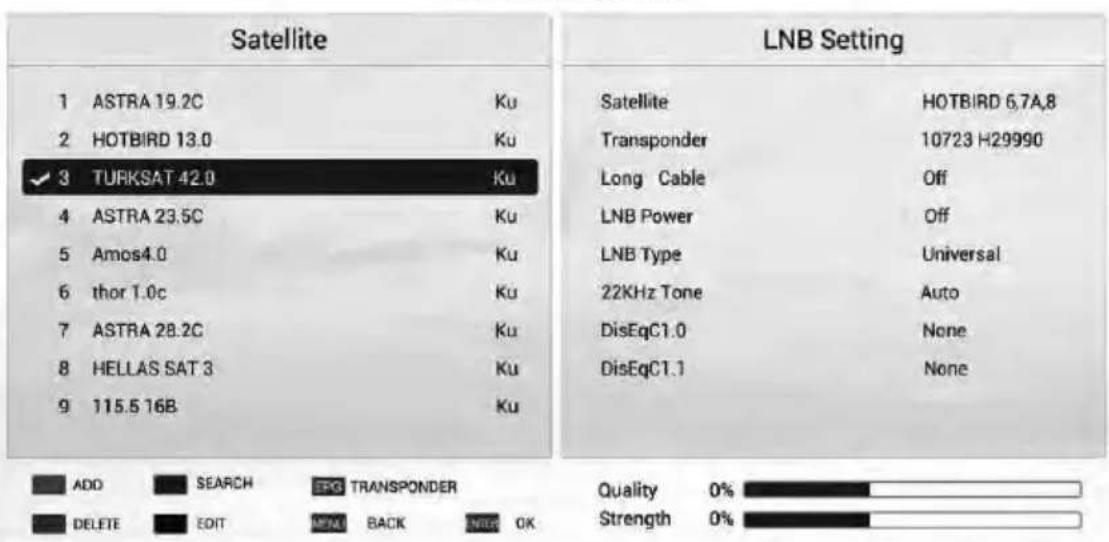
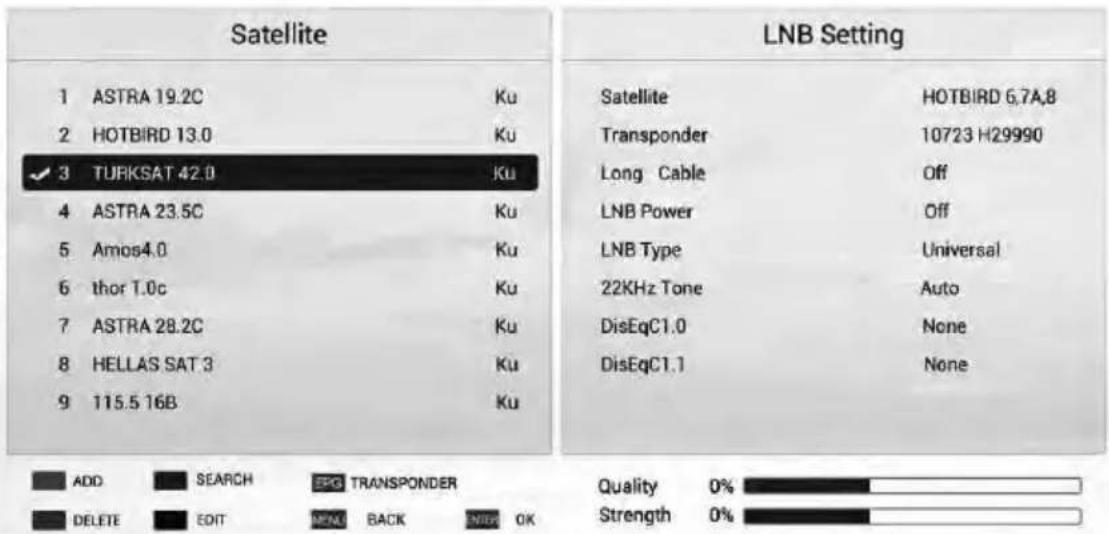
Satellite Dish Settings (Step 1-3, refer to Fig1 and Fig2)
A set of satellite dish settings must be configured for each wanted satellite before performing a channel scan.
Satellite - Select the satellite for this TV.
Long Cable - Increase LNB power.
LNB Type - Make sure the LNB type is corresponding to your dish.
LNB Power - Enable or disable the power supply for the LNB.
22KHz - Select the 22KHz to set 22K switch to ON/OFF. The auto mode is used to switch 22KHz on or off depending on the LNB type.
DiSEqC1.0/1.1 - Select the DiSEqC mode for the selected LNB.
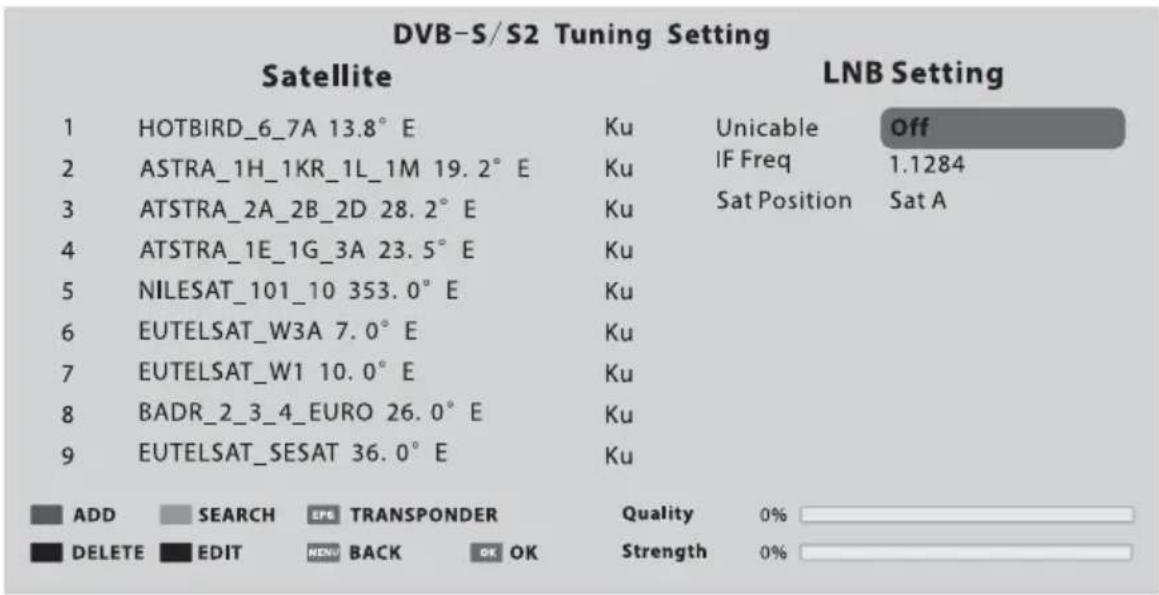
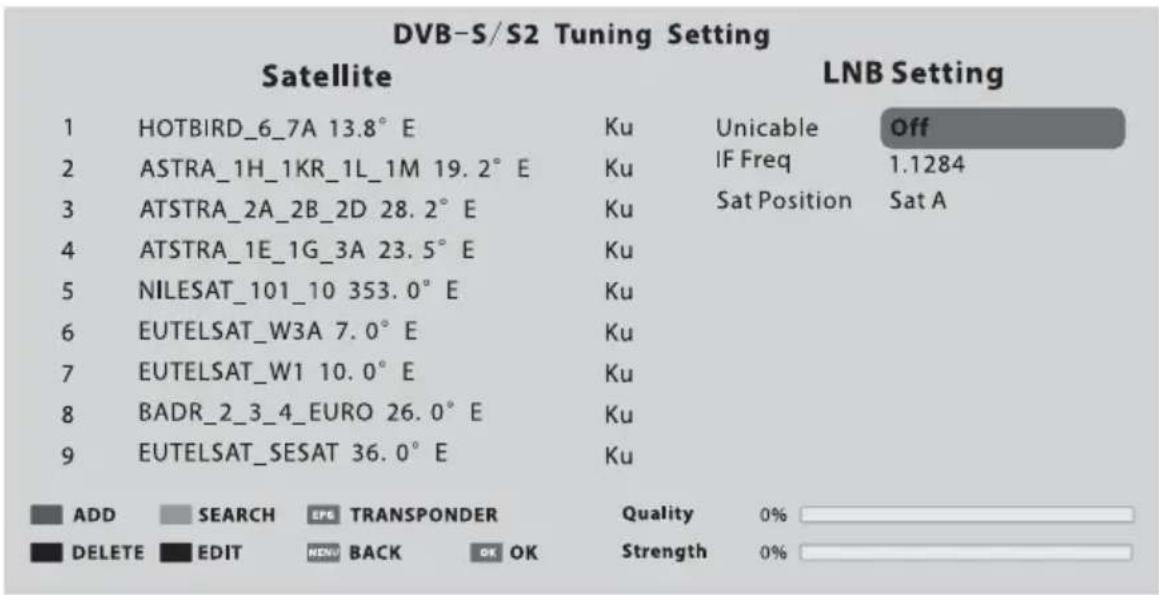
Unicable/IF Freq/ Set Position - Setting the unicable parameter depend on your disk.
DVB-S Tuning Setting

text_image
Satellite 1 ASTRA 19.2C Ku 2 HOTBIRD 13.0 Ku ✓ 3 TURKSAT 42.0 Ku 4 ASTRA 23.5C Ku 5 Amos4.0 Ku 6 thor 1.0c Ku 7 ASTRA 28.2C Ku 8 HELLAS SAT 3 Ku 9 115.5 16B Ku LNB Setting Satellite HOTBIRD 6.7A.8 Transponder 10723 H29990 Long Cable Off LNB Power Off LNB Type Universal 22KHz Tone Auto DisEqC1.0 None DisEqC1.1 None ADD SEARCH ESPG TRANSPONDER DELETE EDIT MPNG BACK SWER OK Quality 0% Strength 0%Fig. 1

text_image
DVB-S/S2 Tuning Setting Satellite LNB Setting 1 HOTBIRD_6_7A 13.8° E Ku Unicable Off 2 ASTRA_1H_1KR_1L_1M 19.2° E Ku IF Freq 1.1284 3 ATSTRA_2A_2B_2D 28.2° E Ku Sat Position Sat A 4 ATSTRA_1E_1G_3A 23.5° E Ku 5 NILESAT_101_10 353.0° E Ku 6 EUTELSAT_W3A 7.0° E Ku 7 EUTELSAT_W1 10.0° E Ku 8 BADR_2_3_4_EURO 26.0° E Ku 9 EUTELSAT_SESAT 36.0° E Ku ADD SEARCH EPG TRANSPONDER Quality 0% DELETE EDIT MENU BACK OK OK Strength 0%Fig. 2
Step 1 Press MENU button and select INSTALLATION menu. Select DVB-S/S2 auto tuning and press OK button, the screen will show as Fig1, and the default satellite will be highlighted.
Step 2 Press OK button to confirm the selected satellite.
Step 3 Press button to switch to LNB setting, press button to highlight LNB Type and press OK button to set up this parameter.
Step 4 Check if the 22KHz Tone, DiSEqC1.0/1.1 is corresponding to the selected satellite, if not, highlight and press OK button to set up the right parameter. (Refer to Fig 2) After the above steps are finished, press the blue button to search for channels.
• DVB-T/T2 or DVB-C or ATV Auto Tuning
Select DVB-T/T2 (or DVB-C/ ATV) Auto Tuning to search the programs automatically Before searching, you may need to select the country or set up the scan menu. If you want to stop the auto search, press MENU or EXIT button, a exiting dialog is popped out.
- Press ◀ to confirm exit.
- Press ▶ to continue searching.
DVB-T/T2 or DVB-C Manual Tuning
Search and store programs manually, first select the corresponding source before starting search.
- In Installation menu, select DVB-T/T2 (or DVB-C) manual tuning and press OK to access the searching interface, first select the country.
- Second press ◀ or ▶ to set up relevant parameters such as scan mode, scan scope etc., and then select Search and press or to start the search.
- The search stops when a program is found and this program will be stored in the current channel position. If you want to stop the search, press MENU button.
ATV Manual Tuning
In ATV mode, select ATV Manual Tuning and press OK button to access.
-
Use direction buttons to highlight and set up Storage To 1 (maybe other number), Color System, Sound System and Current Channel. Then select search and press ◀ or ▶ to start the search.
-
Press ▶ for the unit to search towards higher frequency;
-
Press ◀ for the unit to search towards lower frequency;
-
When a program is found, press the red button to stored it at the current channel position. If you want to stop the search, press MENU button.
- Fine-Tune
Use to make small adjustments to tuning of an individual channel. Fine-tune is not necessary under normal conditions. However, in area of inferior broadcast conditions where adjustments is necessary for a better picture and sound, use fine-tune.
- Select a channel that you want to fine tune.
- In Installation menu, select ATV Manual Tuning and press ▼ to highlight Fine-Tune.
- Press ◀ or ▶ to fine tune until the best possible picture and sound are obtained.
Setup
OSD Language: Select your desired OSD language.
Audio Language: Set the primary or secondary digital audio language corresponding to the signal.
Subtitle Language: Select the subtitle language.
Hearing Impaired: This feature is helping hearing-impaired users to understand the programs by showing the relevant graphic information (similar to subtitle but not subtitle) on the screen. You need to turn on the switch before using this feature.
Teletext Language: Select the teletext language as your desire.
REC File System: Personal Video Record setting. If you want to use this function, you must receive a digital program and plug a USB disk.
Note:
Suggest to use a high speed mobile hard disk, or your TV may get stuck when using the REC and time shift function.
HDMI CEC: Link and control both the TV and its external devices by connecting the external device to the HDMI port of the TV.
HDMI CEC - Turn on or off HDMI CEC function.
Auto Standby - Turn the TV to standby automatically.
Device List - When HDMI CEC is on, you check the device list of connecting to the TV.
Location: Select the location mode of playing at home or at store, when select "Store", you can turn on the sticker demo.
Presentation: Turn on or turn off the sticker demo and USB demo.
USB demo:
- Required settings: Add "AutoDemo.txt" txt file at the root directory of a USB device, and then write the route of videos need to be played on the TV, each route needs a line break.
- When "USB Demo" is set up as "On", the TV will automatically play the videos in the "AutoDemo.txt", after played all videos, TV will go back to play the previous watching program. After five mintues, the TV will cycle playing wrote videos and program.
- The route should be wrote in English or numbers, otherwise the TV can't identify it.
Software Update:
- Software update (USB)
Firstly download and save the upgrading software into a USB device, secondly connect the USB device to a TV USB port, thirdly access "Setup" menu and select "Software update", then select "Software update (USB)" to start the upgrading process. When finished, the TV will restart automatically.
NOTE: Do not power off the TV during the software upgrading process, otherwise the TV may not work, and the customer should be responsible.
- Software Update (Network)
Connect the TV to the internet and you can upgrade the TV system or a network application on the TV.
NOTE: "Network Upgrade" may not be available for some regions.
- Software Update (OAD) (Only for some regions and only available in DVB-T mode)
Select it to update the TV system software over the air.
Advanced Option: Set up "Fast Boot" and "Wake on Network" function.
Blue Screen: When Blue Screen is set to On, the screen will turn blue and the sound will be muted when there is no signal received.
User Reset: Reset the menu settings to default values.
Legal Statements: Relevant legal statements.
Time
Clock: Set up the TV clock, time zone and summer time.
Clock mode - Options include Auto and Manual. When select "Auto", the TV clock will synchronize with the real time digital TV signal. When select "Manual", you need to manually set up the clock time, including setting up the number of year, month, date, hour and minute.
Time zone - Select the time zone according to your location.
Summer time (Daylight saving time)- You can turn on or turn off this function.
Off Timer: The feature allows you to set the TV to turn off automatically at a regular time.
On Timer: The feature allows you to set the TV to turn on automatically to a preset input or volume.
Sleep Timer: Set the automatic off time of the TV.
Automatic Power down: Set up the time to automatically turn off the TV on condition that there is no operation.
Continuous viewing timer: To prevent watching TV continuously for long periods of time, you can set a message to appear that suggests that the viewer takes a break. This is especially useful for preventing children from watching TV for long periods of time. From TIME menu select Continuous Viewing Timer and set the time. When the set time has passed, a message suggesting the viewer takes a break appears. Press OK or EXIT to clear the message.
Advanced
Lock System: Input the initial password (0000) to access this feature, select "on", the following feature such as "Set password", "Block channel", "Parental control" and "Panel lock" will be activated; select "off", the above mentioned three features will be inactivated. If you forget the password, try use the super password (8899) to access.
Set password: Reset the password of the lock system.
Block channel (Only in TV mode): Block the channels (programs) not suitable for your children.
Parental Control (Only in TV mode): Allows you to password restrict access to shows programs based on their parental rating.
Panel Lock: To disable the bottom keys on the TV. All buttons on the remote control can still be used.
Network
Wired Connection: Connect the TV to network by using a network cable.
Wireless Connection: Connect the TV though Wi-Fi network.
Note: For details about network setting, please refer to "Initial Setup & Home Features".
USB CONTROL
USB Menu
You can view movie, music and photo files from your USB storage devices.
- Connect USB storage device to USB input terminal.
- Press Home button and select "Media Player".
MOVIE: Play movies from USB.
MUSIC: Play music from USB.
PHOTO: View photos from USB.
Reminder When Using the USB Player
- Some USB storage devices may not be compatible to operate smoothly with this TV.
- Back up all of the data in the USB storage device in case data was lost due to an unexpected accident. We do not assume any liability for the losses by misuse or malfunction. Data backup is consumer's responsibility.
- For large file sizes, the loading speed may be slightly longer.
- The recognition speed of a USB storage device may depend on each device.
- When connecting or disconnecting the USB storage device, ensure that the TV is not in USB mode otherwise the USB storage device or the files stored in it may be damaged.
- Please use only a USB storage device which is formatted in FAT16, FAT32, NTFS file system provided with the Windows operating system. In case of a storage device formatted as a different utility programme which is not supported by Windows, it may not be recognized.
-
When using a USB Hard Disk Drive which requires electric power source, ensure its power does not exceed 500mA. If the power of the USB hard Disk exceeds 500mA, the TV system may be changed into standby mode, you should pull away the USB hand Disk and restart the TV system.
-
An "Not support" message will be displayed if the file format is unsupported or corrupted
- FHD big picture needs longer time to process, which is not caused by the TV. Please be patient to wait.
- This TV may not support some multimedia files changed and upgraded as the change of encoding format or other technical advances.
movie menu
- Press ▲/▼ to select MOVIE. Press OK to enter.
- Press ◀ / ▶ or ▲ / ▼ to select the desired folder and Press OK to open the folder, press ▶/Ⅱ to start playing.
- Press ■ to stop movie playing and return to movie list.
- Press "EXIT" to the previous menu screens.
Movie Control Bar

flowchart
graph TD
    A["Pause"] --> B["Slow"]
    C["Skip Previous"] --> D["Slow"]
    E["Fast Reverse Time"] --> F["Slow"]
    G["Search Play Mode"] --> H["Slow"]
    I["Play List"] --> J["Slow"]
    K["Stop"] --> L["Slow"]
    M["Skip Next"] --> N["Slow"]
    O["Fast Forward"] --> P["Slow"]
    Q["A/B Repeat"] --> R["Slow"]
    S["Information Settings"] --> T["Slow"]
    U["Slow"] --> V["Stop"]
    W["Slow"] --> X["Stop"]
    Y["Slow"] --> Z["Stop"]
    AA["Slow"] --> AB["Stop"]
    AC["Slow"] --> AD["Stop"]
- Press [MENU] to display Movie Control Bar while playing the movie.
- Press [◀] / [▶] to select the desired settings.
- Press [MENU] to exit from Movie Control Bar.
music menu
- Press ▲ / ▼ to select MUSIC. Press OK to enter.
- Press ◀ / ▶ or ▲ / ▼ to select the desired folder and Press OK to open the folder, press ▶/ll to start playing.
- Press ■ to stop music playing and return to music list.
- Press "EXIT" to the previous menu screens.
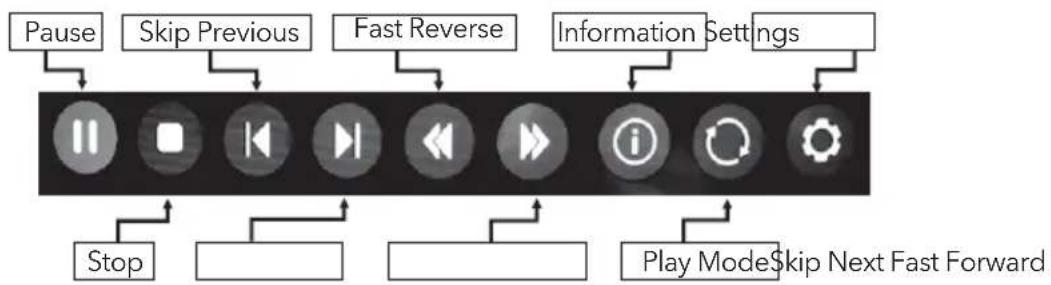
Music Control Bar
flowchart
graph TD
    A["Pause"] --> B["Slow Previous"]
    B --> C["Fast Reverse"]
    C --> D["Information Settings"]
    D --> E["Play ModeSkip Next Fast Forward"]
    F["Stop"] --> G["Play ModeSkip Next Fast Forward"]
- Press [MENU] to display Music Control Bar while playing the music.
- Press [◀] / [▶] to select the desired settings.
- Press [MENU] to exit from Music Control Bar.
Photo menu
- Press ▲ / ▼ to select PHOTO. Press OK to enter.
- Press ◀ / ▶ or ▲ / ▼ to select the desired folder and Press OK to open the folder, press ▶/Ⅱ to start playing.
- Press ■ to stop photo playing and return to photo list.
- Press "EXIT" to the previous menu screens.
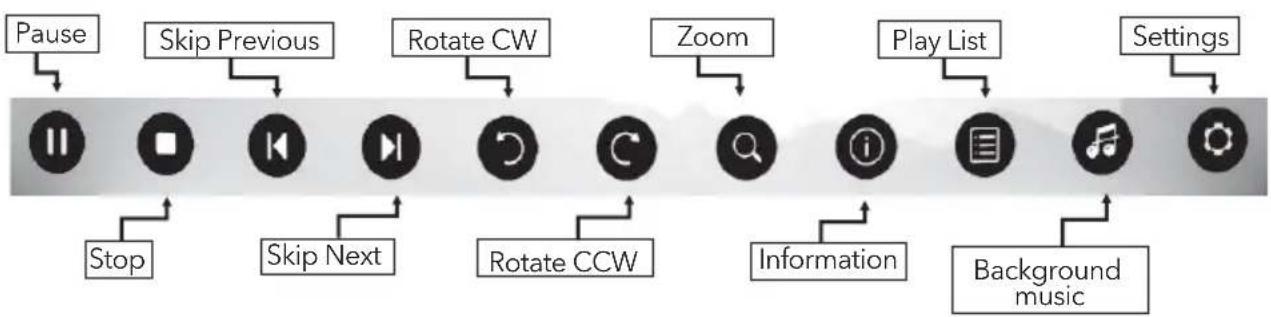
Photo Control Bar
flowchart
graph TD
    A["Pause"] --> B["Stop"]
    C["Skip Previous"] --> D["Skip Next"]
    E["Rotate CW"] --> F["Rotate CCW"]
    G["Zoom"] --> H["Information"]
    I["Play List"] --> J["Background music"]
    K["Settings"] --> L["Settings"]
- Press [ MENU ] to display Photo Control Bar during photo slide show.
- Press [◀] / [▶] to select the desired settings.
- Press [MENU] to exit from Info bar.
TROUBIESHOOTING
Before calling a service technician, review following information for possible causes and solutions for the problem you are experiencing.
| Symptom Solution | |
| Remote control does not work. | 1. Check the remote sensor on the remote control.2. Change the batteries.3. Batteries are not installed correctly.4. Main power is not connected. |
| Poor signal This is usually caused by interference from cell phones, walkie-talkie, automotive ignition system; neon, electric drill or other electronic equipment or radio interference sources. | |
| No picture, No sound 1. Check the signal source.2. Plug another electrical device into the outlet to make sure it is working or turned on.3. Power plug is bad contact with the outlet.4. Check the signal. | |
| Abnormal picture 1. For no color or bad picture quality, you may:Adjust the color option in menu settings.Keep the TV at a sufficient distance from other electronic products.Try another channel, maybe exist broadcasting signal problem.Bad TV signal (Display mosaic or snowflakes)Check the signal cable and adjust the antenna.Fine tune the channel.Try another channel. | |
| Normal picture, no sound 1. If no sound, unmute or increase the sound volume.2. Open the sound menu and adjust “Balance”.3. Check if a headphone has been inserted in, if so, pull out the headphone. | |
| Audio is normal but video is abnormal. | 1. The media file maybe damaged, Check if the file can be played on the PC.2. Check if video and audio codec is supported. |
| Video is normal but audio is abnormal. | 1. The media file maybe damaged, Check if the file can be played on the PC.2. Check if video and audio codec is supported. |
| Network failure 1. Check if the router works well.2. For models need ing USB dongle to connect to internet, check if the USB dongle is inserted well.3. Make sure the TV has connected to the router successfully. | |
| Web page can not be displayed completely. | 1. Flash is not supported.2. Supported formats: JPEG, PNG, GIF, BMP, WMV (ASF), WMA, MP3 and MP4. |
| Browser is foreced to be shut down. | Web page include too many large pictures, thus lead to insufficient memory and close the browser. |
| Applications downloaded from browser can not work. | Suggest download applications from Opera store. |
Note: If the problem persists after solutions, please contact your local support centre. What the troubleshooting list describe is only for reference, the actual problem may differ from it.
SPECIFICATIONS
Tesla TV 32S357SHS
| Screen size - diagonal 81cm | |
| Screen resolution 1366x768 | |
| Audio output power (L+R) 6W + 6W | |
| Working voltage 100-240V~ 50/60Hz | |
| Rated power consumption 65W | |
| Dimensions (W x H x Dmm) 735x466x166mm | |
| Net weight 4.3kg | |
| Environment(only for Tropical climates zone): | Working temperature: 5°C~45°CWorking humidity: 20%~80%Storage temperature: -15°C~50°CStorage humidity: 10%~90% |
| Environment(only for Moderate climates zone) | Working temperature: 5°C~35°CWorking humidity: 20%~80%Storage temperature: -15°C~45°CStorage humidity: 10%~90% |
| System DTV: DVB-T/T2/C/S/S2 | TV: PAL-BG/DK/I, SECAM-BG/DKAV: PAL, SECAM, NTSC |
| Preset programmes ATV: 100; DTV: | 1000 |
| Status displaying method On screen | display |
| Function adjustment indicator Menu | display |
| Language of OSD Multiple options | |
| RF aerial input | 75 ohm unbalanced |
| AV video input | 75 ohm, 1.0Vp-p, RCA |
| AV audio input | 10k ohm, 0.5Vrms |
Tesla TV 40S357SFS
| Screen size - diagonal 101cm | |
| Screen resolution 1920x1080 | |
| Audio output power (L+R) 6W + 6W | |
| Working voltage 100-240V~ 50/60Hz | |
| Rated power consumption 74W | |
| Dimensions (W x H x Dmm) 907x559x212mm | |
| Net weight 8kg | |
| Environment(only for Tropical climates zone): | Working temperature: 5°C~45°CWorking humidity: 20%~80%Storage temperature: -15°C~50°CStorage humidity: 10%~90% |
| Environment(only for Moderate climates zone) | Working temperature: 5°C~35°CWorking humidity: 20%~80%Storage temperature: -15°C~45°CStorage humidity: 10%~90% |
| System DTV: DVB-T/T2/C/S/S2 | TV: PAL-BG/DK/I, SECAM-BG/DKAV: PAL, SECAM, NTSC |
| Preset programmes ATV: 100; DTV: | 1000 |
| Status displaying method On screen | display |
| Function adjustment indicator Menu | display |
| Language of OSD Multiple options | |
| RF aerial input 75 ohm unbalanced | |
| AV video input | 75 ohm, 1.0Vp-p, RCA |
| AV audio input | 10k ohm, 0.5Vrms |
Tesla TV 43S357SFS
| Screen size - diagonal 109cm | |
| Screen resolution 1920x1080 | |
| Audio output power (L+R) 8W + 8W | |
| Working voltage 100-240V~ 50/60Hz | |
| Rated power consumption 70W | |
| Dimensions (W x H x Dmm) 907x559x212mm | |
| Net weight 9,5kg | |
| Environment(only for Tropical climates zone): | Working temperature: 5°C~45°CWorking humidity: 20%~80%Storage temperature: -15°C~50°CStorage humidity: 10%~90% |
| Environment(only for Moderate climates zone) | Working temperature: 5°C~35°CWorking humidity: 20%~80%Storage temperature: -15°C~45°CStorage humidity: 10%~90% |
| System DTV: DVB-T/T2/C/S/S2 | TV: PAL-BG/DK/I, SECAM-BG/DKAV: PAL, SECAM, NTSC |
| Preset programmes ATV: 100; DTV: | 1000 |
| Status displaying method On screen | display |
| Function adjustment indicator Menu | display |
| Language of OSD Multiple options | |
| RF aerial input 75 ohm unbalanced | |
| AV video input | 75 ohm, 1.0Vp-p, RCA |
| AV audio input | 10k ohm, 0.5Vrms |
Tesla TV 49S357SFS
| Screen size - diagonal 124cm | |
| Screen resolution 1920x1080 | |
| Audio output power (L+R) 8W + 8W | |
| Working voltage 100-240V~ 50/60Hz | |
| Rated power consumption 120W | |
| Dimensions (W x H x Dmm) 907x559x212mm | |
| Net weight 12.2kg | |
| Environment(only for Tropical climates zone): | Working temperature: 5°C~45°CWorking humidity: 20%~80%Storage temperature: -15°C~50°CStorage humidity: 10%~90% |
| Environment(only for Moderate climates zone) | Working temperature: 5°C~35°CWorking humidity: 20%~80%Storage temperature: -15°C~45°CStorage humidity: 10%~90% |
| System DTV: DVB-T/T2/C/S/S2 | TV: PAL-BG/DK/I, SECAM-BG/DKAV: PAL, SECAM, NTSC |
| Preset programmes ATV: 100; DTV: | 1000 |
| Status displaying method On screen | display |
| Function adjustment indicator Menu | display |
| Language of OSD Multiple options | |
| RF aerial input 75 ohm unbalanced | |
| AV video input | 75 ohm, 1.0Vp-p, RCA |
| AV audio input | 10k ohm, 0.5Vrms |
Tesla TV 55S357SFS
| Screen size - diagonal 140cm | |
| Screen resolution 1920x1080 | |
| Audio output power (L+R) 8W + 8W | |
| Working voltage 100-240V~ 50/60Hz | |
| Rated power consumption 70W | |
| Dimensions (W x H x Dmm) 907x559x212mm | |
| Net weight 15.1kg | |
| Environment(only for Tropical climates zone): | Working temperature: 5°C~45°CWorking humidity: 20%~80%Storage temperature: -15°C~50°CStorage humidity: 10%~90% |
| Environment(only for Moderate climates zone) | Working temperature: 5°C~35°CWorking humidity: 20%~80%Storage temperature: -15°C~45°CStorage humidity: 10%~90% |
| System DTV: DVB-T/T2/C/S/S2 | TV: PAL-BG/DK/I, SECAM-BG/DKAV: PAL, SECAM, NTSC |
| Preset programmes ATV: 100; DTV: | 1000 |
| Status displaying method On screen | display |
| Function adjustment indicator Menu | display |
| Language of OSD Multiple options | |
| RF aerial input 75 ohm unbalanced | |
| AV video input | 75 ohm, 1.0Vp-p, RCA |
| AV audio input | 10k ohm, 0.5Vrms |
Përmbajtja
PARALAJMËRIME DHE MASA PARAPRAKE. 32
BUTONAT E PANELIT 36
TERMINALET 37
FUNSKIONET E TELEKOMANDËS 38
REC (VIDEO INCIZIME PERSONALE) 40
EPG (GUIDË ELEKTRONIKE E PROGRAMIT) 41
KONFIGURIME FILLESTARE & HOME KARAKTERISTIKA 42
MENU KONTROLLI.... 44
Menu Operimi.... 44
Fotografia 44
Zëri 44
Instalimi.... 45
Konfigurime.... 47
Koha....48
Avancuar....49
Rrjeti....49
USB KONTROLLI 49
USB Menu.... 49
Warning for Apparatus containing COIN / BUTTONCELL BATTERIES
KUJDES
Mos e brej baterinë, Chemical Burn Hazard
natural_image
Simple line drawing of a wooden plank with a circular arrow indicating direction (no text or symbols)BUTONAT E PANELIT
text_image
18:18:43 18:19:22 Total Time: 00:00:39 REC SHOW/HIDEEPG (GUIDë EIEkTRONIkE E PROGRAmIT)
Home Media (May not be available)
text_image
MENU SOURCE OK EXITDVB-S Tuning Setting

text_image
Satellite 1 ASTRA 19.2C Ku 2 HOTBIRD 13.0 Ku ✓ 3 TURKSAT 42.0 Ku 4 ASTRA 23.5C Ku 5 Amos4.0 Ku 6 thor 1.0c Ku 7 ASTRA 28.2C Ku 8 HELLAS SAT 3 Ku 9 115.5 16B Ku LNB Setting Satellite HOTBIRD 6,7A,8 Transponder 10723 H29990 Long Cable Off LNB Power Off LNB Type Universal 22KHz Tone Auto DisEqC1.0 None DisEqC1.1 None ADD SEARCH EPG TRANSPONDER DELETE EDIT BACK OK Quality 0% Strength 0%Fig. 1

text_image
DVB-S/S2 Tuning Setting Satellite LNB Setting 1 HOTBIRD_6_7A 13.8° E Ku Unicable Off 2 ASTRA_1H_1KR_1L_1M 19.2° E Ku IF Freq 1.1284 3 ATSTRA_2A_2B_2D 28.2° E Ku Sat Position Sat A 4 ATSTRA_1E_1G_3A 23.5° E Ku 5 NILESAT_101_10 353.0° E Ku 6 EUTELSAT_W3A 7.0° E Ku 7 EUTELSAT_W1 10.0° E Ku 8 BADR_2_3_4_EURO 26.0° E Ku 9 EUTELSAT_SESAT 36.0° E Ku ADD SEARCH EPS TRANSPONDER Quality 0% DELETE EDIT MENU BACK OK OK Strength 0%Fig. 2
natural_image
Simple line drawing of a folded paper or sheet with a circular arrow indicating a measurement or angle (no text or symbols)TASTERI NA TV UREĐAJU
Napomena Grafički prikazi služe samo kao ilustracije.
Prikaz odozdo

text_image
Indikator napajanja / Senzor za daljinski upravljač ZvučniciPritisnuti taster u sredini:
- U režimu stanja pripravnosti pritisak na ovaj taster uključuje TV;
- Ako nema ekranskog prikaza (OSD-a) kratkim pritiskom se pristupa osnovnom meniju; pritisak od 5 sekundi vraća TV u režim stanja pripravnosti;
- Ako ima ekranskog prikaza (OSD) kratkotrajnim pritiskom se potvrđuje izbor; dužim pritiskom se vraća ili izlazi iz menija /podmenija.
Lijevi dio tastera: smanjivanje zvuka ili pomjeranje ulijevo.
text_image
MENU SOURCE OK EXITSlika
Režim slike: Odabrati prikladni režim slike.
Pozadinsko osvjetljenje: Podesiti parametre pozadinskog osvetljenja na TV-u.
DVB-S Tuning Setting
text_image
Satellite 1 ASTRA 19.2C Ku 2 HOTBIRD 13.0 Ku ✓ 3 TURKSAT 42.0 Ku 4 ASTRA 23.5C Ku 5 Amos4.0 Ku 6 thor 1.0c Ku 7 ASTRA 28.2C Ku 8 HELLAS SAT 3 Ku 9 115.5 16B Ku LNB Setting Satellite HOTBIRD 6.7A,8 Transponder 10723 H29990 Long Cable Off LNB Power Off LNB Type Universal 22KHz Tone Auto DisEqC1.0 None DisEqC1.1 None ADD SEARCH EKG TRANSPONDER DELETE EDIT MPM BACK NIE OK Quality 0% Strength 0%Slika 1

text_image
DVB-S/S2 Tuning Setting Satellite LNB Setting 1 HOTBIRD_6_7A 13.8° E Ku Unicable Off 2 ASTRA_1H_1KR_1L_1M 19.2° E Ku IF Freq 1.1284 3 ATSTRA_2A_2B_2D 28.2° E Ku Sat Position Sat A 4 ATSTRA_1E_1G_3A 23.5° E Ku 5 NILESAT_101_10 353.0° E Ku 6 EUTELSAT_W3A 7.0° E Ku 7 EUTELSAT_W1 10.0° E Ku 8 BADR_2_3_4_EURO 26.0° E Ku 9 EUTELSAT_SESAT 36.0° E Ku ADD SEARCH EPS TRANSPONDER Quality 0% DELETE EDIT MENU BACK OK OK Strength 0%Slika 2
Korak 1 Pritisnuti taster MENI (MENU) i odabrati meni INSTALACIJA. Odabrati DVB-S/S2 automatsko podešavanje i pritisnuti taster OK, na satelitu će se prikazati isto što i na slici 1, a podrazumevani satelit biće istaknut.
Korak 2 Pritisnuti taster OK za potvrđivanje odabranog satelita.
Korak 3 Pritisnuti taster ▶ za prebacivanje na LNB podešavanja, pritisnuti taster ▼ za označavanje LNB tipa i pritisnuti taster OK za podešavanje parametara.
Korak 4 Provjeriti da li signal 22KHz, DiSEqC1.0/1.1 odgovara odabranom satelitu. Ukoliko ne odgovara, označiti ga i pritisnuti taster OK za podešavanje pravih parametara. (Odnosi se na sliku 2)
Nakon obavljenih navedenih koraka, pritisnuti plavi taster za traženje kanala.
- DVB-T/T2 ili DVB-C ili ATV Automatsko podešavanje
Odabrati DVB-T/T2 (ili DVB-C/ ATV) Automatsko podešavanje da bi se pokrenulo automatsko pretraživanje programa. Možda će biti neophodno da se podesi meni za pretragu ili izabere država prije pretrage. Ako se želi zaustaviti automatska pretraga pritisnuti MENI (MENU) ili taster IZLAZ (EXIT) i pojaviće se prozor za dijalog o napuštanju pretrage.
- Pritisnuti ◀ za potvrđivanje izlaska.
- Pritisnuti ▶ za nastavak pretraživanja.
natural_image
Simple line drawing of a folded paper or sheet with a circular arrow indicating a measurement or angle (no text or symbols)TIPkE NA TV UREĐAjU
text_image
MENU SOURCE OK EXITNapomena: Opcije izbornika u nastavku nalaze se pri izvoru TV.
Slika
Način prikaza slike: Odaberite odgovarajući način prikaza slike za različite svrhe.
DVB-S Tuning Setting

text_image
Satellite 1 ASTRA 19.2C Ku 2 HOTBIRD 13.0 Ku ✓ 3 TURKSAT 42.0 Ku 4 ASTRA 23.5C Ku 5 Amos4.0 Ku 6 thor 1.0c Ku 7 ASTRA 28.2C Ku 8 HELLAS SAT 3 Ku 9 115.5 16B Ku LNB Setting Satellite HOTBIRD 6,7A,8 Transponder 10723 H29990 Long Cable Off LNB Power Off LNB Type Universal 22KHz Tone Auto DisEqC1.0 None DisEqC1.1 None ADD SEARCH EPG TRANSPONDER DELETE EDIT MENU BACK SWIP OK Quality 0% Strength 0%Slika 1

text_image
DVB-S/S2 Tuning Setting Satellite LNB Setting 1 HOTBIRD_6_7A 13.8° E Ku Unicable Off 2 ASTRA_1H_1KR_1L_1M 19.2° E Ku IF Freq 1.1284 3 ATSTRA_2A_2B_2D 28.2° E Ku Sat Position Sat A 4 ATSTRA_1E_1G_3A 23.5° E Ku 5 NILESAT_101_10 353.0° E Ku 6 EUTELSAT_W3A 7.0° E Ku 7 EUTELSAT_W1 10.0° E Ku 8 BADR_2_3_4_EURO 26.0° E Ku 9 EUTELSAT_SESAT 36.0° E Ku ADD SEARCH EPS TRANSPONDER Quality 0% DELETE EDIT MENU BACK OK OK Strength 0%Slika 2
Korak 1: Pritisnite tipku IZBORNIK (MENU) i odaberite izbornik INSTALACIJA. Odaberite automatsko podešavanje DVB-S/S2 i pritisnite tipku OK, na zaslonu će se pokazati slika kao na Slici 1 i zadani će satelit biti označen.
Korak 2: Pritisnite tipku OK i potvrdite zadani satelit.
natural_image
Simple line drawing of a folded paper or sheet with a circular arrow indicating a measurement or angle (no text or symbols)Копчиња на панелот
Total Time: 00:00:39


REC SHOW/HIDE
text_image
MENU SOURCE OK EXITDVB-S Tuning Setting

text_image
Satellite 1 ASTRA 19.2C Ku 2 HOTBIRD 13.0 Ku ✓ 3 TURKSAT 42.0 Ku 4 ASTRA 23.5C Ku 5 Amos4.0 Ku 6 thor 1.0c Ku 7 ASTRA 28.2C Ku 8 HELLAS SAT 3 Ku 9 115.5 16B Ku LNB Setting Satellite HOTBIRD 6,7A,8 Transponder 10723 H29990 Long Cable Off LNB Power Off LNB Type Universal 22KHz Tone Auto DisEqC1.0 None DisEqC1.1 None ADD SEARCH EPG TRANSPONDER DELETE EDIT WORK BACK WIF OK Quality 0% Strength 0%Слика 1

text_image
DVB-S/S2 Tuning Setting Satellite LNB Setting 1 HOTBIRD_6_7A 13.8° E Ku Unicable Off 2 ASTRA_1H_1KR_1L_1M 19.2° E Ku IF Freq 1.1284 3 ATSTRA_2A_2B_2D 28.2° E Ku Sat Position Sat A 4 ATSTRA_1E_1G_3A 23.5° E Ku 5 NILESAT_101_10 353.0° E Ku 6 EUTELSAT_W3A 7.0° E Ku 7 EUTELSAT_W1 10.0° E Ku 8 BADR_2_3_4_EURO 26.0° E Ku 9 EUTELSAT_SESAT 36.0° E Ku ADD SEARCH EPS TRANSPONDER Quality 0% DELETE EDIT MENU BACK OK OK Strength 0%Слика 2
natural_image
Simple line drawing of a rectangular object with a circular arrow and label 'A' (no text or symbols on the object itself)GUmBI NA TEIEVlzIjSkEm SPREjEmNIkU
Opomba Slike so namenjene le prikazu.
Spodnji pogled
text_image
18:18:43 18:19:22 Total Time: 00:00:39 REC SHOW/HIDEtext_image
MENU SOURCE OK EXITNapomena: Opcije menija u nastavku nalaze se pod TV izvorima.
Slika
Način slike: Izberite primeren način slike za različne priložnosti.
DVB-S Tuning Setting
text_image
Satellite 1 ASTRA 19.2C Ku 2 HOTBIRD 13.0 Ku ✓ 3 TURKSAT 42.0 Ku 4 ASTRA 23.5C Ku 5 Amos4.0 Ku 6 thor 1.0c Ku 7 ASTRA 28.2C Ku 8 HELLAS SAT 3 Ku 9 115.5 16B Ku LNB Setting Satellite HOTBIRD 6.7A,8 Transponder 10723 H29990 Long Cable Off LNB Power Off LNB Type Universal 22KHz Tone Auto DisEqC1.0 None DisEqC1.1 None ADD SEARCH EPG TRANSPONDER DELETE EDIT BACK NITE OK Quality 0% Strength 0%Slika 1
text_image
DVB-S/S2 Tuning Setting Satellite LNB Setting 1 HOTBIRD_6_7A 13.8° E Ku Unicable Off 2 ASTRA_1H_1KR_1L_1M 19.2° E Ku IF Freq 1.1284 3 ATSTRA_2A_2B_2D 28.2° E Ku Sat Position Sat A 4 ATSTRA_1E_1G_3A 23.5° E Ku 5 NILESAT_101_10 353.0° E Ku 6 EUTELSAT_W3A 7.0° E Ku 7 EUTELSAT_W1 10.0° E Ku 8 BADR_2_3_4_EURO 26.0° E Ku 9 EUTELSAT_SESAT 36.0° E Ku ADD SEARCH EPS TRANSPONDER Quality 0% DELETE EDIT MENU BACK OK OK Strength 0%Slika 2
natural_image
Simple line drawing of a folded paper or sheet with a circular arrow indicating a measurement or angle (no text or symbols)TASTERI NA TV UREĐAJU
Napomena Grafički prikazi služe samo kao ilustracije.
Prikaz odozdo

text_image
Indikator napajanja / Senzor za daljinski upravljač ZvučniciPritisnuti taster u sredini:
- U režimu stanja pripravnosti pritisak na ovo taster uključuje TV;
- Ako nema ekranskog prikaza (OSD-a) kratkim pritiskom se pristupa osnovnom meniju; pritisak od 5 sekundi vraća TV u režim stanja pripravnosti;
- Ako ima ekranskog prikaza (OSD) kratkotrajnim pritiskom se potvrđuje izbor; dužim pritiskom se vraća ili izlazi iz menija /podmenija.
Levi deo tastera: smanjivanje zvuka ili pomeranje ulevo.
Desni deo tastera: pojačavanje zvuka ili pomeranje udesno.
Gornji deo tastera: menjanje kanala ili pomeranje prema gore.
Donji deo tastera: menjanje kanala ili pomeranje prema dole.
PRIkljUČCI
Napomena: Grafički prikazi služe samo kao ilustracije.

text_image
USB1 PCMCIA SERVICE ANTenna IN AIRCABLE LNB S/PDIF HDM12 HDMI1/MHL SCART ① ② ③ ④-
S/PDIF OUT: Koristiti digitalni optički kabl za povezivanje TV uređaja sa kompatibilnim prijemnikom zvuka.
-
USB: USB port.
-
HDMI: Povezati priključak za HDMI signal s izvorom signala kao što je DVD; priključak za HDMI3 podržava funkcije MHL i ARC.
-
PC IN: Povezati računar s TV uređajem korišćenjem VGA kabla.
-
PC AUDIO IN: Audio ulaz za računar i Audio ulaz za HDMI kada je signal DVI vremenski podešen.
-
ANTENNA IN: Spojiti koaksijalni kabl da bi se primao signal s antene, kablovske televizije ili satelita.
-
AV IN: Povezati signal VIDEO ulaza sa izvorom signala kao što je DVD.
-
SLUŠALICE: Audio izlaz, zvučnici ne emituju zvuk kada su slušalice uključene.
-
PCMCIA: PCMCIA priključak.
-
LAN: Eternet RJ45 priključak.
FUNKCIJE DALJINSKOG UPRAVLJAČA
Daljinski upravljač
text_image
POWER 1 2 3 4 5 6 7 8 9 CH LIST 0 BACK RETURN MENU SOURCE OK EXIT YouTube + VOL INFO PR - EPG REC NICAM VIII TEXT SUB-PAGE SIZE HOLD AD FAV QUICK INDEX REVEAL MIX CANCEL ▶/II ▶▶ ▶■-
POWER (UKLJUČIVANJE/ISKLJUČIVANJE (Pritisnuti za uključivanje TV uređaja ili za stavljanje u stanje pripravnosti.
-
ISKLJUČIVANJE ZVUKA (1) Pritisnuti za isključivanje zvuka ili za vraćanje zvuka na prethodnu jačinu.
-
Numerički tasteri Direktno biranje kanala.
-
CHN LIST Pritisnuti za pristup listi kanala.
-
RETURN (POVRATAK) Pritisnuti za vraćanje na prethodni kanal.
-
MENU (MENI) Otvara opcije menija.
-
SOURCE (IZVOR) Za biranje režima izvora ulaznog signala.
-
Gore/dole/levo/desno (▲ /▼/◄ /►) Kretanje kroz meni.
-
OK Potvrđivanje izbora.
-
POČETNA STRANICA Pritiskom na ovaj taster pristupa se početnoj stranici, biraju pametne funkcije, podešavanja ili medija plejer itd.
-
EXIT(IZLAZ)Izlaz iz trenutnog menija.
-
YouTube Pristup aplikaciji Youtube.
-
INFO(INFORMACIJE)Prikaz informacija o trenutnom izvoru.
-
VOL+/VOL- (Povećavanje/smanjivanje jačine zvuka) Podešavanje jačine zvuka.
-
PR+/PR-(Sledeći/prethodniprogram) Promjena kanala na sledeći ili prethodni.
-
EPG (Elektronski programski vodič) Pritisnuti za prikaz trenutnih EPG informacija u DTV režimu rada.
-
REC(Snimanje) Pritisnuti za snimanje trenutnog programa (Radi samo u DTV režimu rada).
-
NICAM (I /II) Pritisnuti za izbor željenog načina emitovanja zvuka u zavisnosti od kanala koji se emituje.
-
AD Pritisnuti za paljenje zvučnog opisa, narator će za slepe i slabovide osobe opisivati šta se dešava na ekranu. Ponovni pritisak gasi opciju (dostupno samo u DTV režimu rada).
text_image
POWER 1 2 3 4 5 6 7 8 9 CH LIST 0 BACK RETURN MENU SOURCE OK EXIT YouTube + VOL INFO PR - EPG REC NICAMII TEXT SUB-PAGE SIZE HOLD AD FAV QUICK INDEX REVEAL MTX CANCEL ▶/II ◀◀ ▶■ 2.1 2.0 2.4 2.2 2.3- FAV (OMILJENO) Pritisnuti za prikaz omiljenih kanala. Pritisnuti taster gore/dole za kretanje kroz omiljene kanale, pritisnuti OK za potvrđivanje.
- QUICK(BRZO) Pristupa brzom meniju.
- Tasteri u boji Pritisnuti za brzo pristupanje određenim funkcijama u TV ili DTV režimu rada.
- Kontrolni tasteri za reprodukciju s USB-a Play & Pause (Reprodukcija & Pauza (▶/II))
text_image
MENU SOURCE OK EXITSlika
DVB-S Tuning Setting

text_image
Satellite 1 ASTRA 19.2C Ku 2 HOTBIRD 13.0 Ku ✓ 3 TURKSAT 42.0 Ku 4 ASTRA 23.5C Ku 5 Amos4.0 Ku 6 thor 1.0c Ku 7 ASTRA 28.2C Ku 8 HELLAS SAT 3 Ku 9 115.5 16B Ku LNB Setting Satellite HOTBIRD 6,7A,8 Transponder 10723 H29990 Long Cable Off LNB Power Off LNB Type Universal 22KHz Tone Auto DisEqC1.0 None DisEqC1.1 None ADD SEARCH EPG TRANSPONDER DELETE EDIT MENU BACK SWIP OK Quality 0% Strength 0%Slika 1
text_image
DVB-S/S2 Tuning Setting Satellite LNB Setting 1 HOTBIRD_6_7A 13.8° E Ku Unicable Off 2 ASTRA_1H_1KR_1L_1M 19.2° E Ku IF Freq 1.1284 3 ATSTRA_2A_2B_2D 28.2° E Ku Sat Position Sat A 4 ATSTRA_1E_1G_3A 23.5° E Ku 5 NILESAT_101_10 353.0° E Ku 6 EUTELSAT_W3A 7.0° E Ku 7 EUTELSAT_W1 10.0° E Ku 8 BADR_2_3_4_EURO 26.0° E Ku 9 EUTELSAT_SESAT 36.0° E Ku ADD SEARCH EPS TRANSPONDER Quality 0% DELETE EDIT MENU BACK OK OK Strength 0%Slika 2
Korak 1 Pritisnuti taster MENI (MENU) i izabrati meni INSTALACIJA. Izabrati DVB-S/S2 automatsko podešavanje i pritisnuti taster OK, na satelitu će se prikazati isto što i na slici 1, a podrazumevani satelit biće istaknut.
Korak 2 Pritisnuti taster OK za potvrđivanje izabranog satelita.
Korak 3 Pritisnuti taster za prebacivanje na LNB podešavanja, pritisnuti taster za označavanje LNB tipa i pritisnuti taster OK za podešavanje parametara.
Korak 4 Proveriti da li signal 22KHz, DiSEqC1.0/1.1 odgovara izabranom satelitu. Ukoliko ne odgovara, označiti ga i pritisnuti taster OK za podešavanje pravih parametara. (Odnosi se na sliku 2).
Nakon obavljenih navedenih koraka pritisnuti plavi taster za traženje kanala.
- DVB-T/T2 ili DVB-C ili ATV Automatsko podešavanje
Izabrati DVB-T/T2 (ili DVB-C/ ATV) Automatsko podešavanje da bi se pokrenulo automatsko pretraživanje programa. Možda će biti neophodno da se podesi meni za pretragu ili izabere država pre pretraživanja. Ako se želi zaustaviti automatsko pretraživanje, pritisnuti MENI (MENU) ili taster IZLAZ (EXIT) i pojaviće se prozor za dijalog o napuštanju pretrage.
- Pritisnuti ◀ za potvrđivanje izlaska.
- Pritisnuti ▶ za nastavak pretraživanja.
natural_image
Abstract geometric pattern with pink and white triangular shapes connected by white lines (no text or symbols)TESLA
MAGNIFICENT VIEW
www.tesla.info
