40S356SF - TV TESLA - Free user manual and instructions
Find the device manual for free 40S356SF TESLA in PDF.


| Product Type | LED TV |
| Screen Size | 40 inches (diagonal) |
| Resolution | 1920 x 1080 (Full HD) |
| Refresh Rate | 60 Hz |
| Smart TV | Yes, with built-in Wi-Fi |
| Operating System | Linux-based (proprietary) |
| Connectivity | 3x HDMI, 2x USB, 1x AV, 1x Optical, 1x LAN, 1x CI slot |
| Dimensions (without stand) | 910 x 530 x 80 mm (W x H x D) |
| Dimensions (with stand) | 910 x 580 x 200 mm |
| Weight (without stand) | 7.5 kg |
| Weight (with stand) | 8.0 kg |
| Power Consumption (typical) | 55 W |
| Standby Power | < 0.5 W |
| Audio Output | 2 x 8W speakers |
| Supported File Formats | MPEG, H.264, H.265, MP3, JPEG, PNG |
| Cleaning Instructions | Wipe with a soft, dry cloth. Do not use liquid cleaners. |
| Safety | Built-in VESA mount (200x200 mm), child safety lock |
| Spare Parts Availability | Remote control, power cord, stand parts available from authorized service |
| Repairability | Score 6/10 - common components replaceable |
| Warranty | 2 years |
Frequently Asked Questions - 40S356SF TESLA
User questions about 40S356SF TESLA
0 question about this device. Answer the ones you know or ask your own.
Ask a new question about this device
Download the instructions for your TV in PDF format for free! Find your manual 40S356SF - TESLA and take your electronic device back in hand. On this page are published all the documents necessary for the use of your device. 40S356SF by TESLA.
USER MANUAL 40S356SF TESLA
natural_image
Abstract geometric composition with colorful polyhedral shapes and paper airplane flying (no text or symbols)Please read these instructions before operating your set and retain them for future reference.
Contents
WARNINGS AND PRECAUTIONS....4
BUTTONS ON THE TV 6
CONNECTIONS....7
REMOTE CONTROL FUNCTIONS ....8
PERSONAL VIDEO RECORDING (PVR) 11
ELECTRONIC PROGRAMME GUIDE (EPG) 12
MENU SETTINGS.... 13
Menu Operation (DTV Mode).... 13
Picture 13
Sound 13
Channel....14
Lock 16
USB CONTROL 17
Bear in Mind when Using USB 17
Supported File Extensions on USB 17
USB Menu.... 19
Play Movie 19
Play Music....20
Browse Photo 21
TROUBLESHOOTING....22
SPECIFICATIONS....23
Note
-
The graphics in this manual are intended for reference only.
-
OSD on your TV may be slightly different from that shown in this manual.
-
The information provided in this document is subject to change without prior notice.
The manufacturer accepts no liability for damage resulting directly or indirectly from faults, incompleteness or discrepancies between the user manual and the product described.
WARNINGS AND PRECAUTIONS
Read all of the instruction before operating the set. Keep the instruction for later use.
Warnings
- Use only the attachments/accessories specified or provided by the manufacturer (such as the exclusive supply adapter, battery etc).
- Please refer to the information on exterior back enclosure for electrical and safety information before installing or operating the device.
• To reduce the risk of fire or electric shock, do not expose this device to rain or moisture. - The ventilation should not be impeded by covering the ventilation openings with items, such as newspaper, table-cloths, curtains, etc.
- The device should not be exposed to dripping or splashing and no liquid-containing vessels, such as vases, should be placed on the device.
- The terminals marked with the symbol ^4 " may have sufficient power to pose a risk of electric shock. The external wiring connected to the terminals has to be installed by a trained person or ready-made leads or cords should be used.
- To prevent injury, this device must be safely attached to the floor/wall in accordance with the installation instructions.
- Danger of explosion if battery is incorrectly replaced. Replace only with the same or equivalent battery type.
- The battery (battery or batteries or battery pack) should not be exposed to excessive heat such as sunshine, fire or the like.
• Excessive sound pressure from earphones and headphones can cause hearing loss. - Listening to music at high volume levels and for prolonged periods of time can damage your hearing. In order to reduce the risk of damage to hearing, one should lower the volume to a safe, comfortable level, and reduce the amount of time spent listening loud music.
- If the mains plug or appliance coupler is used to disconnect the device, it should be easily approached.
- When not used or when being moved, please take care of the power cord set, e.g. tie up the power cord set with cable tie or the like. It should be protected from sharp edges and the like that can cause damage to the power cord set. When you decide to use it again, please make sure that the power cord set is not damaged. If you discover any damages, please contact a service person to replace the damaged power cord set with the one specified by the manufacturer or having the same characteristics as the original one.
- Symbols, markings, signal lamps or similar indicators show that the device is completely disconnected from the mains.
• Attention should be drawn to environmental aspects of battery disposal.
• No open flame sources, such as lighted candles, should be placed on the device.
• To prevent the spread of fire, always keep candles or other open flame sources away from this product.
• Each USB terminal should be loaded with 500mA under normal operation. - Protective earthing terminal. A CLASS I device should be connected to MAINS socket outlet with a protective earthing connection.
WEEE Directive

Correct disposal of the product. The symbol indicates that this product should not be used of with other household waste throughout the EU. To prevent possible harm to environment or human health from uncontrolled waste disposal, recycle it responsibly to note the sustainable reuse of material resources. To return your used device, please use return and collection systems or contact the retailer where the product was purchased. can perform environmentally safe recycling of the product.
Positioning of the TV Set
Install the device on a firm horizontal surface such as a table or desk. For ventilation, leave open space of at least 10 cm all around the set. To prevent any faults or unsafe situations, please do not place any objects on top of the set. This device can be used in tropical and/or moderate climates.

text_image
10CM 10CM 10CM 10CMOperating Environment
- Do not install this device in confined spaces such as bookcases or similar units.
- Do not use the set in damp and cold areas. Protect the set from overheating.
- Keep away from direct sunlight.
- Do not use the set in dusty areas.
- Do not place candles to accessible, open areas to avoid flammable foreign material from entering the TV.
Precautions for Using Remote Control
- Use the remote control by pointing it towards the remote sensor. The items between the remote control and the remote sensor will interfere with the normal operation.
- Do not expose the remote control to violent vibrations. Also, do not splash liquid on the remote control and do not place the remote control in high humidity areas.
- Do not expose the remote control to direct sunlight which can cause deformation of the unit due to heat.
- When the remote sensor is exposed to direct sunlight or strong light, the remote control will not work. If this is the case, please change the light direction or the position of the TV, or use the remote control closer to the remote sensor.
Precautions for Using Battery
Inadequate use of batteries may cause leakage. Therefore, please follow the steps below and use them with care.
- Please note the batteries polarity to avoid short circuit.
-
If the battery voltage is insufficient, which affects the remote control range, you should replace used batteries with the new ones. Remove batteries from the remote control unit if you do not intend to use it for a long time.
-
Do not use different types of batteries (for example, manganese and alkaline batteries) together.
-
Do not put the batteries into fire. Do not charge or disassemble batteries.
-
Please dispose of batteries in accordance with the relevant environmental protection regulations.
Remote Control Battery Replacement
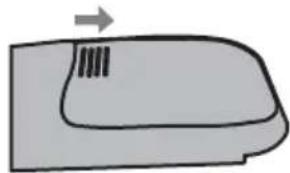
Place two AAA batteries in the remote control battery compartment, making sure that the polarity markings inside the compartment are matched.
Note: The images are intended for reference only. Actual items may differ.
1
Slide the cover horizontally.
natural_image
Simple line drawing of a curved surface with a small protrusion and an arrow indicating direction (no text or symbols)② Place two AAA batteries and make sure that the polarity is correct.

natural_image
Simple line drawing of a battery pack with two batteries and two terminals (no text or symbols)③ Slide horizontally to close the cover.

natural_image
Diagram of a device with an arrow indicating leftward motion, showing internal components without any text or symbols.BUTTONS ON THE TV
Panel Buttons
Note: The images are intended for reference only.

natural_image
Front view of a flat-screen monitor with two labeled buttons (1 and 2) on the front panel, no text or symbols on the screen itself.-
Power Indicator / Remote Sensor / Standby Button
-
Speakers

text_image
Power Indicator / Remote Sensor Control buttonsPress middle button:
- In standby mode, press it to turn on the TV;
- Without OSD, press within 1s will access the source menu; press between 1s and 3s will access the main menu, press more than 3s and it will function as POWER button.
- With OSD, press within 1s will function as OK button press between 1s and 3s will function as MENU button, press more than 3s and it will function as POWER button.
Push left: decrease volume or go to left.
Push right: increase volume or go to right.
Push forward: channel up or go to above
Push backward: channel down or go to below.
CONNECTIONS
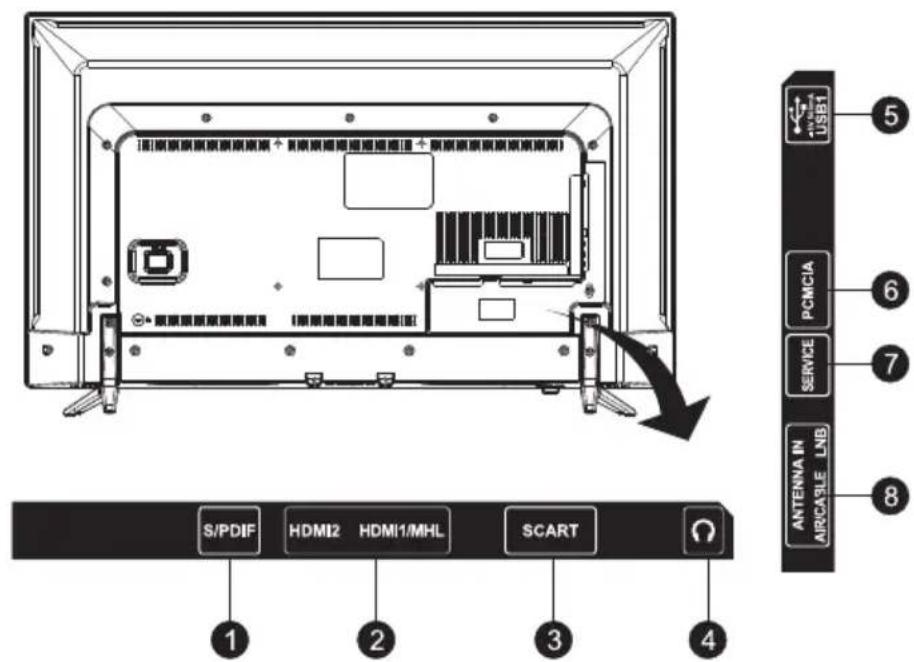
Terminals
Note: The images are intended for reference only.
text_image
10[原装原装原装原装] + [原装原装原装原装] + [原装原装原装原装] S/PDIF HDMI2 HDMI1/MHL SCART 5 PCMCIA 6 SERVICE 7 ANTENNA IN AIRCABLE LHB 8 ① ② ③ ④-
S/PIDF OUT: Use a RCA cable to connect your TV to a compatible audio receiver.
-
HDMI1 (MHL) / HDMI2: Connect HDMI input signal from signal source such as DVD. HDMI1 port supports MHL function.
-
SCART: SCART port: (Only for some models)
-
EARPHONE: Audio output. Speakers will be muted when earphone is plugged or headphone selected.
-
USB1: USB port.
-
PCMCIA: Connect a CAM card.
-
SERVICE ONLY: Service port.
-
ANTENNA (AIR/CABLE/LNB) IN: To search programmes, connect antenna to the TV set.
REMOTE CONTROL FUNCTIONS
Remote Control

text_image
POWER 1 2 3 4 5 6 7 8 9 CHN LIST 0 BACK RETURN MENU SOURCE ENTER 10 11 13 TVRADIO EXIT 14 15 16 VOL HOME PR 17 18 REC SLEEP INFO INDEX REVEAL MIX ▶/II CANCEL SIZE SUB-PAGE NICAM I/II TEXT HOLD FREEZE PYR LIST QUICK AD 3D- POWER (⏻) Press to turn the TV on or to put it in standby.
- MUTE (☒) Press to mute or restore the volume.
- PICTURE Change picture mode.
- SOUND Change sound mode.
- Zoom Change aspect ratio.
- Numeric buttons Choose channel directly.
- CHN LIST Press to enter the channel list.
- RETURN (BACK) Press to go back to a previously viewed channel.
- MENU Enter the menu options.
- SOURCE Select the input source mode.
- Up/Down/Left/Right (▲ /▼/◄ /►)
Navigate through the menu. - ENTER Confirm the selection.
- TV/RADIO Switch between TV and radio.
- EXIT Exit the current menu.
- HOME Enter the home desktop. If your TV has no HOME function, this button will be inoperative.
- Volume Up/Down (VOL+/VOL-)
Adjust the volume level. - Program Up/Down (PR+/PR-)
Change programs up or down. - SLEEP Select the sleep time, such as 10 min, 20 min etc.

text_image
POWER 19 20 PICTURE SOUND ZOOM SUBTITLE EPG FAV 1 2 3 4 5 6 7 8 9 CONN LIST 0 BACK RETURN MENU SOURCE ENTER TV/BACK EXIT + VOL HOME + PR - REC SLEEP INFO INDEX REVEAL MIX I/II CANCEL SIZE SUB-PAGE NICAM VIH TEXT HOLD FREEZE PVR LIST QUICK AD 3D-
EPG Press to display the current EPG information in DTV mode.
-
SUBTITLE Enable/disable subtitles in DTV/USB mode.
-
FAV. (Favorite Channel)
Press to view your assigned favourite channels. Press Up/Down buttons to move through your assigned favourite channels. Press ENTER to confirm.
-
Record (REC) Press to record the current programme (available in DTV mode only).
-
INFO Press to display information about current source.
-
USB Play Control Buttons
Play & Pause (▶/II)
Press to pause playback, then press again to continue playback.
Stop (☐)
Press to stop playback.
Fast Backward Button (◀)
Press to fast reverse.
Fast Forward (▶)
Press to fast forward.
Previous (◀)
Press to play the previous file.
Next (▶)
Press to play the next file.
-
Color buttons Press to execute the fast-link function in TV or DTV mode.
-
NICAM Press to select desired sound output depending on the broadcasting channel.
-
FREEZE (HOLD) Freeze the picture on the screen (not available in USB mode).
-
PVR LIST Press to display the list of recorded files.
-
QUICK No function.
-
3D No function.
-
AD (Audio Description)
Press to turn on audio description. Narrator will describe to blind or visually impaired viewers what is happening on the screen. Press again to turn this function off (available in DTV mode only).

text_image
POWER PICTURE SOUND ZOOM SUBTITLE EPG FAV 1 2 3 4 5 6 7 8 9 CHN LIST 0 BACK RETURN MENU SOURCE ENTER TVRACK EXIT + VOL - HOME + PR - REC SLEEP INFO INDEX REVEAL MIX ▶/II CANCEL SIZE SUB-PAGE ■ ■ ■ ■ NICAM I/II TEXT HOLD FREEZE PVR LIST QUICK AD 3DTeletext Control Buttons
-
TEXT Press to enter or exit the teletext menu.
-
HOLD
Press to hold the teletext page on screen without update and changes. Press again to release the hold state.
- Other Buttons
SIZE
Enlarge the teletext display: Press this button once to enlarge upper half of the screen. Press this button again to enlarge lower half of the screen. Press this button again to return to normal screen size.
REVEAL
Press this button to display concealed information, such as solutions to riddles or puzzles. Press gain to remove the information from the display.
MIX
Press this button to superimpose the teletext over the TV programme. Press again to return to normal teletext
SUB-PAGE
Press this button to enter or exit subpage mode (if subpage is available). Press Red / Green button to select the desired subpage.
INDEX
Press this button to display index page.
CANCEL
Press this button to temporarily return to TV programme while searching for a Teletext page. When the search is done, the page number will be displayed on the upper left of the screen. Press again to return to the Teletext page.
PERSONAL VIDEO RECORDING (PVR)
IMPORTANT NOTES:
- For any type of recording with this television, you must connect an external device to the appropriate USB port at the back of the television to store the recorded files.
- The USB device must be formatted in FAT32 file system.
- If you use your USB device with this TV for the first time, we suggest you format the USB device using the TV before you start recording.
- Make sure that you switch to DTV programme.
- Use high-quality mobile device to record HD programmes, otherwise the videos will be jammed during the playback.
- Back up all the data in the USB storage device to prevent their loss due to unexpected accidents. We do not assume any liability for the losses caused by misuse or malfunction. Data backup is consumer's responsibility.
Instant one-touch recording and playback
- Please insert an external high-speed storage device and make sure that the device has enough free space.
- Select the TV programme and channel you wish to record.
- Press REC button to enter into PVR mode and start recording. PVR control bar on the screen is presented below. You can select the appropriate settings according to your needs.



- If the PVR function cannot be realized, try to format your USB device.
- If you wish to stop the recording, press [■] button and the recording will stop.
Note:
- During the record mode, you cannot change channels or select another function.
- If the signal is interrupted or removed during the recording process, the recording will stop until the signal is established. This may cause loss of programme content.
Record Timer
There are two ways to set the timer to record a television programme.
If you know the programme details:
- Go to the channel that will broadcast the programme you want to record.
- Press the EPG button on your remote control to enter EPG interface. The channel you are watching will be highlighted on the current screen.
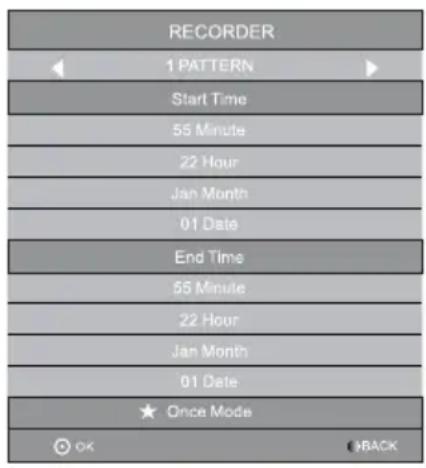
- Press the RED button on the remote control, then enter the programme details in the recorder menu by pressing ▲/▼ to select item and ◀/► to change the settings. For example, if the programme starts at 8:30 pm on the same day, enter: 30 in the space for MINUTES, 20 in the space for HOURS (a 24 hour clock applies), and then the relevant date. Use the same method for entering the recording end-time.
-
Choose the appropriate recording mode: once, every day or weekly.
-
Press ENTER to confirm your selection. A schedule of all your recordings (the schedule list) will appear. See EPG function for more on the schedule.
If you are browsing the EPG, follow the steps provided on EPG function page.
ELECTRONIC PROGRAMME GUIDE (EPG)
EPG stands for Digital Electronic Programme Guide. It is supplied by the programme providers and offers information about the programmes to be broadcast. You can access it in digital mode by pressing the EPG button on the remote control.
- Press the EPG button to enter the EPG interface. Current date and time will be displayed on the second bar from the top. On the list below, the channel you are currently watching will be highlighted.
- Before you can view any EPG information, you have to 'activate' every channel for which you wish to view programme information. To do this, use the ▲/▼ buttons to select a channel, then press ENTER to confirm.
-
To check programmes to be broadcast in future, scroll up using the ▲ button to the date field. Use the ▶ button to select the date you want to check.
-
Press the Index ( ) button to scroll up to the top bar of the display, then press the ▶ button to select the Channel List. One of the available channels will be displayed in the second bar.
-
Go to the channel and use the ◀/▶ buttons to select the channel for which you want to view information. Shortly, the programme information will appear.
-
Use the ▲/▼ buttons to scroll through the time slots.
-
Press MENU button to exit the EPG menu.
Recorder
Press the RED button to display the recorder menu (right). See detailed information about the different ways of recording programmes on a USB device using your TV..
Info
Press the GREEN button to show information about the selected programme.
Schedule
Press the YELLOW button to display the Schedule List. Press ▲/▼ to select an item, press the RED button to delete an item.
Reminder
Press the BLUE button to display a reminder menu. Press ▲/▼ to select an item and ◀/▶ to change the setting. Press ENTER to add an item to the schedule list. The updated schedule list will be shown.
text_image
RECORDER 1 PATTERN Start Time 55 Minute 22 Hour Jan Month 01 Date End Time 55 Minute 22 Hour Jan Month 01 Date Once Mode OK BACK
text_image
Reminder Setting 1 PATTERN 55 Minute 22 Hour Jan Month 01 Date Once Mode OK BACKMENU SETTINGS
Menu Operation (DTV Mode)
Press "MENU" key to enter the main menu.
Press the ◀] / [▶] guide key to select desired item.
Press "ENTER" key to enter the item.
Press [◀] / [▶] / [▲] / [▼] and ENTER buttons to select the submenus.
Press "MENU" key to exit the item.
Picture
Picture Mode
Select the automatic picture control mode. Choices are Dynamic, Standard, Mild and User.
Color Temperature
Select the overall colour tone of the picture. Choices are Cool, Medium, Warm and User.
Aspect Ratio
Select the aspect ratio (display proportions) according to your video signal type or preference.
Choices are 16:9 / 4:3 / Just Scan / Zoom1 / Zoom2.
(Note: Some options may not be available with certain sources.)
Noise Reduction
Eliminates picture noise. Choices are Off / Low / Middle / High (not available with PC source).
MPEG NR
Eliminates noise generated while creating digital picture signals. Choices are Off / Low / Middle / High (not available with PC source).
Screen (may not be available)
Select PC-VGA source, in picture settings select screen, and you will be able to set the items below.
Auto Adjust: Adjust the screen automatically.
H. Position: Adjust the horizontal position.
V. Position: Adjust the vertical position.
Size: Adjust the size.
Phase: Adjust the phase.
Sound
Sound Mode
Select your favourite sound mode for each input. Choices are Standard / Music / Movie / Sports / User.
Bass
Adjust the lower frequency of the sound.
Treble
Adjusts the higher frequency of the sound.
Balance
Control the sound balance between the right and left loudspeaker (earphone).
Auto Volume
Adjust the volume according to the input audio level. Includes On and Off.
Surround Sound
Turns on the Sound Retrieval System.
AD Switch (available in DTV mode only)
Turn on the Audio description. You can activate the setting of AD volume. When the audio description is on, narrator will describe to blind or visually impaired viewers what is happening on the screen.
Channel
Auto Tuning
Select DVB-T or DVB-C and press ENTER button to go to the next step. Select country or scan type and then search and store programmes automatically. If you want to stop the auto search, press MENU button or EXIT button and exit dialog box will pop out.
- Press ◀ to confirm exit.
- Press ▶ to continue searching.
Advanced Tuning
Access the satellite settings essential for programme searching through DVB-S source.
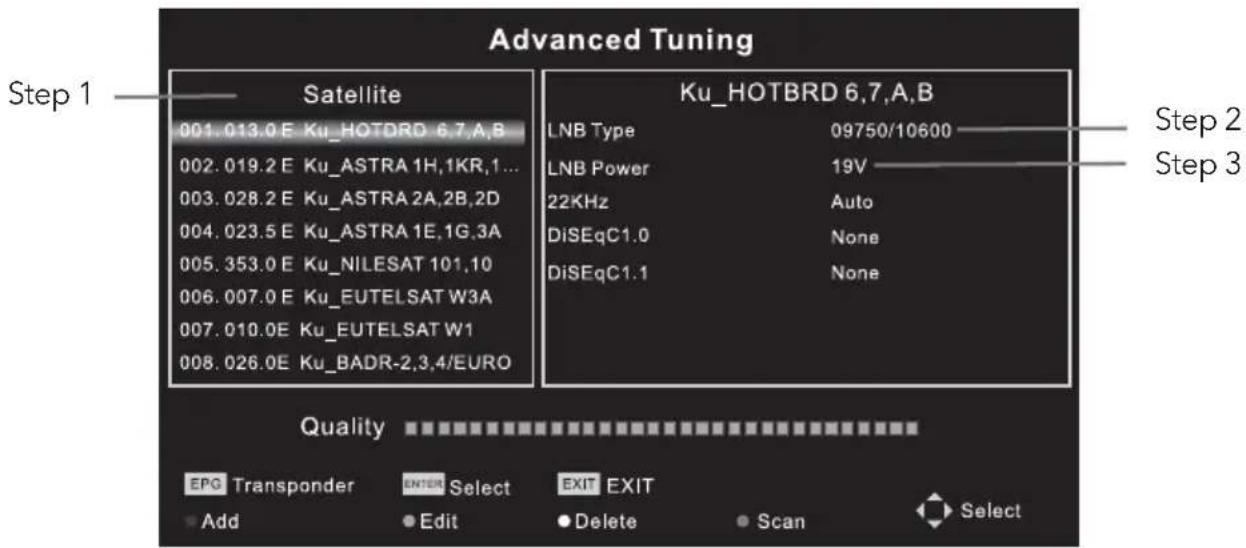
Satellite Dish Settings (Step 1-3, refer to Fig. 1)
Before performing a channel scan configure satellite dish settings for each desired satellite.
Satellite - Select the satellite for this TV.
LNB Type - Make sure the LNB type is appropriate for your dish.
LNB Power - Enable or disable power supply for the LNB.
22KHz - Select the 22KHz to set 22K switch to ON/OFF. Use auto mode to switch 22KHz on or off depending on the LNB type.
DiSEqC1.0/1.1 - Select the DiSEqC mode for the selected LNB.
text_image
Advanced Tuning Step 1 —— Satellite —— Ku_HOTBRD 6.7,A,B 001.013.0 E Ku_HOTORD 6.7,A,B 002.019.2 E Ku_ASTRA 1H,1KR,1... 003.028.2 E Ku_ASTRA 2A,2B,2D 004.023.5 E Ku_ASTRA 1E,1G,3A 005.353.0 E Ku_NILESAT 101,10 006.007.0 E Ku_EUTELSAT W3A 007.010.0E Ku_EUTELSAT W1 008.026.0E Ku_BADR-2,3,4/EURO Ku_HOTBRD 6.7,A,B LNB Type 09750/10600 LNB Power 19V 22KHz Auto DiSEqC1.0 None DiSEqC1.1 None Quality EPG Transponder ENTER Select EXIT EXIT Add Edit Delete Scan Select Step 2 Step 3Fig. 1
Step 1: Highlight Satellite and press ENTER to access the satellite list and select the desired one.
Step 2: Highlight LNB Type and press ENTER to select the LNB type.
Step 3: Make sure that 22KHz, DiSEqC1.0/1.1 switch corresponds to the selected satellite.
After completing the above steps, press the blue button to search for the channels.
DTV Manual Tuning
Search and store programmes manually.
Channel → DTV Manual Tuning
Select the source type (DVB-T or DVB-C) and search digital programmes manually. In the
Channel menu, select DTV Manual Tuning and press ENTER button to access.
-
Press ◀ or ▶ to select channel number and then press ENTER to start the search.
-
The search stops when programme is found and this program will be stored in the current channel position. If you want to stop the search, press the MENU button.
ATV Manual Tuning
First select the source type of ATV. Then select ATV Manual Tuning in the Channel menu and press ENTER button to access.
-
Highlight and press ▲ or ▼ tto select Storage To 1 (or any other number), Sound System or Channel number. Then select Search and press ENTER to start the search.
-
Press ▶ for the unit to search towards higher frequency;
-
Press ◀ for the unit to search towards lower frequency;
-
The search stops when programme is found. This programme will be stored in the current channel position. If you want to stop the search, press the MENU button.
Fine-Tune
Use it to make small adjustments to tuning of each individual channel. Fine-tune is not necessary under normal conditions. However, in area with poor broadcast conditions, where adjustments are necessary to improve picture and sound, use the fine-tune option.
- Select the channel that you want to fine tune.
- In Channel menu, select ATV Manual Tuning and press ▼ to highlight Fine-Tune.
- Press ◀ or ▶ to fine-tune until the best possible picture and sound are obtained.
Program Edit
Edit the programmes. You can press colour buttons on the remote control to skip programmes, rename and delete programmes or move programmes, and add programmes to the favourite list by pressing FAV button.
Signal Information
Display of the current DTV channel information.
CI Information
Allowing the user to select from the CAM-provided menu. Select the CI menu according to the menu PC Card.
5V Antenna Power
This option is only available with DVB-T source. Select On to supply power to the TV antenna. Select Off to turn off this function.
Software Update (OAD) (only for some regions)
Select On to allow the TV to update the system software over the air. Choosing Off will turn off this function.
OAD Tuning (only for some regions)
When software update (OAD) is off, this option is disabled. Choosing OAD scan involves scanning channels to find the OAD update information.
Note: Features are different in different sources, the picture is different from the actual screen and it is intended for reference only.
OSD Language
Select the OSD language.
Audio Languages / Subtitle Languages (Note 1)
Select the desired language.
TTX Language
Select TTX language for different regions.
Time
The following options can be adjusted: Auto Sync, Clock, Time Zone, Summer Time, Sleep Timer and Auto Sleep.
HDMI CEC
Press to enter submenus.
HDMI CEC - Turn on or off the HDMI CEC function.
Auto Standby - Turn the TV to standby automatically.
Device List - When HDMI CEC is on, check the list of devices connected to the TV.
PVR File System (Note 1)
Adjust Personal Video Record. If you want to use this function, you must have digital programme and a USB disc connected.
Restore Default
Restore user setting to default.
Software Update (USB)
Connect USB device storing the software that has to be upgraded to upgrade the TV system.
Note:
- Audio Languages / Subtitle languages / PVR File System works only in DVB-S / DVB-C / DVB-T mode.
- User data on this TV will be completely lost after operating this feature.
- Do not power off the TV during the software upgrading process. Otherwise the TV may not work, and the customer will be responsible for this.
Lock
Lock System
Input the initial password (0000) to access this feature. Choose "on" and the features "Set password", "Block programme" and "Parental guidance" will be activated. Choose "off" and the above mentioned three features will become inactive. If you forget the password, you can also input the super password (8899) to enter into the lock system.
Set Password
Reset the password.
Block Programme
Block the desired programmes.
Parental Guidance
Choose the programmes appropriate for children to watch.
USB CONTROL
Bear in Mind when Using USB
- Some USB storage devices may be somewhat incompatible with this TV.
- Back up all data in USB storage device to prevent losing them due to an unexpected accident. We do not assume any liability for the losses due to misuse or malfunction. Data backup is consumer's responsibility.
- For large file sizes, the loading speed may be slightly longer.
- The recognition speed of USB storage device may depend on an individual device.
- When connecting or disconnecting USB storage device, make sure the TV is not in USB mode. Otherwise the USB storage device or the files stored in it may be damaged.
- Please use only USB storage devices formatted in FAT16, FAT32, NTFS file systems provided with the Windows operating system. If a storage device is formatted in a different file system which is not supported by Windows, it may not be recognized.
- When using a USB hard disk drive which requires electric power source, make sure its power does not exceed 500mA. If the power of the USB hard disc exceeds 500mA, the TV system will enter standby mode. You must pull out the USB hard disc and restart the TV system.
- "Unsupported File" message will be displayed if the file format is unsupported or if the file is corrupted.
- FHD big picture needs longer time to process, which is not caused by the TV. Please be patient to wait.
- This TV may not support some multimedia files changed and upgraded in a way which involves change of encoding format or other technical advances.
Supported File Extensions on USB
Photo
| File Type / (Ext Name) File Extension Version support Remark | |||
| JPEG Jpg/jpeg | |||
| BMP Bmp support all modes | |||
| PNG Png MPEG1/2 | supports interlace does not support animation mode | ||
Video
| File Type / (Ext Name) Video Type Audio Type Remark | |||
| MP4, MOV / (.mp4, .mov, .m4v) | Motion JPEG MPEG-4 SP/SP(XviD) | MPEG-AUDIO | |
| AVI / (.avi) | Motion JPEG MPEG-4 SP/SP(XviD) | LPCM MPEG-AUDIO | |
| ASF / (.wmv3, .xvid) MPEG-4 SP/ASP(XviD) | MS-ADPCM, Intel-ADPCM | ||
| MKV / (.mkv, .xvid) MPEG-4 SP/ASP(XviD) MPEG-AUDIO | |||
| TS / (.ts/trp) | LPCM MPEG-AUDIO | ||
| DAT, MPG, MPEG /(.dat, .mpg, mpeg) | LPCM MPEG-AUDIO | ||
| VOB / (.vob) | LPCM MPEG-1 Layer2 | ||
| MP4, MKV /(mp4., mkv.) HEVC | Bit Rate≤30mbps, 1080p@30fps. | ||
Music
| File Type / (Ext Name) File Extension Version support Remark | |||
| Mpeg-1 Layer 3 | |||
| Wma LPCM | WMA 7~9.1 is WMA2 | ||
| MPEG-1/2 Layer 1/2 | n/a (included in the video only) | MPEG1/2 | |
| LPCM | n/a (included in the video only) | ||
| AAC Aac, mp4, M4A | Customers must register by themselves AAC variable bit rate: just forward speed 1.5x~2x m4a can't FF/FR ADIF can't FF/FR ADTS can FF/FR | ||
USB Menu
Press Source menu and select USB button. You can play movie, music and photo files from your USB storage devices.
- Connect USB storage device to USB input terminal and select the types of media on the home page: MOVIE, MUSIC and PHOTO.
- Press [ENTER] button, the screen will show the connected USB device. Press [ENTER] button again to view the file folders and files.
- Press [◀] / [▶] or [▲] / [▼] to select folder. Press [ENTER] to open folders and select files, then press [ENTER] to tick them. Highlight the one you want to play first, press [▶/II] to start playing. To start playing directly, select a file and press [▶/II].
- Press [■] to stop playing and return to upper lever folder.
- Continuously press [RETURN] to go back to upper lever folder.
- Use the above steps to select and play another media type.
Play Movie
Press [ INFO ] / [ ▼ ] to display / exit from the below Menu Bar. Press USB control buttons on the remote control to perform the relevant operations.
MOVIE CONTROL BAR

text_image
Pause FB FF Prev. Next Stop Repeat All Info. Go to time Aspect RatioPlay & Pause/Stop/Prev./Next
Press [▶/II] to play or pause the playing; press [■] to stop playing; press [H]/[▶] to play the previous or the next video file. You can also press [◀]/[▶] to highlight one of the four icons and, after pressing [ENTER], the TV will respond accordingly.
Fast Reverse / Fast Forward
Press and hold [◀] / [▶] for several seconds to reach the desired point, then press [▶/II] button to start playing from the new position.
Play Mode
Highlight the corresponding icon and press [ ENTER ] to switch to another play mode.
Information
Highlight the corresponding icon and press [ ENTER ] to view the information regarding the video that is being played.
Go to time
Skip to specific point by entering time information. Highlight the corresponding icon and press [ENTER] to go to "Input search time" screen. Press [◀]/[▶] to move the cursor and use the number buttons to insert the time. Press [ENTER], the TV will start playing from the set time.
Aspect Ratio
Highlight the option and press [ ENTER ] to select the display mode.
Play Music
Press [ INFO ] / [ ▼ ] to display / exit from the below Menu Bar. Press USB control buttons on the remote control to perform the relevant operations.
MUSIC CONTROL BAR

text_image
Pause FB FF Prev. Next Stop Repeat All Info.Play & Pause / Stop / Previous / Next
Press [▶/II] to play or pause the playing; press [■] to stop playing; press [◀]/[▶] to play the previous or the next music file. You can also press [◀]/[▶] to highlight the corresponding icon on the control bar and, after pressing [ENTER], the TV will respond accordingly.
Fast Forward / Fast Reverse
Press and hold [◀] / [▶] for several seconds to reach the desired point, then press [▶/II] on the remote control to start playing from the new position.
Play Mode
Highlight the icon and press [ ENTER ] to switch to another play mode.
Information
Highlight the corresponding icon and press [ ENTER ] to check the information regarding the music file that is being played.
Note:
- This menu shows only the supported files.
- Files with other file extensions are not displayed even if they are saved on the same USB storage device.
- Over-modulated mp3 files may have certain sound distortion during playback.
- This TV supports lyrics display (English). Maximum number of characters per line is 48.
- The file name of music and lyrics must be the same in order to display lyrics while the music is playing.
- If you want to show the associated lyrics on the screen with the music, you must store these associated lyrics in the same folder using the same file name with ".lrc" file extensions.
Browse Photo
Press [ INFO ] / [ ▼ ] to display / exit from the below Menu Bar. Press USB control buttons on the remote control to perform the relevant operations.
PHOTO CONTROL BAR

text_image
Pause Prev. Next Stop Repeat All Rotate Rotate Info. Zoom In Zoom Out Move ViewPlay & Pause / Stop / Previous / Next
Press [▶/II] to play or pause the playing; press [■] to stop playing; press [✗]/[✗] no play the previous or the next picture. You can also press [◀]/[▶] to highlight the corresponding icon on the control bar and, after pressing [ENTER], the TV will respond accordingly.
Play Mode
Highlight the icon and press [ ENTER ] to switch to another play mode.
Rotate
Highlight the corresponding icon on the menu bar and press [ENTER] to rotate the picture 90 degrees clockwise or counter clockwise.
Info.
Highlight the corresponding icon and press [ ENTER ] to check the information regarding the viewed photo.
Zoom In / Zoom Out
Highlight the corresponding icon on the menu bar and press [ ENTER ] to zoom in / zoom out of the image.
Move View
When the image is magnified, use this function to view the desired image sections. Highlight this icon, press [ ENTER ] button, then press left/right/up/down button to move across the image.
Note:
Move function ( ) is only available when image is enlarged.
TROUBLESHOOTING
Before calling a service technician, review following information for possible causes and solutions for the problem you are experiencing.
NO PICTURE, NO SOUND
-
- Check if the fuse or circuit breaker is working.
- Plug another electrical device into the outlet to make sure it is working or turned on.
- Poor power plug contact with the outlet.
- Check the signal source.
NO COLOR
- Change the colour system.
- Adjust the saturation.
- Try another channel. Black-white program may be received.
REMOTE CONTROL DOES NOT WORK
- Change the batteries.
- Batteries are not installed correctly.
- Main power is not connected.
NO PICTURE, NORMAL SOUND
- Adjust the brightness and contrast.
- Broadcasting failure may happen.
NORMAL PICTURE, NO SOUND
- Press the volume up button to increase volume.
- Volume is set to mute, press MUTE to restore sound.
- Change the sound system.
- Broadcasting failure may happen.
UNORDERLY RIPPLES ON THE PICTURE
It is usually caused by local interference, such as cars, daylight lamps and hair dryers. Adjust the antenna to minimize the interference.
BLANK SCREEN IN PC MODE
(only for models with PC terminals)
Perhaps the TV cannot recognize the PC set resolution. Choosing the best resolution or other standard resolutions for the Windows system is recommended. Set refresh rate to 60Hz.
If the antenna is located in the fringe area of television signal where the signal is weak, the picture may be marred by dots. When the signal is extremely weak, it may be necessary to install a special antenna to improve the reception.
- Adjust the position and orientation of the indoor/outdoor antenna.
- Check the connection of antenna.
- Fine tune the channel.
- Try another channel. Broadcasting failure may happen.
IGNITION
Black spots or horizontal streaks appear, or the picture flutters or drifts. This is usually caused by interference from car ignition system, neon lamps, electric drills, or other electrical appliance.
GHOST
Ghosts are caused by the television signal which follows two paths. One is the direct path, the other is reflected off tall buildings, hills, or other objects. Changing the direction or position of the antenna may improve the reception.
This interference produces moving ripples or diagonal streaks, and in some cases, loss of contrast in the picture. Detect and remove the radio interference source.
Note:
If the problem persists after applying the solutions, please contact your local support centre.
SPECIFICATIONS
| Screen size - diagonal 101cm | |
| Screen resolution 1920x1080 | |
| Audio output power (L+R) 6W + 6W | |
| Working voltage 100-240V~ 50/60Hz | |
| Rated power consumption 59W | |
| Dimensions (W x H x Dmm) 908x522x88mm | |
| Net weight 8kg | |
| Environment(only for Tropical climates zone): | Working temperature: 5°C~45°CWorking humidity: 20%~80%Storage temperature: -15°C~50°CStorage humidity: 10%~90% |
| Environment(only for Moderate climates zone) | Working temperature: 5°C~35°CWorking humidity: 20%~80%Storage temperature: -15°C~45°CStorage humidity: 10%~90% |
| Channel coverage DVB-T/T2: 174MHz-230MHz; 470MHz-860MHz;DVB-C: 50-858MHzDVB-S/S2: 950MHz-2150MHz | |
| System DTV: DVB-T/T2, DVB-S/S2, DVB-CATV: PAL/SECAM (BG/DK/I) | |
| Preset programmes ATV: 100, DVB-T/DVB-C: 800; DVB-S:2000 | |
| Status displaying method On screen display | |
| Function adjustment indicator Menu display | |
| Language of OSD Multiple options | |
| RF aerial input | 75 ohm unbalanced |

natural_image
Abstract geometric composition with colorful polyhedral shapes and connecting lines (no text or symbols)TESLA
MAGNIFICENT VIEW
www.tesla.info
