
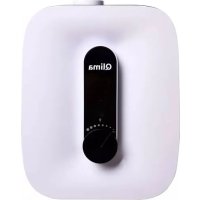
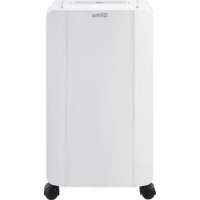
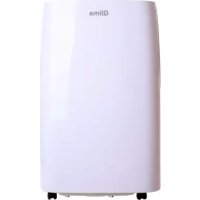
D630P - Humidifier QLIMA - Free user manual and instructions
Find the device manual for free D630P QLIMA in PDF.
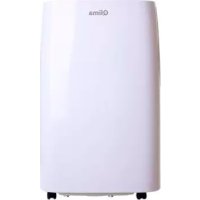



| Product Type | Dehumidifier |
| Brand | Qlima |
| Model | D630P |
| Connectivity | Wi-Fi (IEEE 802.11b/g/n) |
| Wi-Fi Frequency | 2,412 to 2,484 GHz |
| Wi-Fi Conducted Power | 16.92 dBm |
| Control App | Smart Life (iOS/Android) |
| Functions | Dehumidification, remote control, scheduling, automatic and manual modes |
| Antenna Type | PCB antenna, gain 3.0 dBi |
| Power Supply | 220-240 V~, 50 Hz |
| Tank Capacity | Approx. 2.5 L |
| Noise Level | ~40 dB |
| Maintenance | Clean the filter regularly, empty the tank |
| Safety | Automatic shut-off when tank is full, anti-freeze protection |
| Spare Parts | Filter, water tank |
Frequently Asked Questions - D630P QLIMA
User questions about D630P QLIMA
0 question about this device. Answer the ones you know or ask your own.
Ask a new question about this device
Download the instructions for your Humidifier in PDF format for free! Find your manual D630P - QLIMA and take your electronic device back in hand. On this page are published all the documents necessary for the use of your device. D630P by QLIMA.
USER MANUAL D630P QLIMA
photo 1 photo 2 photo 3
photo 8 photo 9 photo 10
2. ADD A DEVICE
Normal Mode
(e.g. lot, batch or serial number, sources and numbers of items)
HEALTH & SAFETY (Art. 3(1)(a)):
- EN 62311:2020, EN 50665:2017
EMC (Art. 3(1)(b)):
- EN 301 489-1 V2.2.3: 2019, EN 301 489-17 V3.2.4 :2020
SPECTRUM (Art. 3(2)):
- EN 300 328 V2.2.2 :2019
Use your phone to scan the QR code below or search "Smart Life" in the application market to download and install the App.
Basic RF features
| Parameter Description | |
| Working frequency 2.412 to 2.484 GHz | |
| Conducted power 16.92 dBm | |
| Wi-Fi standard IEEE 802.11b/g/n (channels 1 to 14) | |
| Data transmission rate 11b: 1, 2, 5.5, 11 (Mbps) 11g: 6, 9, 12, 18, 24, 36, 48, 54 (Mbps) 11n: HT20 MCS 0 to 7 | |
| Antenna type PCB antenna with a gain of 3.0 dBi (default) Antenna to which a U.FL RF connector is externally connected (optional) | |
Check the website www.qlima.com for the most recent version of this manual.
1. REGISTER/LOGIN/FORGOT PASSWORD
Register
If you don't have a Smart Life account, register an account or sign in with verification code by SMS. This page describes the registration process.
- Tap to enter the registration page.
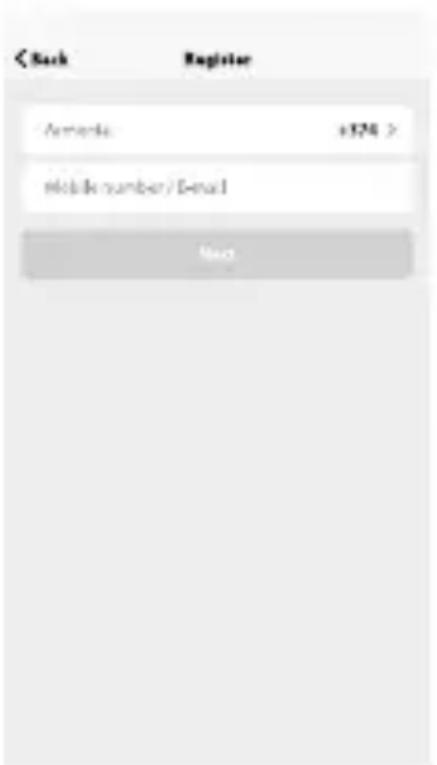
- The system automatically recognizes your country/area. You can also select your country code. Enter the mobile number or E-mail and tap "Next", as shown in picture 1.
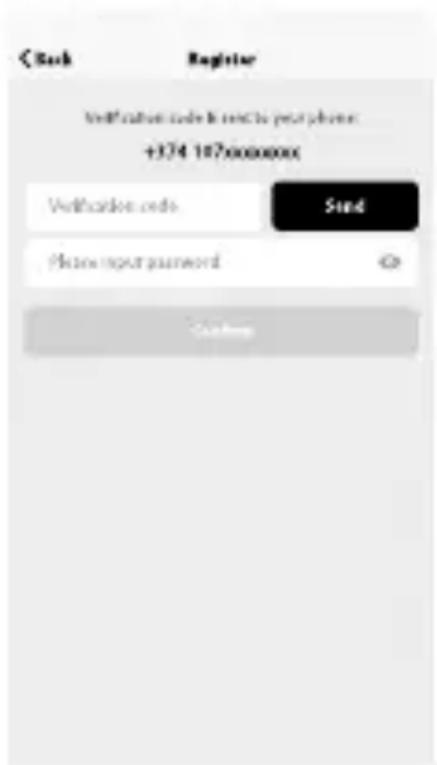
- Enter your mobile number and verification code (as shown in picture 2) and create your password. Tap "Confirm" to finish your registration.
- Enter your E-mail address and password as shown in picture 3 and tap "Confirm" to finish your registration.
Picture 1 Picture 2 Picture 3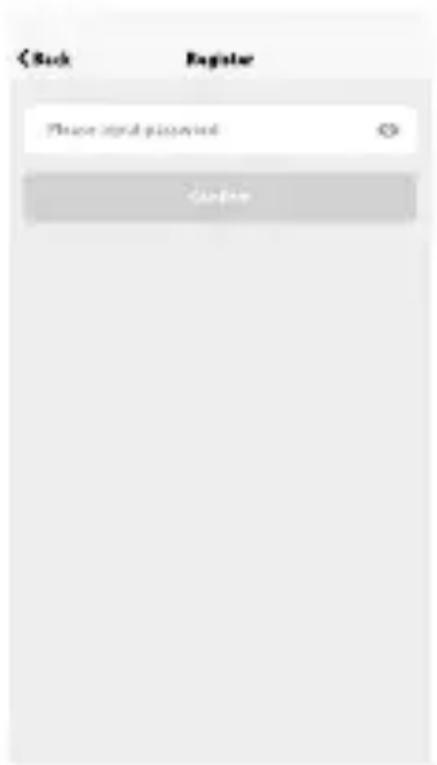
Sign in with username and password
- The system automatically recognizes your country/area. You can also select your country code. Enter the mobile number or E-mail and tap "Next".
- Enter your registered mobile number or Email, and password to log in.
Sign in with social media account
If you have installed Facebook or Twitter on your smartphone, tap the corresponding icon and then sign in to the App after social network authentication.
Picture 4 Picture 5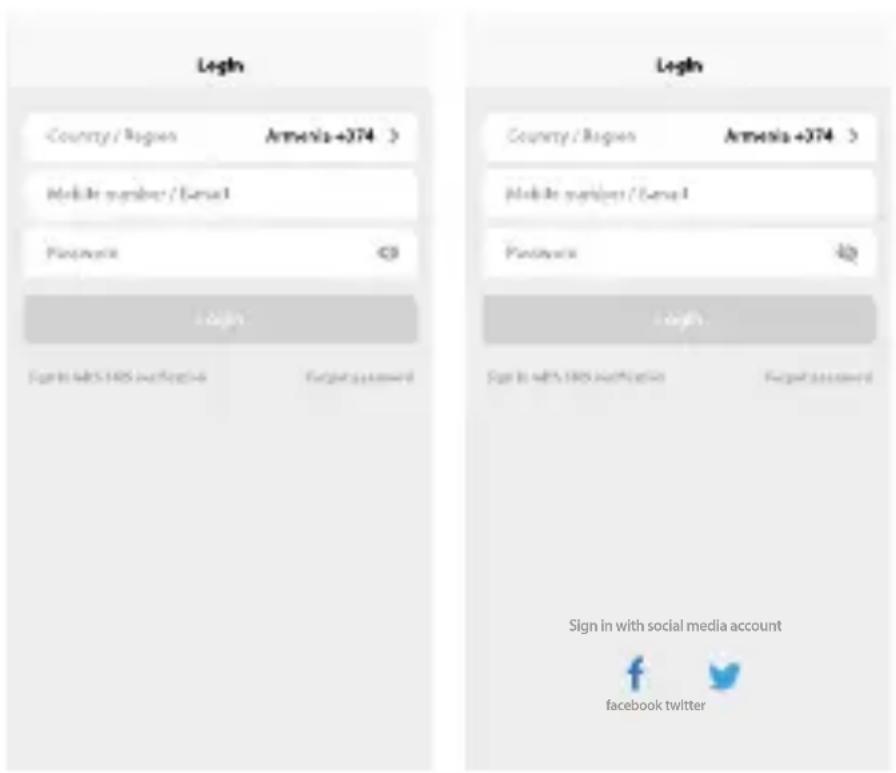
Sign in with verification code via SMS
- Tap "Sign in with SMS verification" to go to a new page.
- The system automatically recognizes your country/area. You can also select your country code yourself.
- Enter the mobile number and tap "Get" to receive a message.
- Enter the verification code from the message and tap "Login" to log in to the App.
Forgot password
To recover your password, please follow the procedures:
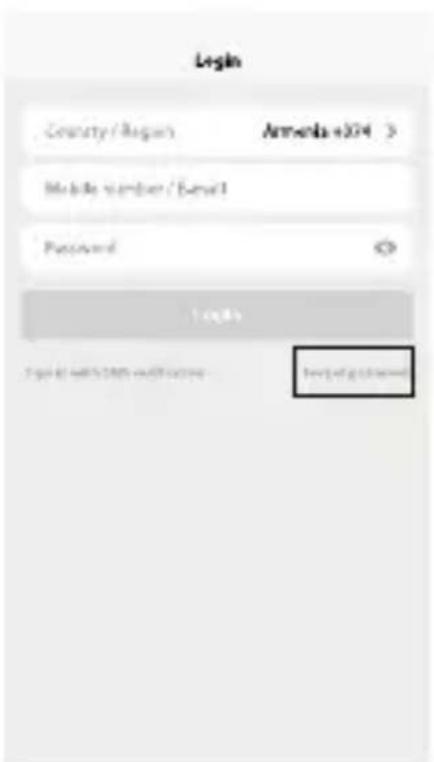
- Tap "Forgot password", as shown in picture 8.
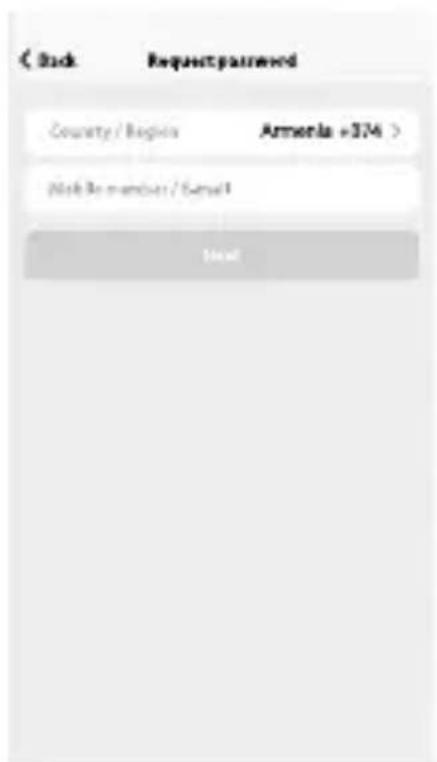
- The system automatically recognizes your country/area. You can also select your country code yourself. Enter the mobile number / E-mail and tap "Next", as shown in picture 9.
- Enter the verification code from the message / E-mail, as shown in picture 10, and enter the new password, then tap "Confirm" to finish.
2. ADD DEVICE
Normal mode
- Enter the App, tap "+" in the upper right of the page to go to the network connection page, as shown in picture 10.
- There are two network connection methods (Normal mode and AP mode). Normal mode is the default. Users can tap the upper right corner to switch the connection method to AP mode.
- For normal mode, please make sure the device's indicator light rapidly flashes (2 times per second), then tap to proceed to the next step.
- If the indicator light is not flashing rapidly, tap "how to set indicator light as rapid flashes" to view the operation steps.
Picture 11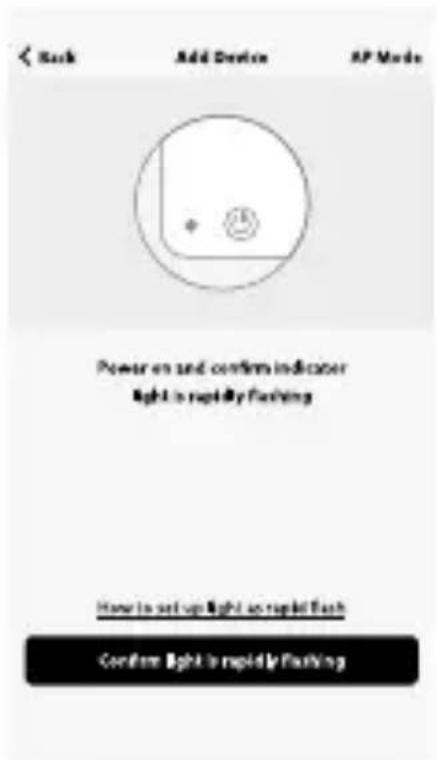
Notes: How to set the indicator light to rapid flashing.
Step 1
Power on the device. Power off after 10 seconds, then power on again.
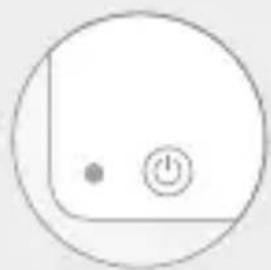
Step 2
Hold the reset button for 5 seconds.
Step 3
Confirm that the indicator light is now flashing rapidly.
Picture 12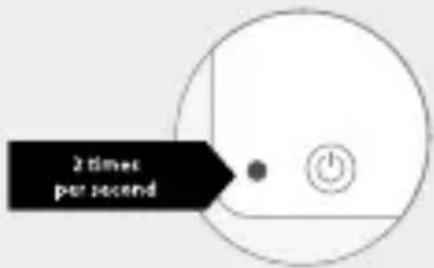
AP mode
- For AP mode, please make sure the device's indicator light is flashing slowly (once every 3 seconds), then tap to proceed to the next step.
- If the indicator light is flashing slowly, tap "how to set indicator light as slow flashes" to view the operation steps.
Picture 13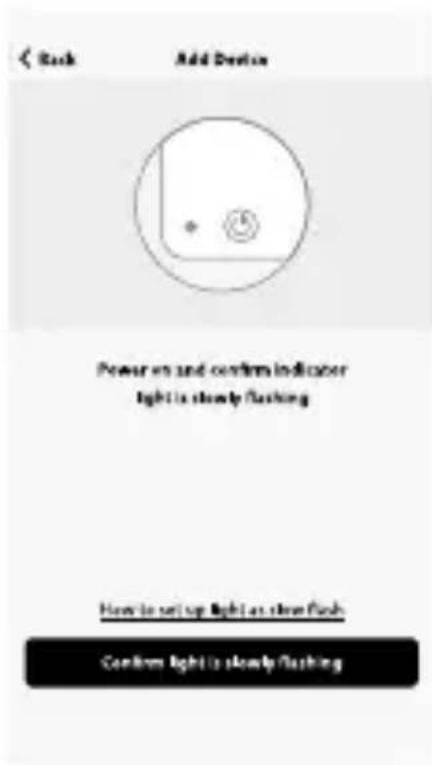
Notes: How to set the indicator light to slow flashing.
Step 1
Power on the device. Power off after 10 seconds, then power on again.
Step 2
Hold the reset button for 5 seconds.
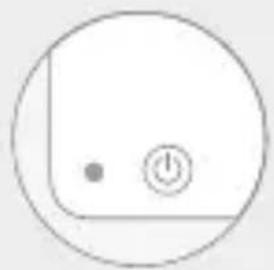
Step 3
Confirm that the indicator light is now rapidly flashing.
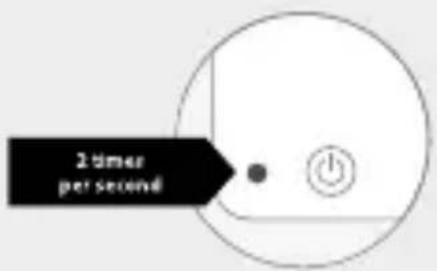
Step 4
Hold the reset button for 5 seconds until the indicator light is slowly flashing.
Picture 14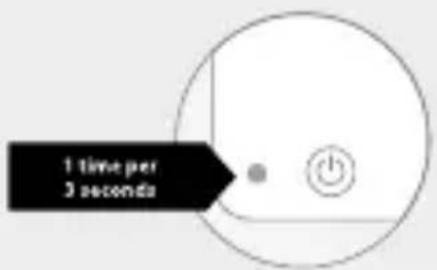
Enter Wi-Fi password
Select the Wi-Fi network that the device is working on, enter the password, and tap "Confirm" to start the network connection process, as shown in Picture 15.
Picture 15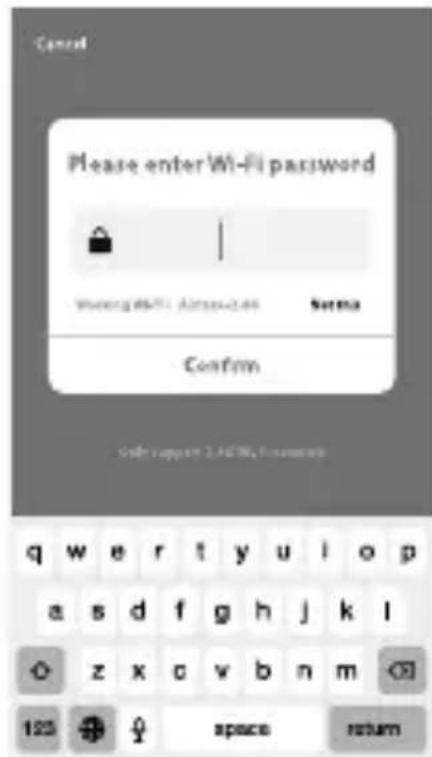
Normal network connection process
If you select normal mode to connect the device to the network, the app goes through the processes shown in Picture 16.
After the network connection is successful, the app page will be displayed as shown in Picture 17.
Picture 16 Picture 17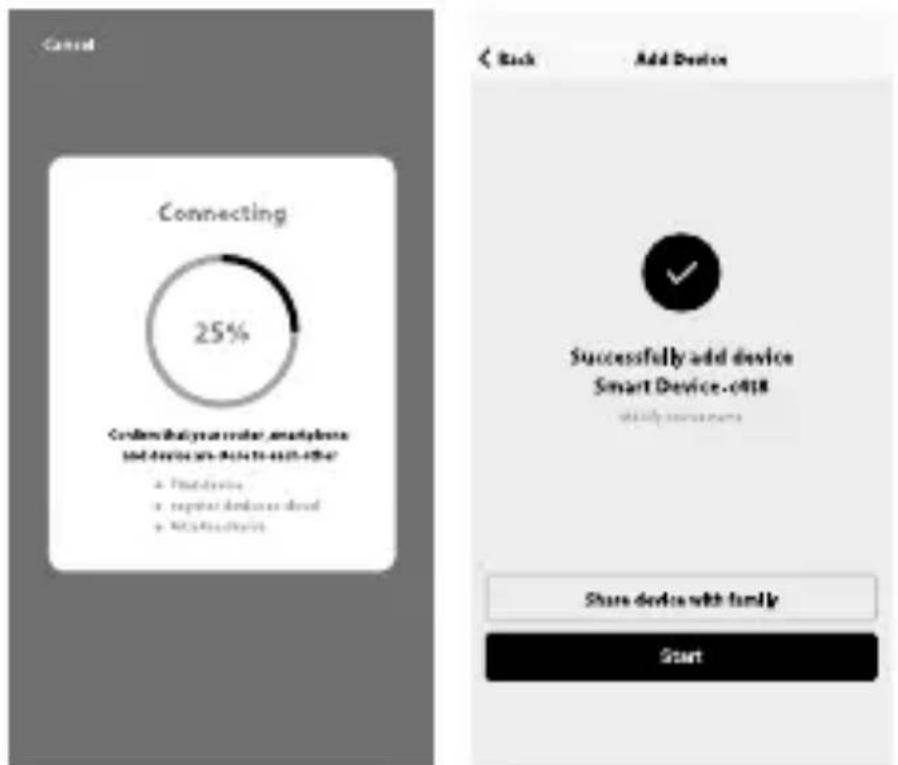
Network connection process
For AP mode, connect to the Wi-Fi hotspot named "Smartlife", as shown in Picture 18.
Note: Some devices might have different hotspot names.
Picture 18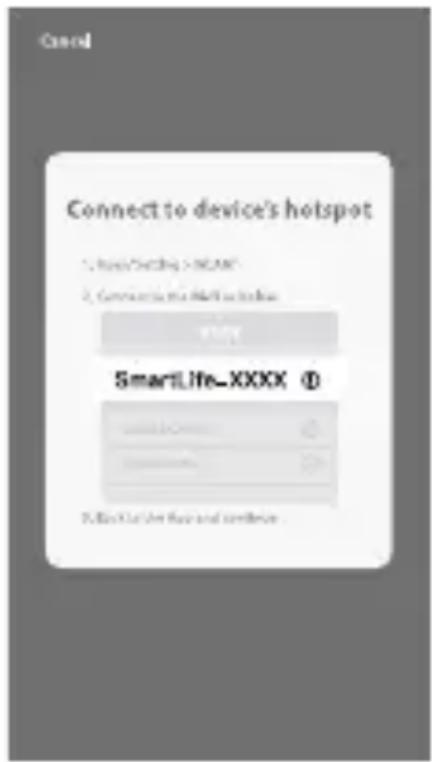
Network connection process
After connecting to the hotspot, return to the network connection page to start the network connection process. The app proceeds as shown in Picture 19.
Picture 20 shows the app page when the network connection is successful.
Picture 19 Picture 20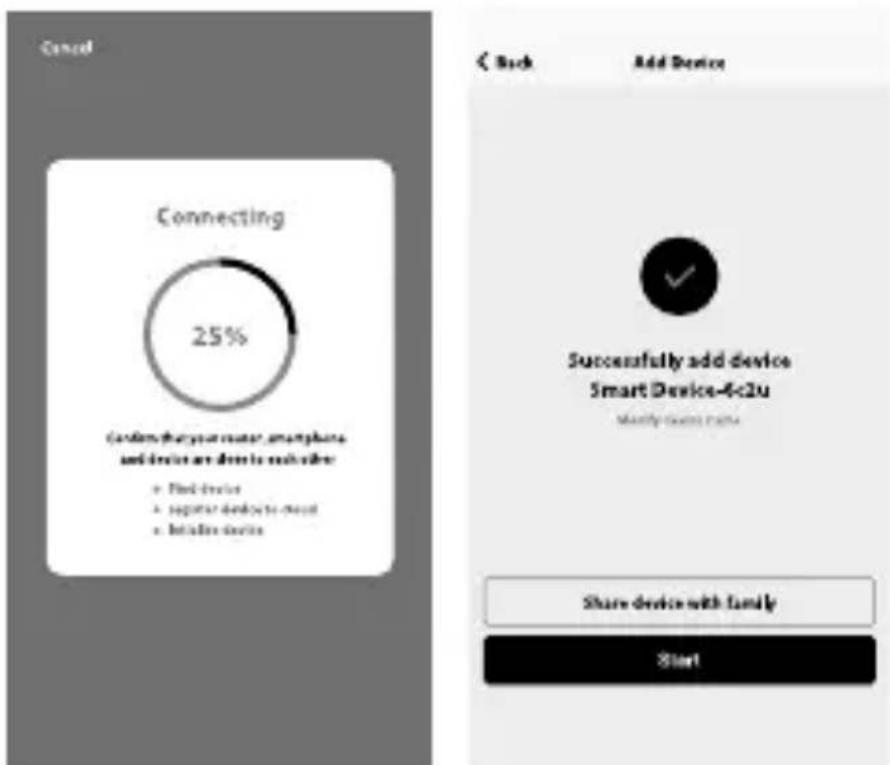
Adding failed
If your app interface is shown as in Picture 21, it means that the network connection failed. You could try connecting again or view help.
Picture 21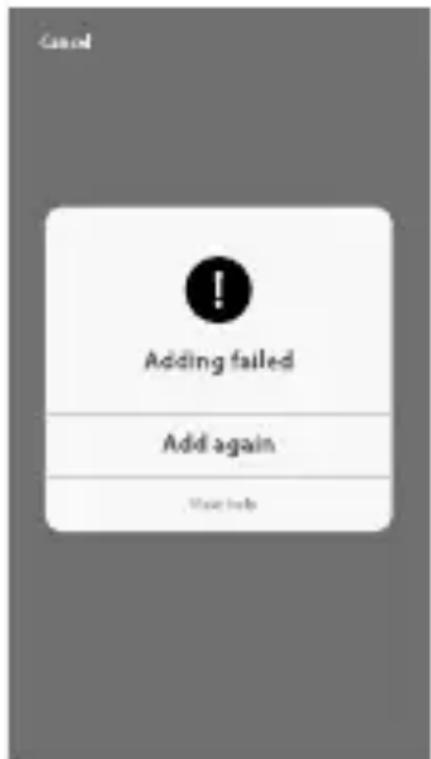
3. CONTROL DEVICE
After successfully configuring the devices, the smart device will be shown on the home page. Tap to enter its control page.
Note:
- When the device is online, it supports shortcut operations.
- When the device is offline, it displays "Offline" and cannot be controlled.
Smart life scenario
The smart life scenario supports devices performing corresponding actions under various conditions.
The main conditions include:
- Temperature
- Humidity
- Weather
- Air quality
- Sunrise and sunset time
- Device actions (such as turning on/off)
Profile
The "Profile" page is where users can manage personal information. The key information is as follows:
- Personal information
- Smart life scenario
- Device Sharing: displays the information of shared devices
- Message center
- F.A.Q
- Entry to submit feedback
- About
The "Profile" page is for displaying personal account information. You can change your login password, bind your mobile number, and set pattern unlock on this page.
Pattern Unlock
Tap "Pattern unlock" to set your pattern. After setup, you have to enter your pattern to use the App.
Send sharing:
The list shows all members who are added by your account. You can delete the member and delete the sharing by swiping left.
Receive sharing:
The list shows all devices that your account has received. You can delete the sharing by swiping left.
picture 28 picture 29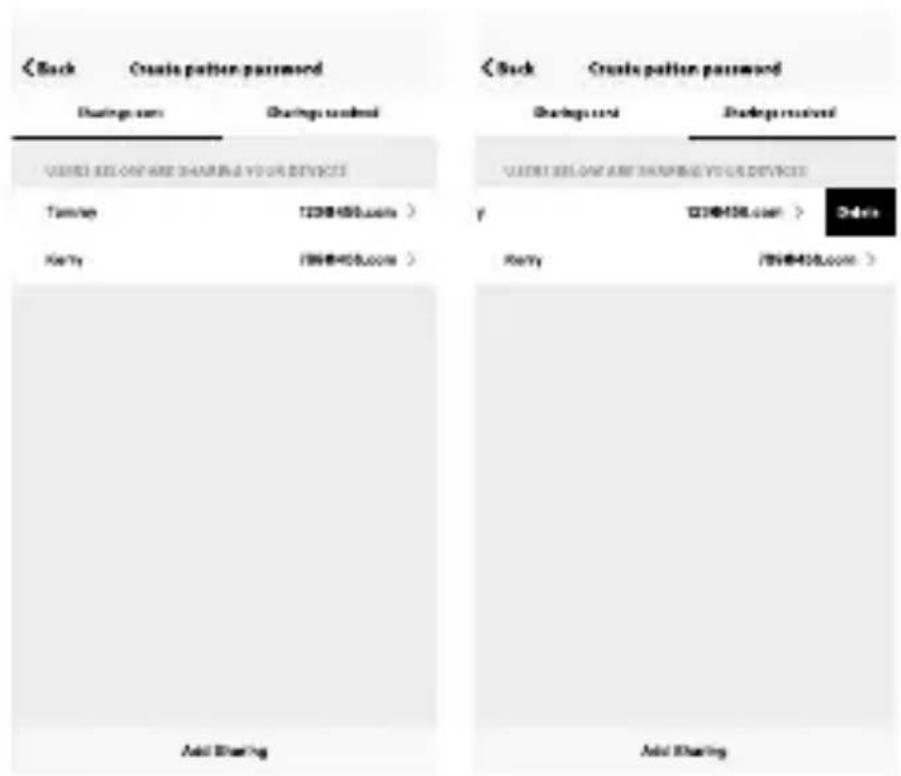
Add sharing:
As shown in the picture, users could input a new member's mobile number and share the device with him.
The new member could then control the shared device.
picture 30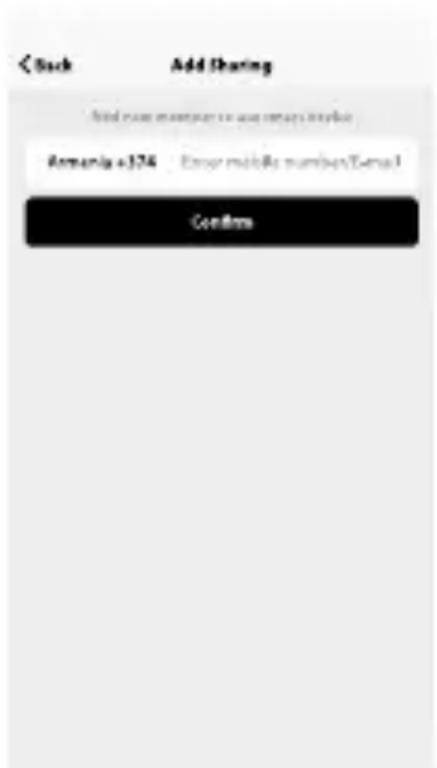
Message center
Message centre:
Including notifications of new device and new sharing.
picture 31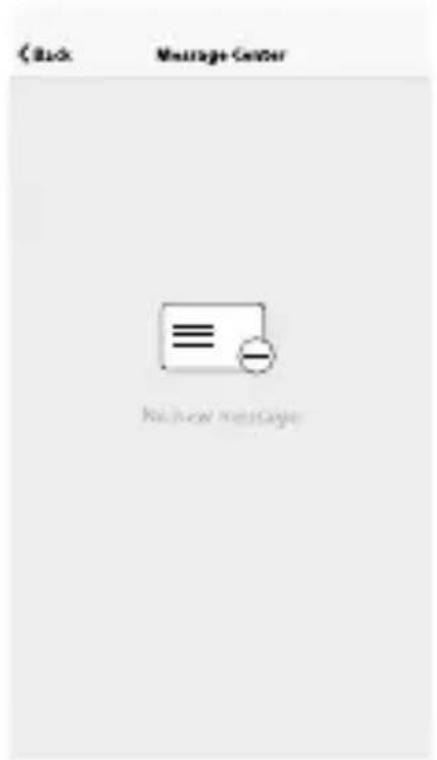
Feedback:
Entry where users could submit their feedback.
picture 32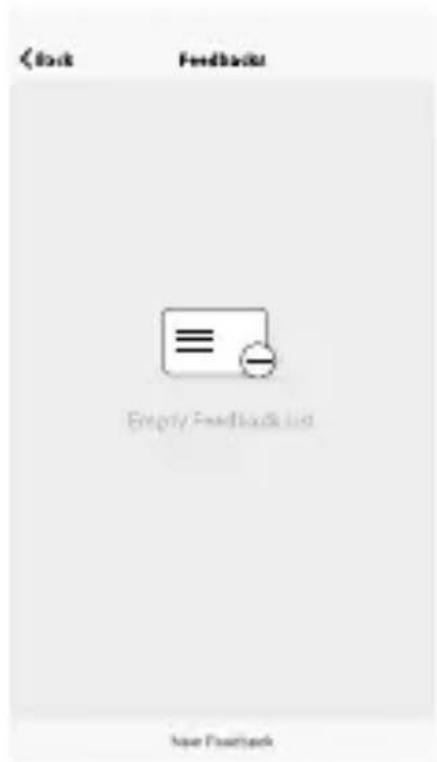
About
App's other related information includes:
- Tap on "rate us"; the app will be redirected to the corresponding app market, where you can rate us.
- Shows the app version number.
Remark
- The pictures used in this manual are from the iOS app interface; the Android version is slightly different.
- Product and software are updated periodically; the numbers and app interface in this manual are for example only. No additional notification will be given for further changes.
Radio Equipment Directive (RED) Declaration of Conformity (DoC)
Unique identification of this DoC: 20211213Dehumidifier
We, PVG Holding BV, Kanaalstraat 12C, Oss, 5347 KM Oss, The Netherlands, declare under our sole responsibility that the product:
Product name: Dehumidifier
Trade name: Qlima
Type or model: D 630 P SMART
Relevant supplementary information:
(e.g., lot, batch, or serial number, sources and numbers of items)
This declaration relates to the conformity with the essential requirements and other relevant requirements of the Radio Equipment Directive (2014/53/EU). The product is in conformity with the following standards and/or other normative documents:
HEALTH & SAFETY (Art. 3(1)(a)):
- EN 62311:2020, EN 50665:2017
EMC (Art. 3(1)(b)):
- EN 301 489-1 V2.2.3: 2019, EN 301 489-17 V3.2.4 :2020
SPECTRUM (Art. 3(2)):
- EN 300 328 V2.2.2 :2019
OTHER (incl. Art. 3(3) and voluntary specs):
Limitation of validity (if any):
Supplementary information:
- Notified body involved: N/A
- Technical file held by:
Place and date of issue (of this DoC): Oss, 13-12-2021
Signed by or for the manufacturer:
(Signature of authorized person)
Name of authorized person (in print): Wilbert van Emous
Title of authorized person: Group Product & Sourcing Manager
Distributed in Europe by PVG Holding B.V.
If you need more information or have any problems, please visit our website www.qlima.com, or contact our customer service (T: +31 412 694 694). For further information or any problems with the device, please refer to www.qlima.com or contact our customer service (T: +45 77 34 33 30). If you need information or have a problem, please visit our website www.qlima.es, or contact our customer service (T: +34 91 113 113). If you need additional information or encounter a problem, please visit our website (www.qlima.com) or contact our customer service (+33 2 32 96 70 74 / +32 10 31 26 39 39). If you need information or have a problem, please visit our website (www.qlima.com) or contact our customer service (T: +45 77 34 33 30). If you need information or have a problem, please visit our website (www.qlima.com) or contact our sales support (T: +31 412 694 694). For information or in case of problems, visit the website www.qlima.it or contact the customer service center (T: +39 0571 628 500). If you need information or have a problem with the product, you can visit the website www.qlima.com. Alternatively, you can contact PVG consumer service (T: +45 77 34 33 30). If you need information or have a problem, please visit our website (www.qlima.com) or contact our sales department (T: +31 412 694 694 / +32 10 31 26 39 39). If you need information or have problems, visit the website www.qlima.es or contact the assistance center (T: +34 916 113 113). In case of problems or for detailed information, visit the Qlima website at www.qlima.com or contact the Qlima contact center (T: +48 48 613 00 70). If you need service or information or have a problem with the device, you can visit www.qlima.com or contact Qlima customer service (T: +45 34 33 30). For additional information, visit the company website at www.qlima.si or call the telephone number (T: +386 (0)41 674 139).
MarCom mvz©211114 App User Manual (21) V1

PVG Holding BV - Kanaalstraat 12 C - 5347 KM Oss - the Netherlands P.O. Box 96 - 5340 AB Oss - the Netherlands





- ADD A DEVICE
- NORMAL MODE
- USE YOUR PHONE TO SCAN THE QR CODE BELOW OR SEARCH "SMART LIFE" IN THE APPLICATION MARKET TO DOWNLOAD AND INSTALL THE APP
- REGISTER/LOGIN/FORGOT PASSWORD
- REGISTER
- SIGN IN WITH USERNAME AND PASSWORD
- SIGN IN WITH SOCIAL MEDIA ACCOUNT
- SIGN IN WITH VERIFICATION CODE VIA SMS
- FORGOT PASSWORD
- ADD DEVICE
- STEP
- AP MODE
- ENTER WI-FI PASSWORD
- NORMAL NETWORK CONNECTION PROCESS
- NETWORK CONNECTION PROCESS
- ADDING FAILED
- CONTROL DEVICE
- NOTE
- SMART LIFE SCENARIO
- PROFILE
- PATTERN UNLOCK
- SEND SHARING
- RECEIVE SHARING
- ADD SHARING
- MESSAGE CENTER
- MESSAGE CENTRE
- FEEDBACK
- ABOUT
- APP'S OTHER RELATED INFORMATION INCLUDES
- REMARK
- RADIO EQUIPMENT DIRECTIVE (RED) DECLARATION OF CONFORMITY (DOC)
- DISTRIBUTED IN EUROPE BY PVG HOLDING B.V
Brand : QLIMA
Model : D630P
Category : Humidifier