
SRU4002B - Remote control PHILIPS - Free user manual and instructions
Find the device manual for free SRU4002B PHILIPS in PDF.



| Brand | Philips |
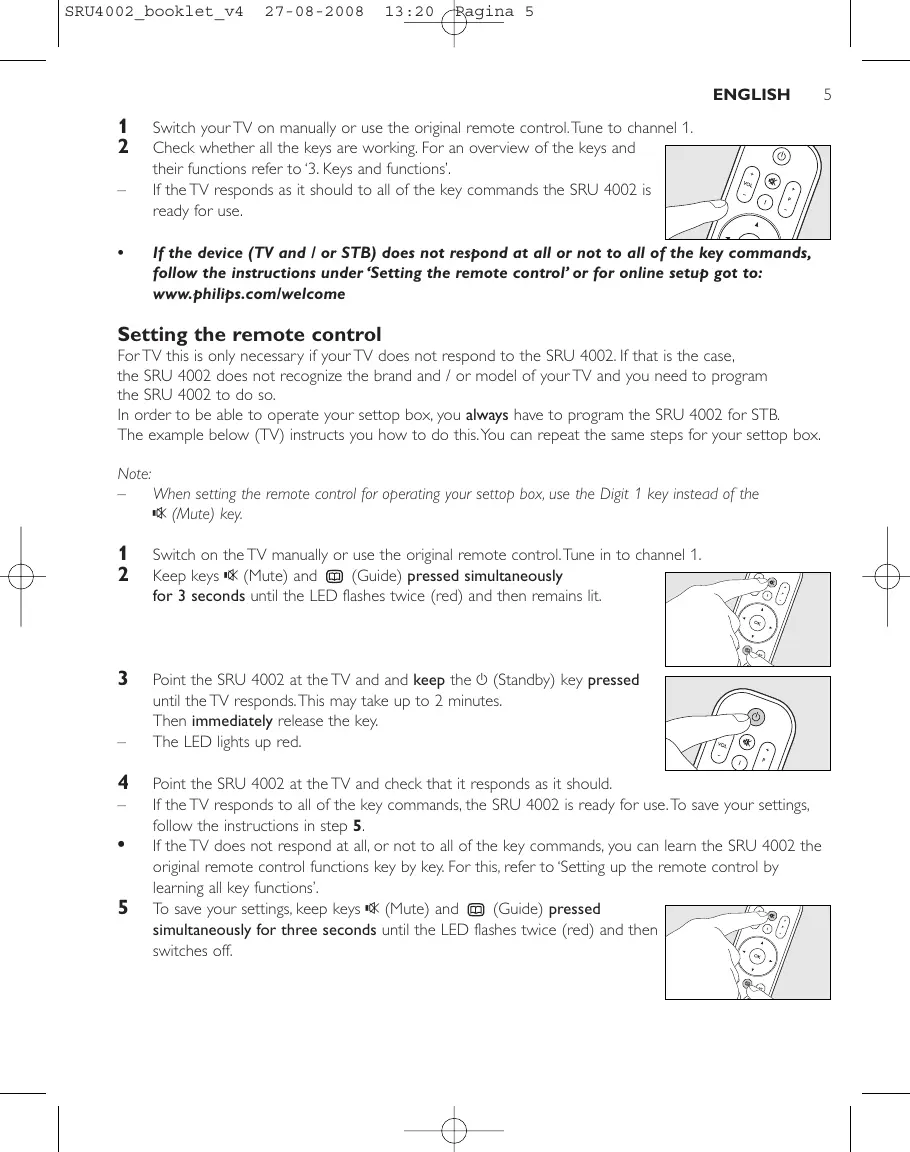
| Model | SRU4002B |
| Product type | Universal remote control |
| Power supply | 2 AAA batteries (not included) |
| Dimensions (approx.) | 200 x 50 x 25 mm |
| Weight (approx.) | 100 g |
| Infrared range | Approximately 10 m |
| Compatible devices | TV and set-top box (cable, satellite, DTT) |
| Main functions | TV and STB control, programmable keys, learning, dual standby mode, favorite keys |
| Number of keys | Approximately 40 keys (including navigation keys, numbers, volume, channels, favorites) |
| Favorite key memory | 4 customizable keys (channel numbers or macros) |
| Learning mode | Yes, to copy functions from an original remote control |
| Dual standby mode | Yes, turns on TV and STB simultaneously |
| Indicator light | Green (transmission), red (configuration/learning) |
| Care and cleaning | Clean with a soft, dry cloth. Do not use abrasive products. |
| Safety | Keep out of reach of children. Do not expose to moisture or excessive heat. |
| Spare parts | Not provided. Repair by a professional if necessary. |
| General information | Manual available in several languages. Online support at www.philips.com/welcomed |
Frequently Asked Questions - SRU4002B PHILIPS
User questions about SRU4002B PHILIPS
0 question about this device. Answer the ones you know or ask your own.
Ask a new question about this device
Download the instructions for your Remote control in PDF format for free! Find your manual SRU4002B - PHILIPS and take your electronic device back in hand. On this page are published all the documents necessary for the use of your device. SRU4002B by PHILIPS.
USER MANUAL SRU4002B PHILIPS
Quick, Clean & Easy Setup
www.philips.com/welcome
4 ENGLISH
Contents
- Introduction 4
- Installing the remote control 4-6
Inserting the batteries 4
Testing the remote control. 4-5
Setting the remote control. 5-6
- Keys and functions 7
- Extra possibilities 8-10
Labelling favorite keys 8
Storing favorite keys. 8-9
Activating Dual Standby mode 9
Restoring the original functions of your remote control 10
- Troubleshooting 10
Information to the Consumer 111
1. Introduction
This user manual will help you to install the remote control so that you can operate your TV and/or set-top box (cable box, satellite receiver, Digital Video Broadcasting Terrestrial device or cable decoder).
Please read the instructions carefully.
2. Installing the remote control
Inserting the batteries
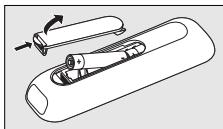
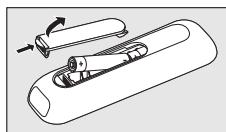
1 Press the cover inwards and lift it up.
2 Place two AAA type batteries into the battery compartment, as shown.
3 Replace the cover and click it firmly into place.
Testing the remote control
It is advisable to test whether your device (TV and/or STB) responds to the SRU 4002, because the SRU 4002 may use different signals for each brand and even for different models of the same brand.
The example below (TV) instructs you how to do this. You can repeat the same steps for your settop box (STB).
Note: After inserting the batteries, all keys will operate your TV. If you wish to test the remote control on your settop box, you first have to program the remote control for operating the settop box. The STB keys will then become available. For this, refer to 'Setting the remote control' hereafter.
1 Switch your TV on manually or use the original remote control. Tune to channel 1.
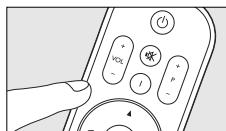
2 Check whether all the keys are working. For an overview of the keys and their functions refer to '3. Keys and functions'.
- If the TV responds as it should to all of the key commands the SRU 4002 is ready for use.
If the device (TV and / or STB) does not respond at all or not to all of the key commands, follow the instructions under 'Setting the remote control' or for online setup got to: www.philips.com/welcome
Setting the remote control
For TV this is only necessary if your TV does not respond to the SRU 4002. If that is the case, the SRU 4002 does not recognize the brand and / or model of your TV and you need to program the SRU 4002 to do so.
In order to be able to operate your settop box, you always have to program the SRU 4002 for STB. The example below (TV) instructs you how to do this. You can repeat the same steps for your settop box.
Note:
- When setting the remote control for operating your settop box, use the Digit 1 key instead of the Mute key.
1 Switch on the TV manually or use the original remote control. Tune in to channel 1.
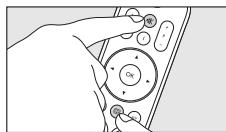
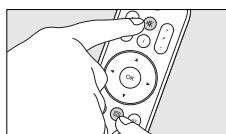
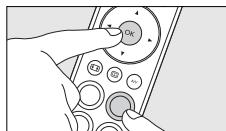
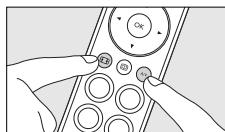
2 Keep keys (Mute) and (Guide) pressed simultaneously for 3 seconds until the LED flashes twice (red) and then remains lit.
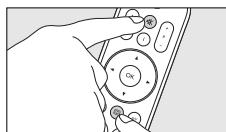
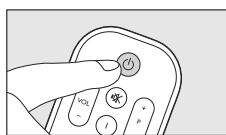
3 Point the SRU 4002 at the TV and and keep the (Standby) key pressed until the TV responds. This may take up to 2 minutes. Then immediately release the key.
The LED lights up red.
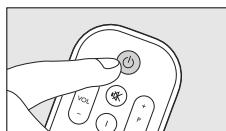
4 Point the SRU 4002 at the TV and check that it responds as it should.
-
If the TV responds to all of the key commands, the SRU 4002 is ready for use. To save your settings, follow the instructions in step 5.
-
If the TV does not respond at all, or not to all of the key commands, you can learn the SRU 4002 the original remote control functions key by key. For this, refer to 'Setting up the remote control by learning all key functions'.
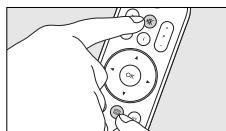
5 To save your settings, keep keys (Mute) and (Guide) pressed simultaneously for three seconds until the LED flashes twice (red) and then switches off.
6 ENGLISH
Setting up the remote control by learning all key functions
In case the previous method did not work, the three steps mentioned below will guarantee you to setup the remote control successfully. You can store a function under any of the available keys on the SRU 4002.
For learning key functions to the OK key, refer to 'Learning the OK key' hereafter.
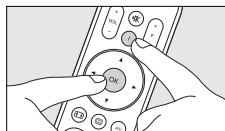
1 Keep the OK key and the key you wish to learn pressed simultaneously for 3 seconds until the LED flashes twice (red) and then remains lit.
The remote control is now in learning mode.
2 Press the key you wish to copy on the original remote control once.
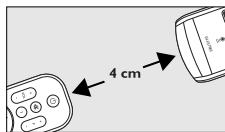
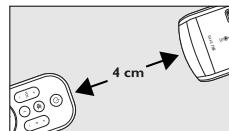
- Make sure both remote controls are properly aligned. Place both SRU 4002 and original remote control on a flat surface (e.g. a table) and aim them head-to-head with about 4cm in between.
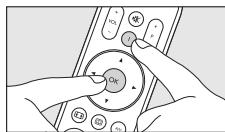
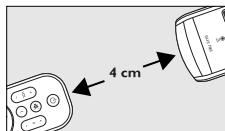
- The LED flashes twice (red), the key has learned the new function and the remote control exits learning mode. Please test whether the key has learned the function correctly.
3 Repeat above procedure for other keys you wish to learn a new function.
Learning the OK key
Under the OK key you can store a function from your original remote control (learn) or a 1 digit favorite channel number.
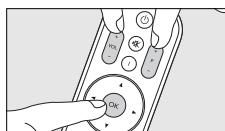
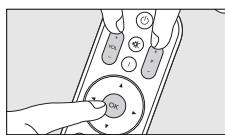
1 Keep keys OK, +VOL (Volume up) and + P (Channel up) pressed simultaneously for 3 seconds until the LED flashes twice (red) and then remains lit.
The remote control is now in learning mode.
2 Press the key you wish to copy on the original remote control.
- The LED flashes twice (red), the key has learned the new function / channel number and the remote control exits learning mode.
Notes:
If, during setup, no keys are pressed for more than 60 seconds, the LED flashes once for a longer period and the SRU 4002 will automatically exit setup mode and save the latest settings.
- When the SRU 4002 was successfully programmed for STB, the STB keys will become available.
For an overview of the keys and their functions refer to '3. Keys and functions'.
Undo setup for STB
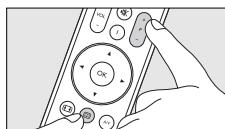
- Keep keys + P (Channel up) and [Guide] pressed simultaneously for 3 seconds until the LED flashes twice (red).
The remote control will now no longer operate your settop box.
3. Keys and functions
The illustration on page 3 gives an overview of all keys and their functions.
There are separate keys for operating your TV and operating your settop box (STB).
The STB keys will only become available when the SRU 4002 is programmed to operate a settop box.
For this, refer to 'Setting the remote control'. When the remote control is not set up for operating a settop box, all keys will operate your TV.
TV keys, always available
① Ⓞ (Standby)……switches TV on / off.
LED………lights up green when a TV command is being sent.
② (Mute)....mutes the TV sound.
③ +VOL - .increases/decreasesTVvolume.
⑥ aspect ratio. Selects between regular (4:3) and wide screen (16:9) TV. A/V selects internal / external (Audio / Video) input (TV).
TV keys, available when the SRU 4002 is not programmed for STB
④ Digit 1.........selects TV channel 1.
⑤ Cursor keys.........navigate through the TV menu. OK..........confirms menu selection.
⑥ 国 .opensTVmenu.
巧 Favorites keys ....select TV channels 1,2,3,4; -select favorite TV channels (if stored under the keys).
^+P - .selects next / previous TV channel.
STB keys, available when the SRU 4002 is programmed for STB
① Ⓞ (Standby)……switches STB on / off (when Dual Standby mode is activated).
LED………lights up green when an STB command is being sent.
④ Digit 1.........selects STB channel 1.
⑤ Cursor keys..........navigate through the STB / EPG (Electronic Program Guide) menu. OK..........confirms menu selection.
⑥ 0 opens Electronic Program Guide.
巧 Favorites keys ....select STB channels 1,2,3,4; -select favorite STB channels (if stored under the keys).
(8) +P selects next / previous STB channel.
Note: If, during operation, a key or key combination is pressed for more than 30 seconds or when two keys are pressed simultaneously, the remote control will stop transmitting.
4. Extra possibilities
With this remote control you are able to install 4 of your favorite channels under 4 special keys.
Labelling favorite keys
By labelling the Favorite keys you can always tell which favorite channel is stored under a key.
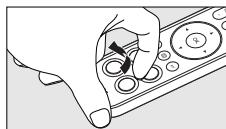
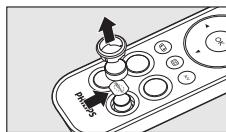
1 Lift up and remove the ring around the key, using your nail.
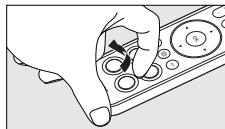
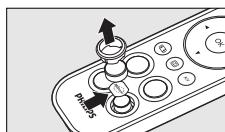
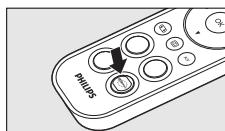
2 Take off the key cap.
3 Remove the paper sticker from the key surface and replace it with a logo from one of the logo sheets supplied.
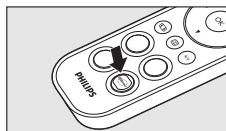
4 Replace key cap and ring. Press gently until they click into position.
Storing favorite keys
Notes:
Make sure you have the original TV and / or STB remote control at hand.
Make sure both remote controls are properly aligned.
Place both SRU 4002 and original remote control on a flat surface (e.g. a table) and aim them head-to-head with about 4cm in between.
If no key is pressed for 60 seconds after entering learning mode, the LED flashes once for a longer period and the remote control exits learning mode.
If a key is pressed in time (within 60 seconds after the previous one) and the LED flashes once for a longer period, a channel or function is not stored. In this case, repeat the steps described and be sure the remote controls are properly aligned.
If this does not work, the remote control memory is full. In this case you have to restore the original functions of the remote control in order to create memory space. For this, refer to 'Restoring the original functions of your remote control'.
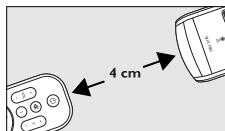
Storing favorite STB / TV channels
The Favorites keys are default set to select the first four channels on your STB / TV. If you wish, you can store other (favorite) STB / TV channels under these keys. Channel numbers containing up to 3 digits can be stored (e.g. 1, 56, 999). Channel numbers already stored under the keys will be deleted.
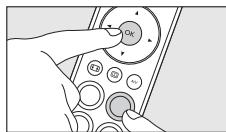
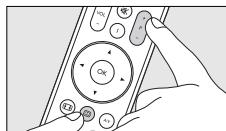
1 Keep the OK key and the desired Favorites key pressed simultaneously for 3 seconds until the LED flashes twice (red) and then remains lit.
The remote control is now in learning mode.
2 Enter the favorite channel number on the original remote control (e.g. 111). Be sure to enter each digit within 60 seconds after the previous one.
After each entered digit the LED flashes twice (red) and the remote control waits for 60 seconds for the next entry.
After the last digit is entered, the LED flashes twice (red) and the remote control exits learning mode. You can always exit learning mode by pressing the OK key.
The favorite channel is now stored under the Favorites key. Pressing the key will immediately select the favorite channel.
3 Repeat above procedure for other favorite channels you wish to store under Favorites keys.
Note: Instead of storing favorite channels under the Favorite keys, you can also learn these keys functions from your original remote control. Up to three key commands (functions) can be stored under each Favorites key. E.g. switch on TV, switch on STB and select wide screen TV. A combination of key commands and channel numbers is also possible. E.g. switch on TV, switch on STB and select channel 8. For this, follow above procedure and enter key commands instead of channel numbers.
Activating Dual Standby mode
By default, pressing the (Stayby) key will switch on your TV. If Dual Standby mode is activated, pressing this key will switch on your settop box as well.
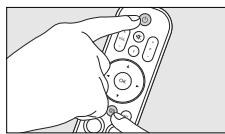
- Keep keys (Standby) and (Guide) pressed simultaneously for 3 seconds.
- The LED flashes two times (red). Dual Standby mode is now activated and pressing the (Standby) key will switch on both TV and settop box.
- Keep keys (Standby) and (Guide) pressed simultaneously again for 3 seconds to deactivate Dual Standby mode.
The LED flashes two times (green). The (Standby) key will now only switch on your TV.
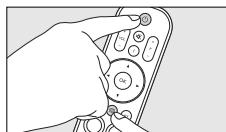
Note: If your TV does not switch on when you press the (Standby) key, you can switch it on by pressing the +P (Channel up) key.
10 ENGLISH
Restoring the original functions of your remote control
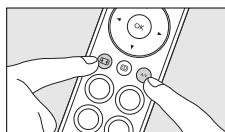
Follow the instructions below to revert the SRU 4002 back to the factory default settings:
1 Keep keys (Aspect ratio) and A/V pressed simultaneously for 3 seconds until the LED flashes twice (red) and then switches off.
The SRU 4002 is now reverted back to the state it was when you first took it out of the packaging.
5. Troubleshooting
Problem
Solution
The device you want to operate does not respond when you press a key.
Replace the old batteries with two new AAA type batteries.
- Point the SRU 4002 at the device and make sure that there are no obstructions between the SRU 4002 and the device.
- Make sure the function you wish to operate is available on the device.
The SRU 4002 does not respond properly to commands.
The SRU 4002 memory is full. Revert the SRU 4002 back to the factory default settings in order to create memory space. Refer to 'Restoring the original functions of your remote control'.
- The SRU 4002 stopped the learning / programming process after 60 seconds for no IR signals were received. Check if the original remote control is working properly.
Try setting the SRU 4002 again. If the SRU 4002 still does not respond, call our helpline.
The TV volume reacts too slow.
The SRU 4002 has not been set up yet. For this, follow the instructions under 'Setting the remote control'.
Table des matieres
Angre oppsett for STB
IIInpopoeiyia tov katavaawtn. 114
I. Eioaywyyn
To napov exyepidio xpnang oac bonthetai va eykataotnote to nlexepiotnpio etoi wote va nponeite va aleioupeite ntv tnleopaan n/kai to settop box (kouti ouvdeang kaawdiakns, dopupopipko dektn, ouokeun eniyiaq metadoonq ynpiaokou bivteo kai anokwikonointk kalwdiakns tnleopaan).
i e npooeixuk tic oyniec.
2. Eykataotaon tou tnlexeiipiotnpiou
Tonoθεtnon twv μnatapiωv
PiEOTo kAulmu npO ta eoa kai avaonkwote to.
2 Tonoetntoe duo unatapiies tunou AAA otn thn kn unatapiw, onwc anikovizetal.
3 Enavatonoetnto kaiumuqk aopaaot to ot n eon tou (kik).
'Elexyxos tou tnlexeiipiotpiou
Σuviotára v éλéxyεε εav n ouakevn (tnλeópaon n/ka STB) avtanokpiveta oTO SRU 4002, kaθως to SRU 4002 μnopei va xnpoiunioei δiaopetiká σημata yia kaθε μapka, akóma kai yia δiaopopetiká movéla tcis iαis μapkα. To napadεiyμou nau akolouθei (tnλeópaon) ας unodεikvúεi nως va to kávetε.
Mnpoeite va enavaalae te ta idia nuata kai yia to settop box (STB).
- YcTpaHHe HEnCpPaBHOCTeI 95
I. BBeAeHne
AaHHOe pyKOBoAcTBO NOMOKeT Bam HaCTpOnTb IyMbT AY dIy npaBHeHnTe aeBmOpom IN TeApncTAbKo (TeJePnEMHMkOM, CnyTHNKOBbIM pecmbepom, yctpoiCTBOM dIpyneMa UΦPOBOrTO TeAEuDHeN DVB-T IN Ka6eBbHbIM DeKOepom). BHMaTebHO IpouHTaTIe HcTpyKUIn.
2. YcTaHOBka nyAbTa AY
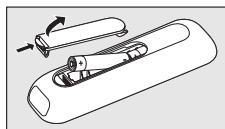
YcTaHOBka 6aTapeek
I npNKMnTe Kpbilkny n NOdHMnTe ee.
2 PomeCTnTe BOTcEa 6aTaapeek DBe 6aTaepKu Tnna AAA, KaK Ioka3aHo Ha pncyHke.
3 YctahOBHTe KpbIshky Ha MeCTO IN PpNKMNTe DO IueAka.
TecnpoBaHne npAbaTa AY
LcEcoo6pa3No npOBepnTb,peaHpye Tm yCTpoiCTBO (TeAEBN3Op mN TeAenpncTaBka) Ha SRU 4002, ta KaK SRU 5110 MoKe INCIOAB3OBA Tb pa3AMHhIe CnHaIbI dA KaJdoM MapKn I daKe dApa3AMHbIX MoDeAe OADHO IN TOI JIe MapKn. PpIMep HnKe (TB) noka3bIbAeT, KaK 3TO cAeAaTb. 3TN JIe DeIcTBnA MoXHO NOBtOpNTb DAre TEAENPncTaBKn.
Плпмочи. Поссусимовки бамаразец BCE конь 6угимн hacmpoehы на уnpавлие мeалвзором.Ymoбы npomeсmicpoabm nyamДУ с meelenpncsmakko, neobxogmo 3anporpaMMPOBAMbnyam Dу ha unpavlaenhe meelenpncsmakko.KhONK 6уgym paobomamb b pekenmeelenpncsmakkn.В gaalneшem clegyime nHcmpykunm B pa3gele'HaCmpoiKa nyabma Y
BkAIOHTe TeAEBN3O BPuHNYI IIM BOCIOa3yITcB CTApBIM NyBTOM AY.HAcTPOITcB Ha KaHaN 1.
2 ПоверьTe, Вс An KhoIGNK pa6OtaIOT.О63Op BCex KhoNOK n
nxФункш CM.В pa3dEe 3.KhoIGNu NФункшn.
ЕсAn TeaEBIN3Op pearInpyeT ha HajkaTne BCex KhoNOK, SRU 4002 roTOB K
NCIOAb3OBAHnIO.
Ecan yctpojCTBO (Teaebn3Op n/An TeaenpncTabka) He pearpyet nAn pearpyet He hA BCE KOMahgbI KNHONOK, cAgeyIte NcHcTpyKunm pa3geA'HaCtpoKa npAbaTa AY' An gAra HactpoiKn OHAAH nocETHe 6-caIT: www.philips.com/welcom
HactpoKa npAbaTa AY
OHa Heo6xoAMMa ToIbKO B TOM ClyaE, ECm YCTpoiCTBO He peaHpyeT Ha pa6Ory NylTa SRU 4002. 3To O3Haayet, YTO NylB T SRU 4002 He HAcTpoH Ha pa6Ory C DaHHoT TopROB MoKo N/IM MoAeBIO yCTpoiCTBa, IN NylB T SRU 4002 Heo6xOAMMo HAcTPOITb. YTo6bl YnpabAABy TeJePiNCTABKO, Bcerda Heo6xOAMMo IporpaMMnPoBaT NylB T SRU 4002 DAn TeJePiNCTABKn. PpImep HnKe (TB) POKa3bIbaeT, KaK 3To CdeAaTb, 3Tu Je DeiCTBMy MOXHO NOBtOpNTb DAy TEJePiNCTABKn.
Приимейтон:
- Пин Наимроче nyabma Δу ha ynpaBæHne meænpncmabKoI, nCnoλb3yIme KhONky c uΦpOJ Bmecmo KhONKn (Mute).
Bo Bpemn HacmpoKg mmeBn3opa nHngkamop mraem / 3aropaemc 3eIhbl; Bo Bpemn HacmpoKg gmeenpcmabKn nHngkamop mraem / 3aropaemc KpaChbM.
BKAIOUHTeTeEBN3OP BpyHcyIO HNN BOCIOAB3yTEcB CTApbIM NyTOM A.HAcTPOITcB Ha KaHaN 1.
2 HaKMnte u ydeepKmbaBte KhoNkn (Mute) u (Guide) B TeueHne
3-x cekyH, noka nHnKkTOp He MmHET DaBa pa3a (KpaChb) 3aTeM octaHETc rOpeTb.
3 HanpaBte SRU 4002 Ha TeAeBn3Op u yApEKnBaTe KHOIky (Standby) NOKa TeAeBn3Op He HauHET pearNPOBaTb Ha HauKATne KHOIKN. 3To MoKet 3aHrT b Do 2-X MNHyT. 3aTeM HEmEAdEHHO OTNCTNe KHOIky.
- INHdNkAtop 3aRopaetc KpaChbI.
4 HanpaBbTe SRU 4002 Ha TeAeBm3Op n y6eAInTeCb, yTO yCTPOINCTBO peaNpyET h A HAKAITNE KHOIOK.
- EcHn TeAeBn3Op peaHpyeT Ha HaxaTne BceX KHOJOK, SRU 4002 roTOB K NcIPOb3OBAHNIO. YTo6bl coxpaHnTB hAcTPOHKN, BbINOAHHTe INCTpyKUHN, OINCAHHBe B Wae 5.
Ecn TeAeBn3Op He OTBeaet Hn OTBeaet He Ha Bc KOMaHbI, Heo6xoJMo M3yUHTb NcXoHbIe yHKuN KaKdoi KhoNkN pybTa SRU 4002. Aia nOlyehncoOTBeTCTByIOxN IHcTpkyuOn o6paNTtecb KnyHKTy'HaCtpoKa npbTa Dc nOMoBIO peKmna 3aONMHaHnra yHKuN KHOJOK'.
5 YTO6bI coXpaHHTb HAcTpoKn, HAnMmTe OAnHOBpeMeHHo yAepKNaBte KHOKN (Mute) n (Guide) B TeueHne Tpex cekyHa, noka HAnKaTOp He MInrHET dBa pa3a (KpaChb), a 3aTeM IoracHET.
90 PyCCKH
HactpoiKa nyIbTa AY c nOmoIbIO peKHMa 3anOMHaHnA ΦyHKn KHONoK
B clyae, ecn ppebdyuyni cnocob He daa pe3yabTaTOB, BblnoHNte yka3aHHbIe HNKe CcEduOme DeiCTBNI, KOtOpbIe NOMOryt Bam hAcTpoNTb nybT DY. MoKHO 3aInCaTB cyHKUIO Ha IO6yIO DOCTyHIO KhoNk Ky npbTa SRU 4002. B daMbHeMiem CcEduTe INcTpykUIMBa P a3dAe 'PiorpaMMpOBAHne KhoNkn OK' dAHaCtpoKn KhoNkn OK.
YdepKINBATE KHOHNIK OK IN KOHNIK, KOtOpYIO Heo6XoAMIO HaCTpONTb, HaxaTbIMN OAOHBpeMeHNO B TeueHne Tpex CeKYH NOKA INADIKATOP He MInrHET DBA pa3a (KpaCHbI) n 3aTEM OCTaHETC RopeTb.
Tepeb nyabT Ay nepeweB peKIM 3anOMHaHnA.
2 HaKMITE KHOIIky, yHKUIO KOtOpO Heo6xOAMO CKONIPOBaTb, HcTApOM IyABTe Y
- Поверьме npавиьнocьн Hanpavaleпябox nyambov.у. Помсмпгу SRU 4002 n smapbny nybm,dy ha noockyio nobepxHocmb. (hanpimep,cmo) n HanpaBbme nx gpyr Ha gpyra, paonnoJXHB na paccmoryn npimepho 4 cm.
- INHAnKATOp mInHET dBa pa3a (KpaChb), npOn3OienTe 3anOMnHaHne fHyHKUIN KHOJKN, nIpybT AByBbIeT n3 daHHOro peKIma. Y6eAnTEcb, yTO 3anOMnHaHne fHyHKUIN BblnoAHeHO npaBNbHO.
3 IOBTOPHTO OINCAHHYIO BbIe IPOUeApy DAy APyrNk KOToPbIe Heo6xOAnMo HAcTpOnTb.
PporpammpnoBaHne KhoNkOK
Ha KhoNky OK moXHO 3aIncatb yHKUIO co cTaporo nyIbTa AY nn I36paHHbI KaHa, HOpE pKOTopoRcOCTOnT n3 | uΦpbl.
YApexKnBaIe KhoNkOK, +VOL (Volume up) n + P (Channel up) HaxaTbIMN OAnOBpeMeHHo B TeueHne 3-x cekyHa NOKA INHAnKaTOp He MInrHeT DBA pa3a (KpaChbI) n 3aTeM octaHETcra RopeTb.
TepeB nyAbT AY nepeWeeB peKIM 3aONMHaHnA.
2 HaKMnTe KHOPIK, yHKnIIO KOtOpoi Heo6XoAMo cKOnIpOBaTb, Ha cTapOM nyABTe V
IVHnKaTOp mNHTeT Db pa3a (KpaChB), npOn3OuTe TnpOrpAmMnPoBaHHe NOBoI yHKUIM / 3aInCb HOMepa KaHaA, INyBbT ABy BbIaET N3 peKmMa 3aIOMNHAHIA.
Приимechимia.
- EcAn BO Bpemn Hn ngHa n3 KhoNok He 6bna 3ageCmBoBaHa B meHne 60 cekyng, HngKamop MmHem Ognn pa3 B meHene 6oale gAmmeBHorO Bpemn, nyAbm SRU 4002 coxpanm HacmpoKn ABmomamueckn Bbygemn 13 pekima hacmpoKn.
Ecnnyb m SRU 4002 6bl yceuho 3anporpammmpoh gn meenprncmabkn, khonk 6yym pa6omamb b pekmme meenpnncmabkn. O63op Bex CkONOK n ux fynHKn CM. B pa3geAe '3. KhonKn u fynHKn.
Otmeha hactpoyn ynpabaeHHraenpctabkoJ
- YApKnBaIe KhoNk+ P (Channel up) n [Guide) HAnKaTbIMN B TeueHne 3-x cekyHa noka nHaNkaTOP He mInHET DaBaXaBly (KpaChbY).
Tepeb nybT AY He HacTpoeH Na YnpaBAnHe IeAenpncTabKoI.
3. Khonkn n ΦyHKuHn
Ha cTpaHnIe 3 Bb HaiAteO63Op BCEx KHOJOK INx _YHKU
OINCAHNE KHOIOK npINBOUNTCsO TAEbHO AAN ynpaBHeNr TeLEB3OpOM N AAN ynpaBHeNr TEePnCTabKO (STB).KHOKN 6yUT paOToTB B peJHME TeEePnCTabK,TOAko ecN SRU 4002 3anporpaMMnPOBaHn Ha ynpaBHeNr TeEePnCTabKO. AAN IOyHeNr COOTBeTCTBYIOUX INHCTpyKuHn 6oPaTHTeCk K pa3DeY 'HaCtpoKa PbTa Y .ECn PbT Y He HAcTpoEHn Ha ynpaBHeNr TEePnCTabKO, BCE KHOKN 6yUT NaCTpoEHb Ha ynpaBHeNr TEeB3OpOM.
KhoNKn peXnMa TB, noctoHbI goctyn
① (Standby) .
HAnKaTOp. 3aRopaeTc3eAeHbIMCBETOMPnO TnpaBKeKOMaHbHaTeAEBN3Op.
② (Mute).......BbIKIOueHHe 3ByKa TeAeBn3Opa.
③ +VOL - .yBvAueHne/YMeHbIeHne rPOMKocTn TeAeBUN3opa.
⑥ 06
AV. .Bb6op BHytpenHeo/BHeuHero (ayno/BnOe) Bxoa(TB).
KhONKn pa6oTaIb TpeXHMe TeAebn3opa,ecAn nyAbT SRU 4002 He 3anporpaMMnpOBaH Ha ynpabAEHe TeAenpHCTABKO
④ Khonka c uΦpoI ...BbI6Op KaHaAa (TB) Ng I.
⑤ Khonkn ynpaBHeHn Kypcopom...nepeMeueHn no MeHIO TB. OK .noTBePckDeHne Bb6opa nyHKta MeHIO.
⑥ 国 .0To6paKeHne MeHIO (TB).
⑦ Khonkn N36paHhoe. -Bb16op KaHaOB (TB)N21,2,3,4; -Bb16op N36paHHbIX KaHaOB (TB) (ecm OHn 6bln 3aIncAhl Ha 3TN KHOKN).
⑧ +P - .BbIbOp npEaDyUeRo mN cLeAyoUe Ro KaHaAa (TB).
92 Pycckn
KhONKn pa6oTaIb B peXnme TeaenpncTabKn, cAn nyAbT SRU 4002 3anporpaMnpobah Ha ynpabAeHne TeaenpncTabKoN
① (Standby)............BVKIOUeHne / BbIKIOUeHne TeAenpiCTaBKn (ecn aKTINpOBaH DBOHHOPEKIM).
HAnKaTOp. 3aRopaETc3eAeHbIMCBETOMPnOTnpaBKeKOMaHbTeAeepnCTaBke.
④ Khonka c uΦpoI ...BbI6Op KaHaIIa (TeAenpIcTaBka) N2 I.
⑤ KhoNk ynpabAeHnKypcopom.....nepeMeueHnno MeHIO TeApncTaBKn / EPG (AnektpoHbI rND TeApnpaMM).
OK. IOATBepKdEHHe BbIbopa NyHKTa MeHIO.
⑥ 0to6paKeHne ΘaektpoHHoro rna TeaeporpaMM.
⑦ KhoNku N36paHHoe. -Bb16opKaHaAOB(TeaepnCTabka)N2I,2,3,4; -Bb16opN36paHbIX KaHaAOB(TeaepnCTabka)(ecmOHNbbln 3aINCAHbHa3TNKHOKN).
⑧ +P - .BbIbOp IpeAbyUeero Nn CaeDyUoEero KaHaAa (TeAePnCTaBA).
PpmeHHe: Ean npn BbinoAhenn onepaun Khonka nn Kombuaian Khonok ygeKnaiaomra hakamblm 6oae 30 ckyng nn ean gbe khonk 6ygym hakambl oghoBpeMeHH, nyabm Aynpekapmm nepegay cnHa.
4. A0IIOAHHTeA6HbIe BO3MOXHOCTN
AaHbIpybTdyno3BOAeretaaaTb 4n36paHHbIXKaHaHa Ha 4OTdeAbHbIe KHOJIK.
ApabIKN AAR KHOJOK 'N36paHHoe'
C NOMOJIIOI RApBIKOB DA KHOIOK '136paHHoe' BceIa MOXHO OIpEeAIbTb, KaKoI NMeHHO I36paHHbI KaHaI 3aIncAH Ha KHONKy.
I Pn IOMOUIHOTTIOADHMITE KOALTO BOKpy KHOPIK.
2 CHIMITE KOIaOH C KHONK.
3 YdaHNTe 6yMaJHKHyIO HAKeIky C KHOJIKN I N OMECTNTE Ha ee MeCTo AOTNI C OAHORO IN3 ANCTKOB C AOTOTINAMN, BXOJAUXB KOMIaEKT IOCTaBKN.
4 YcTaHOBInTe KOaNaOH K OaLIO Ha MeCTO. OctopoKHO HaKMITE Ha KOaNaOH C KOaLiOM DO fHKCaLIIN.
CoxpaHeHne 36paHHbIX KHOJOK
Приимechаня.
- Ybegumecb, ymo cmapb nyabm AY gA meaebn30pa/meaenpncmaBkn haxogumcno nog pyko.
- Поверьме npabnBbHocmb HanpaBaeHna 60nx nybmoB V -Помсиме nybM SRU 4002 n cmaPbI nybM V Ha naockyio nobepxHocMb. (hanpimep, cmoA) n HanpaBbme nx gpyr Ha gpyra, paCnoLoXHB na paccmOHN npMepeHO 4 cm.
- Ecam noce Bxoga B pejim 3anomnHaHna Hn Ogha n3 Khonok He bila 3agecmboaba H meueHne 60 cekHy, nHgKamop mHem oogn pa3 B meueHne 6oAee gAmmeAbHoro BpeMeHN, nnybM dV Bbyigem n3 pejima 3anomnHaHna.
- Ecnn KhoNka 6bIa 3ageiCmbBaHbovBnBpeMa (He no3ghee 60 ckyh ng nocae haxamna npegbgyuee Khonkn), INghkamop MmHem oyn pa3 B meyehne 6oAee gAmteMbHoro BpEmen, KaHaan fHyKnun He 6yym 3ancaHb. B makom cyuae nobmOpime warn, onncanHbte Bbiye, a makke npobepbme npabnAbHocmb HanpaBAAHnOx nybMOny AY. Ecn Hncre Ho ne pOn3oAo, naMmb nybma DY 3anoAHe. B makom Cayae Heo6xogmIO BocMaHOBNMb Ncxoghbe fHyKnun Nybma DY gA yBeAunHn CBO6ogHoro npocmpaHcMbA. DAn noLyehncoombemcMbYIOux INcmpyKUnn Obpammebc K pa3gey 'BocMaHOBAEHn IcxogHoJfHyKnUHOHaBocmnyNyblma AY'.
CoxpaHHe H36paHHbIX KaHaAOB TeaENpNCTABKN / TB
KhONK 'N36paHHoe' NO yMOUaHINIO HAcTPOeHbI Ha Bb6op nepBbIX YeTbIeX KaHaOB HA TeAeIpNCTabKe / TB. Pn Heo6xOaMnOCTn Bbl MoKeTe 3aIncatb ApyrIe (u36paHbIe) KaHaBI TeAeIpNCTabKn / TB dAn 3TNX KhoNOK. MoKHO 3aIncatb Homepa KaHaOB, CoCTOJIe M3 3-x UINP (HaIpIMep, I, 56, 999).Homepa KaHaOB, KOToPbIe YJke 6bl 3aIncaHbI Ha 3TN KhoNk, 6dyT ydaIeHbI.
YApexKnBaIe KOnky OK n HxKyIO KOnky 'N36paHoe' HaxKaTbIMN OAnHOBpeMeHHO B TeueHe 3-x CeKYHa NOKa INAnKaTOp He MmHTet Dba paa (Kpachb) n 3aTeM OctaHcTc RoPeTb.
Tepeb nyabT dy nepeweB pexim 3anomHaHna.
2 BVeAnTe HOMep N36paHHoro KaHaHa Ha CTapOM pyAte (HaPnMpEe, 111). BBoAnTe KaxdYIO UHpy He No3dHee 60 cekyHa Iocae BBOa npdeBdyU
IocaleKaKdoBVeDeHHoHOnuHnAkaTOpMnHrTeBa pa3a (kpaChb),NpybT Ay 6yTeOHNAdTb BBOda CLeDyIOSeuE uHpbl B TeeHHe 60 cekyHa.
IocA BBOda nocAeHneUΦpbl, HAnKaTOp MInHET Da pa3a (KpaChb), INyBbT ABy BbIaTe N3 peKIMa 3aONMHaHN. Bbl MoKeTe BblTN i3 peKIMa 3aONMHaHN B AIO6oN MOMeHT, HApKaB KHOIIky OK.
- ɪsəpənɪŋkɪnɪənɪənɪənɪənɪənɪənɪənɪənɪənɪənɪənɪənɪənɪənɪənɪənɪənɪənɪənɪənɪənɪənɪənɪənɪənɪənɪənɪənɪənɪənɪənɪənɪənɪə
3 IOBTOPHTe OINCAHHyIO BbIe IpoUeDpy AIA DpyrNIX N36paHHbIX KaHaIOB, KOtOpBie Heo6xOaMOn 3aIIncatb Ha KHOJIKN '136paHHoe'.
94 PyCCKH
Плримechа. Вмсго занин 36раньх калов Н кннИЗбранhoe', мкнн ЗanрогамповambуmДУ на Иснольвоги сункшд'mixх кнорс co smaporo nybma D. Ha kaxgyu Khonky I36paHoe' мжн зancamb Мakcymm mpr komahgby (fynkch). Hanpimep, BkIOUeHnTB, BKIOUeHnme meIenpncmabkn N bIbOp shpoKo3kpHnOro peKIma npocmmpa. TakoWe Bo3MOKHa KOMbHauZa KOMaHg n HomeBog KaHAlOB. Hanpimep, BkIOUeHnTe TB, BkIOUeHnme meIenpncmabKn N bIbOp kaHAA Na 8.ДЯ Emoro BblOAnHime onncanHyIO Bblwe npocgypu n BBegime KMANGbI Bmecmo HomeBog KaHAlOB.
AknBaunA BoHOro peKIma
IyoMOnaHnIO,HaKaTne KHOKnO (Standby) npBaeTe K BkIoUeHnIO TeAEBn3opa.EcAn aKTbNpuBaH DBOHn peKIM,HaKaTne 3ToN KHOKn TaKke npBaeTe K BkIoUeHnIO TeAeInpncTaBn.
- YApKnBaIe KhoIkn (Standby) n (Guide) HauKaTbIMn OaHOBpeMeHHo B TeueHne 3-x cekyHa.
VHANKaTOP MmRHeT DaBa pa3a (KpaChbI).AKTNIBPOBaH DABOHOH peJMM, HaxaTne KhoNkN (Standby) npBBeTe K BkIoUeHnIO TeLeBnOpa n TeJeNPcTaN. - Choba yadepkmbaTe KhoNk (Standby) n (Guide) hajkaTbIMn OHOBpeMeHHo B TeueHne 3-x ckyHa AAn DeakTbBaun DBOHOrO peKmA.
- INHIMKATOP MINGHTAba pa3a (3eAeHbIM). HaxKaTne KHOPIK (Standby) npINBeET K BkIoUeHNIO TOIbKO TeAeBn3Opa.
Плпмочи.Есгмеьзор He nepeклочаemс npн haKammHa Khonky (peжим oxngahna), ergо можно nepeклочьnpn nomoш Кнонк +P(Channel up).
BocctaHOBaeHne HcXoADHOI cyHKUHOHaABHoCTn NybTa AY
A BOCCTaHOBaeHnBCEx 3aBOcKnHX HAcTpoek nyTa SRU 4002 BbIIOAnHInTe CLeyOuine DeiCtBnI.
YApexKINBATE KHOHNI (Aspect ratio) n A/V HaxKaTbIMN OAOHBpeMeHHOB TeueHne 3- x cekyHa NOKa INDAkAToP He MInrHeT DBaXdBi (KpaCHbi), a 3aTEM BblIAIOUHTC.
Teineb BCE yCTaHOBaeHHbe IIO yMOaHaHIO Ha 3aBOe IN3rOToBHTeHe NaCTpOienyTa SRU 4002 BOCCTaHOBaeHbl.
5. yctpaHHeH HeHCnPaBHOcTei
- Προδλεma
-
PeWeHne
-
YctpoiCTBO He peaHnpyET Ha HauKaTne KhoNKn.
3aMeHime cmapbIe 6amapeiKgbyMaHOBbIMn 6amapeiKaMm mna AAA. - HanpaBbme SRU 4002 ha ycmpoicmbo, ycmpaHime BCE npenamcbmna Mexgy SRU 4002 n ycmpoicmbom.
- Ybegumecb, ymo fynkui, komopo Bbl xomme ynpaBAmb, gocmynHa Ha 3mom ycmpoCmBe.
SRU 4002 He pearnpyET OAnKhbIM o6pa3OM Ha HkaTne KHOIOK. - Pama SRU 4002 3anaHeHa. BocmaHOBme BCE ymaHOBaeHbIe no ymoaHIO 3abogckne hcmpoKn SRU 4002 gA yBeMaHeHcB6ogHorO npocmpaHcMbBa namm. Cm. "BocmaHOBaeHne HcxogHoi fHKNUHaBbOCMn nyAbma dy".
Ipoce3anomHHaHn / nporpammPobAHn SRU 4002 6b1 ocmanOBaen uepe3 60 cekyHg n3-3a omycmcbnVK-cunHaNo. Y6egimec, ymo cmapb nybM pa6omaem npabnHO.
Inonpo6yime Hacmpoimb nylbm SRU 4002 eue pa3. Ecun nybim SRU 4002 no-npekHemy pearnpyem, no3BOHMme B nauy cayk6by noggeKKn.
TeAeBn3Op cAnlKOM MeAeHNO peaIpyeT Ha N3MeHeHne rPOMKOCTN.
Ipyb m SRU 4002 He hacmpoeH. Hm06b hyacmpoomb nybM, cagyime nHcmpkyniam, npBegenbbm B pa3geae 'Hacmpoika nybMa gucmaHIOHOHorO ynpaBHeNIA.
96
ČESKY
Obsah
- Uvod 96
- Instalace dalkoveho ovladani 96-98
EN Information to the consumer
Disposal of your old product
Your product is designed and manufactured with high quality materials and components, which can be recycled and reused.
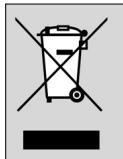
When this crossed-out wheeled bin symbol is attached to a product, it means the product is covered by the European Directive 2002/96/EC.
Please inform yourself about the local separate collection system for electrical and electronic products.
Please act according to your local rules and do not dispose of your old products with your normal household waste. The correct disposal of your old product will help prevent potential negative consequences for the environment and human health.
All rights reserved. Reproduction in whole or in part is prohibited without the prior written consent of the copyright owner. The information presented in this document does not form part of any quotation or contract, is believed to be accurate and reliable and may be changed without notice.
No liability will be accepted by the publisher for any consequence of its use. Publication there of does not convey nor imply any license under patent- or other industrial or intellectual property rights.
August 2008
www.philips.com
Printed in China
C E

N'MW/RM/3508
- ENGLISH
- Contents
- Introduction
- Installing the remote control
- Inserting the batteries
- Testing the remote control
- Setting the remote control
- Note:
- ENGLISH
- Setting up the remote control by learning all key functions
- Learning the OK key
- Notes:
- Undo setup for STB
- Keys and functions
- TV keys, always available
- TV keys, available when the SRU 4002 is not programmed for STB
- STB keys, available when the SRU 4002 is programmed for STB
- Extra possibilities
- Labelling favorite keys
- Storing favorite keys
- Storing favorite STB / TV channels
- Activating Dual Standby mode
- ENGLISH
- Restoring the original functions of your remote control
- Troubleshooting
- Table des matieres
- Angre oppsett for STB
- Eioaywyyn
- Eykataotaon tou tnlexeiipiotnpiou
- Tonoθεtnon twv μnatapiωv
- 'Elexyxos tou tnlexeiipiotpiou
- BBeAeHne
- YcTaHOBka nyAbTa AY
- YcTaHOBka 6aTapeek
- TecnpoBaHne npAbaTa AY
- HactpoKa npAbaTa AY
- Приимейтон:
- PyCCKH
- HactpoiKa nyIbTa AY c nOmoIbIO peKHMa 3anOMHaHnA ΦyHKn KHONoK
- PporpammpnoBaHne KhoNkOK
- Приимechимia.
- Otmeha hactpoyn ynpabaeHHraenpctabkoJ
- Khonkn n ΦyHKuHn
- KhoNKn peXnMa TB, noctoHbI goctyn
- KhONKn pa6oTaIb TpeXHMe TeAebn3opa,ecAn nyAbT SRU 4002 He 3anporpaMMnpOBaH Ha ynpabAEHe TeAenpHCTABKO
- Pycckn
- A0IIOAHHTeA6HbIe BO3MOXHOCTN
- ApabIKN AAR KHOJOK 'N36paHHoe'
- CoxpaHeHne 36paHHbIX KHOJOK
- CoxpaHHe H36paHHbIX KaHaAOB TeaENpNCTABKN / TB
- PyCCKH
- AknBaunA BoHOro peKIma
- BocctaHOBaeHne HcXoADHOI cyHKUHOHaABHoCTn NybTa AY
- yctpaHHeH HeHCnPaBHOcTei
- ČESKY
- Obsah
- EN Information to the consumer
- Disposal of your old product
Brand : PHILIPS
Model : SRU4002B
Category : Remote control