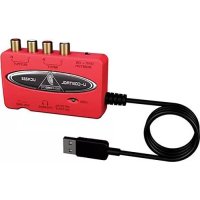
Ucontrol UCA222 - Hi-fi system BEHRINGER - Free user manual and instructions
Find the device manual for free Ucontrol UCA222 BEHRINGER in PDF.



| Product Type | USB Audio Interface |
| Brand | Behringer |
| Model | U-Control UCA222 |
| Power Supply | Via USB port (bus-powered) |
| Input Connectivity | 2 x Stereo RCA (analog input) |
| Output Connectivity | 2 x Stereo RCA (analog output), 1 x S/PDIF optical output (Toslink), 1 x 3.5 mm mini-jack headphone output |
| Main Functions | USB audio conversion, recording and playback, direct monitoring via OFF/ON MONITOR selector |
| System Compatibility | PC: Windows XP/2000 or later, Intel/AMD 400 MHz+ processor, 128 MB RAM, USB 1.1; Mac: OS 9.0.4/10.x or later, G3 300 MHz+, 128 MB RAM, USB 1.1 |
| Included Software | Audacity (sound editing), VST plugins, ASIO drivers (download if not provided) |
| LED Indicator | Power indicator (lit when connected via USB) |
| Settings | Headphone volume (knob) |
| Maintenance and Cleaning | Clean with a dry cloth; do not use liquids |
| Safety | Do not open the device, do not expose to rain or moisture, unplug during storms, use only recommended accessories |
| Spare Parts and Repairability | No user-serviceable parts; contact a qualified professional for any repairs |
| General Information | Compact dimensions, robust construction, suitable for travel; power and data transmission via USB cable |
Frequently Asked Questions - Ucontrol UCA222 BEHRINGER
User questions about Ucontrol UCA222 BEHRINGER
0 question about this device. Answer the ones you know or ask your own.
Ask a new question about this device
Download the instructions for your Hi-fi system in PDF format for free! Find your manual Ucontrol UCA222 - BEHRINGER and take your electronic device back in hand. On this page are published all the documents necessary for the use of your device. Ucontrol UCA222 by BEHRINGER.
USER MANUAL Ucontrol UCA222 BEHRINGER
U-CONTROL UCA222
Ultra-Low Latency 2 In/2 Out USB Audio Interface with Digital Output
2 U-CONTROL UCA222 User Manual
EN
Table of Contents
Before You Get Started....23
Preparativos....30
Terminals marked with this symbol carry electrical current of sufficient magnitude to constitute risk of electric shock. Use only high-quality professional speaker cables with 14 " TS or twist-locking plugs pre-installed. All other installation or modification should be performed only by qualified personnel.
This symbol, wherever it appears, alerts you to the presence of uninsulated dangerous voltage inside the enclosure - voltage that may be sufficient to constitute a risk of shock.
This symbol, wherever it appears, alerts you to important operating and maintenance instructions in the accompanying literature. Please read the manual.
Caution
To reduce the risk of electric shock, do not remove the top cover (or the rear section). No user serviceable parts inside. Refer servicing to qualified personnel.
Caution
To reduce the risk of fire or electric shock, do not expose this appliance to rain and moisture. The apparatus shall not be exposed to dripping or splashing liquids and no objects filled with liquids, such as vases shall be placed on the apparatus.
Caution
These service instructions are for use by qualified service personnel only. To reduce the risk of electric shock do not perform any servicing other than that contained in the operation instructions. Repairs have to be performed by qualified service personnel.
-
Read these instructions.
-
Keep these instructions.
-
Heed all warnings.
-
Follow all instructions.
-
Do not use this apparatus near water.
-
Clean only with dry cloth.
-
Do not block any ventilation openings. Install in accordance with the manufacturer's instructions.
- Do not install near any heat sources such as radiators, heat registers, stoves, or other apparatus (including amplifiers) that produce heat.
- Do not defeat the safety purpose of the polarized or grounding-type plug. A polarized plug has two blades with one wider than the other. A grounding-type plug has two blades and a third grounding prong. The wide blade or the third prong are provided for your safety. If the provided plug does not fit into your outlet, consult an electrician for replacement of the obsolete outlet.
- Protect the power cord from being walked on or pinched particularly at plugs, convenience receptacles, and the point where they exit from the apparatus.
- Use only attachments/accessories specified by the manufacturer.

- Use only with the cart, stand, tripod, bracket, or table specified by the manufacturer, or sold
with the apparatus. When a cart is used, use caution when moving the cart/
4 U-CONTROL UCA222 User Manual
EN
ES
apparatus combination to avoid injury from tip-over.
- Unplug this app aratus during lightning storms or when unused for long periods of time.
- Refer all servicing to qualified service personnel. Servicing is required when the apparatus has been damaged in any way, such as power supply cord or plug is damaged, liquid has been spilled or objects have fallen into the apparatus, the apparatus has been exposed to rain or moisture, does not operate normally, or has been dropped.
- The apparatus shall be connected to a MAINS socket outlet with a protective earthing connection.
- Where the MAINS plug or an appliance coupler is used as the disconnect device, the disconnect device shall remain readily operable.

- Correct disposal of this product: This symbol indicates that this product must not be disposed of with household waste,
according to the WEEE Directive (2012/19/EU) and your national law. This product should be taken to a collection center
licensed for the recycling of waste electrical and electronic equipment (EEE). The mishandling of this type of waste could have a possible negative impact on the environment and human health due to potentially hazardous substances that are generally associated with EEE. At the same time, your cooperation in the correct disposal of this product will contribute to the efficient use of natural resources. For more information about where you can take your waste equipment for recycling, please contact your local city office, or your household waste collection service.
- Do not install in a confined space, such as a book case or similar unit.
- Do not place naked flame sources, such as lighted candles, on the apparatus.
- Please keep the environmental aspects of battery disposal in mind. Batteries must be disposed-of at a battery collection point.
- This apparatus may be used in tropical and moderate climates up to 45^ C.
LEGAL DISCLAIMER
Music Tribe accepts no liability for any loss which may be suffered by any person who relies either wholly or in part upon any description, photograph, or statement contained herein. Technical specifications, appearances and other information are subject to change without notice. All trademarks are the property of their respective owners. Midas, Klark Teknik, Lab Gruppen, Lake, Tannoy, Turbosound, TC Electronic, TC Helicon, Behringer, Bugera, Oberheim, Auratone and Coolaudio are trademarks or registered trademarks of Music Tribe Global Brands Ltd. © Music Tribe Global Brands Ltd. 2021 All rights reserved.
LIMITED WARRANTY
For the applicable warranty terms and conditions and additional information regarding Music Tribe's Limited Warranty, please see complete details online at musictribe.com/warranty.
5 U-CONTROL UCA222 User Manual
BESCHRÄNKTE GARANTIE
RISQUE D'ÉLECTROCUTION! NE PAS OUVRIR!


Waarschuwing
RISQUE D'ÉLECTROCUTION! NE PAS OUVRIR!


Varning
Uttag markerade med
Thank you for choosing the UCA222 U-CONTROL audio interface. The UCA222 is a high-performance interface that includes a USB connector, making it an ideal sound card for your laptop computer or an essential recording/playback component for studio environments that involve desktop computers. The UCA222 is PC and Mac-compatible, therefore no separate installation procedure is required. Thanks to its robust construction and compact dimensions, the UCA222 is also ideal for traveling. The separate headphones output allows you to play back your recordings at any time, even if you don't happen to have any loudspeakers available. Two inputs and outputs as well as the S/PDIF output give you total connecting flexibility to mixing consoles, loudspeakers or headphones. Power is supplied to the unit via the USB interface and the LED gives you a quick check that the UCA222 is properly connected. The UCA222 is the ideal extra for every computer musician.
1. Before You Get Started
1.1 Shipment
- Your UCA222 was carefully packed at the assembly plant to assure secure transport. Should the condition of the cardboard box suggest that damage may have taken place, please inspect the unit immediately and look for physical indications of damage.
Damaged equipment should NEVER be sent directly to us. Please inform the dealer from whom you acquired the unit immediately as well as the transportation company from which you took delivery. Otherwise, all claims for replacement/repair may be rendered invalid.
Please always use the original packaging to avoid damage due to storage or shipping.
Never let unsupervised children play with the equipment or with its packaging.
Please dispose of all packaging materials in an environmentally friendly fashion.
1.2 Initial operation
Please make sure the unit is provided with sufficient ventilation, and never place the UCA222 on top of an amplifier or in the vicinity of a heater to avoid the risk of overheating.
The current supply is made via the USB connecting cable, so that there is no external power supply unit required. Please adhere to all required safety precautions.
1.3 Online registration
Please register your new Behringer equipment right after your purchase by visiting http://behringer.com and read the terms and conditions of our warranty carefully.
Should your Behringer product malfunction, it is our intention to have it repaired as quickly as possible. To arrange for warranty service, please contact the Behringer retailer from whom the equipment was purchased. Should your Behringer dealer not be located in your vicinity, you may directly contact one of our subsidiaries. Corresponding contact information is included in the original equipment packaging (Global Contact Information/European Contact Information). Should your country not be listed, please contact the distributor nearest you. A list of distributors can be found in the support area of our website (http://behringer.com).
Registering your purchase and equipment with us helps us process your repair claims more quickly and efficiently.
Thank you for your cooperation!
2. System Requirements
The UCA222 is PC and Mac-compatible. Therefore, no installation procedure or drivers are required for the correct functioning of the UCA222.
To work with the UCA222, your computer must fulfill the following minimum requirements:
| PC Mac | |
| Intel or AMD CPU, 400 MHz or higher G3, 300 MHz or higher | |
| Minimum 128 MB RAM Minimum 128 MB RAM | |
| USB 1.1 interface USB 1.1 interface | |
| Windows XP, 2000 | Mac OS 9.0.4 or higher, 10.X or higher |
2.1 Hardware connection
Use the USB connecting cable to connect the unit to your computer. The USB connection also supplies the UCA222 with current. You can connect a variety of devices and equipment to the inputs and outputs.
25 U-CONTROL UCA222 User Manual
3. Controls and Connectors
flowchart
graph TD
    A["1"] --> B["U-CONTROL"]
    B --> C["UCA222"]
    C --> D["behringer"]
    D --> E["USB"]
    E --> F["OPTICAL OUTPUT"]
    E --> G["PHONES"]
    E --> H["VOLUME"]
    I["7"] --> J["6"]
    J --> K["5"]
    K --> L["OUTPUT"]
    M["8"] --> N["4"]
    N --> O["3"]
    O --> P["2"]
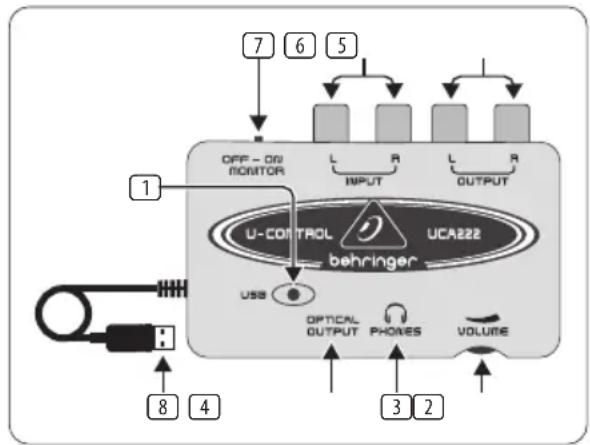
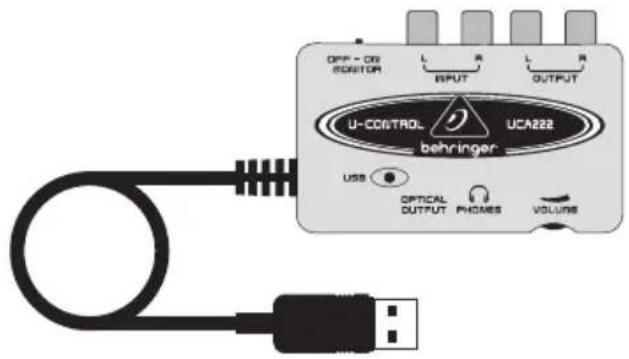
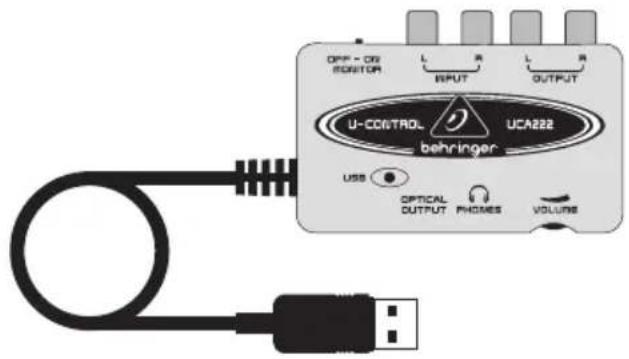
1 POWER LED – Indicates the status of the USB power supply.
2 OPTICAL OUTPUT – The Toslink jack carries an S/PDIF signal which can be connected via a fiber optic cable.
3 PHONES – Connect a standard pair of headphones equipped with a 18 " mini plug.
4 VOLUME – Adjusts the volume level of the headphones output. Turn the control fully to the left before you connect the headphones to avoid hearing damage caused by high volume settings. Turn the control to the right to increase the volume.
5 OUTPUT – Connect to a speaker system using stereo RCA cables to monitor the audio output from the computer.
6 INPUT – Connect desired recording signal using audio cables with RCA connectors.
7 OFF/ON MONITOR – With the MONITOR switch OFF, the headphone output receives the signal from the computer over the USB port (same as the RCA output jacks). With the MONITOR switch ON, the headphones receive the signal connected to the RCA INPUT jacks.
8 USB CABLE – Sends information to and from your computer and the UCA222. It also provides power to the device.
4. Software Installation
- This device requires no special setup or drivers, just plug it into a free USB port on a PC or Mac.
- The UCA222 comes with a free version of Audacity editing software. This will help make the transfer process quick and simple. Simply insert the CD into your CD-ROM drive and install the software. The CD also contains VST plug-ins, ASIO drivers and various freeware.
Note – When the UCA222 is bundled with other Behringer products, the included software may vary. In the instance that the ASIO drivers are not included, you may download these from our website at behringer.com.
26 U-CONTROL UCA222 User Manual
EN
5. Basic Operation
The UCA222 provides an easy interface between your computer, mixer and monitoring system. Follow these steps for basic operation:
1) Connect the UCA222 to the computer by plugging the USB cable into a free USB port. The power LED will light automatically.
2) Connect the audio source that is to be recorded, such as a mixer, preamp, etc. to the INPUT stereo RCA jacks.
3) Plug a pair of headphones into the 18 " PHONES jack and adjust the volume with the adjacent control. You may also monitor the output by plugging a pair of powered speakers into the OUTPUT stereo RCA jacks.
4) You may also send the stereo signal in digital audio format (S/PDIF) to an external recording device via the OPTICAL OUTPUT using a Toslink fiber optic cable.
6. Application Diagrams
flowchart
graph TD
    A["XENYX 2222FX"] --> B["BC"]
    C["B3031A Active Monitor Speakers"] --> D["BC"]
    E["Computer"] --> F["USB"]
    G["HPM1000"] --> H["VOLUME"]
    I["U-CONTROLU"] --> J["UCA222"]
    K["OPTICAL OUTPUT"] --> L["PHONE"]
    M["RCA Outputs"] --> N["RCA Input"]
    O["UPP - CPU POSITION"] --> P["INPUT"]
    Q["OUTPUT"] --> R["OUTPUT"]
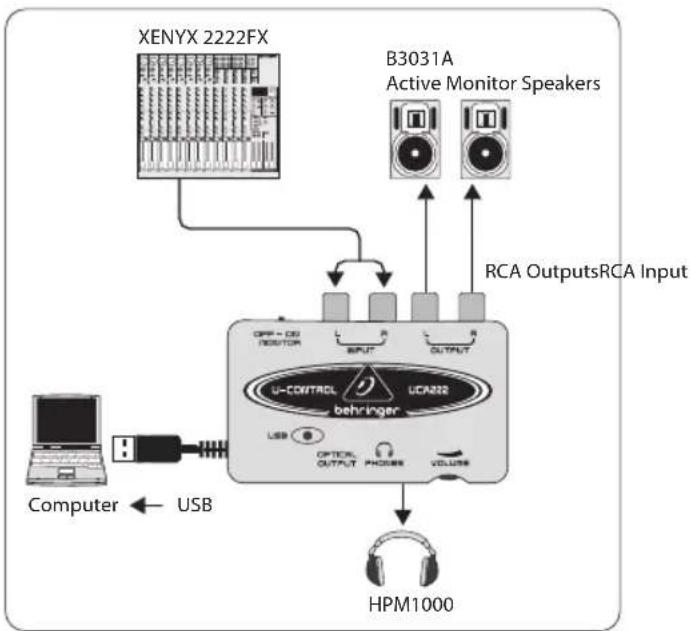
Using a mixer to record in a studio environment:
The most common application for the UCA222 is doing studio recording with a mixer. This will allow you to record several sources at once, listen to the playback, and record more tracks in sync with the original take(s).
27 U-CONTROL UCA222 User Manual
- Connect the mixer's TAPE OUT to the INPUT RCA jacks on the UCA222. This will allow you to capture the overall mix.
- Plug the USB cable into a free USB port on your computer. The POWER LED will light up.
- Connect a pair of powered monitor speakers to the UCA222 OUTPUT RCA jacks. Depending on what type of inputs your speakers accept, you may need an adapter.
- You may also monitor the input signal with a pair of headphones instead of or in addition to the monitor speakers. Turn the OFF/ON MONITOR switch to the 'ON' position. Plug a pair of headphones into the PHONES jack and adjust the volume with the adjacent control. This will be preferable if the mixer and computer are in the same room as the instruments being recorded.
Take some time to adjust each channel level and EQ to ensure a good balance between the instruments/sources. Once the mix has been recorded you will be unable to make adjustments to just one channel.
• Set the recording program to record input from the UCA222. - Press record and let the music rip!
flowchart
graph TD
    A["V-AMP 3"] --> B["Behringer"]
    C["B3031A Active Monitor Speakers"] --> D["RCA OutputsRCA Input"]
    E["Computer"] --> F["USB"]
    F --> G["Fiber optic cable"]
    G --> H["Recording device"]
    I["HPM1000"] --> H
    J["OUTPUT"] --> K["UP"]
    L["INPUT"] --> M["UP"]
    N["OUTPUT"] --> O["UP"]
    P["OUTPUT"] --> Q["UP"]
    R["OUTPUT"] --> S["UP"]
    T["OUTPUT"] --> U["UP"]
    V["OUTPUT"] --> W["UP"]
    X["OUTPUT"] --> Y["UP"]
    Z["OUTPUT"] --> AA["UP"]
    AB["OUTPUT"] --> AC["UP"]
    AD["OUTPUT"] --> AE["UP"]
    AF["OUTPUT"] --> AG["UP"]
    AH["OUTPUT"] --> AI["UP"]
    AJ["OUTPUT"] --> AK["UP"]
    AL["OUTPUT"] --> AM["UP"]
    AN["OUTPUT"] --> AO["UP"]
    AP["OUTPUT"] --> AQ["UP"]
    AR["OUTPUT"] --> AS["UP"]
    AT["OUTPUT"] --> AU["UP"]
    AV["OUTPUT"] --> AW["UP"]
    AX["OUTPUT"] --> AY["UP"]
    AZ["OUTPUT"] --> BA["UP"]
    BB["OUTPUT"] --> BC["UP"]
    BD["OUTPUT"] --> BE["UP"]
    BF["OUTPUT"] --> BG["UP"]
    BH["OUTPUT"] --> BI["UP"]
    BJ["OUTPUT"] --> BK["UP"]
    BL["OUTPUT"] --> BM["UP"]
    BN["OUTPUT"] --> BO["UP"]
    BP["OUTPUT"] --> BQ["UP"]
    BR["OUTPUT"] --> BS["UP"]
    BT["OUTPUT"] --> BU["UP"]
    BV["OUTPUT"] --> BW["UP"]
    BX["OUTPUT"] --> BY["UP"]
    BZ["OUTPUT"] --> CA["UP"]
    CB["OUTPUT"] --> CC["UP"]
    DD["OUTPUT"] --> EE["UP"]
    FF["OUTPUT"] --> DG["UP"]
    DH["OUTPUT"] --> DI["UP"]
    DJ["OUTPUT"] --> DK["UP"]
    DL["OUTPUT"] --> DV["UP"]
    DW["OUTPUT"] --> DX["UP"]
    DXN["OUTPUT"] --> DXN
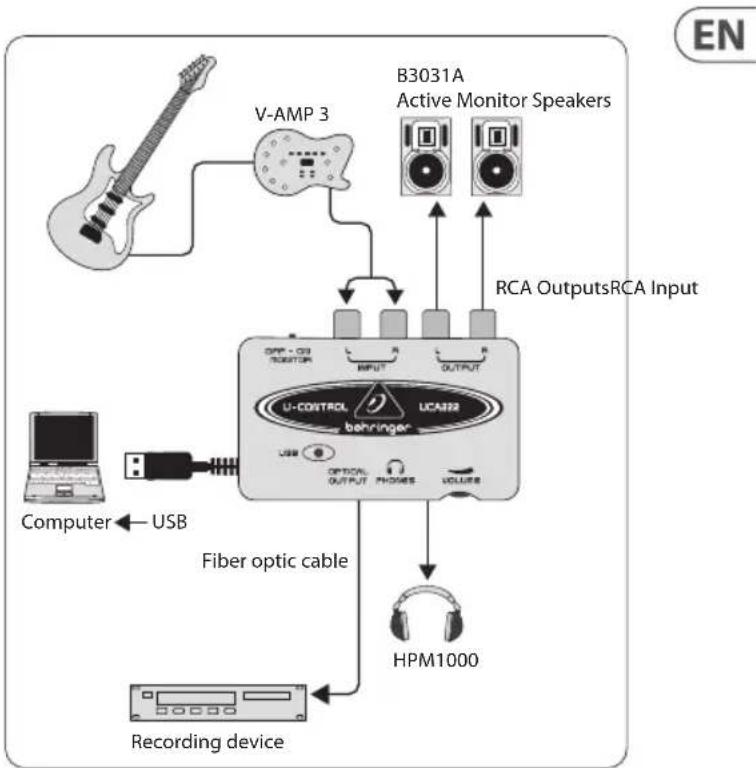
Recording with a preamp such as the V-AMP 3:
Preamps such as the V-AMP 3 provide a great way to record a wide selection of high-quality guitar sounds without the hassle of placing a mic in front of a conventional amp. They also allow you to record late at night without tempting your roommates or neighbors to strangle you with your own guitar cable.
- Plug a guitar into the instrument input of the V-AMP 3 using a standard 14 " instrument cable.
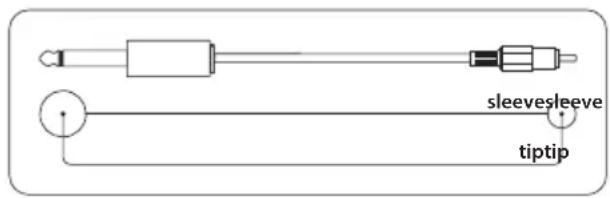
- Connect the stereo 14 " outputs on the V-AMP 3 to the stereo RCA inputs on the UCA222. This will likely require adaptors. You may also use the stereo RCA to 14 " TRS cable that is included in the V-AMP 3/UCA222 package bundle to connect from the V-AMP 3 headphone output to the UCA222 RCA inputs.
- Plug the USB cable into a free USB port on your computer. The POWER LED will light up.
- Adjust the output signal level on the V-AMP 3.
- Set the recording program to record input from the UCA222.
- Press record and wail!
7. Audio Connections
Although there are various ways to integrate the UCA222 into your studio or live set-up, the audio connections to be made will basically be the same in all cases:
7.1 Wiring
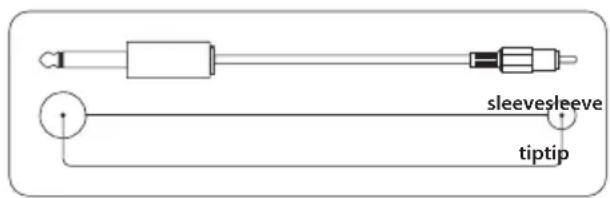
Please use standard RCA cables to connect the UCA222 to other equipment:
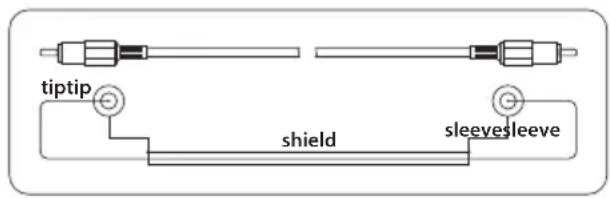
You can also use a 14 " adapter cable:
Manual de uso
ES
U-CONTROL UCA222
Ultra-Low Latency 2 In/2 Out USB Audio Interface with Digital Output

behringer
30 U-CONTROL UCA222 Manual de uso
Gracias
36 U-CONTROL UCA222 Manual de uso
ES
FR
U-CONTROL UCA222
Ultra-Low Latency 2 In/2 Out USB Audio Interface with Digital Output

behringer
DE
U-CONTROL UCA222
Ultra-Low Latency 2 In/2 Out USB Audio Interface with Digital Output

behringer
Danke
PT
U-CONTROL UCA222
Ultra-Low Latency 2 In/2 Out USB Audio Interface with Digital Output
U-CONTROL UCA222
IT
Ultra-Low Latency 2 In/2 Out USB Audio Interface with Digital Output
U-CONTROL UCA222
Ultra-Low Latency 2 In/2 Out USB Audio Interface with Digital Output
NL
2.1 Verbinding hardware
The UCA222 provides an easy interface between your computer, mixer and monitoring system. Follow these steps for basic operation:
U-CONTROL UCA222
Ultra-Low Latency 2 In/2 Out USB Audio Interface with Digital Output
SE
78 U-CONTROL UCA222 Bruksanvisning
Tack själv
84 U-CONTROL UCA222 Bruksanvisning
Instrukcja obsługi
U-CONTROL UCA222
Ultra-Low Latency 2 In/2 Out USB Audio Interface with Digital Output
PL
Dziękuję
You can also use a 14 " adapter cable:
92 U-CONTROL UCA222 User Manual
Specifications
Line In
Connectors RCA, unbalanced
Input impedance approx. 27 kΩ
Max. input level 2 dBV
Line Out
Connectors RCA, unbalanced
Output impedance approx. 400 Ω
Max. output level 2 dBV
Digital Output
Socket Toslink, optical cable
Output format S/PDIF
Phones Out
Socket 18 " TRS stereo jack
Output impedance approx. 50 Ω
Max. output pegel -2 dBu, 2 x 3.7 mW @ 100 Ω
USB 1.1
Connectors type A
Digital Processing
Converter 16-bit converter
Sample rate 32.0 kHz, 44.1 kHz, 48.0 kHz
System Data
Frequency response 10 Hz to 20 kHz, ±1 dB @
44.1 kHz sample rate
10 Hz to 22 kHz, ±1 dB @
48.0 kHz sample rate
THD 0.05% typ. @ -10 dBV, 1kHz
Crosstalk -77 dB @ 0 dBV, 1 kHz
Signal-to-noise ratio A/D 89 dB typ. @ 1 kHz,
A-weighted
D/A 96 dB typ. @ 1 kHz,
A-weighted
93 U-CONTROL UCA222 User Manual
Power Supply
USB connection 5 V, 100 mA max.
Dimensions/Weight
Dimensions (H x W x D) approx. 0.87 x 2.36 x 3.46" approx. 22 x 60 x 88 mm
Weight approx. 0.10 kg
Behringer always takes great care to ensure the highest standard of quality.
Any modifications which may be necessary will be made without prior notification.
Technical data and appearance of the equipment can therefore differ from the details or illustrations shown.
94 U-CONTROL UCA222 User Manual
EN
FEDERAL COMMUNICATIONS COMMISSION COMPLIANCE INFORMATION
Behringer
U-CONTROL UCA222
Responsible Party Name: Music Tribe Commercial NV Inc.
Address: 5270 Procyon Street, Las Vegas NV 89118, United States
Phone Number: +1 702 800 8290
U-CONTROL UCA222
This equipment has been tested and found to comply with the limits for a Class B digital device, pursuant to part 15 of the FCC Rules. These limits are designed to provide reasonable protection against harmful interference in a residential installation. This equipment generates, uses and can radiate radio frequency energy and, if not installed and used in accordance with the instructions, may cause harmful interference to radio communications. However, there is no guarantee that interference will not occur in a particular installation. If this equipment does cause harmful interference to radio or television reception, which can be determined by turning the equipment off and on, the user is encouraged to try to correct the interference by one or more of the following measures:
- Reorient or relocate the receiving antenna.
- Increase the separation between the equipment and receiver.
- Connect the equipment into an outlet on a circuit different from that to which the receiver is connected.
Consult the dealer or an experienced radio/TV technician for help. This equipment complies with Part 15 of the FCC Rules. Operation is subject to the following two conditions:
(1) This device may not cause harmful interference, and
(2) This device must accept any interference received, including interference that may cause undesired operation.
Important information:
Changes or modifications to the equipment not expressly approved by Music Tribe can void the user's authority to use the equipment.

Hereby, Music Tribe declares that this product is in compliance with Directive 2014/30/EU, Directive 2011/65/EU and Amendment 2015/863/EU, Directive 2012/19/EU, Regulation 519/2012 REACH SVHC and Directive 1907/2006/EC.
Full text of EU DoC is available at https://community.musictribe.com/
EU Representative: Music Tribe Brands DK A/S
Address: Ib Spang Olsens Gade 17, DK - 8200 Aarhus N, Denmark
We Hear You

behringer
- U-CONTROL UCA222
- U-CONTROL UCA222 User Manual
- EN
- Table of Contents
- U-CONTROL UCA222 User Manual
- LEGAL DISCLAIMER
- LIMITED WARRANTY
- U-CONTROL UCA222 User Manual
- BESCHRÄNKTE GARANTIE
- Waarschuwing
- Varning
- Before You Get Started
- Shipment
- Initial operation
- Online registration
- System Requirements
- Hardware connection
- U-CONTROL UCA222 User Manual
- Controls and Connectors
- Software Installation
- U-CONTROL UCA222 User Manual
- Basic Operation
- Application Diagrams
- Using a mixer to record in a studio environment:
- U-CONTROL UCA222 User Manual
- Recording with a preamp such as the V-AMP 3:
- Audio Connections
- Wiring
- Manual de uso
- U-CONTROL UCA222 Manual de uso
- Gracias
- Danke
- Verbinding hardware
- U-CONTROL UCA222 Bruksanvisning
- Tack själv
- Instrukcja obsługi
- Dziękuję
- U-CONTROL UCA222 User Manual
- Specifications
- Line In
- Line Out
- Digital Output
- Phones Out
- USB 1.1
- Digital Processing
- System Data
- U-CONTROL UCA222 User Manual
- Power Supply
- Dimensions/Weight
- U-CONTROL UCA222 User Manual
- FEDERAL COMMUNICATIONS COMMISSION COMPLIANCE INFORMATION
- Behringer
- Important information:
Brand : BEHRINGER
Model : Ucontrol UCA222
Category : Hi-fi system