MeteoClock SM940 - Weather Station LEXIBOOK - Free user manual and instructions
Find the device manual for free MeteoClock SM940 LEXIBOOK in PDF.



| Product type | Weather station with clock, thermometer, hygrometer and barometer |
| Brand | Lexibook |
| Model | MeteoClock SM940 (SM940_02) |
| Main unit dimensions | 130 × 10 × 25.5 mm |
| Remote sensor dimensions | 90 × 60 × 27 mm |
| Main unit power supply | 2 alkaline LR6 (AA) 1.5 V batteries (not included) |
| Remote sensor power supply | 2 alkaline LR6 (AA) 1.5 V batteries (not included) |
| Main functions | Indoor/outdoor thermometer (-20°C to 60°C), hygrometer (20%-95%), barometer with weather forecasts (12-24h), moon phases, clock (12/24h), alarm with snooze, comfort zone, trend indicators |
| Number of supported sensors | Up to 3 wireless sensors (channels 1, 2, 3) |
| Transmission frequency | 433 MHz |
| Transmission range | Up to 30 m in open space |
| Forecast display | Animated icons: sunny, cloudy, rainy |
| Temperature accuracy | ±1.5°C between 0°C and 40°C |
| Temperature units | °C or °F (selectable) |
| Alarm | Adjustable, with 5-minute snooze function |
| Day of week languages | German, French, Spanish, Italian, Dutch, Danish, Russian, English |
| Warranty | 2 years (contact retailer with proof of purchase) |
| Maintenance | Clean with a soft, slightly damp cloth (no detergent). Do not expose to sunlight or heat source. Do not wet, disassemble or drop. |
| Battery safety | Respect polarity, do not mix types/conditions, remove if not used for a long time, do not throw into fire. |
Frequently Asked Questions - MeteoClock SM940 LEXIBOOK
User questions about MeteoClock SM940 LEXIBOOK
0 question about this device. Answer the ones you know or ask your own.
Ask a new question about this device
Download the instructions for your Weather Station in PDF format for free! Find your manual MeteoClock SM940 - LEXIBOOK and take your electronic device back in hand. On this page are published all the documents necessary for the use of your device. MeteoClock SM940 by LEXIBOOK.
USER MANUAL MeteoClock SM940 LEXIBOOK
Copyright © Lexibook 2010
91953 Courtaboeuf Cedex, France.
Congratulations on your purchase of this weather station, MeteoClock® Silver SM940_02. Please take the time to read and understand this manual so you can begin to enjoy the convenience and features this product has to offer.
What exactly is a Weather Station?
Lexibook digital stations measure not only the time in progress – thanks to their built-in-clock but also the actual and upcoming weather.
The MeteoClock® Silver SM940 02 incorporates the following functions:
- Thermometer:
The temperature is displayed in real time to the nearest tenth of a degree Celsius. Thanks to its wireless sensor, the station can detect from a distance the outdoor temperature or that of another room.
- Hygrometer:
Outdoor or indoor hygrometry is expressed in percentage of humidity in the ambient air. The ideal 'Comfort Zone' for the human body ranges from 35 to 65% hygrometry for a given temperature between 18 and 24°C.
- Barometer:
The station also monitors the atmospheric pressure in real time. It displays the weather forecast by means of animated icons (sun, clouds, rain...) and for the next 12 to 24 hours.
PRODUCT DESCRIPTION
Refer to image A
Main unit description
- LCD screen
- "Set" key
- "ALARM" key
- "Up/(12-24)" key
- "Down/(°C/°F)" key
- "Channel" key
- "Snooze" key
- Wall-mount holder
- Table stand
- Battery compartment
Remote sensor description
At the back, inside the battery compartment
- "°C/°F" key
- TX button: press this button and the sensor will send the temperature and humidity readings to the main unit.
- 3-position channel selector (channel 1, 2 or 3)
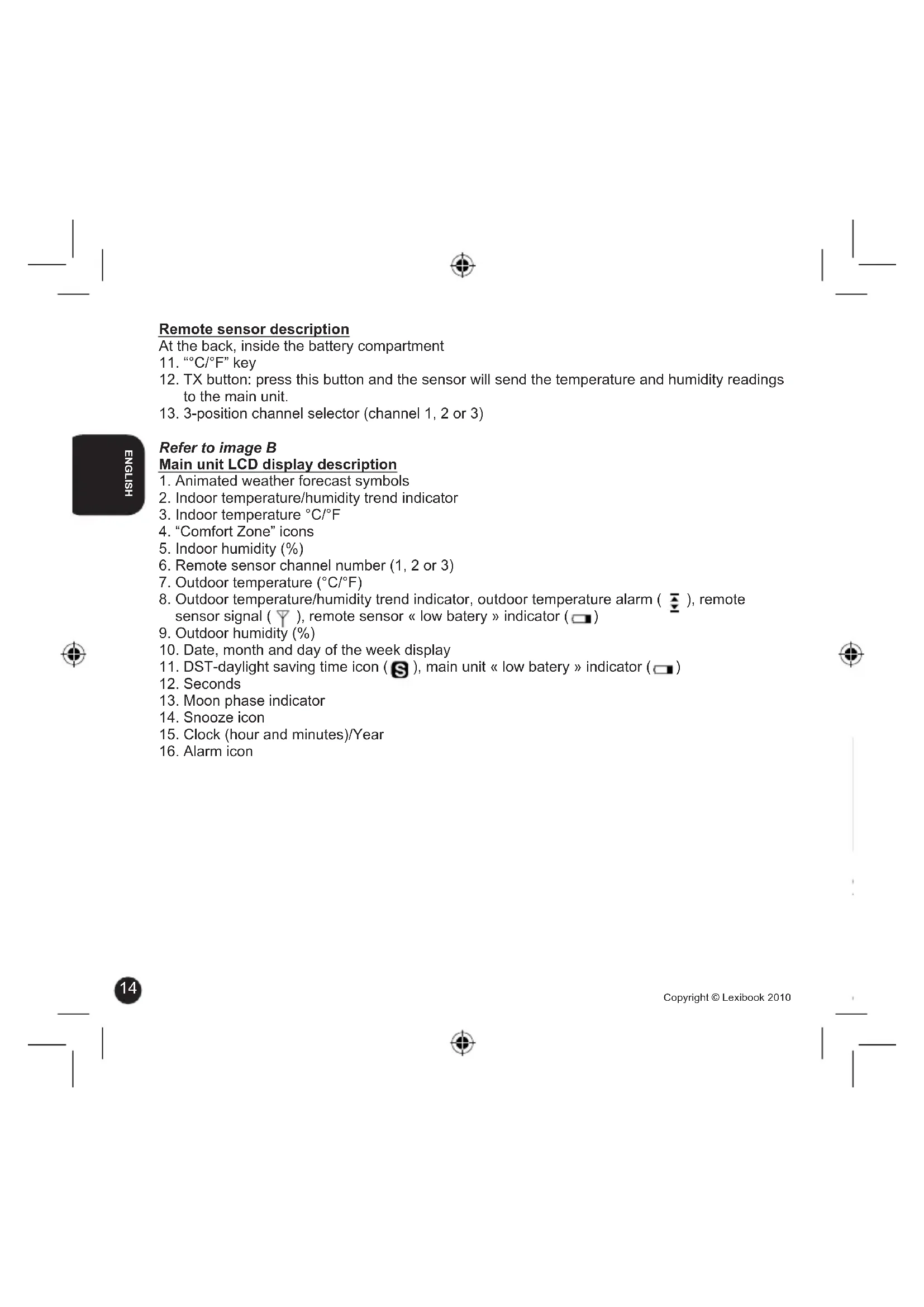
Refer to image B
Main unit LCD display description
- Animated weather forecast symbols
- Indoor temperature/humidity trend indicator
- Indoor temperature °C/°F
- "Comfort Zone" icons
- Indoor humidity (%)
- Remote sensor channel number (1, 2 or 3)
- Outdoor temperature (°C/°F)
- Outdoor temperature/humidity trend indicator, outdoor temperature alarm ( ), remote sensor signal ( ), remote sensor « low battery » indicator ( )
- Outdoor humidity (%)
- Date, month and day of the week display
- DST-daylight saving time icon (S), main unit « low battery » indicator (☐)
- Seconds
- Moon phase indicator
- Snooze icon
- Clock (hour and minutes)/Year
- Alarm icon
BATTERY INSTALLATION
Remote sensor
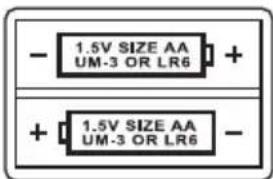
- Open the remote sensor to gain access to the battery compartment located at the back of the remote sensor.
- Insert 2 x 1.5V = LR6/AA type batteries (not included) according to the polarity indicated inside the compartment and as per the diagram shown opposite.
- Close the remote sensor.
Main unit
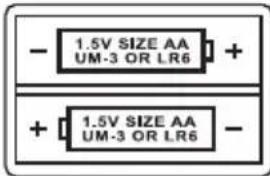
- Open the battery compartment located at the back of the main unit.
- Insert 2 x 1.5V LR6/AA type batteries (not included) observing the polarity indicated at the bottom of the battery compartment, and as per the diagram shown opposite.
- Close the battery compartment.
Note:
- When then main unit and remote sensor's batteries are low, the "low battery" indicator is displayed on the LCD screen of the main unit.
- When the main unit's LCD display becomes dim, it indicates that the batteries are low and need to be changed.
- If the sensor is exposed to very low temperatures for an extended period of time, the batteries may lose power which may cause the transmission range to be limited. High temperatures also reduce the battery performance.
Non-rechargeable batteries are not to be recharged. Remove the storage batteries before recharging. Recharge storage batteries under adult supervision. Do not mix different types of battery and storage battery, or new and old batteries or storage batteries. Insert batteries and storage batteries according to the polarity. Remove used storage batteries from product. Do not short-circuit the battery or storage battery terminals. Keep batteries away from fire. If the product remains unused for an extended period, remove batteries.
WARNING: Mal-function or loss of memory may be caused by strong frequency interference or electrostatic discharge. Should any abnormal function occur, remove the batteries and insert them again.
Automatic synchronization of the main unit and the remote sensor
- After batteries have been inserted in the main unit, the synchronization is launched automatically and runs for approximately 3 minutes.
- Within these 3 minutes, the main unit (receiver) picks up the temperature & humidity signals from the remote sensor and displays the readings.
- If the main unit does not display the readings after 3 minutes, open the remote sensor and press the "TX" key to synchronize manually the remote sensor and the main unit.
Note: it may take up to 1 minute before the main unit displays the readings.
CHANNEL SELECTION
The SM940_02 comes with one remote sensor. The sensor's default channel is channel 1. You do not need to change it. However, if the sensor (or the main unit) is too close to other electrical devices, interference may cause malfunction. Use the channel selector located inside the sensor's battery compartment to change the channel and improve the reception. Then select the matching channel on the main unit.
Channel setting
-
Press the "Channel" key repeatedly to select the desired outdoor channel between the 3 available channels. The selected channel must be the same as the one chosen for the remote sensor with the channel selector. If the channels are different, the main unit will no be able to receive the data sent by the sensor.
-
To reset the temperature and humidity readings of the remote sensor, press and hold the "Channel" key for a few seconds.
Note: If the sensor is exposed to very low temperatures for an extended period of time, the batteries may lose power which may cause the transmission range to be limited. High temperatures also reduce the battery performance.
The channel function allows you to use up to 3 additional sensors. The main unit can identify each remote sensor thanks to their assigned channel (channel 1, 2 or 3). If you have one or two additional sensors, you can place them in a different location in your house; in a bedroom, for example. Your main unit can collect the temperature and humidity data of up to three remote sensors.
Multiple sensor use
- Make sure you set each sensor to a different channel.
- Press the TX key inside the remote sensors to synchronize them manually with the main unit. The weather station will detect automatically the new sensors.
Note: it may take up to 1 minute before the main unit displays the readings. - Press the "Channel" key repeatedly to select the desired outdoor channel
- The data of the corresponding remote sensor will be displayed on the main unit's LCD screen.
CLOCK AND DATE SETTING
- Press and hold the "Set" key until the weather station plays a "beep" sound and the year's digits start flashing.
- Use the "Up/ (12-24)" and "Down/ (°C/°F)" keys to increase or reduce the values, then press "Set" to confirm and adjust the next setting.
- The setting sequence is displayed in the following order:
Year - Month Date Day of-week language Hours→ Minutes→ Time zone
- Press the "Set" key to confirm your selection and go back to time display.
- Use the "Up/ (12-24)" key to toggle between 24hr or 12hr display.
Note:
- The time zone is set on “00” by default. You can change it when travelling in cities in different time zones.
• The day of the week can be displayed in 8 different languages: English (EN), French (FR), Italian (IT), Spanish (ES), German (GE), Danish (DA), Dutch (NL) or Russian (RU). - You need to set the time after replacing the batteries.
• After a few seconds of inactivity, the unit will go back to time display mode.
ALARM SETTING
- Press and hold the "Alarm" key until the hour's digits start flashing.
- Use the "Up/ (12-24)" and "Down/ (°C/°F)" keys to set the hours, then press "Alarm" to adjust the minutes.
- Use the "Up/ (12-24)" and "Down/ (°C/°F)" keys to set the minutes, then press "Alarm" to confirm.
- Once the alarm time has been set, use the "Alarm" key to switch on or switch off the alarm.
Note: When the alarm is switched on, the icon is displayed on the LCD screen. - When the alarm rings, press the "Snooze" key to switch on the snooze function. The Z^2 icon is displayed on the LCD screen and the alarm will ring again 5 minutes later. Press any other key to stop it. The alarm will ring again the next day at the same time. If you wish to switch off the alarm completely, press the "Alarm" key until the 🔔 icon disappear from the LCD screen.
Note: After a few seconds of inactivity, the unit will go back to time display mode.
TEMPERATURE DISPLAY IN °C OR °F
Use the "Down/ (°C/°F)" key to toggle between °C or °F temperature display (indoor and outdoor).
COMFORT ZONE
The unit indicates if the conditions inside the room are comfortable. The icons are easy to read and understand: they indicate when the optimal comfort zone has been reached. The ideal "Comfort Zone" for the human body ranges from 35 to 65% hygrometry for a given temperature between 18°C and 24°C (the temperature and hygrometry conditions are ideal for your well-being and a refreshing sleep).



WEATHER FORECAST AND DISPLAY
Animated Weather Forecast Symbols
This weather station is capable of detecting barometric pressure changes, and based on the data collected, predicting the weather for the next 8 to 24 hours. There are 4 different weather forecast symbols.
| Sunny | Slightly cloudy | Cloudy | Rainy | |
 |  |  |  |  |
Note: Absolute accuracy cannot be guaranteed regarding weather forecasting. The weather forecasting feature is estimated to have an accuracy level of about 75% due to the varying areas the Weather Station has been designed to be used in.
TEMPERATURE & HUMIDITY TREND
The trend indicators show the recent trend of the outdoor temperature & humidity.
→ Indicates that the outdoor temperature or humidity trend is increasing.
→ Indicates that the outdoor temperature or humidity trend is steady.
Indicates that the outdoor temperature or humidity trend is decreasing.
MOON PHASES
Throughout the 28 days of the lunar month, the aspect of the moon changes. Indeed, the moon, being spherical, is always half lightened up by the sun. As the moon rotates around the Earth, the appearance of its lightened side changes continuously. This phenomenon creates moon phases. The moon phase on your MeteoClock® is automatically updated according to the year / month / day.
Moon phases

- New Moon

- Young Crescent

- First Quarter

- Waxing Gibbous

- Full Moon

- Waning Gibbous

- Last Quarter

- Old Crescent
Copyright © Lexibook 2010
TROUBLESHOOTING
Problem:
- Temperature reading of outdoor remote sensor seems too high.
- Main unit is no longer receiving remote sensor signals or display.
- An abnormal operation has been observed and certain functions do not work.
Solution:
-
Ensure the remote sensor is out of direct sunlight, and away from sources of heat.
-
• Press the TX key inside the remote sensor's battery compartment to synchronize manually the remote sensor and the main unit.
- There may be some interference caused by electrical devices: change the sensor's channel.
- Batteries in remote sensor may need to be replaced.
- Move the remote sensor closer to the main unit.
- Make sure the remote sensor is away from sources of electrical disturbance.
- Reset the unit. If this proves to be ineffective, remove and replace the batteries in both the remote sensor and main unit.
SPECIFICATIONS
SM940\_02 main unit
Dimensions: 130×10×25.5mm
Battery type: 2 X 1.5V AA batteries
Temperature range: -20 to 60°C
Measurement accuracy: 0-40°C(+/-1.5°C)
Humidity range: 20% to 95%
Remote sensor
Dimensions: 90×60×27×mm
Battery type: 2 X 1.5V AA batteries
Temperature range: -20 to 60°C
Transmission frequency: 433 MHz
Transmission Range: 30m
MAINTENANCE
In order to clean the unit, use only a soft cloth moistened with water; do not use any detergent product. Do not dismantle or drop the unit. Remove the batteries if the unit is not going to be used for an extended period of time.
WARRANTY
NOTE: Please keep this instruction manual, it contains important information. This product is covered by our two-year warranty. To make use of the warranty or the after-sales service, please contact your retailer and supply proof of purchase. Our warranty covers material or installation-related defects attributable to the manufacturer, with the exception of wear caused by failure to respect the instructions for use or any unauthorised work on the equipment (such as dismantling, exposure to heat or damp, etc.).
It is recommended to keep the packaging for any further reference. In a bid to keep improving our services, we could implement modification on the colours and the details of the product shown on the packaging.
Reference: SM940 02
Designed and developed in Europe – Made in China
©2010 LEXIBOOK®
United Kingdom & Ireland
For any further information, please call 0808 100 3015
www.lexibook.com
Environmental Protection:
Unwanted electrical appliances can be recycled and should not be discarded along with regular household waste! Please actively support the conservation of resources and help protect the environment by returning this appliance to a collection centre (if available).
DECLARATION OF CONFORMITY
We, Lexibook® S.A.
hereby declare under our full and sole responsibility, that the product:
Name: MeteoClock® Silver
Reference / type: SM940_02
Maker: Lexibook®
to which this declaration refers, complies with the essential requirements and any other provisions stated in Directive R&TTE (1999/5/EC) for all that applies to:
EN 301 489-1 V1.8.1
EN 301 489-3 V1.4.1
EN 300 220-1 V2.1.1
EN 300 220-2 V2.1.2
EN 60950-1 :2006+A11 :2009:A1 :2010
EN 50371:2002
Additional information:
Certified laboratory being consulted: SIEMIC
Technical report available from:
Lexibook, 2 avenue de Scandinavie, 91953 Courtaboeuf cedex dated the 29th of March 2006 is suitable for use within the European Union member states.
Wai Man Yiu
Product Development Manager

CE 2200
INTRODUCCIÓN
Copyright © Lexibook 2010



Copyright © Lexibook 2010
Copyright © Lexibook 2010

- Luna Ilena

- Luna gibosa menguante

- Cuarto menguante

- Luna menguante

Unidad principal SM940\_02
Dimensiones: 130 × 10 × 25,5 mm
Nota:
Copyright © Lexibook 2010

- Lua Cheia

- Segunda Giba

- Quarto Minguante

- Segunda Falcada
Copyright © Lexibook 2010
- Luna Ilena
- Luna gibosa menguante
- Cuarto menguante
- Luna menguante
RISOLUZIONE GUASTI
Problema:
Nome: MeteoClock® Weather Station
Basisgerät
Hinweis:
Copyright © Lexibook 2010

- Vollmond

- Abnehmender Mond

Name: MeteoClock® Wetterstation
Copyright © Lexibook 2010
YOUR OPINION MATTERS / VOTRE AVIS COMPTE
Disappointing/Decevant Very disappointing/Tres decevant

- PRODUCT DESCRIPTION
- Refer to image A
- Main unit description
- Remote sensor description
- Refer to image B
- Main unit LCD display description
- BATTERY INSTALLATION
- Remote sensor
- Main unit
- Note:
- Automatic synchronization of the main unit and the remote sensor
- CHANNEL SELECTION
- Channel setting
- Multiple sensor use
- CLOCK AND DATE SETTING
- Year - Month Date Day of-week language Hours→ Minutes→ Time zone
- ALARM SETTING
- TEMPERATURE DISPLAY IN °C OR °F
- COMFORT ZONE
- WEATHER FORECAST AND DISPLAY
- Animated Weather Forecast Symbols
- TEMPERATURE & HUMIDITY TREND
- MOON PHASES
- TROUBLESHOOTING
- Problem:
- Solution:
- SPECIFICATIONS
- SM940\_02 main unit
- MAINTENANCE
- WARRANTY
- Environmental Protection:
- DECLARATION OF CONFORMITY
- INTRODUCCIÓN
- Unidad principal SM940\_02
- Nota:
- RISOLUZIONE GUASTI
- Problema:
- Basisgerät
- Hinweis:
Brand : LEXIBOOK
Model : MeteoClock SM940
Category : Weather Station