MeteoClock SM1660 - Weather Station LEXIBOOK - Free user manual and instructions
Find the device manual for free MeteoClock SM1660 LEXIBOOK in PDF.


| Product type | Digital weather station |
| Brand | Lexibook |
| Model | MeteoClock SM1660 |
| Power supply - Main unit | 3 LR6/AA 1.5V batteries |
| Power supply - Outdoor sensor | 2 AAA/LR03 1.5V batteries |
| Indoor temperature range | -20 °C to +55 °C |
| Outdoor temperature range | -30 °C to +70 °C |
| Humidity range | 15% to 95% |
| Transmission frequency | 433.92 MHz |
| Transmission range | Up to 40 m in open area |
| Display | Radio-controlled clock (DCF77/MSF), weather forecasts, moon phases, sunrise/sunset |
| Number of supported sensors | Up to 4 (1 included) |
| Main functions | 2 alarms, temperature alarms, backlight, temperature/humidity trends, pressure chart |
| Care | Clean with a soft, slightly damp cloth. Do not expose to direct heat or moisture. |
| Warranty | 2 years |
| Included accessories | Wireless outdoor sensor ASM5 |
| Additional accessories | Additional sensors available (ref. ASM5) |
Frequently Asked Questions - MeteoClock SM1660 LEXIBOOK
User questions about MeteoClock SM1660 LEXIBOOK
0 question about this device. Answer the ones you know or ask your own.
Ask a new question about this device
Download the instructions for your Weather Station in PDF format for free! Find your manual MeteoClock SM1660 - LEXIBOOK and take your electronic device back in hand. On this page are published all the documents necessary for the use of your device. MeteoClock SM1660 by LEXIBOOK.
USER MANUAL MeteoClock SM1660 LEXIBOOK
LEXIBOOK®
Mete Clock®
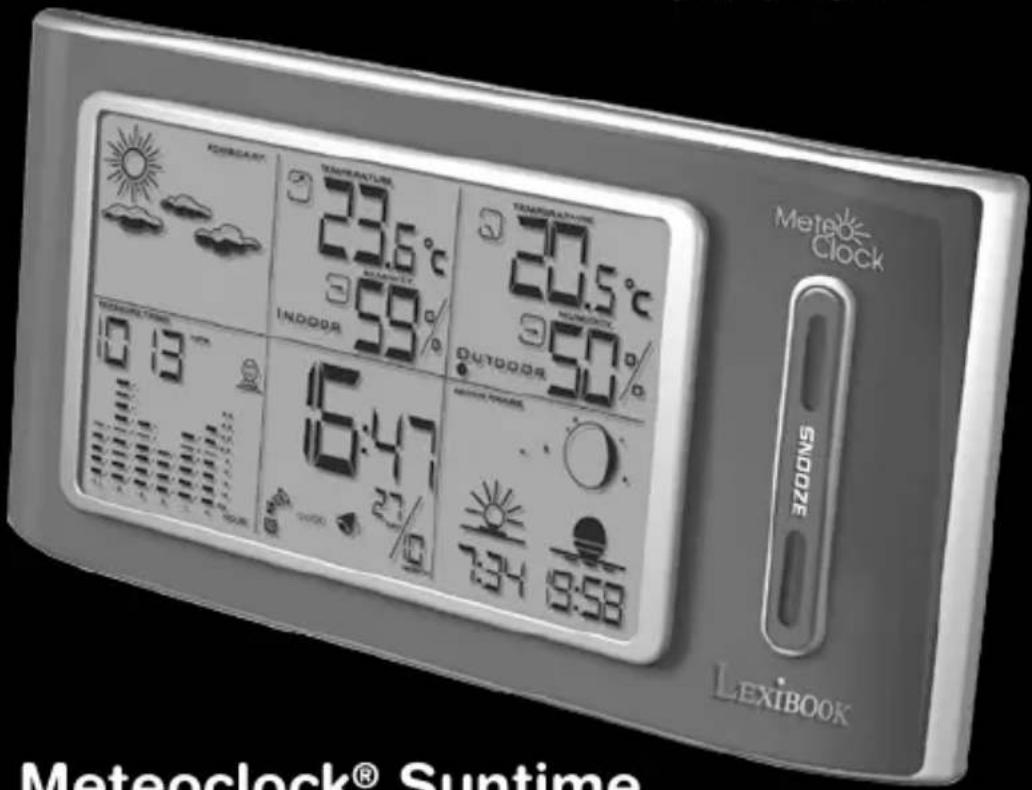
Meteoclock® Suntime
SM1660 + ASM5
CE0682
Copyright © 2007 LEXIBOOK®
Meteoclock® Suntime SM1660 + ASM5 - User Manual
INTRODUCTION
Thank you for purchasing the MeteoClock® Suntime - SM1660 Weather Station. This Lexibook® digital weather station does not only provide you with the exact time due to its radio controlled clock, but can also give you the weather forecast and display the time of the sunrise and the sunset! Please read the following manual carefully so as to be able to benefit from all the advantages and functions offered by this product.
MAIN FUNCTIONS
This section will provide you with a brief summary of the main functions of the SM1660 by explaining the information displayed onscreen.
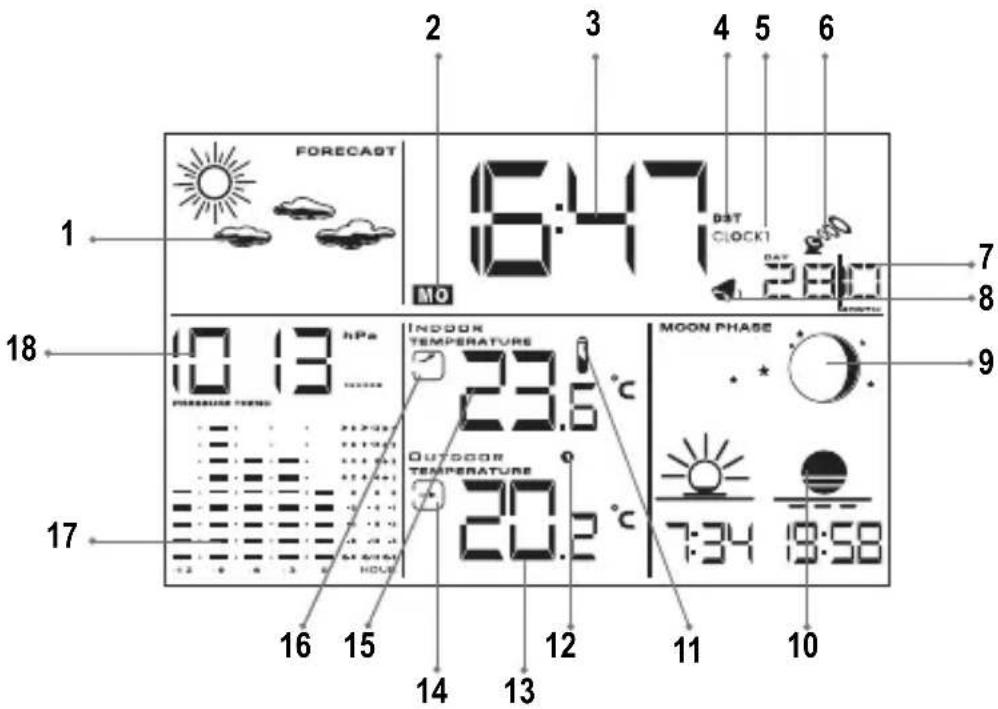
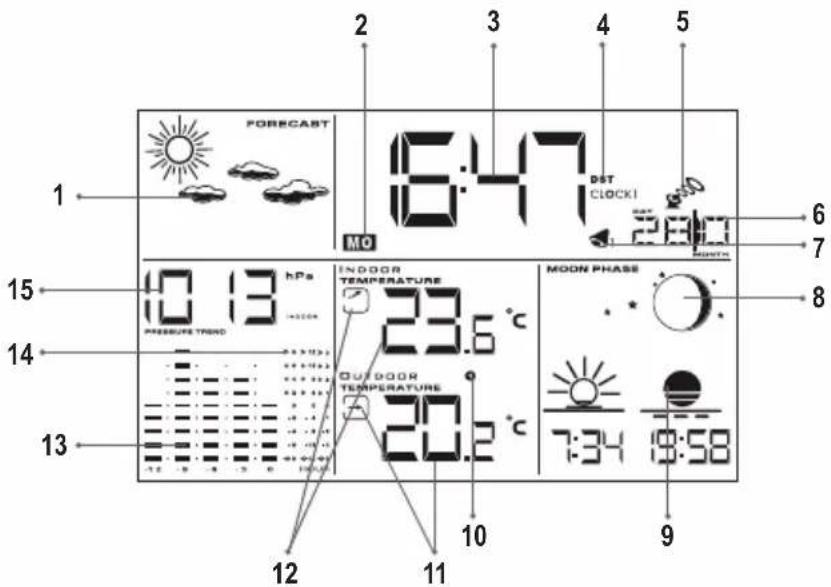
1. Symbols representing the weather forecast
Animated symbols representing the weather forecast for the next 12 to 24 hours are displayed in this section of the screen:
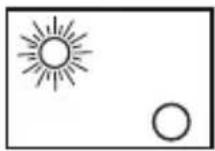
Sun,
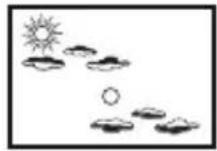
Clouds,
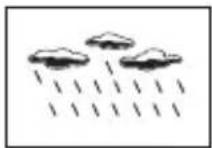
Rain,
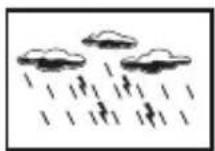
Thunder,
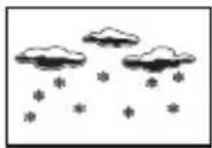
Snow (icon flashes) or frost alert (icon remains solid).
2. Day of the week display
The SM1660 automatically sets the day of the week (in English only).
3. Displaying the time
With the SM1660, there is no need to set the time and date! It will always provide you with the exact time and even takes into account the daylight saving time. It receives the DCF77 radio signal from Frankfurt or the MSF of Greenwich and can thus automatically synchronize its clock.
4. Displaying the daylight saving icon
The DST icon is automatically displayed when daylight saving is in force in Europe.
5. Displaying Clock 1
The SM1660 offers two clocks represented by the icons "Clock 1" and "Clock 2". Clock 1 is the main clock, which is set automatically. Clock 2 is useful if you often travel overseas or if you wish to know the exact time in another country on a regular basis. Once set, this second clock will instantaneously provide you with the time, thus not requiring any mental calculations on your part!
6. Displaying the radio controlled clock
The fixed icon in the tower indicates that the radio controlled time is activated. The weather station synchronizes the hour and the date automatically.
7. Displaying the date and month
The date (DAY) and month (MONTH) is automatically displayed here.
8. Icons of Alarms 1 and 2
The SM1660 offers 2 programmable alarms. When an alarm has been set, an icon representing a bell is displayed here.
9. Displaying the moon phases
The moon phase is automatically updated here as per the year, month and day.
10. Displaying the time of the sunrise and the sunset
The time of the sunrise and the sunset is automatically updated according to the day of the year and the latitude of your home town. In order for the weather station to provide you with an accurate weather forecast, you will need to indicate the code of your town or the city closest to you.
11. Low battery indicator
If the batteries of the remote sensor are low, this icon will be displayed on the main unit. When the lighting of the LCD screen of the main unit begins to fade, this indicates that the batteries are low and must be replaced.
12. Remote channels 1, 2, 3, 4
This weather station is delivered with a remote sensor. You can, however, purchase 1, 2 or 3 additional remote sensors to measure the temperature and humidity in another place or room.
Each remote sensor is linked to a channel. You can access the readings obtained by each remote sensor by pressing the "Channel" key found at the top of the weather station. The number of the corresponding channel is displayed here.
Note: If you do not have additional sensors, please do not take this function into account.
13. Outdoor temperature and humidity display
Due to its wireless sensor, the station can detect the temperature and humidity outdoors from a distance. The readings are displayed here. The room temperature and the rate of humidity are automatically displayed in turn.
14. Outdoor temperature and humidity trend
The arrow icons provide the outdoor temperature and humidity trends in half-hour intervals. The

arrow indicates an upward trend while the arrow indicates a downward trend.

arrow indicates a stable trend and the
15. Indoor temperature and humidity display
The readings of outdoor temperature and humidity are recorded by the main unit and displayed here. The indoor temperature and humidity are automatically displayed in turn.
16. Indoor temperature and humidity trend
This icon indicates the trends of the inside temperature and humidity in half-hour intervals.
The ↗ arrow indicates an upward trend; the → arrow indicates a stable trend and indicates a downward trend.
17. Pressure bar graph
This bar chart indicates the atmospheric pressure trend over a 12-hour period. The variation scale is +/- 3 Hecto Pascal (hPa). Why refer to this bar chart? Generally, bad weather is associated to a low atmospheric pressure and good weather to a high atmospheric pressure. The weather forecast provided by the SM1660, using animated icons, thus depends on the evolution of the atmospheric pressure. Therefore, if the weather station announces rain and you observe a sudden and significant fall in the bar chart readings, you can expect the rain to be strong and violent.
18. Displaying the atmospheric pressure
This weather station measures atmospheric pressure in Hecto Pascal and in real time.
SETTINGS
Step 1 – Setting the radio-controlled zone of the clock
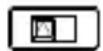
- Set the MSF/OFF/DSF switch, found at the back of the main unit, on DSF for use in France, Spain, Italy and Germany.
- Set the switch on MSF for use in the United-Kingdom, Ireland and Portugal.
- Set the switch on OFF for use outside the GMT 0 and GMT 1 zones. If you do not live in Europe (or if you live outside of the France and England time zones), the SM1660 will not be able to receive the time automatically. You will thus need to set the time manually (See page 29).
Step 2 – Inserting the batteries
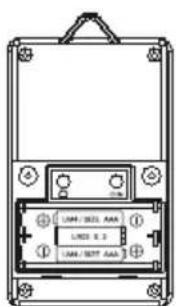
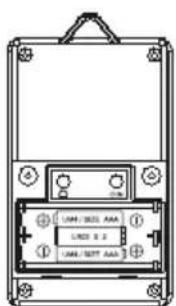
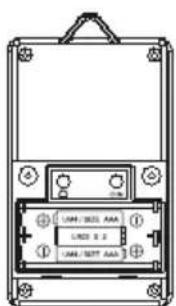
- Insert 3 AA/LR6 batteries into the battery compartment found at the back of the main unit. Close the lid of the compartment.
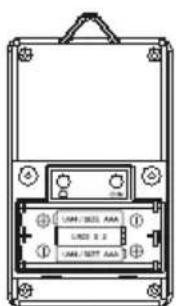
- Unscrew the lid of the battery compartment found at the back of the wireless sensor. Insert 2 AAA/LR03 batteries. Replace the lid of the compartment using a screwdriver.
- If you have not purchased additional sensors you will not need to set the remote sensor. Do not press the ○ and ○ keys. If you wish to set more than one sensor onto your main unit, please refer to the paragraph entitled “Multiple sensor use”.
Step 3 – Setting up the main unit and the remote sensor
- Place the remote sensor outside. It can also be wall-mounted.
- Pull out the main unit's table stand, and place it on a smooth surface. It can also be wall-mounted.
Step 4 – Setting the local city and the altitude
- Look up and note the code of the city found closest to your home. Please refer to the list of city codes found at the end of the user manual.
- Determine and note the altitude of your town or city in meters (for example: Paris, 88 meters).
- Ensure that the weather station is in the Clock 1 mode (is displayed to the right of the time). You may also press the MODE key several times until CLOCK 1 appears on the display screen.
- Press and hold down the mode key for 3 seconds. The time will begin to flash.
- Press the mode key 3 times. The city code will flash above the « CITY » indicator.
- Use the HOUR+ or min- keys to scroll through the city codes on the screen. This setting is important as it will affect the time of the sunrise and the sunset.
- Press the node key to confirm the city code.
- The altitude level flashes. Use the city (in meters). Press the MODE or min- keys to set the altitude of your town or key to validate all these settings.
Step 5 – Radio controlled clock
- Approximately 7 minutes after the batteries have been inserted, the main unit will launch its search to find the signal of the radio controlled clock. The icon will flash for a few minutes while the search is underway. When the signal is received, the icon will stop flashing and will remain still.
- Ensure that the main unit displays the exact time and date. If this is not so, launch the signal search once more by holding the min-key down for 3 seconds.
Reminder: the SM1660 will only receive the signal if you live in Europe (within the France and England time zones).
- Ensure that the main unit displays the outdoor temperatures and rate of humidity transmitted by the sensor. Your new weather station is now ready for use.
OTHER FUNCTIONS
Scrolling through the menus
When you press the ____ key, the menu will scroll by in the following order:
Clock 1 mode (CLOCK 1) → Clock 2 mode (CLOCK 2) →
Alarm 1 mode 1 1 → Alarm 2 mode 2 2
Indoor temperature alarm mode (the 📁 icon will appear and the temperature will begin to flash) → Outdoor temperature alarm mode (the 📁 icon will appear and the temperature will begin to flash) → Clock 1 mode.
Setting Clock 2 (second time indicator)
- Press the node key several times until CLOCK 2 appears to the right of the time.
- Press the HOUR+ or min- to set the time of another time zone (by increasing/decreasing the time of Clock 1). Press the RODE key to validate time.
Setting Alarms 1 and 2
- You can set 2 alarms.
- Press the CODE key several times until the alarm 1 or 2 icon 12 is displayed.
- Press the + key to set the hour of the alarm.
- Press the ____ key to set the minutes of the alarm.
- Press the SNOOZE key to activate or deactivate the alarm. When an alarm is activated, the bell symbol 1 / 2 and the icon ON will appear.
- When an alarm rings, the corresponding icon 1 or 2 will flash.
- Press the SNOOZE key to repeat the alarm. It will ring again 5 minutes later.
- Press ANY OTHER KEY to deactivate the alarm. If the alarm is not stopped manually, it will automatically stop ringing after one minute.
Backlight
Press the
10 seconds.
key to activate the back light. It will remain on for approximately [Non-Text]
Displaying the temperature in °C or °F
In Clock 2 mode, press the SNOOZE key to switch the temperature display from degrees Celsius (°C) to degrees Fahrenheit (F°) and vice versa.
Min and Max temperature and humidity
Press the HOUR+ key several times in Clock 1 mode in order to scroll through the recordings of the minimum and maximum temperature and humidity.
In Clock 1 mode, press and hold the HOUR+ key during 5 seconds to reset the recordings.
HI & LO Display
The “HI” and “LO” icons replace the temperature and humidity values onscreen when they fall outside the scale of transmission.
| Indoor/Outdoor | Temperature | Humidity Display | |
| Indoor > +5 | 5^ > 95% HI | ||
| Indoor < -20 | ^ < 15% LO | ||
| Outdoor > +70 | ^ > 95% HI | ||
| Outdoor < -30 | ^ < 15% LO |
Indoor and Outdoor Temperature Alarms
You may set temperature alarms for a local channel or a remote channel. If the temperature reaches the threshold you have set, the alarm will go off.
- Select the temperature alarm mode by pressing the node key several times. (Indoor). The icon is displayed and the indoor temperature begins to flash.
- The default indoor temperature (14°C) or the existing temperature setting will begin to flash.
- Press the HOUR+ or min- keys to set your chosen limit for the indoor temperature.
- Press the temperature alarm option key to select the high temperature alarm option, the low or to deactivate the alarm function (no symbol).
- Press the node key to save your settings. The default outdoor temperature (14°C) or the existing temperature setting will begin to flash.
- Press the HOUR+ or min- keys to set your chosen limit for the outdoor temperature.
- Press the temperature alarm option key to select the high temperature alarm option , the low or to deactivate the alarm function (no symbol).
- Press the mode key to save your settings.
When the temperature alarm is triggered
- The icon 📁 indicates that the temperature has exceeded the limit of the temperature set.
- Press any key to stop the temperature alarm.
- The alarm will automatically stop after one minute if no keys are pressed.
- The temperature alarm has a distinctive sound when it rings and is different to the sound of Alarms 1 and 2.
TIME OF SUNRISE AND SUNSET
The time of the sunrise and the sunset depends on the angle of the earth's axis and the movement of the planet around its orbit. Your MeteoClock® SM1660 station provides you with the exact time of the sunrise and the sunset in your city! This weather station actually calculates the time of the sunrise and the sunset according to the time of the year as well as the latitude and time zone of your city.
For these settings, please refer to Step 4 in the "Settings" chapter on page 23.
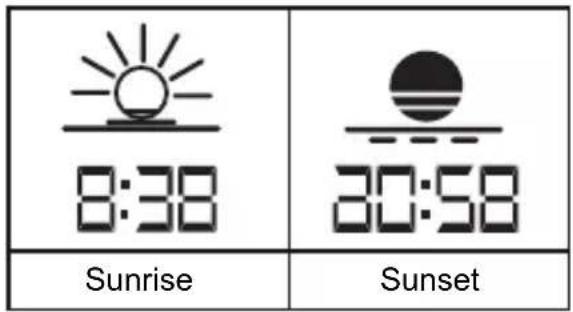
MOON PHASES
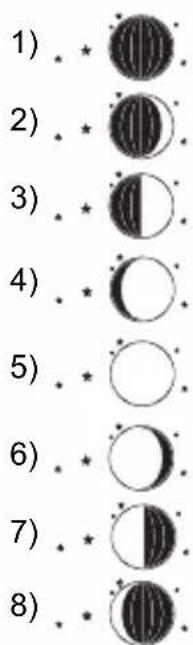
Throughout the 28 days of the lunar month, the aspect of the moon changes. Indeed, the moon, being spherical, is always half lightened up by the sun. As the moon rotates around the Earth, the appearance of its lightened side changes continuously. This phenomenon creates moon phases. The moon phase on your MeteoClock is automatically updated according to the year/ month/day.
Moon Phase Display
- New Moon
- Young Crescent
- First Quarter
- Waxing Gibbous
- Full Moon
- Waning Gibbous
- Last Quarter
- Old Crescent
If you have purchased several remote sensors, you will need to set each sensor on a different channel.
- Press the _CHN key found inside the battery compartment of the remote sensor to select a channel (1 to 4).
- Press this key once to switch to the 2nd channel, etc. The LED indicator will flash each time you press this key.
- Set each remote sensor on a different channel. Channel 1 is used to receive outdoor readings and to activate weather forecast symbols. Please place it outdoors.
Interferences
If your weather station detects other signals from neighbouring sources you will have to set your remote sensor on a different house code (default setting = 1).
- Press the 🔔 key found inside the battery compartment of the remote sensor to select a house code (2-15). Press this key once to change the house code to 2, etc. The LED indicator will flash each time you press this key.
- The remote sensors of each main unit must be set on the same house code.
Manual search (search for remote signals)
If a new sensor is added or a signal is lost (outdoor display will flash), you will have to manually launch the search for each sensor.
- Press and hold down the channel key for 3 seconds.
- A ‘beep’ will sound to indicate that the search function has been activated.
- Each time a remote sensor is detected a "beep" will sound.
- Press the CHANNEL key and check whether the temperature and humidity readings of each sensor are displayed on the screen.
CLOCK MANUAL SETTING
If you do not live in Europe (or fall outside the England or France time zones), you will have to set the time and date manually.
- In CLOCK 1 mode, press and hold down the node key for 3 seconds. The time will begin to flash.
- Press the HOUR+ key to set the time and press the min- key to set the minutes.
- Press the SNOOZ key to select the hour format displayed (12 or 24 hours).
- Press the MODE key to set the date and month.
- Press the HOUR+ key to set the month and the min- to set the date.
- Press the SNOOZE key to activate or deactivate daylight saving time. The DST icon appears when daylight saving time is activated and the clock will move forward by one hour.
- Press the MODE key, the year will flash. Press the HOUR+ or min- key to set the year.
- Press the key to set the city (please refer to the list of abbreviations of the cities found at the end of the manual to find the city closest to your home). Press the + or - key to select the city.
- Press the MODE key to set the altitude. Press the HOUR+ or MODE key to enter the correct altitude and validate your settings by pressing the nin- key.
IMPORTANT NOTICE
Batteries
If the sensor is exposed to extreme temperatures for an extended period of time, the range of transmission of the data may be affected.
Setting up the remote sensors
The remote sensors must be fixed on a smooth surface to ensure that there are no interferences in the data transmission range. The sensor and main unit must not be set up on or near a large metallic surface. Before setting up the sensor at a chosen location, ensure that the main unit receives the signals from this site. It is also recommended that the sensor be placed as close to the main unit as possible in order to avoid any interferences.
Weather Forecast
We cannot guarantee absolute precision with regards the weather forecast. The weather forecast function has a 75% precision rate due to it being created to suit a variety of environments.
TROUBLESHOOTING
Problem:
- The main unit cannot receive radio control DCF-77 or MSF signals to update the clock.
- Temperature reading of outdoor remote sensor seems too high.
- Receiver is no longer receiving remote sensor signals or display.
- An abnormal operation has been observed and certain functions do not work.
Solution:
- Place the clock away from metal objects or electrical appliances such as TVs, computers, monitors, etc. Trigger the scan manually by holding the MIN-key for 3 seconds.
- Wait a few minutes to ensure the remote sensor and receiver are in phase. Otherwise, re-synchronize receiver by holding the CHANNEL key for 3 seconds until a beep is heard.
-
Ensure the remote sensor is out of direct sunlight, and away from sources of heat.
-
Repeat the learning procedures.
-
Temperature may be below -30°C.
- Batteries in remote sensor may need changing.
- Move remote sensor closer to the receiver.
- Make sure remote sensor is away from sources of electrical disturbance.
a- Reset the unit by replacing the batteries in both the transmitters and receiver.
ACCESSORIES
Additional sensors:
Measure temperature and hygrometry in other places!
- Upstairs
- In the baby's bedroom
- In the basement
- In the garden
- In another room
To order, phone the Lexibook office located in your country or browse www.lexibook.com.
SPECIFICATIONS
Weather Station Receiver SM1660
Battery Type: 3 X1.5V AA batteries
Temp. Range: -20^ to +55^
Measurement Accuracy: +/- 1°C Within measuring range of 0 to 40°C
Resolution: 0.1°C
Humidity Range: 15% to 95%
Measurement Accuracy: +/- 5%
Resolution: 1%
Weather Station Transmitter ASM5
Battery Type: 2 X1.5V AAA batteries
Temp. Range: -30^ to +70^
Humidity Range 15% to 95%
Transmission Frequency: 433.92MHz
Transmission Range: Up to 40 meters in open area.
MAINTENANCE
In order to clean the unit, use only a soft cloth moistened with water; do not use any detergent product. Do not dismantle or drop the unit. Remove the batteries if the unit is not going to be used for an extended period of time.
WARRANTY
NOTE: Please keep this instruction manual, it contains important information.
This product is covered by our two-year warranty. To make use of the warranty or the after-sales service, please contact your retailer and supply proof of purchase. Our warranty covers material or installation-related defects attributable to the manufacturer, with the exception of wear caused by failure to respect the instructions for use or any unauthorised work on the equipment (such as dismantling, exposure to heat or damp, etc.).
LEXIBOOK UK Ltd, Unit 10 Petersfield Industrial Estate, Bedford Road, Petersfield, Hampshire, GU32 3QA, United Kingdom, Freephone helpline: 0808 100 3015, http://www.lexibook.com
Environmental Protection
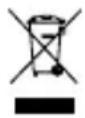
Unwanted electrical appliances can be recycled and should not be discarded along with regular household waste! Please actively support the conservation of resources and help protect the environment by returning this appliance to a collection centre (if available).
DECLARATION OF CONFORMITY
Nous, Lexibook® S.A.
Hereby declare under our full and sole responsibility, that the product:
Name: MeteoClock® Suntime
Reference / type: SM1660
Make: Lexibook®
To which this declaration refers, complies with the essential requirements and any other provisions stated in Directive R&TTE (1999/5/EC) for all that applies to:
RADIOFREQUENCY: EN 300220-1 (V1.3.1 2000-09), EN300220-3 (V1.1.1 2000-09)
CEM (Electromagnetic compatibility): EN 301489-1 (V1.4.1 2002-08),
EN301489-3 (V1.4.1 2002-08)
Additional information:
Certified laboratory being consulted: CETECOM
Technical report available from:
Lexibook, 2 avenue de Scandinavie, 91953 Courtaboeuf cedex
Dated the 29th of March 2006 is suitable for use within the European Union member states.
Julian Chung
QA Manager
2007
CE0682
Copyright © 2007 LEXIBOOK®
CITY COUNTRY CITY CODE
| Berlin Germany BER | ||
| Düsseldorf Germany DUS | ||
| Dresden Germany DRE | ||
| Frankfurt Germany FRA | ||
| Flensburg Germany FLE | ||
| Freiburg Germany FRE | ||
| Hannover Germany HAN | ||
| Bremen Germany BRM | ||
| Hamburg Germany HAM | ||
| Rostock Germany HRO | ||
| Stralsund Germany HST | ||
| Koblenz Germany KOB | ||
| Kiel | Germany | KIE |
| Kassel | Germany KAS | |
| Leipzig | Germany LEZ | |
| München Germany MUE | ||
| Magdeburg | Germany MAG | |
| Nürnberg | Germany | NUR |
| Regensburg | Germany | REG |
| Stuttgart Germany STU | ||
| Saarbrücken | Germany SAA | |
| Schwerin Germany | SCH | |
CITY COUNTRY CITY CODE
| Alborg | Denmark ALB | |
| Arhus Denmark | ARH | |
| Copenhagen | Denmark | CPH |
| Odense Denmark ODE | ||
| Alicante | Spain | ALI |
| Andorra | Spain | AND |
| Badajoz | Spain | BAD |
| Barcelona Spain | BAR | |
| Bilbao | Spain | BIL |
| Cadix | Spain | CAD |
| Cordoba | Spain | COR |
| Ibiza | Spain | IBZ |
| La Coruna Spain | LCO | |
| Leon | Spain | LEO |
| Las Palmas Spain | LPA | |
| Madrid | Spain | MAD |
| Malaga | Spain | MAL |
| Salamanca Spain | SAL | |
| Sevilla | Spain | SEV |
| Valencia | Spain | VAL |
| Zaragoza | Spain | ZAR |
CITY COUNTRY CITY CODE
- Besancon France BES
Besancon France BIA
Bordeaux France BOR
Brest France BRE
Cherbourg France CHE
Clermont Ferrand
France CMF
Lyon France LYO
Marseille France MAR
Monaco France MCO
Metz
France
MET
Nantes
France NAN
Nice
France
NIC
Orléans
France ORL
Paris
France PAR
Perpignan
France
PER
Lille
France LIL
Rouen
France ROU
Strasbourg France STR
Toulouse France
TOU
• Helsinki Finland HEL
CITY COUNTRY CITY CODE
- Aberdeen UK ABD
Belfast UK BEL
Birmingham UK BIR
Bristol UK BRI
Cardiff UK CAR
Edinburgh UK EDH
Glasgow UK GLA
Kingston UK KIN
Liverpool UK LVP
London UK LON
Manchester UK MAN
Newcastle upon UK NUT Tyne
Plymouth UK KIE
• Budapest Hungary BUD
• Zagreb Croatia ZAG
- Ancona Italy ANC
Bari Italy BAI
Bologna Italy BOL
Cagliari Italy CAG
| CITY COUNTRY CITY CODE | ||
| Catania Italy | CAT | |
| Firenze Italy | FIR | |
| Foggia Italy | FOG | |
| Genova Italy | GEN | |
| Lecce Italy | LEC | |
| Messina Italy | MES | |
| Milano Italy | MIL | |
| Napoli Italy | NAP | |
| Palermo Italy | PAL | |
| Parma Italy | PAM | |
| Perrero Italy | PRO | |
| Roma Italy | ROM | |
| Torino | Italy TOR | |
| Trieste | Italy TRI | |
| Venezia | Italy VEN | |
| Verona | Italy VER | |
| Ventimiglia | Italy VTG | |
| Dublin Ireland | DUB | |
| Luxembourg | Luxembourg | LUX |
| CITY COUNTRY CITY CODE | ||
| Bergen | Norway | BGN |
| Oslo Norway | OSL | |
| Stavanger | Norway | STA |
| Amsterdam | Netherlands | AMS |
| Arnhem | Netherlands | ARN |
| Eindhoven | Netherlands | EIN |
| Enschede | Netherlands | ENS |
| Groningen | Netherlands | GRO |
| Den Haag | Netherlands | HAA |
| Rotterdam | Netherlands | ROT |
| Evora Portugal | AVO | |
| Coimbra | Portugal | COI |
| Faro | Portugal | FAR |
| Leiria | Portugal | LEI |
| Lisbon Portugal | LIS | |
| Porto Portugal | POR | |
| Gdansk | Poland | GDZ |
| Krakow Poland | KKW | |
| Poznan | Poland | POZ |
| Szczecin | Poland | SZC |
| Warsaw | Poland | WAW |
CITY COUNTRY CITY CODE
| Krasnodar Russia KRA | ||
| Moscow Russia MOS | ||
| Novosibirsk Russia NOV | ||
| Samara Russia SAM | ||
| St. Petersburg Russia PET | ||
| Ufa Russia UFA | ||
| Vladivostok Russia VLA | ||
| Yekaterinburg Russia YEK | ||
| Gothenburg Sweden GOT | ||
| Malmo Sweden MLO | ||
| Stockholm Sweden STO | ||
| Bratislava Slovakia BRV | ||
| Ljubljana Slovakia LJU | ||
| Berigrade Serbia and Montenegro BEO | ||
| Graz Austria GRZ | ||
| Innsbruck Austria INN | ||
| Linz Austria LNZ | ||
| Salzburg Austria SLZ | ||
| Wien Austria VIE | ||
CITY COUNTRY CITY CODE
| Antwerpen | Belgium | ANT |
| Brugge Belgium | BRG | |
| Bruxelles | Belgium | BRU |
| Charleroi | Belgium | CHA |
| Liege | Belgium LIE | |
| Basel | Switzerland BAS | |
| Bern | Switzerland | BRN |
| Chur | Switzerland | CHR |
| Geneva | Switzerland | GNV |
| Locarno | Switzerland | LOC |
| Lucerne | Switzerland LUC | |
| St Moritz | Switzerland MOR | |
| St Gallen Switzerland SGL | ||
| Sion | Switzerland | SIO |
| Zurich Switzerland ZUR | ||
| Prague | Czech Republic | PRG |
| Athens | Greece ATH | |



Meteoclock® Suntime Manual de uso – SM1660 + ASM5
INTRODUCCIÓN
natural_image
Gray gradient bar with no text or symbols, transitioning from black to white (no text or symbols)

Español
natural_image
Sequence of black-and-white circular patterns with dots, resembling a moon or moon, arranged vertically (no text or symbols)Copyright © 2007 LEXIBOOK®




natural_image
Gray gradient bar with no text or symbols, transitioning from black to white (no text or symbols)

Português
natural_image
Sequence of black-and-white circular patterns with dots above, arranged vertically (no text or symbols)Copyright © 2007 LEXIBOOK®
66
SM1660IM.indd 66 5/14/07 6:02:01 PM




natural_image
Gray gradient bar with no text or symbols, transitioning from black to white (no text or symbols)

Italiano
Descrizione display
natural_image
Sequence of black-and-white circular patterns with dots and stars, no text or symbols presentVISUALIZZAZIONE TEMPERATURA & UMIDITÀ
Copyright © 2007 LEXIBOOK®




Meteoclock® Suntime SM1660 + ASM5 - Bedienungsanleitung
EINLEITUNG
Deutsch
natural_image
Color palette bar with grayscale shades and a central compass icon (no text or symbols)natural_image
Sequence of black-and-white circular patterns with dots above, resembling a moon or moon system (no text or symbols)TEMPERATUR- & LUFTFEUCHTEANZEIGE
Copyright © 2007 LEXIBOOK®
98
SM1660IM.indd 98 5/14/07 6:02:13 PM




natural_image
Gray gradient bar with no text or symbols, transitioning from black to white (no text or symbols)

natural_image
Sequence of black-and-white circular patterns with dots above, resembling a moon or moon system (no text or symbols)Benaming: MeteoClock® Suntime
Referentie / type: SM1660
Merk: Lexibook®
Copyright © 2007 LEXIBOOK®
114
SM1660IM.indd 114

5/14/07 6:02:19 PM



CITY COUNTRY CITY CODE
| Berlin Germany BER | ||
| Düsseldorf Germany DUS | ||
| Dresden Germany DRE | ||
| Frankfurt Germany FRA | ||
| Flensburg Germany FLE | ||
| Freiburg Germany FRE | ||
| Hannover Germany HAN | ||
| Bremen Germany BRM | ||
| Hamburg Germany HAM | ||
| Rostock Germany HRO | ||
| Stralsund | Germany HST | |
| Koblenz Germany KOB | ||
| Kiel | Germany | KIE |
| Kassel | Germany KAS | |
| Leipzig | Germany LEZ | |
| München Germany MUE | ||
| Magdeburg | Germany MAG | |
| Nürnberg | Germany | NUR |
| Regensburg | Germany | REG |
| Stuttgart Germany STU | ||
| Saarbrücken | Germany SAA | |
| Schwerin Germany | SCH | |
CITY COUNTRY CITY CODE
| Alborg | Denmark ALB | |
| Arhus Denmark | ARH | |
| Copenhagen | Denmark | CPH |
| Odense Denmark ODE | ||
| Alicante | Spain | ALI |
| Andorra | Spain | AND |
| Badajoz | Spain | BAD |
| Barcelona Spain | BAR | |
| Bilbao | Spain | BIL |
| Cadix | Spain | CAD |
| Cordoba | Spain | COR |
| Ibiza | Spain | IBZ |
| La Coruna Spain | LCO | |
| Leon | Spain | LEO |
| Las Palmas Spain | LPA | |
| Madrid | Spain | MAD |
| Malaga | Spain | MAL |
| Salamanca | Spain | SAL |
| Sevilla | Spain | SEV |
| Valencia | Spain | VAL |
| Zaragoza | Spain | ZAR |



CITY COUNTRY CITY CODE
| Besancon France BES | ||
| Besancon France BIA | ||
| Bordeaux France BOR | ||
| Brest France BRE | ||
| Cherbourg France CHE | ||
| Clermont Ferrand | France CMF | |
| Lyon France LYO | ||
| Marseille France MAR | ||
| Monaco France MCO | ||
| Metz France | MET | |
| Nantes | France NAN | |
| Nice | France | NIC |
| Orléans | France ORL | |
| Paris | France PAR | |
| Perpignan | France | PER |
| Lille | France LIL | |
| Rouen | France ROU | |
| Strasbourg France STR | ||
| Toulouse France | TOU | |
| Helsinki Finland HEL | ||
CITY COUNTRY CITY CODE
| Aberdeen | UK | ABD |
| Belfast UK | BEL | |
| Birmingham UK | BIR | |
| Bristol | UK | BRI |
| Cardiff UK | CAR | |
| Edinburgh | UK | EDH |
| Glasgow | UK | GLA |
| Kingston | UK | KIN |
| Liverpool | UK | LVP |
| London | UK | LON |
| Manchester | UK | MAN |
| Newcastle upon Tyne | UK | NUT |
| Plymouth | UK | KIE |
| Budapest | Hungary BUD | |
| Zagreb | Croatia ZAG | |
| Ancona | Italy | ANC |
| Bari | Italy | BAI |
| Bologna | Italy | BOL |
| Cagliari | Italy | CAG |



CITY COUNTRY CITY CODE
| Catania Italy | CAT | |
| Firenze | Italy FIR | |
| Foggia | Italy | FOG |
| Genova Italy | GEN | |
| Lecce | Italy LEC | |
| Messina | Italy | MES |
| Milano | Italy MIL | |
| Napoli Italy | NAP | |
| Palermo | Italy | PAL |
| Parma | Italy | PAM |
| Perrero | Italy | PRO |
| Roma | Italy | ROM |
| Torino Italy | TOR | |
| Trieste | Italy TRI | |
| Venezia Italy | VEN | |
| Verona | Italy | VER |
| Ventimiglia | Italy | VTG |
| Dublin | Ireland | DUB |
| Luxembourg | Luxembourg | LUX |
CITY COUNTRY CITY CODE
| Bergen | Norway | BGN |
| Oslo Norway | OSL | |
| Stavanger | Norway | STA |
| Amsterdam | Netherlands | AMS |
| Arnhem | Netherlands | ARN |
| Eindhoven | Netherlands | EIN |
| Enschede | Netherlands | ENS |
| Groningen | Netherlands | GRO |
| Den Haag | Netherlands | HAA |
| Rotterdam | Netherlands | ROT |
| Evora Portugal | AVO | |
| Coimbra | Portugal | COI |
| Faro | Portugal | FAR |
| Leiria | Portugal | LEI |
| Lisbon | Portugal | LIS |
| Porto | Portugal | POR |
| Gdansk Poland | GDZ | |
| Krakow | Poland | KKW |
| Poznan | Poland | POZ |
| Szczecin | Poland | SZC |
| Warsaw | Poland | WAW |




CITY COUNTRY CITY CODE
| Krasnodar Russia KRA | ||
| Moscow Russia MOS | ||
| Novosibirsk Russia NOV | ||
| Samara Russia SAM | ||
| St. Petersburg Russia PET | ||
| Ufa Russia UFA | ||
| Vladivostok Russia VLA | ||
| Yekaterinburg Russia YEK | ||
| Gothenburg Sweden GOT | ||
| Malmo Sweden MLO | ||
| Stockholm Sweden STO | ||
| Bratislava Slovakia BRV | ||
| Ljubljana Slovakia LJU | ||
| Berigrade Serbia and Montenegro BEO | ||
| Graz Austria GRZ | ||
| Innsbruck Austria INN | ||
| Linz Austria LNZ | ||
| Salzburg Austria SLZ | ||
| Wien Austria VIE | ||
CITY COUNTRY CITY CODE
| Antwerpen | Belgium | ANT |
| Brugge Belgium | BRG | |
| Bruxelles | Belgium | BRU |
| Charleroi | Belgium | CHA |
| Liege | Belgium LIE | |
| Basel | Switzerland BAS | |
| Bern | Switzerland | BRN |
| Chur | Switzerland | CHR |
| Geneva | Switzerland | GNV |
| Locarno | Switzerland | LOC |
| Lucerne | Switzerland LUC | |
| St Moritz | Switzerland MOR | |
| St Gallen Switzerland SGL | ||
| Sion | Switzerland | SIO |
| Zurich Switzerland | ZUR | |
| Prague | Czech Republic | PRG |
| Athens | Greece ATH | |
118
IM code: SM1660IM0207