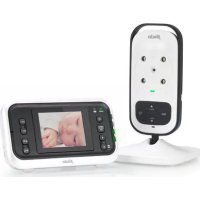
DVM75 - Baby monitors ALECTO - Free user manual and instructions
Find the device manual for free DVM75 ALECTO in PDF.



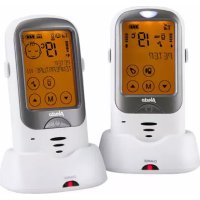
| Product type | Wireless video baby monitor |
| Brand | Alecto |
| Model | DVM75 |
| Parent unit power supply | Rechargeable 3.6V NiMH 800mAh battery or 6V DC 600mA mains adapter (model S005BNV0600060) |
| Baby unit power supply | 6V DC 600mA mains adapter (model S005BNV0600060) |
| Operating frequency | 2407.5 MHz - 2475 MHz (FHSS, 21 channels) |
| Transmission power | < 20 dBm |
| Screen | 2.0" color LCD, QVGA 220x176 pixels |
| Indoor range | Up to 50 meters |
| Outdoor range (open field) | Up to 300 meters |
| Night vision | Yes, automatic infrared LED (range approx. 2 meters) |
| Temperature indicator | Yes, from 0°C to 50°C, accuracy ±2°C at 25°C, alerts <14°C and >30°C |
| Digital zoom function | Yes, with image pan (up/down/left/right) |
| Intercom | Yes, TALK button on parent unit |
| Multi-camera | Up to 4 cameras (optional model DVM-75C) |
| Feeding timer | Reminder configurable after 2, 3, 4, 5 or 6 hours |
| Automatic sound alert | Beep every minute if baby cries >1 min with volume at 0 |
| VOX function (sound-activated) | Yes, adjustable sensitivity (v1 to v4) |
| Automatic display switching | Adjustable shut-off (5 min, 30 min, 1 hour) and reactivation upon sound |
| Sound indicators | 4 visual levels on screen |
| Parent unit charging time | Approx. 10 hours (initial full charge: 15 hours) |
| Battery life (parent unit) | 6 to 10 hours depending on usage |
| Warranty | 24 months from date of purchase |
| Usage | Indoor only (complies with restrictions France, Italy, etc.) |
| Wall mounting | Possible (drilling required, spacing 5.7 cm) |
Frequently Asked Questions - DVM75 ALECTO
User questions about DVM75 ALECTO
0 question about this device. Answer the ones you know or ask your own.
Ask a new question about this device
Download the instructions for your Baby monitors in PDF format for free! Find your manual DVM75 - ALECTO and take your electronic device back in hand. On this page are published all the documents necessary for the use of your device. DVM75 by ALECTO.
USER MANUAL DVM75 ALECTO
- - ( + (incl .) .
model: S005BNV0600060
Voeding baby-unit: 6VDC 600mA voedings
adapter = -(-) + (incl.)
model: S005BNV0600060
Frequentie: 2407.5MHz ~2475MHz
(FHSS) / 21 kanalen
TX power: < 20 dBm.
Display: 2.0" color LCD display
QVGA 220*176 pixels
Oplaadduur accu ouder-unit: +/- 10 uu r (*)
Manufacturers name and address : Ten Pao Industrial Co.,
Ltd, Room 10-11, 6/F., Kwong Sang Hong Centre, 151-153 Hoi
Bun Road, Kwun Tong, Kowloon, Hong Kong
Model Identifier : S005BNV0600060
Output voltage: 6.0V DC
Output current: 0.6 A
Output Power: 3.6 W
Average active efficiency : 77.6 %
Efficiency at low 10% load: -
No load Power consumption: 0.04 W

MODE D'EMPLOI
INDEX
1 INTRODUCTION 3
2 FONCTIONS
2.1 UNITE BEBE 3
2.2 UNITE PARENT 4
2.3 ICONES SUR L'ECRAN 5
3 INSTALLATION
3.1 UNITE BEBE 7
3.2 UNITE PARENT 8
4 UTILISATION
4.1 UNITE BEBE
Marche/arrêt 10
Volume 10
Manufacturers name and address : Ten Pao Industrial Co.,
Ltd, Room 10-11, 6/F., Kwong Sang Hong Centre, 151-153 Hoi
Bun Road, Kwun Tong, Kowloon, Hong Kong
Model Identifier : S005BNV0600060
Output voltage: 6.0V DC
Output current: 0.6 A
Output Power : 3.6 W
Average active efficiency : 77.6 %
Efficiency at low 10% load: -
No load Power consumption: 0.04 W

Service

Help



WWW.AECTO.NL SERVICE@AECTO.NL

Commaxx B.V.
Wiebachstraße 37
6466 NG, Kerkrade
The Netherlands
USER MANUAL
CONTENTS
1 INTRODUCTION 3
2 FUNCTIONS OVERVIEW
2.1 BABY-UNIT 3
2.2 PARENT UNIT 4
2.3 ICONS ON THE DISPLAY 5
3 INSTALLATION
3.1 BABY-UNIT 7
3.2 PARENT UNIT 8
4 USE
4.1 BABY-UNIT Switching on/off 10 Volume 10
Automatic night vision 10
4.2 PARENT UNIT Switching on/off.. 10
Volume 10
Talk back 11
Zoom function 11
Temperature display 11
Multi-camera 11
Switching the display on/off manually 12
Sound indicators 12
4.3 MENU OPERATED FUNCTIONS Brightness 12
Feeding timer 12
Add camera 13
Remove camera 13
Switching the display on/off automatically 13
Alert sounds on/off 14
Switching sound on/off automatically. 14
5 MULTICAMERA
5.1 INTRODUCTION 15
5.2 REGISTERING ADDITIONAL CAMERAS 15
5.3 LOG OUT ADDITIONAL CAMERAS 15
6 TIPS AND WARNINGS
6.1 GENERAL 16
6.2 INSTALLATION 16
6.3 INTERFERENCE-FREE 16
6.4 EAVESDROPPING/WIRETAPPING 17
6.5 MAINTENANCE 17
6.6 RANGE 17
6.7 DELAY IN IMAGES AND SOUND 17
6.8 ENVIRONMENT AND DISCARDING 17
6.9 PROBLEMS 18
7 SPECIFICATIONS 18
8 WARRANTY 19
1 INTRODUCTION
The Alecto DVM-75 is a wireless audio/video baby monitor, suitable for private use indoors.
You can either watch and listen continuously or you can have the baby monitor switch on automatically as soon as your baby starts crying.
DECLARATION OF CONFORMITY
Hereby, Commaxx declares that the radio equipment type Alecto DVM-75 is in compliance with directive 2014/53/EU. The full text of the EU declaration of conformity is available at the following internet address: http://DOC.hesdo.com/DVM-75-DOC.pdf
Use of this equipment is allowed in all countries of the EU. In France, Italy, Russia and Ukraine, only indoor use is allowed.
2 FUNCTIONS OVERVIEW
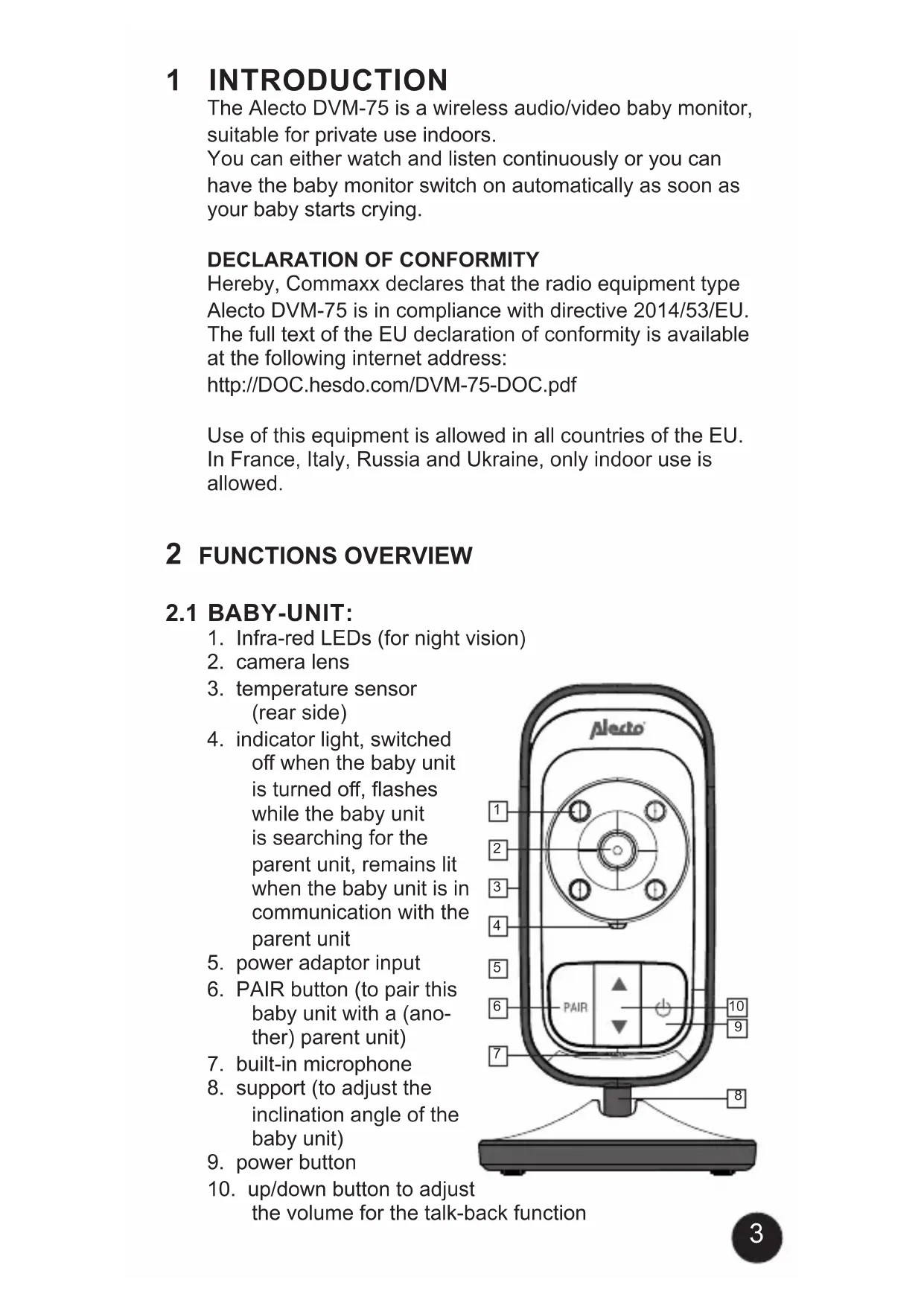
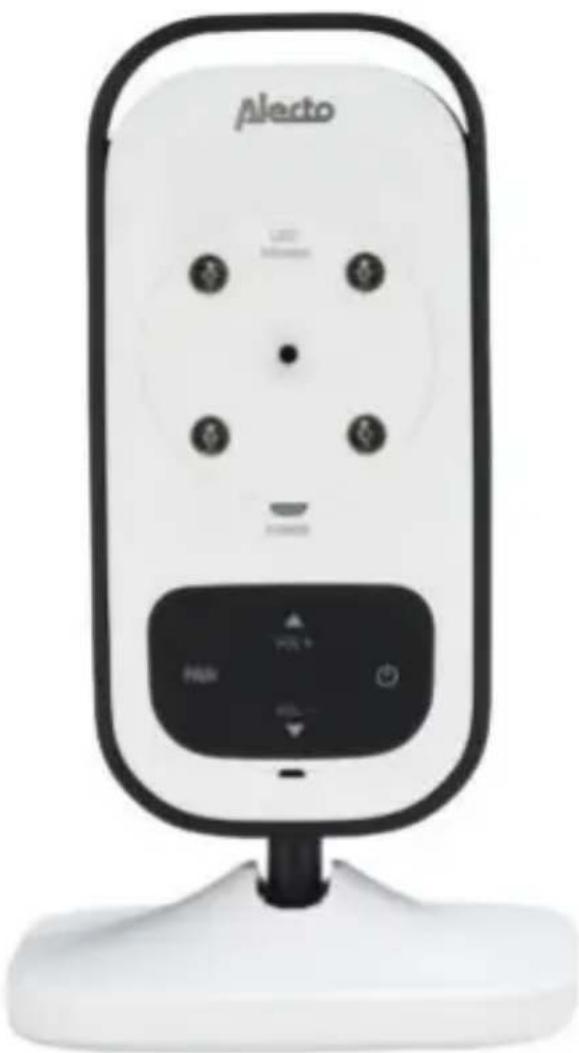
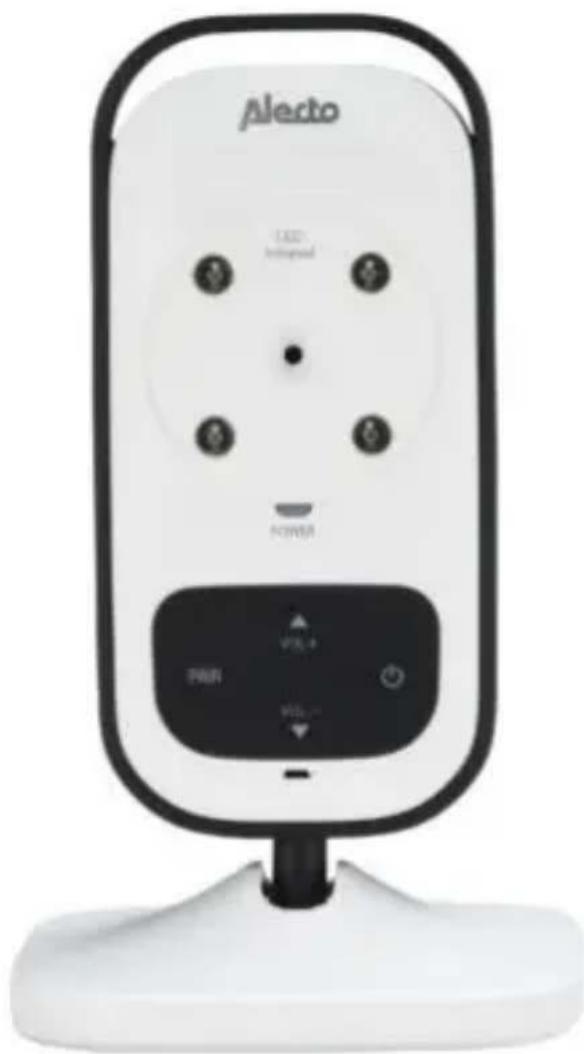
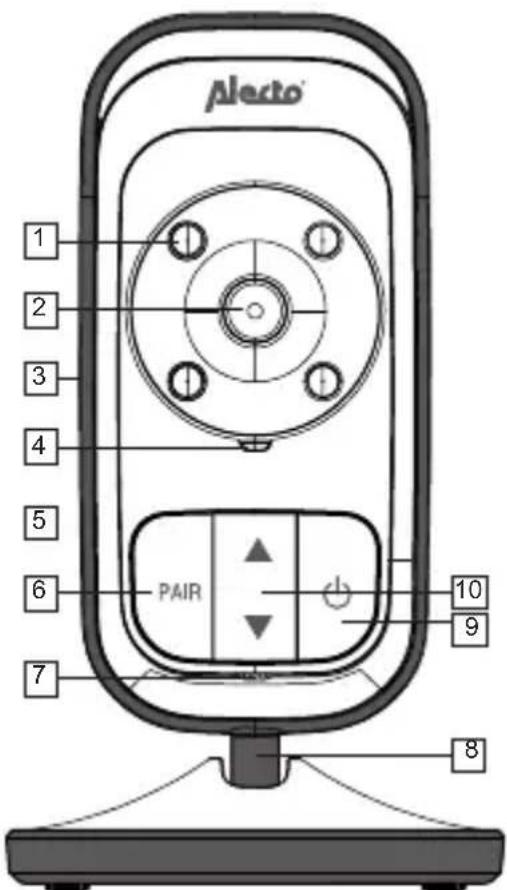
2.1 BABY-UNIT:
-
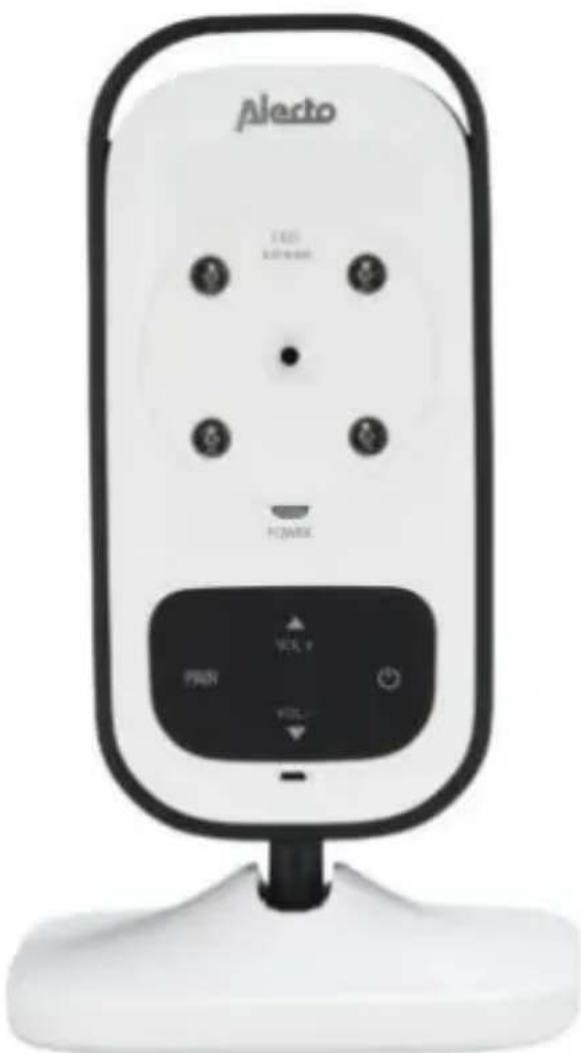
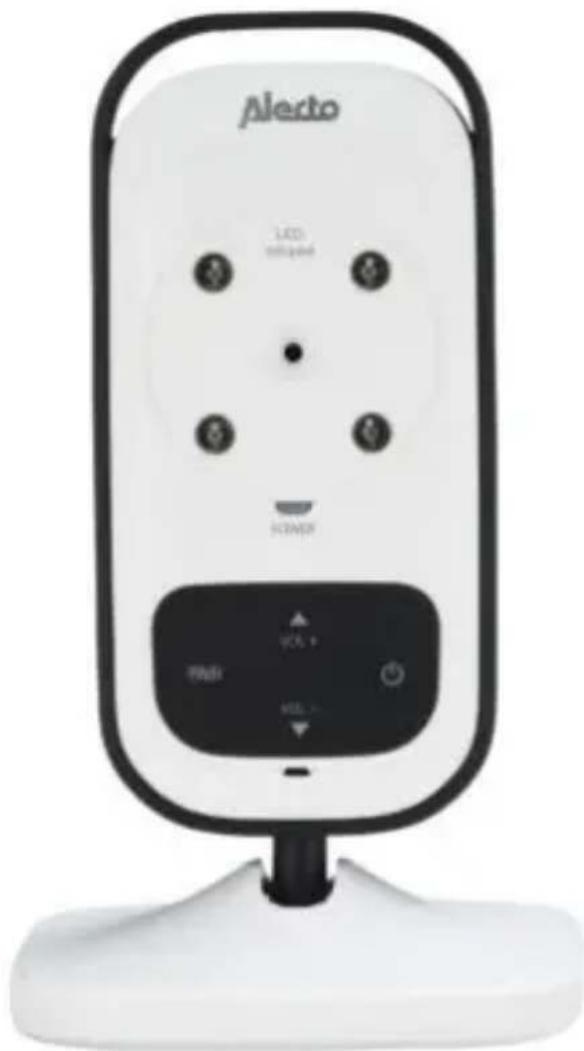
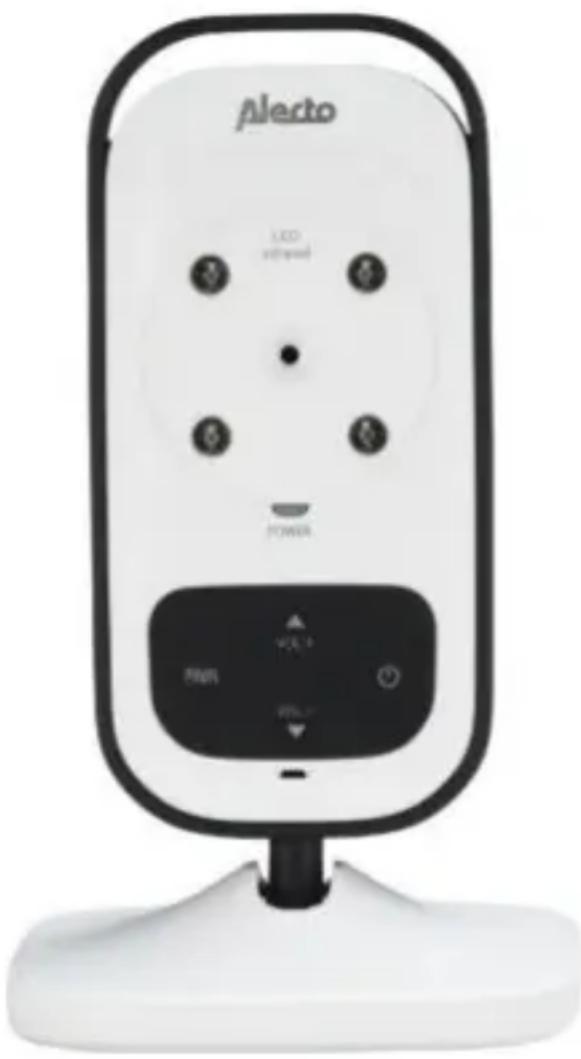
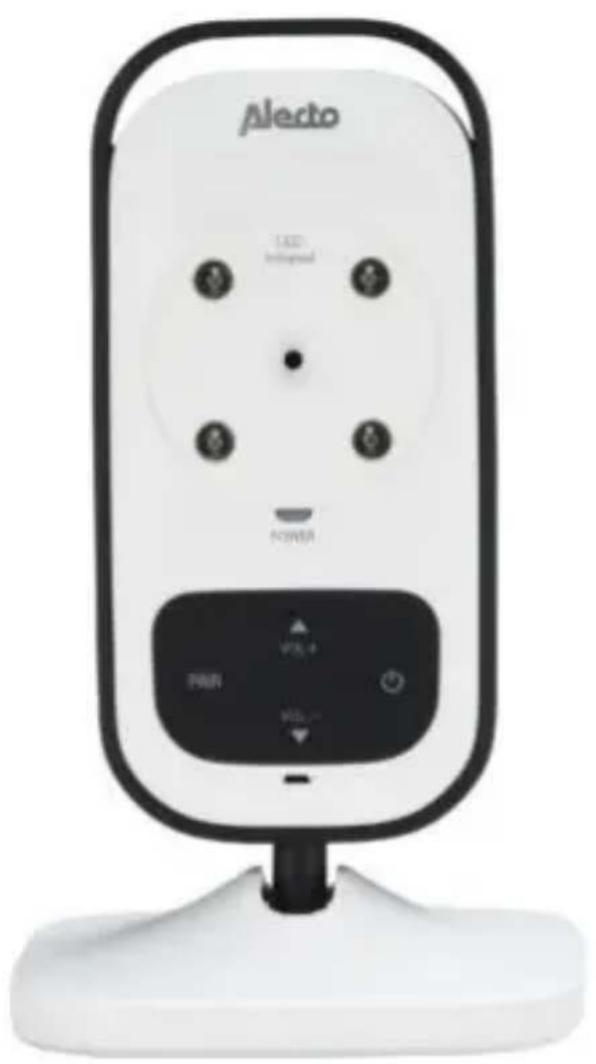
Infra-red LEDs (for night vision)
-
camera lens
-
temperature sensor (rear side)
-
indicator light, switched off when the baby unit is turned off, flashes while the baby unit is searching for the parent unit, remains lit when the baby unit is in communication with the parent unit
-
power adaptor input
-
PAIR button (to pair this baby unit with a (another) parent unit)
-
built-in microphone
-
support (to adjust the inclination angle of the baby unit)
-
power button
-
up/down button to adjust the volume for the talk-back function
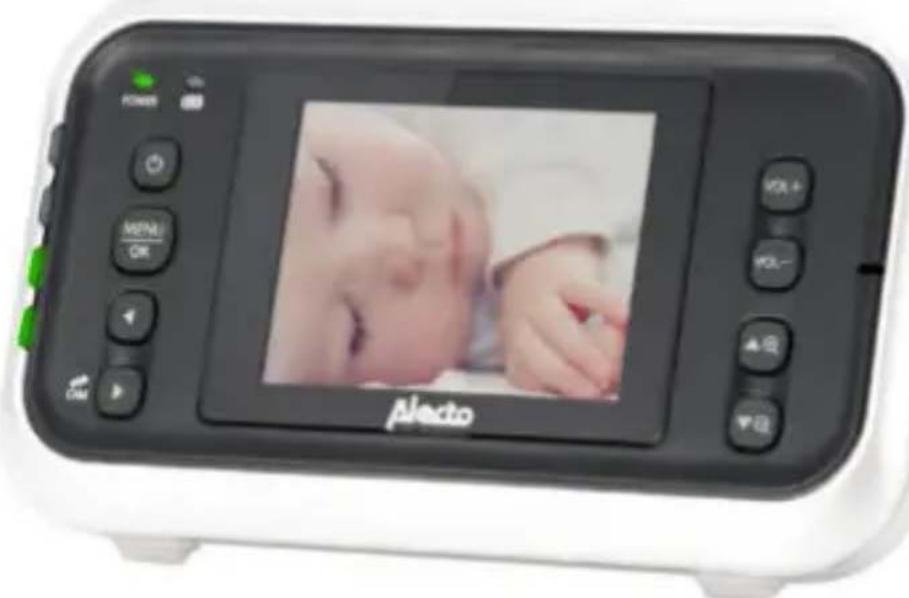
2.2 PARENT UNIT:

- in menu mode to scroll the setup options / in zoom mode press and hold to view to the right / for multi-camera: go to the next camera
- in menu mode to scroll the setup options / in zoom mode press and hold to view to the left
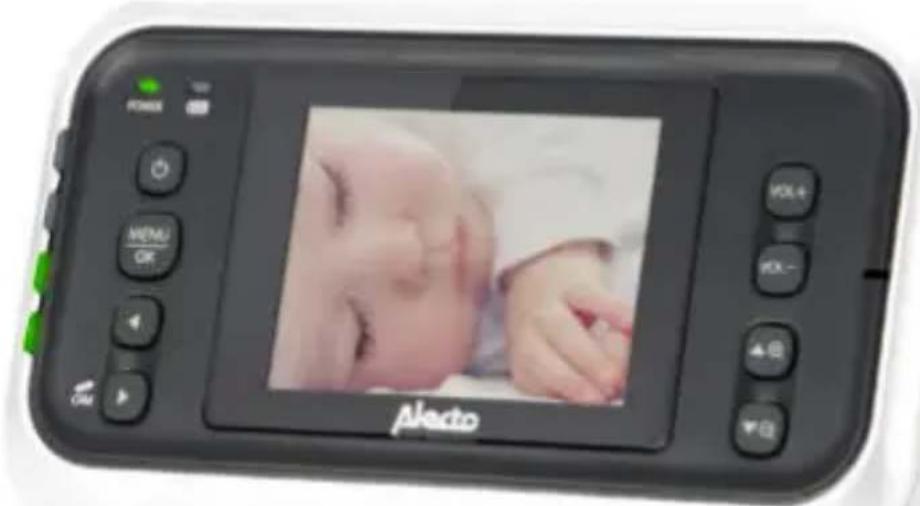
- menu/OK button
- visual sound indication
- power button, press and hold for 2 seconds to turn the parent unit on or off
- power indicator
-
battery indicator
-
continuous red while the battery is being charged or kept on sufficient power
-
flashes red when the battery is nearly exhausted
-
Battery compartment
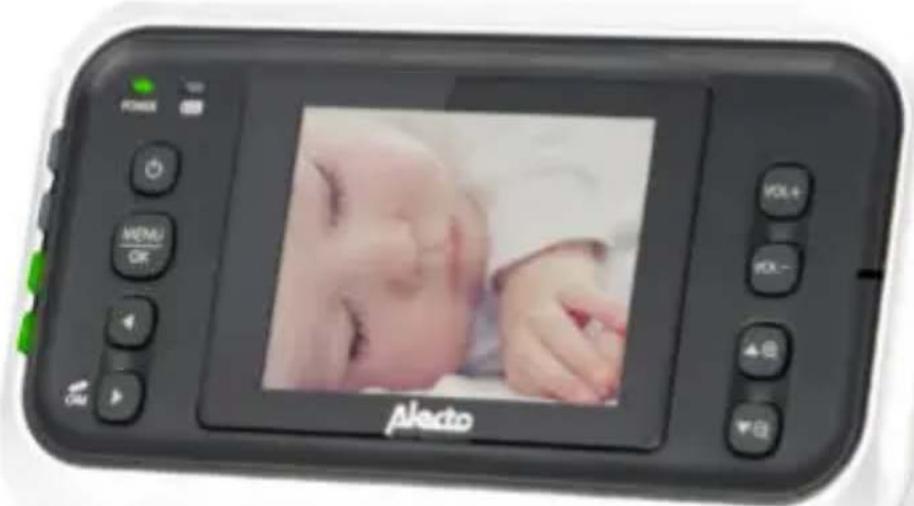
- display
- LCD ON/OFF: press briefly to turn the display on or off
- talk-back button towards the baby unit
- increase reception volume
- decrease reception volume
14.microphone - zoom in / in menu mode to scroll through the setup options / in zoom mode press and hold to view up
- power adaptor input
- zoom out / in menu mode press to scroll through the setup options / in zoom mode press and hold to view down
2.3 ICONS ON THE DISPLAY:
upper part of the display, during normal use
indicates the reception strength:
strongreception
good reception
average reception
bad reception
minimum reception
D4, 2or3indicates which camera you're watching, when using only one camera this is always D4
indicates that the surveillance mode' is enabled (only applies when using multiple cameras, the images are shown one after the other)
indication that the zoom mode is activated
indicates that the IR lighting is enabled for night vision
volume set to 0 (speaker turned off)
1, 2, or Indication of the set VOX level (automatic activation when the baby is crying), for this refer to chapter 4.3
temperature display of the baby room
battery indication:
battery is empty
battery is full
animation while the battery is charging
- appears when the adaptor is connected and the battery is not or incorrectly installed
icons on the display during setup:
in this menu, you can set the display brightness
in this menu, you may set the feeding timer, for this refer to chapter 4.3
in this menu, you can register additional cameras on the receiver, see chapter 5

in this menu, you may deregister registered cameras,
see chapter 5

in this menu, you may determine after which period of
time the display should switch off, for this refer to chapter
4.3

in this menu, you may have the unit sound a beep tone
when the baby is crying loudly and for a long time while
the speaker of the baby monitor is switched off, see also
chapter 4.3

in this menu, you may set the sensitivity level for the
VOX function, see also chapter 4.3
Other:

no connection with a camera
3 INSTALLATION
3.1 BABY-UNIT:
Power:
- Connect one of the supplied 6V power adaptors to the 6V DC input of the baby unit.
- Insert the adapter into a 230V wall socket.
Only use the supplied power adaptor with model number S005BNV0600060.
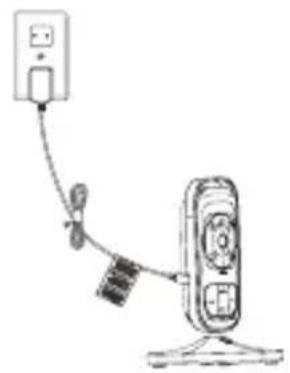
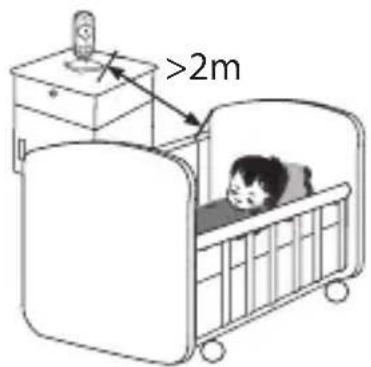
When used as a baby monitor: Make sure the baby cannot reach the baby unit or wire. Place the baby unit at least 2 meters away from the baby and you can bundle cables that are too long with tape or
cable ties available specifically for this purpose.
Wall-mounting:
Drill two holes next to each other in the wall, separated by a distance of 5.7cm and insert plugs and screws. The head of the screw should stick out of the wall for several millimeters.
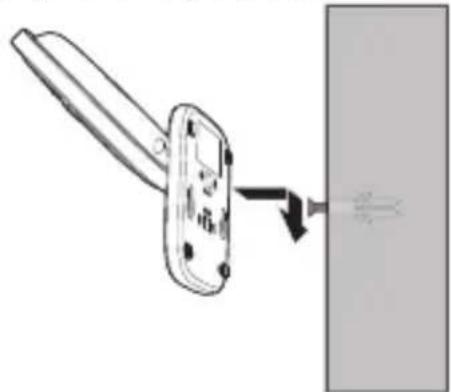
Slide the foot of the baby unit over the screws and then press the baby unit a little downwards.
Tips for placement:
- For use as a baby monitor: place the baby unit at least 2 meters away from your baby and make sure to safely tuck away the adapter cable.
- For optimal range, it is advisable to set up the baby unit as high as possible, free from large metal surfaces.
- The temperature protrudes from the rear of the baby unit. Make sure this sensor hangs freely, unexposed to direct sunlight and avoid heat from e.g. light bulbs.
- The baby unit is not waterproof. When using outdoors, make sure to protect the baby unit against moisture
and sand.
3.2 PARENT UNIT:
Power supply:
The parent unit can be powered directly by the included rechargeable battery or via the supplied power adapter. As soon as you connect the power adapter, it will charge the battery allowing for mobile use of the parent unit.
Battery:
-
Open the battery compartment by sliding off the battery cover at the rear of the unit.
-
Connect the battery plug in the battery com
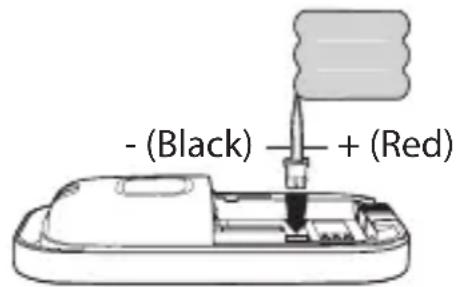
partment according to the figure and install the battery.
- Slide the battery cover back onto the parent unit.

Never connect the plug or install the battery by force. Only install the supplied rechargeable NiMH battery (3.6V, 800mAh).
Power adapter:
- Connect the other 6V power adapter to the DC6V input on the side of the parent unit.
- Insert the adapter into a 230V wall socket.

Only use the supplied power adaptor with model number S005BNV0600060.

You can recharge the battery with the parent unit either switched on or off, although charging the battery with the parent unit switched off will take less time.
Charging:
The battery will be charged as soon as you connect the power adapter and insert it into a 230V wall socket.
- For initial use, charge the battery for at least 15 hours, even if the indicator shows a fully charged battery.
- The charging circuit for the battery is managed electronically and there is no risk of overcharging, this allows you to leave the adapter connected at all times.
- In case you will not use the set for a longer period of time (>2 months), please make sure to disconnect the adapter from the wall socket and remove the battery from the parent unit. When starting to use the set again, make sure to properly charge the battery.
- Make sure nobody can trip or fall over the adapter cable. You can bundle cables that are too long with tape or cables ties available specifically for this purpose.
Battery indication:
Upper part of the display: (only with the parent unit switched on)
- : no battery installed, parent unit is powered directly through the adaptor
:batteryisfull
:battery is nearly empty -
battery is charging
Middle part of the display: (only with the parent unit switched on)
- this symbol appears for several seconds every minute in the last hour before the battery is exhausted.
Indicator on the parent unit:
- flashes in red: battery nearly empty
- continuous red: battery is being charged or kept on a sufficient level
4 USE
4.1 BABY-UNIT:
Switching on/off:
press briefly to switch on
press and hold for 2 seconds to turn off
The green indicator on the baby unit flashes while the baby unit is trying to establish a connection with the parent unit, this
indicator remains lit when the connection is successful.
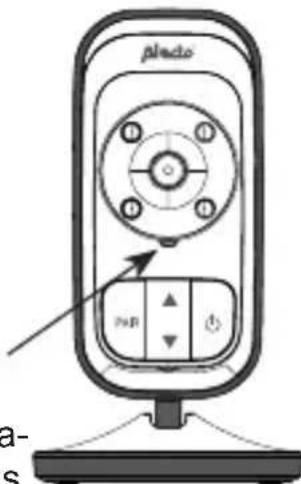
Volume:
Use the and buttons to adjust the reception volume for the talk-back function from the parent unit.
Automatic night vision:
The baby unit is provided with built-in infra-red LEDs; these LEDs will switch on automatically when the baby room turns dark and will switch of again when it becomes light.
The LEDs can illuminate objects up to a distance of approximately 2 meters.
When it's dark, that is when the night vision LEDs are switched on, the images on the parent unit will be displayed in black and white.
Attention: infra-red light cannot be perceived by the human eye; that means you cannot tell whether the infra-red LEDs are switched on with the naked eye.
Depending on the type of the infra-red LED, you might be able to see a red glow.
4.2 PARENT UNIT:
Switching on/off:
press briefly to switch on
press and hold for 2 seconds to turn off
Volume:
Use the VOL+ and VOL- buttons to set the loudness of the sounds from the baby room that you hear through the speaker of the parent unit
While adjusting, the volume level will be indicated on the display and the icon will appear in the upper part when the volume level is set to 0 (no sound).
Talk back:
With the display switched on, press the TALK button to talk back to your baby. Keep the button depressed for as long as you are speaking and release the button to listen.
You can adjust the volume at the baby unit using the or buttons.
Zoom function:
Press the button to turn on the zoom function (moving the image somewhat closer) and press the 己 button to turn off the zoom function.
When the zoom function is switched on, the icon will appear in the upper part of the display.
With the zoom function activated, press and hold the , or button to move the image to the left, to the right, up or down (attention: the camera doesn't actually move, the display merely shows another part of the available image).
Temperature display:
The upper right corner of the parent unit's display shows the temperature of the baby's room.
This display has a range of 0°C to 50°C

Don't forget that the temperature is only an indication.


These alerts appear at temperatures below 14°C e 30°C
Multi-camera: (also see chapter 5)
If you've registered multiple cameras on the parent unit, press the button to view the images of the next camera.
The upper part of the display shows which camera you're watching (D, D or B)
If is shown in the upper part of the display, then the images of all registered cameras are shown one after the other for approx. 18 seconds.

The unit does NOT automatically switch to a camera where sound is being detected.
Switching the display on/off manually:
Briefly press the LCD ON/OFF button to turn off the display. Press the LCD ON/OFF button again to turn the display back on.
When the baby starts crying, the display is switched on automatically.
Sound indicators:
To the left of the screen 4 sound indicators indicate whether the baby is crying by starting to flash. In this way you can monitor your baby also when the volume is set to a low level or even turned off or when the baby monitor is somewhat further removed in the room.
4.3 MENU OPERATED FUNCTIONS:
You can open the menu by pressing the MENU button. Use the or button to select the desired menu and use the and buttons to adjust settings.
When finished, press the MENU button to save your settings and to leave the menu.
Brightness:
- Press the MENU button and use the or button to select the option.
- Press the and buttons to decrease or increase the display brightness.
- Press the MENU button to save your settings and leave the menu.
Feeding timer:
As a reminder that it's feeding time, you may have the baby monitor sound an alert after 2, 3, 4, 5 or 6 hours.
- Press the MENU button and use the or button to scroll to the option.
- Use the and buttons to make the option illuminate in red and then press MENU
- Now use the and buttons to set the amount of hours until the next feeding time and press MENU
You may disable this function again by repeating these instructions, but for step 2 you make the option illuminate in red.
Add camera (menu

Refer to chapter 5 for a detailed description of this function
Remove camera (menu

Refer to chapter 5 for a detailed description of this function
Switching the display on/off automatically:
In this menu you may have the display switch off after an adjustable delay. As soon as the baby starts crying, the display is switched back on again.
Use this menu to adjust the moment for deactivation:
- Press the MENU button and use the or button to
scroll to the option.
- Use the and buttons to set the delay:
X: display will NOT be switched offd
- 5 min: the display is switched off after 5 minutes
- 30 min: the display is switched off after 30 minutes
- 1 H: the display is switched off after 1 hour
- Press the MENU button to save your setting and to leave the menu
The display is switched back on again as soon as the baby starts making noises. Refer to the instructions under 'Switching the sound on/off automatically' for setting the activation sensitivity.
When the display is turned off because no sound is being detected, but you would still like to check, you can press the LCD ON/OFF button to temporarily switch on the display. Press the LCD ON/OFF button again to turn the display off.
In this way you can switch off the display beforehand without waiting for the delay duration to elapse.
Alert sounds on/off:
In case you've turned off the sound (volume at 0), but the baby has been crying for over 1 minute, the baby monitor can still alert you to these noises by sounding an alert tone every minute.
- Press the MENU button and use the button to
scroll to the option.
- Use the and buttons to choose between:
BEEP illuminated in red: this function is enabled
BEEP illuminated in red: this function is disabled
- Press the MENU button to save your setting and to leave the menu.
Switching sound on/off automatically: (VOX)
You can set the parent unit loudspeaker to turn off when the baby is sleeping quietly and the baby unit is not detecting any sound, and turning on again as soon as the baby starts to cry.
Here you can set the trigger level for turning on the loudspeaker:
- Press the MENU button and use the or button to
scroll to the option
-
Use the and buttons to decrease or increase the sensitivity level.
-
Press the M ENU button to save your settings and leave the menu.
-
On top of the screen you can see the level you just selected:
-
v1: low sensitivity, the speaker turns on only when loud sounds are being detected
-
v2 - v4: in-between-steps, we suggest to try the best level in practice
-
v5: maximum sensitivity, the speaker remains switched on
5 MULTI CAMERA
5.1 INTRODUCTION:
You can register up to a maximum of 4 baby units (cameras) on the DVM-75 parent unit. Separate cameras are available via the service department of Alecto via internet www.alecto.nl
Order nr.: DVM-75C
See paragraph 4.2 (Multi-camera) for instructions on how to switch to the image from other cameras.
5.2 REGISTERING ADDITIONAL CAMERAS:
-
Connect the power adaptor supplied with the camera to the new camera and turn the camera on (also see paragraph 3.1 of this manual).
-
Press the MENU button on the parent unit and use the
or button to select the option.
-
Use the and buttons to select the number you want to assign the camera to and press the MENU button.
-
An hourglass will appear on the display to indicate that the parent unit is currently searching for the new camera.
-
Press and hold the PAIR button on the baby unit until after 10 seconds the image of the new camera appears on the display of the parent unit.
The new camera is now registered and ready for use.
5.3 LOG OUT ADDITIONAL CAMERAS:
Follow the steps below to deregister faulty cameras or cameras no longer in use:
- Press the MENU button on the parent unit and use the
or button to select the option; the display will now show the numbers of all registered cameras.
-
Use the and buttons to select the camera you want to deregister.
-
Press the MENU button, X and V appear on the display.
-
Use the and buttons to select the V option to deregister the camera (or select X to cancel the deregistration)
-
Press the MENU button to confirm the deregistration.
6 TIPS AND WARNINGS
6.1 GENERAL:
- Thoroughly read the user's manual and follow all indications.
- Never place the baby unit or parent unit in wet or humid room or environment.
- Ensure adequate heat dissipation; never cover the parent unit, the baby unit and/or the power adapter(s) and never place them directly next to a heat source.
- Only use the supplied adapter(s); connecting a different type of adapter will damage the electronics.
- Make sure the adapter cables are free of any damage and ensure nobody can trip or fall because of these cables.
- Never dismantle the parent unit, the baby unit and/ or the power adapter(s); only qualified personnel is authorized to do so.
6.2 INSTALLATION:
- Only connect or disconnect the power adapter to/from the baby unit or parent unit when the power adapter is removed from the wall socket.
- Never install the DVM-65 during thunder storms.
- Never touch any non-isolated adapter cables, unless the adapters are removed from the wall socket.
6.3 INTERFERENCE-FREE:
- This baby display monitor is digitally coded. This means you will never receive signals from other devices, nor can the signal from your baby unit(s) be received by e.g. your neighbors.
- In case the baby unit(s) or parent unit is placed in or in the close vicinity of electromagnetic fields, the signal (images or sound) can be slightly affected. If this happens, try a different location for the baby unit(s) or parent unit or move, if possible, the source of the interference.
6.4 EAVESDROPPING/WIRETAPPING:
- Eavesdropping/wiretapping of the signals from this baby video monitor is nearly impossible. Not only must one be within range of the baby video monitor, one also needs some very costly equipment.
6.5 MAINTENANCE:
- Only clean the baby monitor with a moist cloth; never use chemical cleaners. Before any cleaning, you must disconnect the adapters.
6.6 RANGE:
- The baby display monitor has a range of up to 300 meters in an open field and up to 50 meters indoors; this range depends on local circumstances. When the units get out of range from each other, the display will first 'freeze' for several seconds (no motion), followed by x .
6.7 DELAY IN IMAGES AND SOUND:
- The baby unit transmits the images and sound to the parent unit in digital blocks. The parent unit converts these signals back to a recognizable image and a comprehensible sound. Therefore, there is a small delay between the moment of movement and making sounds and the display and sounds of the parent unit.
Besides that, the sounds and images on the parent unit are not exactly simultaneous.
6.8 ENVIRONMENT AND DISCARDING:
- The packaging of this baby video monitor can be discarded as waste paper. However, we advise you to save this packaging so you can adequately protect the devices for transportation.
- Faulty or exhausted batteries or battery packs should be taken to your local depot for small chemical waste or to dedicated battery collection points. Never dispose of batteries or battery packs as normal household waste.
- In case the baby video monitor is being replaced, please return it to your supplier; they will guarantee environment-friendlyly processing.
6.9 PROBLEMS:
- no image, no sound:
- are the parent unit and baby unit switched off? (battery charged, battery full?)
- is the parent unit within range of the baby unit?
- is the baby unit switched off because no sound is being detected?
- maybe the display of the parent unit is turned off with the LCD ON/OFF button?
-
is the volume at the parent unit set to 0 (off)?
-
If the above is all in order, remove the adapters from the wall sockets, take the rechargeable battery out of the parent unit, wait at least one minute and then reconnect everything. Now, switch the parent unit and baby unit back on.
- If you still receive no images or sound, please contact the customer service of Alecto via internet www.alecto.nl
7 SPECIFICATIONS
Range: up to 50 meters indoors
up to 300 meters outdoors
Parent unit power: 3.6V NiMH battery pack, 800mAh
6VDC 600mA power adapter
(incl.)
-(+
model: S005BNV0600060
Baby unit power: 6VDC 600mA power adapter
-+ (incl.)
model: S005BNV0600060
Frequency: 2407.5MHz ~2475MHz
(FHSS) / 21 channels
TX power: < 20 dBm
Display: 2.0" color LCD display
QVGA 220*176 pixels
Recharging time parent unit battery: +/- 10 hours (*)
Life-span parent unit battery: 6~10 hours (*)
Temperature sensor range: 0°C - 50°C
Accuracy: ± 2°C (bij 25°C )
*: the times mentioned above are references only and depend on the usage, condition and quality of the batteries.
8 WARRANTY
For the Alecto DVM-75 you have a warranty of 24 months from the date of purchase. During this period, we guarantee the free repair of defects caused by material and workmanship errors. All this subjected to the final assessment of the importer.
HOW TO HANDLE: If you notice any defect, first refer to the user's manual. If the manual provides no definite answer, please contact the supplier of this baby video monitor or contact customer service of Alecto via the Internet www. alecto.nl
THE WARRANTY BECOMES NULL AND VOID: in case of improper use, incorrect connections, leaking and/or incorrectly installed batteries, use of unoriginal parts or accessories, negligence and in case of defects caused by moisture, fire, flooding, lightning and natural disasters. In case of unauthorised modifications and/or repairs performed by third parties. In case of incorrect transportation of the device without adequate packaging and when the device is not accompanied by this warranty card and proof of purchase.
The warranty does not cover connecting cables, plugs and batteries. All further liability, especially concerning any consequential damages, is excluded.
Information Power Adapter:
Manufacturers name and address : Ten Pao Industrial Co.,
Ltd, Room 10-11, 6/F., Kwong Sang Hong Centre, 151-153 Hoi
Bun Road, Kwun Tong, Kowloon, Hong Kong
Model Identifier : S005BNV0600060
Output voltage: 6.0V DC
Output current : 0.6 A
Output Power : 3.6 W
Average active efficiency : 77.6 %
Efficiency at low 10% load : -
No load Power consumption: 0.04 W

Service

Help



WWW.ALECTO.NL
SERVICE@ALECTO.NL

Commaxx B.V.
Wiebachstraße 37
6466 NG, Kerkrade
The Netherlands
BEDIENUNGSANLEITUNG

INHALT
1 EINFUHRUNG 3
2.3 SYMBOLE AUF DEM DISPLAY:
temperature display of the baby room
Akkuanzeige:
Akku ist leer
Akku ist voll
In this menu..., Sie den Zeitpunkt der Aktivierung...(^{1})...(^{2})...(^{3})...(^{4})...(^{5})...(^{6})...(^{7})...(^{8})...(^{9})...(^{10})...(^{11})...(^{12})...(^{13})...(^{14})...(^{15})...(^{16})...(^{17})...(^{18})...(^{19})...(^{20})...(^{21})...(^{22})...(^{23})...(^{24})...(^{25})...(^{26})...(^{27})...(^{28})...(^{29})...(^{30})...(^{31})...(^{32})...(^{33})...(^{34})...(^{35})...(^{36})...(^{37})...(^{38})...(^{39})...(^{40})...(^{41})...(^{42})...(^{43})...(^{44})...(^{45})...(^{46})...(^{47})...(^{48})...(^{49})...(^{50})...)^{(1)}(\cdots) (in)(\cdots)
Manufacturers name and address : Ten Pao Industrial Co.,
Ltd, Room 10-11, 6/F., Kwong Sang Hong Centre, 151-153 Hoi
Bun Road, Kwun Tong, Kowloon, Hong Kong
Model Identifier : S005BNV0600060
Output voltage: 6.0V DC
Output current: 0.6 A
Output Power : 3.6 W
Average active efficiency : 77.6 %
Efficiency at low 10% load : -
No load Power consumption: 0.04 W

Service

Help



WWW.ALECTO.NL
SERVICE@ALECTO.NL
Commaxx B.V.
Wiebachstraße 37
6466 NG, Kerkrade
The Netherlands
MANUAL DEL USUARIO

CONTENIDO
1 INTRODUCCION 3
2 DESCRIPCION GENERAL DE LAS FUNCIONES
2.1 UNIDAD DEL BEBÉ 3
2.2 UNIDAD DE LOS PADRES 4
2.3 ICONOS EN LA PANTALLA 5
3 INSTALLACION
3.1 UNIDAD DEL BEBÉ 7
3.2 UNIDAD DE LOS PADRES 8
4 UTILIZACION
4.1 UNIDAD DEL BEBÉ
Manufacturers name and address : Ten Pao Industrial Co., Ltd,
Room 10-11, 6/F., Kwong Sang Hong Centre, 151-153 Hoi Bun
Road, Kwun Tong, Kowloon, Hong Kong
Model Identifier : S005BNV0600060
Output voltage: 6.0V DC
Output current : 0.6 A
Output Power : 3.6 W
Average active efficiency : 77.6 %
Efficiency at low 10% load: -
No load Power consumption: 0.04 W
Alecto®
Service
Help



WWW.ALECTO.NL
SERVICE@ALECTO.NL

Commaxx B.V.
Wiebachstraße 37
6466 NG, Kerkrade
The Netherlands
MANUALE UTENTE

INDICE
1 INTRODUZIONE 3
2.3 ICONESUL DISPLAY:
: Anything to do, I don't have time to tell you.
Manufacturers name and address : Ten Pao Industrial Co.,
Ltd, Room 10-11, 6/F., Kwong Sang Hong Centre, 151-153 Hoi
Bun Road, Kwun Tong, Kowloon, Hong Kong
Model Identifier : S005BNV0600060
Output voltage: 6.0V DC
Output current: 0.6 A
Output Power : 3.6 W
Average active efficiency : 77.6 %
Efficiency at low 10% load: -
No load Power consumption: 0.04 W

Service

Help



WWW.ALECTO.NL
SERVICE@ALECTO.NL

Commaxx B.V.
Wiebachstraße 37
6466 NG, Kerkrade
The Netherlands
MANUAL DO UTILIZADOR
INDICE
1 INTRODUÇÃO 3
2 VISÃO GERAL DAS FUNÇOES
2.1 UNIDADE CRIANCA 3
2.2 UNIDADE PAI 4
2.3 ICONES NO ECRA 5
3 INSTALLACAO
3.1 UNIDADE CRIANCA 7
3.2 UNIDADE PAI 8
4 UTILIZACAO
4.1 UNIDADE CRIANCA
Manufacturers name and address : Ten Pao Industrial Co.,
Ltd, Room 10-11, 6/F., Kwong Sang Hong Centre, 151-153 Hoi
Bun Road, Kwun Tong, Kowloon, Hong Kong
Model Identifier : S005BNV0600060
Output current: 0.6 A
Output Power : 3.6 W
Average active efficiency : 77.6 %
Efficiency at low 10% load: -
No load Power consumption: 0.04 W

Service

Heli



WWW.ALECTO.NL
SERVICE@ALECTO.NL

Commaxx B.V.
Wiebachstraße 37
6466 NG, Kerkrade
The Netherlands

- MODE D'EMPLOI
- INDEX
- 1 INTRODUCTION 3
- 2 FONCTIONS
- 3 INSTALLATION
- 4 UTILISATION
- 4.1 UNITE BEBE
- USER MANUAL
- CONTENTS
- 2 FUNCTIONS OVERVIEW
- 4 USE
- 5 MULTICAMERA
- 6 TIPS AND WARNINGS
- 1 INTRODUCTION
- DECLARATION OF CONFORMITY
- 2.1 BABY-UNIT
- 2.2 PARENT UNIT
- 2.3 ICONS ON THE DISPLAY
- 3.1 BABY-UNIT
- POWER
- WALL-MOUNTING
- TIPS FOR PLACEMENT
- 3.2 PARENT UNIT
- POWER SUPPLY
- BATTERY
- POWER ADAPTER
- CHARGING
- BATTERY INDICATION
- 4.1 BABY-UNIT
- SWITCHING ON/OFF
- VOLUME
- AUTOMATIC NIGHT VISION
- 4.2 PARENT UNIT
- TALK BACK
- ZOOM FUNCTION
- TEMPERATURE DISPLAY
- MULTI-CAMERA: (ALSO SEE CHAPTER 5)
- SWITCHING THE DISPLAY ON/OFF MANUALLY
- SOUND INDICATORS
- 4.3 MENU OPERATED FUNCTIONS
- BRIGHTNESS
- FEEDING TIMER
- ADD CAMERA (MENU
- REMOVE CAMERA (MENU
- SWITCHING THE DISPLAY ON/OFF AUTOMATICALLY
- ALERT SOUNDS ON/OFF
- SWITCHING SOUND ON/OFF AUTOMATICALLY: (VOX)
- 5 MULTI CAMERA
- 5.1 INTRODUCTION
- 5.2 REGISTERING ADDITIONAL CAMERAS
- 5.3 LOG OUT ADDITIONAL CAMERAS
- 6.1 GENERAL
- 6.2 INSTALLATION
- 6.3 INTERFERENCE-FREE
- 6.4 EAVESDROPPING/WIRETAPPING
- 6.5 MAINTENANCE
- 6.6 RANGE
- 6.7 DELAY IN IMAGES AND SOUND
- 6.8 ENVIRONMENT AND DISCARDING
- 6.9 PROBLEMS
- 7 SPECIFICATIONS
- 8 WARRANTY
- BEDIENUNGSANLEITUNG
- INHALT
- 1 EINFUHRUNG 3
- 2.3 SYMBOLE AUF DEM DISPLAY
- MANUAL DEL USUARIO
- CONTENIDO
- 2 DESCRIPCION GENERAL DE LAS FUNCIONES
- 3 INSTALLACION
- 4 UTILIZACION
- 4.1 UNIDAD DEL BEBÉ
- ALECTO®
- MANUALE UTENTE
- INDICE
- 2.3 ICONESUL DISPLAY
- MANUAL DO UTILIZADOR
- 2 VISÃO GERAL DAS FUNÇOES
- 3 INSTALLACAO
- 4 UTILIZACAO
Brand : ALECTO
Model : DVM75
Category : Baby monitors