
32PF4320 - TV PHILIPS - Free user manual and instructions
Find the device manual for free 32PF4320 PHILIPS in PDF.



User questions about 32PF4320 PHILIPS
0 question about this device. Answer the ones you know or ask your own.
Ask a new question about this device
Download the instructions for your TV in PDF format for free! Find your manual 32PF4320 - PHILIPS and take your electronic device back in hand. On this page are published all the documents necessary for the use of your device. 32PF4320 by PHILIPS.
USER MANUAL 32PF4320 PHILIPS
natural_image
Exterior view of a Philips TV displaying its black screen and side panel (no additional text or symbols visible)PHILIPS
text_image
Technical diagram showing three-step installation of a computer monitor with labeled components and tool path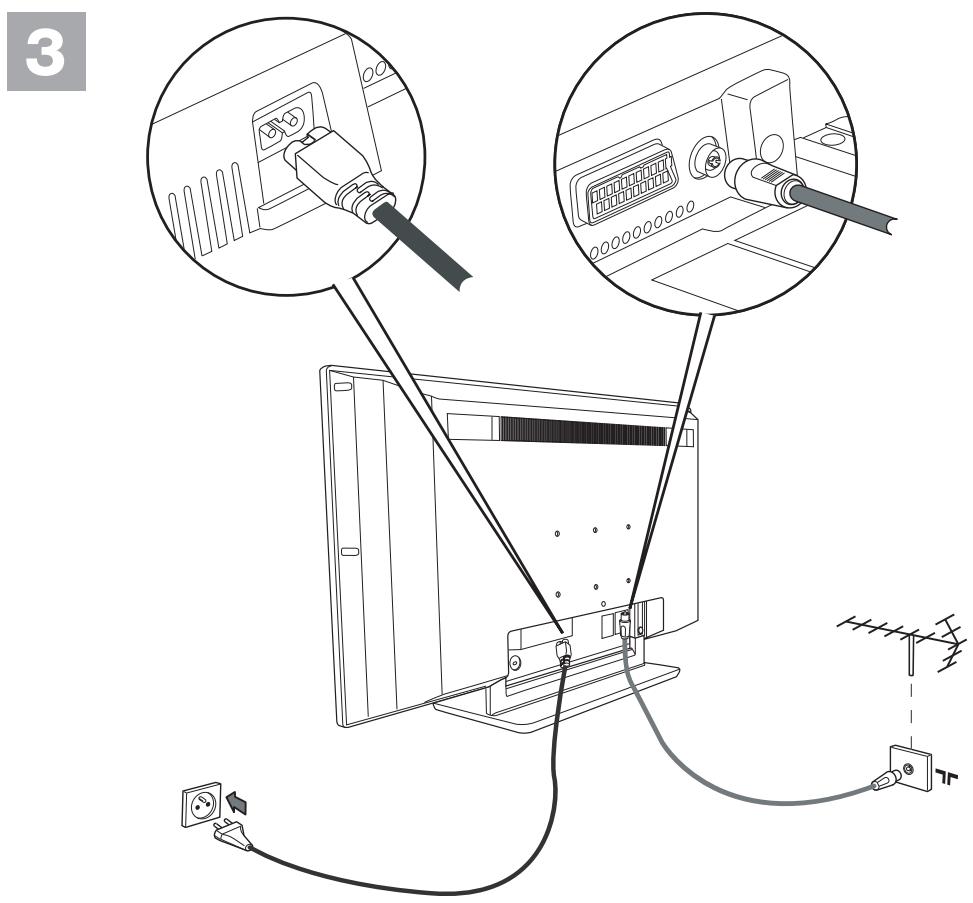
text_image
3Information for users in the UK
(Not applicable outside the UK)
Positioning the TV
For the best results, choose a position where light does not fall directly on the screen, and at some distance away from radiators or other sources of heat. Leave a space of at least 5 cm all around the TV for ventilation, making sure that curtains, cupboards etc. cannot obstruct the air flow through the ventilation apertures.
The TV is intended for use in a domestic environment only and should never be operated or stored in excessively hot or humid atmospheres.
General Points
Please take note of the section 'Tips' at the end of this booklet.
Interference
The Department of Trade and Industry operates a Radio Interference Investigation Service to help TV license holders improve reception of BBC and IBA programmes where they are being spoilt by interference.
If your dealer cannot help, ask at a main Post Office for the booklet "How to improve Television and Radio Reception".
Mains connection
Before connecting the TV to the mains, check that the mains supply voltage corresponds to the voltage printed on the type plate on the rear panel of the TV. If the mains voltage is different, consult your dealer.
Important
This apparatus is fitted with an approved moulded 13 Amp plug.
To change a fuse in this type of plug proceed as follows :
- Remove fuse cover and fuse.
- Fit new fuse which should be a BS1362 5A, A.S.T.A. or BSI approved type.
- Refit the fuse cover.
In order to maintain conformity to the EMC directive, the mains plug on this product must not be removed.
Connecting the aerial
The aerial should be connected to the socket marked x at the back of the set. An inferior aerial is likely to result in a poor, perhaps unstable picture with ghost images and lack of contrast. Make-shift or set-top aerials are unlikely to give adequate results.
Your dealer will know from experience the most suitable type for your locality.
Should you wish to use the set in conjunction with other equipment, which connects to the aerial socket such as TV games, or a video camera, it is recommended that you consult your dealer on the best method of connection.
Stand (if provided)
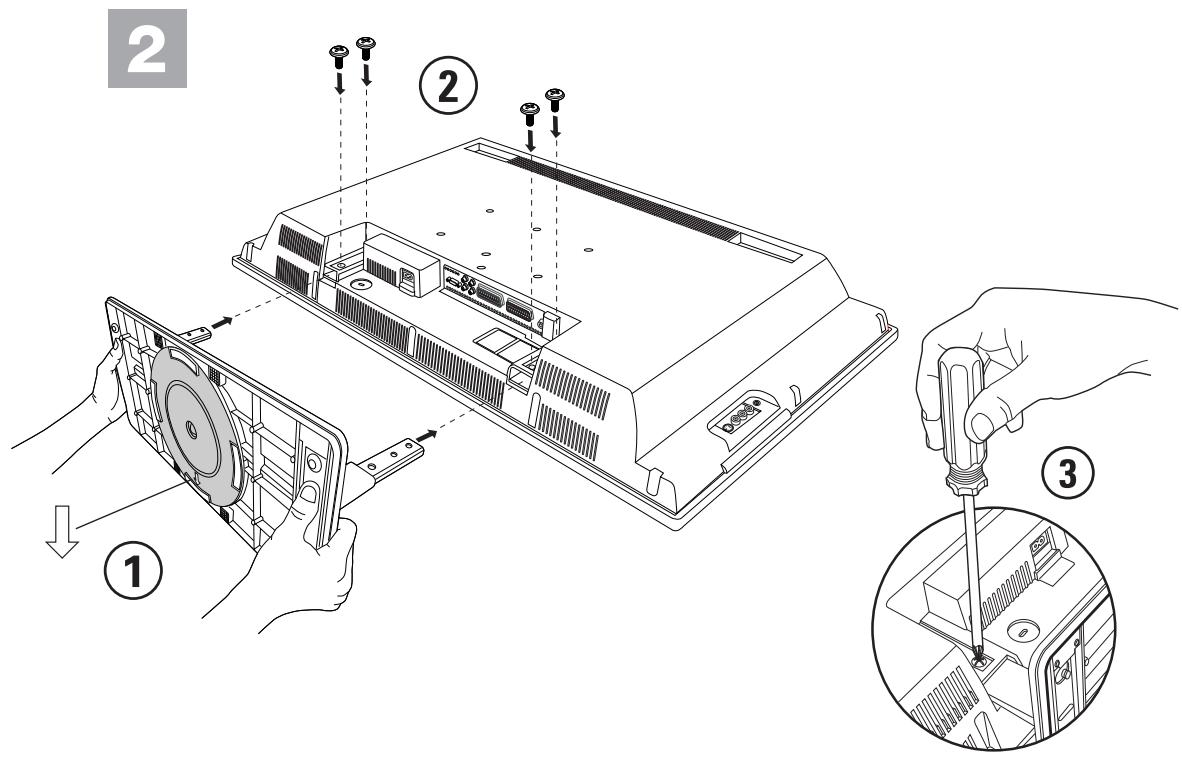
Use only the stand provided with the set, making sure that the fixings are properly tightened. A diagram showing how to assemble the stand is packed with the stand. Never use a make-shift stand, or legs fixed with woodscrews.
Help?
If this instruction manual does not give an answer or if 'Tips' do not solve your TV problem, you can call your Local Philips Customer or Service Centre. See the supplied World-wide guarantee booklet. Please, have the Model and Product number which you can find at the back of your television set or on the packaging, ready, before calling the Philips helpline.
Model:
Product No:
Care of the screen
Do not touch, push or rub or strike the screen with anything hard as this may scratch, mar or damage the screen permanently. Do not rub with dust clothes with chemical treatment. Do not touch the surface with bare hands or greasy cloth (some cosmetics are detrimental to the screen). Unplug the TV before cleaning the screen. When the surface becomes dusty, please wipe gently with absorbent cotton or other soft materials like chamois soaks. Do not use acetone, toluene and alcohol because they cause chemical damage. Do not use liquid cleaners or aerosol cleaners. Wipe off saliva or water drops as soon as possible. Their long time contact with the screen causes deformations and colour fading.
Preparation
1 Wall mounting instructions/Table stand According to the type of TV you've purchased a wall mount bracket and/or stand may be supplied. How to mount the supplied stand and/or wall mount bracket, see the supplied separate leaflet. Make sure that the wall mount is being fixed securely enough so that it meets safety standards.
② Make sure that air can circulate freely through the ventilation slots.
To prevent any unsafe situations, no naked flame sources, such as lighted candles, should be placed on or in the vicinity. Avoid heat, direct sunlight and exposure to rain or water. The equipment shall not be exposed to dripping or splashing and no objects filled with liquids, such as vases, shall be placed on it.
③ Insert the aerial plug firmly into the aerial socket T at the bottom of the TV.
4 Insert the mains cord supplied into the mains at the bottom of the TV and in the wall socket having a mains voltage of 198-264V.
To prevent damaging the power (AC) cord which could cause a fire or electric shock, do not place the TV on the cord.
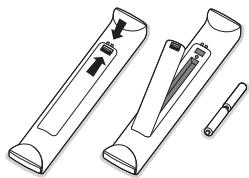
⑤ Remote control: Insert the 2 batteries supplied (Type R6-1,5V).
natural_image
Illustration of a handheld device with three different parts, one showing a button and arrow, the other a pen-like object (no text or symbols)The batteries supplied do not contain the heavy metals mercury and cadmium. Please check on how to dispose of exhausted batteries according to local regulations.
6 Switch the TV on : Press the power switch ⏻ at the right side of the TV. An indicator on the front of the TV lights up and the screen comes on. If the TV is in standby mode (red indicator), press the -P+ keys or the ⏻ key on the remote control.

Recycling
The materials used in your set are either reusable or can be recycled. To minimise environmental waste, specialist companies collect used appliances and dismantle them after retrieving any materials that can be used again (ask your dealer for further details).
To use the menus
① Press the MENU key on the remote control to summon the main menu. At any moment you can exit the menu by pressing the MENU key again.
② Use the cursor up/down to select Picture, Sound, Features, Install or Mode.
TV menu
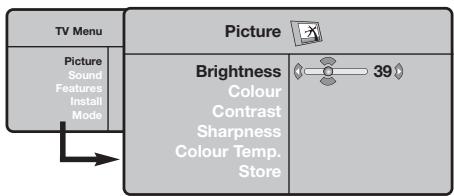
flowchart
graph LR
    A["TV Menu"] --> B["Picture"]
    B --> C["Brightness Colour Contrast Sharpness Colour Temp. Store"]
    C --> D["39"]
    A --> E["Picture Sound Features Install Mode"]
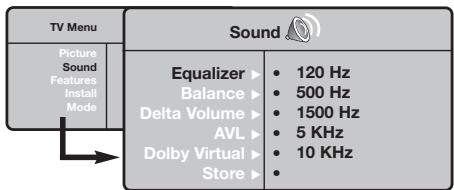
text_image
TV Menu Picture Sound Features Install Mode Sound Equalizer ▶ 120 Hz Balance ▶ 500 Hz Delta Volume ▶ 1500 Hz AVL ▶ 5 KHz Dolby Virtual ▶ 10 KHz Store ▶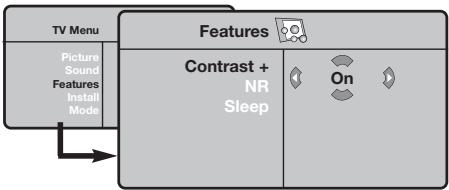
flowchart
graph LR
    A["TV Menu"] --> B["Features"]
    B --> C["Contrast + NR Sleep"]
    C --> D["On"]
    style A fill:#f9f,stroke:#333
    style B fill:#ccf,stroke:#333
    style C fill:#cfc,stroke:#333
    style D fill:#fcc,stroke:#333
Install menu: see p. 7
③ Use the cursor in the right direction to select the menu item.
4 Use the cursor up/down again to select the control you want to select or to adjust.
Note: Items temporary not available or not relevant are displayed in a light grey colour and cannot be selected.
Picture menu:
- Brightness: this changes picture brilliance.
- Colour: this changes the intensity of the colour.
- Contrast: this changes the difference between the light and dark tones.
- Sharpness: this changes the picture definition.
- Colour Temp: this changes the colour rendering: Cool (more blue), Normal (balanced) or Warm (more red).
- Store: to store the picture adjustments and settings (as well as the settings for Contrast+ and NR in the Features menu).
Sound menu:
- Equalizer: to adjust the sound tone (from bass 120 Hz to treble 10 kHz).
• Balance: this balances the sound on the left and right speakers. - Delta Volume: this is used to compensate any volume discrepancies between the different programmes or externals.
This setting is available for programmes 0 to 40 and the EXT connections. - AVL (Automatic Volume Leveller): this is used to limit increases in sound, especially on programme change or advertising slots.
- Virtual Dolby: simulates the surround sound experience from 2 speakers using Dolby Pro Logic* providing the listener with the sensation of being surrounded by additional speakers.
- Store: this is used to store the sound settings.
Features menu:
- Contrast+: automatic adjustment of the picture contrast which permanently sets the darkest part of the picture to black.
- NR: attenuates picture noise (snow) in difficult reception conditions.
Caution: to store the Contrast+ and NR settings, use the Store choice in the Picture menu. - Sleep: to select an automatic standby period.
Use of the remote control
Note: For most keys pressing a key once will activate the function. Pressing a second time will de-activate it. Remark: in VGA mode only some keys are valid.
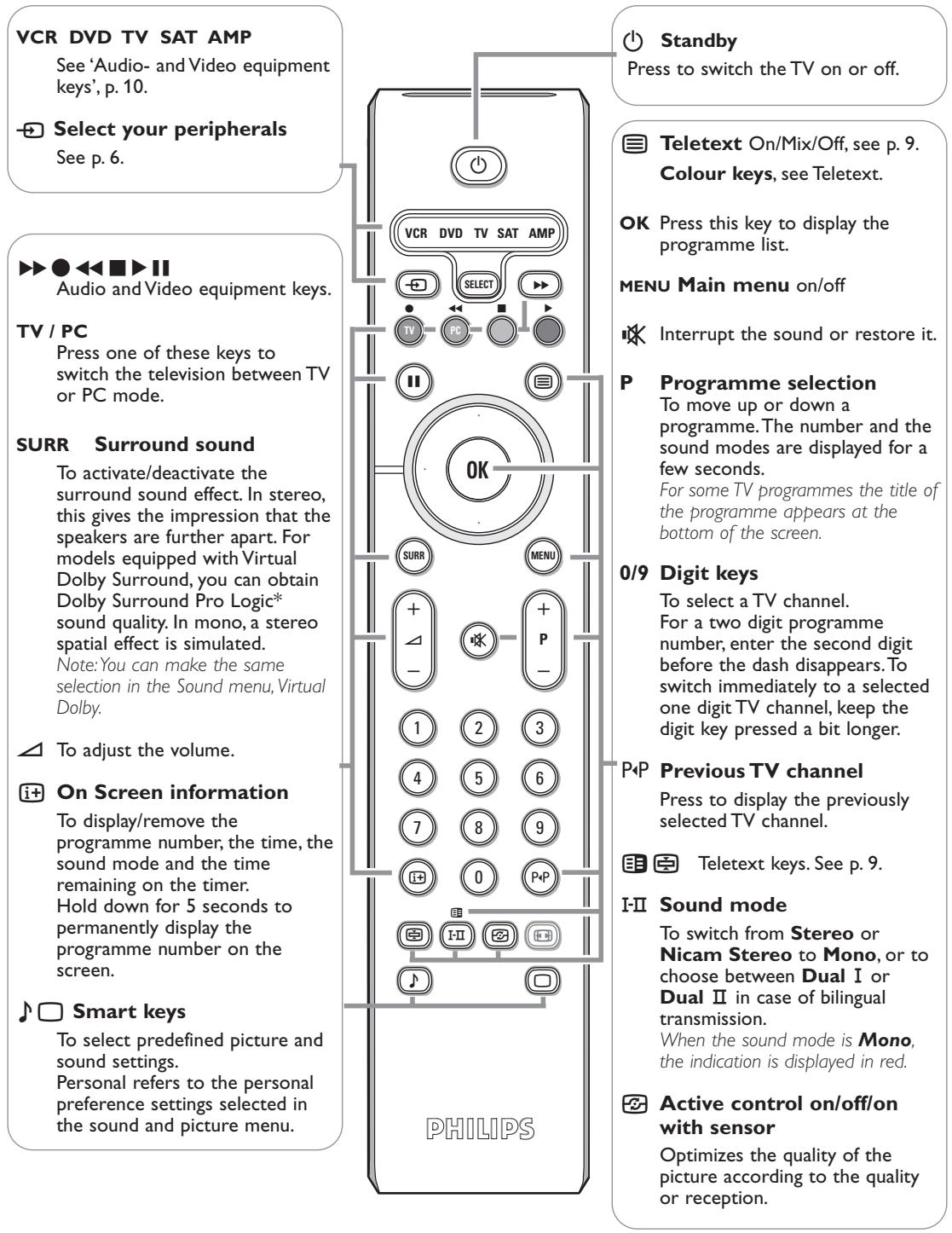
text_image
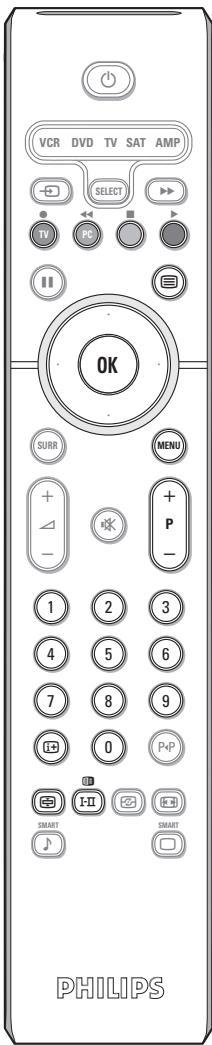
VCR DVD TV SAT AMP See 'Audio- and Video equipment keys', p. 10. Select your peripherals See p. 6. ▶▶ ◀◀ ▪▶ II Audio and Video equipment keys. TV / PC Press one of these keys to switch the television between TV or PC mode. SURR Surround sound To activate/deactivate the surround sound effect. In stereo, this gives the impression that the speakers are further apart. For models equipped with Virtual Dolby Surround, you can obtain Dolby Surround Pro Logic* sound quality. In mono, a stereo spatial effect is simulated. Note: You can make the same selection in the Sound menu, Virtual Dolby. ⚠️ To adjust the volume. i+ On Screen information To display/remove the programme number, the time, the sound mode and the time remaining on the timer. Hold down for 5 seconds to permanently display the programme number on the screen. ♪ Smart keys To select predefined picture and sound settings. Personal refers to the personal preference settings selected in the sound and picture menu. PHILIPS Standby Press to switch the TV on or off. Teletext On/Mix/Off, see p. 9. Colour keys, see Teletext. OK Press this key to display the programme list. MENU Main menu on/off Interrupt the sound or restore it. P Programme selection To move up or down a programme. The number and the sound modes are displayed for a few seconds. For some TV programmes the title of the programme appears at the bottom of the screen. 0/9 Digit keys To select a TV channel. For a two digit programme number, enter the second digit before the dash disappears. To switch immediately to a selected one digit TV channel, keep the digit key pressed a bit longer. P+P Previous TV channel Press to display the previously selected TV channel. Teletext keys. See p. 9. I-II Sound mode To switch from Stereo or Nicam Stereo to Mono, or to choose between Dual I or Dual II in case of bilingual transmission. When the sound mode is Mono, the indication is displayed in red. Active control on/off/on with sensor Optimizes the quality of the picture according to the quality or reception.* Dolby' 'Pro Logic' and the double-D □□ symbol are trademarks of Dolby Laboratories Licensing Corporation. Manufactured under license from Dolby Laboratories Licensing Corporation.
Screen Formats
The pictures you receive may be transmitted in 16:9 format (wide screen) or 4:3 format (conventional screen). 4:3 pictures sometimes have a black band at the top and bottom of the screen (letterbox format). This function allows you to optimise the picture display on screen.
Press the Ⓗ key (or <>) to select the different modes:
This TV set is also equipped with automatic switching which will select the correct-screen format, provided the specific signals are transmitted with the programmes.
4:3
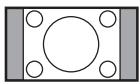
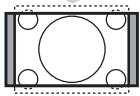
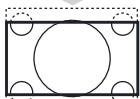
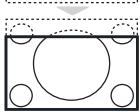
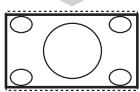
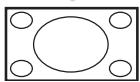
The picture is reproduced in 4:3 format and a black band is displayed on either side of the picture.
Movie Expand 14:9
The picture is enlarged to 14:9 format, a thin black band remains on both sides of the picture.
Movie Expand 16:9
The picture is enlarged to 16:9 format. This mode is recommended when displaying pictures which have black bands at the top and bottom (letterbox format).
Subtitle Zoom
This mode is used to display 4:3 pictures using the full surface of the screen leaving the sub-titles visible.
Super Wide
This mode is used to display 4:3 pictures using the full surface of the screen by enlarging the sides of the picture.
Widescreen
This mode restores the correct proportions of images transmitted in 16:9. Note: If you display a 4:3 picture in this mode, it will be enlarged horizontally.
Audio- and video equipment keys
text_image
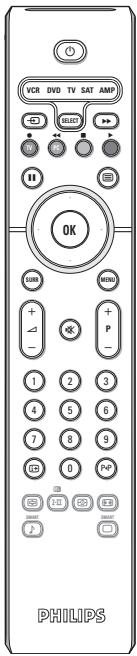
VCR DVD TV SAT AMP OK P PHILIPSPress the Select key to select the required mode : VCR, DVD, SAT, AMP or CD. The remote control indicator lights up to display the selected mode. It switches off automatically after 60 seconds if left idle.
The remote control automatically returns to TV mode.
The following keys are operational, depending on the equipment :
to switch to standby
II for pause (VCR, DVD, CD) RDS news/TA (AMP); to shuffle play (CD/R)
for record
◀◀ for rewind (VCR, CD); search down (DVD, AMP)
for stop
for play
▶▶ for fast forward (VCR, CD); search up (DVD, AMP)
RDS display (AMP); to select your choice of subtitle language (DVD);
i+ display information
MENU to switch the menu on or off
- P + for chapter, channel, track selection
0 to 9 digit entry
P◀P tape index (VCR), select a DVD title/chapter, select a frequency (AMP)
cursor up/down to select the next or the previous disc (CD)
cursor left/right to select the previous or following track (CD) search up/down (AMP)
The keys on the TV set
text_image
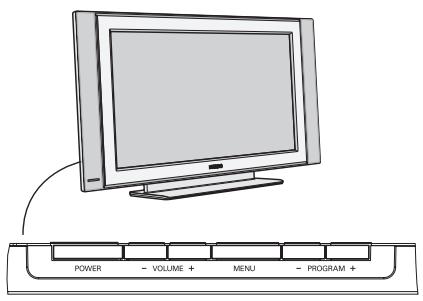
POWER - VOLUME + MENU - PROGRAM +Should your remote be lost or broken you can still change some of the basic settings with the keys on the side of your TV.
Press:
- the - VOLUME + key to adjust the volume;
- the - PROGRAM + key to select the TV channels or sources.
Press the MENU key to summon the main menu without the remote control.
Use:
- the VOLUME + key and the - PROGRAM + key to select menu items in the directions as shown;
- the MENU key to remove the menu.
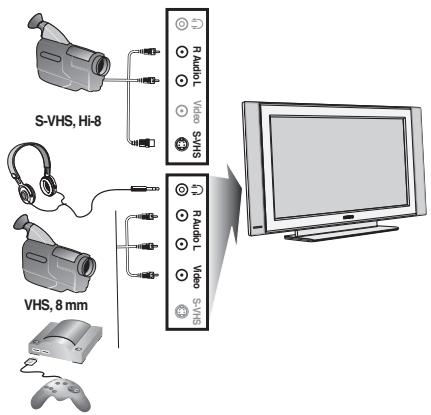
Camcorder, video games, headphone
flowchart
graph TD
    A["S-VHS, Hi-8"] --> B["Video"]
    C["VHS, 8 mm"] --> D["Video"]
    B --> E["Monitor"]
    D --> E
    style A fill:#f9f,stroke:#333
    style C fill:#f9f,stroke:#333
    style E fill:#ccf,stroke:#333
Camcorder, Video games
The AV and S-VIDEO connections are located at the right side of the TV or, for large screen sizes at the bottom; Make the connections as shown opposite.
With the → key, select AV.
For a monophonic device, connect the audio signal to the AUDIO L input. The sound automatically comes out of the left and right speakers of the set.
Headphone
The - + keys are used to adjust the volume level.
The headphone impedance must be between 32 and 600 ohms.
Rear connections
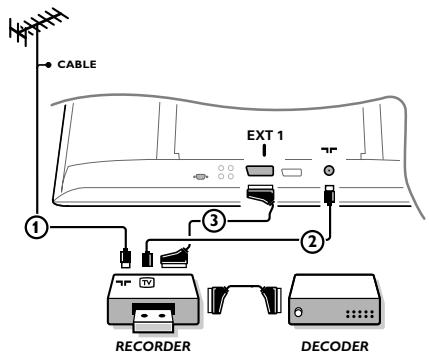
Recorder (VCR-DVD+RW)
Note: Do not place your recorder too close to the screen as some recorders may be susceptible to signals from the display. Keep a minimum distance of 0,5 m from the screen.
text_image
CABLE EXT 1 ① ② ③ RECORDER DECODERConnect the aerial cables ①, ② and, to obtain the optimum picture quality, eurocable ③ as shown. If your recorder does not have a euroconnector, the only possible connection is via the aerial cable. You will therefore need to tune in your recorder's test signal and assign it programme number 0 or store the test signal under a programme number between 90 and 99, see Manual store, p. 7. See the handbook of your recorder.
Decoder and Recorder
Connect a eurocable ④ to your decoder and to the special euroconnector of your recorder. See also the recorder handbook. You can also connect your decoder directly to EXT1 or 2 with a eurocable.
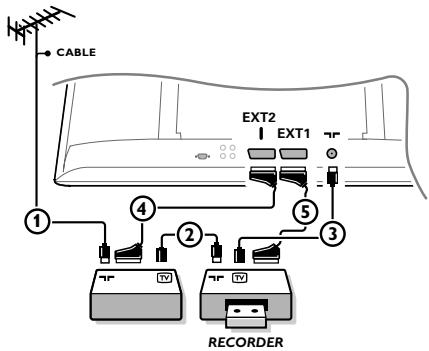
Other equipment (satellite receiver, decoder, DVD, games, etc.)
text_image
CABLE EXT2 EXT1 ① ④ ② ⑤ ③ RECORDERConnect the aerial cables ①, ② and ③ as shown (only if your peripheral has TV aerial in-/output). Connect your equipment with a eurocable ④ or ⑤ to one of the euroconnectors EXT1 or 2 to obtain a better picture quality.
Connect the equipment which produces the RGB signals (digital decoder, games, etc.) to EXT1, and the equipment which produces the S-VHS signals (S-VHS and Hi-8 video recorders, certain DVD drives) to EXT2 and all other equipment to either EXT1 or EXT2.
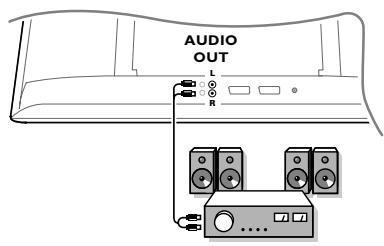
Amplifier
text_image
AUDIO OUT L R .....To connect to a hi-fi system, use an audio connection cable and connect the L and RAUDIO outputs on the TV set on the AUDIO IN L and R input on your hi-fi amplifier.
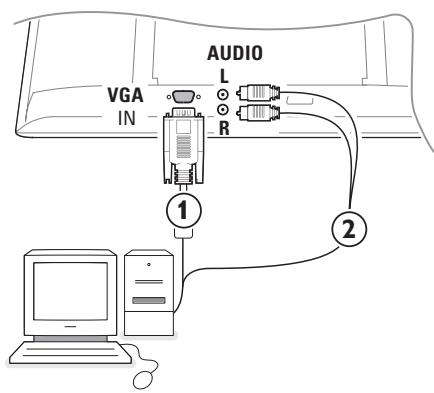
Connect your computer
text_image
VGA IN AUDIO L R ① ②Connect one end of a VGA cable ① to the video card of the computer and the other end to the VGA IN connector at the bottom of the TV.
Fix the connectors firmly with the screws on the plug.
② In case of a Multimedia computer, connect the audio cable ② to the audio outputs of your Multimedia computer and to the AUDIO R (right) and L (left) inputs.
The VGA connector allows the following TV and monitor display modes:
| 640 × 480, 60 Hz | 800 × 600, 56 Hz | 1024 × 768, 60 Hz |
| 640 × 480, 67 Hz | 800 × 600, 60 Hz | 1024 × 768, 70 Hz |
| 640 × 480, 72 Hz | 800 × 600, 72 Hz | 1024 × 768, 75 Hz |
| 640 × 480, 75 Hz | 800 × 600, 75 Hz | |
| 720 × 400, 70 Hz | 832 × 624, 75 Hz |
To select connected equipment
Press the ☑ key on the remote control repeatedly to select EXT1, EXT2 (S-VHS signals from the EXT2 connector) or AV according to where you connected your equipment.
Remark : Most equipment (decoder, recorder) carries out the switching itself, when it is switched on.
How to search for and store TV channels
Via Plug & Play
Keep the MENU/OK key on top of the TV pressed for 5 seconds to start the Plug & Play installation. Select your country and language. Tuning starts automatically.
Via the TV menu:
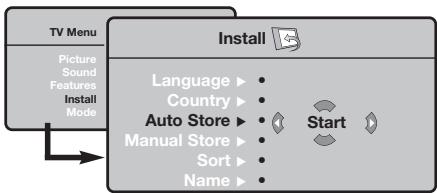
① Press the MENU key on the remote control.
② Use the cursor up/down to select Install.
③ Press the cursor right to enter the Install menu.
④ Use the cursor left/right to select your language.
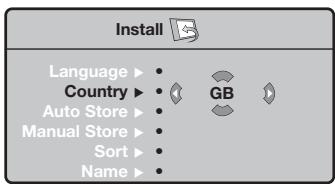
5 Press the cursor down to select Country.
6 Use the cursor left/right to select your country.
Note: Select “.....” when none of the countries applies.
flowchart
graph TD
    A["TV Menu"] --> B["Install"]
    B --> C["Language ▶"]
    B --> D["Country ▶"]
    B --> E["Auto Store ▶"]
    B --> F["Manual Store ▶"]
    B --> G["Sort ▶"]
    B --> H["Name ▶"]
    C --> I["Start"]
    D --> I
    E --> I
    F --> I
    G --> I
    H --> I
flowchart
graph TD
    A["Install"] --> B["Language"]
    A --> C["Country"]
    A --> D["Auto Store"]
    A --> E["Manual Store"]
    A --> F["Sort"]
    A --> G["Name"]
    B --> H["GB"]
    C --> H
    D --> H
    E --> H
    F --> H
    G --> H
text_image
Install Language ▶ • System Country ▶ • Search Auto Store ▶ • Program No Manual Store ▶ • Fine Tune Sort ▶ • Store Name ▶ •Auto store
① Select Auto Store in the Install menu. The autostore option label Start appears.
② Press the cursor right.
③ The progress of autoprogramming is displayed.
If the transmitter or cable network sends the automatic sort signal, the programs will be numbered correctly. In this case, the installation is complete. If this is not the case, you need to use the Sort menu to number the programs correctly.
It is possible that the cable company or the TV channel displays a broadcast selection menu. Layout and items are defined by the cable company or the TV channel.
Sorting TV channels
① Select Sort in the Install menu and press the cursor right
② Select the TV channel you want to move using the cursor up/down and press cursor right.
3 Select the new number and validate with the cursor left.
④ Repeat steps ② and ③ for each TV channel you wish to renumber.
⑤ To exit the menus, press the MENU key repeatedly.
Manual store
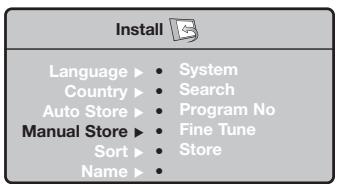
Searching for and storing TV channels is done channel by channel. You must go through every step of the Manual Installation menu.
① Select Manual Store in the Install menu and press the cursor right to enter.
② Select the TV system:
Select the country or part of the world from where you want to receive the TV channel. If you are connected to a cable system, select your country or part of the world where you are now located.
Note: for automatic detection select Europe (except for France).
③ Search for a TV channel:
Press the cursor down to select Search and press the cursor right to start searching.
Direct selection of a TV channel:
If you know the frequency, enter it directly with the digit keys 0 to 9. Ask for a list from your cable company or dealer, alternatively consult the Table of frequencies on the inside backcover of this handbook.
4 Press the cursor down and enter the programme number with the digit keys.
5 Fine tune:
In case of poor reception, you can improve the reception by adjusting the frequency with the cursor left/right.
⑥ To store your TV channel, select Store and press the cursor right. Repeat steps ③ to ⑤ to store another TV channel.
⑦ To exit from the menu press the MENU key on the remote control.
Using in PC monitor mode
Your TV can be used as a computer monitor.
You must first of all connect the computer and adjust the resolution (see p. 6).
Note:
When using the LCD TV as a PC monitor, slight diagonal interference lines may be observed when it is operated under electromagnetic interference environment but will not affect the performance of this product.
For better performance, good quality VGA cable with good noise isolation filter is recommended.
Choosing PC mode
Press the PC key on the remote control to switch the TV to PC mode. Press the TV key to return to TV mode. If there is no PC signal for more than five seconds, the TV automatically goes into standby mode.
Using the PC menus
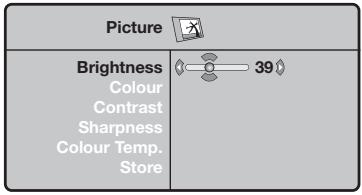
Press the MENU key to access the specific settings of the PC monitor mode. Use the cursor keys to adjust them (the settings are automatically saved).
text_image
Picture Brightness Colour Contrast Sharpness Colour Temp. Store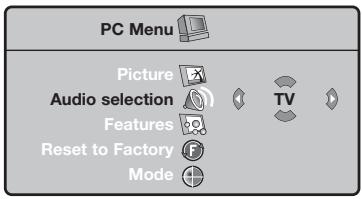
text_image
PC Menu Picture Audio selection Features Reset to Factory Mode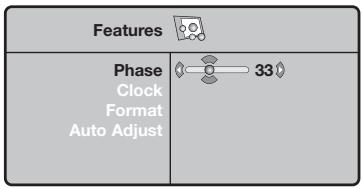
text_image
Features Phase Clock Format Auto Adjust 33°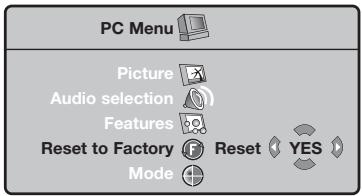
text_image
PC Menu Picture Audio selection Features Reset to Factory Reset YES Mode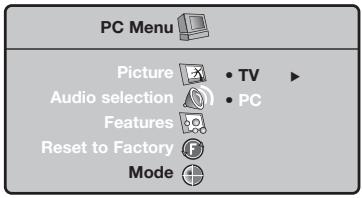
text_image
PC Menu Picture • TV Audio selection • PC Features Reset to Factory ModePicture
- Brightness/Contrast: to adjust the brightness and contrast.
- Horizontal/Vertical Position: to adjust the horizontal and vertical placing of the image.
- Colour Temperature: to adjust the colours (cool, normal or warm).
Audio selection
To choose the sound reproduced on the TV (PC or TV).
Features
- Phase/Clock: eliminates the horizontal (Phase) and vertical (Clock) interfering lines.
- Format: to choose between large screen (Full screen) or the original (Native) format of the PC screens.
• Auto adjust: position is set automatically.
Reset to Factory
To return to the factory settings
Mode
To come back to TV mode.
Teletext
Teletext is an information system broadcast by certain channels which can be consulted like a newspaper. It also offers access to subtitles for viewers with hearing problems or who are not familiar with the transmission language (cable networks, satellite channels, etc.).
text_image
VCR DVD TV SAT AMP SELECT TV PC OK SURR MENU + - 1 2 3 4 5 6 7 8 9 10 0 P+P I-II SMART SMART SMART PHILIPS| Press: | You will obtain: | |
| TeletextOn/Mix/Off | This is used to call teletext, change to transparent mode and then exit. The summary appears with a list of items that can be accessed. Each item has a corresponding 3 digit page number.If the channel selected does not broadcast teletext, the indication 100 will be displayed and the screen will remain blank (in this case, exit teletext and select another channel). | |
| 0/9-P+ | Selectinga page | Enter the number of the page required using the 0 to 9 or -P+ keys. Example: page 120, enter 1 2 0.The number is displayed top left, the counter turns and then the page is displayed. Repeat this operation to view another page.If the counter continues to search, this means that the page is not transmitted. Select another number. |
| OOOO | Directaccess tothe items | Coloured areas are displayed at the bottom of the screen. The 4 coloured keys are used to access the items or corresponding pages.The coloured areas flash when the item or the page is not yet available. |
| i+ | Contents | This returns you to the contents page (usually page 100). |
| cursorup/down | Enlargea page | This allows you to display the top or bottom part of the page and then return to normal size. |
| Hold subpage | Certain pages contain subpages which are automatically displayed successively. This key is used to hold or resume subpage acquisition. The indication appears top left. | |
| Double pageteletext | To activate or deactivate the double page teletext display mode. The active page is displayed on the left and the following page is displayed on the right. Press if you want to hold a page (i.e. the contents page). The active page is then displayed on the right. To return to normal mode, press I-II. | |
| MENU | Favouritepages | Instead of the standard coloured areas displayed at the bottom of the screen, you can store 4 favourite pages on the first 40 channels which can then be accessed using the coloured keys (red, green, yellow, blue). Once set, these favourite pages will become the default every time teletext is selected.1 Press the MENU key to change the favourite pages mode.2 Display the teletext page that you want to store.3 Press the coloured key of your choice for 5 seconds. The page is stored.4 Repeat steps to for the other coloured keys.5 Now when you consult teletext, your favourite pages will appear in colour at the bottom of the screen; to temporally retrieve the standard items, press menu.To clear everything and return to the standard items as the default, press for 5 seconds. |
Tips
| Poor Picture | Have you selected the correct TV system in the manual installation menu?Is your TV or house aerial located too close to loudspeakers, non-earthed audio equipment or neon lights, etc.?Mountains or high buildings can cause double pictures or ghost images.Sometimes you can improve the picture quality by changing the direction of the aerial.Is the picture or teletext unrecognisable? Check if you have entered the correct frequency. See Store TV channels, Manual store,p. 7. |
| No Picture | Are the supplied cables connected properly ? (The aerial cable to the TV, the other aerial to your recorder, the VGA cables to the display, the power cables.)Is your PC switched on ?Do you see a black screen and the indicator in front of the TV lights up green, this means that the display mode is not supported. Switch your VGA-source to a correct mode.In case of weak or bad signal, consult your dealer. |
| Digital distortion | The low quality of some digital picture material may be the cause of digital image distortion. In this case select the Soft setting using the Smart picture key ☐ on the remote control. |
| No sound | No sound on any channel? Check the volume isn't at minimum.Is the sound interrupted with the mute key ☑? |
| No solution found for your picture or sound problem ? | Switch your TV off and then on again once. Never attempt to repair a defective TV yourself. Check with your dealer or call a TV technician. |
| Menu | Have you selected the wrong menu? Press the MENU key again to exit from the menu. |
| Remote control | Check if the remote control is in the correct mode.If your TV no longer responds to the remote control, the batteries may be dead. |
| Standby | Your TV consumes energy in the standby mode. Energy consumption contributes to air and water pollution. Power consumption: <3 W. |
| S-VHS color becomes faint | If S-VHS is disconnected, picture color will become faint. To restore picture color, press the P+ button on the remote control to do a channel up followed by pressing the P- button to do a channel down. |
Aide?
natural_image
Illustration of a handheld device with three different parts, one showing internal components and arrows indicating motion (no text or symbols)text_image
AUDIO OUT L R .....text_image
VGA IN AUDIO L R ① ②natural_image
Illustration of two medical or laboratory devices with arrows indicating movement, one holding a pen-like object (no text or symbols present)text_image
AUDIO OUT L R .....text_image
VGA IN AUDIO L R ① ②natural_image
Illustration of three types of medical or laboratory devices with arrows indicating motion, no text or symbols presenttext_image
AUDIO OUT L R .....text_image
AUDIO VGA IN L R ① ②natural_image
Illustration of two handheld devices with arrows indicating movement or force, no text or symbols presenttext_image
AUDIO OUT L R .....text_image
VGA IN AUDIO L R ① ②natural_image
Illustration of two handheld devices with arrows indicating motion, one partially open and the other closed (no text or symbols)text_image
AUDIO OUT L R .....text_image
VGA IN AUDIO L R ① ②natural_image
Illustration of three different types of medical or laboratory devices with arrows indicating motion (no text or symbols)for hurtig fremspoling (VCR, CD); for søking oppover (DVD, AMP)