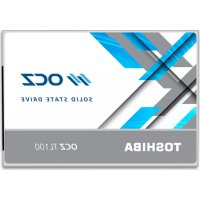
TL100 - SSD TOSHIBA - Free user manual and instructions
Find the device manual for free TL100 TOSHIBA in PDF.



| Product Type | Internal SSD |
| Brand | Toshiba |
| Model | TL100 |
| Form Factor | 2.5-inch |
| Interface | SATA III 6 Gbit/s, backward compatible with SATA II |
| Available Capacities | 120 GB, 240 GB, 480 GB |
| Dimensions (L x W x H) | 100.0 x 69.9 x 7.0 mm |
| Weight | 48 g |
| NAND Memory Type | TLC |
| Sequential Read Speed | Up to 550 MB/s |
| Sequential Write Speed | Up to 500 MB/s |
| Supported Technologies | TRIM, NCQ, S.M.A.R.T. |
| Power Consumption (Active) | 2.5 W |
| Power Consumption (Idle) | 0.3 W |
| Operating Temperature | 0°C to 70°C |
| Storage Temperature | -40°C to 85°C |
| MTBF | 1,500,000 hours |
| Compatible Operating Systems | Windows 7, 8.1, 10; Linux (Fedora, Ubuntu, etc.); macOS 10.9+ |
| Required Power Supply | Via SATA connector (5 V) |
| Maintenance | No specific maintenance; avoid humidity and shocks |
| Safety | Compliance with CE directives; WEEE compliant disposal |
| Spare parts / repairability | Not user-repairable; technical support via OCZ |
Frequently Asked Questions - TL100 TOSHIBA
User questions about TL100 TOSHIBA
0 question about this device. Answer the ones you know or ask your own.
Ask a new question about this device
Download the instructions for your SSD in PDF format for free! Find your manual TL100 - TOSHIBA and take your electronic device back in hand. On this page are published all the documents necessary for the use of your device. TL100 by TOSHIBA.
USER MANUAL TL100 TOSHIBA
Please be sure to check www.ocz.com for the latest firmware updates.
Note: The following instructions are a general guideline for the SSD installation and should act as a complement to your system's owner manual.
SSD HANDLING PRECAUTIONS
To minimize static electricity, touch a metal surface before handling the SSD.
- Keep the drive away from direct sunlight, moisture, and extreme temperatures.
LAPTOP INSTALLATION
- Power off the system, disconnect all power cables, and remove the battery.
- Locate the hard drive access panel; unscrew and remove the access panel.
- Disconnect and remove the current storage drive from the drive bay (refer to your system's user manual)
- Remove all brackets and connectors from your HDD and install it on the SSD (if necessary). Note: If a proprietary connector and/or bracket are present on the HDD, carefully remove it and connect it to the SSD. Systems will vary and these items may or may not be present.
- Insert the SSD into the drive bay carefully aligning the SSD with the SATA* connectors.
- Secure the SSD in the drive bay. Reinstall the access panel and insert the battery back into the system.
- Power on your system to verify a successful installation. For a boot drive, this is signified by the BIOS prompting OS installation. For a secondary drive, follow the format instructions below. Note: If the SSD will be your primary boot drive, please refer to your operating system's user manual for further OS installation instructions. If this SSD will be used as a secondary drive, formatting the drive is required before use.
*SATA 6Gbit/s is backwards compatible with SATA 3Gbit/s. However, connecting a SATA 6Gbit/s device into a SATA 3Gbit/s connection will result in reduced performance.
DESKTOP INSTALLATION
- Power off the system and disconnect all power cables.
- Remove the system's outer panel (refer to your system's user manual).
- If your system provides a 2.5-inch drive bay(s), there is no need for a 3.5-inch adapter bracket.
- If your system does not provide a 2.5-inch drive bay(s), you will need to mount the SSD in a 2.5-inch to
3.5-inch adapter bracket (3.5-inch adapter bracket included with select models). - Install the SSD into an available drive bay.
- Connect one end of both the SATA* data cable and power cable to the SATA connectors on your motherboard and the remaining ends to your SSD.
- Reinstall the outer panel and reconnect the power cable to your PC.
- Power on your system to verify a successful installation.
Note: If the SSD will be your primary boot drive, please refer to your operating system's user manual for further OS installation instructions. If this SSD will be used as a secondary drive, formatting the drive is required before use.
*SATA 6Gbit/s is backwards compatible with SATA 3Gbit/s. However, connecting a SATA 6Gbit/s device into a SATA 3Gbit/s connection will result in reduced performance.
FORMATTING THE SSD IN WINDOWS
Reformatting the Product may cause all the data stored in the Product to be lost or corrupted. Ensure the Product contains no necessary data or files before reformatting.
1a. For Windows® 8.1 and Windows® 10:
- Enter the shortcut key "Windows key + X".
- Select "Disk Management".
1b. For Windows® 7:
- Click on the Windows Start Button, right-click "Computer" and select "Manage". The "Computer Management" window will pop up.
- On the left-hand menu (under "Storage") select "Disk Management".
Note: If a popup window appears asking you to initialize the disk. Click "OK"
- Right-click the newly "unallocated" disk, then select "New Simple Volume" and follow the on-screen instructions. Note: No change is needed to default Simple Volume settings.
- Click "Finish" when prompted.
- The SSD is now formatted and ready for OS installation.
FAQ
Q: Is TRIM supported on my OCZ Series SSD?
A: Yes, your OCZ Series SSD features TRIM support, but your operating system must also natively support TRIM for this feature to function properly.
Q: Why does my drive seem to be running slow?
A: Even though your SSD is compatible with previous generations of the SATA interface, it must be attached to a SATA 6Gbit/s connection for maximum performance.
Q: Where can I find the SSD Utility to update firmware, secure erase, and check drive information?
A: You can download the SSD Utility for your product at http://www.ocz.com/consumer/download
Q: What operating systems are compatible?
A:Windows7,Windows8.1,Windows10
Linux® Fedora® 21, Mint 17.1, elementary® OS Freya, openSUSE® 13.2, Ubuntu® 14.04, Ubuntu® 14.10, MAC OS X® 10.9, 10.10, 10.11
CAPACITY CALCULATION
One Gigabyte (1GB) means 10^9 = 1,000,000,000 bytes and One Terabyte(1TB) means 10^12 = 1,000,000,000,000 bytes using powers of 10. A computer operating system, however, reports storage capacity using powers of 2 for the definition of 1GB = 2^30 = 1,073,741,824 bytes and 1TB = 2^40 = 1,099,511,627,776 bytes, and therefore shows less storage capacity. Available storage capacity (including examples of various media files) will vary based on file size, formatting, settings, software and operating system and other factors.
CE COMPLIANCE

This product is CE marked in accordance with the requirements of the applicable EU Directives. Responsible for CE marking is Toshiba Electronics Europe GmbH, Hansaallee 181, 40549 Düsseldorf, Germany.
SAFETY INSTRUCTIONS

WARNING
- Do not leave SSD within the reach of children and pets
- Do not disassemble or modify the SSD
In case of overheating, turn off the SSD
Following information is only valid for EU-member States: DISPOSAL OF PRODUCTS:
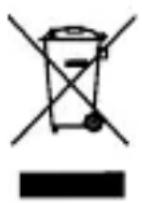
This symbol indicates that this product must not be treated as household waste. By ensuring this product is disposed of correctly, you will help prevent potential negative consequences for the environment and human health, which could otherwise be caused by inappropriate waste handling of this product. For more detailed information about recycling of this product, please contact your local city office, your household waste disposal service or the shop where you purchased the product.
Following information is only valid for United States: FCC Class B Information:

This equipment has been tested and found to comply with the limits for a Class B digital device, pursuant to part 15 of the FCC Rules. These limits are designed to provide reasonable protection against harmful interference in a residential installation. This equipment generates, uses and can radiate radio frequency energy and, if not installed and
used in accordance with the instructions, may cause harmful interference to radio communications. However, there is no guarantee that interference will not occur in a particular installation. If this equipment does cause harmful interference to radio or television reception, which can be determined by turning the equipment off and on, the user is encouraged to try to correct the interference by one or more of the following measures:
- Reorient or relocate the receiving antenna.
- Increase the separation between the equipment and receiver.
- Connect the equipment into an outlet on a circuit different from that to which the receiver is connected.
- Consult the dealer or an experienced radio/TV technician for help.
TECHNICAL SUPPORT
Need help?
Please contact us at our technical support page: http://support.ocz.com
For warranty claims, please check: http://ocz.com/support/warranty
http://ocz.com/consumer/support
http://ocz.com/consumer/support
http://ocz.com/consumer/support
http://ocz.com/consumer/support
http://ocz.com/consumer/support
http://ocz.com/consumer/support
Ecnn n3dene He pa6oTaET dOJXHbIM o6pa3OM nn y Bac eCTb COMHeHn OTHOCHTeJIbHO 3NeKtpnuecko 6e30NaChocTn, HemeJeHHo o6paTneTcB B cnyk6y TexHnuecko noDaePK KOMnaHn OCZ nn K oOfNuaNbHomy dInepy.
N3NoKeHHa Daane HnΦopMaun aKtYaJIbHa TOnIbKO dIa CtpaH-NeHOB EC. YTNIN3AUIN:

IcnoJb3OBAHne daHHoro cIMBOLA yka3bIbAeT Ha TO, YTO C 3TtM N3dJIeHem HeIb3aOBpaTaBCaK c 6bITOBbIMn OTXoDAMN. ObecneueHne npabINbHOYTNIN3aUm N3dEInr cNoCobCTByET npedOTBpaSeHnO OTPuCaTeNbHbIX NOcNeIDCTBn DnIg OKpyXaUoSe Cpebl I 3doPobBy IIOde, KOTOpBle MOy T 6bITb BbI3BaHbI HeHaIJIeXaUm OBpaSeHnEM C nOIO6bHMn OTXoDAMN. IJRA IOJyHeH N0OEe NODpOBHn IHΦOpMaunn O nopAKe BTOpNUHn NepepaBoTKn DaHHORO N3dEInr OBpaAsIteCB MecTHbIe OPraHbI BNaCTn, B CnyXbY n BO BBIO3y n YTNIN3aUm OTXoDOB Jn6o No MeCy npio6peTeHn I3dJIeN.
TEXHnueCKA NOIDEPKKA
Tpe6yetc npomoub?
IocTeIte cTpaHnU cyJxkbI texHnuecko noDepKKn KOMnaHN OCZ: http://support.ocz.com
IhOpMaunO npedbAeHn npTeH3n no rapaHTn m. no apecy: http://ocz.com/support/warranty