USER MANUAL Bravia KD49XF9005 SONY
Parts and Controls. 7
Controls and Indicators 7
Using Remote Control 8
Remote Control Parts Description. .8
Connection Diagram 10
Installing the TV to the Wall 12
Using the optional Wall-Mount Bracket . . . 12
KD-75XF90xx only 13
Troubleshooting. 15
Troubles and Solutions. 15
Specifications 16
Internet Connection and Data Privacy
This product connects to the internet during initial setup as soon as a network is connected in order to confirm internet connection, and later to configure the Home screen. Your IP address is used in these and all other internet connections. If you do not want your IP address be used at all, do not set-up the wireless internet function and do not connect an internet cable. Please refer to the privacy information presented in the set-up screens for further details of internet connections.
Introduction
Thank you for choosing this Sony product.
Before operating the TV, please read this manual thoroughly and retain it for future reference.
Note
Before operating the TV, please read the "Safety Information" (page 3).
- Images and illustrations used in the Setup Guide and this manual are for reference only and may differ from the actual product.
- The "xx" that appears in the model name corresponds to a numeric digit, related to design, colour or TV system.
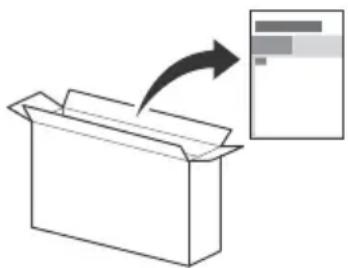
Attaching the Table-Top Stand to the TV
Refer to the Setup Guide on top of the cushion.
Help
Find more troubleshooting and other useful information directly from your TV. Press HELP on the remote control to display a list of topics, or to search by keyword.
Help Guide (Manual)
For more detailed information, select [Help Guide] from the Help menu on your TV. You can also check the Help Guide from your PC or smartphone (information provided on the back cover).
Location of the identification label
Labels for the TV Model No., Production Date (year/month) and Power Supply rating are located on the rear of the TV or package.
WARNING
TO PREVENT THE
SPREAD OF FIRE, KEEP
CANDLES OR OTHER OPEN FLAMES AWAY FROM THIS PRODUCT AT ALL TIMES.

NOTICE FOR CUSTOMERS IN THE UNITED KINGDOM
A moulded plug complying with BS1363 is fitted to this equipment for your safety and convenience.
Should the fuse in the plug supplied need to be replaced with the same rating of fuse approved by ASTA or BSI to BS 1362 (i.e., marked with or) must be used.
If the plug supplied with this equipment has a detachable fuse cover, be sure to attach the fuse cover after you change the fuse. Never use the plug without the fuse cover. If you should lose the fuse cover, please contact your nearest Sony service station.
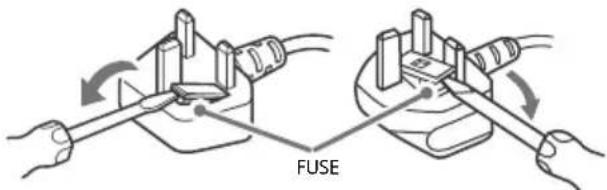
How to replace the fuse
Open the fuse compartment with a blade screwdriver, and replace the fuse.
Please refer to the illustration that actually equipped with the product.
IMPORTANT NOTICE
This product has been manufactured by or on behalf of Sony Visual Products Inc.
EU Importer: Sony Europe Limited.
Inquiries to the EU Importer or related to product compliance in Europe should be sent to the manufacturer's authorized representative, Sony Belgium, bijkantoor van Sony Europe Limited, Da Vincilaan 7-D1, 1935 Zaventem, Belgium.
Notice for Radio Equipment
Hereby, Sony Visual Products Inc. declares that the radio equipment types
KD-75XF9005, KD-65XF9005
KD-55XF9005, KD-49XF9005 are in compliance with Directive 2014/53/EU. The full text of the EU declaration of conformity is available at the following internet address: http:// www.compliance.sony.de/

This radio equipment can be operated in the EU without infringing applicable requirements on the use of radio spectrum.
Notice for customers: the following information is only applicable to equipment sold in countries applying EU directives.
TV wireless system may be operated in following countries: AT, BE, HR, CY, CZ, DK, EE, FI, FR, DE, EL, HU, IE, IT, LV, LT, LU, MT, NL, PL, PT, SK, SI, ES, SE, UK, IS, LI, NO, CH, BG, RO, TR, AL, BA, MK, MD, RS, ME, Kosovo
This equipment can be operated in other non-European countries.
WARNING
Caution
Risk of explosion if the battery is replaced by an incorrect type. Batteries must not be exposed to excessive heat such as sunshine, fire or the like or extremely low air pressure that can result in an explosion or leakage of flammable liquid or gas.
Stability Hazard
The television set may fall, causing serious personal injury or death.
Never place a television set in an unstable location. A television set may fall, causing serious personal injury or death. Many injuries, particularly to children, can be avoided by taking simple precautions such as:
- Using cabinets or stands recommended by the manufacturer of the television set.
- Only using furniture that can safely support the television set.
-
Ensuring the television set is not overhanging the edge of the supporting furniture.
-
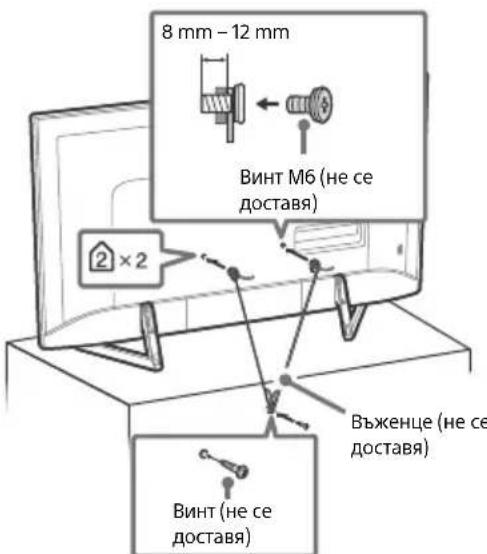
Not placing the television set on tall furniture (for example, cupboards or bookcases) without anchoring both the furniture and the television set to a suitable support.
- Not placing the television set on cloth or other materials that may be located between the television set and supporting furniture.
- Educating children about the dangers of climbing on furniture to reach the television set or its controls.
If your existing television set is being retained and relocated, the same considerations as above should be applied.
Installation/Set-up
Install and use the TV set in accordance with the instructions below in order to avoid any risk of fire, electric shock or damage and/or injuries.
Apparatus connected to the protective earthing of the building installation through the mains connection or through other apparatus with a connection to protective earthing - and to a television distribution system using coaxial cable, may in some circumstances create a fire hazard. Connection to a television distribution system therefore has to be provided through a device providing electrical isolation below a certain frequency range (galvanic isolator, see EN 60728-11).
Installation
- The TV set should be installed near an easily accessible mains socket.
- Place the TV on a stable, level surface to prevent it from falling over and causing personal injury or property damage.
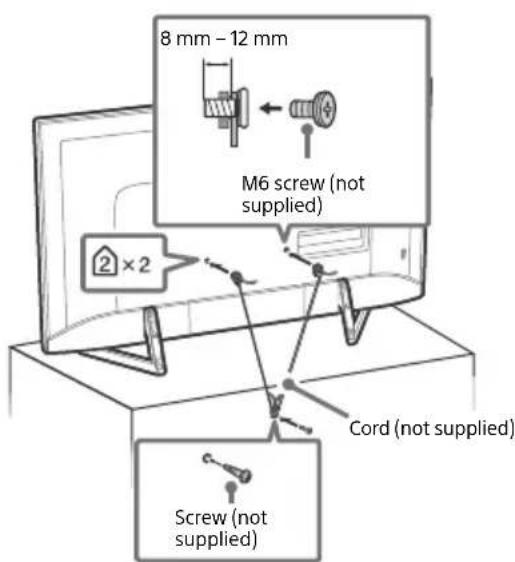
Install the TV where it cannot be pulled, pushed, or knocked over.
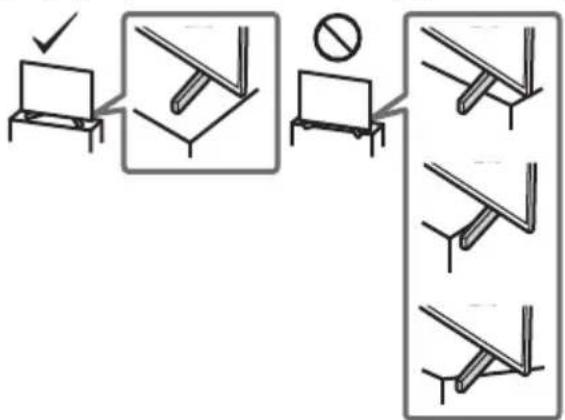
- Install the TV so that the TV's Table-Top Stand does not protrude out from the TV stand (not supplied). If the Table-Top Stand protrudes out from the TV stand, it may cause TV set to topple over, fall down, and cause personal injury or damage to the TV.
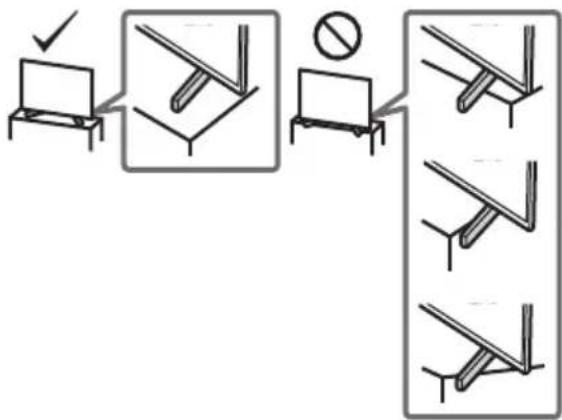
- Only qualified service personnel should carry out wall-mount installations.
- For safety reasons, it is strongly recommended that you use Sony accessories, including:
- Wall-Mount Bracket SU-WL450 (Except KD-75XF90xx)
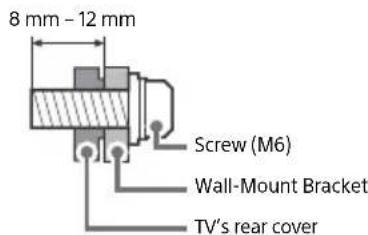
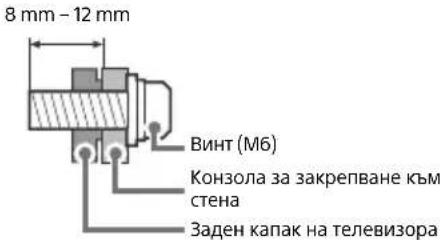
- Be sure to use the screws supplied with the Wall-Mount Bracket when attaching the Wall-Mount Bracket to the TV set. The supplied screws are designed as indicated by illustration when measured from the attaching surface of the Wall-Mount Bracket. The diameter and length of the screws differ depending on the Wall-Mount Bracket model.
Use of screws other than those supplied may result in internal damage to the TV set or cause it to fall, etc.
Transporting
- Before transporting the TV set, disconnect all cables.
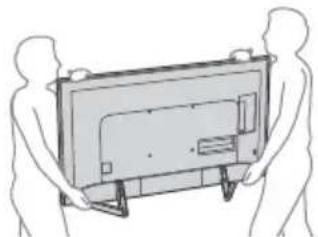
- Two or three people are needed to transport a large TV set.
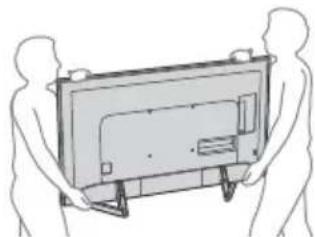
- When transporting the TV set by hand, hold it as shown below. Do not put stress on the LCD panel and the frame around the screen.
- When transporting the TV set, do not subject it to jolts or excessive vibration.
- When transporting the TV set for repairs or when moving, pack it using the original carton and packing material.
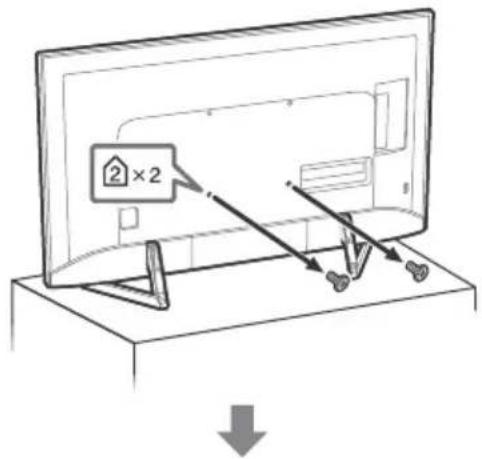
Topple prevention
Ventilation
- Never cover the ventilation holes or insert anything in the cabinet.
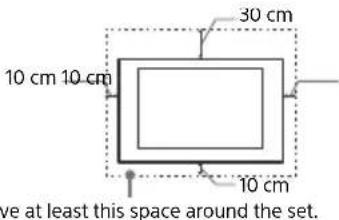
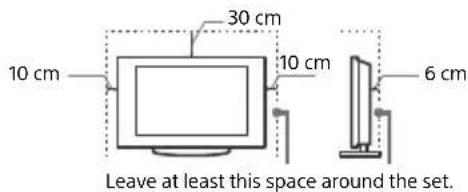
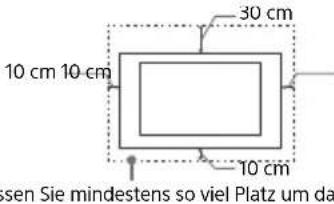
- Leave space around the TV set as shown below.
- It is strongly recommended that you use a Sony Wall-Mount Bracket in order to provide adequate air circulation.
Installed on the wall
Installed with stand
To ensure proper ventilation and prevent the collection of dirt or dust:
- Do not lay the TV set flat, install upside down, backwards, or sideways.
- Do not place the TV set on a shelf, rug, bed or in a closet.
- Do not cover the TV set with a cloth, such as curtains, or items such as newspapers, etc.
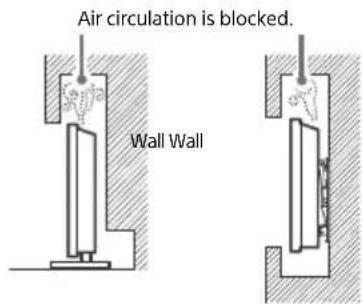
- Do not install the TV set as shown below.
Mains lead
Handle the mains lead and socket as follows in order to avoid any risk of fire, electric shock or damage and/or injuries:
- Use only mains leads supplied by Sony, not other suppliers.
- Insert the plug fully into the mains socket.
- Operate the TV set on a 220 V - 240 V AC supply only.
- When wiring cables, be sure to unplug the mains lead for your safety and take care not to catch your feet on the cables.
- Disconnect the mains lead from the mains socket before working on or moving the TV set.
- Keep the mains lead away from heat sources.
- Unplug the mains plug and clean it regularly. If the plug is covered with dust and it picks up moisture, its insulation may deteriorate, which could result in a fire.
Note
- Do not use the supplied mains lead on any other equipment.
- Do not pinch, bend, or twist the mains lead excessively. The core conductors may be exposed or broken.
- Do not modify the mains lead.
- Do not put anything heavy on the mains lead.
- Do not pull on the mains lead itself when disconnecting the mains lead.
- Do not connect too many appliances to the same mains socket.
- Do not use a poor fitting mains socket.
Prohibited Usage
Do not install/use the TV set in locations, environments or situations such as those listed below, or the TV set may malfunction and cause a fire, electric shock, damage and/or injuries.
Locations:
- Outdoors (in direct sunlight), at the seashore, on a ship or other vessel, inside a vehicle, in medical institutions, unstable locations, near water, rain, moisture or smoke.
Environments:
- Places that are hot, humid, or excessively dusty; where insects may enter; where it might be exposed to mechanical vibration, near flammable objects (candles, etc.). The TV set shall not be exposed to dripping or splashing and no objects filled with liquids, such as vases, shall be placed on the TV.
Situations:
- Use when your hands are wet, with the cabinet removed, or with attachments not recommended by the manufacturer. Disconnect the TV set from mains socket and aerial during lightning storms.
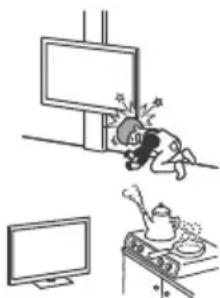
- Install the TV so that it sticks out into an open space. Injury or damage from a person or object bumping into the TV may result.
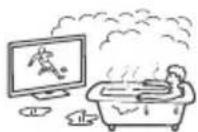
- Place the TV in a humid or dusty space, or in a room with oily smoke or steam (near cooking tables or humidifiers). Fire, electric shock, or warping may result.
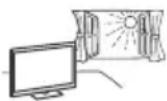
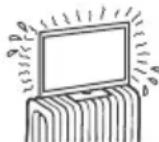
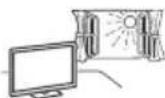
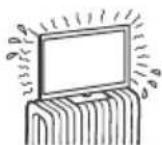
- Install the TV in places subject to extreme temperature such as in direct sunlight, near a radiator or a heating vent. The TV may overheat in such condition which can cause deformation of the enclosure and/or TV malfunction.
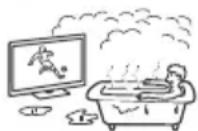
If the TV is placed in the changing room of a public bath or hot spring, the TV may be damaged by airborne sulfur, etc.
- For best picture quality, do not expose the screen to direct illumination or sunlight.
- Avoid moving the TV from a cold area to a warm area. Sudden room temperature changes may cause moisture condensation. This may cause the TV to show poor picture and/or poor colour. Should this occur, allow moisture to evaporate completely before powering the TV on.
Broken pieces:
- Do not throw anything at the TV set. The screen glass may break by the impact and cause serious injury.
- If the surface of the TV set cracks, do not touch it until you have unplugged the mains lead. Otherwise this may cause an electric shock.
When not in use
- If you will not be using the TV set for several days, the TV set should be disconnected from the mains for environmental and safety reasons.
- As the TV set is not disconnected from the mains when the TV set is just turned off, pull the plug from the mains socket to disconnect the TV set completely.
- Some TV sets may have features that require the TV set to be left in standby to work correctly.
For children
- Do not allow children to climb on the TV set.
- Keep small accessories out of the reach of children, so that they are not mistakenly swallowed.
If the following problems occur...
Turn off the TV set and unplug the mains lead immediately if any of the following problems occur.
Ask your dealer or Sony service centre to have it checked by qualified service personnel.
When:
- Mains lead is damaged.
Poor fitting of mains socket.
-
TV set is damaged by being dropped, hit or having something thrown at it.
-
Any liquid or solid object falls through openings in the cabinet.
About LCD TV Temperature
When the LCD TV is used for an extended period, the panel surrounds become warm. You may feel hot when touching there by the hand.
Precautions
Viewing the TV
View the TV in moderate light, as viewing the TV in poor light or during long period of time, strains your eyes.
- When using headphones, adjust the volume so as to avoid excessive levels, as hearing damage may result.
LCD Screen
- Although the LCD screen is made with high-precision technology and 99.99% or more of the pixels are effective, black dots may appear or bright points of light (red, blue, or green) may appear constantly on the LCD screen. This is a structural property of the LCD screen and is not a malfunction.
- Do not push or scratch the front filter, or place objects on top of this TV set. The image may be uneven or the LCD screen may be damaged.
- If this TV set is used in a cold place, a smear may occur in the picture or the picture may become dark. This does not indicate a failure. These phenomena disappear as the temperature rises.
- Ghosting may occur when still pictures are displayed continuously. It may disappear after a few moments.
- The screen and cabinet get warm when this TV set is in use. This is not a malfunction.
- The LCD screen contains a small amount of liquid crystal. Follow your local ordinances and regulations for disposal.
Handling and cleaning the screen surface/ cabinet of the TV set
Be sure to unplug the mains lead connected to the TV set from mains socket before cleaning.
To avoid material degradation or screen coating degradation, observe the following precautions.
-
To remove dust from the screen surface/cabinet, wipe gently with a soft cloth. If dust is persistent, wipe with a soft cloth slightly moistened with a diluted mild detergent solution.
-
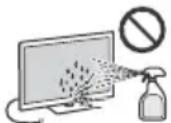
Never spray water or detergent directly on the TV set. It may drip to the bottom of the screen or exterior parts and enter the TV set, and may cause damage to the TV set.
-
Never use any type of abrasive pad, alkaline/acid cleaner, scouring powder, or volatile solvent, such as alcohol, benzene, thinner or insecticide. Using such materials or maintaining prolonged contact with rubber or vinyl materials may result in damage to the screen surface and cabinet material.
-
Do not touch the TV if your hand is covered in any chemical substance such as hand cream or sunblock.
Periodic vacuuming of the ventilation openings is recommended to ensure proper ventilation.
- When adjusting the angle of the TV set, move it slowly so as to prevent the TV set from moving or slipping off from its table stand.
Optional Equipment
- Keep optional components or any equipment emitting electromagnetic radiation away from the TV set. Otherwise, picture distortion and/or noisy sound may occur.
- This equipment has been tested and found to comply with the limits set out in the EMC Directive using a connection signal cable shorter than 3 meters.
- This equipment has been tested and found to comply with the limits set out in the EMC Directive using a RF cable shorter than 30 meters for terrestrial/satellite/CATV terminal.
GB
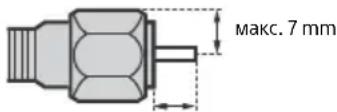
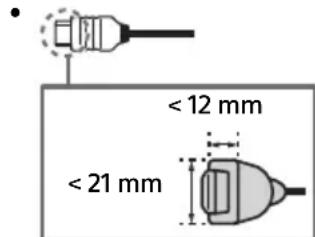
Recommendation of F type plug
Projection of the inner wire from the connection part must be less than 1.5mm
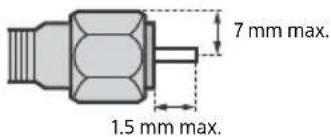
(Reference drawing of the F type plug)
Wireless Function of the unit
- Do not operate this unit near medical equipment (pacemaker, etc.), as this may result in the malfunction of the medical equipment.
- Although this unit transmits/receives scrambled signals, be careful of unauthorised interception. We cannot be responsible for any trouble as a result.
- This equipment should be installed and operated keeping a separation distance of 20cm or more between the antenna of this device and a person's body.
Caution about handling the remote control
- Observe the correct polarity when inserting batteries.
- Do not use different types of batteries together or mix old and new batteries.
- Disposet of batteries in an environmentally friendly way. Certain regions may regulate the disposal of batteries. Please consult your local authority.
- Handle the remote control with care. Do not drop or step on it, or spill liquid of any kind onto it.
- Do not place the remote control in a location near a heat source, a place subject to direct sunlight, or a damp room.
Disposal of the TV set
Disposal of old electrical & electronic equipment (applicable in the European Union and other countries with separate collection systems)
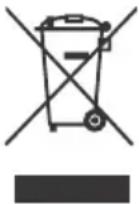
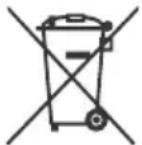
This symbol on the product or on its packaging indicates that this product shall not be treated as household waste. Instead it shall be handed over to the appropriate collection point for the recycling of electrical and electronic equipment.
By ensuring that this product is disposed of correctly, you will help to prevent potential negative consequences for the environment and human health, which could be caused by inappropriate waste handling of this product. The recycling of materials will help to conserve natural resources. For more detailed information about recycling of this product, please contact your local Civic Office, your household waste disposal service or the shop where you purchased the product.
Disposal of waste batteries (applicable in the European Union and other countries with separate collection systems)
This symbol on the battery or on the packaging indicates that the battery provided with this product shall not be treated as household waste.
On certain batteries this symbol might be used in combination with a chemical symbol. The chemical symbol for lead (Pb) is added if the battery contains more than 0.004% lead. By ensuring that these batteries are disposed of correctly, you will help to prevent potentially negative consequences for the environment and human health which could be caused by inappropriate waste handling of the battery. The recycling of the materials will help to conserve natural resources. In case of products that for safety, performance or data integrity reasons require a permanent connection with an incorporated battery, this battery should be replaced by qualified service staff only. To ensure that the battery will be treated properly, hand over the product at end-of-life to the appropriate collection point for the recycling of electrical and electronic equipment. For all other batteries, please view the section on how to remove the battery from the product safely. Hand the battery over to the appropriate collection point for the recycling of waste batteries. For more detailed information about recycling of this battery, please contact your local Civic Office, your household waste disposal service or the shop where you purchased the product or battery.
Parts and Controls
Controls and Indicators
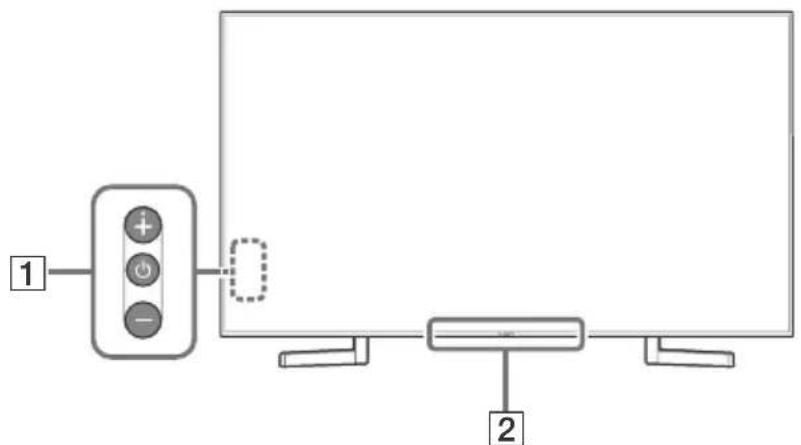
1 (Power) /+/-
When the TV is off,
Press to power on.
When the TV is on,
Press and hold to power off.
Press repeatedly to change the function,
then press + or - button to:
- Adjust the volume.
- Select the channel.
- Select the input source of TV.
Remote Control sensor*/Light sensor*/Illumination LED
The illumination LED lights up or blinks according to the status of the TV.
For more information, refer to the Help Guide.
- Do not place anything near the sensor.
Using Remote Control
Remote Control Parts Description
The remote control shape, location, availability and function of remote control buttons may vary depending on your region/country/TV model.
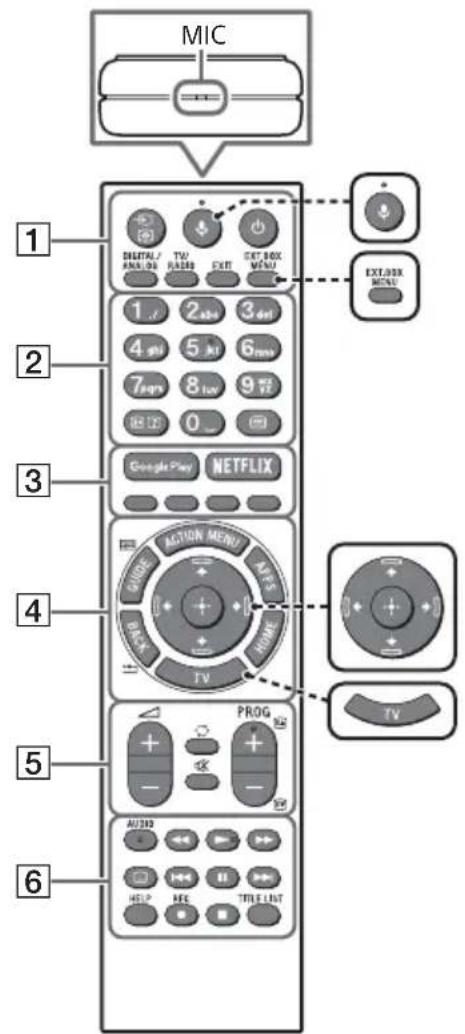

(Microphone)
Use Voice Search. (e.g., Search various content by voice.)

Display the connected External Box (cable/satellite box) menu.
- For models with supplied IR Blaster, connect and set up the IR Blaster (page 11).
- The External Box menu may be displayed for some HDMI CEC compatible devices when the IR Blaster is not supplied/connected.
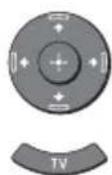
艹/艹/艝/艸/艱 (Navigation D-Pad)
On screen menu navigation and selection.
TV
Switch to a TV channel or input and display the TV Menu Bar.
1 (Input select/Text hold)
In TV mode: Display and select the input source.
In Text mode: Hold the current page.
(TV standby)
Turn on or turn off the TV (standby mode).
DIGITAL/ANALOG
Switch between digital and analogue mode.
TV/RADIO
Switch between TV or RADIO broadcasts.
EXIT
Return to the previous screen or exit from the menu. When an Interactive Application service is available, press to exit from the service.

( Info / Text re v
Display information.
(Text)
Display text information.
3 Google Play
Access the "Google Play" online service.
NETFLIX (Only on limited region/ country/TV model)
Access the "NETFLIX" online service.
Execute corresponding function at that time.
Display a list of contextual functions.
GUIDE/国
Display the digital programme guide.
APPS
Access various services and applications.
BACK/
Return to the previous screen.
HOME
Display the TV Home Menu.
5 +/-(Volume)
Adjust the volume.
(Jump)
Jump back and forth between two channels or inputs. The TV alternates between the current channel or input and the last channel or input that was selected.
(Muting)
Mute the sound. Press again to restore the sound.
PROG+/-/E/A/E
In TV mode: Select the channel.
In Text mode: Select the next (3) or previous (5) page.
6 AUDIO
Change the language for the programme currently being viewed.
<>/>>/1<>/
Operate media contents on the TV and connected BRAVIA Sync-compatible device.
(Subtitle setting)
Turn subtitles on or off (when the feature is available).
HELP
Display the Help menu. Help Guide can be accessed from here.
REC
Record the current programme with the USB HDD recording function.
TITLE LIST
Display the Title list.
Connection Diagram
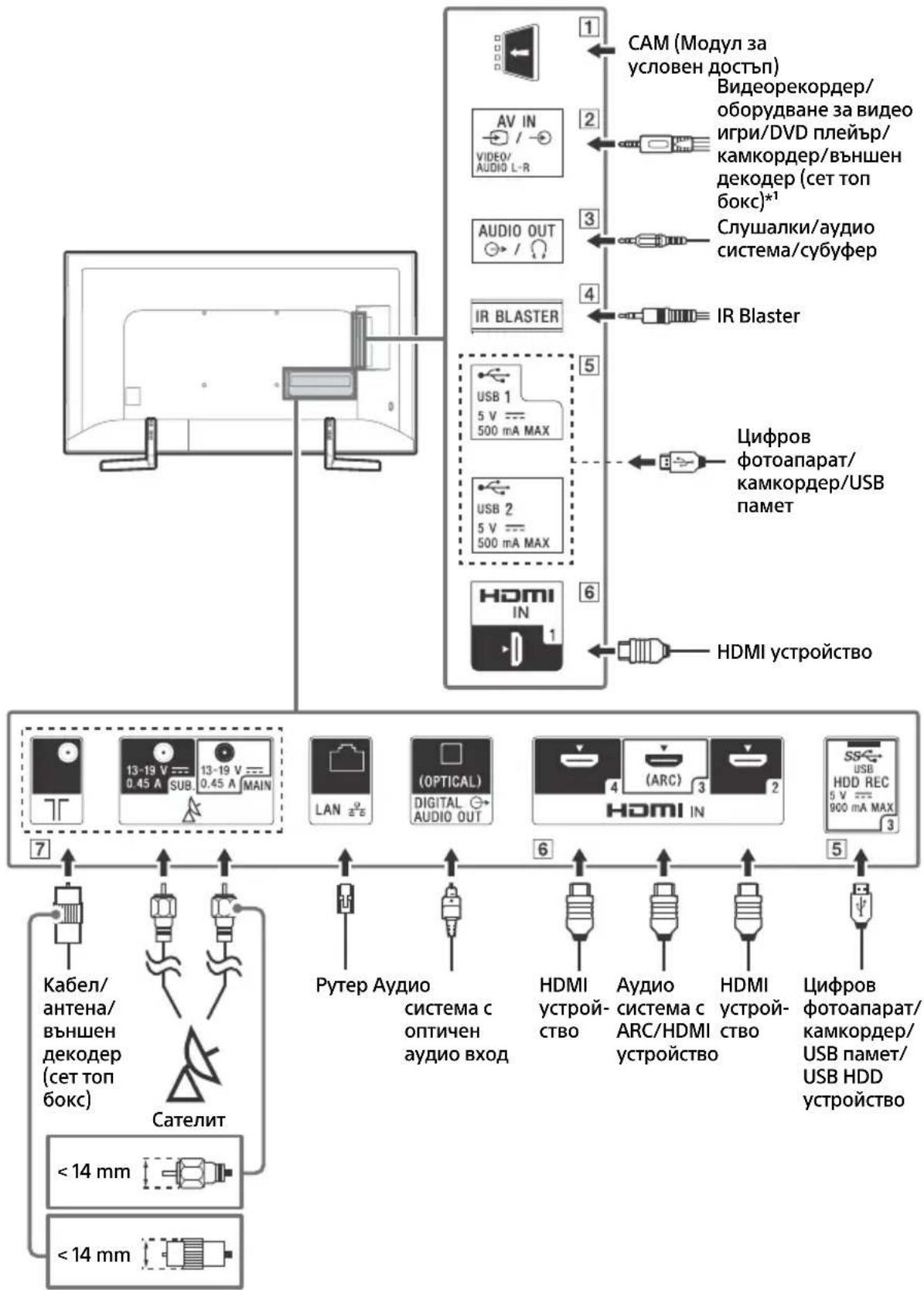
For more information on connections, refer to the Help Guide by pressing HELP on the remote control.
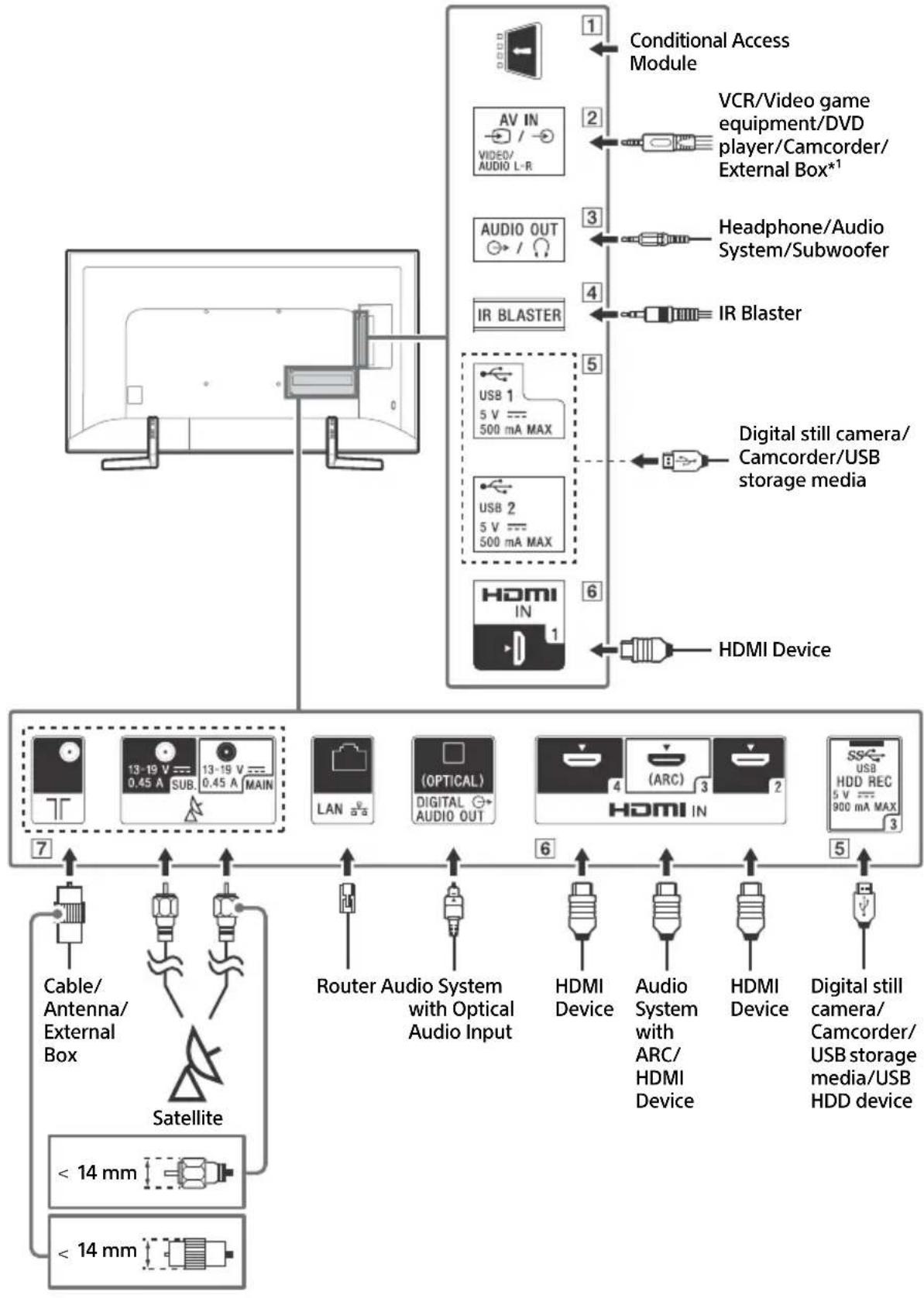
1 CAM (Conditional Access Module)
- Provides access to pay TV services. For details, refer to the instruction manual supplied with your CAM.
- Do not insert the smart card directly into the TV CAM slot. It must be fitted into the Conditional Access Module provided by your authorised dealer.
- CAM is not supported in some countries/ areas. Check with your authorised dealer.
- A CAM message may appear when you switch to a digital programme after using the Internet video.
2 / AVIN
- For a composite connection, use an Analogue Extension Cable (not supplied).
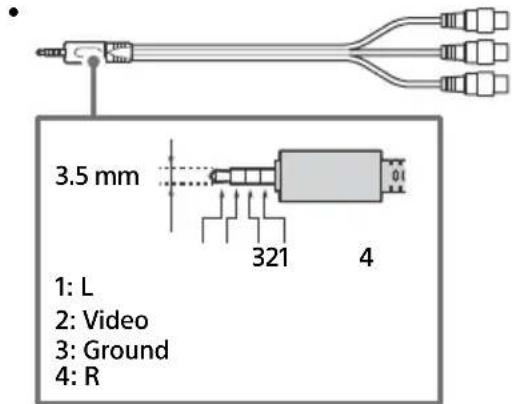
3 AUDIO OUT
Supports 3-pole stereo mini jack only.
- To listen to the TV's sound through the connected equipment, press HOME. Select [Settings] [Sound] [Headphone/Audio out] and then select the desired item.
4 IR BLASTER
- Use your Sony remote control to control your External Box (cable/satellite box). Connect the IR Blaster Cable*2 to the IR Blaster port on your TV. Place one or both of the other two ends as shown below.
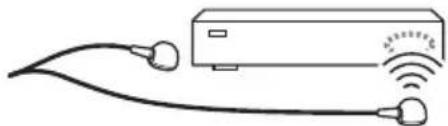
To perform IR Blaster setup, press HOME and select [Settings] [External inputs] [IR Blaster setup].
5 USB1/2,USB3(HDDREC)*
2
- Connecting a large USB device may interfere with other connected devices beside it.
- When connecting a large USB device, connect to the USB 1 port.
- Connect a USB HDD device to the USB 3 port (blue).
HDMI IN 1/2/3/4
- HDMI interface can transfer the digital video and audio on a single cable.
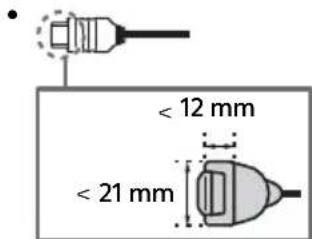
HDMI IN 3 ARC (Audio Return Channel)
Connect your audio system to the HDMI IN 3 to route TV audio to your audio system. An audio system that supports HDMI ARC can send video to the TV, and receive audio from the TV via the same HDMI cable. If your audio system does not support HDMI ARC, an additional connection with DIGITAL AUDIO OUT (OPTICAL) is necessary.
- Connections for terrestrial/cable and satellite. Connection steps: SUB. MAIN Antenna
- For SUB. jack, connect only when you are using twin tuner mode except for Single Cable Distribution EN50494.
1 For an external device which has only SCART AV OUT, use a SCART-RCA adaptor and Analogue Extension Cable.
2 Only on limited region/country/TV model.
Installing the TV to the Wall
Using the optional Wall-Mount Bracket
This TV's instruction manual only provides the steps to prepare the TV for Wall-Mount installation before it is installed on the wall.
To Customers:
For product protection and safety reasons, Sony strongly recommends that installation of your TV be performed by Sony dealers or licensed contractors. Do not attempt to install it yourself.
To Sony Dealers and Contractors:
Provide full attention to safety during the installation, periodic maintenance and examination of this product.
Sufficient expertise is required for installing this product, especially to determine the strength of the wall for withstanding the TV's weight. Be sure to entrust the attachment of this product to the wall to Sony dealers or licensed contractors and pay adequate attention to safety during the installation. Sony is not liable for any damage or injury caused by mishandling or improper installation.
Use the Wall-Mount Bracket SU-WL450 (not supplied) (Except KD-75XF90xx) to install the TV to the wall.
When installing the Wall-Mount Bracket, also refer to the Operating Instructions and Installation Guide supplied with the Wall-Mount Bracket.
Note
- Be sure to store the removed screws in a safe place, keeping them away from children.
- Place the TV with its screen facing down on a level and stable surface covered with a thick and soft cloth when removing the Table-Top Stand from the TV to prevent damaging the surface of the LCD display.

For instructions on Wall-Mount Bracket installation, see the Installation Information (Wall-Mount Bracket) on the product page for your TV model. www.sony.eu/support/
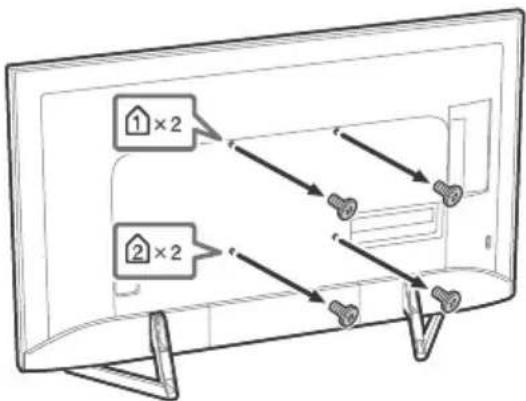
KD-65/55/49XF90xx only
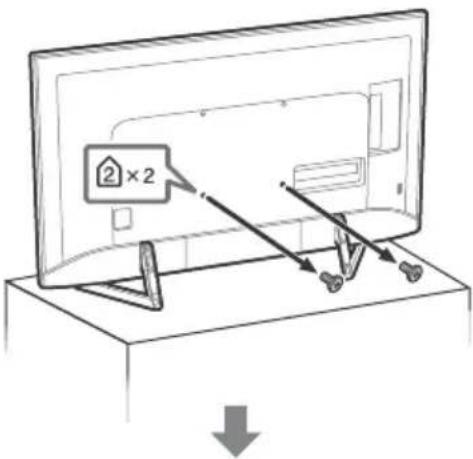
Remove the screws from the rear of the TV.
KD-75XF90xx only
Your TV can be mounted on a wall using a Wall-Mount Bracket (not supplied) out of the box as packaged.
Prepare the TV for the Wall-Mount Bracket before making cable connections.
For product protection and safety reasons, Sony strongly recommends that installation of your TV on the wall be performed by qualified professionals. Do not attempt to install it yourself.
- Follow the instruction guide provided with the Wall-Mount Bracket for your model. Sufficient expertise is required in installing this TV, especially to determine the strength of the wall for withstanding the TV's weight.
- Be sure to store the unused screws and Table-Top Stand in a safe place until you are ready to attach the Table-Top Stand. Keep the screws away from small children.
1 Remove the screws from the rear of the TV.
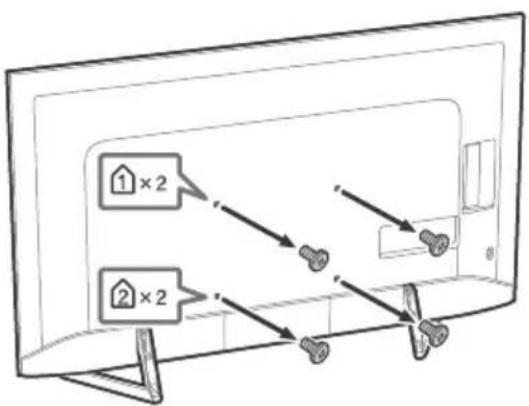
2 Attach the Wall-Mount Bracket (not supplied) using the screws (not supplied).
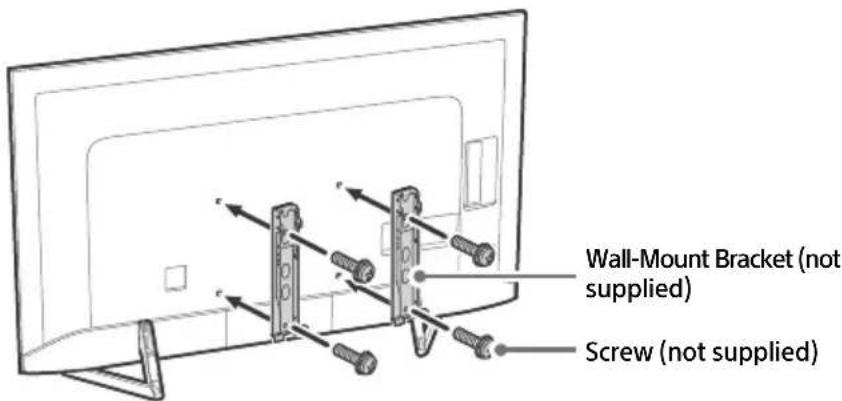
Note
- If using an electric screwdriver, set the torque at approximately 1.5N· m {15 kgf·cm}.
3 Detach the Table-Top Stand from the TV.
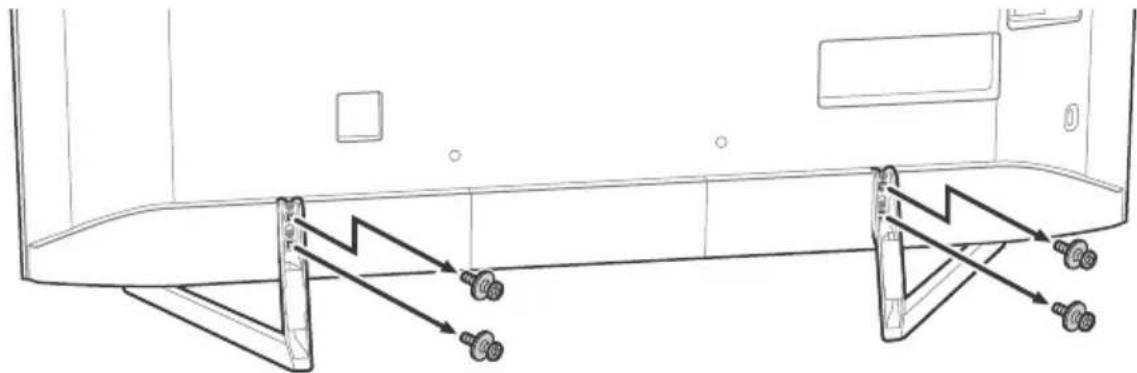
Troubleshooting
General troubleshooting for issues like: black screen, no sound, frozen picture, TV does not respond, or network is lost, do the following steps.
1 Restart your TV by pressing the power button on the remote control until a message appears. The TV will restart. If the TV does not recover, try unplugging the TV from the mains lead for two minutes and then plug it in again.
2 Refer to the Help menu by pressing HELP on the remote control.
3 Connect your TV to the Internet and perform a software update.
4 Visit Sony support website (information provided on the back cover).
When [A new TV system software update is available...] message is displayed.
Sony strongly recommends you to update the TV software by selecting [Update Now]. These software updates improve your TV performance or add new features.
The following screen with [Updating...] will appear and the illumination LED flashes white while software is updating.
![SONY Bravia KD49XF9005 - When [A new TV system software update is available...] message is displayed. - 1](/content/2026/02/423723/images/43c9773cd6e8925679ac1de80ccb32a06edec6f401e7236e4a251502377fae33.jpg)
Do not unplug the mains lead during the software update. If you do, the software update may not finish completely, and it may cause a software malfunction. Software updates can take up to 15 minutes.
It takes time to initialize the system. Wait for about one minute, then operate it again.
Troubles and Solutions
When the illumination LED is flashing in red.
- Count how many times it flashes (interval time is three seconds).
Reboot the TV by disconnecting the mains lead for two minutes, then turn on the TV. If the problem persists, disconnect the mains lead, and contact your dealer or Sony service centre with the number of times the illumination LED flashes.
Terrestrial/cable service cannot be received.
- Check the antenna (aerial)/cable connection and booster settings.
- Select terrestrial/cable service by pressing DIGITAL/ANALOG on the remote control. If the broadcasting service is not displayed, press TV and then press DIGITAL/ANALOG.
- Terrestrial signal might be suppressed if there is a strong signal supplied nearby. Set [LNA (CH---)] to [Off] in digital tuning settings.
After moving to a new house or trying to receive new services, attempt a service search by selecting [Digital Tuning].
Satellite service cannot be received.
- Check the satellite cable connection.
- When [No signal. LNB overload detected...] message is displayed, unplug the mains lead. Then, ensure the satellite cable is not damaged and the satellite signal line is not short-circuited in the satellite connector.
The remote control does not function.
- Connect and set up the IR Blaster (models with supplied IR Blaster only) (page 11).
- Connect HDMI CEC compatible device (except models with supplied IR Blaster) and change to that input.
The parental lock for broadcast password has been forgotten.
- Enter 9999 for the PIN code and select [Change PIN Code].
The TV surrounds become warm.
- When the TV is used for an extended period, the TV surrounds become warm. You may feel hot when touching there by the hand.
Specifications
System
Panel system
LCD (Liquid Crystal Display) Panel, LED Backlight
TV system
Depending on your country/area selection/TV model
Analogue: B/G, D/K, I
Digital: DVB-T/DVB-C
DVB-T2*
Satellite*: DVB-S/DVB-S2
Colour system
PAL/SECAM/NTSC3.58 (Video only)/NTSC4.43 (Video only)
Channel coverage
Depending on your country/area selection/TV model
Analogue: UHF/VHF/Cable
Digital: UHF/VHF/Cable
Satellite*: IF Frequency 950-2,150 MHz
Sound output
10W+10W
Wireless technology
Protocol IEEE802.11ac/a/b/g/n
(IEEE802.11ac may not be available depending on countries/regions.)
Bluetooth Version 4.1
Frequency band(s)
| Wireless LAN (IEEE802.11ac/a/b/g/n) |
| Frequency range Output Power |
| 2400-2483.5 MHz < 20.0 dBm |
| 5150-5250 MHz < 23.0 dBm |
| 5250-5350 MHz < 20.0 dBm |
| 5470-5725 MHz < 20.0 dBm |
| 5725-5850 MHz < 13.9 dBm |
| Bluetooth |
| Frequency range Output Power |
| 2400-2483.5 MHz < 10.0 dBm |
RMF-TX310E
| Bluetooth |
| Frequency range Output Power |
| 2400-2483.5 MHz < 10.0 dBm |
Software version
TV: PKG. EUA
Press HELP on the remote control to know the software version.
Remote control:
Press HOME, then select [Settings] [Voice]
Remote Control] [Software version].
Any updates of software/firmware for this equipment/accessories/components will never affect its conformity to Directive 2014/53/EU in future.
- Not all the TV sets have DVB-T2 or DVB-S/S2 technology or satellite antenna terminal.
Antenna (aerial)/cable
75 ohm external terminal for VHF/UHF
Satellite antenna
Female F Type Connector, 75 ohm.
DiSEqC 1.0, LNB 13 V/18 V & 22 kHz tone, Single Cable Distribution EN50494.
一 / - A VIN
Video/Audio input (mini jack)
HDMI IN 1/2/3/4 (support 4K resolution, HDCP
2.2-compatible)
Video:
4096× 2160p (50, 60 Hz)*2, 4096 × 2160p
(24Hz)^*1 3840× 2160p (50, 60 Hz)*2, 3840 ×
2160p (24, 25, 30 Hz), 1080p (30, 50, 60 Hz),
1080/24p, 1080i (50, 60 Hz), 720p (30, 50,
60 Hz), 720/24p, 576p, 576i, 480p, 480i, PC Formats*3
*1 When 4096 × 2160p is input and [Wide mode] is set to [Normal], the resolution is displayed as 3840 × 2160p . To display 4096 × 2160p , set [Wide mode] setting to [Full 1] or [Full 2].
*2 HDMI IN 2/3 only. To support 18 Gbps, set [HDMI signal format] to [Enhanced format].
*3 Refer to the Help Guide for details.
Audio:
5.1 channel linear PCM: 32/44.1/48/88.2/96/
176.4/192 kHz 16/20/24 bits, Dolby Digital, Dolby Digital Plus and DTS
ARC (Audio Return Channel) (HDMI IN 3 only)
(Two channel linear PCM: 48 kHz 16 bits, Dolby Digital, Dolby Digital Plus, DTS)
DIGITAL AUDIO OUT (OPTICAL)
Digital optical jack (Two channel linear PCM:
48 kHz 16 bits, Dolby Digital, DTS)
Headphone, Audio output, Subwoofer
1,2-3(HDBREC)*
1
USB device port. (USB HDD device for REC feature)
USB port 1 and 2 support High Speed USB (USB 2.0)
USB port 3 supports Super Speed USB (USB 3.1)
Gen1)
图
CAM (Conditional Access Module) slot
LAN
10BASE-T/100BASE-TX connector (Depending on the operating environment of the network, connection speed may differ. 10BASE-T/ 100BASE-TX communication rate and communication quality are not guaranteed for this TV.)
IR BLASTER*1
IR Blaster Cable input (mini jack)
Others
Optional accessories
Wall-Mount Bracket: SU-WL450 (Except
KD-75XF90xx)
Operating temperature
0^ - 40^
Operating humidity
10% - 80% RH (non-condensing)
Power, Product Fiche and others
Power requirements
220V-240VAC,50Hz
Energy Efficiency Class
KD-75XF90xx: A
KD-65XF90xx: A
KD-55XF90xx:B
KD-49XF90xx:B
Screen size (measured diagonally) (Approx.)
KD-75XF90xx: 189.3 cm / 75 inches
KD-65XF90xx: 163.9 cm / 65 inches
KD-55XF90xx: 138.8 cm / 55 inches
KD-49XF90xx: 123.2 cm / 49 inches
Power consumption
In [Standard] mode
KD-75XF90xx: 203 W
KD-65XF90xx: 162 W
KD-55XF90xx:145W
KD-49XF90xx: 114 W
In [Vivid] mode
KD-75XF9005:330W
KD-65XF9005:292W
KD-55XF9005:246W
KD-49XF9005:199W
Average annual energy consumption*2
KD-75XF90xx:282kWh
KD-65XF90xx: 225 kWh
KD-55XF90xx: 201 kWh
KD-49XF90xx: 158 kWh
Standby power consumption*34
0.50 W (27 W in software/EPG update mode)
Display resolution
3,840 dots (horizontal) × 2,160 lines (vertical)
Output Rating
USB 1/2
5V-500mA MAX
USB3
5V-900mA MAX
Dimensions (Approx.) (w× h× d)
with Table-Top Stand
KD-75XF90xx: 167.4 × 103.2 × 35.5 cm
KD-65XF90xx: 144.7 × 89.8 × 29.7 cm
KD-55XF90xx: 122.8 × 77.1 × 26.8 cm
KD-49XF90xx: 109.3 × 69.4 × 26.8 cm
without Table-Top Stand
KD-75XF90xx: 167.4 × 95.8 × 7.3 ~cm
KD-65XF90xx: 144.7 × 82.9 × 6.9 cm
KD-55XF90xx: 122.8 × 70.6 × 6.9 cm
KD-49XF90xx: 109.3 × 62.9 × 6.9 cm
Mass (Approx.)
with Table-Top Stand
KD-75XF90xx: 36.7 kg
KD-65XF90xx: 25.5 kg
KD-55XF90xx: 19.1 kg
KD-49XF90xx: 14.5 kg
without Table-Top Stand
KD-75XF90xx: 35 kg
KD-65XF90xx: 24.5 kg
KD-55XF90xx: 18.2 kg
KD-49XF90xx: 13.6 kg
1 Only on limited region/country/TV model.
2 Energy consumption per year, based on the power consumption of the television operating 4 hours per day for 365 days. The actual energy consumption will depend on how the television is used.
3 Specified standby power is reached after the TV finishes necessary internal processes.
4 Standby power consumption will increase when your TV is connected to the network.
Note
- Optional accessories availability depends on countries/region/TV model/stock.
- Design and specifications are subject to change without notice.
Notes on Digital TV function
- Digital TV (DVB terrestrial, satellite and cable), interactive services and network functions may not be available in all countries or areas. Some functions might not be enabled or might not operate correctly with some providers and network environments. Some TV service providers may charge a fee for their services.
- This TV supports digital broadcasting using MPEG-2, H.264/MPEG-4 AVC and H.265/HEVC CODECs, but compatibility with all operator/service signals, which may change over time, cannot be guaranteed.
- The terms HDMI and HDMI High-Definition Multimedia Interface, and the HDMI Logo are trademarks or registered trademarks of HDMI Licensing Administrator, Inc. in the United States and other countries.
- Manufactured under license from Dolby Laboratories. Dolby, Dolby Audio, and the double-D symbol are trademarks of Dolby Laboratories.
- "BRAVIA", Band BRAVIA Sync are trademarks or registered marks of Sony Corporation.
- Gracenote, the Gracenote logo and logotype, "Powered by Gracenote" logo are either registered trademarks or trademarks of Gracenote, Inc. in the United States and/or other countries.
- Vewd® Core. Copyright 1995-2017 Vewd Software AS. All rights reserved.
- Google, Android TV, Google Play, Chromecast built-in, YouTube and other related marks and logos are trademarks of Google LLC.
- Wi-Fi®, Wi-Fi Alliance®, Wi-Fi Direct® and Miracast® are registered trademarks of Wi-Fi Alliance.
- Wi-Fi Protected Setup™ is a trademark of Wi-Fi Alliance.
-
The Wi-Fi CERTIFIED™ Logo is a certification mark of Wi-Fi Alliance.
-
For DTS patents, see http:// patents.dts.com. Manufactured under license from DTS, Inc. DTS, the Symbol, & DTS and the Symbol together are registered trademarks, and DTS Digital Surround is a trademark of DTS, Inc. © DTS, Inc. All Rights Reserved.
- The Bluetooth® word mark and logos are registered trademarks owned by the Bluetooth SIG, Inc. and any use of such marks by Sony Corporation is under license. Other trademarks and trade names are those of their respective owners.
- Netflix is a registered trademark of Netflix, Inc.
- DiSEqCTM is a trademark of EUTELSAT. This TV supports DiSEqC 1.0. This TV is not intended for controlling motorized antennas.
- TUXERA is a registered trademark of Tuxera Inc. in the US and other countries.
- USB-IF SuperSpeed USB Trident logo is a registered trademark of USB Implementers Forum, Inc.
- All other trademarks are the property of their respective owners.
Table des matieres
AVIS IMPORTANT. 3
AT, BE, HR, CY, CZ, DK, EE, FI, FR, DE, EL, HU, IE, IT, LV, LT, LU, MT, NL, PL, PT, SK, SI, ES, SE, UK, IS, LI, NO, CH, BG, RO, TR, AL, BA, MK, MD, RS, ME, Kosovo
2160p (24, 25, 30 Hz), 1080p (30, 50, 60 Hz),
1080/24p, 1080i (50, 60 Hz), 720p (30, 50,
60 Hz), 720/24p, 576p, 576i, 480p, 480i, Formats PC*3
ARC (Audio Return Channel) (HDMI IN 3 uniquely)
10% - 80% HR (sans condensation)
AT, BE, HR, CY, CZ, DK, EE, FI, FR, DE, EL, HU, IE, IT, LV, LT, LU, MT, NL, PL, PT, SK, SI, ES, SE, UK, IS, LI, NO, CH, BG, RO, TR, AL, BA, MK, MD, RS, ME, Kosovo
2160p (24, 25, 30 Hz), 1080p (30, 50, 60 Hz),
1080/24p, 1080i (50, 60 Hz), 720p (30, 50, 60 Hz), 720/24p, 576p, 576i, 480p, 480i,
Formatos de PC*
*1 Si se introduce 4096 × 2160p y [Modo horizontal] se cambia a [Normal], laResolution做不到 será 3840 × 2160p . Para ver 4096 × 2160p , cambie el ajuste de [Modo horizontal] a [Completo 1] o [Completo 2].
*2 Sólo entradas HDMI IN 2/3. Para admitir los 18 Gbps, cambie [Fürmato de senal HDMI] a [Fürmato melhorado].
DIGITAL AUDIO OUT (OPTICAL)
Toma digital optica (PCM lineal de dos canales: 48 kHz 16 bits, Dolby Digital, DTS)
AUDIO OUT 念 / 念 (minitoma estereo)
Auricular, salute de audio, Altavoz de graves

1,2-3(HBDREC)* 1
10% - 80% RH (sin condensation)
AT, BE, HR, CY, CZ, DK, EE, FI, FR, DE, EL, HU, IE, IT, LV, LT, LU, MT, NL, PL, PT, SK, SI, ES, SE, UK, IS, LI, NO, CH, BG, RO, TR, AL, BA, MK, MD, RS, ME, Kosovo
2160p (24, 25, 30 Hz), 1080p (30, 50, 60 Hz),
1080/24p, 1080i (50, 60 Hz), 720p (30, 50,
60 Hz), 720/24p, 576p, 576i, 480p, 480i,
Pc-formaten
(Tweekanaals lineaire PCM: 48 kHz 16 bits, Dolby
Digital, Dolby Digital Plus, DTS)
DIGITAL AUDIO OUT (OPTICAL)
AT, BE, HR, CY, CZ, DK, EE, FI, FR, DE, EL, HU, IE, IT, LV, LT, LU, MT, NL, PL, PT, SK, SI, ES, SE, UK, IS, LI, NO, CH, BG, RO, TR, AL, BA, MK, MD, RS, ME, Kosovo
Installation and Wand
Satellite*: IF Freqenz 950-2.150 MHz
Tonausgänge
10W+10W
Wireless-Technologie
Protokoll IEEE802.11ac/a/b/g/n
2160p (24, 25, 30 Hz), 1080p (30, 50, 60 Hz),
1080/24p, 1080i (50, 60 Hz), 720p (30, 50,
60 Hz), 720/24p, 576p, 576i, 480p, 480i,
Computerformate*3
AT, BE, HR, CY, CZ, DK, EE, FI, FR, DE, EL, HU, IE, IT, LV, LT, LU, MT, NL, PL, PT, SK, SI, ES, SE, UK, IS, LI, NO, CH, BG, RO, TR, AL, BA, MK, MD, RS, ME, Kosovo
Estequipmentponede serutilizado noutrospaisesnnoeuropeus.
/ / / (NavegaoD-Pad)
2160p (24, 25, 30 Hz), 1080p (30, 50, 60 Hz),
1080/24p, 1080i (50, 60 Hz), 720p (30, 50,
60 Hz), 720/24p, 576p, 576i, 480p, 480i, PC
Formatos*3
DIGITAL AUDIO OUT (OPTICAL)
Tomada digital otica (PCM linear deinous canais:
48 kHz 16 bits, Dolby Digital, DTS)
AUDIO OUT 念 / 念 (Mini-tomada estereo)
Auscultador, saía de audio, subwoofer
1,2-3(HOBPEC)* 1
Porto do disposicao USB. (disposicao USB HDD para a funcionalidade REC)
As portas USB 1 e 2 suportam High Speed USB (USB 2.0).
A porta USB 3 suporta Super Speed USB (USB 3.1
Gen 1).
Ranhura CAM (Modulo de Accesso Condiional)
品 LAN
AT, BE, HR, CY, CZ, DK, EE, FI, FR, DE, EL, HU, IE, IT, LV, LT, LU, MT, NL, PL, PT, SK, SI, ES, SE, UK, IS, LI, NO, CH, BG, RO, TR, AL, BA, MK, MD, RS, ME, Kosovo
2160p (24, 25, 30 Hz), 1080p (30, 50, 60 Hz), 1080/24p, 1080i (50, 60 Hz), 720p (30, 50,
60 Hz), 720/24p, 576p, 576i, 480p, 480i, Formati PC*3
DIGITAL AUDIO OUT (OPTICAL)
EU-importor: Sony Europe Limited.
Se Hjalpguiden for mer information.
- Placera ingenting nara sensorn.
Anvanda fjarrkontrollen
2160p (24, 25, 30 Hz), 1080p (30, 50, 60 Hz),
1080/24p, 1080i (50, 60 Hz), 720p (30, 50,
60 Hz), 720/24p, 576p, 576i, 480p, 480i,
PC-format*3
EU Importor: Sony Europe Limited.
艹/艹/艹/艹/艹 (Navigering D-Pad)
Skaermmenunavigering og valg.
TV
(to-kanals lineaer PCM: 48 kHz 16 bit, Dolby
Digital, Dolby Digital Plus, DTS)
DIGITAL AUDIO OUT (OPTICAL)
Digitalt optisk stik (to-kanals linear PCM: 48 kHz 16 bit, Dolby Digital, DTS)
AUDIO OUT (Mini-stereostik)
Hovedtelefon, lydudgang, subwoofer
1,2-3 (HDDREC)* 1
USB-enhedsport. ( USB HDD-enhed for REC-funktion)
USB-port 1 og 2 understotter High Speed USB (USB 2.0).
USB-port 3 understotter Super Speed USB (USB 3.1 Gen 1).
CAM (Conditional Access Module)-holder
I [Standard] tilstand
KD-75XF90xx: 203 W
KD-65XF90xx: 162 W
KD-55XF90xx:145W
KD-49XF90xx: 114 W
I [Kraftig] tilstand
KD-75XF9005:330W
KD-65XF9005:292W
KD-55XF9005:246W
KD-49XF9005:199W
Gennemsnitigt arligt energiforbrug*2 KD-75XF90xx: 282 kWh KD-65XF90xx: 225 kWh KD-55XF90xx: 201 kWh KD-49XF90xx: 158 kWh
Strømforbrug i standby*3*4 0,50 W (27 W i software-/ EPG-odateringstilstand)
DIGITAL AUDIO OUT (OPTICAL)
EU-importor: Sony Europe Limited.
Spørsmål til EU-importøren eller spørsmål vedrørende**
produktets overensbestemmelse i Europa skal sendes til
produsentens autoriserte representant, Sony Belgium,
bijkantoor van Sony Europe Limited, Da Vincilaan 7-D1, 1935
Zaventem, Belgia.
Merknad for radioutstyr
Herved erklærer Sony Visual Products Inc. at radioutstyristypene KD-75XF9005, KD-65XF9005, KD-55XF9005,

KD-49XF9005 er i samsvar med direktiv 2014/53/EU. EU-erklæring fultekst finner du pa Internett under:
http://www.compliance.sony.de/
AT, BE, HR, CY, CZ, DK, EE, FI, FR, DE, EL, HU, IE, IT, LV, LT, LU, MT, NL, PL, PT, SK, SI, ES, SE, UK, IS, LI, NO, CH, BG, RO, TR, AL, BA, MK, MD, RS, ME, Kosovo
(Teksting-innstilling)
Slár teksting på eller av (nár davon funksjonden er tilgengelig).
HELP
Vis Hjelp-menyen. Hjelpeveiledning kan nas herfra.
REC
2160p (24, 25, 30 Hz), 1080p (30, 50, 60 Hz),
1080/24p, 1080i (50, 60 Hz), 720p (30, 50,
60 Hz), 720/24p, 576p, 576i, 480p, 480i, PC-formater*3
DIGITAL AUDIO OUT (OPTICAL)
Digital optisk kontakt (tokenals lineær PCM:
48 kHz 16 biter, Dolby Digital, DTS)
AUDIO OUT (stereomini-kontakt)
Hodetelefon, Iydutgang, subwoofer
1,2-3(HDBREC)*
1
The Heights, Brooklands
Weybridge, Surrey, KT 13 0XW
United Kingdom.
Importer w UE: Sony Europe Limited.
AT, BE, HR, CY, CZ, DK, EE, FI, FR, DE, EL, HU, IE, IT, LV, LT, LU, MT, NL, PL, PT, SK, SI, ES, SE, UK, IS, LI, NO, CH, BG, RO, TR, AL, BA, MK, MD, RS, ME, Kosovo
2160p (24, 25, 30 Hz), 1080p (30, 50, 60 Hz),
1080/24p, 1080i (50, 60 Hz), 720p (30, 50,
60 Hz), 720/24p, 576p, 576i, 480p, 480i, Formaty computerowe*3
DIGITAL AUDIO OUT (OPTICAL)
AT, BE, HR, CY, CZ, DK, EE, FI, FR, DE, EL, HU, IE, IT, LV, LT, LU, MT, NL, PL, PT, SK, SI, ES, SE, UK, IS, LI, NO, CH, BG, RO, TR, AL, BA, MK, MD, RS, ME, Kosovo
Toto vybaveni muze byt pouzito vostatnich neevropskych zemich.
2160p (24, 25, 30 Hz), 1080p (30, 50, 60 Hz),
1080/24p, 1080i (50, 60 Hz), 720p (30, 50,
60 Hz), 720/24p, 576p, 576i, 480p, 480i, PC formaty3
DIGITAL AUDIO OUT (OPTICAL)
2160p (24, 25, 30 Hz), 1080p (30, 50, 60 Hz),
1080/24p, 1080i (50, 60 Hz), 720p (30, 50,
60 Hz), 720/24p, 576p, 576i, 480p, 480i, Formáty PC*3
*1 Ked je vstup 4096 × 2160p a [Siroký režim] je nastavené na [Standardný], rozlísenie sa zobrazí ako 3840 × 2160p. Na zobrazenie 4096 × 2160p vyberte nastavené [Siroký režim] na [Plny 1] alebo [Plny 2].
*2 Len HDMI IN 2/3. Ak si ze laté podporu 18 Gb/s, nastavte [Formát signalu HDMI] na [Vylepşen'y=format].
*3 Podrobnosti nájdete v Príručke.
Audio:
5,1 lineárny kanál PCM: 32/44,1/48/88,2/96/
176,4/192 kHz 16/20/24 bitov, Dolby Digital,
Dolby Digital Plus a DTS
ARC (Audio Return Channel) (Len HDMI IN 3)
(dvojkanálovy lineárny PCM: 48 kHz 16 bitov,
Dolby Digital, Dolby Digital Plus, DTS)
DIGITAL AUDIO OUT (OPTICAL)
Digitalny opticky konektor (dvojkanalyx linearny PCM: 48 kHz 16 bitov, Dolby Digital, DTS)
AUDIO OUT (stereo mini konektor)
EU importor: Sony Europe Limited.
AT, BE, HR, CY, CZ, DK, EE, FI, FR, DE, EL, HU, IE, IT, LV, LT, LU, MT, NL, PL, PT, SK, SI, ES, SE, UK, IS, LI, NO, CH, BG, RO, TR, AL, BA, MK, MD, RS, ME, Kosovo
DIGITAL AUDIO OUT (OPTICAL)
Importer UE: Sony Europe Limited.
Intrebari catre importatorul UE sau referitoare la conformitatea produsului in Europa se trimit catre representantul autorizat al producatorului, Sony Belgium, bijkantoor van Sony Europe Limited, Da Vincilaan 7-D1, 1935 Zaventem, Belgia.
Observatie cu privire la echipamentul radio

Prin preventa, Sony Visual Products Inc.
declara cã tipurile de echipament radio KD-75XF9005,
KD-65XF9005, KD-55XF9005, KD-49XF9005 sunt in conformitate
cu Directa 2014/53/UE. Textul integral al declarataiei UE de
conformitate este disponibla urmatoarea adresä internet:
http://www.compliance.sony.de/
lesire audio 10 W + 10 W
Tecnologie wireless Protocol IEEE802.11ac/a/b/g/n (Este posibil ca, in functie de tari/regiuni, protocolul IEEE802.11ac sa nu fie disponibil.) Bluetooth versiunea 4.1
Bandä (benzi) de frecventa
| LAN wireless (IEEE802.11ac/a/b/g/n) |
| Gama de freCNTă Putere de iesire |
| 2.400 - 2.483,5 MHz < 20,0 dBm |
| 5.150 - 5.250 MHz < 23,0 dBm |
| 5.250 - 5.350 MHz < 20,0 dBm |
| 5.470 - 5.725 MHz < 20,0 dBm |
| 5.725 - 5.850 MHz < 13,9 dBm |
| Bluetooth |
| Gama de freCNTă Putere de iesire |
| 2.400 - 2.483,5 MHz < 10,0 dBm |
RMF-TX310E
| Bluetooth |
| Gama de freCNTă Putere de ieșire |
| 2.400 - 2.483,5 MHz < 10,0 dBm |
Versiune software
TV:PKG. EUA
2160p (24, 25, 30 Hz), 1080p (30, 50, 60 Hz),
1080/24p, 1080i (50, 60 Hz), 720p (30, 50,
60 Hz), 720/24p, 576p, 576i, 480p, 480i, Formate PC*3
DIGITAL AUDIO OUT (OPTICAL)
Mufa optica digitala (PCM liniar pe doua canale: 48 kHz 16 biti, Dolby Digital, DTS)
AUDIO OUT (mini mufa stereo)
Castei, iesire audio, subwoofer
1.2.3(HB)REC)*
Port dispositiv USB. (Dispositive HDD USB pentru caractesistica REC)
N3NoJ3BaHe Ha NICTaHcNOHHO
ynpaBneHne 9
ДиctaHцIOHNOуnpaBJIeHneOncaHneHa yactnte. 9
DnaarpamaHa Cbbp3BaHe 11
MONTAX Ha TeleBn3opa Ha cTeHa .14
To3n npOyKTe npOn3BeDen OT nJIn OT nMeTo Ha Sony Visual Products Inc.
Bbocnten B EC: Sony Europe Limited.
3aNTBaHn DO BHOCTeN IIN 3aNTBaHn CBp3AH CbC
CBOTBETCTBnTo HA npOyKTNe CTbIacHO 3aKOHOaTeNCTBOTO
Ha EBPOneCKn CB03, CNEBa Da ce OTnpABT KbM
YbHOMoUeHn PpeCTabuTeH Ha npOnBDoHTeN Sony
Belgium, bijkantoor van Sony Europe Limited, Da Vincilaan
7-D1, 1935 Zaventem, Benrna.
3a6eIeKka 3a paIIO o6OpyDbaHe

C hactoToTo Sony Visual Products Inc.
dKnapura, Ye TnOBeTe padnoobopyDbaHe KD-75XF9005,
KD-65XF9005, KD-55XF9005, KD-49XF9005 cbOTBeTCTBaT ha
DnpeKtNaB 2014/53/EC. LAnIOCTHnT TeKT Ha EC dKnapaunTa
3a cBoTBeTCTBne MoKeJa Ce Ce HamepHa CneHnHa INHTepHET
aDpec: http://www.compliance.sony.de/
ToBa paIIO o6OpUyBaHe MoKe Ja ce I3nOJI3Ba B EC, 6e3 Ja ce HApUJbAaT npNJLOXKIMITE N3NCKBAHn OTHOCHO IN3NOJ3BaHeTO Ha paIIOueCTOTHn CNEKtbp.
3a6eKka 3a notpe6nten: cneHata HhOpmaunCe OTHacr caMo 3a obopydBaHe, npoDaBaHO B CtpaHn, KbTeTo ce npnlarat DupeKtNBte Ha EC.
Be3xuHaTa TeBnHOnHa CnCTeMa MoKe Da Ce N3No13Ba B CneIHNTe DbpxAbN: AT, BE, HR, CY, CZ, DK, EE, FI, FR, DE, EL, HU, IE, IT, LV, LT, LU, MT, NL, PL, PT, SK, SI, ES, SE, UK, IS, LI, NO, CH, BG, RO, TR, AL, BA, MK, MD, RS, ME, Kocobo
ToBaOBopyuBaHeMoKeJaCeN3NoJ3BaBpyrHHeeBpOeckn CTpaHn.
HΦopMaun3a6e3oNaCHOCT
PNEyPPEKDEHNE
BhimaHne
OnachocOT ekcnno3n, ako 6aTepyTa 6bJe noMeHeHa c HnepaBwJeh TIN 6atepy.
BaTePnIe He TpRbBa Da ce N3laRaT Ha npeKaHa ToNnHa, HAnpIMep CJIbHuEBA CBETnHa, OfBn NIOIoobH NIN Ha N3KIOUHTenHO HNCo aTMocΦepHo HAraHe, KoTo MoKe Ja DOBeJe Do eKcIINo3n NIN N3TuHa He 3aNaIIma TeHOCr IINI ra3.
OnachocT, Cbbp3aHa Cbc Cta6nHOCCTTa
TeneBn3OpbT MoKeJa nAnHe N da npuHn cepNo3Ho HapaHbAbe Nm Cmbpt.
HnKora He cnaarTe TeneBn3Op Ha HecTa6uHn HOBbpxHOCTN. TeNeBn3OpBT MOKe Da naHne N da npuHn Cepno3HO
HapaHbAHe Nm Cmbpt. Mhoro HapaHbAHn, OcObeHo npn Deu, Moat da ce n36eHaT, KaTo ce B3eMaT IpocTu PpeNa3Hm MEpku KaTo:
-Ⅲnol3BaHe Ha uKafoBe n CTOnKn, npenOpbHaHn OT npon3BounteHa TeJeBn3Opa.
-ИЗПОЛЗВАЕ самоHa Мeбели,КоТTO мOrAT БeЗОпаCHOДУнДБРЖAT TeXeCTTа HTeNEBN3Opa.
- Da ce BHMABA TeJIeBn3OpbT Da He N3JIN3a N3BbH Pb6a Ha Me6eJIte,Ha KOnTO e NOCTABEH.
TeBnOpbTaHe Ce NoCTaB Bbpxy BcOKMe6eHn (Haepmep ukafoBe nn 6bNoTeKn), 6eTneBnOpbT
- n CbOTBETHaTMe6eIa 6bDaTΦKcnpaHn KbM NOxOJaA onopa.
-Да He ce NoctaB TeBn3Opa BbpxI nIaT IIN dpyrn MaTePnAInI, KOINTo MOrA Tda Ce HAMnPaT MeKdy TeBn3Opa IN Me6BeNtE, Ha KOTOn e NoCTaBEn.
Ja ce o6rchT Ha decaTa onaHcOCTnTe OT KaTepeHe no Me6eNITE, 3a Da ce DoCTnRhe TeneBu3OpbT UIN HeROBtE opraHHn 3a ynpabLeHne.
Ako npn CmHa Ha XnIuIeTo 3ana3nte HactounCn TeNeBn3Op, CneBa Da B3eMeTe PpeBnD cbuNTe Cbo6paKeHna, KaKTO rOpEn3IOKeHnTe.
HCTaJauHAcTpoKa
HCTaIpaTe n 3n0JIbBaIte TeIeBUNOpa B cBoTBeCTBne C HHTpyKUInTE, ONCaHn NO-DOy, 3a Da N36BerHeTe pNCK OT NoXap, TOKOB YApD NNN OOBpeA N/NN HApAHBaHnY. YeD, CBp3aH KbM 3aUnTHoTO 3a3EMBAHe Ha CgrPaHaTa HCTaIauNaYueP3 Bp3Ka C MpeXOBOT eNEKtPO3aXpaHBAHe NNN Yepe3 dpyrO yCtpoCTBO C Bp3Ka KbM 3aunTHoTO 3a3EMBAHe, N KbM TeLEBUNOHHa pa3npEJNTeHn CaCTMe, INIOJ3BaUa KoAKCuAnen Ka6eI, MoKe npN onpeJeHn ObcToTEnCTBa da Cb3dAe OnacHOCT OT NoXap. 3aTOBa CBp3BaHeTO KbM TeLEBUNOHn Pa3npEJNTeHn CaCTMe TPr8Ba Da ce OCbUeCTBn Ype3 YcTpoCTBO, PpeOCTABIoo eNEKtpuYecka IOnauaiao nO nppeJeHn CheToteH dnana3OH (ranbaHueh IOnaIop, Bk. EN 60728-11).
HCTaJau
TeBn3OpbTpr6Ba Da 6bIe HCTaIIpaH 6NI3O Do JeCHO DOCTbNEH KOHTAKT.
- Noctabete TeneBn30pa Ha Cta6nHa, paBaHa NOBbpxHOCT, 3a Da n36erHete NaHeTo My, KOeTo MoKe Da npuHn HapaHbAHe Ha YOBek NIN NOBpeHa HA MUYecCTBO.
- MoHTnpaIte TeneBUN3Opa HaMaTcTo, KbTeTO He MoKe Da 6bJe DpbNHaT, 6yTHaT Wn Npeo6bPHaT.
- NocTabeTe TeneBn3Opa Taka, Ye nocTabkTa 3a Maca Ha TB Da He e CTbpyu OT MacaTa, HA KOrTo e NOCTABeH TeneBn3Opa (He ce DocTabra). Ako NocTabKaTa 3a Maca e n3daJeHa HbH CNpRMo Macata, Ha KOrTo e NOCTaBeH TeneBn3Opa, TOBa MoKe Ja DOBeDe Io Npeo6bUaHe nn NaJaHe Ha TeneBn3Opa I da DOBeDe Io HapaHbAbe Ha YOBek nn NobPeDa Ha TeneBn3Opa.
MOnTaXbT Ha YcTpOJCTBOTO KbM CTeHaTa TpA6Ba Da ce 13BbPm CaMO OT KBaJIHnIuNpuH nepcoHaI.
- 3a no-roJlma6e30nacHocBn npenopbYBaMe Da n3noJ3BaTe opnHHnHTe akcecoapn Ha Sony, BkNIOHTenHo: -KoH3OJa 3a 3akpenBaHe KbM cTeHa SU-WL450 (C n3KIOUeyHne Ha KD-75XF90xx)
Ha BcKa ZaHa N3NoJ3BaIe BuHTOBete npInOKeHn KbM KOH3oNAta 3a 3aKpeNaBe HbM CTeHa, KOraTo 3aKaaTae KOH3oNata 3a 3aKpeNaBe HbM CTeHa KbM TeneBn3opa. PnIOxKeHHe NT BuHTObe Ca IpoeKtnpaHn KaTc e NOKa3Ho Ha NIOCTpaAeta, N3MepBaHTo e HAnpabeHo Cnpmo 3aKaBaLaaT a NobbpXHOCT Ha KOH3oNAta 3a 3aKpeNaBe HbM CTeHa. DnAmEtbpbT n DblJnxHnA tHa H BuHTOBete Ce pa3NJuBaT B 3aBNCIMoCT OT MoEJa Ha KOH3oNAta 3a 3aKpeNaHe KbM CTeHa. IV3noJ3BaHTo Ha BuHTObe, pa3NJuHn OT Te3N B KOMNJIeKTa Ha KOH3oNtA, MOKe Da IOBede DO BbTpEun NH NOBpeHn Ha TeJeBn3Opa INI Da CTaHe pnuHn 3a NaDaHETo My N T.H.
Ppehae
-ПпддмecTNTe TeneBn3opa,ИЗКИЧЕТБСИКИΚавелOT HeRo.
-ПпeнсангTo Ha rOJIaM TeIeBn3Op nIcKBa Ibama NII NOBuey dUJN.
Korato MeCTIte TENEBn3Opa Ha Pbue, DpbXTe Ro, KaKTo e noNo-dony. He HATNcKaIe LCD naHena n paMkata OKOko ekpHa.
Pn npnehahe He n3laarate Te TeneBn3opa Ha CbTpceHn nnnpekaneHn B6paun.
Korato npehacate TeleBn3opa npnpemOH nI npn cMaHa Ha KINuIeTo, naKeTnpaIte Ro, kATO n3NOJ3BaTe opwnHajHata onakOBka mATEpnaI 3a naKeTnpaHe.
PpeoTbpaTaBaHe Ha naDaHe
Bentla
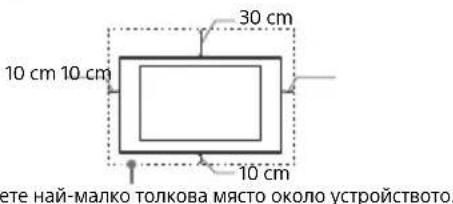
HnKora He NOKPBAe BeHTnlaOnHHTe OTBOpN He BkapBaTe PpeMetn B KOpnyca.
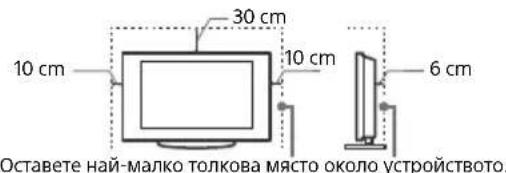
OctaBeTe CBO6OJHO MRCTO OKOJO TeJeBu3Opa KaKTo e NOKa3aHO NO- DONY.
IpenopbHuTHe e da n3nonBaTe opnHaHATA KOH3oJa 3a 3akpenBaHe KbMa TcEHa Na Sony, 3a Da ocUpytne DocTaBHu HaNPKvuaaHa Ba3DyXa.
HCTanauaHa CTeHa
HCTaInpaHe c nOMoTa Ha NoCTaBka
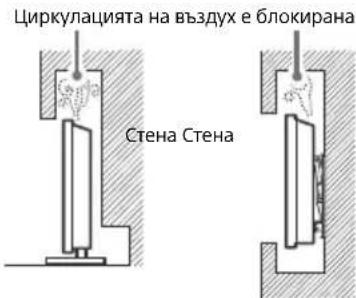
3a da noctnHte npabuHa BeHTunaucn 3a da npedOTbpaNTe C6bnpaHETo Ha npax uIN MPbcOTn:
He cnaarate Te neBn3opa nnerHan, He ro MoHTnpaTe o6bphat C rOpHnKpa HAnOly, Haonakn Nnn CTpaHnHo.
He cnaarTe TeneBn3opa Bbpxy pafoBe,KnIm,nerno nB DpeHHK.
He nokpmbaTe TeneBnOpa c napeta nnat, kato nepdeta nnC npDytn ppeMeTn, kato BcTHnU n dp.
He nHCTaInpaIte TeIeBn3opa, KaKTo e noka3aHo No-DoJy.
3axpaHbau Ka6eI
3a da npedotbpatntepnck OT noxap, TokOB ynap, nobpepa/ nHapaHraBaHe, pa6oTe cbc 3axpaHbaunKa6eJ KaKTo CneDBA:
- ⅢnON3BaIe cmo opunHaen 3axpaHbau Ka6en Ha Sony. He n3NON3BaIe DpyrN MapKn.
BkapaTe 电encena NbTHO IN DOKpaB KOTaKTA.
BkIIOuBaIte TeIeBUN3Opa cMo KbM npOMeHINBOtOKOB 3axpaHbAHe ot 220 V - 240 V.
Korato npokapbate Ka6e, 3a Ba7a 6e3oNaChOCT ce yBepete, ye Cte n3KJIouuun 3axpaHbaunna Ka6e; BHNMaBaTe da He ce cnBHeTe B Ka6eNTte.
-ИЗКИПОЕТЯХАРВАДУКABELOTМРЕЖATAOT220V,npeIN DaMeCTITEIMNIM3BbPWBATEonepaUNHADTeLEBn3Opa.
- Na3eTe 3axpaHbauNra Ka6en DaIeU OIToTHNuHa ToTNIHa.
- 3KJIouyete 3axpaHbuaaKa6eI n rO nouCTBaTe peoBHO. Ako 3axpaHbuaaT Ka6eI e 3aMbpcEH INn paaueH nNo Hero ce o6pa3yBa Bnara, n3oLaunTa My MoKe Da Ce HapyuN TOBa MOKe Da DoBeE dO noXkap.
3a6eJekka
He 3nnon3BaTe npnoKeHnaXpaHbau Ka6e n c pyro 6opdyBaHe.
He dyuHte He orbBaeI He ycKbaTe pekOmepho 3axpaHbuaaKa6e. BtpeHnIte npobDnCm Morat da ce oroJrnn PpeKbCHAT.
He npenpaBnTe 3axpaHbuaKa6eJ.
He noctabraIte TeXkN IpeDMETn Bbpxy 3axpaHbaunKa6eJ.
He IbpaTe camn 3axpaHbau Ka6eI, KOraTo ro n3KIOUBATe OT KOHTaTa.
He Cbbp3BaIe TBbpIe MHOrO yCTpoNCTBa KbM eINH IN CbIaKoHTAKT.
He 3n0nl3BaIe KOHTaKT, KoITo He 3axBaIa Cta6uHIO uencena.
3a6paheHa ynoTppe6a
He nHCTaInpaIte/u3noJI3BaIte TEeBn3Opa Ha cIeIhnte Mecta nn B CNTyaIcIne, onncanu no-dony. B npotunbe H cyuayai TeEbn3OpBT MOKe Da ce Nobpeu N da npuHn Ioxap, TOKOB ydap, uTea N/nn HapaHraBe.
MecToHaxOxJdeHne:
Ha oTKpIto (npKa CbHYeBa CBeTnHa), Ha MOpCKnB 6pR, Ha KopaO NIN Dpyr IJIaBAteJeH CbD, BbB BbTpEwHOCTra Ha npBo3HO CpeDCBO, BMeUNHCKN 3aBeDeHnA, HHeCTaBUNH NOBbpxHOCTn, 6JIn30 Do BOda, INIOXeH Ha DbXd, Blara INN nyweK.
OkoHa cpea:
- MecTa, KOnTo ca ropeu, BnaxHn mIn npeKaaneHo npaun; TaM, KbTeTo MoKe Da Bn83at HaceKOM; KbTeTo MoKe Da 6bDe n3IOxeh Ha MexaHnHn Bn6paun, B 6nnOCT Do 3anaJIMn npEdMeTn (Cbeun np..). TeEnBn3OpBT Tp8Ba Da 6bDe npednaeH OT ONnBaHe C TeHocTn, He NoctabRnTE B 6nn3OCT Do yCTpoCTBOTo npEdMeTn, NblHn C TeHocTn, KaTO HanPnPmep Ba3N.
CnTuaun:
He n3no3BaIte, aKo CTE c MOKpn pBue, KOraTo KaNakbT Ha yCTpOJCTBOTO e CBAnEH INN C AkCEcoApN, KOTo He ca npenOpbauHn OT npOn3BoDnteJI. No Bpeme Ha rPbMoteBnuHn 6ypn N3KIOuBaTe TeJeBn3Opa OKTaKaTn CbIo 13BaXdaIte aHTEHnraKabE.
He MoHTnpaTe TeneBn3OpTa Taka, Ye da CTbpyu. MoKe Da BB3HnKHe HapaHraBaHe NnIOBpeJa OT c6Nbcbk Ha YOBek NnI pPeDMeT B TeNeBn3OpA.
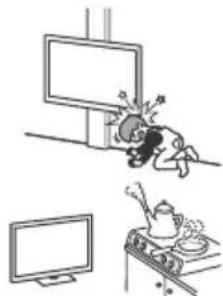
He noctabnTe TeneBn3opa Ha BnaJxHO nI npaHNO MCTO, INN B CTa C Ma3eH dM Nnn Napa (6n3o Do KxHEcKn NIOTOBE nn OBnaxKnTei).MoKe Da Bb3HnKHe NOxap, eNeKtpueckn ydp ann DeΦopMaun.
He nocTabaTe TeIeBn3opa Ha MeTa, nIIOKeHn Ha BvCOKn Tmepatpyn, HApnpMeP dIpeKTHa CbHueBa CBeTnHa, 6Iu3o Do paDnatop nn OTonntneHTo TaNo. B TakBa ycNobnra TeIeBn3OpbT MoKeJa nIperpee, KoETo Da npuHInn DeΦopMaunHa Kopnyca n/nn NobpeDa Ha TeIeBn3opa.
AkoTeNeBn3OpbT6bDeNoCTaBeH B Cb6IeKaJIHa Ha 06uEcTBeHa 6aHa Nm MNHepaIIHa 6aHa, TeNeBn3OpbT MoKe da ce NOBpeNt O cpaTa BB Bb3Dyxa N dp.
3a Hn-Do6p KaueCTBO Ha KaptnHata He N3naIeTe EkaHa HnDnpeKTHO OCBETBAHE MIn CbHyeBa CBETNHa.
ИЗбгавитпремсванetoHaTeLEBn3OpaOTcTyeHoHa TOnIIO MЯСTO.BHe3aHnHTe NpOMeHnВ TemNepatypaHa CTaTARMAOTdAnPpUHnRTKOHDeH3HaBnara.TObA MoKeJa e npuHnHa 3a NOKa3BaHe HaNoTa KaPTNa H/NoiLouIN ZteBoTe.BaTbB CnyauNzhakae BnArata Da ce n3napn HanbHnO,npednDa BKNIOuHTe TELEBn3Opa.
CuyneHn napyeta:
He XbpyIte HnIO KbM TeJeBnOpa.CbKnOTo Ha eKpaHAMoKe Da Ce Cuynn Da ekNIOnpa Pnp Ydapa N da npuHNCepNo3Hn HapaHraBaHna.
AkoNobpXHOCCTHaDnCnnerCe nponyka,HeJdoKocBaHTe, DOKaTo He n3KnIOuHTe 3axpaHbauNkabEn B npOTuBEH cnyaT TOBa MoKe Da npUHHTOKOB ydap.
Korato He n3noJ3BaTe yCTpoNCTBOTO
Iopadn npuHnC Bbp3aHn C 6e3oNaChocTna N OkohHaTcpea, BN pnpOpBvAme Da n3KnUOyBaTe TeNeBu3opa OTmpexkata, KOrTo He nHaHpaTe da rO n3non3BaTe HKOJIOKDHN.
TeIeBn3OpbTHe e N3KIOUeyoHT MpeKaTa, KOraTo e N3KIOUeyo HT Konyeto. 3a Da N3KIOUyTe HaNbHNo YCTpoiCTBOTo, N3KIOUyeTe Ka6ena Ha 3axpaHbaHeTo OT enEKeTpueckaTa MPexa.
HЯко TeLEBn3Op npTeKbAaT yHKun, KOnTo n3nCKBaYcTpoIcTBOTo Da 6BeOCTaBeHO BpeKm FOTOBHOCT.
OTHOCHOeauata
- He no3B0JBAIte Ha dea da Ce KaayBaT Bbpxy TeJeBn3opa.
- Na3eTe MaJIKeTne akcecoapn daJeu OT Deua, 3a Da He bDaT NOBHaTN OT TReX NO HEBHMaHHe.
Ako Bb3HnKHaT CneHnTe npo6nemn...
He3a6abHNO n3KnIOyTe TeIeBn3Opa n 3BaIeTe 3axpaHbuaN Ka6en B cnuya, Ye B3HNKHe HAKON OT CneDHInTe Pno6JEMn. KOncyntpaIte Ce c BaWsu Sony doCTabNknn CynbHOMoUeH cepBnE h CnyxHtEN HaONYe HANOIXTEHO TceBn3OpBT Da 6bJe npOBepEn O KBAINPHuPAH cepBn3.
Korato:
3axpaHbauT Ka6eI e nobpeH.
-「He3D0To Ha KOHTaTHe 3axBaUcaCTabuHIO uenceJa.
TeBnOpbTe nOBpeDen, noHeKe e n3nyChaT, yDapeH nn Heo e Xbplno hero.
TeHH NIN TBbpN INpeMEn Ca nonaHaBn B OTBOpnte Ha Kopnyca.
OTHOCHO TEMNEPAtypaHa LCD TeJeBu3opa
Korato LCD TeIeBn3OpbTe ce n3NoJI3Ba npOdbJxNteHNO BpeMe, paMKaTa OKoI NaHeNa ce 3aTOnJa. MoKe Da yCeTNe TOnnHa, aKO JOKoCHeTe.
Ppepa3HmepKn
TneJaHe Ha TeLeBn3nA
- IJedaiTe TeneBn3N B CpeDHO OCBeteHa CTa, Tb KaTo Ie daHeto Ha TeneBn3N B Cnaabo OCBeteHa CTa HA ToBapBa DObnHInHeOChte BN.
Korato n3non3BaTe cnUyAnKn, HAcTpoTe cnJaTa Ha 3ByKa TaKa, Ye da npedotbpatnte yBpeXdane Ha cnYxa.
LCD ekpaH
BbnpeknueLCDekpaanbte n3pa6oTeH no Bucoko-npeu3Ha texHOJrnnnoBceOT 99,99% OT NIKcENITE My ca eFeKTINBHN, Bbpxy LCD ekpaaMoKe TpaHNO da ce NOBRT cepHNn CBeTNI TOckn (cepBeHn, cHn nn 3eNeH).ToBa e CTpyKtypHa oObeHocHT Ha LCD naHena HnepeDCTaBnaBA HeN3npaBHOCT.
He HatackaiTe He npackaTe npedHnA qntbpu He NoctabTne pepMeTN BbpxU yCTpoNCTBOTo. N3o6paKeHneTo MoKe Da e HepaBHomepHo nn LCD naheIbT MoKe Da ce Nobpei.
Ako n3NoI3BaTe ycTpoiCTBoTo Ha cTyeHo MrcTo, KapTuHaTa MOKe Da ce 3AmBfln Nnn Da cTHe no- TbMHa. ToBa He e Hen3PpAbHoc. To3n DeHomeH n3Ye3Ba, KoraTo TemNepaTypaTa ce NobuNn.
Korato Ha ekpaHa npOdbIaXteHb BpeMe ca noka3aHHeNoDBNXHn 3o6paXeHn, Bb3MOxHO e Da ce NOBRTocTaBHyn Oba3n. Te MoRaT da N3e3HaT CneJ HRAKOJIKeCekyHdN.
EkpaHbT N KopnycBt Ce 3aToTnI, KOrato n3non3BaTe yCTpoNCTBOTO. TOBa He e HEn3npaBHOCT.
LCDekpaHbTcBdbpXaMaIKOKONUeCTBOTeuHNKpIcTAnCneBaIteMeCTHNTe npabnlaN3aKOHN3aN3xBbpJrHeHaNoo6HNOtNaDbu.
IopdpbKKa n nouchTbaHe Ha nobbpxHocTTa Ha ekpaHa/Kopnyca Ha TeleBn3opa
YBepeTe ce, ye cTe N3KJIIOUHIN CBBp3aHn KbM TeJIeBn3opa 3axpaHbAa Ka6eI, npEi Da 3aONuOHe TNoUCTBaHe.
3a da npedotbpatnte noBpeHa nokpntneTo Ha ekpaHa, cneDbaiTe HnctpyKunTe, N36poEHn No-DoNy.
3a da npemaxheTe npaxa OT nobbpxhoCTTa Ha ekpaha/Kopnyca, nouCTBaIe Tc MeKo cyxo napye nIaT. Ako noJeHHaHnIT npax He MoKe Da ce NoUcHTN, NoUcCTBaIe EkpaHa C MeKo napYe IaT, neKo HABNaXHeHO CbC cnaO noUcCTBaIu pa3TbOp.
HnKora He npckaTe B0da mna pa3TbOp dIpeKTHo Bbpxy TeLEBmOpa. No ekpana mIn BbHnHTe qactM,MOKe Da ce o6pa3yBat KaIKN, KOtO Da NOTekat, Da HABne3Ht BdoHaTaCt Ha TbeBn3Op Da rO NobpeJrT.
- He n3no13BaIte rpanabn napyeTa nlaT, noiYCTBaI npenapaTu Ha aJKAJIHa/KNCeINHHa OCHOBa, noiYCTBaIu npaxoBe nI pa3TbOpu, Kato HanpIMep aIKOXOI, 6eH3O,Ipa3peDInTe IINHcEKNUd. N3no13BaHeTo Ha TAKIBa BeIeCTBa IIN npOdbIgKNeTHNHT KOHTKT C ryma IIN BnHII MOKe Da IIOBpeDn IOBbPxHOCTTa HA ekPaHa IIN NOBbpxHOCTTa HA KopNYCa HA yCTpoNCTBOTO.
He nnaTe TeneBn3opa, aKo pbkata Bn e nokpnta C xmmuHo BeueCTBO KaTo Kpem 3a pLue NIN CNbHcE3aunTeH KpeM.
- PnpopnbBa ce nepnoiDnHNO nouchTaBe c npaxocMykaHa HTBOpnte 3a npoBeTpaBaHe C cIeN oCnIpyraBaHe Ha npaBnHa BEHTnAua.
Korato perynipate bIbna Ha TeeneBn3opa, Mectete 6abHOyCTpOINCTBOTo, 3a Da IpeDoTbpaNTe N3MeCTBaHe HaTeeneBn3opa nn NaDahe OT Macata nn CToiKaTa.
DonbHnTeJHo 06OpyDahe
He npbXte 6n3o Do TeJeBn3opa DOnbHInTeHNHTe KOMnoHEHTN nKAKBOTo n Da e 6nlo o6OpyDbaHe, n3bYBaIO eNEkTporMaHnTHn BbHN. B npTuBEN Clyuay e Bb3MOxHO KapTHaTa n/nn 3BykbT da 6bDaT cbc CMUeHn
ToBaObOpUdBaHe e TectBaHO N CBoTBeTCTBa Ha N3NCKBaHnTA Ha NapeKtUBA EMC, KaTO IINoI3Ba CbP3BaUc INHaJIeH KAben No-KbC OTe 3 Metpa.
ToBaOBopyuBaHe e TecTbaHO n CbOTBeTCTBa Ha N3NCKBaHnraTa Ha DnpeKTHBa EMC, KaTO N3NoJ3Ba RF Ka6eI No-Kbc O T30 Metpa 3a HazeMeH/cateJInteH/CATV TePMnHaI.
Ipenopbkn 3a KOHeKTop TnF
BbtpewHnT npoBDnK Tp6Ba da e n3daeH cnprMo Cbbp3BaAaTa Yact He noboe ot 1,5 mm.
MAKC.1,5mm
(PpenopbunTeHa cxema Ha KOHeKTop TIN F)
БeЗкчна Функшина npodyкта
He pa6oTe cTo3n ypeB 6JIn3OCT Do MeuHcKo 60bOpYBaHe (NeCmEeKbp np.).TbKaTO TOBa MoKe Da DOBeDe Do HEn3npaBHOCT Ha MeuHcKTo O6OpyDbaHe.
MaKap, Ye To3n ypei npedab/npneMa KoDnpaHn CnHaHn, BHNMaBaIte 3a HeoTOpN3npaHO npnxBaUaHe. Sony He Hocn OTROBOPHOCT 3a Bb3HNKHAN B pe3yJITp np6JIemn.
ToBaOBopyDbaHe TpR6Ba Da ce HnCTaInpa Nn3non3Ba TaKa, Yda Ima pa3cTOnHne Otnohe 20 cm nIn noboe MeKdy aHTeHaTa Ha ToBa yCTpoiCTBO n TAnOTo Ha YoBeK.
BHMaHne np pa6oTa c dNCTaHcNoHHOTO ynpabLeHne
Cb6nOdaBaiTe npaBnHaTa nonpHocT npn noCTabAHe Ha 6aTePunTE.
He n3no3BaIe CbBmecTHo 6aTePnN OT pa3nueH Tn, KaKTo n CTApN HOBn 6aTePnN.
- I3XbPnIe N3pa3XoDBAHnTE 6aTePN No 7aJaIy OKOJHaTa CpeDa HauHH. B HAKOHNaceJeH MeCTa E B3MOxHO I3XbPnIETo Ha 6aTePNe Da e perYInpAHO HopMaTINBHO. KOHCytnpaIte Ce C MeCTHnTE BnACTn.
Pa6oTeBHNMaTeJHcNCTaHcNOHHOTyypaBJeHHe ro n3NyckaIte, He cTbNaBTe BbpxH Hero H He n3nBaTe HnKaBn TeHQCTNbPxy Hero.
He NoCTaBnTe DnCTaHnOHHoTO YnpaBnEHe B 6n30CT Do N3TOUHnU Ha TOnnHa, Ha npKa CnBnHeBa CBeTnHa nnn B CTa C NOBnHeHa BlaxKHOCT.
N3XbPnHe Ha TeJeBn3opa
I3XbpyHeHa CTapn eNektpnueckn n eNektpoHnnypeNi (npnIOxMo B EbPoneckn CbIO N dpyrN DbpKabN CbC cnCTem 3a pa3dJeHNo cb6upaHe Ha OTnaDbu)
To3n CMB0B Bpxy PpOykTa Nnn BpXy HeroBAta OnakOBKa NOKa3Ba, Ye To3n PnpOyK Te Tp8Ba Da ce TpeTnpa Kato 6bTob OTnAdbK.
BMeCTO TOBA ToT P86Ba Da 6bJe npeJaDeH B cBoTBeTHnBc6nPaTeHe NHTK3a peuKlnpaHae Ha eEKeTpHeCKN IeEeKTPoHH yepi. KaTo npdaTe To3n npOyKT Ha npabInHOToCtO, Bne UeNoMOrHe 3a npDoTbpTaBAHe Ha HeratBHNHe NOCEdCTBnA 3a OKoJHATA CpeDa YOBeWKOT03dpabe, KOITo 6xHa B3HNKHAnPi HENpABINHOTo 1X3XBpJIHe Ha To3n npOyKT. PeuKlnpaHeto Ha MaTePnaJIte ⅢcNoMOrHe Da Ce cbXpAHr TnpOaNHe pecypcn. 3a NoDpo6Ha NΦOpMaUH OTHO Cho peuKlnpaHeto Ha To3n npOyKT MoKeTe Da ce O6bPHeTe KbM MeCTHaTgpaDcKa ynpaba, Clyj6bata 3a cb6nPaHae Ha BtTOBn OTNaDbuN NN Mara3nHa,OTkbDETo CTe 3akynnnn PNOykTA.
N3XbBpIaHe Ha N3NoI3BaHb
6aTePnn (npnIOxmo B
Ebponeckna CbO3 n dpyrn
DbpxkABn Cbc CNCTeMn 3a pa3JeHNO
cbOpapaHe Ha OTnAbuNTe)
To3n CmBbON Bbpxy BaTepya nnBbpxy onaKOBkata nok3Ba, ye BaTepya.
npedocabenaCTo3n npooykt,He Tp86Ba Da Ce TpeTupat KaTo 6bTOB OTNAdbk.PIN HAKON 6aTePUN TO3n CmMBOJ MOKe Da ce n3NO3BA B KOMBnHaunc O3NaueHne Ha XmUueckn EleneMT. O3hauEnMe To Ha XmUueckn ElenemET ONBO (Pb) Ce OobAB, Ako 6bAepnTa CbDpaXn Naoebe OT,004 % ONoLO. Kato npedeTe Te3n 6aTePUN HA npabuHnHO ToMCTO, Bne Ue NOMORHEte 3a npedOBpTaRaBe Ha HerATNBHTe NocLeCTBna 3a OKONHATA CpeDa u NoBEwKOTO 3dPaBe, KOtO 6xMa MOrn Da Bb3HNKaI pN HeNPaBnHnTO 3XXBpJIRe Ha 6aTePnTA. PeuKnIpaHTo HA mATEpuaHNTe cIcnOMorHe da CE bXpaHrt npnpoHnTE pecypcn. 3a PnoDyKTH, KOnTO OT rEJaHa ToKa Ha 6e2oNACHOCT, PauBInen HauHH Ha DeICTBNE MMUoCT Ha dAnHHe NTsCKBAt NocToHHa Bpb3ka C BrpdaHe Ha 6aTePnRA, Ta3n 6aTePnTR6Ba Da 6bDe IOdmehHa Camo OT KBaIIuNfUnpahc cepBnEH nepcoHAn. 3a Da CTe CNyPHN, Ye 6aTePnTA ue 6bDe TpeTIPaHa NPaBnHO, PpeaIeTcTApNPOyKT BcOTBETHNA cbbpatehen NyHKT 3a peuKnlpAne Ha eJeKTPnCeKN I eJEKTPoHNu yPeDN. 3a BCNKn OCTaHann 6aTePnM, MoJN, BxKTe pa3deLa OTHOCHO TOBa KaK Da IN3BaJnte NO 6e3oNaeeH aHHN 6aTePnTA OT npOdykTA. PpeaIeTbePnPraTBA CBOTBEHN 6cbipatehen NYHKT 3a peuKnLpAne Ha eJeKTPnCeKN I eJEKTPoHNu yPeDN. 3a BCNKn OctaHann 6aTePnM, MoJN, BxKTe pa3deLa OTHOCHO TOBa KaK Da IN3BaJnte NO 6e3oNaeeH aHHN 6aTePnTA OT npOdykTA. PpeaIeTbePnPraTBA CBOTBEHN 6cbipatehen NYHKT 3a peuKnLpAne Ha IN3No13BaHN 6aTePnM. 3a no-noIOpoBHn HINΦopMaunr OTOHO Cho peuKnIpaHeto Ha TA3n 6aTePnCAe CbOpHe TcB MeTtHa rpaDA kYpBa, CnyXbTa 3a cbbpapae H aIBTOBn OTNaDbun NN MaarAsHa, OTKbDeTO CTe 3akynnnnpOpykTA nn6bTePnTA.
- He noctabray Te Hnio B 6n30CT Do ceH3opa.
I3noJ3BaHe Ha dNCTaHcNoHHO ynpabJeHne
HabirataBekpaHHOTMeHIO n360p.
TV
IpeBKnIOUbaHe Ha TeJeBn3NOHe KaHaJI INN BXoD IN NOKa3BaHe Ha JeHTata C MeHIO To Ha TeJeBn3opa.
1 (H36op Ha BxOa/3aIbpxKaHe Ha TeKcT)
B TB peKIM: POKa3Ba u n36upa BXoHnA n3TOuHnK.
BpeKIM TeKCT: 3aIpbKa TeKyuataCTpaHnca.
( TB rotobhoct)
BknIOUba nnI IN3KnIOUba TeNEBu3Opa (peXIM FOToBHOCT).
DIGITAL/ANALOG
IpeBkJIIOvBa MeKdy cNΦpOB n aHaIorOB peKm.
TV/RADIO
IpeBkIIOUyMaMeKdyTVnIN RADIOnpeDaBaHna.
EXIT
Bbpbua KbM npednweH ekpaH nn n3nn3a ot MeHIO.To Korato pa60Tu HHTepaKTNBHO npJIOXeHHe,HaTNCHeTe,3a Da n3JIe3eTe OT ycnyrata.
2 ByToHn c uΦpN
+/(MHΦO/ПОKa3BaHeHaTeKCT)
Poka3Ba HΦopMaζη.
TeKCT
Ioka3Ba TeKCTOBA HΦOpMaζη.
3 Google Play
IpeckaHa Ha3aN nn HnpeD MeKdy Dba KaHana Nnn BxOda.TeneBn3OpbT CmEnr TeKyunna KaHAn nn BxOc nocJeHNn N36paH KaHAn nn BxOd.
(3arnyuwaBaHe)
N3KIOUOyBa 3Byka. HaTnCHeTe OTHOBO, 3a Da Bb3CTaHOBnTe 3Byka.
PROG+/-/E/A/EY
B TB pexm: N36op Ha KaHan. Bpexm TeKcT: N36npa cIeIbAaata (A) Inn npednHaTa (V) cTpaHnca.
6 AUDIO
Поменяеиka 3a nporpaMaTa, KOrTo rIeNaTe B MOMeHTa.
<
YnpabJIbRA MyNTmEiHNo CbIbpxKaHne OT TeJIeBn3Opa I CBp3aHn CbBMeCTMnC BRAVIA Sync yctpoiCTBa.
(HactpoJaHa cy6TuTpnte)
BknHcyBa nnnn3KnIOyBa cy6Tntpnte (Korato yHKcIyTa e HAnuHa).
HELP
Ioka3Ba NOMOuHMeHIO.OT TYK MoKe Da ce n3NoJ3Ba NOMOuHOTo pBkoBOdCTBO.
REC
3aHnCBA TeKuTa nporpaMa c nOmoTuHa
fYHKUra 3a 3aHNC USB HDD.
TITLE LIST
Poka3Ba cncbKa cbc 3auncaHn 3arnaBna.
Диагама на CBbp3BaHe
3a noBee uHΦopMaζη 3a Bpθ3KιTe, BuxTe ΠOMOιHOTo pθKOBoIDCTBO qpe3 HaTnCKaHe Ha HELP Ha έnCTaHcUHOHHOTO.
BG
1 CAM (Moyn 3a ycnoBEN doctbn)
-Пре dioctabЯdoctbIdo nIpaTeHn TB yCnyr.3a noDpo6HocTn BuxKTe PkoBoOCTBO 3a yNoTpe6a,doCTaBeHo c Baunr CAM.
He nocTabaIte cMapT KapTaTa DnpeKTHO B CAM cNoTa Ha TeJeBn3Opa. Ta Tp8Ba Da ce NoCTaB N MOyJa 3a YCIOBeH DOCTbN, PpeIOCTaBEH OT Baunr OepaTop.
- CAM He ce noДьрЖa B HЯКои nbpXaBn/ 30H. Поверете пи BaшURA onepaTOp.
Korato npeBkIouHte KbM uΦpOBA npoRpaMa CJIeKaTo rJeIaTe nHTepHET BnEo, MoKe da ce noaBn CAM cbo6uHne.
2 / AVIN
3a KOMnO3nTHa Bpb3Ka, n3noJ3BaIte aHaIorOB yDbIJaBaUc Ka6eJ (He ce doCTaB).
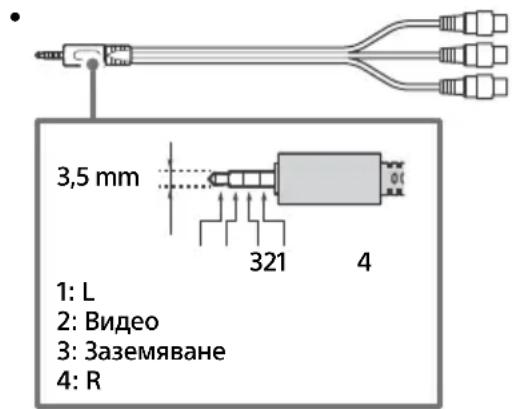
3 AUDIO OUT
- Пдьрka caMo cTepeo MHH-kaK c TpN noHoca.
- 3aДаЧуВATE 3Byka OT TeleBn3opa npe3 CBbp3aHOTO O6OpyDbaHe,HaTnCHete HOME.ИЗбepete [HactpoIkn] [3Byk] [CnyuAnKn/ayno n3xOД], cneI KoETo n3бepete JeJANHЯ eJIemENT.
4 IR BLASTER
- I3no3BaIte DnCTaHIOHHO ynpablenHe Ha Sony, 3a Da ynpabnaBate BbHnHa DeKOep (Ka6eJeH/cTeJInte H cet TOn 6OKc). CbpxKeTe Ka6eJ 3a IR Blaster*2 KbM rHe3dOTo 3a IR Blaster Ha Baunr TeNeBu3Op. CNoXeTe eDInnHa IIN dBaTa dpyrN KpaJ, KaKTo e NOKa3aHo No-dony.
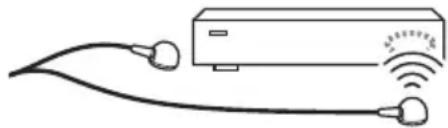
3a HactpoikKa Ha IR Blaster HaTnCHeTe HOME n 36epeTe [Hactpoikn] [BbHsHn BxOIOBe] [HactpoikKa Ha IR Blaster].
5 USB1/2,USB3(HDDREC)* 2
- Cbbp3BaHeTo Ha roJMyo USB yctpoiCTBO MoKe Da nobJnRe Ha pa6OtaTa Ha npyrn CBbp3aHn yctpoiCTBa B 6JIn30CT Do Hero.
Korato Cbbp3BaTe roJMyo USB yCTPOIcTBO, Cbbp3BaIe TRe KbM KynIyHra USB 1.
- CbpxeTe USB HDD yCTpoNCTBO KbM USB 3 nopTa (cH).
HDMI IN 1/2/3/4
- INHTeppeincbT HDMIMoKe da npehacr cnΦpOBO BnDeo n ayDnO no eDnKabEJI.
HDMI IN 3 ARC (Audio Return Channel)
Cbpxte aydno cnctemaTc KbM HDMIN3,3a da hacounte TeBnOHHna aydno cunHaJ KbM Baataaydno cnCTema.AyDIO CNCTema, KOrTO noDbpkaHDMIARC,MOxe da n3npaa BnDeo KbMa TeJeBn3opa n da nOlyuaba aydno OT TeJeBn3opa 4pe3 cbxnaHDMKabEJI.AKO Baataa aydno cnCTema He noDbpkaHDMIARC,e Heo6xoIma doNbHnTeJHa Bpb3Ka C DIGITAL AUDIO OUT (OPTICAL).
He ce npneMaT caTeJIHTH yCJyI.
- Поберете сателтута кабелна врьзka.
Korato ce noBn cbo6eHne [Hma cnHaI. OTuTeHo e npTeOBapBaHe Ha LNB...], n3BaJeTe 3axpaHbAunKa6eJ. CNeTToBa ce yBepTe, ye caTeInTHnT Ka6eJ He e nobpeDeH, a JInHnTa Ha caTeInTHnCnHaN He e daJa Ha KbCO B caTeInTHN KOHeKTOp.
ДиctанционнотуypabJeHne He pa6oTn.
CbpxTe n hactpoTte IR Blaster (cAmo moJeIn cdoctaBeH IR Blaster) (ctp. 12).
CbpxeTe yctpoiCTBO, CbBMeCTnMo cHDMI CEC (c n3KnOyeHHe Ha MoJeIte C DocTaBeH IR Blaster), n npEbkIouyete Ha To3n BXoJ.
3a6paBeHa napoHa 3a poOnTeJcko
3aKJIIOUyBaHe Ha N3JIbYBaHe.
BbBeTe 9999 3a INH kOda n n36epeTe [CmHa Ha INH kOda].
Pamkata Ha TeJeBn3opa ce 3aToTnI.
Korato TeIeBn3OpbT ce n3noJ3Ba npOdbJIxNtEnHO BpeMe, paMKaTa My ce 3aToPnJa. MoKe da ycETnTe TOnnHa, KOrato JdoKOChete C pka.
Cneunkaaun
CnCTema
CnCTemaHa naneJa LCD(TeHOKpncTaJeH ducnnei)naHeI,LED IoDCBETKa
TeJIeBn3IOHHa CnCTema B 3aBncmOcT OT BaWata DbpxaBa/136Op Ha 30Ha/MoJeI Ha TeJIeBn3Opa AHaIorOB:B/G,D/K,I LInΦpOB:DVB-T/DVB-C DVB-T2* CateJIin*:DVB-S/DVB-S2
LBeToBa CnCTema PAL/SECAM/NTSC3.58 (cAmo BnJeO)/NTSC4.43 (cAmo BnJeO)
Покате на Каналite
В заюмост OT Вашata Дьржава/нзбор на зонa/Mодел Ha Телевизopa
Аhalorob: UHF/VHF/Ka6el
LфpoB: UHF/VHF/Ka6el
Cateiit*: IF chectota 950-2 150 MHz
[Hactpoju]→[IlaocOBoDnCTaHcNoHHO
ynpabBene] [CoΦTyepHa Bercn:A]:
HnTo eHa aKtuaIaIaIHa coOfTyep/Φbpyep 3a TOBa O6OpUdBaHe/IpnaIaIeXHoCTn/ KOMNoHEHTN HMa Da 3aceR He CbOTBeTCTBneTo mC DnpeKtNbA 2014/53/EC B 6bJeue.
- He BCNUKI TeLEBUNOpu NMAT DVB-T2 UIN DVB-S/S2 TEXHOJIOrN IJIN KOHEKTOP 3a CaTeJIHTHa aHTeHa.
BxOAnHO/n3XoDnH JkaKOBe
AHTeHa/ka6eJ
75 OMa BbHsE N TepMnHaJ 3a VHF/UHF
CateJIHTHa aHTeHa
KoHeKTOp TnF,KeHcKn,75 Oma.
DiSEqC 1.0, LNB 13 V/18 V & 22 kHz TOH,
PazpeneJne no 1 ka6eN EN50494.
/ AVIN
Bndeo/aydno Bxod (MnHnxkaK)
HDMI IN 1/2/3/4 (noДьрka 4K pezoюя,
CbbMeCTm C HDCP 2.2)
Bnpeo:
4096 × 2160p (50, 60 Hz)12, 4096 × 2160p
(24Hz)^ 1 3840× 2160p (50, 60 Hz)*2, 3840
2160p (24, 25, 30 Hz), 1080p (30, 50, 60 Hz),
1080/24p, 1080i (50, 60 Hz), 720p (30, 50,
60 Hz), 720/24p, 576p, 576i, 480p, 480i, PC
ΦopmaTu*3
^*1 Korato ce noДаBa 4096 × 2160p n [UnpokoekepaHepexum] e hactpoeh Ha [HopmaH], pe3oIouyTa ce noka3Ba KaTO 3840× 2160p .3a noka3BaHe ha 4096 × 2160p cNoxete HactpoiKaTa [UnpokoekepaHepexum]Ha[ПьJeH1]nI [ПьJeH2].
*2 Camo HDMI IN 2/3. 3a noДьрхан ha 18 Gbps.
Hастpoite [Формат ha HDMI сигналa.] ha
[Poboljsani format].
*3 3a noBuee nHΦopMaζην BuxTe ΠOMOιHOTOpbKOBODCTBO.
Aydno:
5,1 kaHaleh JnHee PCM: 32/44,1/48/88,2/96/
176,4/192 kHz 16/20/24 6uTa, Dolby Digital,
Dolby Digital Plus DTS
ARC (Audio Return Channel) (Camo HDMI IN 3)
(Дыкагаелен Линоeh PCM: 48 kHz 16 mbu, Dolby
Digital, Dolby Digital Plus, DTS)
DIGITAL AUDIO OUT (OPTICAL)
UΦOB ONTueH JAK (ДуКанел ЛиHeeN PCM:
Móvo yia to movτéλo KD-75XF90xx .16
AvtueTwnon npoBAnmuatowv .18
PpOβλnματa KαI λuδεις 18
Texvlka xapaktnploktika 19
Eaayyeac styn Eupwn : Sony Europe Limited.
Epwntoeic npoc tov eoaywya n oxetik a e tnv
oumuopfoan Tou pioiovtoc wc npoc tn vuo0eia tnc
Eupwtaikc Evwoanc 0 npenti va aneeuovovtai otov
Eouaioobotnevo knpoosito, Sony Belgium, bijkantoor van
Sony Europe Limited, Da Vincilaan 7-D1, 1935 Zaventem,
Bélyio.
2160p (24, 25, 30 Hz), 1080p (30, 50, 60 Hz),
1080/24p, 1080i (50, 60 Hz), 720p (30, 50,
60 Hz), 720/24p, 576p, 576i, 480p, 480i, MopΦες Φιολογιστή*³
DIGITAL AUDIO OUT (OPTICAL)
Dijital: DVB-T/DVB-C
DVB-T2*
Uydu*: DVB-S/DVB-S2
Renk Sistemi
PAL/SECAM/NTSC3.58 (Sadece video)/NTSC4.43
(Sadece video)
Kanal kapsami
2160p (24, 25, 30 Hz), 1080p (30, 50, 60 Hz),
1080/24p, 1080i (50, 60 Hz), 720p (30, 50,
60 Hz), 720/24p, 576p, 576i, 480p, 480i, PC
Formatari
DIGITAL AUDIO OUT (OPTICAL)
http://rd1.sony.net/help/tv/faep1/h_aep/
Help Guide/Guide d'aide/Guia de ayuda/ Helpgids/Hilfe/Gua de ajuda/Guida/Hjalpguide/ Hjelpevejledning/Kayttoopas/Hjelpeveiledning/ Przewodnik pomocniczy/Uzivatelska prirucka/ Prirucka/Sugoutmutato/Ghid de asisten/. Iomouno pbkoBocTBO/O8nyoc Boon0e1ac/ Yardim Klawuzu
For useful information about Sony products
Pour obtenir les informations utiles concernant les produits Sony
Informacion de uso de productos Sony
Voor nuttige informatatie over Sony producten
Für hilfreiche Informationen zu Sony Produktien
Para informacaoutil sobre os produits Sony
Per informazioni utili sui prodotti Sony
For nyttig information om Sony-produkter
For mere information om Sony-produkter
Hyddyllista tietao Sony tuotteista
For nyttig informasjon om Sony produiter
Szczegolowe informacja o produktach Sony
Uzitechné informace o vyrobćich Sony
Pre viac informáci o produktoch Sony
Sony termekekról hasznos informaciókat találhat az alábbi webboldalon
Pentru informaţii utile despre produsele Sony
3a nolezhna uHΦopMaцяо THOcHо pOdoуктinte Ha Sony
Tα xρησμες πληροΦοριες σχετικα με τα προίντα SONY
Sony urünleri icin faydali bilgiler