
CloudX - Headphones HYPERX - Free user manual and instructions
Find the device manual for free CloudX HYPERX in PDF.
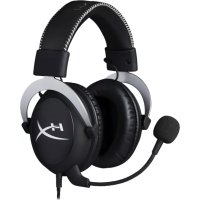



| Product Type | Gaming headset with microphone |
| Brand | HyperX |
| Model | CloudX |
| Transducers | 53mm dynamic drivers with neodymium magnets |
| Design | Closed (circum-aural) |
| Frequency response (headphones) | 15 Hz - 25 kHz |
| Frequency response (microphone) | 50 Hz - 18 kHz |
| Nominal impedance | 60 ohms per system |
| Sound pressure level (SPL) | 98 ± 3 dB |
| Total harmonic distortion (THD) | < 2% |
| Microphone type | Electret condenser (cardioid) |
| Microphone sensitivity | -39 ± 3 dB |
| Connectivity | 3.5mm jack (headphone and microphone combo), USB via control box |
| Cable length | 1m + 2m extension (detachable) |
| Weight (with microphone and cable) | 320 g |
| Ambient noise reduction | Approximately 20 dBA |
| Headband pressure | 5 N |
| Built-in controls | Volume wheel, 7.1 audio button (on USB control box) |
| Included accessories | Detachable microphone, spare velour ear pads, USB control box, airplane adapter, mesh carrying bag |
| Compatibility | PC, Mac, PS4, Xbox One (with sold separately adapter), smartphones, tablets |
Frequently Asked Questions - CloudX HYPERX
User questions about CloudX HYPERX
0 question about this device. Answer the ones you know or ask your own.
Ask a new question about this device
Download the instructions for your Headphones in PDF format for free! Find your manual CloudX - HYPERX and take your electronic device back in hand. On this page are published all the documents necessary for the use of your device. CloudX by HYPERX.
USER MANUAL CloudX HYPERX
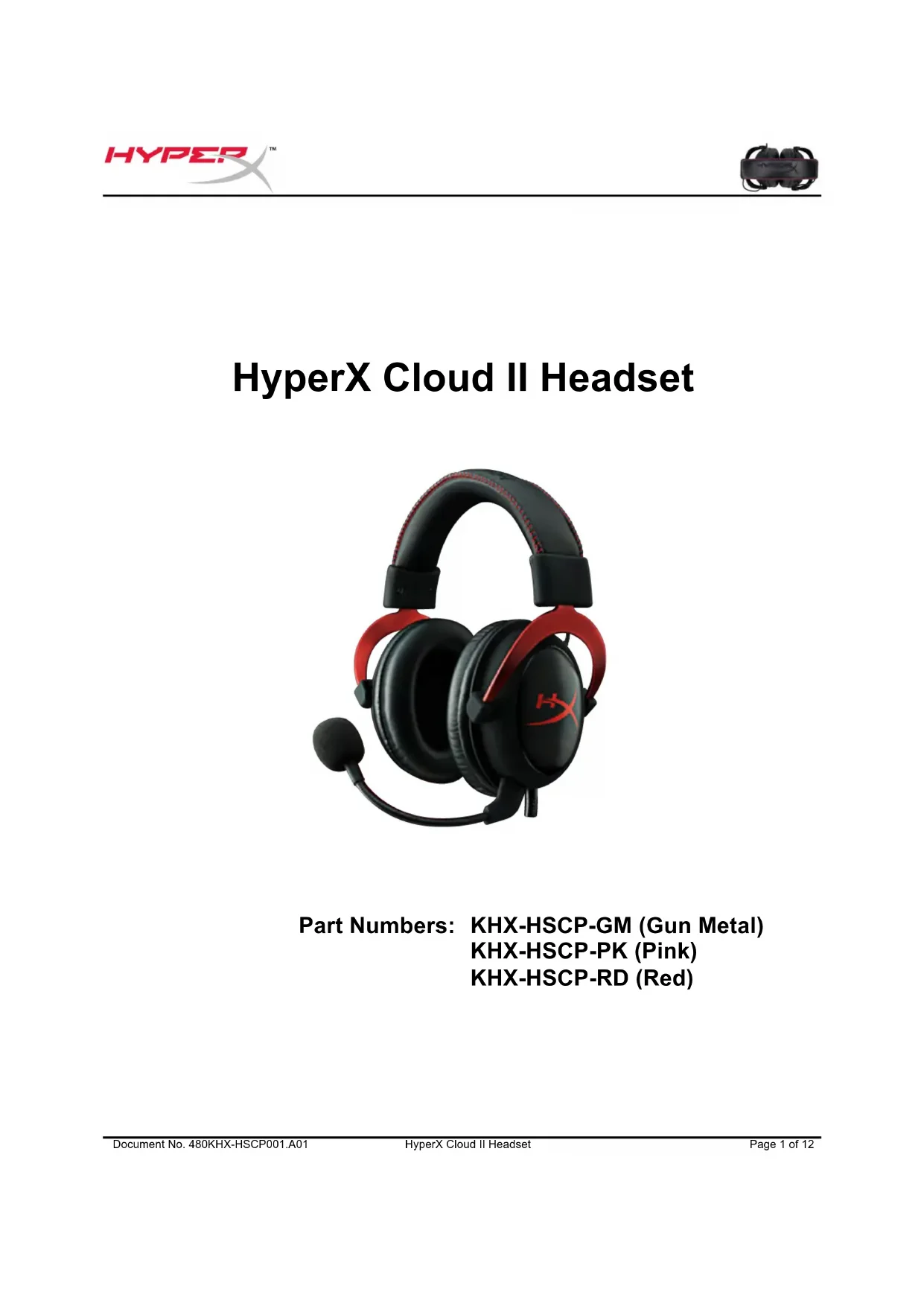
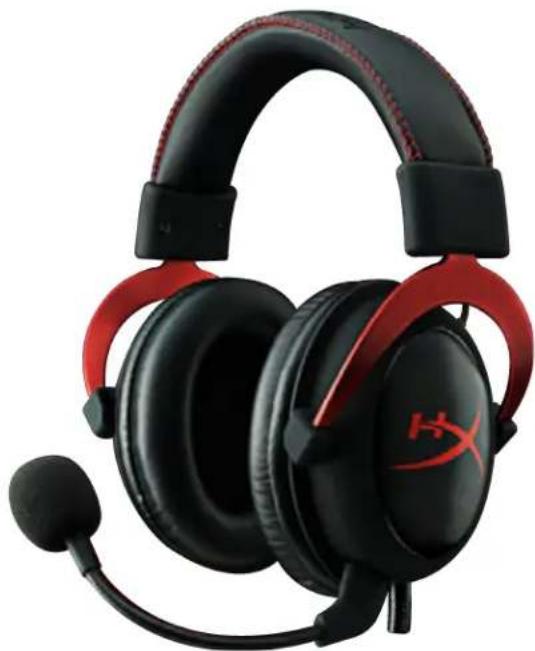
HyperX Cloud II Headset
Find the language and latest documentation for your HyperX Cloud II Headset here.
HyperX Cloud II Installation Guide
For instructions in English Para instrucciones en español . Fur Anleitungen in Deutsch Pour des instructions en français Per le istruzioni in italiano Por as instruções em portugues Instrukcje w jezyku polskim Инструкция на русском Turkce talimatlar icin Japanese Thai yKpaHcbKa Vietnamese
Simplified Chinese. 中文说明
Traditional Chinese .... 中文說明
HyperX Cloud II Headset

Part Numbers: KHX-HSCP-GM (Gun Metal)
KHX-HSCP-PK (Pink)
KHX-HSCP-RD (Red)
Introduction
Optimized for pro-gaming, HyperX Cloud II Headset (KHX-HSCP-xx) is a high-quality communicating device that delivers superior sound, style and comfort. It uses an adjustable, soft-padded leatherette headband and features a closed-cup design for enhanced bass reproduction and minimal sound leakage. The HyperX Cloud II headset is HiFi capable and delivers a durable design for the most rugged gaming environments and is compatible with tablets and smartphones for mobile use.
What's Included:
1 HyperX Cloud II Headset - 1 Detachable Microphone (attached to headset) 1 spare set of velour ear cushions 1 USB control box 1 Airplane headphone adapter - 1 Mesh bag
Package Contents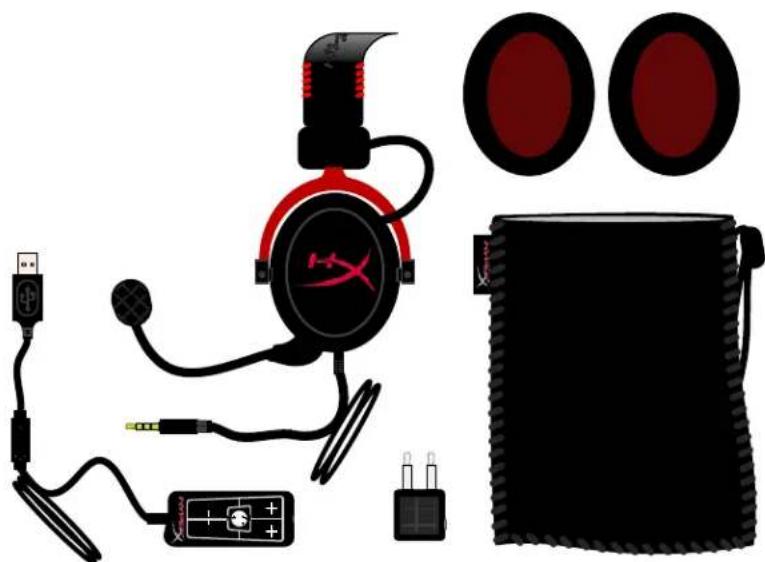
Features:
Hi-fi capable 53mm drivers for supreme audio quality. 15-25 KHz frequency response (earphones). Detachable microphone (quick and easy to plug/unplug for music-only purposes). Solid aluminum construction for durability and stability. Super-soft padded leatherette headband and leatherette padding on cups. Closed cup design for enhanced bass-reproduction and sound leakage.
Technical Specifications:
Headset
Transducer type: Dynamic 53mm with Neodymium Magnets. Operating principle: Closed. Frequency response: 15Hz-25KHz (earphones). Nominal impedance: 60 ohm per system. Nominal SPL: 98+/-3dB. T.H.D: < 2%. Power handling capacity: 150mW. Sound coupling to the ear: Circumaural. Ambient noise attenuation: approx. 20 dBA. Headband pressure: 5 N. Weight with microphone and cable: 320g. Cable length and type: 1m + 2m extension. Connection: Mini stereo jack plug (3.5MM).
Microphone
- Microphone Transducer type: Condenser (back electret).
- Operating principle: Pressure gradient.
- Polar Pattern: Cardioid. Power supply: AB powering. Supply voltage: 2V.
- Current consumption: Max 0.5 mA. Nominal impedance: ≤ 2.2 kohm +/- 30%.
- Open circuit voltage at f = 1 kHz: 20 mV/Pa. Frequency response: 50 - 18,000 Hz (microphone). T.H.D: 2% at f = 1 kHz. Max. SPL: 105dB SPL (THD ≤ 1.0% at 1KHz).
- Microphone output: -39+/-3dB.
- Dimensions: 6*5mm. Length mic boom: 150MM (include gooseneck). Capsule diameter: 6mm.
Overview
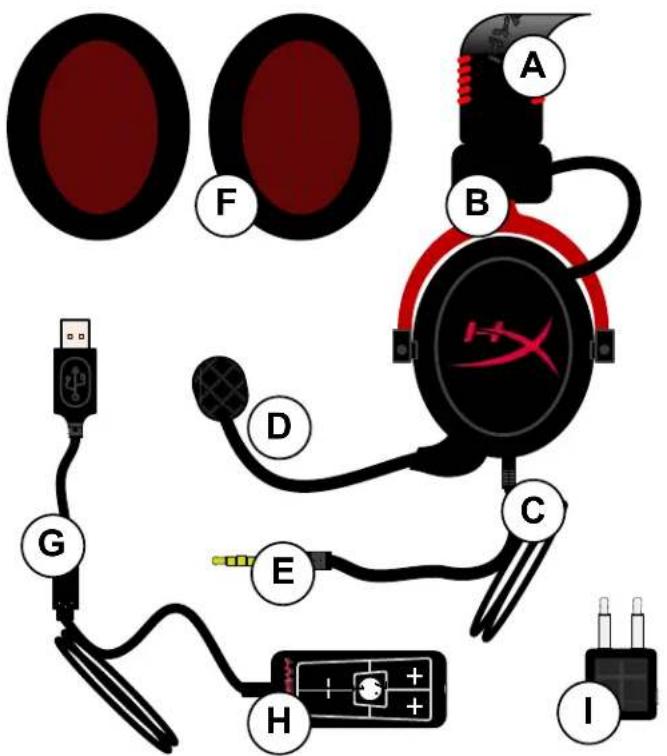
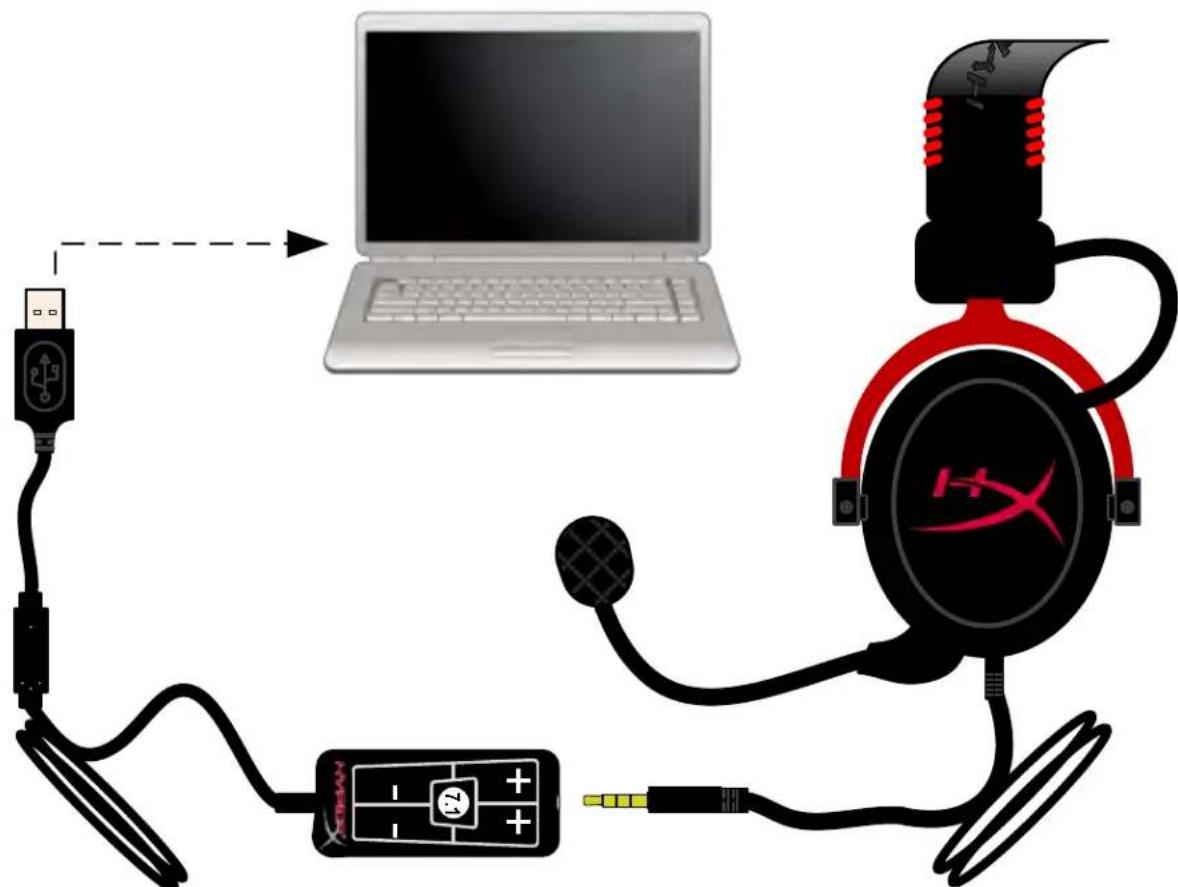
A. Leatherette headband w/ HyperX logo. B. Aluminum arm to adjust headband. C. Attached cable w/ 3.5mm input jack. D. Detachable microphone with adjustable arm and condenser. E. 3.5mm audio input jack. F. Extra set of ear cushions. G. Control box cable w/ USB connector and control box (letter H). H. USB Control box w/ volume controls and 7.1 audio button. I. Airplane adapter w/ 3.5mm audio jacks and input converter jack.
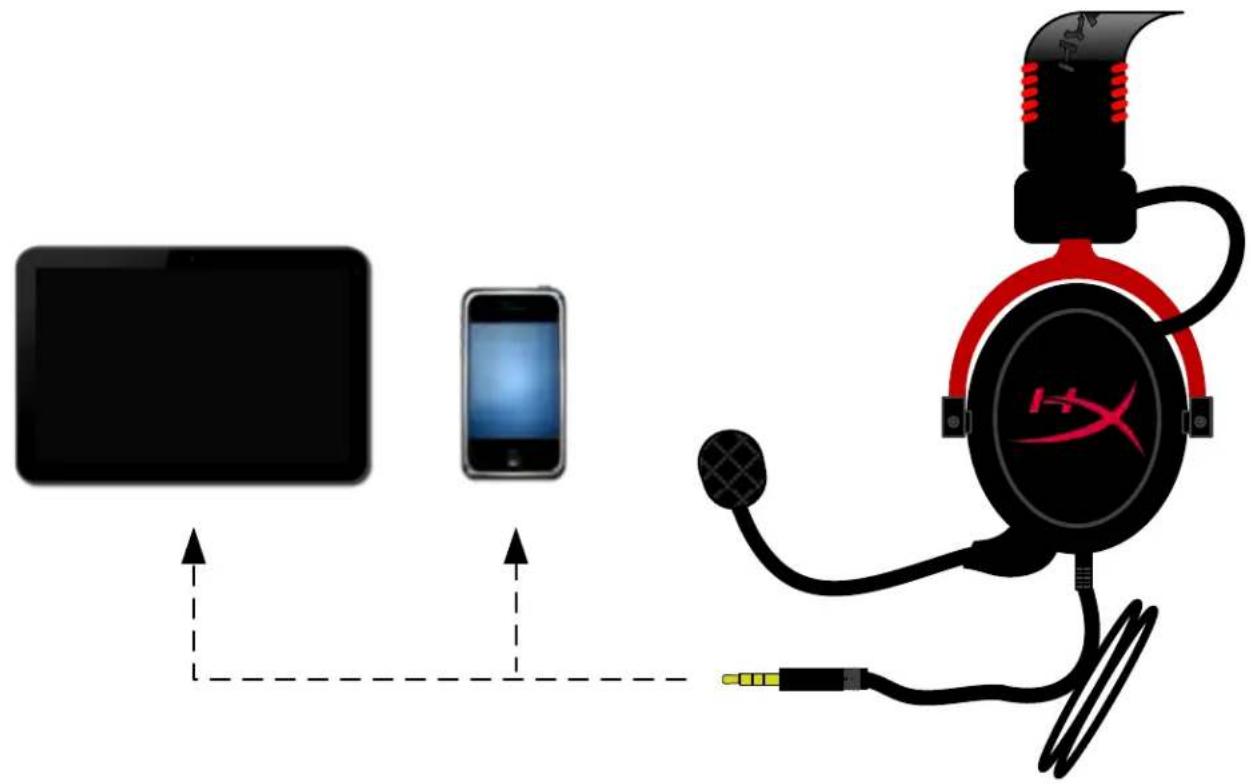
Usage (Direct Connect) with No Control Box
Connect your headset directly to your computer, game console, or other device (phone or tablet) that has a 3.5mm audio jack.
Usage (with Control Box)
Connect the headset's 3.5mm audio jack to the input jack on the USB control box. The USB control box then connects to a computer using the USB connector on the end of the control box.
Using Control Box
To ensure that HyperX Cloud II is the default audio device, you must follow these instructions:
For Windows:
- Open up Control Panel and select Hardware and Sound and then select Sound.
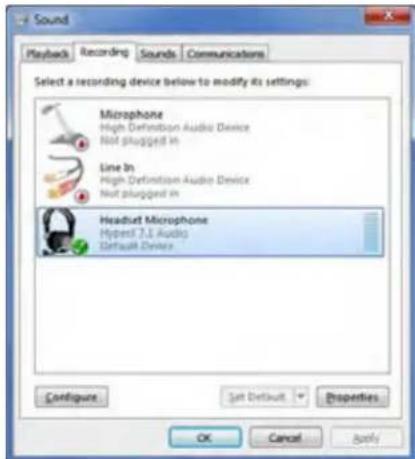
- If the "HyperX 7.1 Audio" is not currently the default audio device, right-click on the option and select "Set as Default Device."
- This should place a green check mark next to the default audio device.
Figure 2 - Right-Click Default Audio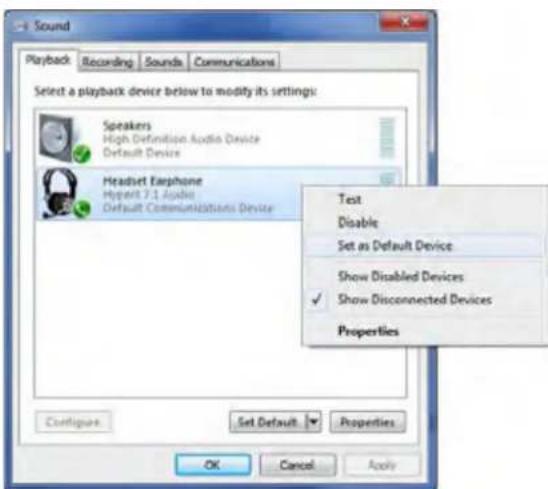
Figure 1 - Control Panel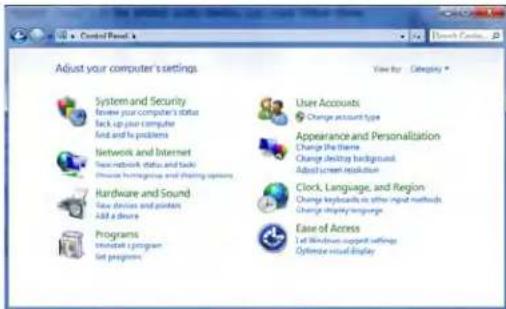
Figure 3 - Default Sound Device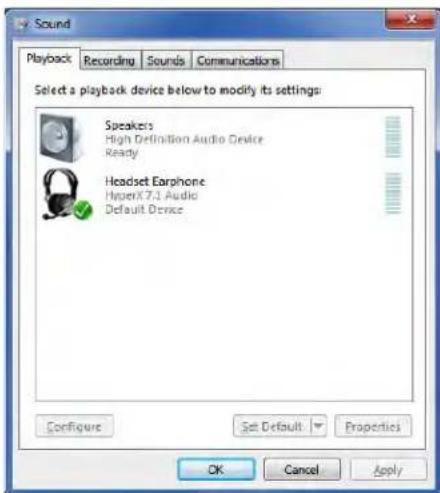
Repeat the same steps for the microphone portion of the headset, located under the "Recording" tab (also found in the Sound program in Control Panel.)
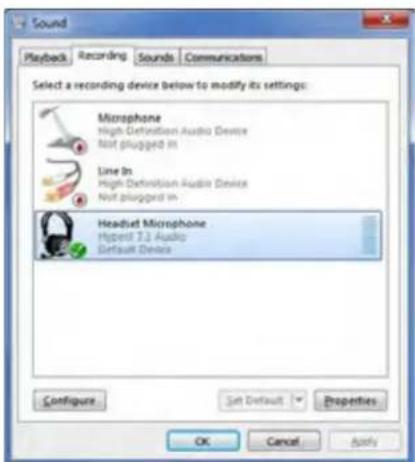
To ensure that HyperX Cloud II is the default audio device, you must follow these instructions:
For Mac:
- Click the Apple menu and select "System Preferences" from the drop-down menu.
- In "System Preferences", click on the 'Sound' icon.
- Click on the Input tab and select "HyperX 7.1 Audio" for default sound input.
- Click on the Output tab and select "HyperX 7.1 Audio" for default sound output.
Figure 1 - Apple Menu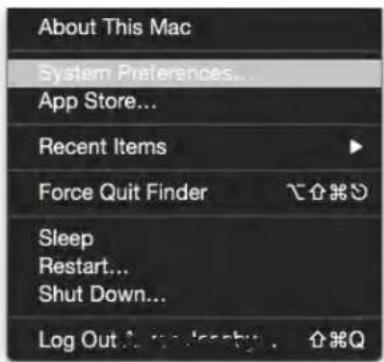
Figure 2 - System Preferences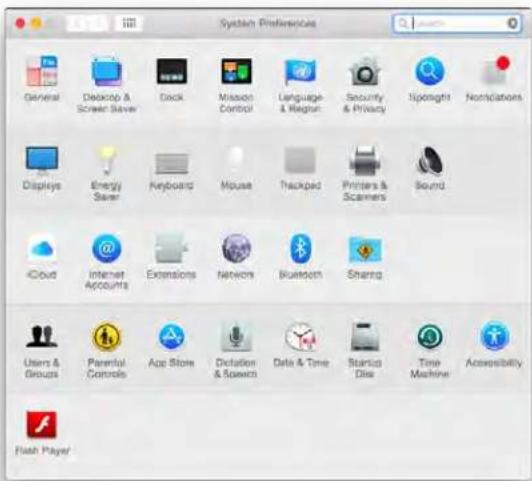
Figure 3 - Sound Preferences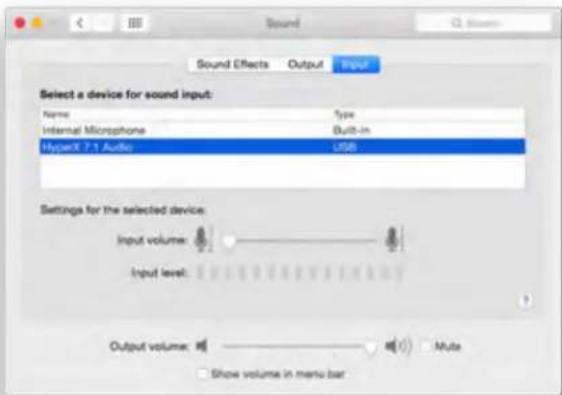
Usage (PlayStation® 4)
For optimal use with PlayStation® 4 (PS4®), unplug the headset jack from the USB control box and connect audio jack on the headset directly to the PS4 game controller and follow these steps:
- Turn on your PS4® game console.
- Navigate to the Settings Menu and select it.
- Highlight the 'Devices' menu option and select it.
- Scroll down to 'Audio Devices' and select it.
- Choose 'Output to Headphones' and select 'All Audio.'
PlayStation 4
(USB Control Box not needed)
HyperX Cloud II with PS4®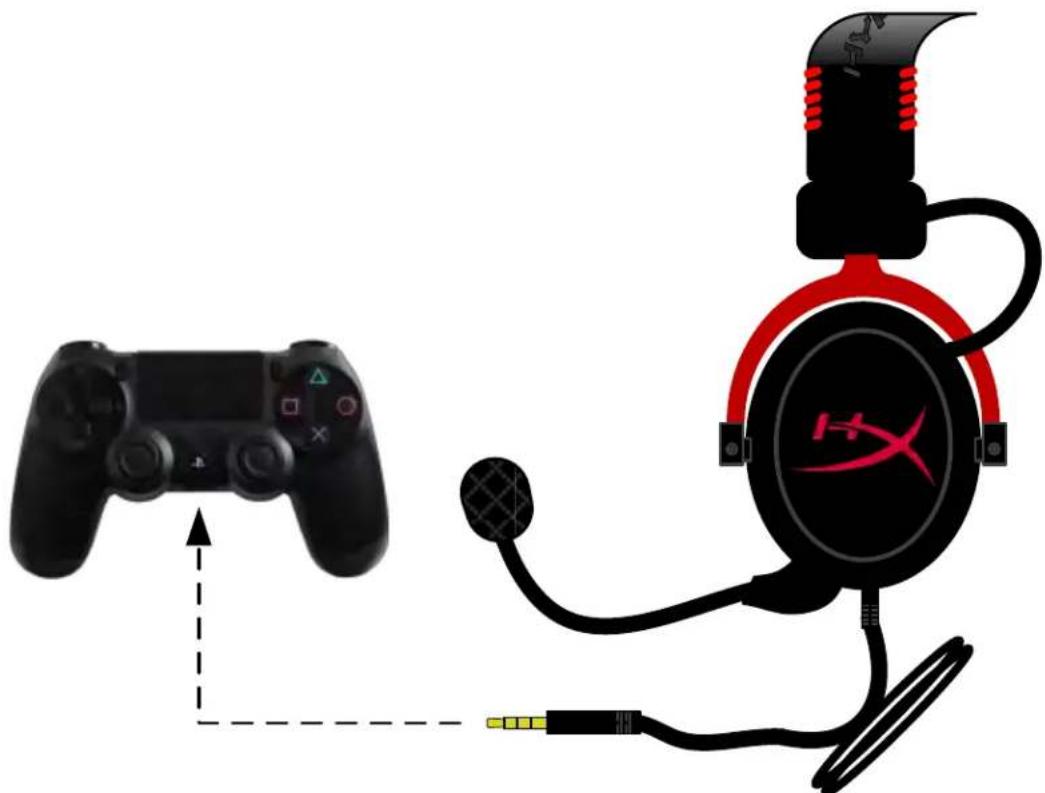
Usage (Xbox® One)
To use the HyperX Cloud II headset with Xbox One, you will need the Xbox One adapter (sold separately) that plugs into the Xbox One controller (pictured below.) Because this adapter has built-in volume controls, you will remove the USB control box (that came with your HyperX Cloud II headset) and connect directly to the Xbox One controller.
Xbox One, requires controller adapter
(Adapter sold separately)
(USB Control Box not needed)
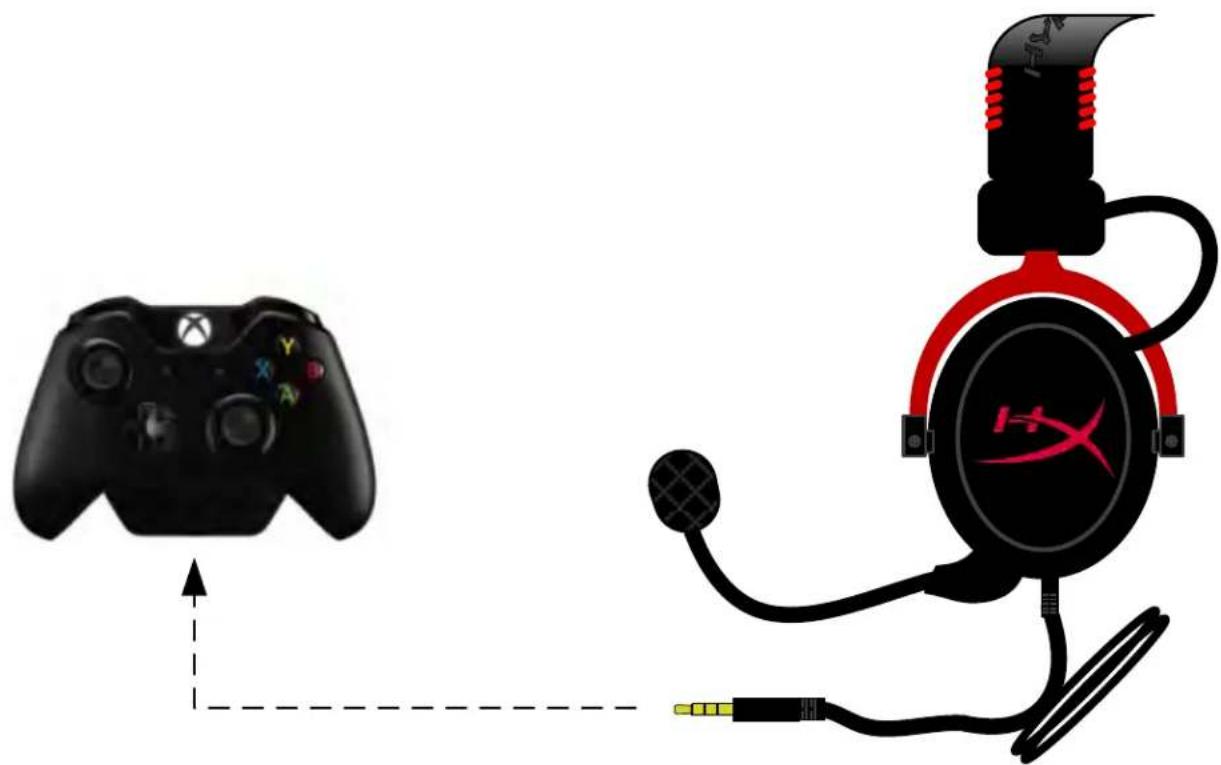
Using with Xbox® One
Usage with Mobile Device (Phone or Tablet)
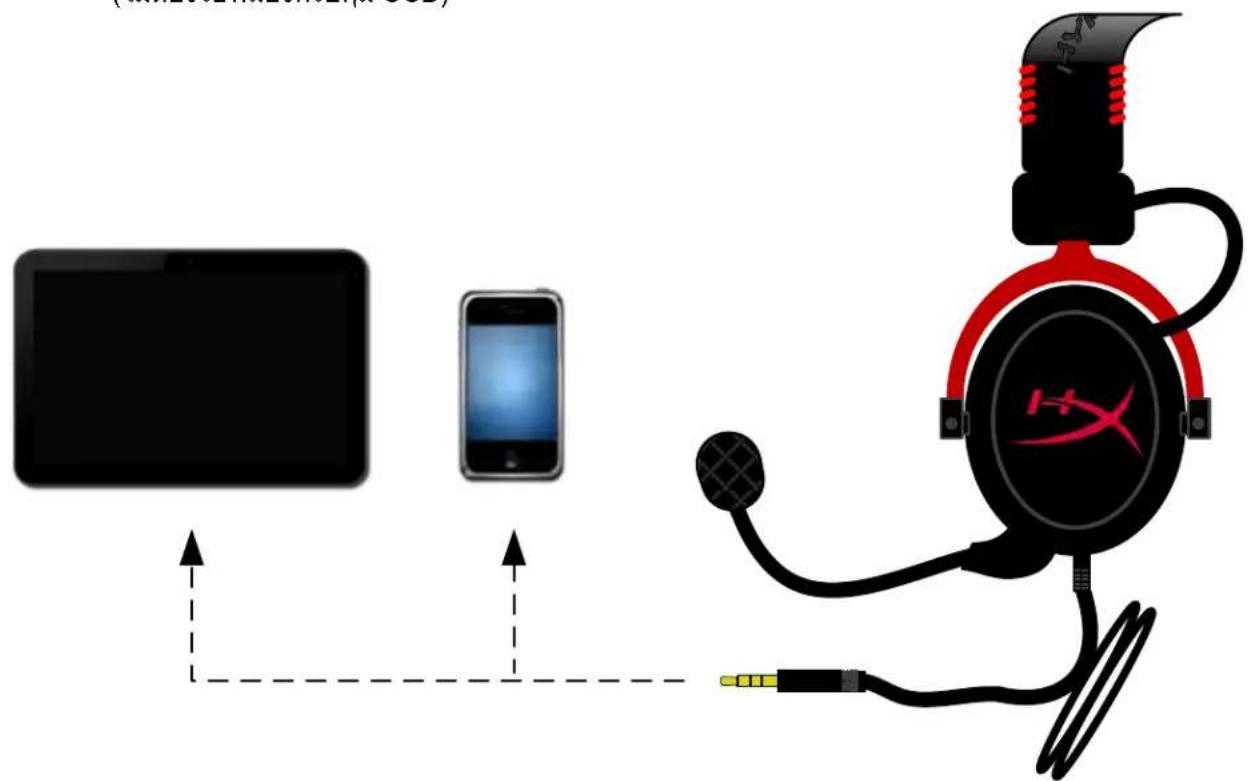
To use the HyperX Cloud II headset with a mobile device, unplug the USB control box and plug the 3.5mm headset jack directly into the audio jack on your phone or tablet.
Mobile (Phone / Tablet)
(USB Control Box not needed)
Figure 1.14 - Using with mobile device (phone or tablet)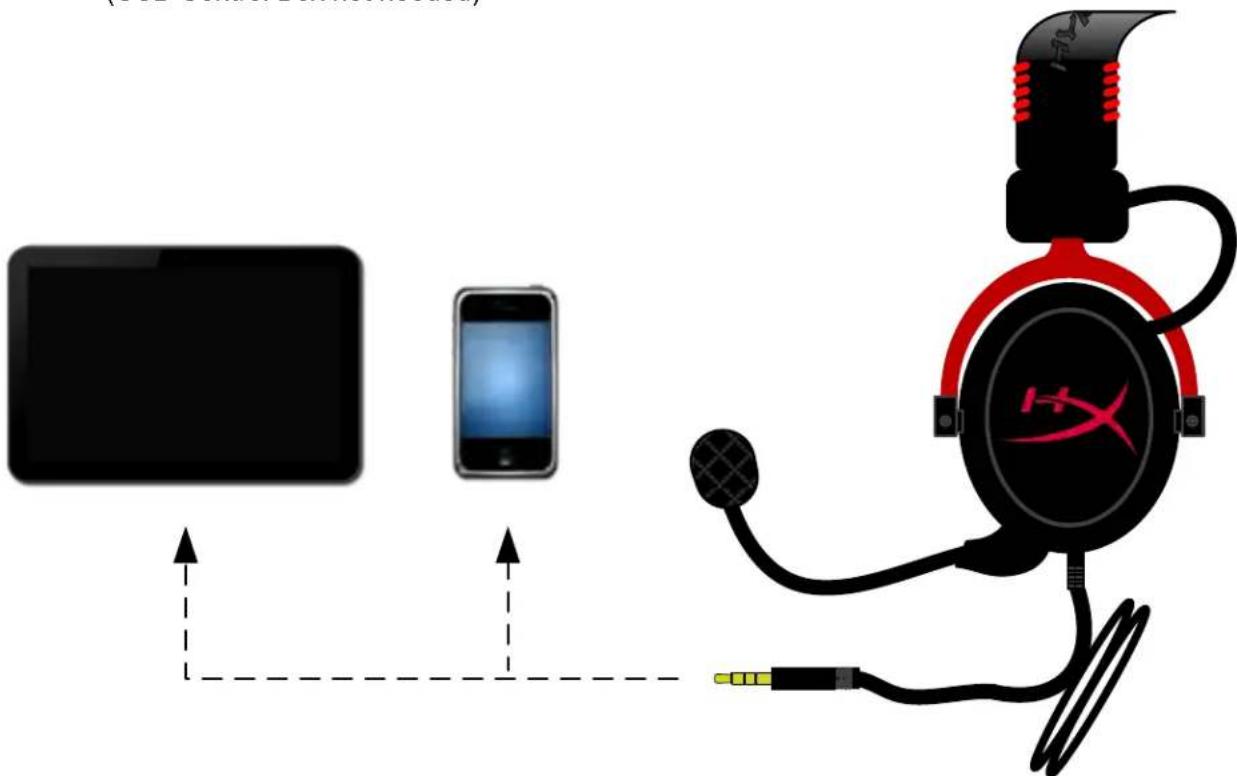
Usage (with Airplane Adapter)
If you are connecting the Cloud II headset to an airplane jack, you will not be using the USB control box. Just connect the headset audio jack to the airplane adapter (included with your headset) and plug directly into the airplane jack located on the front or inner side of the seat's armrest.
Connecting to Airplane Jack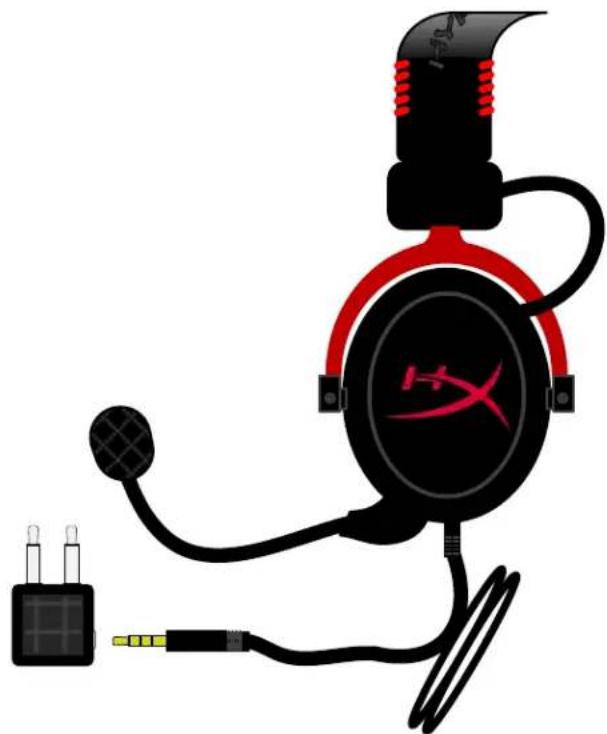
Input Jack on an Airplane Seat (Armrest)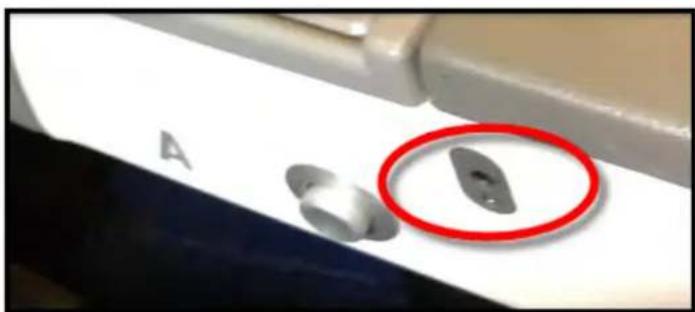
HyperX Cloud II Headset
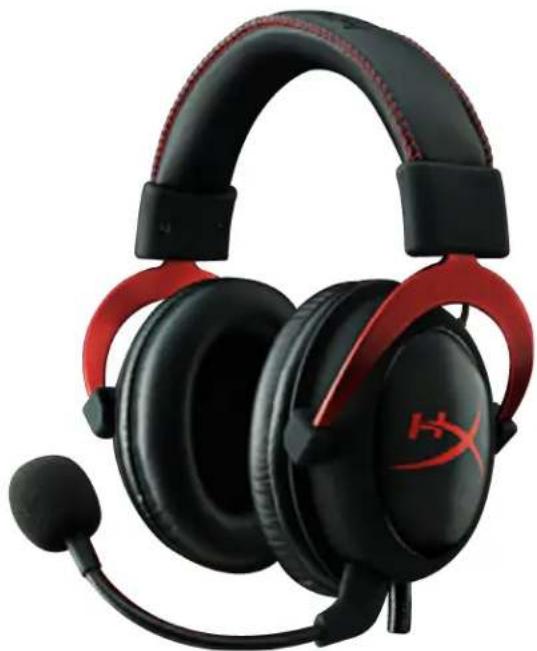
Part numbers: KHX-HSCP-GM (gunmetal)
KHX-HSCP-PK (pink)
KHX-HSCP-RD (red)
Introduction
Fig. 1 - Control box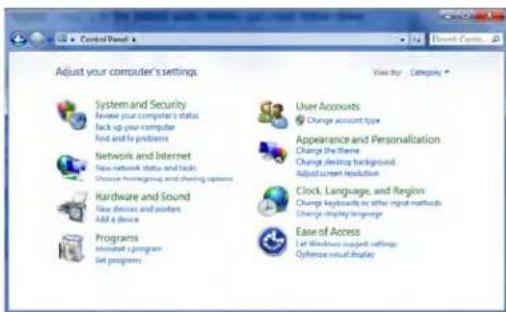
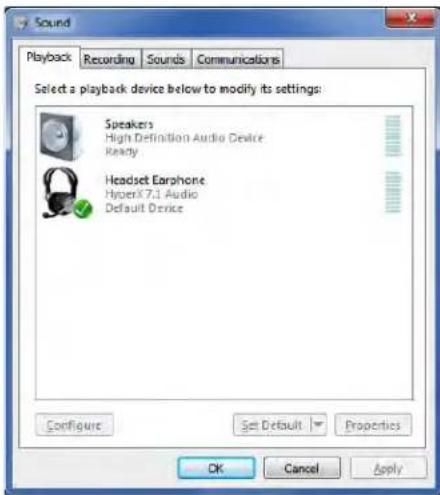
Fig. 3 - Default audio device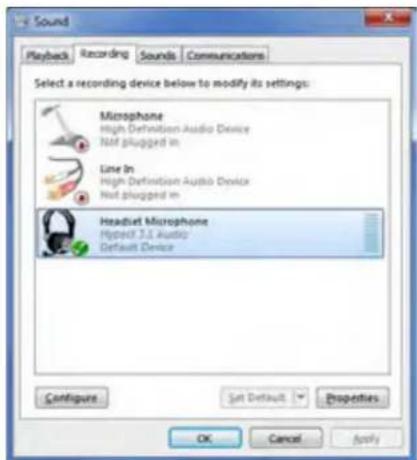
To make the HyperX Cloud II headset the default audio device, perform the following steps:
For Mac:
- Open the Apple menu and select "System Preferences" from the drop-down menu. 2. In "System Preferences", click the "Sound" icon.
- Select the "Input" tab and choose "HyperX 7.1 Audio" as the default audio input device.
- Select the "Output" tab and choose "HyperX 7.1 Audio" as the default audio output device.
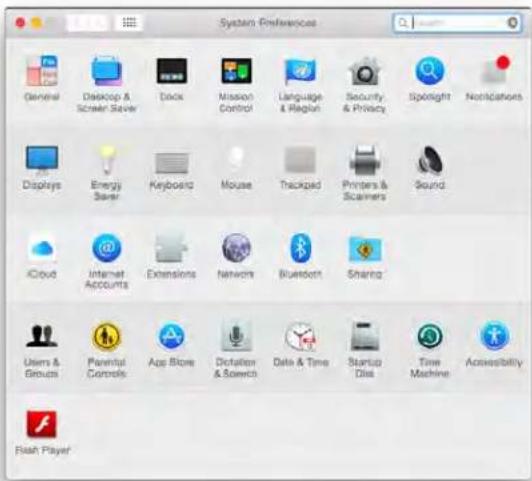
Fig. 3-3 Sound parameters Fig. 2-System settings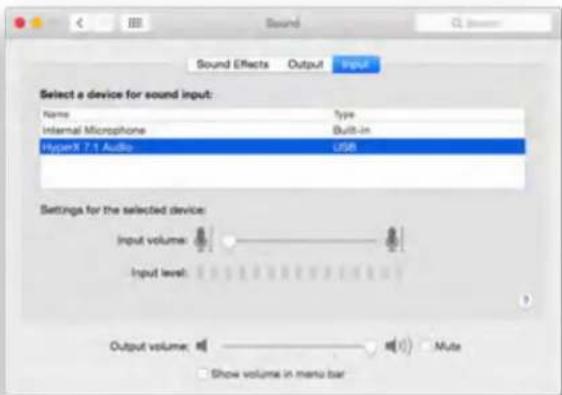
Using with PlayStation® 4
For optimal use with PlayStation® 4 (PS4®), disconnect the headset from the USB control box, connect it directly to the PS4 controller, and perform the following steps:
- Turn on your PS4 console.
- Go to the settings menu and select Devices.
- Move the cursor to the Devices menu and select it.
- Scroll to the Audio Devices section and select it.
- Select Output to Headphones and choose All Audio.
PlayStation 4
(USB control box not required)
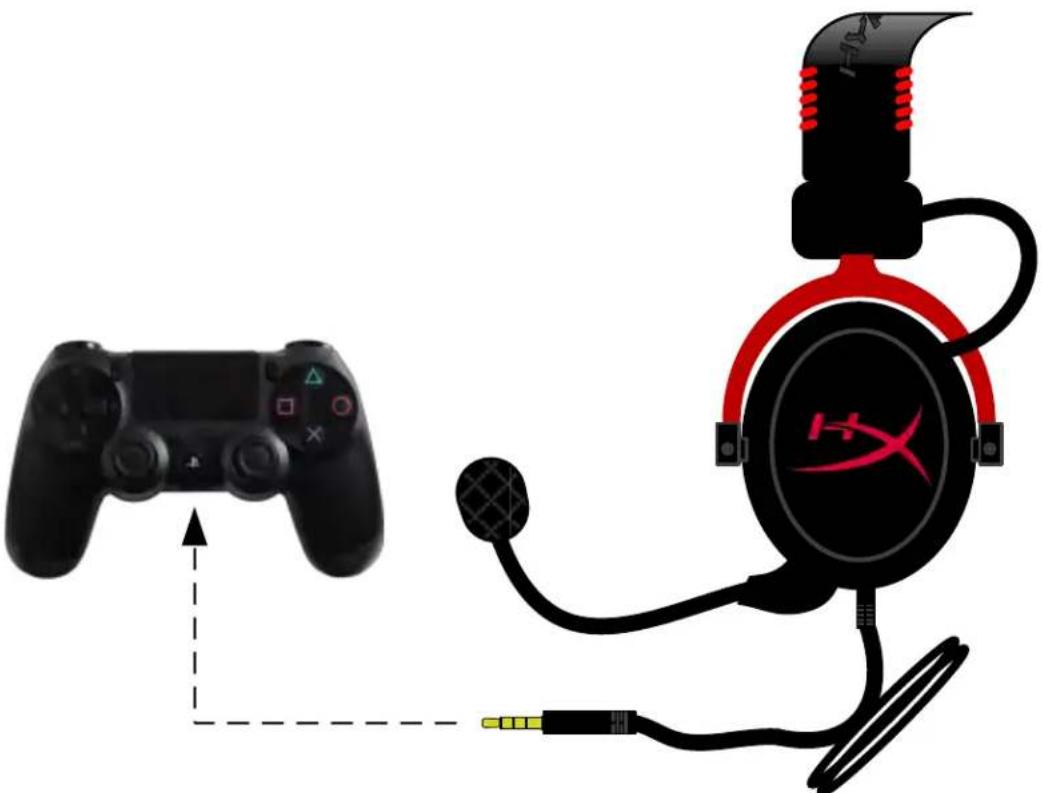
Using HyperX Cloud II with PS4
(Xbox® One)
To use the HyperX Cloud II headset with Xbox® One, you will need an Xbox One headset adapter (sold separately), which plugs into the Xbox® One controller (see image below). Since this adapter has built-in volume controls, the USB control box (included with the HyperX Cloud II headset) is not needed: connect directly to the Xbox One controller.
Xbox One, controller adapter required
(USB sound card control is not required)
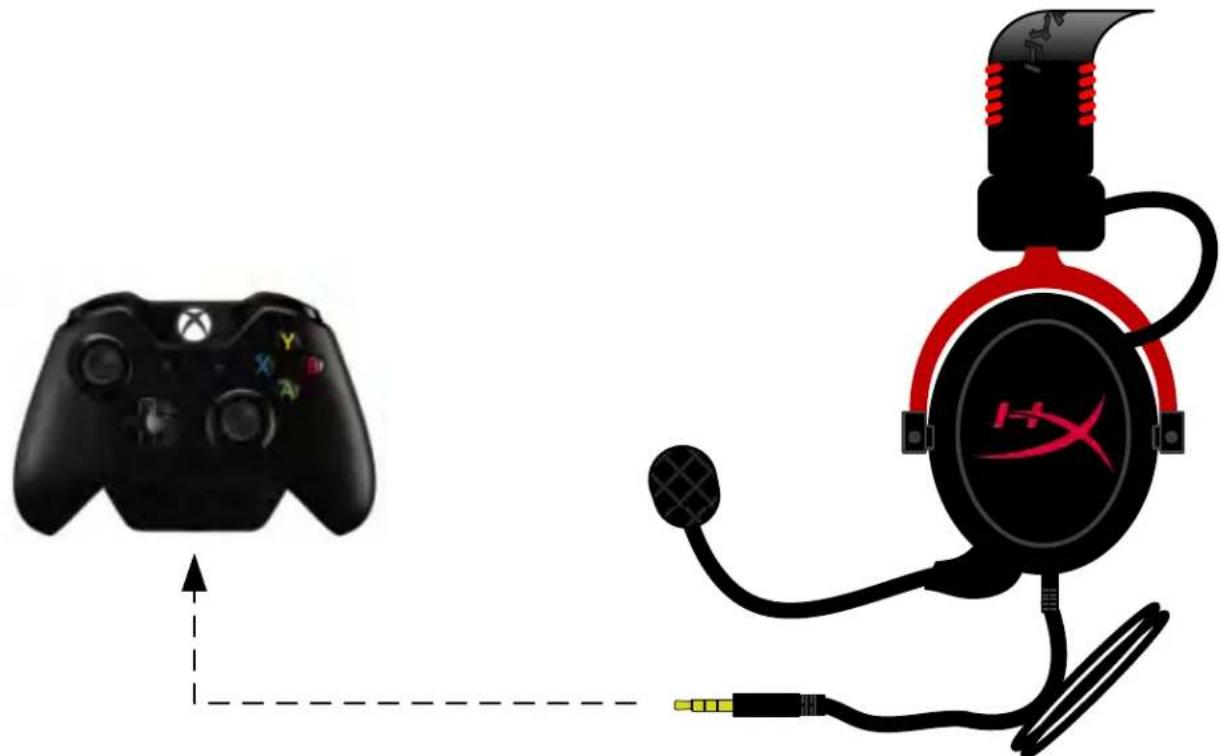
Use with Xbox One
Use with a mobile device (phone or tablet)
(USB sound card control is not required)
Fig. 1.14 - Use with a mobile device (phone or tablet)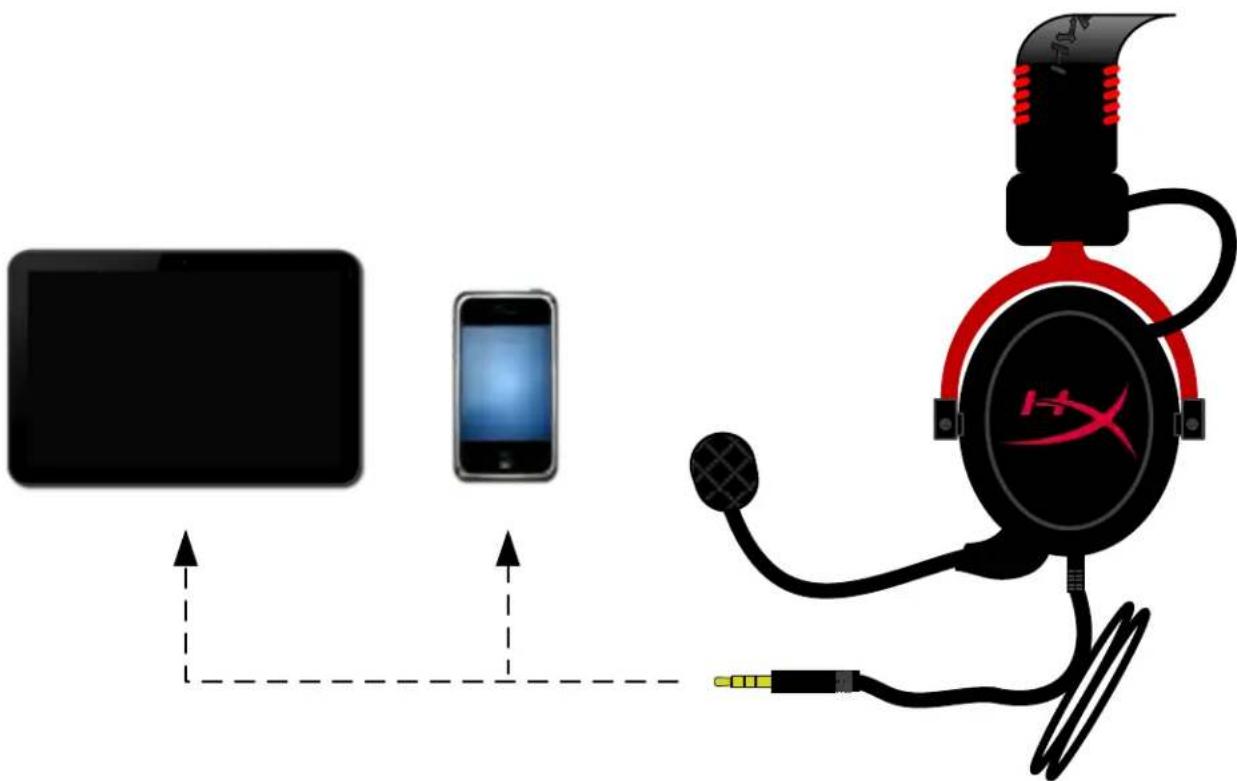
Use with an audio adapter
When connecting the Cloud II headset to the USB port on the console itself, the USB sound card control is not used. Simply connect the audio jack to the audio adapter (included in the headset package) and insert it into the port located on the front or inner side of the console's seat.
Connection to the port on the console itself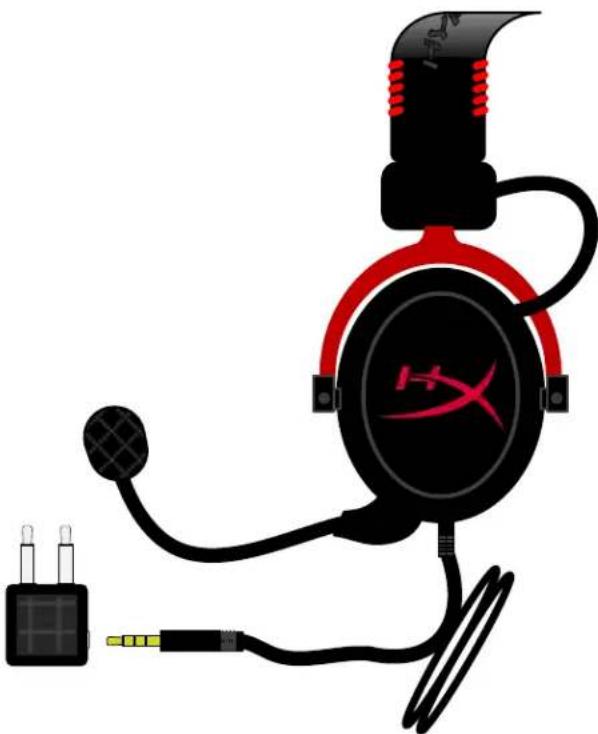
Insert the jack into the port on the seat (or seat cushion) of the console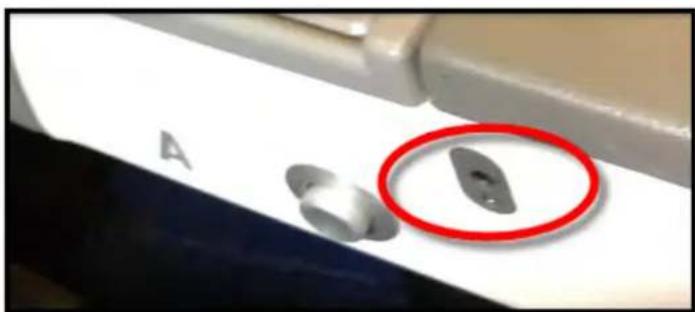
HyperX Cloud II Headset
Part Numbers: KHX-HSCP-GM (Gun Metal) KHX-HSCP-PK (Pink) KHX-HSCP-RD (Red)
Introduction
"Recording" (Sound Control Panel)
HyperX Cloud II headset headset
M:
- Apple System Preferences
- System Preferences
- Input: Select "HyperX 7.1 Audio" as the input device.
- Output: Select "HyperX 7.1 Audio" as the output device.
2 - System Preferences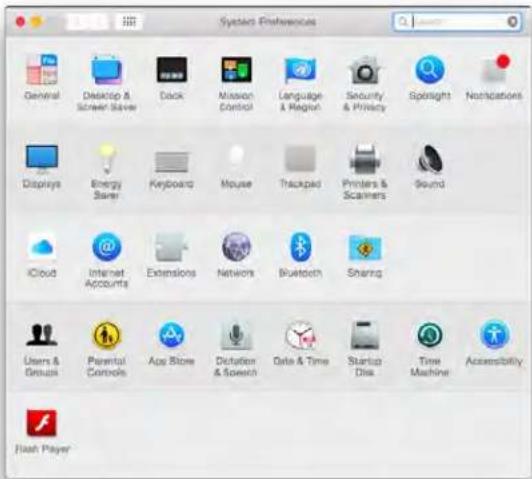
1 - Apple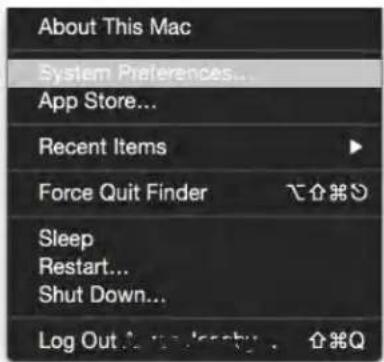
3 - Sound Preferences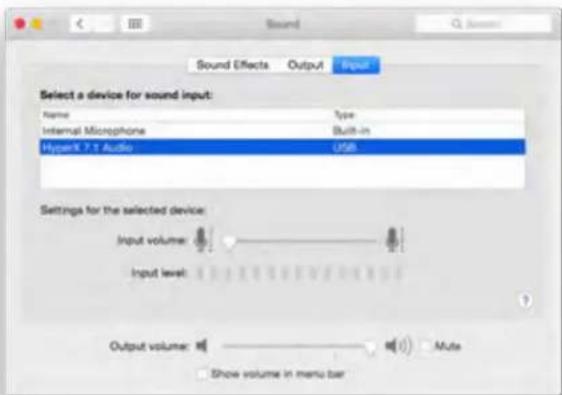
PlayStation 4
Connect the PlayStation 4 (PS4) to the computer via USB.
- 1. Go to Settings
- 1
- Audio Devices
- Set 'Output to Headphones' to 'All Audio'.
PlayStation 4
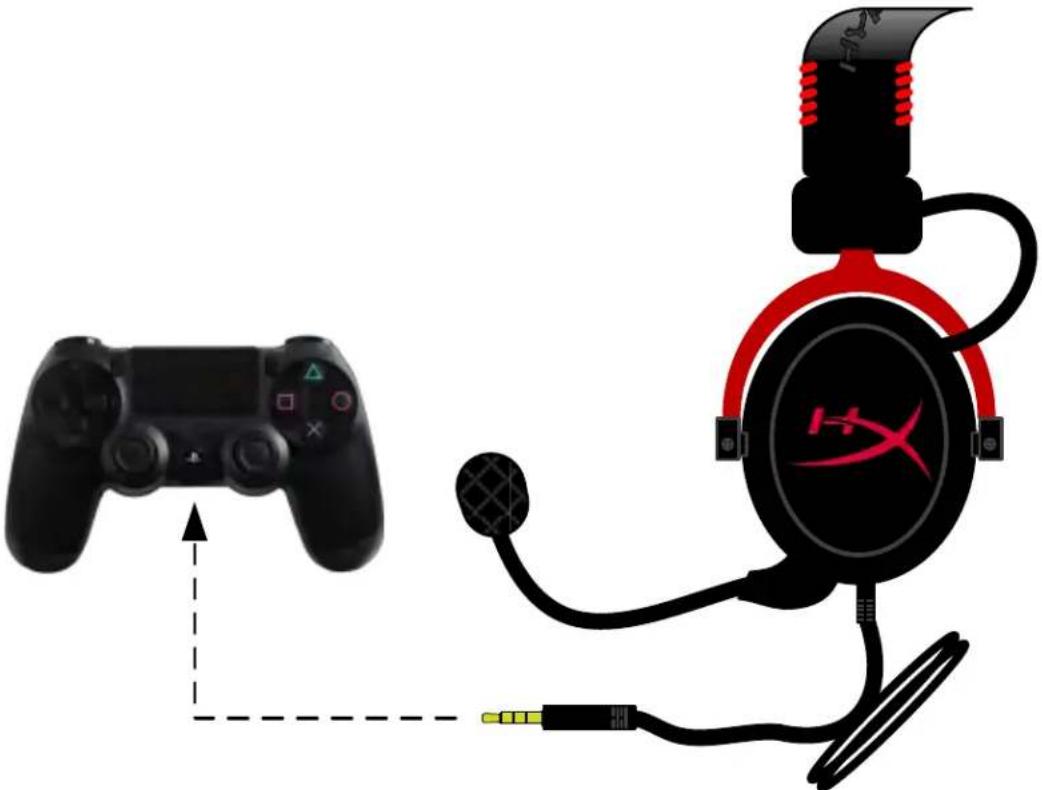
HyperX Cloud II for PS4
and (Xbox One)
HyperX Cloud II Xbox One (with) Xbox One (with) Xbox One (with) USB and (HyperX Cloud II) HyperX Cloud I) Xbox One
Xbox One, 00000000000000000000000
(USB)
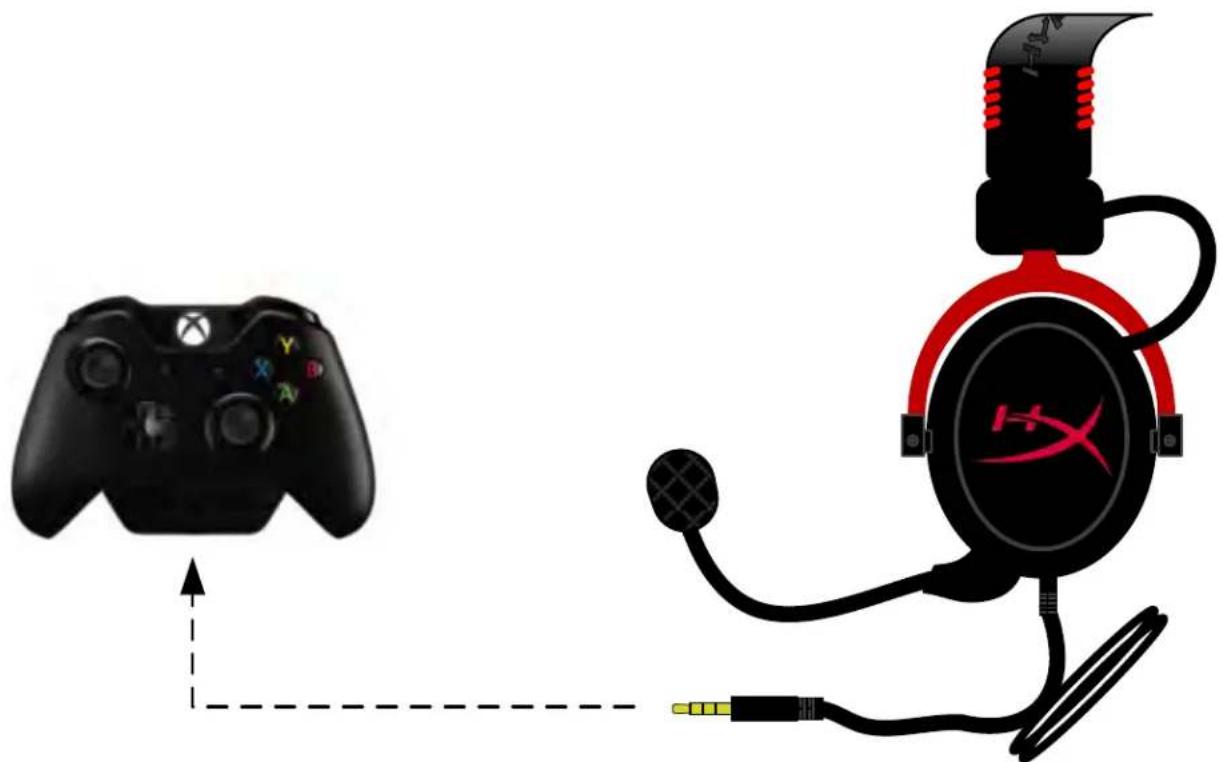
next Xbox One
and the (with)
HyperX Cloud II with USB and 3.5 mm.
with (with/without)
(with USB)
with 1.14- and (with)
and (with)
Figure 2 - System rear view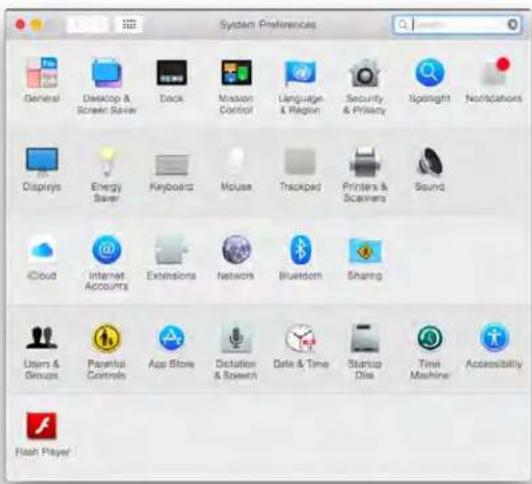
Figure 3 - Audio configuration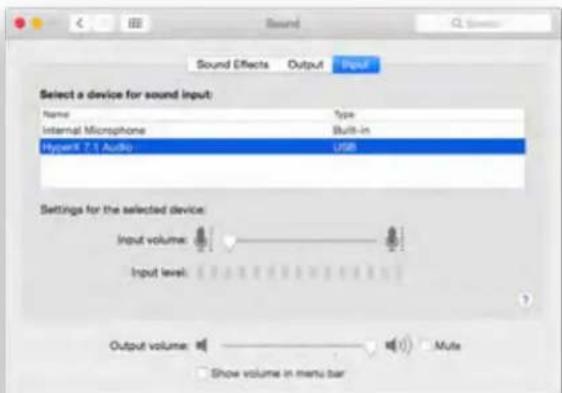
- HYPERX CLOUD II HEADSET
- HYPERX CLOUD II INSTALLATION GUIDE
- INTRODUCTION
- WHAT'S INCLUDED
- FEATURES
- TECHNICAL SPECIFICATIONS
- HEADSET
- MICROPHONE
- OVERVIEW
- USAGE (DIRECT CONNECT) WITH NO CONTROL BOX
- USAGE (WITH CONTROL BOX)
- TO ENSURE THAT HYPERX CLOUD II IS THE DEFAULT AUDIO DEVICE, YOU MUST FOLLOW THESE INSTRUCTIONS
- USAGE (PLAYSTATION® 4)
- PLAYSTATION
- USAGE (XBOX® ONE)
- USAGE WITH MOBILE DEVICE (PHONE OR TABLET)
- USAGE (WITH AIRPLANE ADAPTER)
- TO MAKE THE HYPERX CLOUD II HEADSET THE DEFAULT AUDIO DEVICE, PERFORM THE FOLLOWING STEPS
- USING WITH PLAYSTATION®
- (XBOX® ONE)
- USE WITH A MOBILE DEVICE (PHONE OR TABLET)
- USE WITH AN AUDIO ADAPTER
- AND (XBOX ONE)
- AND THE (WITH)
- AND (WITH)
Brand : HYPERX
Model : CloudX
Category : Headphones