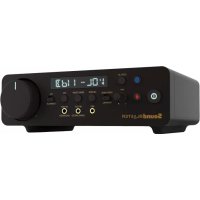
Sound Blaster X5 - Headphones CREATIVE - Free user manual and instructions
Find the device manual for free Sound Blaster X5 CREATIVE in PDF.



| Product Type | USB DAC sound card with headphone amplifier |
| Model | Sound Blaster X5 (SB1820) |
| Brand | Creative |
| Wireless Connectivity | Bluetooth 5.0 |
| Bluetooth Profiles | A2DP, AVRCP, HFP |
| Bluetooth Audio Codec | SBC |
| Input Ports | USB-C (power and data), USB-A (host output 5V/100mA), TOSLINK optical, line input (left/right), mic input |
| Output Ports | Asymmetric headphone (3.5mm jack), balanced headphone, line output (left/right), TOSLINK optical |
| Headphone Amplifier | XAMP fully balanced, normal gain (<150 Ω) and high gain (>150 Ω) |
| Signal-to-Noise Ratio (DAC) | Up to 120 dB (estimated) |
| Supported Audio Resolution | Up to 32-bit / 192 kHz (estimated) |
| Power Supply | USB-C 5V/1A |
| Dimensions (approx.) | 180 x 130 x 40 mm |
| Weight (approx.) | 300 g |
| Main Functions | Built-in DSP, 10-band equalizer, Direct/DSP mode, PC/console switch, LED display, microphone gain adjustment, microphone mute button |
| Care and Cleaning | Clean with a soft, dry cloth. Do not use solvents. |
| Safety | Do not expose to moisture or extreme temperatures. Disconnect before cleaning. |
| Spare Parts and Repairability | Contact Creative support for repairs. No user-replaceable parts. |
| General Information | Operating temperature: 0 to 45°C. Bluetooth range: up to 10 m (line of sight). |
Frequently Asked Questions - Sound Blaster X5 CREATIVE
User questions about Sound Blaster X5 CREATIVE
0 question about this device. Answer the ones you know or ask your own.
Ask a new question about this device
Download the instructions for your Headphones in PDF format for free! Find your manual Sound Blaster X5 - CREATIVE and take your electronic device back in hand. On this page are published all the documents necessary for the use of your device. Sound Blaster X5 by CREATIVE.
USER MANUAL Sound Blaster X5 CREATIVE
[NL] MEERTALIGE SNELSTARTGIDS DOWNLOAD
[RU] MHOR3bHHOE KPATKOE PYKOBOCTBO 3APY3NTB
[PL]POBIERZPRZWODNIK SZYBKIEGO STARTU W WIELU JEZYKU
[CZ] STAHNOUT VICEJAZKYOVY RYCHLY NAVOD KPOUZITI
[SK]STIAHNU T SI RYCHLY NAVOD NA STARTOVANIE VIAC JAZYKOV
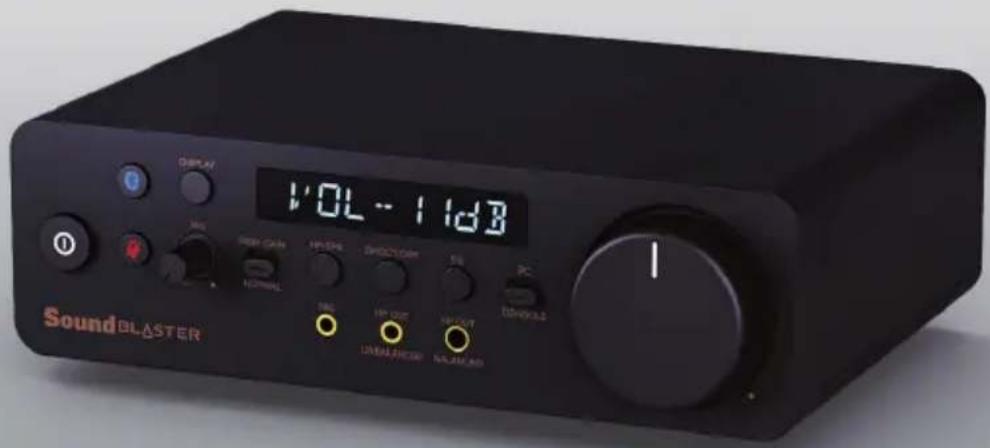
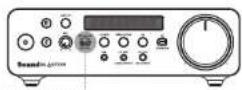
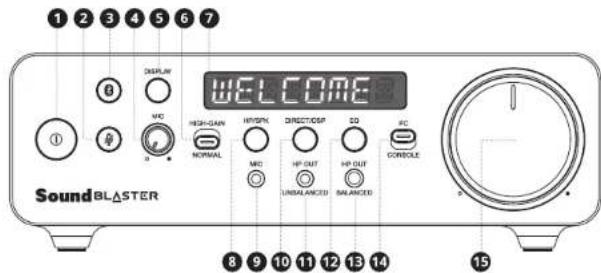
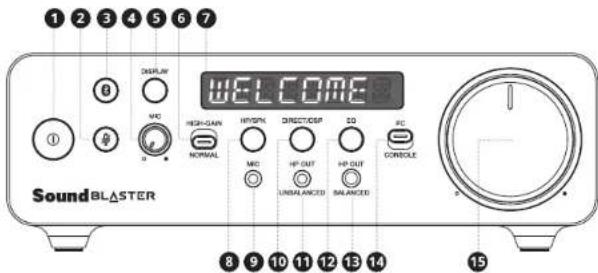
- Power Button with LED
- Mic Mute / Unmute Button with LED
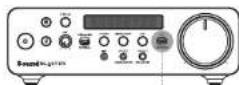
- Bluetooth® Button with LED
- Mic Gain Knob
- Info Display Button
- Headphones Gain Switch
- LED Display
-
Speaker / Headphones Switch Button
-
Mic-in Port
10.DSP/DirectModeSwitchButton - Headphones-out (Unbalanced) Port
- Equalizer Button
- Headphones-out (Balanced) Port
- PC / Console Switch
- Volume Control Knob with LED
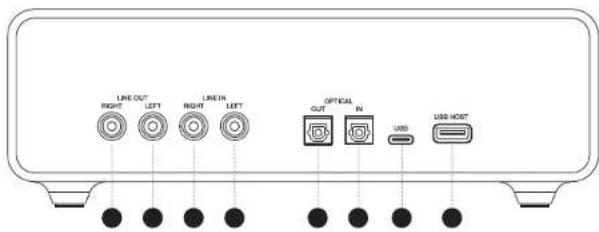
- Line-out (Right) Port
- Line-out (Left) Port
- Line-in (Right) Port
-
Line-in (Left) Port
-
TOSLINK Optical-out Port
- TOSLINK Optical-In Port
- USB-C Power and Data Transfer Port
- USB-A Host Audio Streaming Port (Max. Power 5V-100 mA)
POWERING UP SOUND BLASTER X5 CONNECTING EXTERNAL DEVICES TO SOUND BLASTER X5 (FR

"WELCOME!" is the default LED display when Sound Blaster X5 is connected to a PC / Mac using a USB-C data cable.
| Button | Action | LED Display |
| x1 | Power On (Standalone Mode) | OFFLINE |
"OFFLINE" is the default LED display when Sound Blaster X5 is powered by an external power source using a USB-C charging cable and has devices connected to one or more of the available input sources. Use cases include, but not limited to: TV, Blu-ray / DVD player, and / or a set-top box
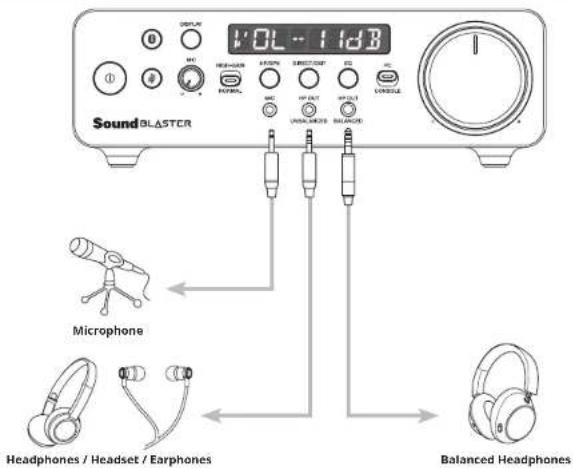
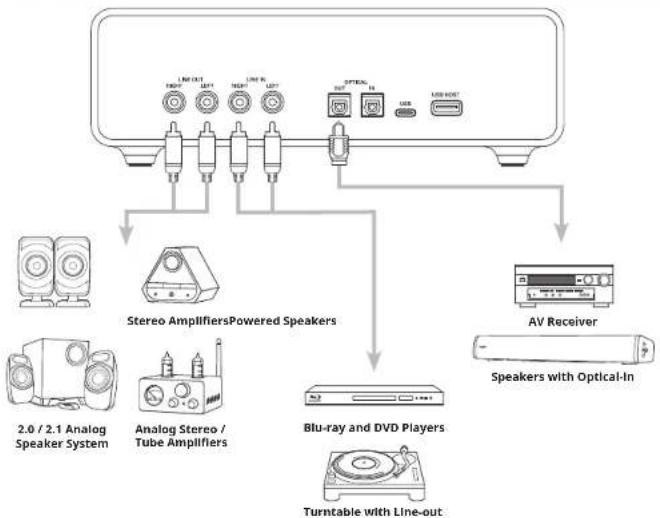
CONNECTING EXTERNAL DEVICES TO SOUND BLASTER X5 (BACK) CONNECTING EXTERNAL DEVIC
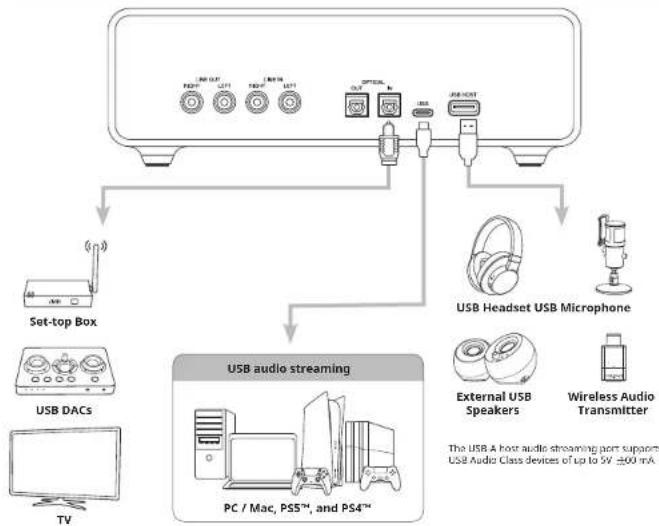
ASTER X5 (BACK)
DISPLAY AND CONTROL INTERFACE
Bluetooth Connectivity

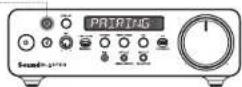
Button Action LED DisplayLED Indicator
| 02s | Enter Bluetooth Pairing Mode ↓ Bluetooth Paired / Connected Solid | Blinking Blue ↓ Blue | PAIRING ↓ CONNECTE |
| 0x1 | Exit Bluetooth Pairing Mode | Off | N/A |
| 05s | Reset Bluetooth Settings | N/A | RESET |
| Trigger BLE connection via the Creative app | Flashing Blue | N/A |
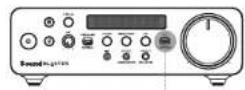
LED Display
The LED Display offers direct view of Sound Blaster X5's status and Information. Details displayed include volume level, playback format, speaker / headphones output, DSP / direct mode, selected EQ, Bluetooth status, and other device messages.

| Button Action | LED Display | |
| x1 | Audio Format DSP A/D Direct Mode Playback Volume← OutputMICin Smitos | Example: PSB 102m |
| 2s | Auto Bright (100%) Dark (50%) Off← | Example: AUTO |
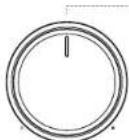
Volume Knob Control
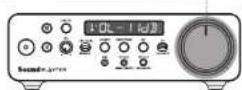
| Button Action | LED DisplayLED Indicator | ||
| Solid White | Example: |
Note: When master volume is muted, the volume knob's LED will blink white

Mic Mute / Unmute
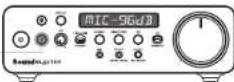
Button Action LED Indicator


Muted - Solid Red Unmuted-Off

Mic Gain Control
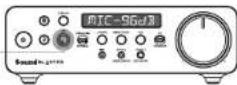

Button Action LED Display
Increase/Decrease Mic Gain Level
Example:
MIC95d8
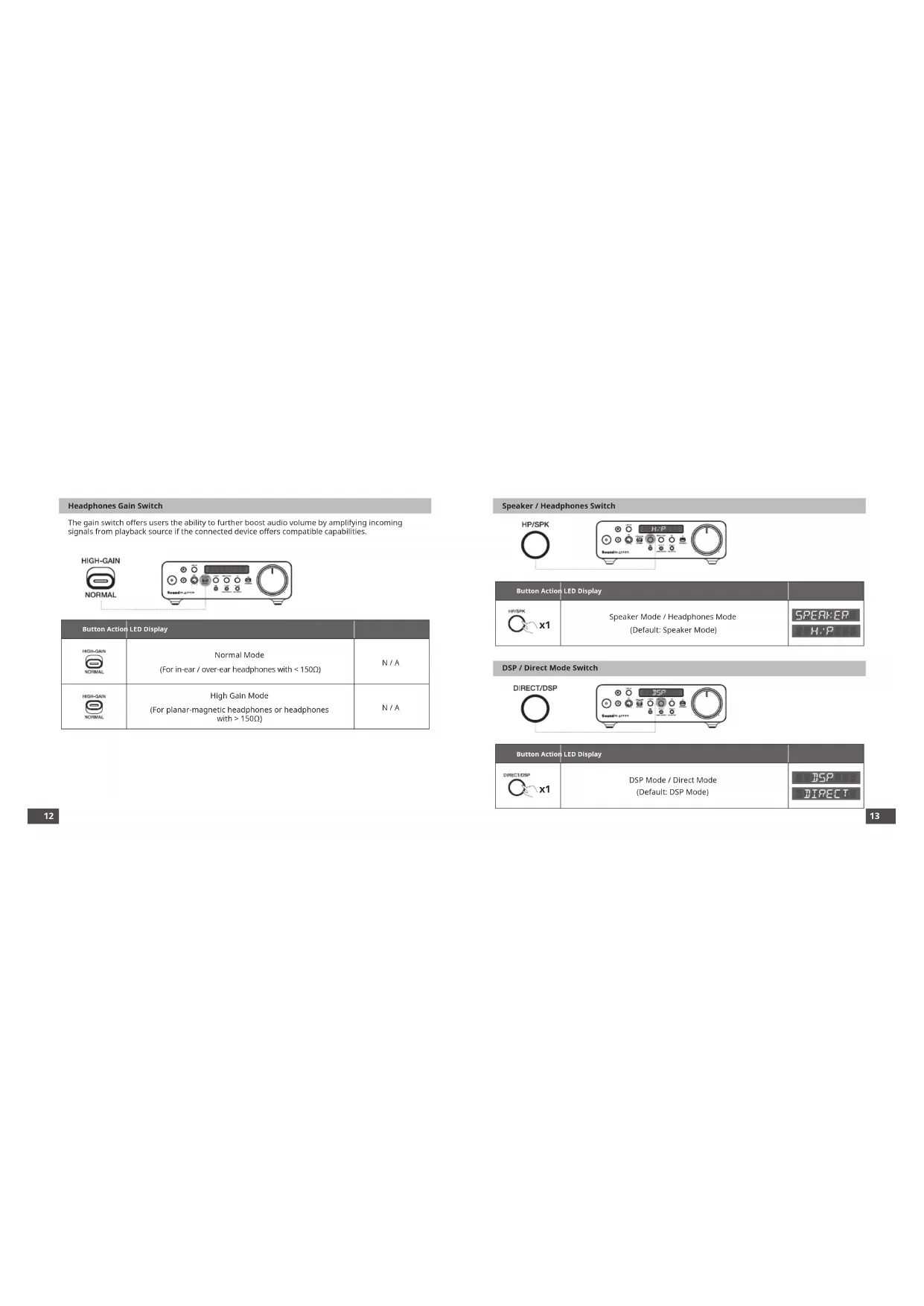
Headphones Gain Switch
The gain switch offers users the ability to further boost audio volume by amplifying incoming signals from playback source if the connected device offers compatible capabilities.
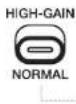
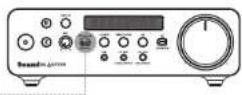
| Button Action | LED Display | |
| HIGH-GAIN NORMAL | Normal Mode (For in-ear / over-ear headphones with < 150Ω) | N/A |
| HIGH-GAIN NORMAL | High Gain Mode (For planar-magnetic headphones or headphones with > 150Ω) | N/A |
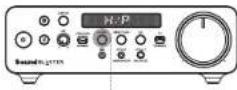
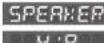
Speaker/ Headphones Switch

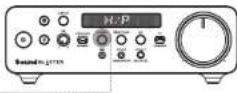
Button Action LED Display

Speaker Mode/Headphones Mode (Default:SpeakerMode)
SPERHER
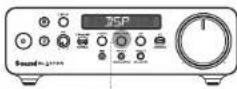
DSP/Direct Mode Switch

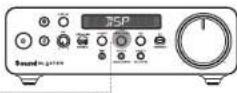
Button Action LED Display

DSP Mode / Direct Mode (Default: DSP Mode)
ISP
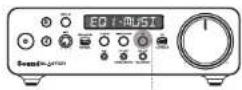
Equalizer

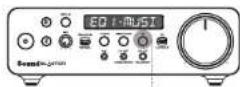
| Button Action | LED Display | |
| x1 | EQ 1 - Music EQ-3 - Movies EQ Off ← EQ 3 - Gaming (Default: EQ Off) | Example: EQ 1-MUSI |
Note: You may also create your own personal sound signature by customizing and assigning fully-customizable DSP-controlled hardware 10-band EQs to any of the EQ modes on the Creative app.
PC/Console Switch

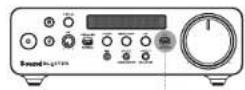
| Button Action | LED Display | |
| PC CONSOLE | PC Mode (Default: PC Mode) | N/A |
| PC CONSOLE | Console Mode | N/A |
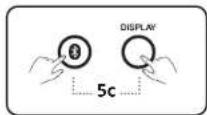
MASTER RESET
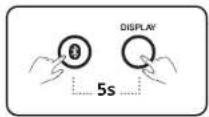
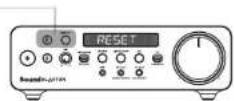
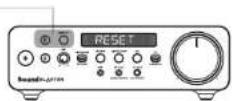
Press and hold the Bluetooth and Display buttons for 5 seconds or trigger Device Reset from the
Creative app to perform a Master Reset. Upon completion, the LED display will show "RESET".
Master reset is reserved for cases where users encounter issues while the USB Sound Card is in use.
or in situations such as: Bluetooth Pairing failure, unexpected sound cuts, or to reset all data.
TECHNICAL SPECIFICATIONS
Wireless Technology: Bluetooth 5.0
Bluetooth Profiles: A2DP (Advanced Audio Distribution Profile), AVRCP (Audio / Video Remote Control Profile), HFP (Hands-Free Profile)
Supported Audio Codes: SBC
Operating RF range: 2402-2480 MHz
Operating Range: Up to 10m / 33 ft (Unobstructed Line-of-sight)
Operating Temperature: 0 - 45^
Maximum RF Output Power: 4 dBm
Input:5V=TA
USB-A Host Output: 5V=100 mA
SOFTWARE / APP DOWNLOAD

PC and Mac
Download the Creative app for your PC or Mac from creative.com/support/SBX5 to enjoy complete control of your personalized audio experience on the Sound Blaster XS.

iOS and Android
Download the Creative app to enjoy quick access to controls and settings from your mobile.
With the Creative app, you can:
Access Creative's proprietary suite of fully-customizable audio enhancement technologies
- Personalize audio with customizable Acoustic Engine profiles or experience professionally-tuned audio presets for music, movies, and more.
- Set up additional speakers and headphones' configurations
- Adjust playback and recording settings
- Perform firmware upgrades, product registration, and more
Download the Creative App from:

App Store Google


Scout Mode™, CrystalVoice™, and Sound Blaster Acoustic Engine's features are only accessible via the Creative app on PC and Mac.
REGISTER YOUR PRODUCT
creativecommons.org
TECHNICAL SUPPORT
creativecommons.com/support
© 2022 Creative Technology Ltd. All rights reserved. Creative, the Creative logo, Blaster, Sound Blaster, the Sound Blaster logo, SBX Pro Studio and CrystalVoice are trademarks or registered trademarks of Creative Technology Ltd. in the United States and/or other countries. Windows is a registered trademark of Microsoft Corporation in the United States and other countries. All other trademarks are the property of their respective owners and are hereby recognized as such. All specifications are subject to change without prior notice. Actual product may differ slightly from images shown. Use of this product is subject to a limited warranty.
SoundBLASTER X5
HOCHAUFLÖSENDE DUAL-DAC-USB-SOUNDKARTE MIT VOLLSYMMETRISCHEM XAMP-KOPFHÖRER-BI-VERSTÄRKER
DE
KURZANLEITUNG
Model No.: SB1820
CREATIVE
Bluetooth-Profile: A2DP (Advanced Audio Distribution Profile), AVRCP (Audio / Video Remote Control
Profile), HFP (Hands-free Profile)
creativecommons.com/support
creativecommons.com/register
SUPPORT TECHNIQUE
creativecommons.com/support
Interruptor PC/Consola

CONSOLE
creativecommons.com/support
Profiley Bluetooth: A2DP (Advanced Audio Distribution Profile), AVRCP (Audio / Video Remote Control Profile), HFP (Hands-free Profile)
creativecommons.com/register
TECHNICKA PODPORA
creativecommons.com/support
[NL] MEERTALIGE SNELSTARTGIDS DOWNLOAD
[RU] MHORO3bI4HOE KPATKOE PYKOBOJCTBO 3AFTy3NTb
[CZ] STAHNOUT VICEJAZKYOV RCHLY NAVOD K POUZITI
[SK] STIAHNU SI RYCHLY NAVOD NA STARTOVANIE VIAC JAZYKOV
Profile Bluetooth: A2DP (Advanced Audio Distribution Profile), AVRCP (Audio / Video Remote Control Profile), HFP (Hands-free Profile)
Obsdugiwane kodeki audio: SBC
creativecommons.com/support
[NL] MEERTALIGE SNELSTARTGIDS DOWNLOAD
[RU] MHORO3bI4HOE KPATKOE PYKOBOJCTBO 3AFTy3NTb
Profile Bluetooth: A2DP (Advanced Audio Distribution Profile), AVRCP (Audio/Video Remote Control Profile), HFP (Hands-free Profile)
creativecommons.com/support
KPATKOE PUKOBOCTBO NOJIb3OBATEJIa
Mодь:SB1820
CREATIVE

CKAATb KPATKOE PYKOBOCTBO NO 3KCNIIYATAUIN HA HECKOJIbKnX IA3bIKAX creative.com/support/SBX5
[EN] MULTI-LANGUAGE QUICK START GUIDE DOWNLOAD
[FR] TELLECHARGEMENT DU GUIDE DE DEMARRAGE RAPIDE MULTI-LANGUES
[NL] MEERTALIGE SNELSTARTGIDS DOWNLOAD
PerynatoPypOBHyCnIeHH3BykaDnHayuHnKOB
Peryyntop ycnHnHnN03BnEeJpnONHnTbeHOYBEYNHbIbRpOKMcB3Byka,ycnHbBBA BDOAUNI CNTANHbNtIOCTNOHNA BOCPnVAEBDEHNE,ECNNIOKNIKHeHoe YcPOCTBO ONaaET COBMCTMNMI B03MOXHOCTMn.

PepeKIOHaTeJIb DnHaMnKOB/HayuHnKOB


Khoonka DcNCTB
PekMIMIAMHAKMOF PekMHAYIHAKOO (No MyMOJAHAAHO: PekMIMIAMHAKOO)
CBETOAMOAHIMDcnnne
PepeknoaTeB Pexkma DSP /Ppmaoro Pexkma

DIRECT/DSP

KhoNka DeIcTbN
Pekmm DSP /PnrmO Pekmm (No ymOnuHnO: Pekmm DSP)
CBETOANHBMHN


3Kbanaa3ep

Cebtoaioa
KoHnka geBc

EQ1-My3bkaE2-Φn
EOBbIK. E03-VPbI

EOI·MUSI
PnmeHHe. Bb TaKcKMOKeTe coaTaB cOeBHnB pnnmehnBt CnB 3ByuHnA, HactpOBn B b6paB noHCTbHO hCtBaMaBte anapatthe 10-nonChbe kBAanBepbC DSPynpabHem Me HJIOH xpeKIMoB KBANBaeB npnoKHeHn Creative
NpeeknouateBnK/KoHco

| Коньдемпгия | Сbeltroidдмьдддддддддддддддддддддддддддддддддддддддддддддддддддддддддддддддддддддддддддддддддддддддддддддддддддд CONSOLE | Реким ПК (ПО УМДУЧАНО: Реким ПК) | H/Д |
| PC CONSOLE | Реким Игrosуй Кonsули | H/Д |
CBPOC HACTPOEK
Haxnmei n yedjxmbaiye KhoNkXo Bluteoth in Display a teeyHe 5 cekyHn nn 3anycthtre dyHKnIOBc0pa cYtpoJIbTaDe Sete R 2 npInnoJhenr Creative, TTOb6blonHn bocPo h 3abOaDckne HacpoHIO. Ito 3abepeuHnHn HcetoTdoAioHm DcnIee noaBHTC nadHnCL SETE.
C6pOc H3aBdKcKHeHcTPOKn NpeDHaAueHn DnyCyaEe, Xo4Ja nIbTaBATEm CTaIKKaBAtOTc C npOblMaMn B0BpMaN cnoBbOAHn 3BykoBoi USB-Kapbt, a TaKke npn C6oe coeHNHeHn Bluotho, nepe6ooB b AyyaHnn mnn d6cpoc Bcx daHHx.
TEXHUNUCKNEXAPAKTEPUCTUKI
BecnpoBODHaTexHoHOrn:Bluetooth5.0
ПовларыпьамныnapamетуBluetooth: A2DP (Advanced Audio Distribution Profile), AVRCP (Audio/Video Remote Control Profile), HFp (Hands-free Profile)
PndepKnBaemble aydnoKOdeKn: SBC
PdNyc DeIcTBn PAOnoyactOT: 2402-2480 M
DaaBHOCTb DeHCTBn:do 10M (no nnHn npmou BuaMOCTn)
BxOaHoe HAnpXeHne:5B=1A
BixoAUSB-Acfoynueu xocta:5B=100MA
3APY3KA IPOPTPAMMHOOBECENEHIN/IPNIIOXEHIN

PK Mac
3aayrnnnnpnoenncnre Cnree Pk Nm Mac ceb caire creative.com/support/SBX5. cnboy npnynnpn nohnn konTpoB hnd aybnaHm Sound Blaster X5.

iOS u Android
3aarpysu npnloxncncrelive CTOB0yIbUHbIbCTpBIO DOCTYK 3eNEMETAM npynabEYN HACTPOKAM CBAWERO MOBILHO TEOFONA
C NOMOUIIO npINOXeHr CReIte Bbl CMoKTe:
PONHYIOTDQYN3AETAHOTBHOHOMHYABOPYTEXHOJORNCTCRENTAYUHTUENHARBAKCA B0MOXHOCTBO NPOHNOHACTOOKHIN
- nepoohanlmpoabta Byayhnae c NMOOJIbH NaCTpaNaeMIX npOphnne Acoustie Engine mIIN CNOBt IpoPeccoHbAHLb HAcTpoEHbIe IpceTeI dR MyaIK, FmMbOB M MHOROTy AYTOrTO;
HATPNOBATOIOHOIITbIyHOHOIHTpAuaIHOIADINHAMMKOB HAYHIMKOB;
peynnoaBt HApTPOkBOOPnOAEHEnIaNNiC;
BnIOHINITbIOHOOBIEHNEIpoPpAMMHOOBOECEUEHNN,peNcTpaUNKPOJyKTaMHORAE pAFOe.
3arpynte npnoxhencreative App c:

App Store Google

Store
ФИКИМ Scout Mode, CrystalVoiceи Sound Blaster Acoustic Engine Na Мас дугуны
ToNs Ko Hepea prinpoKeNeke Creative.
PENTCPAUNBAWEYCTPOINCTBO
creativecommons.org
TEXHUNECKA ПОДДЕРЖKA
creativecommons.com/support
© 2022 Creative Technology Ltd. Bce npaba 3aunuhen. Creative, norotn Creative, Blaster, Sound Blaster, norotn Sound Blaster, SBX Pro Studio n CrystalVoice raBnTc TOBAPHbIMn 3hakam nn 3aperntpupobAHbIMTOBAPbIMn 3hakam konmaHm Creative Technology Ltd. B CLIA n/nn pyrHy cTpaHax. Windows raBnTc 3aperntpupobAHbIMTOBAPbIMn 3hakom Microsoft Corporation B CIIA n/nn dpyrnx cTpaHax. OctaHbIe TOBAPbIMn 3hakn npnaNEXaKcooTBeTcByUOmm BnaDaeBuaM n paccMaTPBaHO TcKa TakOBtie. Texnueeckne xapaKepncTKn MoryT 6b1b NImHeHb 6e3 PpeBapNTeBHO yBeDoMAHn. ObBeKtbl Ha nInIOCTPAauHN MoryT B He3HaHTeBHO CTeENH oTtnaATcbn OT peaHbIX, NcnoB3oBAHHe DaHHoro n3dEeNn PoDaNaTaEe IOnDe EeCTBNe OrpaHueHHo rapaHTn Hs obOpdyoBaHne.
soundBLASTER X5
INLMEERTALIGESNELSTARTGIDS DOWNSLOAD
[RU] MHOR3bHHOE KPATKOE PYKOBOCTBO 3APY3NTB
[PL]POBIERZPRZWODNIK SZYBKIEGO STARTU W WIELU JEZYKU
[CZ] STAHNOUT VICEJAZKYOVY RYCHLY NAVOD KPOUZITI
[SK]STIAHNU T SI RYCHLY NAVOD NA STARTOVANIE VIAC JAZYKOV
[CS]下载多语言快速入门指南
[CT]下載多語言快速入門指南
[KO]国民党人 贝贝
[NO] NEDLASTING AV HURTIGSTARTVEILEDNING FOR FLERE SPRAK
[FI] MONIKIELINEN PIKA-ALOITUSOPPAAN LATAUS
[SV] FLERSPRAKIG SNABBSTARTSGUIDE LADDA NER
[DA] DOWNLOAD AF HURTIG STARTVEJLEDNING PÁ FLERE SPROG
概要(正面) 概要(背面)
creativecommons.com/support
© 2022 Creative Technology Ltd. All rights reserved. Creative, Creative, Sound Blaster, Sound Blaster, SBX Pro Studio, sbx crystalVoice
INLMEERTALIGESNELSTARTGIDS DOWNSLOAD
[RU] MHOR3bHHOE KPATKOE PYKOBOCTBO 3APY3NTB
[PL]POBIERZPRZEWODNIKSZYBKIEGO STARTUWWIELUJZYKU
[CZ] STAHNOUT VICEJAZYKOVY RYCHLY NAVOD KPOUZITI
[SK]STIAHNU T SI RYCHLY NAVOD NA STARTOVANIE VIAC JAZYKOV
[IP]多吉第2个上
[CT]下截多语言快速入門指南
[KO]国民党人 购购 10000000000000000000000000000000000000
[NO] NEDLASTING AV HURTIGSTARTVEILEDNING FOR FLERE SPRAK
[FI] MONIKIELINEN PIKA-ALOITUSOPPAAN LATAUS
[SV] FLERSPRAKIG SNABBSTARTSGUIDE LADDA NER
[DA] DOWNLOAD AF HURTIG STARTVEJLEDNING PÁ FLERE SPROG
概览(前部) 概览(背部)
creativecommons.com/support
SoundBLASTER
X5
creativecommons.com/support
soundBLASTER X5
INLMEERTALIGESNELSTARTGIDS DOWNSLOAD
[RU] MHOR3bHHOE KPATKOE PYKOBOCTBO 3APY3NTB
[PL]POBIERZPRZWODNIK SZYBKIEGO STARTU W WIELU JEZYKU
[CZ] STAHNOUT VICEJAZKYOVY RYCHLY NAVOD KPOUZITI
[SK]STIAHNU T SI RYCHLY NAVOD NA STARTOVANIE VIAC JAZYKOV
creativecommons.com/support
© 2022 Creative Technology Ltd. All rights reserved. Creative, Creative log, Blaster, Sound Blaster, Sound Blaster log, SBX Pro Studio & CrystalVoice Ltd. 麦夫国及的,国之国之国之国之国之国之国之国之国之国之国之国之国之国之国之国之国之国之国之国之国之国之国之国之国之国之国之国之国之国之国之国之国之国之国之国之国之国之国之国之国之国之国之国之国之国之国之国之国之国之国


- POWERING UP SOUND BLASTER X5 CONNECTING EXTERNAL DEVICES TO SOUND BLASTER X5 (FR
- DISPLAY AND CONTROL INTERFACE
- LED Display
- Headphones Gain Switch
- Speaker/ Headphones Switch
- Button Action LED Display
- DSP/Direct Mode Switch
- MASTER RESET
- TECHNICAL SPECIFICATIONS
- SOFTWARE / APP DOWNLOAD
- Download the Creative App from:
- REGISTER YOUR PRODUCT
- TECHNICAL SUPPORT
- SoundBLASTER X5
- SUPPORT TECHNIQUE
- Interruptor PC/Consola
- TECHNICKA PODPORA
- PerynatoPypOBHyCnIeHH3BykaDnHayuHnKOB
- PepeKIOHaTeJIb DnHaMnKOB/HayuHnKOB
- PepeknoaTeB Pexkma DSP /Ppmaoro Pexkma
- 3Kbanaa3ep
- NpeeknouateBnK/KoHco
- CBPOC HACTPOEK
- TEXHUNUCKNEXAPAKTEPUCTUKI
- 3APY3KA IPOPTPAMMHOOBECENEHIN/IPNIIOXEHIN
- PENTCPAUNBAWEYCTPOINCTBO
- TEXHUNECKA ПОДДЕРЖKA
- 概要(正面) 概要(背面)
- 概览(前部) 概览(背部)
- SoundBLASTER
- X5
Brand : CREATIVE
Model : Sound Blaster X5
Category : Headphones