M 228 - Calculator Milan - Free user manual and instructions
Find the device manual for free M 228 Milan in PDF.



Frequently Asked Questions - M 228 Milan
User questions about M 228 Milan
0 question about this device. Answer the ones you know or ask your own.
Ask a new question about this device
Download the instructions for your Calculator in PDF format for free! Find your manual M 228 - Milan and take your electronic device back in hand. On this page are published all the documents necessary for the use of your device. M 228 by Milan.
USER MANUAL M 228 Milan
HANDLING PRECAUTIONS
- Be sure to press the RESET button on the back of the calculator before using it for the first time.
- Even if the calculator is operating normally, replace the battery at least once every three years. Dead battery can leak, causing damage to and malfunction of the calculator. Never leave the dead battery in the calculator.
- The battery that comes with this unit discharges slightly during shipment and storage. Because of this, it may require replacement sooner than the normal expected battery life.
- Low battery power can cause memory contents to become corrupted or lost completely. Always keep written records of all important data.
- Avoid use and storage in areas subjected to temperature extremes. Very low temperatures can cause slow display response, total failure of the display, and shortening of battery life. Also avoid leaving the calculator in direct sunlight, near a window, near a heater or anywhere else it might become exposed to very high temperatures. Heat can cause discoloration or deformation of the calculator's case, and damage to internal circuitry.
-
Avoid use and storage in areas subjected to large amounts of humidity and dust. Take care never to leave the calculator where it might be splashed by water or exposed to large amounts of humidity or dust. Such elements can damage internal circuitry.
-
Never drop the calculator or subject it to strong impact.
- Never twist or bend the calculator. Avoid carrying the calculator in the pocket of your trousers or other tight-fighting clothing where it might be subjected to twisting or bending.
- Never try to take the calculator apart.
- Never press the keys of the calculator with a ballpoint pen or other pointed object.
- Use a soft, dry cloth to clean the exterior of the unit. If the calculator becomes very dirty, wipe it off with a cloth moistened in a weak solution of water and a milk neutral household detergent. Remove all excess moisture before wiping the calculator. Never use thinner, benzine or other volatile agents to clean the calculator. Doing so can remove printed markings and damage the case.
TWO-LINE DISPLAY
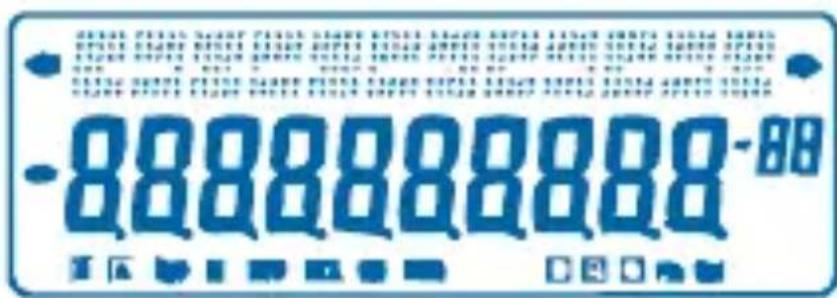
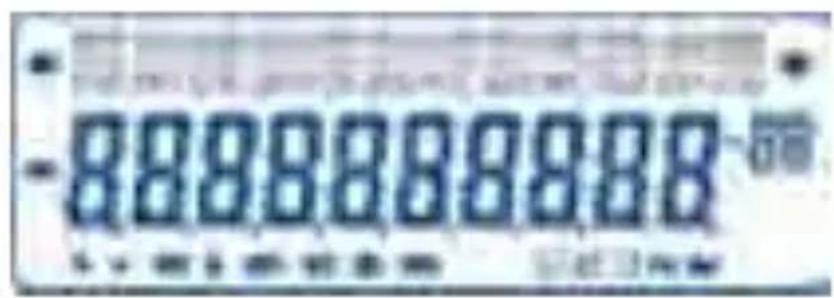
You can simultaneously check the calculation formula and its answer.
The first line displays the calculation formula.
The second line displays the answer.
Before starting calculations
- Modes
| APPLICATION | Mode Name | Mode Indicator |
| Calculation Modes | ||
| Normal calculations | COMP | - |
| Standard deviation calculation | SD | SD |
| Regression calculations | REG | REG |
| Angle Unit Modes | ||
| Degrees | DEG | D |
| Radians | RAD | R |
| Grads | GRA | G |
| Display Modes | ||
| Exponential notation (Cancelling FIX and SCI specification) | NORM | - |
| Number of decimals place specification | FIX | Fix |
| Number of significant digit specification | SCI | Sci |
Note
Mode indicators appear in the lower part of the display.
- The COMP, SD, and REG modes can be used in combination with the angle unit modes.
- Be sure to check the current calculation mode (SD, REG, COMP) (DEG, RAD, GRA) before beginning a calculation.
- Input Capacity
-
The memory used for calculation input can hold 99 "step". Whenever you input the 99th step of any calculation, the cursor changes from "_ to " to let you know memory is running low and you cannot input steps any more. If you still need to input more, you should divide your calculation into two or more parts.
-
Making corrections during input
- Use and to move the cursor to the location you want.
- Press to delete the number or function at the current cursor position.
- Press SHIFT INS to an insert cursor. Inputting something while the insert cursor is on the display inserts the input at the insert cursor position.
- Press, , or returns to the normal cursor from the insert cursor.
Replay function
- Pressing or recalls the last calculation you performed. You can then make any changes you want in the calculation and re-execute it.
- Pressing does not clear Replay memory, so you can recall the last calculation even after you press ON/C.
-
Replay memory is cleared whenever you start a new calculation, change to another mode, or turn off power.
-
Error Locator
- Pressing or after an error occurs displays the calculation with the cursor positioned at the location where the error occurred.
- Exponential Display Formats
- This calculator can display up to 10 digits. Larger values are automatically displayed using exponential notation. Press MODE MODE MODE 3 to have exponential display and cancel FIX and SCI specification. With NORM, exponential notation is automatically used for integer values with more than 10 digits and decimal values with more than nine decimal places.
- Answer Memory
- Whenever you press = after inputting values or an expression, the calculated result is automatically stored in Answer Memory you can recall Answer Memory contents by pressing ANS.
- Answer Memory can store up to 10 digits for the mantissa and two digits for the exponent. Answer Memory contents are not changed if the operation performed by any of the above key operations results in an error.
Basic Calculations - Use the COMP mode for basic calculations.
• Example 1: 3 × (5 × 10 - 11)
35 Exp (-) 11
1,5-10
Example 2: 2:5 × (9 + 7)


- You can skip all) operations before = ·
MEMORY CALCULATIONS
- Independent Memory
- Values can be input directly into memory, added to memory, or subtracted from memory. Independent memory is convenient for calculating cumulative totals.
- Independent memory uses the same memory area as variable M.
To clear independent memory (M), STO M.
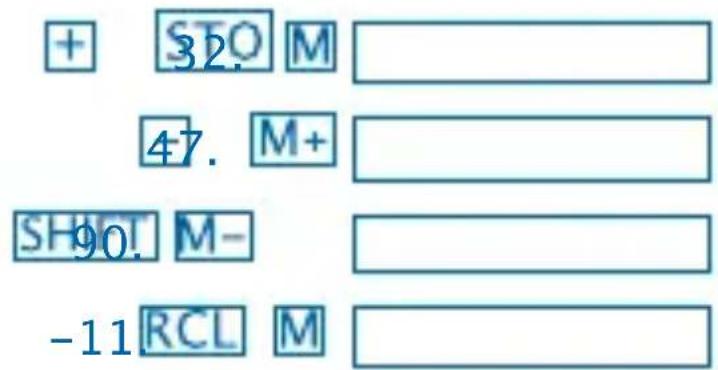
Example:
$$ \begin{array}{l} 2 3 + 9 = 3 2 2 3 \quad 9 \ 5 3 - 6 = 4 7 \quad 5 3 \quad 6 \ \end{array} $$
$$ - 4 5 \times 2 = 9 0 $$
(total) -11
45 X2
- Variables
- There are nine variables (A through, F, M, X and Y), which can be used to store data, constants, results, and other values.
- Use the following operation to delete data assigned to all nine variables: SHIFT Mcl
- Use the following operation to delete data assigned to a particular variable: ① STO A.
- This operation deletes the data assigned to variable A.
• Example: 193.2 23=8.4
$$ 1 9 3. 2 \boxed {2} 8 = 6. 9 $$

Fraction Calculations
- Fraction calculations
- Use the COMP mode for fraction calculations.
- Values are automatically displayed in decimal format whenever the total number of digits of a fractional value (integer + numerator + denominator + separator marks) exceeds 10.
Example: 23 + 145

Example: 12 + 1, 6

- Fraction/decimal calculation results are always decimal.
- Decimal - to - fraction conversion
Example:
$$ 2. 7 5 \rightarrow 2 \frac {3}{4} $$
2.75
2.75
a
234.
SHIFT d/c
114.
- Fraction - to - decimal conversion
Example:
Fraction 5 (
Decimal
)
1


12.
0.5
12.
Percentage Calculations
- Use the COMP mode for percentage calculation.
Example 1: To calculate 12% of 1500
1500x12SHIFT 180.
Example 2: To calculate what percentage of 880 is 660
660 880 SHIFT 75.
Scientific Function Calculations
-
Use the COMP mode for scientific function calculations.
· = 3,14159265359 -
Trigonometric / Inverse trigonometric Functions
Example 1: sin 63^52'41

Example 2: cos (3 rad)

Example 3: cos -22 = 4 rad
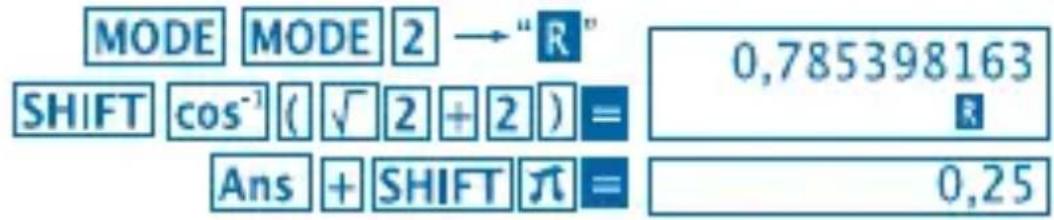
Example 4: tan-1 0.741

Hyperbolic / Inverse Hyperbolic Functions
Example 1: sinh 3.6 hyp sin 3.6 18.28545536
• Example 2: sinh-1 30

Angle Unit Conversion
- Press SHIFT DRG to display the following menu.
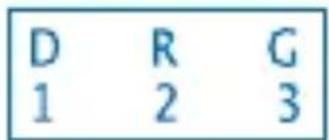
- Pressing 1 or 3 converts the displayed value to the corresponding angle unit.
- Example: To convert 4,25 radians to degrees

Common and Natural Logarithms / Antilogarithms
Example 1: log 1.23 1.23

Example 2: In 90 (= loge 90)

Example 3: e^10

Example 4: 10^1.5

Example 5: 2^4

- Square Roots, Cube Roots, Roots, Square, Cubes, Reciprocals, Factorials, Random Numbers and
• Example 1: 2 + 3 × 5

Example 2: 35 + 3-27

• Example 3: [7]123 (= 123 ÷)

Example 4: 123 + 30^2

Example 5: 12^3

Example 6: 113 - 14

Example 7: 8!

Example 8: To generate a random number between 0,000 and 0,999

Example (results differ each time)
Example 9: 3

FIX,SCI,RND
Example 1: 200 ÷ 7 × 14 = 400

(Specifies three decimal places)

(Calculation continues using 10 display digits)

Performing the same calculation using the specified number of decimal places

- To clear FIX specification, press

- Example 2: 1 ÷ 3 displaying result with two significant digits (SCI 2)

To clear SCI specification, press MODE MODE MODE 3.
- ENG Calculations
Example 1: To convert 56,088 meters to kilometres

Example 2: To convert 0,08125 grams to milligrams

- Coordinate Conversion (Pol (x,y) , Rec (r,0))
- Calculation results are automatically assigned to variables E and F.
- Example: To convert polar coordinates (r = 2, 0 = 60^) to rectangular coordinates (x, y)
(DEG mode)

- RCL E swaps displayed value with value in memory.
- Example 2: To convert rectangular coordinates (1, 3) to polar coordinates (r, 0) (RAD mode)

- RCL E RCL F swaps displayed value with value in memory.
Permutation
- Example: To determine how many different 4-digit values can be produced using the numbers 1 through 7.
- Numbers cannot be duplicated within the same 4-digit value (1234 is allowed, but 1123 is not).
7SHIFT nPr 4 1.732050808
Combination
- Example: To determine how many different 4-member groups can be organized in a group of 10 individuals.
10 mCr 4 210.
STATISTICAL CALCULATIONS
- Standard Deviation (SD mode)
- Press MODE 2 to enter the SD mode for statistical calculations using standard deviation.
- Data input always starts with SHIFT to clear statistical memory.
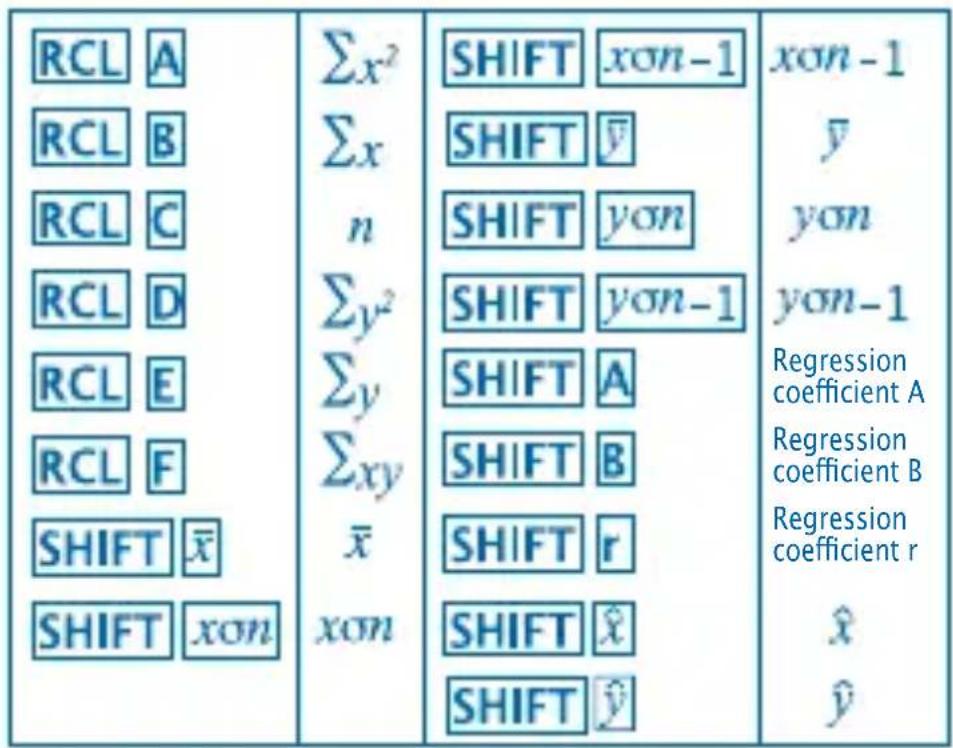
- Input data is used to calculate values for n, and x^2 , , and which you can recall using the following key operations.
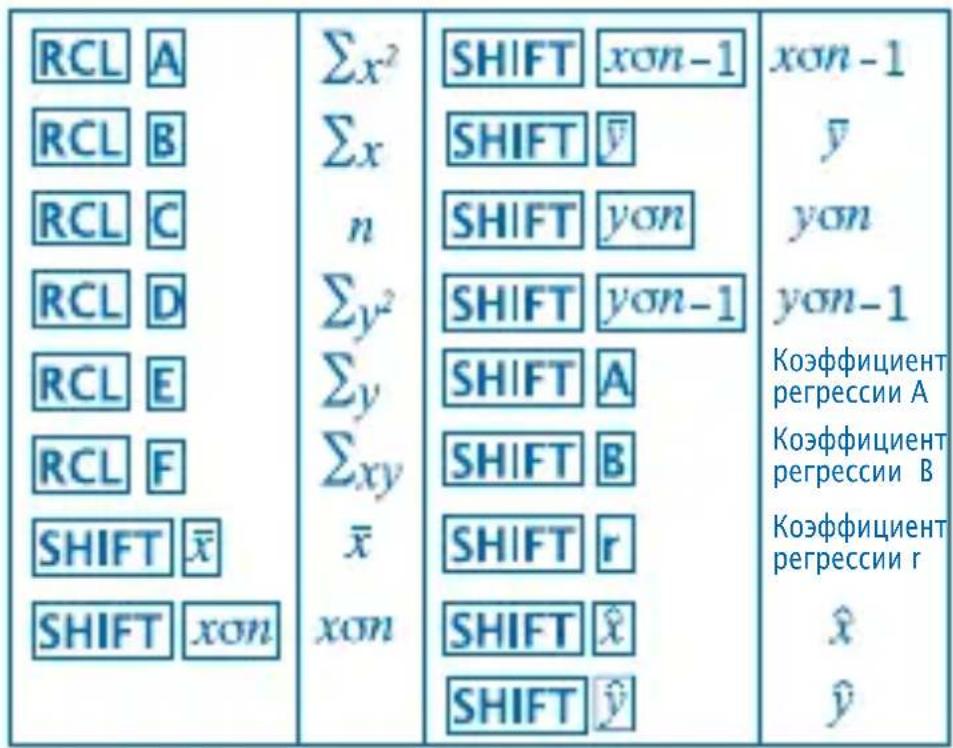
| RCL A | Σx2 |
| RCL B | Σx |
| RCL C | n |
| SHIFT x̄ | x̄ |
| SHIFT xon | On |
| SHIFT xon-1 | On-1 |
Example: To calculate n , and and for the n^-1 following data: 55, 54, 51, 55, 53, 53, 54, 52
Enter SD Mode
MODE2
SHIFT Sci (Memory clear)
55DT54DT51DT55DT
53DTDT54DT52DT
- SD
(Sample standard deviation n^-1 )
SHIFT x^-1 = 1.407885953
(Population standard deviation)
SHIFT xon 1.316956719
(Arithmetic Mean)
SHIFT 53.375
(Number of data n)
RCL C 8.
(Sum of Values x
RCL B 427.
(Sum of square of values x^2
RCL A 22805.
Data Input Precautions
-
DTDT inputs the same data twice.
-
You can also input multiple entries of the same data using SHIFT. To input the date 110 ten times, for example, press 110 SHIFT 10 DT.
-
The above results can be obtained in any order and not necessarily that shown above.
To delete data you have just input, press SHIFT CL
-
Regression Calculations (REG Mode)
-
Press MODE 3 to enter the REG mode and then select one of the following regression types.
: Lineal Regression
: Logarithm Regression
: Exponential Regression
:Power Regression
-
Data input always starts with SHIFT Sci to clear statistical memory.
-
The values produced by a regression calculation depend on the values input and results can be recalled using the key operations shown in the table below.
- Linear Regression
The regression formula for linear regression is:
$$ y = A + B x. $$
Example: Atmospheric pressure vs. Temperature
| Temperature | Atmospheric pressure |
| 10°C | 1003 hPa |
| 15°C | 1005 hPa |
| 20°C | 1010 hPa |
| 25°C | 1011 hPa |
| 30°C | 1014 hPa |
Perform linear regression to determine the regression formula terms and correlation coefficient for the data nearby. Next, use the regression formula to estimate atmospheric pressure at 18^ and temperature at 1000 hPa.
Enter REG mode (Linear Regression)
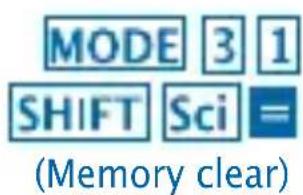
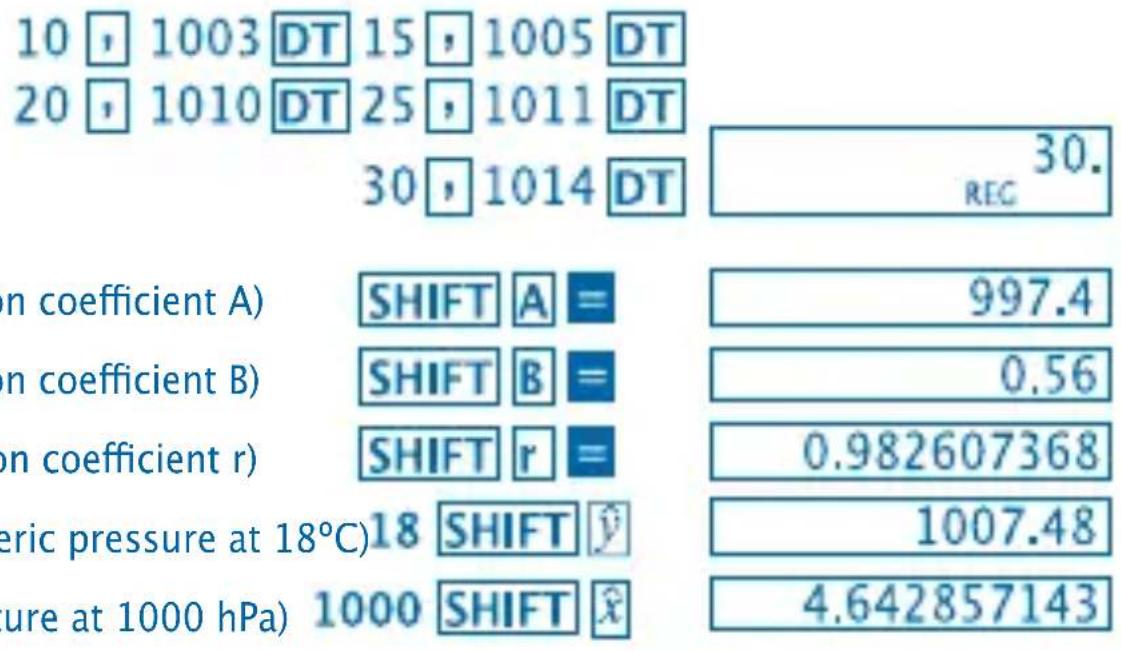
Data Input Precautions
- DT inputs the same data twice.
- You can also input multiple entries of the same data using SHIFT. To input data "20 and 30" five times, for example, press 20:30 SHIFT:5 DT.
- The above results can be obtained in any order, and not necessarily that shown above.
To delete data you have just input, press SHIFT CL.
Degrees, Minutes, Seconds Calculations
- You can perform sexagesimal calculations using degrees (hours), minutes, and seconds, and convert between sexagesimal and decimal values.
- Example 1: To convert the decimal value 2.258 to a sexagesimal value

Example 2: To perform the following calculation: 12^34'56''× 3.45

Technical Information
- When you have a problem ...
If calculation results are not what you expect or if an error occurs, perform the following steps:
- MODE 1 (COMP mode)
- MODE MODE (DEG mode)
- MODE MODE MODE (NORM mode)
- Check the formula you are working with to confirm it is correct.
- Enter the correct modes to perform the calculation and try again.
If the above steps do not correct your problem, press RESET button on the back of the calculator to reset it.
Pressing button deletes all data stored in calculator memory. Make sure you always keep written copies of all important data.
- Error Messages
The calculator is locked up while an error message is on the display. Press ON/C to clear the error or press < or > to display the calculation and correct the problem.
See "Error Locator" for details.
Ma ERROR
- Cause
- Calculation result is outside the allowable calculation range.
- Attempt to perform a function calculation using a value that exceeds the allowable input range.
- Attempt to perform an illogical operation (division by zero, etc.).
Action
- Check your input values and make sure they are all within the allowable ranges. Pay special attention to values in any memory areas you are using.
Stk ERROR
- Cause
- Capacity of the numeric stack or operator stack is exceeded.
Action
- Simplify the calculation. The numeric stacks has 10 levels and the operator stack has 24 levels.
- Divide your calculation into two or more separate parts.
Syn ERROR
- Cause
- Attempt to perform an illegal mathematical operation.
Action
- Press l or l to display the calculation with the cursor located at the location of the error.
Make necessary corrections.
Arg ERROR
- Cause
- Improper use of argument.
Action
- Press or to display the location of the cause of the error and make required corrections.
- Order of Operations
Calculations are performed in the following order of precedence.
- Coordinate transformation: Pol (x,y), Rec (r,0)
- Type A Functions: with these functions, the value is entered and then the function key is pressed.
$$ x ^ {2}, x ^ {- 1}, x!, \quad o, ” $$
- Powers and roots: x^y , x^
- a b /c
- Abbreviated multiplication format in front of , memory name, or variable name: 2 , 5a , A , etc.
- Type B Functions:
With these functions, the function key is pressed and then the value is entered.
[3] e^x 10^x ^-1 ^-1 ^-1 ^-1 ^-1 ^-1 (-)
- Abbreviated multiplication format in front of Type B functions: 23 , Alog2 etc.
- Permutation and combination: nPr, nCr
- x, ÷
- +,-
- Stacks
Operations of the same precedence are performed from right to left. e^× 120 - ex (120)
Other operations are performed from left to right.
* Operations enclosed in parentheses are performed first.
This calculator uses memory areas, called "stacks", to temporarily store values (numeric stack) and commands (command stack) according to their precedence during calculations. The numeric stack has 10 levels and the command stack has 24 levels.
A stack error (Stk ERROR) occurs whenever you try to perform a calculation that is so complex that the capacity of a stack is exceeded.
- Power Supply
- Replacing the Battery
This calculator is powered by ( L1154, LR44 o AG13) x 2 button battery.
Dim figures on the display of the calculator indicate that battery power is low. Continued use of the calculator when the battery is low can result in improper operation. Replace the battery as soon as possible when display figures become dim.
- To replace the battery
- Press OFF to turn power off.
- Remove the two screws that hold the battery cover in place and then remove the battery cover.
- Remove the old battery.
- Wipe off the side of new battery with a dry, soft cloth. Load into the unit with the positive side facing up (so you can see it).
- Replace the battery cover and secure it in place with the two screws.
- Use a thin, pointed object to press Be sure not to skip this step.
- Press to turn power on.
- Auto Power OFF
Calculator power automatically turns off it you do not perform any operation for about six minutes. When it happens, press ON/C to turn power back on.
- Input Rangers
Internal digits: 12
Accuracy: As a rule, accuracy is ± 1 at the 10th digit.
| Functions | Input Range |
| Sinx | DEG 0<!x!<4.499999999 x 10¹⁶ |
| RAD 0≤!x!≤785398163.3 | |
| GRA 0≤!x!≤4.499999999 x 10¹⁰ | |
| Cosx | DEG 0≤!x!≤4.500000008 x 10¹⁶ |
| RAD 0≤!x!≤785398164.9 | |
| GRA 0≤!x!≤5.000000009 x 10¹⁰ | |
| Tanx | DEG same as sinx, except |x|=(2n-1)x90. (n is an integer) |
| RAD same as sinx, except |x|=(2n-1)xπ/2. (n is an integer) | |
| CRA same as sinx, except |x|=(2n-1)x100. (n is an integer) | |
| Sin-1x | 0≤!x!≤1 |
| Cos-1x | |
| Tan-1x | 0≤!x!≤9.999999999 x 1099 |
| Sinh x | 0≤!x!≤230.2585092 |
| Cosh x | |
| Sinh-1x | 0≤!x!≤4.999999999 x 1099 |
| Cosh-1x | |
| Tanh x | 0≤!x!≤9.999999999 x 10⁻¹ |
| Tanh-1x | |
| logx/lnx | 1 x 10-99≤x<1 x 10100 |
| 10x | -9.999999999 x 1099≤x≤99.999999999 |
| ex | -9.999999999 x 1099≤x≤99.999999999 |
| √x | 0≤x<1 x 10100 |
| x2 | x<1 x 1050 |
| 1/x | x<1 x 10100; x=0 |
| 3√x | x<1 x 10100 |
| x! | 0≤x≤69 (x is an integer) |
| nPr | 0≤n≤99, r≤n (n, r is an integer) 1≤n{nl/(n-r)l}≤9.999999999 x 10^39 |
| nCr | 0≤n≤99, r≤n (n, r is an integer) |
| Pol (x,y) | |xl|y|≤9.999999999 x 10^49 (x^2+y^2)<9.999999999 x 10^39 |
| Rec (r,0) | 0≤r≤9.999999999 0: same as sin x |
| o", " | |al,b,c<1 x 10^100 0≤b,c |
| o", " | |x|<1 x 10^100 Decimal -- Sexagesimal conversions 0°0°0°≤|xl|≤9.999999999 x 10^95°59°59° |
| xy | x > 0:-1 x 10^100 < y|logx|<100 x = 0:0<y|<1 x 10^100 x < 0:y=n, 1/2n+1 (n is an integer) However: -1 x 10^100 < y|log|x|<100 |
| x/y | y>0:x≈0 -1 x 10^100 < 1/x logy<100 y=0:x>0 y<0:2n+1, 1/n (n ≠ 0; n is an integer) However: -1 x 10^100 < 1/x log|y|<100 |
| a% | Total of integer, numerator, and denominator must be 10 digits or less (including division marks) |
| SD (REG) | |x|<1 x 10^50 |y|<1 x 10^50 |nl|<1 x 10^100 xon,yon,x, y A,B,r:n 0 xon-1,yon-1:n≈0,1 |
- Errors are cumulative with such internal continuous calculations as x^y, x^ , x! and 3[3]x , so accuracy may be adversely affected.
PRECAUTIONS D'UTILISATION
- Example 5: 12^3

- Example 6:
$$ \frac {1}{\frac {1}{3} - \frac {1}{4}} $$

- Example 7: 8!

- Ecart-type (Mode SD)
Information technique
ERREUR math (Ma ERROR)
- Cause
- Memória independent
- Example 5: 12^3

Example 6: 113 - 14
3x-14x-1)x-1 12.
- Example 7: 8!
8SHIFTx! 40320.
- Exemple 8: Per a tener un numero aleatori entre 0,000 i 0,999
SHIFT Ran# 0.664
(Cb6npaHHa cTOnHOCTnTe x
RCL C 8.
RCL B 427.
(Cb6npaHe Ha
KBaDpaTa Ha CTOnHOCTnTe
∑x²
RCL A 22805.
ПредпаЗн Мерк, Конт Тразьда ваземете рп Вьвждано на данн.
AkoHaTnCHeTe DT DT eHNi CbUn DaHHn Ce BbBexJaT DBa IbTN.
CbIo TaKa MoXeTe Da BbBeDeTe HeKoIkoKpaTHO eHNi CbUn DaHHn C 6yToH SHIFT. HanpImep, 3a Da BbBeTe CTOnHOCTTa 110 nTn, HATncHeTe 110 SHIFT 10 DT
CnomeHaTnte pe3yIaTm MoKe Da NoCTnHHeTe B He3aBnCnMo KaKbB pei Hne e 3aIbJxNtEJIHO da 6bJe nocOueHn IIO-rope.
3a n3TpBaHe Ha TOKy-ио ВьБeДeHn ДaHHn,HaTnCHeTe
- Ист negligаны на Perpecи (Pexim REG)
HaTnchHe MODE 3a da npemHHeTe KbM peXm REG n cIeT OToBa n36epTe eINH OT cIeHNTe BINOBe perpecn.
1:Линейна Perpecnaya:ЛогарNTMuHa Perpecnaya:Perpecnaya noka3aTeI:PerpecnayaHa ctehen:O6paTHa Perpecnaya
- Въбданeto Ha данн Трябва Да 3anoyBa BnHaRn C
- НТИСКанe Ha SHIFT Sci 3a Дa ИЗТриTe CTaTINCTNueCKaTa
- пamet.
- ГениранITE урета PerpecnЯ StOnHocTи 3aBnCrt OT ВьБeДeHNTe StOnHocTи MOraT Дa Сe ИЗВадяТ OT NaMeTTa KaTO Се ИЗПОЛЗВaT OCHOBHNTe Oпepaци, ПOKa3aHи B C№ДВaшаТа ТаБлИцa.
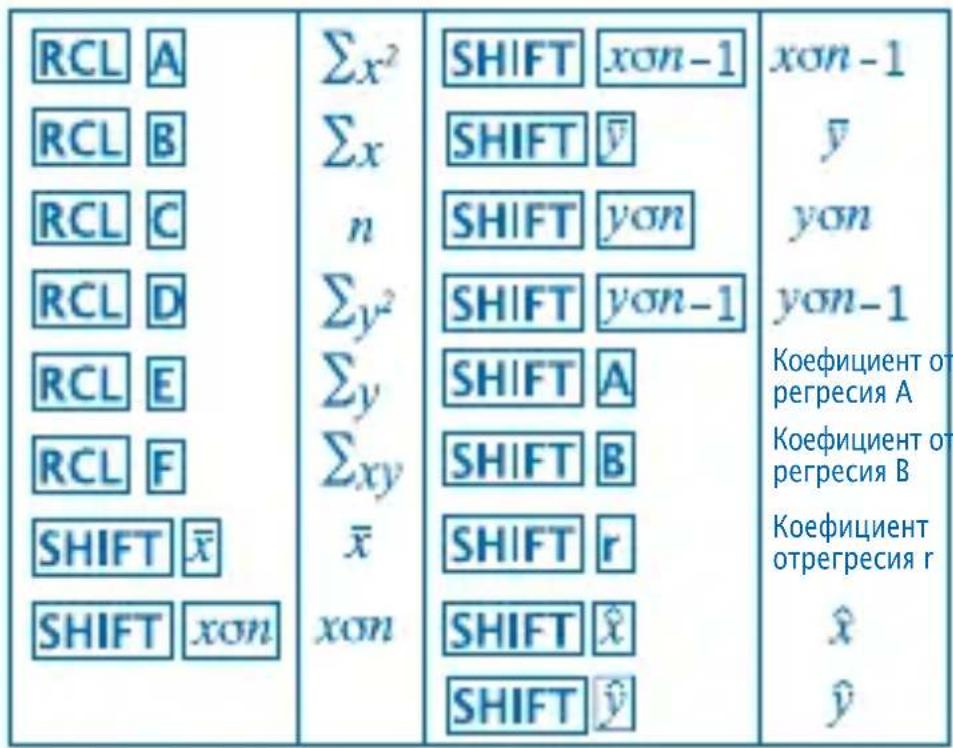
- Линна Perpесnia
Φopmylata 3a liHneHa perpecn e:
[y = A + {Bx}.]
(KoeuIeHT Ha PerpeCnA)

(KoeΦnucnent Ha perpecn B)

(KoeΦnueH Na perpecn r)

(Atmocfepno hajrahe npn 18°C) 18 SHIFT
(Tempepa npn 1000 hPa) 1000 SHIFT





- Празаим Меркп ри Вьбждан Ha данн
AkoHaTnCHeTe cnHn Cbun daHHn Ce BbBexKaT DaBa nTn.
Cbto TaKa MoKeTe Da BBeDeTe HeKoIkoKpaTHO eHN i CbUaHHn CbyToH SHHaTpMep, 3a Da BBeDeTe YncIaTa "20 n 30" net nBtN, HATNCHeTe 20:30 SHIFT S DT
CnomeHaTte pe3yIaTm MoKe da NoCTnHHe T He3aBnCnMo KaKbB pei He e 3aIbJxNTeJIHo Da 6bJe nocOueHnNo-rope.
3a n3TpBaHe Ha TOKy-ио ВьBEdeHn DaHHN, HATNCHeTe
Ako pe3yIaTnte He ca ouaKbaHnte ot Bac nIi cTaHe rpeShka, HanpaBeTe cIeHOTO:
-
(pexuM COMP)
-
(pexMDEC) 1
-
MODE MODE 3
-
Поберете дали nзразецаформуla e правлна.
-
BbBeTe npabHnTe pexm3a BaWeTo n3uCJIeHne n OHTaTe OTHOB. Ako ToBa He pa3peu npo6Iema Bn, HATNCHeTe 6yToH B3aHaTa YacT Ha KaKylatopa 3a Da ro pectapTnpate. Pn HATNcKaHe Ha To3n 6yToH ue Ce n3Tpne cJalata CbXpaHeHa B NaMeTTa My INΦOpMauzna. BnHarn 3aAncBaIte N CbXpaHbAite BaXHnte 3a Bac daHHn.
CbO6eHna 3a rpeWka
KaknyatopbT ce 6loKnpa KOrato Ha dinCnpe Ce nOBn Cbo6eHne 3a rpeWka. HatncheTe 3a da n3TpneTe rpeWkata nn HATNCHeTe nn 3a da BN3yaJIIN3npaTe onepaunraI da OTcTpaHnte npo6JeMa. KoncyntupaTe "OTKpNBaHe Ha rpeWkn" 3a nobue neodpo6Hoctn.
ΓPEWSKA Ma
-Причина
- Pe3yIaTbT OT OIepaunra Ta ce CmTa n3BbH dOnyCTnMaTa CToHocT.
-ОпNT3a n3BbPшВаHe Na DeiCTBnE C uNcI, KoEtO HaIxBbPJI YOnyCTMlTe CToHOCr 3a BbBeJdaHe Ha DaHHN.
-ОпNTзa n3BbPшBaHe Ha HeIOrnUHо DeIcTBNe (ДeJIeHc Hуla, T.H.).
- Peшени
- Провере въбенистони и даль BCNUK Te ca в рамкпе на дочустимоTo.Оьрнete осobeshвиманe Ha CTOnHOCHTte OT BCNUK ПОлетa, KONTO n3ПОЛ3BaTe.
ΓPEWIKA Stk
- Прунна
- Peшени
- Kanata TeTbT Ha YncIeHaTa NaMeT IIN Ha DeIcTBnraTa e npEbnseH.
-ОпposстeteизчесеньеTo.Числена паметima 10 НиBa,a памettingа за орерацниTe -24. - Pa3deneTe n3yncIeHneTo Ha 2 nll noBee oTdeJIHH qactn.
ΓPEWSKA Syn
- Пичина
-Опт 3a n3Bbршван He He3aKOHHO MaTeMaTnuecko DeiCTBne.
- Peшени
- HaTnucHeTe 1nn 3a da Bn3yaIIN3npaTe n3uNcJIeHneTo KaTO NOCTaBNTe Kycpcopa Bbpxy MAcTOTO Ha rpeShKaTa. HAnpaBeTe HUxHNTE KOpeKcUN.
ΓPEUSHKA Arg
- Прушина
- HenpabnHa cpeunkaunHa daeHa TeMa.
- Peшени
- HaTnchHeTe 3a Da Bn3yaJn3npaTe npuHaTa 3a rpezkata n HapabTe HxHnTe KopeKznn.
- Последователноct на ИЗвршвае на.Deяства对接.
ДeиctВиЯТа TряБа Да ce n3BbPшВaT B C№ДнAta ПоследовateЛноCTВЗвИСИМоCT OT BaЖНоCTTa.
- TpaHcΦopMnpaHe Ha KoOpdInHaTaTa: Pol (x,y), Rec (r,0)
2.ФункцинOTТИN A:
$$ x ^ {2}, x ^ {- 1}, x!, \quad o, ” $$
При Teзи Функции пьрво ce Вьвекда CTОйноCTTa, a След TOВа ce HaTиСka 6byToHa 3a ФункциЯТа.
3. CTepeHn I KopeHn: x^y , x√
4. a b/c
5. ФорmaТьТ 3a ськраTeHo yMHоженe e пpeДи П, наименованeTo Ha NaMeTTa Илп Ha прemeHлVBaTa: 2П, 5A, T.A, T.H.
6.Функции OT TIN B:
При Te3и Функции пьрBO ce HaTnCKa 6byToHa 3a ФунКцЯТа, a
След TOBa ce BbBexka CTOnHocTTa.
√,³√, log, In, e, 10x, sin, cos, tan, sin-1, cos-1, tan-1, sinh,
cosh,tanh,sinh-1,cosh-1,tanh-1,(-)
7. Φорматов за сбкратуно умhoeенье в predecessor Функунист OT Tин B:2√3, Alog2 etc.
8. Пермутаци и komбинаци: nPr, nCr
9. x, ÷
10. +,-
*Stacks
*OnepaunTe c eHN n CbSIn npOpNT Ce n3BbPWBaT OT DaCHO Ha IaBO. e^×ln120 ex {In( 120) }
OctaHaIte onepaunCe n3BbPwBaT OT IaBO Ha JxCHO.
* DeiCTBnraTa B CkO6n Ce n3BbPWBaT PbpBn.
To3n KaIkyalatop n3noJ3Ba OT noJeTa Ha naMeTTa, HapeeHn "stacks",do BpeMeHHo cBxpaHeHn CTOHocTn (uNcJIen stack), KaKTO u KOMaHdN (KOMaHdEn stack) cNopeD npOpHTeTa Nm npn n3uNCleHnra. UncLeHnA rst stack nMa 10 HnBa,a KOMaHdHnA rst stack - 24.
Ha dincnpie n3n3a stack rpeuka (Stk ERROR) koraTo ce npabN ONIT 3a n3BbprBaHe Ha onepaun, KOaTO e TOLKOba CLOXHa, Ye stack - kaanTeTa e HndxBpIeH.
3axpaHbaHe
To3n KaIkyalatop pa6oTn c DBe 6aTePnn OT TnPa L1154, LR44 nAn AG13.
*Смяна на бateр ninthe
Korato dincpiert cTaHe HeaCen, TOBa O3NaUaBa, Ye 6aTepeTae n3TOuEHa.
Прдьлжnteното n3ползвае на КалкулаTopа с n3TOшени 6атети може дa повлие вьрху ВерноctTa Ha n3численяТа. Korato zuфпгte станat неясни, He3a6abHOb cmeheTe 6aтетиTe.
3a da smeHnte 6aTepuNTe
1.Изключete калкулatopa ot 6утона OFF
2. OTBnTn DBeTe BnHTyeTa OT nHeJa, KOITo NOKpNbA 6aTePnIte.
3.ИЗва对接иИЗTOОЧЕНTE6aTePиN.
4. Почистеюпг Te 6aTeepn C Meka n cyxa Kbpna n rnoctabete C noLoXHTeHnna Poiuc Harope.
5. Бър overhe задния караз на мястOTO му и за ви ще тьвптуета.
6. Изполизовыт e Тьньк n OCTьр педmet 3a д a HaTиСHTe 6уToHa RБИМаВай Te Д a He пponуСHTe Ta3n CTbПka.
7. HataheTe 3a da Bb3CTaHOBNTe 3axpaHbaHeTo.
- ABTOMaTnUHo n3KJIIOuBaHe
KaIkyIaTOpbT ce cAmOn3KJIIOUyBa aKO He HaTnCKaTe HnKOJ 6yToH B npOdbJIxKeHne Ha OKoLo IeCT MInHyTu. AKO ToBa Ce Cnyu, HaTnCSHeTe 6yToH ON/C 3a Da rO BKJIIOUHTe OTHOBO.
55, 54, 51, 55, 53, 53, 54, 52
Prepnete na rezim SD
MODE2
(Odchylenie Standardowew Populacci On
SHIFT xon 1.316956719
53DTDT54DT52DT 52. SD
1 Deimitaine.5 Trupmena
)




ERROR Ma (Ma KLAIDA)
Priežastis
MepbI npeIoocToPoxKHOCTN
- HaxmTe KlaBnSy RESET Ha 3aHnei paHei KaIbkyJrTopa nepeTd Tem KaK IcNoIb3OBA Tb erO B nepBbI pa3.
- Даже сени Калькylаг Top Функционириет Нормально, заменейte 6atapeю кak минимуmp pa3В Трп за. Pa3рженья 6atapeя может дать Teчь И поврeditb Kaльькylаг Top пл NB3BaTb erO HeNCnpaBHyIO pa6oty. Н kindа He octabлайтЕ в КалькylагTope pa3рженью 6atapeю.
BaTapeЯ NOCTaBnIeMaJ C DaHbIM Prn6Opom HEmHOro pa3pJaTeCra BO BpeM NaCTaBKn I XpaHeHn. BcJeDcTBVe 3TOrO MoKeT Bo3HnKHyTb Heo6XoDnMoCtB 3aMeHbI 6aTapei paHee NCTeueHnca POKa ee JxN3HeHNO ZIKla. - HeidocTaToHbI 3apRd 6aTapeN MoKeT NocLyKHTb
- PrUnHOI NOBpeXdEHNr IIN NOpHOI NOTepN DaHHbIX
- 3aHeCeHHbIX B NaMraTb KaIbKUJrTOpa. Bce BaXHbIe DaHHbIe XpaHnTe TaKKe B 3aPncn.
- Избегаiteхран'tь и Incnoь3OBaTb KaIbKyIaTOp B MeCTa ПОДВержЕныx DeiCTBnIO 3KCTpeMaJIbHbIX TempepaTyp. Очень НИЗКие TempepaTpyb MoIgYr Bbl3BaTb 6OJIbWee Врем ВыВODа Ha ДИСпелу Ил OTKa3 DInCпелу N COKpaUSeHne Времен КИЗнБaTapen. Тадж e ИЗбегаite OCTaBЯТь КальКУЛaTOp B MeCTax ПОДВержЕныx DeiCTBnIO PpЯMbIX СOLHeuHbIX Lluey, OkOLO OKOH, obOrpeBaTeJeN I B dpyrIx МeCTax Ге OH можeT 6blTb ПОДВержeH DeiCTBnIO BblCOkNX TempepaTyp. TENLo можeT Bbl3BaTb obecuBeuNbAHne Илдeфорmaцию KOPnyca KaIbKyIaTOpa I NOBpeДNTb BHyTpEHHne Cxembl.
- Избегау Te Использовын Xраинть Kaлькунларов Вьалжны и пьалных мec tax. По3a60ТьTeСь O TOMЧТБы He OCTabлайы Калькунларов В мec tax Ге OH может 6ыТь 3a6рыЗган ВODОй подевержен BOЗдeйCTВИО 6OLьшого KOLИЧЕСТВа ВlaГи пьлп. 3Ти элем entы могут ПOBpeДИТь BHyTpENHnE Cxembl.
He poHnTe KaIbKyIaTOp n He noDBePraIe erO KaKOMyJIIn6o dpyrOmy CnIbHOMy fN3nueCKOMy BO3dEInCTBnIO.
He ckrpyuBaIte n He crr6aIte KaIbkyIaTOp. N36eaiTe Hocntb KaIbkyIaTOp B KapMaHe BaIx 6pIOK IIN dpyroI PLOTHO NOcJKeHHo OdEJbI rIe OH MOXeT 6bITb IOBpeJdeH.
- HnkoIa He nbItaTeCb pa3o6paTb KaIbKyIaTOp.
HnkOrda He haxmaite KhoNk KaIbkyIaTopa 7apIKOBoR yUKOJI INI dpyrIM 3aOCTpeHHbIM IpeDMeTOM.
- Исторы Калов Лега.Еспов сильно за гостен,
пождные лесары в пошиме саду.
- Дамаю саду.
- Нкогда He Исторы Лега.
- Нкогда He Исторы Лега.
- Нкогда He Исторы Лега.
- Нкогда He Исторы Лега.
- Нкогда He Исторы Лега.
- Нкогда He Исторы Лега.
- Нкогда He Исторы Лега.
- Нкогда He Исторы Лега.
-
- Нкогда He Исторы Лега.
- Нкогда He Исторы Лега.
- Нкогда He Исторы Лега.
- Нкогда He Исторы Лега.
- Нкогда He Исторы Лега.
- Нкогда He Исторы Лега.
- Нкогда He Исторы Лега.
-Нкогда He Исторы Лега.
-Нкогда He Исторы Лега.
-Нкогда He Исторы Лега.
-Нкогда He Исторы Лега.
-Нкогда He Исторы Лега.
-Нкогда He Исторы Лега.
-Нкогда He Исторы Лега.
-Нкogда He Исторы Лега.
-Нкogда He Исторы Лега.
-Нкogда He Исторы Лега.
-Нкogда He Исторы Лега.
-Нкogда He Исторы Лега.
-Нкogда He Исторы Лега.
-Нкogда He Исторы Лега.
-Нкogда Shekny.
-Нкogда Shekny.
-Нкogда Shekny.
-Нкogда Shekry.
-Нкogда Shekry.
-Нкogда Shekry.
-Нкogда Shekry.
-Нкogда Shekry.
-Нкogда Shekry.
-Нкogда Shekry.
-Нкogда Shekry.
-Нкogда Shekry.
-Нкogда Shekry.
-Нкogда Shekry.
-Нкogда Shekry
-Нкogда Shekry.
-Нкogда Shekry.
-Нкogда Shekry.
-Нкogда Shekry.
-Нкogда Shekry.
-Нкogда Shekry.
-Нкogда Shekry.
-Нкogда Shekry.
-Нкogда Shekry.
-Нкogда Shekry.
-Нкogда Shekry.
-
-Нкogда Shekry.
-Нкogда Shekry.
-Нкogда Shekry.
-Нкogда Shekry.
-Нкogда Shekry.
-Нкogда Shekry.
-Нкogда Shekry.
-Нкogда Shekry.
-Нкogда Shekry.
-Нкogда Shekry.
-Нкogда Shekry.
ДБУХСТРОЧныДИСПЛЕМ
BbI Moxete OndHOBpeMeHNO npOBepntb fOpMny dJa BbyNCJIeHn N OTBeT.
BbIHCJIeHnC NcNoJIb3OBAHnEM PAMrTn
He3aBnCmam naMrtb
3haey Moryt 6bTB BBeJeHbI nprMo B namrTb, doabHeBk 3haeyu B namrN nn BByTeHbI n3 HeRo. He3xaBncmam naMByo6Ha dJa BbyNCJIeHn Cymm HapactaIOUIM NTOrOM.
He3aBncmam naTb nCnoIb3yeT Ty Xe 06laCTb naTn UTO n nepemehna M.
•Чтобъ оочисть He3aBnCmMyo пamЯть (M), ВБeДиTe 0 STO M.
- Пимер:
$$ 2 3 + 9 = 3 2 2 3 \quad 9 $$
$$ 5 3 - 6 = 4 7 \quad 5 3 \quad 6 $$
$$ - 4 5 \times 2 = 9 0 $$
$$ (\text {N T O R}) - 1 1 $$




- Переменные
CyuEcTByeT DeBraTb NepemehHbIX (OT A Do F, M, X n Y), KOTOpbIe MOrYT 6bITb INcNoJIb3OBAHbI dJa XpaHeHnjaDaHHbIX, KOHCTaHT, OTBeTOB I dpyrNX 3HaueHnJ.
- Исторы Следуюцуо onepaцию дя CTирани
- Данных наз nauseени BCeM Deьтп поpeMeHHbIM: SHIFT Mcl
- Исторы сеadingую осярацию對於 STIPANIA DAHHbIX Ha3NaucheyHbIX ONpeDeJIeHNHOJперemeHNHOJ: STO A.
- Даннаяoningа STupaet 3naueHne npncBOeHHoe nepemehnoA.
- Пимер: 193.2 23=8.4
193.2 28=6.9
193.2
23




23




ONEPAÇN C DPOŠMNI
-Операци с дробамн
- Дlya onepaци с дробамн ИспльзуITE peжим COMP.
3haueHnA BToMaTnueckn OTo6paKaIOTcB DceTnHOM
npedCTaBLeHn ecn obuee uNco uNp dpo6HO
BeliuHbI ( ceJa aactb + uNcInTeIb + pa3deInTeIbHbI
3HaK) npebocxOoNT 10.
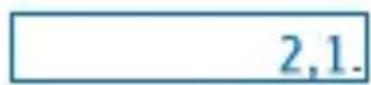
Пример: 23 + 145

Ipnemep: 12 + 1,6

-
Pe3yIbTaTbI Dpo6HbIX / DeCraTnUHbIX BbvIcJIeHn BCErDa BbIBOaTcR B DeCraTnUHOM PpeIcTaBJIeHn.
-
Ппeo6pa3OBaHne n3 DeceTnUHOro ПpeДCTaBHeHnB V Дрбhoe
-
Пимер:
$$ 2. 7 5 \rightarrow 2 \frac {3}{4} $$
$$ 2. 7 5 = $$
$$ 2. 7 5 $$
$$ \boxed {a b c} $$
$$ 2 \text {、} 3 \text {、} 4. $$
$$ \begin{array}{c c} \text {S H I F T} & d / c \ \hline \end{array} $$
$$ 1 1 \text {4}. $$
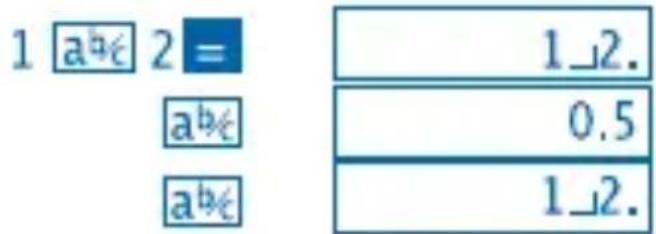
- Ппeo6pa3OBaHne n3 ДрОбнOrо пpeДстаВлeня в DeceTnUHoe
Приимер:
1po6b0.5( DecaTnHaJaDpo6b
Операци с прочтамн
(CpeDHee apnΦmEtNueckoe
SHIFT 53.375
(KoJIuYeCTBO 3HaueHn B BbI6OpKe)
RCL C 8.
(CyMa 3NaueHn
RCL B 427.
(CyMa KbaIpaTOB 3NaueHn x^2
RCL A 22805.
MepbI ppeoctopoxhoCTn npBBOe daHHbIX
BBOIT Te Xe DaHHbIe DBaXDbI.
BbI TaKKe MoKTe BBeCTn Te Xe CaMbIe DaHhbIe HeCKoJIbKO pa3 NcNoJIb3yra SHIObbl,HaNPmEp,BBeCTn DaTy 110 pa3 HaxMnte 110
- Pe3yIbTaT OTo6paXeHHb I BblIe MoXeT 6bITb IOnUyeH B pa3IInuHOM IopAKe, To eCTb He o6aTeIbHo B IopAKe OTo6paXeHHom BblIe.
- Ддудаленя Только чTO ВБеДeнных дaHHbIX, НжмITE SHIFT CL.
-Операцни Perpeccи (Pexim REG)
Haxmte MepeHTBpeKIM REG n 3aTeMBb6epnte Odnn n3 cIeDyUoX TnIOB perpeccnn:
:JInHeHajpepeccn.
:IorapnФmueckayperpeccn.
:3KcnoHnnaIbHa perpeccn.
: CteenHna perpeccn.
:O6paTHa pepeccn.
BbOДдaHHbIX Bcerda NaunHaeTcra c SHIFT Sci OuNCTKn CTaTNCTNuYeCKoI NaMRTn.
- Pe3yIbTaTbI NOlyeHHbIe NocIe paCyeTa peRpeccn 3aBnCrt OT BxOJbIX 3HaueHn I MOrY T 6bITb Bbl3BaHbI C NOMOuIO COUeTaHn KlaBnS CoepXaunxCra B PrINBeDeHHoN HHXe Ta6JInce.
- Линна рерessesь
ΦopMylaДЯpacuetaIINHeHOnpeRpeccn:
[y = A + {Bx}.]
YdoctOBepebTecb yTO Bbl He npOnyCTnI INOT nyHKT!
-
Haxmte 6b BkHouHTb Ntahne.
-
ABTomatnueckoe BbIKJIoucheHne NITaHnA
Питане КалькylЯTopа ВыКлючаETСАВТOMATNuceCKI eCIn Bbl He ПрОЗВODиTe HИКаКИX DeICTBиВ TeUeHne 6 MнHyT. EcIn 3TO npOZoшл, HabKMITE TOrO yTo6bI OпЯТь BKЛIOЧИТь Питане.
- Диапазоны Ввда
Pa3pIaHocTb: 12.
Touhoctb: KaK npaBnlo, Touhoctb paBHa ± 1 B deCraTOM pa3pJe.
| Функции | Диапазон Ввoda |
| Sinx | DEG 0<!x!<4.499999999 x 10^10 |
| RAD 0≤|x|≤785398163.3 | |
| GRA 0≤|x|≤4.499999999 x 10^10 | |
| Cosx | DEG 0<!x!<4.500000008 x 10^10 |
| RAD 0≤|x|≤785398164.9 | |
| GRA 0≤|x|≤5.000000009 x 10^10 | |
| Tanx | DEG ТAKges Какsinx, Кромe|x|= (2n-1)x90. (навлиется сelinesm) |
| RAD ТAKges Какsinx, Кромe|x|= (2n-1)xπ/2. (навлиется сelinesm) | |
| GRA_TAKges Какsinx, Кромe|x|= (2n-1)x100. (навлиется сelinesm) | |
| Sin^{-1}x | 0≤|x|≤1 |
| Cos^{-1}x | |
| Tan^{-1}x | 0≤|x|≤9.999999999 x 10^99 |
| Sinhx | 0≤|x|≤230.2585092 |
| Coshx | |
| Sinh^{-1}x | 0≤|x|≤4.999999999 x 10^99 |
| Cosh^{-1}x | |
| Tanhx | 0≤|x|≤9.999999999 x 10^-1 |
| Tanh^{-1}x | |
| logx/lnx | 1 x 10^-99 ≤ x < 1 x 10^100 |
| 10x | -9.999999999 x 10^99 ≤ x ≤ 99.999999999 |
| ex | -9.999999999 x 10^99 ≤ x ≤ 99.999999999 |
| √x | 0≤x<1 x 10^100 |
| x^2 | x <1 x 10^50 |
| 1/x | x <1 x 10^100; x=0 |
| √x | x <1 x 10^100 |
| x! | 0≤x≤69 (х явлиется сelinesm) |
| nPr | 0≤n≤99, r≤n (n и r явалятсанов) 1≤n{nl/(n-r)l}≤9.9999999999 x 10^39 |
| nCr | 0≤n≤99, r≤n (n и r явалятсанов) |
| Pol (x,y) | |xl|,|y|≤9.999999999 x 10^49 (x²+y²)<9.999999999 x 10^49 |
| Rec (r,0) | 0≤r≤9.999999999 0: Так jak поsin x |
| o * n | |al,b,c<1 x 10^100 0≤b,c |
| ← | |xl|<1 x 10^100 Дecятычные<--> Шесниatingупье конверточ: 0°0°0°≤|xl|≤9.999999999 x 10^9059°59° |
| x^y | x>0:-1 x 10^100<ylogx<100 x=0:0<y<1 x 10^100 x<0:y=n, 1/2n+1 (n явалятсанов) Однako: -1 x 10^100<yloglx|<100 |
| x^y | y>0:x=0 -1 x 10^100<1/x logy<100 y=0:x>0 y<0:2n+1,1/n (n ≠ 0; n явалятсанов) Однako: -1 x 10^100<1/x loglyl<100 |
| a % | Obsolete симma Zeelomon части, чьслenteяи Должна Должан иметь не бolieve Deсят STHaKOB (ВКлиочая разденильные знaki). |
| SD (REG) | |xl|<1 x 10^50 |yl|<1 x 10^50 |nl|<1 x 10^100 xon,yon,x,y A,B,r:n 0 xon-1,yon-1:n=0,1 |
$$ 1 9 3, 2 \boxed {2 8} = 6, 9 $$
193,2

(TuTn aTOKaon Tou PAnoou
SHIFT xon 1.316956719
(ApIθμntukóç μeocópoc
SHIFT 53.375
(Ap10oC n oToiXeiwv)
RCL C 8.
- 8:0.0000999999999999999999999999999999999

(1)
9:3π

- FIX, SCI, RND
- 1: 200 ÷ 7 × 14 = 400

()

(10개

Jz

18^ 18° where the giant falls 1000 hPa.
13.13.13.13.13.13.13.13.13.13.13.13.13.13.13.13.13.13.13.13.13.13.13.13.13.13.13.13.13.13.13.13.13.13.
MILAN since 1918, SPAIN