BAR228 - Weather Station OREGON SCIENTIFIC - Free user manual and instructions
Find the device manual for free BAR228 OREGON SCIENTIFIC in PDF.



| Product type | Connected weather station (advanced model) |
| Brand | Oregon Scientific |
| Model | BAR228 (Weather+ advanced) |
| Dimensions (L x W x H) | 70 x 70 x 20 mm |
| Weight | 58 g (with batteries) |
| Power supply | 2 AAA batteries (UM-4) - alkaline recommended |
| Temperature range | -20 °C to 60 °C |
| Temperature resolution | 0.1 °C |
| Relative humidity range | 25 % to 95 % |
| Atmospheric pressure range | 700 to 1050 hPa |
| Weather displays | Sunny, overcast, cloudy, rainy, snowy |
| Main functions | Temperature, humidity, weather forecast, data collector |
| Connectivity | Bluetooth Low Energy (BLE) - range 30 m |
| Internal memory | 20 days recording (15 min interval) |
| Dedicated app | Weather+ by Oregon Scientific (iOS/Android) |
| Mounting | On flat or wall surface (hole at back) |
| Maintenance and cleaning | Do not immerse; wipe with a soft dry cloth |
| Safety | Do not use used or mixed batteries; remove the safety tab before use |
| Spare parts and repairability | Replaceable batteries; RESET button available in case of malfunction |
Frequently Asked Questions - BAR228 OREGON SCIENTIFIC
User questions about BAR228 OREGON SCIENTIFIC
0 question about this device. Answer the ones you know or ask your own.
Ask a new question about this device
Download the instructions for your Weather Station in PDF format for free! Find your manual BAR228 - OREGON SCIENTIFIC and take your electronic device back in hand. On this page are published all the documents necessary for the use of your device. BAR228 by OREGON SCIENTIFIC.
USER MANUAL BAR228 OREGON SCIENTIFIC
Weather+ BLE connected weather sensor Model:EM221 (Basic)/BAR228 (Advanced) User Manual
INTRODUCTION
Thank you for selecting the Oregon Scientific ™ Weather ^+ . These products collect real-time weather data and sends the data to smart devices via Bluetooth Low Energy (BLE). Please keep this manual available as you use your new product. It contains practical step-by-step instructions, as well as product technical specifications and warnings.
The major differences between the 2 models are listed below:
| EM221 (Basic) BAR228 (Advanced) | ||
| Temperature | ✓ | ✓ |
| Weather forecast | ✓ | |
| Humidity | ✓ | |
| Data logger | ✓ | ✓ |
For further assistance, please visit http://weather.oregonscientific.com.
OVERVIEW
OUTER FRONT & REAR VIEW
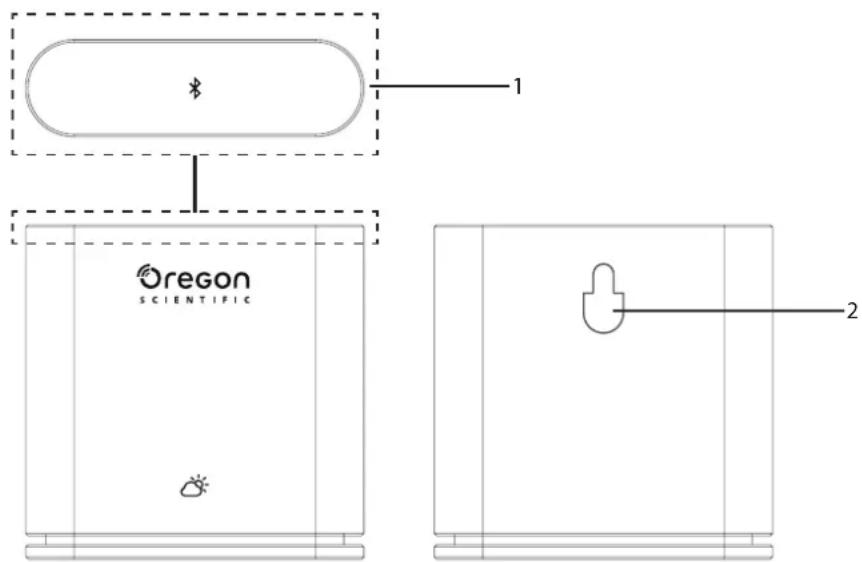
- Main key - Press and hold (around 2 seconds) the unit gently from the top to start pairing. Press and hold for at least 5 seconds to turn on/off the Weather+.
- Wall mount hole
INNER FRONT & REAR VIEW
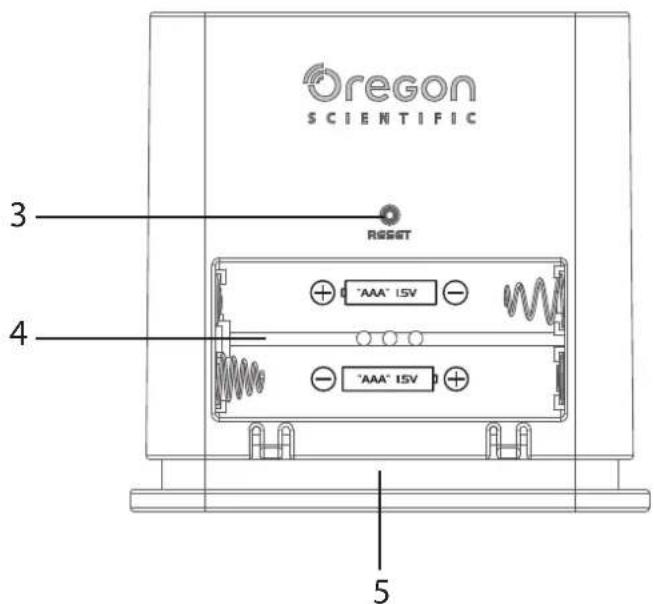
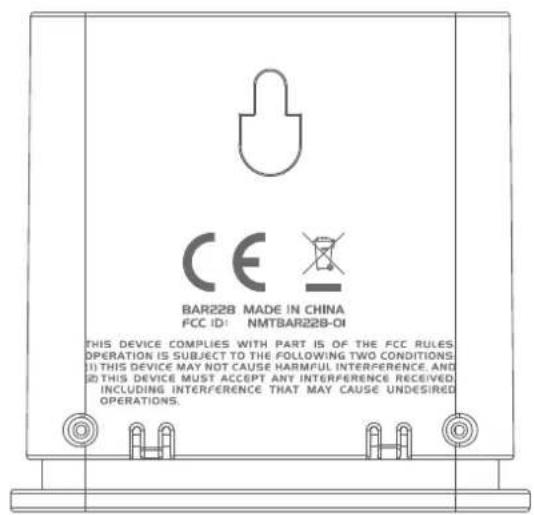
3. RkEyET
- Battery compartment
- LED light
LED INDICATOR
| LED indicator The device is... | |
| Press & Hold (5 seconds) Flashes Green (4 times) Turning On | |
| Press & Hold (5 seconds) Flashes red (4 times) Turning Off | |
| Press & Hold (2 seconds) Flashes blue (30 seconds) Ready for pairing with Bluetooth devices | |
| -- Flashes pale blue (once) Refreshing data | |
| -- Flashes red (twice per hour) Low battery | |
GETTING STARTED
DOWNLOAD THE APP
Download the app from your smart device. This app is available on both Apple App Store and Google Play Store. Search 'Weather' by Oregon Scientific', to find the app.

INSERT BATTERIES
- Remove the outer cover of the Weather+ to open the battery compartment.
- Insert the batteries, matching the polarities (+/-). The Weather+ turns on automatically and flashes in green 4 times after inserting the battery.
NOTE
Replace batteries when the LED flashes in red twice per hour, or when the app shows the low battery icon. When the device's battery is low, replace the battery as soon as possible to avoid any data loss.
- Make sure Bluetooth is turned on. Tap the app icon to open, it shows the Add Device screen.
- Tap × Start Device Search to start searching. Press and hold the Weather+ for 2 seconds to enter the pairing mode, the blue light flashes for approximately 30 seconds.
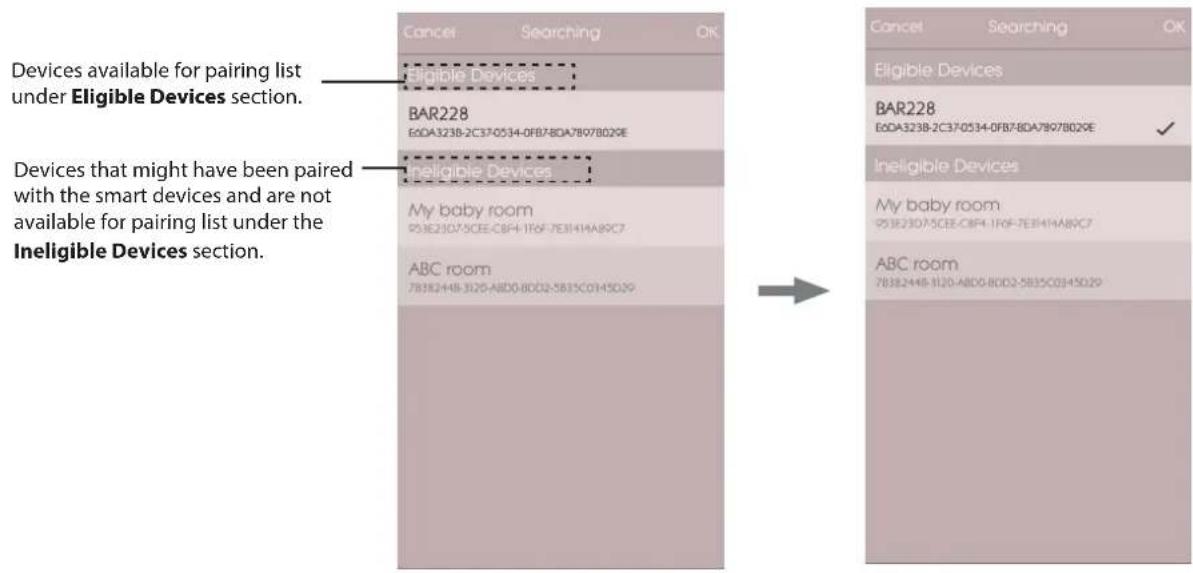
- The searching screen displays eligible devices for pairing. You may also pull the screen downward to refresh. Tap your desired Weather ^+ under the Eligible Devices, then tap OK to proceed.
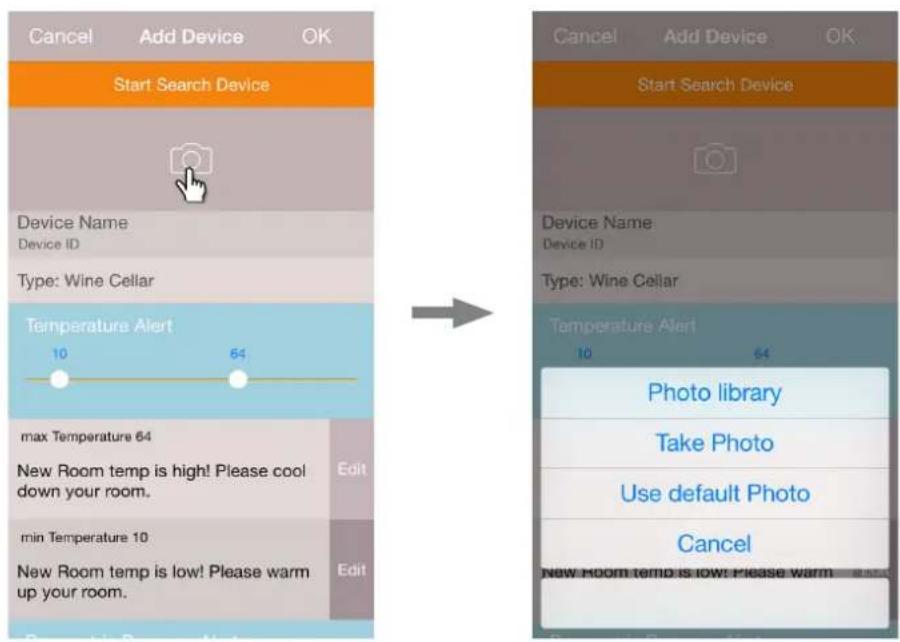
- Tap the camera icon to choose your desired area. You may choose a photo from Photo Library, Take photo using the camera, or Use Default Photo from the app. Then press OK to confirm and proceed.
- Tap the device name to edit.
-
Tap > on the right to choose the room type, then press OK.
-
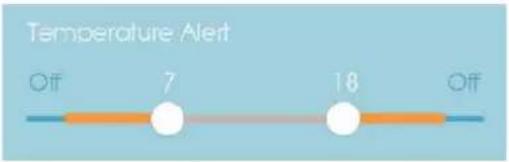
Slide the MAX/MIN knobs at both ends to adjust the temperature/humidity/pressure range, or turn off the notification by sliding the knobs to the end.
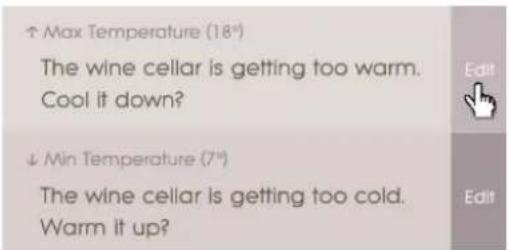
- Tap Edit to change the default Max/ Min temperature/ humidity/ pressure messages. Tap OK to confirm.
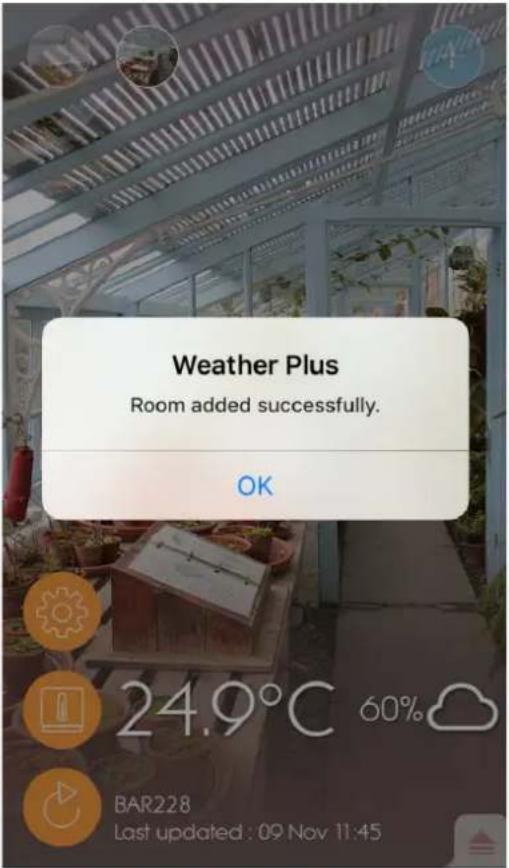
- Tap OK to confirm and leave the Add Device screen. You should see a message Room setting update successfully. Tap OK and it is ready to use.
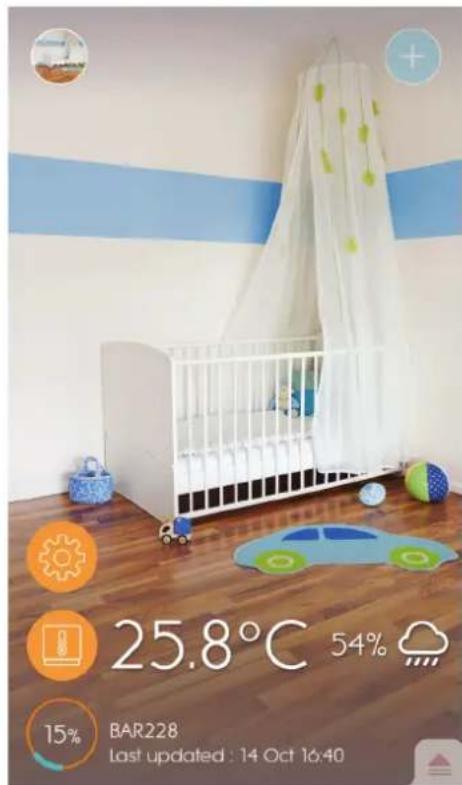
- Your smart device might take several minutes after setup to download data.
NOTE
- The pairing mode of the Weather ^ + turns off after 30 seconds.
- Bluetooth wireless technology operates within 30 meters (98 ft) range and varies if there are physical obstacles, such as a thick wall in between your smart device and Weather ^+ .
- Once the pairing is successful, the Weather ^ + connects with the smart device automatically when the Bluetooth on your smart device is turned on, or it moves within range of the base.
The room type preset values are for reference only. Actual conditions may vary. - If you unpair/remove a device from the app, the data stored for certain device in the app will be removed.
To ensure your device syncs and stores the data, Open the Weather ^+ apps and press to reconnect the device after each reset or battery replacement.
PLACEMENT OF WEATHER\*
Weather ^+ can be mounted on a wall or stand on a hard, flat surface.
| Method Instruction | |
| Table Stand | Place the Weather+on a flat surface. |
| Wall Mount | Attach the Weather+unit to the wall using the wall mount hole at the back. |
For the best results:
- Place the sensor out of direct sunlight and moisture.
- Use alkaline batteries for longer usage and consumer grade lithium batteries in temperatures below freezing.
NOTE
If you are installing more than one Weather ^+ , place the device as far as possible from each other to avoid interference.
HOME SCREEN
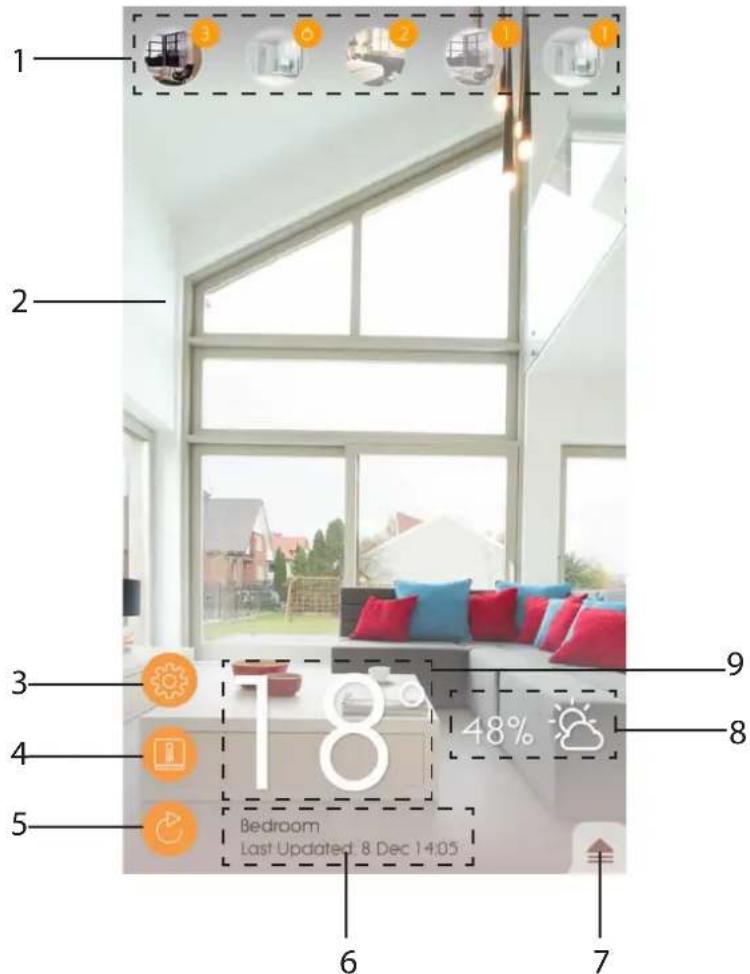
- Paired Weather ^+ (up to 20 sensors) with number of unread notifications
- Photo of the Weather ^+ location
- General settings
- Device settings
- Live data update
- Information of selected room with live data
- Notifications and histories of the selected Weather+
- Humidity and weather forecast area display (BAR228 only)
- Temperature display
DEVICE MENU
The Weather+ starts storing the data once paired with the app. Tap to review the weather alert and data histories of selected Weather+. It stores up to 20 days of weather data in 15-minute intervals.
- Tap Alert to review the weather alert history. Tap more... to review more weather history in its category.
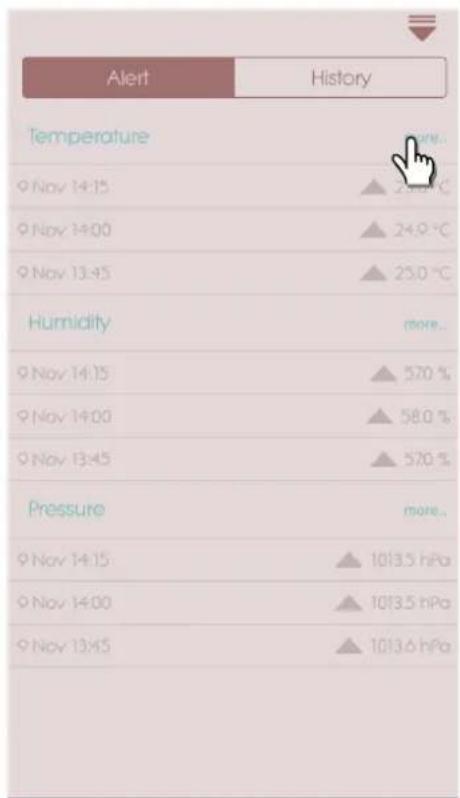
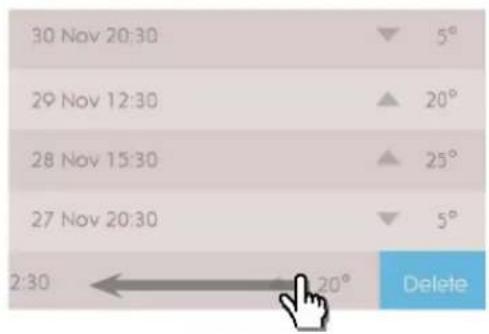
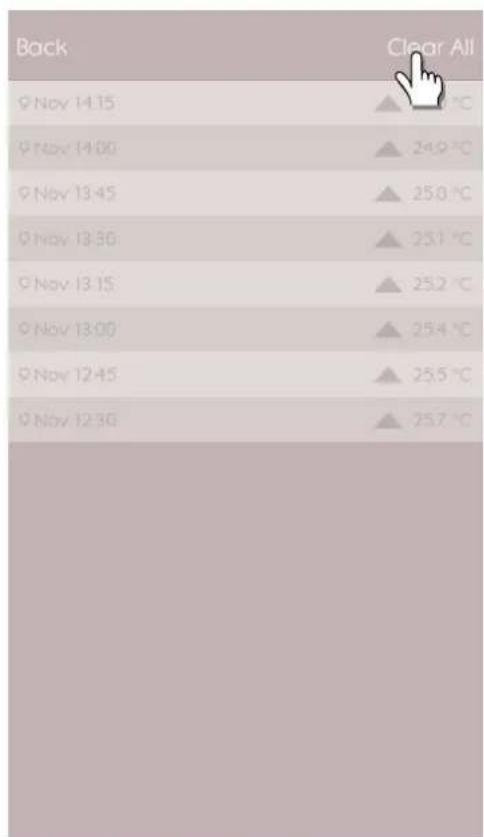
To delete the record, swipe to the left to delete a single entry, or tap Clear All to delete all entries.
-
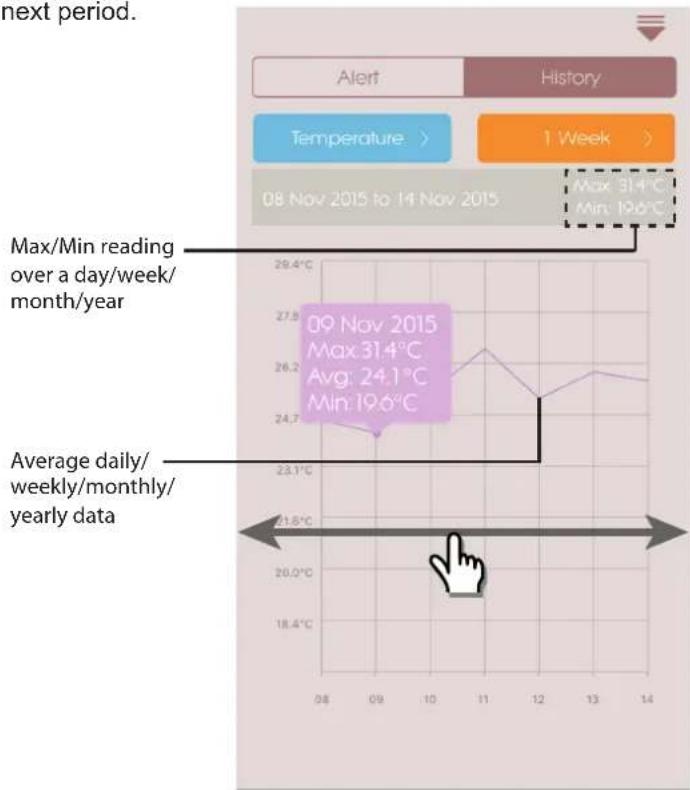
Tap History to review the weather history. The app displays the data histories of weather, max/min temperature, humidity and pressure; tap to choose daily, weekly, monthly or yearly to choose the desired review option.
-
Swipe the screen to view the previous or next period.
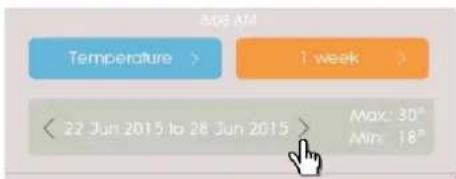
For Android models, tap the arrows < / > to view.
SETTINGS
GENERAL SETTINGS
At home screen, tap to enter the settings.
- Tap Temperature /Pressure to select the desired measurement unit.
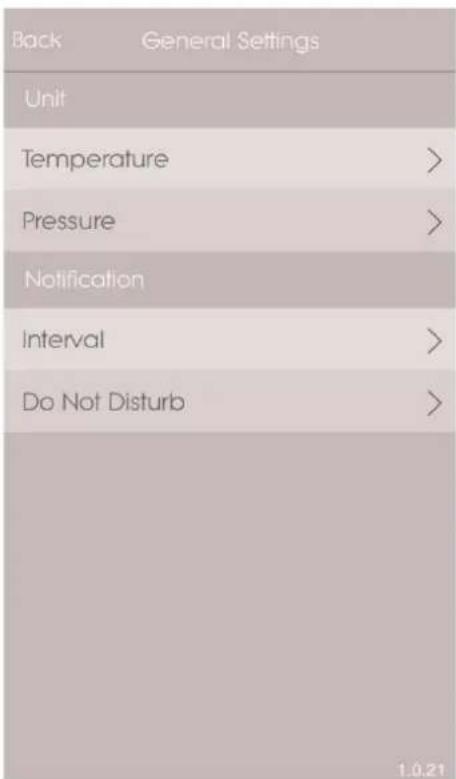
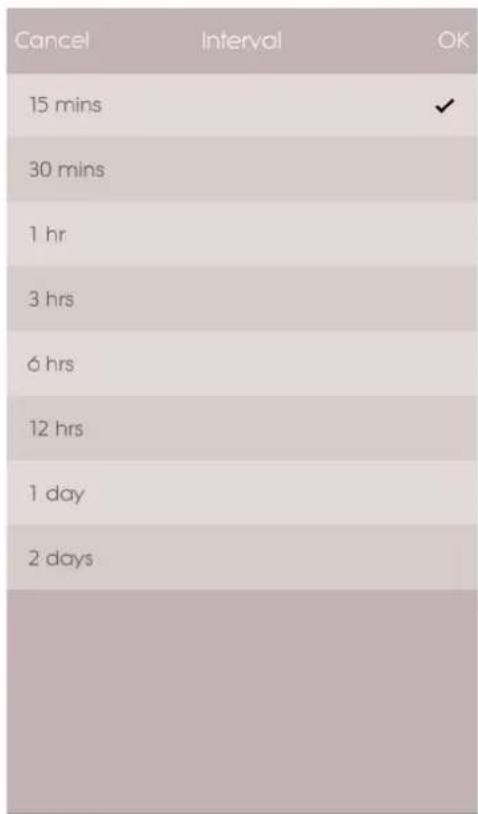
- Tap Interval and then tap the desired time interval. The app will check the alert in desired interval time set.
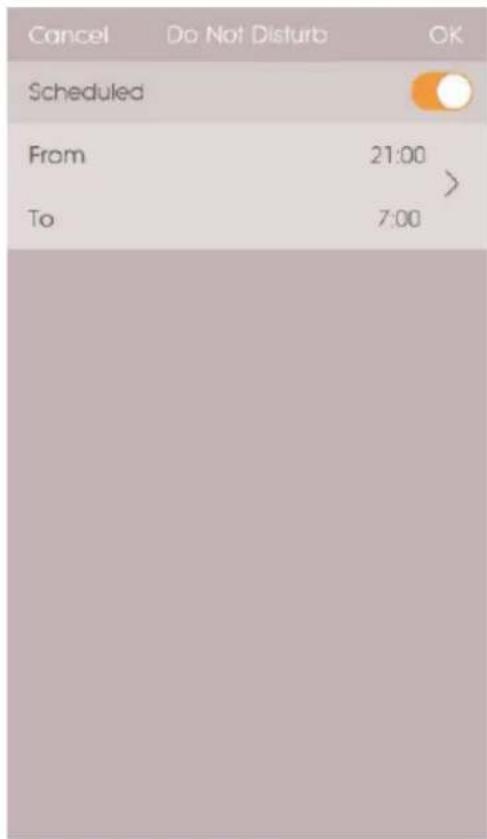
- Tap Do Not Disturb to set the time for your smart device in order to receive the notifications in silence.
- Tap OK to confirm the settings.
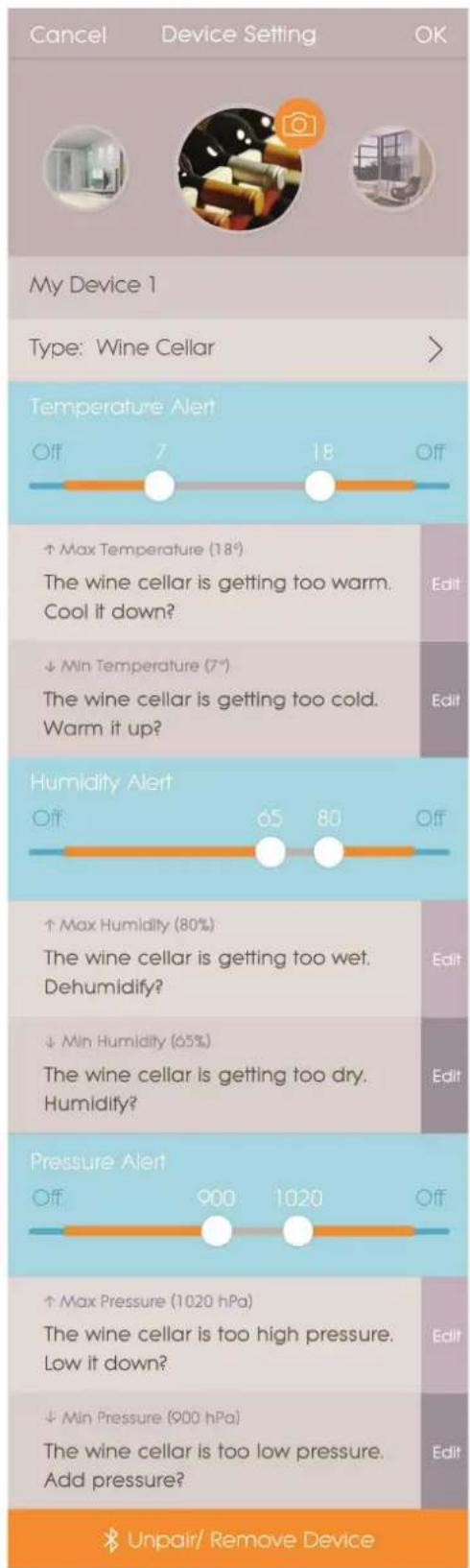
You may change the settings for each paired device. Tap

to enter Device Setting of paired sensor.
- Slide the icons horizontally to choose the desired connected Weather ^ + . Tap to change the room photos.
- You may change device name/room type/alert setting/notification message.
- Tap Unpair/Remove Device to unpair the Weather from your smart device. You see a message Do you want to remove this device? All data will be lost after remove. Tap Yes to confirm, the device will be unpaired and removed its data from the app and returns to the home page.
| ProblemSolution | |
| My Weather+ is not working. | Make sure the battery is correctly inserted. Follow the pairing instructions correctly. Press RESET to reset the device to default, then pair with the smart device again. |
| I cannot pair the Weather+ with my smart device. | Check if the Weather+ and your smart device are in 30 m (98 ft) Bluetooth operation range. Place your smart device closer if there are physical obstacles such as a thick wall or large pieces of furniture interfering with the transmission. |
| I cannot retrieve all data from the Weather+. | Weather+ stores the weather data up to 20 days. If your smart device disconnects from the Weather+ for more than 20 days, the app could only retrieve the data from the last 20 days. Make sure you keep your smart device connected to the Weather+ in order to receive the data. |
| The live data does not refresh when I press | It may take a few seconds for the live data to show on the app. If you have pressed once, wait for 15 seconds before pressing again. Check if the Weather+ and your smart device are in 30 m (98 ft) Bluetooth operation range. If not, place your smart device closer. If you have already installed more than 1 Weather+, place each device as far as possible from each other to avoid interference. |
| When I press , it shows a circle with percentage , what does it mean? | It may take several minutes for the smart device to load the existing weather data history. The process will be interrupted if you exit from the app. Please wait until the configuration completes. |
SPECIFICATION
| L x W x H 70 x 70 x 20 mm (2.76 x 2.76 x 0.79 in) | |
| Weight 58g (2.05 oz) | |
| Operating range -20°C – 60°C (-4°F – 140°F) | |
| Weather display Sunny/Partly | Cloudy/Cloudy/Rainy/Snowy |
| Temperature resolution 0.1°C (0.2°F) | |
| RF Transmission Range Bluetooth: 30 m (98 ft) | |
| Relative Humidity Range | 25% to 95% |
| Pressure range | Barometric: 300-1200 hPa |
| Device memory | 20-day data logger |
| App memory | Historical data logger (Daily/Weekly/Monthly/Yearly) |
| Power | 2 x UM-4 (AAA) |
- Do not subject the device to excessive force, shock, dust, temperature or humidity.
- Do not immerse the device in water. If you spill liquid on it, dry it immediately with a soft, lint-free cloth.
- Do not clean the device with abrasive or corrosive materials.
- Do not tamper with the device's internal components. This will invalidate the warranty.
- Only use new batteries. Do not mix new and old batteries.
- Images shown in this manual may differ from the actual display.
- When disposing of this product, ensure it is collected separately for special treatment.
- Placement of this product on certain types of wood may result in damage to its finish for which Oregon Scientific will not be responsible. Consult the furniture manufacturer's care instructions for information.
- The contents of this manual may not be reproduced without the permission of the manufacturer.
- Do not dispose old batteries as unsorted municipal waste. Collection of such waste separately for special treatment is necessary.
- Please note that some devices are equipped with a battery safety strip. Remove the strip from the battery compartment before first use.
NOTE
The technical specifications for this product and the contents of the user manual are subject to change without notice. To download an electronic version of the user manual, please visit http://global.oregon scientific.com/ customerSupport.php.
NOTE
Features and accessories will not be available in all countries. For more information, please contact your local retailer.
ABOUT OREGON SCIENTIFIC
Visit our website www.oregonscientific.com to learn more about Oregon Scientific products.
For further assistance, please contact Customer Service at 800-853-8883 or http://global.oregon scientific.com/ customerSupport.php.
Oregon Scientific Global Distribution Limited reserves the right to interpret and construe any contents, terms and provisions in this user manual and to amend it, at its sole discretion, at any time without prior notice. To the extent that there is any inconsistency between the English version and any other language versions, the English version shall prevail.
EU-DECLARATION OF CONFORMITY
Hereby, Oregon Scientific, declares that Weather ^+ (model: EM221/BAR228) is in compliance with the essential requirements and other relevant provisions of Directive 1999/5/EC. A copy of the signed and dated Declaration of Conformity is available on request via our Oregon Scientific Customer Service.



Countries RTTE Approval Complied
All EU countries, Switzerland CH
and Norway
This device complies with Part 15 of the FCC Rules. Operation is subject to the following two conditions: (1) This device may not cause harmful interference, and (2) This device must accept any interference received, including interference that may cause undesired operation.
WARNING
Changes or modifications not expressly approved by the party responsible for compliance could void the user's authority to operate the equipment.
NOTE
This equipment has been tested and found to comply with the limits for a Class B digital device, pursuant to Part 15 of the FCC Rules. These limits are designed to provide reasonable protection against harmful interference in a residential installation.
This equipment generates, uses and can radiate radio frequency energy and, if not installed and used in accordance with the instructions, may cause harmful interference to radio communications. However, there is no guarantee that interference will not occur in a particular installation. If this equipment does cause harmful interference to radio or television reception, which can be determined by turning the equipment off and on, the user is encouraged to try to correct the interference by one or more of the following measures:
- Reorient or relocate the receiving antenna.
- Increase the separation between the equipment and receiver.
- Connect the equipment into an outlet on a circuit different from that to which the receiver is connected.
- Consult the dealer or an experienced radio / TV technician for help.
DECLARATION OF CONFORMITY
The following information is not to be used as contact for support or sales. Please call our customer service number (listed on our website at www.oregonscientific.com), or on the warranty card for this product) for all inquiries instead.
We
Name: Oregon Scientific, Inc.
Address: 10778 SW Manhasset Dr.
UNIT B-2 Tualatin,
Or 97062 USA
Telephone No.: 1-800-853-8883
declare that the product
Product No. EM221/ BAR228
Product Name: Weather ^+ : EM221 (Basic)/ BAR228 (Advanced)
Manufacturer: IDT Technology Limited
Address: Block C, 9/F, Kaiser Estate,
Phase 1, 41 Man Yue St.,
Hung Hom, Kowloon,
Hong Kong

Pursuant to and in accordance with Article 14 of the Directive 2012/19/EU of the European Parliament on waste electrical and electronic equipment (WEEE), and pursuant to and in accordance with Article 20 of the Directive 2006/66/EC of the European Parliament on batteries and accumulators and waste batteries.
The barred symbol of the rubbish bin shown on the equipment indicates that, at the end of its useful life, the product must be collected separately from other waste.
Please note that the batteries/rechargeable batteries must be removed from the equipment before it is given as waste. To remove the batteries/accumulators refer to the specifications in the user manual. Therefore, any products that have reached the end of their useful life must be given to waste disposal centers specializing in separate collection of waste electrical and electronic equipment, or given back to the dealer when purchasing a new WEEE, pursuant to and in accordance with Article 14 as implemented in the country.
The adequate separate collection for the subsequent start-up of the equipment sent to be recycled, treated and disposal of in an environmentally compatible way contributes to preventing possible negative effects on the environment and health and optimizes the recycling and reuse of components making up the apparatus.
Abusive disposal of the product by the user involves application of the administrative sanctions according to the laws in force.
ABBINAMENTO CON WEATHER+
EMPAREJAMIENTO DEL WEATHER+
EMPARELHAR COM O WEATHER
| EM221 (Basic) BAR228 | (Advanced) | |
| Temperatur | ✓ | ✓ |
| Väderprognos | ✓ | |
| Fuktigkeit | ✓ | |
| Dataloggare | ✓ | ✓ |
PLACERING AV WEATHER
Weather+ kan monteras pa en vagg eller sta pa ett hart, plant underlag.
| Cancel | Interval | OK |
| 15 mins | ✔ | |
| 30 mins | ||
| 1 hr | ||
| 3 hrs | ||
| 6 hrs | ||
| 12 hrs | ||
| 1 day | ||
| 2 days |
| Cancel | Do Not Disturb | OK |
| Scheduled | ||
| From | 21:00 | |
| To | 7:00 | |
| Cancel Device Setting OK |
| My Device 1 |
| Type: Wine Cellar > |
| Temperature Alert |
| Off 7 18 Off |
| +Max Temperature (18°) The wine cellar is getting too warm. Cool it down? Edit |
| Min Temperature (7°) The wine cellar is getting too cold. Warm it up? Edit |
| Humidity Alert |
| Off 65 80 Off |
| +Max Humidity (80%) The wine cellar is getting too wet. Dehumidify? Edit |
| Min Humidity (65%) The wine cellar is getting too dry. Humidify? Edit |
| Pressure Alert |
| Off 900 1020 Off |
| +Max Pressure (1020 hPa) The wine cellar is too high pressure. Low it down? Edit |
| Min Pressure (900 hPa) The wine cellar is too low pressure. Add pressure? Edit |
FELSÖKNING
| Cancel | Interval | OK |
| 15 mins | ✔ | |
| 30 mins | ||
| 1 hr | ||
| 3 hrs | ||
| 6 hrs | ||
| 12 hrs | ||
| 1 day | ||
| 2 days |
| Cancel | Do Not Disturb | OK |
| Scheduled | ||
| From | 21:00 | |
| To | 7:00 | |
您可以更改每一個已配對裝置的設定。按下

Oregon Scientific Inc.
Tualatin, Oregon USA
欧西亚中国授权制造商
展科电子(深圳)有限公司
制造地:中国深圳宝安臣田工业村

©2016 欧西亚保留所有权利