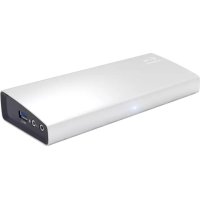
THUNDERDOCK2UK - Other computer accessories i-TEC - Free user manual and instructions
Find the device manual for free THUNDERDOCK2UK i-TEC in PDF.

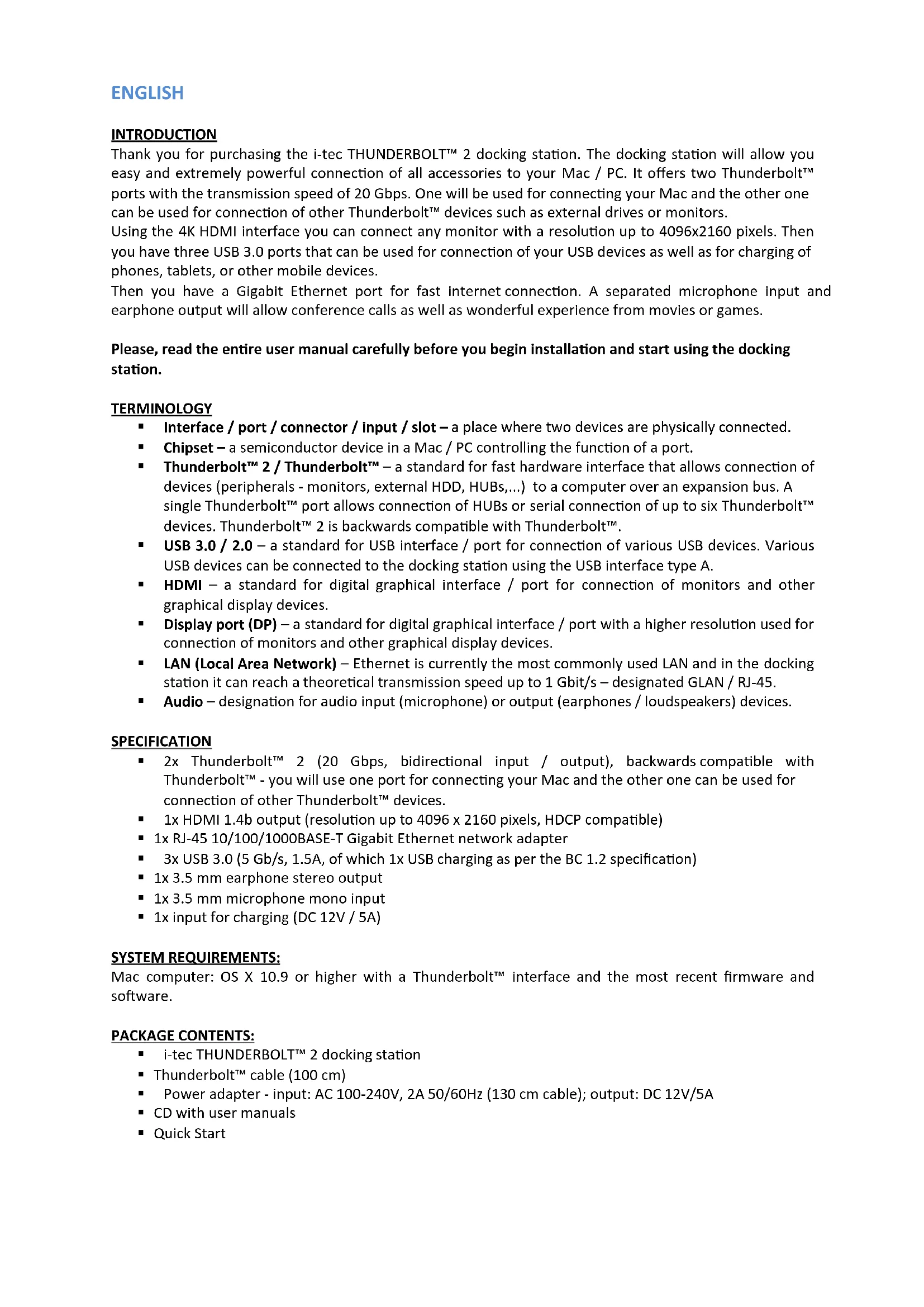


| Product Type | Thunderbolt 2 Docking Station |
| Brand | i-TEC |
| Model | THUNDERDOCK2UK |
| Dimensions (approx.) | 20 x 10 x 3 cm |
| Weight (approx.) | 500 g |
| Power Supply | AC Adapter: Input AC 100-240V, 2A, 50/60 Hz; Output DC 12V/5A |
| Thunderbolt 2 Ports | 2 ports (20 Gb/s, bidirectional, Thunderbolt backward compatible) |
| HDMI Port | 1 HDMI 1.4b output, resolution up to 4096x2160 pixels |
| USB 3.0 Ports | 3 USB 3.0 Type A ports (5 Gb/s, 1.5A with 1 supporting BC 1.2) |
| Ethernet Port | 1 RJ-45 Gigabit Ethernet 10/100/1000BASE-T port |
| Audio | 1 3.5 mm stereo headphone output, 1 3.5 mm mono microphone input |
| LED Indicator | Power indicator |
| Main Functions | Connect Thunderbolt, USB, Ethernet, HDMI display devices; charge mobile devices |
| System Compatibility | Mac OS X 10.9 or later with Thunderbolt port |
| Package Contents | Docking station, Thunderbolt cable (100 cm), AC adapter, manual CD |
| Care and Cleaning | Clean with a soft dry cloth, do not use liquids |
| Safety Precautions | Do not expose to extreme temperatures or humidity; use on a flat surface |
| Spare Parts and Repairability | No user-serviceable parts; contact customer service for any repairs |
Frequently Asked Questions - THUNDERDOCK2UK i-TEC
User questions about THUNDERDOCK2UK i-TEC
0 question about this device. Answer the ones you know or ask your own.
Ask a new question about this device
Download the instructions for your Other computer accessories in PDF format for free! Find your manual THUNDERDOCK2UK - i-TEC and take your electronic device back in hand. On this page are published all the documents necessary for the use of your device. THUNDERDOCK2UK by i-TEC.
USER MANUAL THUNDERDOCK2UK i-TEC
i-tec THUNDERBOLT™ 2
DOCKING STATION
(GB) User Manual
Thank you for purchasing the i-tec THUNDERBOLT™ 2 docking station. The docking station will allow you easy and extremely powerful connection of all accessories to your Mac / PC. It offers two Thunderbolt™ ports with the transmission speed of 20 Gbps. One will be used for connecting your Mac and the other one can be used for connection of other Thunderbolt™ devices such as external drives or monitors.
Using the 4K HDMI interface you can connect any monitor with a resolution up to 4096x2160 pixels. Then you have three USB 3.0 ports that can be used for connection of your USB devices as well as for charging of phones, tablets, or other mobile devices.
Then you have a Gigabit Ethernet port for fast internet connection. A separated microphone input and earphone output will allow conference calls as well as wonderful experience from movies or games.
Please, read the entire user manual carefully before you begin installation and start using the docking station.
TERMINOLOGY
- Interface / port / connector / input / slot - a place where two devices are physically connected.
- Chipset - a semiconductor device in a Mac / PC controlling the function of a port.
- Thunderbolt™ 2 / Thunderbolt™ - a standard for fast hardware interface that allows connection of devices (peripherals - monitors, external HDD, HUBs,...) to a computer over an expansion bus. A single Thunderbolt™ port allows connection of HUBs or serial connection of up to six Thunderbolt™ devices. Thunderbolt™ 2 is backwards compatible with Thunderbolt™.
- USB 3.0 / 2.0 - a standard for USB interface / port for connection of various USB devices. Various USB devices can be connected to the docking station using the USB interface type A.
- HDMI - a standard for digital graphical interface / port for connection of monitors and other graphical display devices.
- Display port (DP) - a standard for digital graphical interface / port with a higher resolution used for connection of monitors and other graphical display devices.
LAN (Local Area Network) - Ethernet is currently the most commonly used LAN and in the docking station it can reach a theoretical transmission speed up to 1 Gbit/s - designated GLAN / RJ-45.
Audio - designation for audio input (microphone) or output (earphones / loudspeakers) devices.
SPECIFICATION
- 2x Thunderbolt™ 2 (20 Gbps, bidirectional input / output), backwards compatible with Thunderbolt™ - you will use one port for connecting your Mac and the other one can be used for connection of other Thunderbolt™ devices.
1x HDMI 1.4b output (resolution up to 4096 x 2160 pixels, HDCP compatible) - 1x RJ-45 10/100/1000BASE-T Gigabit Ethernet network adapter
3x USB 3.0 (5 Gb/s, 1.5A, of which 1x USB charging as per the BC 1.2 specification)
1x 3.5 mm earphone stereo output - 1x3.5mm microphone mono input
1x input for charging (DC 12V / 5A)
SYSTEM REQUIREMENTS:
Mac computer: OS X 10.9 or higher with a Thunderbolt™ interface and the most recent firmware and software.
PACKAGE CONTENTS:
i-tec THUNDERBOLT™ 2 docking station
Thunderbolt™ cable (100 cm)
Power adapter - input: AC 100-240V, 2A 50/60Hz (130 cm cable); output: DC 12V/5A
CD with user manuals
Quick Start
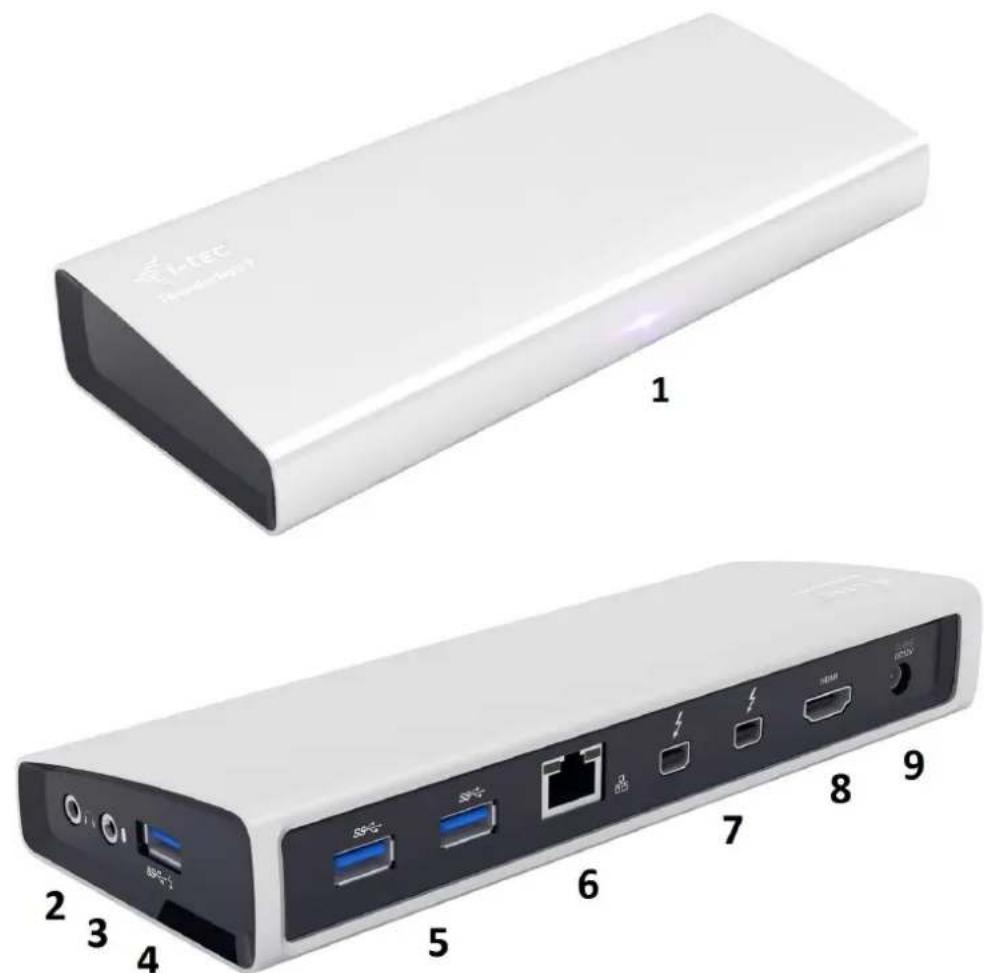
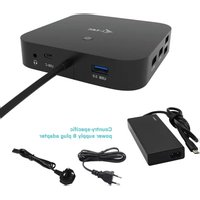
DESCRIPTION OF THE DOCKING STATION
- LED - after connecting the docking station and the power adapter to the AC 110V / 230V grid the light is ON
- 1x audio output for earphones / loudspeakers 2.1
- 1x audio input for microphone
4.1x USB 3.0 port type A with the BC 1.2 specification
5.2x USB 3.0 port type A - for connection of USB devices to the docking station - 1x Ethernet 10 / 100 / 1000 Mb/s GLAN RJ-45 port - for connection to the Ethernet network or to the internet modem
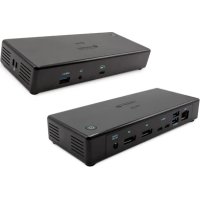
- 2x Thunderbolt™ 2 port - for connection of Thunderbolt™ devices (you will use one port for connecting your Mac and the other one can be used for connection of other Thunderbolt™ devices)
- 1x HDMI port - for connection of the monitor
- 1x power input from the power adapter to the AC 110V / 230V grid
SETTING THE DISPLAY
HDMI output with a resolution up to 4096 x 2160 pixels at 24 Hz, 3840 x 2160 pixels at 30 Hz, and 2560 x 1600 pixels at 60 Hz.
- Two monitors are supported when connected over the HDMI and Thunderbolt™ 2 or when using two Thunderbolt™ monitors in serial connection.
The resolution of the video output and the refresh rate can be affected by the performance of the system / Mac.
You can find more information on connecting the monitor to the Thunderbolt™ 2 port at the Apple website here: https://support.apple.com/en-us/HT204154#18 and on connecting the 4K monitor to the Thunderbolt™ 2 port to a Mac here: https://support.apple.com/en-us/HT202856
The table shows the various options for connecting the Thunderbolt™ monitor directly to a Mac with a Thunderbolt™ port in OS X:
| Computer | Connected monitors |
| Mac with Intel HD Graphics 3000 integrated graphic card can support one connected ThunderboltTM monitor (e.g., Apple Thunderbolt Display (27-inch)). • MacBook Air (Mid 2011) • MacBook Pro (13-inch, Early 2011) and (13-inch, Late 2011) 1 • Mac mini (Mid 2011), 2.3 GHz • Mac mini with Lion Server (Mid 2011) | Single ThunderboltTM monitor |
| Mac that can support two connected ThunderboltTM monitors (e.g., Apple Thunderbolt Display (27-inch)). • MacBook Pro (Retina, 13-inch, Late 2012) and later • MacBook Pro (Retina, Mid 2012) and later • MacBook Pro (13-inch, Mid 2012) • MacBook Pro (15-inch and 17-inch, Early 2011) and later • MacBook Air (Mid 2012) and later • iMac (Late 2012) • iMac (Mid 2011) • iMac (Late 2013) • iMac (21.5-inch, Mid 2014) • Mac Mini (Late 2012) • iMac (Retina 5K, 27-inch, Late 2014) • Mac mini (Late 2014) • Mac Mini (Mid 2011), 2.5 GHz | 2x ThunderboltTM monitor |
| Mac that can support up to six connected ThunderboltTM monitors (e.g., Apple Thunderbolt Display (27-inch)) • Mac Pro (Late 2013) | 6x ThunderboltTM monitor |
Possible connection of monitors to the i-tec THUNDERBOLT™ 2 docking station based on the table above.
Limitations: the maximum number of monitors connected to the docking station - two monitors. The docking station can transmit only two signals from monitors at the same time over the Thunderbolt™ bus.
Only HDMI monitor connected - Mac (10.10.x and higher) - yes up to 4K.
Only DisplayPort monitor connected (in Thunderbolt™ 2 port with Mini DP adaptor) – Mac (10.10.x and higher) – yes up to 4K.
Only ThunderboltTM monitor connected - Mac (10.10.x and higher) - yes up to 4K.
HDMI and DisplayPort monitor connected at the same time - nonfunctional, Thunderbolt™ bus cannot transmit.
HDMI and ThunderboltTM monitor connected at the same time - Mac (10.10.x and higher) - yes up to 4K (see the Mac table above).
Mac support for 4K monitors and Ultra HD TV:
- MacBook Pro (Retina, Late 2013 and later)
Mac Pro (Late 2013)
iMac (27-inch, Late 2013 and later)
Mac mini (Late 2014) - MacBook Air (Early 2015)
Resolution and refresh rate for 4K monitors and Ultra HD TV over the built-in HDMI port in the Mac:
- 3840 × 2160/30 Hz refresh rate
4096 x 2160 / 24 Hz refresh rate (the Mirror mode is not functional)
Mac support for multi-stream transport (MST) monitors with a refresh rate of 60Hz :
- MacBook Pro (Retina, 15-inch, Late 2013 and later)
MacBook Pro (Retina, 13-inch, Early 2015)
Mac Pro (Late 2013)
iMac (Retina 5K, 27-inch, Late 2014)
HARDWARE INSTALLATION (CONNECTION) OF THE DOCKING STATION TO THE MAC
- Turn ON the Mac.
- Connect the power adapter to the docking station and connect it to the AC 110V / 230V grid.
- Connect the Thunderbolt™ cable to the Thunderbolt™ port on the back panel of the docking station.
- Connect the Thunderbolt™ cable to a free Thunderbolt™ port of your Mac.
- The installation of the docking station and the ports will start automatically.
- When the installation is completed we recommend turning the Mac OFF and ON.
Installation of the drivers in Mac OS X is automatic.
USING THE DOCKING STATION IN MAC OS X
A: After connecting the monitor / monitors (with the Thunderbolt™ or HDMI or Display Port input) the screen on your Mac will glimmer, which is a standard condition, and after stabilization it is possible to perform standard setting of the monitor here: System Preferences-Displays.
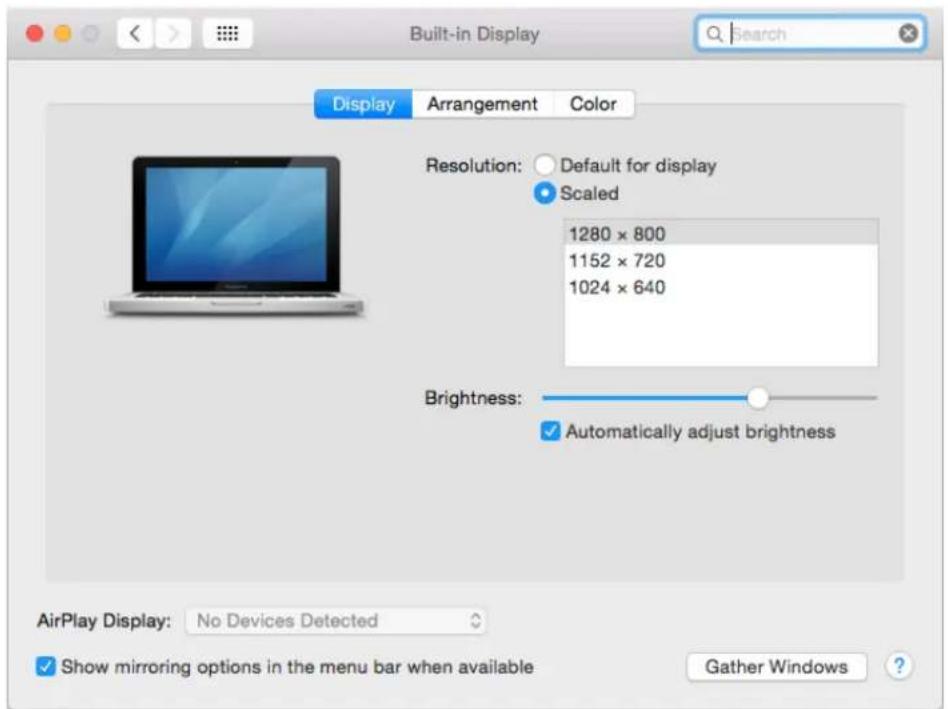
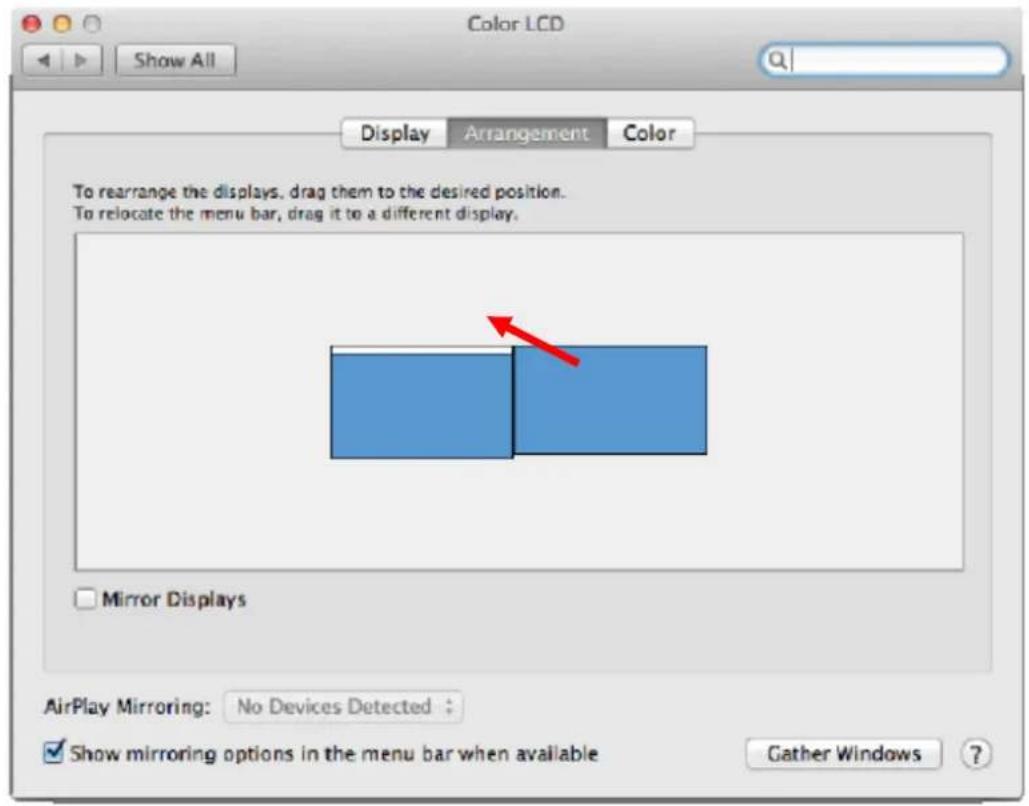
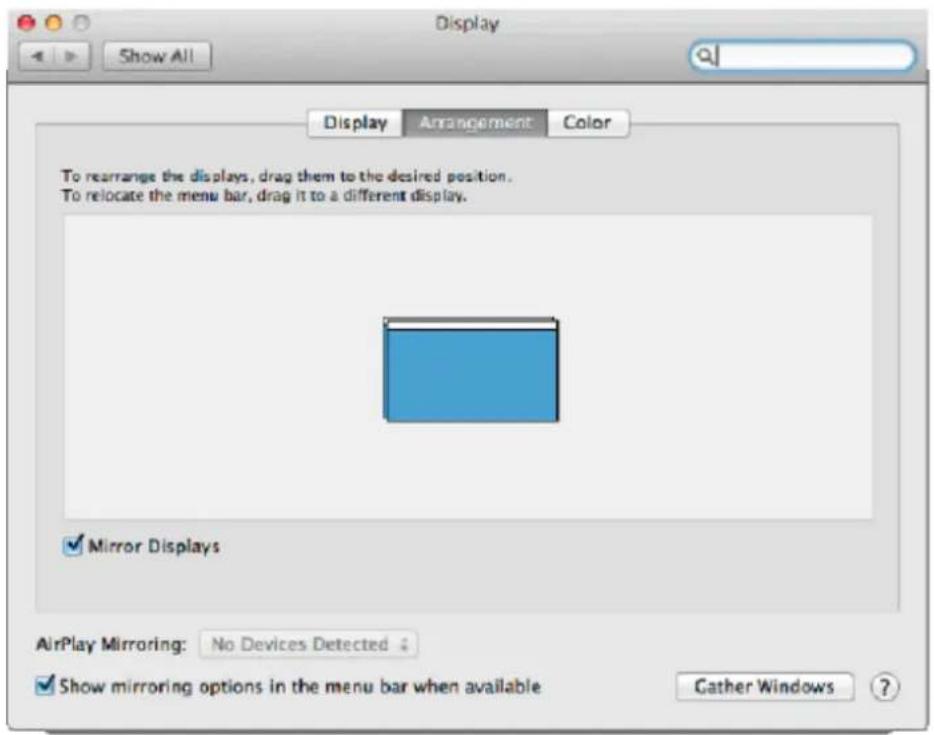
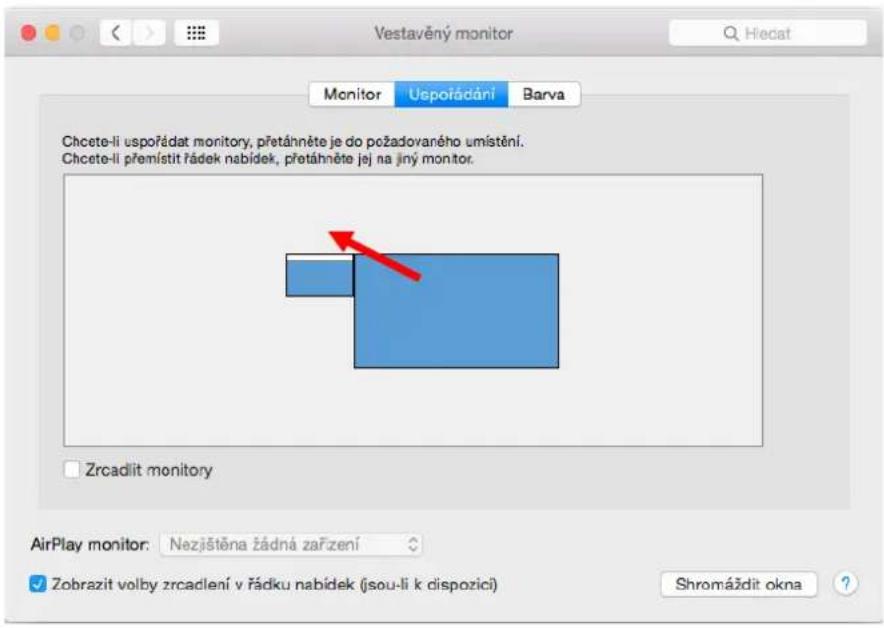
Click on Arrangement and in the default mode (Expanded desktop) click on the new monitor and drag it as necessary vis-à-vis the Mac monitor. If you select Mirror displays the mode will change to Mirror (the resolution of the monitors will be automatically adjusted according to their parameters and the highest possible resolution will be set on both monitors). By cancelling the Mirror displays option you will return to the Expanded desktop mode.
Expanded desktop mode: The arrow indicates the possible position of the connected monitor vis-à-vis the Mac monitor.
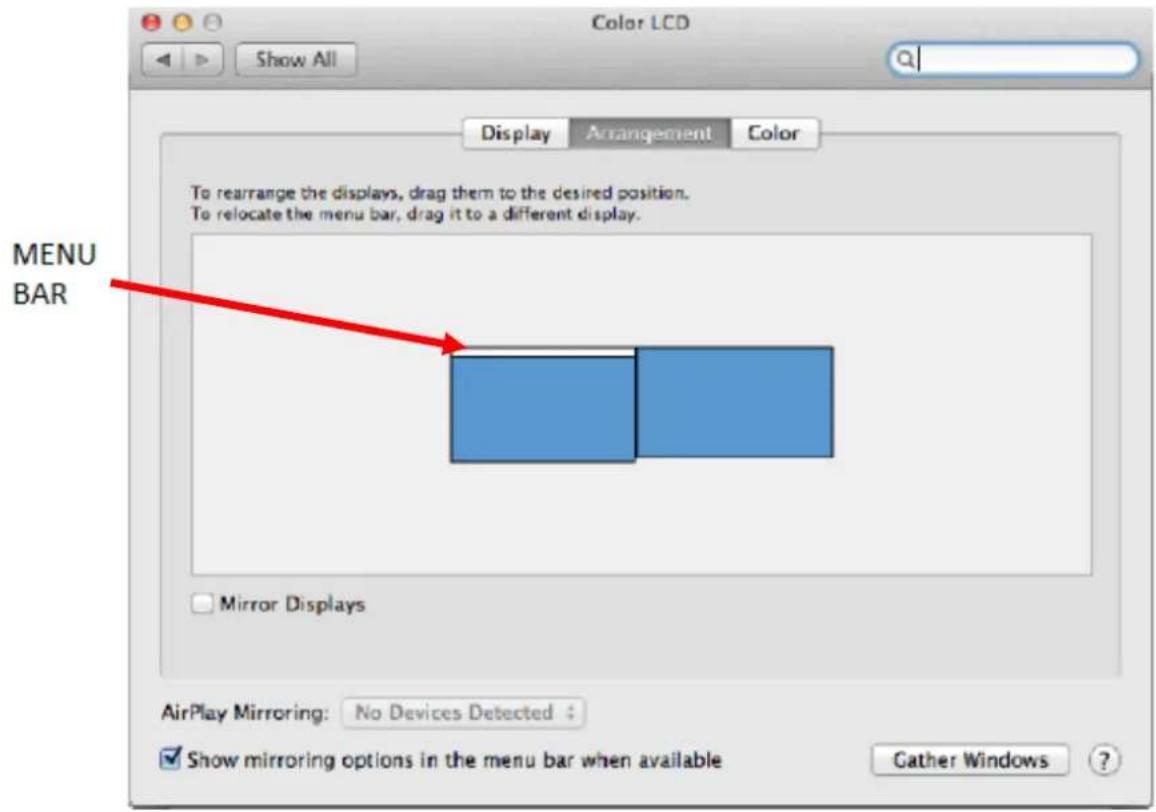
In the Expanded desktop mode you can choose the Main monitor by dragging the Menu Bar.
Mirror mode: This mode can only be used if supported by the Mac.
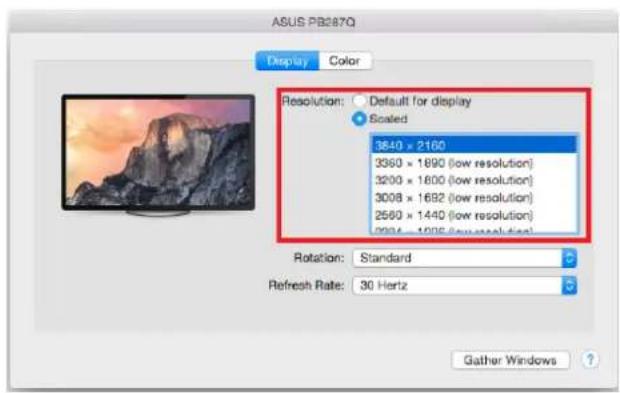
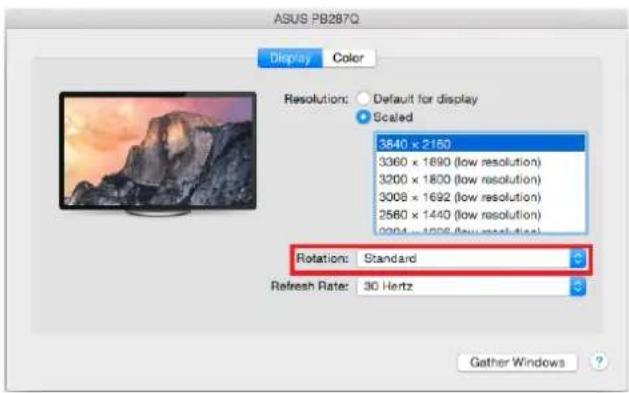
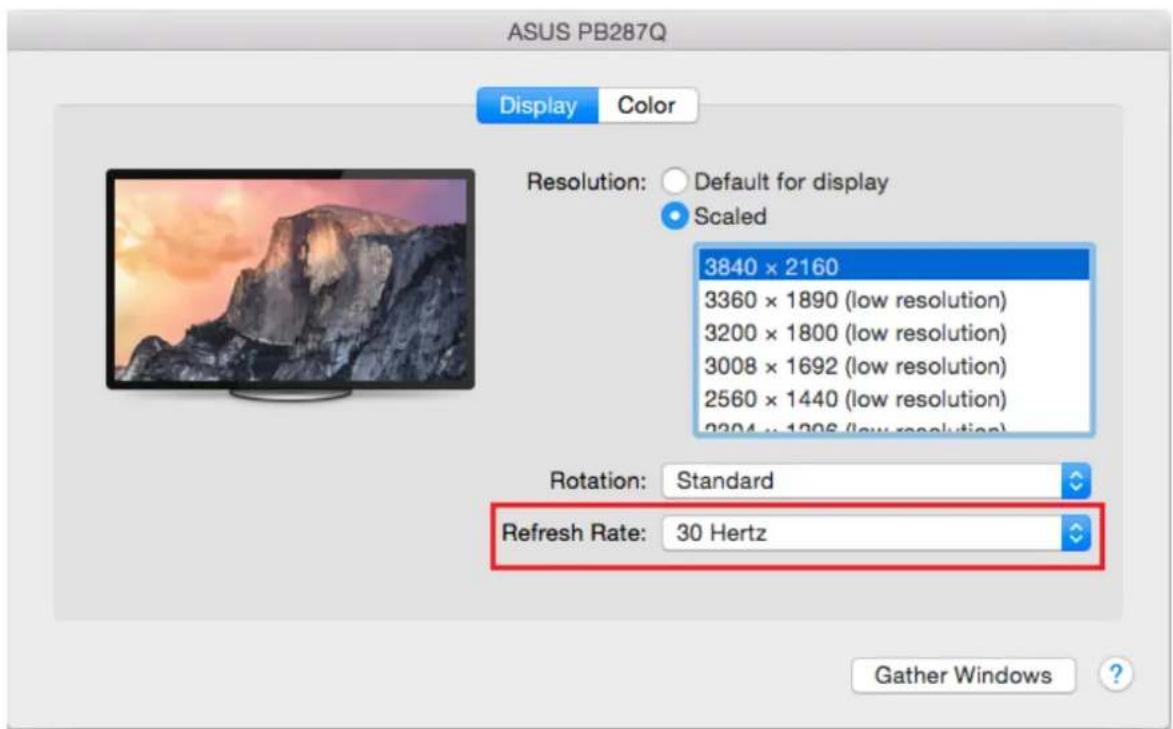
Click on Gather Windows: using this option you can choose the settings of the corresponding monitor - Scaled (offers available resolutions), Rotation (Standard, 90^ , 180^ and 270^ ) and Refresh rate (if offered).
Notes for using the docking station with monitors:
- Working on the connected monitor when the Mac monitor is closed is possible with the power supply from the grid (there are some limitations when using a HDMI monitor on older versions of Mac). When the power supply is from the battery, the use of a HDMI monitor is limited by the Mac (in some situations in case of problems with displaying it is possible to use the method described in the following paragraph).
- Most problems with renewing the screen on the connected monitor after hibernation of the Mac, after usingscreensaver, after restarting the Mac, after turning the Mac OFF / ON can be solved by disconnecting the Thunderbolt™ cable of the docking station from the Thunderbolt™ port on the Mac and reconnecting it after approximately 10s. Please wait for completion of connection of all peripherals.
B: After connecting other devices to the docking station (e.g., Ethernet cable to the GLAN port, Thunderbolt™ external HDD, USB external HDD, USB keyboard, USB mouse) these devices are used in a standard way.
Most problems with the docking station and the connected peripherals can be solved by disconnecting the Thunderbolt™ cable of the docking station from the Thunderbolt™ port on the Mac and reconnecting it after approximately 10s.
CHARGING
The docking station supports charging of the connected USB mobile devices such as smart phones, e-book readers, multimedia players, navigation devices, and tablets. Simply connect the device that you want to charge using the original cable to the USB port of the docking station.
AUDIO
Audio output devices for earphones connected to the docking station need to be set / verified here: System Preferences-Sound-Output - select USB Advanced Audio Device.
- Setting the audio output device to both the earphones and the monitor simultaneously can be done in Open-Applications-Utilities-Audio settings MIDI.app - click on , + ^ on the left at the bottom - Create device with multiple outputs and select the desired outputs from the offered options on the Device with multiple outputs.
- Input device for a microphone connected to the docking station needs to be set / verified here: System Preferences-Sound-Input - select USB Advanced Audio Device.
SAFETY INSTRUCTIONS
- Do not expose to extreme temperatures and air humidity
Use the device on flat surfaces - you will prevent it from slipping and falling to the ground. - Save the drivers and the user manual for a possible use later.
In cooperation with the service department:
- Check functionality after falling to water or to the ground.
- Check functionality when the cover is broken.
- Send the device back if it does not work in accordance with the user manual.
FREQUENTLY ASKED QUESTIONS FOR MAC
Question: What are the requirements for primary graphics cards to use with the chipsets in the i-tech THUNDERBOLT™ 2 docking station?
Answer: We recommend a Mac with Intel i5 and higher for mostly office work and Intel i7 for playback of one video at a time.
Question: Where can I check the connection of the docking station i-tec THUNDERBOLT™ 2 and other connected peripherals in the Mac?
Answer: After connecting the docking station to the Thunderbolt™ port in the Mac you can check the connection here: About this Mac-System Profile-Hardware-Thunderbolt. You can see the parameters of the Thunderbolt™ port in the Mac and in the docking station. Connection of other devices to the docking station can be checked here:
For GLAN: About this Mac-System Profile-Hardware -Ethernet Cards
For USB: About this Mac-System Profile-Hardware -USB
For HDMI monitor: About this Mac-System Profile-Hardware -Graphics/Monitors
Question: I am using Mac OS X and the audio output is not working.
Answer: Audio output devices for earphones connected to the docking station need to be set / verified here: System Preferences-Sound-Output - select USB Advanced Audio Device.
Most problems with the docking station and the connected peripherals can be solved by disconnecting the Thunderbolt™ cable of the docking station from the Thunderbolt™ port on the Mac and reconnecting it after approximately 10s.
If the package lacks any accessories specified on the packaging, contact us, please, with a request for supplying the missing accessories by e-mail at, do not forget to indicate the delivery address.
DEUTSCH
EINLEITUNG
Mac Pro (Late 2013)
iMac (Retina 5K, 27-inch, Late 2014)
HARDWAROVA INSTALACIA (PRIPOJENIE) DOKOVACEJ STANICE K MACU
- Zapnite Mac.
- Napájaci adaptér pripoje k dokovacej stanici a zapojte ho do siete AC 110V / 230V.
- Zapojte Thunderbolt™ kabel do Thunderbolt™ portu na zadnom panely dokovacej stanice.
- Pripojte Thunderbolt™ kabel do volného Thunderbolt™ portu Vásho Macu.
- Následne sa začne automatická instálacia dokovacej stanice a portov.
- Po dokončeni instalácie doporučujeme vypnut/ zapnut Mac.
Instalacia ovladacov v Mac OS X je automatická.
POUZITIE DOKOVACEJ STANICE V MAC OS X
A: Po pripojeni monitoru / monitorov (s Thunderbolt™ alebo HDMI alebo Display Port vstupom) bude obrazovka na Vašom Macu preblíkávat, co je štandardný stav, a ustálenie možete vykonat štandardnám nastavením tu: Predvolby systému-Monitory.

Kliknite na Usporiadanie a v defaultnom režime (Rozširit) kliknite na novy monitor a pretiahnite ho podla potreby vzhladom k monitoru Macu. Pri vol'be Zrkadlit monitory sa zmeni režim na Zrkadlit (rozlügen monitorov sa automaticky uprav podla ich parametrov a nastavi sa najvyssie mozné rozlisenie na oboch monitoroch). Zrušenim vol'by Zrkadlit monitory obnovite režim Rozširit.
Rezim rozsir: Sipka naznačuje možnost' umiestnienia pripojeného monitora vzhladom k Mac monitoru.
- i-tec THUNDERBOLT™ 2
- DOCKING STATION
- TERMINOLOGY
- SPECIFICATION
- SYSTEM REQUIREMENTS:
- PACKAGE CONTENTS:
- DESCRIPTION OF THE DOCKING STATION
- SETTING THE DISPLAY
- HARDWARE INSTALLATION (CONNECTION) OF THE DOCKING STATION TO THE MAC
- USING THE DOCKING STATION IN MAC OS X
- Notes for using the docking station with monitors:
- CHARGING
- AUDIO
- SAFETY INSTRUCTIONS
- FREQUENTLY ASKED QUESTIONS FOR MAC
- DEUTSCH
- EINLEITUNG
- HARDWAROVA INSTALACIA (PRIPOJENIE) DOKOVACEJ STANICE K MACU
- POUZITIE DOKOVACEJ STANICE V MAC OS X
Brand : i-TEC
Model : THUNDERDOCK2UK
Category : Other computer accessories