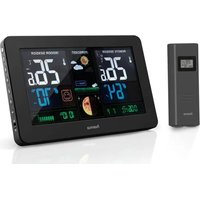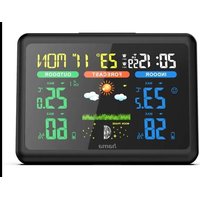
WFC840 - Weather Station HAMA - Free user manual and instructions
Find the device manual for free WFC840 HAMA in PDF.



User questions about WFC840 HAMA
0 question about this device. Answer the ones you know or ask your own.
Ask a new question about this device
Download the instructions for your Weather Station in PDF format for free! Find your manual WFC840 - HAMA and take your electronic device back in hand. On this page are published all the documents necessary for the use of your device. WFC840 by HAMA.
USER MANUAL WFC840 HAMA
Weather Forecast Center
hama®
Hama GmbH & Co KG
D-86652 Monheim
www.hama.com
00092649
All listed brands are trademarks of the corresponding companies. Errors and omissions excepted, and subject to technical changes. Our general terms of delivery and payment are applied.

Bedienungsanleitung
VOR BEGINN BITTE UNBEDINGT LESEN
IN/OUT (INNEN/AUSSEN)
Your Meteorite Weather Station is different to traditie weather stations which measure the prevailing condition only, the data of this weather station is based on the METEOTIME which is worked out on a daily basis by professional meteorologists using state-of-art instruments
The Meteotime Weather Station is engineered in such a way that it is able to receive the coded METEOTIME signal containing the weather information. The information is broadcasted via the stations for radio-controlled clocks HBG (located in Switzerland) and DCF (located in Germany). For this reason, your Meteotime Weather Station is also a radio-controlled clock with all the known advantages, such as always showing the exact time, and automatic change to daylight saving time in winter and in summer.
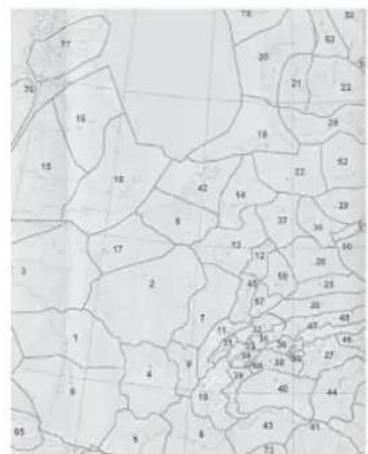
You are able to receive weather forecasts for 60 meteorological regions within Europe for up to 4 days in advance, and offer 2-day-advance forecasts for an additional 30 regions.
WHAT DOES IT TAKE TO GET GOOD RECEPTION?
Similar to wireless signals like the mobile phone network or RadioTV broadcasts, it is possible that the Meteotime Weather Stations do not receive signals all the time and everywhere. The following are some tips you should follow by all means to make sure that your device works prope
The location for Meteorite Weather Station is very impoMETeOTIME sends the data during precisely defined time. cant. For this reason we have equipped all of them withstuts in accordance with UTC. (UTC, i.e. for Central Europe innovation test function (the TEST button) which enables during the winter UTC+1, during the summer UTC+2; for you test the quality of reception in your environment and Brazil and Portugal during the winter UTC, during place the device where the best conditions prevail. the summer UTC+1
Try your reception by testing your Meteorite Weather Station as stated in the manual. To this, in the room you want to install the device, please on all the potential sources of interference (for example, a TV set). Then put the Meteorite Weather Station in the place and direction you want it to be, but always at least one meter from the potential source of interference.
Watch the symbol GOOD RECEPTION or BAD RECEPTION on the display. Once you have found the right location for GOOD RECEPTION, you may leave the Meteortime Weather Station there, it will collect its data by radio controlled signal. Within a few minutes time and the date will appear However, the transfer of the very large amount of data (forecast for all regions and days) will take much longer completely receive all data will take up to 24 hours from time of the initial setup.
POTENTIAL SOURCES OF INTERFERENCE
With all Mateotime Weather Stations, we should take measures to provide best possible radio reception. HBG and DCF are long wave stations with a broad reach (for eample, approximate 1500km for the DCF station). However, as with a long wave radio station, interference may occur which is often caused by the following influences:
- In buildings with lots of concrete, metal parts, and the electrical equipment you may get reception problems
- Electronic equipment such as TVs, computers, household machines, etc., or transformers, power lines, radio transmitters, and trains are potential sources of on interference.
- Atmospheric influences might affect the radio waves.
- The distance from the station, and also the geographic conditions (mountains, etc.) also affect the reception.
Due to their great distance from the station, areas like Southern Italy or Northern Scandinavia are critical. So-called (dead-spots) which make reception impossible can appear everywhere.
There is less interference in rural area than in heavily built-up urban ones.
- On principle at night the sources of interference are likely active, consequently reception is better than during the day.
- Week batteries in the device will lower the quality of low reception.
- Poorly:
PMETOTIME sends the data during precisely defined time slots in accordance with UTC. UTC, i.e. for Central Europe during the winter UTC+1, during the summer UTC+2; for dStreat Britain and Portugal during the winter UTC, during the summer UTC+1
| Transmission times UTC) | Forecast for |
| 10:00 p.m. - 03:59 a.m. the | . the actual (new) day (TODAY) |
| 10:00 a.m. - 09:59 a.m. | . the next day (TOMORROW) |
| 10:00 a.m. - 03:59 p.m. for | . the following day (the day after TOMORROW) |
| 04:00 p.m. - 06:59 p.m. ear. | . the day following this (Two days after TOMORROW) |
| 07:00 p.m. - 09:59 p.m. the | . the 30 additional regions the |
In the even that the reception during the above time slots is completely or at times interfered with or has broken down these forecasts, or parts of them, will be missing.
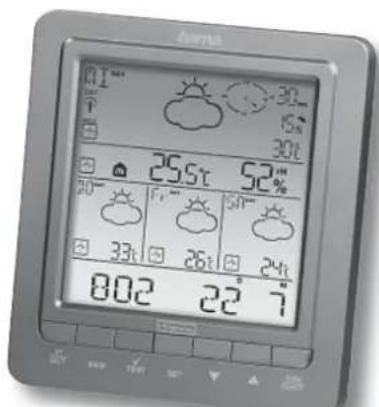
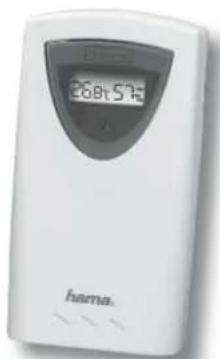
This package comes with a main unit which is Meteorite Weather Station, and a remote outdoor Thermo-hygmometer sensor.
This Meto time Weather Station has equipped the thermo-hyrometer sensor to measure the indoor temperature and humidity, and also has a wireless outdoor thermo-hyrometer sensor to measure the outdoor temperature and humidity.
Key Features:
- Weather Status for today and coming three days for 470 cities
Rain/Snow/Hail Probability for Today
Wind Speed and Wind Direction for Today - Single channel outdoor 433Mhz wireless Thermo-hygmeter
- Indoor Thermo-hygmometer
Sunrise and sunset display
Regional Day-time temperature and Night-time Temperature information
Critical Weather Alert - Radio-controlled Clock and Calendar
Time-zone setting - Powered by 2 AA batteries for main unit, and 2 AA batteries for the outdoor sensor
INTRODUCTION
The Meteor time Weather Station LCD display shows:
- Today Weather Information Window
- In/Outdoor Temperature & Humidity
- Tomorrow, One-day-after, and Two-day-after Weather Information
Information Window which shows Time & Date, Sunrise & Sunset, Cities, and Critical Weather Information Description.
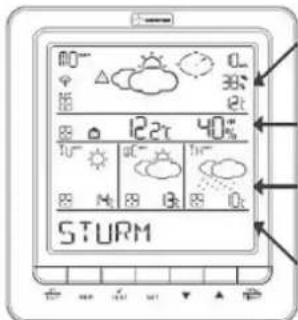
Today Weather Information including Wind Speed, Wind Direction, and the probability of Rain/Snow/Hail, Day & Night Temperature, Day & Night Weather Status
In/Outdoor Temperature & Humidity
Tomorrow, One-day-after, and Two-Day-after Weather Information including Day & Night Temperature, Day & Night Weather Status
Information Window
There are total 7 buttons on the Main Unit, namely:
SET
- Selected City Time + Date Sunrise + Sunset
Each press of [SET] will display the selected City, Time Date or Sunrise + Sunset
Press and HOLD [SET] for 3 second to select your <1> Country, <2> Time Zone, <3> Language, <4> Contrast of the LCD display
DAY/NIGHT
Critical Whether Information Time ^+ Date Day/Night Weather Status Change
A
- Increasing the value during setting.
Chose one of the pre-selected cities
#
Decreasing the value during setting.
- Chose one of the pre-selected cities.
MEM
- Display the maximum and minimum measured Temperature in record.
- Pross and Hold for 3 second to clear all the Max. Min. record.
TEST
Find the place for the device which has a good reception
- Add the city into the list of your desired cities OR remove the city out of the list of desired Cities
- Edit your home town
IN/OUT
- Switch to read Indoor Thermo-hyrometer Outdoor Thermo-hyrometer.
- Press and Hold for 3 second to force the main unit to search for the outdoor sensor.
GETTING START
- Insert the batteries for remote units, and then insert batteries for the main unit.
The main unit will automatically scan for the radio-controlled clock signal and the Meteorine Weather signal.
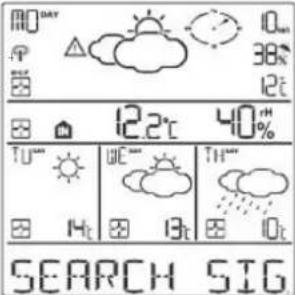
The time and date signal will be received in a few minutes. Since there is a large amount of Weather information for all regions and days, the unit needs about 24 hours from the time of the initial setup to complete the reception of all data
After the time and date signal is being received successfully, the display shows "SELECT COUNTRY" and then "FRANKFURT" as default city in the information window.
To change the Country and the City please see the information below.
If the unit is able to receive the Meteortime signal successfully, the Meteortime icon is appeared in the second row of display. Otherwise, the Meteortime will be
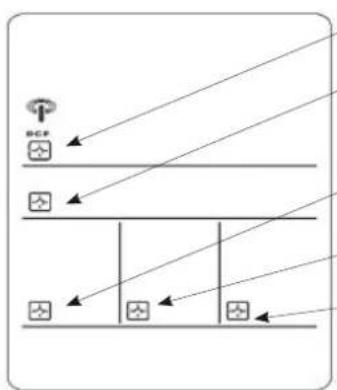
means it successfully receives today's weather information. Otherwise, it will be
means it is able to receive the Meteostime weather signal. Otherwise, it will be
means it successfully receives tomorrow weather information. Otherwise, it will be
means it successfully receives weather information of one-day-after
means it successfully receives weather information of two-day-after.
In the event the Meteotime icon changes to, that means there are potential sources of interference on the unit. The sources of interference may come from the electronics equipment such as TV-set, computers, household machines etc. may also be due to lots of concrete, metal parts and electrical equipment in the building. It may also be due to your living area if it is very far away from the Radio-controlled clock tower.
You are able to use the TEST function to look for a better location. Press TEST button, SCAN is shown in the Information Window.
Pick the unit to find a good location.
-
flashing: The test is running and the Meteosite signal reception is good. You are able to leave the device in this position.
-
flashing. The test is running and the Meteotime signal reception is poor. You need to keep on looking for a better location.
- The test lasted for around 1 minute. You can restart the test with the [TEST] key at any time, and also discount the test by press the TEST key.
SWITCH CITY SUNRISE & SUNSET TIME TIME & DATE
After inserting the batteries, the weather station searches for the Radio controlled Time signal as well as the MeteoTime signal. After it has successfully received the MeteoTime signal, the display shows in the information window "Select Country". After a few more minutes, the information windows the
- You are able to press [SET] to switch from the display of the City to Sunrise & Sunset time OR Time & Date for Frankfurt am Main.
FRANKFURTM [SET] 69 1938 [SET] 223 26 S
SELECT THE COUNTRY AND CITY / CITIES
Press and Hold [SET] for 3 second, in the information window is shown, and then press [Vor] key to select the country. For example, you have selected the country name such as means Germany will be shown in the information window.
- Press [SET] key to confirm the Country (let's said Press [TEST√] key to remove the and this city is select Germany right now), and then the information successful to remove out of your list of preference cities window will show you have selected.
- Then, press [ ] key to select the city, and then, you are able to press [ ] or [ ] key to select city name will be shown in the information window such more cities, and then press [ TEST ] key to remove your selected cities. OR Press [ SET ] key to select Frankfurt am Frankfurt am Main. Press [ SET ] key to quit and will shown at information window. After 4 second it will go to the
If the city Frankfurt am Main is your selection, then information window. After 4 second, it will go to the press [TEST-√] key to confirm. A√ will be shown on top of your selected city, and it will be PERSONALIZED A PLACE NAME and Frankfurt am Main will store into your personal memory list. Press and Hold [SET] for 3 second. In the inform - Then, you are able to press [ ] or [ ] key to select window, COUNTRY is shown, and then press [ ] or more cities, and then press [ TEST v] key to confirm. [ ] key to select the country. Let's said you have You are able to select maximum FIVE cities to display selected the country Germany which is represented in
you want to add more cities, then will show in the Information Window.
OR
press [SET] KEY to quit and will show information window.
2.6LP
Press [SET] key to confirm the Country (let's said select Germany right now), and then the information window will show
REMARK: If you have skip the city selection in the first time you power up the unit, the product will default selcate Frankfurt am Main as your selected city.
The. Then, press ] of | key to select the city, and the city name will be shown in the information window such as FRANK means the city Frankfurt Main', and you would like to enter a new city which
is near the region of Frankfurt am Main. Press the 'MEM' key: a cursor flashes on the first position of the Information Window
DISPLAY MORE CITIES INFORMATION
- If you have selected more than one city, let said have select Frankfurt am Main, Köln and Munster your desired city list, then you are able to press key when the Information Window shows the NAME (IPress SET until it displays the City Name).
FRANKFURTM KULN OUNSTER
When you selected the other city, the sunrise and sunset time, and weather information will be of this selected city
REMOVE YOUR SELECTED THE CITY /CITIES OUT OF MEMORY LIST
Press and Hold [SET] for 3 seconds, is shown in the Information Window, then press [ ] or key to select the country. For example, you have selected the country name such as Athens Germany.
Press [SET] key to confirm the Country (let's said select Germany right now), and then the information window will show
Then, press o! key to go to your selected let's said Frankfurt am Main', and the will show in the information window.
| KEY | Function |
| [▲ or ▼] | Selection of a letter |
| SET | <1> Accept the selected letter and jumps to the next position. OR <2> If you have not entered any letter in other words, if only the cursor is flashing at the last position), confirm the entry with this key and your place will also be included in the memory with immediate effect |
| we | |
| TEST | One position back in the data entry process. |
The place that you have selected to enter your own description will still exist under its own name. Press | SET | key to confirm and exit
SET THE TIME ZONE, LANGUAGE and CONTRAST
Press and Hold [SET] for 3 seconds, shown in the Information Window.
Press [SET] again, 000HR shown in the Information Window, pws [Vor [] key to adjust the time zone.
Press [SET] again, then the LANGUAGE will be shown in the information Window, pre | | or | | key to select your desired language. There are total Seven Language for selection, namely German, English, Spanish, French, Italiano, Dutch, Swedish
- Press | SET | again, then a shift is shown in the Information Window, press [ ] or [ ] key to adjust the LCD contrast Level.
Press | SET | again and will shown at the information window. After 4 seconds, it will go to the City-Date-Time Mode
CRITICAL WEATHER INFORMATION
oote Weather signal contains the Critica/Weather formation such as Gust, Frozen Rain, Heavy Snow, under, Strong UV, Dense Fog, Bise, Mistral, etc. for today
coming three days. A critical weather alert signal be turned on in case that day has critical weather that user must know.
Remark: If you do not have any selection into the Setup mode up to 60 seconds, it will automatically exit the setup mode. The Information Window will show City / Sunrise & Sunset Time / Time & Date.
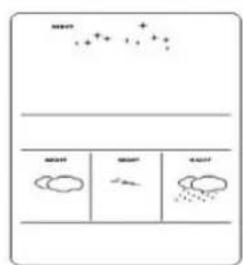
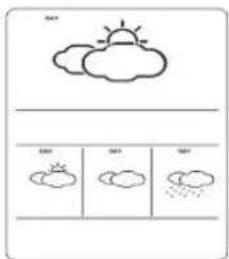
SWITCH DAY WEATHER INFORMATION NIGHT WEATHER INFORMATION
The device is able to base on the SUNRISE time and SUNSET time to automatically switch to DAY-WEATHER and NIGHT-WEATHER respectively. The unit is preset to show DAY-WEATHER after sunrise time, and NIGHT-WEATHER after SUNDSET time. The user can press the [DAY/NIGHT] button to see the DAY-Weather (for 10-second period) if currently show the NIGHT-WEATHER, or vice versa.
DAY
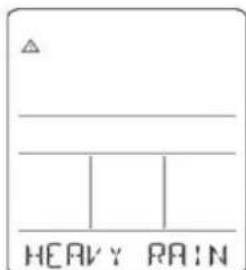
Sometimes there are more than one critical weather information in the 4-days. Press [DAY/NIGHT] key to read the critical weather information one by one. The special icon of the day will be flashed when you read the Information.
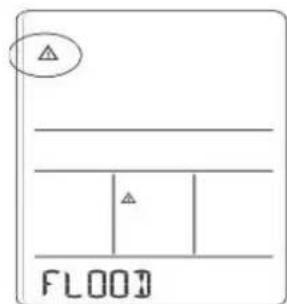
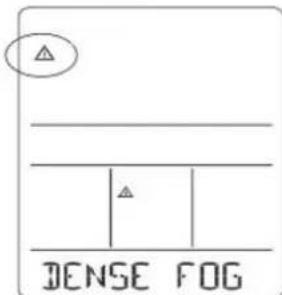
- Press [SET] key to go back to the display of CI SUNRISE & SUNDSET TIME TIME & DATE. If you want to read the Weather Information in the information window, then press [DAY/NIGHT] Key to display Day Night Weather information and also the Critical Weather Information.
If no key is pressed, the critical weather information will toggle to display, so as to make sure you are aware of critical weather details.
INDOOR / OUTDOOR TEMPERATURE AND HUMITIDY READING
Press [IN/OUT] keys to switch the reading of indoor or outdoor temperature and humidity reading.
12.48% 3223% Press [MEM] key to read the record of the maxima and minimum temperature Press and Hold [MEM] key to CLEAR the record of maximum and minimum temperature
LINKING THE OUTDOOR THERMO-HYGROMETER
SENSOR WITH MAIN UNIT IF SIGNAL LOSS: If the Main unit cannot receive the outdoor sensor signal, the outdoor signal icon will change in Press and Hold | IN/OUT button for 3 seconds, and tthe wave icon will be flaed if the signal has been received again, the outdoor signal icon will be .
WEATHER STATUS
There are total 15 weather status for Day and 15 weather status for Night.
| Significance Day Night | ||
| Sunny Clear at night | ||
| Light Cloudy | ||
| Mostly Cloudy | ||
| Dwarf | ||
| Overcast | ||
| be the | ||
| Stratus Clouds | ||
| Fog | ||
| Showers | ||
| Light Rain | ||
| Heavy Rain | ||
| Frontal Storms | ||
| Heat Storms | ||
| Sleet Showers | ||
| Snow Showers | ||
| Sleet | ||
| Snow |
CITIES
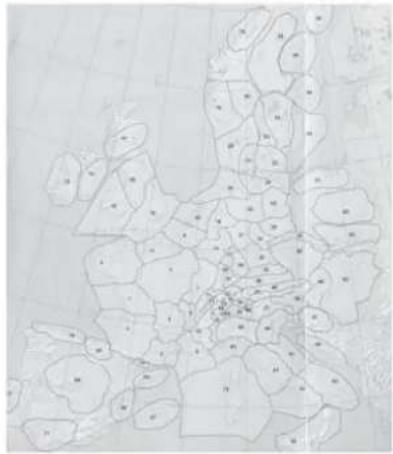
There are a total of 470 cities information included in memory. The cities of the name with * will only have 2-day weather status.
| CITY FULL NAME | CITY NAME IN SHORT FORM THAT SHOWN ON THE DISPLAY | COUNTRY NAME | REGION |
| ANDORRA LA VELLA* | ANDLA.VELL* ANDORRA 70 | ||
| ST PÖLTIEN | ST.PÖLTIEN | AU/AUSTRIA 50 | |
| BISCHOFSHOFEN | BISCHOFSHO | AU/AUSTRIA 48 | |
| BREGENZ BREGENZ AUAUSTRIA 48 | |||
| EISENSTADT | EISENSTADT | AU/AUSTRIA 49 | |
| GRAZ GHAZ | AU/AUSTRIA 46 | ||
| INNSBRUCK | INNSBRUCK | AU/AUSTRIA 47 | |
| KITZBUHEL | KITZBUHEL | AU/AUSTRIA 48 | |
| KLAGENFURT | KLAGENFURT | AU/AUSTRIA 46 | |
| LANDECK LANDECK AU/AUSTRIA 47 | |||
| LIENZ LIENZ AU/AUSTRIA 46 | |||
| LINZ LINZ AU/AUSTRIA 28 | |||
| SALZBURG SALZBURG AU/AUSTRIA 48 | |||
| SCHLADMING SCHLADMING AU/AUSTRIA 48 | |||
| VILLACH VILLACH AU/AUSTRIA 46 | |||
| WELS WELS AU/AUSTRIA 26 | |||
| WIEN WIEN AU/AUSTRIA 49 | |||
| ZEITWEG ZEITWEG AU/AUSTRIA 46 | |||
| ZWETTL ZWETTL AU/AUSTRIA 50 | |||
| ANTWERPEN | ANTWERPEN | B/BELGIUM 6 | |
| BRUGGE BRUGGE B/BELGIUM 5 | |||
| BRUSSEL | BRUSSEL | B/BELGIUM 6 | |
| CHARLEHOI | CHARLEROI | B/BELGIUM 6 | |
| GENT GENT | B/BELGIUM 6 | ||
| LIEGE LIEGE B/BELGIUM 6 | |||
| NAMUR | NAMUR | B/BELGIUM 6 | |
| VERVIERS | VERVIERS | B/BELGIUM 13 | |
| ST. GALLYN | ST.GALLYN | CH/SUISSSE | |
| AARAU | AARAU | CH/SUISSSE | |
| ADELBODEN | ADELBODEN | CH/SUISSSE | |
| ALTDORF | ALTDORF | CH/SUISSSE | |
| BASEL | BASEL | CH/SUISSSE | |
| BELLINZONA | BELLINZONA CH/SUISSSE | 38 | |
| BERN BERN CH/SUISSSE | 32 | ||
| BIENNE | BIENNE | CH/SUISSSE | |
| BRIG | BRIG | CH/SUISSSE | |
| CHUR CHUR CH/SUISSSE | 36 | ||
| DAVOS | DAVOS | CH/SUISSSE | |
| DELEMENT DELEMENT CH/SUSSE 11 | |||
| FRAUENFELD FRAUENFELD CH SUISSSE 32 | |||
| FRIIBOURG FRIIBOURG CH/SUSSE 31 | |||
| GENEVE/GENF GENEVE CH/SUSSE 31 | |||
| GLARUS GLARUS CH/SUSSE 35 | |||
| GRINDELWALD GRINDELWLOCH SUISSSE 33 | |||
| INTERLAKEN INTERLAKEN CH SUISSSE 33 | |||
| LA CHAUX-DE-FONDS LACHAU X-D-F CH/SUSSE 11 | |||
| LAUSANNE LAUSANNE CHSUSSE 31 | |||
| LIESTAL LIESTAL CH/SUSSE 45 | |||
| LOCARNO LOCARNO | CH/SUSSE 38 | ||
| LUGANO LUGANO | CH/SUSSE 38 | ||
| LUZERN LUZERN | CH/SUSSE 32 | ||
| MARTIGNY MARTIGNY | CH/SUSSE 34 | ||
| MONTREUX MONTREUX | CH/SUSSE 31 | ||
| NEUCHATEL NEUCHATEL | CH/SUSSE 31 | ||
| SAMEDAN* SAMEDAN* | CH/SUSSE 86 | ||
| SARNEN SARNEN | CH/SUSSE 35 | ||
| SCHAFFHAUSEN SCHAFFHAUS. | CH/SUSSE 32 | ||
| SCHWYZ SCHWYZ | CH/SUSSE 35 | ||
| SIUN SIDN CH/SUSSE 34 | |||
| SOLOTHURN SOLOTHURN | CH/SUSSE 32 | ||
| STANS STANS | CH/SUSSE 35 | ||
| ZERMATT* ZERMATT* | CH/SUSSE 88 | ||
| ZUG ZUG | CH/SUSSE 32 | ||
| ZURICH ZÜRCH ZÜRCH | CH/SUSSE 32 | ||
| BRNO BRNO | C/Z/CZ REP 50 | ||
| BUDEJOVICE BUDEJOVICE | C/Z/CZ REP | 50 | |
| CHEB CHEB | C/Z/CZ REP | 50 | |
| DECIN | DECIN | CZ/CZ REP | 51 |
| HAVLICKAV BRDD | HAVL_BRDD | CZ/CZ REP | 50 |
| HRADECKKRA | HRADECKKRA | CZ/CZ REP | 50 |
| OLOMOUC OLOMOUC CZ/CZ REP 50 | |||
| OSTRAVA | OSTRAVA | CZ/CZ REP | 50 |
| PLZEN | PLZEN | CZ/CZ REP | 50 |
| PRAHA/PRAG | PRAHA | CZ/CZ REP | 50 |
| TEPLICE | TEPLICE CZ/CZ REP | 51 | |
| Aachen | Aachen | D / GER | 14 |
| AALEN | AALEN | D / GER | 59 |
| ANSBACH | ANSBACH | D / GER | 28 |
| AUGSBURG | AUGSBURG | D / GER | 25 |
| BAD TÜLZ | BAD TÜLZ | D / GER | 48 |
| BAYREUTH | BAYREUTH | D / GER | 28 |
| BERCHTESGADEN | BERCHTESGA D / GER | 48 | |
| BERLIN | BERLIN | D / GER | 52 |
| BIELEFFELD | BIELEFFELD | D / GER | 14 |
| BITBURG | BITBURG | D / GER | 13 |
| BORKUM | BORKUM | D / GER | 19 |
| BREMEN | BREMEN | D / GER | 22 |
| BREMERHAVEN | BREMERHAVN | D / GER | 19 |
| BURGHAUSEN | BURGHAUSEN | D / GER | 26 |
| COITBUS | COITBUS | D / GER | 29 |
| CUXHAVEN CUXHAVEN D / GER 19 | |||
| DONAU-ESCHINGEN | DONAUESCH. D / GER | 57 | |
| DORTMUND | DORTMUND | D / GER | 14 |
| DRESDEN | DRESDEN | D / GER | 29 |
| DUISBURG | DUISBURG | D / GER | 14 |
| DUSSELDURF | DUSSELDORF | D / GER | 14 |
| EISENACH EISENACH D / GER 30 | ||
| EMDEN EMDEN D / GER 19 | ||
| ERFURT ERFURT D / GER 33 | ||
| ESSEN ESSEN D / GER 14 | ||
| FEHMANN FEHMANN D / GER 24 | ||
| FLENSBURG FLENSBURG D / GER 24 | ||
| FRANKFURT AM MAIN FRANKFURT M D / GER 12 | ||
| FRANKFURT AN DER ODER FRANKFURT.0 | D / GER 52 | |
| FREIBURG FREIBURG | D / GER 45 | |
| FREUDENSTADT FREUDENST. | D / GER 57 | |
| FRIEDRICHSHAFEN FRIEDR.HFN | D / GER 25 | |
| FULDA FULDA | D / GER 37 | |
| GARMISCH-PARTENKIRCHEN GARMISCH_P | D / GER 48 | |
| GIESSEN GIESSEN | D / GER 37 | |
| GÖRLITZ GÖRLITZ | D / GER 29 | |
| GOSLAR GOSLAR | D / GER 22 | |
| GOTTINGEN GOTTINGEN | D / GER 37 | |
| GREIFSWALD GREIFSWALD | D / GER 24 | |
| HAGEN HAGEN | D / GER 13 | |
| HALLE HALLE | D / GER 29 | |
| HAMBURG HAMBURG | D / GER 13 | |
| HANNOVER HANNOVER | D / GER 22 | |
| HEILBRONN HEILBRONN | D / GER 59 | |
| HILDESHEIM HILDESHEIM | D / GER 22 | |
| HOF HOF | D / GER 30 | |
| INGOLSTADT INGOLSTADT | D / GER 25 | |
| JENA JENA | D / GER 30 |
| KAISERSLAUTERN | KAISERSLAU | D / GER 12 | |
| KARLSRUHE KARLSRUHE D / GER 12 | |||
| KASSEL | KASSEL | D / GER 37 | |
| KEMPTEN | KEMPTEN D / GER 28 | ||
| KIEL | KIEL | D / GER 24 | |
| KIBLENZ | KIBLENZ | D / GER 13 | |
| KOLN | KOLN | D / GER 14 | |
| KONSTANZ | KONSTANZ | D / GER 32 | |
| LANDSHUT | LANDSHUT | D / GER 25 | |
| LEIPZIG LEIPZIG D / GER 29 | |||
| LINDAU | LINDAU | D / GER 48 | |
| LINGEN LINGEN D / GER 14 | |||
| LORRACH | LORRACH | D / GER 45 | |
| LUBECK | LUBECK | D / GER 24 | |
| LUNEBURG | LUNEBURG | D / GER 22 | |
| MAGDEBURG | MAGDEBURG | D / GER 22 | |
| MAINZ | MAINZ | D / GER 12 | |
| MANNHEIM MANNHEIM D / GER 12 | |||
| MUNCHEN | MUNCHEN | D / GER 26 | |
| MUNSTER MUNSTER D / GER 14 | |||
| NEUBRANDENBURG | NEUBURBURG | D / GER 52 | |
| NÜRBERG | NÜRBERG | D / GER 28 | |
| OFFENBURG | OFFENBURG | D / GER 45 | |
| OLDENBURG | OLDENBURG | D / GER 22 | |
| OSNABRÜCK | OSNABRÜCK | D / GER 14 | |
| PASSAU PASSAU D / GER 25 | |||
| PFORZHEIM PFORZHEIM D / GER 58 | |||
| PLAUEN PLAUEN D / GER 30 | |||
| POTSDAM POTSDAM D / GER 52 | |||
| REGENSBURG REGENSBURG D / GER 25 | |||
| ROSENHEIM ROSENHEIM D / GER 26 | |||
| ROSTOCK ROSTOCK D / GER 24 | |||
| RÜGEN | RÜGEN | D / GER 24 | |
| SAARBRÜCKEN | SAARBRÜCKE | D / GER 13 | |
| SIEGEN | SIEGEN | D / GER 13 | |
| SIGMARINGEN | SIGMARINGE | D / GER 25 | |
| SPIKEROOG | SPIKEROOG | D / GER 19 | |
| ST. PETER-DRING | ST_PETER_O | D / GER 19 | |
| STUTTGART | STUTTGART | D / GER 59 | |
| SYLT | SYLT | D / GER 19 | |
| TRIER | TRIER | D / GER 13 | |
| TÜBingen | TÜBingen | D / GER 59 | |
| ULM | ULM | D / GER 25 | |
| VILLINGEN-SCHWENNING | VILL-SCHWE. | D / GER | 57 |
| WEIDEN | WEIDEN | D / GER 28 | |
| WERTHEIM | WERTHEIM | D / GER 28 | |
| WILHELMSHAVEN | WILHELMSHA D / GER 19 | ||
| WUPPERTAL | WUPPERTAL | D / GER 14 | |
| WÜRZBURG | WÜRZBURG | D / GER 28 | |
| ZWICKAU | ZWICKAU | D / GER 33 | |
| ALBORG | ALBORG | DK/DENMARK | 20 |
| ARHUS | ARHUS | DK/DENMARK | 21 |
| BORNHOLM | BORNHOLM | DK/DENMARK | 55 |
| ESBJERG | ESBJERG | DK/DENMARK | 20 |
| HERNING | HERNING | DK/DENMARK | 20 |
| KUBENHAVN/KOPENHAGEN | KUBENHAVN | DK/DENMARK | 23 |
| NYKOPING | NYKOPING | DK/DENMARK | 54 |
| ODENSE | ODENSE | DK/DENMARK | 21 |
| RONNE | RONNE | DK/DENMARK | 55 |
| SKAGEN SKAGEN DK/DENMARK | 20 | ||
| THYBORON | THYSBORON | DK/DENMARK | 20 |
| BARCELONA* | BARCELONA* | ES / SPAIN | 69 |
| BILBAO* | BILBAO* | ES / SPAIN | 65 |
| FIGUERES* | FIGUERES* | ES / SPAIN | 69 |
| GIJON* | GIJON* | ES / SPAIN | 74 |
| GIRONA* | GIRONA* | ES / SPAIN | 69 |
| IBIZA* | IBIZA* | ES / SPAIN | 67 |
| LLORET DE MAR* | LLORET D.M.A* | ES / SPAIN | 69 |
| MADRID* MADRID* ES / SPAIN | 64 | ||
| MAHON* | MAHON* | ES / SPAIN | 67 |
| PALMA DE MALLORCA* | PALMA-D.M.A* | ES / SPAIN | 67 |
| SEVILLA* | SEVILLA* | ES / SPAIN | 71 |
| VALENCIA* | VALENCIA* | ES / SPAIN | 68 |
| VADUZ | VADUZ | FL/UICHTEN | 48 |
| AGEN | AGEN | FRANCE | 0 |
| AJACCIO° AJACCIO° FRANCE | 73 | ||
| ALBI ALBI FRANCE 5 | |||
| ALENCON ALENCON FRANCE | 2 | ||
| ALES ALES FRANCE 8 | |||
| AMIENS AMIENS FRANCE 17 | |||
| ANGERS ANGERS FRANCE 3 | |||
| ANGOUULEME ANGOUULEME FRANCE 1 | |||
| ANNECY ANNECY FRANCE 11 | |||
| AUCH AUCH FRANCE 0 | |||
| AURILLAC | AURILLAC | FRANCE 4 | |
| AUXERRE | AUXERRE | FRANCE 2 | |
| AVIGNON | AVIGNON | FRANCE 8 | |
| BAR-LE-DUC | BAR_LE_DUC | FRANCE 2 | |
| BASTIA* | BASTIA* | FRANCE 73 | |
| BEAUVAIS | BEAUVAIS | FRANCE 17 | |
| BELFORT | BELFORT | FRANCE 45 | |
| BESANCON | BESANCON | FRANCE 11 | |
| BEZIERIS BEZIERIS FRANCE 5 | |||
| BLOIS | BLOIS | FRANCE 2 | |
| BOBIGNY | BOBIGNY | FRANCE 2 | |
| BORDEAUX | BORDEAUX | FRANCE 0 | |
| BOULOGNE | BOULOGNE | FRANCE 6 | |
| BOURG-EN-BRESSE | BOURG_EN_B | FRANCE 9 | |
| BOURGES BOURGES FRANCE | 2 | ||
| BREST | BREST | FRANCE 3 |
| BRIANCON | BRIANCON | FRANCE 10 | |
| BRIVE LA GAIILLARDE | BRIVE-LGA | FRANCE | 0 |
| CAEN | CAEN FRANCE 17 | ||
| CAHONIS CAHORS FRANCE 0 | |||
| CANNES | CANNES | FRANCE 43 | |
| CARCASSONN | CARCASSONN | FRANCE 5 | |
| CERGY_PONTOISE | CERGY_PONT FRANCE 2 | ||
| CHAMBERY | CHAMBERY | FRANCE 10 | |
| CHARTRES | CHARTRES FRANCE 2 | ||
| CHAUMONT | CHAUMONT | FRANCE 7 | |
| CHERBOURG | CHERBDURG | FRANCE 3 | |
| CLERMON FERRAND | CLERMON-FE FRANCE 4 | ||
| COLMAR | COLMAR | FRANCE 45 | |
| CRETEIL | CRETEIL | FRANCE 2 | |
| DIGNE | DIGNE | FRANCE 10 | |
| DUJON | DUJON | FRANCE 7 | |
| EPINAL | EPINAL | FRANCE 7 | |
| EVIAN | EVIAN | FRANCE 31 | |
| EVREUX | EVREUX | FRANCE 17 | |
| EVRY EVRY FRANCE 2 | |||
| FLORAC | FLORAC | FRANCE 4 | |
| FOIX | FOIX | FRANCE 5 | |
| GAP | GAP | FRANCE 10 | |
| GRENOBLE | GRENOBLE | FRANCE 10 | |
| GUERET | GUERET | FRANCE 4 |
| LA ROCHELL LA ROCHELL FRANCE 1 | ||
| LA ROCHE SUR YON LA_ROCH E_S FRANCE 1 | ||
| LAON LAON FRANCE 17 | ||
| LAVAL LAVAL FRANCE 3 | ||
| LE HAVRE LE HAVRE FRANCE 17 | ||
| LE MANS LE MANS FRANCE 2 | ||
| LILLE UILLE FRANCE 6 | ||
| LIMOGES LIMOGES FRANCE 1 | ||
| LONS-LE-SAUNIER | LONS_LE_S | FRANCE 7 |
| LORIENT | LORIENT | FRANCE 3 |
| LYON | LYDN | FRANCE 9 |
| MACON | MACON | FRANCE 9 |
| MARSEILLE | MARSEILLE | FRANCE 8 |
| MELUN | MELUN | FRANCE 2 |
| MENDE | MENDE | FRANCE 4 |
| METZ METZ FRANCE 7 | ||
| MILLAU | MILLAU | FRANCE 4 |
| MONT-DE-MARSAN | MONT_DE_MA FRANCE 0 | |
| MONTAUBAN | MONTAUBAN | FRANCE 0 |
| MONTELMAR | MONTELMAR FRANCE 8 | |
| MONTLUCON | MONTLUCON | FRANCE 4 |
| MONTPELLIER | MONTPELLIE | FRANCE 5 |
| MULHOUSE | MULHOUSE | FRANCE 45 |
| NANCY | NANCY | FRANCE 7 |
| NANTERRE | NANTERRE | FRANCE 2 |
| NANTES | NANTES | FRANCE 3 | |
| NEVERS | NEVERS | FRANCE 2 | |
| NICE | NICE | FRANCE 43 | |
| NIMES | NIMES | FRANCE 8 | |
| NIORT | NIORT | FRANCE 1 | |
| ORLEANS | ORLEANS | FRANCE 2 | |
| PARIS | PARIS | FRANCE 2 | |
| PAU | PAU | FRANCE 0 | |
| PERIGUEUX | PERIGUEUX | FRANCE 0 | |
| PERPIGNAN PERPIGNAN FRANCE 5 | |||
| POITIERS POITIERS FRANCE 1 | |||
| PRIVAS | PRIVAS | FRANCE 8 | |
| PUY-EN-VELAY | PUY-EN-VELAY | FRANCE 4 | |
| REIMS | REIMS | FRANCE | 2 |
| RENNES | RENNES | FRANCE 3 | |
| RODEZ | RODEZ | FRANCE 4 | |
| ROUEN | ROUEN | FRANCE 17 | |
| SEDAN | SEDAN | FRANCE 13 | |
| ST-BRIEUC | ST_BRIEUC | FRANCE 3 | |
| ST-FLOUR | ST_FLOUR | FRANCE 4 | |
| ST-TROPEZ | ST_TROPEZ | FRANCE 8 | |
| ST-ETIENNE ST-ETIENNE FRANCE 4 | |||
| STRASBOURG | STRASBOURG FRANCE 45 | ||
| TARBES | TARBES | FRANCE 0 | |
| TOULON | TOULON | FRANCE 8 | |
| TOULOUSE TOULOUSE FRANCE | 0 | ||
| TOURS TOURS FRANCE 2 | |||
| TROYES TROYES FRANCE 2 | |||
| VALENCE VALENCE FRANCE 3 | |||
| VERSAILLES VERSAILLES FRANCE 2 | |||
| VESOUL VESOUL FRANCE 7 | |||
| BUDAPEST* BUDAPEST* H/HUNGARY 63 | |||
| DEBRECEN* DEBRECEN* H/HUNGARY 63 | |||
| GYÖR GYÖR | H/HUNGARY 49 | ||
| MISKOLC* | MISKOLC* | H/HUNGARY 63 | |
| PECS* | PECS* | H/HUNGARY 63 | |
| SIOFOK* | SIOFOK* | H/HUNGARY 63 | |
| SZEGED* | SZEGED* | H/HUNGARY 63 | |
| SZOLNOK* | SZOLNOK* | H/HUNGARY 63 | |
| TATABANYA* | TATABANYA* | H/HUNGARY 63 | |
| OSJUK* | OSJUK* | HR/CROATIA 87 | |
| RIJEKA | RIJEKA | HR/CROATIA 44 | |
| SPLIT* | SPLIT* | HR/CROATIA 89 | |
| ZAGREB* ZAGREB* HR/CROATIA 87 | |||
| ALESSANDRIA | ALESSANDRII | I/ITALY | 40 |
| ANCONA* | ANCONA* | I/ITALY | 61 |
| AOSTA | AOSTA | I/ITALY | 39 |
| BARI* | BARI* | I/ITALY | 62 |
| BERGAMO | BERGAMO | I/ITALY | 40 |
| BOLOGNA | BOLOGNA | I/ITALY | 44 |
| BOLZANO/BOZEN | BOLZANO | I / ITALY | 27 |
| BRESCIA | BRESCIA | I / ITALY | 40 |
| CAGLIARI* | CAGLIARI* | I / ITALY | 73 |
| CATANIA* | CATANIA* | I / ITALY | 86 |
| COSENZA* COSENZA* I / ITALY | 86 | ||
| EDOLU | EDOLU | I / ITALY | 38 |
| FIRENZEE/FLORENZ | FIRENZE | I / ITALY | 41 |
| FOGGIA* | FOGGIA* | I / ITALY | 62 |
| GENOVA | GENOVA | I / ITALY | 43 |
| LA SPEZIA | LA SPEZIA | I / ITALY | 43 |
| LECCE* | LECCE* | I / ITALY | 62 |
| MERANO/MERAN | MERANO | I / ITALY | 27 |
| MESSINA* MESSINA* I / ITALY | 86 | ||
| MILAND/MAILAND | MILAND | I / ITALY | 40 |
| NAPOLI/NEAPEL | NAPOLI* | I / ITALY | 60 |
| PALERIMO* | PALERIMO* | I / ITALY | 66 |
| PARMA | PARMA | I / ITALY | 40 |
| PERUGIA | PERUGIA | I / ITALY | 41 |
| PESCARA* | PESCARA* | I / ITALY | 61 |
| PIACENZA | PIACENZA | I / ITALY | 40 |
| PISA | PISA | I / ITALY | 41 |
| REGGIO CALABRIA* | R.CALABRIA* | I / ITALY | 66 |
| RIMINI | RIMINI | I / ITALY | 44 |
| ROMAVROM | ROMA | I / ITALY | 41 |
| SAN MARINO* | SAN MARINO* | I / ITALY | 61 |
| SAN REMO SAN REMO I / ITALY 43 | ||
| SASSARI# SASSARI# I / ITALY 73 | ||
| SESTRIERE SESTRIERE I / ITALY 39 | ||
| SIENA SIENA I / ITALY 41 | ||
| TORINO TORINO I / ITALY 40 | ||
| TRENTO TRENTO I / ITALY 27 | ||
| TRISTTE/TRIEST TRIESTI / ITALY 44 | ||
| UDINE | UDINE | I / ITALY 44 |
| VENEZIA/VENEZIG | VENEZIA | I / ITALY 44 |
| VERONA | VERONA | I / ITALY 40 |
| CORK# | CORK# | IRELAND |
| DUBLIN* | DUBLIN* | IRELAND |
| GALWAY* | GALWAY* | IRELAND |
| UMERICK* | UMERICK* IRELAND | 75 |
| LUXEMBOURG/LUXEMBURG | LUXEMBOURG | LUX |
| MONACO | MONACO | MONACO |
| BERGEN* | BERGEN* | N / NORWAY |
| DRAMMEN | DRAMMEN | N / NORWAY |
| FREDRIKSTADEN | FREDRIKST. | N / NORWAY |
| OSLO | OSLO | N / NORWAY |
| STAVANGER# | STAVANGER# | N / NORWAY |
| TONSBERG | TONSBERG | N / NORWAY |
| TRONDHEIM* | TRONDHEIM* | N / NORWAY |
| AMSTERDAM | AMSTERDAM | NL/NETHERL |
| ARNHEM | ARNHEM | NL/NETHERL |
| ASSEN | ASSEN | NL/NETHERL | 42 |
| DEN HAAG | DEN HAAG NI,NETHERL | 42 | |
| DEN HELDER | DEN HELDER | NL/NETHERL | 19 |
| EINDHOVEN | EINDHOVEN | NL/NETHERL | 42 |
| GRONINGEN | GRONINGEN | NL/NETHERL | 19 |
| HAARLEM HAARLEM NI,NETHERL | 42 | ||
| LEEUIWARDEN | LEEUIWARDEN | NL/NETHERL | 19 |
| LELYSTAD LELYSTAD NI,NETHERL | 42 | ||
| MAASTRICHT | MAASTRICHT | NL/NETHERL | 6 |
| MIDDELBURG | MIDDELBURG | NL/NETHERL | 6 |
| ROTTERDAM | ROTTERDAM | NL/NETHERL | 42 |
| S.HERTOGENBOSCH | S.HERTOGENB | NL/NETHERL | 42 |
| TERNEUZEN | TERNEUZEN | NL/NETHERL | 6 |
| TEXEL | TEXEL | NL/NETHERL | 19 |
| UTRECHT | UTRECHT | NL/NETHERL | 42 |
| ZWOLLE | ZWOLLE NI,NETHERL | 42 | |
| LISBOA*/LISSABON* | LISBOA* | PJPORTUGAL | 72 |
| BIALYSTOK* | BIALYSTOK* | PI/POLAND | 82 |
| BIELSKO* | BIELSKO* | PL/POLAND | 83 |
| GOANSK*/DONZIG* | GOANSK* | PI/POLAND | 81 |
| KATOWICE* | KATOWICE* | PL/POLAND | 83 |
| KIELCE* | KIELCE* | PL/POLAND | 83 |
| KRAKOW*/KRAKAU* | KRAKOW* | PI/POLAND | 83 |
| LODZ* LODZ* PI/POLAND | 82 | ||
| LUBLIN* | LUBLIN* | PI/POLAND | 82 |
| OLSZTYN* OLSZTYN* PL/POLAND 81 | ||
| POZNAN POZNAN PL/POLAND 52 | ||
| RZESZOW* RZESZOW* PL/POLAND 83 | ||
| SZCZECIN* SZCZECIN* PL/POLAND 83 | ||
| TORUN* TORUN* PL/POLAND 82 | ||
| WALBERZYCH WALBERZYCH PL/POLAND 51 | ||
| WARSZAWA*WARSCHAU WARSZAWA* PL/POLAND 82 | ||
| WROCLAW/BRESLAU WROCLAW PL/POLAND 29 | ||
| ZAKOPANE* ZAKOPANE* PL/POLAND 83 | ||
| BORAS | BORAS | S/SWEDEN 56 |
| BORIGHOLM | BORIGHOLM | S/SWEDEN 55 |
| FALUN* | FALUN* | S/SWEDEN 85 |
| GÁVLE | GÁVLE | S/SWEDEN 54 |
| GOTEBORG | GOTEBORG | S/SWEDEN 53 |
| HALMSTAD | HALMSTAD | S/SWEDEN 53 |
| JÖNKÖPING JÖNKÖPING S/SWEDEN 56 | ||
| KALMAR KALMAR S/SWEDEN 55 | ||
| KARLSTAD | KARLSTAD | S/SWEDEN 55 |
| LINKÖPING | LINKÖPING | S/SWEDEN 23 |
| MALMO | MALMO | S/SWEDEN 23 |
| ÖREBRO | ÖREBRO | S/SWEDEN 56 |
| ÖSTERSDUND* | ÖSTERSDUND* | S/SWEDEN 85 |
| STOCKHOLM STOCKHOLM S/SWEDEN 54 | ||
| SUNDSVALL* | SUNDSVALL* | S/SWEDEN 80 |
| UMEA* | UMEA* | S/SWEDEN 84 |
| UPPSALA | UPPSALA | S/SWEDEN 54 | |
| VÄSTERAS | VÄSTERAS | S/SWEDEN 54 | |
| VISBY | VISBY | S/SWEDEN 55 | |
| BRIANSKA* | BRIANSKA* | SK/SLOVAKI | 63 |
| BRATSLAVA | BRATSLAVA | SK/SLOVAKI | 49 |
| KUSICE* | KUSICE* | SK/SLOVAKI | 63 |
| TRENCIN | TRENCIN | SK/SLOVAKI | 49 |
| LJUBLJANA | LJUBLJANA | SLOVENIA | 46 |
| MARIBOR | MARIBOR | SLOVENIA | 46 |
| NOVA GORIC NOVA GORIC SLOVENIA 44 | |||
| ABERDEEN* | ABERDEEN* | UK | 77 |
| BELFAST* | BELFAST* | UK | 76 |
| BIRMINGHAM | BIRMINGHAM UK | 15 | |
| BLACKPOOL | BLACKPOOL | UK | 16 |
| BOURNEMOUT | BOURNEMOUT | UK | 18 |
| BRIGHTON | BRIGHTON | UK | 18 |
| BRISTOL | BRISTOL | UK | 15 |
| CAMBRIDGE | CAMBRIDGE | UK | 18 |
| CARDIFF | CARDIFF | UK | 15 |
| DOVER | DOVER | UK | 18 |
| EDINBURGH* | EDINBURGH* | UK | 77 |
| EXETER | EXETER | UK | 15 |
| GLASGOW* | GLASGOW* | UK | 77 |
| HOLYHEAD | HOLYHEAD | UK | 15 |
| IPSWICH | IPSWICH | UK | 18 |
| ISLE OF MAN* ISLE O MA* | UK 77 | ||
| JERSEY JERSEY UK 3 | |||
| KINGSTON KINGSTON UK 18 | |||
| LEEDS LEEDS UK 16 | |||
| LEICESTER LEICESTER UK 16 | |||
| LIVERPOOL LIVERPOOL UK 16 | |||
| LONDON LONDON UK 18 | |||
| MANCHESTER | MANCHESTER | UK 16 | |
| MIDDLEBROUGH | MIDDLEBRough | UK 16 | |
| NEWCASTLE | NEWCASTLE | UK 16 | |
| NORTHAMPTON | NORTHAMPTO UK 18 | ||
| NORWICH | NORWICH | UK 16 | |
| NOTTINGHAM | NOTTINGHAM | UK 16 | |
| OXFORD | OXFORD | UK 16 | |
| PLYMOUTH | PLYMOUTH | UK 15 | |
| PORTSMOUTH | PORTSMOUTH | UK 18 | |
| READING | READING | UK 18 | |
| SHEFFIELD SHEFFIELD UK 16 | |||
| SOUTHAMPTON | SOUTHAMPTO | UK 18 | |
| ST DAVIDS | ST DAVIDS | UK 15 | |
| SWANSEA SWANSEA UK 15 | |||
| VATICANO VATICANO WATICIAN | 41 | ||
CRITICAL WEATHERMESSAGE IN 10 LETTERS SHORT FORM
Setup manual short form
| SEARCH SIGNAL | SEARCH SIG. |
| SELECT CITY CITY | |
| SELECT COUNTRY | COUNTRY |
| TIME ZONE | ZONE |
| HOURS | HR |
| RECEPTION TEST | SCAN |
| CONTRAST. | CONTRAST. |
| MEMORY FULL | MEMFULL |
| exit setmode EXIT |
Specification on In/Outdoor Temperature and Humidity Measurement
Temperature Display Range: -40^ to 70^
Temperature Resolution: 0.1 °C
Temperature Accuracy: +/- 1^
Humidity Display Range: R.H. 1 % to 99 %
Humidity Resolution: 1%
Humidity Accuracy: -5% (within 25 - 80% at 25^
RF Transmission Frequency: 433 MHz
RF Transmission Range: Max. 30 m (open area)
Main Unit is powered by: 2x AA batteries
Outdoor Thermo-hyrometer is powered by: 2x AA batteries