MC 4406 CD - Hi-fi system AEG - Free user manual and instructions
Find the device manual for free MC 4406 CD AEG in PDF.


| Product type | Mini hi-fi system |
| Brand | AEG |
| Model | MC 4406 CD |
| Power supply | 230 V ~ 50 Hz |
| Power consumption | 15 W |
| Protection class | II |
| Radio frequency ranges | FM 87.5 – 108.0 MHz / AM 535 – 1650 kHz |
| Disc player | CD, CD-R, CD-RW, MP3 |
| Supported audio formats | Audio CD, MP3 |
| Connectivity | USB (host), SD/MMC card reader, AUX input (LINE IN 3.5 mm) |
| Speakers | 2 passive speakers (detachable, connection via screw terminals) |
| Audio functions | X-BASS (bass boost), adjustable volume |
| Playback functions | Play/Pause, forward/backward search, repeat (1 track, all, folder), random play |
| Programming | Up to 20 tracks in free order |
| Display | Backlit LCD screen |
| Remote control | Infrared, CR2025 lithium battery included, range up to 5 m |
| Time setting | 12/24 h display, standby memory |
| Cleaning | Soft slightly damp cloth, unplug before cleaning |
| Laser safety | Class 1, safety switches on CD player |
| Warranty | 24 months (manufacturing defects) |
| Included accessories | Remote control (battery included), wired FM antenna, power cord |
Frequently Asked Questions - MC 4406 CD AEG
User questions about MC 4406 CD AEG
0 question about this device. Answer the ones you know or ask your own.
Ask a new question about this device
Download the instructions for your Hi-fi system in PDF format for free! Find your manual MC 4406 CD - AEG and take your electronic device back in hand. On this page are published all the documents necessary for the use of your device. MC 4406 CD by AEG.
USER MANUAL MC 4406 CD AEG
natural_image
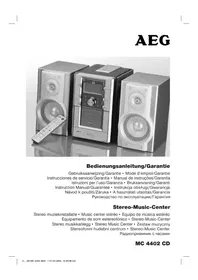
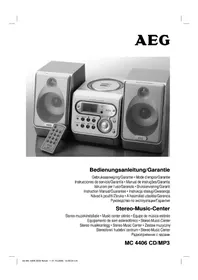
Three AEG audio synthesizer devices with a remote control, displaying a digital display and control panel (no visible text or symbols on the devices themselves)Overview of the Components ...... Page 3
Instruction Manual...... Page 44
Technical Data Page 48
Guarantee Page
FRANÇAIS
JEZYK POLSKI
Sommaire
D-47906 Kempen/Germany

Ranhura cartão SD/MMC (22)
▶▶I SEARCH/SKIP (16/15-5)
REP/RAN (7 do comando)
12 OPEN/CLOSE Vano CD
13 Visore LCD
$$ (F = \text { file }, T = \text { brani / tracks }) $$
I◀◀ / ▶▶ I SEARCH/SKIP (16/15-5)
General Safety Instructions
Read the operating instructions carefully before putting the appliance into operation and keep the instructions including the warranty, the receipt and, if possible, the box with the internal packing. If you give this device to other people, please also pass on the operating instructions.
- To avoid the risk of fi re or an electric shock, you should not expose the device to rain or moisture. Consequently, do not use the device in the immediate vicinity of water - for example near a bath tub, a swimming pool or in a damp cellar.
- Use the device only for the intended purpose.
- Only connect the device at a properly installed plug socket. Pay attention that the specified voltage corresponds to the voltage of the plug socket.
- When using external mains supply, pay attention to the correct polarity and voltage. Always place the batteries in the correct direction.
- Assemble the device in such a way that the available ventilation openings are not covered.
- Never open the housing of the device. Incorrect repairs can constitute a considerable risk for the user. Should the device become damaged, in particular the mains supply cable, do not operate the device any longer, but rather have it repaired by an expert. Check the mains supply cable regularly for damage.
- For safety reasons a broken or damaged mains lead may only be replaced by an equivalent lead from the manufacturer, our customer service department or a similar qualified person.
- If the device is not used for a longer period, remove the plug connector from the plug socket or take out the batteries.
These symbols may be found on the machine and are intended to indicate the following:
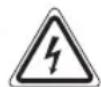
The lightning symbol should advise the user of parts in the inside of the device which carry dangerously high voltage levels.

The symbol with an exclamation mark should advise the user of important operation or maintenance instructions in the accompanying documentation.
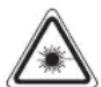
Devices bearing this symbol work with a „class 1 laser“ for tracing the CD. The built-in safety switches should prevent the user being exposed to dangerous laser light, which is invisible to the human eye, when the CD compartment is opened.
Under no circumstances should these safety switches be bypassed or manipulated, as this could result in a danger of exposure to the laser light.
Children
- In order to ensure your children's safety, please keep all packaging (plastic bags, boxes, polystyrene etc.) out of their reach.
Caution! Do not allow small children to play with the foil as there is a danger of suffocation! - To protect children from the dangers posed by electrical appliances, make sure that the cable is hanging low and that children do not have access to the appliance.
Symbols in these Instructions for Use
Important information for your safety is specially marked. It is essential to comply with these instructions in order to avoid accidents and prevent damage to the machine:
CAUTION:
This refers to possible hazards to the machine or other objects.
i NOTE: This highlights tips and information.
Special safety information
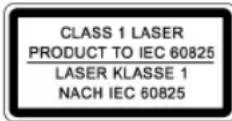
This device works with a class 1 laser.
Overview of the Components
1
ON/STANDBY button
2 STANDBY control lamp
3 IR Sensor for the remote control
4 X-BASS button
5 VOLUME A / V buttons
6 Function selector switch
(CD/USB/SD / AUX IN / AM-TUNER / FM-TUNER)
7 USB connection
8 TUNING control
9 FM ST./MONO Function selector button
10 FOLDER UP button (album upwards)
1 CD compartment
12 OPEN/CLOSE CD compartment
13 LCD display
14 ▶ II (Play/Pause) button
15 ▶▶▶ SEARCH/SKIP button (forward search)
16 I◀◀ SEARCH/SKIP button (reverse search)
17 ■ CD stop button
18 LINE IN Socket
19 FUNCTION Function selector button
20 Flap OPEN
21 PROG/CLK-ADJ button (memory/time)
22 SD/MMC Slot
Reverse Side
23 SPEAKER R/L Loudspeaker connections
24 AC Mains connection
25 FM ANT throw-out aerial
Remote Control
1 ON/STANDBY button
2 VOLUME - / + buttons
3 ▶ II PLAY/PAUSE (Play/Pause) button
4 ■ STOP button
5 ◀◀/▶▶II SKIP/SEARCH buttons
(reverse search/forward search)
6 DN/UP FOLDER SKIP buttons (down/up album)
7 REP/RAN button (repeat/random)
8 CLK-ADJ/PROGRAM button
9 X-BASS button
10 FUNCTION Function selector button
Start-up of the device/Introduction
- Read the operating instructions thoroughly before the start-up!
- Select an appropriate location for the device, e.g. a dry, flat, non-slip surface on which the device can be easily operated.
- Make sure that the device is adequately ventilated!
- Connect the loudspeakers to the back of the music centre to the sockets market „Speaker R and L“ (23).
- Insert the plug into a properly installed 230 V, 50 Hz power socket. The STANDBY (2) control lamp shows the function. Please ensure that the mains voltage corresponds to the information on the type plate.
Note: The lithium cell in the battery compartment of the remote control has been secured for transport with a foil. This prolongs the lifetime of the battery. Before initial use please remove this foil so that the remote control is ready for operation.
Setting the Time (in Standby Mode)
- Press the PROG/CLK-ADJ button (21/8) twice. The words „12/24H:“ appear in the display.
- Use the◀◀ /▶▶I SEARCH/SKIP buttons (15/16/5) to choose between the 24 hour and 12 hour display. Press the PROG/CLK-ADJ button (21/8) to confirm.
i NOTE:
The following appears in the case of the 12 hour display
AM = in the morning, PM = in the afternoon/evening.
-
Press the ◀◀ /▶▶ I SEARCH/SKIP buttons (15/16/5) to set the hours. Keep the button pressed down until the desired hour is reached. Press the PROG/CLK-ADJ button (21/8) to confirm.
-
Press the◀◀ /▶▶ I SEARCH/SKIP (15/16/5) button in order to set the minutes. Keep the button pressed down until the desired minutes are reached.
-
Press the PROG/CLK-ADJ button (21/8) again to store the time.
i NOTE:
If the device is disconnected from the mains the time has to be set again afterwards.
Inserting the Batteries
The battery of the remote control is a long-life lithium cell. If the range of the remote control is reduced during use, please proceed as follows:
- Open the battery compartment on the back of the remote control.
- Replace the cell by a battery of the same type. Ensure correct polarity.
- Then close the battery lid.
If the remote control is not used for a prolonged period, remove the batteries in order to prevent battery acid leaking.
CAUTION:
Batteries are not to be disposed of together with domestic wastes. Dispose of the used batteries at the relevant collection bin or at your dealer's.
Never throw batteries into the fire.
CD deck transport protection
- Please open the CD compartment (11) by pressing the OPEN/CLOSE button (12).
- Remove the transport protection from the CD player if present before use.
General Operation
ON/STANDBY (1)
Switch the music centre to standby using the ON/STANDBY button (the STANDBY control lamp lights up in red). When this button is pressed again the STANDBY control lamp goes off and the device switches on again.
X-BASS (4)
This is used to amplify the bass sounds. Press the button in order to turn this function on and off.
BASS ON, BASS OFF.
Volume
You can set the desired volume using the / V / - / + VOLUME control (5) (2 on the remote control).
FUNCTION (19/10)
In conjunction with the function selector switch (6) this button is used to select between CD, USB and SD/MMC.
Infrared remote control
For operating the music centre from a distance of up to 5 metres without a lead. If the range of the remote control is reduced, the batteries have to be replaced. During operation ensure that there is nothing blocking the direct line between the remote control and the sensor (3) on the machine.
LINE IN socket (18)
To connect analogue replay devices. Use this jack to replay sound of other replay equipment such as DVD players, computers, etc. via the loudspeakers.
- Open the OPEN (20) flap.
- Please connect the external device with a 3.5 mm stereo jack plug to the LINE IN socket.
- Turn the function selector switch (6) to the AUX position.
- Through the loudspeakers you will hear the sound played back from the external device; you can change the volume with the /V/-/+ VOLUME buttons (5) (2 on the remote control). The CD buttons have no function in this mode.
- For the remaining procedure please see the operating instructions of the external sound source.
i NOTE: Turn the volume of the external device to maximum.
USB Connexion (7)
This device has been developed in accordance with the latest technical developments in the USB fi eld. Unfortunately the large number of different types of USB storage media on offer today makes it impossible to guarantee full compatibility with all USB storage media. For this reason there may be problems in rare cases with playing back from USB storage media. This is not a malfunction of the device.
- In order to switch on the device please press the ON/STANDBY switch (1).
- Open the OPEN (20) fl ap.
- Turn the function selector switch (6) to the CD/USB/SD position.
- Connect a USB storage medium.
- Now press the FUNCTION button (19/10) to select the UDISC mode. The device is now in USB mode. After a few seconds the total number of folders/songs/tracks is shown in the display (13).
$$ (F = \text { Folders }, T = \text { Songs / Tracks }) $$
-
Press ▶ II (14/3) to play back the music data.
-
For operating instructions please see the section "Playing CDs/MP3s".
CAUTION:
Before removing the USB storage medium switch the device off with the ON/STANDBY switch (1) or turn the function selector switch (6) to TUNER (AM or FM).
i NOTE:
If you have problems with operation using the USB connexion, please use an appropriate adapter cable and proceed as described under LINE IN.
SD/MMC Card Slot (22)
- Press the SD/MMC card into the opening provided until it clicks into place.
- Now press the FUNCTION button (19/10) to select the SD/MMC mode. The device is now in SD/MMC mode.
- Press ▶ II (14/3) to play back the music data.
For operating instructions please see the section "Playing CDs/MP3s".
NOTE: Press the SD/MMC card again in order to remove it.
Listening to the Radio
- Open the OPEN (20) fl ap.
- Turn the function selector switch (6) to the TUNER position (AM or FM).
VHF Stereo = FM, Medium wave = AM (mono) -
Tune in the desired station with the station adjustment knob TUNING (8).
-
The FM/ST control lamp, (in the display) only lights up when you have selected FM stereo and the station is being received in stereo quality. If reception is too weak and there is noise on the station being received, this lamp will fl icker. Try to improve reception by turning and bending or twisting and altering the length of the antenna (24). In the case of FM stations you can use the FM ST./MONO button (9) to switch between MONO and STEREO reception. Where reception is bad we recommend switching to MONO.
-
An aerial is integrated into the device for the reception of AM stations. The machine can be aligned to the station by turning it. In this frequency band programs are transmitted in „mono“ only.
Playing CDs/MP3
This is how you play a CD
- Turn the function selector switch (6) to the „CD/USB/SD“ position.
- Now press the FUNCTION button (19/10) to select the CD mode. The device is now in CD mode.
- In order to open the CD compartment (11), press the OPEN/CLOSE button (12).
- Insert an audio CD with the printed side facing upwards on to the central cone so that the CD clicks into place and then close the lid of the CD compartment.
5. AUDIO CDs:
In the display the symbol "CD" appear together with the number of tracks and the total playing time. Press the ▶ II button (14/3) to play back the CD. The CD is played from the first track onwards. The track currently being played and the time that has elapsed are shown in the display.
CDs in MP3 Format:
In the display the symbol "MP3" appear together with the number of folders e.g. F04 and the total number of tracks. Press the ▶ II key (14/3) to play the CD. The CD is played back from the fi rst track onwards and from the fi rst folder. The song currently being played and the time that has elapsed are shown in the display. The individual folders can be selected with the DN/UP FOLDER buttons (6 on the remote control) and FOLDER UP (10 on the device).
- To remove a CD, press the ■ STOP key (17) (4 on the remote control), open the CD deck with the OPEN/CLOSE key (12) and take out the CD carefully.
Always keep the CD deck closed.
i NOTE:
- If a disc is inserted incorrectly or no disc is inserted, the letters „READING“, and „NO DISC“ appear in the display.
- Playback of CDs produced by the user cannot be guaranteed due to the large variety of software and CD media available.
Description of the CD buttons
▶ II (14/3)
You can briefly interrupt and resume playback using this button. The playing time that has elapsed flashes in the display. Pressing again continues playback.
I◀◀ / ▶▶ I SEARCH/SKIP (16/15-5)
With an audio CD or a CD in MP3 format playing:
With ▶▶▶ (15/5) you can jump to the next or previous track etc.
- If the button is kept pressed down, the machine starts to search through the tracks (the sound is muted).
- If the button is kept pressed down in stop mode the machine quickly plays through the songs until the desired track is reached. When the ▶ II button is pressed the track begins to play back.
The I ◀◀button (16/5) can be used as follows:
Press once = This starts the current track again from the beginning.
Press twice = This jumps back to the previous track.
Press three times = This plays the song before etc. If the button is kept pressed down, the machine starts to search through the tracks (the sound is muted). If the button is kept pressed down in stop mode the machine quickly plays through the songs until the desired track is reached. When the ▶ II button is pressed the track begins to play back.
■ STOP (17/4)
The CD stops.
REP/RAN (7 on the remote control)
Press once: the current track is repeated continuously (the emits a fixed light).
Press twice: the whole CD is played continuously (the ALL omits a fixed light).
Press three times: the display (13) contains the word RAN. and the track number that is to be played first. All tracks are played back in random order.
Press four times: all functions are cancelled. The normal play mode is resumed.
Only for CDs in MP3 format
Press once: the current track is repeated continuously (appears in the display).
Press twice: the whole CD is played continuously (ALL appears in the display).
Press three times: the selected folder of the MP3 CD is repeated continuously (☐ FOLDER appears in the display). The individual folders can be selected with the DN/UP FOLDER buttons (6 on the remote control) and FOLDER UP (10 on the device).
Press four times: the display (13) contains the word RAN., MP3 and the track number that is to be played fi rst. All tracks are played back in random order.
Press five times: the function is deactivated and the CD is played in the normal mode.
FOLDER DN (6 on the remote control)
Press this button during playback to change to a folder further down. The display, e.g. F 01 appears. Then the CD begins to play back automatically. If the button is pressed in stop mode, the message also appears in the display. Then start playback with the ▶ II button.
FOLDER UP (10) (6 on the remote control)
Press this button during playback to change to a higher folder. See the above paragraph for the following step.
i NOTE:
Some keys are to be found both on the device itself and on the remote control. Keys with the same designation have the same function.
Programmed Play
This can be used to program any desired sequence of tracks.
- Press the ■ STOP key (17/4).
- Press the PROG/CLK-ADJ key (21/8). „000 P01“ (memory location) appears in the display (13) together with the abbreviation PROG. In MP3 format the number of the file (00) fl ashes, while the track number (000), the word PROG and the memory storage number P01 are shown. Use the I◀◀ / ▶▶▶I buttons (16/15/5) to select the desired track and then press the PROG/CLK-ADJ button (21/8) again. The display changes to memory slot P02.
- Select the next track with the I ◀◀/▶▶I key and press the PROG/CLK-ADJ key again. Repeat the procedure until all the desired tracks are selected. In MP3 format first select the folder. Press the PROG/CLK-ADJ button and then select the desired track.
- Press the ▶ II key (14/3). The playback starts. The selected track numbers are shown in the display in the correct order and the symbol CD or MP3 and PROG. light up. Press this button to pause briefly the playback.
- Press once the ■ STOP key (17/4) to stop the playback while retaining the program.
- To resume the playback of the program press first the PROG/CLK-ADJ key (21/8) once and then the ▶ II key (14/3).
- To delete the program, press the ■ STOP key (17/4) twice. The PROG. control lamp goes out.
The device stops automatically once the entire sequence of programmed tracks is completed. The programmed order of tracks remains in the memory until you change to a different mode, remove the CD from the CD compartment or switch off the device.
It is also possible to combine the programmed tracks with the REPEAT function. After you have programmed and started the device, please press the REP/RAN button (7 on the remote control) up to three times and then you can use the functions as described under „REP/RAN“.
Playing back Music in MP3 Format
With this device it is possible to play back pieces of music in MP3 format. The device also supports all standard CD types: CD, CD-RW, CD-R.
This machine of is able to play MP3 CDs. Up to 200 tracks can be compressed and stored on these CDs. Your machine detects an MP3 CD automatically (If ID-3 Tag information has been stored this appears in the display in the form of an LED ticker display). If you would like to play one of these CDs, proceed as described under „Playing CDs/MP3“. Tracks can be programmed as described under „Playing Back Programmed Tracks“.
Please note:
There are a number of different recording and compression methods, as well as quality differences between CDs and self-recorded CDs.
Furthermore, the music industry does not adhere to fixed standards (copy protection).
For these reasons it is possible that in rare cases there are problems with the playback of CDs and MP3 CDs. This is not a malfunction of the device.
Cleaning and Maintenance
• Always remove the mains plug before cleaning the machine.
- Any marks on the surface can be wiped off with a slightly damp cloth without any additives.
Technical Data
Model: ....MC 4406 CD/MP3
Power supply: 230 V, 50 Hz
Power consumption: 15 W
Protection class:....II
Radio section:
Frequency ranges: ......VHF / FM 87,5 \~ 108,0 MHz ......MW / AM 535 \~ 1650 kHz
This device has been tested according to all relevant current CE guidelines, such as electromagnetic compatibility and low voltage directives, and has been constructed in accordance with the latest safety regulations.
Subject to technical changes without prior notice!
Guarantee
The device supplied by our Company is covered by a 24 month guarantee starting on the date of purchase (receipt).
During the life of the guarantee any fault of the device or its accessories ascribable to material or manufacturing defects will be eliminated free of charge by repairing or, at our discretion, by replacing it. The guarantee services do not entail an extension of the life of the guarantee nor do they give rise to any right to a new guarantee!
Proof of the guarantee is provided by the proof of purchase. Without proof of purchase no free replacement or repair will be carried out.
If you wish to make a claim under the guarantee please return the entire machine in the original packaging to your dealer together with the receipt.
Defects to consumables or parts subject to wearing as well as cleaning, maintenance or the replacement of said parts are not covered by the guarantee and hence are to be paid!
The guarantee lapses in case of unauthorized tampering.
After the expiry of the guarantee
After the expiry of the guarantee repairs can be carried by the competent dealer or repair service against the payment of the ensuing costs.
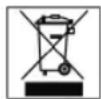
Meaning of the "Dustbin" Symbol
Protect our environment: do not dispose of electrical equipment in the domestic waste.
Please return any electrical equipment that you will no longer use to the collection points provided for their disposal.
This helps avoid the potential effects of incorrect disposal on the environment and human health.
This will contribute to the recycling and other forms of reutilisation of electrical and electronic equipment.
Information concerning where the equipment can be disposed of can be obtained from your local authority.
I◀◀ / ▶▶ I SEARCH/SKIP (16/15-5)
12 OPEN/CLOSE CD mechanika