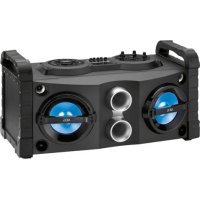
EC 4835 - Hi-fi system AEG - Free user manual and instructions
Find the device manual for free EC 4835 AEG in PDF.



| Product type | Hi-Fi system |
| Brand | AEG |
| Model | EC 4835 |
| Net weight | 8.15 kg |
| Power supply | AC 100-240 V, 50/60 Hz |
| Power consumption | 42 W |
| Protection class | II |
| Radio frequency range | FM 87.5 – 108.0 MHz |
| Bluetooth | Version 2.1+EDR, profiles A2DP/AVRCP |
| Bluetooth range | Approximately 15 m |
| USB port | Yes (audio file playback) |
| AUX input | Yes (3.5 mm jack) |
| Microphone inputs | 2 (MIC 1 and MIC 2) |
| Audio control | TREBLE, BASS, graphic equalizer |
| Microphone control | Volume and echo |
| USB playback functions | Repeat, random playback, folder navigation |
| Auto standby | After 15 minutes without signal |
| Cleaning | Slightly damp cloth, unplug before |
| Safety | Do not open the casing, do not expose to water |
| Hearing protection | Set volume to a moderate level |
| Repair | By qualified technician only |
Frequently Asked Questions - EC 4835 AEG
User questions about EC 4835 AEG
0 question about this device. Answer the ones you know or ask your own.
Ask a new question about this device
Download the instructions for your Hi-fi system in PDF format for free! Find your manual EC 4835 - AEG and take your electronic device back in hand. On this page are published all the documents necessary for the use of your device. EC 4835 by AEG.
USER MANUAL EC 4835 AEG
Sendefrequency: 2,402-2,480GHz
Protokolle:A2DP/AVRCP
Balayer les stations FM
El botón1SEOSEOSEOSEOSEOSEOSEOSEOSEOSEOSEOSEOSEOSEOSEOSEOSEOSEOSEOSEOSEOSEOSEOSEOSEOSEOSEOSEOSEOSEOSEOSEOSEOSEOSEOSEOSEOSEOSEOSEOSEOSEOSEOSEOSEOSEOSEOSEOSEOSEOSEOSEOSEOSEOSEOSEOSEOSEOSEOSEOSEOSEOSEOSEOSEOSEOSEOSEOSEOSEOSEOSEOSEOSEOSEOSEOSEOSEOSEOSEOSEOSEOSEOSEOSEOSEOSEOSEOSEOSEOSEOSEOSEOSEOSEOSEOSEOSEOSEOSEO SEO SEO SEO SEO SEO SEO SEO SEO SEO SEO SEO SEO SEO SEO SEO SEO SEO SEO SEO SEO SEO SEO SEO SEO SEO SEO SEO SEO SEO SEO SEO SEO SEO SEO SEO SEO SEO SEO SEO SEO SEO SEO SEO SEO SEO SEO SEO SEO SEO SEO SEO SEO SEO SEO SEO SEO SEO SEO SEO SEO SEO SEO SEO SEO SEO SEO SEO SEO SEO SEO SEO SEO SEO SEO SEO SEO SEO SEO SEO SEO SEO SEO SEO SEO SEO SEO SEO SEO SEO SEO SEO SEO SEO SEO SEO SEO SEO SEO SEO SEO
34 English Instruction Manual
Thank you for choosing our product. We hope you will enjoy using the appliance.
Symbols in these Instructions for Use
Important information for your safety is specially marked. It is essential to comply with these instructions in order to avoid accidents and prevent damage to the machine:

WARNING:
Warns of dangers for your health and indicates potential risks of injury.

CAUTION:
Indicates potential dangers for the device or other objects.

NOTE: Highlights tips and information for you.
General Safety Guidelines
Before using this device, carefully read this user manual and keep it together with the Warranty Certificate, cashier receipt and if possible, the original package inclusive its interior packing. If you hand on the device to any third person, include the user manual as well.
- To avoid the risk of fire or electric shock, you should not expose the device to rain or humidity. Do not use the device near water (e.g. bathroom, swimming pool, humid cellars).
- Do not use the unit in extremely hot, cold, dusty, or damp places.
The unit is designed solely for private use and its intend -ed purpose. This unit is not designed for commercial use. - Make sure that the power cable is not bent, pinched, or comes into contact with heat sources.
- Make sure that the power cable is not a tripping hazard.
- Never touch the mains plug or the cord with wet hands.
- Always connect the unit to a properly installed plug socket. Be sure the device voltage corresponds to the grid voltage.
- The mains plug must always be easily accessible.
- Avoid covering the device's vent openings.
- Never cover the vent holes with objects, such as magazines, tablecloths, curtains etc.
- This appliance shall not be exposed to dripping or splashing water and that no object filled with liquids such as vases shall be placed on apparatus.
- Open sources of fire, such as e.g. burning candles may not be placed onto the unit.
-
Never open the device's case. Improper repairs can cause severe danger to the user. If the device or particularly the power cord is damaged, don't use the device any further and have it repaired by a qualified specialist. Check the power cord regularly for damages.
-
To avoid any danger, a damaged power cord must be replaced only by the producer, its customer service or a similarly qualified person with an equal cord.
- If the device won't be used over an extended period of time, disconnect the power cord and remove the batteries.
These symbols may be found on the machine and are intended to indicate the following:

The lightning symbol should advise the user of parts in the inside of the device which carry dangerously high voltage levels.

The symbol with an exclamation mark should advise the user of important operation or maintenance instructions in the accompanying documentation.
Children and Frail Individuals
- In order to ensure your children's safety, please keep all packaging (plastic bags, boxes, polystyrene etc.) out of their reach.

WARNING:
Do not allow small children to play with the foil. There is a danger of suffocation!
- This device is not intended to be used by individuals (including children) who have restricted physical, sensory or mental abilities and / or insufficient knowledge and/or experience, unless they are supervised by an individual who is responsible for their safety or have received instructions on how to use the device.
Children should be supervised at all times in order to ensure that they do not play with the device.
Special safety information

WARNING:
Avoid damage to your hearing with volume that is too high.

CAUTION:
Do not touch the loudspeaker membranes (18) with your hands or with objects. The membranes can get damaged that way.
Overview of the Components
1 TREBLE control(Treble)
2 MIC ECHO control (Microphone echo)
3 VOLUME control (Volume)
4 MIC VOL control (Microphone volume)
5 BASS control (Bass)
6 Equalizer adjuster
7 AC IN ~ power cord connection
8 CAN button (Play / Pause / Start scanning for radio stations)
9 MIC 1 jack (microphone input)
10 MIC 2 jack (microphone input)
11 AUXIN port
12 LIGHT button
13 Wire antenna
14 FOLD./10/M. Button
15 FOLD./10/M. Button
16 P-MODE / MEM. button (USB playback mode)
17 STANDBY button
18 Loudspeaker membranes
19 TUNING control
20 USB port
21 FUNCTION button
22 button (next music file)
23 Hutton (previous music file)
24 PAIR button (Pairing)
25 Display
26 PAIR indicator lamp (Bluetooth)
27 STANDBY indicator lamp
Delivery scope (not shown)
1x Microphone
1x Mains cable
First Use of the Device
- Choose a suitable location for the device. Suitable locations are dry, even and antislip surfaces on which you may operate the device easily.
- Make sure there is proper ventilation for the device!
- Sensitive surfaces such as the display may be protected by plastic foil. Remove this foil.
Power Supply
- Make sure the grid voltage corresponds to the figures on the rating plate.
- Connect the supplied power cord with the AC IN ~ connection on the back.
- Insert the mains plug to a properly installed socket.

Disconnect from mains power supply during longer periods of non-use.
General Operation
Switch the Device on / off
- Press the STANDBY button to turn the device on.
- To turn off the device, press the STANDBY button again. The control lamp STANDBY (27) lights up red.

After approx. 15 minutes without signal or with very poor signal, the device will automatically switch to standby.
Volume
Use the VOLUME control (3) to adjust the volume as desired.
Select the operating mode
Repeatedly press the FUNCTION button (21) to select the desired operating mode.
$$ \mathrm {U S B} \rightarrow \text {B l u t t o o t} \rightarrow \mathrm {A U X} \rightarrow \mathrm {F M} $$
Switching on the light
Repeatedly press the LIGHT button to select a lighting mode for the front speakers. The setting "OFF" deactivates this function.
Sound settings (1/5/6)
- You can adjust treble and bass with the controls TREBLE and BASS.
- The EQ OPERATION controls can be used to set an individual sound.
NOTE:
- If necessary, adjust the EQ settings on your playback device in order to generate a better sound.
- The settings with the controls do not influence the acoustic sound of the microphone.
Listening to the Radio
Hints for FM Reception
The FM reception depends on the location. Follow the steps below:
- Fully unwind the wire antenna.
- If necessary, change the position of the wire antenna to improve the reception.
Depending on the location, some station may not be received in your region or only with interference. This is not a malfunction of the device!
Scan FM Stations
- Repeatedly press FUNCTION button until the display shows "FM".
- You have two possibilities to look for and store radio stations.
Automatic station scan:
Important! Any previously stored radio stations will be overwritten.
Press and hold the /SCAN button (8) for approx.
3 seconds. The device is searching the complete FM frequency band for radio stations. The stations found are stored ascending by frequency.
Searching for radio stations manually:
Turn the TUNING control (19) until you have found the radio station that you are looking for.
Storing stations:
- Search for the desired radio station with the TUNING control (19).
36 English
- In order to store the radio station, press the P-MODE / MEM. button (16). The next pre-set location (for example P 02) flashes in the display.
- Use the SOLD./10/M. buttons (14/15) to select the desired memory location.
- Press the P-MODE / MEM. button. The radio station will be stored.
Selecting stored radio stations
The stored radio stations can be selected by repeatedly pressing the FOLD./10/M. buttons.
Microphone operation
You may switch on the microphone for the Karaoke function during any playback mode.
Using the microphone
NOTE:
In order to prevent an acoustic "build-up", turn both controls (MIC VOL and MIC ECHO) anticlockwise to the left as far as they will go. Only then plug the microphone cable into the jack.
- Connect the microphone with the port MIC 1 or MIC 2 (9/10).
- Slide the switch on the microphone upward in the direction "ON".
- Adjust the microphone volume with the MIC VOL control (4).
- Use the MIC ECHO control (2) to generate echo effects.
- Turn off the microphone when you do not use it. Slide the switch downward in the direction "OFF".
CAUTION:
To avoid audio feedback (sharp whistling sound), use the microphone outside of the speaker's reverberation distance.
Playing back music files
You can play back your own music files in three ways: Via cable, cordless via Bluetooth, or via the USB port.
By cable (Cable not included)
- If required, use a suitable adapter (not included). Connect the external device as follows:
- Connect to the AUXIN socket (11) using a 3.5mm stereo jack plug cable.
- Use the FUNCTION button (21) to select AUX mode.
- Start the playback of your audio source. Listen to the sound playback via the speaker.
- For the further procedure, please refer to the user manual of the external audio source.
i NOTE:
If possible, adjust the volume of the external unit to a comfortable level.
Playing back Music via Bluetooth
Bluetooth involves a technology for wireless radio connection of devices over a short distance. Devices with Bluetooth standard are transmitting between 2.402 and 2.480GHz in the ISM band (Industrial, Scientific and Medical). Interference can be caused for example by WLAN-networks, DAB radios, cordless phones, or microwave ovens which work on the same frequency band.
This device offers you the possibility to use a Bluetooth-enabled device. The functional radius is limited to approx. 15 metres depending on the surroundings and the unit used.
If your playing device supports the A2DP profile (Advanced Audio Distribution Profile) and has a music-player function, then you can also wirelessly transfer music to the device.
The A2DP profile involves a multi-vendor Bluetooth profile. By streaming, stereo-audio signals are wirelessly transferred between the playing device (source) and the receiving device. To be able to remotely control the source, the playback device must support the AVRCP profile (Audio Video Remote Control Profile.
Due to the different device manufacturers, models, and software versions, a full functionality cannot be guaranteed.
- Logging on Devices (Pairing)
Before you listen to music via the unit, you must pair the devices.
- Ensure, that the Bluetooth function is activated in your player (e.g. mobile phone). For this, refer to the operation manual of your player.
- Select the BT mode using the FUNCTION button. The control lamp PAIR will blink blue. This signalizes that the device is in pairing mode.
- Choose the Bluetooth menu in your player and register the device in your player. For this, refer to the operation manual of your player. The device "AEGEC 4835" will show in your player as a selection.
NOTE:
- Only one playback device can be connected with the device at one time. If the device is already connected with another playback device, the device will not appear in the BT selection menu.
-
Press the PAIR button to disconnect an existing Bluetooth connection. The PAIR control lamp flashes blue.
-
Now enter the password "0000" in your player, depending on the device manufacturers, model, and software version.
After successful pairing, the PAIR control lamp lights up blue. For the further procedure, please refer to the user manual of the playback unit. If possible, adjust the volume of the external unit to a comfortable level.
NOTE:
- Depending on the device manufacturer, you need to perform the registration (PAIRING) again to connect the devices.
- In case of problems with the registration of a replay device, deactivate the WiFi-/and mobile data function in your playback device.
- The Bluetooth compatibility cannot be ensured for devices (e.g. mobile phones) getting released in the future.
- To ensure an optimal connection, make sure that the battery of your player is completely charged.
- Some of the mobile phone brands have an energy-saving mode. Deactivate the energy-saving mode as it can otherwise result in problems during the data transfer through Bluetooth.
To be able to transfer audio data, Bluetooth needs to stay activated in your player. Observe the operation manual of your player. - If a mobile phone on which you are playing music receives a call, the music will be interrupted. However, the sound is not played back by the device. After you have ended the call, the devices are connected to each other again and playback continues.
Playing Music via USB
This device has been developed in line with the latest technical advances in the USB fi eld. The wide range of different USB storage devices of all types which are currently on the market, unfortunately do not allow us to guarantee full compatibility with all USB storage devices. For this reason, in rare cases there may be problems in playing back fi les from USB storage devices. This is not a malfunction of the device. Only use commercially available USB sticks.
- Press the FUNCTION button repeatedly until "USB" is shown on the display.
- Connect a USB storage device directly into the port. After that, " -- " appears in the display. Playback will automatically start after a few seconds.
For operation, please refer to the section "Description of the control buttons".
NOTE:
Always directly connect a USB storage medium to the USB port to prevent any malfunctions.
The USB port is not designed for charging external devices.
NOTE:
- Please note: The USB port is only intended for playing music from USB sticks. It only provides a low power (100 mA) power supply. This USB port is not suitable for using external 2.5" hard drives with start-up currents of up to 1100 mA. In order to play music from your smartphone, iPod or iPhone, connect the designated AUX IN socket.
CAUTION:
Switch the device to a different operating mode before you remove the USB storage device.
Description of the Control Buttons
NOTE:
Depending on your playback unit, not all functions might be supported.
II/SCAN (8)
You can pause and continue music playback. Press again to continue playback.
(23)
Press once = This jumps back to the previous track.
Press twice = This plays the song before etc.
When you hold down the button in USB mode, a music search is started.
(22)
Press to skip to the next song and the following songs.
When you hold down the button in USB mode, a music search is started.
P-MODE/MEM. (16) (only during USB operation)
Press once = " appears in the display. The current song will be played repeatedly.
Press twice = FOLDER appears in the display. The selected folder will be played repeatedly.
Press three times = "RAND" appears in the display. All songs will be played in random order.
Press four times = " " appears in the display. All songs will be played repeatedly.
Press five times = All functions are deactivated and the device continues normal playback.
FOLD./10/M. buttons(14/15)
(only during USB operation)
- Press one of the buttons to skip 10 songs forward or backwards respectively, provided there are more than 10 songs available.
38 English
- Press and hold one of the buttons to jump to the previous or next folder. Playback starts from the selected folder.
Cleaning
CAUTION:
Do not immerse the device in water.
- Disconnect the mains plug before cleaning.
- You may wipe off external stains, using a slightly damp cloth without any additives.
Troubleshooting
| Problem Cause | Solution | |
| The unit cannot be operated. | The unit is blocked and "hangs". | Disconnect the power supply for 5 seconds. Then switch the device on again. |
| No sound. Volume | me is too low. | Increase the volume. |
| Poor sound quality. | Radio signal too weak. | Try to adjust the antenna position. |
| No audio signal during bluetooth connection. | The device is not registered with the audio source. | Ensure that there is a connection. Register the device with the audio source again, if necessary. |
| Volume too low. In | Increase the volume on the device. | |
| Increase the volume on the audio source. | ||
| Device can not be connected. | Registration does not work. | Check to see if the audio source supports the A2DP protocol. |
| Audio source is shut off. | Turn on the audio source. | |
| Bluetooth is shut off on the audio source. | Turn on the Bluetooth function on the audio source. | |
| Bluetooth version is not supported. | Use a different play back device. | |
| Sharp whistling sound during microphone operation. | Audio feedback. Use | the microphone outside of the speaker's reverberation distance. |
Technical Data
Model: EC 4835
Power supply: AC 100-240V, 50/60Hz
Power consumption: 42W
Protection class: II
Net weight: approx. 8.15kg
Radio section
Frequency ranges: FM 87.5 ~ 108.0 MHz
Bluetooth
Bluetooth support: V2.1+EDR
Range: approx. 15 metres
Transmission frequency: 2.402-2.480 GHz
Protocols: .A2DP/AVRCP
The right to make technical and design modifications in the course of continuous product development remains reserved.
This device complies with all current CE directives, such as electromagnetic compatibility and low voltage directive and is manufactured according to the latest safety regulations.
Disposal
Meaning of the "Wheelie Bin" Symbol
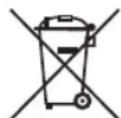
Take care of our environment, do not dispose of electrical appliances via the household waste.
Dispose of obsolete or defective electrical appliances via municipal collection points.
Please help to avoid potential environmental
and health impacts through improper waste disposal.
You contribute to recycling and other forms of utilization of old electric and electronic appliances.
Your municipality provides you with information about collecting points.
Instrukcja obslugi
CTC Clatronic Sp. z o.o
- Balayer les stations FM
- English Instruction Manual
- Symbols in these Instructions for Use
- WARNING:
- CAUTION:
- General Safety Guidelines
- Children and Frail Individuals
- Special safety information
- Overview of the Components
- Delivery scope (not shown)
- First Use of the Device
- Power Supply
- General Operation
- Switch the Device on / off
- Volume
- Select the operating mode
- Switching on the light
- Sound settings (1/5/6)
- NOTE:
- Listening to the Radio
- Hints for FM Reception
- Scan FM Stations
- Automatic station scan:
- Searching for radio stations manually:
- Storing stations:
- English
- Selecting stored radio stations
- Microphone operation
- Using the microphone
- Playing back music files
- By cable (Cable not included)
- i NOTE:
- Playing back Music via Bluetooth
- - Logging on Devices (Pairing)
- Playing Music via USB
- Description of the Control Buttons
- II/SCAN (8)
- (23)
- (22)
- FOLD./10/M. buttons(14/15)
- English
- Cleaning
- Technical Data
- Bluetooth
- Disposal
- Meaning of the "Wheelie Bin" Symbol
- Instrukcja obslugi
Brand : AEG
Model : EC 4835
Category : Hi-fi system