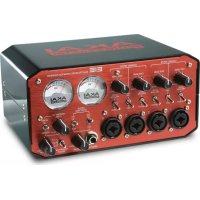
EIE Pro - Hi-fi system AKAI - Free user manual and instructions
Find the device manual for free EIE Pro AKAI in PDF.



| Product Type | USB Audio Interface / Hi-Fi System |
| Brand | AKAI |
| Model | EIE Pro |
| Power Supply | 6V DC, 3A, center positive (power adapter included) |
| Connectivity | 4 combo XLR/6.35 mm jack inputs, 4 6.35 mm TRS jack outputs, 2 headphone 6.35 mm jack outputs, USB 2.0, MIDI IN/OUT, 2 USB hub ports |
| Phantom Power | +48V switchable per channel pair (1-2 and 3-4) |
| Sampling Rate | Up to 24-bit / 96 kHz (estimated) |
| System Compatibility | Windows XP/Vista/7, Mac OS X 10.2 or higher |
| Drivers | Installation via included CD or website (update recommended) |
| Dimensions (approx.) | 200 x 150 x 50 mm |
| Weight (approx.) | 1.2 kg |
| Care and Cleaning | Unplug before cleaning; use a soft dry cloth. Do not use abrasive products or solvents. |
| Safety | Do not expose to moisture, extreme temperatures or shocks. Use the supplied adapter. Unplug during storms. |
| Spare Parts and Repairability | Contact AKAI customer service or an authorized technician. No consumer spare parts available. |
| General Information | 4-input / 4-output audio interface with USB hub, microphone preamps, instrument input, MIDI. Ideal for recording and music production. |
Frequently Asked Questions - EIE Pro AKAI
User questions about EIE Pro AKAI
0 question about this device. Answer the ones you know or ask your own.
Ask a new question about this device
Download the instructions for your Hi-fi system in PDF format for free! Find your manual EIE Pro - AKAI and take your electronic device back in hand. On this page are published all the documents necessary for the use of your device. EIE Pro by AKAI.
USER MANUAL EIE Pro AKAI
Minimum PC Requirements:
• Pentium III 450 MHz Processor
- 128 MB RAM
• Available USB 2.0 Port
- Windows XP (with Service Pack 2 installed)
Minimum Macintosh Requirements:
- Any Apple computer with native USB support
- 128 MB RAM
• Available USB 2.0 Port
• Mac OS X "Jaguar" version 10.2 or later
DRIVER INSTALLATION
IMPORTANT!: Before connecting EIE Pro to your computer, install the drivers:
- Check for driver updates online at www.akaipro.com/eiepro. If there are no updates available, insert the included driver CD.
- Follow the onscreen instructions to install the drivers. (You will be asked to connect EIE Pro to your computer during the installation process.)
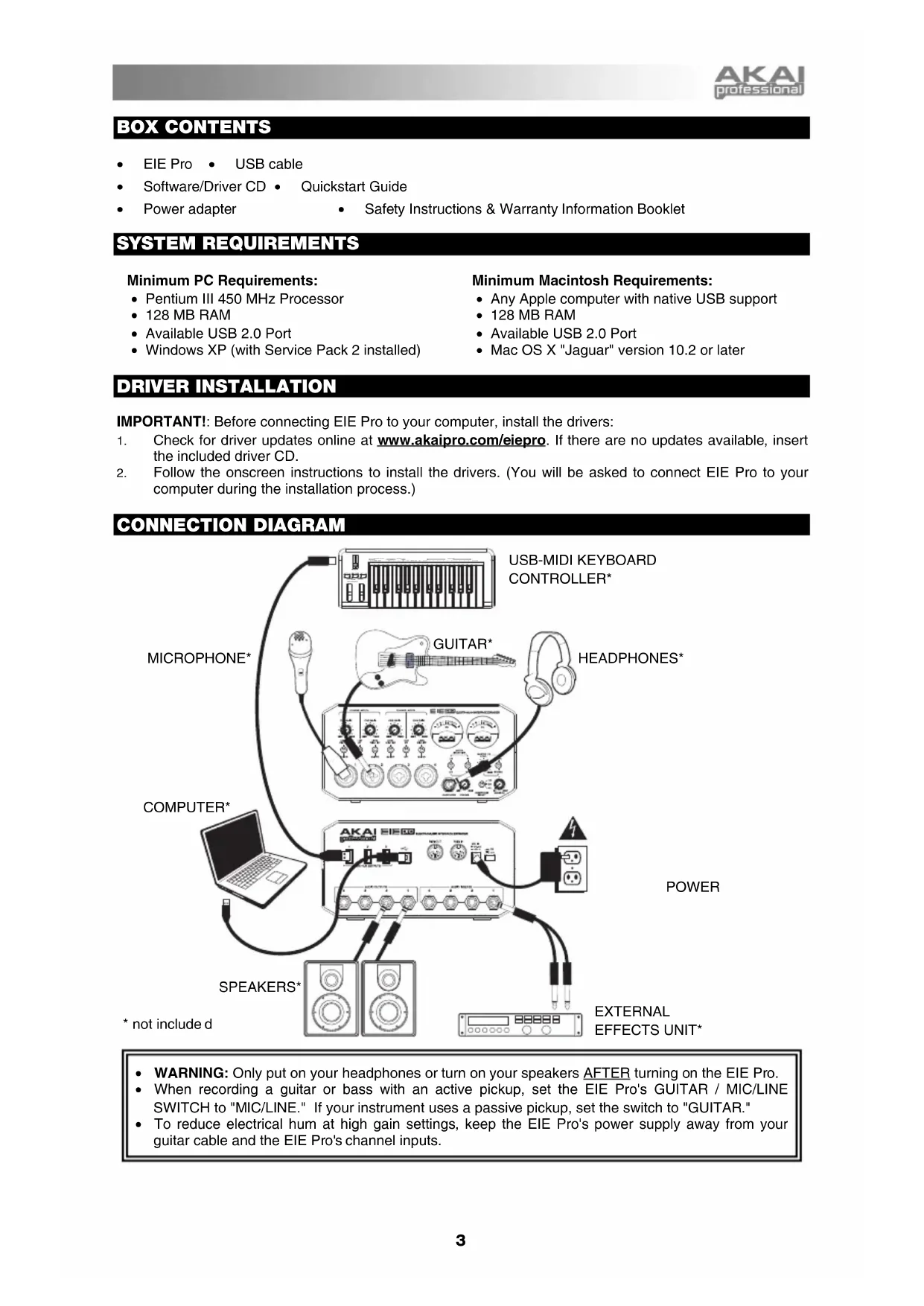
CONNECTION DIAGRAM
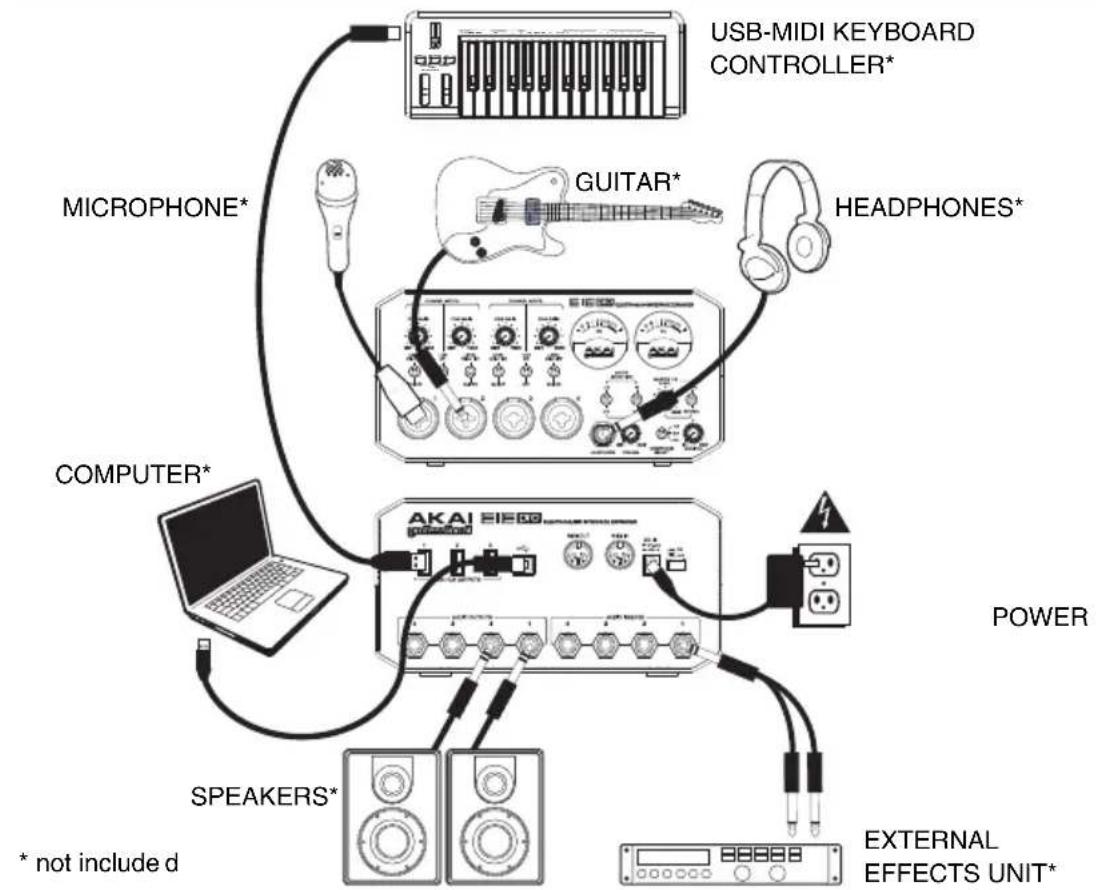
flowchart
graph TD
    A["USB-MIDI KEYBOARD CONTROLLER*"] --> B["GUITAR*"]
    B --> C["HEADPHONES*"]
    D["MICROPHONE*"] --> B
    E["COMPUTER*"] --> F["POWER"]
    G["SPEAKERS*"] --> F
    H["EXTERNAL EFFECTS UNIT*"] --> F
    I["* not included"] --> F
    J["UPP"] --> F
    K["DAV"] --> F
    L["DAV"] --> F
    M["DAV"] --> F
    N["DAV"] --> F
- WARNING: Only put on your headphones or turn on your speakers AFTER turning on the EIE Pro.
- When recording a guitar or bass with an active pickup, set the EIE Pro's GUITAR / MIC/LINE SWITCH to "MIC/LINE." If your instrument uses a passive pickup, set the switch to "GUITAR."
- To reduce electrical hum at high gain settings, keep the EIE Pro's power supply away from your guitar cable and the EIE Pro's channel inputs.
AUDIO SETUP
EIE Pro can be used with any digital audio workstation or recording software that supports USB audio. To enable your EIE Pro to send and receive audio to and from your computer, follow the instructions below for your computer's operating system:
Be sure your audio software program is set up to receive audio via the EIE Pro. This can usually be done in your software's "Preferences" or "Device Setup." Please consult your software manual for more information.
WINDOWS 7:
- Connect EIE Pro to a power source using the included power adapter (6V, 3A, center pin-positive).
- Use the included USB cable to connect the EIE Pro to your computer.
- Go to Start Menu ▶ Control Panel ▶ Hardware and Sound ▶ Sound.
- Click the Playback tab and select EIE Pro as the default device.
- Click the Recording tab and select EIE Pro as the default device.
- Click OK to close the Sound control panel.
WINDOWS VISTA:
- Connect EIE Pro to a power source using the included power adapter (6V, 3A, center pin-positive).
- Use the included USB cable to connect the EIE Pro to your computer.
- Go to Start Menu ▶ Control Panel ▶ Sound. (If you don't see Sound, select Switch to Classic View, and the Sound Control Panel should become available.)
- Click the Playback tab and select EIE Pro as the default device.
- Click the Recording tab and select EIE Pro as the default device.
- Click OK to close the Sound control panel.
WINDOWS XP:
- Connect EIE Pro to a power source using the included power adapter (6V, 3A, center pin-positive).
- Use the included USB cable to connect the EIE Pro to your computer.
- Go to Start Menu ▶ Control Panel ▶ Sounds and Audio Devices.
- Click the Audio tab.
- Under Sound Playback and Sound Recording, select EIE Pro as the default device.
- Click OK.
MAC:
- Connect EIE Pro to a power source using the included power adapter (6V, 3A, center pin-positive).
- Use the included USB cable to connect the EIE Pro to your computer.
- Go to Applications ▶ Utilities ▶ Audio MIDI Setup.
- In the Audio Devices tab under System Settings, select EIE Pro as your Default Input and Default Output.
- Close the window.
FRONT PANEL FEATURES
-
MIC/LINE / GUITAR INPUT – Connect a microphone, line-level device or guitar to this input with an XLR or 1/4" TRS cable.
-
GAIN – Adjusts the input's gain level.
-
LEVEL MIC/LINE / GUITAR SWITCH
-
When the switch is in the "MIC/LINE" position, the channel will accept mic or line-level signals. When this switch is in the "GUITAR" position, the channel will serve as a high-impedance input for connecting guitar or bass instruments.
-
PHANTOM POWER SWITCH – This switch activates and deactivates phantom power for each channel pair (Channels 1 and 2 and/or Channels 3 and 4). When activated, phantom power supplies +48V to both XLR mic inputs. Please note that most dynamic microphones do not require phantom power, while most condenser microphones do. Consult your microphone's documentation to find out whether it needs phantom power.
-
VU METERS – These meters display the volume level of the channel pairs, depending on the setting of the METER SELECTION CHANNEL SWITCH. These meters will be lit whenever EIE Pro is powered on. The red light indicates the signal is distorting or "clipping." If the signal is regularly clipping, reduce the volume of the mix and/or individual channels.
-
METER SELECTION CHANNEL SWITCH – This switch selects which pair of channels the left and right VU METERS will display (respectively) – Channels 1 and 2 ("1/2") or Channels 3 and 4 ("3/4").
-
METER SELECTION MONITOR SWITCH – This switch selects whether the VU METERS will display the volume level at the inputs ("IN") or outputs ("OUT").
-
MASTER LEVEL – Adjusts the output volume of the AUDIO OUTPUTS 1 and 2.
-
MONO / STEREO – Adjusts the master mix for mono or stereo operation.
-
HEADPHONE - Connect a set of 1/4" TRS headphones to this output.
-
HEADPHONE VOLUME – Adjusts the output volume of the PHONES output.
-
HEADPHONE SELECT SWITCH – This switch selects what channels are sent out the HEADPHONE output – Channels 1 and 2 ("1/2"), Channels 3 and 4 ("3/4"), or all channels ("ALL").
-
MONITOR MIX – Blend in any amount of zero-latency signal from your inputs ("IN") with the output of your computer ("OUT").
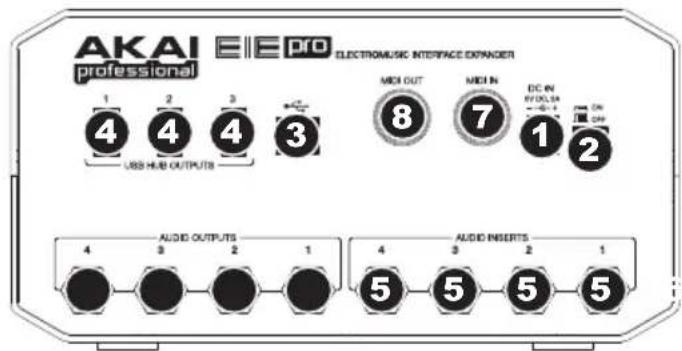
REAR PANEL FEATURES
-
DC INPUT – Connect the included power adapter (6V, 3A, center pin-positive) here, then connect the adapter to wall power.
-
POWER SWITCH – Turns the EIE Pro on and off.
-
USB MIDI - This connection will allow you to send MIDI information to/from a computer. Use a USB cable to connect the EIE Pro to a computer. EIE Pro requires a USB 2.0 connection.
-
USB HUB OUTPUTS – You can connect additional USB devices (controllers, hard drives, etc.) to these powered USB ports. In addition to being an audio interface, these ports allow EIE Pro to function as a powered USB hub.
-
AUDIO INPUTS (INSERTS) – You can use standard 1/4" TRS insert cables to connect external processors (such as compressors, limiters, external EQ units, etc.) to these jacks. The signal will be taken after the channel's gain control and returned before the channel's USB audio is sent to the computer.
-
AUDIO OUTPUTS – Use standard 1/4" TRS cables to connect these outputs to monitors, an amplifier system, etc. The level of AUDIO OUTPUTS 1 and 2 are controlled by the MASTER LEVEL knob. The level of AUDIO OUTPUTS 3 and 4 are always at full volume.
-
MIDI OUT - Use a standard five-pin MIDI cable to connect this output to the MIDI IN of an external MIDI device.
-
MIDI IN – Use a standard five-pin MIDI cable to connect this input to the MIDI OUT of an external MIDI device.
CONTENIDO DE LA CAJA
Sampling Rates: 44.1 kHz, 48 kHz, 88.2 kHz, 96 kHz
Resolution: 24-bit
Interface: USB 2.0
ANALOG INPUTS
Frequency Response: 20 Hz to 21 kHz (+ _0.05dB)
Dynamic Range (@-60dB input): 96 dB, A-weighted
S/N: 96 dB, A-weighted
THD+N: 0.001% @ 1 kHz / -0.1 dBFS
Crosstalk: 93 dB @ 1 kHz / -0.1 dBFS
Pre-amp THD+N: 0.018%
Mic gain (MIC): +9 dB to +51.5 dB
Mic impedance: 6.3 KΩ
Line gain: -10.5 dB to +41 d Line impedance: 55 KΩ
Guitar gain: +1.6 dB to 53.1 dB
Guitar impedance: 102 KΩ
Insert:
Input sensitivity: 0 dBFS @ +6 dBV
Input impedance: 10 KΩ
ANALOG OUTPUTS
Output level: +6 dBV @ 0 dBFS
Frequency Response: 20 Hz to 20 kHz (+ _0.25 dB)
Dynamic Range (@-60dB input): 98 dB, A-weighted
S/N: -100 dB, A-weighted
THD+N: 0.006% @ 1 kHz / 0 dBFS
Crosstalk: 97 dB @ 1 kHz / 0 dBFS
HEADPHONES
32-Ω load:
Unclipped output power: 10 mW @ 1 kHz
Frequency Response: 20 Hz to 20 kHz (+ _0.25 dB)
S/N: -100 dB, A-weighted
THD+N: 0.007% @ 1 kHz / 0 dBFS
Crosstalk: 95 dB @ 1 kHz / 0 dBFS
600-Ω load:
Unclipped output power: 3.4 mW @ 1 kHz
Frequency Response: 20 Hz to 20 kHz (+ _0.25 dB)
S/N: -100 dB, A-weighted
THD+N: 0.003% @ 1 kHz / 0 dBFS
Crosstalk: 95 dB @ 1 kHz / 0 dBFS
- The unit can be used in the following electromagnetic environments: residential, commercial and light industrial, urban outdoors. This apparatus is not intended for rack-mounting.
- The maximum cable length for audio input and output is 10m.
• Peak inrush current: 656 mA
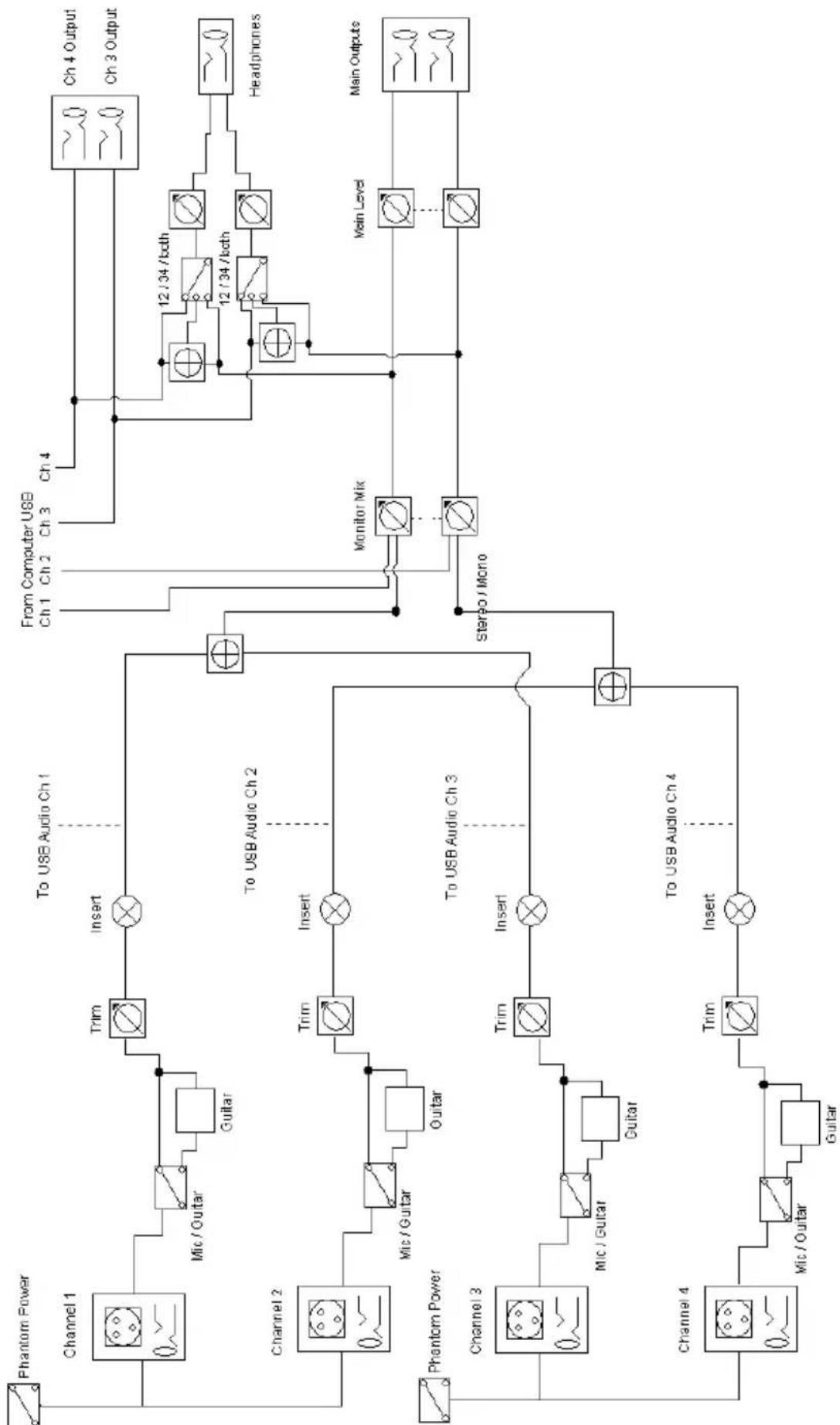
flowchart
graph TD
    A["Phantom Power"] --> B["Channel 1"]
    B --> C["Mic / Guitar"]
    C --> D["Guitar"]
    D --> E["Trim"]
    E --> F["Insert"]
    F --> G["To USB Audio Ch 1"]
    G --> H["From Computer USB Ch 1 Ch 2 Ch 3 Ch 4"]
    H --> I["Ch 4 Output"]
    H --> J["Ch 3 Output"]
    K["Channel 2"] --> L["Mic / Guitar"]
    L --> M["Guitar"]
    M --> N["Trim"]
    N --> O["Insert"]
    O --> P["To USB Audio Ch 2"]
    P --> Q["Monitor Mix"]
    Q --> R["Main Level"]
    R --> S["Headphones"]
    T["Phantom Power"] --> U["Channel 3"]
    U --> V["Mic / Guitar"]
    V --> W["Guitar"]
    W --> X["Trim"]
    X --> Y["Insert"]
    Y --> Z["To USB Audio Ch 3"]
    Z --> AA["Main Outputs"]
    AA --> AB["Stereo / Mono"]
    AC["Channel 4"] --> AD["Mic / Guitar"]
    AD --> AE["Guitar"]
    AE --> AF["Trim"]
    AF --> AG["Insert"]
    AG --> AH["To USB Audio Ch 4"]
AKAI
professional