Rhythm Wolf - Hi-fi system AKAI - Free user manual and instructions
Find the device manual for free Rhythm Wolf AKAI in PDF.



| Product Type | Rhythm production station with sequencer, drum machine, and bass synthesizer |
| Power Supply | 12 V, 2 A center-positive AC adapter (included) |
| Connectivity | USB (MIDI), MIDI In, MIDI Out/Thru (5-pin), Gate Trig In/Out (3.5 mm TS), Main Out (6.35 mm), Synth Out (6.35 mm) |
| Display | Digital display for tempo and parameters |
| Drum Pads | 8 velocity-sensitive pads to trigger voices |
| Built-in Voices | Kick drum, snare drum, percussion, hi-hat (with volume, tune, etc. adjustments) |
| Bass Synthesizer | Oscillator with square and sawtooth waveforms, 12 dB/octave low-pass filter (cutoff, resonance, envelope adjustments) |
| Sequencer | 16 steps, up to 32 steps in A+B mode, time divisions: 1/4, 1/8, 1/16, 1/32, triplet, swing |
| Recording Modes | Record Step (step input) and Record Performance (quantized real-time recording) |
| Memory | 16 patterns with sequences A, B, Fill A, Fill B |
| Playback Functions | Play/Stop, Fill, Sequence Variation, Tap tempo, Mute/Solo, Velocity |
| MIDI Control | MIDI Clock (Internal, External, USB, Gate), MIDI Out/Thru output, synchronization |
| Audio Outputs | Main Out (drum + bass mix or drums only if Synth Out is connected), Synth Out (bass only) |
| Gate Trig Input/Output | For synchronization with external devices (step triggers) |
| Distortion (Howl) | Distortion potentiometer on Main Out output |
| Care and Cleaning | Disconnect power before cleaning; use a dry, soft cloth; avoid liquids |
| Safety | Use only the supplied adapter; do not expose to moisture; allow to warm up before use |
| Spare Parts and Repairability | Contact AKAI support for repairs; parts not available separately |
| General Information | Brand: AKAI, Model: Rhythm Wolf, Full manual available for download at akaipro.com/rhythmwolf |
Frequently Asked Questions - Rhythm Wolf AKAI
User questions about Rhythm Wolf AKAI
0 question about this device. Answer the ones you know or ask your own.
Ask a new question about this device
Download the instructions for your Hi-fi system in PDF format for free! Find your manual Rhythm Wolf - AKAI and take your electronic device back in hand. On this page are published all the documents necessary for the use of your device. Rhythm Wolf by AKAI.
USER MANUAL Rhythm Wolf AKAI
User Guide (English)
Introduction
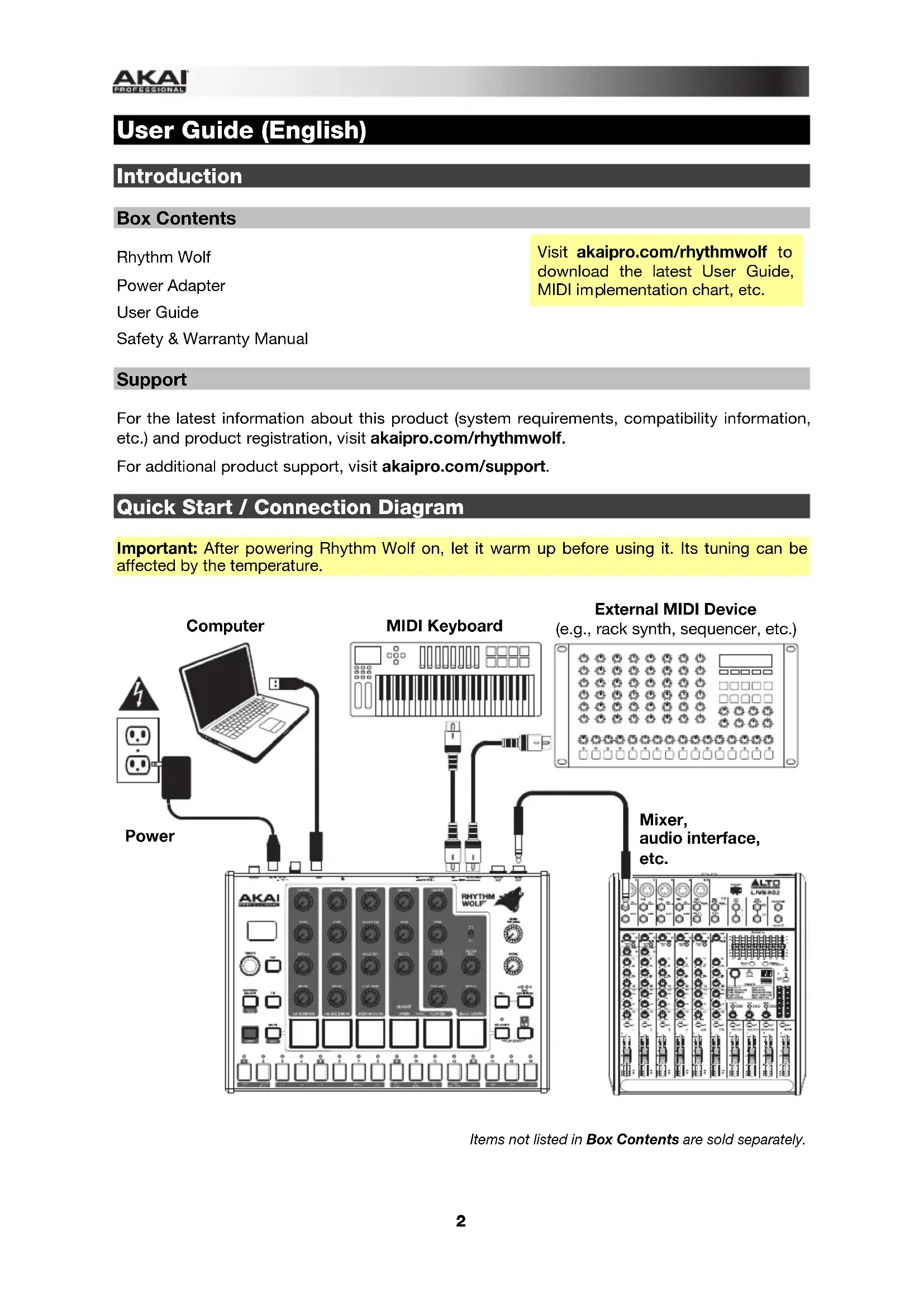
Box Contents
Rhythm Wolf
Power Adapter
User Guide
Safety & Warranty Manual
Visit akaipro.com/rhythmwolf to download the latest User Guide, MIDI implementation chart, etc.
Support
For the latest information about this product (system requirements, compatibility information, etc.) and product registration, visit akaipro.com/rhythmwolf.
For additional product support, visit akaipro.com/support.
Quick Start / Connection Diagram
Important: After powering Rhythm Wolf on, let it warm up before using it. Its tuning can be affected by the temperature.
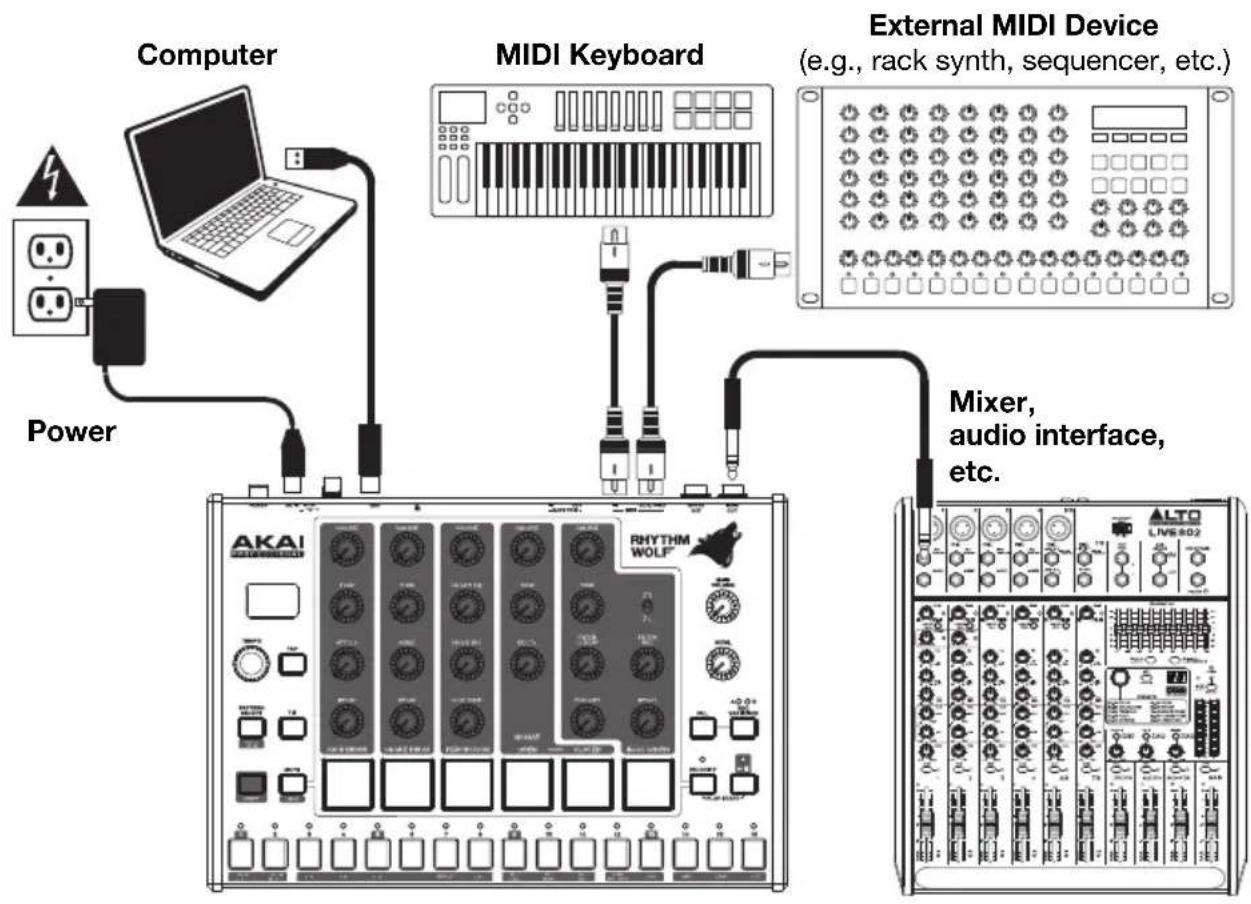
Items not listed in Box Contents are sold separately.
Features
Top Panel
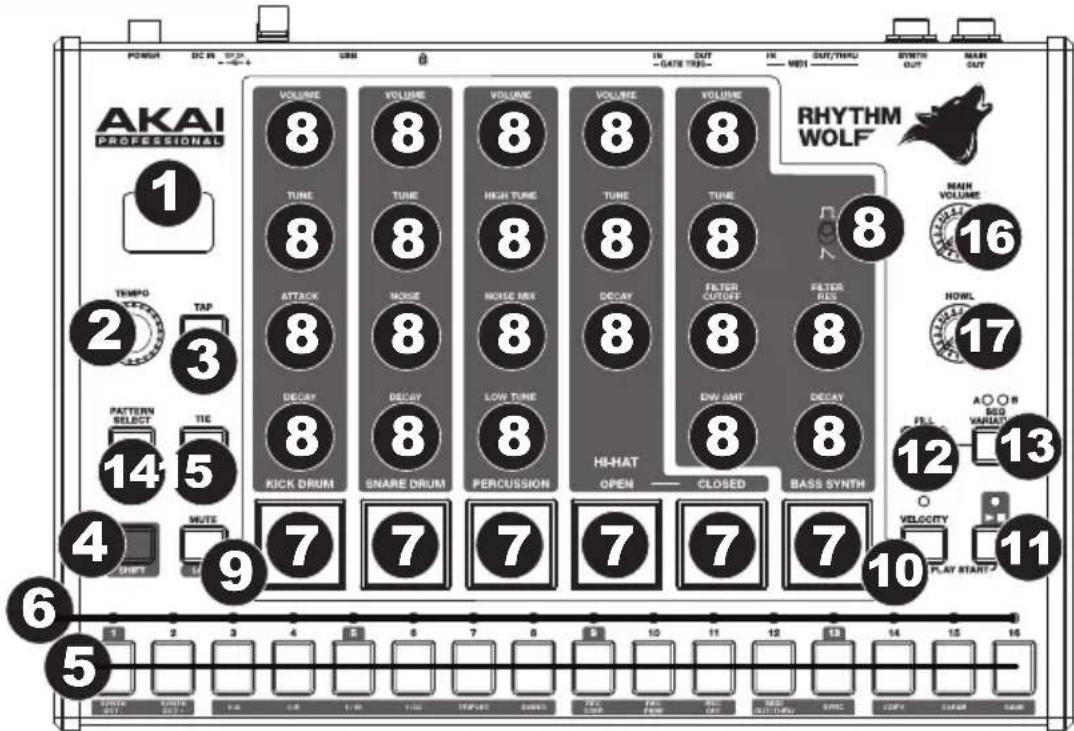
- Display: This display shows Rhythm Wolf's tempo or other relevant values described in this guide.
- Tempo: Turn this knob to adjust Rhythm Wolf's global tempo (20-300 BPM or beats per minute). The number will be shown in the display. You also use this knob to perform other operations such as setting bass synth note values, swing amount, or pattern length.
- Tap: Press this button at the desired rate to enter a new tempo. Rhythm Wolf will detect the new tempo after three taps.
- Shift: Press and hold this button to access the secondary functions of certain buttons.
- Step Switches: Press these buttons to enter or erase a step/ note from the pattern.
Press and hold Shift to access their secondary functions:
- Synth Oct -/+: Use these buttons to shift the bass synth's "keyboard" (the Step Switches in Record Performance Mode) one octave up or down.
1/4, 1/8, 1/16, 1/32: Use these buttons to select the pattern's time division (i.e., the note value of each Step Switch). When holding Shift, the Step Indicator above the current time division will be lit. - Triplet: Press this button activate or deactivate Triplet, which turns the time division into triplet-based one (except for 1/32). When holding Shift, the Step Indicator above this button is lit when activated.
- Swing: Press this button and then turn the Tempo knob to adjust how much swing is applied to the pattern. At 50, no swing is applied. At 75, the pattern is entirely swung. (This is identical to Akai Professional MPCs.)
- Rec Step: Press this button to enter Record Step Mode. See the Record Step Mode section of this guide to learn more. When holding Shift, the Step Indicator above this button is lit when in this mode.
-
Rec Perf: Press this button to enter Record Performance Mode. See the Record Performance Mode section of this guide to learn more. When holding Shift, the Step Indicator above this button is lit when in this mode.
-
Rec Off: Press this button to deactivate recording. See the Record Step Mode and Record Performance Mode sections of this guide to learn more. When holding Shift, the Step Indicator above this button is lit when in this mode.
- MIDI Out/Thru, MIDI Sync: Press this button to switch between the Out and Thru functions of Rhythm Wolf's MIDI Out/Thru jack. The display will indicate which is currently selected:
When set to Out, Rhythm Wolf will send its own MIDI messages to its MIDI Out/Thru jack and to its USB Port.
When set to Thru, MIDI messages received through the MIDI In will be sent to the MIDI Out/Thru. Rhythm Wolf's messages will be sent to its USB Port.
- Sync: Press this button to select Rhythm Wolf's MIDI clock source: Internal, External, USB, or Gate. See the Transport Control section to learn more.
-
Copy, Clear, Save: Use these buttons to copy, clear, or save the current pattern. See the Saving, Copying, and Clearing section to learn more.
-
Step Indicators: These LEDs will light up to indicate which steps contain a note (i.e., which Step Switches are active). See the Record Step Mode section of this guide to learn more.
- Pads: Press these pads to play their corresponding voice or to deactivate or activate the voice while in Mute Mode or Solo Mode.
-
Voice Controls: Use these controls to fine-tune the sounds of their respective voices.
-
Kick Drum: The kick drum voice.
Volume: Turn this to set the kick drum's volume.
Tune: Turn this to tune the pitch of the kick drum.
Attack: Turn this to set the volume of the kick drum's initial attack.
Decay: Turn this to set the Decay time of the kick drum's amplitude envelope.
Snare Drum: The snare drum voice.
Volume: Turn this to set the snare drum's volume.
Tune: Turn this to tune the pitch of the snare drum.
o Noise: Turn this to set how much noise is added to the snare drum voice.
o Decay: Turn this to set the Decay time of the snare drum's amplitude envelope.
- Percussion: A variable percussion voice consisting of a higher-pitched sound and lower-pitched sound added together and blended with noise.
Volume: Turn this to set the percussion's volume.
High Tune: Turn this to tune the pitch of the percussion's high-frequency sound.
o Noise Mix: Turn this to set the balance between the higher- and lower-pitched sounds and the amount of noise. At its minimum position, no noise will be heard. At its maximum position, the sound consists entirely of noise.
Low Tune: Turn this to tune the pitch of the percussion's low-frequency sound.
Hi-Hat: The hi-hat voice. Only one sound—open or closed—can sound at a time.
Volume: Turn this to set the hi-hat's volume.
Tune: Turn this to tune the pitch of the hi-hat.
o Decay: Turn this to set the Decay time of the hi-hat's amplitude envelope.
- Bass Synth: A bass synthesizer with a two-pole, 12dB/octave low-pass filter.
o Wave Type: Set this switch to determine what type of wave the bass synth uses: square (n) or sawtooth (h).
Volume: Turn this to set the bass synth's volume.
Tune: Turn this to tune the pitch of the bass synth.
Filter Cutoff: Turn this to set the bass synth's filter cutoff frequency. This value also determines the frequency of the Sustain stage of the filter envelope.
Filter Res: Turn this to set the bass synth's filter resonance (also known as Q ).
- Env Amt: Turn this to set the peak of the bass synth's filter envelope. This controls the difference in frequency between the Filter Cutoff setting and the highest part of the filter envelope.
o Decay: Turn this to set the Decay time of the bass synth's amplitude envelope.
- Mute/Solo: Press and hold this button to mute specific voices in the sequencer's playback. Press a pad to mute or unmute its voice. Unmuted pads are lit red, while muted pads are not lit. This affects sequencer playback only; you can still play the pads to trigger their respective voices.
Press and hold Shift and then press and hold this button to enter Solo Mode. When in Solo Mode, you can press a pad to solo its voice (muting all others). Release the button to return to normal operation. This is a temporary mode, independent of any pad mutes. - Velocity: Press this button to edit the velocity of a step. See the Record Step Mode section of this guide to learn more.
Press this button and Play/Stop at the same time to start playback from the very beginning of the pattern rather than from the current position. - Play/Stop: Press this button to start or stop playback.
Press this button and Velocity at the same time to start playback from the very beginning of the pattern rather than from the current position.
Press and hold Shift and then press this button to send an All Notes Off message. - Fill: Press this button to play the fill for the current sequence (A, B, or A and B). See the About Patterns section to learn more.
- Seq Variation: Press this button to select whether you are playing/editing Sequence A, Sequence B, or Sequence A and B. See the About Patterns section to learn more.
- Pattern Select / Last Step: Press this button and then press one of the 16 Step Switches to select the pattern of the same number. Press the Pattern Select button again to return to normal operation. If you do this during playback, the current pattern will finish before moving to the next one.
Press and hold Shift and then press this button. The pattern's length (in steps) will appear in the display, and the Step Indicators will light red to show the pattern's length. Press one of the 16 Step Switches or turn the Tempo knob to set the pattern's length (in steps). If the Seq Variation button has either A or B lit, the maximum pattern length is 16 steps. If both A and B are lit, the maximum pattern length is 32 steps, and the minimum pattern length is 17 steps. Press the Last Step button again to return to normal operation. - Tie: When the bass synth is selected, press and hold this button, and then press a Step Switch to "tie" its note to the previous step or to return it to its previous ("un-tied") state. A tied note is "held over" from the previous note, meaning that its envelope is not retriggered. When you press and hold this button, the Step Indicators of tied steps will be lit amber, those with "un-tied" notes will be lit red, and those with no notes will be unlit.
You can do this to multiple Step Switches at once, and you can tie several consecutive notes together. Tied notes can also "wrap around" from the end to the beginning of a sequence. - Main Volume: Turn this knob to set the output volume of Rhythm Wolf's Main Out and Synth Out.
- Howl: Turn this knob to set the amount of overdrive (distortion) applied to Rhythm Wolf's Main Out.
Rear Panel
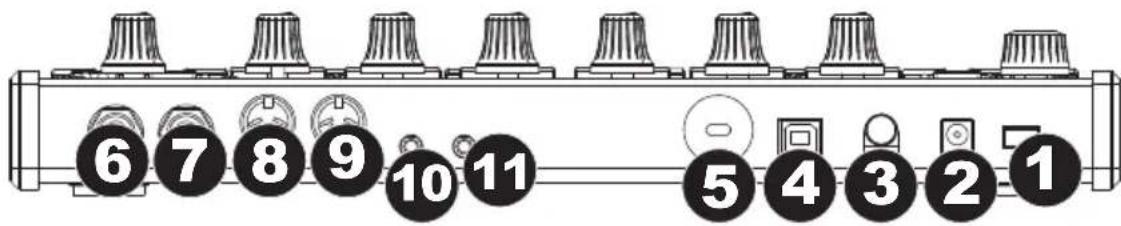
- Power Button: Press this button to power Rhythm Wolf on or off.
Important: After powering Rhythm Wolf on, let it warm up before using it. Its tuning can be affected by the temperature. - DC In: Use the included power adapter (12V, 2A, center-positive) to connect this jack to a power outlet.
- Cable Restraint: You can secure a cable to this restraint to prevent it from accidentally unplugging.
- USB Port: Use a standard USB cable to connect this port to an available USB port on your computer. This connection lets Rhythm Wolf send and receive MIDI over USB to and from your computer.
- Kensington Lock Slot: You may use this Kensington lock slot to secure the Rhythm Wolf to a table or other surface.
- Main Out: Use a standard 1/4" (6.35mm) TRS cable to connect this line-level output to the input of an audio interface, mixer, amplifier system, etc. You can also connect stereo headphones to this output. If the Synth Out is not connected to anything, the Main Out will include the drum and bass synth voices. If a cable is connected to the Synth Out, the Main Out will include the drum voices only.
- Synth Out: Use a standard 1/4'' (6.35mm) TS cable to connect this line-level output to the input of an audio interface, mixer, amplifier system, etc. (we recommend connecting this to a balanced input using a TRS cable instead of to an unbalanced one using a TS cable). The bass synth voice is sent through this output only if a cable is connected to it. Otherwise, the bass synth voice is sent to the Main Out.
- MIDI Out/Thru: Use a standard five-pin MIDI cable to connect this MIDI Out to the MIDI In of an external MIDI device (e.g., a synthesizer, sequencer, drum machine, etc.). Press the MIDI Out/Thru button to set the function of this jack. The display will indicate which is currently selected. See Step Switches: MIDI Out/Thru above to learn more.
- MIDI In: Use a standard five-pin MIDI cable to connect this MIDI In to the MIDI Out of an external MIDI device (e.g., another MIDI controller). For more information, visit akaipro.com/rhythmwolf to download the latest MIDI implementation chart.
- Gate Trig Out: Use a standard 1/8'' (3.5mm) TS cable to connect this output to the input of an optional external device that can receive Rhythm Wolf's Gate (trigger) messages.
- Gate Trig In: Use a standard 1/8'' (3.5mm) TS cable to connect this input to the output of an optional external device to send Gate (trigger) messages to Rhythm Wolf.
Transport Control
Rhythm Wolf's Play/Stop button operates differently depending on its Sync setting (Step Switch 13).
When set to Internal:
- Press the Play/Stop button to start or stop playback.
- Press the Velocity and Play/Stop buttons at the same time to start playback from the very beginning of the pattern rather than from the current position.
- When Rhythm Wolf's MIDI Out/Thru is set to Out, it will send MIDI Start, Stop, Continue, Clock, and SongPosPtr=0 depending on its transport state.
Rhythm Wolf's Gate Trig Out will pulse each time it advances one step.
When set to External or USB:
- Rhythm Wolf's playback will respond to incoming MIDI Start, Stop, Continue, Clock, and SongPosPtr=0 messages.
- Rhythm Wolf's transport controls will not function.
When set to Gate:
-
Press the Play/Stop button to start/resume or stop playback.
Rhythm Wolf's time division can be set only to 1/8 or 1/16: -
When set to 1/8, two pulses will advance playback by one step.
- When set to 1/16, one pulse will advance playback by one step.
Rhythm Wolf's Gate Trig Out will mimic its Gate Trig In.
About Patterns
Rhythm Wolf can store up to 16 patterns. Each pattern consists of four sequences: Sequence A, Sequence B, Fill A, and Fill B.
To select a pattern, press Pattern Select and then press one of the 16 Step Switches to select the pattern of the same number. Press Pattern Select again to return to normal operation.
To select which sequence you are playing/editing during playback, press Seq Variation to switch between Sequence A or Sequence B. The LED for the currently playing sequence will be lit solid. If the other sequence will play next, its LED will flash.
To automatically switch between playing Sequence A and then Sequence B (or vice versa), press and hold Shift and then press Seq Variation.
To return to playing only Sequence A or Sequence B, either press Seq Variation while the desired sequence is playing, or press and hold Shift and then press Seq Variation.
To select which sequence(s) you are playing/editing while stopped, press Seq Variation to switch between: Sequence A only (A will be lit) and Sequence B only (B will be lit).
Note: To select a fill to loop and/or edit, see below.
To play a fill, press the Fill button during playback. The fill that plays will be determined by (1) the state of the Seq Variation button and (2) which sequence is currently playing.
When Seq Variation is set to Sequence A only or Sequence B only:
- Press Fill to play the corresponding fill. When the fill is finished, the other sequence will start playing.
- Press and hold Fill to play the corresponding fill. When the fill is finished, the original sequence will continue playing.
When Seq Variation is set to both Sequences A and B:
- Press Fill during Sequence A to play Fill A and Fill B. When Fill B is finished, Sequence A will start playing again.
- Press Fill during Sequence B to play Fill B. When Fill B is finished, Sequence A will start playing again.
To select a fill to loop and/or edit during playback, press and hold the Fill button, press the Seq Variation button to select either A or B, and then release both buttons. The fill you selected will now loop. This also lets you edit the fill (as you would edit Sequence A or Sequence B). To return to normal operation, press the Seq Variation button.
To select a fill to edit while stopped, press the Fill button, and then press the Seq Variation button to select either A or B buttons. This lets you edit the fill (as you would edit Sequence A or Sequence B). To return to normal operation, press the Fill button.
Editing Sequences
You can edit the sequences (and fills) of each pattern in two different modes, described below: Record Step Mode and Record Performance Mode.
Record Step Mode
Record Step Mode lets you use the 16 Step Switches to enter or remove notes from the sequence simply by pressing the corresponding Step Switches.
To enter Record Step Mode, press and hold Shift and then press Step Switch 9 (Rec Step).
To enter or remove steps:
- For the drum voices, press the pad whose steps you want to enter or remove, and then press one or more Step Switches to enter or remove notes at those positions. The notes are entered with the default Step Switch velocity (described below).
- For the bass synth voice, press the Bass Synth pad, and then press one or more Step Switches to enter or remove notes at those positions. The notes are entered with the default Step Switch velocity (described below). Also:
To set the note value, press and hold the desired Step Switches and turn the Tempo knob. If you are adjusting only one note, the note value will be shown in the display. If you are adjusting multiple notes, the display will show how many semitones up or down you are shifting them. The bass synth voice has a three-octave range.
Each step (for both drum and bass synth voices) has a velocity, which determines how loud the note is played.
To edit a step's velocity, press and hold the Velocity button and then press the desired Step Switch to cycle between the available velocities: low (green), medium (amber), high (red), and off (unlit).
To select the default Step Switch velocity, press the Velocity button to cycle through the available default velocities: low (green), medium (amber), and high (red).
Record Performance Mode
Record Performance Mode lets you play the pads and/or 16 Step Switches to record a sequence in real time. The notes you play will be quantized (aligned) automatically with the steps. Your recording will be "overdubbed" onto the sequence(s).
Note: Any incoming MIDI performance will also be recorded.
To enter Record Performance Mode, press and hold Shift, and then press Step Switch 10 (Rec Perf).
To record steps:
- For the drum voices, play the desired sequence(s), and then play the pads. The pads are velocity-sensitive; the notes will be entered at the corresponding low, medium, or high velocities.
- For the bass synth voice, play the desired sequence(s), and then play the 16 Step Switches as you would a piano keyboard. The black switches are the same as the black keys on a piano, and the same is true for the white switches. The Step Switches are not velocity-sensitive, so you may want to edit the bass synth velocities in Record Step Mode (see Record Step Mode above to learn more).
Saving, Copying, and Clearing
Saving
To save patterns or global settings:
- Press and hold Shift, and then press Step Switch 16 (Save). Its Step Indicator will flash green.
- Release Step Switch 16 (Save), but keep holding Shift.
- Turn the Tempo knob to select what you want to save: all patterns and global settings (All), the current pattern only (One), or the global settings only (Glo).
Important: Global settings include the tempo, the MIDI Out/Thru setting, and the Sync setting.
- Press Step Switch 16 (Save), and then release Shift.
Copying
Important: Copying does not save a pattern. To retain the copied pattern, you must save it, as well.
To copy the current pattern:
- Press and hold Shift, and then press Step Switch 14 (Copy). The Step Indicator for the current pattern will flash green. The Step Indicators for non-empty patterns will flash amber. The Step Indicators for empty patterns will be unlit.
- Release Step Switch 14 (Copy), but keep holding Shift.
- Press the Step Switch with the same number as the "destination" pattern (the pattern you want to copy to). The pattern will copy and load the destination pattern. After that, release Shift.
To cancel, press the Step Switch with the same number as the current pattern (its Step Indicator is flashing green), and then release Shift.
Clearing
Important: Clearing does not save a pattern. To retain the empty pattern, you must save it, as well.
To clear the current pattern:
- Press and hold Shift, and then press Step Switch 15 (Clear). Its Step Indicator will flash green.
- Press Step Switch 15 (Clear) again.
- Release both buttons.
Assistance technique
Technical Specifications
| Sounds | Kick drum, snare drum, variable percussion, hi-hat (open or closed), bass synthesizer |
| Synthesizer Wave Types | Square, sawtooth |
| Time Divisions | 1/4; 1/4 triplet-based; 1/8; 1/8 triplet-based; 1/16; 1/16 triplet-based; 1/32 |
| Patterns / Sequences | 16 patterns, each with 2 sequences + 2 fills/sequences |
| Display | 3-digit, 7-segment LED |
| Pads | 6 velocity-sensitive pads |
| Step Switches | 16 on-off buttons with RGB step indicator LEDs |
| Knobs | 1 360° encoder 23 270° knobs |
| Inputs / Outputs 1 1/4" (6 | 35mm) TRS main output 1 1/4" (6.35mm) TS synthesizer output 1 1/8" (3.5mm) TS gate trigger input (0 - 5 V max) 1 1/8" (3.5mm) TS gate trigger output (5 V pulse) 1 5-pin MIDI input 1 5-pin MIDI output/through 1 USB port |
| Power | 12 V, 2 A, center-positive power adapter (included) |
| Dimensions (width x depth x height) | 12.4" x 8.7" x 2.0" 31.5 cm x 22.1 cm x 5.1 cm |
| Weight | 4.6 lbs. 2.1 kg |
Specifications are subject to change without notice.
Trademarks and Licenses
Akai Professional and MPC are trademarks of inMusic Brands, Inc., registered in the U.S. and other countries.
Kensington and the K & Lock logo are registered trademarks of ACCO Brands.
All other product or company names are trademarks or registered trademarks of their respective owners.
AKAI
PROFESSIONAL