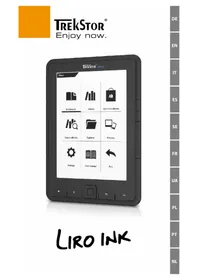
Liro Ink - E-reader TrekStor - Free user manual and instructions
Find the device manual for free Liro Ink TrekStor in PDF.


| Product Type | E-book Reader (E-reader) |
| Brand | TrekStor |
| Model | Liro Ink |
| Dimensions (approximate) | Approximately 170 × 120 × 9 mm |
| Weight (approximate) | Approximately 180 g |
| Display | E-Ink screen 6 inches |
| Power | Rechargeable lithium-ion battery via micro USB cable |
| Charging time | Approximately 3 hours for a full charge |
| Battery life | Up to several weeks (depending on usage) |
| Supported book formats | ePUB, PDF, FB2, RTF, TXT, HTML, PDB |
| Protected formats | ePUB and PDF with Adobe Adept DRM (via Adobe Digital Editions) |
| Internal storage | Capacity not specified, expandable via microSD/microSDHC card |
| Connectivity | Micro USB port, microSD card reader |
| Reading functions | Bookmarks, word search, auto page turn, font and margin settings, landscape/portrait mode |
| Power saving settings | Battery management settings and refresh rate |
| Cleaning | Soft dry cloth or soft brush (no solvents) |
| Operating temperature | 10°C to 40°C |
| Reset | Press and hold the power button for 8 seconds |
| Box contents | Liro Ink, USB cable (USB-A to micro USB), quick guide |
| Note on memory capacity | The displayed capacity may differ (1 GB = 1,000,000,000 bytes according to manufacturer) |
Frequently Asked Questions - Liro Ink TrekStor
User questions about Liro Ink TrekStor
0 question about this device. Answer the ones you know or ask your own.
Ask a new question about this device
Download the instructions for your E-reader in PDF format for free! Find your manual Liro Ink - TrekStor and take your electronic device back in hand. On this page are published all the documents necessary for the use of your device. Liro Ink by TrekStor.
USER MANUAL Liro Ink TrekStor
Thank you for buying the TrekStor Liro Ink. We are confident that this product will be the source of much enjoyment. Please read the following instructions carefully so that you can become acquainted with the functions of this product and its use.
Current product information can be found at the TrekStor website www.trekstor.de.
For more detailed information about the Liro Ink and its functions, please see the manual, which is stored on your Reader and can be displayed via the main menu under "USER MANUAL".
Package contents
- TrekStor Liro Ink
• USB 2.0 cable (USB-A to Micro USB) - Quick guide
1) Controls and connections of the TrekStor Liro Ink
A) Flip back
B) ▶ Flip forward
C) ▲ Display home screen
D) ☐ Display main and sub menu
E) Navigation button
F) OK button
G) Back button
H) Search/Text input
I) microSD/microSDHC card slot
J) Micro USB connector
K) ⏻ Power button (On/Off)
L) Status LED
2) Charging the TrekStor Liro Ink
Once you have connected your TrekStor Liro Ink via the included micro USB cable to a computer or to a socket using a suitable power supply (e.g. TrekStor USB-Charger e.fx), it is automatically charged. After approx. 3 hours the battery is fully charged and the charging process will be stopped automatically to prevent overcharging.
The maximum battery life is reached after about 10 battery charging cycles.
Thanks to the intelligent power saving management of the Liro Ink you will be able read for weeks with only one battery charge. Under "MAIN MENU" ⇒ "SETTINGS" you can additionally adjust the power saving setting to your personal reading behavior. Please note that this can affect battery life.
3) Getting started with the Liro Ink
After you have charged the Liro Ink for the first time, the reading pleasure can start.
3.1) Turning on the eBook Reader
Press the ⏻ button for 2 - 3 seconds to turn the Reader on. Then the home screen appears.
i First, please choose during the first start-up your language and set the date and time.
On the home screen, the last called books and books that were recently transferred to the Reader, are displayed. Via the navigation point "LIBRARY" you can also access your eBook collection.
3.2) Reading with the eBook Reader
If you want to read off right away, select one of the displayed titles by using the navigation keys and confirm your choice with the OK button. The active selection is individually characterized by a thick line.
To flip forward or back the single pages, press the ▶ or ◀ button.
The ☐ button lets you adjust the display of the book to your individual needs.
Different font sizes and margin widths are available and you can switch back and forth between portrait and landscape format.
You can also mark bookmarks and favorites as well as access the content directory and set bookmarks.
The word search and the possibility to call a certain number of pages helps you to navigate within the book.
Auto flip: This handy feature allows you to read without hands. The reader flips the pages of your book automatically after a certain time you have set before.
3.3) Other settings and functions of the Liro Ink
Call the home screen by using the ⏻ button and press the Ⓥ button to access the main menu. Here you have the opportunity to adjust further settings and access other features.
Sorted by title or author, you will find here your set bookmarks and be able to view or delete them.
Here you find your ebook collection sorted by title.
Find out how and where to receive new eBooks.
Search eBooks in your library by title, author or file name.
The explorer shows all files, which are stored on the eBook Reader or on the inserted memory card, in a folder structure.
With the image viewer, all images, which are stored on the Reader or on the inserted memory card, are displayed.
Here you can make further adjustments to your eBook Reader:
- Page refresh rate
- Power settings
- Time & Date
- Language
- Formatting (ALL the data will be deleted when you format it.)
- Resetting to factory settings
- Device information
- DRM Authorization Ihnformation
The detailed manual for this eBook Reader can be called up here.
Exit the main menu.
3.4) Transferring my books onto the Liro Ink
In order to transfer your own books onto the Liro Ink, please proceed as follows:
Connecting the Reader with a computer
Connect the Liro Ink to your computer using the included micro USB cable. The eBook Reader is displayed as a removable disk or drive named "TREKSTOR".
The microSD/microSDHC card reader of the eBook Reader is recognized and displayed as a second "DEVICE WITH REMOVABLE STORAGE" or "DRIVE" named "TREKSTOR". An access will only be possible, if a memory card is inserted into the card slot.
Data exchange with the eBook Reader
The Liro Ink displays eBooks in the formats ePUB, PDF, FB2, RTF, TXT, HTML and PDB.
eBooks without copy protection
eBooks without copy protection can be simply stored via drag & drop (or copy & paste) in the root directory of the eBook Reader.
Adobe® DRM content (copy protected PDFs and ePUBs)
Many eBooks in ePUB or PDF format are protected by Adobe® Adept DRM against unauthorized duplication. To view these eBooks on your eBook Reader and your computer, you have to transfer them with the software Adobe® Digital Editions on your device.
1) First create – if not existing yet – under www.adobe.com your own Adobe® ID by clicking on "REGISTER" on the top right of the page and following the instructions on the page.
2) Now install the software Adobe® Digital Editions on your computer and log in using your Adobe® ID. You can find the free software under http://www.adobe.com/products/digitaleditions/
3) Once the software installation has been completed successfully, you will be able to download Adobe® DRM protected eBooks.
Example: You have purchased an eBook with DRM protection in the Internet and want to download it now. When you start the download, the following dialog box opens:
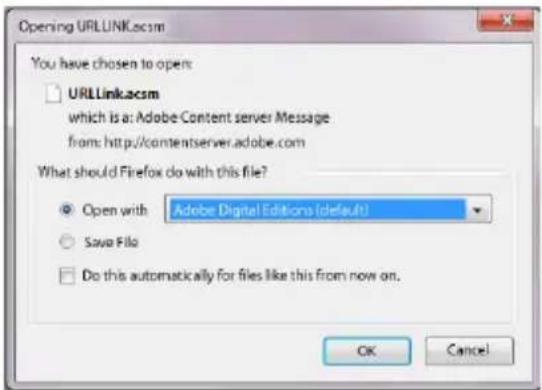
Select the option "OPEN WITH (ADOBE DIGITAL EDITIONS)" and confirm with OK. Now Adobe® Digital Editions opens and your eBook is downloaded and stored to the folder "MY DIGITAL EDITIONS" (Windows® 7: LIBRARIES → DOCUMENTS / Windows® XP: MY DOCUMENTS).
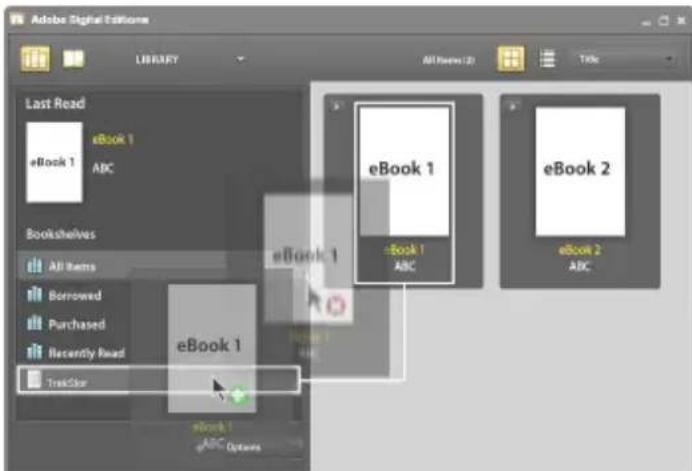
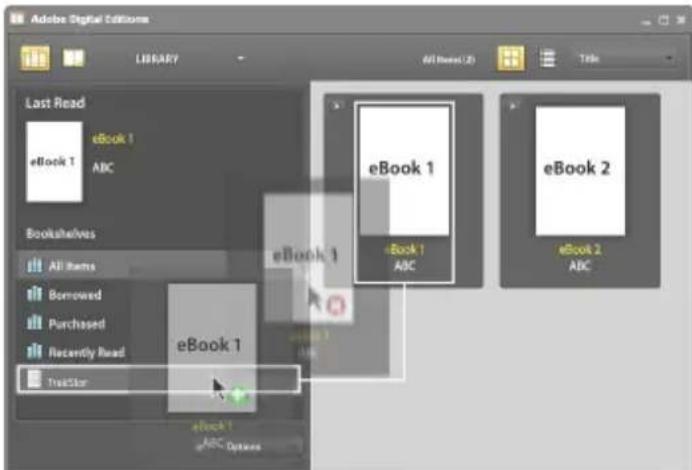
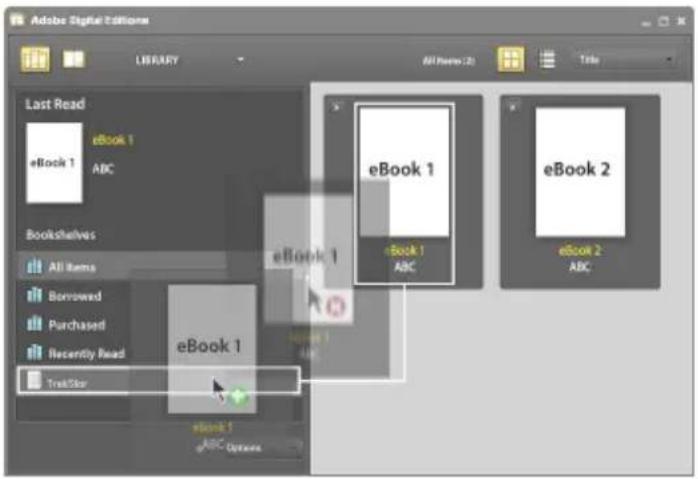
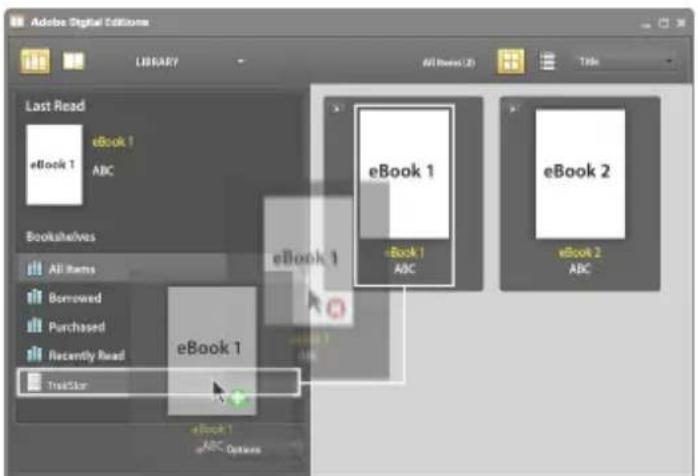
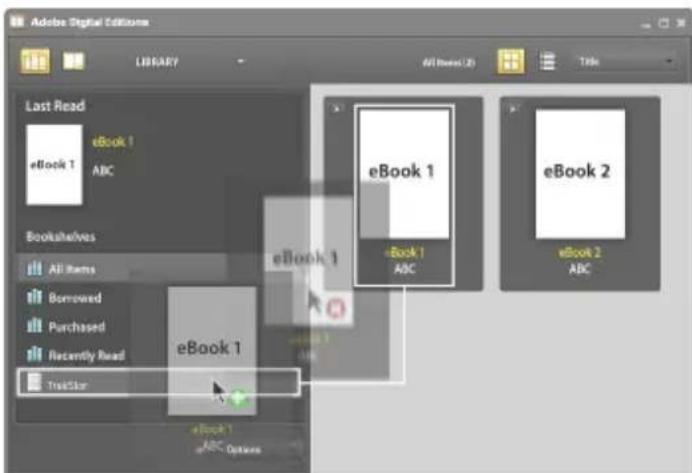
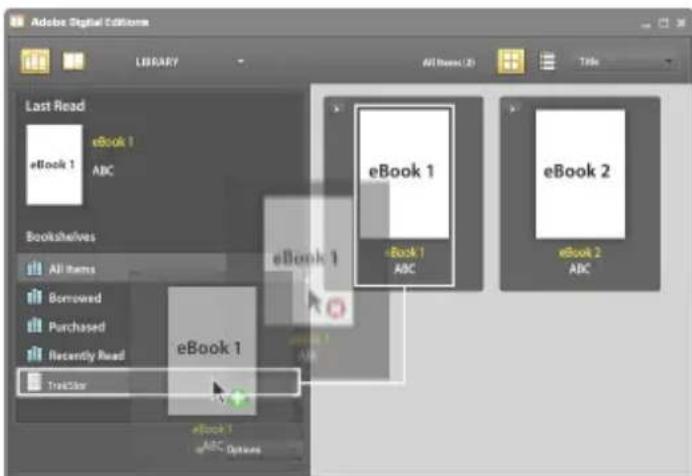
You can now copy the eBook via drag & drop to your device. Just click on the eBook and drag it while holding down the mouse button on your Reader ("TREKSTOR").
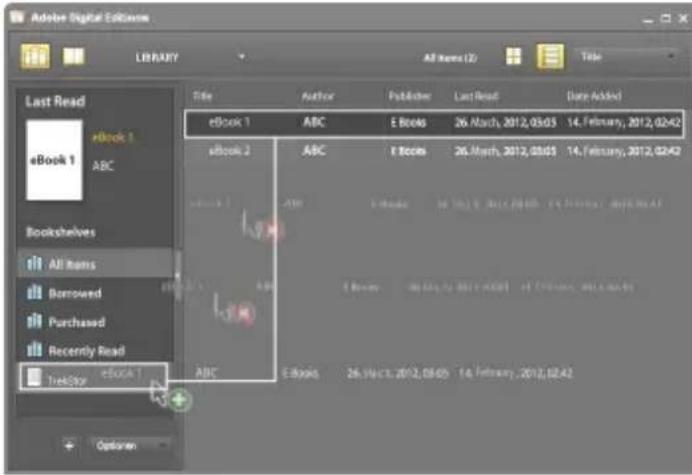
or
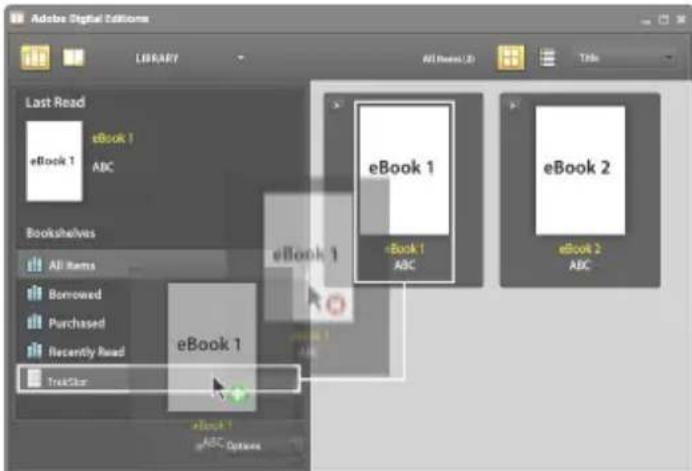
After a successful transfer, the eBook can be displayed on your Reader.
Logging off and disconnecting the eBook Reader from the computer
i Please follow the recommended logging off procedure to avoid damages to the device or the loss of data!
Windows® 7/Vista™/XP
At the bottom right on the task bar, left-click the "SAFELY REMOVE HARDWARE" icon. In the popup menu that appears, left-click "SAFELY REMOVE MASS STORAGE DEVICE - DRIVE" and disconnect your eBook Reader from the computer.
Mac® OS X from 10.4
Please remove the drive "TREKSTOR" from the "DESKTOP" by clicking the drive icon and drag it to the trash icon. Now you can disconnect the eBook reader from your computer.
3.5) Turning off the eBook Reader
To turn your eBook Reader off, hold the ⏻ button for about 2 - 3 seconds.
Reset
i If you press the ⏻ button for approx. 8 seconds, you perform a reset of the device.
Instructions for safety and use:

Only qualified persons may perform technical work on the product. The product may not be opened or changed. The components cannot be serviced by the user.

Never expose the device to moisture, condensation and liquids.

Protect the device from extremely high and low temperatures and temperature fluctuations. Use the device within an ambient temperature of 10° C until 40° C.

Never place the device close to a source of heat, and protect it from direct sunlight.

Make sure that the surroundings are as dust-free as possible when you use and store the device.

Never clean the surface of the device with solvents, paint thinners, cleansers or other chemical products. Instead, use a soft, dry cloth or soft brush.

The capacity indicated by your operating system can be different than the actual capacity of your device. Like most manufacturers of computer hardware, TrekStor uses the prefixes for units (e.g. 1 GB = 1.000.000.000 bytes) as prescribed by the International System of Units (SI). Unfortunately, many operating systems do not comply with this norm and display a lower capacity because they base their calculations on the assumption that 1 GB = 2 30 bytes = 1.073.741.824 bytes.
The manufacturer retains the right to continually improve the product. These changes may be made without being directly described in these operating instructions. For this reason, the information provided in these operating instructions may not reflect the current state of the art.
The manufacturer only guarantees suitability for the product's intended purpose. In addition, the manufacturer is not responsible for damages or loss of data and subsequent consequences.
Copyright © 2012 TrekStor GmbH. All rights reserved. Other cited product or company names may be trademarks or brand names of the respective owner.

gulda raPlda
O
- DRM Authorization Information

O
eller
- DRM Authorization Information
ou
- DRM Authorization Information

a60
- DRM Authorization Information

lub
- DRM Authorization Information

ou
- DRM Authorization Information

of
EC DECLARATION OF CONFORMITY
As manufacturer and importer respectively:
TrekStor GmbH
Kastanienallee 8 - 10
D-64653 Lorsch, Germany
herewith declares that the products
Product: Liro Ink
Type: eReader
comply with the following directive(s):
• 2004/108/EC EMC Directive: Electromagnetic Compatibility
• 2006/95/EC Low Voltage Directive
The following norms were consulted to assess conformity:
• EN 55022:2006 + A1:2007
EMC: Information technology equipment – Radio disturbance characteristics – Limits and methods of measurement
• EN 55024:1998 + A1:2001 + A2:2003
EMC: Information technology equipment – Immunity characteristics – Limits and methods of measurement
• EN 60950-1:2006 + A11:2009 + A1:2010
Information technology equipment – Safety – Part 1: General requirements
The CE symbol confirms that this product conforms with the above mentioned norms and regulations.
The manufacturer also declares the conformity of the product according to the following directives:
• 2001/95/EC General Product Safety
• 2002/95/EC RoHS: Hazardous substances in electrical and electronic equipment
• 2009/125/EC Ecodesign requirements for energy-using products
T. Koroscha
Lorsch, 26.03.2012
Thorsten Koroscha, LPM
Akku-Entsorgung
Reporting requirement according to the Battery Directive (BattV)
Batteries are not part of the domestic waste. The consumer is obliged to return no longer used batteries properly. Please dispose of them by a specialized trade or a battery collection point. Hereby you make an important contribution to environmental protection.
Since 1998 the German Battery Directive compels all citizens to dispose of used batteries exclusively through the trader or specially equipped departments (legal return obligation).
Trade and manufacturers are committed to take back batteries for free and to exploit it properly or to remove it as special waste (legal take-back obligation).

e built-in lithium-polymer battery of this device is marked with the adjoining symbol, consisting of a crossed out bin and the used battery type.
Remove battery

Before you return a disused device for disposal, the battery has to be removed from the device.
Supportinformationen
If you have any questions regarding your TrekStor product, please proceed as follows:
- Check the features as well as the functions of your device (apparent on the packaging), in order to use the correct settings.
- Read the manual carefully.
- Inform yourself on our website www.trekstor.de/en about the up-to-date information concerning your product (e.g. available most recent firmware releases).

Please note, that the TrekStor support is only responsible for technical questions respective for questions concerning the function of the device. For questions concerning the purchase of eBooks via an eBook shop, please contact the operator of the current site.
In the case you have further questions regarding your product, please note the following TrekStor support options:
FAQ The FAQ area of our website offers you a wide range of problem solving hints. Here you can obtain answers to the most frequently asked questions concerning our products.
E-Mail Please fill in the support form on our website or send an E-Mail to support.en@trekstor.de. You can find mailing addresses for other countries when you click "SERVICE" at the menu bar on our website.
Phone support Please find the number of the support hotline for your country on our website under "SERVICE" as well.

- PACKAGE CONTENTS
- CONTROLS AND CONNECTIONS OF THE TREKSTOR LIRO INK
- CHARGING THE TREKSTOR LIRO INK
- GETTING STARTED WITH THE LIRO INK
- TURNING ON THE EBOOK READER
- READING WITH THE EBOOK READER
- OTHER SETTINGS AND FUNCTIONS OF THE LIRO INK
- TRANSFERRING MY BOOKS ONTO THE LIRO INK
- CONNECTING THE READER WITH A COMPUTER
- DATA EXCHANGE WITH THE EBOOK READER
- EBOOKS WITHOUT COPY PROTECTION
- ADOBE® DRM CONTENT (COPY PROTECTED PDFS AND EPUBS)
- LOGGING OFF AND DISCONNECTING THE EBOOK READER FROM THE COMPUTER
- WINDOWS® 7/VISTA™/XP
- MAC® OS X FROM 10.4
- TURNING OFF THE EBOOK READER
- RESET
- GULDA RAPLDA
- EC DECLARATION OF CONFORMITY
- PRODUCT: LIRO INK
- AKKU-ENTSORGUNG
- REPORTING REQUIREMENT ACCORDING TO THE BATTERY DIRECTIVE (BATTV)
- REMOVE BATTERY
- SUPPORTINFORMATIONEN
- IF YOU HAVE ANY QUESTIONS REGARDING YOUR TREKSTOR PRODUCT, PLEASE PROCEED AS FOLLOWS
- IN THE CASE YOU HAVE FURTHER QUESTIONS REGARDING YOUR PRODUCT, PLEASE NOTE THE FOLLOWING TREKSTOR SUPPORT OPTIONS
Brand : TrekStor
Model : Liro Ink
Category : E-reader