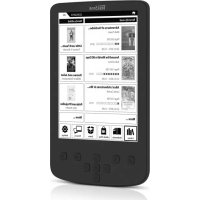
Pyrus 2 LED - E-reader TrekStor - Free user manual and instructions
Find the device manual for free Pyrus 2 LED TrekStor in PDF.


| Product type | Electronic reader (e-reader) |
| Brand | TrekStor |
| Model | Pyrus 2 LED |
| Dimensions (L x W x H) | 113.5 mm x 178.0 mm x 10.0 mm |
| Weight | 205 g |
| Housing material | Plastic (rubber) |
| Color | Black |
| Display type | E Ink® Pearl Display, 6 inches (15.2 cm) |
| Screen resolution | 800 x 600 pixels (4:3 aspect ratio) |
| Built-in light | Adjustable warm LED light |
| Internal storage capacity | 2 GB (approximately 2000 books) |
| Memory expansion | microSD/microSDHC card up to 32 GB |
| Supported e-book formats | EPUB, PDF, TXT, FB2, PDB, RTF, HTML |
| Supported image formats | JPEG, BMP, PNG, GIF (max. 2.5 MB) |
| Digital Rights Management (DRM) | Adobe Adept (EPUB, PDF) |
| Interface | Micro-USB 2.0 Hi-Speed, memory card reader |
| Power supply | Lithium-polymer battery, charging via USB port (1.5 h on charger, 3 h on PC) |
| Battery life | Several weeks depending on usage (after about 10 charge cycles) |
| Navigation | Navigation keys, OK button, back, search, font size adjustment |
| Supported operating systems | Windows 8/7/Vista/XP, Mac OS X 10.6+, Linux kernel 2.6+ |
| Interface languages | German, English, Italian, Spanish, French, Swedish, Polish, Turkish, Dutch, Russian |
| Maintenance and cleaning | Soft dry cloth; do not use solvents, alcohol or chemicals |
| Safety | Do not expose to moisture, do not cover during charging, turn off if in contact with liquid |
| Repairability | No user-serviceable parts; reset possible via reset button on back |
| Box contents | Reader, USB 2.0 cable (USB-A / Micro-USB), quick start guide |
Frequently Asked Questions - Pyrus 2 LED TrekStor
User questions about Pyrus 2 LED TrekStor
0 question about this device. Answer the ones you know or ask your own.
Ask a new question about this device
Download the instructions for your E-reader in PDF format for free! Find your manual Pyrus 2 LED - TrekStor and take your electronic device back in hand. On this page are published all the documents necessary for the use of your device. Pyrus 2 LED by TrekStor.
USER MANUAL Pyrus 2 LED TrekStor
eBook Reader Pyrus® 2 LED
INDEX
DE 4
EN 14
IT 24
ES 34
FR 44
SE 54
PL 63
TR 73
NL 83
RU 93
Adobe and the Adobe logo are either registered trademarks or trademarks of Adobe Systems Incorporated in the United States and/or other countries.
Thank you for buying the TrekStor eBook Reader Pyrus 2 LED. We are confident that this product will be the source of much enjoyment. Please read the following instructions carefully so that you can become acquainted with the functions of this product and its use.
Current product information can be found at the TrekStor website www.trekstor.de.
Other products and accessories are available at www.trekstor-onlineshop.de.
You can find detailed information about eBook Reader and its features on your Reader under "EXTRAS" → "USER MANUAL".
1) General Information
It is essential to observe the safety and usage instructions listed in Chapter 2 of this manual.
Keep this manual and hand it over to the next owner when passing the to them.
Use the device only for its intended purposes (see Chapter 3). The manufacturer accepts no liability for any damage resulting from nonintended use of the device. Furthermore, the manufacturer accepts no liability for damaged or lost data and all consequential damages.
The manufacturer retains the right to continually improve the product. These changes may be made without being directly described in these operating instructions. For this reason, the information provided in these operating instructions may not reflect the current state of the art.
2) Instructions for Safety and Use

Attention: Do not use or charge the device if the battery is damaged or leaks.

Attention: Do not cover the device during operation or while charging it. Lead to overheating.

Attention: If it gets wet, turn the power off immediately. Have the device checked in operation before using it again.

Only qualified persons may perform technical work on the product. The product may be opened or changed. The components cannot be serviced by the user.

Never expose the device to moisture, condensation and liquids.

Never place the device close to a source of heat, and protect it from direct sunlight.

Protect the device from extremely high and low temperatures and temperature ations. Use the device within an ambient temperature of 10°C until 40°C .

Make sure that the surroundings are as dust-free as possible when you use store the device.

Never clean the surface of the device with solvents, paint thinners, cleansers or chemical products. Instead, use a soft, dry cloth or soft brush.

In certain circumstances, exposing the device to an electrostatic discharge may disrupt the data transfer between the device and the computer and impair functions of the device. If this occurs, the device should be unplugged from USB port and then plugged in again. If necessary, re-activate the WiFi function.

Do not use USB cables longer than 3 meters.

The capacity indicated by your operating system can be different than the actual capacity of your device. Like most manufacturers of computer hardware, TrekStor (the prefixes for units (e.g. 1 GB = 1.000.000.000 bytes) as prescribed by the National System of Units (SI). Unfortunately, many operating systems do not comply with this norm and display a lower capacity because they base their calculations on the assumption that 1 GB = 2 30 bytes = 1.073.741.824 bytes.
3) About the eBook Reader Pyrus® 2 LED
TrekStor eBook Reader Cyrus LED 2 is a reading device for displaying electronic books and texts. It is used to view files of the following formats: EPUB, PDF, TXT, RTF, PDB and HTML.
Thanks to the innovative E Ink technology your reading will be as if the text were on paper, razor-sharp and flickerless. Simple operation impresses with bookmark management and adjustable text display size for relaxed reading.
Additionally implemented warm-light LEDs provide individually adjustable brightness for reading.
The eBook Reader has 2 GB of built-in storage space for about 2000 books, which can be extended with a microSD-/microSDHC memory card of up to 32 GB.
Images in JPEG, BMP, PNG and GIF formats can also be displayed.

It is essential to observe the following safety instructions in section 2!
4) Package contents
- TrekStore eBook Reader Pyrus 2 LED
- USB 2.0 cable (USB-A /Micro USB)
- Quick guide
5) Specifications
Dimensions (L x W x H) 113.5 mm x 178.0 mm x 10.0 mm
Weight 205 g
Color black
Internal memory 2 GB internal memory (for approx. 2,000 eBooks)
Integrated card reader microSD/microSDHC memory card (up to 32 GB)
Display type E Ink® Pearl Display, 16 greyscale
Display size 6" (15,2 cm)
Display dimensions (L x W) 90.5 mm x 122.0 mm
Display resolution 800 × 600 pixel
Interface Hi-Speed USB 2.0 (Micro-USB)
eBook formats ePUB, PDF, TXT, FB2, PDB, RTF, HTML
DRM formats Adobe Adept (EPUB, PDF)
Picture formats BMP, GIF (up to 2.5 MB; not animated), JPEG, PNG (up to 2.5 MB)
Operating systems Microsoft Windows® 8, 7, Vista®, XP (from SP2), Mac® OS X from 10.6.x, Linux® from Kernel 2.6.x
File system supported FAT32
LED dimmable warm-light LEDs
Power supply integrated lithium polymer battery
Charging via Micro-USB connector
OSD languages German, English, Italian, Spanish, French, Swedish, Polish, Turkish, Dutch, Russian
6) Controls and connections
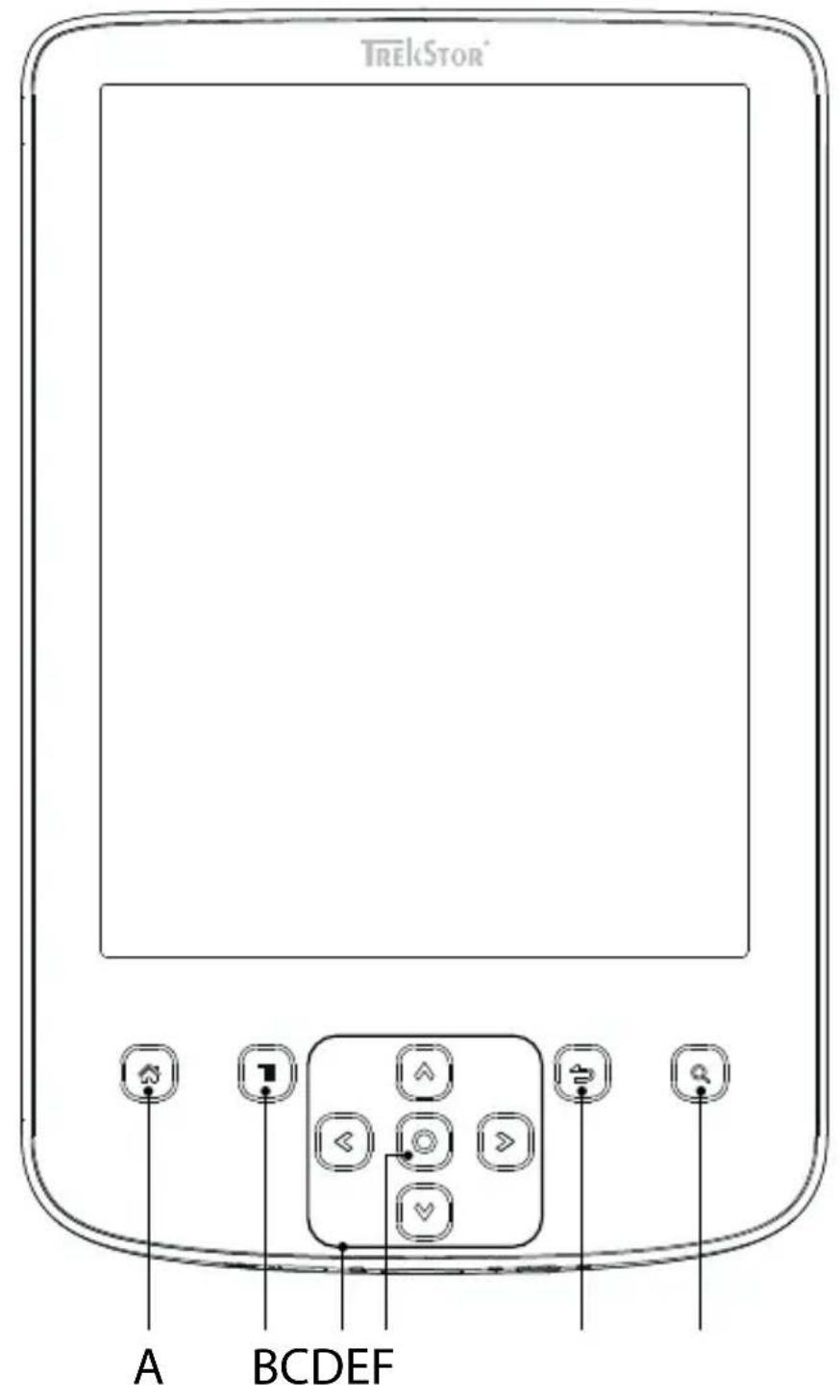
A) Display home screen
B) Display menu
C) , → , , Navigation buttons
D) OK button (Switching the lighting on or off)
E) Back button
F) Search function / Font size in eBooks / Zoom function
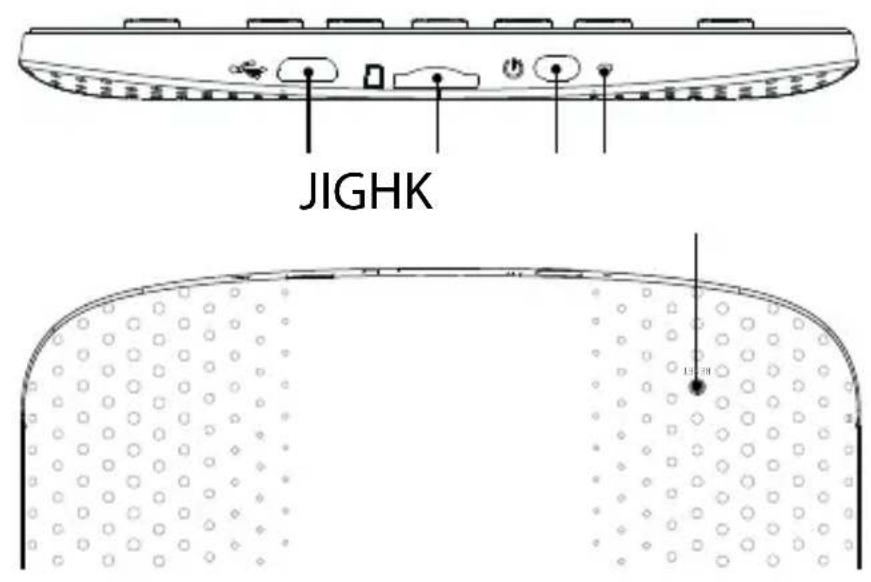
G) Power button (On/Off/Standby)
H) LED charging indicator
I) microSD/microSDHC card slot
J) Micro-USB connector
K) Reset button
7) Charging the eBook Reader
Once you have connected your eBook Reader via the included micro USB cable to a computer or to a socket using a suitable power supply (e.g. TrekStor USB-Charger e.fs), it is automatically charged. After 1,5 hours with USB power adapter (3 hours over PC), the battery will be fully charged and the charging will stop automatically to prevent overcharging.
The maximum battery life is reached after about 10 battery charging cycles.
Thanks to the intelligent power saving management of the eBook Reader you will be able to read for weeks with only one battery charge. Under "SETTINGS" you can additionally adjust the power saving setting to your personal reading behavior. Please note that this can affect battery life.
8) Getting started with the eBook Reader
After you have charged the eBook Reader for the first time, the reading pleasure can start.
8.1) Turning on the eBook Reader
Press the power button and hold for about 2 seconds. Wait a few seconds for the home screen.
i First, please choose during the first start-up your language and set the date and time.
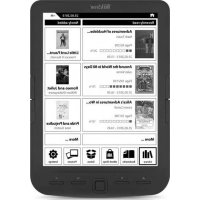
Besides the date and battery status, last called up books are displayed to the left and the books recently transferred to the Reader are displayed to the right on the home screen. Below you will find the menu bar, and the options to call up other titles. Via the navigation point "LIBRARY" you can also access your eBook collection.
8.2) Reading with the eBook Reader
If you want to read off right away, select one of the displayed titles by using the navigation keys and confirm your choice with the OK button. The active selection is bordered with a thick outline.
To flip forward or back the single pages, press the or button.
The button lets you adjust the display of the book to your individual needs.
- You can illuminate the display here if required (for example in the dark). To do this, press the OK button for about 2 seconds to turn the built-in lights on or off.
- Different font sizes and margin widths are available and you can switch back and forth between portrait and landscape format.
- You can also mark bookmarks and favorites as well as access the content directory and set bookmarks.
- The word search and the possibility to call a certain number of pages helps you to navigate within the book.
- Auto flip: This handy feature allows you to read without hands. The reader flips the pages of your book automatically after a certain time you have set before.
To exit an eBook or to close a menu/view, press the ⇒ button.
The button has various functions:
1) Pressing it briefly in the open book will call the word search.
2) Hold the button pressed for 1 second to open the menu for adjusting the font size.
3) The general file search is called up by pressing the button in the Home screen, in the Library and also in the Explorer. To exit the search, press the button twice.
8.3) Other settings and functions of the eBook Reader
Press the button to call the Home screen. Here you have the opportunity to make other settings and call other functions.

Here you find your ebook collection sorted by title.

Sorted by title or author, you will find here your set bookmarks and be able to view or delete them.

Find out how and where to receive new eBooks.

Here you will find your favorites, already read books, the Explorer showing your files and folders, and the detailed manual for your eBook Reader.

With the image viewer, all images, which are stored on the Reader or on the inserted memory card, are displayed.

Here you can make further adjustments to your eBook Reader:
- Lighting
Page refresh rate
Power settings
Time & Date
Language - Formatting (All data will be lost!)
- Resetting to default settings
Device information - DRM authorization information
9) Transferring my books onto the eBook Reader
In order to transfer your own books onto the eBook Reader, please proceed as follows:
9.1) Connecting the Reader with a computer
Connect the eBook Reader to your computer using the included micro USB cable. The eBook Reader is displayed as a removable disk or drive named "TREKSTOR".
The microSD/microSDHC card reader of the eBook Reader is recognized and displayed as a second "DEVICE WITH REMOVABLE STORAGE" or "DRIVE" named "TREKSTOR". An access will only be possible, if a memory card is inserted into the card slot.
9.2) Data exchange with the eBook Reader
The eBook Reader displays eBooks in the formats ePUB, PDF, FB2, RTF, TXT and PDB.
eBooks without copy protection
eBooks without copy protection can be simply stored via drag & drop (or copy & paste) in the root directory of the eBook Reader.
Adobe® DRM content (copy protected PDFs and ePUBs)
Many eBooks in ePUB or PDF format are protected by Adobe Adept DRM against unauthorized duplication. To view these eBooks on your eBook Reader and your computer, you have to transfer them with the software Adobe Digital Editions on your device.
1) First create – if not existing yet – under www.adobe.com your own Adobe ID by clicking on "REGISTER" on the top right of the page and following the instructions on the page.
2) Now install the software Adobe Digital Editions on your computer and log in using your Adobe ID. You can find the free software under: http://www.adobe.com/products/digital Editions/
3) Once the software installation has been completed successfully, you will be able to download Adobe DRM protected eBooks.
Example: You have purchased an eBook with DRM protection in the Internet and want to download it now. When you start the download, the following dialog box opens:
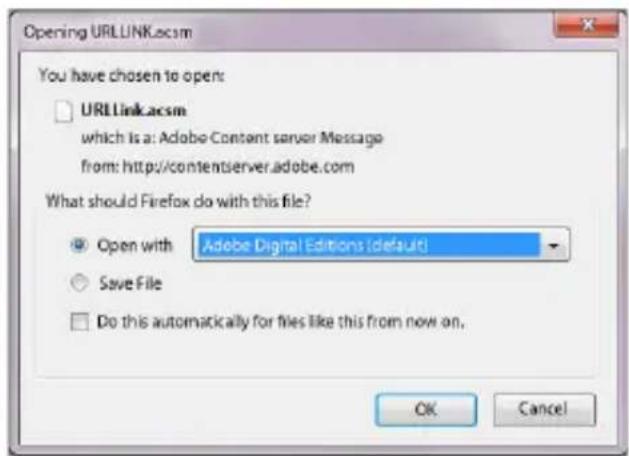
Select the option "OPEN WITH (ADOBE DIGITAL EDITIONS)" and confirm with OK.
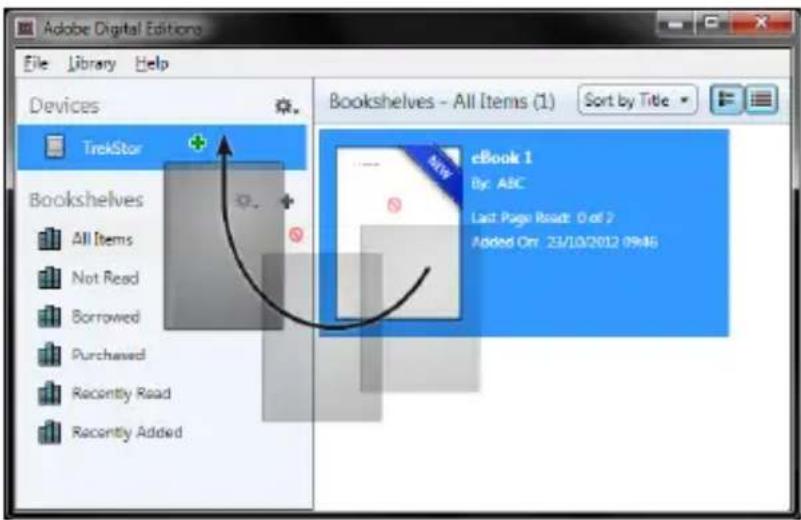
Now Adobe Digital Editions opens and your eBook is downloaded and stored to the folder "My DIGITAL EDITIONS" (Windows 7: "LIBRARIES" → "DOCUMENTS" / Windows XP: "My DOCUMENTS").
You can now copy the eBook via drag & drop to your device. Just click on the eBook and drag it while holding down the mouse button on your Reader ("TREKSTOR").
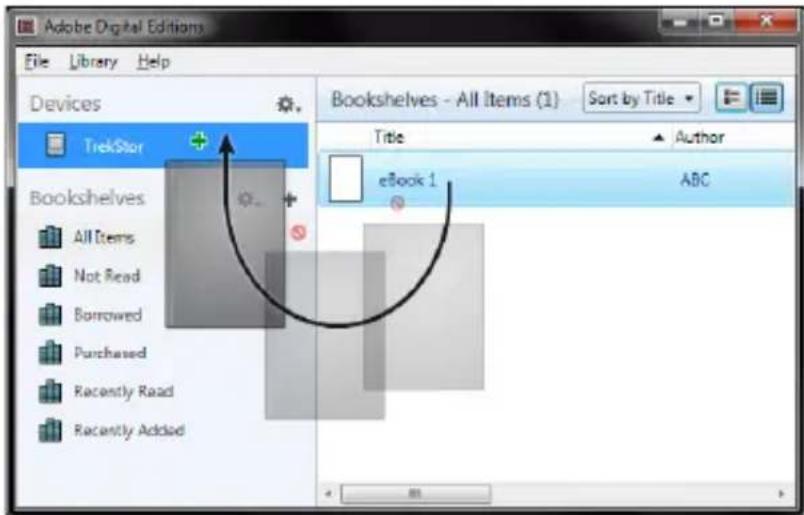
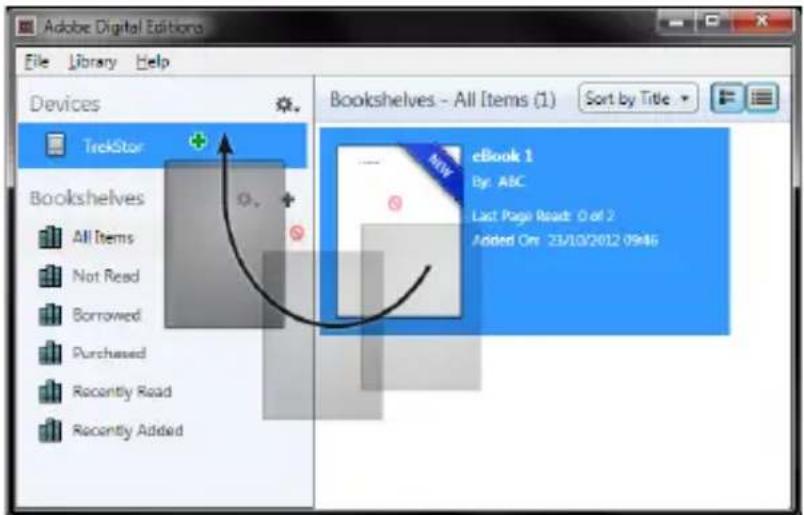
or
After a successful transfer, the eBook can be displayed on your Reader.
9.3) Transferring eBooks via the TrekStore eReader Suite
Regular updates, eBook management and synchronization, and direct access to your eBook Shop - the free eReader Suite handles all this tasks and provides you the opportunity of comfortable reading.
9.3.1) TrekStore eReader Suite Installation
- Connect your eBook Reader to your PC or MAC using the included USB cable.
- Make sure that your computer is connected to the Internet.
- To start the installation, follow these steps:
Windows®:
In "MY Computer", open the drive with the name "TREKSTOR" launch the "EReader Suite" installation file and follow the instructions of the installer.
MACos
In the Finder window, select the "TREKSTOR" drive and drag the file "eReader Suite" into the program folder. In the "PROGRAMS" folder, start the "eReader Suite" and follow the instructions of the installer.
9.3.2) Using the TrekStore eReader Suite
The eReader Suite is divided into three areas:
Home
You will find here information about your device like news, help and tips. In addition, you can download data sheets, manuals and updates. The home page also provides you with an overview of the available free space, the associated Adobe ID, the device registration and the current firmware version.
Shop
Get access to the integrated eBook shop, browse through the latest offers or purchase new eBooks.
i Please contact your eBook shop operator if you have questions or need more information.
Books
Always keep track of your eBooks and sync eBooks on your computer with your eBook Reader. This way you will have your library always at hand.
Adobe Digital Editions and an Adobe ID are required for DRM protected eBooks.
9.4) Logging off and disconnecting the eBook Reader from the computer
i Please follow the recommended logging off procedure to avoid damages to the device or the loss of data!
Windows 8/7/Vista®/XP
At the bottom right on the task bar, left-click the "SAFELY REMOVE HARDWARE" icon.
In the popup menu that appears, left-click "SAFELY REMOVE MASS STORAGE DEVICE - DRIVE" and disconnect your eBook Reader from the computer.
Mac OS X from 10.6
Please remove the drive "TREKSTOR" from the "DESKTOP" by clicking the drive icon and drag it to the trash icon. Now you can disconnect the eBook reader from your computer.
9.5) Switching the eBook Reader to standby mode
Press the button briefly to activate the standby mode. The standby screen will appear. To read further at the same place, press the button briefly again.
9.6) Turning off the eBook Reader
To turn off your eBook Reader, press the button again and hold for about 2 seconds. Your eBook Reader will turn off.
9.7) Resetting / Load default settings
If your eBook Reader no longer responds, you can restart it by pressing the reset button on the back of the device. To do this, you will need a small pin or a paper clip.
i Attention: Please do not use needles or similar sharp objects, because you can damage your eBook Reader.
10. Copyright and Trademark Notices
Copyright laws prohibit copying any data of this product or the contents of this manual (illustrations, related documents etc.) in whole or in parts without the permission of the copyright holder.
The E Ink signature is a registered trademark of E Ink Holdings; the name and design are protected by law.
TrekStor and Pyrus are registered trademarks of TrekStor Ltd. in the European Community and other countries.
Windows and Windows Vista are either registered trademarks or trademarks of Microsoft Corporation in the United States and/or other countries.
Mac OS is a registered trademark of Apple Inc. in the United States and/or other countries.
Linux is a registered trademark of Linus Torvalds in the United States and/or other countries.
Adobe and the Adobe logo are either registered trademarks or trademarks of Adobe Systems Incorporated in the United States and/or other countries.
Copyright © 2013 TrekStor GmbH. All rights reserved. Other cited product or company names may be trademarks or brand names of the respective owner.
Dimensioni (L x A x P) 113.5 mm x 178.0 mm x 10.0 mm
The E Ink signature is a registered trademark of E Ink Holdings; the name and design are protected by law.
TrekStor and Cyrus are registered trademarks of TrekStor Ltd. in the European Community and other countries.
Windows and Windows Vista are either registered trademarks or trademarks of Microsoft Corporation in the United States and/or other countries.
Mac OS is a registered trademark of Apple Inc. in the United States and/or other countries.
Linux is a registered trademark of Linus Torvalds in the United States and/or other countries.
Adobe and the Adobe logo are either registered trademarks or trademarks of Adobe Systems Incorporated in the United States and/or other countries.
Instead of the panel, we have a panel that includes the "TREKSTOR" and "READERSUITE" sections. We also include the "TREKSTOR" section in the "TREKSTOR" section.
MACOS:
The E Ink signature is a registered trademark of E Ink Holdings; the name and design are protected by law.
TrekStor and Pyrus are registered trademarks of TrekStor Ltd. in the European Community and other countries.
Windows and Windows Vista are either registered trademarks or trademarks of Microsoft Corporation in the United States and/or other countries.
Mac OS is a registered trademark of Apple Inc. in the United States and/or other countries.
Linux is a registered trademark of Linus Torvalds in the United States and/or other countries.
Adobe and the Adobe logo are either registered trademarks or trademarks of Adobe Systems Incorporated in the United States and/or other countries.
The E Ink signature is a registered trademark of E Ink Holdings; the name and design are protected by law.
TrekStor and Pyrus are registered trademarks of TrekStor Ltd. in the European Community.
Windows and Windows Vista are either registered trademarks or trademarks of Microsoft Corporation in the United States and/or other countries.
Mac OS is a registered trademark of Apple Inc. in the United States and/or other countries.
Linux is a registered trademark of Linus Torvalds in the United States and/or other countries.
Adobe and the Adobe logo are either registered trademarks or trademarks of Adobe Systems Incorporated in the United States and/or other countries.
The E Ink signature is a registered trademark of E Ink Holdings; the name and design are protected by law.
TrekStor and Pyrus are registered trademarks of TrekStor Ltd. in the European Community and other countries.
Windows and Windows Vista are either registered trademarks or trademarks of Microsoft Corporation in the United States and/or other countries.
Mac OS is a registered trademark of Apple Inc. in the United States and/or other countries. Linux is a registered trademark of Linus Torvalds in the United States and/or other countrie
Adobe and the Adobe logo are either registered trademarks or trademarks of Adobe Systems Incorporated in the United States and/or other countries.
The E Ink signature is a registered trademark of E Ink Holdings; the name and design are protected by law.
TrekStor and Pyrus are registered trademarks of TrekStor Ltd. in the European Community and other countries.
Windows and Windows Vista are either registered trademarks or trademarks of Microsoft Corporation in the United States and/or other countries.
Mac OS is a registered trademark of Apple Inc. in the United States and/or other countries.
Linux is a registered trademark of Linus Torvalds in the United States and/or other countries.
Adobe and the Adobe logo are either registered trademarks or trademarks of Adobe Systems Incorporated in the United States and/or other countries.
Additionally, the use of the data of this product or the contents of this manual are not allowed without TrekStor GmbH's permission except for personal use.
The E Ink signature is a registered trademark of E Ink Holdings; the name and design are protected by law.
TrekStor and Pyrus are registered trademarks of TrekStor Ltd. in the European Community and other countries.
Windows and Windows Vista are either registered trademarks or trademarks of Microsoft Corporation in the United States and/or other countries.
Mac OS is a registered trademark of Apple Inc. in the United States and/or other countries.
Linux is a registered trademark of Linus Torvalds in the United States and/or other countries.
Adobe and the Adobe logo are either registered trademarks or trademarks of Adobe Systems Incorporated in the United States and/or other countries.
Pools, Turks, Netherlands,
Russisch
The E Ink signature is a registered trademark of E Ink Holdings; the name and design are protected by law.
TrekStor and Pyrus are registered trademarks of TrekStor Ltd. in the European Community and other countries.
Windows and Windows Vista are either registered trademarks or trademarks of Microsoft Corporation in the United States and/or other countries.
Mac OS is a registered trademark of Apple Inc. in the United States and/or other countries.
Linux is a registered trademark of Linus Torvalds in the United States and/or other countries.
Adobe and the Adobe logo are either registered trademarks or trademarks of Adobe Systems Incorporated in the United States and/or other countries.
IpeynpexdeHue: He ucnol3yume u He 3apjkaume ycmpoucmbo, mylamop nobpexdeH uU npomekaem.
IpeynpexdeHue: He hakpbBaume ycmpoucmbo BO bpeMa pa6ombu uu 3apdku.
moxem npubecmu K nepezpeby.

IpeynpexdeHue: HemedenHo bIKnOume numaHue, eCNU yBudme Bna2y. Ucmbo doJxHo 6bmb npoepeNo dne 6eOnacHou pa6omb neped
noBmOpHbIMUCNOJb308aHuEM.

TexHuueckue pa6ombi Ha ycmpoucmbe doJxHbI bInonHmbcra KbaIuΦuupoBaHHbIMU. Ycmpoucmbo He doJxHo 6bImb BcKpbmbim U b Hem He doJxHbI 6bImb cdeHaB1
Hukakue u3MeHeHu. KomnoHeHmbi He Mozym o6cnyKuambcra noIb3OaMeJeM.

He nodbepeaume ycmpoucmbo 803deuecmbuio bnaXnocmu, KOhehcama u xudkocmu.

He cmaBme npubop pradom cucmouHukom menla u 8 Mecme He 3auuueHHOM OaMbIX COJIHeuHbIX lyuei.
3auuuaume npubop om 8o3deucmbua ouehb bboKux u Hua3kux memnepamypu nnepeamypbix kone6aHu. IcnoB3yume monbko npu memnpamype okpykaioue cpdbbnpedenax om 10°C do 40°C

IcnoJIb3yUme u xpaHume ycmpoUcMb8a B cyxOM u YucmOM mecme.
Ouucmka nobepxHocmu 6Ioka Huko2da He doJnx npobodumbcc u cncnbl30baHue m nBopumeeu, naHOBbIbODumeeu, moUux cpedcm8 unu dpyux xumueckux npodykm08, Bmecmo 3mo20 noJIb3yUmecb Mkou cyXou mKaHbIO Ulu MraKoU omKoU.
Ecnu ycmpoucmbno noDBeepaemc 3neKmpocmamuueckomy pa3pdy, B Hekomopbix auaux moxem npepbibambcna nepedaa daHnbix mekdy ycmpoucmbom u Komnbomepm oUu Mozym hapwambcn fyHKuu ycmpoucmba. B 3mom cnyae ycmpoucmbo Heobxdumo omcoedunhm b om USB-nopma u nodcoedunhm 3aHOBO.

He pekomehdyemcra ucnolb30abmb USB-ka6enu dnuHou 6oJee 3 M.
OmoobpaKaem anepauohho cuminem oekcmb bheuH2o kecmko2o ducka
1GB
om omnuambcn on deucmbumelho emkocmu. TrekStor, ka u 6olbuuncbo
npou3bodumeenu annapamno obecneuehura, ucnolbyem dnyuka3anure eduhu
emkocmu npunmble mekjdynapodho cuminem ou eduhu (SI) npeukcbi
(hanpumep, 15 = 1.000.000.000 6aum). Odako mhoue onepaauonhble cuminembl He
npudepxubiaomcnaux napamempov umoobpaKaom Mehbuyu emkocmb,
mak kak 3a ochoy pauehemoe onu 6epym 15 = 230 6aum = 1.073.741.824 6aum.
3) O TrekStore eBook Reader Pyrus® 2 LED
CBeToIOIObl 3aTeMHeHHbI TeNbIe CBeToIOIObl
Bb6epnte onuio "OPEN WITH (ADOBE DIGITAL EDITIONS)" n noTBepeHnte, Haxab OK.
Посл eТoro oTKpoetcA Adobe Digital Editions n Bawa eBook 6удт загужени coхpaнehа в пanke "My DIGITAL EDITIONS" (Windows 7: "LIBRARIES" → "DOCUMENTS"/Windows XP: "My DOCUMENTS").
Tenepb Bbl mojete ckonnpobatb eBook uepe3 Drag & Drop ha cboe yctpoiCTBO.ДЯ entoro haxmnte Ha eBook n He otnyckaay KhONkyMbIshkn, nepetaunte ee Ha cBoi Reader ("TREKSTOR").
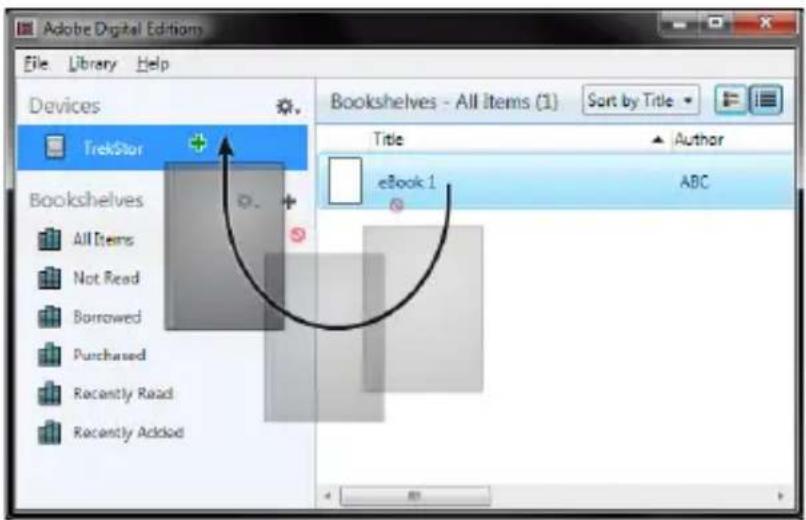
Iocne ycneHoro nepemeueHra eBook moXHa nOcMOTpeTb Ha cBoem Reader.
9.3 Перем速度快 eBooks с пою TrekStor eReader Suite
Pergnephe 6noBneHna, npabneHne n cnHxpoHn3aunr eBook, a taKxe npamOn DoCTyn K BaWemy MaarAnHy eBook- 6ecnNaTHbI eReader Suite ocuyeCTBnE Tce 3aauN, KOtOpBie P03BOJnT JeKoe u yDObHoe NCNoB3OBaHne aaWero yCTpOYCTBa.
9.3.1 YctaHOBka TrekStore Reader Suite
1) CoeinnHe cBoe eBook Reader c nOoIbI npnilaeraMOro USB-K a 6eIa co cboIM PC nII MAC.
2) Y6eIntecb, yTO BAaKOMnbIOTepe nOdkJIuOeH K INHTepHeTy.
3) UTo6bI Haayatb yCTaHOBky, BblIOJIHITe CneDyIOUne DeiCTBnJ:
Windows®:
OTKpoIte INCKOBOD "TREKSTOR", yCTaHOBOHbI ΦaII "EREADER SUITE" n cIeIyIte INHCTpyKcIyM INHCTaJIaTIOpa.
Mac OS:
B npoBoHnke BbI6epnte yctpoiCTBO "TREKSTOR" n nepemecNTe faJl "ERADER SUITE" B nporpaMMHyIO naKy. B naKe "PROGRAMS" 3aNyCTnte nCNoJIb3OBaHne "ERADER SUITE" IN CLEyIte IHCTpyKzIyM npoRpaMMbl yCTaHOBKn.
9.3.2 Исторовные TrekStor eReader Suite
eReader Suite pa3deneH Ha Tprn Yactn:
Tnabha
3decb Bbl HainTe INHOpMaunIO o6 yCTpoiCTBe, TaKyIO KaK HOBOCTN, NOMOuBtBI. Kpome TOrO, Bbl MoKeTe 3aRpyKaTb Ta6nucbl npaMeTPOB, NOC6nIIN O6HOBJeHnA.
YTo6bI BbIKJIouHtB CBOe eBook Reader, 3axMnte KhoNka Ha 3 ceKyHdbI.
9.7 C6paçbɪbaHne eBook Reader (C6poc)
Ecn Baaw eBook Reader nepectaet OTBeuataB, Bbl MoKeTe 3aNcyTntb erO 3aHOBO, Haxab KOnKy c6pocHa 3aHnei paHei yCTpoiCTBa. IcNoIb3yIte MaIeHbKyIO 6yIaBky IIN cKpeiKy.
i Ioxanyucma, He ucnolb3yume u20ky uu noo6Hbe ocmpbie npedMembl, mak kaK 3mo Moxem nobpeumb baw eBook Reader.
10 Abtopckne npaba N Toprobles MapKn
3aKohbI 6abTOpCKnX npaBax 3anpeaOT KOnnpoBaHne daHHbIX TOTO npOdyKTa nIN COdepKaHHe DaHHoro pyKOBOcTBa (nnIOCTpaCn, cnpaBOUHbIE OOKMeHTbI N.T.D.), NNHOCTbIO nnuactnHo, 6e3 corlaCn BnaJeBbca abTOpCKnx npaB.
The E Ink signature is a registered trademark of E Ink Holdings; the name and design are protected by law.
TrekStor and Pyrus are registered trademarks of TrekStor Ltd. in the European Community and other countries.
Windows and Windows Vista are either registered trademarks or trademarks of Microsoft Corporation in the United States and/or other countries.
Mac OS is a registered trademark of Apple Inc. in the United States and/or other countries.
Linux is a registered trademark of Linus Torvalds in the United States and/or other countries.
Adobe and the Adobe logo are either registered trademarks or trademarks of Adobe Systems Incorporated in the United States and/or other countries.
Abtopckoe npabo © 2013 TrekStor GmbH. Bce npaba 3aunuehbl. pyrne npnbedeHHbE Ha3BaHnI pOdyKTOB IN KOMNaHn IABJIOTcR IJN MOyT YBJIaTBcR TOBaHbIMN 3HaKaMn COOTBeTCTByUOxN BnaDeJIbUeB.
Akku-Entsorgung
Reporting requirement according to the Battery Directive (BattV)
Batteries are not part of the domestic waste. The consumer is obliged to return no longer used batteries properly. Please dispose of them by a specialized trade or a battery collection point. Hereby you make an important contribution to environmental protection.
Since 1998 the German Battery Directive compels all citizens to dispose of used batteries exclusively through the trader or specially equipped departments (legal return obligation).
Trade and manufacturers are committed to take back batteries for free and to exploit it properly or to remove it as special waste (legal take-back obligation).

e built-in lithium-polymer battery of this device is marked with the adjoining symbol, consisting of a crossed out bin and the used battery type.
Remove battery

Before you return a disused device for disposal, the battery has to be removed from the device.

TREkSTor
Enjoy now.
EC DECLARATION OF CONFORMITY
As manufacturer and importer respectively:
TrekStor GmbH
Kastanienallee 8-10
D-64653 Lorsch, Germany
herewith declares that the products
Product: eBook Reader Pyrus 2 LED
Type: electronic reading device
comply with the following directive(s):
- 2004/108/EC EMC Directive: Electromagnetic Compatibility
2006/95/EC Low Voltage Directive
The following norms were consulted to assess conformity:
EN 55022:2010
EMC: Information technology equipment - Radio disturbance characteristics - Limits and methods of measurement
EN 55024:2010
EMC: Information technology equipment - Immunity characteristics - Limits and methods of measurement
EN 60950-1:2006 + A12:2011
Information technology equipment - Safety - Part 1: General requirements
The CE symbol confirms that this product conforms with the above mentioned norms and regulations.
The manufacturer also declares the conformity of the product according to the following directives:
2001/95/EC General Product Safety
2002/95/EC RoHS: Hazardous substances in electrical and electronic equipment
2009/125/EC Ecodesign requirements for energy-using products
Lorsch,
23.09.2013
T. Kroposcha
Thorsten Koroscha, LPM
Supportinformationen
If you have any questions regarding your TrekStor product, please proceed as follows:
- Check the features as well as the functions of your device (apparent on the packaging), in order to use the correct settings.
- Read the manual carefully.
- Inform yourself on our website www.trekstor.de/en about the up-to-date information concerning your product (e. g. available most recent firmware releases).
In the case you have further questions regarding your product, please note the following TrekStor support options:
FAQ The FAQ area of our website offers you a wide range of problem solving hints. Here you can obtain answers to the most frequently asked questions concerning our products.
E-Mail Please fill in the support form on our website or send an E-Mail to
support.en@trekstor.de. You can find mailing addresses for other you click "SERVICE" at the menu bar on our website.
Phone support Please find the number of the support hotline for your country on our website under "SERVICE" as well.
TrekStor GmbH
Kastanienallee 8-10
D-64653 Lorsch, Germany

- INDEX
- GENERAL INFORMATION
- INSTRUCTIONS FOR SAFETY AND USE
- ABOUT THE EBOOK READER PYRUS® 2 LED
- PACKAGE CONTENTS
- SPECIFICATIONS
- CONTROLS AND CONNECTIONS
- CHARGING THE EBOOK READER
- GETTING STARTED WITH THE EBOOK READER
- TURNING ON THE EBOOK READER
- READING WITH THE EBOOK READER
- OTHER SETTINGS AND FUNCTIONS OF THE EBOOK READER
- TRANSFERRING MY BOOKS ONTO THE EBOOK READER
- CONNECTING THE READER WITH A COMPUTER
- DATA EXCHANGE WITH THE EBOOK READER
- EBOOKS WITHOUT COPY PROTECTION
- ADOBE® DRM CONTENT (COPY PROTECTED PDFS AND EPUBS)
- TRANSFERRING EBOOKS VIA THE TREKSTORE EREADER SUITE
- TREKSTORE EREADER SUITE INSTALLATION
- WINDOWS®
- MACOS
- USING THE TREKSTORE EREADER SUITE
- HOME
- SHOP
- BOOKS
- WINDOWS 8/7/VISTA®/XP
- MAC OS X FROM 10.6
- O TREKSTORE EBOOK READER PYRUS® 2 LED
- 9.3 ПЕРЕМ速度快 EBOOKS С ПОЮ TREKSTOR EREADER SUITE
- 9.3.1 YCTAHOBKA TREKSTORE READER SUITE
- MAC OS
- 9.3.2 ИСТОРОВНЫЕ TREKSTOR EREADER SUITE
- TNABHA
- AKKU-ENTSORGUNG
- REPORTING REQUIREMENT ACCORDING TO THE BATTERY DIRECTIVE (BATTV)
- REMOVE BATTERY
- EC DECLARATION OF CONFORMITY
- SUPPORTINFORMATIONEN
- IF YOU HAVE ANY QUESTIONS REGARDING YOUR TREKSTOR PRODUCT, PLEASE PROCEED AS FOLLOWS
- IN THE CASE YOU HAVE FURTHER QUESTIONS REGARDING YOUR PRODUCT, PLEASE NOTE THE FOLLOWING TREKSTOR SUPPORT OPTIONS
- TREKSTOR GMBH
Brand : TrekStor
Model : Pyrus 2 LED
Category : E-reader