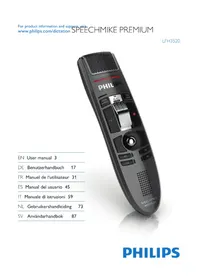
SpeechMike Premium LFH3520 - Voice recorder PHILIPS - Free user manual and instructions
Find the device manual for free SpeechMike Premium LFH3520 PHILIPS in PDF.



| Product type | Voice recorder (dictation microphone) with mouse function and integrated barcode scanner |
| Brand | Philips |
| Model | SpeechMike Premium LFH3520 |
| Dimensions (W x D x H) | 45 x 175 x 32 mm |
| Weight | 0.200 kg |
| Cable length | 2.5 m |
| Power supply | Via computer USB port |
| Microphone type | Electret condenser microphone, unidirectional |
| Frequency response (microphone) | 200 - 12,000 Hz |
| Microphone sensitivity | -37 dB @ 1 kHz |
| Microphone signal-to-noise ratio | > 70 dBA |
| Connector | Mini-USB 2.0 |
| Main functions | Dictation recording and playback, play/forward/back control, programmable keys, motion sensor, integrated mouse, Class 1 laser barcode scanner |
| Required software | Philips SpeechExec (or other compatible dictation software); Philips Device Control Center for customization |
| Minimum system requirements | Intel Pentium 4 1 GHz processor, 1 GB RAM (2 GB recommended), 10 MB disk space for Speech Control, free USB port, CD-ROM drive, compatible Windows or Mac OS |
| Maintenance and cleaning | Unplug before cleaning; use a soft cloth, possibly dampened with water or mild soap; clinical disinfectants possible; do not use corrosive products or hard objects |
| Safety | Do not expose to water or excessive heat; do not open the device (laser risk); keep out of reach of young children; follow disposal instructions according to the WEEE directive |
| Spare parts and repairability | No specific information; repair must be carried out by authorized technicians; firmware update possible via software |
| General information | Color: dark grey pearl metallic; antimicrobial material; integrated 30 mm speaker; warranty and support at www.philips.com/dictation |
Frequently Asked Questions - SpeechMike Premium LFH3520 PHILIPS
User questions about SpeechMike Premium LFH3520 PHILIPS
0 question about this device. Answer the ones you know or ask your own.
Ask a new question about this device
Download the instructions for your Voice recorder in PDF format for free! Find your manual SpeechMike Premium LFH3520 - PHILIPS and take your electronic device back in hand. On this page are published all the documents necessary for the use of your device. SpeechMike Premium LFH3520 by PHILIPS.
USER MANUAL SpeechMike Premium LFH3520 PHILIPS
2.1 What's in the box 6
2.2 Overview 7
3 Get started 8
3.1 Installation 8
4 Use your SpeechMike 9
4.1 Create a recording 9
5 Use more of your SpeechMike 10
5.1 Customize the SpeechMike 10
5.1.1 Customize SpeechMike keys and settings 10
5.1.2 Use application shortcuts 11
5.1.3 Use the motion sensor 12
5.2 Update the firmware 13
6 Technical data 14
7 Frequently asked questions 15
1 Important
The manufacturer reserves the right to change products at any time without being obliged to adjust earlier supplies accordingly.
The material in this manual is believed adequate for the intended use of the system. If the product, or its individual modules or procedures, are used for purposes other than those specified herein, confirmation of their validity and suitability must be obtained.
Safety
- To avoid a short circuit, do not expose the product to rain or water.
- Do not expose the device to excessive heat caused by heating equipment or direct sunlight.
- Protect the cables from being pinched, particularly at plugs and the point where they exit from the unit.
- Back up your files. Philips is not responsible for any loss of data.
SpeechMike Barcode

Class 1 laser product
This product complies with:
21CFR1040.10 and 1040.11 except for deviations pursuant to Laser Notice No. 50, dated July 26, 2001.
EN60825-1:1994 + A1:2002 + A2:2001
IEC60825-1:1993 + A1:1997 + A2:2001
The laser classification is marked near the scanner window on the product.
Class 1 Laser devices are not considered to be hazardous when used for their intended purpose. The following statement is required to comply with US and international regulations:
Caution
Do not try to open the unit. Allow only authorized service technicians to repair the unit. Use of controls, adjustments or performance of procedures other than those specified herein may result in hazardous laser light exposure.
Small children
Your device and its enhancements may contain small parts. Keep them out of the reach of small children.
Compliance with EMF
Koninklijke Philips Electronics N.V. manufactures and sells many products targeted at consumers, which, like any electronic apparatus, in general have the ability to emit and receive electromagnetic signals. One of Philips' leading Business Principles is to take all necessary health and safety measures for our products, to comply with all applicable legal requirements and to stay well within the EMF standards applicable at the time of producing the products. Philips is committed to develop, produce and market products that cause no adverse health effects. Philips confirms that if its products are handled properly for their intended use, they are safe to use according to scientific evidence available today. Philips plays an active role in the development of international EMF and safety standards, enabling Philips to anticipate further developments in standardisation for early integration in its products.
Cleaning and disinfection
- Unplug the device from the computer before cleaning.
- Use a soft cloth, if necessary dampened with a minimum amount of water or diluted mild soap, to clean the product.
- Products for disinfection of surfaces in clinical
areas and patient care equipment, such as surface disinfectant wipes, can be used to clean the device.
- Do not use harsh chemicals or strong detergents.
- Do not rub or strike the surface with anything hard as this may scratch or damage the surface permanently.
Disposal of your old product
- Your product is designed and manufactured with high quality materials and components that can be recycled and re-used.
- When this crossed-out wheeled bin symbol is attached to a product, it indicates that the product is covered by the European Directive 2002/96/EC.
- Become informed about your local separate collection system for electrical and electronic products.
- Act according to your local rules and do not dispose of old products with normal household waste. The correct disposal of old products will help prevent potential negative consequences for the environment and human health.
2 Your SpeechMike
Congratulations on your purchase and welcome to Philips!
Visit our website for comprehensive support such as user manuals, software downloads, warranty information and much more: www.philips.com/dictation.
2.1 What's in the box
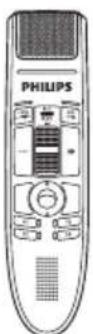
Dictation microphone
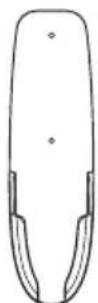
Hanging bracket
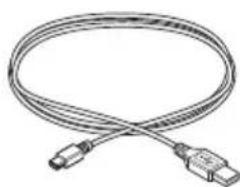
USB cable

CD-ROM containing software and user manual
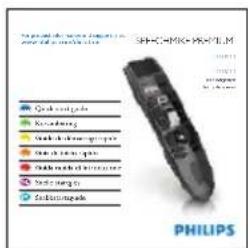
Quick start guide
2.2 Overview
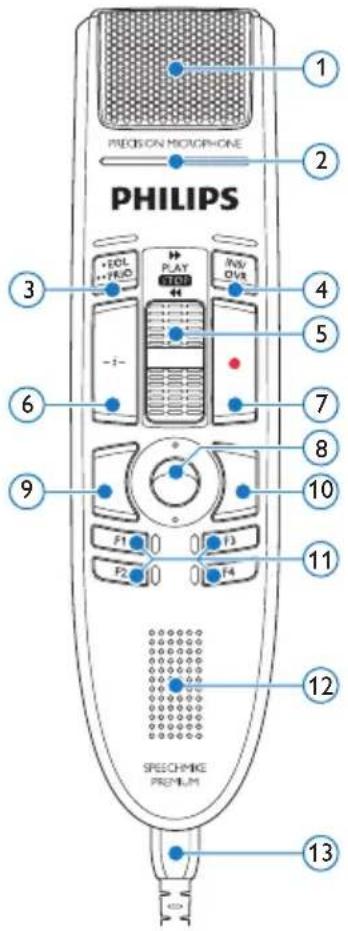
① Microphone
② Record indicator light
EOL end-of-letter key, PRIO priority key
INS/OVR Insert/overwrite key
⑤ Slide switch (▶ fast forward, PLAY play/ record, STOP stop/pause, ← rewind)
6 Instruction
⑦ Record
⑧ Trackball, left mouse button
Left mouse button
Right mouse button
11 F1, F2, F3, F4 Programmable function keys
⑫ Speaker
13 USB cable
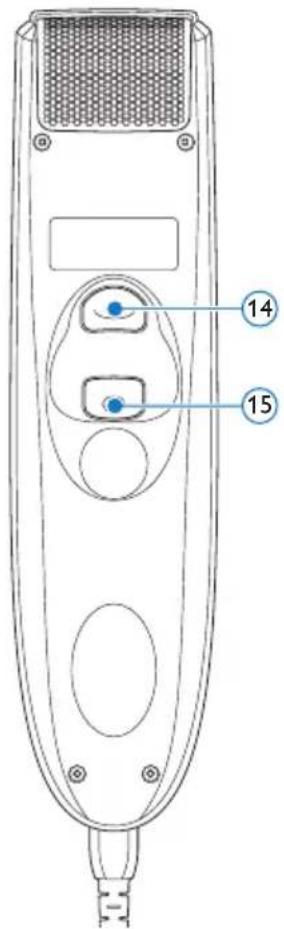
14 Programmable function key
15 Left mouse button
3 Get started
3.1 Installation
Recording and playback of dictations with the SpeechMike requires dictation software such as Philips SpeechExec to be installed on the computer. When third-party dictation software other than Philips SpeechExec is used, driver software must be installed before connecting the SpeechMike.
0 Important
Administrator rights are required to install the software. For more help, contact your administrator.
1 Turn on the computer.
2 Connect the dictation microphone to the computer using the USB cable.
3 The New Hardware Found message is displayed and installation will proceed automatically.
Note
If the message does not appear, verify if the USB port is enabled in the BIOS of the system. See the hardware documentation for details, or contact your hardware vendor.
4 Restart the PC when prompted by Windows.
5 Insert the installation CD in the CD-ROM drive. The set-up program should start automatically. If it does not, open the CD contents in Windows Explorer and double-click the autorun.exe file.
6 Click the Install button.
7 Follow the on-screen instructions of the set-up program.
4 Use your SpeechMike
This chapter describes how to use the SpeechMike with Philips SpeechExec dictation software. If the SpeechMike is used with third-party software other than Philips SpeechExec, some features may not be present or function differently. For detailed information, refer to the documentation delivered with the software.
4.1 Create a recording
1 The dictation microphone must be connected to the computer with the USB cable.
2 Start SpeechExec dictation software.
3 Press the oRECORD key to create a new recording and enter Record standby mode.
The recorder window is displayed.
- The record indicator light flashes red (in overwrite mode) or green (in insert mode).
4 Move the slide switch to the PLAY position and start speaking.
The record indicator light glows in red (in overwrite mode) or green (in insert mode) while recording.
5 For short pauses, move the slide switch to the STOP position. To continue recording, move the slide switch back into the PLAY position.
6 To stop recording, move the slide switch to the STOP position and press the RECORD key.
7 Press theEOL/PRIO key to mark the recording as finished.
- The dictation file is moved to the Finished dictations folder.
- The recorder window closes and the work list window is displayed.
8 To assign priority status to the recording, press the · EOL/ · PRIO key again within half a second.

Note
For best results, speak clearly and keep the microphone about 10 to 15 centimeters (4 to 6 inches) away from your mouth.
5 Use more of your
SpeechMike
5.1 Customize the SpeechMike
Use the Device Control Center software to customize the SpeechMike to suit individual user needs.
The software allows to assign different functions to each key, enable or disable certain features and also to start and control applications with the SpeechMike.
5.1.1 Customize SpeechMike keys and settings
1 The dictation microphone must be connected to the computer with the USB cable.
If the option to start the Device Control Center automatically was selected during installation, open the program by clicking the icon in the notification area of the Windows task bar. To manually start the program, open the Windows start menu in Windows and select All Programs > Philips Speech Control > Philips Device Control Center.
The current settings are automatically downloaded from the connected SpeechMike.

3 On the Device tab, configure device settings and select the function to be assigned to each key.
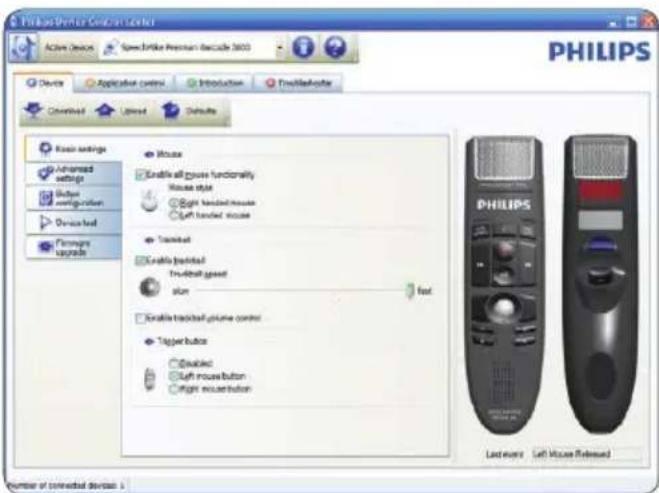
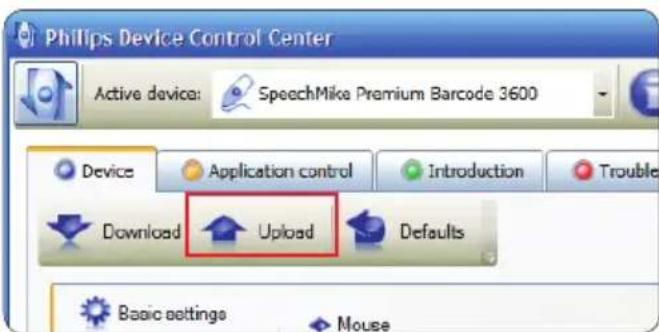
4 Click the Upload button to save the new settings.

Note
The SpeechMike can be reset to its factory default configuration by clicking the Defaults button. Click the Upload button to save the default settings.

Tips
- To test settings and key functions, use the Device test section on the Device tab.
- Press and hold the left and right mouse button on the SpeechMike simultaneously until the LEDs flash to activate and deactivate all mouse functions.
5.1.2 Use application shortcuts
The Device Control Center software allows to start and control other applications with the keys on the SpeechMike.
The Device Control Center software includes pre-installed profiles that make the SpeechMike ready for immediate operation with Dragon NaturallySpeaking speech recognition software and Microsoft Powerpoint. Additional profiles for other applications can be programmed.
If the option to start the Device Control Center automatically was selected during installation, the application icon appears in the notification area of the Windows task bar. To manually start the program, open the Windows start menu in Windows and select All Programs > Philips Speech Control > Philips Device Control Center.
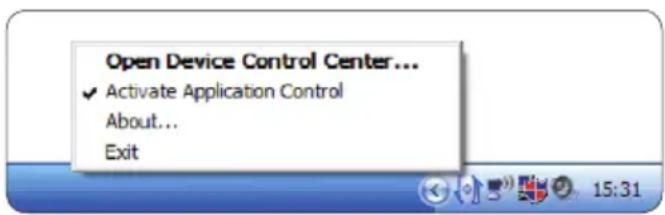
2 Right-click on the application icon in the notification area of the Windows task bar and verify that 'Acitvate application control' is enabled. If the option is disabled, the configured settings and buttons will not function for any of the target applications.

Note
Exit Philips SpeechExec software when using application shortcuts to prevent unintentional recording when controlling other applications.
Default profile
The default profile is applied automatically when there is no profile assigned to an application in focus. This profile is set up to control Dragon Naturally Speaking with your SpeechMike. The following settings are defined:
| SpeechMike key Assigned shortcut | |
| ● Record | Record (push to dictate) |
| PLAY Play Play from cursor position | |
| ↔ Rewind | Move cursor backwards |
| ► Fast forward | Move cursor forwards |
| •EOL/•PRIO | Mark backwards |
| INS/OVR | Open correction window |
| -i - Instruction | Choose 2 |
Powerpoint profile
Use this profile to control PowerPoint presentations with the SpeechMike. The following settings are defined:
| SpeechMike key Assigned shortcut | |
| ● Record | Black screen |
| PLAY Play | White Screen |
| ← Rewind | Go to previous slide |
| ► Fast forward | Go to next slide |
| •EOL/•PRIO | End slide show |
| INS/OVR | Show/hide cursor |

Note
Philips cannot guarantee the proper function of all assigned shortcuts, since shortcuts can differ among versions and languages.
Program a custom profile
It is possible to program shortcuts for other applications to control application functions with the keys of the SpeechMike.
1 The dictation microphone must be connected to the computer with the USB cable.
2 If the option to start the Device Control Center automatically was selected during installation, open the program by clicking the icon in the notification area of the Windows task bar. To manually start the program, open the Windows start menu in Windows and select All Programs > Philips Speech Control > Philips Device Control Center.
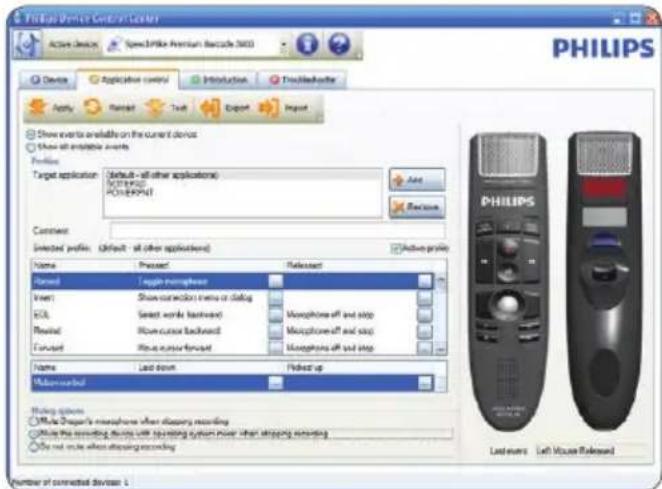
3 On the tab Application control, click the button to create a new profile.
4 Browse and select the application executable and click on OPEN. A profile for the selected application will be added to the list of profiles.
Note
Exit the target application during configuration. Open the application when the device configuration settings are saved.
5 Select a button from the button colum and click the icon to assign a shortcut. You can assign different shortcuts for pressing and releasing a key.
The shortcut editor window is displayed.
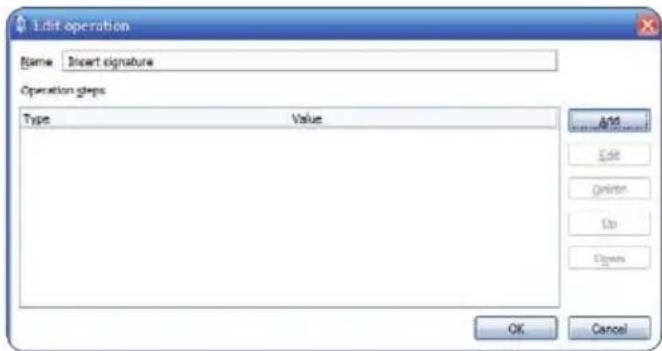
6 Enter name for the shortcut and click the Add button add an opertion for the shortcut. The following options are available:
Hotkey: Assign a keyboard shortcut
Text: Enter the text to be inserted when a key on the SpeechMike is pressed
- Start an application by pressing a key on the SpeechMike
- Mouse button
- Dragon Naturally Speaking command
Delay
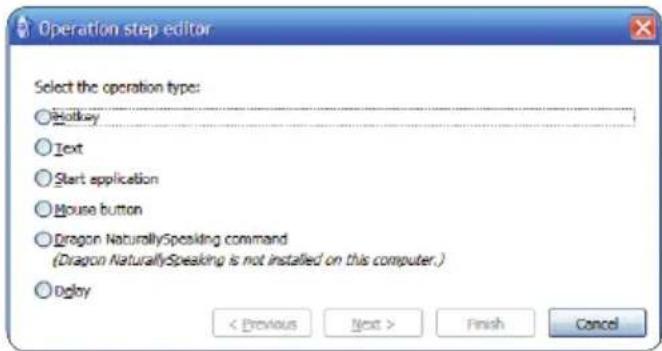
7 You can add one operation or a sequence of operations for every shortcut.
8 Click the Apply button to save the new settings.
Note
The Device Control Center cannot be used to program application shortcuts for Philips SpeechExec software. Shortcuts for Philips SpeechExec can be configured in the General settings menu of SpeechExec. See the SpeechExec application help for more information.
Tip
Application control configuration settings can be saved into files and imported later to apply the same configuration settings to several devices.
5.1.3 Use the motion sensor
The SpeechMike features an integrated motion sensor that detects when the device is put on the table and is being picked up again.
The motion sensor can mute and unmute the microphone automatically or custom functions can be programmed, e.g., to pause and to continue recording. Use the Device Control Center software to enable automatic mating of the microphone (Device tab > Advanced settings) or to program custom functions (Application control tab).
Tip
Press and hold the F2 and F4 keys on the SpeechMike simultaneously until the record
indicator light flashes to activate and deactivate the automatic mating of the microphone using the motion sensor.
5.2 Update the firmware
Your SpeechMike is controlled by an internal program called firmware. Newer versions of the firmware may have been released after you have purchased the SpeechMike.
1 Download the firmware update for your SpeechMike model from www.philips.com/ dictation.
The dictation microphone must be connected to the computer with the USB cable.
3 If the option to start the Device Control Center automatically was selected during installation, open the program by clicking the icon in the notification area of the Windows task bar. To manually start the program, open the Windows start menu in Windows and select All Programs > Philips Speech Control > Philips Device Control Center.
4 On the Device tab, click on Firmware update.
5 Click the Import button and select the folder with the firmware files to be imported.
6 Click the Upgrade button to install the new firmware.
The firmware upgrade takes about 30 seconds.
- During firmware upgrade the indicator lights of the SpeechMike will be flashing.
Warning
Do not disconnect the dictation microphone from the computer during firmware upgrade. This might damage your product.
6 Technical data
Connectivity
- USB: Mini-USB 2.0
Audio recording
- Microphone type: electret condenser microphone
- Microphone cartridge: 10 mm
- Characteristic: uni-directional
Frequency response: 200-12000 Hz - Sensitivity: -37 dBV @ 1 kHz
- Signal-to-noise ratio: >70 dBA
Sound
- Speaker type: built-in round, dynamic speaker
- Speaker diameter: 30 mm
- Acoustic frequency response: 300 - 7500 Hz
- Speaker output power: > 200 mW
System requirements
- Processor: Intel Pentium 4, 1.0 GHz or equivalent processor
RAM memory: 1 GB (2 GB recommended) - Hard disk space: 10 MB for Speech Control, 100 MB for SpeechExec (optional), 250 MB for Microsoft .NET Framework
- Operating system: Windows 8/7/Vista, MacOS 10.8/10.9
Free USB port - CD-ROM drive
Green specifications
Compliant to 2011/65/EU (RoHS)
- Lead-free soldered product
Operation conditions
Temperature: 5^ - 45^ / 41^ - 113^
- Humidity: 10% - 90%
Dimensions
Product dimensions (W× D× H) 45× 175× 32mm / 1.8× 6.9× 1.3 inch
Weight: 0.200kg / 0.441 lbs
- Cable length: 2.5 m/8.2 ft
Design and finishing
Material: antimicrobial surface
Color(s): dark grey pearl metallic
Accessories
USB cable
- CD-ROM containing software and user manual
- Hanging bracket
Quick start guide
7 Frequently asked questions
The operating system stops responding after restart
Using the Philips SpeechMike together with certain USB hubs may cause the operating system to stop responding when the computer is started.
Unplug the SpeechMike before starting the PC and reconnect it afterwards. We recommend replacing the USB hub or connecting your SpeechMike directly to the USB port of the computer.
The SpeechMike is completely without function
Some computer providers limit the output power of USB ports to 100mA. These ports may not provide enough power for the SpeechMike to function properly.
Connect the SpeechMike via a self-powered hub.
The SpeechMike is connected to the computer but sound will play on the computer's speaker only
Windows XP can support only one playback device at a time and may require setting the playback device back to "SpeechMike" if another playback device was enabled after the SpeechMike was installed.
- Set via Start > Control Panel > Sound and Audio Devices > Audio (tab)
- Or, right-click the speaker icon if it's in the toolbar and select Adjust Audio Properties
Windows Vista and Windows 7 can support more than one playback device at a time, but if you disable the device for playback it is also disabled for recording. You may need to right-click and select "Show disabled devices" to change the setting.
- Set via Start > Control Panel > Sound > Playback (tab)
- Or, right-click the speaker icon if it's in your toolbar and select playback devices
Benutzerhandbuch
1 Wichtig 18
2 Ihr SpeechMike 20
La grabación y reproducción de los dictados con SpeechMike requires the installation of a software for the dictado, or vice versa, to be able to use it. This software is used in the speech processing and recording industry.
Important
It is possible to program shortcuts for other applications to control application functions with the keys of the SpeechMike.
Federal Communications Commission Notice
This equipment has been tested and found to comply with the limits for a Class B digital device, pursuant to part 15 of the FCC Rules. These limits are designed to provide reasonable protection against harmful interference in a residential installation.
Modifications
The FCC requires the user to be notified that any changes or modifications made to this device that are not expressly approved by Philips may void the user's authority to operate the equipment.
Cables
Connections to this device must be made with shielded cables with metallic RFI/EMI connector hoods to maintain compliance with FCC Rules and Regulations.
Canadian notice
This Class B digital apparatus meets all requirements of the Canadian Interference-Causing Equipment Regulations.
Avis Canadian
Declaration of Conformity
Model Number: LFH3500, LFH3510, LFH3520, LFH3600, LFH3610, LFH3620
Trade Name: Philips SpeechMike Premium
Responsible Party: Speech Processing Solutions USA Inc
Address: One Deerfield Centre, 13560 Morris Road, Suite 1400, Alpharetta, GA 30004, USA
Telephone number: 888-260-6261
Website: www.philips.com/dictation
LFH3500, LFH3510, LFH3520, LFH3600, LFH3610, LFH3620

Tested to comply with FCC standards
FOR HOME OR OFFICE USE
This device complies with Part 15 of the FCC Rules. Operation is subject to the following two conditions: 1) This device may not cause harmful interference. 2) This device must accept any interference received, including interference that may cause undesired operation.
CE Declaration of Conformity
Philips confirms that the product corresponds to the relevant guidelines of the European Union.

Discover the comprehensive range of professional dictation products from Philips www.philips.com/dictation
Specifications are subject to change without notice.
© 2014 Speech Processing Solutions GmbH. All rights reserved. Philips and the Philips' shield emblem are registered trademarks of Koninklijke Philips Electronics N.V. and are used by Speech Processing Solutions GmbH under license from Koninklijke Philips Electronics N.V. All trademarks are the property of their respective owners.
Document version 1.0, 2014/01/22.
- Get started 8
- Use your SpeechMike 9
- Use more of your SpeechMike 10
- Important
- Safety
- SpeechMike Barcode
- Class 1 laser product
- Caution
- Small children
- Compliance with EMF
- Cleaning and disinfection
- Disposal of your old product
- Your SpeechMike
- What's in the box
- Overview
- Get started
- Installation
- Important
- Note
- Use your SpeechMike
- Create a recording
- Use more of your
- SpeechMike
- Customize the SpeechMike
- Customize SpeechMike keys and settings
- Tips
- Use application shortcuts
- Default profile
- Powerpoint profile
- Program a custom profile
- Tip
- Use the motion sensor
- Update the firmware
- Warning
- Technical data
- Connectivity
- Audio recording
- Sound
- System requirements
- Green specifications
- Operation conditions
- Dimensions
- Design and finishing
- Accessories
- Frequently asked questions
- The operating system stops responding after restart
- The SpeechMike is completely without function
- The SpeechMike is connected to the computer but sound will play on the computer's speaker only
- Benutzerhandbuch
- Ihr SpeechMike 20
- Important
- Federal Communications Commission Notice
- Modifications
- Cables
- Canadian notice
- Avis Canadian
- Declaration of Conformity
- CE Declaration of Conformity
Brand : PHILIPS
Model : SpeechMike Premium LFH3520
Category : Voice recorder