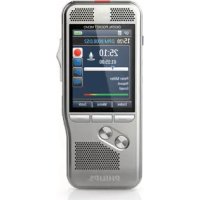
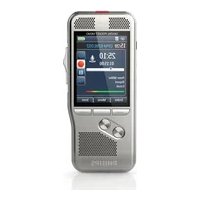
Pocket Memo DPM8300 - Voice recorder PHILIPS - Free user manual and instructions
Find the device manual for free Pocket Memo DPM8300 PHILIPS in PDF.

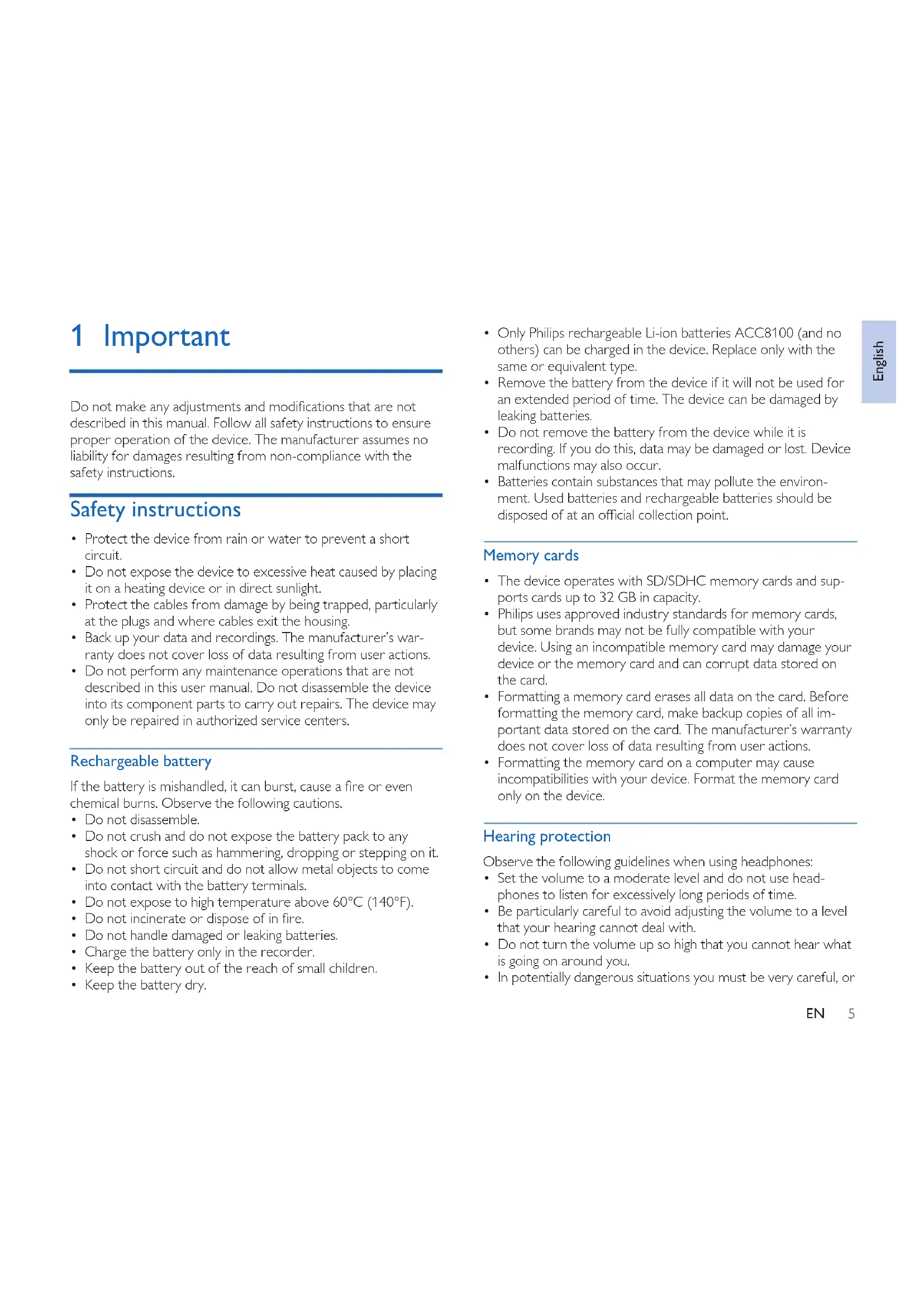


| Product Type | Digital Voice Recorder (dictaphone) |
| Brand | Philips |
| Model | Pocket Memo DPM8300 |
| Dimensions (Length × Height × Depth) | 53 × 123 × 15 mm |
| Weight (with battery) | 117 g |
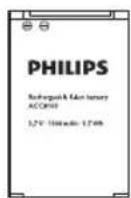
| Power supply | Philips ACC8100 Li-ion rechargeable battery (pre-installed), charging via docking station or USB cable |
| Battery life | Up to 30 hours of recording (QP mode), up to 200 hours standby |
| Display | TFT color 6.1 cm (2.4 inches), 320×240 pixel resolution |
| Recording formats | DSS (SP/QP), MP3 stereo, PCM (voice/stereo) |
| Memory | SD/SDHC memory card (max 32 GB) included and pre-formatted |
| Microphone | 3D Mic technology: 1 directional microphone + 1 360° microphone with motion detector |
| Speaker | Built-in round dynamic speaker, diameter 28 mm, power 200 mW |
| Connectivity | USB 2.0 high speed (micro USB), 3.5 mm headphone jack, 3.5 mm external microphone jack, docking station with pedal connector |
| Main functions | Recording, playback, insert/overwrite/append recording, index markers, voice instructions, lock and priority, voice activation, hands-free mode (with optional pedal) |
| Maintenance and cleaning | Wipe with a soft dry cloth; format memory via the menu; update firmware through Philips website |
| Security | Real-time AES 256-bit encryption, PIN code lock, hearing protection (headphone), instructions for lithium-ion batteries |
| Spare parts and repairability | Replaceable battery (ACC8100), SD/SDHC memory card, optional foot pedal (LFH2210), repairs by authorized center |
| General information | Stainless steel housing, intuitive user interface, Philips SpeechExec software for configuration and transfer |
Frequently Asked Questions - Pocket Memo DPM8300 PHILIPS
User questions about Pocket Memo DPM8300 PHILIPS
0 question about this device. Answer the ones you know or ask your own.
Ask a new question about this device
Download the instructions for your Voice recorder in PDF format for free! Find your manual Pocket Memo DPM8300 - PHILIPS and take your electronic device back in hand. On this page are published all the documents necessary for the use of your device. Pocket Memo DPM8300 by PHILIPS.
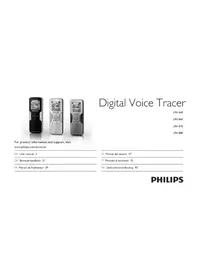
USER MANUAL Pocket Memo DPM8300 PHILIPS
Register your product and get support at
www.philips.com/dictation
POCKET MEMO
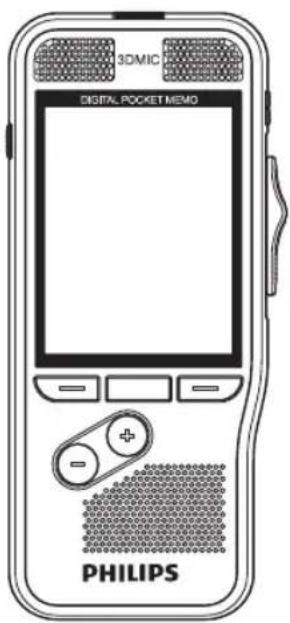
DPM8200
DPM8300
English 3
Deutsch 33
Nederlands 63
Italiano 93
Français 123
Español 153
PHILIPS
Table of contents
1 Important 5
Safety instructions 5
Rechargeable battery 5
Memory cards 5
Hearing protection 5
Legal restrictions on recording 6
Recycling 6
About this user manual 6
Model-specific features and diagrams 6
Symbols used 6
2 Your digital dictation recorder 7
Product highlights 7
What's in the box 7
Overview of the recorder 8
Start-up screen 9
Overview of the docking station 10
3 Get started 11
Connect the docking station 11
Install the recorder 11
Insert and eject the memory card 11
Charge the battery 12
Charge using the docking station 12
Charge using the USB cable 12
Power on/off 12
Initial installation process 13
Set the language 13
Set the date and time 13
Power-save mode 13
4 Use your recorder 14
Recording 14
Record settings 14
Create a new recording 14
Add to or overwrite a recording 14
Playback 15
Selecting a file 15
Playback a recording 15
Adjusting playback speed 16
Quick search 16
Delete 16
Delete a file 16
Delete part of a file 16
Delete all files 17
5 Use more of your recorder 18
Voice-activated recording 18
Index marks 18
Assign keywords (author ID and work type) 19
Assign an author name 19
Assign a work type 19
Instructions 19
File lock and priority 20
Hands-free recording and transcription 20
Hands-free recording 20
Hands-free transcription 21
Use Philips SpeechExec software 22
Advanced configuration 22
Download recordings to the computer 22
6 Settings 23
Use the menu 23
Menu list 23
File menu 24
Delete file 24
Delete section 24
Priority high / normal 24
Lock /EOL 24
Index set / clear 24
Author, Work type 24
Delete all 24
File information 24
Record menu 24
Profile 24
Line-in 25
Record notification beep 25
Edit mode 25
Encryption 25
Voice activation 25
Display menu 26
Brightness 26
Backlight 26
Appearance 26
Record lamp 26
Language 26
Device menu 26
Beep 26
Acoustic feedback 26
Power save 26
Date & time 26
Slide switch 26
Auto backspace 26
Device information 27
Format card 27
USB charge 27
USB audio 27
Hands-free mode 27
Diagnosis file 27
Reset settings 27
Noise reduction 27
7 Service 28
Display device information 28
Memory formatting 28
Updating the firmware 28
Troubleshooting 29
8 Technical data 30
1 Important
Do not make any adjustments and modifications that are not described in this manual. Follow all safety instructions to ensure proper operation of the device. The manufacturer assumes no liability for damages resulting from non-compliance with the safety instructions.
Safety instructions
- Protect the device from rain or water to prevent a short circuit.
- Do not expose the device to excessive heat caused by placing it on a heating device or in direct sunlight.
- Protect the cables from damage by being trapped, particularly at the plugs and where cables exit the housing.
- Back up your data and recordings. The manufacturer's warranty does not cover loss of data resulting from user actions.
- Do not perform any maintenance operations that are not described in this user manual. Do not disassemble the device into its component parts to carry out repairs. The device may only be repaired in authorized service centers.
Rechargeable battery
If the battery is mishandled, it can burst, cause a fire or even chemical burns. Observe the following cautions.
- Do not disassemble.
- Do not crush and do not expose the battery pack to any shock or force such as hammering, dropping or stepping on it.
- Do not short circuit and do not allow metal objects to come into contact with the battery terminals.
- Do not expose to high temperature above 60^ (140°F).
- Do not incinerate or dispose of in fire.
- Do not handle damaged or leaking batteries.
- Charge the battery only in the recorder.
- Keep the battery out of the reach of small children.
-
Keep the battery dry.
-
Only Philips rechargeable Li-ion batteries ACC8100 (and no others) can be charged in the device. Replace only with the same or equivalent type.
- Remove the battery from the device if it will not be used for an extended period of time. The device can be damaged by leaking batteries.
- Do not remove the battery from the device while it is recording. If you do this, data may be damaged or lost. Device malfunctions may also occur.
- Batteries contain substances that may pollute the environment. Used batteries and rechargeable batteries should be disposed of at an official collection point.
Memory cards
- The device operates with SD/SDHC memory cards and supports cards up to 32 GB in capacity.
- Philips uses approved industry standards for memory cards, but some brands may not be fully compatible with your device. Using an incompatible memory card may damage your device or the memory card and can corrupt data stored on the card.
- Formatting a memory card erases all data on the card. Before formatting the memory card, make backup copies of all important data stored on the card. The manufacturer's warranty does not cover loss of data resulting from user actions.
- Formatting the memory card on a computer may cause incompatibilities with your device. Format the memory card only on the device.
Hearing protection
Observe the following guidelines when using headphones:
- Set the volume to a moderate level and do not use headphones to listen for excessively long periods of time.
- Be particularly careful to avoid adjusting the volume to a level that your hearing cannot deal with.
- Do not turn the volume up so high that you cannot hear what is going on around you.
• In potentially dangerous situations you must be very careful, or
temporarily discontinue use.
- Do not use headphones while operating a motorized vehicle, cycling, or skateboarding, etc. You could be a hazard to yourself and other road users, and possibly be breaking the law.
Legal restrictions on recording
- The use of the device's recording function is subject to the legal restrictions that may apply in your country. You should also respect the privacy and personal rights of the third parties if you record talks or lectures.
- In certain countries you may be legally required to inform the person you are conversing with on the telephone that you are recording the conversation, or that the recording of telephone conversations is illegal. Please check if the use of such data is legal in your country prior to recording telephone calls.
Recycling
When the crossed-out wheeled bin symbol is attached to a product it means that the product is covered by the European Directive 2002/96/EC. Please inform yourself about the local separate collection system for electrical and electronic products. Please act according to your rules and do not dispose of your old products with your household waste. Correct disposal of your old product has prevent potential negative consequences for the environment and human health.

About this user manual
You can find a quick overview of your device in the following pages. For detailed description, see the following chapters of this user manual. Read this user manual carefully.
Model-specific features and diagrams
This user manual describes a number of models of the device product range. Please note that some features are only available on certain models.
Symbols used

Tip
- This symbol identifies information that helps you to use your device more efficiently and simply.

Note
- This symbol indicates notices which you must observe when handling or operating the device.

Caution
- This symbol warns of damage to the device and possible data loss. Damage can be caused by improper handling.

Warning
- This symbol warns of danger to persons. Bodily injury or damage could be caused by improper handling.
2 Your digital dictation recorder
We are delighted that you have chosen a Philips device. Visit our website for comprehensive support such as user manuals, software downloads, warranty information and more: www.philips.com/dictaton.
Product highlights
• 3D Mic for best audio quality and accurate speech-recognition results
• Built-in motion sensor for automatic microphone selection
- Ergonomic slide switch for efficient single-handed operation
- Robust stainless steel casing for extra durability
• Large color display and clear user interface for easy, intuitive operation
- Docking station for fast battery charging and hands-free recording
• Light and motion sensors for extended battery life
- Remote management support for time-saving deployment and maintenance
• Classic mode for clear and easy-to-use operation
What's in the box
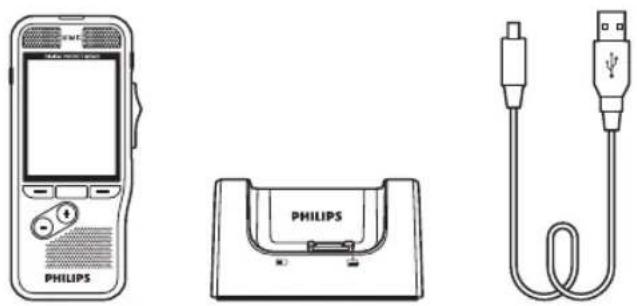
Recorder Docking station USB cable

Pouch

natural_image
Simple diagram of two concentric circles with no text or symbolsSoftware DVD (DPM8200)
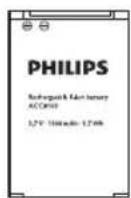
Battery (pre-installed)
(pre-installed)
Quick start guideMemory card
Overview of the recorder
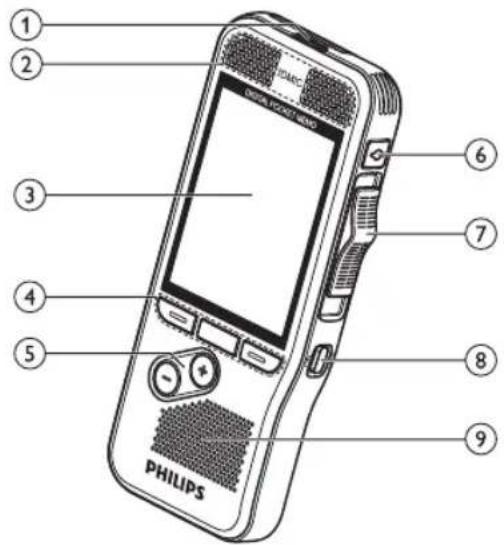
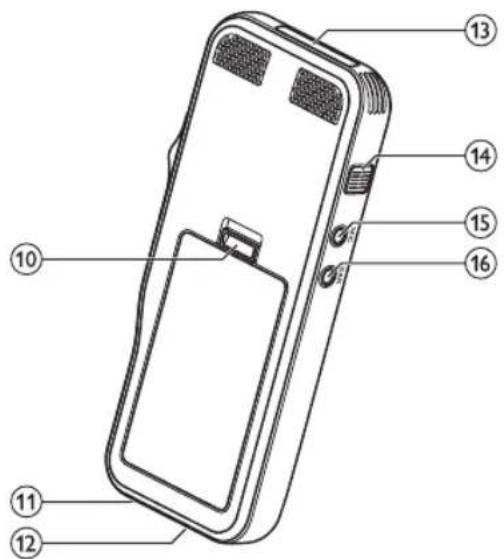
① LED light
• Red: device is recording in overwrite or append mode
- Green: device is recording in insert mode
• Yellow: data is being transferred to/from the computer
② Microphones
③ Screen
④ Function keys F1, F2, F3
- Select the function displayed on the screen directly above the key
⑤ +/−
- File navigation in stop mode
• Volume control during playback - Menu navigation
⑥ REC STANDBY
⑦ Slide switch (▶ FWD, ▶ PLAY/● REC, ■ STOP/○ PAUSE, ◀ REW)
⑧ ON/OFF
⑨ Speaker
⑩ Open the battery cover
⑪ Docking station connector
⑫ USB connector
- Micro USB connection for the computer
⑬ Memory card slot
⑭ EOL/File lock, Priority
• Mark a file as finished and protect it from being deleted
• Prioritized urgent recordings during transcription
⑮ MIC
• External microphone socket (stereo jack plug, 3.5mm)
⑯ EAR
• Headphone socket (stereo jack plug, 3.5mm)
Start-up screen
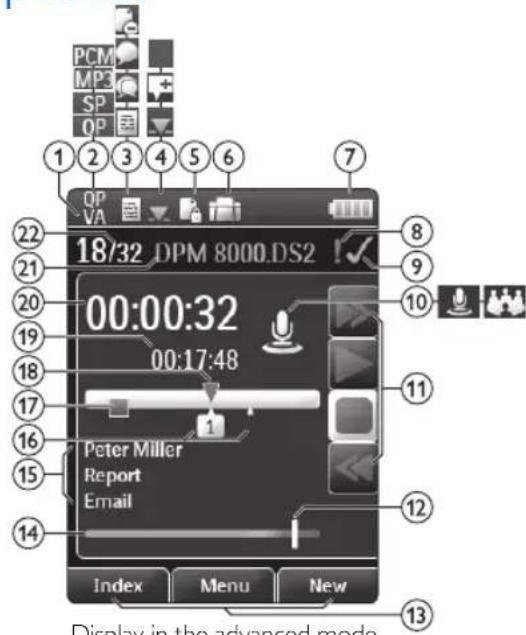
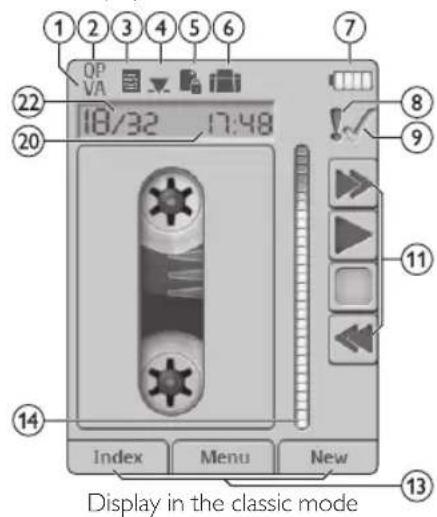

Note
- The position of the symbols may vary, depending on the model, the mode and the selected functions.
① VA Voice activation is on
- When voice-activated recording is enabled, recording will start when you begin speaking. When you stop speaking, the recorder will automatically pause recording after three seconds of silence, and resume only when you begin speaking again. Voice-activated recording, p. 18.
② Recording quality: OP QP, SP, MPB3 PCMPCM
③ Recording profile: Dictate, Meeting, Speech recognition, Personal
- The recording profile presets recording parameters such as recording quality and file format, microphone sensibility and the microphone mode. Profile, p. 24.
④ Edit mode: ■ Overwrite recording, ■ Insert recording,
Append recording ( Add to or overwrite a recording, p. 14)
⑤ File is encrypted (→ Encryption, p. 25)
⑥ A foot switch is connected to the docking station
- The recorder can be used for hands-free recording and transcription by connecting the optional Philips foot switch to the docking station. Hands-free recording and transcription, p. 20.
⑦ Battery charge level
- The bars indicate the battery level. When the recorder is charged, the bars keep scrolling until charging completes.
⑧ The priority level of the recording is set to 'high' (→ File lock and priority, p. 20)
⑨ EOL/File lock
- The recording is marked finished and protected from being deleted. → File lock and priority, p. 20.
⑩ Microphone mode Directional mode, 360 degree mode
- The microphone mode is preset by the selected recording profile to suit the recording conditions.→ Profile, p. 24.
- The microphone mode can be controlled by the integrated motion sensor. The motion sensor senses when the device is placed on the desk or held in the hand and sets the microphone mode accordingly.
⑪ Slide switch indicator
⑫ Sensitivity level indicator for voice-activated recording (→ Voice-activated recording, p. 18)
⑬ Current function of the function key F1, F2, F3
⑭ Level meter indicator
⑮ Keyword area
- One or more keywords, such as the author's name, can be assigned to every recording. Keywords can be used to identify recordings and automatic file routing. Assign keywords (author ID and work type), p. 19.
⑯ Index mark indicator (→ Index marks, p. 18)
⑰ Instruction indicator (→ Instructions, p. 19)
⑱ Position indicator of current playback/recording
⑲ File length
⑳ Current recording/playback time
②1 File name
②2 Current file number/Total number of files
Overview of the docking station
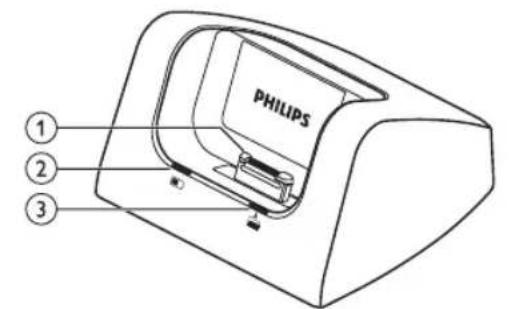
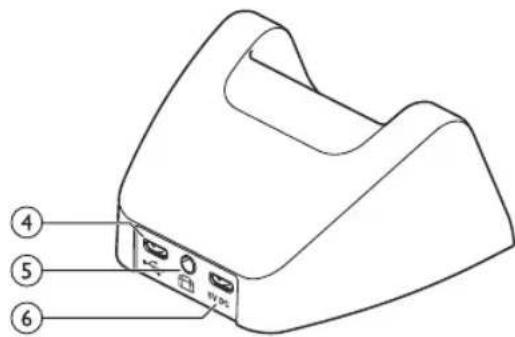
① Docking station connector
② Charge indicator light
③ Download indicator light
④ USB connector
- Micro USB connection for the computer
⑤ Foot switch connector
- Connect the Philips foot control LFH2210 (optional) for hands-free dictation and transcription. Hands-free recording and transcription, p. 20.
⑥ Power supply connector
- Connect an optional power supply
3 Get started

Caution
- Ensure you have read the safety instructions before you connect and install your recorder. Safety instructions, p. 5.
Connect the docking station
1 Plug the USB connector into a USB port on your computer.
2 Insert the micro USB plug into the USB port on the rear side of the docking station.
Install the recorder

Note
- Charge the battery for 3 hours before first use.
The battery is pre-installed in the recorder. Pull the battery tape off from the battery door before charging.
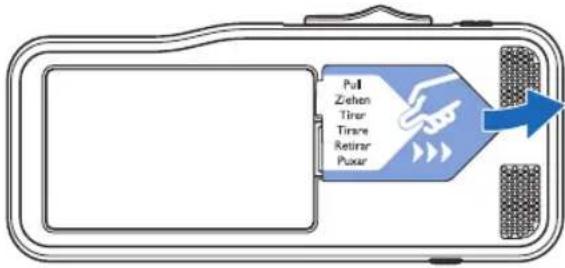
Insert and eject the memory card
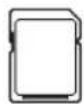
The device operates with a SD/SDHC memory card and supports cards with storage capacities of up to 32 GB. Your recorder is packaged with a memory card already inserted and formatted.
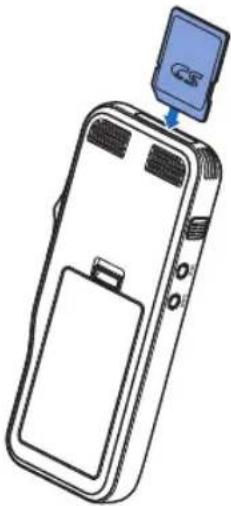
To insert and eject a memory card:
1 Locate the memory card slot on the top of the recorder.
2 Insert a memory card with the gold-colored contacts facing down (toward front of the device).
3 Push the memory card in the memory card slot until it locks in place.
4 To remove the card press the memory card slightly until the snapping mechanism unlocks and the card is ejected.
natural_image
Line drawing of a handheld device with a blue label pointing to it, no text or symbols present
Note
- Do not remove the memory card while recording is in progress. Data may be damaged or lost.
- Philips uses approved industry standards for memory cards, but some brands may not be fully compatible with your device. Using an incompatible memory card may damage your device or the memory card and can corrupt data stored on the card.
- When a new, unformatted memory card or a memory card that was formatted by another device is inserted, the recorder will display a prompt to format the memory card.
- Formatting a memory card erases all data on the card. Before formatting the memory card, make backup copies of all important data stored on the card. The manufacturer's warranty does not cover loss of data resulting from user actions.
- Formatting the memory card on a computer may cause incompatibilities with your device. Format the memory card only on the device.
- Recording and formatting is not possible if the memory card is in read-only mode (locked).
Charge the battery
Charge using the docking station
1 Place the recorder in the docking station. → The recorder starts charging.

Note
- Charge the battery for 3 hours before first use.
- The computer must be turned on when charging the battery.
- The device may become warm when the battery is being charged.
- The maximum battery capacity will only be reached after several charging/discharging cycles.
2 Your recorder is now ready to use.
Charge using the USB cable
1 Plug the USB connector into a USB port on your computer.
2 Insert the micro USB plug into the USB port on the recorder.
Power on/off
The recorder is turned on and off by sliding the ON/OFF switch. When using it for the first time, you will be prompted to set the language, date and time.

Note
- The recorder switches itself off automatically if no key is pressed within a pre-set period of time (→ Power-save mode, p. 13).
Initial installation process
The initial installation process starts when first using the device or possibly if there has been a long interruption to the power supply. The date and time entered are saved with each recording as the recording time.
Set the language
When using the recorder for the first time, you will be prompted to set the language.
1 Press +/− to select your language.
2 Press F2 (OK) to confirm.
Set the date and time
After selecting the language, the recorder will prompt you to set the current date and time.
1 Press +/− -to change the value for the year, month or day.
2 Press F3 (Next) to advance to the next entry.
3 After setting the day, press F3 (Next) to advance the settings to the correct time.
4 Press +/− to select a 12-hour or 24-hour clock, and to change the value of the hour and minute settings and AM or PM (if a 12-hour clock is selected).
5 Press F2 (OK) to confirm the date and time.
→ The recorder is now ready to function.

Tip
- You can change the language, date and time at any time using the settings menu (→ Settings, p. 23).
Power-save mode
By default, the recorder will enter power-save mode after 5 minutes of inactivity. Lift up the recorder or press any button to reactivate it.

Tip
- You can change the length of time before the recorder will enter into power-save mode. Power save, p. 26.
4 Use your recorder

Note
- You can customize the settings and behavior of your device (→ Settings, p. 23.)
- The descriptions in this chapter are based on the default settings.
Recording
Record settings
Set the required recording profile before you start a recording session. The recording profile presets recording parameters such as recording quality and file format, microphone sensitivity and the microphone mode to suit the recording conditions. → Profile, p. 24.
When voice-activated recording is enabled, recording will start when you begin speaking. When you stop speaking, the recorder will automatically pause recording after three seconds of silence, and resume only when you begin speaking again. → Voice-activated recording, p. 18.
The recorder can be used for hands-free recording by connecting the optional Philips foot switch to the docking station. → Hands-free recording, p. 20.

Caution
- Do not remove the battery from the device while it is recording. Data may be damaged or lost or malfunctions may occur.
Create a new recording
1 Press F3 (New) to create a new recording.
2 To start recording, point the microphone toward the sound source, press the REC STANDBY button to enter record-standby mode and move the slide switch to the ●REC position.
→ The LED lights in red in overwrite or append mode or green in insert mode while recording.
3 To stop recording, move the slide switch to the ☑PAUSE position and press the REC STANDBY button.

Note
- Press F1 (Index) during recording or playback to insert an index mark ( Index marks, p. 18).
- Press and hold F3 (Instr) during recording to record an instruction (→ Instructions, p. 19).
- If the recording time exceeds the available capacity, recording stops and a message is displayed. You can not make any more recordings. Delete the recordings which you no longer require, replace the memory card, or connect the device to a computer and transfer the files to your computer.
Add to or overwrite a recording
You can edit an existing recording by overwriting a part of it or inserting additional recording.
1 While the recorder is in stop mode, press F2 (Menu) and select Record > Edit mode.
2 Set the required editing mode (→ Edit mode, p. 25).
- Append mode: add additional recording after existing recording in a file.
→ The symbol is displayed in the information bar at the top of the screen when in append mode and the LED lights in red while recording.
- Insert mode: insert additional recording without overwriting existing recording in a file.
→ The symbol is displayed in the information bar at the top of the screen when in insert mode and the LED lights in green while recording.
- Overwrite mode: overwrite a previous recording starting from any point within the file.
No symbol is displayed in the information bar at the top of the screen when in overwrite mode and the LED lights in red while recording.
3 Press +/− to select the file into which the insertion should be made.
4 When using the insert or overwrite mode, play, forward or rewind to the position where the insertion should be made.
5 To start recording, point the microphone toward the sound source, press the REC STANDBY button to enter record-standby mode and move the slide switch to the ●REC position.
→ The LED lights in red in overwrite or append mode or green in insert mode while recording.
6 To stop recording, move the slide switch to the PAUSE position and press the REC STANDBY button.

Note
- When you edit, the recording quality of the original recording is used.
- The Insert recording mode is not available when the recording format is MP3 or PCM.
Playback
Selecting a file
1 Press + while the device is in stop mode.
→ The position indicator jumps to the end of a file.
→ The position indicator jumps to the start of the next file.
2 Press - while the device is in stop mode.
→ The position indicator jumps to the start of a file.
→ The position indicator jumps to the end of the previous file.

Note
- If the file contains index marks or recorded instructions, press +/− to jump to the previous or the next index mark or instruction.
→ The index number is displayed for one second.
Playback a recording
1 While the device is in stop mode, press +/− to select the file to play and locate the beginning of the recording.
2 Move the slide switch to the ▶ PLAY position to start playback.
3 Press +/− to adjust the volume.
4 Move the slide switch to the ■ STOP position to stop playback.
→ Playback is paused at the current position. The device returns to stop mode.
Adjusting playback speed
1 Press F3 (Speed) repeatedly during playback to toggle between faster, slower and normal playback speed.
→ Playback speed becomes faster (+30%) and the ▶ icon will be displayed.
→ Playback speed becomes slower (-25 %) and the ▶ icon will be displayed.
→ Playback returns to normal speed and the ▶ icon will be displayed.
Quick search
You can scan backward or forward in the current file at a fast speed. This allows to find a specific part of the recording.
1 Move the slide switch to the ◀ REW position during play-back or when the device is stopped
→ to scan backward in the current file at a fast speed.
2 Move the slide switch to the ➤ FWD position during play-back or when the device is stopped
→ to scan forward in the current file at a fast speed.

Note
- If the file contains index marks or recorded instructions, scanning backward or forward stops for 1 second at the index mark or instruction.

Tip
- Playback sound during quick search can be activated or deactivated. This allows you to listen to the recording while forwarding or rewinding. (→ Acoustic feedback, p. 26).
Delete
You can delete individual files from the device, part of a file or delete all files simultaneously.

Note
- Deleted files can not be recovered.
- Files that are marked finished and locked (EOL) cannot be deleted. Unlock it by pressing the EOL button.
- Make sure that the memory card is not set to read-only (locked).
Delete a file
1 While the recorder is in stop mode, press +/− to select the file to be deleted.
2 Press F2 (Menu) and select File > Delete file.
3 Press F2 (OK) to confirm the deletion.
→ The file is deleted. Sequential file numbers are reassigned automatically.
Delete part of a file
1 While the recorder is in stop mode, press F2 (Menu) and select File > Delete section.
2 Using the play, forward or rewind functions, navigate to the beginning of the section to be deleted.
3 While the recorder is in stop mode, press F3 (Mark).
4 Using the play, forward or rewind functions, navigate to the end of the section to be deleted.
→ The section to be deleted is marked in red.
5 While the recorder is in stop mode, press F2 (Delete) to confirm the deletion of the marked section.
Delete all files
1 While the recorder is in stop mode, press F2 (Menu) and select File > Delete all.
2 Press F2 (OK) to confirm the deletion.
→ All files are deleted.
5 Use more of your recorder
Voice-activated recording
When voice-activated recording is enabled, recording will start when you begin speaking. When you stop speaking, the device will automatically pause recording after three seconds of silence, and resume only when you begin speaking again. Use the voice-activation threshold to set the volume at which the device should begin recording.
1 Activate the voice-activated recording feature in the settings menu (→ Settings, p. 23).
When activated, the VA symbol is displayed in the information bar at the top of the screen.
2 To start recording, point the microphone toward the sound source, press the REC STANDBY button and move the slide switch to the ●REC position.
The devices switches to standby mode. Recording will start when you begin speaking (or the sound level is above the voice-activation threshold).
When you stop speaking (or the sound level drops below the voice-activation threshold), the device will automatically pause recording after three seconds and the LED flashes.
3 Press +/− during recording to adjust the voice-activation threshold.
4 To stop recording, move the slide switch to the ☐PAUSE position and press the REC STANDBY button.
Index marks
Index marks can be used to mark certain points in a recording as points of reference.
1 To add an index mark, press F1 (Index) during recording or playback.
The index number is displayed for one second.
Up to 32 index marks can be set per file.
2 To locate an index mark, press +/− while the recorder is in stop mode (→ Selecting a file, p. 15).
3 To delete an index mark, play, fast forward or fast rewind to the index mark to be deleted. While the recorder is in stop mode, press F2 (Menu) and select File > Index clear.
Assign keywords (author ID and work type)
One or more keywords, such as the author's name or a work type, can be assigned to every recording. Keywords can be used to identify recordings and automatic file routing in Philips SpeechExec software.

Note
- Keywords must first be set up with Philips Speech Exec software. Advanced configuration, p. 22.
- By default, the keyword category Author with the keywords 'DPM8200' and '-' (empty) and the category Work type with the keywords 'Memo', 'Letter', 'Fax' and 'Report' are available.
Assign an author name
1 While the recorder is in stop mode, press F2 (Menu) and select File > Author.
a list of author names is displayed.
2 Press +/− to select an author name.
3 Press F2 (OK) to assign the selected author name to the recording.
Assign a work type
1 While the recorder is in stop mode, press F1 (Work type) → a list of work types is displayed.
2 Press +/− to select a work type.
3 Press F2 (OK) to assign the selected work type to the recording.
Instructions
Spoken instructions are recorded comments by the author that are directed to the person transcribing the recording. They usually contain information which is relevant to the recording but does not have to be typed out.
1 To record an instruction, press and hold F3 (Instr) during recording.
→ The instruction is displayed as a blue line on the file position bar.
2 To locate an instructions, press +/− while the recorder is in stop mode (→ Selecting a file, p. 15).
3 To delete an instruction, follow the steps for deleting a part of a recording ( Delete part of a file, p. 16).

Note
- Instructions can only be recorded when the recording format is DSS/DSS Pro.
File lock and priority
Use the file lock function to prevent important files from being accidentally deleted and mark them as finished. With the priority-setting option, urgent recordings can be prioritized during transcription.
1 While the recorder is in stop mode, press the EOL button to lock the file and mark it as finished.
→ the symbol is displayed.
A new, empty recording is created.
2 To assign priority status to the recording, press the EOL button again within half a second.
→ The symbol is displayed.
3 To make changes to the file, unlock it by pressing the EOL button.

Note
- Philips SpeechExec software can be configured to download only those files from the device to the computer that are marked finished.
- Locked files are deleted when the memory card is formatted or the delete-all-files function is used.
Hands-free recording and transcription
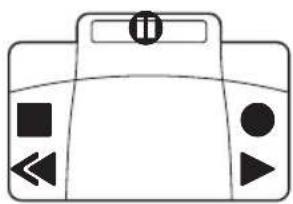
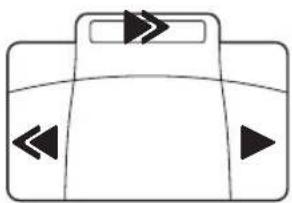
The recorder can be used for hands-free recording and transcription by connecting the optional Philips foot pedal LFH2210 to the docking station. In this operating mode, you can control the recording and playback functions with the foot pedal.

Tip
- Use the auto-backspace feature to jump back the configured number of seconds in the recording when restarting playback.
- To activate the auto-backspace feature, press F2 (Menu) on the recorder while the recorder is in stop mode and select Device > Auto backspace.
Hands-free recording
natural_image
Simple line drawing of a camera with buttons and lens (no text or symbols)1 Make sure that the docking station is NOT connected to a computer via USB.
2 To activate the hands-free recording feature, press F2 (Menu) on the recorder while the recorder is in stop mode and select Device > Hands-free mode > Dictate.
3 Connect the foot pedal to the food pedal portion on the rear side of the docking station and place the recorder in the docking station.
→ The symbol is displayed in the information bar at the top of the screen.
4 Press the middle pedal of the foot pedal to enter record-standby mode. To start recording, press the right pedal
of the foot pedal. The behavior for starting and stopping recording depends on the setting of the switch on the underside of the foot control:
- N (Neutral) position: Press and hold the right pedal for recording. For short pauses, release the right pedal.
- T (Toggle) position: Press and release the right pedal to start recording. For short pauses, press the right pedal of the foot pedal again. To continue recording, press the right pedal of the foot pedal again.
5 To stop recording, press the left pedal of the foot pedal. To continue recording, repeat step 4.
6 Press and hold the left pedal of the foot pedal for fast rewind. When rewinding reaches the desired position, release the pedal.
7 When recording is stopped, press the right pedal of the foot pedal to start playback. The behavior for starting and stopping playback depends on the setting of the switch on the underside of the foot control:
- N (Neutral) position: Press and hold the right pedal for playback. When the pedal is released, playback is stopped. - T (Toggle) position: Press and release the right pedal to start continuous playback. Press the right pedal again to stop playback.
8 Double click the left pedal of the foot pedal during recording to finish/lock (EOL) the current recording and create a new file.
Hands-free transcription
natural_image
Simple line drawing of a device casing with directional arrows indicating movement (no text or symbols)1 Make sure that the docking station is NOT connected to a
computer via USB.
2 To activate the hands-free transcription feature, press F2 (Menu) on the recorder while the recorder is in stop mode and select Device > Hands-free mode > Transcribe.
3 Connect the optional Philips foot pedal to the food pedal port for the rear side of the docking station and place the recorder in the docking station.
→ The symbol is displayed in the information bar at the top of the screen.
4 Press and hold the left pedal for fast rewind. When rewinding reaches the desired position, release the pedal.
5 Press and hold the middle pedal to fast forward. When forwarding reaches the desired position, release the pedal.
6 Press the right pedal to start playback. The behavior for starting and stopping playback depends on the setting of the switch on the underside of the foot control:
- N (Neutral) position: Press and hold the right pedal for playback. When the pedal is released, playback is stopped. - T (Toggle) position: Press and release the right pedal to start continuous playback. Press the right pedal again to stop playback.

Note
- If the docking station is connected to a computer, you can switch between USB mode and hands-free mode. In USB mode the recorder is displayed as an external drive on the connected computer.
- The function is only available when the switch on the underside of the foot pedal is in the N position and the recorder is in the stop mode and at the end of the current recording.
- To switch between USB mode and hands-free mode, double click the right pedal of the foot pedal and then hold the pedal for about 1 second.
Use Philips SpeechExec software
Philips SpeechExec software (Windows version only) can be used for advanced configuration of the recorder, automatic download, conversion and routing of files.

Note
- For detailed information about SpeechExec software, refer to the SpeechExec help.
Advanced configuration
Philips SpeechExec software provides a wizard that guides users through the configurations and settings of the device. The wizard assists in configuring time format, sound feedback, voice-activated recording, display appearance, recording profiles, keywords, and file download to the computer.
1 Connect the recorder to the computer using the USB cable or the docking station.
2 Start Philips SpeechExec Pro software and click Settings > General settings on the menu bar and select DPM Configuration > DPM Wizard from the list on the left panel.
3 Click the Start Wizard... button to open the wizard and follow the on-screen instructions to customize the recorder.
4 Click the Finish button to close the wizard and confirm the transfer of the new settings to the recorder.

Note
- When the recorder is connected to the computer for the first time, Windows detects the new hardware and automatically installs the required drivers. When the installation is complete, Windows may prompt you to restart the computer.
Download recordings to the computer
With USB mass storage support, the recorder is automatically displayed as an external drive when it is connected to the computer. It can then be accessed easily with any program as a regular drive.
Use Philips SpeechExec software for automatic download, conversion, and routing of files.
1 Make a recording with the recorder.
2 Start Philips SpeechExec Pro software.
3 Connect the recorder to the computer using the USB cable or the docking station.
4 By default, the recordings on the recorder will be downloaded automatically to the computer and moved to the Finished dictations folder of the work list.

Note
- How and which files are downloaded after the recorder is connected to a computer can be configured in the settings menu of Philips SpeechExec software or with the configuration wizard.
6 Settings
Use the menu
1 Press F2 (Menu) while the recorder is in stop mode to open the menu.
2 Press +/− to select the next/previous menu item.
3 Press F3 (Enter) to enter a sub menu. Press F1 (Back) to exit the menu.
4 Press +/− to select a function.
5 Press F2 (OK) to confirm a selection or F1 (Back) to exit a sub menu without changing a setting.

Note
- Some settings, such as defining keywords, file encryption or device lock, are available only through Philips SpeechExec software. Advanced configuration, p. 22.
Menu list
File
| Delete file | |
| Delete section | |
| Priority high / normal | |
| Lock / EOL | |
| Index set / clear | |
| Author | |
| Work type | |
| Delete all | |
| File information | |
| Record | |
| Profile | |
| Line-in | |
| Record notification beep | |
| Edit mode | |
| (Encryption) | |
| Voice activation | |
| Display | |
| Brightness | |
| Backlight | |
| Appearance | |
| Record lamp | |
| Language | |
| Device | |
| Beep | |
| Acoustic feedback | |
| Power save | |
| Date & time | |
| Slide switch | |
| Auto backspace | |
| Device information | |
| Format card | |
| USB charge | |
| USB audio | |
| Hands-free mode | |
| Diagnosis file | |
| Reset settings | |
| Noise reduction | |
File menu
Delete file
Delete individual files from the device. → Delete a file, p. 16.
Delete section
Delete part of a file. → Delete part of a file, p. 16.
Priority high / normal
With the priority-setting option, urgent recordings can be prioritized during transcription. You can select High (the symbol is displayed) or Normal. The default value is Normal. → File lock and priority, p. 20.
Lock /EOL
Use the file lock function to prevent important files from being accidentally deleted and mark them as finished. → File lock and priority, p. 20.
Index set / clear
Index marks can be used to mark certain points in a recording as points of reference. → Index marks, p. 18.
Author, Work type
One or more keywords, such as the author's name or a work type, can be assigned to every recording. Keywords can be used to identify recordings and automatic file routing in Philips SpeechExec software. → Assign keywords (author ID and work type), p. 19.
Delete all
Delete all files simultaneously from the device. → Delete all files, p. 17.
File information
Display information about the current file, such as file number, file name, assigned keywords, barcode information, recording date and time.
Record menu
Profile
The recording profile presets recording parameters such as recording quality and file format, microphone sensibility and the microphone mode to suit the recording conditions. The profile's symbol is displayed in the information bar at the top of the screen.
• Personal: customize all settings.
» Recording quality: set the file format and the quality of the recording (bit rate). The higher the recording quality the bigger the file and the less recordings you can create.
DSS SP: .dss, mono, 13.7 kbit/s
DSS QP: .ds2, mono, 28 kbit/s
MP3 Stereo: .mp3, stereo, 192 kbit/s
PCM Voice: .wav, mono, 353 kbit/s
PCM Stereo: .wav, stereo, 705 kbit/s
» Microphone sensitivity: adjust the recording sensitivity to avoid recording background noises and to adapt to the recording environment.
Meeting: high sensitivity
Dictate: medium sensitivity
Private: low sensitivity
» Microphone mode: the microphone mode can be controlled by the integrated motion sensor. The motion sensor senses when the device is placed on the desk or held in the hand and sets the microphone mode accordingly.
Directional: focus on the right microphone and filter sounds from the side.
360 degrees: records sounds in all directions.
• Meeting: optimized for the recording of multiple sound sources, such as meetings and conferences with a small num-
ber of people (Recording quality: MP3 Stereo, Microphone sensitivity: Meeting (high), Microphone mode in hand: 360 degrees, Microphone mode on desk: 360 degrees).
- Dictate: optimized setting for the recording of a sound source close to the device (Recording quality: DSS QP, Microphone sensitivity: Dictate (medium), Microphone mode in hand: Directional, Microphone mode on desk: 360 degrees).
- Speech recognition: optimized for subsequent editing using speech recognition software (Recording quality: DSS QP, Microphone sensitivity: Private (low), Microphone mode in hand: Directional, Microphone mode on desk: 360 degrees).

Note
- All recording profiles can be customized with Philips SpeechExec software. Advanced configuration, p. 22.
Line-in
If you connect an external microphone to the device, the recording source will switch automatically and the device's microphones will be turned off. Set the line-in option depending on the external source:
- Off: connect an external mono or stereo microphone
- On: connect an amplified recording source (e.g. a stereo system)
Record notification beep
Enable/disable a beep tone indicating recording is about to begin.
Edit mode
You can edit an existing recording by overwriting a part of it or inserting additional recording. Add to or overwrite a recording, p. 14.
Encryption
Recordings can be encrypted in real time using the Advanced Encryption Standard (AES or Rijndael Algorithm) with a key length of 256 bits. AES provides a very high degree of security and has been approved in the USA for the most highly classified government information.

Note
- Encryption must be set up with Philips Speech Exec software. Advanced configuration, p. 22.
- Encryption is only supported for files in DSS Pro format.
- When encryption is activated, the symbol is displayed in the information bar at the top of the screen.
- Encrypted files can only be played with Philips Speech Exec software.
The device itself can be assigned a PIN code to protect against unauthorized use or file playback.
Voice activation
When voice-activated recording is enabled, recording will start when you begin speaking. When you stop speaking, the device will automatically pause recording after three seconds of silence, and resume only when you begin speaking again. → Voice-activated recording, p. 18.
Display menu
Brightness
Adjust the brightness of the display. The brightness level of the display will affect how quickly the device consumes battery power.
Backlight
Set the length of time the device waits before turning off the display's backlight:
- Auto: adjusts the brightness of the display automatically and turns off the display's backlight after 8 seconds.
- 8 sec (default)
• 20 sec
• On
Appearance
Select a display mode: Advanced (default), Classic. → Start-up screen, p. 9.
Record lamp
Enable/disable the LED light.
Language
Set the language for the device's user interface: English, Deutsch, Français, Español, Italiano. → Set the language, p. 13
Device menu
Beep
Enable/disable key and signal tones.
Acoustic feedback
Allows you to listen to the recording while forwarding or rewinding. → Quick search, p. 16.
Power save
Set the length of time before the recorder will enter into power-save mode: 1 min, 5 min (default), 10 min, 15 min, Off. → Power-save mode, p. 13.
Date & time
The date and time entered are saved with each recording as the recording time. Set the date and time, p. 13
Slide switch
You can customize the functionality of the slide switch. By default, the slide switch is set to Philips.
| Position International | Philips Philips classic* | German | |
| 1 | ● ▶▶▶▶ | ||
| 2 | ■ | ▶/●▶/● ■/○ | |
| 3 | ▶ | ■/○ ■/○ ▶/● | |
| 4 | «« «« «« | ||
* EOL and REC STANDBY buttons switch functionality.
Auto backspace
Move the slide switch briefly to the ≪ REW position to jump back the configured number of seconds in the recording: Off (default), 1 sec, 2 sec, 3 sec, 4 sec.
Device information
Display information about the device, such serial number, model number and firmware version. → Display device information, p. 28.
Format card
Deletes all recordings and files saved on the device. → Memory formatting, p. 28.
USB charge
Change the charging behavior of the device. If the USB port of your computer does not supply enough power capacity (500 mA), charging may not be successful. Set the USB charge option to Slow [100 mA] or Off and use an (optional) power supply.
- Fast [500 mA] (default)
- Slow [100 mA]
• Off
USB audio
When set to On, the device can be used as audio output device for the computer when it is connected via the USB cable.
Hands-free mode
The recorder can be used for hands-free recording and transcription by connecting the optional Philips foot switch LFH2210 to the docking station. In this operating mode, you can control the recording and playback functions with the foot switch.
→ Hands-free recording and transcription, p. 20.
Diagnosis file
Save a diagnosis file for error analysis and a file with all device configuration settings on the memory card.
Reset settings
Reset your settings to the factory default values.
Noise reduction
Turn on the noise reduction function for better playback quality. Noise reduction reduces the background noise and improves the intelligibility of quieter voices.
7 Service
Do not perform any maintenance operations that are not described in this user manual. Do not disassemble the device into its component parts to carry out repairs. The device may only be repaired in authorised service centers.
Display device information
1 In stop mode (start-up screen), press F2 (Menu) and select Device > Device information.
→ General device information is displayed: serial number, model number, firmware version of the device.
2 Press F1 (Back) to return to the stop mode.
Memory formatting

Caution
- Formatting the memory deletes all recordings and files saved on the device.
1 In stop mode (start-up screen), press F2 (Menu) and select Device > Format card.
2 Press F3 (Enter), then press F2 (OK) to confirm the formatting.

Tip
- Press F1 (Back) to cancel the operation.
Updating the firmware
Your device is controlled by an internal program called firmware. As a part of ongoing product maintenance, the firmware is upgraded and errors are corrected.
It is possible that a newer version (an "update") of the firmware has been released since you purchased the device. In this case you can easily update your device to the latest version.

Caution
- The battery should be fully charged to prevent the power supply being interrupted during the update.
1 Connect the device to the computer using the USB cable or the docking station.
2 Download the firmware update for your model from the website www.philips.com/dictation onto your computer.
3 Copy the new firmware file to the root directory of the device.
4 Disconnect the device from the computer.
→ The firmware is automatically updated. This may take a few minutes.

Caution
- Wait until the firmware update is complete before calling up other device functions. Failure to properly update the firmware may result in the device malfunctioning.

Tip
- Firmware updates can be performed automatically via Philips SpeechExec software. Use Philips SpeechExec software, p. 22.
Troubleshooting
Problem Possible cause/solution
The device does not turn on • Battery is empty.
→ Recharge the battery.
• The device is turned off.
→ Turn the power on. → Power on/off, p. 12.
• The device is in power-save mode.
→ Lift up the recorder or press any button to reactivate it.
The device does not playback recordings • No recordings are saved in the device.
The device does not respond • Turn the power off and on again.→ Power on/off, p. 12.
I cannot hear anything from the speaker • Headphones are connected to the device.
→ Unplug the headphones.
• The volume is at the lowest setting.
→ Adjust the volume level.
Recording does not start • There is no memory card in the device.
Insert a memory card into the device. Insert and eject the memory card, p. 11
• Memory card is not formatted correctly.
→ Format the memory card in the device. → Memory formatting, p. 28
• The the available memory space for recording is full.
→ Delete some files or move them to an external device.
- The file is locked.
→ Unlock the file. → File lock and priority, p. 20
• The memory card is locked.
→ Unlock the memory card.
I cannot hear anything from the headphones • The headphones are incorrectly connected.
→ Check the headphone connection.
• The volume is at the lowest setting.
8 Technical data
Connectivity
• Headphones: 3.5 mm
- Microphone: 3.5 mm
• USB: high-speed USB 2.0
- Docking connector
- Memory card slot
Display
- Type: color TFT
• Diagonal screen size: 2.4 inches / 6.1 cm
• Resolution: 320 × 240 pixels
Storage media
• Exchangeable memory card
• Memory card types: SD/SDHC (DPM8000, DPM8200), micro SD/SDHC (DPM8500), up to 32 GB
• Mass storage class compliant
Audio recording
- Recording format: DSS/DSS Pro (Digital Speech Standard), MP3, PCM
• Built-in microphone: 1 directional microphone, 1 microphone for 360 degree recording - Recording modes: DSS QP (.ds2/mono), DSS SP (.dss/mono), MP3 (.mp3/stereo), PCM Voice (.wav/mono), PCM Stereo (.wav/stereo)
- Bit rate: 13.7 kbit/s (DSS SP), 28 kbit/s (DSS QP), 192 kbit/s (MP3), 353 kbit/s (PCM Voice), 705 kbit/s (PCM Stereo)
- Recording time (4 GB memory card): 700 hours (SP), 350 hours (QP), 50 hours (MP3), 27 hours (PCM Voice), 13 hours (PCM Stereo)
- Sample rate: 44.1 kHz (MP3), 22.05 kHz (PCM), 16 kHz (DSS QP), 12 kHz (DSS SP)
Sound
- Speaker type: built-in round dynamic speaker
• Speaker diameter: 28 mm
• Speaker output power: 200 mW
Power
- Battery type: Philips rechargeable Li-ion battery ACC8100
- Battery lifetime: up to 30 hours of recording (QP mode), up to 200 hours standby
• Charging time (full charge): 3 hours
Security
• Real time file encryption
- Encryption standard: Advanced Encryption Standard (AES or Rijndael Algorithm) with 256 bits
• Device lock with pin code
Barcode scanner (DPM8500)
- Compatible bar codes: UPC-A, UPC-E, EAN-8, EAN-13, Code 128, GS1-128, ISBT 128, Code 39, Interleaved 2 of 5, Inverse 1D, GS1 DataBar, Matrix 2 of 5
- Scan engine: CCD-based, single line
Green Specifications
• Compliant to 2011/65/EU (RoHS)
- Lead-free soldered product
Operation conditions
• Temperature: 5^-45^ C / 41^-113^ F
• Humidity: 10% – 90%, non-condensing
Specifications
- Product dimensions (W × D × H):
53 × 123 × 15 mm/2.1 × 4.8 × 0.6 inches
• Weight: 117 g / 4.1 oz including battery
Inhaltsverzeichnis
1 Wichtig 35
natural_image
Simple diagram of two concentric circles with no text or symbolsSoftware-DVD (DPM8200)
① LED
natural_image
Line drawing of a handheld electronic device with a blue label pointing to its top panel (no text or symbols on the device itself)
Hinweise
natural_image
Simple line drawing of a camera with buttons and display (no text or symbols)natural_image
Simple line drawing of a camera with directional arrows indicating light path (no text or symbols)m = 311
Inhoudsopgave
Stemactivering (Voice Activation) 86
natural_image
Simple diagram of two concentric circles with no text or symbolsSnelstartgidsGeheugenkaart
① Ledlampje
natural_image
Line drawing of a handheld electronic device with a blue label pointing to the top panel (no text or symbols on the device itself)
Opmerkingen
natural_image
Simple line drawing of a camera with buttons and lens (no text or symbols)natural_image
Simple line drawing of a camera frame with directional arrows indicating motion (no text or symbols)Stemactivering (Voice Activation)
Helderheid (Brightness)
Apparaatmenu (Device)
Piep (Beep)
Streepjescodescanner (DPM8500)
- Compatibele streepjescodes: UPC-A, UPC-E, EAN-8, EAN-13, Code 128, GS1-128, ISBT 128, Code 39, Interleaved 2 of 5, Inverse 1D, GS1 DataBar, Matrix 2 of 5
- Scan engine: Gebaseerd op CCD, 1 lijn
Milieuspecificaties
natural_image
Line drawing of a USB cable with two connectors (no text or symbols)Registratore Docking station Cavo USB

Custodia

natural_image
Simple diagram of two concentric circles with no text or symbolsDVD Software (DPM8200)
Batteria (pre-installata)
memoria
(pre-installata)
Collegare la docking station
natural_image
Line drawing of a handheld electronic device with a blue label pointing to the top panel (no text or symbols present)
Note
natural_image
Simple line drawing of a camera with buttons and lens (no text or symbols)natural_image
Simple line drawing of a camera with directional arrows indicating light or motion (no text or symbols)Batterie rechargeable
natural_image
Line drawing of a USB cable with two connectors (no text or symbols)natural_image
Simple diagram of two concentric circles with no text or symbolsnatural_image
Line drawing of a handheld electronic device with a blue label pointing to its top panel (no text or symbols on the device itself)
Remarques
natural_image
Simple line drawing of a camera with buttons and lens (no text or symbols)natural_image
Simple diagram of a device with bidirectional arrows and directional arrows, no text or symbols present.natural_image
Simple diagram of two concentric circles with no text or symbolsDVD del software (DPM8200)
① Luz LED
natural_image
Line drawing of a handheld electronic device with a blue label pointing to its top panel (no text or symbols on the device itself)
Notas
natural_image
Simple line drawing of a camera with buttons and lens (no text or symbols)natural_image
Simple line drawing of a camera frame with directional arrows indicating light or motion (no text or symbols)Federal Communications Commission notice
This equipment has been tested and found to comply with the limits for a Class B digital device, pursuant to part 15 of the FCC rules. These limits are designed to provide reasonable protection against harmful interference in a residential installation.
Modifications
The FCC requires the user to be notified that any changes or modifications made to this device that are not expressly approved by the manufacturer may void the user's authority to operate the equipment.
Cables
Connections to this device must be made with shielded cables with metallic RFI/EMI connector hoods to maintain compliance with FCC rules and regulations.
Canadian notice
This Class B digital apparatus meets all requirements of the Canadian interference-causing equipment regulations.
Avis Canadien
Declaration of conformity
Model number: DPM8000, DPM8200, DPM8500
Trade name: Philips Pocket Memo digital recorder
Responsible party: Speech Processing Solutions USA Inc
Address: Two Ravinia Drive, Suite 965,
Atlanta, GA 30346, USA
Telephone number: 888-260-6261
Website: www.philips.com/dictation

DPM8000, DPM8200, DPM8500
Tested to comply with FCC standards
FOR HOME OR OFFICE USE
This device complies with Part 15 of the FCC rules. Operation is subject to the following two conditions: 1) This device may not cause harmful interference. 2) This device must accept any interference received, including interference that may cause undesired operation.
CE Declaration of Conformity

The conformity with the relevant EU directives is confirmed by the CE mark.
Declaration of conformity
Speech Processing Solutions GmbH hereby declares that the devices DPM8000, DPM8200, DPM8500 fully comply with the basic requirements and other relevant provisions of directives 2006/95/EC, 2004/108/EC and 2009/125/EC. A complete declaration of conformity for this product is available at www.philips.com/dictation.
Neither Speech Processing Solutions GmbH nor its affiliates shall be liable to the purchaser of this product or third parties with respect to claims for damages, losses, costs or expenses incurred by purchaser or third parties as a result of an accident, misuse or abuse of this product or unauthorized modifications, repair, modification of the product or failure to meet the operating and maintenance instructions provided by the manufacturer.
MPEG Layer-3 audio coding technology licensed from Fraunhofer IIS and Thomson Licensing.
This user manual is a document with no contractual nature. We accept no liability for changes, mistakes or printing errors.

Specifications are subject to change without notice.
© 2014 Speech Processing Solutions GmbH. All rights reserved. Philips and the Philips shield emblem are registered trademarks of Koninklijke Philips N.V. and are used by Speech Processing Solutions GmbH under license from Koninklijke Philips N.V. All trademarks are the property of their respective owners.
Document version 1.3, 2014/08/20. Document number 5103 109 9768.3
- POCKET MEMO
- PHILIPS
- Table of contents
- Important 5
- Your digital dictation recorder 7
- Get started 11
- Use your recorder 14
- Use more of your recorder 18
- Settings 23
- Important
- Safety instructions
- Rechargeable battery
- Memory cards
- Hearing protection
- Legal restrictions on recording
- Recycling
- About this user manual
- Model-specific features and diagrams
- Symbols used
- Your digital dictation recorder
- Product highlights
- ① LED light
- ② Microphones
- ③ Screen
- ④ Function keys F1, F2, F3
- ⑤ +/−
- ⑥ REC STANDBY
- ⑦ Slide switch (▶ FWD, ▶ PLAY/● REC, ■ STOP/○ PAUSE, ◀ REW)
- ⑧ ON/OFF
- ⑨ Speaker
- ⑩ Open the battery cover
- ⑪ Docking station connector
- ⑫ USB connector
- ⑬ Memory card slot
- ⑭ EOL/File lock, Priority
- ⑮ MIC
- ⑯ EAR
- Start-up screen
- Note
- ① VA Voice activation is on
- ② Recording quality: OP QP, SP, MPB3 PCMPCM
- ③ Recording profile: Dictate, Meeting, Speech recognition, Personal
- ④ Edit mode: ■ Overwrite recording, ■ Insert recording,
- ⑤ File is encrypted (→ Encryption, p. 25)
- ⑥ A foot switch is connected to the docking station
- ⑦ Battery charge level
- ⑧ The priority level of the recording is set to 'high' (→ File lock and priority, p. 20)
- ⑨ EOL/File lock
- Get started
- Caution
- Connect the docking station
- Install the recorder
- Insert and eject the memory card
- Charge the battery
- Charge using the docking station
- Charge using the USB cable
- Power on/off
- Initial installation process
- Set the language
- Set the date and time
- Power-save mode
- Use your recorder
- Recording
- Record settings
- Create a new recording
- Add to or overwrite a recording
- Playback
- Selecting a file
- Playback a recording
- Adjusting playback speed
- Quick search
- Tip
- Delete
- Delete a file
- Delete part of a file
- Delete all files
- Use more of your recorder
- Voice-activated recording
- Index marks
- Assign keywords (author ID and work type)
- Assign an author name
- Assign a work type
- Instructions
- File lock and priority
- Hands-free recording and transcription
- Hands-free recording
- Hands-free transcription
- Use Philips SpeechExec software
- Advanced configuration
- Download recordings to the computer
- Settings
- Use the menu
- Menu list
- File menu
- Delete file
- Delete section
- Priority high / normal
- Lock /EOL
- Index set / clear
- Author, Work type
- Delete all
- File information
- Record menu
- Profile
- Line-in
- Record notification beep
- Edit mode
- Encryption
- Voice activation
- Display menu
- Brightness
- Backlight
- Appearance
- Record lamp
- Language
- Device menu
- Beep
- Acoustic feedback
- Power save
- Date & time
- Slide switch
- Auto backspace
- Device information
- Format card
- USB charge
- USB audio
- Hands-free mode
- Diagnosis file
- Reset settings
- Noise reduction
- Service
- Display device information
- Memory formatting
- Updating the firmware
- Troubleshooting
- Problem Possible cause/solution
- Technical data
- Connectivity
- Display
- Storage media
- Audio recording
- Sound
- Power
- Security
- Barcode scanner (DPM8500)
- Green Specifications
- Operation conditions
- Specifications
- Inhaltsverzeichnis
- Wichtig 35
- Hinweise
- Inhoudsopgave
- Opmerkingen
- Stemactivering (Voice Activation)
- Helderheid (Brightness)
- Apparaatmenu (Device)
- Piep (Beep)
- Streepjescodescanner (DPM8500)
- Milieuspecificaties
- Collegare la docking station
- Batterie rechargeable
- Remarques
- ① Luz LED
- Notas
- Federal Communications Commission notice
- Modifications
- Cables
- Canadian notice
- Avis Canadien
- Declaration of conformity
- CE Declaration of Conformity
Brand : PHILIPS
Model : Pocket Memo DPM8300
Category : Voice recorder