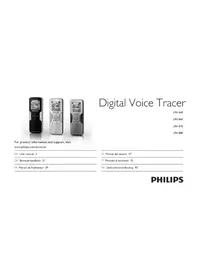
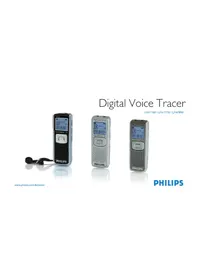
Digital Voice Tracer LFH 870 - Voice recorder PHILIPS - Free user manual and instructions
Find the device manual for free Digital Voice Tracer LFH 870 PHILIPS in PDF.



| Product type | Digital voice recorder |
| Brand | Philips |
| Model | Digital Voice Tracer LFH 870 |
| Dimensions (Length × Depth × Height) | 40 × 18.4 × 108 mm |
| Weight (with batteries) | 81 g |
| Power supply | 2 AAA alkaline batteries (LR03/R03) |
| Internal memory capacity | 2 GB (2048 MB) |
| Recording formats | MP3 (stereo), PCM (uncompressed) not available for this model |
| Recording modes | SHQ, HQ, SP, LP, SLP (stereo for SHQ and HQ) |
| Maximum recording time (SLP mode) | 284 hours |
| Microphone | Built-in stereo, external microphone jack |
| Speaker | Built-in dynamic round 30 mm, power 110 mW |
| Display | Backlit LCD, diagonal 39 mm |
| Connectivity | USB 2.0 high speed (mini-USB) |
| Headphone output | 3.5 mm jack |
| Music playback | MP3, WMA (without DRM) formats |
| Special features | Voice activation, index markers, automatic division, recording replacement, A-B repeat, recording timer, alarm/alarm clock |
| Battery life | Up to 50 hours (SLP mode) |
| System compatibility | Windows Vista/XP/2000, Mac OS X, Linux |
| Maintenance and cleaning | Clean with a dry cloth. Do not expose to water or moisture. |
| Safety | Do not expose to rain or excessive heat. Protect cables. Back up files regularly. |
| Spare parts and repairability | No user-serviceable parts. Contact an authorized Philips repair center. |
| General information | User manual available in PDF on notice-facile.com |
Frequently Asked Questions - Digital Voice Tracer LFH 870 PHILIPS
User questions about Digital Voice Tracer LFH 870 PHILIPS
0 question about this device. Answer the ones you know or ask your own.
Ask a new question about this device
Download the instructions for your Voice recorder in PDF format for free! Find your manual Digital Voice Tracer LFH 870 - PHILIPS and take your electronic device back in hand. On this page are published all the documents necessary for the use of your device. Digital Voice Tracer LFH 870 by PHILIPS.
USER MANUAL Digital Voice Tracer LFH 870 PHILIPS
For product information and support, visit
www.philips.com/diction
EN User manual 3
1.1 What's in the box 4
1.2 Product highlights 4
2 Important 6
2.1 Safety 6
2.2 Disposal of your old product 6
3 Your Digital Voice Tracer 7
4 Get started 8
4.1 Insert the batteries 8
4.2 Power on/off 8
4.3 Hold function 9
4.4 Set date and time 9
4.5 Display information 9
4.6 Use the Voice Tracer with a computer 9
5 Record 10
5.1 Record with the built-in microphone 10
5.2 Record with an external microphone 11
5.3 Overlap recording (LFH 860/870/880 only) 11
5.4 Add index marks 11
6Playback 12
6.1Playback functions 13
6.2 Play features 13
7Delete 14
8 Radio mode (LFH 880 only) 14
8.1 Auto tune radio stations 14
8.2 Manually tune to a radio station 15
8.3 Play a preset radio station 15
8.4 Delete a preset radio station 15
8.5 Record from FM radio 15
9 Customize settings 16
10 Update the firmware 18
11 Technical support and warranty 18
12 Troubleshooting 19
13 Technical data 20
Welcome1
Congratulations on your purchase and welcome to Philips! To fully benefit from the support that Philips offers, visit our Website for support information such as user manuals, software downloads, warranty information and more: www.philips.com/dictation.
What's in the box 1.1
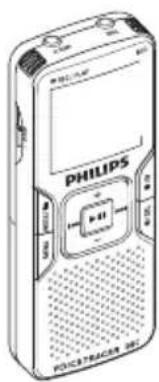
Voice Tracer
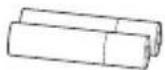
Batteries
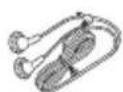
Stereo headphones

Strap*

USB cable

User manual

Lapel microphone
Product highlights1.2
Recording
Records in popular MP3 format.
Choose between six recording modes. Uncompressed PCM stereo recording* for audio CD-like quality, two stereo modes including SHQ and HQ, or three monaural modes including SP, LP and SLP for extended recording times.
An adjustable recording sensitivity avoids background noises and adjusts to the recording environment.
Ample internal memory offers a large recording capacity and allows the recording and storage of long recordings.
- The voice-activated recording mode provides hands-free recording without having to worry about remembering to push the record button.
The auto divide feature automatically divides long recordings into separate files. This makes it much easier to find, edit and archive long recordings such as meetings or lectures.
Record while powered through USB without draining the battery.* Records from external audio sources via line-in.*
- The large signal-to-noise (s/n) ratio of the microphone picks up every detail of the human voice to give superb sound reproduction.
Playback
Adjustable playback speed to play recordings in fast and slow playback modes.
Set a complete or a portion of an audio file to play repeatedly with the repeat playback option.
Enjoy MP3 and WMA music plus FM radio
Alarm clock with voice playback and timer recording.
Convenience
Large backlit screen for comfortable viewing.
Enjoy up to 22 hours of continuous operation.
Speedily transfer recordings, music and data via high-speed USB 2.0.
Index mark and temp mark features allow you to quickly find desired locations in a recording.
Supports up to 99 recordings in each of four available folders to organize your files in a fast and easy way.
As a USB mass storage device, the Voice Tracer offers a convenient way to save, back up and move files without special software or driver installations.
- Only available for some product versions.
User manual
Important2
Safety2.1
To avoid a short circuit, do not expose the product to rain or water.
Do not expose the device to excessive heat caused by heating equipment or direct sunlight.
Protect the cables from being pinched, particularly at plugs and the point where they exit from the unit.
Back up your files. Philips is not responsible for any loss of data.
Hearing safety2.1.1
Observe the following guidelines when using your headphones:
- Listen at reasonable volumes for reasonable periods of time.
- Be careful not to adjust the volume higher as your hearing adapts.
- Do not turn up the volume so high that you can't hear what's around you.
- You should use caution or temporarily discontinue use in potentially hazardous situations.
- Do not use headphones while operating a motorized vehicle, cycling, or skateboarding, etc. It may create a traffic hazard and is illegal in many areas.
Important (for models supplied with headphones):
Philips guarantees compliance with the maximum sound power of its audio players as determined by relevant regulatory bodies, but only with the original model of provided headphones. If these headphones need replacement, we recommend that you contact your retailer to order a Philips model identical to that of the original.
Disposal of your old product2.2
Your product is designed and manufactured with high quality materials - and components that can be recycled and re-used.
When this crossed-out wheeled bin symbol is attached to
a product, it indicates that the product is covered by the European Directive 2002/96/EC.

Become informed about your local separate collection system for • electrical and electronic products.
Act according to your local rules and do not dispose of old products with normal household waste. The correct disposal of old products will help prevent potential negative consequences for the environment and human health.
Batteries (including built-in rechargeable batteries) contain substances that may pollute the environment. All batteries should be disposed of at an official collection point.
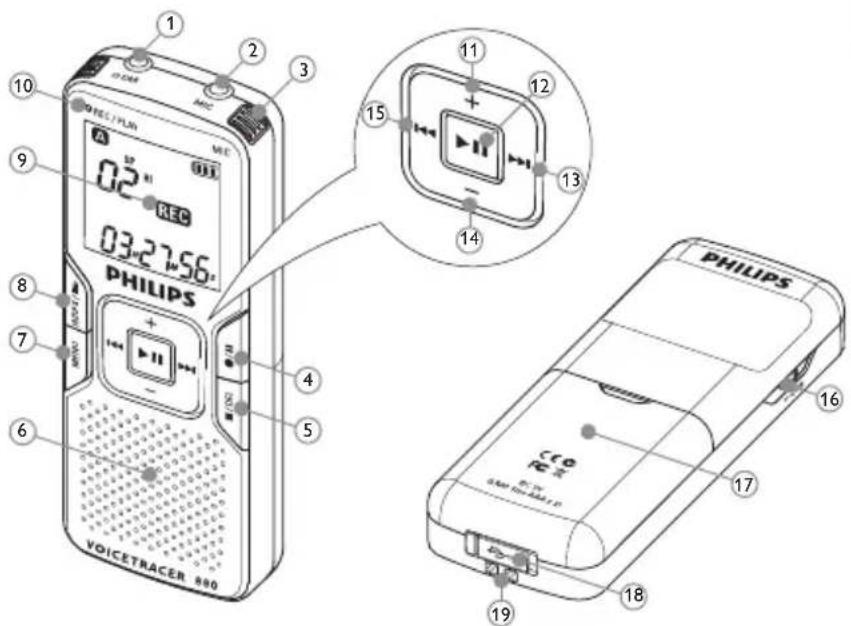
Your Digital Voice Tracer3
① Headphone socket
② Microphone socket, line-in socket
3 Built-in microphone
4 Record / Pause / Power on
⑤ Stop / Display / Delete
(6) Speaker
7 Menu / FM radio
8 Index / Folder / Repeat
9 Display
10 Record / Play indicator
Volume up
12 Power on/off, Play/Pause, Play speed
13 Fast forward / File selection / Menu selection
14 Volume down
15 Fast rewind / File selection / Menu selection
16 Hold switch
17 Battery compartment
18 USB socket
19Strap hole
Get started 4
Insert the batteries 4.1
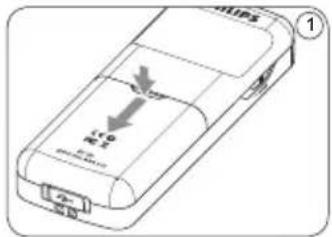
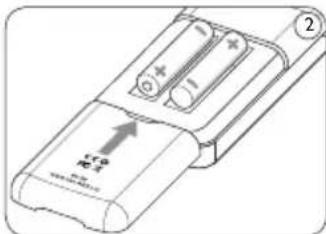
Slide open the battery cover. Place the batteries in the correct polarity as indicated and close 2 the cover.
Note
Remove the batteries if you will not be using the Voice Tracer for an extended period. Leaking batteries may damage the Voice Tracer.
If the Voice Tracer malfunctions, remove the batteries and re-insert them.
Stop the recorder before replacing the batteries. Removing the
batteries while the recorder is in use may corrupt the file.
When the batteries are nearly empty, the battery indicator blinks. If it takes longer than 2 minutes to replace the battery, you may have to reset the time.
Power on/off4.2
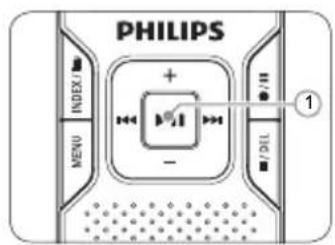
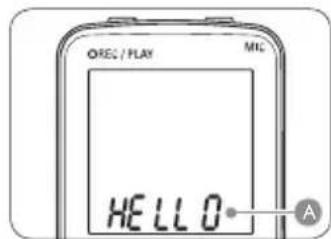
To power on, press the button until the display shows HELLO.
To power off, press the button while the recorder is stopped until the display shows BYE.
Hold function 4.3
When the HOLD switch is in the Hold position, all buttons on the device are inactive. On Hold will be shown briefly on the display, and the display will turn off. Unlock the Voice Tracer by moving the HOLD switch to the Off position.
Set date and time4.4
When the batteries are installed for the first time, you will be prompted to set the date and time.
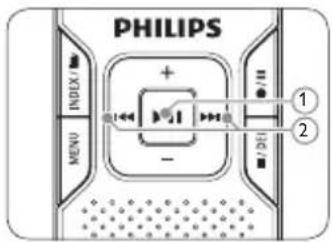
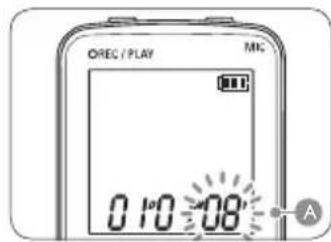
1 'CLOCK' will be shown on the display. Press the button ①. The year indicator A flashes.
Press the 1 or 2 button 2 to set the year.
Press the button to advance to the settings for the month.
4 Repeat steps 2 and 3 to continue to set the month, day, 12/24-hour system and the time in the same way.
User manual

Notes
The date and time can be changed at any time using the menu. See Customize settings on page 16 for more information.
Display information4.5
Press the DEL button while the recorder is stopped to rotate the information on the display: total playback time of the current file > time > date > remaining recording time > recording time of the current file > recording date of the current file.
- Press and hold during recording to display the remaining recording time.
Use the Voice Tracer with a computer4.6
As a USB mass storage device, the Voice Tracer offers a convenient way to save, back up and move files. The Voice Tracer connects to a computer using a USB connection and does not require special software to be installed. The Voice Tracer is automatically displayed as a removable drive, allowing you to simply drag and drop files to and from the unit.

Notes
Do not disconnect the Voice Tracer while files are transferred from or to the device. Data is still being transferred while the record/play indicator light is blinking in orange.
- Do not format the drive of the Voice Tracer on a computer.
5 Record
Record with the built-in microphone5.1
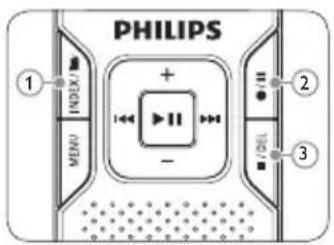
Press the INDEX / button ① while the recorder is stopped to select the desired folder A.
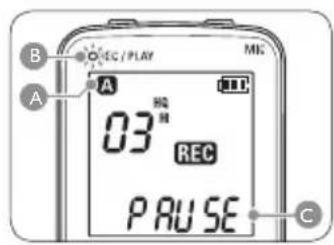
Press the button to start recording. The record/play indicator lights red B. Point the built-in microphone toward the sound source.
To pause recording, press the button. The record/play indicator will blink B, and PAUSE will flash on the display C.
Press the button again to resume recording. To stop recording, press the DEL button 3.

Notes
Set the desired voice activation function and recording mode before starting recording (see Customize settings on page 16 for details). Make a test recording to make sure that the Voice Tracer settings are correct.
- Press and hold during recording to display the remaining recording time.
Press▶ during recording to create a new file.
The maximum number of files in each folder is 99, for a total capacity of 396 files (99 files x 4 folders).
If the recording time exceeds the available capacity or the number of files reaches 396, recording stops and 'FULL' will be displayed. Delete a few recordings or move them to a computer.
- Do not remove the batteries during recording. This may cause the recorder to malfunction.
- If recording for a prolonged period of time, replace the batteries before beginning.
The Voice Tracer can record while powered through a USB cable without draining the battery. Connect the recorder to a computer using the USB cable and press the / 串 button for 1 second or longer to start recording (LFH860/870/880 only).
Record with an external microphone 5.2
To record with an external microphone, connect the microphone to the microphone socket and follow the same procedure as for the built-in microphone.
Overlap recording (LFH 860/870/880 only)5.3
Follow these steps to make additions to a recording and overlap parts of a recording.
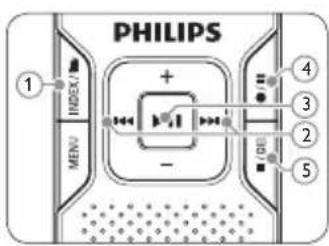
Press the INDEX / button while the recorder is stopped to select the desired folder A.
Press the 1 or 2 button to select the file to which the addition should be made.
Play or forward to the position where the addition should be made 3 and press the button ③ to pause playback.
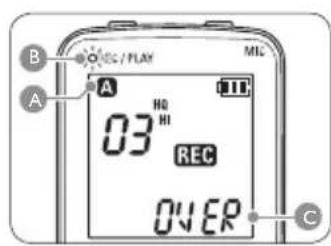
Press the button to start overlap recording. The record/ play indicator will blink B, and OVER will be shown on the display C. The existing recording will be overwritten.
Press the DEL button to stop recording.
Note
The recording mode of the original file before is in effect when overlapping a recording.
Overlap recording is not available in the M (music) folder.
User manual
Add index marks5.4
Index marks can be used to mark certain points in a recording as points of reference.
Press the INDEX / button during recording to add an index mark. The index number is displayed for one second.

Notes
The INDEX icon indicates that the recording contains index marks. Up to 32 index marks can be set per file.*
Playback6
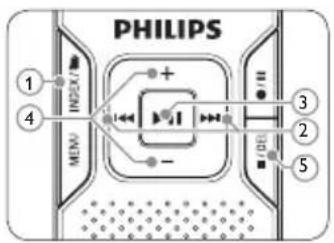
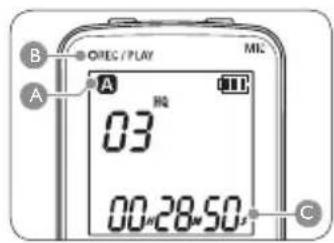
Press the INDEX button while the recorder is stopped to select the desired folder A.
Press the 1 or 2 button 2 to select the file to play back. Press the 3 button 3. The playback time will be shown on the display, and the green LED B will light.
4 Adjust the volume using the + and - buttons 4. To stop playback, press the DEL button 5. The total playback time of the current file will be shown on the display. Press the button again to continue playback from the previous position.

Note
When headphones are connected to the EAR jack, the recorder speaker will be switched off.

Notes on using the Voice Tracer as a music player
The recorder supports music files in .wma and .mp3 formats that can be transferred from the computer to the music folder of the recorder. Files with copy protection (digital rights management) are not supported.
The Voice Tracer supports up to two folder levels within the music - folder. Each folder can hold up to 199 entries (files and folders).
Press the button to open a selected folder/file. Press the INDEX / button to return to the folder one level higher.
Press the button during music playback to change the equalizer mode (Normal > Classic > Jazz > Rock > Pop > Normal).
Playback functions6.1
Slow, fast, normal playback6.1.1
Press and hold the button for 1 second or longer to switch between normal, slow and fast playback.
Search6.1.2
Press and hold the or button during playback to scan backward or forward in the current file at a fast speed. Release the button to resume playback at the selected speed.
Rewinding and forwarding6.1.3
Press the or button during playback to rewind to the beginning of the file being played or forward to the next file, respectively. If the file contains index marks, playback begins at that point.
Play features6.2
You can set the Voice Tracer to play files repeatedly or randomly.
Repeat a sequence6.2.1
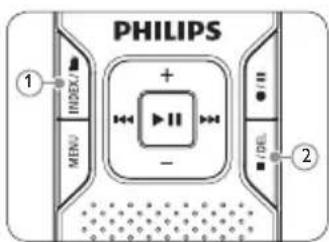
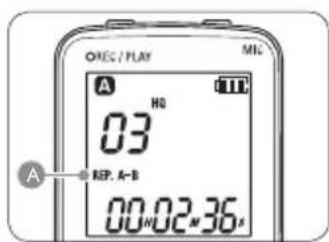
To repeat or loop a sequence in a song, press the INDEX / button 1 at the chosen starting point. REP.A-B flashes on the screen A Press the INDEX / button again at the chosen end point. The
User manual
repeat sequence begins.
Press the DEL button to stop playback or press the INDEX / button to return to normal playback.
Repeat a file or folder / shuffle mode6.2.2
Press and hold the INDEX / button for 1 second or longer during playback to switch between play modes (repeat file, repeat folder, shuffle folder or normal playback).
| Icon | Meaning |
| REP. FILE | Play one file repeatedly |
| REP. FOLD | Play all files within folder repeatedly |
| SHUF FOLD | Play all music files within folder randomly |

Note
Shuffle mode is available only in theM (music) folder.
Delete7
Press the INDEX button while the recorder is stopped to select the desired folder.
Press and hold the DEL button for 1 second or longer. DELETE appears on the screen.
Press the l or l button to select a delete option:
Icon Meaning
| FILE | Delete a single file |
| FOLD | Delete all files in a folder |
| INDEX | Delete all index marks in a file |
Press the button.
Press the or button to select the file, the folder or the file containing the index marks to be deleted.
Press the button again. N (No) is displayed.
Press the or button to select Y (Yes).
Press the button to confirm.
Note
Sequential file numbers are reassigned automatically.
Radio mode (LFH 880 only)8
Connect the headphones. The supplied headphones serve as a 1 radio antenna.
Press and hold the MENU button for 1 second or longer to enter the radio mode.
Auto tune radio stations8.1
Press the MENU button while the recorder is in radio mode to open the menu.
Press the 口 or 口 button to select AUTO.
Press the button again. N (No) is displayed.
Press the or button to select Y (Yes).
Press the button to confirm. The radio automatically tunes radio stations and saves the frequencies to presets. The radio can store up to 20 radio stations to presets.
Manually tune to a radio station8.2
To fine-tune frequency, quickly press the or button.
To search for the next stronger signal, press and hold or. Press the button to save the frequency under a preset.
3 Adjust the volume using the + and - buttons.
To exit the radio mode, press and hold the MENU button for 1 second or longer.
Note
Press the DEL button while the recorder is in radio mode to switch between stereo and mono reception.
Play a preset radio station8.3
Press the INDEX / button while the recorder is in radio mode to switch between frequency and preset mode.
In preset mode, press the or button to change to another preset radio station.
3 Adjust the volume using the + and - buttons.
To exit the radio mode, press and hold the MENU button for 10 second or longer.
User manual
Delete a preset radio station8.4
Press the INDEX / button while the recorder is in radio mode to switch between frequency and preset mode.
In preset mode, press the or button to select the preset radio station to be deleted.
Press and hold the DEL button for 1 second or longer to delete the preset radio station.
Record from FM radio8.5
1 Manually tune to a radio station or play a preset radio station.
Press the button to start recording.
3 To stop recording, press the DEL button.
9 Customize settings
The menu is available while the recorder is stopped and during radio reception. The available menu items differ depending on whether you are in a voice folder, a music folder or in radio mode.
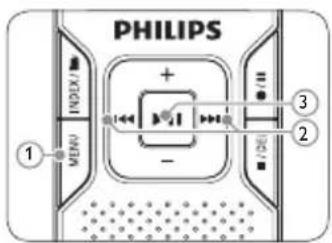
Press the MENU button ① while the recorder is stopped or during radio reception to open the menu.
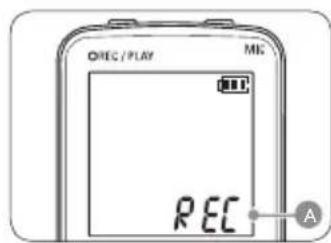
Press the 卡 or 卡 button 2 to select a menu item A.
Press the button 3 to enter a sub-menu.
Press the or button 2 to change a setting.
Press the button 3 to confirm your selection.
Press the MENU button 1 to exit the current settings screen.
| Menu Setting Description | |
| SPLIT* YesNo | Split a large file into two separate files so that they can be easily archived or transferred via e-mail, or so that part of a file can be deleted. To split a file, play and stop at the position where the splitting should be made, then open the SPLIT menu. |
| REC* PCMSHQHQSPLPSLP | Choose among several recording modes, from uncompressed PCM stereo recording for audio CD-like quality (LFH 880), two stereo modes including SHQ and HQ, or three monaural modes including SP, LP and SLP for extended recording times. See Technical data on page 20 for details about available recording modes and recording times. |
| DIVIDE* Off30 min.60 min. | The auto divide feature automatically records into a new file every 30 or 60 minutes. This makes it much easier to find, edit and archive long recordings such as meetings or lectures. |
| INPUT V (voice)L (line-in) | Use the L (line-in) setting when recording from external audio sources via the line-in jack of the recorder (LFH 860/870/880 only). |
| SENSE* HI LO | Adjust the recording sensitivity to avoid recording background noises and to adjust to the recording environment. |
| BEEP On Off | The recorder gives sound feedback about button operations or errors. |
| LIGHT On Off | The display will remain lit for a few seconds when a button is pressed. |
| VA*On Off | Voice-activated recording is a convenience feature for hands-free recording. When voice- activated recording is enabled, recording will start when you begin speaking. When you stop speaking, the recorder will automatically pause recording after three seconds of silence, and resume only when you begin speaking again. |
| CLOCK DD:MM:YY 12/24 H HH:MM:SS | If the date and time is set, the information when the file is recorded is automatically stored with each file. |
| TIMER Off V CH | Schedule automatic recording to begin with the microphone (select V) or of a radio channel (select CH / LFH 880 only). Specify the start time, the duration of the recording (30/60/120 minutes/All), a folder and the radio channel to be recorded. |
| ALARM Off | Use the Voice Tracer as a mobile alarm clock. |
| b | Choose the alarm mode (b = beep, F = file) playback) and specify the start time and the file to be played. |
| F | |
| FORMAT Yes | Delete all files on the recorder including programmed radio stations. Transfer any important files to a computer before formatting the recorder. |
| No | |
| VER Display the firmware version and the release date. | |
| AUTO** Yes | Auto-tune a radio station and store up to 20 stations to presets. |
| No | |
| OUTPUT EP | Switch between earphone (EP) and speaker (SP) output in radio mode. |
| ** SP | |
- This function is not available in the M (music) folder.
** This function is available only in radio mode.
Update the firmware10
Your Voice Tracer is controlled by an internal program called firmware. Regularly check www.philips.com/dictation for new firmware updates.
Download the firmware update for your Voice Tracer model from www.philips.com/dictation > Support Center > Software Downloads and save the file in the root directory of the Voice Tracer.
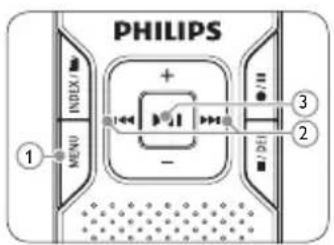
Press the MENU button ① while the recorder is stopped to open the menu.
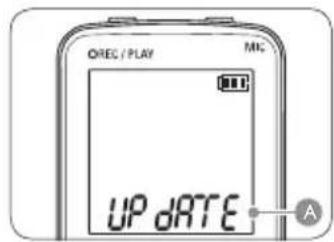
Press the or button 2 to select UPDATE A.
Press the button ③ .N (No) is displayed.
Press the 14 or 2 button 2 to select Y (Yes).
Press the button again to install the new firmware.
Technical support and warranty11
This Philips product was designed and manufactured to the highest quality standards. If your Philips product is not working correctly or is defective, contact your supplying Philips Speech Processing dealer who will provide you with the necessary information on how to proceed.
If you have questions that your dealer cannot answer or any other related question, visit www.philips.com/dictation to contact us.
No components are user-serviceable. Do not open or remove covers and do not insert objects not suitable for the specific connectors. Repairs may be made only by Philips service centers and official repair facilities. Failure to do so will void any warranty, stated or implied.
Any operation expressly prohibited in this manual, any adjustments, or assembly procedures not recommended or authorized in this manual will void the warranty.
Troubleshooting 12
My recorder cannot power on
The batteries may be out of power or not inserted correctly. Replace the batteries with new ones and verify that the batteries are inserted correctly.
My recorder does not record anything
The recorder may be in HOLD mode. Slide the HOLD switch to the Off position.
The maximum number of recordings may be reached or the recording capacity is full. Delete some recordings or move recordings to an external device.
I cannot hear anything from the speaker
The headphones may be plugged in. Remove the headphones.
The volume is at the lowest setting. Adjust the volume.
My recorder cannot play recordings
The recorder may be in HOLD mode. Slide the HOLD switch to the Off position.
The batteries may be out of power or not inserted correctly. Replace the batteries with new ones and verify that the batteries are inserted correctly.
Nothing has been recorded yet. Check the number of recordings.
My recorder cannot stop, pause, play or record
The recorder may be in HOLD mode. Slide the HOLD switch to the Off position.
I cannot hear anything through the headphones
The headphones may not be plugged in properly. Plug in the headphones properly.
The volume is at the lowest setting. Adjust the volume.
13 Technical data
Connectivity
USB: High-speed 2.0 mini-USB
Microphone: 3.5 mm, impedance 2.2 kΩ
Headphone: 3.5mm impedance 16
or more
Display
Type: LCD, segment
Diagonal screen size: 39 mm / 1.5 in.
Recording format
.m3 (Mpeg 1/Audio Layer 3)
wav (PCM) (LFH880)
Recording media
Built-in flash memory*
Microphone
Built-in: mono (LFH 660) /
stereo (LFH 860/870/880)
External: mono (LFH 660) /
stereo (LFH 860/870/880)
Recording time
LFH 660 (1024 MB):
SHQ mode (.mp3 / mono): 17.5 hours
HQ mode (.mp3 / mono): 35 hours
SP mode (.mp3 / mono): 46.5 hours
LP mode (.mp3 / mono): 69.5 hours
SLP mode (.mp3 / mono): 139.5 hours
SHQ mode (.mp3 / stereo): 35.5 hours
HQ mode (.mp3 / stereo): 71 hours
SP mode (.mp3 / mono): 94.5 hours
LP mode (.mp3 / mono): 142 hours
SLP mode (.mp3 / mono): 284 hours
LFH 880 (2048 MB):
PCM mode (.wav / stereo): 3.25 hours
SHQ mode (.mp3 / stereo): 35.5 hours
HQ mode (mp3 / stereo): 71 hours
SP mode (.mp3 / mono): 94.5 hours
LP mode (.mp3 / mono): 142 hours
SLP mode (.mp3 / mono): 284 hours
Compression rate/sampling
frequency
-PCM mode: 1411 kbps / 44.1 kHz
- SHQ mode: 128 kbps / 44.1 kHz
HQ mode: 64 kbps / 22 kHz
SP mode: 48 kbps / 16 kHz
- LP mode: 32 kbps / 16 kHz
- SLP mode: 16 kbps / 16 kHz
Music playback
- Compression format: .mp3, .wma
- MP3 bit rates: 8 - 320 kbps
WMA bit rates: 32 - 192 kbps - No DRM support
Tuner/reception (LFH 880)
Tuner bands: FM stereo
Frequency range: 87.5 - 108 MHz
Number of preset channels: 20
- Auto digital tuning
Speaker
Built-in 30mm round dynamic speaker
Output power: 110 mW
Operating conditions
Temperature: 5^ - 45^ / 41^ - 113^
Humidity: 10% -90%
Power
- Battery type: two Philips AAA alkaline
batteries (LR03 or R03) - Battery life (SLP mode): 50 hours
Dimensions
Product dimensions (W× D× H) ..
40 × 18.4 × 108 ~mm / 1.6 × 0.7 × 4.3 in.
Weight: 81g / 2.9 oz. incl. batteries
System requirements
Windows Vista / XP / 2000,
Mac OS X, Linux
Free USB port
Benutzerhandbuch
1 Willkommen 22
Microphone:3,5mm,impedance
2,2 kΩ
Mate van comprimering/sampling
frequentie
-PCM mode: 1411 kbps / 44,1 kHz
- SHQ mode: 128 kbps / 44,1 kHz
HQ mode: 64 kbps / 22 kHz
SP mode: 48 kbps / 16 kHz
LP mode: 32 kbps / 16 kHz
- SLP mode: 16 kbps / 16 kHz
Muziek afspelen
Declaration of Conformity
Tested to comply with FCC standards
FOR HOME OR OFFICE USE
Model Number: LFH 660, LFH 860, LFH 870, LFH 880
Trade Name: Philips Digital Voice Tracer 660 / 860 / 870 / 880
Responsible Party: Philips Speech Processing
Address: 64 Perimeter Center East, Atlanta, GA 30346, USA
Telephone number: 888-260-6261
Website: www.philips.com/dictation
This device complies with part 15 of FCC rules. Operation is subject to the following two conditions:
1) This device may not cause harmful interference.
2) This device must accept any interference received, including interference that may cause undesired operation.
Disclaimer and notices
Philips performs extensive testing with the most popular configurations. However, since PC add-ons and device drivers are updated continually, conflict-free operation cannot be guaranteed.





Discover the comprehensive range of high-end dictation products from Philips www.philips.com/dictionary
Specifications are subject to change without notice.
Trademarks are the property of Royal Philips Electronics or their respective owners. 念 2008 Royal Philips Electronics. All rights reserved.
Document version 1.0, 2008/08/29.
- Important 6
- Your Digital Voice Tracer 7
- Get started 8
- 6Playback 12
- 7Delete 14
- Radio mode (LFH 880 only) 14
- Customize settings 16
- Welcome1
- What's in the box 1.1
- Product highlights1.2
- Recording
- Playback
- Convenience
- Important2
- Safety2.1
- Hearing safety2.1.1
- Observe the following guidelines when using your headphones:
- Important (for models supplied with headphones):
- Disposal of your old product2.2
- Your Digital Voice Tracer3
- Get started 4
- Insert the batteries 4.1
- Note
- Power on/off4.2
- Hold function 4.3
- Set date and time4.4
- Notes
- Display information4.5
- Use the Voice Tracer with a computer4.6
- Record
- Record with the built-in microphone5.1
- Record with an external microphone 5.2
- Overlap recording (LFH 860/870/880 only)5.3
- Add index marks5.4
- Playback6
- Notes on using the Voice Tracer as a music player
- Playback functions6.1
- Slow, fast, normal playback6.1.1
- Search6.1.2
- Rewinding and forwarding6.1.3
- Play features6.2
- Repeat a sequence6.2.1
- Repeat a file or folder / shuffle mode6.2.2
- Delete7
- Radio mode (LFH 880 only)8
- Auto tune radio stations8.1
- Manually tune to a radio station8.2
- Play a preset radio station8.3
- Delete a preset radio station8.4
- Record from FM radio8.5
- Customize settings
- Update the firmware10
- Technical support and warranty11
- Troubleshooting 12
- My recorder cannot power on
- My recorder does not record anything
- I cannot hear anything from the speaker
- My recorder cannot play recordings
- My recorder cannot stop, pause, play or record
- I cannot hear anything through the headphones
- Technical data
- Connectivity
- Display
- Recording format
- Recording media
- Microphone
- Recording time
- Compression rate/sampling
- frequency
- Music playback
- Tuner/reception (LFH 880)
- Speaker
- Operating conditions
- Power
- Dimensions
- System requirements
- Benutzerhandbuch
- Willkommen 22
- Mate van comprimering/sampling
- frequentie
- Muziek afspelen
- Declaration of Conformity
- Disclaimer and notices
Brand : PHILIPS
Model : Digital Voice Tracer LFH 870
Category : Voice recorder