
Aspire E1 57133128G50Maks - Laptop ACER - Free user manual and instructions
Find the device manual for free Aspire E1 57133128G50Maks ACER in PDF.
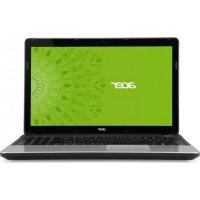



| Product Type | Laptop |
| Brand | Acer |
| Model | Aspire E1 57133128G50Maks |
| Processor | Intel Core i5-3317U (1.7 GHz, Turbo up to 2.6 GHz) |
| RAM Memory | 4 GB DDR3 |
| Hard Drive | 500 GB SATA |
| Screen | 15.6 inches HD (1366x768) LED |
| Graphics | Intel HD Graphics 4000 |
| Operating System | Windows 8 (pre-installed) |
| Connectivity | Wi-Fi 802.11 b/g/n, Bluetooth 4.0, Gigabit Ethernet |
| Ports | 2x USB 2.0, 1x USB 3.0, HDMI, VGA, headphone/mic jack, SD/MMC/MS PRO/xD card reader |
| Optical Drive | DVD±RW Double Layer |
| Webcam | Integrated (0.3 megapixels) |
| Battery | 6-cell, 4400 mAh |
| Dimensions (WxDxH) | 38.1 x 25.3 x 2.54 cm |
| Weight | Approximately 2.5 kg |
| Operating Temperature | 5°C to 35°C |
| Operating Humidity | 20% to 80% (non-condensing) |
| Security | Kensington lock slot |
| Maintenance | Clean with a soft, dry cloth. Do not use abrasive products. |
Frequently Asked Questions - Aspire E1 57133128G50Maks ACER
User questions about Aspire E1 57133128G50Maks ACER
0 question about this device. Answer the ones you know or ask your own.
Ask a new question about this device
Download the instructions for your Laptop in PDF format for free! Find your manual Aspire E1 57133128G50Maks - ACER and take your electronic device back in hand. On this page are published all the documents necessary for the use of your device. Aspire E1 57133128G50Maks by ACER.
USER MANUAL Aspire E1 57133128G50Maks ACER
Aspire Notebook Series
Quick Guide
Product registration
When using your product for the first time, it is recommended that you immediately register it. This will give you access to some useful benefits, such as:
- Faster service from our trained representatives. • Membership in the Acer community: receive promotions and participate in customer surveys. • The latest news from Acer.
Hurry and register, as other advantages await you!
How to register
To register your Acer product, please visit www.acer.com. Select your country, click PRODUCT REGISTRATION and follow the simple instructions.
You will also be asked to register your product during the setup process, or you can double-click the Registration icon on the desktop.
After we receive your product registration, you will be sent a confirmation email with important data that you should keep in a safe place.
Obtaining Acer accessories
We are happy to inform you that Acer's warranty extension program and Notebook accessories are available online. Come and visit our online shop and find what you need at store.acer.com.
The Acer store is being progressively rolled out, and, unfortunately may not be available in some regions. Please check back regularly to see when it will be available in your country.
© 2012. All Rights Reserved.
Aspire Notebook Series Quick Guide
This revision: 07/2012
Model number: ____
Serial number: ____
Date of purchase: ____
Place of purchase: ____
Acer recommends...
Productivity Software
Work Great with Microsoft® Office 2010 - Express your ideas, solve problems and simplify everyday projects with Office 2010.
Photo editing - Easily edit and print your photos with Windows Live Photo Gallery. Then share them on Facebook, YouTube or Windows Live.
Search & Decide with Bing - Find and organize the answers you need using Bing™, so you can make faster, more informed decisions.
First things first
We would like to thank you for making an Acer notebook your choice for meeting your mobile computing needs.
Your guides
To help you use your Acer notebook, we have designed a set of guides:
First off, the setup poster helps you get started with setting up your computer.
The User's Manual contains useful information applying to your notebook. It covers basic topics such as using the keyboard and audio, etc.
The Quick Guide introduces the basic features and functions of your new computer. For more on how your computer can help you to be more productive, please refer to the User's Manual. This guide contains detailed information on such subjects as system utilities, data recovery, expansion options and troubleshooting. In addition it contains warranty information and the general regulations and safety notices for your notebook. It is available in Portable Document Format (PDF) and comes preloaded on your notebook. Follow these steps to access it:
1 Type "User" from Start. 2 Click on Acer User's Manual.
Your Acer notebook tour
After setting up your computer as illustrated in the setup poster, let us show you around your new Acer notebook.
Top view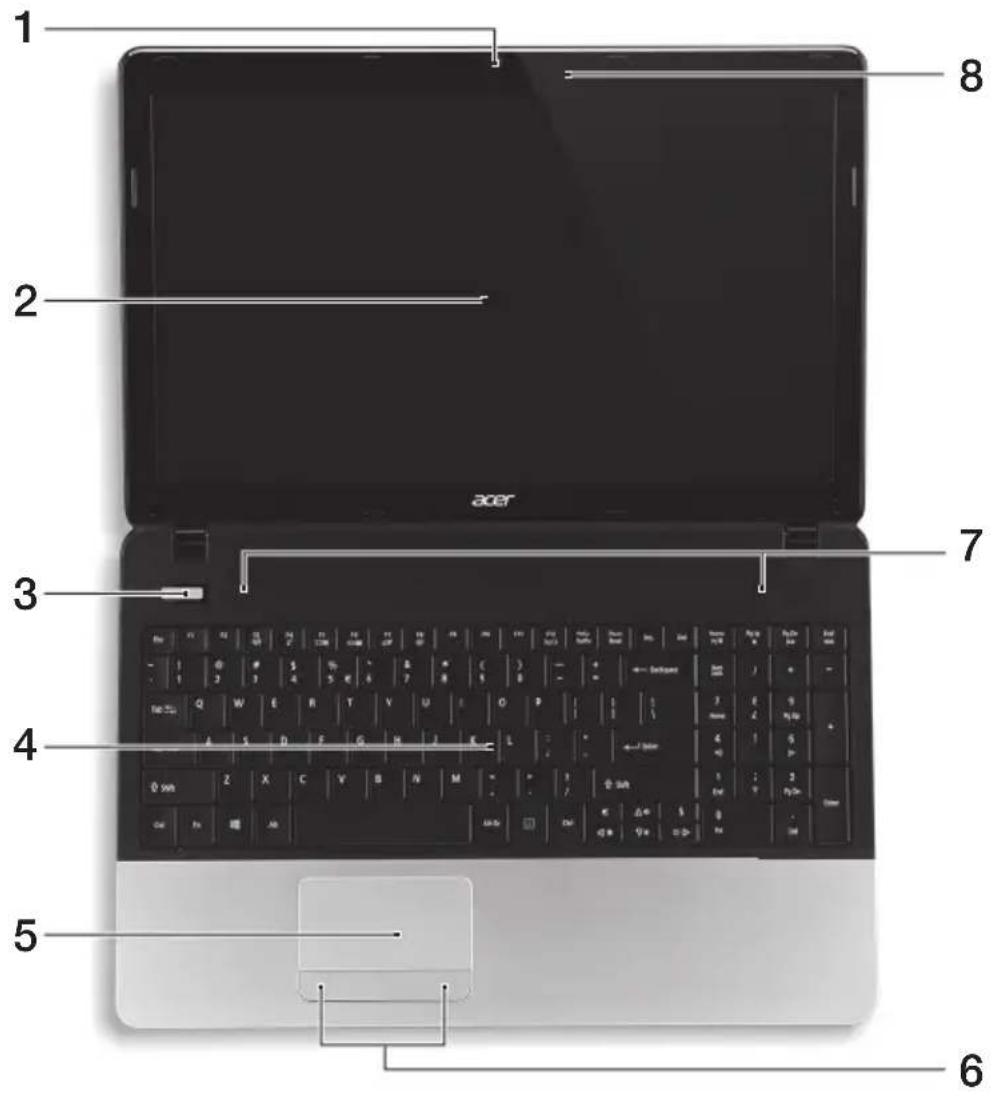
Icon Item Description
| 1 | W | e | Web camera for video communication.A light next to the webcam indicates that the webcam is active. | a |
| 2 Display Displays computer output. | ||||
| 3 |  | Power button / indicator | Turns the computer on and off. Indicates the computer's power status. | |
| # | Icon | Item | Description |
| 4 Keyboard For entering data into your computer. | |||
| 5 | T | o | Touch-sensitive pointing device which functions like a computer mouse. |
| 6 | Click buttons (left and right) | The left and right buttons function like the left and right mouse buttons. | |
| 7 | S | p | Left and right speakers deliver stereo audio output. |
| 8 Microphone Internal microphone for sound recording. | |||
Hotkeys
The computer employs hotkeys or key combinations to access most of the computer's controls like screen brightness and volume output.
To activate hotkeys, press and hold the key before pressing the other key in the hotkey combination.
| Hotkey Icon Function Description | ||
| + Communication | Enables/disables the computer's communication devices. | |
| + Sleep Puts the computer in Sleep mode. | ||
| + Display toggle | Switches display output between the display screen, external monitor (if connected) and both. | |
| + Screen blank | Turns the display screen backlight off to save power. Press any key to return. | |
| + Touchpad toggle Turns the internal touchpad on and off. | ||
| + Speaker toggle Turns the speakers on and off. | ||
| + < ▷> Brightness up | Increases the screen brightness. | |
| + < ◀> Brightness down | Decreases the screen brightness. | |
| Hotkey Icon Function Description | ||
| + < ▲ | Volume up Increases the sound volume. | |
| + < ▼ | Volume down Decreases the sound volume. | |
| + | Play/Pause Play or pause a selected media file. | |
| + | Stop Stop playing the selected media file. | |
| + | Previous Return to the previous media file. | |
| + | Next Jump to the next media file. | |
Hotkey Icon Function Description
Closed front view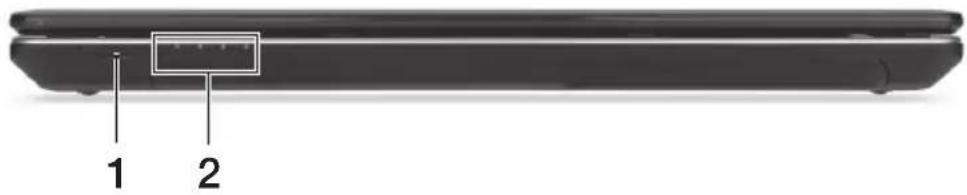
Icon Item Description
| 1 |  | M | u | Accepts Secure Digital (SD), MultiMediaCard (MMC), Memory Stick PRO (M$ PRO), xD-Picture Card (xD). iNote: Push to remove/install the card. Only one card can operate at any given time. |
| 2 |  | HDD indicator | Indicates when the hard disk drive is active. | |
 | Communication indicator | Indicates the computer's wireless connectivity device status. | ||
 | Power indicator Indicates the computer's power status. | |||
 | Battery indicator | Indicates the computer's battery status.1. Charging: The light shows amber when the battery is charging.2. Fully charged: The light shows blue when in AC mode. | ||
Left view

# Icon Item Description
1 DC-in jack Connects to an AC adapter.
2 Ethé  (RJ-45) port (RJ-45) port | Connects to an Ethernet 10/100/1000-based network. | |||
| 3 | [8SD3] | External display (VGA) port | Connects to a display device (e.g., external monitor, LCD projector). | |
| 4 |  | H | D | Supports high-definition digital video connections. |
| 5 |  | U | S | Connects to USB devices.If a Port is black, it is USB 2.0 compatible; if a port is blue it is also USB 3.0 compatible. |
| 6 | [kW47] | Microphone jack | Accepts inputs from external microphones. | |
 | Headphones/speaker jack | Connects to audio devices (e.g., speakers, headphones). | ||
Right view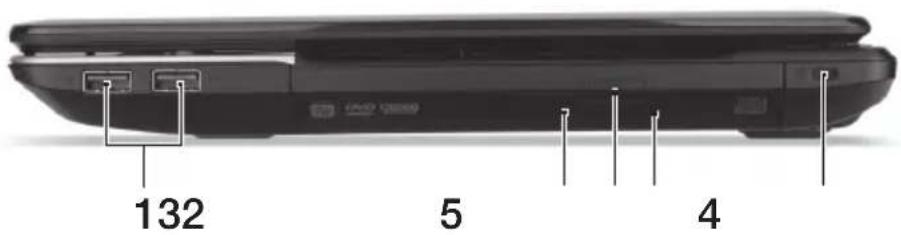
| # Icon Item Description | ||||
| 1 |  | U | S | Connects to USB devices.If a port is black, it is USB 2.0 compatible, if a port is blue it is also USB 3.0 compatible. |
| 2 | Optical disk access indicator | Lights up when the optical drive is active. | ||
| 3 | Optical drive eject button | Ejects the optical disk from the drive. | ||
| 4 | Emergency eject hole | Ejects the optical drive tray when the computer is turned off.Carefully insert a straightened paper clip to eject the optical drive tray. | ||
| 5 |  | Kensington lock slot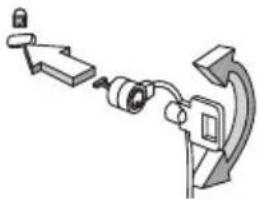 | Connects to a Kensington-compatible computer security lock.Note: Wrap the computer security lock cable around an immovable object such as a table or handle of a locked drawer. Insert the lock into the notch and turn the key to secure the lock. Some keyless models are also available. | |
Base view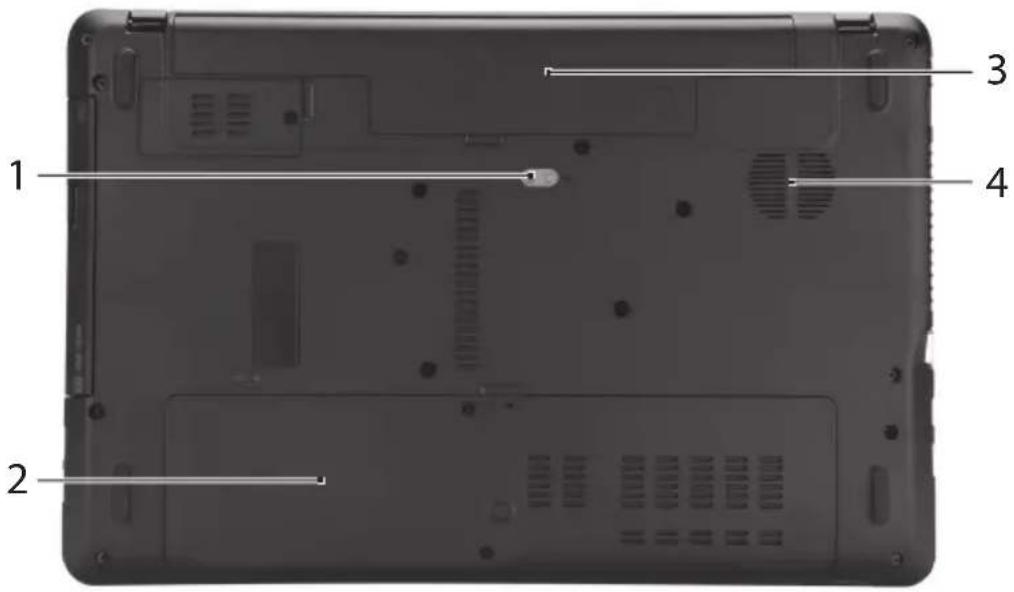
Icon Item Description
| 1 |  | Battery release latch/lock | Releases the battery for removal.Insert a suitable tool into the latch and slide to release. |
| 2 |  | Memory compartment | Houses the computer's main memory. |
 | Hard disk bay | Houses the computer's hard disk (secured with screws). |
3 Battery bay Houses the computer's battery pack.
| 4 | Ventilation and cooling fan | Allows the computer to stay cool.Do not cover or obstruct the openings. |
Environment
•Temperature:
- Operating: 5°C to 35°C
•Non-operating: -20 °C to 65 °C
• Humidity (non-condensing):
- Operating: 20% to 80%
•Non-operating: 20% to 80%
Aspire notebook series
Quick guide
Supports Secure Digital (SD), MultiMediaCard (MMC), Memory Stick Pro (MS PRO), xD-Picture Card (xD).
Acer notebook is bundled with the approved telecom modules for your networking. Those modules' model number and specific homologation number refers to below:
[Modem]
| Modelo: RD02-D330 CNC 54-4512 | |
| Modelo: Delphi D40 (AM5) CNC 54-5681 |
[Bluetooth]
| Modelo: BCM92046 CNC 16-6735 | |
| Modelo: BCM92070MD_REF CNC 16-7165 | |
| Modelo: T77H056 CNC 16-7788 | |
| Modelo: AR5BBU12 CNC 16-7946 |
[Bluetooth+802.11bgn]
| Modelo: BCM943225HMB CNC C-7497 |
[802.11AGN]
| Modelo: 512AN_MMW CNC C-6399 | |
| Modelo: 533AN_MMW CNC C-6385 | |
| Modelo: 512AN_HMW CNC C-7612 | |
| Modelo: 533AN_HMW CNC C-7618 | |
| Modelo: 622ANHMW CNC C-7682 | |
| Modelo: 633ANHMW CNC C-7681 |
[802.11BGN]
| Modelo: AR5B95 CNC C-7152 | |
| Modelo: AR5B93 CNC C-7151 | |
| Modelo: 112BNHMW CNC C-7470 | |
| Modelo: 112BNMMW CNC C-7471 | |
| Modelo: RTL8192SE CNC C-7495 | |
| Modelo: BCM943225HM CNC C-7395 | |
| Modelo: AR5B97 CNC C-7781 | |
| Modelo: BCM94313HMG2L CNC C-7881 |
[802.11BG]
| Modelo: BCM94312HMG CNC 16-6180 |
[3G]
| Modelo: UNDP-1 | CNC 17-6334 |
| Modelo: Gobi2000 CNC 17-7291 |
[Brazil] Additional notice of Anatel regulation
Acer notebook is bundled with the approved telecom modules for your networking. Those modules' model number and specific homologation number refers to below:
[Modem]
| Modelo: RD02-D330 COFETEL: TTDCORD06-536 | |
| Modelo: Delphi_D40 (AM5) COFETEL: TTDAGDE07-056 | |
[Bluetooth]
| Modelo: BCM92046 COFETEL: RCPFOBC08-0472 | |
| Modelo: BCM92070MD_REF COFETEL: RCPBRBC09-0213 | |
| Modelo: T77H056 COFETEL: RCPATT709-1049 | |
| Modelo: AR5BBU12 COFETEL: RCPATAR10-0064 | |
[Bluetooth+802.11BGN]
| Modelo: BCM943225HMB COFETEL: RCPBRBC09 | -0574 |
[802.11AGN]
| Modelo: 512AN_HMW COFETEL:RCPIN5108-0260 |
| Modelo: 512AN_MMW COFETEL:RCPIN5108-0260-A3 |
| Modelo: 533AN_HMW COFETEL:RCPIN5108-0260-A2 |
| Modelo: 533AN_MMW COFETEL:RCPIN5108-0260-A1 |
| Modelo: 622ANHMW COFETEL:RCPIN6209-1009 |
| Modelo: 633ANHMW COFETEL:RCPIN6309-1010 |
[802.11BGN]
| Modelo: AR5B95 COFETEL:RCPATAR09-0168 | |
| Modelo: AR5B93 COFETEL: RCPATAR09-0167 | |
| Modelo: 112BNHMW COFETEL: RCPIN1109-0613-A1 | |
| Modelo: 112BNMMW COFETEL: RCPIN1109-0613 | |
| Modelo: RTL8192SE COFETEL: RCPRERT09-0751 | |
| Modelo: BCM943225HM | COFETEL: RCPBRBC09-0464 |
| Modelo: AR5B97 COFETEL: RCPATAR09-1103 | |
| Modelo: BCM94313HMG2L | COFETEL: RCPBRBC09-1196 |
[802.11BG]
| Modelo: BCM94312HMG | COFETEL: RCPBRBC08-0015 |
[3G]
| Modelo: UNDP-1 | COFETEL:RTIQUUN08-0253 |
| Modelo: Gobi2000 COFETEL:RTIQUGO09-0555 | |
| Modelo: EM770W | COFETEL:RTIHUEM10-0096 |
[WiMax]
| Modelo: 622ANXHMW | COFETEL: RCPIN6210-0219 |
213654
Aspire Notebook Series
Quick Guide
Product Registration
24365
24365
# Icon Element Description
1 Power connector Connects to a battery eliminator.
24365
# Icon Element Description
213654
24365
213654
# Icon Element Description
For abbreviations Secure Digital (SD), MultiMediaCard (MMC), Memory Stick Pro (MS PRO) and xD Picture Card (xD).
132
5
4
# Icon Item Description
1 USB 2.0 port
Connector for USB devices.
213654
# Icon Item Description
1 DC-in jack Connects to the AC adapter.
# Icon Item Description
1 DC-in Jack Connects to AC adapter.
- ASPIRE NOTEBOOK SERIES
- QUICK GUIDE
- PRODUCT REGISTRATION
- HOW TO REGISTER
- OBTAINING ACER ACCESSORIES
- PRODUCTIVITY SOFTWARE
- FIRST THINGS FIRST
- YOUR GUIDES
- YOUR ACER NOTEBOOK TOUR
- ICON ITEM DESCRIPTION
- HOTKEYS
- LEFT VIEW
- ENVIRONMENT
- [BRAZIL] ADDITIONAL NOTICE OF ANATEL REGULATION
- ICON ELEMENT DESCRIPTION
Brand : ACER
Model : Aspire E1 57133128G50Maks
Category : Laptop