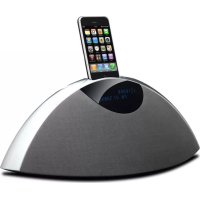
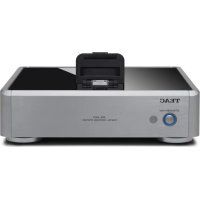
SR80i - Docking station TEAC - Free user manual and instructions
Find the device manual for free SR80i TEAC in PDF.



| Product type | Docking station |
| Brand | Teac |
| Model | SR80i |
| Dimensions (W × H × D) | 392 x 180 x 210.5 mm |
| Net weight | 1.9 kg |
| Power supply | 230 V, 50 Hz |
| Rated power consumption | 19 W |
| Output power | 15 W + 15 W (THD 10%) |
| Speaker system | 2 × 76 mm, impedance 8 Ω |
| Frequency response | 60 Hz to 20 kHz |
| FM tuner | 87.5 MHz to 108 MHz |
| AM tuner | 522 kHz to 1629 kHz |
| Playable audio formats (USB) | MP3, WMA (bitrate 8-320 kbps, sampling 16-48 kHz) |
| Max. number of readable folders (USB) | 200 |
| Max. number of readable files (USB) | 999 |
| iPod/iPhone compatibility | iPhone 4, 3GS, 3G, iPod touch 1st-3rd gen., iPod classic, iPod nano 2nd-5th gen. |
| Playback functions | Shuffle, repeat (1, folder, all), USB programming |
| RDS radio | PS, PTY, RT, CT |
| Radio presets | 20 FM + 20 AM |
| Timers | Sleep timer (15-120 min), dual alarm with snooze |
| Supplied accessories | Remote control (RC-1274) + CR2025 battery, AC adapter PS-M1628, FM/AM antennas, mini-jack/RCA cable, iPhone dock adapters (×2), dock cover |
| Maintenance | Wipe with a soft cloth and mild liquid soap diluted; do not use thinner or alcohol |
| Safety | Do not expose to water; unplug before cleaning; use only supplied adapter; do not open the casing |
| Disposal | Apparatus and batteries must be recycled separately (WEEE symbol) |
Frequently Asked Questions - SR80i TEAC
User questions about SR80i TEAC
0 question about this device. Answer the ones you know or ask your own.
Ask a new question about this device
Download the instructions for your Docking station in PDF format for free! Find your manual SR80i - TEAC and take your electronic device back in hand. On this page are published all the documents necessary for the use of your device. SR80i by TEAC.
USER MANUAL SR80i TEAC
The lightning flash with arrowhead symbol, within an equilateral triangle, is intended to alert the user to the presence of uninsulated "dangerous voltage" within the product's enclosure that may be of sufficient magnitude to constitute a risk of electric shock to persons.

The exclamation point within an equilateral triangle is intended to alert the user to the presence of important operating and maintenance (servicing) instructions in the literature accompanying the appliance.
IMPORTANT SAFETY INSTRUCTIONS
1) Read these instructions.
2) Keep these instructions.
3) Heed all warnings.
4) Follow all instructions.
5) Do not use this apparatus near water.
6) Clean only with dry cloth.
7) Do not block any ventilation openings. Install in accordance with the manufacturer's instructions.
8) Do not install near any heat sources such as radiators, heat registers, stoves, or other apparatus (including amplifiers) that produce heat.
9) Do not defeat the safety purpose of the polarized or grounding-type plug. A polarized plug has two blades with one wider than the other. A grounding type plug has two blades and a third grounding prong. The wide blade or the third prong are provided for your safety. If the provided plug does not fit into your outlet, consult an electrician for replacement of the obsolete outlet.
10) Protect the power cord from being walked on or pinched particularly at plugs, convenience receptacles, and the point where they exit from the apparatus.
11) Only use attachments/accessories specified by the manufacturer.
12) Use only with the cart, stand, tripod, bracket, or table specified by the manufacturer, or sold with the apparatus. When a cart is used, use caution when moving the cart/ apparatus combination to avoid injury from tip-over.

13) Unplug this apparatus during lightning storms or when unused for long periods of time.
14) Refer all servicing to qualified service personnel. Servicing is required when the apparatus has been damaged in any way, such as power-supply cord or plug is damaged, liquid has been spilled or objects have fallen into the apparatus, the apparatus has been exposed to rain or moisture, does not operate normally, or has been dropped.
- Do not expose this apparatus to drips or splashes.
- Do not place any objects filled with liquids, such as vases, on the apparatus.
- Do not install this apparatus in a confined space such as a book case or similar unit.
- The apparatus draws nominal non-operating power from the AC outlet with its POWER or STANDBY/ON switch not in the ON position.
- The apparatus should be located close enough to the AC outlet so that you can easily grasp the power cord plug at any time.
- The mains plug is used as the disconnect device, the disconnect device shall remain readily operable.
- If the product uses batteries (including a battery pack or installed batteries), they should not be exposed to sunshine, fire or excessive heat.
- CAUTION for products that use replaceable lithium batteries: there is danger of explosion if a battery is replaced with an incorrect type of battery. Replace only with the same or equivalent type.
WARNING: TO PREVENT FIRE OR SHOCK HAZARD,DO NOT EXPOSE THIS APPLIANCE TO RAIN OR MOISTURE.
CAUTION
DO NOT REMOVE THE EXTERNAL CASES OR CABINETS TO EXPOSE THE ELECTRONICS. NO USER SERVICEABLE PARTS ARE WITHIN!
IF YOU ARE EXPERIENCING PROBLEMS WITH THIS PRODUCT, CONTACT TEAC FOR A SERVICE REFERRAL. DO NOT USE THE PRODUCT UNTIL IT HAS BEEN REPAIRED.
MPEG Layer-3 audio coding technology licensed from Fraunhofer IIS and Thomson.
This product is protected by certain intellectual property rights of Microsoft. Use or distribution of such technology outside of this product is prohibited without a license from Microsoft.
iPhone, iPod, iPod classic, iPod nano, and iPod touch are trademarks of Apple Inc., registered in the U.S. and other countries.
"Made for iPod" and "Made for iPhone" mean that an electronic accessory has been designed to connect specifically to iPod or iPhone, respectively, and has been certified by the developer to meet Apple performance standards.
Apple is not responsible for the operation of this device or its compliance with safety and regulatory standards. Please note that the use of this accessory with iPod or iPhone may affect wireless performance.
Other company names and product names in this document are the trademarks or registered trademarks of their respective owners.
Thank you for choosing TEAC. Read this manual carefully to get the best performance from this unit.
Before Using the Unit 5
Connections 6
Remote Control Unit 8
Identifying the Parts (Main Unit)
Identifying the Parts (Remote Control Unit) ....
Setting the Clock 12
Basic Operation 13
iPod/iPhone 14
Listening to an iPod/iPhone 1
USB Flash Memory 17
MP3/WMA 17
Listening to a USB Flash Memory
USB Programmed Playback 21
Listening to the Radio 24
Preset Tuning 25
RDS (Radio Data System) 26
Listening to an External Source
Sleep Timer 28
Wake Up Timer 28
Troubleshooting 30
Specifications 31
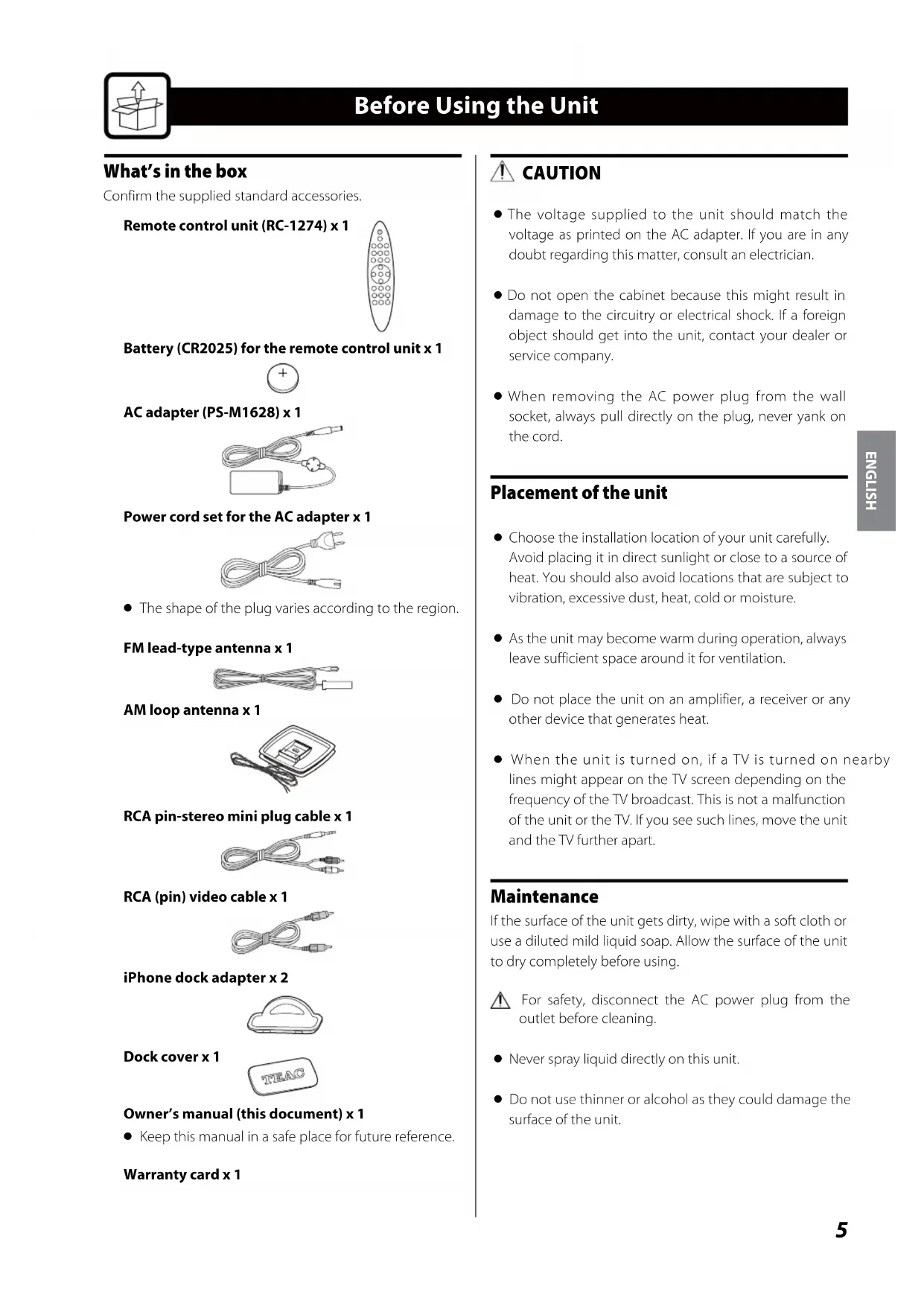
What's in the box
Confirm the supplied standard accessories.
Remote control unit (RC-1274) x 1
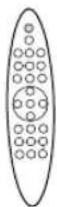
Battery (CR2025) for the remote control unit x 1

AC adapter (PS-M1628) x 1
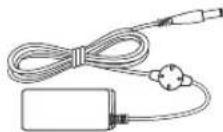
Power cord set for the AC adapter x 1
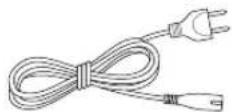
The shape of the plug varies according to the region.
FM lead-type antenna x 1

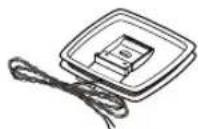
AM loop antenna x 1
iPhone dock adapter x 2
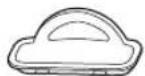
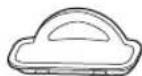
Dock cover x 1
Owner's manual (this document) x 1
- Keep this manual in a safe place for future reference.
Warranty card x 1

CAUTION
The voltage supplied to the unit should match the voltage as printed on the AC adapter. If you are in any doubt regarding this matter, consult an electrician.
- Do not open the cabinet because this might result in damage to the circuitry or electrical shock. If a foreign object should get into the unit, contact your dealer or service company.
- When removing the AC power plug from the wall socket, always pull directly on the plug, never yank on the cord.
Placement of the unit
- Choose the installation location of your unit carefully. Avoid placing it in direct sunlight or close to a source of heat. You should also avoid locations that are subject to vibration, excessive dust, heat, cold or moisture.
- As the unit may become warm during operation, always leave sufficient space around it for ventilation.
- Do not place the unit on an amplifier, a receiver or any other device that generates heat.
- When the unit is turned on, if a TV is turned on nearby lines might appear on the TV screen depending on the frequency of the TV broadcast. This is not a malfunction of the unit or the TV. If you see such lines, move the unit and the TV further apart.
Maintenance
If the surface of the unit gets dirty, wipe with a soft cloth or use a diluted mild liquid soap. Allow the surface of the unit to dry completely before using.

For safety, disconnect the AC power plug from the outlet before cleaning.
- Never spray liquid directly on this unit.
- Do not use thinner or alcohol as they could damage the surface of the unit.
After all connections are complete, connect the power cord's plug to the AC wall socket.
- Read the instructions of each device that you intend to use with this unit.
- Be sure to connect each plug securely. To avoid hum and noise, do not bundle the connection cords.
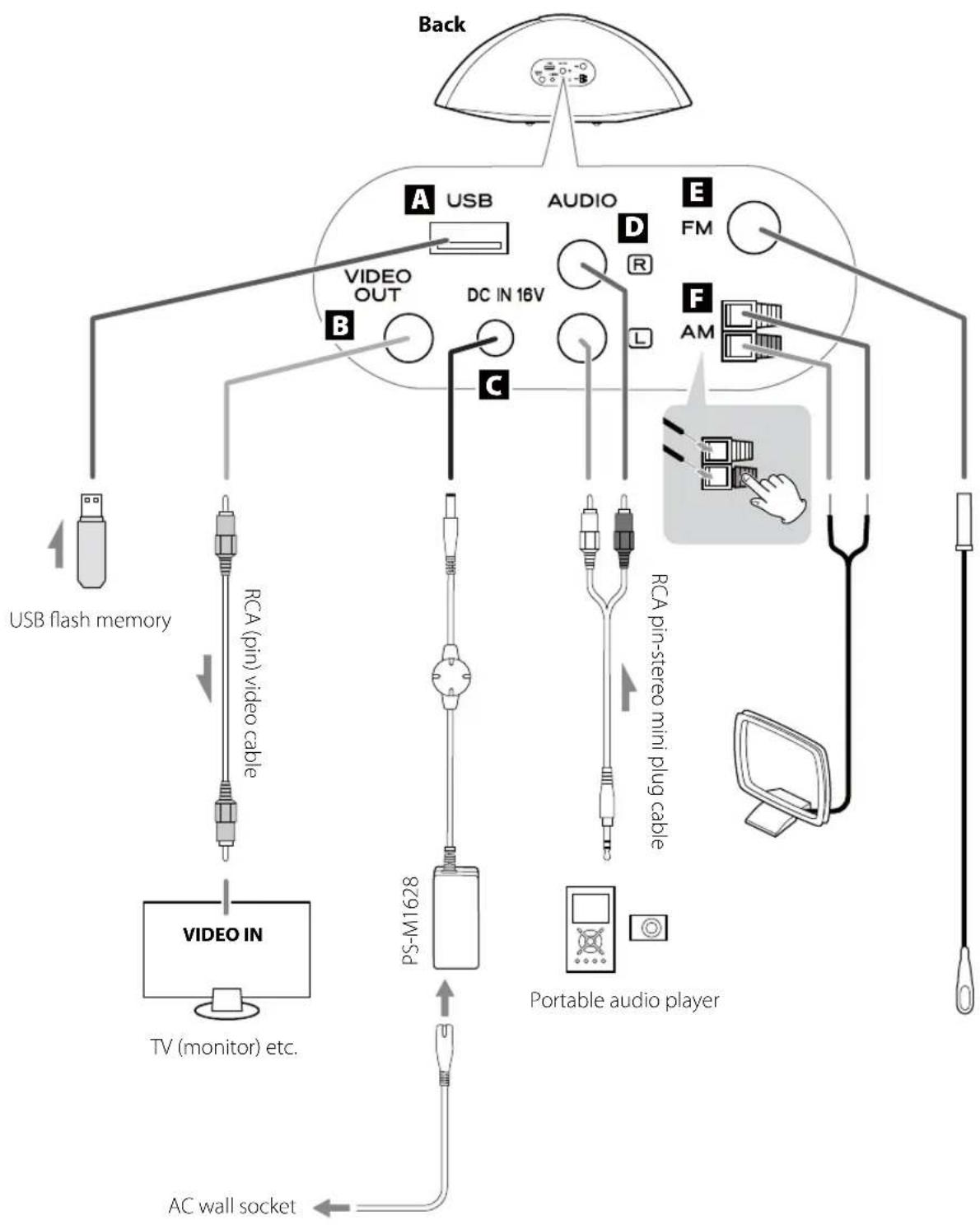
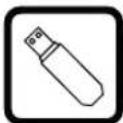
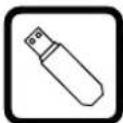
A USB port
Connect an external USB flash memory to this port.
VIDEO OUT jack
This terminal outputs video signal from an iPod/ iPhone connected to the dock of the SR-80i.
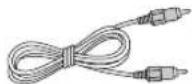
Connect the unit to the composite video connector of a television or monitor using the supplied RCA (pin) video cable.
- When you output video to a TV from your iPod/ iPhone, the video is not displayed on the iPod/ iPhone's screen.
- If your iPod/iPhone has "TV OUT" menu, select "On" or "Ask". Or the iPod/iPhone will not output video signal. When you have set "TV OUT" to "Ask", each time you play a video your iPod prompts you to specify whether to output it to a TV.
- To display video from your iPod or iPhone on a TV or any other device through the VIDEO OUTPUT jack, insert your iPod or iPhone into the iPod/iPhone dock of the SR-80i before you start playing the video.
DC IN
Connect the supplied AC adapter (PS-M1628) to this jack. Then, connect the connector of the power cord set to the AC adapter.
After all other connections are complete, connect the power cord's plug to an AC wall socket.
Use the supplied AC adapter (PS-M1628). Do not use any AC adapter other than the one included with this unit.
Be sure to connect the power cord to an AC outlet which supplies the correct voltage.
- If you are not going to use the unit for some time, disconnect the power cord from the wall socket.
AUDIO jacks
Analog 2-channel audio signal is input from these jacks. Connect a portable audio player using the supplied RCA pin-stereo mini plug cable.
Make sure to connect:
White plug White jack (L: left channel) Red plug Red jack (R: right channel)
- When using the headphones jack of the component, if you do not adjust its volume, you might not hear any sound from SR-80i.
- Turning the volume of the connected component up too high might cause the sound from SR-80i to be distorted. In this case, reduce the volume of the component until the distortion stops and then adjust the volume level of SR-80i to a comfortable listening level.
FM antenna terminal
Connect the supplied FM antenna. Extend fully and position for the best reception and attach it to a window frame or wall with thumbtacks or the like.
AM antenna terminal
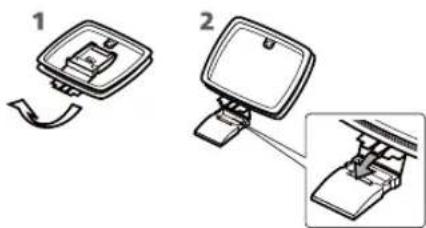
Connect the supplied AM loop antenna to the AM antenna terminal. Place the antenna in the direction which gives the best reception.
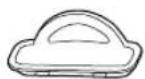
To stand the loop antenna on a surface, fix the claw to the slot in the antenna base.
The provided remote control unit allows the unit to be operated from a distance.
When operating the remote control unit, point it towards the remote sensor on the front panel of the unit.
- Even if the remote control unit is operated within the effective range (5 m), remote control operation may be impossible if there are any obstacles between the unit and the remote control.
- If the remote control unit is operated near other products which generate infrared rays, or if other remote control devices using infrared rays are used near the unit, it may operate incorrectly. Conversely, the other products may operate incorrectly.
Battery installation
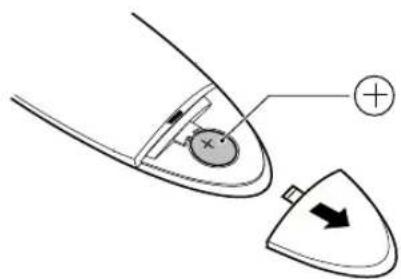
1 Remove the battery compartment cover.
2 Put the lithium-ion battery (CR2025, 3 V) in with the "+" side up.
3 Close the cover.
Battery replacement
If the distance required between the remote control unit and main unit decreases, the battery is exhausted. In this case, replace the battery with a new one.
- For information about the collection of batteries, please contact your local municipality, your waste disposal service or the place where you purchased them.
Battery Precautions
Misuse of batteries could cause them to rupture or leak leading to fire, injury or the staining of nearby things. Please read and observe the following precautions carefully.
- Be sure to insert the battery with the positive "+" and negative "-" polarities correctly positioned.
- If the battery leaks, wipe away the leakage inside the battery compartment and replace the battery with a new one.
- If the remote control unit is not to be used for a long time (more than a month), remove the battery from the remote control unit to prevent it from being exhausted.
- Do not use any batteries other than those specified.
- Do not heat or disassemble batteries. Never throw them in fire or water.
- Do not carry or store batteries with other metallic objects. The batteries could short circuit, leak or explode.
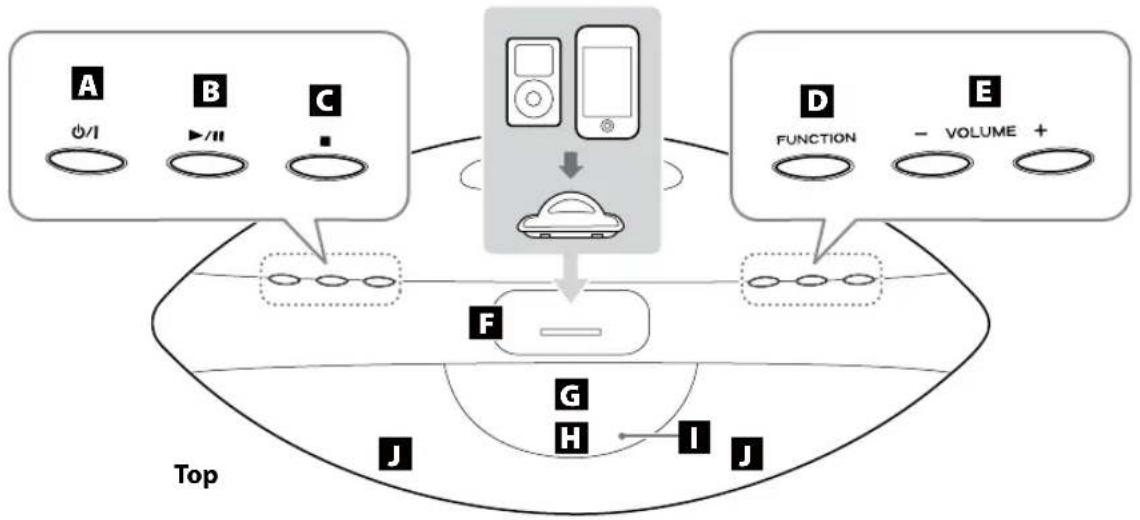
A Standby/On ()/1)
Press this button to turn the unit on and put it into standby.
ECO POWER mode
To save energy, the unit turns to the ECO POWER mode in the following cases:
- If no iPod or iPhone is inserted in the dock, and three minutes have passed since power has been set to standby
- If no iPod or iPhone is inserted in the dock and no operation has been conducted for 18 minutes when the power is ON and the source is set to "iPod" or "USB"
- If no iPod or iPhone is inserted in the dock, pressing the Standby/On (O/I) button for more than 3 seconds when the power is in standby
When the unit is in ECO POWER mode, ECO POWER indicator lights and nothing appears on the display. In ECO POWER mode, press the Standby/On (√/I) button to turn the unit on.
B Play/Pause /11
When the source is "iPod" or "USB", press this button to start or pause playback.
Stop
When the source is "USB", press this button to stop playback.
FUNCTION
Press this button to select a source.
VOLUME (- / + )
Press these buttons to adjust the volume level.
iPod/iPhone dock
Insert an iPod/iPhone into this dock.
- Before connecting the iPod/iPhone to the dock set the iPod/iPhone "power on". If the iPod/iPhone is connected to the dock with the "power off" the playback may not start correctly.
- To prevent dust from accumulating on the dock connector, set the supplied dock cover when it is not being used.
G Display
Displays the clock, current source, etc.
Remote sensor
When operating the remote control unit, point it towards here.
ECO POWER indicator
Lights when the unit is in ECO POWER mode.
Speakers (Stereo)
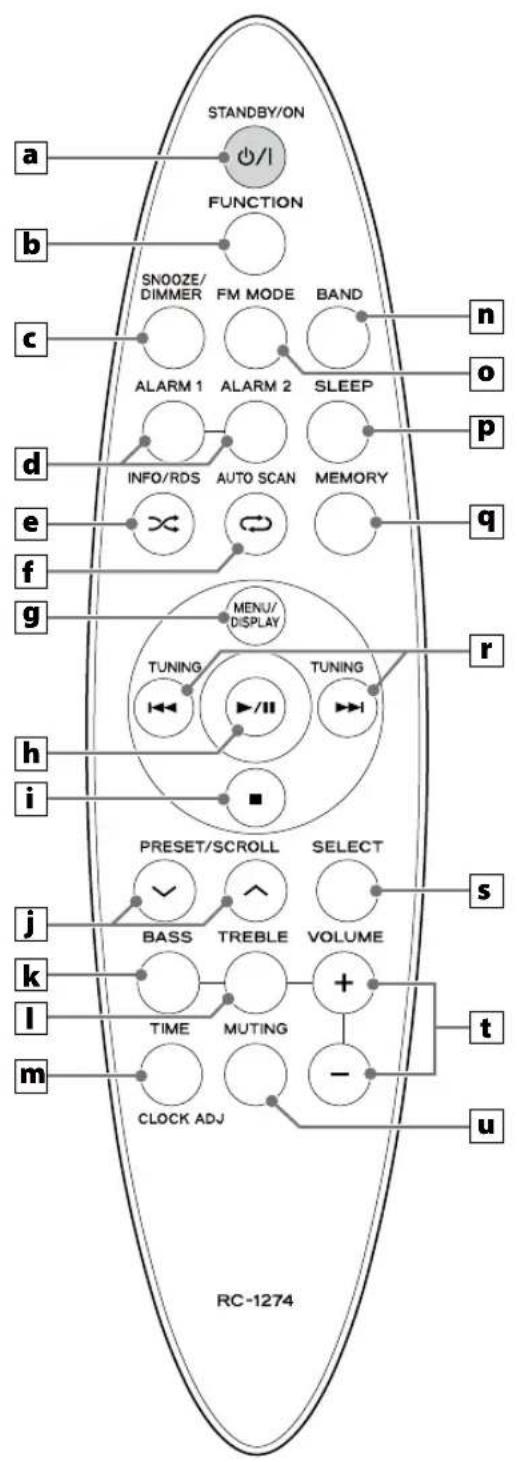
To simplify explanations, instructions in this manual might refer to the main unit or remote control unit only. In such cases, the same controls on the remote control and main unit will operate similarly.
a STANDBY/ON ()
Press this button to turn the unit on and put it into standby.
ECO POWER mode
To save energy, the unit turns to the ECO POWER mode in the following cases:
- If no iPod or iPhone is inserted in the dock, and three minutes have passed since power has been set to standby
- If no iPod or iPhone is inserted in the dock and no operation has been conducted for 18 minutes when the power is ON and the source is set to "iPod" or "USB"
- If no iPod or iPhone is inserted in the dock, pressing the Standby/On (√/I) button for more than 3 seconds when the power is in standby
When the unit is in ECO POWER mode, ECO POWER indicator lights and nothing appears on the display. In ECO POWER mode, press the Standby/On (0/1) button to turn the unit on.
FUNCTION
Press this button to select a source.
SNOOZE/DIMMER
Press this button to change the brightness of the display.
After the wakeup timer on time is reached, press this button to turn the unit to standby (off) for 6 minutes.
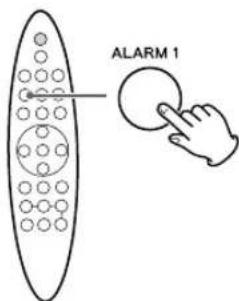
d ALARM 1,2
Hold down these buttons for more than 2 seconds to enter the wakeup timer setting mode (page 28).
After setting the wake up timer, press these buttons briefly to display the setting one by one.
These buttons are also used to turn the wake up timer function on and off.
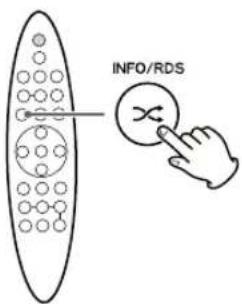
e RDS/Shuffle ()
When the source is "iPod" or "USB", press this button to turn on and off the shuffle playback. In FM mode, use this button to select an RDS (Radio Data System) mode.
The INFO function does not work with this unit.
f AUTO SCAN/Repeat (一 )
When the source is "iPod" or "USB", press this button to change the repeat setting.
When the source is "FM" or "AM", press this button for more than 2 seconds to preset stations automatically.
9 MENU/DISPLAY
When the source is "iPod", press this button to go back to the previous iPod/iPhone menu. This button has the same functions as its iPod counterpart.
When the source is "USB", press this button to display the file information.
h Play/Pause II
When the source is "iPod" or "USB", press this button to start or pause playback.
i Stop (
When the source is "USB", press this button to stop playback.
j PRESET/SCROLL ( )
When the source is "iPod", press these buttons to scroll up and down in an iPod/iPhone menu. These buttons have the same functions as the Click Wheel of iPod.
When the source is "USB", press these buttons to select a folder.
When the source is "FM" or "AM", press these buttons to select a preset station.
BASS
Use this button and the VOLUME (+ / - ) buttons to adjust the level of low frequency sound (page 14).
TREBLE
Use this button and the VOLUME (+ / - ) buttons to adjust the level of high frequency sound (page 14).
m CLOCK ADJ/TIME
When the unit is in standby, use this button to set the clock (page 12).
When the source is "USB", "FM" or "AM", press this button to display the clock for 5 seconds.
n BAND
Press this button to select "FM" or "AM".
FM MODE
When the source is "FM", press this button to select stereo or mono.
P SLEEP
Press this button to select the sleep timer setting (page 28).
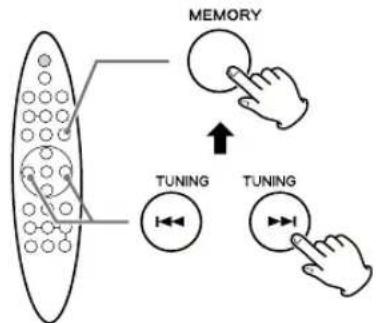
q MEMORY
When the source is "USB", use this button to program files (page 21).
When the source is "FM" or "AM", use this button to preset stations manually (page 25).
TUNING/Skip
When the source is "iPod" or "USB", press these buttons to skip to the next or previous song/file. Hold down these buttons to search for a specific part of a song/file.
When the source is "FM" or "AM", press these buttons to tune in a station. Hold down these buttons for more than 2 seconds to start the automatic tuning.
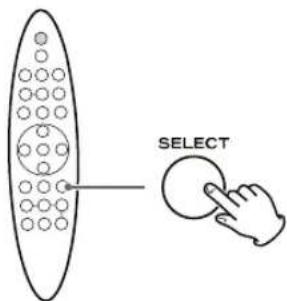
SELECT
When the source is "iPod", press this button to confirm selection in an iPod/iPhone menu.
This button is equivalent to the center button of iPod.
VOLUME (- / + )
Press these buttons to adjust the volume level.
MUTING
Press this button to mute the sound. Press this button again to restore the sound.
Set the clock when you connect the power cord into the wall socket and turn on the unit for the first time.
If the unit is on, press the STANDBY/ON (0/1) button to turn it off.
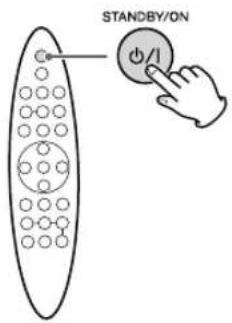
Press and hold the CLOCK ADJ button for more than 3 seconds.
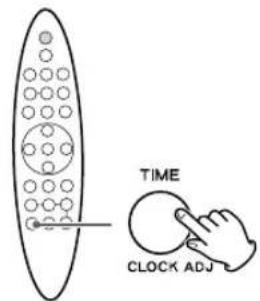
"12 H" or "24 H" blinks. If you want to change the hour mode, press the Skip (▶/▶) button.
- If no button is pressed for more than 10 seconds, the clock setting will end automatically.
3 Press the CLOCK ADJ button again.
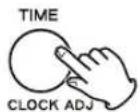
The hour value "00" blinks.
4 Press the Skip ( / ) button repeatedly to set the current hour, then press the CLOCK ADJ button.
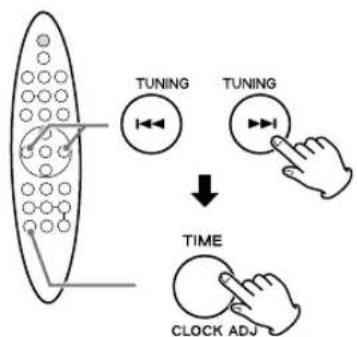
The minute value "00" blinks.
5 Repeat step4 to set "minute", "year", "month" and "day".
After "day" is set, the clock starts from 00 seconds.
Example:
$$ 1 4: 2 0 $$
$$ 1 3 - A u g - 2 0 1 1 $$
- The clock setting of this unit can be automatically adjusted according to the CT (Clock Time) data of an RDS broadcasting (page 26 "CT auto clock adjustment") or iPhone clock sync function (see below). Use one of the auto clock adjustment functions.
iPhone clock sync function
When you insert an iPhone into the dock of the SR-80i, the clock of the SR-80i can be automatically adjusted according to the clock data of iPhone.
By default, iPhone clock sync function is OFF.
Turning the iPhone clock sync function on and off
- Press the Standby/On (O/I) button to turn the unit on.
- Press the FUNCTION button repeatedly to select "iPod".
- Press and hold the TIME button for more than 3 seconds.
iPhone CT MODE OFF" appears on the display.
- Within 5 seconds, select "MODE OFF" or "MODE ON" by pressing the Skip (I▶/▶) buttons.
- Press the Select button to confirm the setting.
The clock setting of this unit can be also adjusted automatically according to the CT (Clock Time) data of an RDS broadcasting. When you use the iPhone clock sync function, set the RDS CT auto clock adjustment to off (page 26).
Displaying the clock
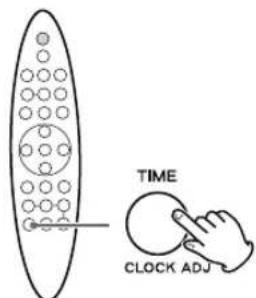
When the source is "USB", "FM" or "AM", press the TIME button to display the clock for 5 seconds.
This chapter describes the basic operation which is available in every sound source.
Press the Standby/On ( / ) button to turn the unit on.
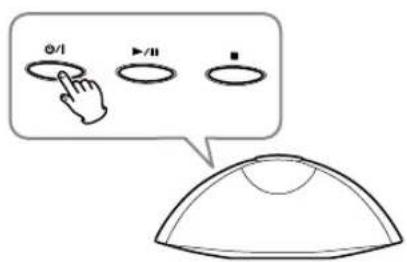
The unit turns on with the source that was last selected.
Press the FUNCTION button to select a source.
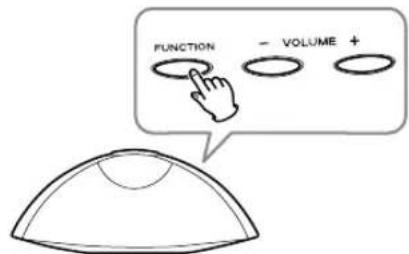
Each time the FUNCTION button is pressed, the sound source changes as follows:
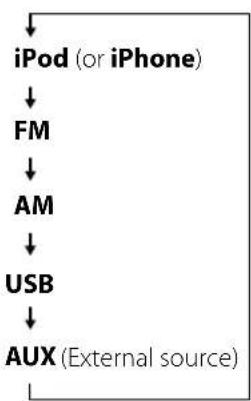
- To listen to an external component connected to the AUDIO jacks, select "AUX".
- You can also use the BAND button to select directly "FM" or "AM".
3 Play the source, and adjust the volume using the VOLUME (+ / - ) buttons.
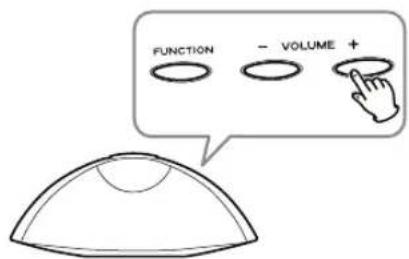
The volume can be adjusted from MIN (0) to MAX (40).
Dimmer
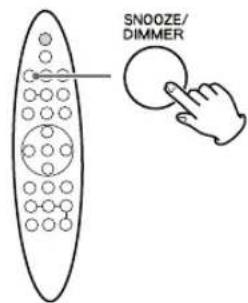
Press the DIMMER button to dim the display light. Press the DIMMER button again to restore the display to its normal brightness.
- This function will be cancelled when the STANDBY/ON (0/1) button is pressed.
Muting
You can mute the sound temporarily.
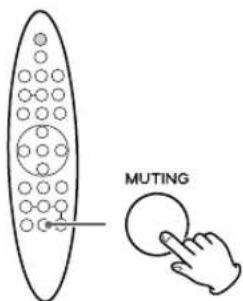
Press the MUTING button.
Press the MUTING button again to restore the sound.
- "Muting" lights on the display while muting is engaged.
- If you change the volume level or sound source when the sound is muted, muting is cancelled.
Basic Operation (2)
Tone Control
You can change the bass and treble sound between -4^ to +4^ .
Press the BASS or TREBLE button.
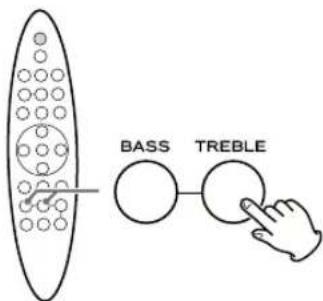
To adjust the level of low frequency sound range, press the BASS button.
To adjust the level of high frequency sound range, press the TREBLE button.
2 Within 3 seconds, press the VOLUME (+ / - ) buttons to change the setting.
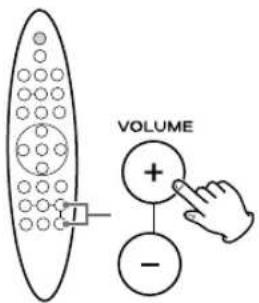
The level can be adjusted from -4^ to +4^
The higher the treble number, the more the high frequencies are emphasized.
The higher the bass number, the more the low frequencies are emphasized.

iPod/iPhone
iPod/iPhone compatibility
The following iPod/iPhone models can be connected to and used with this unit:
iPhone 4
iPhone 3GS
iPhone 3G
iPhone
iPod touch (1st, 2nd and 3rd generation)
iPod classic
iPod nano (2nd, 3rd, 4th and 5th generation)
Dock adapter
When you use an iPhone
Set the supplied iPhone dock adapter into the dock.
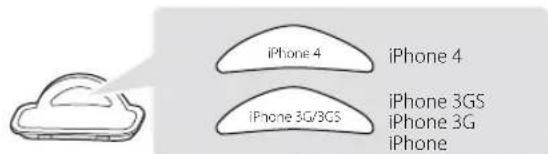
When you use other than iPhone
Use the dock adapter that came with the iPod or a dock adapter purchased from the Apple Store as an optional accessory.
Setting the adapter into the dock
Fit the front edge of the adapter into the dock, and then press the back edge of the adapter onto the dock until a slight "click" is heard indicating the adapter is inserted correctly.
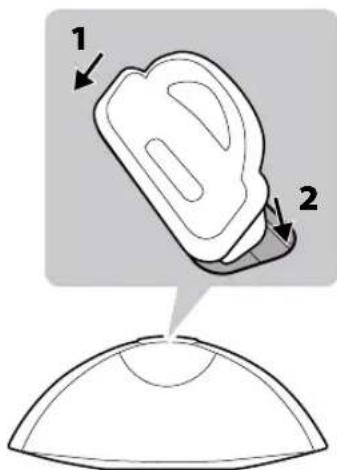
- To remove the adapter, hold its left and right sides and gently pull it up.
Compatible iPod/iPhone software
In case your iPod/iPhone will not work with the SR-80i or with the remote control unit, software update may solve the problem.
Press the FUNCTION button repeatedly to select "iPod".
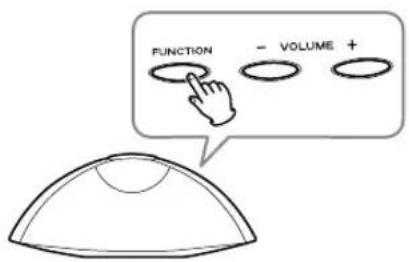
2 Turn your iPod or iPhone on, and then insert it into the dock of the SR-80i.
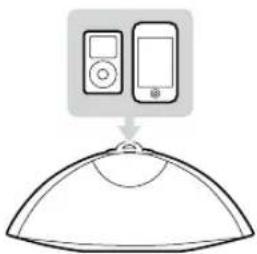
When the iPod/iPhone is detected, "AUTHENTICATE" will be displayed.
And playback starts from the play list of iPod/iPhone.
If an iPod/iPhone is already connected, press the FUNCTION button repeatedly to select "iPod". Playback starts automatically.
- Before connecting the iPod/iPhone to the dock set the iPod/iPhone "power on". If the iPod/iPhone is connected to the dock with the "power off" the playback may not start correctly.
The battery of an iPod/iPhone is recharged to the full whenever the iPod/iPhone is docked and the SR-80i is connected to the AC power supply except when the sound source is "AM". - When you turn off the unit with an iPod/iPhone connected to the dock, the clock and "CHARGING" appears on the display and the iPod/iPhone battery is charged.
- If headphones are plugged into the iPod/iPhone, no sound comes out from the headphones.
- The video signal from a connected iPod/iPhone can be output from the VIDEO OUT jack of the SR-80i (pages 6-7 B).
Stopping playback temporarily (Pause mode)
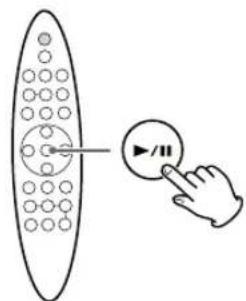
Press the Play/Pause (▶/II) button during playback.
Playback stops at the current position.
To resume playback, press the Play/Pause (▶/■)
button again.
Skipping to the next or previous song
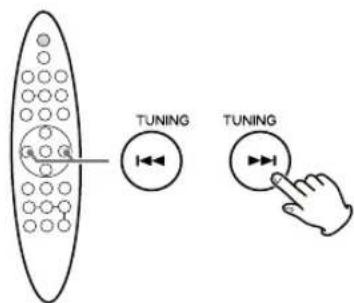
During playback, press the Skip (▶/▶) button repeatedly until you find the desired song.
The selected song will be played from the beginning.
- If the button is pressed once during playback, the current song will be played from the beginning.
Searching for a part of a song
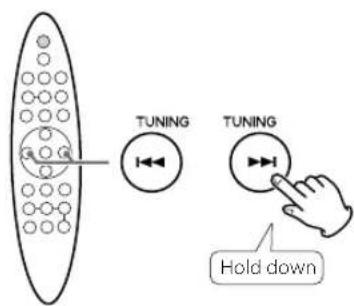
During playback, hold down the Skip (1-1/1)
button to search a part of a song.
Release it when the part you want to listen to is found.
Activating the repeat mode
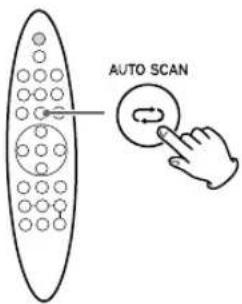
Press the Repeat (C) button to change the repeat mode.
Each time the Repeat ( ) button is pressed, the repeat setting of iPod/iPhone is changed as follows:

- When the iPod/iPhone is set to repeat one song, the icon appears on the display of iPod/iPhone.
- When the iPod/iPhone is set to repeat all songs, the icon appears on the display of iPod/iPhone.
Activating the shuffle mode
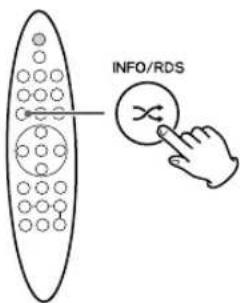
Press the Shuffle (按钮 to change the shuffle mode.
Each time the Shuffle (长) button is pressed, the shuffle setting of iPod/iPhone is changed as follows:

- When iPod/iPhone is set to shuffle songs or albums, the icon appears on the display of iPod/iPhone.
Returning to the previous iPod/iPhone menu
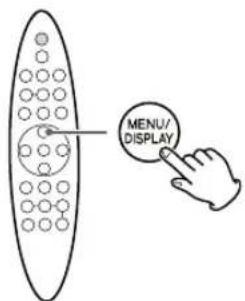
Press the MENU button.
This button has the same functions as its iPod counterpart.
Selecting an iPod/iPhone menu item
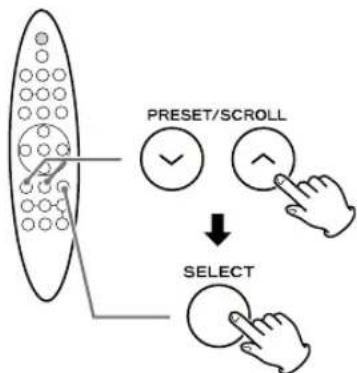
Press the SCROLL ( / ) buttons to select the menu item you want, then press the SELECT button.
USB Flash Memory

CAUTION
Never turn the unit off or disconnect a USB flash memory when it is being accessed.
Doing so could damage the SR-80i and the connected USB flash memory.
- Do not use a device that has a maximum current consumption of 100mA or more.
- Do not use a device that has security functions or other special functions.
- Do not use a device that is divided into two or more partitions.
- A USB hub cannot be used to connect USB devices to this unit.
USB storage devices that can be played on this unit
- Only USB flash memory can be used. Do NOT use a high-capacity USB hard disc with this unit.
- Some flash memory players that charge from a USB terminal cannot be used for playback.
- Hard disk drives, CD/DVD drives, and other devices connected via USB cannot be used.
- This unit cannot copy or move files.
- Playable formats: FAT12 FAT16, FAT32
- Depending on the conditions of a USB flash memory, this unit might not be able to play the files on it or skipping might occur.
NTFS, HFS and HFS+ formats cannot be used.
Max. number of playable folders: 200
Max. number of playable files: 999
MP3/WMA
This unit can play MP3/WMA files recorded on a USB flash memory. Refer the instruction manual of the software when making an MP3 or a WMA file using a PC.
Playable file format
MP3 (extension“.mp3”)
Bit rate: 8 kbps to 320 kbps
Sampling rate: 16, 22.05, 24, 32, 44.1 or 48kHz
WMA (extension ".wma")
Bit rate: 8 kbps to 320 kbps
Sampling rate: 16, 22.05, 24, 32, 44.1 or 48kHz
- This unit cannot play back files that are 2 GB or larger.
- This unit cannot play copyright protected files such as DRM (Digital Right Management).
- This unit cannot play back files made with VBR (variable bit rate).
File information display
The display of this unit can only show single-byte letters and numbers.
- If the file information contains Japanese, Chinese or other double-byte characters, playback is possible but the name will not be shown correctly.
Cautions when preparing MP3/WMA files using a computer or other device
Always include the extension in the file name. This unit recognizes MP3 files by their ".mp3", and WMA files by their ".wma" file extensions.
- Carefully read the manual for the software that you are using when you create an MP3/WMA file.
Files that are unplayable or only partially playable
- Files without extensions cannot be played. Files that are not in the MP3/WMA format cannot be played even if they have extensions.
Variable bit rate files might not play back correctly. - If the disc/USB flash memory contains more than 999 files or 200 folders, this unit can not play its back correctly.
Do not use a high-capacity USB hard discs. Only USB flash memory can be used.
Press the FUNCTION button repeatedly to select "USB".
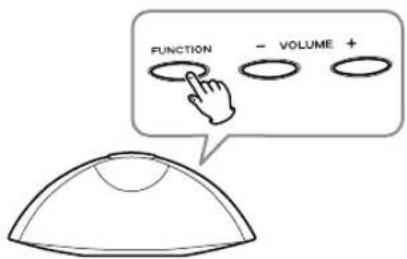
- When no USB flash memory is connected, "No USB" appears on the display.
Plug your USB flash memory into the USB port.
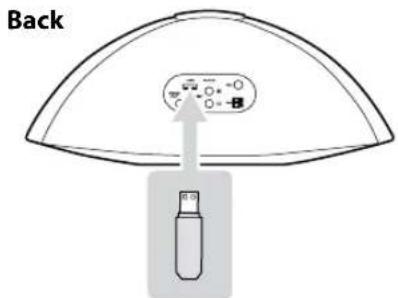
It takes a few seconds for the unit to load the USB flash memory.
- You can reverse steps 1 and 2.
Press the Play/Pause (▶/II) button to start playback.
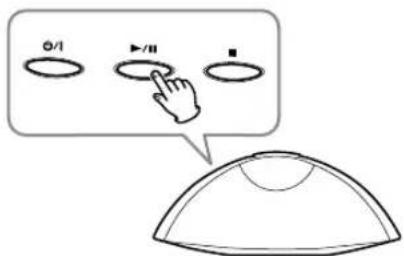
Playback starts from the first file on the USB flash memory.
- MP3/WMA files that are not placed in folders are automatically put in the "01 (root)" folder. Playback starts from the first file in the "01 (root)" folder.
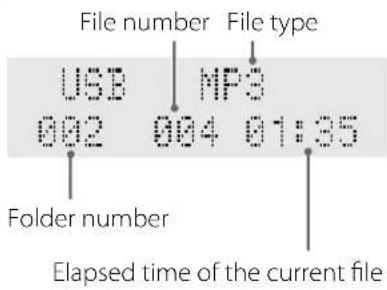
Display during playback
Example:
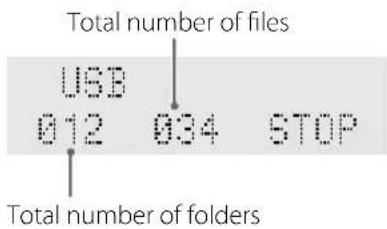
Display when playback is stopped
Example:
Stopping playback temporarily (Pause mode)
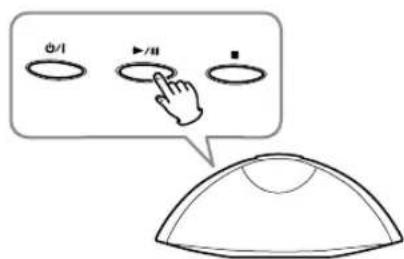
Press the Play/Pause ( /II) button during playback. Playback stops at the current position.
To resume playback, press the Play/Pause (▶/■) button again.
Stopping playback
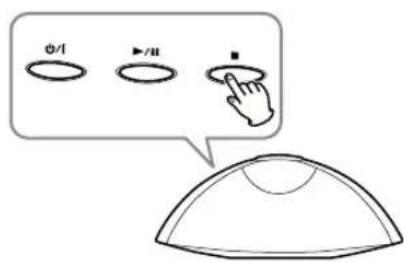
Press the Stop ( ) button.
Skipping to the next or previous file
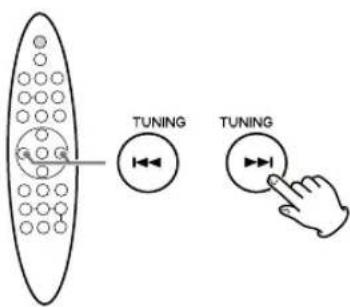
During playback, press the Skip (▶/▶) button repeatedly until you find the desired file. The selected file will be played from the beginning.
- If the button is pressed once during playback, the current file will be played from the beginning.
- During programmed playback, the next or previous file in the program is played.
Searching for a part of a file
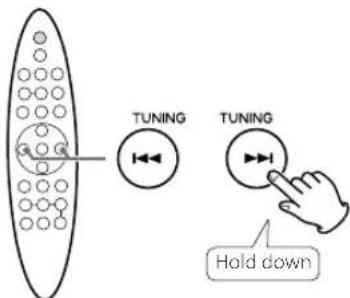
During playback, hold down the Skip (▶/▶) button to search a part of a file. Release it when the part you want to listen to is found.
Selecting a folder
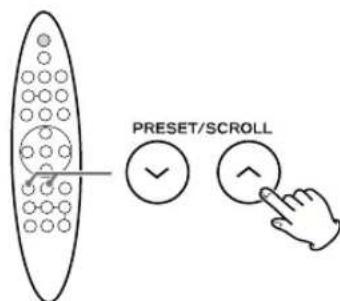
Press the SCROLL ( / ) buttons to skip to the next or previous folder.
Displaying MP3 information
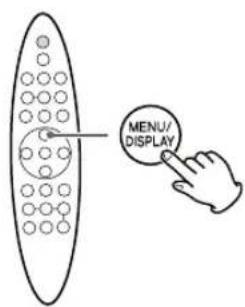
During playback of an MP3 file, press the DISPLAY button. The information about the current file is displayed as follows:
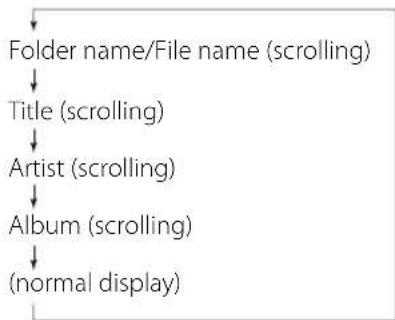
The first 30 characters of TITLE/ARTIST/ALBUM can be displayed.
- The display of this unit can only show single-byte letters and numbers. If the file information contains Japanese, Chinese or other double-byte characters, playback is possible but the name will not be shown correctly.
- "NO INFO" appears when there is no information.
If the file information contains less than 16 characters, the display does not scroll.
Activating the repeat mode
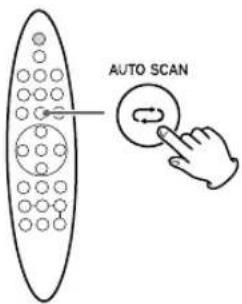
Press the Repeat (F) button to change the repeat mode.
Each time the Repeat (C) button is pressed, the repeat setting is changed as follows:
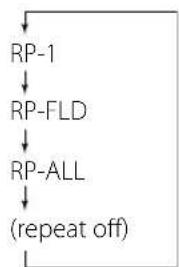
RP-1 (Repeat one file)
"RP-1" lights on the display.
The file being played will be played repeatedly.
RP-FLD (Repeat folder)
"RP-FLD" lights on the display.
All the files in the folder will be played repeatedly.
RP-ALL (Repeat all)
"RP-ALL" lights on the display.
All the files will be played repeatedly.
- If any of the following buttons are pressed, repeat mode will be canceled:
STANDBY/ON (O/I), Stop (■), FUNCTION, BAND
Activating the random mode
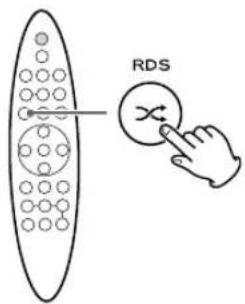
Press the Shuffle (按钮 to turn the random mode on and off.
When the random mode is on, "Random" lights on the display and the files will be played randomly.
- If the button is pressed during random playback, the next file will be randomly selected and played.
If the button is pressed during random playback, the currently played file will be played from the beginning.
If the button is pressed twice or more, another file will be randomly selected and played. - Repeat playback is not available during random playback.
- Random playback does not work during programmed playback.
- If any of the following buttons are pressed, random mode will be canceled:
STANDBY/ON (O/I), Stop (■), FUNCTION, BAND
USB Programmed Playback (1)
Up to 32 files can be programmed in the desired order.
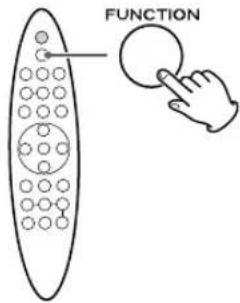
Press the FUNCTION button repeatedly to select "USB".
Press the MEMORY button when playback stops.
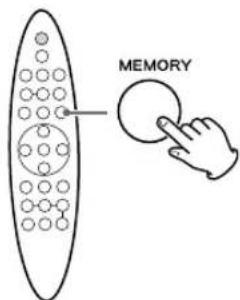
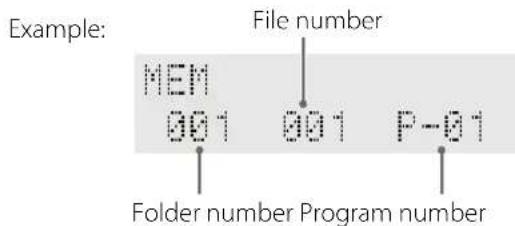
"MEM" (memory) indicator lights on the display.
- To cancel the program mode, press the Stop (■) button.
Press the SCROLL ( /) buttons to select a folder, then press the MEMORY button.
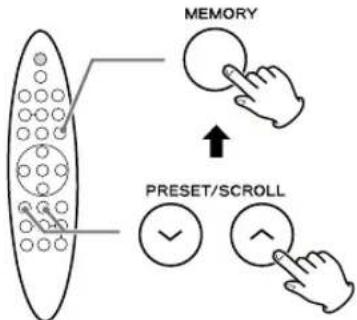
- MP3/WMA files that are not placed in folders are put in the "01" (root) folder.
4 Press the Skip (I 一 一 / 一 一 ) buttons to select a file, then press the MEMORY button.
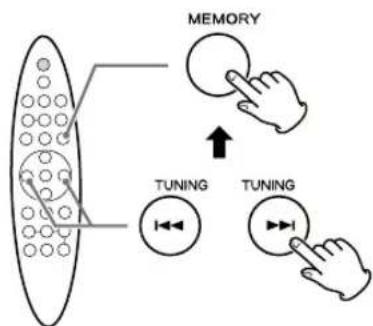
Press the MEMORY button again.
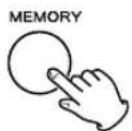
The selected file is programmed.
- If the MEMORY button is not pressed for 2 seconds after selecting file, the selected file will be programmed automatically.
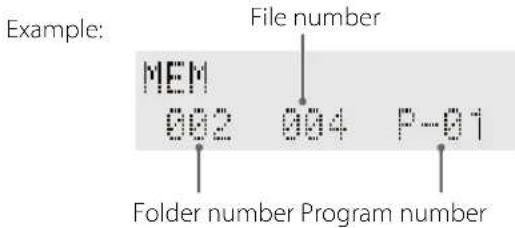
- Repeat steps 3 and 5 to program more files.
6 When the selection of files is completed, press the Play/Pause (▶/I) button to start program playback.
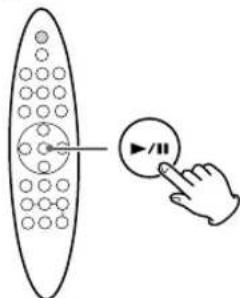
- To stop program playback, press the Stop (■) button.
- When the playback of all the programmed files has finished, or if you press the Stop (■) button, the "MEM" indicator will go off and programmed playback will be cancelled. Still the program is retained in memory. You can return to the programmed playback by pressing the MEMORY button and the Play/Pause (▶/■) button.
- You can use Skip (▶/▶) buttons during program playback to select and play other files in the program.
- Random playback does not work during programmed playback.
Overwriting part of the program
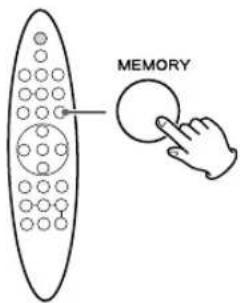
When playback is stopped, press the MEMORY button to enter programming mode.
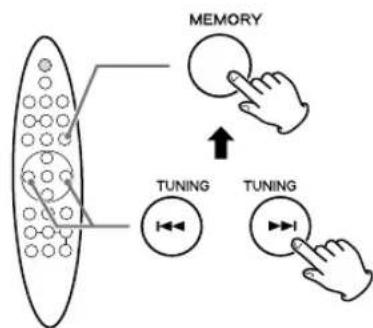
2 Select the program number that you want to change using the Skip (I</▶) buttons, and then press the MEMORY button.
Example: MEM 002 012 F-04 Program number to be changed
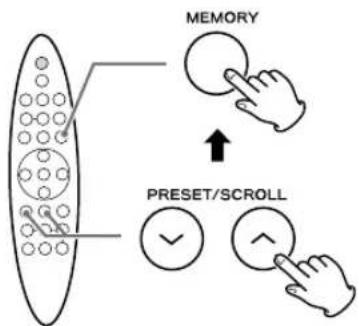
3 Select the folder that contains the file you want to add using the SCROLL ( / ) buttons, and then press the MEMORY button.
4 Select the file you want to add using the Skip (1 /2 1) buttons, and then press the MEMORY button.
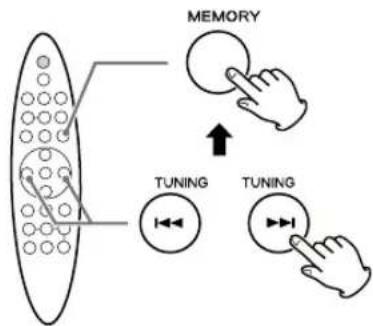
Press the MEMORY button again.
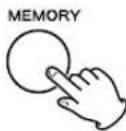
The selected file is added to the program, replacing the file that had been at that program number before.
Adding a file to the end of the program
When playback is stopped, press the MEMORY button to enter programming mode.
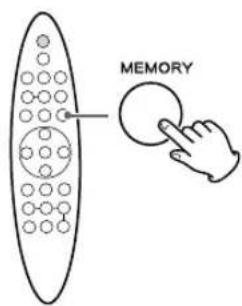
Press the Skip (1 / ) buttons repeatedly until "001 (folder/file number)" appears.
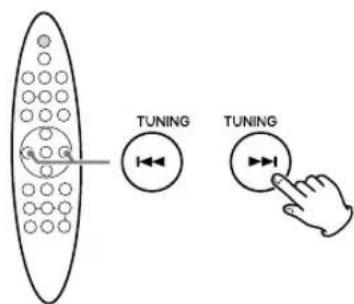
Example: MEM 001 001 P-88
3 Select the folder that contains the file you want to add using the SCROLL ( /) buttons, and then press the MEMORY button.
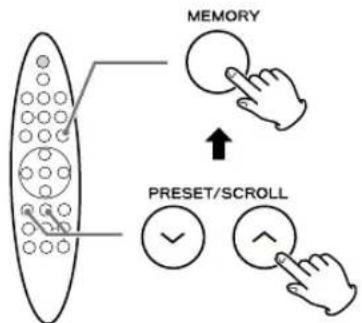
4 Select the file you want to add using the Skip (I< />1) buttons, and then press the MEMORY button.
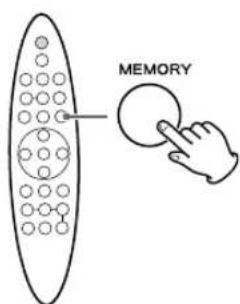
Press the MEMORY button again.
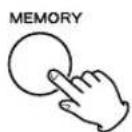
The selected file is added to the end of the program.
Checking the programme order
When playback is stopped, press the MEMORY button.
Press the Skip (1 / 1) buttons repeatedly to display programme order.
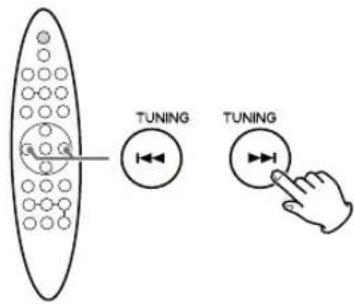
The folder/file number and program number will be shown one by one.
Clearing the program
Press the MEMORY button when playback stops.
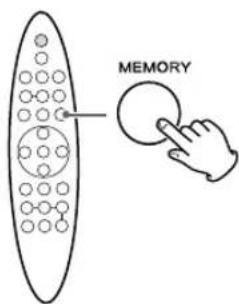
Press and hold the Stop button for more than 2 seconds.
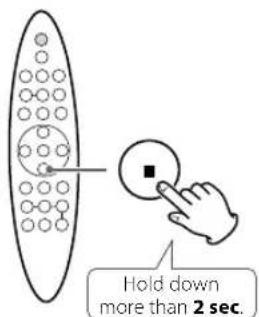
The contents of the program are cleared.
- If any of the following buttons are pressed, the programmed contents will also be cleared: STANDBY/ON (0/1), FUNCTION, BAND
- If the unit is disconnected from the power supply, the programmed contents will be cleared.
Press the FUNCTION button repeatedly to select "FM" or "AM".

- You can also select "FM" or "AM" by pressing the BAND button once or twice.
2 Select the station you want to listen to.
Automatic tuning
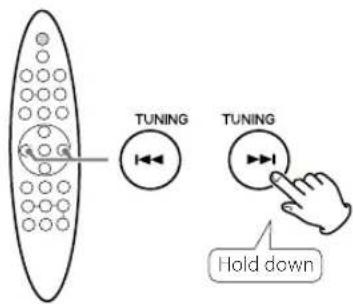
Hold down the TUNING button and release it when the automatic tuning process starts. When a station is tuned in, the tuning process will stop automatically.
Repeat this step until the station you want to listen to is found.
- To stop the automatic tuning process, press the TUNING button briefly.
Manual tuning
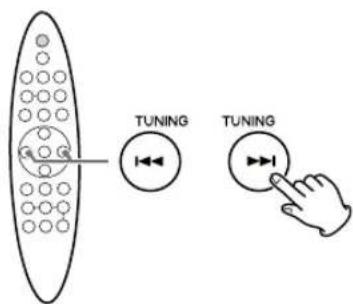
Press the TUNING button repeatedly.
The frequency changes by a fixed step.
Press repeatedly until the station you want to listen to is found.
FM Mode
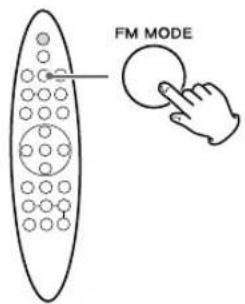
When the source is "FM", pressing the FM MODE button alternates between stereo mode and mono mode.
Stereo
"Stereo" appears on the display for a few seconds, and then it will turn to "ST".
When a program is broadcast in stereo, you hear stereo sound. When in monaural, you hear monaural sound.
- If the sound is distorted, the signal is not strong enough for good stereo reception. In this case, change to mono mode.
Mono
"Mono" appears on the display for a few seconds, and then it will turn to "MO".
To compensate for weak FM stereo reception, select this mode. Reception will now be forced into monaural, reducing unwanted noise.
If the reception is poor
For the best reception, rotate the FM antenna or AM antenna until you get stations clearly (pages 6-7E,F).
You can store up to 20 FM and 20 AM stations.
Saving presets automatically
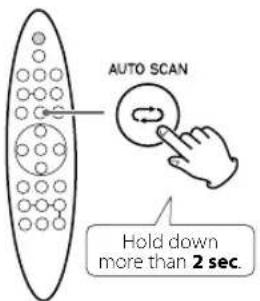
Press and hold the AUTO SCAN button for more than 2 seconds when the source is "FM" or "AM".
The unit will scan starting from the lowest frequencies and automatically create preset for up to 20 stations. When preset assignment has completed, the unit will be tuned to the radio station assigned to preset number 1.
Saving presets manually
1 Tune in to the station you want to store (see previous page).
Press the MEMORY button.
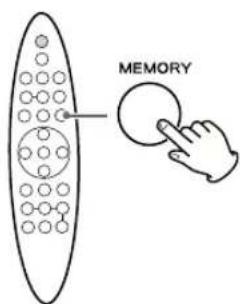
The preset number blinks.
Example:
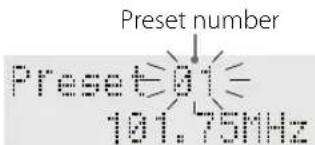
- If no button is pressed for more than 6 seconds, the preset setting will end automatically.
3 Select a preset channel to store the station by pressing the Preset ( / ) buttons.
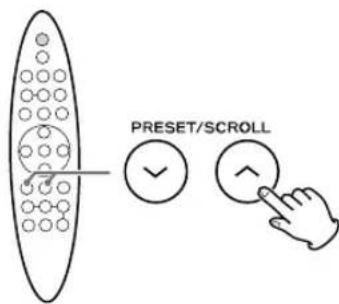
- If no button is pressed for more than 6 seconds after you select the preset number, the current station is stored automatically.
4 Press the MEMORY button.
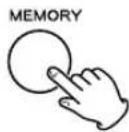
The tuned station is stored in the selected preset number.
To store more stations, repeat steps 1 to 4.
Selecting a preset station
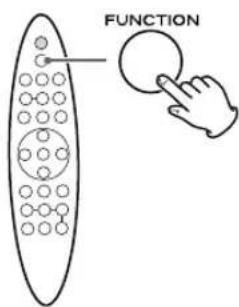
Press the FUNCTION button repeatedly to select "FM" or "AM".
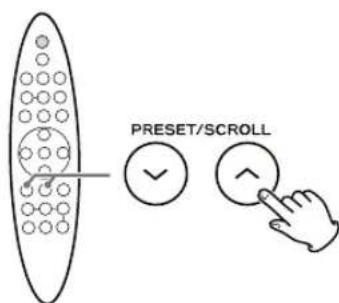
Press the Scroll ( /1) buttons to select the desired preset station.
Radio Data System (RDS) is a broadcasting service that allows stations to send additional information along with the regular radio program signal.
RDS works on the FM waveband in Europe.
1 Tune in to an FM RDS station (page 24).
Press the RDS button.
Each time the RDS button is pressed, the RDS mode is changed as follows:
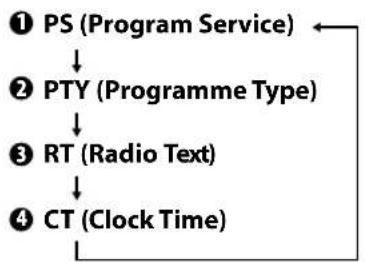
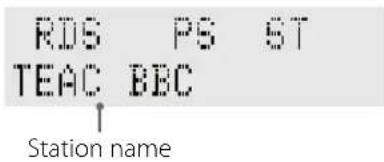
PS (Program Service)
This displays the station name. If there is no PS data, "NO PS" will be displayed for 3 seconds, and then the frequency will be displayed.
Example:
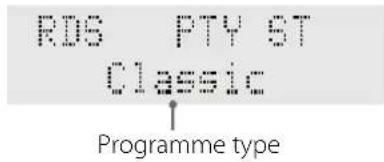
3 PTY (Programme Type)
This displays the description of the type of music broadcast by the radio station such as pop, rock or classical music.
If there is no PTY data, "NO PTY" is displayed
Example:
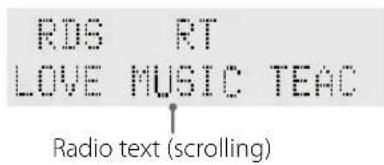
3 RT (Radio Text)
This displays the 64-character textual information, such as a station slogan, the programme title or details of a music track being played.
If there is no RT data, "NO RT" will be displayed.
Example:
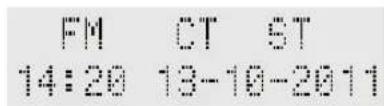
4 CT (Clock Time)
This displays the current date and time. If there is no RT data, "NO CT" will be displayed.
Example:
CT auto clock adjustment
The clock setting of this unit can be automatically adjusted according to the CT data.
By default, automatic clock adjustment is OFF.
- The clock setting of this unit can be also adjusted automatically according to the clock data of an iPhone. When you use the RDS CT auto clock adjustment, set the iPhone clock sync function to off (page 12).
- When you set the auto clock adjustment to ON, no matter which RDS mode is selected, the unit receives CT data and adjusts the clock. Therefore if you tune in an RDS station broadcasting incorrect CT data, the clock might be wrongly adjusted, and that may eventually affect the timer operation.
Turning the auto clock adjustment on and off
When in CT mode, press and hold the RDS button for more than 2 seconds.
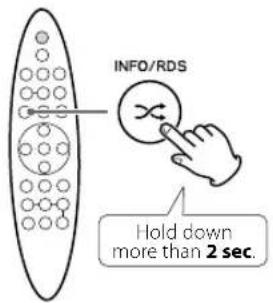
FMT MODE OFF
2 Within 2 seconds, select "MODE OFF" or "MODE ON" by pressing the Skip (▶/▶) buttons.
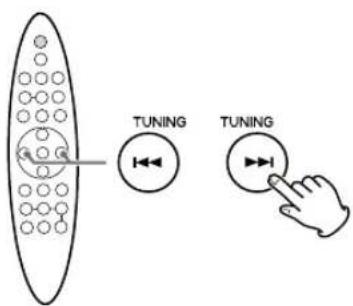
Press the Select button to confirm the setting.
Listening to an External Source
See pages 6-7 "Connections".
1 Connect a portable audio player to the AUDIO jacks using the supplied RCA pin-stereo mini plug cable (pages 6-7 D).
Press the FUNCTION button repeatedly to select "AUX".

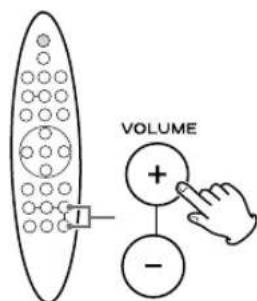
3 Play the source, and adjust the volume using the VOLUME buttons and the connected portable audio player.
- When using the headphones jack of the component, if you do not adjust its volume, you might not hear any sound from SR-80i.
- Turning the volume of the connected component up too high might cause the sound from SR-80i to be distorted. In this case, reduce the volume of the component until the distortion stops and then adjust the volume level of SR-80i to a comfortable listening level.
You can set the sleep timer so that the unit turns itself off after a specified amount of time.
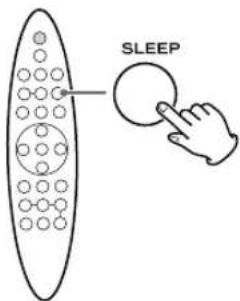
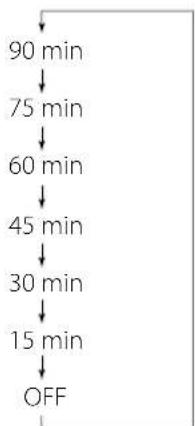
Each time the SLEEP button is pressed, the time is changed at 15 minute intervals.
The unit will automatically will be turned off when the time elapses.
- During the sleep timer is activated, the display is dimmed and "S" lights.
- If you want to check the remaining time, press the SLEEP button once. The remaining time is displayed for a few seconds.
During the remaining time display, if you press the SLEEP button again, the sleep timer will be canceled.
This operation is available in every sound source.
Wake Up TimerSleep Timer
The unit can be programmed to turn on and standby at a specified time.
You can set the unit to play an iPod/iPhone, FM/AM radio or a USB flash memory.
You can also set two separate timers with ALARM 1 and ALARM 2.
Setting the wake up timer
The procedures below are to set ALARM 1. Follow similar steps to set ALARM 2.
This operation is available in every sound source.
Press and hold the ALARM 1 button for more than 2 seconds.
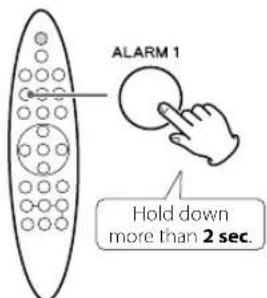
Example:
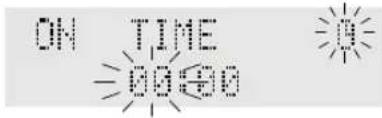
"ON TIME" appears on the display.
The clock hour value and the wake up timer indicator (B) blink.
- If no button is pressed for more than 10 seconds, the wake up timer setting mode will be cancelled.
Press the Skip (1 / 1) buttons to set the on time (hour), and then press the ALARM 1 button.
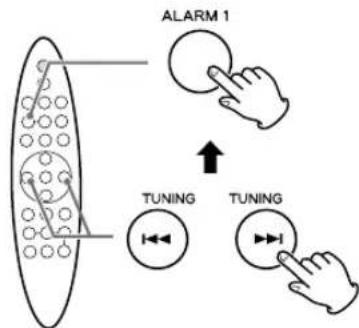
The minutes value blinks.
Repeat step2 to set "on time (minute)", "off time (hour)", and "off time (minute)".
The sound source blinks.
4 Press the Skip (▶/▶) buttons to select a source ("iPod", "USB", "FM" or "AM"), and then press the ALARM 1 button.
The volume level value blinks.
- "AUX (External source)" cannot be select source.
Press the Skip (1 / ) buttons to set the volume, and then press the ALARM 1 button.
The volume cannot be set lower than 05.
The wake up timer indicator (u) stops blinking.
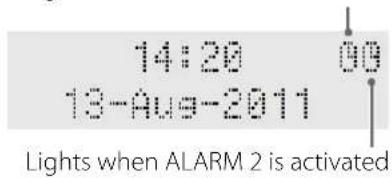
Setting the wake up timer is now completed and the timer is turned on. The unit will turn on and standby at the specified time every day.
Lights when ALARM 1 is activated
6 Prepare the source.
If you selected "iPod" in step 4, insert an iPod/ iPhone to the dock.
If you selected "USB" in step 4, plug your USB flash memory into the USB port
If you selected "FM" or "AM" in 4, tume in to a station.
- If the source is set to "iPod" but no iPod/iPhone is set, the FM radio will sound.
- If the source is set to "USB" but no USB flash memory is set, the FM radio will sound.
- Playback volume will gradually increase up to your set volume when the unit is turned on by the wake up timer.
Using the snooze function
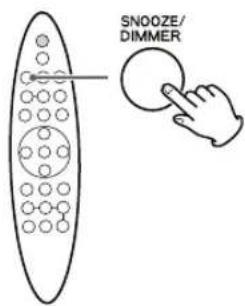
After the set time is reached, press the SNOOZE button to turn the unit standby temporarily for 6 minutes.
- You can use this function repeatedly for up to 1 hour.
- When the snooze function is activated, "SNOOZE" lights on the display.
- If either of the following buttons are pressed, snooze mode will be canceled:
STANDBY/ON (0/1), BAND, ALARM 1, ALARM 2
- When using the snooze function, the only buttons that work are:
STANDBY/ON (O/I), BAND, ALARM 1, ALARM 2
Turning on or off the wake up timer
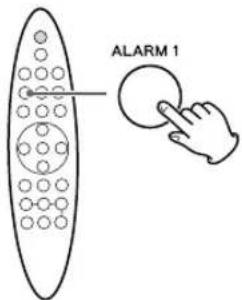
Press the ALARM 1 or ALARM 2 button to turn the wake up timer on/off.
- When the wake up timer is turned on, the timer settings are displayed one by one.
- When the wake up timer is turned off, the indicator (i) disappears from the display.
Note for use with an iPod touch (When using SR-80i wake up timer with an iPod touch as the source)
- If you turn the power of the iPod touch off ("Slide to power off"), you cannot use it with the wake up timer even if it is docked in this unit. To use the wake up timer with an iPod touch as the source, do not select "Slide to power off" on the iPod touch. (The screen of the iPod touch can be turned off without any problem.)
- If Video is displayed on the iPod touch's screen, you cannot use it with the wake up timer even if it is docked in this unit. To use the wake up timer with an iPod touch as the source, select any item other than Video on the iPod touch.
If you a have problem with your system, read this page and try to solve the problem yourself before calling your dealer or a TEAC service Center.
General
No power
Check the connection to the AC power supply. Check whether or not the AC source is a switched socket. If it is, confirm that the switch is turned on.
Confirm that there is power to the AC wall socket by plugging another item such as a lamp or fan into it.
No sound from the speakers.
Select the source by pressing the FUNCTION button.
Adjust the volume.
If "Muting" lights, press the MUTING button.
The sound is noisy.
The unit is too close to a TV or similar device. Relocate it away from the interfering device or turn it off.
The remote control does not work.
If the battery is exhausted, replace it with a new one.
Use the remote control unit within the operation range (5m) and point it at the remote sensor on the front panel.
Remove obstacles between the remote control unit and the main unit.
If a bright light is near the unit, turn it off.
iPod/iPhone Player
Cannot connect the iPod/iPhone.
Remove dust or obstacles from the dock connector of SR-80i and the iPod/iPhone, then connect the iPod/ iPhone again.
Cannot operate the iPod/iPhone.
Release the iPod/iPhone HOLD switch.
Cannot play.
Before connecting the iPod/iPhone to the dock set the iPod/iPhone "power on". If the iPod/iPhone is connected to the dock with the "power off" the playback may not start correctly.
Remove the iPod/iPhone from the dock, wait a few seconds, then connect it again.
A software update might solve the problem. Visit the Apple website and download the latest iPod/iPhone software.
USB Player
Will not play.
Confirm that there are MP3/WMA files on the USB flash memory.
MP3/WMA
Cannot play.
- Check the MP3/WMA file extension. This unit recognizes MP3 files by their ".mp3", and WMA files by their ".wma" file extensions.
MP3/WMA file data might have been corrupted.
The file data format might not be an MP3/WMA format.
For more information about playable file formats, see page 17.
Cannot display the file information correctly.
ID3 tag information for the file is missing. Edit the title, artist, and album information of the file on a PC using a suitable application.
If the file information contains double-byte characters, playback is possible but the name will not be shown correctly.
FM/AM Radio
Cannot listen to any station, or signal is too weak.
Tune in the station properly.
Rotate the FM or AM antenna for the best reception position.
When the source is "FM", though the broadcast is stereo, it sounds monaural.
Press the FM MODE button.
If normal operation cannot be obtained, unplug the power cord from the outlet and plug it again. This resets the internal micro-computer which can be disturbed during electrical storms, power interruptions, etc.
Specifications
Tuner Section
FM Frequency Range 87.5 MHz t
AM Frequency Range. 522 kHz to
Amplifier Section
Output Power 15W+15W(T)
Speaker System Section
Unit size 76 mm
Impedance 8 oh
USB Section
USB bus-power output. 5
Frequency response .60 Hz to 20 K
Signal-to-noise ratio
MP3/WMA
Playable MP3
Format.........MPEG-1/2 Audio
Extension. .m
Bit rate: 8 kbps to 320
Sampling rate: 16, 22.05, 24, 32, 4
Playable WMA
Format....... Windows Media Audio
(DRM not compatible)
Extension .
Bit rate: 8 kbps to 320
Sampling rate: 16, 22.05, 24, 32, 4
Max. number of playable folders
Max. number of playable files
General
Power Requirements. 230
Power Consumption (nominal)
Dimension(WxHxD) 392x180
Weight (Net) 19
Standard Accessories
Remote control unit (RC-1274) × 1
Battery (CR2025) for the remote control unit x 1
AC adapter (PS-M1628) x 1
Power cord set for the AC adapter x 1
FM lead-type antenna x 1
AM loop antenna x 1
iPhone dock adapter x 2
Dock cover x 1
Owner's manual (this document) x 1
Warranty card x 1
- Design and specifications are subject to change without notice.
Weight and dimensions are approximate. - Illustrations may differ slightly from production models.
For European customers
Disposal of electrical and electronic equipment
(a) All electrical and electronic equipment should be disposed of separately from the municipal waste stream via collection facilities designated by the government or local authorities.
(b) By disposing of electrical and electronic equipment correctly, you will help save valuable resources and prevent any potential negative effects on human health. 10a#d the environment.
(c) Improper disposal of waste electrical and electronic equipment can have serious effects on the environment and human health because of the presence of hazardous substances in the equipment.
(d) The Waste Electrical and Electronic Equipment (WEEE) symbol, which shows a wheeled bin that has been crossed out, indicates that 0.5 electrical and electronic equipment must be collected and disposed of separately from household waste.
(e) Return and collection systems are available to end users. For more detailed information about the disposal of old electrical and electronic equipment, please contact your city office, waste disposal service or the yeshop where you purchased the equipment.
Disposal of batteries and/or accumulators
(a) Waste batteries and/or accumulators should be disposed of separately from the municipal waste stream via collection facilities designated by the government and/or local authorities.
(b) By disposing of waste batteries and/or accumulators correctly, you will help save valuable resources and prevent any potential negative effects on human health and the environment.
c) Improper disposal of waste batteries and/or ... at stimulators can have serious effects on the environment and human health because of the presence of hazardous substances in them.
(d) The WEEE symbol, which shows a wheeled bin that has been crossed out, indicates that batteries and/or accumulators must be collected and disposed of separately from household waste.
If a battery or accumulator contains more than the specified values of lead (Pb), mercury (Hg), and/or cadmium (Cd) as defined in the Battery Directive (2006/66/EC), then the chemical symbols for those elements will be indicated beneath the WEEE symbol.
(e) Return and collection systems are available to end users. For more detailed information about the disposal of waste batteries and/or accumulators, please contact your city office, waste disposal service or the shop where you purchased them.
Cable RCA (cinch) video x 1
B Lecture/Pause II
WMA (extension ".wma")
RP-ALL (touretepeter)
STANDBY/ON (O/I), Stop (■), FUNCTION, BAND
STANDBY/ON (O/I), Stop (■), FUNCTION, BAND
Lecture USB programme (1)
STANDBY/ON (O/I), FUNCTION, BAND
STANDBY/ON (0/1), BAND, ALARM 1, ALARM 2
STANDBY/ON (0/1), BAND, ALARM 1, ALARM 2
Activation/désactivation du réveil
Impossible de brancher I'Pod/iPhone.
Cable RCA (cinch) video x 1
WMA (extension ".wma")
RP-FLD (repetir carpeta)
Consumode corriente (nominal)
Dimensones (an.xal.x pro.) 392x18
Peso (neto) 1.9
iPhone Dockadapter x 2
Dock-Abdeckung x 1
STANDBY/ON (O/I), Stopp (■), FUNCTION, BAND
STANDBY/ON (O/I), Stopp (■), FUNCTION, BAND
STANDBY/ON (O/I), FUNCTION, BAND
Abtastrate: 16, 22.05, 24, 32, 44.1
Abtastrate:16,22.05,24,32,44.1s
h Play/Pause /11
STANDBY/ON (O/I), Stop (■), FUNCTION, BAND
STANDBY/ON (O/I), Stop (■), FUNCTION, BAND
STANDBY/ON (O/I), FUNCTION, BAND
Rispostainfrequencyda60Hza20K
2 iPhone dock adapters
1 Dock afdekplaatje
1 Handleiding (dit document)
STANDBY/ON (O/I), Stop (■), FUNCTION, BAND
STANDBY/ON (O/I), Stop (■), FUNCTION, BAND
STANDBY/ON (0/1), BAND, ALARM 1, ALARM 2
Sampling rate: 16/22,05/24/32/
WMA Afspelen
Format Windows Media Audio
Sampling rate: 16/22,05/24/32/
2 iPhone dock adapters
1 Dock afdekplaatje
1 Handleiding (dit document)
1 Garantiebewijs
This appliance has a serial number located on the rear panel. Please record the serial number and retain it for your records.
- IMPORTANT SAFETY INSTRUCTIONS
- CAUTION
- Thank you for choosing TEAC. Read this manual carefully to get the best performance from this unit.
- What's in the box
- Placement of the unit
- Maintenance
- After all connections are complete, connect the power cord's plug to the AC wall socket.
- A USB port
- VIDEO OUT jack
- DC IN
- AUDIO jacks
- FM antenna terminal
- AM antenna terminal
- Battery installation
- Battery replacement
- Battery Precautions
- A Standby/On ()/1)
- ECO POWER mode
- B Play/Pause ← /11
- Stop
- FUNCTION
- VOLUME (- / + )
- iPod/iPhone dock
- G Display
- Remote sensor
- ECO POWER indicator
- Speakers (Stereo)
- a STANDBY/ON ()
- SNOOZE/DIMMER
- d ALARM 1,2
- e RDS/Shuffle (X)
- f AUTO SCAN/Repeat (一 )
- MENU/DISPLAY
- h Play/Pause II
- i Stop (
- j PRESET/SCROLL ( )
- BASS
- TREBLE
- m CLOCK ADJ/TIME
- n BAND
- FM MODE
- P SLEEP
- q MEMORY
- TUNING/Skip
- SELECT
- MUTING
- iPhone clock sync function
- Turning the iPhone clock sync function on and off
- Displaying the clock
- Dimmer
- Press the MUTING button.
- Basic Operation (2)
- Tone Control
- Press the BASS or TREBLE button.
- Within 3 seconds, press the VOLUME (+ / - ) buttons to change the setting.
- iPod/iPhone
- iPod/iPhone compatibility
- Dock adapter
- When you use an iPhone
- When you use other than iPhone
- Setting the adapter into the dock
- Compatible iPod/iPhone software
- Skipping to the next or previous song
- Searching for a part of a song
- Activating the repeat mode
- Activating the shuffle mode
- Returning to the previous iPod/iPhone menu
- Selecting an iPod/iPhone menu item
- USB Flash Memory
- USB storage devices that can be played on this unit
- MP3/WMA
- Playable file format
- MP3 (extension“.mp3”)
- WMA (extension ".wma")
- File information display
- Cautions when preparing MP3/WMA files using a computer or other device
- Files that are unplayable or only partially playable
- Display during playback
- Display when playback is stopped
- Stopping playback temporarily (Pause mode)
- Stopping playback
- Skipping to the next or previous file
- Searching for a part of a file
- Selecting a folder
- Displaying MP3 information
- RP-1 (Repeat one file)
- RP-FLD (Repeat folder)
- RP-ALL (Repeat all)
- Activating the random mode
- USB Programmed Playback (1)
- Overwriting part of the program
- Adding a file to the end of the program
- Checking the programme order
- Clearing the program
- Automatic tuning
- Manual tuning
- Press the TUNING button repeatedly.
- Stereo
- Mono
- If the reception is poor
- Saving presets automatically
- Saving presets manually
- Selecting a preset station
- PS (Program Service)
- PTY (Programme Type)
- RT (Radio Text)
- CT (Clock Time)
- CT auto clock adjustment
- Listening to an External Source
- Wake Up TimerSleep Timer
- Setting the wake up timer
- Press and hold the ALARM 1 button for more than 2 seconds.
- Press the Skip (1 / 1) buttons to set the on time (hour), and then press the ALARM 1 button.
- Using the snooze function
- Turning on or off the wake up timer
- Note for use with an iPod touch (When using SR-80i wake up timer with an iPod touch as the source)
- General
- No power
- No sound from the speakers.
- The sound is noisy.
- The remote control does not work.
- iPod/iPhone Player
- Cannot connect the iPod/iPhone.
- Cannot operate the iPod/iPhone.
- Cannot play.
- USB Player
- Will not play.
- Cannot display the file information correctly.
- FM/AM Radio
- Cannot listen to any station, or signal is too weak.
- When the source is "FM", though the broadcast is stereo, it sounds monaural.
- Specifications
- Tuner Section
- Amplifier Section
- Speaker System Section
- USB Section
- Standard Accessories
- For European customers
- Disposal of electrical and electronic equipment
- Disposal of batteries and/or accumulators
- B Lecture/Pause II
- RP-ALL (touretepeter)
- Lecture USB programme (1)
- Activation/désactivation du réveil
- Impossible de brancher I'Pod/iPhone.
- RP-FLD (repetir carpeta)
- h Play/Pause /11
Brand : TEAC
Model : SR80i
Category : Docking station