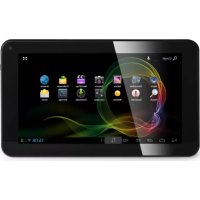
TL3471 - Tablet AudioSonic - Free user manual and instructions
Find the device manual for free TL3471 AudioSonic in PDF.



| Product type | Touchscreen tablet |
| Brand | AudioSonic |
| Model | TL3471 |
| Display | Capacitive touchscreen |
| Internal memory | 1 GB (limited for apps) |
| Expandable memory | Micro SD card up to 32 GB |
| Battery | Rechargeable, charging time approximately 5 hours |
| Connectivity | Wi-Fi, Micro USB, 3.5mm headphone jack |
| Power supply | AC adapter included (DC jack) |
| Camera | Front camera |
| Audio | Built-in speaker, headphone jack |
| Operating system | Android (version not specified) |
| Physical buttons | Power, Volume +/-, Back, Reset |
| Main functions | Touch navigation, web browser, video/audio player, calendar, camera, Google Play Store |
| Security | Screen lock (pattern, PIN, face recognition), forced shutdown (7s) |
| Maintenance | Clean with a soft, non-abrasive cloth |
| Usage precautions | Do not expose to moisture, heat; max altitude 2000 m; non-tropical climate |
| Operating temperature | Maximum 37°C |
| Warranty | Use only the provided adapter, otherwise warranty void |
| Number of manual pages | 114 pages |
Frequently Asked Questions - TL3471 AudioSonic
User questions about TL3471 AudioSonic
0 question about this device. Answer the ones you know or ask your own.
Ask a new question about this device
Download the instructions for your Tablet in PDF format for free! Find your manual TL3471 - AudioSonic and take your electronic device back in hand. On this page are published all the documents necessary for the use of your device. TL3471 by AudioSonic.
USER MANUAL TL3471 AudioSonic
natural_image
Two black tablet devices displaying a smart home interface with app icons and status bar (no readable text or symbols on screens)Tablet 7/9 inch
DualCore-8GB
TL-3471
TL-3491

AudioSonic
OUTLOOK DESCRIPTION
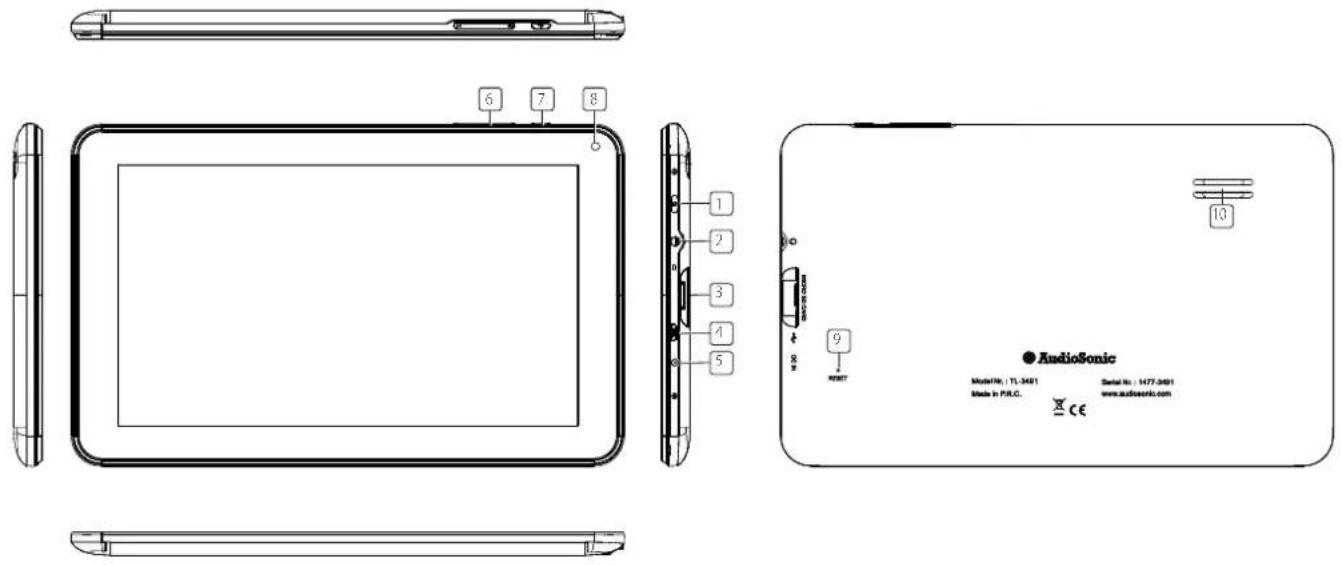
- Power button
- Headphone connector
- Micro SD Card slot
- Micro USB connector
- DC connection
-
Volume +/-
-
Back button
-
Front-facing Camera
-
Reset button
-
Speaker

AudioSonic
Instruction Manual
POWER BUTTON USAGE
- Turn On: Press the power button and hold for 3 seconds.
- Turn Off: Press the power button and hold for 3 seconds, tap Power off tap OK.
- Screen lock and Unlock: Press the power button quickly to lock and try again to unlock.
- Force Shutdown: If the device does not respond, press and hold the power button for 7 seconds. (Note: If it is not necessary, we don't suggest to use Force Shutdown. You should follow the Turn Off steps to perform the shutdown. Force shutdown may lead to unpredictable system errors)
The touch-screen allows for quick, easy and convenient navigation.
You can use the touch-screen refer to the following method through the user guide.
- Tap: Quick tap & release on an item on the screen.
- Finger slide: Touch & slide your finger across the screen and then release.
- Touch & hold: Touch and hold in place approx 2 seconds, and then release to display an options window.
- To avoid scratching or crushing, do not place objects on the touch screen surface.
USING MICRO SD CARD
The device supports a maximum 32GB micro SD card.
- Insert your card into the micro SD slot until it clicks into place.
- Remove micro SD Card: Close all applications or documents which have been opened on the card.
Tap → Settings → Storage → Uninstall SD card. Press the card slightly; it is partially ejected allowing you to pull the card out
- Don't insert and remove the U-disk repeatedly in a short time, as this may cause damage to the card.
• We recommend using major brands of memory cards to avoid incompatibility.
GETTING STARTED
Charging the device
- You can charge the battery by using the included adapter or by connecting a power source to the micro USB connection.
- You can use the device while the battery is charging, although the charging time is longer when operating and charging at the same time.
- Plug the power adapter into an electrical wall outlet, and then connect it to the device to charge the battery. ( Fully charged in about 5 hours).
Turn the device on
Press the power button and hold for 3 seconds.
Change language
The default language of your tablet is English. You can change the language by tapping on "Settings" select the "Language & input" option on the left side in the settings menu. Then tap in the right opened menu on the upper option "Language" to open the menu. All available languages will be displayed. Now you can select the desired language.
Wi-Fi Network Setup
Since many features require a Wi-Fi connection, we recommend you set up your Wi-Fi network now.
- Tap, → Settings, → Wireless & network.
- Select Wi-Fi to turn on.
The device automatically scans and lists all local Wi-Fi Network found. A indicates secure networks that require login name/password to connect. - Tap the desired network which you want to connect, → enter the Network Password if applicable, → tap Connect.
- Tap return to the Desktop screen.

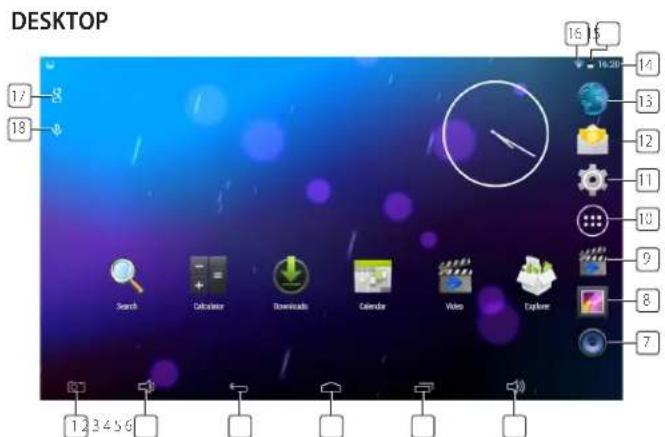
- Screenshot icon
- Volume -
- Back icon
- Return to Desktop from other apps
- Recently used applications
- Volume +
- Music player
- Gallery
-
Video player
-
Application screen
- Settings
- Browser
- Current time
- Battery charge status
- Wifi strength indicator
- Google Search
- Voice Search
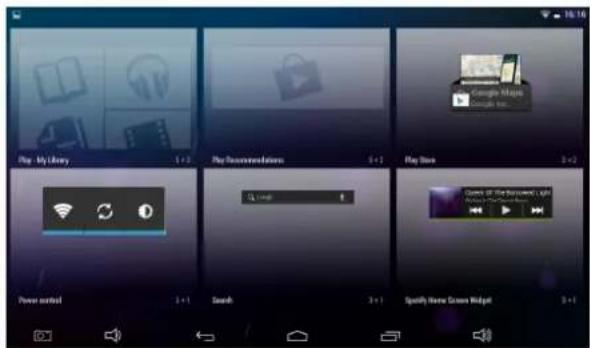
- Tap on any application or widget icon to launch it.
- Touch, hold and then slide the icon to any position on the desktop to create a short cut.
- Touch, hold and slide an icon onto "×" to remove it from the desktop screen.
Widget
Touch and hold on empty place on the desktop for +/- 2 seconds and then touch the "widgets" tab to get to the available application widgets. From here you can select icons that can be placed as shortcut on the home page, so you can quickly start the program.
APP MARKET
The App Market has many applications that you can quickly and easily download and install onto your tablet.
Download Applications
Follow these steps to add an existing Google Account to your device or create a new Google Account to add to your device.
From your application screen, touch the Google Play Store app.
- If you haven't added an email account to your device, you'll be asked to add a Google Account
- If you've already added a Google Account to your device and want to add another, touch Menu > Settings > Accounts > Add account > OK.
- Choose whether to add an existing account or create a new one.
- Follow the instructions on the device, which will walk you through signing in to an existing Google Account or creating a new Google Account.
- Once logged-in you can select different applications from the various tabs, pre selected categories or search for apps by name.
- Tap on a application to see more detailed information and if desired touch the install button after which you can follow the instructions on the device, which will guide you through the installation process.
- Upon completion a notification will pop up on the bottom right corner and a short cut to launch the Application will be placed on your desktop.
• The installation is now completed and the application is ready for use.
BROWSER
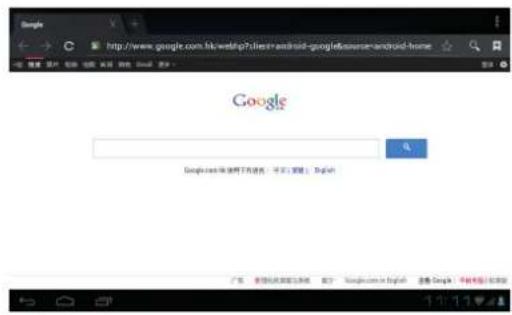
Users can connect to the Internet through an internet browser.
Click the browser icon on the Desktop and the Web browser will open.
Tap the Calendar application icon.
When your tablet is not yet connected to a Google account, you need to add an Exchange account in order to use the calendar. Enter the desired accounts email address and password. Click Next and follow the prompts to complete the account configuration. Now you can use the Calendar (Note: we generally recommend to use a Gmail account. Google's exchange server address is: m.google.com)
Add Event
1 On the Calendar screen, tap and hold the date on which you want to add an event.
2 Tap on new event, → Fill in the desired fields with event information.
3 Tap Done and the event will be added to your calendar.
CAMERA
Tap the camera application icon.
1 InCamera→tap make the picture.
2 The picture will be saved.
Take Videos
1 In Camera tap to switch to video mode.
2 Tap to start recording and tap ico again to stop recording.
3 The video will be saved automatically.
FILE BROWSER
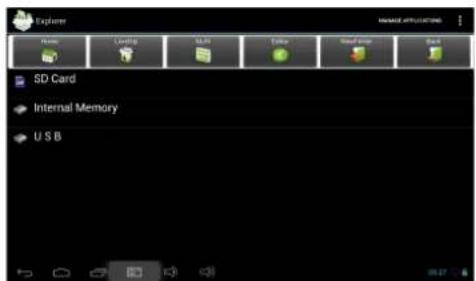
Tap the Explorer icon 📋 to enter the file Management Interface, tap【SD Card】,【Internal Memory】or【USB】to open their root directory folders. From here you can navigate between the different files and folders.
MUSIC
• Audio file formats supported: mp3, aac, wma, rm, flac, Ogg
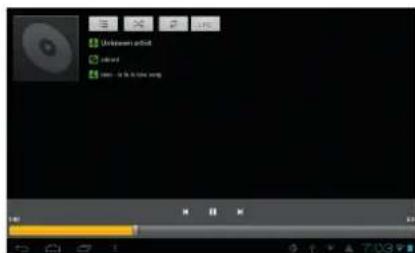
- Tap the music player icon enter the music player. When there are no music files loaded in the playlist, the system will automatically search for music files from a micro SD card and then will load them automatically in the playlist.
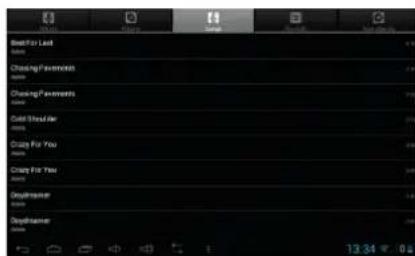
- You can also load audio files by synchronizing the tablet with a computer or laptop trough USB. You can also download audio files directly on the tablet from a local network or the internet.
- Select the desired tab icon, to arrange the music files by "Artist", "album" or "songs". Tap the desired song to start playback.
VIDEO
• Video file formats supported: MKV, WMV, MPG, MPEG, DAT, AVI, MOV, ISO, MP4, RM, JPG
• Picture file formats supported: JPG, JPEG, BMP, GIF, PNG
Play Video
- Tap the video player icon to enter the "Video" interface.
- Tap the desired video file to load it in the video player and start playback. You can choose "Pause", "Play", "Stop", "fast forward", "rewind", "progress bar" and several other keys to control the playback progress.

SETTINGS
| Wireless & networks | Wi-FiData usagemore | Turn On / Off Wi-Fi.A current overview of internal memory usage.Airplane mode VPN, Tethering & portable hotspot, Ethernet, Mobile networks. Bluetooth tethering, Proxy settings. |
| Sound | VolumesDefault notificationTouch soundsScreen lock sounds | To adjust the Media, Notifications and Alarm volume.You can select the default notification of your preference.Enable or disable the playback of sounds when touching the screen.Enable or disable the playback of sound when locking and unlocking the screen. |
| Display | BrightnessWallpaperSleepDaydreamFont size | Tap & slide the slider to adjust the screen brightness as desired.You can choose a photo from the gallery, a live wallpaper and standard wallpapers.Selected the desired time of inactivity before the tablet has to enter sleep mode.Here you can activate and set the screensaver option.Choose the font size. |
| Screenshot Setting · Delay | timeLocationShow the screenshot button | Enables you to set an delay time for the screenshot option.Choose the location where the screenshots will be stored automatically.Enables you to activate or deactivate the screenshot button in the status bar. |
| Storage | Total space, Available spaceUnmount SD cardErase SD Card | Gives you an overview of the available space on the internal storage memory and if inserted, the external SD card.When the Micro SD card is inserted, tap it to safety remove it.Erase all data on SD card |
| Battery | (Dis)chargingOn battery | Shows the actual percentage of battery power.Shows how long your battery has lasted and which items are responsible for draining it. |
| Apps | downloadedOn SD cardRunningAll | Display and manage all the applications that you've downloaded and installed on the internal memory.Display and manage all the applications that you've downloaded and installed on an external SD card.Displays all the applications that are currently active.Display and manage all the applications that you've downloaded and installed. |
| Location access | Access to my locationWi-Fi & mobile network location | Allow apps to use your location information.Let apps use Google's location service to estimate your location faster. |
| Security | Screen lockOwner infoMake password visibleDevice administratorsUnknown sourcesVerify appsTrusted credentialsInstall from SD card | Select if you want the lock screen to use a Pattern lock, PIN code, Face lock or no lock at all.Show owner info on lock screen.Choose to make your passwords visible or not.View or deactivate device administrators.Allow installation of apps from unknown sources.Disallow or warn before installation of apps that may cause harm.Display trusted CA certificates.Install certificates from SD card. |
| Language & Input | LanguageSpell checkerPersonal dictionaryAndroid keyboardVoice SearchText-to-speech outputPointer speed | Select your desired language.Enable or disable the spelling checker.You can add words, that may not be included in the standard dictionary, into a personal dictionary.Onscreen keyboard settingsSet up the desired language for voice searches.Select the desired Text to speech engine.Adjust the pointer speed. |
| Back up and reset | Back up my dataFactory data reset | Select to automatic or manual back up your data.Select to erase ALL DATA and restore the device to its initial factory state. |
| Accounts·View the current registered Google account. | ||
| Add account | Add an account·Add a second or several other accounts to your device. | |
| Date & time | Automatic Date & timeAutomatic time zoneSet dateSelect time zoneSet timeUse 24-hour formatSelect date format | Use the by the network provided time.Use network-provided time zone.Set the date.Select the time zone.Set the time.Choose to use between the 24-hour or 12-hour format.You can select the date format. |
| Accessibility | TalkbackMagnification gestures offLarge TextAuto-rotate screenSpeak passwordsAccessibility shortcutText-to-speech outputTouch & hold delayEnhance web accessibility | Enable or disable talk back function.Turn on to zoom in by triple-tapping the screen.Enable or disable large text.Enable or disable auto rotation of the display.Enable or disable spoken passwords.When this feature is turned on, you can quickly enable accessibility features in two steps.Select the desired Text to speech engine.Set the desired touch and hold delay.Enable or disable apps to install scripts from Google to make their web content more accessible. |
| Developer Options | On/Off Only enable development options if you are an experienced user and know what you are doing. | |
| About tablet | System UpdateStatusLegal informationModel numberAndroid versionKernel versionBuild number | Search for and/or update your device with the latest firmware.Shows you the actual device status.Shows the open source legal information.Displays your devices model number.Displays the current Android version.Displays the current kernel version.Displays the current firmware buildnumber |
FREQUENTLY ASKED QUESTIONS
Resetting
Q: How do I reset my device when the screen is frozen or it doesn't react to any input?
A: You can reset the device by pushing the RESET button on the back with a paperclip.
Play store
Q: Where can I find the App store?
A: You can find the Google Play store App in the applications overview screen.
Q: Internal memory is full.
A: For quick and easy access the Android operating system stores the apps that you download from the Google Play Store to the internal flash memory. Because the capacity of the internal memory is limited to 1 GB, it can easily become full if you download too much or too big apps.
Basic Devise Usage
Q: The touch control is not working properly.
A: Did you remove the protective plastic film from the screen when before using the tablet for the first time?
Q: There are scratches on my screen.
A: Did you remove the protective plastic film from the screen when before using the tablet for the first time?
Media
Q: Which media cards are compatible with my tablet?
A: All Micro SD cards with a maximum capacity of 32GB are compatible.
BATTERY MANAGEMENT
The battery is not fully charged out of the box, so it is recommended that you charge the battery for at least 4 hours before you start to use the device for the first time. The rechargeable battery is designed and manufactured to be recharged frequently. As with all batteries, the capacity of the battery reduces each time it is charged/depleted. However, you can try to prolong the battery's lifetime by following the suggestions below:
- Use your tablet frequently, at least once a week.
- Charge the battery regularly and fully.
- Never leave the battery fully discharged for a long period of time.
• Always keep the device and the battery away from heat. - Don't place the device in a hot environment. The highest operating temperature is 37^ .
- Only use the product below the altitude of 2000 meters.
- Do not use the product in tropical conditions.
IMPORTANT SAFETY PRECAUTIONS
Always follow these basic safety precautions when using your tablet. This reduces the risk of fire, electric shock and injury.
- Do not expose this product to rain or moisture.
- Keep the device out of direct sunlight and heat sources.
- Protect the power cord. Route power cords so that they are not likely to be stepped on or pinched by items placed on or against them. Pay particular attention to the point where the cord attaches to the device.
- Only use the AC adapter included with the device. Using any other power adapter voids your warranty.
- Do not remove the cover. There are no user-serviceable parts inside.
Clean your device
Treat the screen gently. To clean fingerprints or dust from the screen, we recommend using a soft, non-abrasive cloth such as a camera lens cloth.
VIDEO
INSTELLINGEN
MARCHÉ DES APPLICATIONS
MUSIQUE
MUSIK
VIDEO
EINSTELLUNGEN
MÚSICA
VÍDEO
VÍDEO
- Formatos de ficheiros de vídeo suportados: MKV, WMV, MPG, MPEG, DAT, AVI, MOV, ISO, MP4, RM, JPG
- Formatos de ficheiros de imagem suportados: JPG, JPEG, BMP, GIF, PNG
Reproduzir o vídeo
WIDEO
MUSICA
VIDEO
IMPOSTAZIONI
VIDEO
• Videofilformat som stöds: MKV, WMV, MPG, MPEG, DAT, AVI, MOV, ISO, MP4, RM, JPG
• Bildfilformat som stöds: JPG, JPEG, BMP, GIF, PNG
Spela upp video
VIDEO
HUDBA
VIDEO



- Tablet 7/9 inch
- AudioSonic
- POWER BUTTON USAGE
- USING MICRO SD CARD
- GETTING STARTED
- Charging the device
- Turn the device on
- Change language
- Wi-Fi Network Setup
- Widget
- APP MARKET
- Download Applications
- BROWSER
- Add Event
- CAMERA
- Take Videos
- FILE BROWSER
- MUSIC
- VIDEO
- Play Video
- FREQUENTLY ASKED QUESTIONS
- Resetting
- Play store
- Basic Devise Usage
- Q: There are scratches on my screen.
- Media
- BATTERY MANAGEMENT
- IMPORTANT SAFETY PRECAUTIONS
- Always follow these basic safety precautions when using your tablet. This reduces the risk of fire, electric shock and injury.
- Clean your device
- MARCHÉ DES APPLICATIONS
- MUSIQUE
- MUSIK
- MÚSICA
- VÍDEO
- Reproduzir o vídeo
- WIDEO
- MUSICA
- Spela upp video
- HUDBA
Brand : AudioSonic
Model : TL3471
Category : Tablet