SurfTab ventos 7.0 - Tablet TrekStor - Free user manual and instructions
Find the device manual for free SurfTab ventos 7.0 TrekStor in PDF.



User questions about SurfTab ventos 7.0 TrekStor
0 question about this device. Answer the ones you know or ask your own.
Ask a new question about this device
Download the instructions for your Tablet in PDF format for free! Find your manual SurfTab ventos 7.0 - TrekStor and take your electronic device back in hand. On this page are published all the documents necessary for the use of your device. SurfTab ventos 7.0 by TrekStor.
USER MANUAL SurfTab ventos 7.0 TrekStor
natural_image
Two modern tablets displayed on a green screen, one black and one white, with no visible text or symbols on the devices themselves.SurfTab® ventos 7.0
text_image
A B C D E F G HOME HDMI MK USB Trekstor® SunTab ventose 7.0 SurfTab micros H IINDEX
DE 4
EN 19
IT 33
ES 44
FR 54
SE 64
PL 76
TR 84
NL 99
RU 109

BEDIENUNGSANLEITUNG
HDMI, the HDMI Logo and High-Definition Multimedia Interface are trademarks or registered trademarks of HDMI Licensing LLC.
We wish you a lot of fun with TrekStor Surf Tab ventos 7.0. Please read the following instructions carefully so that you can become acquainted with the functions of this product and its use.
Current product information can be found at the TrekStor website www.trekstor.de.
Other products and accessories are available at www.trekstor-onlineshop.de.
1) General
It is essential to observe the safety and usage instructions listed in Chapter 2 of this manual.
Keep this manual and hand it over to the next owner when passing the device to them.
Use the device only for its intended purposes (see Chapter 3). The manufacturer accepts no liability for any damage resulting from nonintended use of the device. Furthermore, the manufacturer accepts no liability for damaged or lost data and all consequential damages.
The manufacturer retains the right to continually improve the product. These changes maybe made without being directly described in these operating instructions. For this reason, the information provided in these operating instructions may not reflect the current state of theart.
2) Instructions for Safety and Use

Attention: Do not use or charge the device if the battery is ged or leaks.
Attention: Do not cover the device during operation or while ng it. It can lead to overheating.

Attention: Switch off the device immediately if it gets wet. ntil the device is completely dry before starting it again.

Attention: This device is capable of loud volumes. In order to avoid g damage, able to occur immediately, later, or gradually over you should not listen at high volumes for prolonged periods. be aware that permanent damage to the hearing can also pear at a later juncture. Sometimes you can become acclimatized her volumes over time. These may appear normal for you; your g, however, may already have been adversely affected. Louder es can lead to your hearing being damaged faster.

Only qualified persons may perform technical work on the product. Product may not be opened or changed. The components not be serviced by the user.

Never expose the device to moisture, condensation and liquids.

Never place the device close to a source of heat, and protect it from sunlight.

Protect the device from extremely high and low temperatures and temperature fluctuations. Use the device within an ambient temperature of 10^ C until 40^ C.
Make sure that the surroundings are as dust-free as possible when use and store the device.

Never clean the surface of the device with solvents, paint thinners, ers or other chemical products. Instead, use a soft, dry cloth or soft brush.

In certain circumstances, exposing the device to an electrostatic charge may interrupt the data transfer between the device and computer and impair the functions of the device. If this occurs, device should be unplugged from the USB port and then plugged in. If necessary, re-activate the WiFi function.

Do not use USB cables longer than 3 meters.
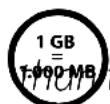
The capacity indicated by your operating system can be different in the actual capacity of your device. Like most manufacturers computer hardware, TrekStor uses the prefixes for units (GB = 1.000.000.000 bytes) as prescribed by the International norm of Units (SI). Unfortunately, many operating systems must comply with this norm and display a lower capacity use they base their calculations on the assumption that = 2^30 bytes = 1.073.741.824 bytes.
3) About SurfTab® ventos 7.0
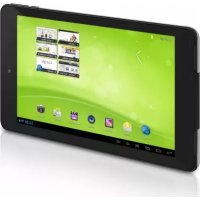
The TrekStor SurfTab ventos 7.0 is a tablet PC with a touch display for surfing the Internet and using applications, music, videos and games.
4) Package Contents
- TrekStor SurfTab ventos 7.0
• USB cable (Micro-USB / USB-A) - USB Host-adaptercable (Micro-USB / USB-A (female))
- HDMI™ adapter (Micro-HDMI / HDMI (female))
- Mains adaptor 100-240 V
- Cleaning cloth
- Operating instructions
5) Specifications
Dimensions (W x H x D) 192 x 122 x 7.9 mm
Weights 295 g
Prozessor (CPU) Cortex A9 Dual-Core, 1,5GHz
Grafic Unit (GPU) Mali-400 MP2
Battery Li-Polymer
Type of housing Aluminium, Plastic
Display type 5 point multitouch capacitive screen
Display size 7" (17.7 cm)
Aspect ratio 16:10
Screen resolution 1024 x 600
Interface Micro-USB, Micro-HDMI, Audio Out, Microfone, Camera, Card Reader, Wi-Fi.
Supportes card formats microSD, microSDHC (max. 32 GB)
Camera 0,3 MP webcam
Operating system Android™ 4.1 (Jelly Bean)
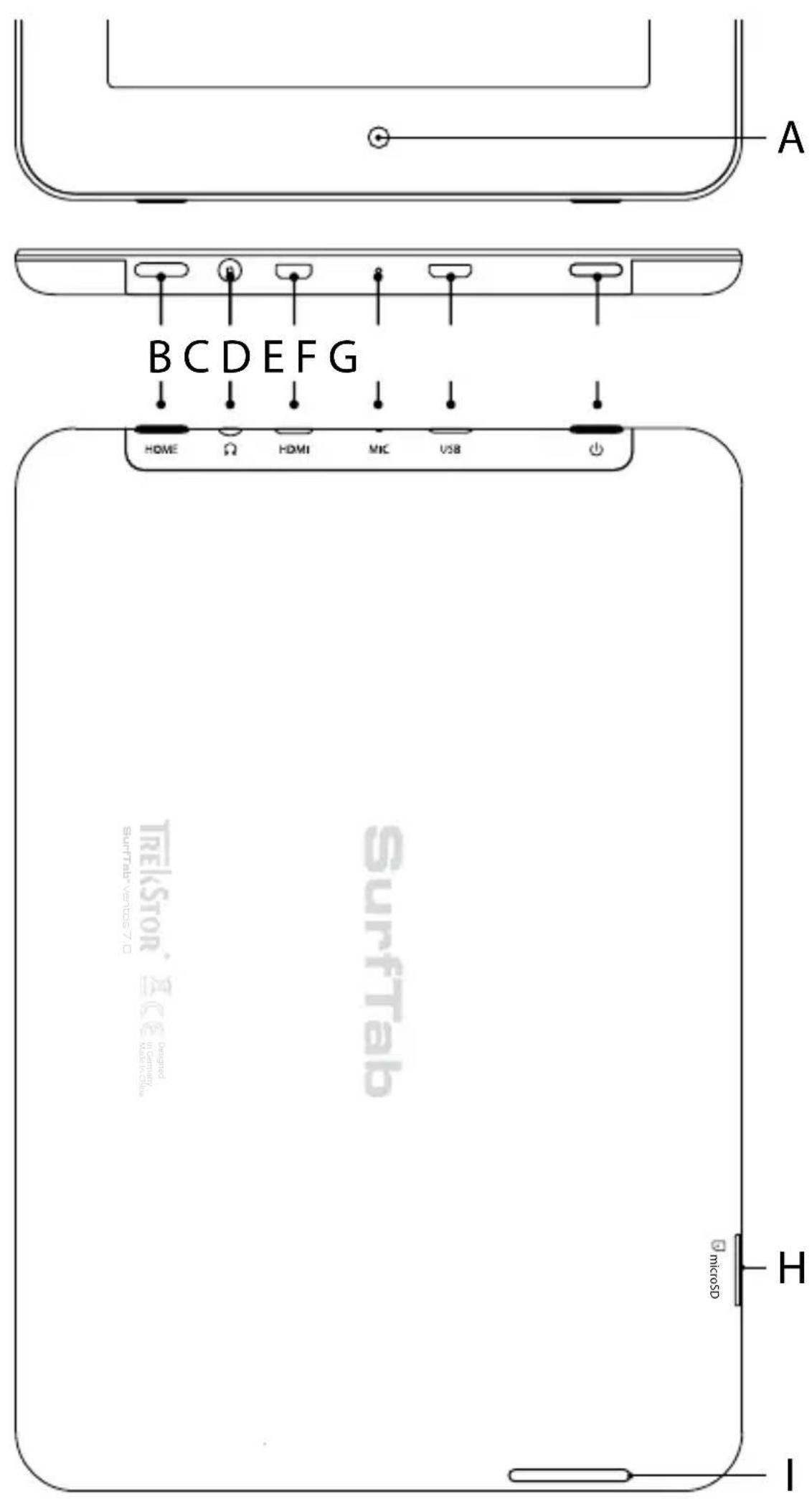
6) Controls and Connections of SurfTab®
Fully charge your SurfTab before you use it for the first time. Connect your SurfTab with the micro USB cable to a computer or connect it using the mains adaptor included. After about 3 hours SurfTab is fully charged. Loading time via a PC is considerably longer.
The maximum battery runtime is reached after about 10 battery charging cycles.
8) Switching on SurfTab®
After charging your SurfTab you can switch it on. In order to start the device, press the on/off switch for 3-5 seconds. As soon as the device is switched on the lock screen appears. Place your fingertip on the lock symbol and drag it to the open lock on the right. Your SurfTab will now show the home screen.
If you are using your new SurfTab for the first time, a configuration assistant appears which helps you to adjust the first important settings on your SurfTab. The settings which you undertake here (for example language) can also be altered again under "SETTINGS" in the application menu.
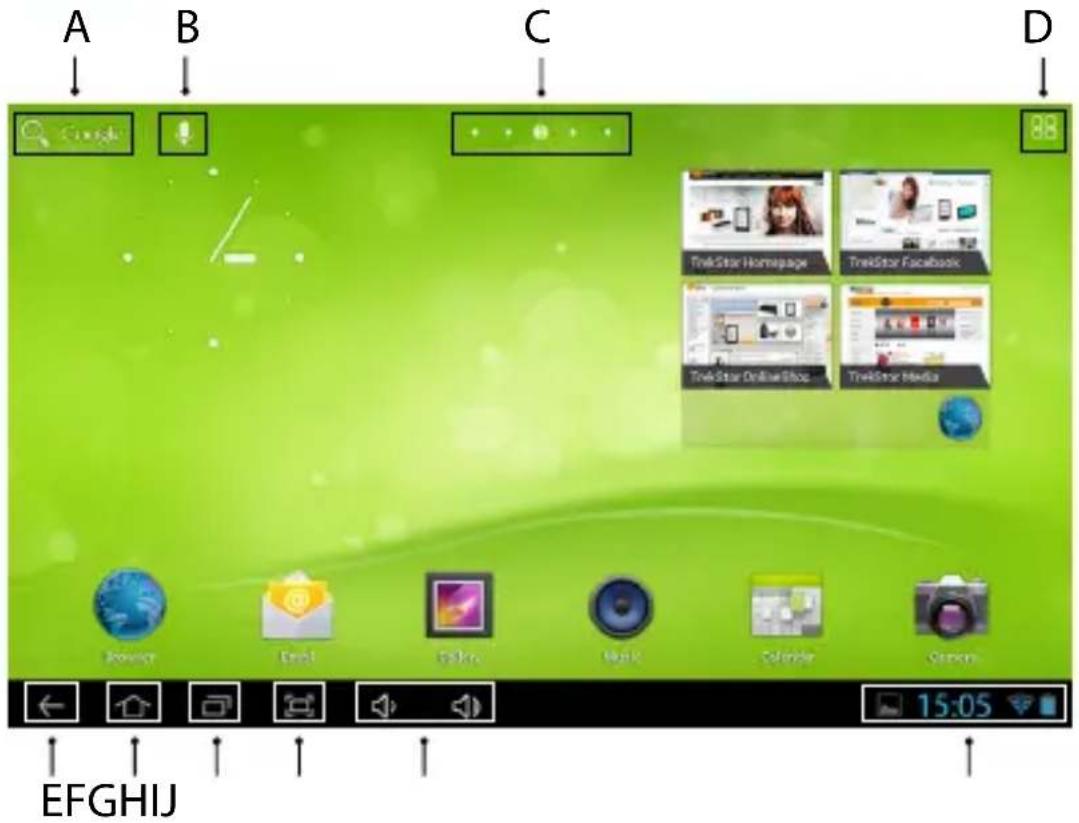
9) Elements on the Home Screen
text_image
A B C D Google Email EFGHIJ TrekStar Homepage TrekStar Facebook TrekStar Online Shop TrekStar Media 15:05A) Google™-Search
B) Microfone
C) Page number (home screen)
D) Application menu
E) Back to the previous screen
F) Home-Icon (Back to the home screen)
G) View all open applications
H) Screenshot funktion (makes a screenshot)
I) Volume control
J) Status display: displays different messages (e.g. battery indicator, time, WLAN connection, available downloads).
10) Using the Touch Screen
10.1) Scrolling
The display of your SurfTab extends two sides to the right and left of the start screen. In order to reach these sides, just stroke your finger from left to right (or the reverse) across the screen.
In an open window (for example in a menu, browser, in an application or in folders), you "drag" the screen in by pulling the screen in the direction desired with your finger.
10.2) Selecting Items
Touch the screen once with your fingertip to open an element or select an option.
10.3) Moving Items
Hold your finger on the element to be moved until a thin blue frame appears on the screen. Now you can place the chosen element on a free place within the blue frame (or on the next page of your display).
10.4) Expanding or reducing the View
In order to expand the display, drag your fingers away from each other on the screen or tap the display twice in quick succession. Conversely, push two fingers towards each other in order to reduce the display once again.
10.5) Using the Display Keyboard
If you touch a text field in order to enter text (e.g. a web address) the display keyboard is shown. Enter the text with the keyboard as usual. In addition use buttons "?123" and "\~\", in order to enter numbers and special symbols. For entering alternative letters (for example those with accents) press on a particular letter for a prolonged period in order to see the alternative available.

At "SETTINGS" → "LANGUAGE & INPUT" → "KEYBOARD & INPUT METHODS" you can make further alteration to the display keyboard settings.
11) Personalizing the Home Screen
You can set up the home screen (as well as four additional pages) in accordance with your wishes by adding or deleting connected apps and widgets and altering the background.
11.1) Adding Applications to the Home Screen
Touch the upper right of the application menu on the home screen. A screen opens which shows the applications currently available to you. Continue pressing on the application selected until the start screen appears. Drag the icon selected to a free position of your choosing within the blue frame. If you pull the icon up to the page edge, you can place it on the next page of the home screen.
11.2) Adding Widgets to the Home Screen
In addition to applications, you can add widgets to your start screen. Touch in the upper left corner of the application menu on "WIDGETS". Continue pressing on the widget selected until the start screen appears. Drag the icon selected to a free position of your choosing within the blue frame. If you pull the icon up to the page edge, you can place it on the next page of the home screen.
11.3) Removing Applications and Widgets from the Home Screen
a) In order to remove a widget or application from the start screen, press the relevant icon until "REMOVE" or "X" appears.
b) Continue pressing the icon and drag it to "REMOVE" or "X".
This action deletes the connections to the start screen, though not the applications itself. You can find out how to completely delete an application from your SurfTab under 15.2.
11.4) Changing the Desktop Background
a) Touch the screen background at a free point until a window with the message "CHOOSE WALLPAPER FROM" appears.
b) Choose by touching the relevant icon if you wish to use the background setting from the "GALLERY", the "WALLPAPERS" or the "LIVE WALLPAPERS" (moving pictures) by touching the relevant icon.
c) Touch the chose folder on the picture desired and confirm your choice with "SET WALLPAPER".
If you choose a background from the gallery you also have the additional possibility of choosing a particular area of the chosen picture as your background motive. Push the window selected onto the picture and touch the selection window onto the image and tap the picture top right on "OK", as soon as you have chosen the selected area of the image.
12) Connecting the Internet
With the SurfTab you have the possibility to access the Internet via Wi-Fi. If you want to establish a connection to a new network, please proceed as follows:
a) Go to the application menu to "SETTINGS". In the left menu column, you will find the option "Wi-Fi".
b) Touch " W1-F1". The menu option now appears backed with colour.
c) Push the on/off-switch for Wi-Fi at the right part of the colour highlighted option from "OFF" to "ON".
d) The Wi-Fi function becomes activated and all available wireless networks are shown in the right menu column.
e) Touch the network with which you wish to be connected. An entry window appears. Enter the network password of the network selected and touch "CONNECT".
f) The SurfTab now connects to the wireless network and beyond that with the internet. Via a browser you can surf the internet as normal.
If you have once established a connection to a Wi-Fi network, the SurfTab automatically connects to it as soon as it is within reach. You do not have to re-enter the Password.
To save power, it is advisable to turn off the wireless function, if you do not need it.
13) Using the Camera
You can activate the camera of the SurfTab via the application menu or via the lock screen. Via the lock screen, you get to the camera by pulling the lock symbol on the left side of the circle onto the camera symbol. The following screen appears:

text_image
ADBCEF13.1) Taking a Photo
Hold the SurfTab with the camera in the desired direction in order to take a photo. With the help of the (13 C) symbol in the camera controls you will reach further setting options of your camera, as for example the regulation of the white fader or the exposure. When you have found the optimal setting, press the shutter by touching the blue dot in the camera operating controls (13 D).
You reach your recently made photographs by stroking your finger from left to right over the screen.
13.2) Recording a Video
If you want to record a video, press the (13 F) symbol. Here you will find a red dot in the camera operating controls. By touching this dot, you will start or end the video recording. With the help of the (13 C) symbol in the camera operating elements you will reach further setting options of your camera, as for example the regulation of the white fader or the time lapse interval.
13.3) Zooming
In both camera and video mode you can zoom into and out of your image. For this, touch your finger on the small white circle (13 B) in the camera operating controls and pull this circle along the line (13 A) in the direction of the "+" or the "-" symbol.
To leave the camera mode, briefly touch the lower frame of the display in order to bring up the task menu.
14) Creating/removing an email Account
14.1) Creating an Email Account
To set up an email account, choose "EMAIL" via the applications menu and then proceed as follows:
a) Enter a valid email address into the entry field in the appropriate password into the field below.
b) Press " Next", to confirm your details.
c) In the next steps you can make further adjustments to your account settings. Confirm the adjustments made with "NEXT". As soon as your account is set up in accordance with your wishes, the email application is ready for use.
14.2) Removing an Email Account
To remove the email account, choose "EMAIL" via the applications menu and then proceed as follows:
a) Press above right on the three vertically stacked dots and finally on " SETTINGS".
b) Now touch the account in the left menu column which you wish to remove.
c) Pull the right menu right up to the top and touch " REMOVE ACCOUNT".
d) Confirm your choice with "OK" and the account is deleted.
15) Installing/uninstalling Applications
15.1) Downloading and installing Applications
Via Google Play™ access, your SurfTab offers you the possibility to add further to the pre-installed apps, widgets, programs and ebooks. To install new applications please follow the instructions of Google Play™.
After you install an application it will be visible in the application menu. Either run the application from there or add it to your start screen (see 11.1).
In order to download programs, applications or books, your SurfTab has to be connected to the Internet (see 12).
Certain applications require payment before they can be downloaded. Google Play™ offers instructions about choosing the correct payment system and about making payment.
15.2) Unistalling applications
To uninstall applications from your SurfTab, please proceed as following:
a) Choose " SETTINGS" on the applications menu.
b) Drag the left menu to the top right until the option " APPS" is visible. Choose "APPS".
c) Drag the right menu left or right until you see the category "ALL".
d) Now drag the right menu upwards until the application to be removed becomes visible.
e) Select the application which you wish to uninstall and choose the option "UNINSTALL" in the options provided.
You can only uninstall those applications which you installed yourself. Applications which have been integrated into the system at factory level can only be "DEAKTIVATED". The deactivation of applications integrated into the system can impeded the functionality of your SurfTab!
16) Connecting other Devices
16.1) Connecting SurfTab ^® to a PC
a) Connect the SurfTab to your PC with the micro USB cable provided
b) After a period, the flash-disc symbol will be shown at the bottom right of the display of your SurfTab. Select the symbol and following touch "USB CONNECTED / TOUCH TO COPY FILES TO / FROM YOUR COMPUTER".
c) In the following display choose " TURN ON USB STORAGE".
d) A short moment later, the memory of the SurfTab will be shown as an external drive in the explorer of your PC. From there you can load, copy, delete and move files as usual.
In order to separate your SurfTab from your PC select "TURN OFF USB STORAGE" and following this separate it from your PC.
16.2) Connecting a USB Device
External USB devices, for example USB flash discs, can be attached via the micro USB host adaptor cable supplied.
In order to drag files between your SurfTab and an external memory device you need an application with the function of a data browser (for example "ES DATEI EXPLORER" or "FILEBROWSER").
a) Attach the external USB memory device to the SurfTab via the micro USB host adaptor cable.
b) The message " PREPARING EXTERNAL STORAGE" will be shown in the display. Wait until the message is no longer shown.
c) Via your data explorer app you can load, copy, delete and move files as usual.
In certain circumstances the energy supply of the SurfTab is not sufficient in order to affect all functions of the USB device attached. For this reason, supply additional power to external USB devices via a mains cable.
16.3) Connecting a TV via HDMI™
a) Go via the application menu to "SETTINGS".
b) Select "HDMI" in the left menu.
c) Select " ENABLE DUAL DISPLAY" and " ENABLE AUTO SWITCH" on the right menu. Both options will now be ticked.
d) Attach the SurfTab via the micro-HDMI adaptor supplied an HDMI cable to your HDMI-capable television. A HDMI logo will appear in the display of your SurfTab.
e) Via the remote control of your television, choose the HDMI port connected to your SurfTab.
f) Tipe on the HDMI icon in your SurfTab's status menu and following this tipe on "HDMI SWITCH / HDMI CONNECTED"
g) An options menu will appear on the SurfTab, Here you can choose the resolution with which the HMDI signal should be transferred from your SurfTab to your television. As such select "HDMI 720P" or "HDMI 1080P".
h) Under " APPLY THIS MODE?" select "OK". Your television will now show the display of your SurfTab.
17) Activating the Standby Mode
If you do not want to use the SurfTab for a while, press briefly the power button to put the tablet in the standby mode and save energy. To exit the standby mode, press again briefly the power button.
Once you have activated the screen again, the SurfTab first displays the screen lock. Put your fingertip onto the lock icon and pull the icon to the right edge of the circle onto the open lock. Your SurfTab shows the home screen.
The SurfTab is locked automatically when it is not used for a certain time. A change of the interval, from when the SurfTab is supposed to go automatically into the standby mode, can be individually adjusted under "SETTINGS"→"DISPLAY"→"SLEEP".
18) Rebooting the SurfTab® into Recovery Mode / Factory Settings
The so-called “recovery-mode” makes it possible, amongst other things, to return the device to factory settings, delete forgotten passwords or the SurfTab’s memory. In order to enter recovery mode, proceed as following:
a) Turn off your SurfTab (see 19).
b) Press the home button and hold it down.
c) While you hold down the home button, press down the on / off switch and hold this down until the "Android robot" appears on the display. Now let go of the on / off switch.
d) Circa. 3-4 seconds later you can let go of the home button.
e) After ca. 4-5 seconds later, the recovery mode appears on the display of your SurfTab.
f) With the help of the home button, you can navigate through the menu. With the on / off switsch you will choose an option.
Via "SETTINGS" → "BACKUP & RESET" you can also reset the SurfTab to factory settings.
19) Turning off SurfTab®
To turn off, press for circa 2-4 on the on/off switch. The following message appears: "Do you want to shut down?". Press "OK", to turn the SurfTab off.
20) Copyright and Trademark Notices
Copyright laws prohibit copying any data of this product or the contents of this manual (illustrations, related documents etc.) in whole or in parts without the permission of the copyright holder.
Additionally, the use of the data of this product or the contents of this manual are not allowed without TrekStor GmbH's permission except for personal use.
Android is a trademark of Google Inc. Use of this trademark is subject to Google permissions.
GooglePlay is a trademark of Google Inc.
HDMI, the HDMI Logo and High-Definition Multimedia Interface are trademarks or registered trademarks of HDMI Licensing LLC.
TrekStor and SurfTab are registered trademarks of TrekStor Ltd. in the European Community and other countries.
Copyright © 2013 TrekStor GmbH. All rights reserved. Other cited product or company names may be trademarks or brand names of the respective owner.

ISTRUZIONI PER L'USO
Android is a trademark of Google Inc. Use of this trademark is subject to Google permissions.
GooglePlay is a trademark of Google Inc.
HDMI, the HDMI Logo and High-Definition Multimedia Interface are trademarks or registered trademarks of HDMI Licensing LLC.
TrekStor and SurfTab are registered trademarks of TrekStor Ltd. in the European Community and other countries.
Android is a trademark of Google Inc. Use of this trademark is subject to Google permissions.
GooglePlay is a trademark of Google Inc.
HDMI, the HDMI Logo and High-Definition Multimedia Interface are trademarks or registered trademarks of HDMI Licensing LLC.
TrekStor and SurfTab are registered trademarks of TrekStor Ltd. in the European Community and other countries.
Android is a trademark of Google Inc. Use of this trademark is subject to Google permissions.
GooglePlay is a trademark of Google Inc.
HDMI, the HDMI Logo and High-Definition Multimedia Interface are trademarks or registered trademarks of HDMI Licensing LLC.
TrekStor and SurfTab are registered trademarks of TrekStor Ltd. in the European Community and other countries.
Android is a trademark of Google Inc. Use of this trademark is subject to Google permissions.
GooglePlay is a trademark of Google Inc.
HDMI, the HDMI Logo and High-Definition Multimedia Interface are trademarks or registered trademarks of HDMI Licensing LLC.
TrekStor and SurfTab are registered trademarks of TrekStor Ltd. in the European Community and other countries.
Android is a trademark of Google Inc. Use of this trademark is subject to Google permissions.
GooglePlay is a trademark of Google Inc.
HDMI, the HDMI Logo and High-Definition Multimedia Interface are trademarks or registered trademarks of HDMI Licensing LLC.
TrekStor and SurfTab are registered trademarks of TrekStor Ltd. in the European Community and other countries.
Copyright laws prohibit copying any data of this product or the contents of this manual (illustrations, related documents etc.) in whole or in parts without the permission of the copyright holder.
Additionally, the use of the data of this product or the contents of this manual are not allowed without TrekStor GmbH's permission except for personal use.
Android is a trademark of Google Inc. Use of this trademark is subject to Google permissions.
GooglePlay is a trademark of Google Inc.
HDMI, the HDMI Logo and High-Definition Multimedia Interface are trademarks or registered trademarks of HDMI Licensing LLC.
TrekStor and SurfTab are registered trademarks of TrekStor Ltd. in the European Community and other countries.
Copyright © 2013 TrekStor GmbH. All rights reserved. Other cited product or company names may be trademarks or brand names of the respective owner.

GEBRUIKSAANWIJZING
Android is a trademark of Google Inc. Use of this trademark is subject to Google permissions.
GooglePlay is a trademark of Google Inc.
HDMI, the HDMI Logo and High-Definition Multimedia Interface are trademarks or registered trademarks of HDMI Licensing LLC.
TrekStor and SurfTab are registered trademarks of TrekStor Ltd. in the European Community and other countries.
Copyright laws prohibit copying any data of this product or the contents of this manual (illustrations, related documents etc.) in whole or in parts without the permission of the copyright holder.
Additionally, the use of the data of this product or the contents of this manual are not allowed without TrekStor GmbH's permission except for personal use.
Android is a trademark of Google Inc. Use of this trademark is subject to Google permissions.
GooglePlay is a trademark of Google Inc.
HDMI, the HDMI Logo and High-Definition Multimedia Interface are trademarks or registered trademarks of HDMI Licensing LLC.
TrekStor and SurfTab are registered trademarks of TrekStor Ltd. in the European Community and other countries.
Copyright © 2013 TrekStor GmbH. All rights reserved. Other cited product or company names may be trademarks or brand names of the respective owner.
Akku-Entsorgung
Reporting requirement according to the Battery Directive (BattV)
Batteries are not part of the domestic waste. The consumer is obliged to return no longer used batteries properly. Please dispose of them by a specialized trade or a battery collection point. Hereby you make an important contribution to environmental protection.
Since 1998 the German Battery Directive compels all citizens to dispose of used batteries exclusively through the trader or specially equipped departments (legal return obligation).
Trade and manufacturers are committed to take back batteries for free and to exploit it properly or to remove it as special waste (legal take-back obligation).

e built-in lithium-polymer battery of this device is marked with the adjoining symbol, consisting of a crossed out bin and the used battery type.
Remove battery
⚠️ Before you return a disused device for disposal, the battery has to be removed from the device.
EC DECLARATION OF CONFORMITY
As manufacturer and importer respectively:
TrekStor GmbH
Kastanienallee 8 - 10
D-64653 Lorsch, Germany
herewith declares that the products
Product: SurfTab® ventos 7.0 (ST702xx-2)
Type: Mobile Internet Device
comply with the following directive(s):
- 1999/5/EC Radio Equipment and Telecommunications Terminal Equipment
- 2004/108/EC EMC Directive: Electromagnetic Compatibility
- 2006/95/EC Low Voltage Directive
The following norms were consulted to assess conformity:
- EN 300 328 V1.8.1
Electromagnetic compatibility and Radio spectrum Matters (ERM); Data transmission equipment operating in the 2,4 GHz ISM band and using wide band modulation techniques
- EN 301 489-1 V1.9.2
EMC and ERM: EMC standard for radio equipment and services; Part 1: Common technical requirements
- EN 301 489-17 V2.2.1
Electromagnetic compatibility and Radio spectrum Matters (ERM); ElectroMagnetic Compatibility (EMC) standard for radio equipment; Part 17: Specific conditions for 2,4 GHz wideband transmission systems.
• EN 60065:2002/AC:2007
Audio, video and similar electronic apparatus – Safety requirements
The CE symbol confirms that this product conforms with the above mentioned norms and regulations.
The manufacturer also declares the conformity of the product according to the following directives:
- 2001/95/EC General Product Safety
- 2002/95/EC RoHS: Hazardous substances in electrical and electronic equipment
- 2009/125/EC Ecodesign requirements for energy-using products
Lorsch, 03.07.2013
T. Koroscha
Thorsten Koroscha, LPM
Supportinformationen
If you have any questions regarding your TrekStor product, please proceed as follows:
- Check the features as well as the functions of your device (apparent on the packaging), in order to use the correct settings.
- Read the manual carefully.
- Inform yourself on our website www.trekstor.de/en about the up-to-date information concerning your product (e.g. available most recent firmware releases).
In the case you have further questions regarding your product, please note the following TrekStor support options:
FAQ The FAQ area of our website offers you a wide range of problem solving hints. Here you can obtain answers to the most frequently asked questions concerning our products.
E-Mail Please fill in the support form on our website or send an E-Mail to support.en@trekstor.de. You can find mailing addresses for other countries when you click "SERVICE" at the menu bar on our website.
Phone support Please find the number of the support hotline for your country on our website under "SERVICE" as well.