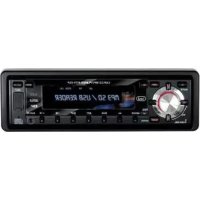
XCD 5710 MP3 - Car radio Trevi - Free user manual and instructions
Find the device manual for free XCD 5710 MP3 Trevi in PDF.



| Product Type | Car stereo with CD/MP3 player, FM/MW radio, USB, SD/MMC and AUX inputs |
| Brand | Trevi |
| Model | XCD 5710 MP3 |
| Power supply | 12/14 V DC (vehicle battery) |
| Max output power | 4 × 20 W (max) / 4 × 15 W (estimated RMS) |
| Speaker impedance | 4 ohms per channel |
| Radio bands | FM (87.5 - 108 MHz), MW (522 - 1620 kHz) |
| Supported audio formats | CD, CD-R, CD-RW, MP3 (on CD, USB, SD/MMC) |
| Audio inputs | USB (front), SD/MMC (front), AUX IN (3.5 mm jack) |
| Audio output | LINE-OUT: 1200 mV max |
| Frequency response (CD) | 20 - 20,000 Hz |
| Signal-to-noise ratio (CD) | 50 dB (1 kHz) |
| Front panel | Removable (detachable), secured by REL button |
| RDS functions | AF, PTY, TP/TA, EON, REG |
| Audio functions | Bass, treble, balance, fader, loudness, DSP (POP, CLASSIC, ROCK, FLAT) |
| User options | Key beep, TA volume, auto standby, alarm, mono/stereo, local/distant |
| Maintenance and cleaning | Clean the front panel with a slightly damp cloth; clean contacts with an alcohol-moistened cotton swab |
| Security | Removable front panel to deter theft; do not expose the front panel to heat |
| Dimensions (approximate) | 1 DIN (178 × 50 × 160 mm, standard estimation) |
| Weight (approximate) | Approximately 1.2 kg (estimate) |
Frequently Asked Questions - XCD 5710 MP3 Trevi
User questions about XCD 5710 MP3 Trevi
0 question about this device. Answer the ones you know or ask your own.
Ask a new question about this device
Download the instructions for your Car radio in PDF format for free! Find your manual XCD 5710 MP3 - Trevi and take your electronic device back in hand. On this page are published all the documents necessary for the use of your device. XCD 5710 MP3 by Trevi.
USER MANUAL XCD 5710 MP3 Trevi
SD/MMC CARD IN AUX-IN
RDS SYSTEM CAR-STEREO CD/MP3 PLAYER WITH USB IN AND SD/MMC CARD
Instruction manual
RADIO LECTEUR CD/MP3 RDS AVEC USB SD/MMC CARD
Mode d'emploi
Manuale d'uso e collegamento Instruction manual
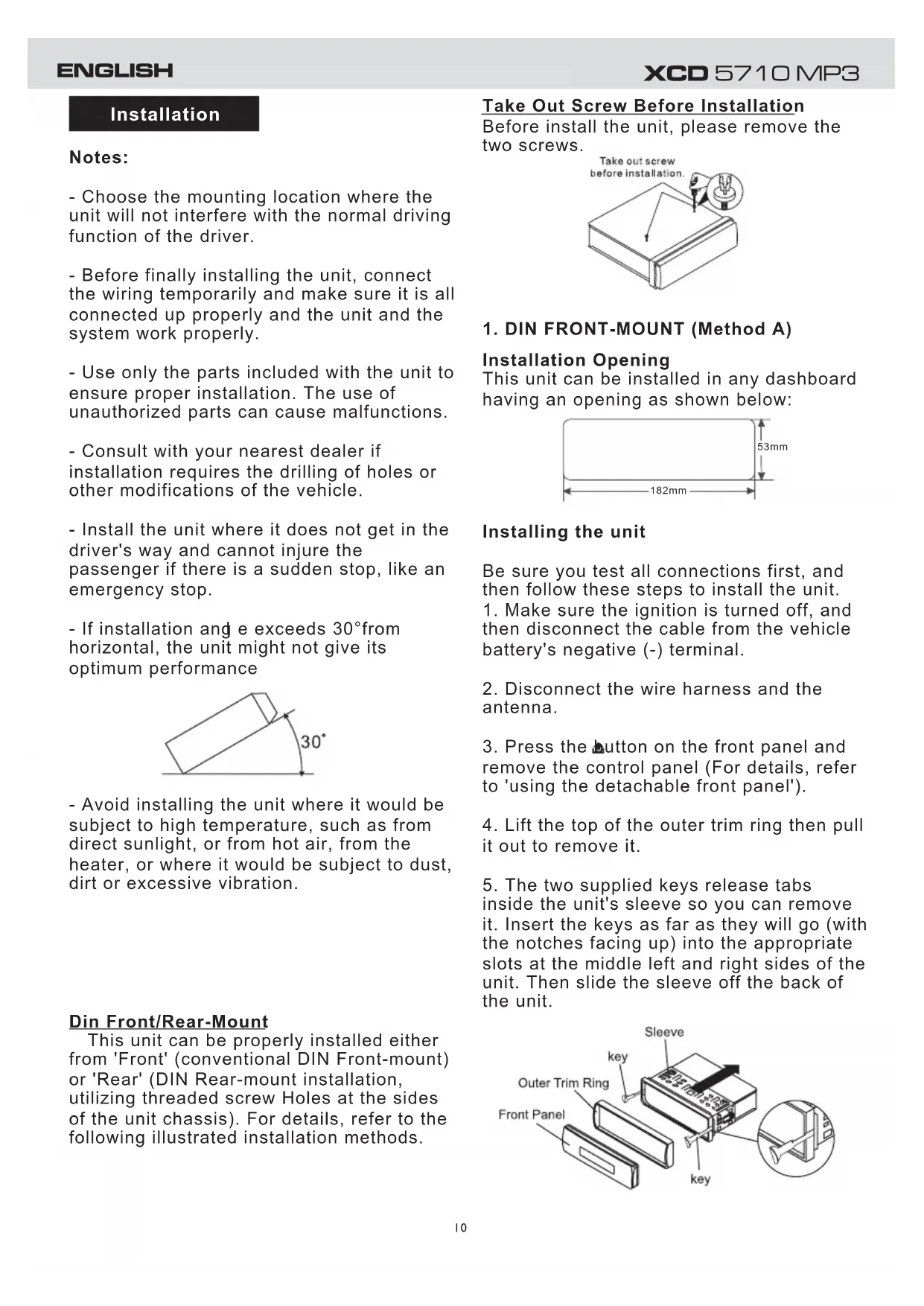
Please remove the two CD Mechanism Trans Screws prior to installation or CD's will not play.
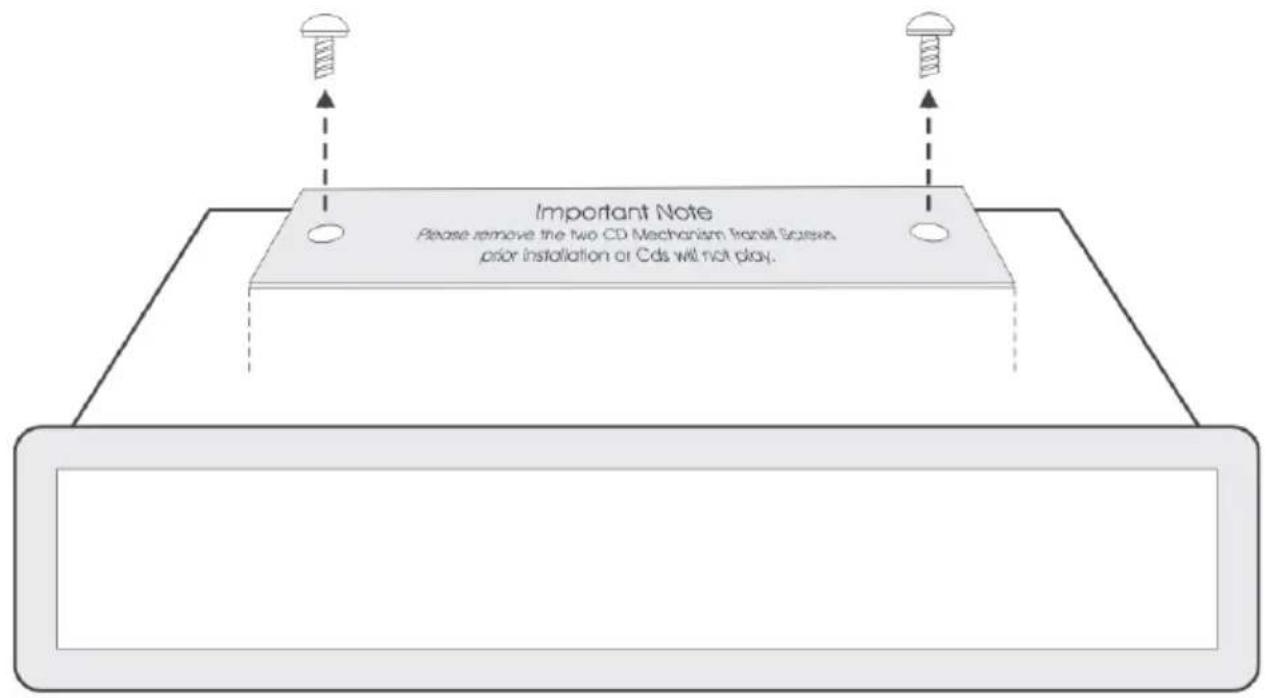
Connessioni / Connections
TEL.MUTE
- Choose the mounting location where the unit will not interfere with the normal driving function of the driver.
- Before finally installing the unit, connect the wiring temporarily and make sure it is all connected up properly and the unit and the system work properly.
- Use only the parts included with the unit to ensure proper installation. The use of unauthorized parts can cause malfunctions.
- Consult with your nearest dealer if installation requires the drilling of holes or other modifications of the vehicle.
- Install the unit where it does not get in the driver's way and cannot injure the passenger if there is a sudden stop, like an emergency stop.
- If installation and e exceeds 30^ from horizontal, the unit might not give its optimum performance
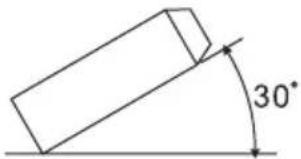
- Avoid installing the unit where it would be subject to high temperature, such as from direct sunlight, or from hot air, from the heater, or where it would be subject to dust, dirt or excessive vibration.
Din Front/Rear-Mount
This unit can be properly installed either from 'Front' (conventional DIN Front-mount) or 'Rear' (DIN Rear-mount installation, utilizing threaded screw Holes at the sides of the unit chassis). For details, refer to the following illustrated installation methods.
Take Out Screw Before Installation
Before install the unit, please remove the two screws.
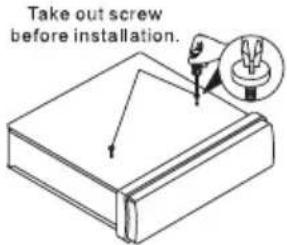
1. DIN FRONT-MOUNT (Method A)
Installation Opening
This unit can be installed in any dashboard having an opening as shown below:
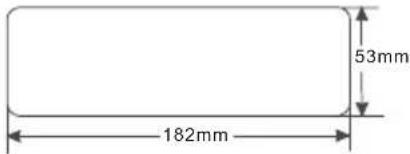
Installing the unit
Be sure you test all connections first, and then follow these steps to install the unit. 1. Make sure the ignition is turned off, and then disconnect the cable from the vehicle battery's negative (-) terminal.
-
Disconnect the wire harness and the antenna.
-
Press the button on the front panel and remove the control panel (For details, refer to 'using the detachable front panel').
-
Lift the top of the outer trim ring then pull it out to remove it.
-
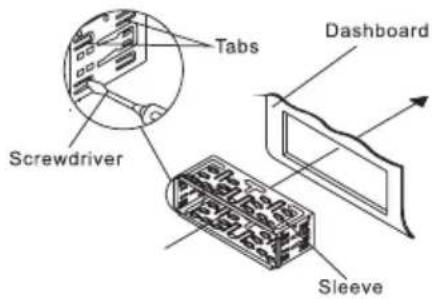
The two supplied keys release tabs inside the unit's sleeve so you can remove it. Insert the keys as far as they will go (with the notches facing up) into the appropriate slots at the middle left and right sides of the unit. Then slide the sleeve off the back of the unit.
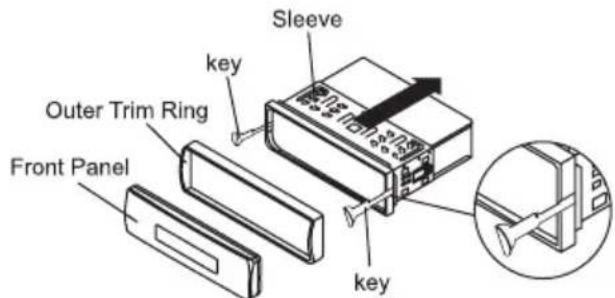
- Mount the sleeve by inserting the sleeve into the opening of the dashboard and bend open the tabs located around the sleeve with a screwdriver. Not all tabs will be able to make contact, so examine which ones will be most effective. Bending open the appropriate tabs behind the dashboard to secure the sleeve in place.
-
Reconnect the wire harness and the antenna and be careful not to pinch any wires or cables.
-
Slide the unit into the sleeve until it locks into place.
-
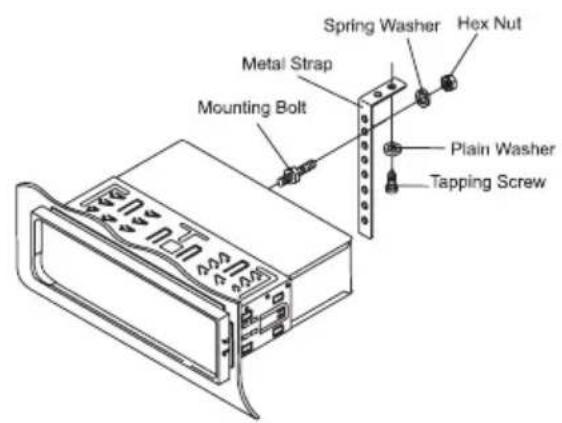
To further secure the unit, use the supplied metal strap to secure the back of the unit in place. Use the supplied hardware (Hex Nut (M5mm) and Spring Washer) to attach one end of the strap to the mounting bolt on the back of the unit. If necessary, bend the metal strap to fit your vehicle's mounting area. Then use the supplied hardware (Tapping Screw (5x25mm) and Plain Washer) to attach the other end of metal strap to a solid metal part of the vehicle under the dashboard. This strap also helps ensure proper electrical grounding of the unit.
Note: Install the short threading terminal of the mounting bolt to the back of the unit and the other long threading terminal to the dashboard.
- Reconnect the cable to the vehicle battery's negative (-) terminal. Then replace the outer trim ring and install the unit's front panel (see the steps of 'to install the front panel').
Removing the unit
-
Make sure the ignition is turned off, and then disconnect the cable from the vehicle battery's negative (-) terminal.
-
Remove the metal strap attached the back of the unit (if attached).
-
Press the release button to remove the front panel.
-
Lift the top of the outer trim ring then pull it out to remove it.
-
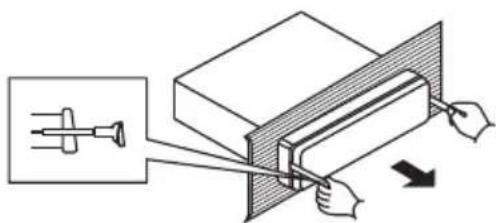
Insert both of the supplied keys into the slots at the middle left and right sides of the unit then pull the unit out of the dashboard.
2. DIN REAR-MOUNT (Method B)
If your vehicle is a Nissan, Toyota, follow this mounting instruction. Use the screw holes marked T (Toyota), N (Nissan) located on both sides of the unit to fasten the unit to the factory radio mounting brackets supplied with your vehicle.
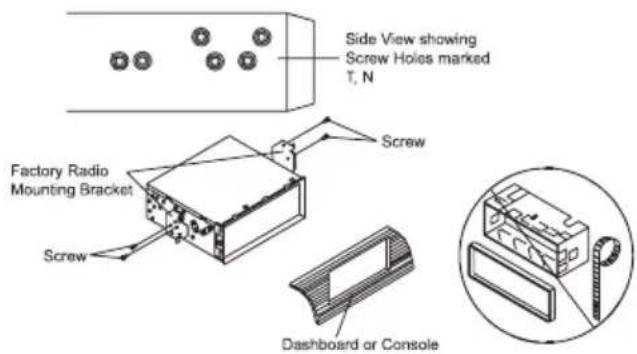
Fasten the unit to the factory radio mounting brackets. Align the screw holes on the bracket with the screw holes on the unit, and then tighten the screws (5x5mm) on each side.
Note: the outer trim ring, sleeve and the metal strap are not used for method B installation.
Using The Detachable Front Panel
REMOVING AND PROTECTING DETACHABLE FRONT PANEL
The front panel of the unit may be removed as a theft deterrent. After removing the front panel, use the case provided to keep the front panel from getting damaged. 1. Press the OPEN button to flip down the front panel.
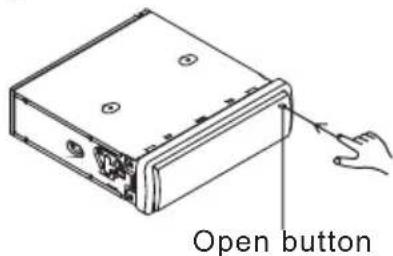
2.Grasp the right side of the front panel, then gently push the front panel towards the left side before pulling it out from the unit.
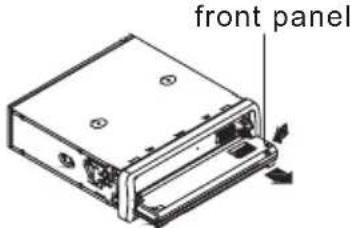
- Store the front panel in the protective case provided for safe keeping.
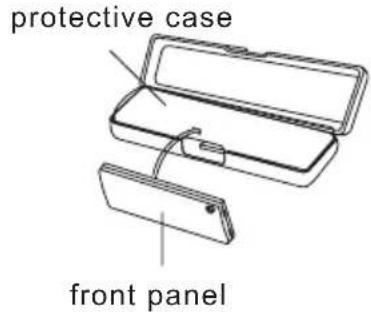
TO ATTACH THE FRONT PANEL
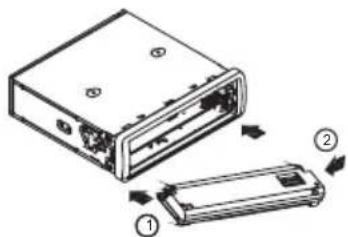
Hold the right side of the front panel with the plate facing down.
First attach the left side of the front panel to the unit by inserting the hole into the left holder.
Then slightly push it leftwards and attach the right side hole into the right holder. Finally push up the front panel.
Wiring Diagram
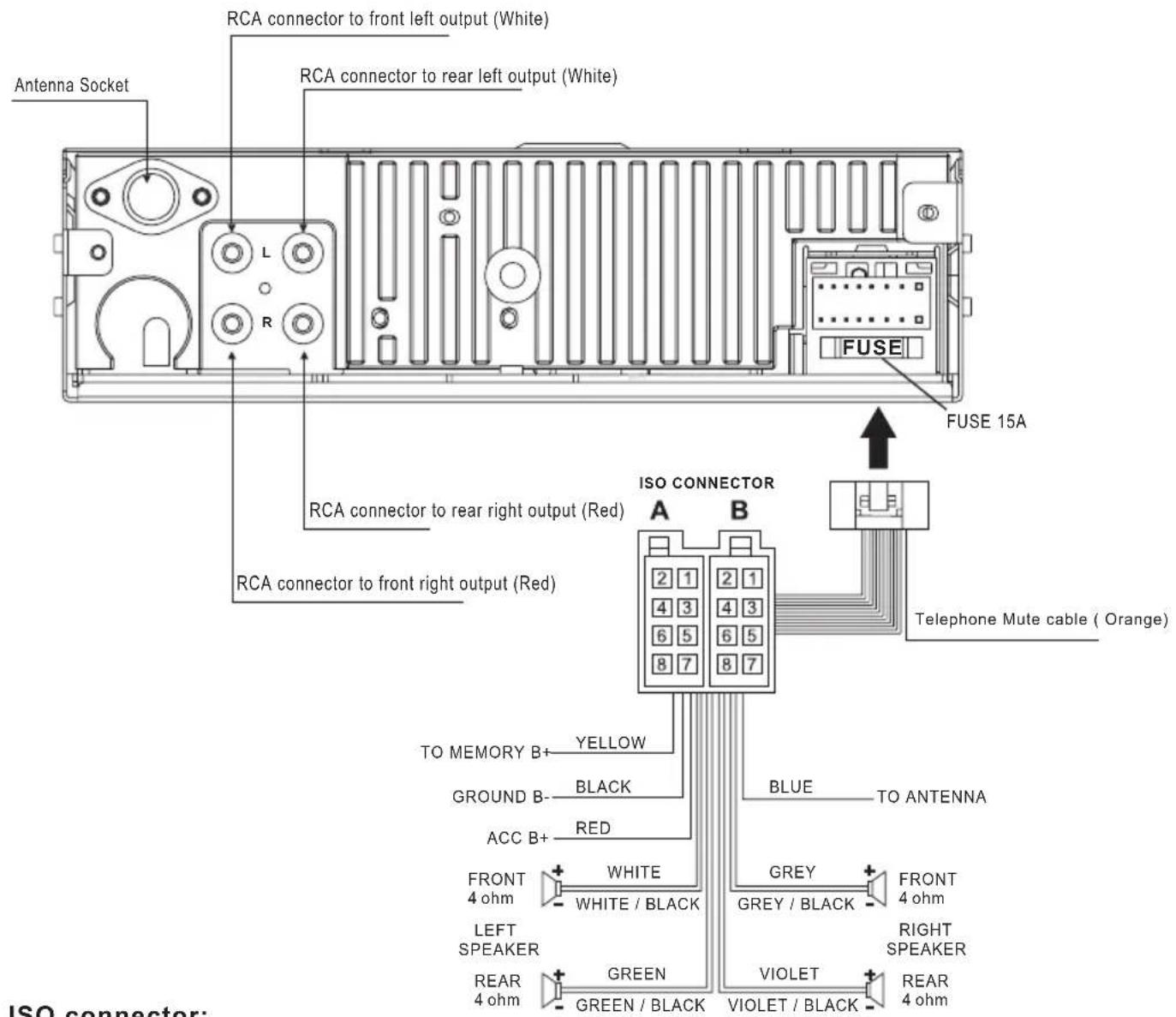
ISO connector:
Part A:
A1: No Connect
A2: No Connect
A3: No Connect
A4: Battery B+ (Yellow)
A5: Antenna (Blue)
A6: No Connect
A7: Accessory (Red)
A8:Ground B- (Black)
Part B:
B1: Rear Right + (Violet)
B2: Rear Right - (Violet/Black)
B3:FrontRight+(Grey)
B4: Front Right - (Grey/Black)
B5: Front Left + (White)
B6:Front Left - (White/Black)
B7: Rear Left + (Green)
B8: Rear Left - (Green/Black)
Operations
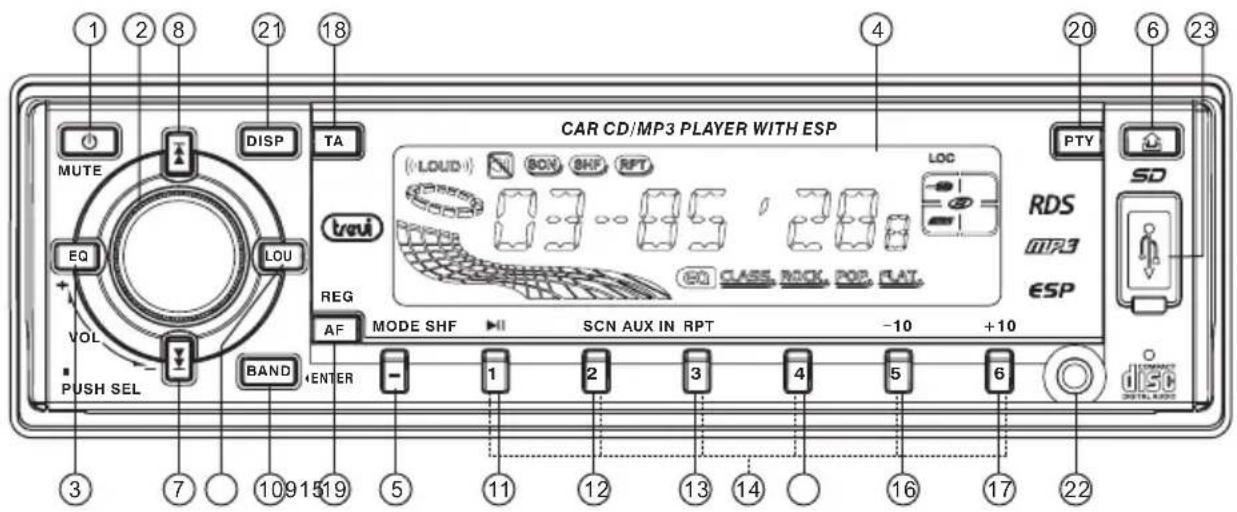
Location and Function of Keys
Front panel:
The front facet after removing the front panel:
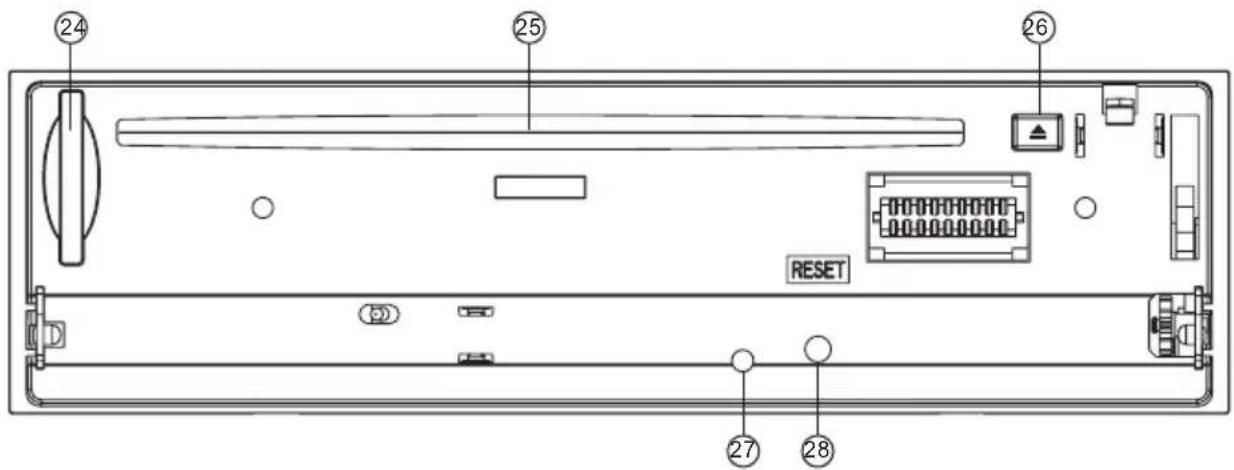
Descriptions of Function Controls
(1) Power on/off Button, Mute Button
(2)Volume Control,Audio/Menu Selector (SEL)
(3) Preset Equalizer(EQ) Button
(4)LCD display
(5)Mode Button
(6) Open (Button
(7)DOWN (Button
Tune down, Seek down, previous track, fast reverse
(8)UP()Button
Tune up, Seek up, next track, fast forward
(9) LOU(Loudness on/off) Button, MP3 Search Button
(10)BAND, ENTER Button
(11) Playing/Pausing() Button
(12) Scan(SCN) Playback Button
(13)Repeat(RPT)Playback Button
(14) Preset Station (1-6) Buttons
(15) Random(SHF) Playback Button
(16) Playing the -10 track Button
(17)Playingthe+10trackButton
(18) TA(Traffic Announcement)Button
(19) AF(List of Alternative Frequencies), REG(Regional Program)Button
(20) PTY(Program Type)Button
(21) Disp(Display) Button
(22) AUX Input Jack
(23) USB Port
(24) SD/MMC Memory Card Slot
(25) Disc slot
(26)Eject (key
(27) Anti-theft LED Indicator
(28) Reset Button
General Operations
Reset the unit
When operating the unit for the first time, after replacing the car battery or changing the connections, you must reset the unit.
- Turn off the unit power.
- Press the OPENTon and remove
the front panel, then press theRESET button with a ballpoint pen or similar object to restart the unit.
Power on/off
In power off mode, switch on the unit by pressing any button except the OPEN button. When the system is on, press and hold the POWER Button ( ) o n t head unit or remote contro for about 2 scconds to turn off the unit.
Sound adjustment
- Rotate the volume control on the head unit to adjust volume level.
- Press the Settion(Volume control) short and repeatedly to select the sound setting that you would like to adjust: volume, bass, treble, balance and fader.
- Rotate the volume control or the head unit to adjust level of the selected sound mode:
VOL:0.1~44.45
-BAS/TRE:-7,-6\~,0,\~+6,+7,
-BAL:8L,7L, ,0, ,7R,8R
-FAD:8F,7F, ,0, ,7R,8R
Note:
- In each mode, when the unit has not been adjusted for about 5 seconds, the current setting will be saved and it returns to the previous mode.
- When using preset EQ modes, you cannot have access to Bass and Treble settings.
System menu
Press the Eclton and hold for more than 2 seconds to access system setup menu mode, thenpress theEclton momentarily to select the menu items in sequence as follows:
"INVOL 17"(Initial Volume) ADJ 00:00" (adjust the clock) BEEP ALL"(beep tone mode) "TAVOL 17" (traffic announcement volume) "EON ON" (EON on/off) DSP NONE" (equalizer mode) LOUD OFF
(loudness on/off) "LOC OFF" (local stations on/off) "REG OFF" (REG on/off) "STEREO" (STEREO/MONO) ALRM ON"(Alarm on/off) EXIT
After selecting the desired menu item, rotate the volume controlo to select the mode of the selected item.
INITIAL VOLUME:
"INVOL 17" will be visible on the LCD display, rotate the volume controlto adjust the initial volume of this unit.
CLOCK ADJUST:
"ADJ 00.00" will be visible on the LCD display, rotate the volume control clockwise to adjust hour, rotate the volume control counter-clockwise to adjust minute.
BEEP TONE MODE:
The car audio device is equipped with 3 beep tone modes.
- Beep ALL mode:The beep sound is on when any key is pressed.
- Beep 2nd mode:The beep sound will be heard when you hold down a button with a dual function, which activates the second function of this button.
- B eep o f f m o d e the beep sound is disabled.
Traffic announcement volume:
This function allows you to define the minimum volume for the traffic announcements. The adjustable range is 0~45. The defaulted value is 17Rotate the volume control to adjust the volume of the traffic announcements.
EON ON/OFF:
Rotate the volume controto choose EON ON or EON OFF.
DSP EFFECT:
The car audio device is equipped with 4 preset equalization modes. Rotate the volume control to select one of the EQ modes with following sequence: DSP NONE (OFF) CLAS(classical) ROCKPOP PLAT
LOUD ON/OFF:
Rotate the volume control to choose loudness on or off.
In urban areas, most stations are strong enough and "LOCAL ON" mode should be selected. Switch to LOCAL OFF mode to search for stations with weaker signals. Rotate the volume control to switch local reception ON or OFF mode.
REG ON/OFF
Rotate the volume controlchoose region mode on or off
STEREO/MONO:
FM station is received in stereo mode.
However, if the signalsweak or reception is not as good as you would like, switching to MONO mode usually improves the overall sound quality.
Rotate the volume control to choose stereo or mono audio effect.
ALARM ON/OFF
Rotate the volume controto choose ALARM ON or ALARM OFF.
Loudness on/off
In radio, CD, AUX IN mode,press theou button to turn on the loudness to reinforce the output of bass frequencies, press again to turn it off.
Note: In MP3 disc playing mode, you must press and hold the button to turn on or off the loudness function.
Mute on/off
In power on mode, briefly press the MUTE button (d) to toggle mute on or off. The muted state will be also released when the volume control, MODE is used.
To select playback mode
In power on mode, press the MODE repeatedly to select the different modes as the following sequence: TUNER, DISC (with a CD/MP3/WMA disc inside the disc slot), USB(with USB device inserted), SD/MMC (with SD/MMC card inserted), AUX IN mode.
Last position memory feature
-
During disc, USB, SD/MMC card playback, if you turn off the unit and then switch on it, the unit will resume playing from the point that it was interrupted.
-
During disc, USB, SD/MMC card playback, if you switch to other mode, and then return
the previous mode again, the unit will resume playing from the point that it was interrupted.
INFORMATION DISPLAY
Press the DLSRn repeatedly to display as follows:
- When receiving an RDS station
In radio mode: CT -> PTY(Type of program) -> PS(Name of the station) -> FREQUENCY ->
In CDP/USB/SD/MMC mode: CT-> PTY(Type of program) -> FREQUENCY ->PS(Name of the station) -> Track number /Running time or other information ->
*IctheruRTydoes not receive information, the display shows NO CLOCK" or "PTY NONE".
-
- Verceiving a non RDS station:
In radio mode:CT->PTY NONE->PS NONE->FREQUENCY->
In CDP/USB/SD mode: CT -> PTY NONE -> FREQUENCY -> PS NONE -> Track number /Running time or other information
The selected information is displayed for 5 seconds, then the radio goes back to the first display mode after 5 seconds.
TEL Mute
The audio system automatically mutes whenever a call comes in.
Note: the function will not work if a cable is not connected to the car phone.
1. When a call comes in
When a call is received, "PHONE-IN" is shown on the LCD display and all the unit functions are temporarily interrupted.
2. When the call ends
When hang up the phone, "PHONE-IN" disappears on the LCD display.
The unit returns to the previous state and the previous volume level automatically.
ESP Function
This CD/MP3 car radio has the electronic shockproof feature.
So that if the unit skips due to rough road conditions, the playback of the disc will be uninterrupted.
Anti-theft LED Indicator
Designed as a theft deterrent, the red LED will flash when the unit is turned off and face plate removed.
Radio Operations
To select a radio band
Intunermode,PresstheBnD
repeatedly to select a radio broadcasting band you would like to hear. The MW/FM band is toggled cyclically through the tuning bands: FM 1-> FM 2 -> FM 3 -> MW 1->MW 2 ->
Auto/ Manual tuning
- Automatic search mode:
Briefly press the pr button, the auto search will start. It will search upward or downward for the strong signal radio station within the current band. In auto tuning, press the pr button to stop tuning. Pressing and holding the pr button for about 2 seconds until "MANUAL" appears on LCD display, it will change into manual search mode.
- Manual search mode:
Press the button short and repeatedly to manually search upward or downward step by step for the desired radio station within the current band. In manual search process, if the both buttons haven't been pressed within 5 seconds, it will change into automatic search mode automatically, "AUTO" will be visible on the LCD display.
To store / recall a preset radio stations
You can store up to a total of 30 radio stations in the memory (18 FM, 12 MW), manually or automatically.
-
To store a station:
-
Select a band (if needed)
-
Select a station by buttons
-
Press and hold a preset b16ton ( - which you want to store the station for at least 2 seconds, the current station will be saved into the relevant preset memory bank. When a RDS station is being stored, the relevant PI, PS, AF list are stored.
- To recall a station:
- Select a band (if needed).
- Press a preset button (1-6) briefly to recall the stored station. In case of RDS mode, the strongest AF is selected after AF searching.
RDS (Radio Data System) Operations
Setting Alternative Frequencies
Press the AEFRECshort toggles AF mode on or off. There are 3 state the "AF" icon on the LCD display:
Icon "AF" off:AF switching mode off.
Icon "AF" on: AF switching mode on, and has RDS information.
Icon "AF" blink:AF switching mode on, but RDS information is not received yet.
When AF switching mode is selected, the radio checks the signal strength of the AF all the time. The interval of checking time of each AFs depends on the signal strength of current station, from a few minute for strong station to few seconds for weak station. Every time that new AF is stronger than current station, it switches over to that frequency for very short time. Because the mute time of AF switching or checking time is very short, it is almost inaudible in case of normal program. During FM mode, when AF is on, manual store, Auto store/preset scan function can only receive and save RDS program.
Regional Program Operation
Press the AEiREGor longer 2 seconds to toggle on or off region mode. Some broadcasting stations change their program from normal broadcasting to regional broadcasting for a certain time period. When regional mode on, the radio accepts RDS stations with regional variants; the current listening program remains unchanged; When regional mode off, the radio ignores regional variants; it allows the reception moved to the regional station
Using PTY select function
Pressing and holding the button for more than 2 seconds to enter the PTY menu. The default type is NEWS. Rotate the volume control to select different PTY as follows:
NEWS->AFFAIRS->INFO->SPORTEDUCATE->DRAMA->CULTURE->SCIENCE->VARIED->POP M->ROCKM->EASY M->LIGHT M->CLASSICS->OTHER M->WEATHER->FINANCE->CHILDREN->SOCIAL->RELIGION
->PHONE IN ->TRAVEL ->LEISURE ->JAZZ->COUNTRY->NATIONM->OLDIES->FOLKM->DOCUMENT->TEST->ALARM->NEWS
If no button is pressed for 5 seconds, it returns to normal state.
Using PTY Search Function
Press the button briefly to toggle the PTY search on or off. When PTY search mode is on, and the button is pressed, PTY search will be started. PTY search stops when it finds the station that has the selected program type, otherwise, the "NOT FND" (wicht beweis)ble on the LCD display. During the PTY search process, press any key to stop the PTY search.
Using the Traffic Announcement
Press the Baffan to toggles mode on or off. Deafault is off.
- When TA mode is on, but no traffic announcement is transmitted, only TP icon blinks.
- When TA mode is on and TP signal is available from the current station, TP icon stops blinking and is turned on.
- When TA RDS signal is available from the current station, TA icon is turned on.
- When TA mode is on and a traffic announcement is transmitted:
a. The volume set will be set to TA volume.
b. It is possible to interrupt disc (CD/ MP3 / WMA), USB/IPOD/SD/MMC, AUX IN or the current radio stationmode, it will switch temporarily to radio mode.
c. Text "Traffic" appears on the LCD display.
d. Return to original setting after the traffic announcement has been finished.
e. When you insert a new media (DISC/SD/MMC/USB), TP mode will be forced to turn off automatically, and the mode will be changed.
f. When you press the MODEn, TP mode will be forced to turn off automatically, and the mode will be changed.
TA interruption function
The current traffic announcement is cancelled by pressing this key. But the A mode will not be off.
Note:
- If TA is on, auto tuning function stops at the station where TA signal is available.
- If PTY search is on, auto tuning function acts as same as PTY Search.
- If AF is on, auto tuning function stops at the RDS station.
- If PTY, AF and TP is on, PTY search will be done, and next TP search, and finally AF search.
CD/MP3/WMA Disc Operations
Loading/Removing a Disc
- Turn the power on.
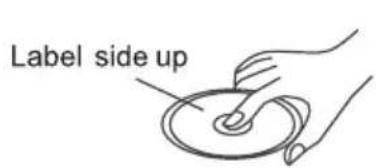
- Press theOPENtion on the front panel to flip down the front panel then insert a disc into the disc slot with the printed side facing upward, the player will play the disc automatically.
- To eject the disc, press the open button to open the front panel and then press the eject button.
Playing/Pausing
In media (CD/MP3/WMA /USB/SD/MMC) playback mode, press the button to interrupt the play back. Press again to resume the playback.
Playing the previous/ next track
- In media (CD/MP3/WMA /USB/SD/MMC) playback mode, briefly press the button to play the next track.
- When played time of the current track or file is less than 2 seconds, briefly press the button to play the previous track.
- When played time is more than 2 seconds, press the button to play the current track from the beginning of the current track or file.
Playing forward and backward
In CD or MP3/WMA file playback process, press and hold the button to fast forward or fast reverse. Release the buttons when the desired location is found, and normal playbatarts.
Playing the 10 track up or down
In CD or MP3/WMA file playback process, press the 5 but0r6 to D by the previous or next 10 track or file.
Introduction playback
You can play the beginning of each track or file for 10 seconds on the current disc in sequence.
In CD or MP3/WMA file playback, briefly press the SON to play the first 10 seconds segment of each one of current disc. Press again to stop scanning and play the currently selected track or file.
Repeat playback
In CD or MP3/WMA file playback, briefly press the button to continuously play
the current track. Press again to stop repeat playback and resume normal playback.
Random playback
In CD or MP3/WMA file playback, briefly press the ShRrion to play all tracks or files of the disc in random sequence. Press again to cancel random playing.
Select the track or file for playback in MP3 or WMA format
You can access 3 different types of track search modes for MP3/WMA format:
File number search
File name search
Folder search
Exit
File number search mode:
a) In playback of files with MP3 or WMA format, press the button once to access the file number search mode which allow you to quickly find a specific MP3/WMA title by its serial number, and the "00*" will be shown on the LCD display.
b) You can select a file directly, after entering file number search mode.
Rotate the volume control on the head unit to select the number of your favorite file with high speed. Finally press BAND
(ENTER) button to confirm and play the selected file.
The file name search mode:
This file name search function requires only three character as search keyword, it will allow you to quickly find an MP3 title by its name.
a) To access this feature, press the OU button twice, the "A**will be shown on the LCD display and the first character ("A") will be blinking.
b) Then change the blinking character by rotating the volume control The character will be changed from "A" through "Z" and "0" through "9" in the order of A~Z and 0~9.
Press the ton to confirm the character entered and advance to the next character.
c) When mached files was found to create the volume control or press the 12 button to change and select your desired file among
these files with same search keyword, then press the BANDER) button to start play the searched file. If the file was not found, "NO MATCH" message will be visible on the display.
Folder search mode:
The folder search mode will allow you to quickly find an MP3 title under a specific group folder.
a) In playback of file with MP3 or WMA format, press the button three times to access the first folder mode.
b) Rotatesthe volume control
Button to change and select your desired folder (If there are no root Folder in the disc, the LCD will display "ROOT/")
c) Once the folder has been selected, press the BANDENSTER play, the
first the track or file of the selected folder will be played.
ID3 information of MP3 file
In phayback of discs with MP3 format, folder name, file name, title, artist and album information will be scrolling on the LCD display automatically.
Note:
As long as the current playing MP3 music contains relevant ID3 tag information in version 1.0/2.0 format, the 3 items underlined above will be scrolling on the LCD display, otherwise, they will not appear.
Mixed-Mode CD Operations
If available, the unit can play the mixedmode CD disc (the disc contains both CD audio tracks and MP3/WMA files).
Under a default mode, the unit will first play all the MP3/WMA formatted songs and then play the CD formatted songs.
USB Playing Operations
The unit is equipped with a USB port on the front panel of the unit, you can connect a USB stick through the USB port.
Using the USB stick:
When you insert a USB stick through the port, the unit will search the MP3 files and start to play it automatically.
If insert a disc into the disc slot while read the file in the USB device, the unit will playing the disc first. If you want to play the file in the USB device, press thMODE button to switch to USB mode.
Note:
- Use the USB adaptor cable, if necessary.
- The operations of playing MP3/WMA files in the USB is the same as the MP3/WMA operation described in the CD/MP3/WMA disc operations.
- When reading the USB stick, please don't touch or remove it.
- If following the instruction above, the unit can't read the file in the USB stick, please check if the device is in good condition, or take it out then insert it into the USB port once more.
- The main unit can only support the standard USB-memory device.
- USB MP3 player is not a standard which means different brand name or different models have their own standard.
So this product cannot support all MP3 players. - When connecting an MP3 player and there is a normal battery in the player (non rechargeable battery), you should remove the battery from the MP3 player and then connect it to the USB port. Otherwise, it may cause battery burst.
- When reading a USB device, be sure not to remove it from the USB port (change mode beforehand).
SD/MMC Card Operations
This unit equipped with you a memory card slot.
Using the SD/MMC card:
When you insert a SD/MMC card into the memory card slot, the player will reading the SD/MMC card automatically.
If insert a disc into the disc slot while read the SD/MMC card, the unit will playing the disc. If you want to play the file in the SD/MMC card, press the mode to switch to SD/MMC mode.
SD/MMC memory card playing operation is the same with the MP3 operation described.
Note:
- When reading the memory card, please don't touch or take out the card.
- If following the instruction above, the unit can't read the card, please check if the card is in good condition, or take out the card and then insert it into the card slot once more.
Aux In Operations
This car radio has an external auxiliary input jack, it is compatible with audio output from an MP3 music player.
So you can listen to sounds and music from external devices, if you have plugged such a player into the AUX IN jack. Press the MODE AUX switch to the mode on or off.
Specifications
1. GENERAL
Power Supply Requirements
DC 12 Volts, Negative Ground
Chassis Dimensions
178(W)×160(D)×50(H) mm
Tone Controls
-Bass(at100Hz)±10dB
- Treble (at 10 kHz) ±10 dB
Maximum Output Power
20W×4
Current Drain
15 Ampere (max.)
2. CD PLAYER
Signal to Noise Ratio
55dB
Channel Separation
40dB
Frequency Response
20Hz-20KHz
3. RADIO
FM
Frequency Coverage
87.5 - 108.0 MHz
IF
10.7 MHz
Sensitivity (S / N = 30dB)
4μV
AM
Frequency Coverage
522 - 1620 KHz
IF
450 KHz
Disc Notes
A. Notes on discs:
- Attempting to use non-standard shape discs (e.g. square, start, and heart) may damage the unit. Be sure to use round shape CD discs only for this unit.
- Do not stick paper or tape, etc, onto the label side or the recording side of any discs, as it may cause a malfunction.
Dirty, dusty, scratched and warped discs will cause a malfunction.
B. Notes on CD-Rs (recordable CDs)/CD-RWs (rewritable CDs):
- Be sure to use discs with following marks only for the unit to play:



- The unit cannot play a CD-R and CD-RW that is not finalized. (Please refer to the manual of your CD-R/CD-RW recorder or CD-R/CD-RW software for more information on finalization process).
- Depending on the recording status, conditions of the disc and the equipment used for the recording, some CD-Rs/CD-RWs may not be played on this unit (see *1).
*1: To have more reliable play back, please see following recommendations:
a. Use CD-RWs with speed 1x to 4x and write with speed 1x to 2x.
b. Use CD-Rs with speed 1x to 8x and write with speed 1x to 2x.
c. Do not play a CD-RW which has been written more than 5 times.
d. The car radio supports discs which comply with the ISO 9660 level 1 or level 2 format, or the Joliet or Romeo format.
C. Notes on MP3 files
- When naming a MP3 file, be sure the file name extension is 'MP3'.
- For a non-MP3 file, even though the file name extension is 'MP3', the unit cannot recognize it.
D. Handling and Cleaning
- Dirty, dusty, scratched and warped discs will cause malfunctions
-
Do not place stickers or make scratches on discs.
-
Do not warp discs.
- A disc should always be kept in its case when not in use to prevent from damage.
-
Do not place discs in the following places:
-
Direct sunlight.
- Dirty, dusty and damp areas.
- Near car heaters.
- On the seats or dashboard.
Disc Cleaning
Use a dry soft cloth to wipe the surface. If the disc is quite dirty, Use a soft cloth slightly moistures with isopropyl (rubbing) alcohol. Never use solvents such as benzene, thinner or conventional record cleaners as they may damage the face of the disc.
Note:
A disc may become somewhat scratched (although not enough to make it unusable) depending on the way it is handled and conditions in the usage environment. Note these scratches are not an indication of any problem with the player.
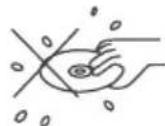
Do not touch the underside of the disc
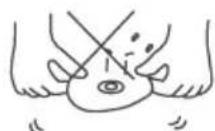
Do not bend
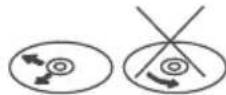
Wipe the disc from center toward the outside edge
E Precautions when using new discs.
A new disc may have irregularities. It will sometimes be necessary to remove these rough edges in advance by using a ballpoint pen or pencil as shown in the illustration.
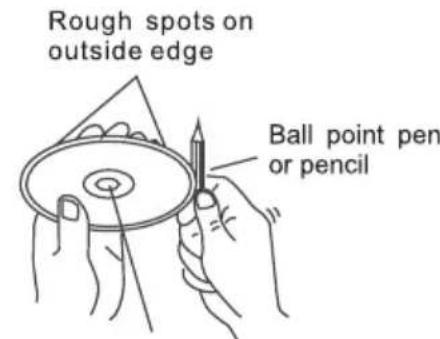
Rough spots on inside edge
Trouble Shooting
The following chart will help in solving most problems that may occur. If you still have questions after going through the checklist, please consult your local customer service representative.
Before going through this check list, refer the wiring and operating procedures.
| Symptom Cause Solution | ||
| No power | The car ignition switch have not turn on. | If the power supply is connected to the car accessory circuits, but the engine is not moving, switch the ignition key to "ACC". |
| The fuse has been blown. Replace a new one. | ||
| Disc can not be loaded or ejected. | Presence of CD disc inside the player. | Remove the disc from the player, and insert a new one. |
| Inserting the disc in reverse direction. | Insert the CD with the label facing upward. | |
| The surface of CD is extremely dirty or has been scraped. | Clean the disc or try to replace a new one. | |
| Temperature inside the car is too high. | Cool off or until the ambient temperature return to normal. | |
| Condensation | Leave the player off for an hour or so, and then try again. | |
| No sound | Volume is in minimum | Adjust volume to a desired level. |
| The wiring is not properly connected. | Check wiring connection. | |
| Sound skips | The installation angle is more than 30°. | Adjust the installation angle less than 30°. |
| The surface of CD is extremely dirty or has been scraped. | Clean the disc or try to replace a new one. | |
| The operation keys do not work | 1. The built-in microcomputer is not operating properly due to noise. | 1. Press the RESET button to restore the program. |
| 2. The front panel has not properly installed. | 2. Fixed the front panel into its place. | |
| No radio reception. The antenna cable is not connected. | Insert the antenna cable firmly into the antenna socket of this CD player. | |
| In automatic search mode the radio does not stop at a transmitting station. | The transmission signals are too weak. | Select a radio station manually. |
Precautions for correct disposal of the product.
The symbol shown on the equipment indicates that waste must be disposed of in "separate collection" and so the product must not be disposed of together with urban waste.
The user must take the product to special "separate waste collection centres" provided by local government, or deliver it to the retailer against the purchase of a new product.
Separate collection of waste and subsequent treatment, recycling and disposal operations promotes the production of equipment with recycled materials and limits negative effects on the environment and on health caused by improper handling of waste.
Illegal disposal of the product leads to the enforcement of administrative penalties.
EMPLOI DE LA FACADE AMOVIBLE


- SD/MMC CARD IN AUX-IN
- RDS SYSTEM CAR-STEREO CD/MP3 PLAYER WITH USB IN AND SD/MMC CARD
- RADIO LECTEUR CD/MP3 RDS AVEC USB SD/MMC CARD
- Manuale d'uso e collegamento Instruction manual
- Connessioni / Connections
- TEL.MUTE
- Din Front/Rear-Mount
- Take Out Screw Before Installation
- DIN FRONT-MOUNT (Method A)
- Installation Opening
- Installing the unit
- Removing the unit
- DIN REAR-MOUNT (Method B)
- Using The Detachable Front Panel
- REMOVING AND PROTECTING DETACHABLE FRONT PANEL
- TO ATTACH THE FRONT PANEL
- Wiring Diagram
- ISO connector:
- Part A:
- Part B:
- Operations
- Location and Function of Keys
- Front panel:
- The front facet after removing the front panel:
- Descriptions of Function Controls
- General Operations
- Reset the unit
- Power on/off
- Sound adjustment
- Note:
- System menu
- INITIAL VOLUME:
- CLOCK ADJUST:
- BEEP TONE MODE:
- Traffic announcement volume:
- EON ON/OFF:
- DSP EFFECT:
- LOUD ON/OFF:
- REG ON/OFF
- STEREO/MONO:
- ALARM ON/OFF
- Loudness on/off
- Mute on/off
- To select playback mode
- Last position memory feature
- INFORMATION DISPLAY
- TEL Mute
- When a call comes in
- When the call ends
- ESP Function
- Anti-theft LED Indicator
- Radio Operations
- To select a radio band
- Auto/ Manual tuning
- - Manual search mode:
- To store / recall a preset radio stations
- - To recall a station:
- RDS (Radio Data System) Operations
- Setting Alternative Frequencies
- Regional Program Operation
- Using PTY select function
- Using PTY Search Function
- Using the Traffic Announcement
- TA interruption function
- CD/MP3/WMA Disc Operations
- Loading/Removing a Disc
- Playing/Pausing
- Playing the previous/ next track
- Playing forward and backward
- Playing the 10 track up or down
- Introduction playback
- Repeat playback
- Random playback
- Select the track or file for playback in MP3 or WMA format
- File number search mode:
- The file name search mode:
- Folder search mode:
- ID3 information of MP3 file
- Mixed-Mode CD Operations
- USB Playing Operations
- Using the USB stick:
- SD/MMC Card Operations
- Using the SD/MMC card:
- Aux In Operations
- Specifications
- GENERAL
- CD PLAYER
- RADIO
- FM
- AM
- Disc Notes
- Notes on discs:
- Notes on CD-Rs (recordable CDs)/CD-RWs (rewritable CDs):
- Notes on MP3 files
- Handling and Cleaning
- Disc Cleaning
- E Precautions when using new discs.
- Trouble Shooting
- Precautions for correct disposal of the product.
- EMPLOI DE LA FACADE AMOVIBLE
Brand : Trevi
Model : XCD 5710 MP3
Category : Car radio