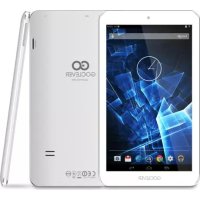
Quantum 700 S - Tablet GOCLEVER - Free user manual and instructions
Find the device manual for free Quantum 700 S GOCLEVER in PDF.

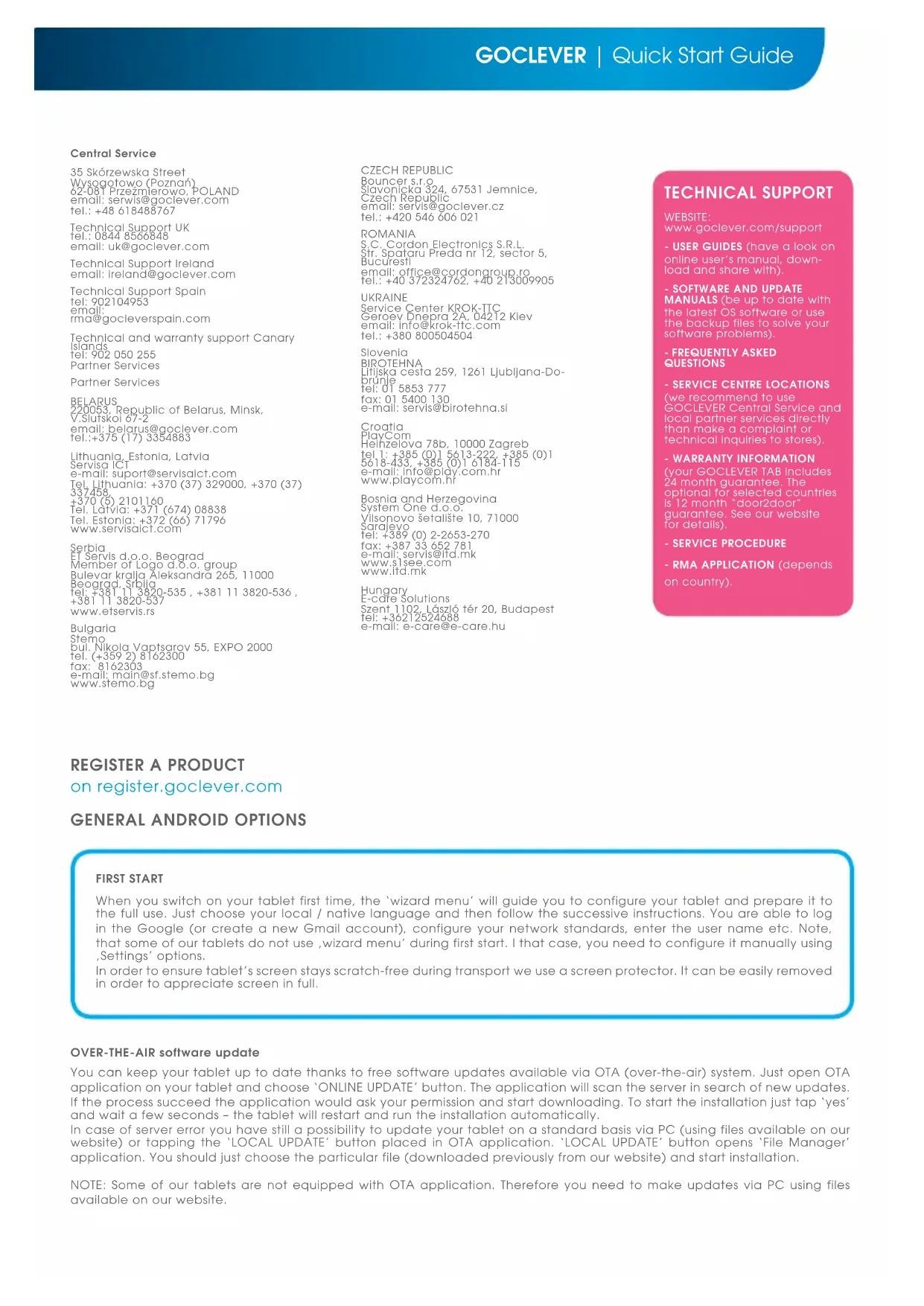


| Product type | Tablet |
| Brand | GoClever |
| Model | Quantum 700 S (TQ700S) |
| Screen | 7 inches (estimated) |
| Operating system | Android |
| Connectivity | Wi-Fi 802.11 b/g/n |
| Sensors | Accelerometer (likely) |
| Power | Rechargeable lithium-ion battery |
| Charger | 5V mains charger included |
| Battery life | Varies depending on usage |
| Update | OTA (Over-The-Air) and via PC |
| Reset | Reset button or long press on power button |
| Lock | By sliding lock |
| Customization | Wallpapers, widgets |
| Maintenance | Clean with a soft, dry cloth |
| Safety | Use original charger, remove protective film |
| Warranty | 12 months (subject to conditions) |
| Accessories | USB cable, charger, quick start guide |
Frequently Asked Questions - Quantum 700 S GOCLEVER
User questions about Quantum 700 S GOCLEVER
0 question about this device. Answer the ones you know or ask your own.
Ask a new question about this device
Download the instructions for your Tablet in PDF format for free! Find your manual Quantum 700 S - GOCLEVER and take your electronic device back in hand. On this page are published all the documents necessary for the use of your device. Quantum 700 S by GOCLEVER.
USER MANUAL Quantum 700 S GOCLEVER
Thank you for purchasing our product.
Read the warranty conditions and abbreviated manual before using the tablet.
Detailed instructions can be found at www.goclever.com
CONTENTS:
English p.1
Polski 1
yKpaHcbKa p.12
Italiano p.18
Slovenský p.24
Český p.30
Deutsch. p.36
Espanol p.42
Francais p.48
Portugues p.54
p.61
Roman p.66
Srpski p.72
Latvijas p.78
Lietuvos p.84
Eesti p.90
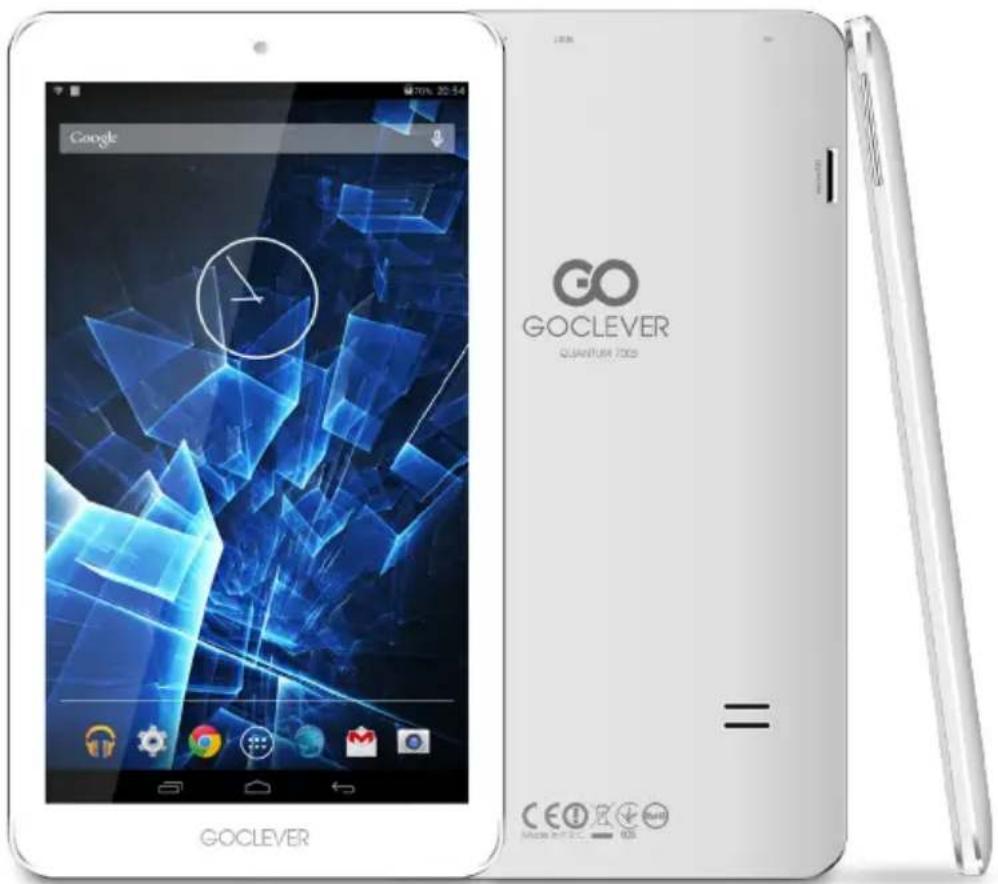
BRAND NAME: QUANTUM 700S
MODEL NUMBER:TQ700S
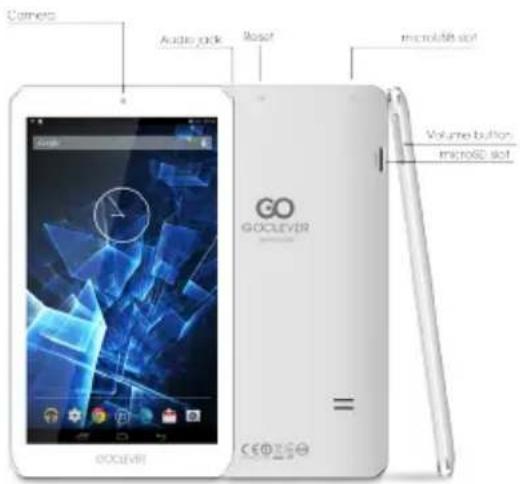
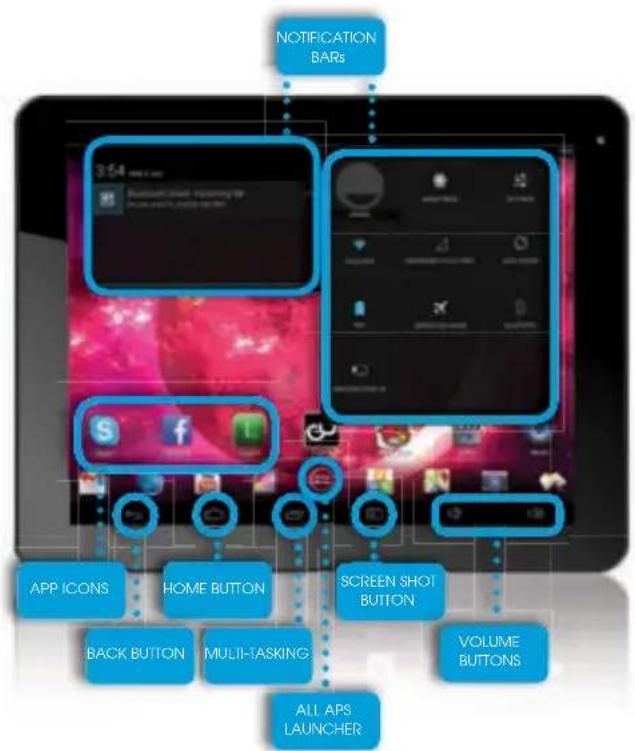
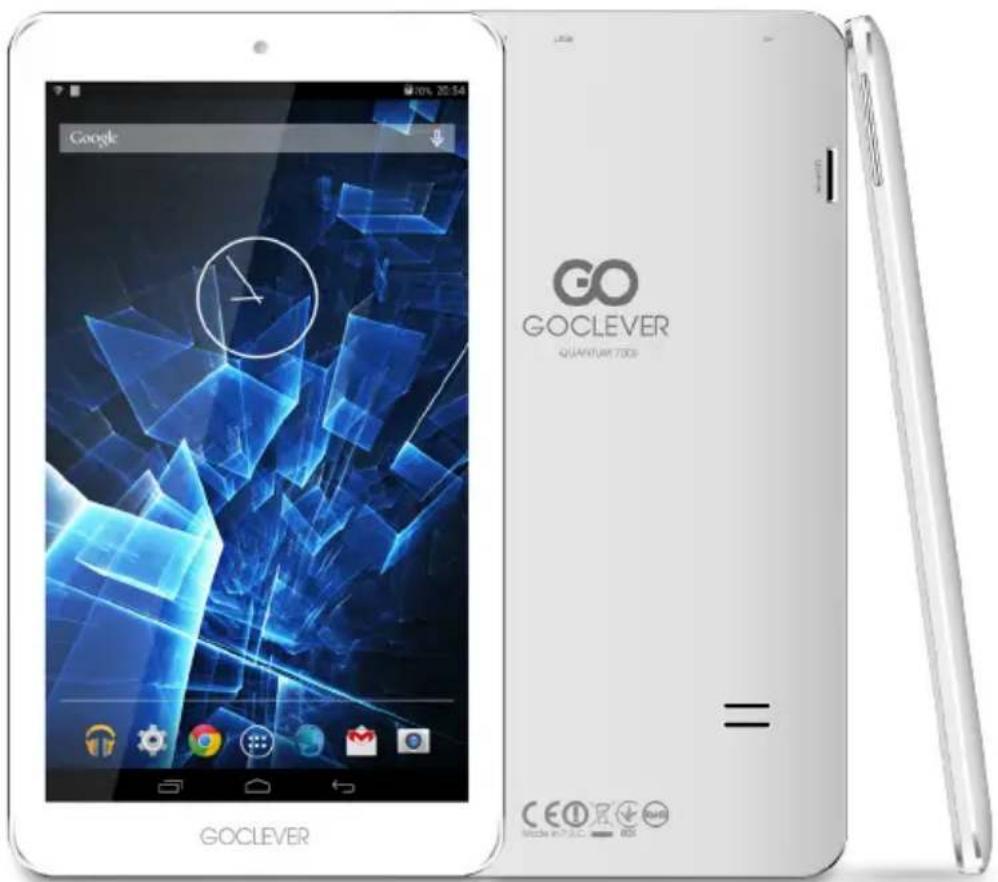
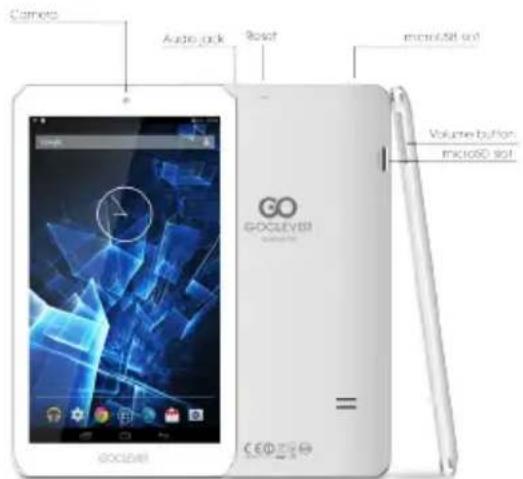
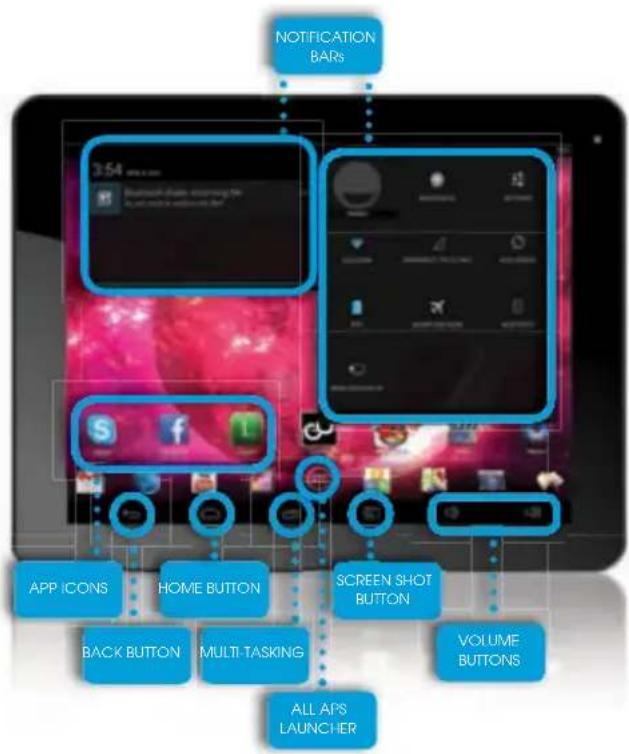
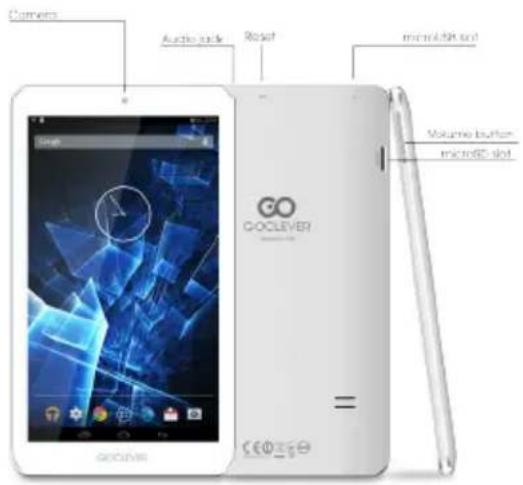
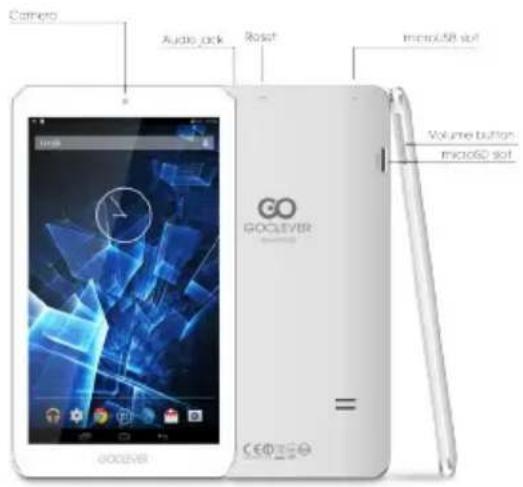
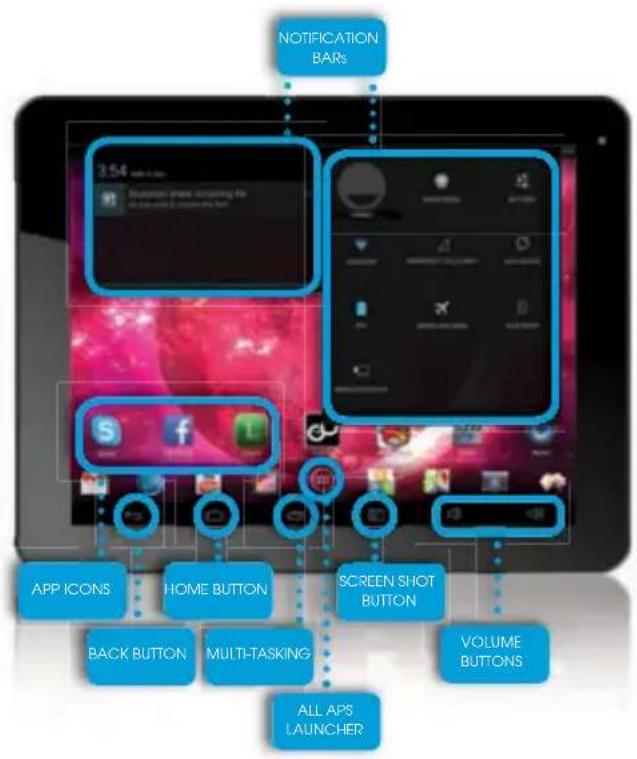
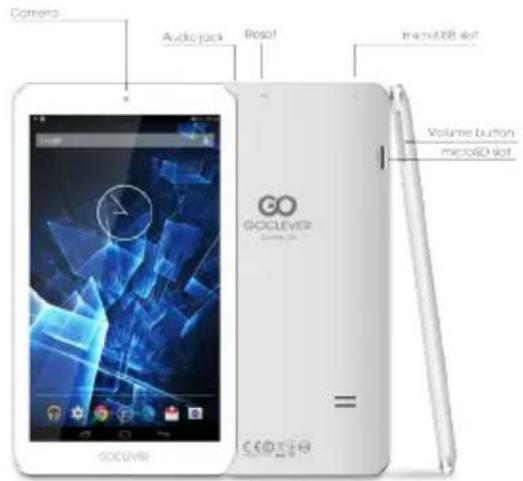
DEVICE OVERVIEW:
BACK BUTTON - tap to go Back to the previous screen
HOME BUTTON - tap to return to your Home Screen
MULTI-TASKING - tap to view the recent apps list; tap to open an app, or swipe to close it
ALL APPS LAUNCHER - tap to view all your apps and widgets
SEARCH - tap to open an online search engine
MICROPHONE - tap to search using speech recognition
APP ICONS - tap to open the selected application

SETTING MENU - tap to view all available options
NOTIFICATION BAR - tap and swipe the top left of your screen to view the notification bar, Informing you of updates, emails etc. Tap and swipe the top right of your screen to view the battery, Wi-Fi status etc.
WIZGETs - tap the 'All apps' button, then select widgets. These are small 'apps' that run on your home screen for instance showing live weather, photo gallery, new emails, you tube videos.
PERSONALISE - to change your wallpaper to a pre-loaded or downloaded wallpaper of a photo you've taken tap some blank space on your home screen and follow the on-screen instructions.
Central Service
35 Skorzewska Street
Wysogotowo (Poznan)
Technical Support UK
tel.:08448566848
email:uk@goclever.com
Technical Support Ireland
email: ireland@goclever.com
Technical Support Spain
tel:902104953
email:
rma@gocleverspain.com
Technical and warranty support Cangry
Islands
fei: 902 050 255
Partner Service
Partner Services
BELARUS
220053, Republic of Belarus, Minsk,
V.Sluktskoi 67-2
email: belarus@goclever.com
tel.:+375(17)3354883
Lithuania, Estonia, Latvia
Servisq ICT
e-mail: suport@servisaict.com
Tel. Lithuania: +370 (37) 329000, +370 (37)
337458
+370(5)21011601.0000000000000000
Tel.Latvld:+371(674)08838 Tel. Esterty: 370-66671786
Tel. Estofia: +372 (66) 71798
www.servisdci.com
Serbla
ET Servis d.o.o. Beograd
Member of Logo d.o.o. group
Bulevar kralja, Aleksandra 265, 11000
Beograd, Srbija
fei: +381 11 3820-535 , +381 11 3820-536 ,+381 11 3820-537
+381113820-537
www.eiservis.rs
Bulgaria
Stemo
bul. Nikola Vaptsarov 55, EXPO 2000
fel. (+359 2) 8162300
fax:8162303
e-mail:main@sf.stemo.bg
www.stemo.bg
CZECH REPUBLIC
Bouncer s.r.o.
Slavonlcka 324,67531 Jemnice,
Czech Republic
email: servis@goclever.cz
tel.: +420 546 606 021
ROMANIA
S.C. Cordon Electronics S.R.L
Str. Spataru Preda nr12, sector 5.
Bucuresti
email: office@cordongroup.ro
fel.:+40372324762.+4021'3009905
UKRAINE
Service Center KROK-TTC
Geroev Dneprq 2A,04212 Kiev
email: info@krok-ttc.com
tel.: +380 800504504
Slovenla
BIROTEHNA
Lifilska cesta 259,1261 Ljubljana-Do
brunje
fel: 01 5853 777
fax:015400130
e-mail: servis@birotehna.si
Croatia
PiqyCm Heinzelova 78b,10000 Zagreb
tel: +385 (0)1 5613-222, +385 (0)1
5618-433,+385(0)16184-115
e-mail:info@play.com.hr
www.playcom.hr
Bosnia and Herzegovina
System One d.o.o.
Vilsonovo setaliste 10,71000
Sarajevo
fel: +389 (0) 2-2653-270
fqx: +387 33 652 781
e-mail: servis@ifd.mk
www.s1see.com
www.ifd.mk
Hungary
E-care Solutions
Szent 1102, Laszlo ter 20, Budapest
tel: +36212524688
e-mail: e-care@e-care.hu
TECHNICAL SUPPORT
WEBSITE
www.goclever.com/support
- USER GUIDES (have a look on
online user's manual, down-
load and share with).
- SOFTWARE AND UPDATE
MANUALS (be up to date with
the latest OS software or use.
the backup files to solve your
software problems)
FREQUENTLY ASKED
QUESTIONS
- SERVICE CENTRE LOCATIONS
(we recommend to use
GOCLEVER Central Service and
local partner services directly
than make a complaint or
technical inquiries to stores).
WARRANTY INFORMATION
(your GOCLEVER TAB includes
24 month guarantee. The
optional for selected countries
Is 12 month "door2door
guarantee. See our website
for details).
- SERVICE PROCEDURE
RMA APPLICATION (depends
on country).
REGISTER A PRODUCT
on register.goclever.com
GENERAL ANDROID OPTIONS
FIRST START
When you switch on your tablet first time, the 'wizard menu' will guide you to configure your tablet and prepare it to the full use. Just choose your local / native language and then follow the successive instructions. You are able to log in the Google (or create a new Gmail account), configure your network standards, enter the user name etc. Note, that some of our tablets do not use wizard menu during first start. I that case, you need to configure it manually using Settings' options.
In order to ensure tablet's screen stays scratch-free during transport we use a screen protector. It can be easily removed in order to appreciate screen in full.
OVER-THE-AIR software update
You can keep your tablet up to date thanks to free software updates available via OTA (over-the-air) system. Just open OTA application on your tablet and choose 'ONLINE UPDATE' button. The application will scan the server in search of new updates. If the process succeed the application would ask your permission and start downloading. To start the installation just tap 'yes' and wait a few seconds - the tablet will restart and run the installation automatically.
In case of server error you have still a possibility to update your tablet on a standard basis via PC (using files available on our website) or tapping the 'LOCAL UPDATE' button placed in OTA application. 'LOCAL UPDATE' button opens 'File Manager' application. You should just choose the particular file (downloaded previously from our website) and start installation.
NOTE: Some of our tablets are not equipped with OTA application. Therefore you need to make updates via PC using files available on our website.
CHARGING THE BATTERY
Battery life depends on usage. Please note that only use an authorized charger (included) as incorrect voltage /am page can damage the GOCLEVER TAB, invalidating your guarantee. When the device is used for the first time we recommend you charge it for around 8-12 hours using the power adaptor provided and do not disconnect the charger until a device is fully charged. User can charge the battery when there is still power left. Note that while charging it is normal that both charger and tablet is heating up. If you hardly ever use the tablet, we recommend to charge it at least one per month to maintain a battery life. (24/03/2014 09:17:26) Anna Goclever: To cut time charging please charge tablet quantum 700m when screen is turn off.
When you charge and use tablet time charging can extend even to 6 hours.
TURNING ON/OFF
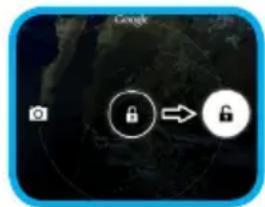
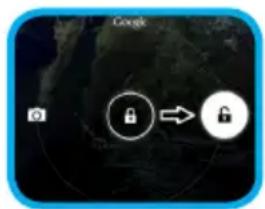
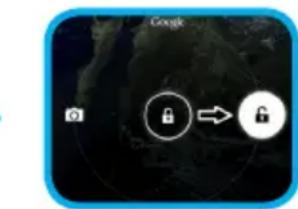
Simply press the power button for around 3 seconds and the GOCLEVER TAB will start up and display the lock screen. Slide the padlock icon to the right to unlock your home screen. Note: if the tablet is not starting, it probably requires to charge. To turn the device off simply press and hold the power button and press OK in the popup box that appears. Note: If you turn off the device all your running apps and documents will not be saved automatically.
STAND-BY MODE
You can put the tablet into standby mode by pressing the power button for 3 seconds. GOCLEVER TAB ups instantly by pressing the power button.
RESETTING
In case of software problemsyoucanresetyour tabletsimplypressingandholdingthe Start button for a few seconds. Second way, simply press and hold Reset' button for a few seconds till thedeviceturnsitselfoff.Theresetmodewillstart automatically.
FACTORY RESET
In the case where you lend/sell your device to somebody and want to delete all your personal data you can reset your tablet to the default settings. Please be aware that all your personal files, applications and data (multimedia, music, photos, videos) will be lost. If you hold SD card in the device's slot and want to keep your data on it you should remove the card from the tablet before a reset.
To make a factory reset simply press as follows:
- Settings
- 'Backup & reset'
- Factory data reset
- Reset tablet'.
UNLOCKING
To unlock your GOCLEVER TAB simply press a 'Turn off/on' button. The blocking means that your device will go to the stand-by mode. After unblocking you are able to return to your previews tasks/websites/apps/docs. In order to unlock the device simply type and hold the 'closed padlock' icon on the screen and slide to the right "open padlock" icon.
LANGUAGE OF USE
GOCLEVER TAB is delivered with English language by default. You can change it into your native language using 'Settings' icon.
- Unlock the screen.
- Type 'All App Launcher' in the top right corner to view all apps.
- Choose 'Settings', then type 'Language & input' and 'Language'.
- Choose your language from the list.
TOUCHSCREEN
The GOCLEVER TAB has a capacitive touchscreen so you don't need to apply pressure to the screen to make it work. Using multi-touch technology you can use a flick of your fingertips to operate the tablet. Do not use any sharp or pointed instruments to use the touch screen as this could damage the screen and invalidate your guarantee.
CERTIFICATE OF CONFORMITY

GOCLEVER Ltd, hereby declares under our sole responsibility that the product GOCLEVER QUANTUM 700S (model number TAB TQ700S) is in conformity with the essential requirements of the following Directives is declared:
EMC DIRECTIVE 2004/108/EC
LVD DIRECTIVE 2006/95/EC
R&TDE DIRECTIVE 1999/5/EC
The full document with detailed information is available on our website: www.goclever.com. You should simply find the product sheet in the GOCLEVER product catalogue and the .pdf file with CE declaration is placed among the bookmarks.
Please read our Privacy Policy and Cookie Policy at www.goclever.com.

MARK OF CONFORMITY - UKRAINE - National mark of conformity confirms that the specified product complies with the requirements of the technical regulations in Ukraine.
END OF LIFE DISPOSAL
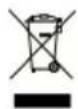
Recycling facilities are now available for all customers at which you can deposit your old GOCLEVER devices or any other electrical products. This is a requirement under European legislation (the Waste Electrical and Electronic Equipment - or WEEE - Directive 2002/96/EU). Customers are able to take any old electrical equipment to waste recycling public centers or point of sales. Please remember that this devices/cables etc. will be further handled during the recycling process. To remind you to recycle, all electrical products are marked with a crossed out wheeled bin symbol. This symbol is on all GOCLEVER devices.

CONDITIONS OF WI-FI USAGE
When using the IEEE 802.11b/g/n Wireless LAN standard, channels 1 to 13 (2.4 GHz...2.4835 GHz) are selectable for both indoor and outdoor use, however with restrictive conditions applying in France, Italy and Norway, as follows: France: When using this product indoor, all channels can be used without restrictions. Outdoor only channels 1 to 6 are allowed. This means that in Peer-to-Peer, the WLAN feature can only be used outside if the peer sets up the communication on an authorized channel (i.e., between 1 & 6). In infrastructure mode, please make sure the access point is configured to a channel from 1 to 6 before setting up the connection.
Italy: Use of the LAN network is governed: Disposal of Old Electrical & Electronic - with respect to private use, by the Legislative Decree of 1.8.2003, no. 259 ("Code of Electronic Communications"). In particular Article 104 indicates when the prior obtainment of a general authorization is required and Art. 105 indicates when free use is permitted; - with respect to the supply to the public of the WLAN access to telecom networks and services, by the Ministerial Decree 28.5.2003, as amended, and Art. 25 (general authorization for electronic communications networks and services) of the Code of electronic communications.
Norway: Use of this radio equipment is not allowed in the geographical area within a radius of 20km from the center of Ny-Alesund, Svalbard.
WARRANTY TERMS: General warranty terms are available on your local GOCLEVER website.

WARRANTY CARD
DATE OF SOLD:
DATE OF MANUFACTURED:
BRAND NAME OD PRODUCT:
SERIAL NUMBER:
DEALER'S NAME / STAMP
SIGNATURE
Date and customer's signature
Repairs history
| Date | Confirmed defect | Made repairs | Servive sign and stamp |
QUICK
Start Guide
CONTENTS:
English p.1
Polski p.6
UkpaHcbka p.12
Italiano p.18
Slovenský p.24
Český p.30
Deutsch. p.36
Espanol p.42
Francais p.48
Portugues . p.54
p.61
Roman p.66
Srpski p.72
Latvijas p.78
Lietuvos . p.84
Eesti p.90
NAZWA HANDLOWA: QUANTUM 700S NUMER MODELU: TQ700S
PRZEGLAD PRODUKTU
PRZYCISKI NAWIGACYJNE
STRONA: www.goclever.com/support
E-MAIL: serwis@goclever.com
DYREKTYWA EMC 2004/108/EC
DYREKTYWA LVD 2006/95/EC
DYREKTYWA R&TTE 1999/5/EC
UTYLIZACJA I RECYKLING
OGOLNE WARUNKI GWARANCJI GOCLEVER
NOBEPHYTNCHA NOYATKOBYCTOPIHKV (HOME
BUTON) - HATNCHTb, 106 NOBepHyTnca Ha NpOaTKOBy CTOpIHky,
MVJbTH3ADAHICTb (MULTI-TASKING) - HATMCHITb, 006 neperlaHTy HneoAdBHO BKNOPCTOBaHni nporpamn, 3HOBY BIDKPNTY NIN 3AKPTN IX.
CIMCOK PPOPM (ALL APPS LAUNCHER) - HATNCHTb, ⅢO6 neperJHHT CINCMC yic nporpMa Ta BijKeTIB.
NOWUK - NaTnCHITb, 106 nepenB N nowyKoby OH-NAH CNTMETH.
MIKPOOHO-HaTNCHTb,u6bYBMKHHTnToNcoOBmNoIyK.3HAOKPNOPTAMH-HaTNCHTb,u6bBIDKpNTnOpaHynpoPTAMy.
KOHTPOJIb XJBJEHHA (APP ICONS)-HATINCHITb, u06 yBMKHNyT CnueiJbHy Ouio WBNDKORO BIMKHENH/ yBMKNHEHNn PnCTPNO.
MEHIO HAIJWITBAHb-HaTnciTb,io6 Perjhytn cnncok onui.
PDAOK CNOBIUEHb (NOTIFICATION BAR) - HATNCHTB
i npoBeiB no BepxHn IbIy qactHnE ekpaHa, o6o nOaBnTcnaHJI OHOBeH, eJekToPNOIOTn ToO. HatncHtB i npoBeiT no BepxHn npaBI yactHn EKpaHa, o6o nOaBnTc cTATyC zapAKn 6Baapei, Wi-Fi ToOo BIxDkETN - HAtncHtB Ha cInCOK BCIX nporpAM Ta o6eipTB onUko BidXETn. Lc nporpAMn, kI Bi MoXe TpeHeCTN Ha NoatKOB cytoINky (a came, nporH03 norOdn, fotoranepper, HOBI eJekToPHi NOBIDOMneHH, Bdeo 3 you tube).
NEPCOHAI3ALIJI -JRA TORO,063MIHNuIaNEpHATNCHb HA BInbHOMy MCIHa HNoHTKOBIc TcOPIU TaDOTPMUYTECb HCTpyKJ.
TEXHIIHNAIITTPMMA
BEBCAIIT: www.goclever.com/support EJEKTPOHHA CKPHbKA
YBIMKHEHH/BUMKHEHHIPINCPTPO
Utpmyte KhoKy JxBHeHH npTAROM 3 cekHyd, 06 yBIMKHytn npCTpi. 06 po36nOkyBaTH nEcpaH, nepecyhTe 3AMOK BnpabO. 3BepHtbyBary: kIIO npCTpi H BmkaetbCz, ce Bka3yE, 0 npCTpi pO3pJxHn. 06 BmKHytn npCTpi, hatncHtB KhoKy JxBHeHH Ta hatncHtB OK> y BnpHaOomy BiH. 3BepHt byBary: npn BmKHeHHi npctpoio Bidkpti DokymeHTn i nporpaMn He 36epexyTcBA TOMaTHHO.
PEKIM OUYKBAHHA
HaTnCHiB KhoNky XKuBHeHH, 06 nepeytn B pexm OiycbHH. HaTnCHiB II 3HOBy i npCTpi BnDe 3 pexmy OiycbHH.
NEPE3ABAHTAXEHH
B pa3i nomunk nporpamhoro 3a6e3neueHH, BN MOKTe neKeIpe3aBaHTaxnT npCTpi, yTpmyuOHN KONky Pnyck npotarom dekiibkoX cekyHd, nOKn nnAanweT He BmKHeTBcR. PeXIM nepe3aBaHTaxhenr po3nochETbcra ABTomatUHNo.
BIDHOBTN 3ABODcBKI HANAHTYBAHH
Y BnnaKky, kOni BN no3nuaTe qy npdaTe npncTpi, Ta 6aJaaTe cTeptn BCIO OC06ncty iHOpmaio, Bn6epitb onuio BiHOBnHn 3aOcbknx HanaWtByaHb. Pn ciBomy Bci Bawi oc06ncti faHIn, nporpaMn Ta daHI (foTo, BiJeO, My3Nka, MynbTmMedia) 6dyTb BTPaHEni. RaYo npncTpo MiCTntbc KapTKa Na'rti 3 daHmN, Aki BN XoUeTe 36epeRTH, BNTraHITb II 3 nnAHeTa nepeD Tm, AK NoaTu BIDHOBENHRA ZBOcBckn HanaWtByaHaB.
Uo6BIDHOBTN3aBODcBkiHanaWtYBaHHn,NOTpiHoHaTNCHTN:
- 'Settings' (HanaTyuBaHHa)
- 'Backup & reset' (Pe3epBHe koniIOBaHHra Ta nepe3aBaHTaXeHHra)
- Factory data reset' (BidiHObUTn 3aOoDbKi HanaWtYBaHH)
- Reset tablet' (Ipe3aBaHTaxnTn nHaHwET)
PO36JOKYBAHH
06 po36nokybatn nlaahwet GOCLEVER npocTo HATNCHtB knaibuy jknBHeHH. Npeed Bamn 3'ABITBCa36nOKOBAHn ekpah. Ue O3NaHTMme, uo npntpi nepe6yBaE B pexmOchkybaHH. NiCnToro, Rk Bu po36nokye eKpaH, BN MaTe 3MOry 3HOBy nepeuTn Do 3AbaHb, nporpam Ta DokymehiB, 3 Akmn npauoBaan Do TORo. 66 po36nokybatn ekpah, HATNCHtB naIbuem T nepetraHtB 3AMOK Bnpabo.
CEPTNΦIKAT BIDNOIBHOCTI

KomnaHia GOCLEVER 3aBnE npTo, 1o II npOyKT GOCLEVER QUANTUM 700S (Homep moJei TAB TQ700S) BiIObiae BCIM BaxJIbHM BmOram Ta noIooKeHHMaCTynHnx dIpeKTHB:
EMC DIRECTIVE 2004/108/EC
LVD DIRECTIVE 2006/95/EC
R&TDE DIRECTIVE 1999/5/EC
DeTalbhiwa iHΦopMaia MiCTHTbcra Ha Hauwomy Be6caaTi.
PpounTaTe, 6yNb nacka, hawi npabnla odo BnKOpncTahnHa Cooke Ta npnbatnocti Ha haowmy caTi www.goclever.com.

Dana npodykui 6yna ceptnifikobaha Ha BiinobiHicb RoHS.

3нakякоcti - YukPAlHA
HaiohaBn 3nak BiDnOBiDnOCTti nIaTBepKye, 0o 3a3NaueHn npOyKT BiDnOBiDae BmOram TexHnHex pernaMeHTB yKpaHi.
YTNJI3AUJIA
UeHTpy ytni3aui 6nlaHannr Tenep doctyni Ira BCix nokynic. TyT Bu mokeTe 3dTu Bau npncptpi GOCLEVER nn iHni dNbaCNI, BiIDNOBIOHO do eBPOneCBknx BmOR (npo ytni3aio eNEKtpnuHoro Ta eNEKtpoHoro yctatkybHH - a60 WEEE - DnpeKTnBa 2002/96/EU). NOKyneb MaE MOxJIbICt b 3dTu 6yDb-aje Ctape o6naHaHH/ KaBeI B taki cneuaIbHI nyHKTI npniOmy. HaraDyBaHH npo ocO6JIbY ytni3aio mictntbcra Ha npOdykTx y BnIgdi nepeKpecHeHOro MycOpHOro KOHTeHepa Ha Konecx (u no3NaKn E ha Bci npOdykii GOCLEVER).

OCOBINBOCTI BKNOPNCTAHHRIWI-FI
BukopncTaHn 6e3dpoToboi Mepexi (IEEE 802.11b/g/n) B deaKnx KpaiaHax (PpaHci, Itaiy, Hopberia) Ma cBoi oco6JIbOcTi:
ΦpaHiz: B 3aKpUToMу npmIiSeHi Do3BOLaIeTbCByNKOpNCToBvBaTn Bci KaHann. Ha Bynui zi Nlwe 3 1 do 6. Y pexkmi iHpactpykTpyu, 6ydb Iacka, nepekoHaItecra, 10 Tocka DocTyny HalaWTOBaHa Ha KaHan BiD 1 do 6 nepeh HalaWtYBaHHm 3'EDHaHH.
Itaiia: BnKOpncToByTe Mepexy RLAn: Ytunizauia cTaporo eNektpuHoro Ta eNektpoHHoro 6naHaHHa - npBaThe BnKOpncTaHH 3riDHO 3akOHoDaBuro Yka3y 1.8.2003 Homep 259 (,KoJeKc eNektpoHHx KOMyHikaui). 3okpema B CTATTI 104 NdeTBc npo Te, 10 noTpi6eh Do3Bil Ha BnKOpncTaHHa, a B CTATTi 105 3a3Hauaetbcra, KOJI Do3BOJraTbcra 6e3KoWTOBHe BnKOpncTaHH Mepexi.
Hopberia: BnKopncTaHHy cboRo 6bnaHann He dOnyckaetbcra y reorpaqiHi 30HI b paDiYci 20 KM BiD ceHTpy Ho -OlecyHH, UniucpeRn.
YMOBNapaHTII
Ha niDCTabi DaHoro TaIOna rapaHTyEcBcBnCoka kKcTb, i 6e3dOraHne yHKcioHyBaHH BnPo6y, 3a yMOB nOtpMaHH npabNl ekcnnyatauBkazAHnx B IHCTpyKcii KOpNCtByaHa. Zm rapaHTiHm TanoHom NiITBepdxKyEc CnpaBHicTb cboRo BnPo6y i 6peTbcra 306OB'3aHH 3 6e3KoWTOBHO YCyHeHH BCIX HecnpaBHocTe, 10 BuHNKn 3 BuHn BnPo6Hka, npotrrom 12 Miczib 3 dH npodaxy. 1. rapaHTiHi 306OB'3aHH DInChi np DToPmaHH HaCTynHx yMOB:
- HaBhictb po36ipnbo i B nobHomy o6c3i 3anOBHeHOro rapaHTInHOro TaIoha;
- HadaHH npuctpoB NOBHOMY KOMnkeKti;
- Be3koTobHn peMOHT npoBOnTncr TlIbKn npOTraGM rapaHTiHOrO TePMHy 3a3HaueHOrO B rapaHTiHOMy TaHOHi.
- TpaHcnpTyBaHHHecnpabHoro Bnpo6y B cepBichN 3diChHOETbC KJIeHTOM 3a NOro paxyHOK.
- Bupi6 He niiIrae rapaHTiHomy peMOHTy B HAcTyHNHX BUnaDKax:
- BnKopncTaHHn npncToPO He 3a npn3HaueHnM; npuyenHn npabIN ekcnIyatau a6o 36epirAHn Bnpo6y;
- HaBhICTb MexaHuiHnx yuKoJxHeB (BM'YTuHn, TpiuHn, NopRpHnH), cIiDIB peMOHTHX po6iT, po3KpTTT I T.;
- HaBhictb NowkoJxHb, BnKlnkaHnx CTxieO (doi, BiTeP, 6nckabka i T.d.), noKxeEIO, nObyTOBmN fakTopamn (HaMipha Bonorictb, arpeCnBHe cepedobnue, 3aunneHcIb tT.d.);
- BnKOpNCTaHnB Bnpo6y 3 npuyenHnM npabn ekcnnyataci, BiNobiDHO Do texhiHoI Dokymentaui Ha Bnpi6;
- Pemont Bnpo6y Oco6oH He ynoBHOaKeHoIO Bnpo6HnKOM;
-HaBhicb ycepeHHi CTOpOHHX npeMeTIB, pIDH a60 KOMax; - NowkoJxHnA6o BiCyTHICTb NlOM6 (ctikepiB);
- UcTaHOBka nporpaM 6e3 Do3BOJy Bnpo6Hnka, MoDnΦiKaIg InporpaMHoro 3a6e3neueHHra;
- HenpaBnIbHa yCTaHOBka BnpO6y;
-Пдклочень Виpo6у Дпсравно, lo He BiДnobiDAe CTaHdapTaM a6o TexHiuHm BmOram Ha Bpi6 6optoboi Мереки КИВLEнн (6optoboi Мереки abTomO6iI);
-BukopncTaHHHeopnHaJIbHnx akcecyapib; - BiDcyTHiCTb rapaHTiHoro TaIOna, HeBIDnOBiDHiCTb MoDeni Ta cepiHoro Homepa BnpO6y Bka3aHnx BrapaHTiHOMy TaIOnHi.
- Tapaantia He nooipioeTbcra Ha nporpaHne 3a6e3neueHH, 36epexehn DaHnx Ta KOhphiirpaqio napametpiB HanaTuBaHb. Tapaantia Takox He nooipioeTbcra Ha mikpocxemn, 0o BiNIOBIAIOTB 3a po6oty nepupeiHoro 0bnaHaHH (Bideo BxID / BxID, noptn i T.d. IX npaue3dathicTh Heo6xIDHO nepebiprtn npn okynci).
- rapantia He nownipocbca Ha Bntpathi Maepiaa Ta akcecyapn (abTomobinbhi i Mepekebi 3apdKn, Tpmaayi, ka6eni, enemEnk pinnenHny, nybTn dncanuHorO kepybaHH a T.d.), a taKoN npuyeneHH npaace3daTHOCTI, BKNikKaHI HopMaJIbHM 3HOCOM.
- TapaHTiHn TepMIn Ha akymyIaTOpHi 6aTaPei, 10 BxOJaTB B KOMnNeKT Do npncTroB, cKnadae 3 (TpN) Micraui.
- 3amHa MaTpui (PK-dncnnej) y npucTrooi npoBodntbcra npn HaeBnocti 10 rpyn no 1 tocu, a6o 3 rpyn no 2 toku, a6o 1 rpynu no 3 toku.
- Y rapaHTiInHe 06cIyROByBaHH He BXoINt b HauHHaMOBnKa po6Oti 3 npd6aHm O6JaHaHHaM.
- Tepmin rapaHTiHoro pemOnTy moKe 6yTu npOIOBKeHn, 3 oOB'3KOBm ONoBIeHHrM 3AMOBnKa, uepe3 3aTpIMKn imNoptTy 3anaChnx qactnH, a Tak camo uepe3 iHsi, HenepeD6aueHi 6cTaBnHn, IHO He cynepeuatb 3aKohy npo 3axnct PpaB CnoXnBaaya.
- Tepmin cnyx6n Bnp6y - 2 pokn.
TAPAHTIHH TAIOH
DATAIPODAKY:
DATA BINGOTOBJEHHN:
MODEJIb PIPCTPOIO:
CEPIHNI HOMEP:
MARK OF CONFORMITY - UKRAINE - National mark of conformity confirms that the specified product complies with the requirements of the technical regulations in Ukraine.
MARK OF CONFORMITY - UKRAINE - National mark of conformity confirms that the specified product complies with the requirements of the technical regulations in Ukraine.
LIKVIDÁCIA NA KONCI ZIVOTNOSTI
Pre vsetkych zakaznikov su k dispozicii recyklacne stresdiska, v ktorych mozte zlikvidovat vase zariadenie spravnym sposobom. Toto je poziadavka Europskej legislativy (Waste Electrical and Electronic Equipment - alebo WEEE - Smernica 2002/96/EU). Zakaznici mozu odniest stare zariadenia na zberne miesta alebo na miesto predaja zariadenia. Pamatajte, ze toto zariadenie /kable atd. budu d'alej spracovanoe pocas procesu recyklacie. Pre pripomenutie recyklacie je zariadenie označené symbolom preskrtnuteho koša. Tento symbol je na vsetkych zariadieniach GOCLEVER.

PODMIENKY POUZITIA WI-FI
to the other device (pendrive, PC etc.).
Záručný list
MARK OF CONFORMITY - UKRAINE - National mark of conformity confirms that the specified product complies with the requirements of the technical regulations in Ukraine.
LIKVIDACE NA KONCI ZIVOTNOSTI
PODMÍNKY POUŽÍVÁNÍ WI-FI
PÁGINA: www.goclever.com/support
E-MAIL: rma@gocleverspain.com
TELEFONO: 902104953
Canarias:
TELEFONO: 902 050 255
REGISTRA EL PRODUCTO en register.goclever.com
PRESENTATION DU PRODUIT
BOUTONS DE NAVIGATION
SITE: www.goclever.com/support
E-MAI:
office@goclever.com
serwis@goclever.com
ENREGISTERRELEPRODUITSURregister.goclever.com
MISES A JOUR DES LOGICIELS
PÁGINA: www.goclever.com/support
E-MAIL:
office@goclever.com
serwis@goclever.com
ELIMINACAO E RECICLAGEM
Homep Mojenn: TQ700S
0630p yctpoiCTBa
HABITALMOHHBE KHONK
KhonnKa Bo3BaTApnB03BpTa B npdeIyuee MeHIO
HOME -KnaBnua DnB O3BpTa B OCHOBHe MeHIO
DincreThep -KhONKa DnI npocMoTpa HeaBHO
NCIOJIb3OBAHHbIX pInNOXeHn; HAXMITE, YTO6blOTKpbIb/3aKpbIb pINNOXeHne
DucnTeHep Bcex npInoxKeHH - Haxmte, TTo6bl
OTKpbTb BCE npnNOXeHn IN BNDKETbl
Pnck - KlnkHnTe no npNky, TTo6bI OTKpblb OHnAH - NOKOBIK
Mnckpooh -knKHTe no IKOHKe dpaCNO3HOBAHpeu
MIOKHNnPpNOXeHn - HaxmTe DnBb6opa npNOXeHn
Khojka nHTaHnay -ydepXHBaTe DaHHyo KlaBnuy B TeHuHHe HeCKoJIbKHX CekyHd IaI BKIOUeHn/ BblkIOuEHn yCTPOCTBA
MeHnHaCTpoek-ncnObl3yETcIaI npocMOTpa BceX mEIOUxNcHaCTpoek
YBeDMnEHNAHXMITE INPPOBEdtne NO BepxHei
IeOBu cactn 3kpana, YTObI NocMOTpeb naHEn
6HObENHn, 3JIeKTPoHNOHnOHTBI nAp. HaxMMTE n
npOBedte No BEXPHN npABoN qACTn 3KpAHa, YTObI
NoCmPTpeB CTATYC 3apJKn 6atapEn, Wi-Fi nAp.
BnKETbl - KNIKKHNTe HA CnCOK pnpIOXeHNn,
nocNEero Bb6BepTe «BnDjEeTb」, To He6oBnue
npINOXeHN, KOtPBIE BbBOBdTCa Ha DomauHIOIO
CTPAHUY nOToBPaxaON TAKNe DAHhBe, KAK NorOda,
noTHa, FOto ranepey, youtbe bIneo ndpyrne.
NepcoHaHn3aun -NCNoB3yETcra nI3MeHenrO 6o0eB pa6oery cTOna (Kak nya YCTAHOBKn yKe ImeHOxCBA NAMTNYCTPOINCTBa,TAK IN3aRpy3KN HOBbIX). TaKke nna Bb6opa OoEB KInKInHe NO CBO6OHOmy npoctpanctBy Ha pa6ooyem CTJle, NoCle NOBHeHN HAnloroboro OKHa, CNeDyHTe IHCTpykUn.
Texnuecka nopekk
Be6-cain: www.goclever.com/support
Benapycb
220053, MHHCK
V.Slutskoi 67-2
belarus@goclever.com
+375(17)3354883
3apernctpnpyte Baw npodykHa caite: register.goclever.com
Perncpaunna npodykta Ha caTte daet 60nbwe BO3MOXHOCTe!
Blaorapum Bac 3a Bb6op npodykunn GOCLEVER! Perncptaun yctpoecBa Ha caTe 3aimet HacKobko MmHyT, Ho oTKpoet 60nbue BO3MOXHOCTe.
IpeenTe Ha caT: www.goclever.com n y3HaTe 6oNbwe.
He ynyctnte wanc nolyuHTb bIroDhble npednoxehn oT npOn3BODnteJr:
12 MecraeB rapaHTnHoro 06cnykBaHHa,
CobetbI NO camocToTeBHOmy yctpaHeHIO npo6nEM nTexHnuecka noDepKka,
HaHOMHHaHnO6OBHOBHeHNIPO (nporpaMMHOro oBecepeHnA),
3KCKJIIOHBHbI 063Op HOBbIX yCTPOIcTB,
CneuaJIbHbIe npedNoxKeHn n akun - cKnDkn do 30 % (dna OTdeNbHbIX npOdyKTOB)
-5ecnnahtbIe 6HOBneHnKapT (DOnonHntenbHO)
OchOBhble onepaunn Ira cnCTembl Android
NEPBBI3ANYCK
Pn nepBOM BkIoueHIn yctpoiCTBa, nCNoIb3yIte MacTe yCTaHOBKn}, yTO6bl HAcTpOntb PnAHeWet IJn DaJIbHeHWe pa6oTb (CneIyTe IHCTpyKzIyM). Bb6epnte Heo6xOIMbmy 3bIK BBOA. BoINITE B Google (nn Co3aIte yUeTHyIO 3AnCb GmIl) dJr BbIXoDa B Cetb INTEpHET n NOlyeHnN IOCTyna K pInIOKeHnM. CNeIyTe INCTpyKcIyM. O6paTIte BHNMaHne, YTO HeKOTOpBle PnAHeTb He OChaSeHb MacTePOM yCTaHOBKn}. B TakOM cIyae, HAcTpoKN HxKHO BInOJIHNTb BpyHyIO C NOMOuBIO MeHIO NaCTpoE.K.
B cIeJx oecneueHn 3aunTb 3KpaHa (BO n36exaHHe zapanH), Ha yctpoNCTBe NMeETcra 3aunTHa nnEHa, KOtopyo npn Heo6xOdmoCTn moKHO IerKO ChrTb.
06HOBJIeHHe nporpaMMHoro 06ecneueHHa (IIO)
BecnnaIbIe 06HOBLeHIn nporpaMMHoro 06ceueHHnI c nmoUbO cnCTembl OTA (Over-The-Air).OTKpOte npINOKeHne «OTA » (Over-The-Air) n HaxMITE «Online Update» (OnlaiN - 06HOHeHne).PnpIOxHeHne OTO6pa3NT CNICOK DOCTynbIX 06HOBeHnI. PnI 3aRpy3ke 06HOBeHn I NOTBepHnTe, yTo BBy DeECTBnTEbHO JcEJaTe 3aYcTnTb IpOeCC. HaxMITE «Ok» nnoOJdTe HeCKONbKO cekynd - PnAHeT BvINOpHN Tpe3arpy3ky n ABtOMaTIueckn 3aYcTnT IpOeCC 06HOBeHnI.
B cnyuae, korga o6HOBHeHn He haindeHb, nporpaMMHoe oecneueHne MOxHO 6HOBHTb Ha cTaHapTHoO chOBe chee3 PIK (c nCnoJIb3OBAHNEM paJIOB, DOCTyINbIX Ha Hawem caIte) IIN HaxaTb KhoNkY «JokalbHoe 6HOBHeHne», KOtOpoe HaxoDITcB pInIOJeHHN «OTA». 3aTe m HaxMnte «Ducneteep paJIOB» (File Manager), Bbl6epnte KOHKpeTbI aI (ckayAHhPi pahee) n HauHNTe yctahOBky.
PIMMEUHHE: He BCE yctpoiCTBa OchaaenbI npnloKeHHem «OTA». B cnyae oTCyTCTBna DAHHORo npnloKeHHa OBHTe nporpaMMHOe 0ecneueHHe uepe3 PK c nomoBIO paINOB, DocTyNHbIX Ha haawem caHTe.
3apkaakkymlaTOpHoi6aTapen
Cpok cnky6b aKKyMylatopHOn 6aTapen HnpanMyIO 3aBnCt OT npabunbHocTN ee nCnoNboAHn. O6patnte BHHMaHne, yTO npOIm3BOJNTeB rapaHTnpyET nCpabHyIO pa6OT ToIbKO opnInHaJIbHbIX 3apRdHbIX yCTpoiCTB GOCLEVER. Npepa NEpbblm pinnmeHHeHem peKoMeHdyETc3 3apRdHbYCTPOICTBO WteueHE 8-12 cOBn He CHMaTb yCTPOICTBO C 3apRdKn, noka OHO NoIHOCTbIO He 3apRdTCB. B npOceCE 3apRdKN KAK PAnHWeTHbIK KomlbIoTeP, TAK N 3apRdHoe YCTPOICTBO MOrTy HArpeBaTbc3. 3To HE OnaCHO. Pp npeKOM nCNoBBoAHn YCTPOICTBA pOn3BOJNTeB peKoMeHdyET 3apRzKaTb erO xOTb pa3 B MecaU BO n36ExAHn HeNCpabHocTN aKKyMylatopHOn 6aTapen.
BkIOueHne/BbIKIOueHne
YdepknBary KhoNky NtTaHnB TeueHne 3 cekyH, Bbl BkLIOUHTe yctpoCTBO GOCLEVER, 3KpaH yctpoCTBa 6ydt B pexHMe 6NoKnpOBKn. CkOJIb3aIIM DnBKeHem naJIbIa nepeTaunTe IKOHNy 6NoKIpOBKn BnpaBO. O6paTte BHMmaHHe: eCNI yctpoCTBO He BKNIOuAetcR, BepoTHO, erO HxNHO 3apdntb. IInr BkLIOUChEny uCTPOCTBA HaxMITE Ha KhoNky NtTaHnI ydepXnBaIte ee do noRaBHeHn DnAnorOBo r OkHa, rDe HxNHO 6yDet NoITBepdntb BkLIOUeHHe. O6paTte BHMmaHHe, UTo npB BkLIOUeHm pa6OtaIoUne npInloKeHH, OTkpblte DOKUMENTb ABTomatueeckn He coxpaHraIOTcra.
PexnOxuaHna
YTo6bI AKTHBnPOBaTb peXm OxuHaHry, yDePknBaTe KhoNky NtAHnRA B TeueHne 3 cekyHd. YcTpoiCTBO GOCLEVER TAB MRHOBeHHo BepHeTcK paBoTe, KOrda Bbl NOBTopHe DeHCTBne. DokymeHTbI ABTomaTHueCKn He COxpaHnOTc.
Tepe3arpy3ka
B cnyae kaknx-nin6o npo6nem c nporpaMMhBM o6ecneueHnem (3aBncaHne), nepe3arpy3nTe yCTpoiCTBO, ydepKnbA KNONk NITAHN B TEeHHe HcckOlbKnx cekyHb. BTOPOI CnOCo6: ydepKnbAte KNONky nepe3arpy3kn B TEeHHe HcckOlbKnx cekyHda, noka OHO ABOtOMaTHueCKn He BbIKIOuHTcra. ABToMaTHueCKn BKIOUHTcpeXmC6poca.
C6poc daHbIX/BOcCTaHOBJIeHne 3aOBdCKnx HacTpoek
EcnBbXeNaTe nepeaTb KOMy-Im6o CBoe ycToIcTBo 6e3 Co6CTBeHHbIX faiIOB N DOKymeHOB, BInOJIHnTE «C6poc HAcTpoeK, TeM CaMbIM Bbl BOCtAHOBNTe 3aBODcKne HAcTPOKn IOn yMOJUHaHIO. Bydte OCTopoKhbI, NoCKoJIbky BCE daHHbIe (MylbTmmeHa, DOKymeHTbl, KapTHKN, BnDeo, ayNo, KOHTaKTbl) 6ydt yTePraHbI. EcnBbl He xOTnTe cTepeTB daHHbIe c SD KapTbI, He 3a6yDbTe n3BneYb ee neped TEM, KaK BOCCTAHOBNTb 3aBODcKne HAcTPOKn.
ДяВOCCTaHOBHeHЯ3aBOdCKnx HAcTpoEK,СeIyIte HNcTpkyKUn:
1.《HactpoiKn》
2. «ВocstahOBJIeHne n c6pocr»
3. «ВocstahOBJIeHne 3aBODCKnx HacTpOeK»
4. «C6poc hactpoek»
ChTne 6JIOKnpOBKn
Дя сягия 6лOKировс yctpoiCTBa GOCLEVER TAB haxmite Ha KhoNKу nHTaHnry n, yedxnbay naIbueM IKONky 6lOKipOBKn, ckOJIb3aUIM DBIXeHEm nepetauuTe ee Bnpabo (cm. pnc.). 6lOKipOBka - yctpoiCTBO HaxoJNTcB P pexkme OxNiDaHn. NocTe toro KaK yctpoiCTBO pa36lOKipOBaHo, OHO rOtOBO K pa6ote, Bbl moKete npocmoTpeTb nocJeHne OKkpblte npINOKeHn/Be6-CTpaHnCb/DokyMeHtBu n dp.:
CERTIFICADO DE CONFORMIDADE - PAÍSES DA UE
C
GOCLEVER Ltd. 3aBnEe, yTo n3dene GOCLEVER QUANTUM 700S (Homep moen TQ700S TAB) noHocbcoOTBetCTByET OCHOBHbIM Tpe6oHaM cIeDyUxN dapeKTHB:
EMC DIRECTIVE 2004/108/EC
LVD DIRECTIVE 2006/95/EC
R&TTDE DIRECTIVE 1999/5/EC
C noDpO6Hoi IHΦOpMaueNe MoXHo O3HaKOMnTbCra Ha caIte: www.goclever.com.
OdyKT paCnpocTpaHraTeTc DnpeKtNbRa RoHS.

3nak Kauectba - YkpanHa - 3nak COOTBeTCTBna NOITbepKdaet, UTO daHHbI pOdyKT COOTBeTCTByet Tpe6oBaHnA m Texnuecknx PerlameHTOB YkpanHbI.
YTNIN3AUINI NEPEPABOTKA
Corglacho 3akohodaTeBCTBy EC (Waste Electrical and Electronic Equipment [OtXoDb 3eKtpueckoro n 3eKtponHoro o6Opdyobahna] -nWEEE -dpekTbBA 2002/96/EG) Bcra 3eKtpOnHaa npOpykua, B ToM uCne INaHwetb GOCLEVER,doJxHa beCpIaTHO ytniNtropoBaTbce B CneuIaNHO OTBeDeHHbx MeCTax Ha TeppntOpBn Baewi O6laCTn. POnb3oBaTeNn 683aHb nepeDAtb CTapoe/NOBpeKdEHHoe 3eKtpUeCKoe n 3eKtpOnHoe 6opuyObaHne B NyKtB nepepa60Kn OTxoOob. Cneyet NOMHTb, YTO BCE 3eKtpUeCKne/3eKtpOnHbte UcTpoCtBa N Ka6en, PnpHa3HaueHbte dI Napepa60Kn, doJxHb IMetb MapkpOBky C nepeuepkHytbim CMBOJom MycOpHoi KOp3Hb. 3TOT CNMBON pncytCTbyet Ha BCex fipmeHHbx II naHwetax GOCLEVER.

YcnoBnaIpa60TbWI-FI
PnncnoB30bAHn 6ecnpoBODH noKaIbHO cTeN IEEE 802.11b/g/n, KaHao b C 1 no 13 (2.4 Tc ... 2,4835 Tc) ycTpoCTBO MoXHO nCNoB3OBAt b KaK BHTPN, TaK N BHe NOMEeHnA, ODAHKO cyueCTbYOT orpaHueHnBa PhaHnN, IVaHnN HOpBerHn, a mEHHO:
-
Phaun: Pn nncnoB3oBaHnn daHHoro npOyKta B 3akpbitom npoctpaHCTBe, BCE KaHaJIb MOrY 6bIt bncnoB3oBaHb 6e3 orpaHneHn. B OTKpbITOM npoctpaHCTBe dOnyckaetc KaHaJIb c 1 no 6. Ipeed hactpoiKo coeHNHeHna y6eHntecb, YTO B peXmme HnΦpactpykTpybl ToKa DoCTyna HacTPOeHa Ha KaHaI ot 1 do 6.
-
ItaJIIN: nCnoIb3ObaHHe cTe r LAN perynpyeTc: yTInI3aIcN CTaporo 3neKtpuueckoro I neKtpoHoro o6OpyDobAHn - B OTHoUeHH NactHO rncNoB3OBaHn, 3aKoHOdATEbHbIM Yka30m 1.8.2003, N9259 (., KoDEKC 3neKtpoHbIX KOMMyHkaIauN). B CactHOCTn CTaTb R N104 Yka3bIbAet, tTO nepeD nOnyuHem DocTyna K cTe Tpe6yeTcpa3peSeHne Ha ABtopuHaIcuN. CtaTbR N9105 Yka3BaEaT, UTO beCcnPNaTHoe nCnoIb3BaHn pa3peSaeTcra OTO OTHoUeHHIO K npedocTabHeHHIO BCEo6Jero DoctYPA WLAN) dJa TEleKOMMyHnKaUauOHbIX cTeeN u cyLyr H aYpOBHe Yka3a MmHnCTpoB OT 28.5.2003, c nonpaBkAmn, n CtaTbe N925 (o6Iee pa3peSeHHe dJa 3neKtpoHHbx KOMMyHnKaUauOHbIX cTee N ycLyr).
-
HopBerHn: nCnoB3oBaHnne 3TOrO o6OpyDobAHn He Donyckaetc B reorpaqueckOn 30He B paDyce 20 KM ot cHTpa Hoo -Onecyn, IINu6epreH OTHocntelbHo CeTpNfKaTcooTBeTCTBn.
Takke Ha caite www.goclever.com MOXHO O3HaKOMITbcA C NOJNTIKOI KOHΦNIDEHuaJIbHOCTH.
TapaHTnHbI TaIoh
ДаТа nOKуПКИ:
Ha3BaHne npOdykTa:
CepnHbI Homep:
Ф.И.O npodabua/neaytB
Poiannscb
Data n noDnncb nokynaTeIa
IcTOpnpeMoHa
WEBSITE: www.goclever.com/support
mail: office@cordongroup.ro,
tel. +40213009905; +40372324762
INREGISTREAZA UN PRODUS pe register.goclever.com
| PRODAVAC /PEČAT | POTPIS |
Datum i potpis kupca
Istorijat popravki
| Datum | Potvrdeni kvar | Popravka i zamena | Potpis servisera i pečat |
QUICK
Start Guide
PRODUKTA NOSAUKUMS: QUANTUM 700S
PRODUKTA NUMURS: TQ700S
NAVIGACIJAS TAUSTINI
Taustins atiesanai ATPAKAL - nospiest, lai atgrieztos ieprieksejloga.
MAJAS taustins - nospiest, lai atvertu galveno logu.
DAUDZUZDEVUMU taustins - nospiest, lai atvertu
nesen izmantotu applacijcu, nospiest uz applacicijas, lai to atvertu, vai pärvilkt ar pirkstu tai pari, lai applacaciju aizvertu.
VISU APLICAKCIJU logs - nospiest, lai apskatitu visas pieejamas aplicacijas un logrikus.
MEKLET - nospiest, lai atvrtu tiessaistes meklesanas programmu.
MIKROFONS - nospiest, lai veiktu meklešanu, izmantojot runas atpazisanas fungciju.
TIMEKLA VIETNE: www.goclever.com/support
mail: office@cordongroup.ro,
tel. +40213009905; +40372324762
REGISTRET PRODUKTU register.goclever.com
Registrejiet savu GOCLEVER ieriei un ieugustiet vil vairak!
VEEBILEHT www.goclever.com/support
BALTICS
Servisa ICT
Telefon Leedus: Kaunas +370 (37) 329000, +370 (37) 337458, Vilnius +370 (5) 2101160
Telefon Latis: Riia +371 (674) 08838
e-post: support@servisaict.com
www.servisaict.com
El. pasto adreas: support@servisaict.com.
www.servisaint.com.
REGISTREERIGE TOODE aadressil register.goclever.com
- CONTENTS:
- Central Service
- TECHNICAL SUPPORT
- FREQUENTLY ASKED
- QUESTIONS
- WARRANTY INFORMATION
- - SERVICE PROCEDURE
- REGISTER A PRODUCT
- GENERAL ANDROID OPTIONS
- FIRST START
- OVER-THE-AIR software update
- CHARGING THE BATTERY
- TURNING ON/OFF
- STAND-BY MODE
- RESETTING
- FACTORY RESET
- UNLOCKING
- LANGUAGE OF USE
- TOUCHSCREEN
- CERTIFICATE OF CONFORMITY
- END OF LIFE DISPOSAL
- CONDITIONS OF WI-FI USAGE
- WARRANTY CARD
- QUICK
- Start Guide
- PRZYCISKI NAWIGACYJNE
- UTYLIZACJA I RECYKLING
- OGOLNE WARUNKI GWARANCJI GOCLEVER
- TEXHIIHNAIITTPMMA
- YBIMKHEHH/BUMKHEHHIPINCPTPO
- PEKIM OUYKBAHHA
- NEPE3ABAHTAXEHH
- BIDHOBTN 3ABODcBKI HANAHTYBAHH
- PO36JOKYBAHH
- CEPTNΦIKAT BIDNOIBHOCTI
- YTNJI3AUJIA
- OCOBINBOCTI BKNOPNCTAHHRIWI-FI
- YMOBNapaHTII
- TAPAHTIHH TAIOH
- LIKVIDÁCIA NA KONCI ZIVOTNOSTI
- PODMIENKY POUZITIA WI-FI
- Záručný list
- LIKVIDACE NA KONCI ZIVOTNOSTI
- PODMÍNKY POUŽÍVÁNÍ WI-FI
- REGISTRA EL PRODUCTO en register.goclever.com
- BOUTONS DE NAVIGATION
- ENREGISTERRELEPRODUITSURregister.goclever.com
- MISES A JOUR DES LOGICIELS
- ELIMINACAO E RECICLAGEM
- HABITALMOHHBE KHONK
- Texnuecka nopekk
- 3apernctpnpyte Baw npodykHa caite: register.goclever.com
- OchOBhble onepaunn Ira cnCTembl Android
- NEPBBI3ANYCK
- 06HOBJIeHHe nporpaMMHoro 06ecneueHHa (IIO)
- 3apkaakkymlaTOpHoi6aTapen
- BkIOueHne/BbIKIOueHne
- PexnOxuaHna
- Tepe3arpy3ka
- C6poc daHbIX/BOcCTaHOBJIeHne 3aOBdCKnx HacTpoek
- ChTne 6JIOKnpOBKn
- CERTIFICADO DE CONFORMIDADE - PAÍSES DA UE
- C
- YTNIN3AUINI NEPEPABOTKA
- YcnoBnaIpa60TbWI-FI
- TapaHTnHbI TaIoh
- INREGISTREAZA UN PRODUS pe register.goclever.com
- NAVIGACIJAS TAUSTINI
- TIMEKLA VIETNE: www.goclever.com/support
- REGISTRET PRODUKTU register.goclever.com
- VEEBILEHT www.goclever.com/support
- BALTICS
- REGISTREERIGE TOODE aadressil register.goclever.com
Brand : GOCLEVER
Model : Quantum 700 S
Category : Tablet