 EasyManual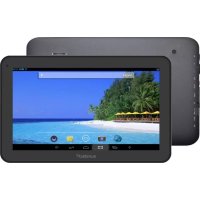
TAB107QCBT - Tablet Sunstech - Free user manual and instructions
Find the device manual for free TAB107QCBT Sunstech in PDF.



User questions about TAB107QCBT Sunstech
0 question about this device. Answer the ones you know or ask your own.
Ask a new question about this device
Download the instructions for your Tablet in PDF format for free! Find your manual TAB107QCBT - Sunstech and take your electronic device back in hand. On this page are published all the documents necessary for the use of your device. TAB107QCBT by Sunstech.
USER MANUAL TAB107QCBT Sunstech
natural_image
Screenshot of a mobile app interface displaying a beach scene with tropical islands, palm trees, and ocean (no readable text or symbols)Android 4.2
User Manual
Tablet of Contents
Specifications....1
What's Inside The box....1
Tablet Parts....2
Getting started....3
How to use TF card ....7
How to connect with computer....8
Connection to Internet....9
Camera....11
Trouble Shooting....12
Specifications
Display: 10.1 inch 1024X600 Capacitive multi-touch screen
CPU: A31S Quad-Core A7 1.2GHz
RAM: 1GB DDR III
GPU SGX544
Internal Storage: 8 GB
Expansion Memory: Micro SD card up to 32GB (not supplied)
Built-In Wireless: 802.11b/g/n
Bluetooth
Rear Camera 2 Mpixels
Battery 6000 Mah
AC Adapter: DC 5V-2A
Operating System: Android 4.2.2 "Jelly Bean"
Made in China
What's Inside The box
Tablet - 1pc
Power Adapter -1pc
USB Cable-1pc
OTG Cable-1pc
Instruction manual - 1pc
Warranty card 1pc
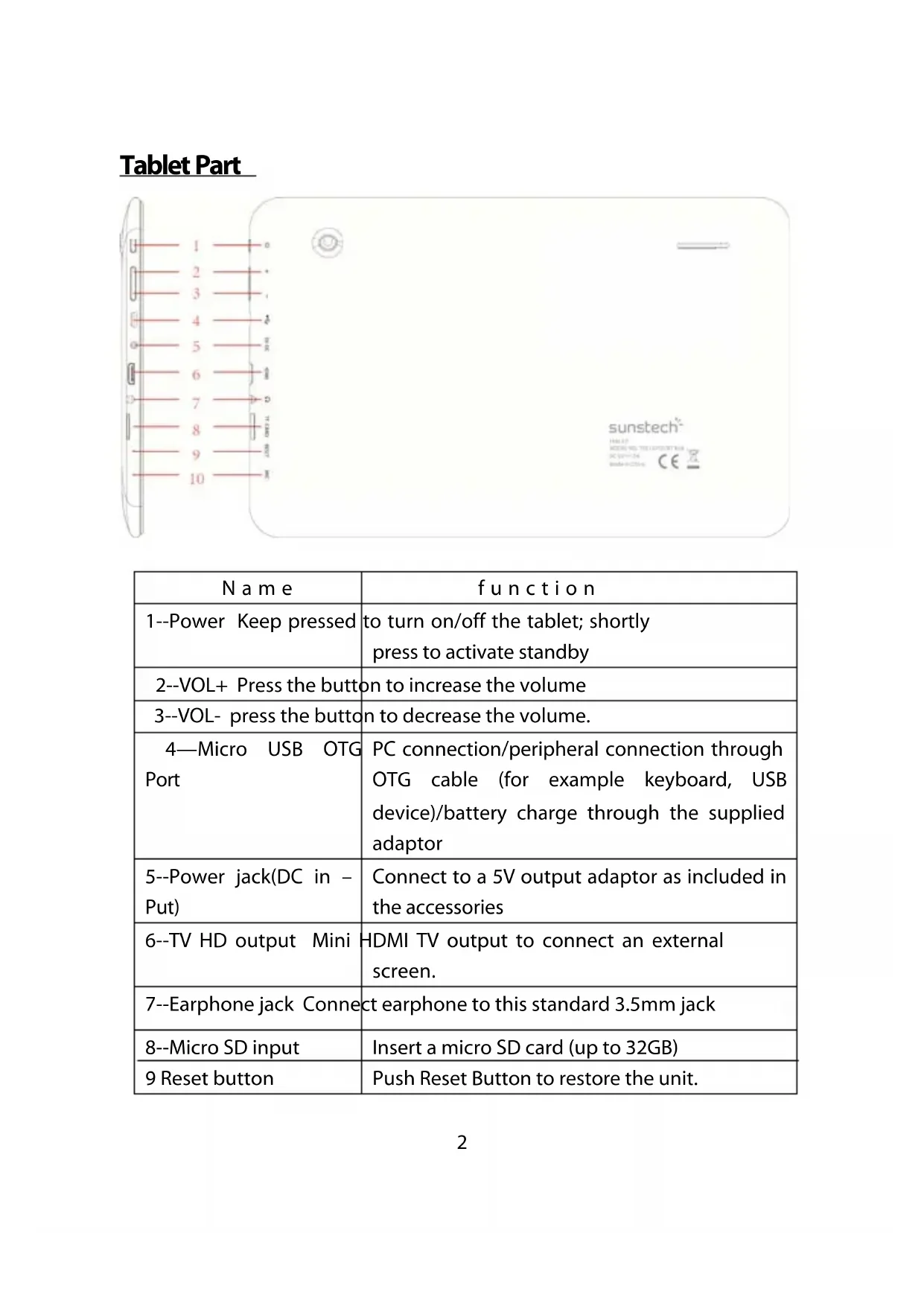
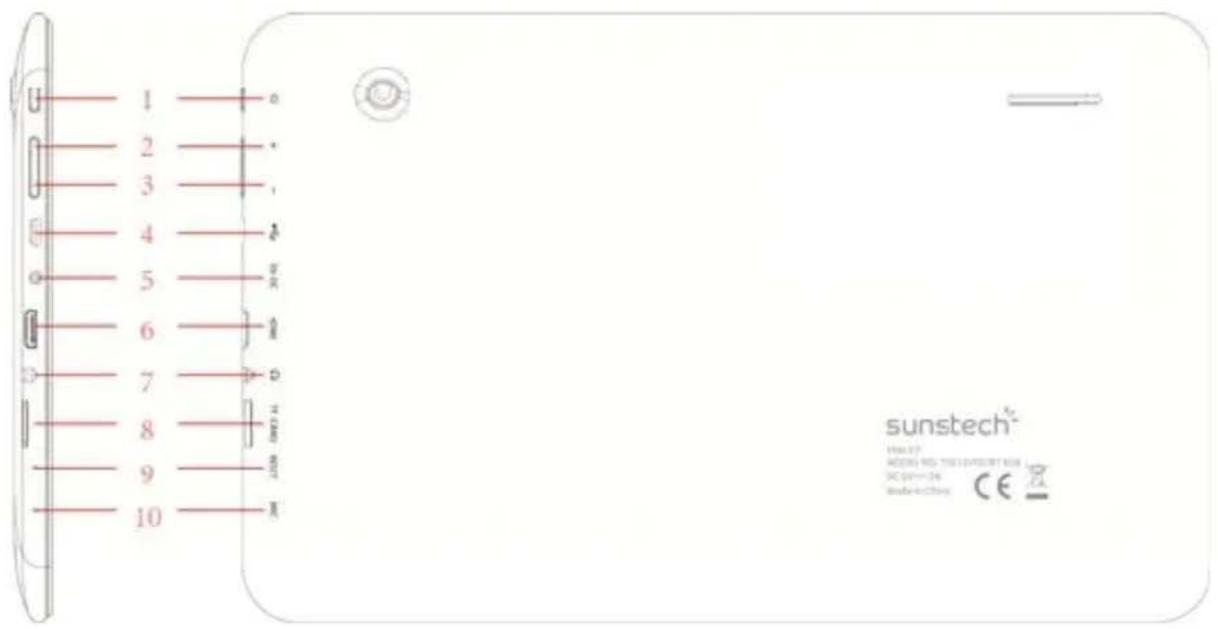
Tablet Part
text_image
1 2 3 4 5 6 7 8 9 10 sunstech® MODEL: NO. 7011-000000000 DC: 01-24 Mode: e-01/2024 CE| Name | function |
| 1--Power Keep pressed | to turn on/off the tablet; shortly press to activate standby |
| 2--VOL+ Press the button | to increase the volume |
| 3--VOL- press the button | to decrease the volume. |
| 4—Micro USB OTG Port | PC connection/peripheral connection through OTG cable (for example keyboard, USB device)/battery charge through the supplied adaptor |
| 5--Power jack(DC in - Put) | Connect to a 5V output adaptor as included in the accessories |
| 6--TV HD output Mini | HDMI TV output to connect an external screen. |
| 7--Earphone jack Connect | earphone to this standard 3.5mm jack |
| 8--Micro SD input | Insert a micro SD card (up to 32GB) |
| 9 Reset button | Push Reset Button to restore the unit. |
Getting Started
Battery Charging
The tablet has a built-in rechargeable Li-polymer battery.
- To charge the unit, connect the AC power adapter to the micro USB / Jack on the right side of the tablet.
- The battery icon shows the battery status and charging status
text_image
at 09:05 CEST 45° F Rain Shower THU 52°/41° FRI 49°/41° BRUSSELS, BELGIUM 09:14 AccuWeather.com Jennifer Loper - On The Fl... from Featured Videos- The tablet can be used even if the battery is being charged.
the above icons indicate the different level of electricity left in the battery
-
Do not replace of battery without authorization, or the battery explode.
-
Recharge the unit for at least half hour if it has been idle for long time and fails to start itself.
-
Regularly recharge it at least once a month
-
Between 5^-40^ is the optimum temperature for recharging the battery or the battery performance may slightly deteriorate
Disposal
The battery might contain the polluting material, please give it to the official recycling-station before disposal of the tablet pc, and do not litter.
Power ON/OFF
ON:
press the ⏻ button for continuous 5 seconds until the tablet turns "ON".
OFF:
-
Press the ⏻ button for continuous 5 seconds and it will appear
-
Select OK to power off the tablet
Screen Lock
This feature locks the screen, at the same time turn OFF the screen's backlight after a few seconds.
Screen locks when:
- System is idle.
- Manually activate it by pressing the Power button once.
Screen unlock :
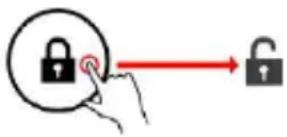
text_image
Diagram showing a hand pressing a lock icon with a red arrow pointing to the lock symbol, indicating lock status change.Home screen
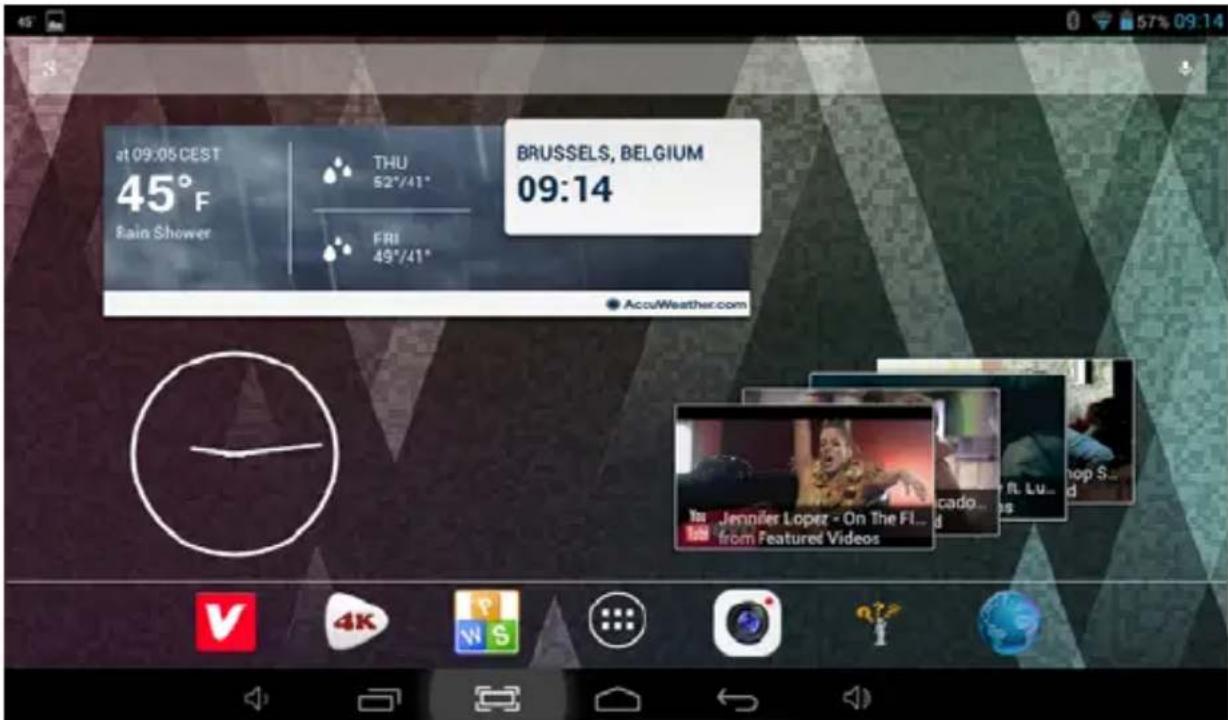
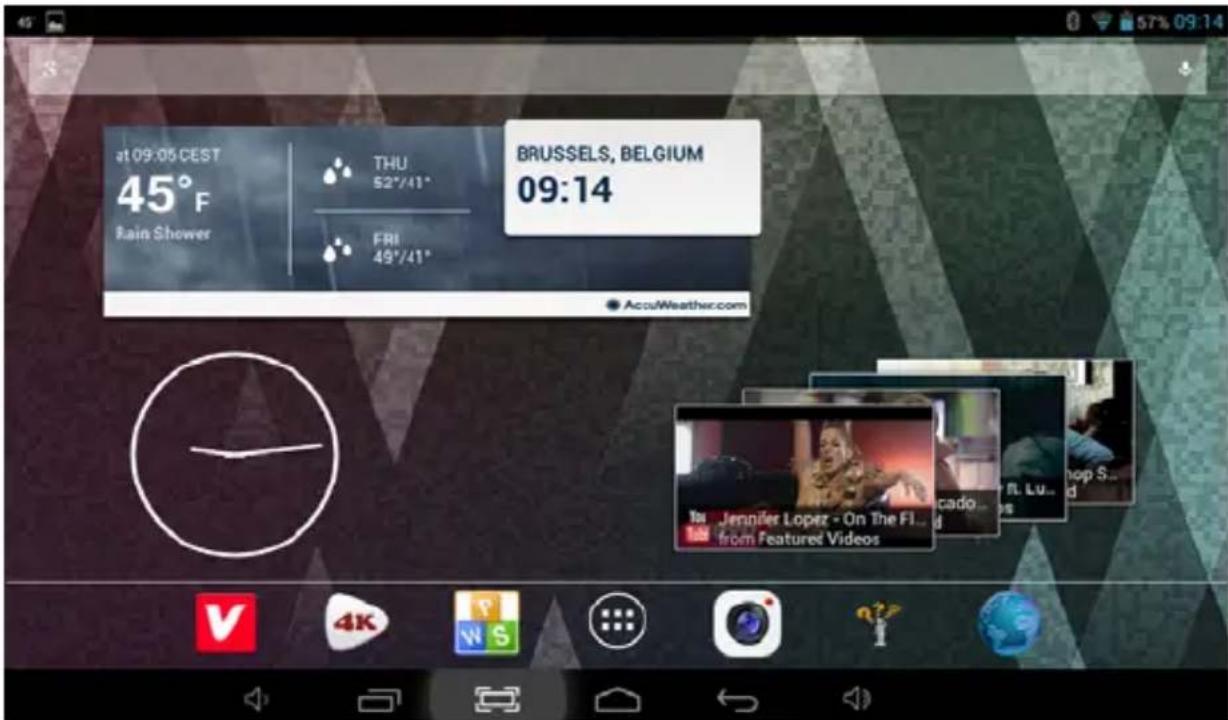
The Home screen will look similar to the picture below. It is actually five screens, each of which can have a different layout of icons. To switch between screens, simply slide your finger left or right across the display.
The status bar and navigation buttons are always visible, no matter which Home screen you can currently viewing.
text_image
09:05 CEST 45°F Rain Shower THU 52°/41" FRI 49°/41" BRUSSELS, BELGIUM 09:14 AcuWeather.com Jennifer Lopez - On The Fl...d from Featured VideosThe Desktop contains shortcuts to your most-used applications and widgets. Touch the screen icon to quickly search the World Wide Web using Google.
The 📄️ icon will launch the Application menu.
The status bar displays system information, such as current time, wireless connectivity and battery.
Touch to Expand the status bar for more detailed information.
The ← button moves back one step to the previous menu/page.
The button returns immediately to the Android desktop.
The button display a menu of recently opened applications.
Settings Menu
The settings menu allows you to adjust Tablet system configuration.
To change settings:
- Touch the "Settings" Settings menu will open.
menu icon on the Application menu. The
-
Guide your finger up or down the left side of the screen to scroll through the list of available categories.
-
Touch a category title to view further options on the right side of the screen.
Wi-Fi - Connect to /disconnect from wireless networks, view connection status Bluetooth: To connect or disconnect from devices to send photos / music...
Data usage - Enable / disable mobile data, view current usage, set mobile data limit (note: this function is available only on devices supplied with 3G card)
Sound - Change volume, touch sound, screen lock sounds etc
Display - Change brightness, wallpaper, sleep settings, font size etc
Storage - Manage NAND and Micro SD card, view available capacity etc
Battery - See battery status and powered-on time
Apps - Manage applications, running services etc
Accounts - Manage accounts etc
Location services - Change approximate location detection, improve search results
Security - Change screen lock type, encryption, password, credential storage etc
Language & input Select language, add to the dictionary, edit on-screen keyboard settings, vocal search, etc
Backup & reset - Backup & restore data, perform factory reset, etc
Date & time - Set date, time zone, time, clock format etc
Accessibility - Set up large text, auto-rotate screen, speak password etc
Developer options - Advanced functions for Android developers - debugging, HDCP check etc
About tablet - Information about your Android device
How to Use TF card
- Insert the TF card into the TF card slot. Gently push TF card into slot until it clicks into place.
- A prompt will be seen on the screen saying "Preparing SD card"
Removing TF card
- Close all applications and documents which have been opened from the TF card.
- Select "Setting" and find "Storage" then click "Unmount SD card".
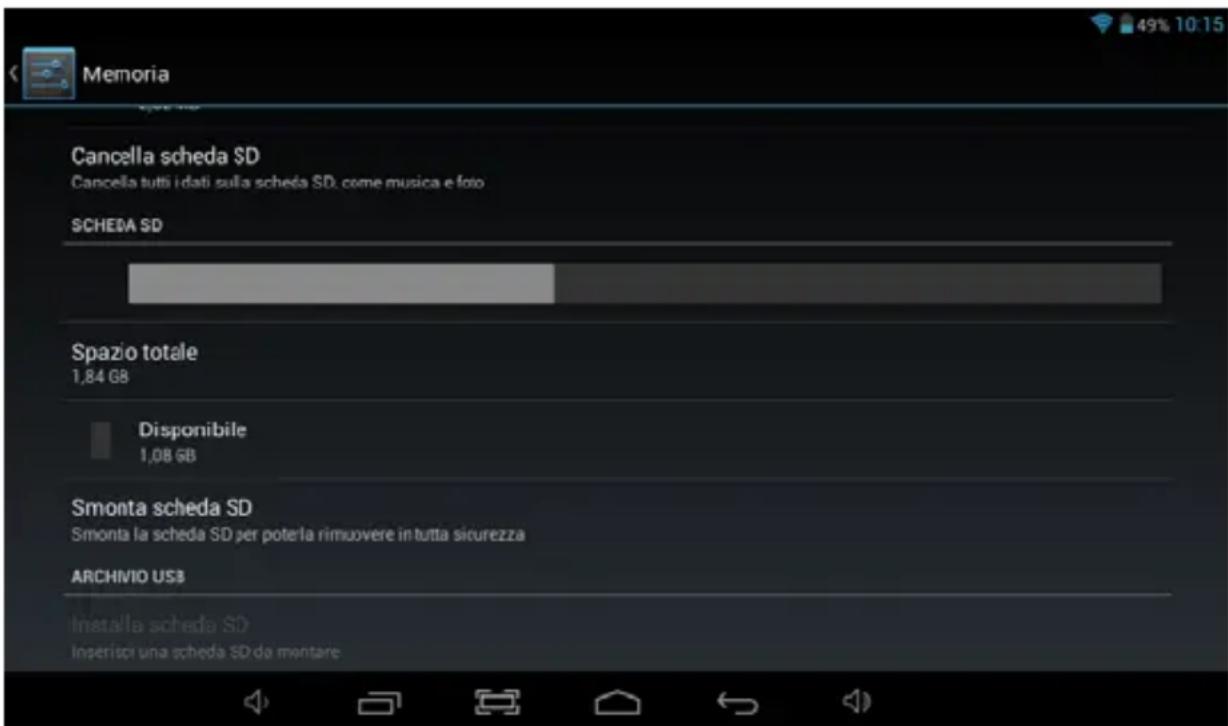
-
A prompt will be seen on the screen saying "SD card safe to remove"
-
Gently press the TF card to remove and pull out the TF card.
Note: Insert the TF card in correct position, otherwise it will damage the card and the slot.
Software Keyboard
The tablet has a software keyboard which automatically pop up when you tap the place on screen where text or number are to be entered.
Touch Screen
The touch screen responds to finger touch.
Note: Do not place any object on the touch screen because it may damage or crush the screen.
Single Click: single click one icon to choose the icon or option you want.
Long Press: press and hold one icon to make appear a menu related to executed function (if available).
Drag: drag on the screen and you can move between magic cube sides or drag the application icons into the shortcut bar.
How to connect with computer
Note: Turn on your Tablet before connect the Tablet to PC by USB cable.
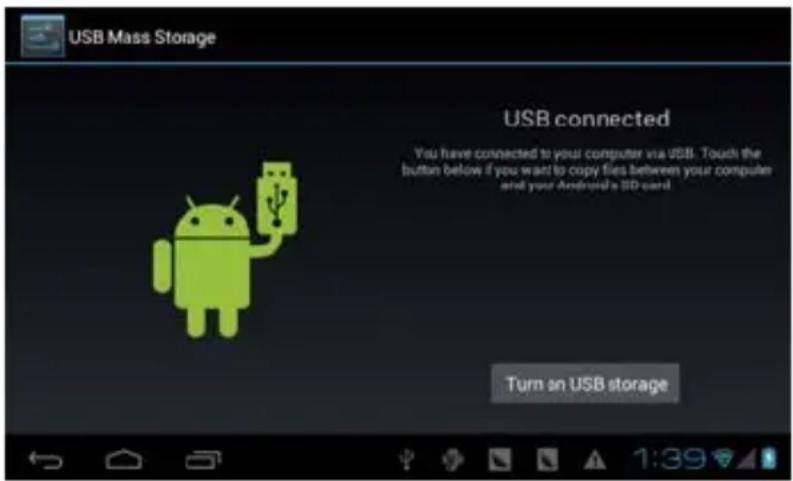
1 Use USB cable to connect MID with computer. System will notice USB connected on bottom of screen.
2 Press USB connected on the top bar, then click Turn on USB storage, click OK.
3. Then the USB connection has been successfully.
text_image
USB Mass Storage USB connected You have connected to your computer via USB. Touch the button below if you want to copy files between your computer and your Android's SSD card. Turn an USB storageConnection to Internet
Wireless:
1 Select "Settings"
2 Select "Wi-Fi" and slide OFF to ON status.

3 All detected wireless networks in the area will be listed, Click to select desired wireless connection.
4 Enter WEP key or network key if necessary.
5 Once connected to a wireless network, settings will be saved
6 Wireless icon will appear on the taskbar when connected successfully.
Note: when the tablet detects the same wireless network in the future, the device will connect automatically to the network
Web Browsing
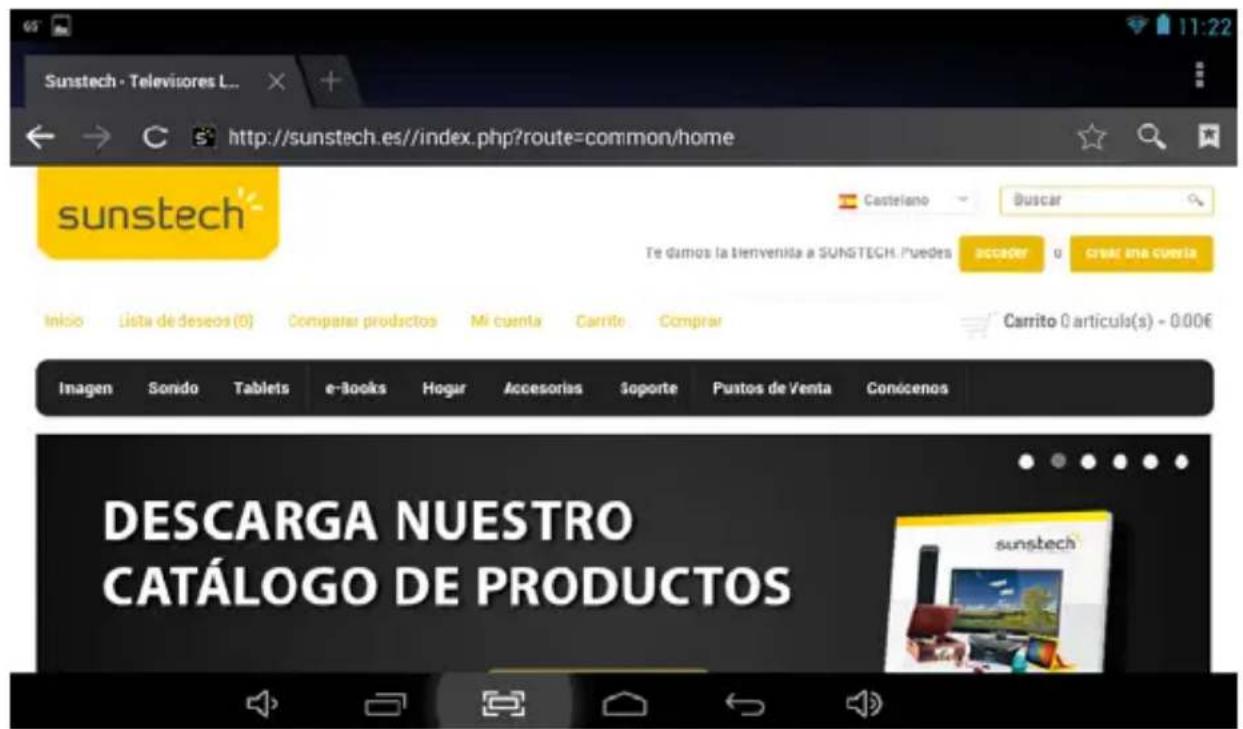
Connect to the internet and launch the browser.
Connection to Bluetooth
1- Select "Settings"
2- Select "Bluetooth" and slide OFF to ON status.

flowchart
graph LR
    A["OFF"] --> B["ON"]
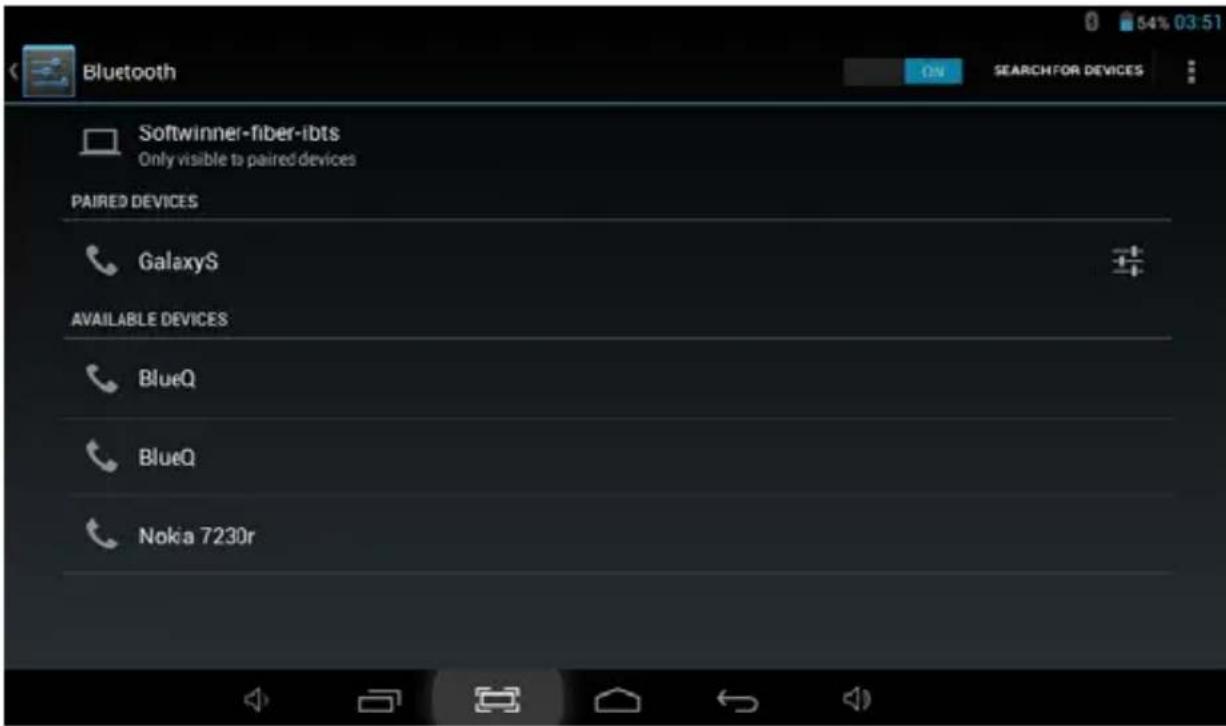
3-All detected Bluetooth device in the area will be listed, tap to select the device connection.
text_image
Bluetooth Softwinner-fiber-ibts Only visible to paired devices PAIRED DEVICES GalaxyS AVAILABLE DEVICES BlueQ BlueQ Nokia 7230r4- When your select the device must enter code and necessary to pairing.
5-On the other device must accept the permissions to connect between them.
6- Now, your can sent photos / Music...
Camera
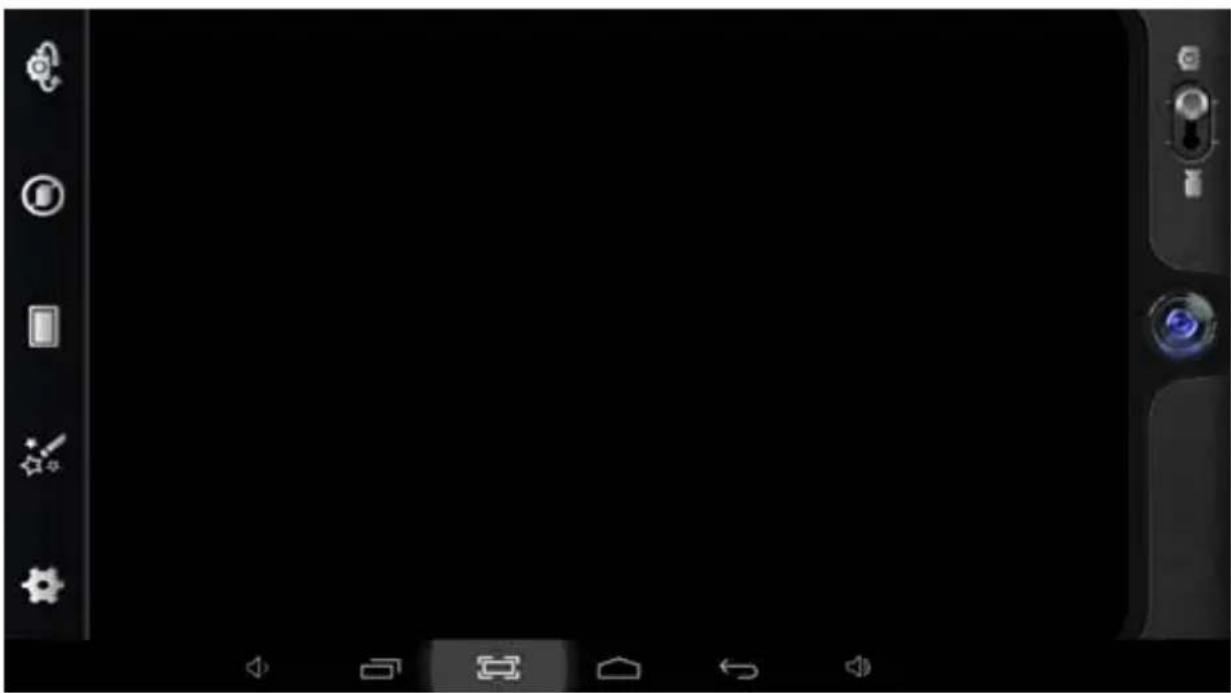
Tap the icon
to enter camera mode and the interface is show
follows:
natural_image
Black smartphone home screen with control panel and navigation icons (no readable text or symbols)- Tap the icon
in the middle to take photo
-
Move the icon on bottom and you can switch camera mode to camera recording mode.
-
Tap the icon on the top left to see the previous picture and you can also delete, share or set it as the wallpaper. Click the return button to exit the camera interface.
Trouble Shooting
Close Application
All running applications take up system memory and will slow down the systems response. Please shut down all idle applications to free memory and get the system speed back to normal.
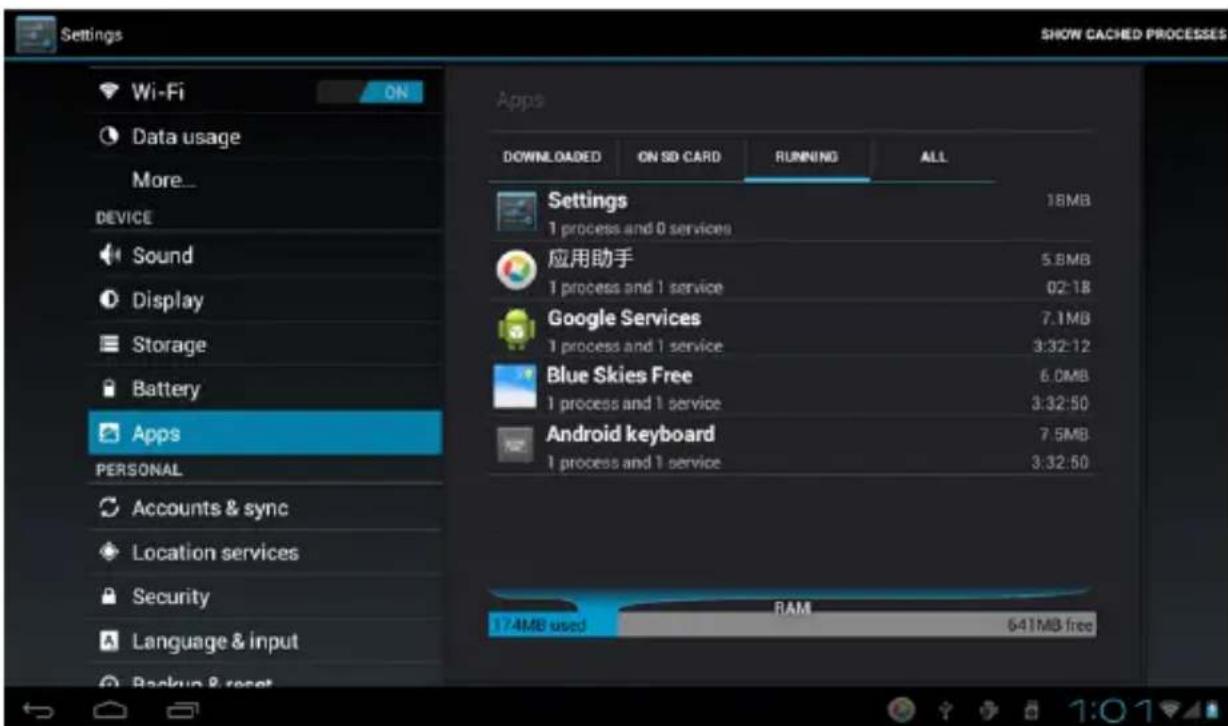
To close the application, click the icon Settings on the shortcut bar to enter the system configuration interface. Select the Application → Running services and the interface is shown as follows:
text_image
Settings Wi-Fi ON Data usage More... DEVICE Sound Display Storage Battery Apps PERSONAL Accounts & sync Location services Security Language & input Backup & reset Settings 1 process and 0 services 应用助手 5.8MB 1 process and 1 service 02:18 Google Services 7.1MB 1 process and 1 service 3:32:12 Blue Skies Free 6.0MB 1 process and 1 service 3:32:50 Android keyboard 7.5MB 1 process and 1 service 3:32:50 17.4MB used RAM 641MB free SHOW CACHED PROCESSES DOWNLOADED ON SD CARD RUNNING ALLTap the application you want to close. A pop-up window will be displayed. Tap "Stop" to close that application.
Mandatory Power off
- Press and hold the power button for 5 seconds and the device will be powered off.
- Press the reset button on the back and the device will be forced to be powered off.
If you want to reset the factory setting and erase all materials, please press Settings → Backup & Reset → Factory data reset.
** Warning: A factory data reset will delete your data, configuration of the system and applications that you have installed.
**Please use this function carefully.
-Recovery mode Function. TAB107QCBT
How to enter in recovery mode.
Please follow these steps.
1-To enter in the recovery mode first you should power off the device,
Then long-press the "ON-OFF" key and "VOL --" Key at the same time until the Android doll has appeared, pls try it.
2-With "vol -" key select "wipe data / factory reset" then press "Power" and then select "Yes delete all user data" with the "vol-" key.
3-Then press "power" again. The unit will then begin the recovery mode.
4- When it finishes select "reboot system now" press the "power" button and the unit will re-start itself. (this process may last for a few minutes)
How to download the software using the unit.
IMPORTANT: When you download the software, all data will be deleted as photos, videos and Apps that you have been installed.
Do not interrupt this process please make sure the battery is fully charged.
Please, follow these steps.
1- Open browser and search and open this link: www.sunstech.es/download/
2- Select the model of the tablet that you have and download the software.(This software is installed In the INTERNAL SD).
3- When it finished the download, select the App "update" in your unit.
4-Select "Local Update", "download".
5-Select the software / Download and wait until the process is finished.
Warranty conditions
- The warranty of this product is for 2 years since the purchase date.
- The warranty will exclude breakdowns caused by bad use of the product, wrong installation or installation in not desirable places for a proper maintenance of the product, rips, updates of the products that are not the supplied by the brand, pieces wore away for its use or for not domestic or inappropriate use. Also are excluded breakdowns caused for manipulations of the products by people or companies alien to our company.
- For any request regarding the warranty terms, the purchase receipt must be attached.
text_image
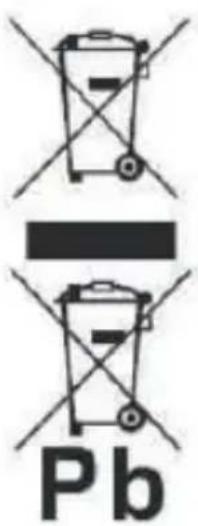
PbCorrect disposal of this Product
(Waste Electrical & Electronic Equipment(WEEE)
Your product is designed and manufactured with high quality materials and
components which can be recycled and reused.
This symbol means that electrical and electronic equipment, at their endof-life should be disposed of separately from your household waste.
Please dispose of this equipment at your local community waste collection/recycling centre.
In the European Union there are separate collection
systems for used electrical and electronic products.Please help us to conserve the environment we live in!
text_image
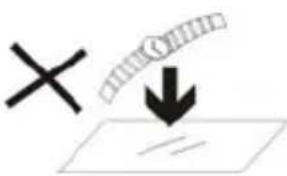
Diagram showing a cross symbol and a downward arrow pointing to a line, possibly indicating a process or concept.- DO NOT place objects on top of the device, as objects may scratch the device.
text_image
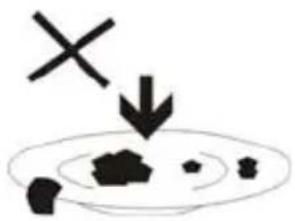
Diagram showing a cross symbol above a droplet with arrows pointing to particles, possibly indicating a process or detection.- DO NOT expose the device to dirty or dusty environments.

natural_image
Black and white soccer ball with a cross symbol and downward arrow, no text or labels present- DO NOT place the device on an uneven or unstable surface.
natural_image
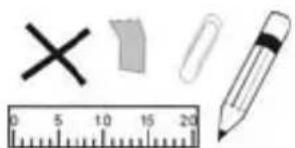
Illustration of basic writing and drawing tools including a cross, eraser, pencil, ruler, and paper (no text or symbols)- DO NOT insert any foreign objects into the device.
text_image
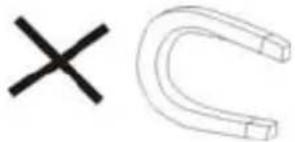
×- DO NOT expose the device to strong magnetic or electrical field.
natural_image
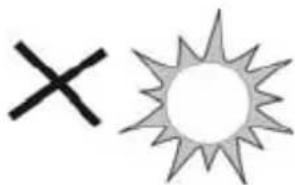
Simple graphic with a black X and a sunburst shape (no text or symbols)- DO NOT expose the device to direct
sunlight as it can damage the device. Keep it away from heat sources.
60^ C(140^ F)

natural_image
Two black arrows pointing up and down, stacked vertically (no text or symbols)20^ C(68^ F)
- DO NOT store your device in temperatures higher than 40^(104^) . The internal operating temperature for this device is from 20^(68^) to 60^(140^) .
natural_image
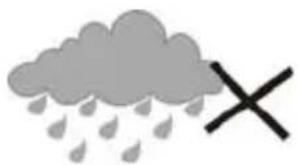
Simple illustration of a cloud with raindrops and a black X symbol (no text or labels)- DO NOT use the device in the rain.
natural_image
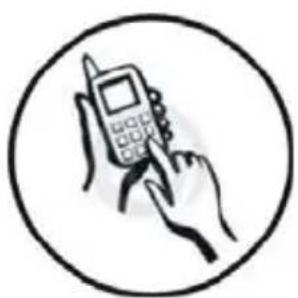
Illustration of a hand holding a mobile phone with a keypad, enclosed in a circle (no text or symbols)- Please check with your Local Authority or retailer for proper disposal of electronic products.
natural_image
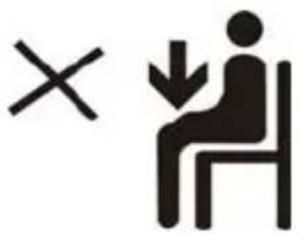
Symbolic illustration of a person sitting on a chair with an 'X' mark and a downward arrow, no text present.- The device and adaptor may product some heat during normal operation of charging. To prevent
discomfort or injury from heat exposure, DO NOT leave
the device on your lap.
text_image
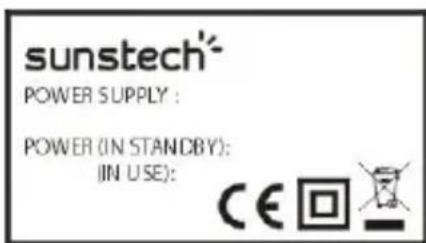
sunstech® POWER SUPPLY : POWER (IN STANDBY): (IN USE): CE回- POWER INPUT RATING:
Refer to the rating label on thedevice and be sure that thepower adaptor complies with
the rating. Only use accessories specified by the manufacturer.

natural_image
Illustration showing a hand cleaning a cloth next to a spray bottle with a cross mark (no text or symbols)- Clean the device with a soft cloth. If needed, dampen the cloth slightly
before cleaning. Never use abrasives or cleaning solutions.
text_image
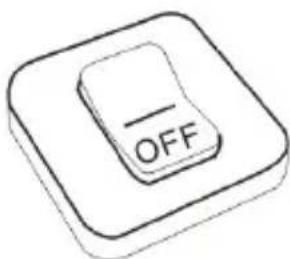
-OFF- Always power off the device to install or remove external devices that do not support hot-plug.
flowchart
graph TD
    A["Wall socket with dots"] --> B["Digital Display"]
    B --> C["Hand cleaning"]
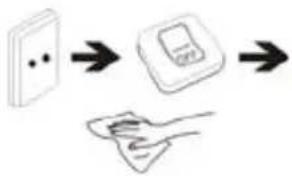
- Disconnect the device from an
electrical outlet and power off before cleaning the device.

natural_image
Simple line drawing of a screwdriver and a cross symbol (no text or labels)- DO NOT disassemble the device. Only a certified service technician should perform repair.

text_image
HOT- The device has apertures to disperse heat. DO NOT block the device ventilation, the device may become hot and malfunction as a result.
natural_image
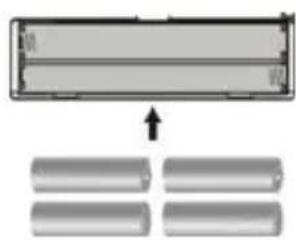
Diagram showing a rectangular object with internal structure and four separate rectangular blocks below (no text or symbols)- Risk of explosion if battery replaced by an incorrect type. Dispose of used batteries according to the instruction.
natural_image
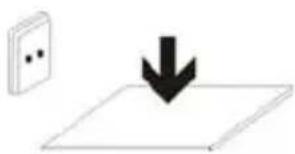
Simple diagram showing a black downward arrow pointing to a white rectangular area, with a wall-mounted component nearby (no text or symbols)- PLUGGABLE EQUIPMENT: the socket-outlet shall be installed near the equipment and shall be easily
accessible.
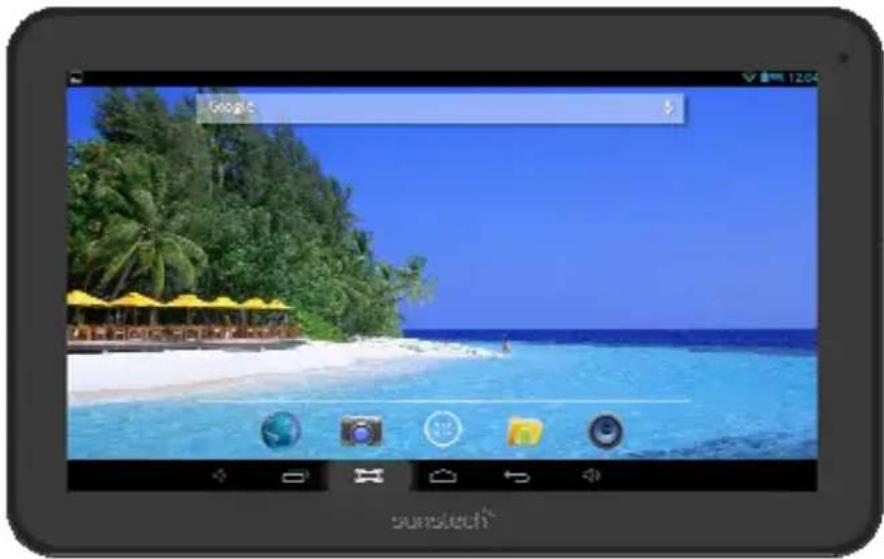
sunstech ^1/2
TAB107QCBT
Tablet PC
natural_image
Screenshot of a mobile app interface displaying a beach scene with palm trees, beach, and ocean under a clear blue sky (no readable text or symbols)Android 4.2
Manual de usuario
Índice
text_image
at 09:05 CEST 45° F Rain Shower THU 52'/41" FRI 49'/41" BRUSSELS, BELGIUM 09:14 AccuWeather.com Jennifer Lopez - On The Fl...# from Featured Videostext_image
Diagram showing a hand clicking a lock icon with a red arrow pointing to the lock symbol, indicating lock status or access.Pantalla inicial
text_image
USB Mass Storage USB connected You have connected to your computer via USB. Touch the button below if you want to copy files between your computer and your Android's SD card. Turn on USB storageConexión a Internet
Inalámbrica:
text_image
Bluetooth Softwinner-fiber-ibts Only visible to paired devices PAIRED DEVICES GalaxyS AVAILABLE DEVICES BlueQ BlueQ Nokia 7230rnatural_image
Black background with a camera module and control buttons on the left (no readable text or symbols)- Toque el icono
text_image
Settings Wi-Fi ON Data usage More... DEVICE Sound Display Storage Battery Apps PERSONAL Accounts & sync Location services Security Language & input Backup & reset Settings 1 process and 0 services 应用助手 5.8MB 1 process and 1 service 02:18 Google Services 7.1MB 1 process and 1 service 3:32:12 Blue Skies Free 6.0MB 1 process and 1 service 3:32:50 Android keyboard 7.5MB 1 process and 1 service 3:32:50 174MB used RAM 641MB free SHOW CACHED PROCESSES DOWNLOADED ON SD CARD RUNNING ALLtext_image
Diagram showing a cross symbol and a downward arrow pointing to a line, possibly indicating a process or concept.text_image
Diagram showing a cross symbol with an arrow pointing downward to a patterned circle containing irregular shapes, possibly indicating a process or concept.natural_image
Black and white soccer ball with a cross symbol and downward arrow, no text or labels presentnatural_image
Illustration of basic geometric shapes including a cross, eraser, pencil, and ruler (no text or symbols)natural_image
Simple graphic with a black X and a sunburst shape (no text or symbols)natural_image
Simple illustration of a cloud with raindrops and a black X symbol (no text or labels)natural_image
Illustration of a hand holding a mobile phone with a keypad, enclosed in a circle (no text or symbols)text_image
Symbolic image showing a person sitting with a cross and a downward arrow, indicating incorrect or incorrect behavior.natural_image
Simple line drawing of a hand cleaning a cloth next to a spray bottle with a cross mark (no text or symbols)flowchart
graph LR
    A["Wall with dots"] --> B["Printer with square"]
    B --> C["Scrap on surface"]
natural_image
Simple line drawing of a screwdriver and a cross symbol (no text or labels)text_image
Diagram showing a rectangular object with internal structure and four separate cylindrical components below, with an arrow pointing to the top portion.natural_image
Simple diagram showing a wall with two dots and a downward arrow pointing to a flat surface (no text or symbols)natural_image
Screenshot of a mobile app interface displaying a beach scene with tropical islands, palm trees, and ocean (no readable text or symbols)Android 4.2
text_image
Diagram showing a hand pressing a lock icon with a red arrow pointing to an open lock symbolÉcran d'accueil
text_image
USB Mass Storage USB connected You have connected to your computer via USB. Touch the button below if you want to copy files between your computer and your Android's SD card. Turn on USB storagetext_image
Bluetooth Softwinner-fiber-ibts Only visible to paired devices PAIRED DEVICES GalaxyS AVAILABLE DEVICES BlueQ BlueQ Nokia T230rnatural_image
Black smartphone screen with control buttons and navigation icons on the left (no readable text or symbols)- Appuyez sur l'icône
text_image
Settings Wi-Fi ON Data usage More... DEVICE Sound Display Storage Battery Apps PERSONAL Accounts & sync Location services Security Language & input Backup & reset Applications DOWNLOADED ON SD CARD RUNNING ALL Settings 1 process and 0 services 5.8MB 应用助手 1 process and 1 service 02:1B Google Services 7.1MB 1 process and 1 service 3:32:12 Blue Skies Free 6.0MB 1 process and 1 service 3:32:50 Android keyboard 7.5MB 1 process and 1 service 3:32:50 174MB used RAM 641MB freetext_image
Diagram showing a cross symbol and a downward arrow pointing to a line, possibly indicating a process or concept.text_image
Diagram showing a cross symbol pointing to a droplet with an arrow indicating downward motion, possibly illustrating a process or environmental change.natural_image
Black and white soccer ball with a cross symbol and downward arrow, no text or labels presentnatural_image
Illustration of basic geometric shapes and a pencil on a ruler (no text or symbols)natural_image
Simple illustration of a cross and a sun with radiating lines (no text or symbols)natural_image
Two black arrows pointing up and down, stacked vertically (no text or symbols)20^ C(68^ F)
natural_image
Simple illustration of a cloud with raindrops and a black X symbol (no text or labels)natural_image
Illustration of a hand holding a mobile phone with a keypad, enclosed in a circle (no text or symbols)text_image
Symbolic image showing a person sitting with a cross and a downward arrow, indicating incorrect or incorrect behavior.natural_image
Simple line drawing of a hand cleaning a cloth next to a spray bottle with a cross mark (no text or symbols)natural_image
Simple line drawing of a screwdriver and a cross symbol (no text or labels)natural_image
Diagram showing a rectangular object with internal structure and four separate cylindrical components below (no text or symbols)natural_image
Simple diagram showing a black downward arrow pointing to a white rectangular area, with a small electrical outlet nearby (no text or symbols)natural_image
Screenshot of a mobile app interface displaying a beach scene with palm trees, beach, and ocean under a clear blue sky (no readable text or symbols)Android 4.2
Manual do Utilizador
Índice
text_image
USB Mass Storage USB connected You have connected to your computer via USB. Touch the button below if you want to copy files between your computer and your Android's 3D card. Turn on USB storageLigação à Internet
Wireless:
text_image
Bluetooth Softwinner-fiber-ibts Only visible to paired devices PAIRED DEVICES GalaxyS AVAILABLE DEVICES BlueQ BlueQ Nokia 7230rnatural_image
Black background with white UI icons on the left and right sides, no readable text or symbols present.- Toque no ícone
text_image
Settings Wi-Fi ON Data usage More... DEVICE Sound Display Storage Battery Apps PERSONAL Accounts & sync Location services Security Language & input Backup & reset Applications DOWNLOADED ON SD CARD RUNNING ALL Settings 1 process and 0 services 18MB 应用助手 5.8MB 1 process and 1 service 02:18 Google Services 7.1MB 1 process and 1 service 3:32:12 Blue Skies Free 6.0MB 1 process and 1 service 3:32:50 Android keyboard 7.5MB 1 process and 1 service 3:32:50 174MB used RAM 641MB freetext_image
Diagram showing a cross symbol and a downward arrow pointing to a line, possibly indicating a process or concept.text_image
Diagram showing a cross with an arrow pointing downward to a plate with scattered particles, possibly indicating a process or solution.natural_image
Black and white soccer ball with a cross symbol and downward arrow, no text or labels presentnatural_image
Illustration of basic geometric shapes including a cross, rectangle, paperclip, and ruler (no text or symbols)natural_image
Simple graphic with a black X and a sunburst shape (no text or symbols)natural_image
Two black arrows pointing up and down, stacked vertically (no text or symbols)20^ C(68^ F)