Tab 2323 GMQC - Tablet Sunstech - Free user manual and instructions
Find the device manual for free Tab 2323 GMQC Sunstech in PDF.



| Product type | Touchscreen tablet |
| Brand | Sunstech |
| Model | Tab 2323 GMQC |
| Screen | 10.1-inch IPS capacitive touchscreen, resolution 800 × 1280 |
| Operating system | Android 5.1 |
| Processor | MTK 8321 Quad Core 1.3 GHz (Cortex A7) |
| RAM memory | 2 GB |
| Internal storage | 32 GB |
| Expandable storage | MicroSD up to 32 GB |
| Connectivity | Wi-Fi, Bluetooth, 3G, dual SIM, USB OTG |
| Front camera | 2.0 MP |
| Rear camera | 5.0 MP |
| Battery | Integrated lithium-polymer, 5000 mAh |
| Power supply | AC adapter 9 V/2 A (110-240 V AC) |
| Dimensions (estimated) | 240 × 170 × 10 mm |
| Weight (estimated) | Approximately 500 g |
| Main functions | Internet browsing, multimedia playback (HD video, audio, photo), office, games, messaging |
| Maintenance and cleaning | Slightly damp soft cloth, no abrasive products |
| Safety | Do not expose to moisture, extreme temperatures (>40 °C), do not block ventilation openings |
| Spare parts and repairability | Integrated battery not replaceable by user; any repair entrusted to a certified technician |
| General information | Made in China; compliant with WEEE directive |
Frequently Asked Questions - Tab 2323 GMQC Sunstech
User questions about Tab 2323 GMQC Sunstech
0 question about this device. Answer the ones you know or ask your own.
Ask a new question about this device
Download the instructions for your Tablet in PDF format for free! Find your manual Tab 2323 GMQC - Sunstech and take your electronic device back in hand. On this page are published all the documents necessary for the use of your device. Tab 2323 GMQC by Sunstech.
USER MANUAL Tab 2323 GMQC Sunstech
Battery management and charge 4
CONNECTION WITH PC 4
EQUIPMENT OPERATION INTERFACE 5
Main interface describe 5
BASIC SETTINGS 7
Wi-Fi 7
Data Usage 8
More. 8
User guide
TAB2323GMQC
Sound 8
9
Storage 9
Battery 10
Applications 10
Accounts and synchronization 12
Location Services. 12
Security 13
Language and Keyboard 13
Backup 14
Date & time setting. 14
Accessibility 15
Development options 15
About the unit. 15
FREQUENTLY ASKED QUESTIONS (FAQ) 16
SPECIFICATIONS 17
WARNING 18
INTRODUCTION
Thank you for choosing this product. We hope it will satisfy you totally and will work perfectly for a long time. This tablet with Android™ operating system allows you to download many applications (Apps) and take full advantage of all the Internet potential (surf the net, send and receive emails, download widgets, etc.), as you would on a laptop or desktop computer. Enjoy watching videos or listening to music, communicate over Internet with any instant messaging application or even read or edit office documents (text documents, spreadsheets, presentations, etc.).
First time use
Before using this product for the first time, fully charge the battery. Plug the adapter/charger. Caution: Use ONLY the charger/adapter supplied with your device or a compatible model with exactly the same specifications. The tablet will turn on and start charging. The battery icon in the main interface will indicate when the device is fully charged. If not connected to a power adapter, the icon displays the percentage of available battery.
Configuration
We recommend that the first time you use the tablet configure core values such as language, location, date, time, security options and backup found in the Settings section.
APPEARANCE AND BUTTON
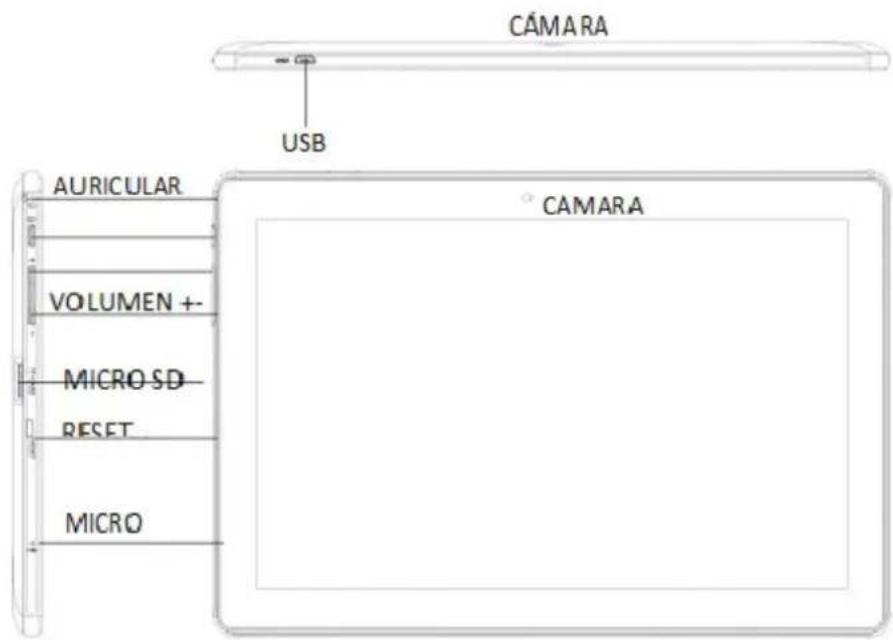
Touch panel
10,1" Capacitive II touch panel: In the Operation, to click, dragging on the touch panel.
Power
Start up: Long Press and hold the power button, then it will load the operating system and display the main interface.
Shutdown: In the main menu interface, Press the power button about 5 second to shutdown, The system can hint "power off" option, Click "ok". you can safely shut down.
Lock screen: Short press Power button to lock screen or unlock screen.
Remark: When power is empty, system will shut down automatically. Illegal turn off the device, restart will scan and restore the disk, it may take longer time to enter into system.
Volume"-key
Long press to decrease volume.
Volume ^ 一 + ^ 一 key
Long press to increase volume.
Earphone jack
Connection for 3.5mm standard earphone jack cable.
Micro SD - TF card
Memory expands through TF-CARD slot: external T-FLASH card.
Mini USB / OTG
Mini USB jack: you can use it to connect the computer for data transmission, charging and external connection USB flash drive.
Reset
Remark: unless unable to shutdown, otherwise don't use the reset, suggest you to shut down by normal, or it will easy to damage the machine system.
DC
Attention: Connecting the battery charger ONLY USE THE CHARGER SUPPLIED BY THE MANUFACTURER or ANY APPROVED BY THE SAME.
Battery management and charge
Before first use, please set the device's battery is fully charged. Just need to connect the adaptor or USB interface, then you can charge. The first two times charging please keep about 6 hours, after that you just need 4 hours to charge.
Remark: This tablet using Built-in type polymer battery, Charge must be to choose standard adaptor (Input: AC110~240V 50/60Hz Max.180MA.. Output: DC9.0V/2.0A), this device without supply DC charging, USB interface can charge,
Choose USB interface to charger. During the charging, the battery icon will scroll. When finished charging, battery icon will become green and stop rolling. In order to prolong the service life of the machine, suggest use out battery power before charge it.
Remark: If you long time don't to use this Tablet, in order to avoid power consumption caused damage, Please charge/play the battery once a month. After low battery shut down, connect DC adaptor, device will remind low battery, charging, need to wait some time until the battery is enough power to enter into main menu. Device charging should be in standby status for reach normal charging time. Because with device and screen consumption, it may cause longer charging time.
CONNECTION WITH PC
Use USB cable to connect device to PC, device will pop up the USB connection window, click Turn on USB storage to connect to PC Once connected click on the USB icon that appears at the bottom right of the screen:

User guide
TAB2323GMQC
The device enables users to access the screen to activate the USB storage as shown in the following screen:
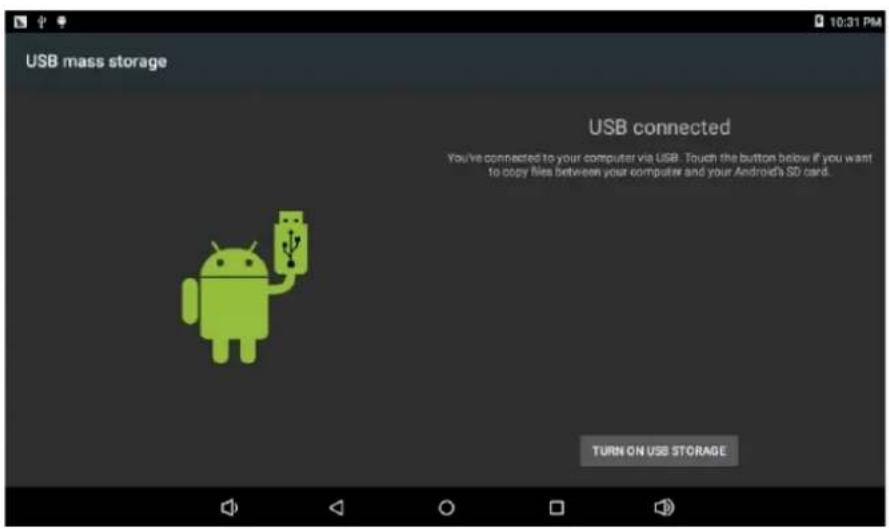
Into the load mode you can copy or delete the file on the device and the file on the memory card.
Main interface describe
After startup will enter the main interface:
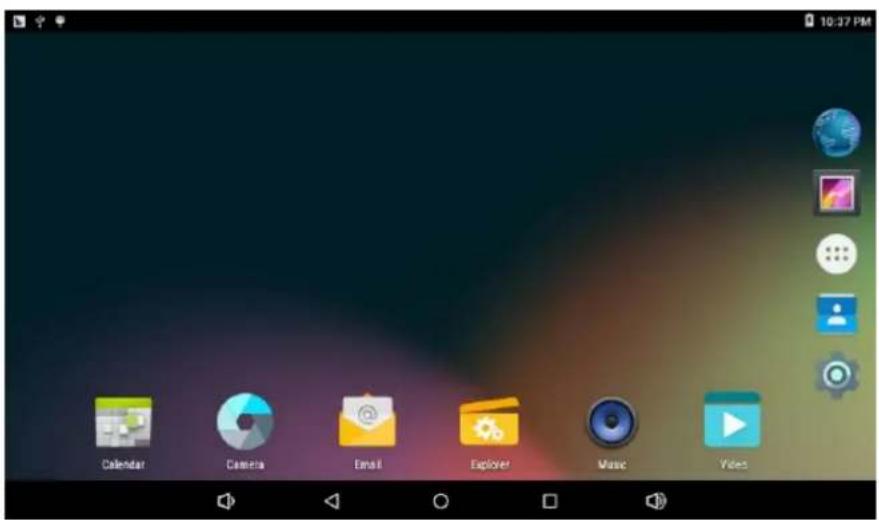
The main interface can be divided into 5 parts, each of the corners and the main body of the screen. In the main of the screen are housed icons and widgets that the user wants, capable of being moved to the left (2 screens) or right (2 screens) thus has a total of 5 screens that can be added shortcuts, bookmarks and Widgets.
The upper left corner: can either perform a Google search by typing the desired look or do a search for voice (in either case must be connected to the Internet).


The upper right corner: access to applications and installed Widgets.

Applications are programs that run when the user wishes and stop working when the user exits the application. They can be installed by downloading the application Google Play or through websites that offer Android applications.
Widgets are small easy access programs that run continuously. They are located in any of the main screens. For example one of the widgets that are already installed and running is the analogue clock

There are 4 navigation icons:
Go back.

Go to main
screen.

View apps currently running.

Access the app menu.

If you are in the main interface will pop up a menu that lets you change the wallpaper, manage applications or access the system settings.
In the top area is the status area: showing the current time, battery status, wireless connection, different alarms and status messages. By clicking you can access some quick adjustments.
22:20
Accessing the area of applications and widgets you can manage the main interface icons: Press and hold an icon 3 seconds after the icon is enlarged, you can drag it anywhere on the interface
Delete icons: long press the icons 3 second, drag the icons to the Recycle Bin icon, once it become red, Loosen your hand, after that you can delete icon.
You touch the screen keep a time, appear the dialog box "Add you Home screen" as shown below:
BASIC SETTINGS
Setting: Click setting icon to enter in setting interface.
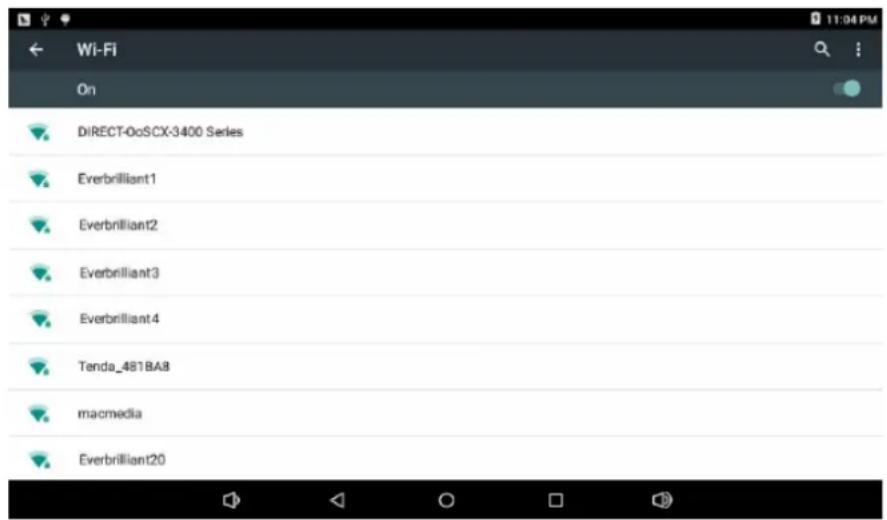
Wi-Fi
Turns on the Wi-Fi and connects to any Wi-Fi that is within the coverage area.
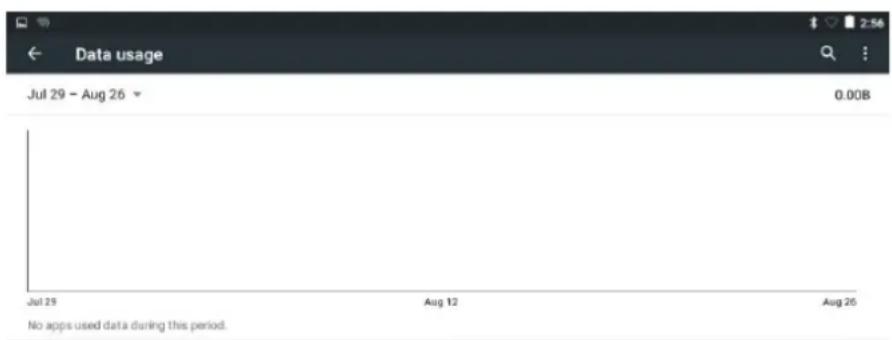
Data Usage
Allows you to disable or limit access to mobile data as well as shows the volume of data downloaded.

More...
Enables Airplane mode (used when you are aboard a plane), and advanced settings for both Ethernet networks, creation of VPNs and mobile networks.
Sound
You can change the default volume of music, games and other media files, notifications and alarms, different melodies for service, enable sound to play and also the sound of the lock screen.
User guide
TAB2323GMQC
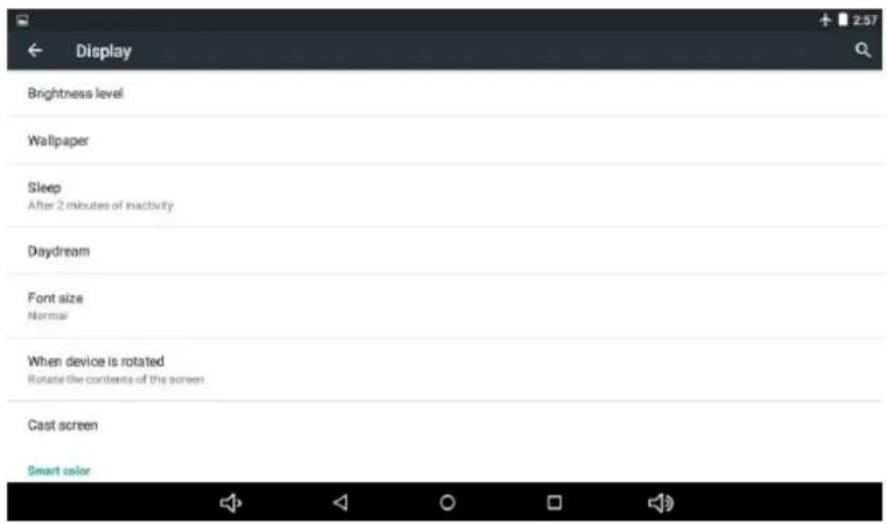
Screens
Adjust properties, change backgrounds, change font size, etc.
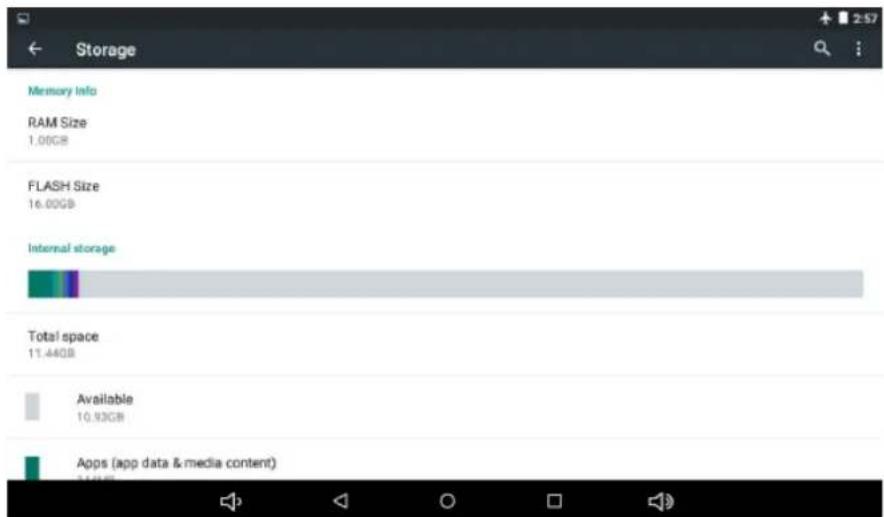
Storage
Shows the memory usage in the different storage media.
User guide
TAB2323GMQC
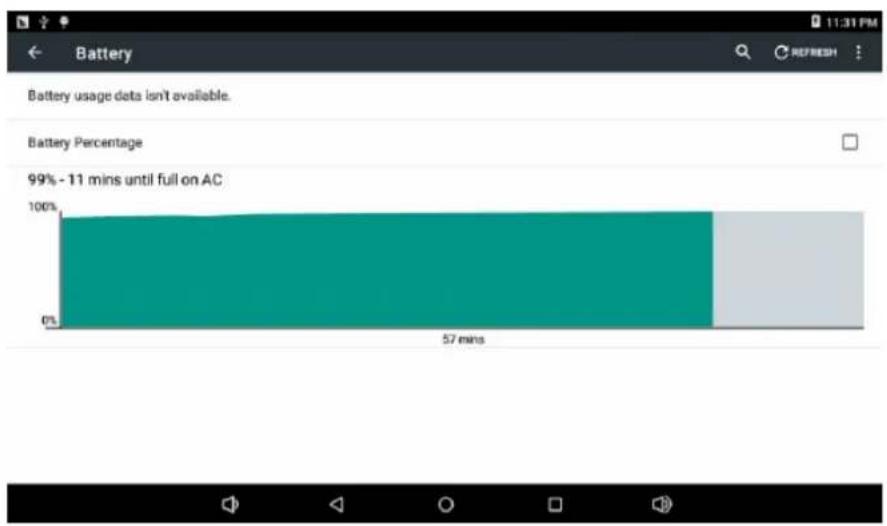
Battery
Displays current use of the battery.
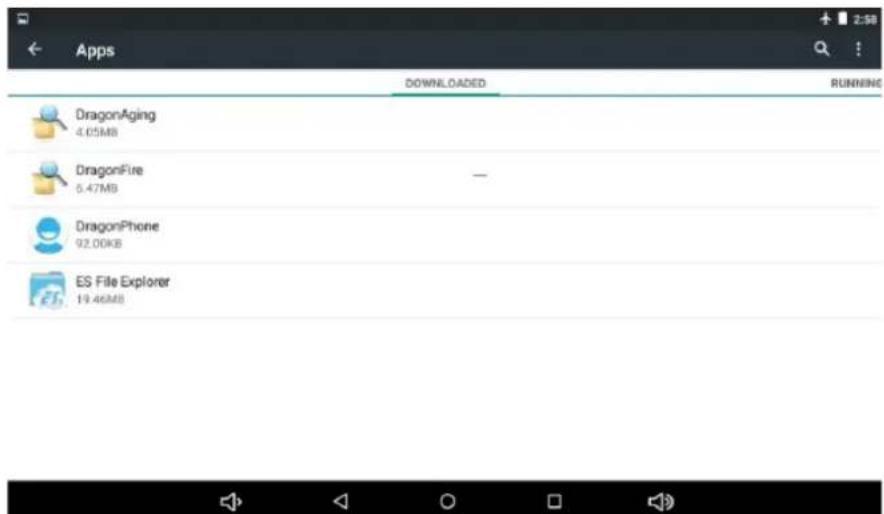
Applications
Displays applications downloaded to main memory or the memory card (SD) as well as the currently running applications.
Warning: The manufacturer does not guarantee the compatibility of the version installed on your Android device with all the applications available for this platform. The manufacturer is not liable for damage to the device for any malware, worm, Trojan or virus as a result of the installation, implementation, or downloading programs. The manufacturer is not liable for the misuse by a user with the device and download and installation of proprietary software without authorization from the owner.
How to uninstall?
- Enter "Setting" → "Application" → "Manage application".
- Click the app icon you want to uninstal, will enter the following interface:
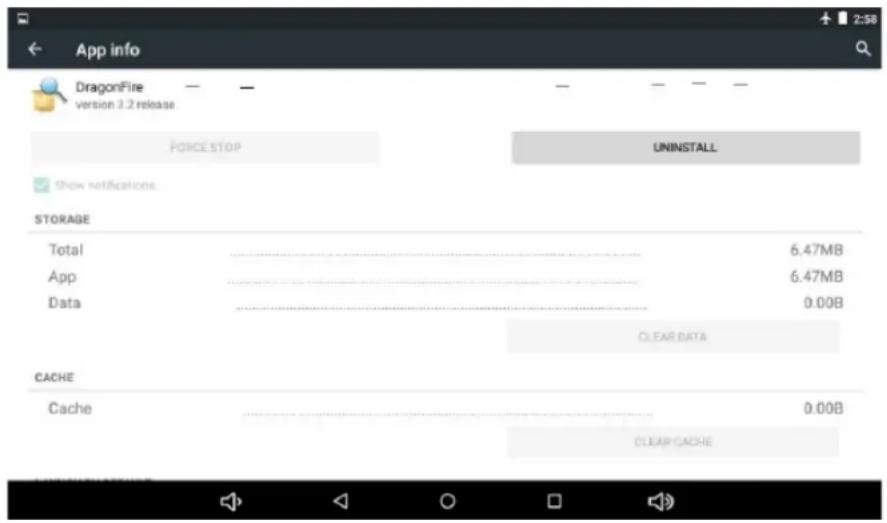
- Click Uninstall, then you can delete the application.
Some applications allow to be moved to external memory (SD card) to not fill the entire main memory of the Tablet.
Accounts and synchronization
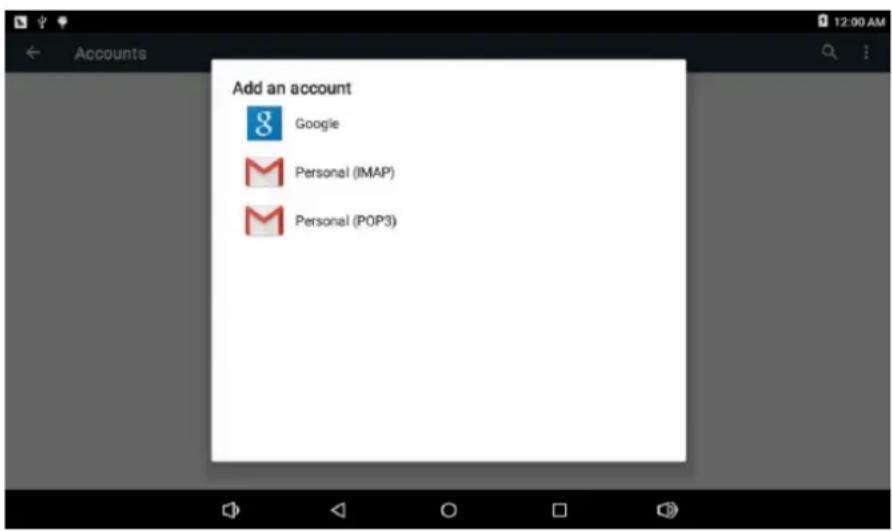
Allow you to manage the accounts of different mail applications, Skype etc., which can be synchronized in real time or not.
Location Services
Allows applications such as Google use your data to determine your location.
User guide
TAB2323GMQC
Security
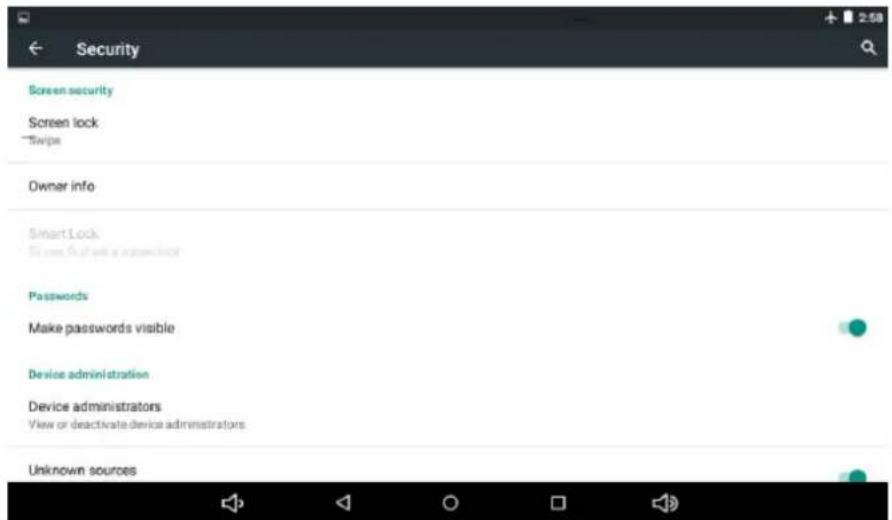
Various security settings like screen lock, displayed or hidden passwords, etc. Unknown sources: Click "Unknown sources" and followed by "OK" to allow installation of unknown origin applications (applications not certified by Google, which does not mean they are not reliable sources).
Language and Keyboard
Change the language to use the Tablet, set the automatic spell correction, keyboard type, etc.
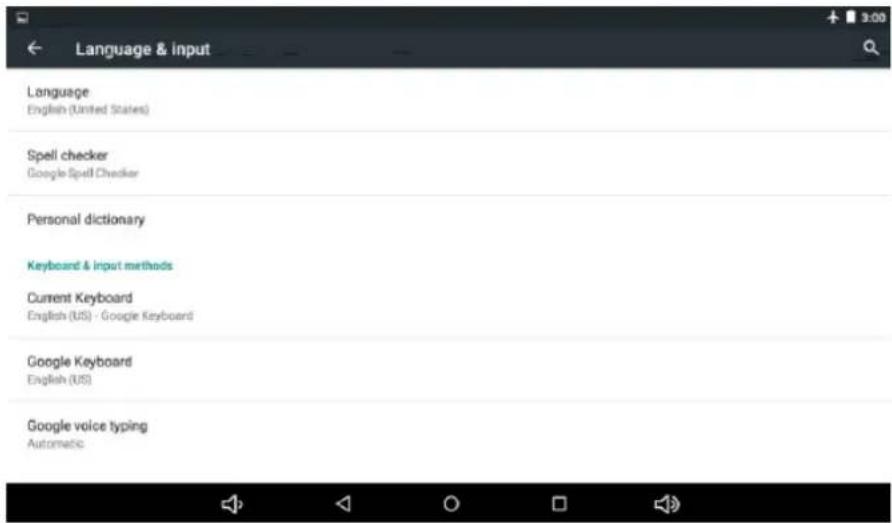
Select Language: 54 languages are available.
Remark: Android system can support 54 kind of language, now main interface just support 14 kind of language.
Android keyboard: Android keyboard setting.
Sound on Key-press.
Auto-capitalization
Show suggestions: Display suggested words while typing.
Auto-complete: Spacebar and punctuation automatically insert highlighted word.
Backup
Allows automatic backup of application data, passwords and other settings so that if you reset the operating system applications can be recovered under the above conditions. In this option settings can be restored original factory data.
Date & time setting
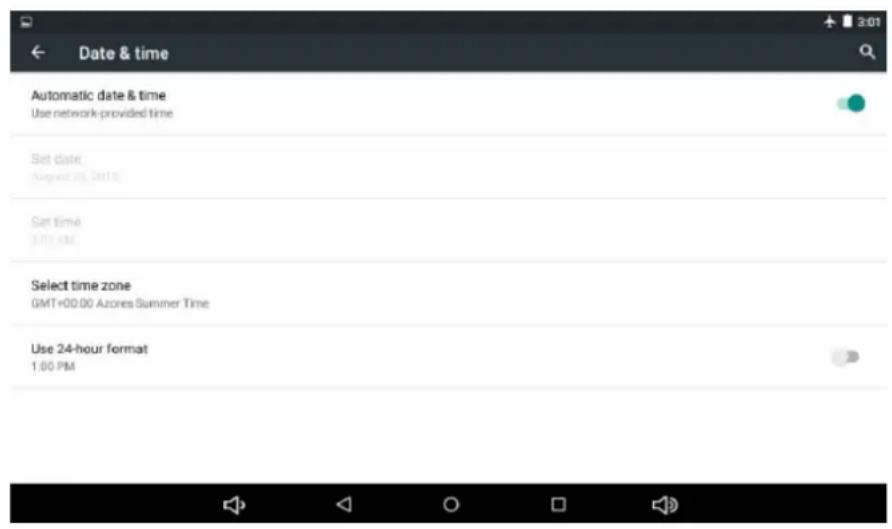
Set date, set time, Select time zone and select date format.
User guide
TAB2323GMQC
Accessibility
Different options to facilitate the accessibility of the Tablet.
Development options
Options for developers.
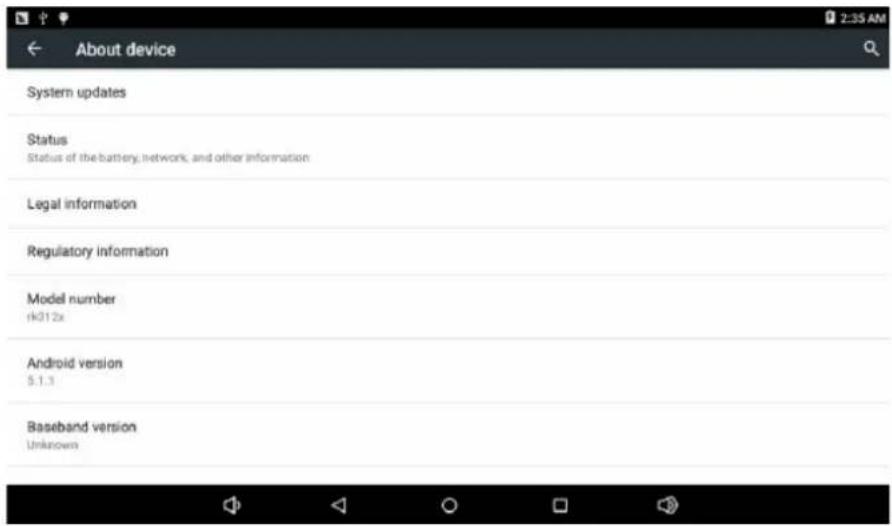
About the unit
Displays information about the tablet and the OS.
FREQUENTLY ASKED QUESTIONS (FAQ)
| QUESTION SOLUTION | |
| The tablet does not start or does not show image? | Check battery. Connect the charger DC power connector of your device and wait. If the battery is completely depleted, charging 4-5 hours will be enough to take autonomy. |
| Can’t play videos that you can actually play on your computer? | Just as we need to install CODECs in a computer to reproduce some extensions and video formats, the tablet works the same way. Access Market and locate the codec application you’re interested in. |
| The tablet boots and freezes with the word Android on screen but doesn’t get to the unlock menu? | It is possible that some recently installed application isn’t ready to be used in the tablet or it may be consuming too much work memory. Please update the firmware. |
User guide
TAB2323GMQC
SPECIFICATION
Display screen: 10.1" IPS, 5 point capacitive touch.
Resolution: 800× 1280
Operation System: Android 5.1.
RAM: 2GB.
CPU: MTK 8321, Quad Core 1.3G (Cortex A7).
Memory: 32GB.
Micro SD card (TF): 128MB-32GB.
USB: USB Host / OTG.
3G Connectivity.
Dual Sim.
FM.
Bluetooth.
G-sensor 3D.
Camera: 2.0 MP Front and 5.0 MP Rear.
Built-in microphone.
Video: HD2160P, AVI H.264, DIVX, DIVX, XVID, rm, rmvb, WMV, MOV, MP4
H.264, MPEG, DIVX, XVID, DAT VCD, VOB DVD, MPEG, MPG, FLV H.263
H.264, ASF, TS, TP, 3GP, MPG, etc. Support to 2160P: 3840 x 2160.
Audio: MP3, WMA, APE, FLAC, OGG, WAV, AAC.
Photo: JPG, JPEG, GIF, BMP, PNG.
Ebook: TXT, EPUB, PDF, WORD, EXCEL, POWERPOINTS.
Battery and capacity: Rechargeable Built-in type polymer battery, 5000 mAh.
User guide
TAB2323GMQC
WARNING
| Pb | Correct disposal of this Product (Waste Electrical & Electronic Equipment) (WEEE).Your product is designed and manufactured with high quality materials and components which can be recycled and reused.This symbol means that electrical and electronic equipment, at their end of-life should be disposed of separately from your household waste.Please dispose of this equipment at your local community waste collection/recycling centre.In the European Union there are separate collection systems for used electrical and electronic products. Please help us to conserve the environment we live in! |
| X | DO NOT place objects on top of the device, as objects may scratch the device. |
| X | DO NOT expose the device to dirty or dusty environments. |
| X | DO NOT place the device on an uneven or unstable surface. |
| X | DO NOT insert any foreign objects into the device. |
| X | DO NOT expose the device to strong magnetic or electrical field. |
| X | DO NOT expose the device to direct sunlight as it can damage the device. Keep it away from heat sources. |
User guide
TAB2323GMQC
| 60°C(140°F) 20°C(68°F) | DO NOT store your device in temperatures higher than 40°C (104°F). The internal operating temperature for this device is from 20°C (68°F) to 60°C (140°F). |
| DO NOT use the device in the rain. | |
| Please check with your Local Authority or retailer for proper disposal of electronic products. | |
| × | The device and adaptor may product some heat during normal operation of charging. To prevent discomfort or injury from heat exposure, DO NOT leave the device on your lap. |
| ○ sunstech POWER SUPPLY: POWER (IN STANDBY): IN USE: C∈□ | POWER INPUT RATING: Refer to the rating label on the device and be sure that the power adaptor complies with the rating. Only use accessories specified by the manufacturer. |
| Clean the device with a soft cloth. If needed, dampen the cloth slightly before cleaning. Never use abrasives or cleaning solutions. | |
| OFF | Always power off the device to install or remove external devices that do not support hot-plug. |
| → | Disconnect the device from an electrical outlet and power off before cleaning the device. |
| × | DO NOT disassemble the device. Only a certified service technician should perform repair. |
| HOT | The device has apertures to disperse heat. DO NOT block the device ventilation, the device may become hot and malfunction as a result. |
User guide
TAB2323GMQC
| Risk of explosion if battery replaced by an incorrect type. Dispose of used batteries according to the instruction. | |
| PLUGGABLE EQUIPMENT: the socket-outlet shall be installed near the equipment and shall be easily accessible. | |
| European Union: Disposal Information. This symbol means that according to local laws and regulations your product and/or its battery shall be disposed of separately from household waste. When this product reaches its end of life, take it to a collection point designated by local authorities. The separate collection and recycling of your product and/or its battery at the time of disposal will help conserve natural resources and ensure that it is recycled in a manner that protects human health and the environment. | |
| MADE IN CHINA |

TAB2323GMQC
TABLET
GUIA DE USUARIO
CONTENIDO
INTRODUCCION 1
Primeruso 1
ASPECTOYBOTONES 2
Pantalla tactil. 2
Alimentación 2
Resolution: 800× 1280
Video: HD2160P, AVI H.264, DIVX, DIVX, XVID, rm, rmvb, WMV, MOV, MP4
H.264, MPEG, DIVX, XVID, DAT VCD, VOB DVD, MPEG, MPG, FLV H.263
H.264, ASF, TS, TP, 3GP, MPG, etc. Support to 2160P: 3840 x 2160.
Audio: MP3, WMA, APE, FLAC, OGG, WAV, AAC.
Foto: JPG, JPEG, GIF, BMP, PNG.
Ebook: TXT, EPUB, PDF, WORD, EXCEL, POWERPOINTS.
Bateria y capacité: Bateria integra de polimero de litio, recargable, 5000 mAh.
Guía de usuario
TAB2323GMQC
ADVERTENCIAS
Resolucao: 800× 1280
Câmara: Camara dienteira de 2,0 MP e traseira de 5,0 MP.
For you. For everyone.


- User guide
- TAB2323GMQC
- INTRODUCTION
- First time use
- Configuration
- APPEARANCE AND BUTTON
- Touch panel
- Power
- Volume"-key
- Volume ^ 一 + ^ 一 key
- Earphone jack
- Micro SD - TF card
- Mini USB / OTG
- Reset
- DC
- Battery management and charge
- CONNECTION WITH PC
- Main interface describe
- 22:20
- BASIC SETTINGS
- Wi-Fi
- Data Usage
- More...
- Sound
- Screens
- Storage
- Battery
- Applications
- Accounts and synchronization
- Location Services
- Security
- Language and Keyboard
- Backup
- Date & time setting
- Accessibility
- Development options
- About the unit
- SPECIFICATION
- WARNING
- CONTENIDO
- Guía de usuario
- ADVERTENCIAS
Brand : Sunstech
Model : Tab 2323 GMQC
Category : Tablet