
TAB717DUAL - Tablet Sunstech - Free user manual and instructions
Find the device manual for free TAB717DUAL Sunstech in PDF.


| Product type | Tablet |
| Brand | Sunstech |
| Model | TAB717DUAL |
| Screen size | 7 inches |
| Screen resolution | 1024 x 600 pixels |
| Processor | Quad-core 1.2 GHz |
| RAM | 1 GB |
| Storage capacity | 8 GB |
| Expandable storage | Yes, via microSD card up to 32 GB |
| Wi-Fi connectivity | Wi-Fi 802.11 b/g/n |
| Bluetooth connectivity | Bluetooth 4.0 |
| Rear camera | 2 megapixels |
| Front camera | 0.3 megapixels |
| Battery | Lithium-ion 2000 mAh |
| Battery life | Approximately 4 to 6 hours |
| Power supply | AC adapter 5V / 1A (via micro-USB) |
| Dimensions (L x W x H) | 190 x 110 x 9 mm |
| Weight | 300 g |
| Operating system | Android (version depends on update) |
| Care and cleaning | Dust with a soft, dry cloth; do not use abrasive products. |
| Safety | Use original charger; do not expose to moisture. |
| Spare parts and repairability | Screen and battery often replaceable by a professional; check parts availability. |
Frequently Asked Questions - TAB717DUAL Sunstech
User questions about TAB717DUAL Sunstech
0 question about this device. Answer the ones you know or ask your own.
Ask a new question about this device
Download the instructions for your Tablet in PDF format for free! Find your manual TAB717DUAL - Sunstech and take your electronic device back in hand. On this page are published all the documents necessary for the use of your device. TAB717DUAL by Sunstech.
USER MANUAL TAB717DUAL Sunstech
natural_image
Beach scene with two lounge chairs under a blue umbrella over turquoise water, displayed within a tablet device (no text or symbols on main subjects)Android 4.4.2
User Manual
Tablet of Contents
Specifications....1
Tablet Parts....2
Getting started....3
How to use TF card....7
How to connect with computer....8
Connection to Internet....8
Camera....9
Trouble Shooting....10
Specifications
Display: 7 inch 1024X600 Capacitive multi-touch screen
CPU: A23 Dual-Core A7 1.6GHz
RAM: 1GB DDR III
GPU Mali-400@450Mhz
Internal Storage: 8 GB
Expansion Memory: Micro SD card up to 32GB (not supplied)
Built-In Wireless: 802.11b/g/n
Micro USB 2.0 / OTG
Front camera 0,3 Mpixels
Battery : 3000mAh
AC Adapter: DC 5V-2A
Operating System: Android 4.4.2
Made in China
What's Inside The box
Tablet - 1pc
Power Adapter -1 pc
USB Cable-1pc
OTG Cable-1pc
Instruction manual - 1pc
Warranty card - 1pc
Tablet Part

| Name | Function |
| 1 -- Volume downer | Press the button to decrease the volume |
| 2----Micro SD input | Insert a micro SD card (up to 32GB) |
| 3-- Volume up | Press the button to increase the volume |
| 4----USB OTG Port | PC connection/peripheral connection through OTG cable (for example keyboard, USB device)/ battery charge through the supplied adaptor |
| 5----Earphone jack | Connect earphone to this standard 3.5mm jack. |
| 6----Power | Keep pressed to turn on/off the tablet; shortly press to activate standby |
| 7---- Reset | press RESET button,Tablet will force to shutdown |
Getting Started
Battery Charging
The tablet has a built-in rechargeable Li-polymer battery.
-
To charge connect the AC power adapter to the micro USB jack on the right side of the tablet.
-
The battery icon shows the battery status and charging status

- The tablet can be used even if the battery is being charged.
the above icons indicate the different level of electricity left in the battery - No replacement of battery without authorization, or the explosion hazard might happen.
- Recharge it for at least half hour if it has been idle for long time and fails to start itself.
- Regularly recharge it at least one time monthly
- 40^-5^ is the optimum temperature for the battery recharging or the battery performance might deteriorate slightly
Disposal
the battery might contain the polluting material, please give it to the official recycling-station before disposing the tablet pc, and don't litter.
Power ON/OFF
ON:
press the ⏻ button for continuous 5 seconds until the tablet turns "ON".
OFF:
- Press the ⏻ button for continuous 5 seconds and it will appear
- Select OK to power off the tablet
Screen Lock
This feature locks the screen, at the same time turn OFF the screen's backlight after a few seconds.
Screen locks when:
- System is idle.
- Manually activated by pressing the Power button once.
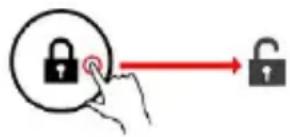
Screen unlock :
Home screen
The Home screen will look similar to the picture below. It is actually five
screens, each of which can have a different layout of icons. To switch between screens, simply slide your finger left or right across the display.
The status bar and navigation buttons are always visible, no matter which Home screen you can currently viewing.

The Desktop contains shortcuts to your most-used applications and widgets. Touch the screen icon to quickly search the World Wide Web using Google.
The 🎨 icon will launch the Application menu.
The status bar displays system information, such as current time, wireless connectivity and battery.
Touch to Expand the status bar for more detailed information.
The ← button moves back one step to the previous menu/page.
The button returns immediately to the Android desktop.
The button display a menu of recently opened applications.
Settings Menu
The settings menu allows you to adjust Tablet system configuration. To change settings:
- Touch the "Settings"

menu icon on the Application menu.The
Settings menu will open.
- Guide your finger up or down the left side of the screen to scroll through the list of available categories.
- Touch a category title to view further options on the right side of the screen.
Wi-Fi - Connect to /disconnect from wireless networks, view connection
status Data usage - Enable / disable mobile data, view current usage, set
mobile data limit (note: this function is available only on devices supplied with
3G card) Sound - Change volume, touch sound, screen lock sounds etc
Display - Change brightness, wallpaper, sleep settings, font size etc
Storage - Manage NAND and Micro SD card, view available capacity etc
Battery - See battery status and powered-on time Apps - Manage applications,
running services etc Accounts - Manage accounts etc
Apps - Manage applications, running services etc
USERS& PROFILES- TO create a new user and profiles.
Accounts & sync - Switch synchronization on /off, manage accounts etc
Location services - Change approximate location detection, improve search
results
Security - Change screen lock type, encryption, password, credential storage
etc Language & input Select language, add to the dictionary, edit on-
screen keyboard settings, vocal search, etc
Backup & reset - Backup & restore data, perform factory reset, etc
Date & time - Set date, time zone, time, clock format etc
Accessibility - Set up large text, auto-rotate screen, speak password etc
Developer options - Advanced functions for Android developers - debugging,
HDCP check etc
About tablet - Information about your Android device
How to Use TF card
- Insert the TF card into the TF card slot. Gently push TF card into slot until it clicks into place.
- A prompt will be seen on the screen saying "Preparing SD card"
Removing TF card
- Close all applications and documents which have been opened from the TF card.
- Select "Setting" and find "Storage" then click "Unmount SD card".
- A prompt will be seen on the screen saying "SD card safe to remove"
- Gently press the TF card to remove and pull out the TF card.
Note: Insert the TF card in correct position, otherwise it will damage the card and the slot.
Software Keyboard
The tablet has a software keyboard which automatically show up when you tap the place on screen where text or number are to be entered.
Touch Screen
The touch screen responds to finger touch.
Note: don't place any object on the touch screen for it may damage or crush the screen.
Single Click: single click one icon to choose the icon or option you want.
Long Press: press and hold one icon to make appear a menu related to executed function (if available).
Drag: drag on the screen and you can move between magic cube sides or drag the application icons into the shortcut bar.
How to connect with computer
Note: Turn on your Tablet before connect the Tablet to PC by USB cable.
1 Use USB cable to connect with the computer. System will notice USB connected on bottom of screen.
2 Press USB connected on the top bar, then click Turn on USB storage, click OK.
3. Then the USB connection has been successfully.

Connection to Internet
Wireless:
1 Select "Settings"
2 Select "Wi-Fi" and slide OFF to ON status.

3 All detected wireless networks in the area will be listed, Click to select desired wireless connection.
4 Enter WEP key or network key if necessary.
5 Once connected to a wireless network, settings will be saved
6 Wireless icon will appear on the taskbar when connected successfully.
Note: when the tablet detects the same wireless network in the future, the device will connect to the network automatically with same password record.
Web Browsing
Connect to the internet and launch the browser.

Touch the icon to enter camera mode and the interface is shown as follows:

natural_image
Black background with a blue circular play button and control icons (no text or symbols)- Touch the icon in the middle to take photo
- Move the icon to bottom and you can switch camera mode to camera recording mode.
- Touch the icon on the top right to see the previous picture and you can also delete, share, set it as the wallpaper. Click return button to exit camera interface.
Trouble Shooting
Close Application
All running applications take up system memory and will slow down system response. Please shut down all idle applications to release memory and get the system speed back to normal.
To close the application, click the icon

on the shortcut bar to enter
the system configuration interface. Select the services and the interface is shown as follows:
Application → Running

Tap the application you want to close. A pop-up window will be displayed.
Tap "Stop" to close that application.
Mandatory Power off
-
Press and hold the power button for 5 seconds and the device will be powered off.
-
Press the reset button on the back and the device will be forced to be powered off.
If you want to reset the factory setting and erase all materials, please press Settings → Backup and Reset → Factory data reset.
** Warning: Factory data reset setting will delete your data and configuration of system and applications from downloading.
**Please use this function carefully.
Recovery Mode:
How to enter in recovery mode.
Please follow these steps.
1-To enter in the recovery mode first you should power off the device,
2-Then long-press the "ON-OFF" key and "VOL + " Key at the same time until the Recovery mode has appeared, pls try it.
3-After a new menu will appear and then you must use the touch panel or volume keys to select "Wipe data/ factory reset" then press "Power" and then select "Yes delete all user data"
Then press "power" again. The unit will then begin the recovery mode. (this process may last for a few minutes).
4-When it finishes select "reboot system now" press the "power button" and the unit will re-start itself. (this process may last for a few minutes)
How to download the software using the unit.
IMPORTANT: When you download the software, all data will be deleted as photos, videos and Apps that you have been installed.
Do not interrupt this process please make sure the battery is fully charged.
Please, follow these steps.
1- Open browser and search and open this link:
www.sunstech.es/download/
2- Select the model of the tablet that you have and download the software.(This software is installed In the INTERNAL SD).
3- When it finished the download, select the App "Update" in your unit.
4-Select "Local Update", "Download".
5-Select the software / download and wait until the process is finished.
WARRANTY CARD
EUROPEAN WARRANTY
1. General
This warranty is granted without prejudice and in addition to the recognized rights for the consumer vis-à-vis the seller provided in the Royal Legislative Decree of 16 November, approving the restated text of the General Law for the Protection of Consumers and Users and other complementary legislation. Therefore, the recognized legal rights for the consumer are not limited or excluded according to the relevant Regional, National or European legislation.
This warranty shall be valid in all the European Union Member States with the limitations that legally correspond in the country in which they are intended to be implemented in accordance with their implementing legislation.
Notwithstanding the foregoing, SUNSTECH shall respect the rights and limitations related to the product warranty that legally correspond in each of the States listed in the Attachment in accordance with their implementing legislation for any product provided that it is intended for the EU market and has been purchased or used by the consumer or user within the EEA.
2. Legal Warranty
This SUSTECH product has a two (2) year warranty counting from the date of delivery and/or purchase. During the above timeframe, SUNSTECH shall be held responsible for any lack of conformity of the product in relation to the contract in accordance with the provisions of the Law for the Protection of Consumers and Users, that shall entitle the consumer to request the repair or replacement of the product, unless one of these options is objectively impossible or disproportionate.
Accordingly, the remedy (i.e. the repair or replacement) shall be deemed to be disproportionate if it imposes unreasonable costs on the seller. In order to determine this, the following shall be considered: (i) the value of the product if there were no lack of conformity; (ii) the relevance of the lack of conformity; and (iii) if the other form of remedy could be carried out without major inconvenience to the consumer and user. To determine
whether the costs are unreasonable, the costs incurred by one form of remedy must be significantly higher than the costs corresponding to the other form of remedy.
In addition, the consumer may choose between requesting a reduction in the price or terminating the contract, if he is not entitled to demand the repair or replacement of the product and whenever these actions would not be completed within a reasonable timeframe and would cause more inconvenience to the consumer and user. However, the termination shall not take place where the lack of conformity is minor.
Both the repair and the replacement of the product as result of the product's lack of conformity shall be free of charge for the consumer and user, including labour and materials.
In any case, repairs under warranty shall be carried out by SUNSTECH's Official Technical Assistance Service or its authorized distributors.
3. Conditions for the warranty to be exercised
To exercise the legal and commercial warranty, it is necessary to submit documentary evidence showing the delivery and/or purchase date of the product, whether the invoice, receipt, delivery slip or sealed and dated warranty card. Documents which have been tampered with or falsified will not be accepted.
The consumer shall contact SUNSTECH's Customer Service Team using the website (under the support section) and will be informed about what action to take. At that time, the consumer shall have to provide a clear description of the malfunction or the lack of conformity of the product with the contract.
In any case, repairs under the warranty shall be carried out by SUNSTECH's Official Technical Assistance Services or its authorized distributors so that SUNSTECH can be held responsible under the legal and/or commercial warranty.
4. Exceptions
The warranty does not foresee or include periodic maintenance or product installation revisions.
In addition, the product will not be considered as lacking conformity in relation to the contract and therefore, it will not be covered by the legal or commercial warranty when:
- The lack of conformity corresponds to a discrepancy with the safety standards or the local or national techniques of a different country to the one it was originally designed and produced in;
- This product or any of its identification features (number of series, etc.) have been partially or completely opened, assembled, unassembled, handled and/or repaired by a person not part of SUNSTECH's Official Technical Assistance Services team or its authorized distributors
- The lack of conformity is a result of an incorrect installation (except if the installation has been carried out by one of SUNSTECH's authorized sellers or under its responsibility, or by the consumer following SUNSTECH's installation instructions) or an abusive or inadequate use of the product, including but not limited to, a usage that is not in accordance to the normal purpose of the product or the directions for use and maintenance, as defined by SUNSTECH;
- The lack of conformity has been caused by a computer virus, an action or a manipulation of passwords, software installation, manipulation or reinstallation, etc.;
- The lack of conformity is due to the use of accessories, chargers or consumables that are not SUNSTECH originals and therefore are not designed for that product;
- The lack of conformity is due to the use of any third party software or application that modifies, changes or adapts the software that was approved and/or included by SUNSTECH in the product;
- The lack of conformity is a result of downloading or using third party multimedia services and/or contents available or accessible through the product;
- Damages in or through the battery, which are due to it being overcharged, are produced;
- Any of the box seals or battery cells have been damaged, or there is clear evidence that shows these were handled; and/or
- The product damages are caused by any unforeseeable or force majeur circumstances, especially, lightning, water, fire, applying incorrect voltage or any other cause that is not due to the product manufacturing or design.
Under no circumstances will SUNSTECH be held responsible for the loss of any data stored in the product. The consumer will be held responsible for any back-up copies and the protection of any data from loss, damage or destruction.
None of the warranties included here cover the replacement of parts, due to ware or rupture of mechanisms, rubber, boxes and/or plastic, as well as any aesthetic damage resulting from the normal use of the product, for example, if the screen loses its shine with the use of the product. In the same way, the warranties do not cover any type of damage produced during the transportation of the product (including but not limited to aesthetic damage, blows, lines, scratches, stains, dents, etc.) in which case the applicable provisions under SUNSTECH's general contract conditions will apply.
For further information go to www.sunstech.es
You can also contact:
AFEX SUNS, S.A.
Pallars, 189-191
08005 BARCELONA

ThisproductcanbeadjustedtotheSARnationallimitsof2W/Kg.ThespecificSARmaximumvaluesareintheinformationsectionofthisguide.
When you hold the product use it on your body, maintain a distance of 1.5 cm from your body to ensure the radio frequency exposure standards.
www.sar-tick.com
This device offers communication and entertainment services that follow SUNSTECH's high standards and technological experience.
- Thecontentmaydifferfromthefinalproductofthesoftwareprovidedbythe suppliersofservicesortransmittersanditissubjecttoalterationwithoutprior notice.
- Theelementsthatcomewiththedeviceandanyavailableaccessorymayvary accordingtotheregionorsupplieroftheservices.
- The elements provided are designed uniquely for this device compatible with other devices.
- YoumaypurchaseadditionalaccessoriesatyourlocalSUNSTECHdistributor. Ensurethattheyarecompatiblewiththedevicebeforeyoupurchasethem.
• Otheraccessoriesmaynotbecompatiblewiththedevice. - SUNSTECHisnotheldresponsibleforproblemsofinsufficientreturnorany changetotheoperatingsystem'ssoftware.Anyattempttopersonalizethe operatingsystemmaycausethedeviceortheapplicationstofunction incorrectly.
Instruction icons

Warning: Situationsthatcancauseinjuriestoyourself or thirdparties.


Precaution: Situation that can cause damage to the device or therequipment.
Note: Notes, recommendations of fuse or additional information.
Copyright
Copyright2013Afexsuns,S.A.
Thisguide is protected by international copyright laws.
Reproduction, distribution, translation or transmission of any part of this guide is not allowed under any circumstances through an means, beitelectronic or mechanic. This includes photocopies, recordsor storage in any information retrieval and storages systems, without previous written authorization from Afex Suns, S.A.
Safety information
This section contains safety information for mobile devices. Some of the content may not apply to your device. In order to avoid injury to yourself or third parties or damage to the device, read the device's safety information before you use it.

Warning
If you do not comply with these safety regulations and warnings, you may suffer serious injury or even death.
Do not use damaged power cords or connectors or loose sockets.
Unsafeconnectionsmaycauseanelectricdischargeorafire.
Do not touch the power cord if your hands are wet and do not pull the cord to disconnect the charger.
If youdoso, you may bee electrocuted.
Do not bend or damage the power cord.
Ifyousodo, this may cause an electric discharge.
Do not cause a short-circuit in the charger or the device.
If youdoso, this may cause an electric discharge or the device may not function correctly.
Use batteries, chargers, accessories and supplies that have been approved by the manufacturer.
- Theuseofgenericbatteriesorchargersmayshortentheusefullifeof thedeviceorcauseincorrectfunctioning.Itmayalsocauseafireorthe batterymayexplode.
- OnlyusebatteriesorchargersthathavebeenapprovedbySUNSTECH, specificallydesignedforthedevice.Anynoncompatiblebatteriesand chargersmaycauseseriousphysicalinjuriesordamagethedevice.
- SUNSTECHwillnotbeheldresponsibleforthesafetyoftheuser wheneveraccessoriesorsuppliesthathavenotbeenapprovedbythe brandareused.
Do not cut or drop the charger or the device.
When handling or disposing of the device and charger do so with caution.
- Neverthrowthebatteryorthedeviceintothefire.Neverplacethe batteryorthedeviceonanysourcesofheat,suchas,ovens,microwaves, glasshousesorradiators,etc.Ifitoverheats,thedevicemayexplode. Followalllocalregulationswithregardstodisposingoftheusedbattery ordevice.
• Donotsquashthedeviceormakeholesinit. - Avoidexposingthedevicetohighpressurebecausethismaycausean internalshort-circuitandoverheating.
Protect the device, battery and charger in order to stop them from getting damaged.
- Avoidexposingthedeviceandbatterytoveryhighorverylow temperatures.
- Extremetemperaturesmaydamagethedeviceandreducethecharging capacityandthedurationofthedeviceandbattery.
- Avoid the battery entering into contact with metal objects because this may cause a connection between the positive and negative terminal of the battery and damage it temporarily or permanently.
• Neverusedamagedchargersorbatteries.
Do not store the device in or near heaters, microwaves, heated kitchen equipment or high pressure containers.
• The battery may have leakages.
• Thedevicemayoverheatandcauseafire.
Do not use or store the device in places with a lot of dust or material transported by air.
Dustorforeignmaterialsmaycausethedevicetomalfunctionandmayresultina fireoranelectricdischarge.
Safetyinformation
Do not bite or suck the device or the battery.
• Thismaydamagethedeviceorcauseanexplosionorafire.
• Childrenandanimalsmaychokeonsmallpieces.
- Whenchildrenusethedevice,ensurethattheydosocorrectly.
Do not insert the device or the accessories provided into your eyes, ears or mouth.
If youdoso, you make chokeors suffer serious injuries.
Do not handle damaged lithium-ion batteries or batteries that show evidence of leakage.
Todisposeoflithium-ionbatteriessafely,contactyourclosestauthorizedservice centre.

natural_image
Simple diagram showing a wall socket and a downward arrow on a flat surface (no text or symbols)PLUGGABLE EQUIPMENT: the socket-outlet shall be installed near the equipment and shall be easily accessible.
Precaution
If you do not comply with these regulations and warnings, you may suffer injuries or cause material damage.
Do not use the device near other electronic devices.
Mostelectronicdevicesuseradiofrequencysignals.Thedevicemay interferewithotherelectronicdevices.
If you use a LTE data connection, this may cause an interference with other devices, such as audio equipment and telephones.
Do not use the device in a hospital, plane or car that may be affected by interference caused by radiofrequency.
If possible, avoid using the device at any distance lower than 15 cm from apacemaker, because the device may cause interference within it.
Tominimizeanypossibleinterferencewithapacemaker,usethedevice onlyontheoppositesideofthebodyinrelationtothepositionofthe pacemaker.
Ifyouusemedicalequipment,contactthemanufacturerofthe equipmentbeforeusingthedeviceinordertoascertainwhetherthe equipmentwillbeaffectedbytheradiofrequencyemittedbythedevice. Ifelectronicdevicesareusedonaplane,thesemayinterferewiththe electronicnavigationinstruments.Ensurethatthedeviceisturnedoff duringtake-offandlanding.Aftertake-offyoumayusethedeviceon "airplanemode"aslongasthisisallowedbythecabincrew. Theelectronicdevicesinyourcarmaymalfunctionduetotheradio interferenceofthedevice.Contactthemanufacturerforfurther information.
Do not expose the device to smoke or strong emanations.
If youdoso, you may damage the outside part of the device or cause its malfunctioning.
If you use hearing devices, contact the manufacturer for further information about radio interference.
Theradiofrequencythatthedeviceemitsmayinterferewithsomehearingdevices. Beforeusingthedevice,contactthemanufacturerinordertoascertainwhetherthe hearingdevicewillbeaffectedbytheradiofrequencyemittedbythedevice.
Do not use the device near other devices or apparatuses that emit radiofrequency, such as sound systems or radio towers.
Radiofrequency may cause them malfunctioning of the device.
Turn off the device in potentially explosive atmospheres.
- Turnoffthedeviceinsteadofremovingthebatteryinpotentially explosiveatmospheres.
- Alwaysrespectthestandards,instructionsandwarningsignsin potentiallyexplosiveatmospheres.
- Donotusethedeviceinpetrolstationsornearfuelorchemicalsorin demolitionareas.
- Donotstoreortransportflammableliquids,gasesorexplosivematerial inthesamecompartmentinwhichthedevice,itspartsoraccessories are.
If you become aware of the device or the battery letting off strange odours or sounds or if you see smoke or liquid coming out of the device or battery, stop using the device immediately and take it to an authorized service Centre.
If you donotdoso, this may cause a fire or an explosion.
Comply with all the safety regulations and warnings related to the use of mobile devices when driving a vehicle.
Whendriving, your main responsibility is to control the vehicles safely. If the law does not allow mobile phone use when hindriving, donot usethemobile device. For your and others' safety use your commonsense and remember the following advice:
- Gettoknowthedeviceanditsoperatingfunctions,likespeeddialling andrecallsystem.Thesefunctionsallowthetimenecessarytomakeand receivecallstobereduced.
- Put the device in a place where it is easy to reach. Ma can access the wireless device without taking you're off the road. If
youreceiveatelephonecallataninconvenienttime,letvoice-mail answerit.
- Stopphonecallswhenthereisheavytrafficorwhenthereareadverse climateconditions.Rain,sleet,snow,iceandheavytrafficcanbevery dangerous.
- Donotjotdownorlookfortelephonenumber.Jottingdownataskor lookingatyourcalendarmaydistractyoufromyourmainresponsibility, whichistodrivesafely.
- Dialcarefullyandassessthestateofthetraffic.Makephonecallswhen youarenotmovingorbeforehittingtraffic.Trytoschedulephonecalls whenthecarisparked.
- Donothaveverystressfuloremotionalphonecallsthatmaydistract you.Tellthepersonthatyouarespeakingtothatyouaredrivingand endanyconversationsthatmaytakeawayyourattentionfromtheroad.
Correct use and maintenance of the mobile device.
Keep the device dry.
- Humidityandliquidsmaydamagethepartsortheeelectroniccircuitsof thedevice.
- Donotturnonthedeviceifitiswet.Ifitisalreadyturnedon,turnitoff andtakethebatteryoutimmediately(ifyoucannotturnitoffortakethe batteryout,justleaveitasitis).Afterthis,drythedevicewithatowel andtakeittotheservicecentre.
- Liquids will change the colour of the label which in caused by the water inside the device. The damage caused by the water in the device may cancel them manufacturer's warranty.
Place the device only on flat surfaces.
Ifitdrops, the devicemaygetdamaged.
Do not store the device in very hot or cold places. It is recommended that you use the device at temperatures between 5° and 35°.
- Donotstorethedeviceinplaceswithveryhightemperatures,suchas insideacarinthesummer.Ifyoudoso,youmaycausethescreento malfunction,thedevicemaygetdamagedorthebatterymayexplode.
- Donotexposethedevicetodirectsunlightforlongperiodsoftime(for example, onthedashboardofacar).
- Storethebatteryattemperaturesbetween0°and45°.
Do not store the device with metal objects, such as coins, keys and necklaces.
• Thedevicemaygetscratchesorstopworkingproperly.
- If the battery terminals come into contact with metal objects, a fire may occur.
Do not store the device near magnetic fields.
- Itispossibleforthedevicetostartmalfunctioningandforthebatteryto losepowerduetobeingexposedtothesefields.
- Cardswithmagneticstripe,suchascreditcards,telephonecards,travel passesmaygetdamagedduetothermagneticfields.
If the device overheats, stop using it and its applications for a while.
Prolongedskinexposuretoahotdevicemaycausesymptomsofburningwithlow temperature,suchasredspotsandpigmentation.
Do not use the device if the back cover is not in place.
The battery may come out of the device, malfunctioning.
If the device has a lamp or a camera flash, do not use it near people's or animal's eyes.
This may cause atemporary loss of vision or damage the eyes.
Be careful when exposing yourself to intermittent light.
- Whenyouusethedevice,leavesomelightsturnedoninthebedroom anddonothavethescreentooclosetoyoureyes.
- Convulsionsorfaintingmayoccurduetoexposureointermittentlight whenlookingatvideosorplayinggameswithintermittentlightsfor prolongedperiodsoftime.Ifyoufeelunwell,stopusingthedevice immediately.
-
Ifanyoneclosetoyousufferedfromconvulsionsorfaintingwhenusingasimilardevice,visitadoctorbeforeusingthedevice.
-
If you feel discomfort, such as muscle crampsory you feel disoriented, stop using the device immediately and visit a doctor.
• Toavoideyefatigue, havefrequentsbreakswhenusingthedevice.
Reduce the risk of injury caused by repetitive movements.
Whenyoucarryoutrepeatedactions,suchaspressingkeys,drawingcharacterson thetouchscreenorplayingagame,youmayfeeldiscomfortinyourhands,neck, shouldersorotherpartsofthebody.Whenyouusethedeviceduringprolonged periodsoftime,holditwithrelaxedhands,touchthekeyslightlyandrest frequently.Ifyoucontinuefeelingdiscomfortduringoraftertakingthesesteps, stopusingthedeviceandvisitadoctor.
When you use earphones, protect your hearing and your ears.

- Excessiveexposuretoloudsoundscancause damagetohearing.
-
Exposure toloud soundswhile you are walking may distract you and cause an accident.
-
Alwayslowerthesoundbeforeconnectingtheearphonestoanaudio sourceandusetheminimumamountofvolumenecessarytolistento musicorhaveaconversation.
- Indryenvironments,staticelectricitymayaccumulateintheearphones. Avoidusingearphonesindryenvironmentsortouchmetalobjectsto dischargethestaticelectricitybeforeconnectingthearphonestothe device.
- Donotuseanearphonewhileyouaredrivingorridingvehicle.Ifyou dosoyoumaygetdistractedandcauseanaccidentoryoumaybe subjecttolegalaction,dependingontheareawhereyouaredriving.
Use the device with caution while you are walking or moving.
- Alwayspayattentiontowhatishappeningaroundyoutoavoidphysical injurytoyourselfandothers.
- Makesuretheearphonecorddoesnotgetentangledroundyourarms ornearbyobjects.
Do not take devices in your front pockets or round your waist.
Youmaygetinjuredordamagethedeviceifitfalls.
Do not paint your device or put any stickers on it.
- Paintandstickerscanobstructthemobilepartsandstopthedevice fromworkingproperly.
- Ifyouareallergictopaintortothemetalpartsofthedevice,youmay getastingyfeeling,eczemaorswelling.Ifthishappens,stopusingthe deviceandvisitadoctor.
Do not use the device if the screen is cracked or broken.
Thebrokenglasscancausehandandfaceinjuries. Takethedevicetoanaauthorized servicecentretogetitrepaired.
Install the mobile devices and the equipment with caution.
- Makesurethatthewholemobiledeviceorrelatedequipmentthatis installedinyourvehicleisassembledsafely.
- Avoid placing the device and the accessories where the toit. Any wirelessequipment installed incorrectly can cause serious injuries when the airbags inflate quickly.
Do not allow the product to fall or to be subject to strong impacts.
• Thedevicemaygetdamagedormalfunction.
- Ifyoubendordeformitthedevicemaygetdamagedanditspartsmay malfunction.
Guarantee of the maximum duration of the battery and charger.
- Avoidchargingthedeviceforoveraweek, becauseoverchargingcan reducethebattery'sservicelife.
- Withtime, the device will run out of battery (even when it is not being used) and you will need to recharge it again.
-
Disconnect the charger from the powersources when it is not being used.
• Usethebatteryonlyforthepurposeforwhichitwasdesigned. -
If you donotus the battery for a long time, you may reduce it's service life and performance. You may also cause them malfunctioning or explosion of the battery or a fire.
- Followalltheinstructionsinthismanualtoguaranteethelongest servicelifepossibleforyourdeviceandbattery.Anydamageor operatingproblemscausedbynotcomplyingwiththewarningsand instructionsmaycancelthemanufacturer'swarranty.
- Withtime, the devicemaywearout. Some parts and repairs are recovered under the warranty during the validity period; however, the damages or deterioration caused by the use of accessories not approved by the brand are not covered.
Takethefollowinginformationintoaccountwhenusingthedevice.
• Useitinaverticalposition,asyouwouldatraditionaltelephone.
- Speakdirectlyintothemicrophone.
- Donotcovertheantennaareawithyourhandsorotherobjects.This maycauseconnectionproblemsorcausethebatterytorundown.
Do not unassembled, change or repair the device.
- Anyalterationorchangetothedevicemaycancelthemanufacturer's warranty.Ifyouneedtorepairthedevice,takeittoanauthorizedservice centre.
- Donotdisassembleormakeholesinthebattery, this may cause an explosion or a fire.
- Turnoffthedevicebeforeremovingthebattery.Ifyouremovethe batterywhilethedeviceisstillturnedon,thismaycausemalfunctioning.
Take the following information into account when cleaning the device.
- Useatowelorarubberclothtocleanthedeviceandthecharger.
• Cleanthebatteryterminalswithcottonorwithatowel. - Donotusechemicalsubstancesordetergents.Ifyoudoso,youmay causediscolorationorcorrosionoftheoutsidepartofthedeviceoryou maycauseanelectricdischargeorafire.
Do not use it for any other purpose other than the one it was designed for.
The device may malfunction.
When you use the device in public, try not to disturb others.
Only allow qualified professionals to carry out the maintenance of your device.
Itispossiblefordamageooccurandthemanufacturer'swarrantyiscancelledif youallownonqualifiedpersonneltocarryoutthemaintenanceofthedevice.
Be careful when handling SIM cards, memory cards or cables.
- Wheninsertingacardorconnectingacabletothedevice,makesurethe cardisinsertedcorrectlyorthatthecableisconnectedontherightside.
- Donottakethecardoutwhenthedeviceistransferringinformationorit hasaccesstoit,becauseyoumaylosedataanddamagethecardorthe device.
- Protectthecardsfromstrongdischarges,staticelectricityandnoise generatedfromotherelectronicdevices.
- Donottouchthecontactsorthegoldterminalswithyourfingersorwith metalobjects.Ifthecardisdirtycleanitwithasoftcloth.
- If you insert a cardor connect a forcefully or incorrectly you may caused damage to them multifunctional socket or other part of the device.
Make sure you have access to emergency services.
Itispossiblethatinsomeareasorcircumstancesyoumaynotbeabletomake emergencyphonecalls.Beforetravellingtoremoteareasordevelopingcountries, plananalternativeformofcommunicatingwiththeemergencyservices.
Protect your personal data and avoid confidential information from being spread or used incorrectly.
- Whenyouusethedevice,makesureyoumakeback-upcopiesof importantdata.SUNSTECHwillnotbeheldresponsibleforanylossof data.
- When you dispose of the device, make a back-up copy of all the data and after re-establish the device to avoid personal information from being used in appropriately.
-
Readthelicensesscreencarefullywhenyoudownloadapplications.Be especiallycarefulwithapplicationsthathaveaccesstovariousfunctions orasignificantamountofyourpersonalinformation.
-
Controlyouraccountsfrequentlytoavoidanysuspiciousornon-authorizeduse.Ifyoufindanyindicationofyourpersonalinformation notbeingusedappropriately,contactyourservicessuppliertodeleteor changetheinformationinyouraccount.
- Ifyoulosethedeviceoritisstolen,changethepasswordsofyouraccountstoprotectyourpersonalinformation.
- Avoidusingapplicationsfromunknownsourcesandblockthedevice withapattern,apasswordoraPIN.
Do not distribute material protected with copyright.
Donotdistributematerialprotectedwithcopyrightwithouttheauthorizationof thecontentowners.Ifyoudoso,youmayviolatecopyrightlaws.Themanufacturer willnotbeheldresponsibleforanylegalproblemcausedbyillegaluseofmaterial protectedbytheuser.
Malware and virus
Follow these suggestions to protect the device against malware and virus. If you do not do so, you may cause damagesorlossofdatathatmaynotbe covered under the warranty.
• Donotdownloadunknownapplications.
• Donotuseunreliablewebsites.
- Deleteanysuspicioustextmessagesoremailsfromunknownsenders.
• Createapasswordandchangeitregularly.
- Deactivatethewirelessfunctions,suchasBluetooth,whenyouarenot usingthem.
- If the device behaves strangely, execute an antivirus program to detect possible infection.
- Executeanantivirusprogramonthedevicebeforestartingapplications andfilesthatyoujustdownloaded.
• Installanti-virusprogramsonyourcomputerandexecutethem regularlytodetectanypossibleinfections.
- Donotedittheregistrationadjustmentsorchangethedevice's operatingsystem.
Information about the certification of the Specific Absorption Rate (SAR).
THIS DEVICE FOLLOWS INTERNATIONAL STANDARDS OF EXPOSURE TO RADIO WAVES.
Yourmobiledeviceisaradiotransmitterandreceiver.Itwasdesignedtonot exceedthelimitsofexposuretoradiowaves(electromagneticfieldsof radiofrequency)recommendedbyinternationalstandards.Thestandardswere developedbyanindependentscientificorganization(ICNIRP)andincludea substantialsafetymargindesignedtoensurethesafetyofallpeople,regardlessof theirageorstateofhealth.
Theexposuretoradiowavestandardsuseameasurementunitknownasthe SpecificAbsorptionRate,SAR.TheSARlimitformobiledevicesis2W/Kg.TheSAR testsarecarriedoutusingstandardoperationpositionswiththedevice transmittingatitsmaximumcertifiedenergylevelinallfrequencybands.The highestSARamountsundertheICNIRPstandardsforthisdevicemodelare:
| MaximumSARforthismodelandconditionsunderwhichitregistered | |
| SAR for positions near the head. | 0.285W/Kg |
| SAR for positions near the body. | 0.0399W/Kg |
During the use, thereal SAR values for this device are usually a lot lower from the values indicated previously. This is duetom maximizing the system's efficiency and to minimize the interference with the network, the operation capacity of your mobile device reduces automatically when the maximum power is not needed for the call. The lower the amount of energy leaving the device, the lower the SAR amount will be.
ASARtestwascarriedoutwiththedeviceonthebodywithadistanceof1.5cm.To comply with the radiofrequency exposure requirements, while using the device on thebody,thedeviceshallhavetobeatleast1.5cmawayfromthebody.
Some organizations, liketheWorldHealthOrganizationortheFoodandDrug AdministrationoftheUnitedStatesuggestthatifuserswanttoreduceexposure, theycanuseahandsfreeaccessorytomainthewirelessdevicefarawayfromthe headandbodywheninuse,orreducetheamountoftimespentusingthedevice.
Correct disposal of this product.
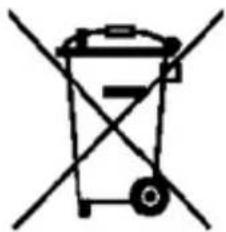
natural_image
Symbol of a trash bin crossed with a diagonal line, representing no waste or elimination (no text or numbers present)(Electronicdevicewaste)
(This applies in countries where a collection system happens separately).
The presence of this symbol on the product, accessories or information material indicate that neither the product nor its electronic accessories (such as, the charger, helmets, USB cable) should be disposed of with other household waste.
To avoid any possible damage to the environment or human health caused by uncontrolled disposal of waste, separate these products from other waste and recycle them. This way, you are promoting the sustainable reuse of material resources.
Individualuserscancontacttheestablishmentwheretheypurchasedtheproduct ortherelevantlocalauthoritiestogetinformationaboutwhereandwhentheycan takeitinordertosubmitittoecologicalandsaferecycling.
Businessuserscancontacttheirsupplierandcheckthepurchasecontract conditions. Thisproductanditselectronicaccessoriesshouldnotbedisposedof withothercommercialwaste.
Correct disposal of this product's batteries

natural_image
Simple line drawing of a trash bin with two crossed lines indicating no waste or restriction (no text or symbols)(This applies in countries where a collection system happens separately).
The presence of this mark on the battery, manual or product packaging indicates that when the service life of the batteries has ended they should not be disposed of with other household waste. The chemicals symbols Hg, Cd and P bindicate that the battery has mercury, cadmium or lead at levelsalot higher than thereference values admitted by the 2006/6 Directive of the European Union.
If the batteries are not disposed of correctly, these substances may cause personal injury or damage the environment.
Toprotectnaturalresourcesandpromoterecycling,separatethebatteriesfrom otherwasteandrecyclethemthroughthefreecollectionsserviceinyourarea.
Exemption from responsibility clause
Partofthecontentandservicestowwhichyouobtainaccessthroughthisdevice belongtothirdpartiesandareprotectedundercopyright,patent,registered trademarkand/orotherintellectualpropertylaws.Thiscontentandservicesare onlyforpersonaluseandnotcommercialuse.Itispossiblethatthecontentorthe servicescannotbeusedifnotaauthorizedbythecontentownerorthesupplierof theservices.Withoutprejudicetotheaforementionedinformation,exceptwhen expresslyauthorizedbythecontentownerorservicesupplier,youcannotchange, copy,reedit,charge,publish,transmit,translate,sell,createderivativeworks, exploreordistributeinanywayorbyanymeansthecontentortheservicesshown throughthisdevice.
"THECONTENTANDTHESERVICESOFTHIRDPARTIESAREPROVIDED"ASIS". SUNSTECHDOESNOTGUARANTEETHECONTENTORTHESERVICESPROVIDED, EITHEREXPRESSLYORIMPLICITLY,FORNOPURPOSE.SUNSTECHEXPRESSLY RENOUNCESANYIMPLICITGUARANTEES,INCLUDINGBUTNOTLIMITEDTO, MERCHANTABILITYORSUITABILITYGUARANTEESFORAPURPOSEINPARTICULAR. SUNSTECHDOESNOTGUARANTEETHEVERACITY,VALIDITY,REPRODUCTION, LEGALITYORINTEGRITYOFANYTYPEOFCONTENTORSERVICEPROVIDED THROUGHTHISDEVICEANDUNDERNOCIRCUMSTANCES,INCLUDING NEGLIGENCE,WILLSUNSTECHBEHELDRESPONSIBLE.BOTHINTERMSOF CONTRACTORPREJUDICETOANYDIRECTORINDIRECT,ACCIDENTAL,SPECIALOR CONSEQUENTIALDAMAGES,LAWYERS'FEES,EXPENSESORANYOTHERTYPEOF DAMAGEFROMORINRELATIONTOANYTYPEOFINFORMATIONINCLUDEDINOR ASARESULTOFTHEUSEOFANYTYPEOFCONTENTORSERVICEBYYOURSELFOR ATHIRDPARTY,THEPOSSIBILITYOFTHEREFERREDDAMAGESISKNOWN."
TheservicesofthirdpartiesmayceaseorbeinterruptedatanytimeandSUNSTECH doesnotcarryoutrepresentationsorguaranteesinrelationtotheavailabilityof contentorserviceforanyperiodoftime.Thecontentandservicesaretransmitted bythirdpartiesthroughnetworksandtransmissionlocations overwhich SUNSTECHhasnocontrol.Withoutlimitingthegeneralityofthisclause,SUNSTECH expresslyrenouncesanyresponsibilityforanyinterruptionorsuspensionof contentorserviceprovidedthroughthisdevice.
SUNSTECHisnotresponsibleforcustomerserviceregardingcontentandservices. Anyquestionorrequestforserviceregardingcontentorservicessshouldbesent directlytotheservicesandcontentsuppliers.
DECLARATION OF CONFORMITY
Council Directive(s) to which conformity is declared:
Directive (1999/5/EC) - R & TTE
Directive (2006/95/EC) - LVD
Directive (2011/65/EU) - RoHS
Application of the Standards:
EN 60950-1: 2006 + A11: 2009 + A1: 2010+A12: 2011
EN 55022: 2010
EN 61000-4-6: 2012
EN 55024: 2010
EN 61000-4-11:2004
EN 61000-3-2: 2006+A2: 2009
EN 62479: 2010
EN 61000-3-3: 2008
EN 301 489-1 V1.9.2
EN 61000-4-2: 2009
EN 301 489-17 V2.2.1
EN 61000-4-3: 2006+A1: 2008+A2: 2010
EN 300 328 V1.7.1
EN 61000-4-4: 2012
IEC 62321: 2008
EN 61000-4-5: 2006
Manufacturer's name:
AFEX SUNS, S.A.
Manufacturer's address:
C/Pallars 189, 08005 Barcelona
Type of equipment: Tablet
Trade: HCETSNUS
Model no.: TAB717DUAL
We, the undersigned, hereby declare under our sole responsibility that the specified equipment is in conformity with the above Directive(s) and Standard(s)
Place: Barcelona

natural_image
Simple hand-drawn sketch of a curved line with an arrowhead, no text or symbols present(Signature)
Víctor Planas Bas
(Full name)
Date: 29 - October - 2013
General Manager
(Position)
sunstech ^1/2
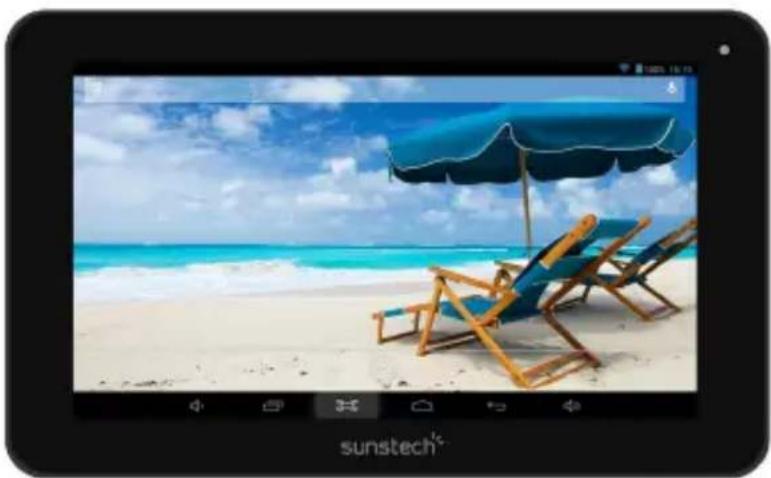
TAB717DUAL
Tablet PC
natural_image
Beach scene with two lounge chairs under a blue umbrella over turquoise water, no text or symbols visibleAndroid 4.4.2
Manual de usuario
Índice
Conexión a Internet
Inalámbrica:
natural_image
Black background with a blue circular play button and control icons at the bottom (no text or symbols on the main subject)- Toq ue el icono

Copyright © 2013 Afex suns, S. A.
natural_image
Simple line drawing of a wall-mounted switch with a downward arrow pointing to a flat surface (no text or symbols)natural_image
Warning symbol with a triangle containing a stylized ear icon (no text or numbers)natural_image
Simple line drawing of a trash bin with crossed lines indicating no waste or restriction (no text or symbols)natural_image
Simple line drawing of a trash bin with no text or symbolsDirectiva (1999/5/EC) - R & TTE
Directiva (2006/95/EC) - LVD
Directiva (2011/65/EU) - RoHS
natural_image
Simple line drawing of a curved shape with an arrowhead, no text or symbols present(Firma)
Víctor Planas Bas
Nombre)
Director General
(Cargo)
Lu
natural_image
Beach scene with two lounge chairs under a blue umbrella over turquoise water, displayed in a smartphone interface (no text or symbols on main subjects)Android 4.4.2
Appareil photo....11
Dépannage....12
Caractéristiques
Écran d'accueil
natural_image
Black background with a blue circular play button and control icons at the bottom (no text or symbols on the main subject)natural_image
Three warning symbols: yellow warning triangle, red circle with exclamation mark, and notepad with pencil (no text or labels)natural_image
Simple line drawing of a wall-mounted switch and a downward arrow on a flat surface (no text or symbols)APPAREILENFICHABLE:Laprisedecourantdoitêtre
natural_image
Warning symbol with a triangle containing a stylized ear icon (no text or numbers)DÉCLARATION DE CONFORMITÉ
Directive (1999/5/EC) - R & TTE
Directive (2006/95/EC) - LVD
Directive (2011/65/EU) - RoHS
natural_image
Beach scene with two lounge chairs under a blue umbrella over turquoise ocean waves, no text or symbols visibleAndroid 4.4.2
Manual do Utilizador
Índice
Ecră inicial
Ligação à Internet
Wireless:
natural_image
Black background with a blue circular play button and control icons at the bottom (no text or symbols on the main subject)natural_image
Simple line drawing of a wall-mounted switch with a downward arrow pointing to a flat surface (no text or symbols)natural_image
Simple line drawing of a trash bin with no text or symbolsnatural_image
Simple line drawing of a trash bin with no text or symbolsnatural_image
Simple line drawing of a curved shape with a small triangular mark at the center (no text or symbols)(Assinatura)
Víctor Planas Bas
(Nome completo)


- Tablet of Contents
- Specifications
- What's Inside The box
- Tablet Part
- Getting Started
- Battery Charging
- Disposal
- Power ON/OFF
- Screen Lock
- Home screen
- Settings Menu
- How to Use TF card
- Removing TF card
- Software Keyboard
- Touch Screen
- How to connect with computer
- Connection to Internet
- Wireless:
- Web Browsing
- Trouble Shooting
- Close Application
- Mandatory Power off
- Recovery Mode:
- How to download the software using the unit.
- IMPORTANT: When you download the software, all data will be deleted as photos, videos and Apps that you have been installed.
- Please, follow these steps.
- WARRANTY CARD
- EUROPEAN WARRANTY
- General
- Legal Warranty
- Conditions for the warranty to be exercised
- Exceptions
- Instruction icons
- Copyright
- Safety information
- Warning
- Do not store the device in or near heaters, microwaves, heated kitchen equipment or high pressure containers.
- Do not use or store the device in places with a lot of dust or material transported by air.
- Do not bite or suck the device or the battery.
- Do not insert the device or the accessories provided into your eyes, ears or mouth.
- Do not handle damaged lithium-ion batteries or batteries that show evidence of leakage.
- Precaution
- Do not use the device near other devices or apparatuses that emit radiofrequency, such as sound systems or radio towers.
- Turn off the device in potentially explosive atmospheres.
- If you become aware of the device or the battery letting off strange odours or sounds or if you see smoke or liquid coming out of the device or battery, stop using the device immediately and take it to an authorized service Centre.
- Comply with all the safety regulations and warnings related to the use of mobile devices when driving a vehicle.
- Correct use and maintenance of the mobile device.
- Keep the device dry.
- Place the device only on flat surfaces.
- Do not store the device in very hot or cold places. It is recommended that you use the device at temperatures between 5° and 35°.
- Reduce the risk of injury caused by repetitive movements.
- When you use earphones, protect your hearing and your ears.
- Use the device with caution while you are walking or moving.
- Do not unassembled, change or repair the device.
- Take the following information into account when cleaning the device.
- Do not use it for any other purpose other than the one it was designed for.
- Do not distribute material protected with copyright.
- Malware and virus
- THIS DEVICE FOLLOWS INTERNATIONAL STANDARDS OF EXPOSURE TO RADIO WAVES.
- Correct disposal of this product's batteries
- Exemption from responsibility clause
- DECLARATION OF CONFORMITY
- sunstech 1/2
- TAB717DUAL
- Tablet PC
- Índice
- Conexión a Internet
- Inalámbrica:
- Caractéristiques
- Écran d'accueil
- APPAREILENFICHABLE:Laprisedecourantdoitêtre
- DÉCLARATION DE CONFORMITÉ
- Ecră inicial
- Ligação à Internet
Brand : Sunstech
Model : TAB717DUAL
Category : Tablet