Tab 743G QC - Tablet Sunstech - Free user manual and instructions
Find the device manual for free Tab 743G QC Sunstech in PDF.



| Product type | Tablet |
| Brand | Sunstech |
| Model | Tab 743G QC |
| Display | 7-inch IPS capacitive multi-touch screen, 1024x600 resolution |
| Processor | MTK8321 Dual Cortex A7 at 1.3 GHz |
| RAM | 1 GB DDR III |
| Internal storage | 8 GB (part reserved for system) |
| External storage | Micro SD up to 64 GB (not included) |
| Connectivity | Wi-Fi 802.11b/g/n, Bluetooth 4.0, GPS, 3G (WCDMA 900/2100 MHz), GSM 850/900/1800/2100 MHz |
| Camera | Front camera 0.3 MP, rear camera 2 MP |
| Sensors | Accelerometer, light sensor |
| Battery | Rechargeable lithium polymer (non-removable) |
| Power supply | AC adapter 5 V, 2 A via micro USB port |
| Estimated battery life | Approximately 4 to 6 hours depending on usage |
| Operating system | Android 6.0 Marshmallow |
| Estimated dimensions | 190 x 110 x 10 mm |
| Estimated weight | 300 g |
| Care and cleaning | Use a soft, slightly damp cloth. Do not use abrasive products. |
| Safety | Do not expose to water, excessive heat, or magnetic fields. Do not disassemble. Storage temperature max 40°C. |
| Spare parts and repairability | AC adapter and USB cable included. Repair by certified technician. |
| General information | Made in China. Manual available in multiple languages. |
Frequently Asked Questions - Tab 743G QC Sunstech
User questions about Tab 743G QC Sunstech
0 question about this device. Answer the ones you know or ask your own.
Ask a new question about this device
Download the instructions for your Tablet in PDF format for free! Find your manual Tab 743G QC - Sunstech and take your electronic device back in hand. On this page are published all the documents necessary for the use of your device. Tab 743G QC by Sunstech.
USER MANUAL Tab 743G QC Sunstech
TABLET PART
GETTING STARTED. 3
Settings Menu.
How to Use TF card. 8
Software Keyboard. 8
Touch Screen.
How to connect with computer.
Connection to Internet. 10
CAMERA. 11
TROUBLESHOOTING. 12
Close Application. 12
Mandatory Power off. 12
Restore Default Setting. 12
SPECIFICATIONS. 13
WARNING. 14
ENGLISH
User guide
TAB743GQC
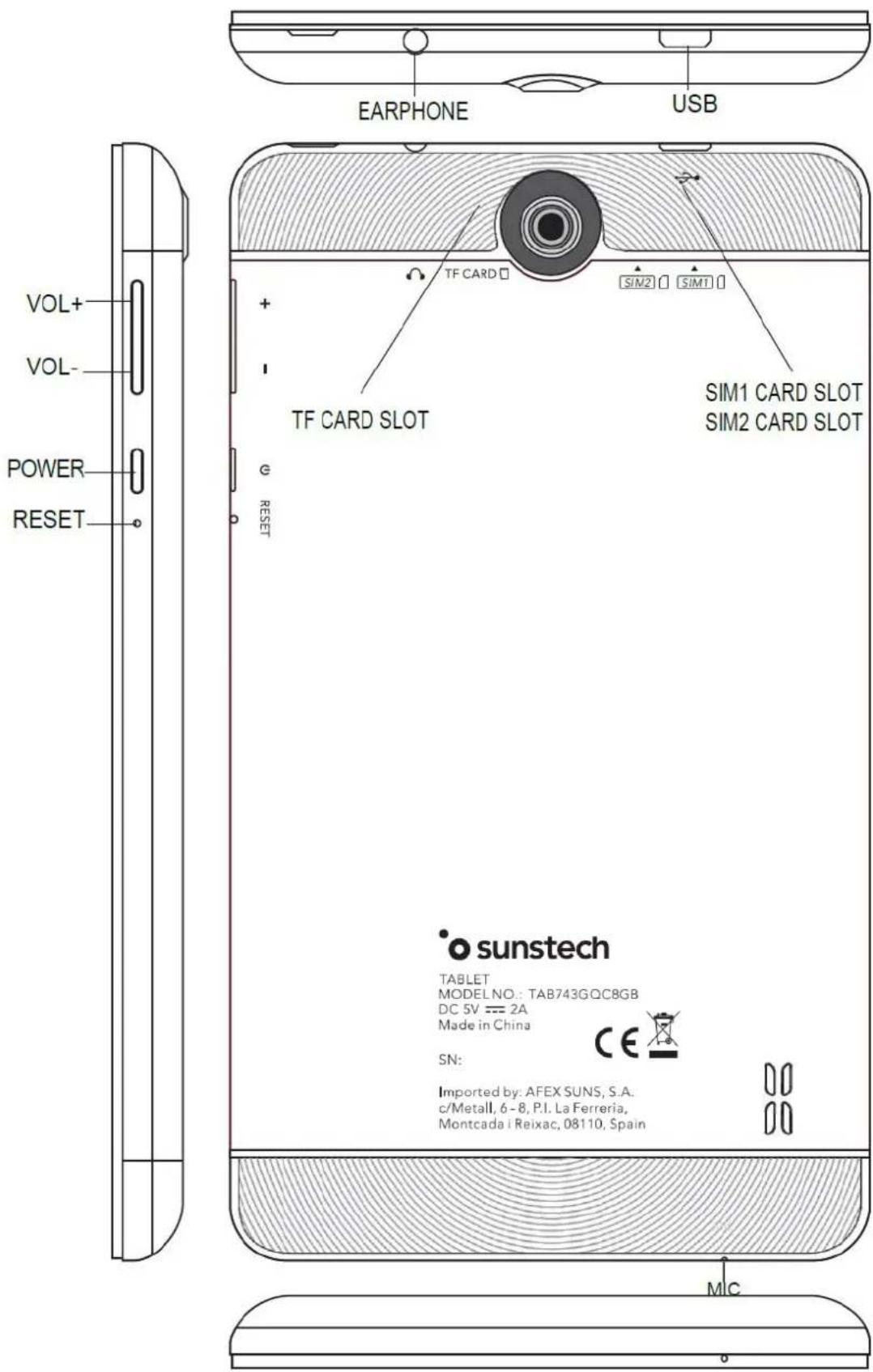
TABLET PART
Tablet part table according to the image in previous page
| NAME | FUNCTION |
| Volume + | Press to increase the volume. |
| Volume - | Press to decrease the volume. |
| Power | Keep pressed to turn on/off the tablet. Shortly press to activate standby. |
| Reset | Reset the system in case of device stop Restart. |
| Earphone jack | Connect earphone to this standard 3.5n |
| Micro USB port / OTG | PC connection/peripheral connection through HOST cable, for example keyboard or an USB device. |
| Back Camera | 2.0 MP camera. |
| Front Camera | 0.3 MP camera. |
| Micro SD input | Insert a micro SD card (up to 64GB). |
| SIM slot | SIM card port. |
| MIC | Microphone. |
ENGLISH
User guide
TAB743GQC
GETTING STARTED
Battery charging
The tablet has a built-in rechargeable Li-polymer battery. To charge connect the AC power adapter to the micro USB jack on the top side of the tablet and the battery icon shows the battery status and charging status.
The tablet can be used even if the battery is being charged. No replacement of battery without authorization, or the explosion hazard might happen. Recharge it for at least half hour if it has been idle for long time and fails to start itself. Regularly recharge it at least one time monthly. 35^ - 5^ is the optimum temperature for the battery recharging or the battery performance might deteriorate slightly.
Disposal
The battery might contain the polluting material, please give it to the official recycling-station before disposing the tablet, and don't litter.
ENGLISH
User guide
TAB743GQC
Power ON/OFF
ON: Press the power button continuous 5 seconds until the tablet turns on.
OFF: Press the power button for continuous 2 seconds and it will appear "Power of", "Airplane mode" and "Reboot" choices. Select "Power off" to turn off the tablet
Screen Lock: System is idle. The screen will turn off automatically after 1 minute inactivity. Manually activated by pressing the Power button once.
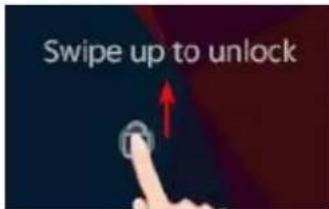
Screen unlock: Drag the lock icon up to unlock the screen.
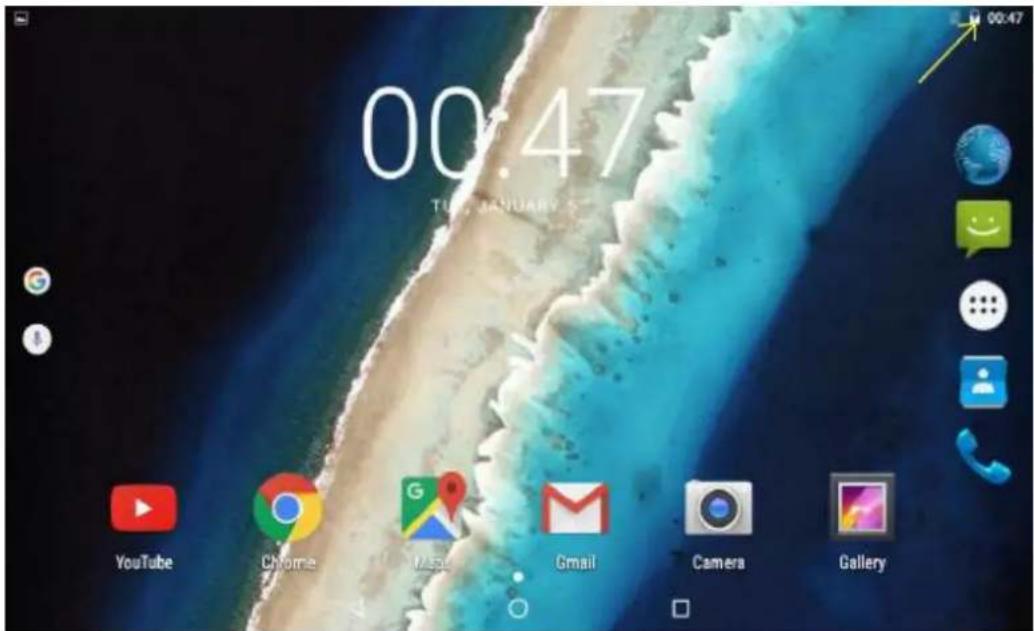
Home screen
The Home screen will look similar to the picture below.
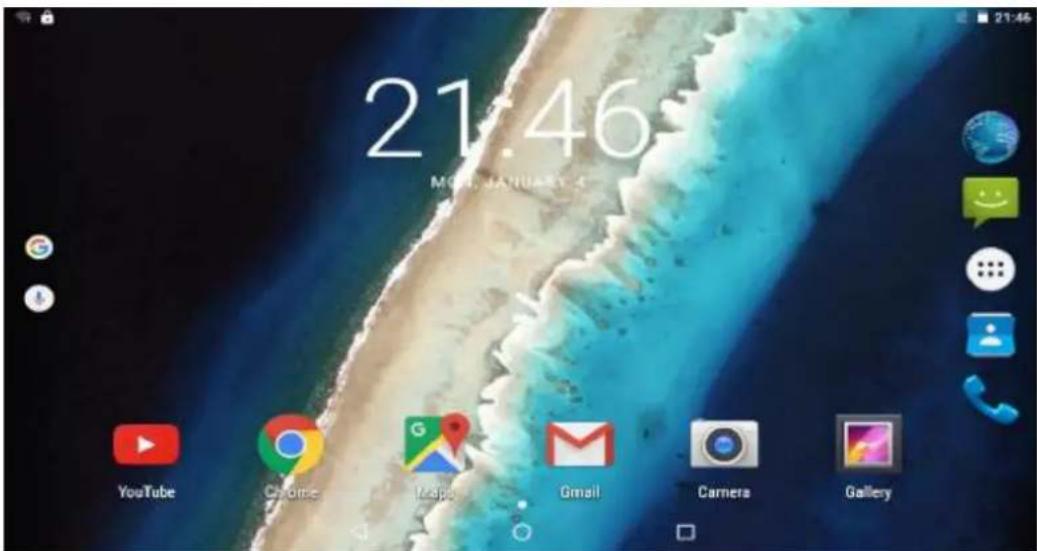
The Desktop contains shortcuts to your most-used applications and widgets. Touch the screen icon to quickly search the World Wide Web using Google.
ENGLISH
User guide
TAB743GQC
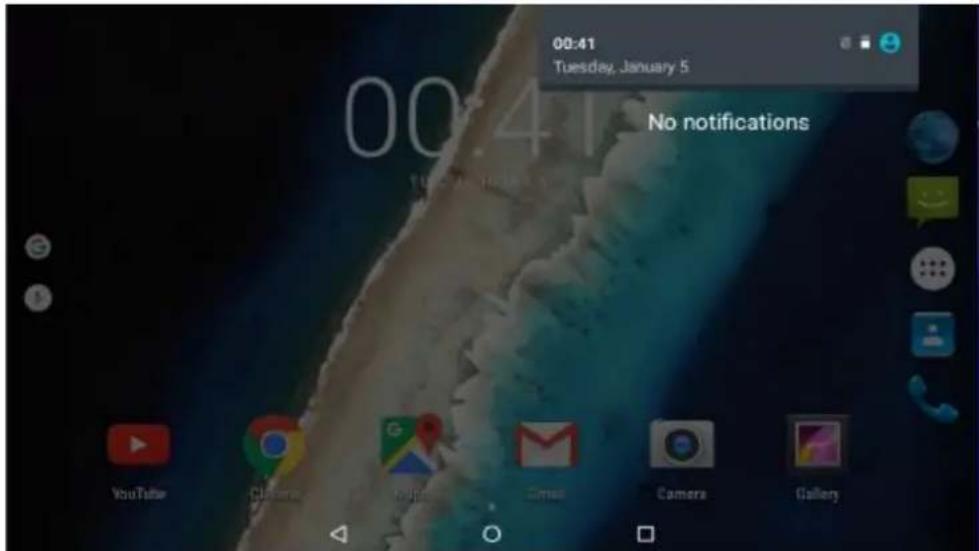
The icon will launch the Application menu, and the status bar displays system information, such as current time, wireless, connectivity and battery. Slide your finger from the top edge towards inside to display notification menu.
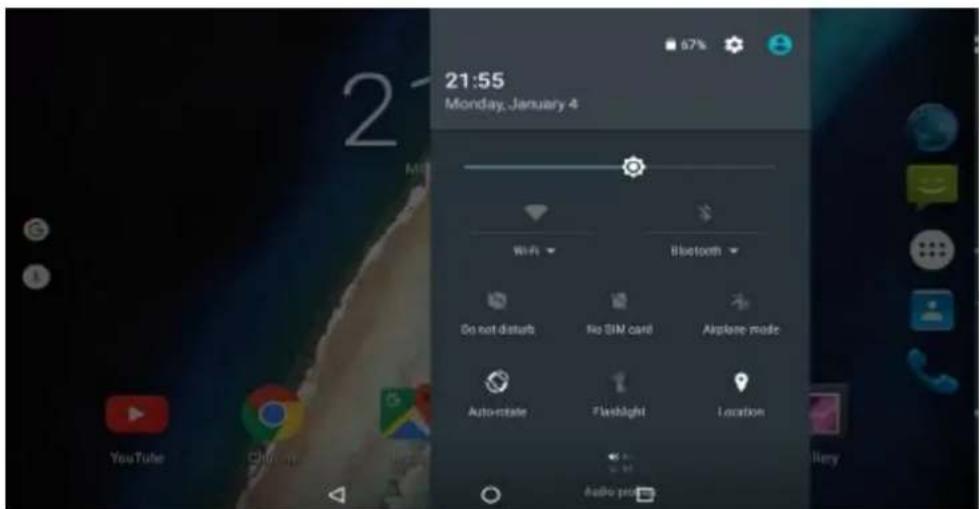
Drag the notification menu down to display the second fast access menu. Through this menu it is possible to modify the functions such as brightness, auto rotation, position and audio profiles.
ENGLISH
User guide
TAB743GQC
The button moves back one step to the previous menu/page.
The button returns immediately to the main screen.
The button displays a menu of recently opened applications.
Settings Menu
The settings menu allows you to adjust Tablet system configuration.
To change settings touch the "Settings" menu icon on the Application menu, the Settings menu will open and then touch a category title to view further options:
Wi-Fi: Connect to/disconnect from wireless networks, view connection status.
Data usage: Enable/disable mobile data, view current usage, set mobile data limit (note: this function is available only on devices supplied with 3G).
Sound and notifications: Change audio profiles and notifications management.
Display: Change brightness, wallpaper, sleep settings, font size, etc.
Storage: Manage NAND and Micro SD card, view available capacity,etc.
Battery: See battery status and powered-on time.
Apps: Manage applications, running services, etc.
Location services: Change approximate location detection, improve search results, GPS satellites, etc.
Security: Change screen lock type, encryption, password, credential storage, etc.
Language & input: Select language, add to the dictionary, edit on-screen keyboard settings, vocal search, etc.
Backup & reset: Backup & restore data, perform factory reset, etc.
Date & time: Set date, time zone, time, clock format, etc.
Scheduled power on & off: Automatic turning on/off settings.
Accessibility: Set up large text, auto-rotate screen, speak password,etc.
About tablet: Information about your Android device.
ENGLISH
User guide
TAB743GQC
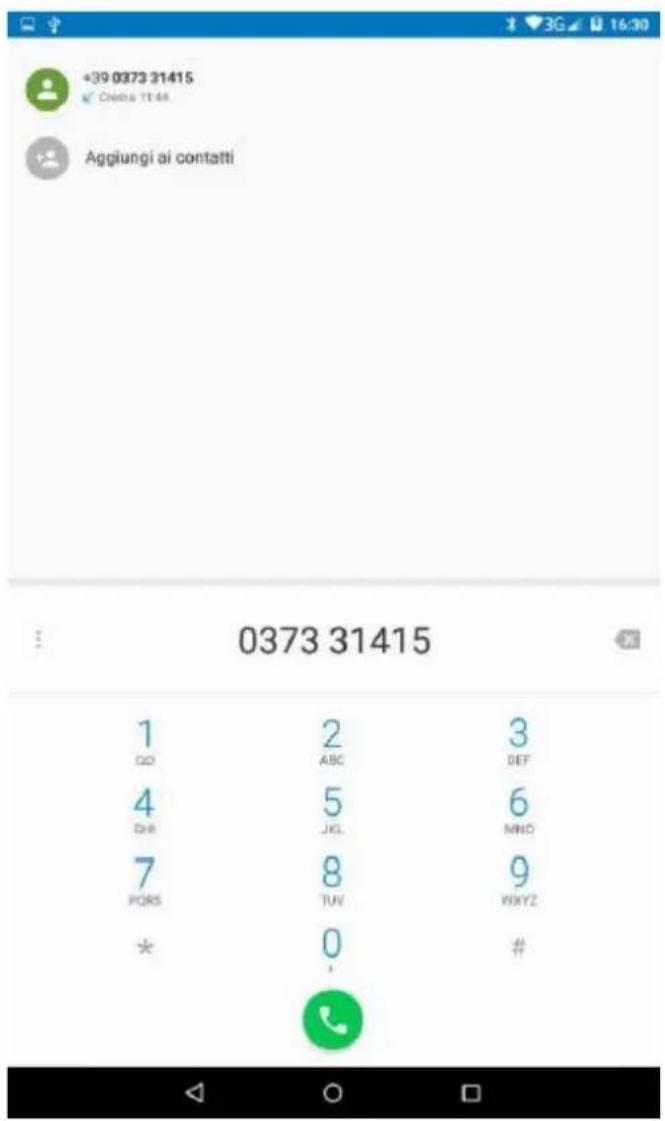
Telephone function:
Step 1 - At off mode insert SIM card in the slot.
Step 2 - After inserting SIM card turn on the tablet and wait to display the cell reception icon.

Step 3 - Once the connection with the operator open the application and dial the number.
ENGLISH
User guide
TAB743GQC
How to Use TF card
- Insert the TF card into the TF card slot. Gently push TF card into slot until it clicks into place.
- A prompt will be seen on the screen saying "Preparing SD card".
Removing TF card
- Close all applications and documents which have been opened from the TF card.
- Select "Setting" and find "Storage" then click "Unmount SD card".
- A prompt will be seen on the screen saying "SD card safe to remove".
- Gently press the TF card to remove and pull out the TF card.
Note: Insert the TF card in correct position, otherwise it will damage the card and the slot.
Software Keyboard
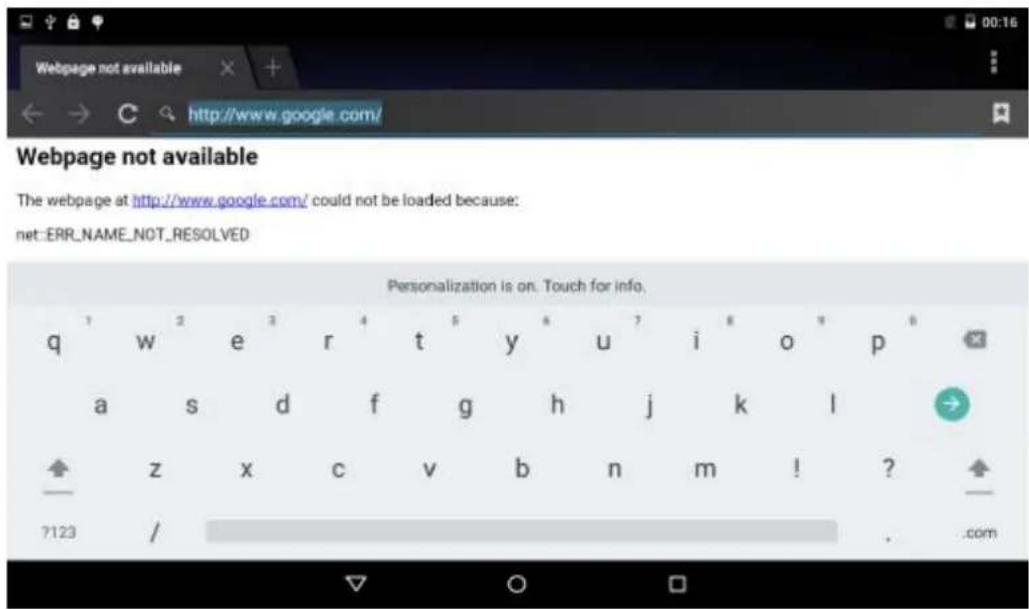
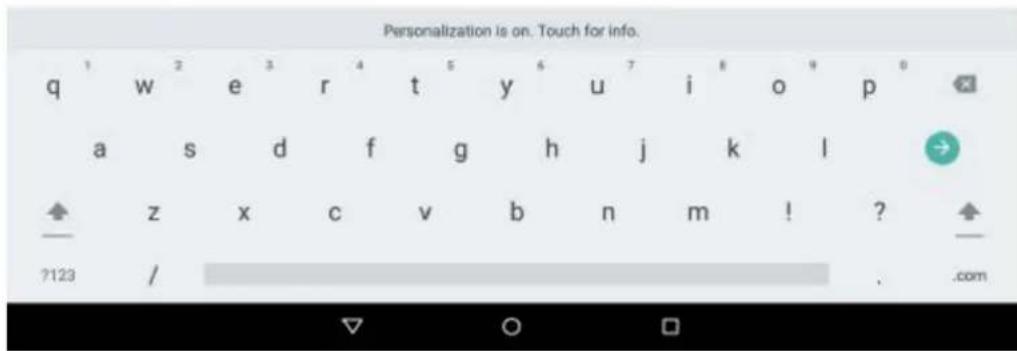
The tablet has a software keyboard which automatically show up when you tap the place on screen where text or number are to be entered.
Touch Screen
The touch screen responds to finger touch.
Note: don't place any object on the touch screen for it may damage or crush the screen.
Single Click: Single click one icon to choose the icon or option you want. Long Press: Press and hold one icon to make appear a menu related to the executed function (if available).
Drag: Press the icon and drag it to a different screen.
How to connect with computer
Turn on your tablet before connect the tablet to PC by USB cable.
- Use USB cable to connect tablet with computer.
- The PC will detect an external disc named TAB743GQC; this is the internal memory of the tablet.
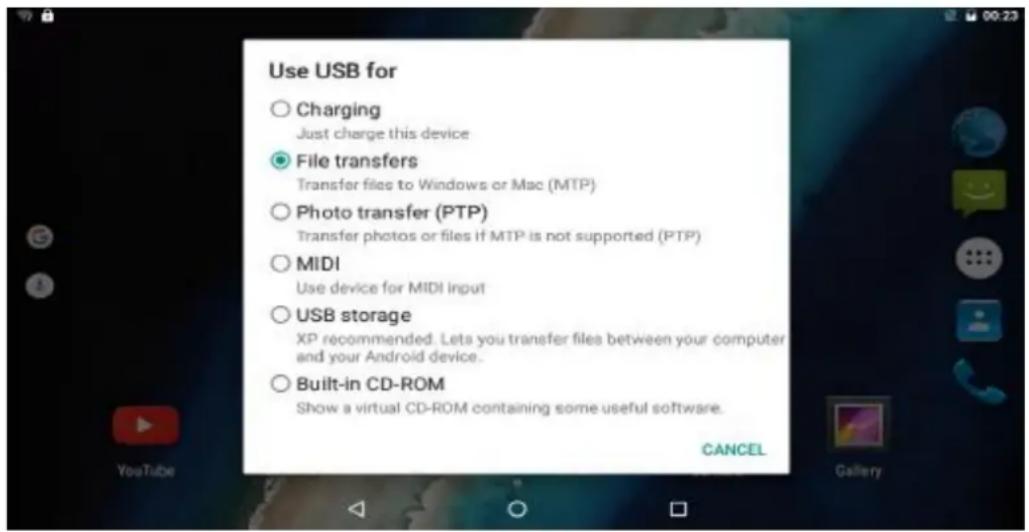
- Then slide down from top to inside, click "USB for charging". Choose "File transfers", then you can transfer files from computer to the device. Please check below image for reference.
ENGLISH
User guide
TAB743GQC
Connection to Internet
Wireless:
- Select" Settings".
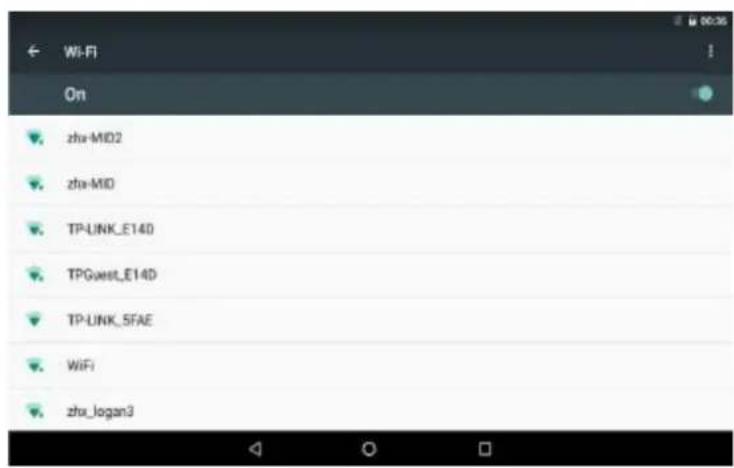
- Select "Wi-Fi" and slide OFF to ON status.
- All detected wireless networks in the area will be listed. Click to select desired wireless connection.
- Enter network key if necessary.
- Once connected to a wireless network, settings will be saved
- Wireless icon will appear on the taskbar when connected successfully.
*Note: When the tablet detects the same wireless network in the future, the device will connect to the network automatically with same password record.
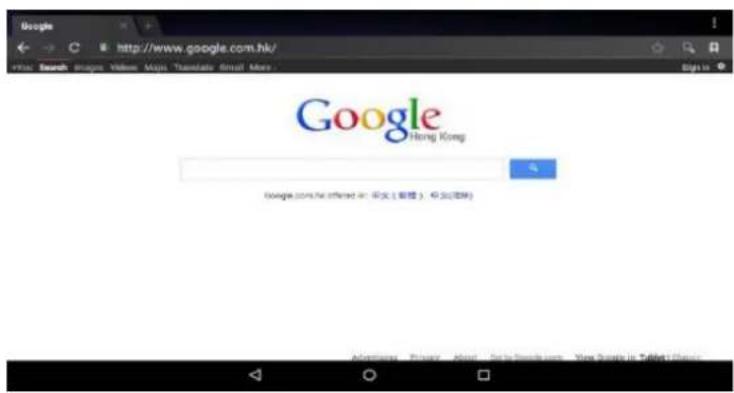
Connect to the internet and launch the browser.
ENGLISH
User guide
TAB743GQC
CAMERA
Touch the icon to enter camera mode and the interface is shown as follows:
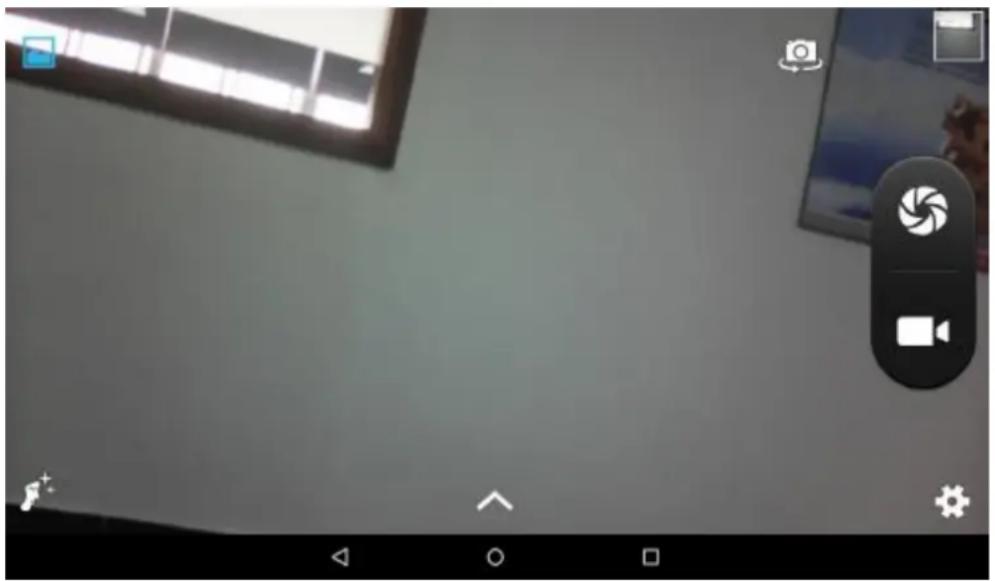
- Touch the icon to take a photo.
- Touch the icon to start camera recording.
- Touch the photo miniature on the top right to see the previous picture and you can also delete, share or set it as the wallpaper. Click return button to exit camera interface.
- Touch the icon to switch from front to back camera.
TROUBLE SHOOTING
Close Application
When an application is not responding you can close it and will make system response faster. Please shut down all idle applications to release memory and get the system speed back to normal.
To close the application, click the icon to enter the system configuration interface. Select the Apps, tap the application you want to close, a popup window will be displayed and finally tap "Stop" to close that application.
Mandatory Power off
- Press and hold the power button for 12 seconds and the device will be powered off.
- Press the reset button on the side and the device will be forced to be powered off.
If you want to reset the factory setting and erase all materials, please press Settings / Backup & reset / Factory data reset.
- Warning: Factory data reset setting will delete your data and configuration of system and applications from downloading.
** Please us e this function carefully.
SPECIFICATIONS
Please visit www.sunstech.com for the latest product information. Design, specifications and user guide are subject to change without notice.
Display: 7 inch IPS (1024 x 600) capacitive multi-touch screen.
CPU: MTK8321 Dual Cortex A7@ 1.3GHz RAM: 1GB DDR III GPU Mali 400 MP.
Internal Storage: 8GB*
Expansion Memory: Micro SD card up to 64GB(not supplied)
Built-In Wireless:802.11b/g/n
SIM 3G module.
GSM frequencies: 850/900/1800/2100MHz.
3G frequencies: (WCDMA) 900/2100MHz.
Built-in Bluetooth: Version 4.0.
Built-in GPS.
FM Radio.
Double camera: Front 0.3 MP and Rear 2 MP.
AC Adapter: DC 5V-2A.
Operating System: Android 6.0 Marshmallow.
*Note: Internal memory is divided in two partitions, system partition (hidden) and user partition (visible). In the hidden partition is included the software necessary to recovery the operative system and the installed applications, while in the visible partition you can find the user data.
ENGLISH
User guide
TAB743GQC
WARNING
| Pb | Correct disposal of this Product (Waste Electrical & Electronic Equipment) (WEEE).Your product is designed and manufactured with high quality materials and components which can be recycled and reused.This symbol means that electrical and electronic equipment, at their end of-life should be disposed of separately from your household waste.Please dispose of this equipment at your local community waste collection/recycling centre.In the European Union there are separate collection systems for used electrical and electronic products. Please help us to conserve the environment we live in! |
| X | DO NOT place objects on top of the device, as objects may scratch the device. |
| X | DO NOT expose the device to dirty or dusty environments. |
| X | DO NOT place the device on an uneven or unstable surface. |
| X | DO NOT insert any foreign objects into the device. |
| X | DO NOT expose the device to strong magnetic or electrical field. |
| X | DO NOT expose the device to direct sunlight as it can damage the device. Keep it away from heat sources. |
| 60°C(140°F) | DO NOT store your device in temperatures higher than 40°C (104°F). The internal operating temperature for this device is from 20°C (68°F) to 60°C (140°F). |
ENGLISH
User guide
TAB743GQC
| DO NOT use the device in the rain. | |
| Please check with your Local Authority or retailer for proper disposal of electronic products. | |
| The device and adaptor may product some heat during normal operation of charging. To prevent discomfort or injury from heat exposure, DO NOT leave the device on your lap. | |
| POWER INPUT RATING: Refer to the rating label on the device and be sure that the power adaptor complies with the rating. Only use accessories specified by the manufacturer. | |
| Clean the device with a soft cloth. If needed, dampen the cloth slightly before cleaning. Never use abrasives or cleaning solutions. | |
| Always power off the device to install or remove external devices that do not support hotplug. | |
| Disconnect the device from an electrical outlet and power off before cleaning the device. | |
| DO NOT disassemble the device. Only a certified service technician should perform repair. | |
| The device has apertures to disperse heat. DO NOT block the device ventilation, the device may become hot and malfunction as a result. | |
| Risk of explosion if battery replaced by an incorrect type. Dispense of used batteries according to the instruction. |
ENGLISH
User guide
TAB743GQC
| PLUGGABLE EQUIPMENT: the socket-outlet shall be installed near the equipment and shall be easily accessible. | |
| European Union: Disposal Information. This symbol means that according to local laws and regulations your product and/or its battery shall be disposed of separately from household waste. When this product reaches its end of life, take it to a collection point designated by local authorities. The separate collection and recycling of your product and/or its battery at the time of disposal will help conserve natural resources and ensure that it is recycled in a manner that protects human health and the environment. | |
| MADE IN CHINA |

TAB743GQC
TABLET
GUIA DE USUARIO
CONTENIDO
Webpage not available
The webpage at http://www.google.com/ could not be loaded because: net:ERR_NAME_NOT_RESOLVED
Pantalla tactil
Utilização de dados: Habilitar e desabilitar os dados moveris, ver uso atual, definir o limit dos dados moveris (this function is a dispositions as well as a dispositions as well as a dispositions as well as a dispositions as well as a dispositions as well as a dispositions as well as a dispositions as well as a dispositions as well as a dispositions as well as a dispositions as well as a dispositions as well as a dispositions as well as a dispositions as well as a dispositions as well as a dispositions as well as a dispositions as well as a dispositions as well as a dispositions
Som e notificacoes: Alterar a gestao de notificacoes e perfis de audio.
Webpage not available
The webpage at http://www.google.com/ could not be loaded because: net-ERR_NAME_NOT_RESOLVED

PORTUGUES
Guia do utiliser TAB743GQC
Ecrã Táctil
Ocraftactil responde ao toque do dedo.
For you. For everyone.


- ENGLISH
- GETTING STARTED
- Battery charging
- Disposal
- Power ON/OFF
- Home screen
- User guide
- TAB743GQC
- Settings Menu
- Telephone function:
- How to Use TF card
- Removing TF card
- Software Keyboard
- Touch Screen
- How to connect with computer
- Connection to Internet
- Wireless:
- CAMERA
- TROUBLE SHOOTING
- Close Application
- Mandatory Power off
- SPECIFICATIONS
- WARNING
- CONTENIDO
- Webpage not available
- Pantalla tactil
- PORTUGUES
- Guia do utiliser TAB743GQC
- Ecrã Táctil
Brand : Sunstech
Model : Tab 743G QC
Category : Tablet