Tab 918 QCBT - Tablet Sunstech - Free user manual and instructions
Find the device manual for free Tab 918 QCBT Sunstech in PDF.



| Product type | Tactile tablet |
| Brand | Sunstech |
| Model | Tab 918 QCBT |
| Screen | 9-inch capacitive 5-point |
| Screen resolution | 1024 x 600 pixels |
| Processor | A33 Quad Core |
| Operating system | Android 5.1.1 |
| RAM memory | 1 GB DDR III |
| Internal storage | 16 GB NAND Flash |
| Expandable storage | microSD card reader up to 64 GB |
| Connectivity | Wi-Fi 802.11b/g/n, Bluetooth |
| Ports | USB 2.0, headphone jack |
| Front camera | 0.3 megapixels |
| Rear camera | 2.0 megapixels |
| Battery | 4000 mAh |
| Power supply | AC 240V / DC 5V 2A power adapter |
| Supported audio formats | MP3, MP2, APE, WMA, WAV, FLAC, OGG, AAC, 3GP |
| Supported video formats | RMVB, MKV, WMV, MOV, MP4, PMP, MPEG, MPG, FLV, 3GP, H.264 |
| Supported image formats | JPEG, JPG, BMP, GIF, PNG |
| Cleaning | With a soft, slightly damp cloth, no abrasives |
| Safety | Do not disassemble, do not expose to heat or moisture |
| Included accessories | Power adapter, USB cable |
Frequently Asked Questions - Tab 918 QCBT Sunstech
User questions about Tab 918 QCBT Sunstech
0 question about this device. Answer the ones you know or ask your own.
Ask a new question about this device
Download the instructions for your Tablet in PDF format for free! Find your manual Tab 918 QCBT - Sunstech and take your electronic device back in hand. On this page are published all the documents necessary for the use of your device. Tab 918 QCBT by Sunstech.
USER MANUAL Tab 918 QCBT Sunstech
natural_image
Abstract illustration of a white sphere and a gray book with partial crescent shapes, set against a dark background with a white circle (no text or symbols)TAB918QCBT
TABLET
USER GUIDE
CONTENT
MAIN FUNCTIONS .... 5
APPEARANCE 6
BASIC OPERATIONS 6
Turn on 6
Turn off 6
Power Reset 6
Screen Saver 6
Back to the desktop 7
Back to the previous interface 7
Settings 7
Charging 7
HOME SCREEN 9
Set wallpaper 9
Display all applications 10
Notification bar 10
Move Desktop icon 10
Delete the desktop icon 11
INSTALL THE APK APPLICATION 11
UNINSTALL APK APPLICATION 12
PICTURES AND MOVIES 13
CAMERA 15
MUSIC 16
REGULAR SETTINGS 16
WIRELESS&NETWORKS 16
Display 17
Sound ¬ification 17
Storage 18
Battery 18
Apps 18
Location 18
Security 18
Accounts 19
Language & input 19
Back up and reset 20
Date & time 20
Accessibility.... 20
Printing 20
Developers options 21
ABOUT TABLET 22
CONNECT COMPUTER 23
COMMON ISSUES 23
Out of run 23
No voice in the earphone 24
Charging issues 24
Download issues 24
Why some of downloaded videos cannot play normally? ...... 24
Device crashed or can't turn on 25
WARNINGS 25
MAIN FUNCTIONS
-With WIFI for mobile internet browsing
-OS: Android 5.0
-Supports multiple audio formats
-Built-in microphone, super long time recording
-Free set of energy-saving settings, display brightness, the interface background
-Support E-book reading, dependent bookmarks, automatically browsing, horizontal and vertical screen switching function
-Support TF card and OTG function
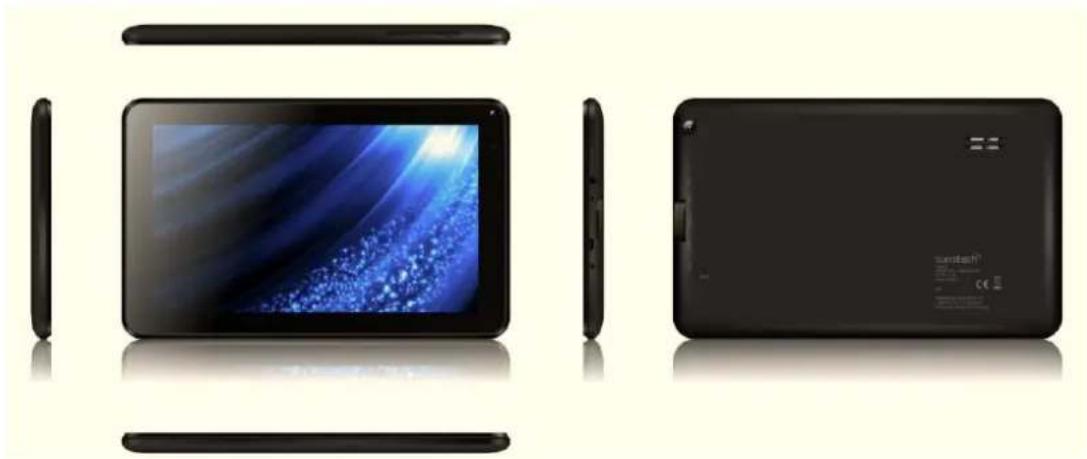
APPEARANCE
natural_image
Exterior and back view of a black tablet device showing screen, front panel, and side panels (no visible text or symbols)BASIC OPERATIONS
Turn on
A long press on the power bottom turns on the device.
Turn off
In the normal state, long press the power button to shutdown, select "OK" when popup whether to shut down the inquiry box.
Power Reset
Crash maybe occurred in the process of using due to Smart operating system .Tap the RESET button to force shutdown and then reboot if occurred.
Screen Saver
Press the power button, turn off the screen into the screen saver
state, if you want to activate screen, press the power button again to enter the screen lock state, then slide the lock button to unlock.
Back to the desktop
Tap the screen bottom lower left of the Home icon "can return to the desktop under any interface.
Back to the previous interface
Tap the Back icon "lower left of the screen bottom can return to the previous desktop under any interface.
Settings
Tap the "☐" controls upper-right of the screen access to the application bar, tap the" Settings "icon into the set menu list interface.
Charging
Plug the DC connector of adapter into the DC-in of device. Plug the adapter into AC power socket. While charging, the device may heat up. This is normal and should not affect your device's lifespan or performance. When the battery is fully charged (the charging icon is no longer moving), unplug the adapter, driver from the device and then from the power socket.
[Warning]
*. Make sure the machine on a single charge once a month and then shut down before storing it without long use after fully charged.
*. Please do not use the device while it is charging.
Tips: using authorized accessories can enjoy adequate security to guarantee the maintenance services.
Before using the device for the first time, you should charge the battery. The power adapter (charger) is a key component of the device and plays a vital role in protecting it work properly and your safety.
Unauthorized chargers can cause batteries to explode or damage your device. Any damage caused by misuse is not covered by warranty.
HOME SCREEN
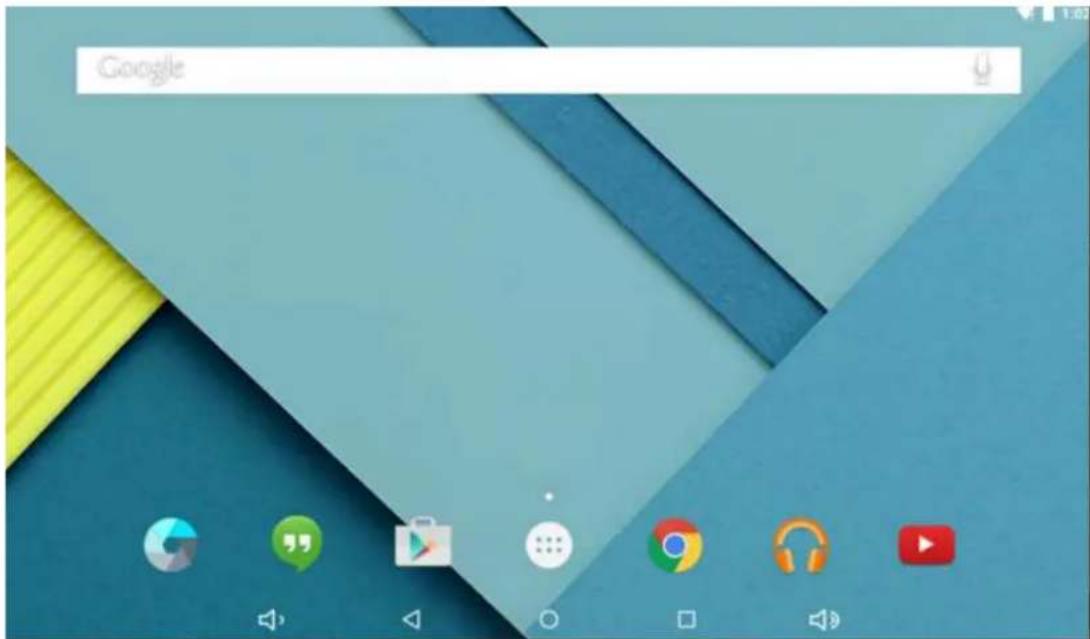
By default, the home screen can open multiple pages, Sliding left / right can switch desktop display.
Set wallpaper
Long press the blank space of the home screen, then tap "WALLPAPERS" to choose an image as you like as wallpaper.
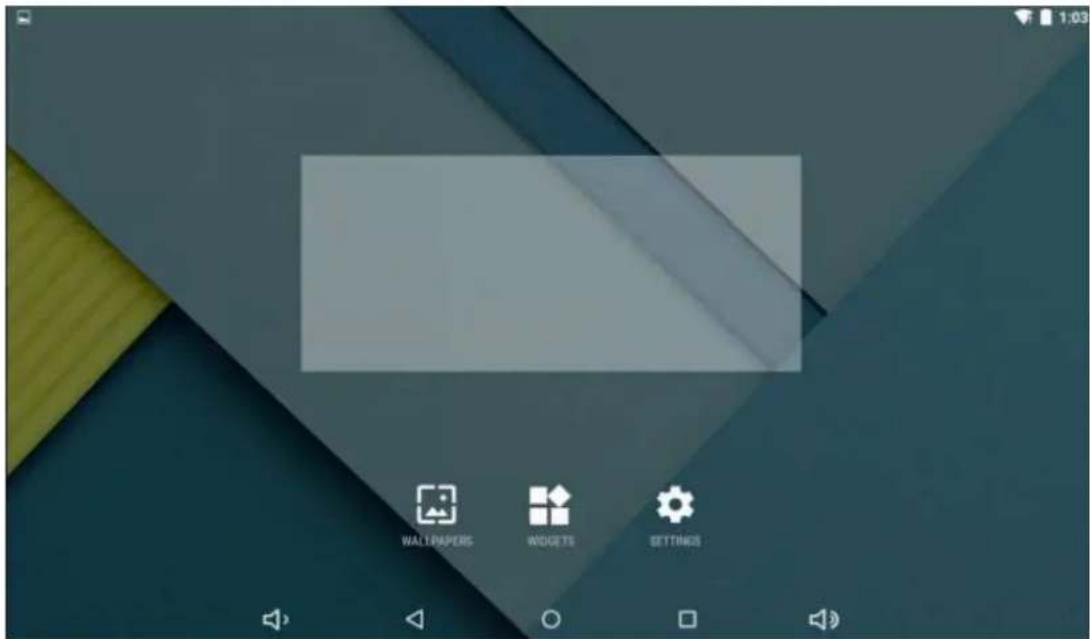
Display all applications
All installed applications will be displayed if tap "100m.
Notification bar
Under the main interface, tap the status bar icon, such as USB connection into the notifications panel, which can display the current status of the USB, TF card status and the running application and status.
Move Desktop icon
Under the home screen, long press the application icon on the home screen, then you can move the selected icon after the icon be enlarged.
Delete the desktop icon
Under the home screen, long press the application icon on the home screen, move the selected icon to the delete icon “×”, then stop pressing, the desktop icon can be deleted.
INSTALL THE APK APPLICATION
Copy the needed APK format application into the device or TF card.
Tap "File Manager" to find the APK format application you want to install.
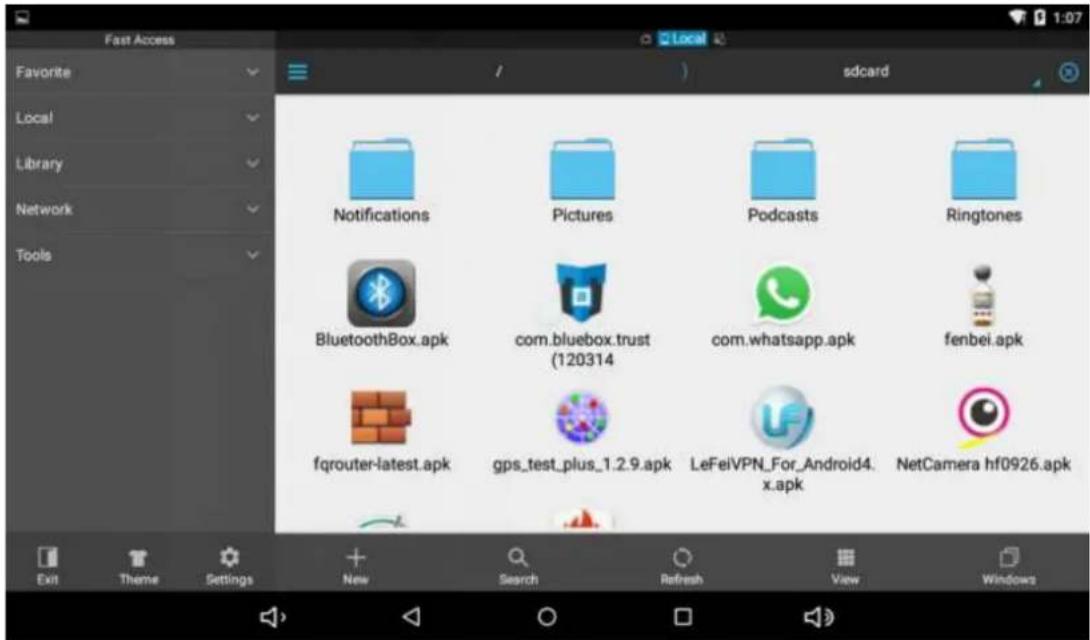
Tap the APK format application you want to install ,then appear "Do you want to install this application?"
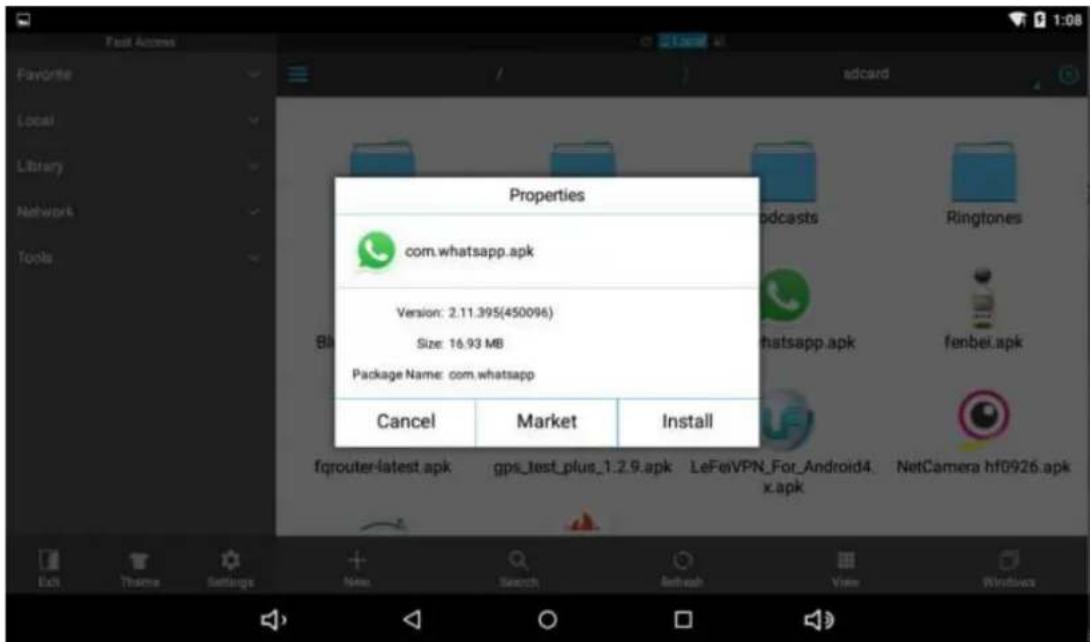
Tap "Install" to begin the installation of APK application
UNINSTALL APK APPLICATION
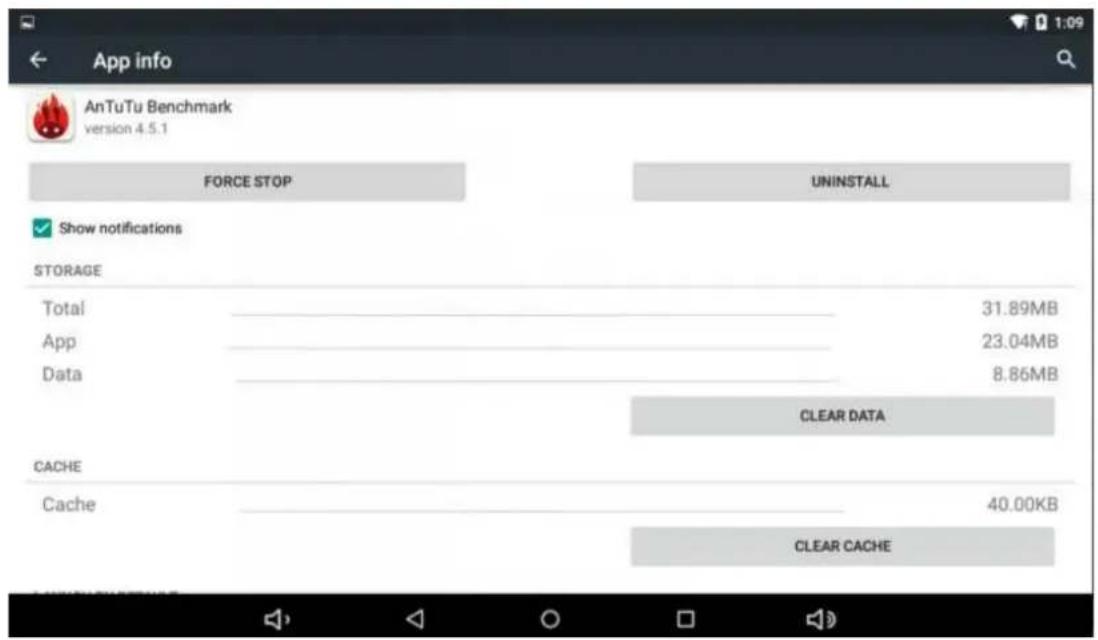
Tap " " controls, tap "Settings" into Settings menu, then tap "Apps" and display installed applications list.
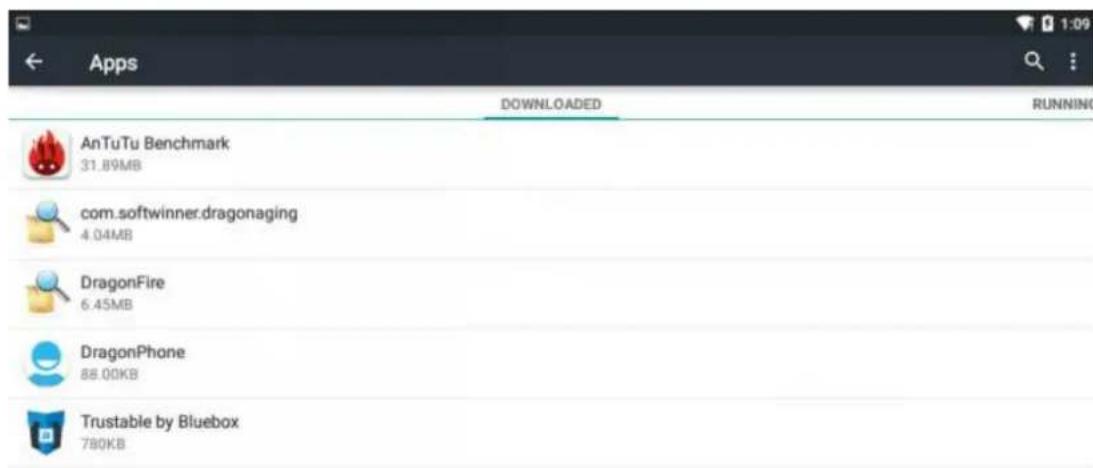

Tap the application you want to uninstall, popup prompt uninstall boxes
PICTURES AND MOVIES
Tap "Gallery" in the home screen to access to media interface.
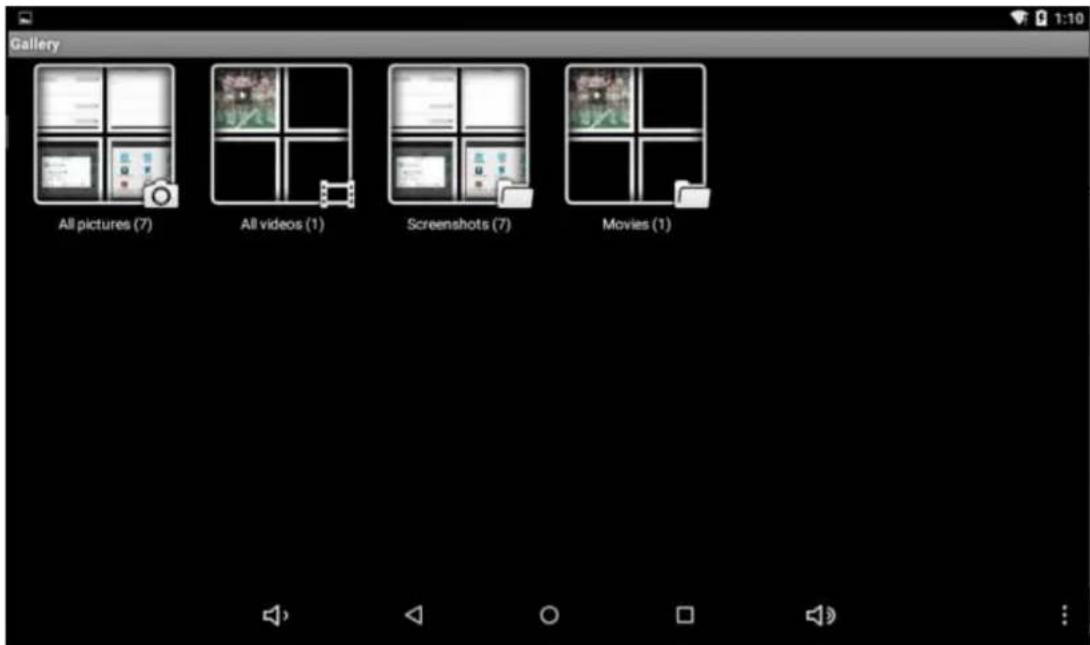
Then tap above the video you want to watch

natural_image
Group photo of female soccer players in pink jerseys posing on a field, with spectators and other sports in the background (no visible text or symbols)CAMERA
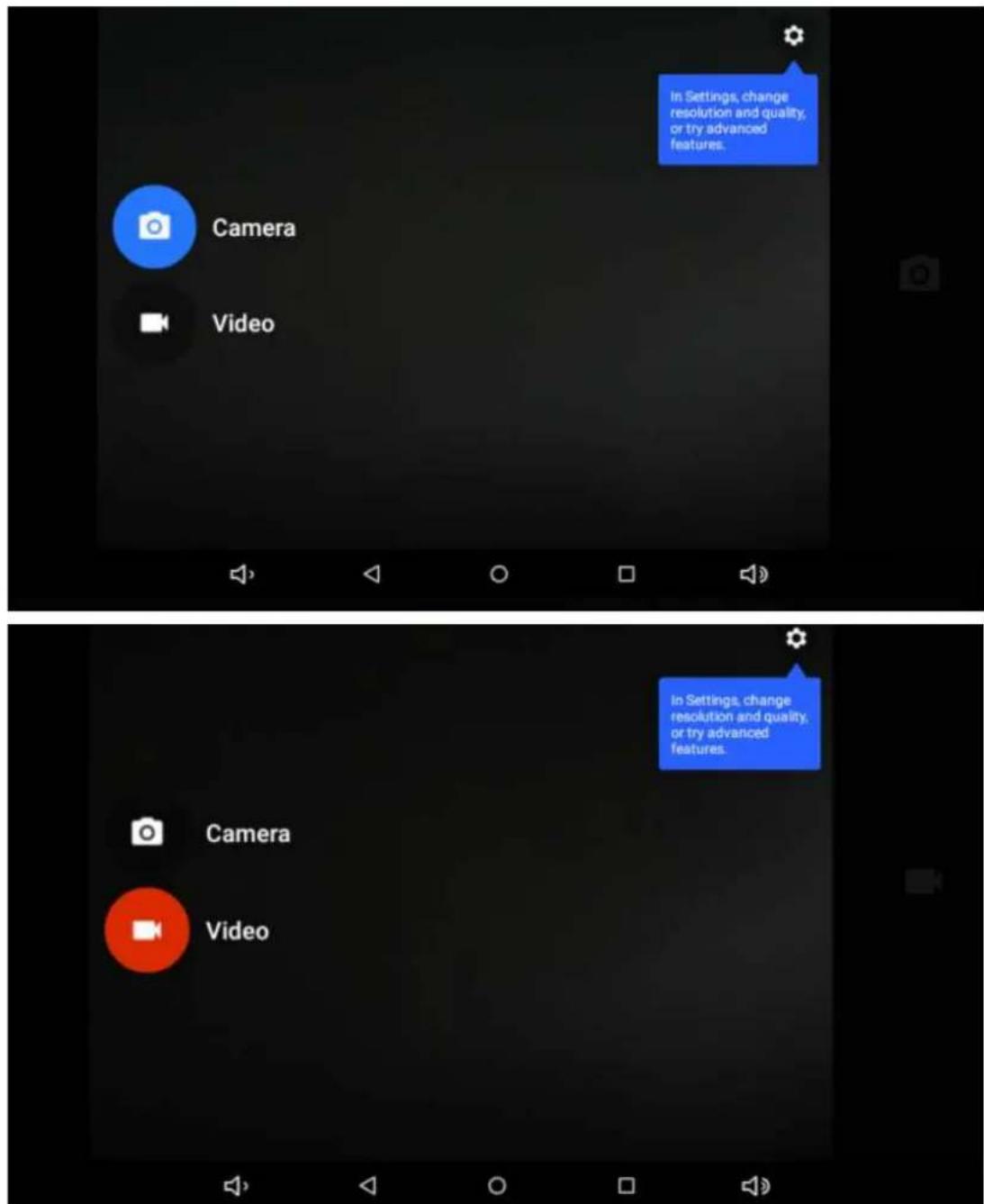
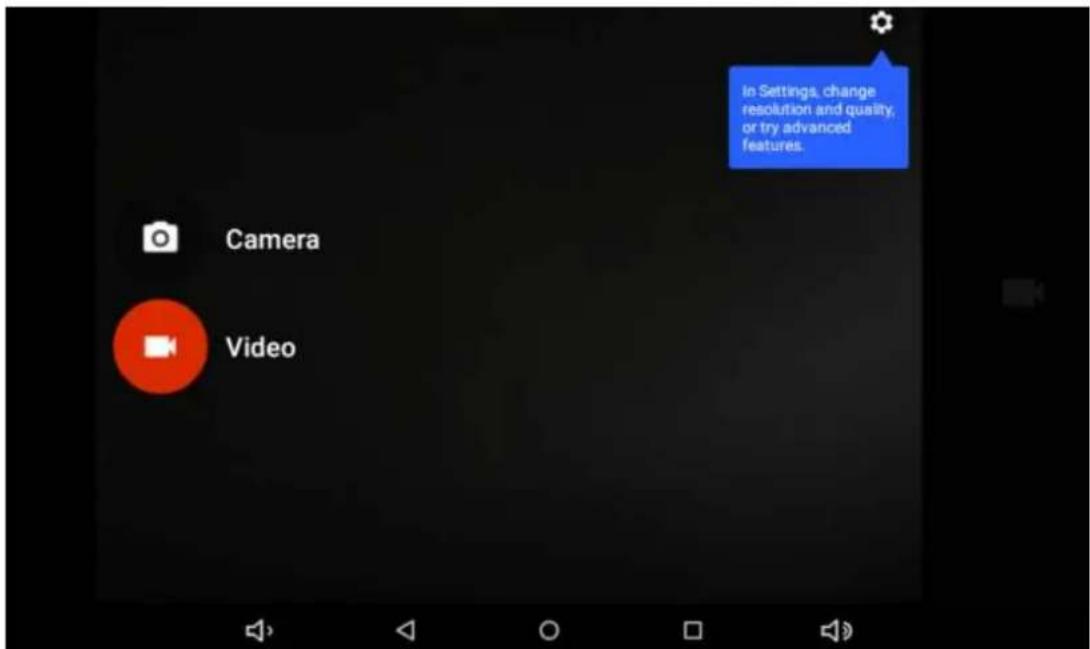
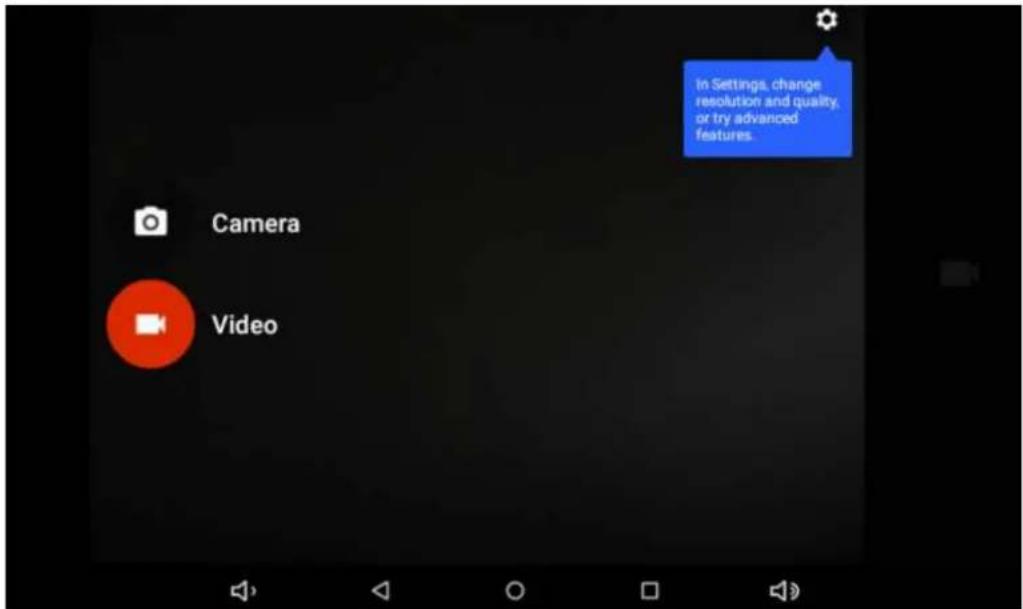
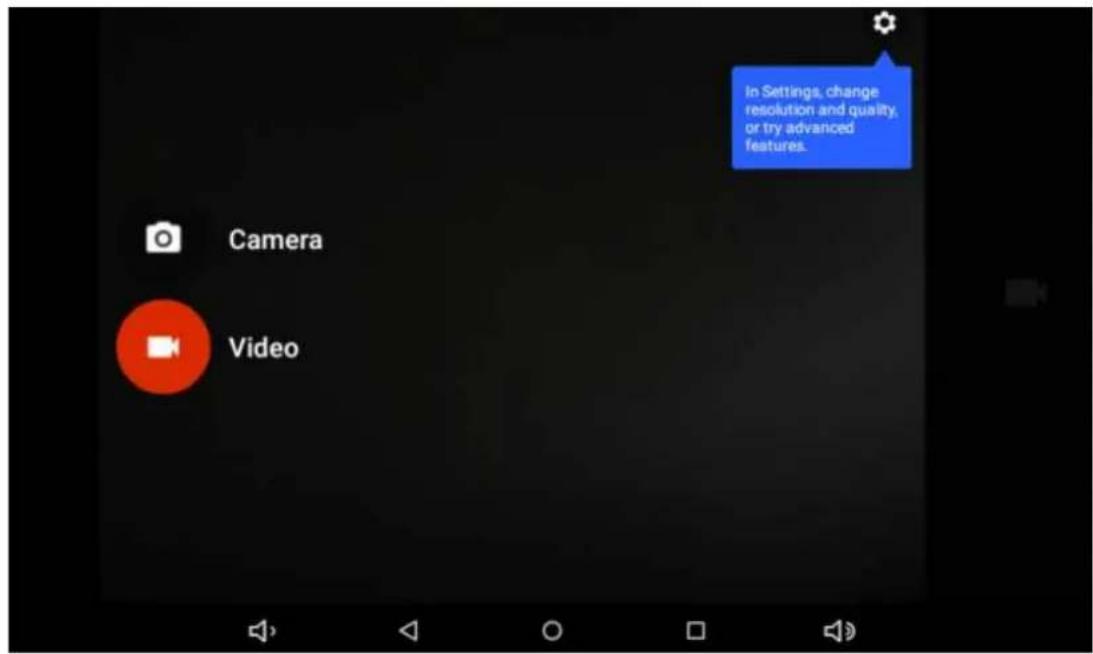
Built-in camera to take photos and video
Tap "camera" to take photos and video, " " is status of taking photos, tap it to take photos and preserve automatically, " " is recording video, tap it to start.
MUSIC
Tap "Play music " apk to access to music file list screen.
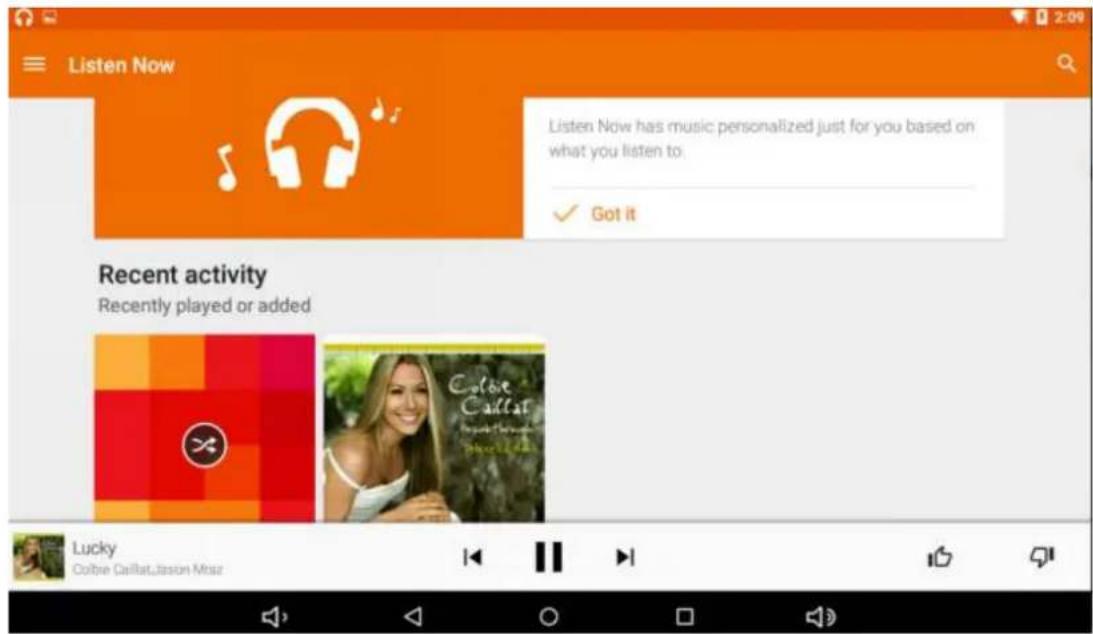
Tap the music you selected and play music
Tap □ back to home screen, tap □ back to previous screen.
REGULAR SETTINGS
Select "settings" after access into application bar to set list interface.
WIRELESS&NETWORKS
Wi-Fi function on or off
Bluetooth function on or off
Data usage: Showing apks usage
Display
Brightness: Set the brightness of the display.
Wallpaper: Select wallpaper for the home screen.
Auto-rotate screen: viewing in portrait or landscape, adjusting
automatically to fit the new orientation.
Sleep: set sleeping time.
Font size: set the size of the font.
Accelerometer coordinate system: set the accelerometer
coordinate system.
Screen adaptation: used to adjust part of games' screen size.
Sound ¬ification
Volumes: adjust the volume level for call ringtones, music and
videos, alarm ringtones, device system, and notifications.
Default Notification: Select the application which you want default
notice.
Touch sounds: Set the device to sound when you unlock the touch
screen.
Screen lock sounds: Set the device to sound when you lock the
touch screen.
Storage
Displays the memory card and USB storage settings of available storage space.
Battery
Displays the battery level or charging status.
Caution: Risk of explosion if battery is replaced by an incorrect type. Dispose of used batteries according to the instructions.
Apps
View "DOWNLOADED", "ON SD CARD", "RUNNING" and "ALL" applications list, etc.
Location
Set to use the "Google Location reporting to gather and use date based on your location.
Security
Screen lock: set screen lock way and owner information which can display on the lock screen.
Encrypt tablet: set a password which required to input when you power on tablet.
Passwords: make passwords visible or invisible.
Device administrators: view or deactivate device administrators
Unknown sources: allow installation of app from unknown sources
Verify apps: Disallow or warn before installation of apps that may
cause harm
Trusted credentials: display trusted CA certificates.
Storage type: software only
Install from SD card: Install certificates from SD card
Clear credentials: remove all certificates
Accounts
Setting email accounts
Language & input
Language: Select a display language for all menus and applications.
Personal dictionary: Add a word by touching the Add (+) button
KEYBOARD&INPUT METHODS: set keyboard and input methods
SPEECH: Set the voice search and text-to-Speech (TTS) output
MOUSE/TRACKPAD: set pointer speed
Back up and reset
Back up my data to Google servers.
Factory data reset: Erases all data on tablet and restore to factory default
System upgrade: Reboot into the system in Recovery Mode, can clear the data or system upgrade
Date & time
Set date and time
Accessibility
TalkBack: Set turn on /off TalkBack
Large text: display large text
Auto-rotate screen
Touch & hold delay: set the time of touch and hold delay
Install web scripts: set whether to allow the installation of web scripts.
Printing
Support cloud print
Developers options
USB Debugging: debug mode when USB is connected
Development device ID: display development device ID
Stay awake: screen will never sleep while charging
Allow mock locations
HDCP ichecking: use HDCP checking for DRM content only
Desktop backup password: Set the full desktop backup password.
Strict mode enabled: flash screen when apps operating do long operations on main thread
Pointer location: screen overlay showing current touch data
Show touches: show visual feedback for touches
Show screen updates: flash areas of screen when they update
Show CPU usage: screen overlay showing current CPU usage
Force GPU rendering: Use 2D hardware acceleration in applications
Window animation scale: animation scale 1x
Transition animation scale: animation scale 1x
Don't keep activities: Destroy every activity as soon as the user leaves it
Background process limit: standard limit
Show all ANRs: show App Not Responding dialog for background apps
ABOUT TABLET
Touch panel 9" capacitive 5 points
CPU: A33 Quad core
OS:Android 5.1.1
Resolution: 1024*600
Storage: 16GB Nand flash+ 1GB DDR III
Micro card reader Max: 64GB
USB port 2.0
Digital camera 0,3MP front, 2.0MP rear camera
WIFI 802,11b/g/n
Supported formats :
Picture file jpeg,jpg,bmp,gif,png
Audio mp3,mp2,ape,wma,wav,flac,ogg,aac,3gp
Video rmvb,mkv,wmv,mov,mp4,pmp,mpeg,mpg,flv,3gp,mpg,h,264
Battery: 4000mAh
Accessories included
Main adaptor AC240V/DC5V2A
CONNECT COMPUTER
The device could connect to PC via USB wire for data copy and delete.
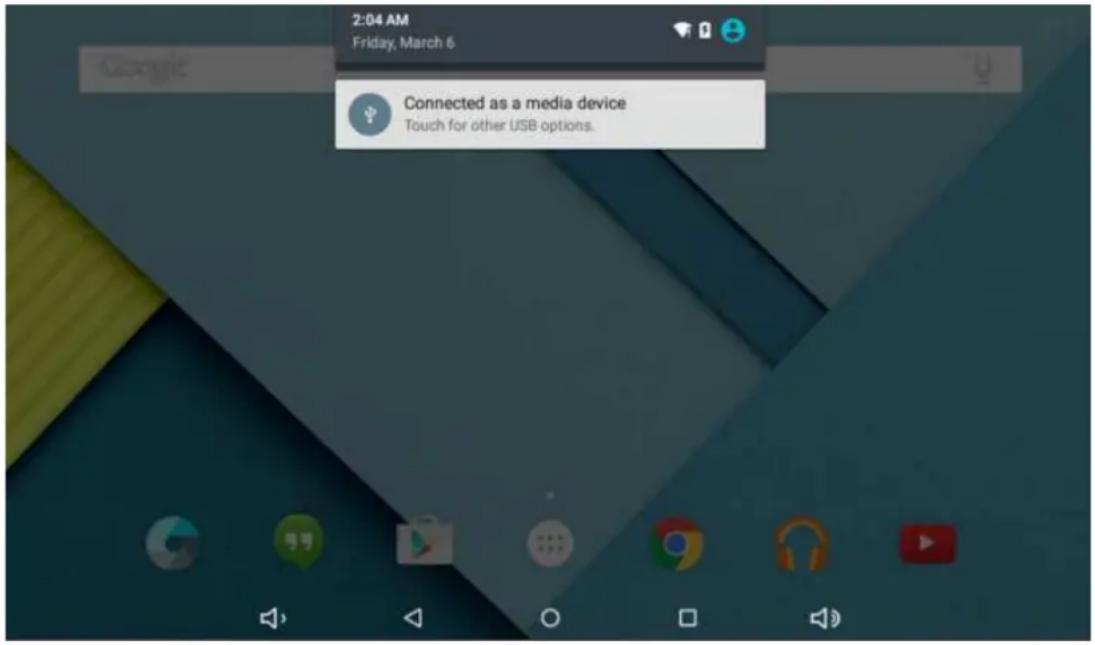
Connected the device to PC port via USB wire, then there will be showed "Connected as a media device" on PC screen
COMMON ISSUES
Out of run
Check the batteries whether it out of charge.
Checking after get connected to the power adapter.
If it still cannot turn on after charging, please contact the customer service center.
No voice in the earphone
Make sure the volume is not turned down all the way
Unplug the headset, and then plug it in again. Make sure you push connector all the way in.
Charging issues
Please make sure the setting of the charger is according with the device.
Please don't use the front USB ports for charging.
Download issues
Make sure it connects with PC properly.
You'd better not to use the front USB port to connect to PC.
Why some of downloaded videos cannot play normally?
The device is compatible with most of video file format, but there still have some differences in format, encoded mode, resolution and code rate etc. it could result in some of the videos can not play or have play issues. Our suggestion is that use the three party adapter software's for transforming in the PC then copy to the device.
Device crashed or can't turn on
Once device crashed during the running time, It can be restarted via tap the RESET button at the side of device.
WARNINGS
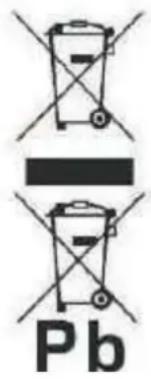
Correct disposal of this Product
(Waste Electrical & Electronic Equipment)(WEEE)
Your product is designed and manufactured with high quality materials and components which can be recycled and reused.
This symbol means that electrical and electronic equipment, at their end of-life should be disposed of separately from your household waste.
Please dispose of this equipment at your local community waste collection/recycling centre.
In the European Union there are separate collection systems for used electrical and electronic products. Please help us to conserve the environment we live in!
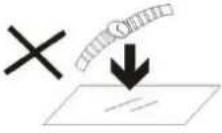 | DO NOT place objects on top of the device, as objects may scratch the device. |
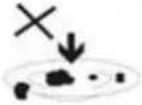 | DO NOT expose the device to dirty or dusty environments. |
 | DO NOT place the device on an uneven or unstable surface. |
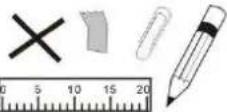 | DO NOT insert any foreign objects into the device. |
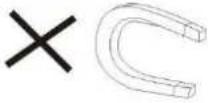 | DO NOT expose the device to strong magnetic or electrical field. |
 | DO NOT expose the device to direct sunlight as it can damage the device. Keep it away from heat sources. |
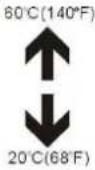 | DO NOT store your device in temperatures higher than 40°C(104°F). The internal operating temperature for this device is from 20°C(68°F) to 60°C(140°F). |
 | DO NOT use the device in the rain. |
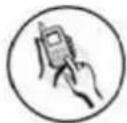 | Please check with your Local Authority or retailer for proper disposal of electronic products. |
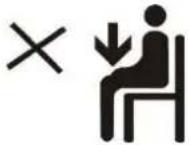 | The device and adaptor may product some heat during normal operation of charging. To prevent discomfort or injury from heat exposure, DO NOT leave the device on your lap. |
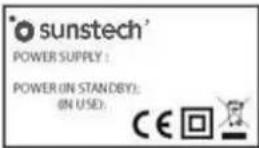 | POWER INPUT RATING: Refer to the rating label on the device and be sure that the power adaptor complies with the rating. Only use accessories specified by the manufacturer. |
 | Clean the device with a soft cloth. If needed, dampen the cloth slightly before cleaning. Never use abrasives or cleaning solutions. |
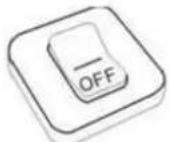 | Always power off the device to install or remove external devices that do not support hot-plug. |
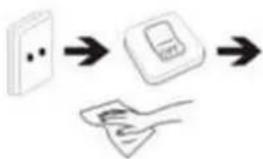 | Disconnect the device from an electrical outlet and power off before cleaning the device. |
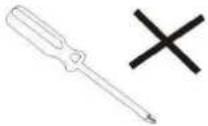 | DO NOT disassemble the device. Only a certified service technician should perform repair. |
 | The device has apertures to disperse heat. DO NOT block the device ventilation, the device may become hot and malfunction as a result. |
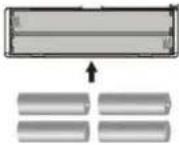 | Risk of explosion if battery replaced by an incorrect type. Dispose of used batteries according to the instruction. |
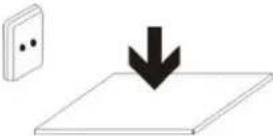 | PLUGGABLE EQUIPMENT: the socket-outlet shall be installed near the equipment and shall be easily accessible. |
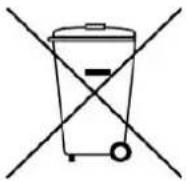 | European Union: Disposal Information.This symbol means that according to local laws and regulations your product and/or its battery shall be disposed of separately from household waste.When this product reaches its end of life, take it to a collection point designated by local authorities.The separate collection and recycling of your product and/or its battery at the time of disposal will help conserve natural resources and ensure thatit is recycled in a manner that protects human health and the environment. |
| MADE IN CHINA | |

sunstech®
For you. For everyone.

natural_image
Abstract illustration of a white sphere resting on a gray book with a white circle and a small sun in the background (no text or symbols)TAB918QCBT
TABLET
GUÍA DE USUARIO
CONTENIDO
natural_image
Black tablet device with visible screen and side panels, shown from front and back angles (no text or symbols on the device itself)OPERACIONES BÁSICAS
Encendido

natural_image
Pure graphical toolbar icons without any text or symbolsnatural_image
Group photo of female soccer players in pink jerseys posing on a green field, with spectators and other sports in the background (no visible text or symbols)CÁMARA
MÚSICA
PROBLEMAS COMUNES
No funciona
For you. For everyone.

natural_image
Abstract illustration of a white sphere resting on a gray book with a white circle and a small crescent, against a dark background (no text or symbols)TAB918QCBT
TABLETTE
GUIDE DE L'UTILISATEUR
CONTENU
FONCTIONS PRINCIPALES 4
ASPECT: 5
OPÉRATIONS DE BASE 5
Mise en marche 5
Arrêt 5
Redémarrage 5
Écran de veille 5
Retour au bureau 5
natural_image
Exterior and back view of a black tablet device with visible screen and buttons (no text or symbols on main body)OPÉRATIONS DE BASE
Mise en marche

natural_image
Pure graphical UI icons without any text or symbolsnatural_image
Group photo of female soccer players in pink jerseys posing on a green field, with spectators and other sports in the background (no visible text or symbols)CAMÉRA
MUSIQUE
PROBLÈMES COURANTS
For you. For everyone.

natural_image
Abstract illustration of a white sphere resting on a gray book with a white circle and a small sun in the background (no text or symbols)TAB918QCBT
TABLET
GUIA DO UTILIZADOR
CONTEÚDO
FUNÇÕES PRINCIPAIS 5
ASPETO 6
Operações básicas 6
Ligar 6
Desligar 6
Power Reset 6
Protetor de Ecrã 7
natural_image
Black tablet device with visible screen and side panels, shown from front and back angles (no text or symbols on the device itself)OPERAÇÕES BÁSICAS
Ligar
natural_image
Group photo of female soccer players in pink jerseys on a green field, with spectators and other sports in the background (no visible text or symbols)CÂMARA
MÚSICA
Ficheiros: Toque a música que selecionou e reproduz a música
QUESTÕES COMUNS
Não funciona
For you. For everyone.


- TAB918QCBT
- CONTENT
- MAIN FUNCTIONS
- APPEARANCE
- BASIC OPERATIONS
- Turn on
- Turn off
- Power Reset
- Screen Saver
- Back to the desktop
- Back to the previous interface
- Settings
- Charging
- [Warning]
- HOME SCREEN
- Set wallpaper
- Notification bar
- Move Desktop icon
- Delete the desktop icon
- INSTALL THE APK APPLICATION
- UNINSTALL APK APPLICATION
- PICTURES AND MOVIES
- CAMERA
- MUSIC
- REGULAR SETTINGS
- WIRELESS&NETWORKS
- Display
- Sound ¬ification
- Storage
- Battery
- Apps
- Location
- Security
- Accounts
- Language & input
- Back up and reset
- Date & time
- Accessibility
- Printing
- Developers options
- ABOUT TABLET
- CONNECT COMPUTER
- COMMON ISSUES
- Out of run
- No voice in the earphone
- Charging issues
- Download issues
- Device crashed or can't turn on
- WARNINGS
- sunstech®
- TABLET
- GUÍA DE USUARIO
- CONTENIDO
- OPERACIONES BÁSICAS
- Encendido
- CÁMARA
- MÚSICA
- PROBLEMAS COMUNES
- No funciona
- TABLETTE
- CONTENU
- OPÉRATIONS DE BASE
- CAMÉRA
- MUSIQUE
- PROBLÈMES COURANTS
- CONTEÚDO
- OPERAÇÕES BÁSICAS
- Ligar
- CÂMARA
- QUESTÕES COMUNS
- Não funciona
Brand : Sunstech
Model : Tab 918 QCBT
Category : Tablet