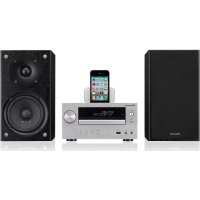
XHM70S - Pregnant PIONEER - Free user manual and instructions
Find the device manual for free XHM70S PIONEER in PDF.



| Product Type | CD and network micro-system with speakers |
| Brand | Pioneer |
| Model | X-HM70S (system) / XC-HM70 (main unit) |
| Dimensions (main unit) | 215 mm (W) x 130 mm (H) x 300 mm (D) |
| Dimensions (speaker) | 160 mm (W) x 260 mm (H) x 200 mm (D) (each) |
| Weight (main unit) | 3.5 kg |
| Weight (speaker) | 2.5 kg (each) |
| Power supply | AC 230 V / 120 V (depending on region), 50/60 Hz |
| Power consumption | 45 W (operation), 0.5 W (standby) |
| Output power | 2 x 25 W (RMS) at 4 ohms |
| Playable audio formats | CD, CD-R/RW, MP3, WMA, AAC (USB/network) |
| Tuner | FM (RDS), AM (MW) |
| Network connectivity | Ethernet (RJ45), Wi-Fi via AS-WL300 adapter (optional) |
| Network functions | Internet radio (SHOUTcast), playback of audio files from a PC (DLNA) |
| Audio inputs | 1 x Audio In (3.5 mm mini jack), 1 x USB (front), 1 x iPod/iPhone dock |
| Audio output | 1 x Headphones (3.5 mm mini jack), 1 x Subwoofer Pre-out |
| Video output | 1 x Video Out (for iPod/iPhone) |
| Included accessories | Remote control, AAA batteries (x2), FM antenna, AM loop antenna, speaker cable (x2), LAN cable, warranty, manual |
| Maintenance and cleaning | Unplug the unit before cleaning. Use a soft, dry cloth. Do not use solvents. |
| Safety | Do not expose to moisture, open flames. Leave at least 10 cm of ventilation space around the unit. |
| Spare parts and repairability | Contact an authorized PIONEER service center for any repairs. Do not open the unit. |
| General information | For domestic use. Operating temperature: +5 °C to +35 °C. Relative humidity < 85%. |
Frequently Asked Questions - XHM70S PIONEER
User questions about XHM70S PIONEER
0 question about this device. Answer the ones you know or ask your own.
Ask a new question about this device
Download the instructions for your Pregnant in PDF format for free! Find your manual XHM70S - PIONEER and take your electronic device back in hand. On this page are published all the documents necessary for the use of your device. XHM70S by PIONEER.
USER MANUAL XHM70S PIONEER
Discover the benefits of registering your product online at http://www.pioneer.co.uk (or http://www.pioneer.eu).
The Lightning flash with arrowhead symbol, within an equiellar triangle, is intended to alert the user to the presence of uninfected "dangerous voltage" within the product's enclosure that may be of sufficient magnitude to cause a risk of close proximity shock to persons.
CAUTION
RISK OF ELECTRIC SHOCK DO NOT OPEN
CAUTION:
TO PREVENT THE RISK OF ELECTRIC SHOCK,DO NOT REMOVE COVERAGE BACK,NO USER SERVICEABLE PARTS INSIDE,REFER SERVICING TO QUALIFIED SERVICE PERSONNEL

The exclamation point within an acclu-lateral triangle is intended to alert the user to the presence of important operating and maintenance (servicing) instructions in the literature accompanying the appliance.
D3-4-2-1-1A1En
WARNING
This equipment is not waterproof. To prevent a fire or shock hazard, do not place any container filled with liquid near this equipment (such as a vase or flower pot) or expose it to dripping, splashing, rain or moisture.
D3-4-2-1-3_A1_En
Operating Environment
Operating environment temperature and humidity: +5^ to -35^ (+41^ to +95^) less than 85% RH (cooling vents not blocked)
Do not install this unit in a poorly ventilated area, or in locations exposed to high humidity or direct sunlight (or strong artificial light)
D3-4-2-1-7cA1En
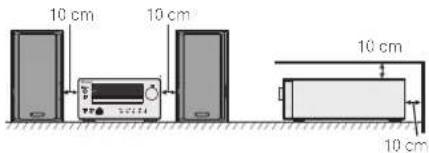
VENTILATION CAUTION
When installing this unit, make sure to leave space around the unit for ventilation to improve heat radiation (at least 10 cm at top, 10 cm at rear, and 10 cm at each side).
WARNING
Before plugging in for the first time, read the following section carefully.
The voltage of the available power supply differs according to country or region. Be sure that the power supply voltage of the area where this unit will be used meets the required voltage (e.g., 230 V or 120 V) written on the rear panel.
D3-4-2-1-4*A1_En
WARNING
To prevent a fire hazard, do not place any naked flame sources (such as a lighted candle) on the equipment. D3-4-2-1-7a_A1_EN
If the AC plug of this unit does not match the AC outlet you want to use, the plug must be removed and appropriate one fitted. Replacement and mounting of an AC plug on the power supply cord of this unit should be performed only by qualified service personnel. If connected to an AC outlet, the cut-off plug can cause severe electrical shock. Make sure it is properly disposed of after removal. The equipment should be disconnected by removing the mains plug from the wall socket when left unused for a long period of time (for example, when on vacation).
D3-4-2-2-1a A1 En
WARNING
Slots and openings in the cabinet are provided for ventilation to ensure reliable operation of the product, and to protect it from overheating. To prevent fire hazard, the openings should never be blocked or covered with items (such as newspapers, tablecloths, curtains) or by operating the equipment on thick carpet or a bed.
D3-4-2-1-7b+A1En
CAUTION
The STANDBY/ON switch on this unit will not completely shut off all power from the AC outlet. Since the power cord serves as the main disconnect device for the unit, you will need to unplug it from the AC outlet to shut down all power. Therefore, make sure the unit has been installed so that the power cord can be easily unplugged from the AC outlet in case of an accident. To avoid fire hazard, the power cord should also be unplugged from the AC outlet when left unused for a long period of time (for example, when on vacation).
D3-4-2-2aA1En
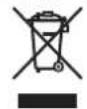
Information for users on collection and disposal of old equipment and used batteries
Symbol for equipment
Symbol examples) for batteries
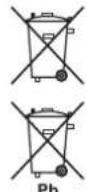
These symbols on the products, packaging, and/or accompanying documents mean that used electrical and electronic products and batteries should not be mixed with general household waste.
For proper treatment, recovery and recycling of old products and used batteries, please take them to applicable collection points in accordance with your national legislation.
By disposing of these products and batteries correctly, you will help to save valuable resources and prevent any potential negative effects on human health and the environment which could otherwise arise from inappropriate waste handling.
For more information about collection and recycling of old products and batteries, please contact your local municipality, your waste disposal service or the point of sale where you purchased the items.
These symbols are only valid in the European Union.
For countries outside the European Union:
If you wish to discard these items, please contact your local authorities or dealer and ask for the correct method of disposal.
K058a_A1_En
Condensation
If the player is moved suddenly from a cold place into a warm room (in winter, for example) or if the temperature in the room in which the player is installed rises suddenly due to a heater, etc., water droplets (condensation) may form inside (on operating parts and the lens). When condensation is present, the player will not operate properly and playback is not possible. Let the player stand all room temperature for 1 or 2 hours with the power turned on (the time depends on the extent of condensation). The water droplets will dissipate and playback will become possible. Condensation can also occur in the summer if the player is exposed to the direct wind from an air-conditioner. If this happens, move the player to a different place.
5005_A1_En
This product is for general household purposes. Any failure due to use for other than household purposes (such as long-term use for business purposes in a restaurant or use in a car or ship) and which requires repair will be charged for even during the warranty period.
K041 A1 En
CAUTION
This product is a class 1 laser product classified under the Safety of laser products, IEC 60825-1:2007.
CLASS 1 LASER PRODUCT
D58-5-2-2a A1 En
Thank you for purchasing this PIONEER product. To obtain the best performance from this product, please read this manual carefully. It will guide you in operating your PIONEER product.
Contents
Accessories. 4
Before you start 5
General 5
Loading the batteries. 5
Controls and Displays 6
Remote control 6
Front Panel 7
Speaker system (X-HIM70 only) 7
Connecting your equipment 8
Aerial connection 8
Speaker connection 9
Using other subwoofer 9
Connecting IPcD or iPhone to IV. 9
Connecting a TV,etc. 9
Connecting to the network through LAN interface .10
AC power connection 10
General control 11
To turn the power on 11
Setling the clock 11
Enhancing your system 12
Listening to a CD or MP3/WMA disc. 13
Disc playback 13
Various disc functions. 13
Advanced CD or MP3/WMA disc playback 14
MP3/WMA folder mode (only for MP3/WMA files). 15
Listening to the iPod, iPhone or iPad 17
Supported iPod, iPhone and iPad models: 17
Connecting your iPod/Phone 17
To remove adaptor for iPod or iPhone 17
To insert iPad adaptor. 17
Playing an iPod, iPhone or iPad 18
Listening to USB mass storage device/
MP3 player. 19
Connecting a USB device 19
Playing a USB device 19
Playback with NETWORK feature. 20
Listening to Internet radio stations 20
Playing back audio files stored on components of the network 31
Network 21
Playing back your favorite songs.. 21
Network setup menu 21
Network connection requirements 22
About network playback 22
Glossary 23
Listening to the radio 24
Using the Radio Data System (RDS). 25
An Introduction to RDS 25
Timer and sleep operation 26
Setting the wake-up timer 26
Sleep operation 26
Additional Information 27
Troubleshooting chart 27
Condensation 29
II problem occurs 29
Factory reset, clearing all memory 29
Before transporting the unit 29
Care of compact discs 29
Cleaning the cabinet. 29
Caution for when the unit is installed in a rack with a glass
door 29
About playablemusic file formats 30
About status messages 30
Specifications 31
About iPod/iPhone/iPad 31
Disclaimer for Third Party Content 31
X-HM70 Network CD Receiver System consisting of main unit and speaker system.
XC-HM70 Network CD Receiver consisting of main unit.
Accessories
Please confirm that the following accessories are included.
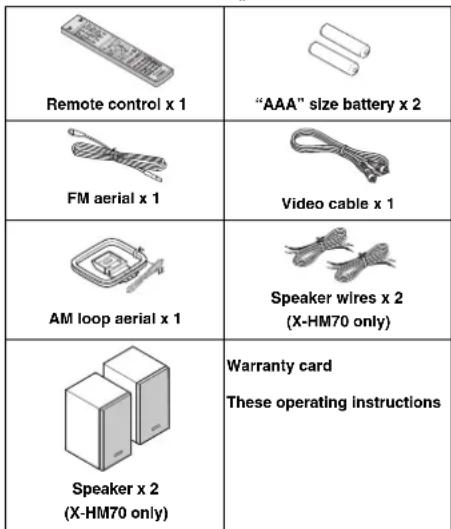
Before you start
Before you start
General
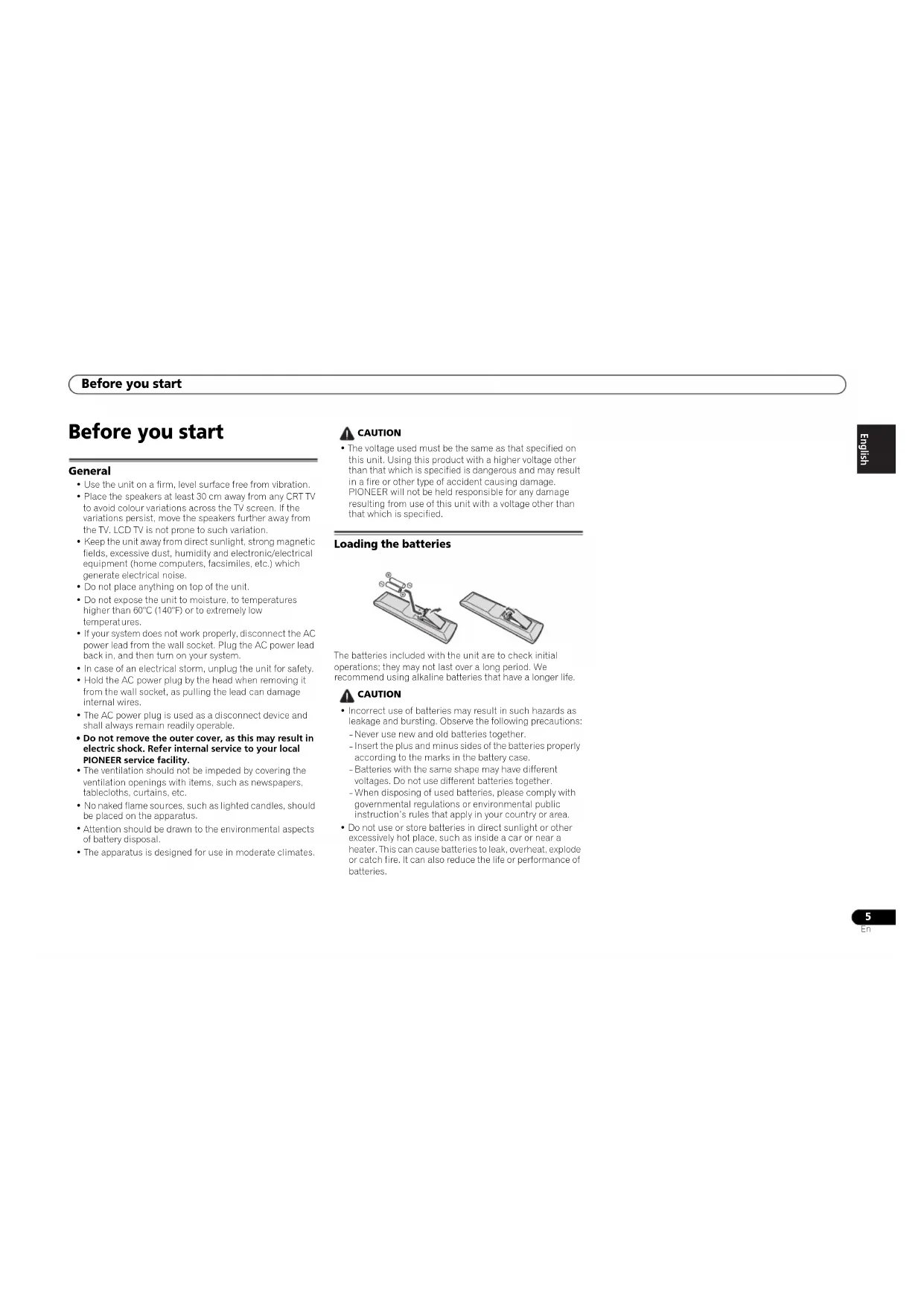
- Do not remove the outer cover, as this may result in electric shock. Refer internal service to your local PIONEER service facility.
- Use the unit on a firm, level surface free from vibration.
- Place the speakers at least 30 cm away from any CRT TV to avoid colour variations across the TV screen. If the variations persist, move the speakers further away from the TV. LCD TV is not prone to such variation.
- Keep the unit away from direct sunlight, strong magnetic fields, excessive dust, humidity and electronic/electrical equipment (home computers, facsimiles, etc.) which generate electrical noise.
- Do not place anything on top of the unit.
- Do not expose the unit to moisture, to temperatures higher than 60^ (140°F) or to extremely low ℃/temperature unless
If your system does not work properly, disconnect the AC power load from the wall socket. Plug the AC power load back in, and then turn on your system.
In case of an electrical storm, unplug the unit for safety. - Hold the AC power plug by the head when removing it from the wall socket, as pulling the lead can damage internal wires.
- The AC power plug is used as a disconnect device and shall always remain readily operable.
- The ventilation should not be impeded by covering the ventilation openings with items, such as newspapers, tabloatics, curtains, etc.
- No naked flame sources, such as lighted candles, should be placed on the apparatus.
- Attention should be drawn to the environmental aspects of battery disposal.
The apparatus is designed for use in moderate climates.

CAUTION
The voltage used must be the same as that specified on this unit. Using this product with a higher voltage other than that which is specified is dangerous and may result in a fire or other type of accident causing damage. PIONEER will not be held responsible for any damage resulting from use of this unit with a voltage other than that which is specified.
Loading the batteries
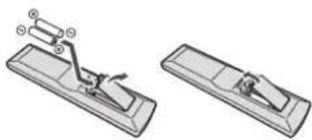
The batteries included with the unit are to check initial operations; they may not last over a long period. We recommend using alkaline batteries that have a longer life.

CAUTION
- Incorrect use of batteries may result in such hazards as leakage and bursting. Observe the following precautions:
- Never use new and old batteries together.
- Insert the plus and minus sides of the batteries properly according to the marks in the battery case.
- Batteries with the same shape may have different voltages. Do not use different batteries together.
- When disposing of used batteries, please comply with governmental regulations or environmental public instruction's rules that apply in your country or area.
Do not use or store batteries in direct sunlight or other excessively hot place, such as inside a car or near a heater. This can cause batteries to leak, overheat, explode or catch fire. It can also reduce the life or performance of batteries.

Controls and Displays
Controls and Displays
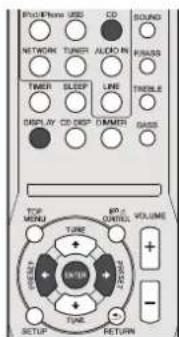
Remote control
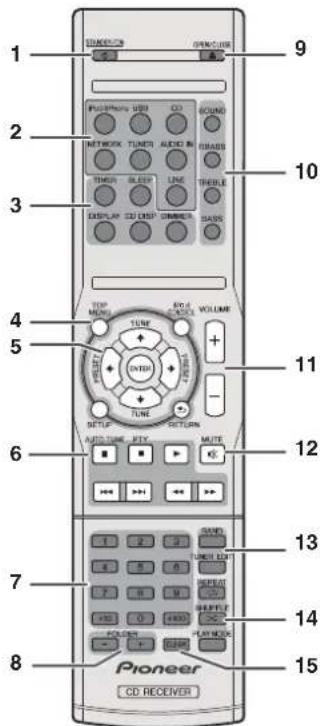
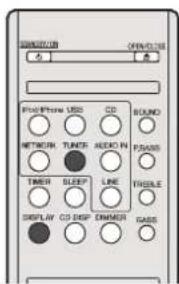
1 STANDBY/ON
Switches the receiver between standby and on (page 11).
2 Input function buttons
Use to select the input source to this receiver.
3 CD Receiver control buttons
DIMMER - Dims or brightens the display. The brightness can be controlled in four steps (page 11).
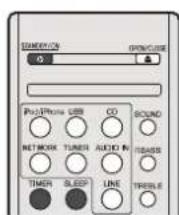
SLEEP - Press to change the amount of time before the receiver switches into slandby (30 min. - 60 min. - 90 min. - Off). You can check the remaining sleep time at any time by pressing SLEEP once (page 26).
TIMER - Use for setting the clock, as well as for setting and checking the timers (page 11.26).
DISPLAY - Display the MP3/WMA disc or RDS information.
CD DISP - Display the disc information (page 15).
4 CD Receiver control buttons
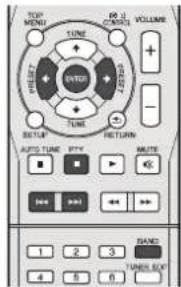
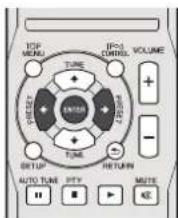
TOP MENU - Press to display the iPod Top menu (page 18).
iPod CONTROL - Switches between the iPod controls and the receiver controls (page 18).
SETUP - Press to access the receiver setup menu (page 11, 24).
RETURN - Confirm and exit the current menu screen.
5↑/↓←/→(TUNE↑/↓, PRESET←/→),ENTER Use to select/swi tch system settings and modes, an confirm actions.
Use TUNE can be used to find radio frequencies and PRESET can be used to select preset radio stations (page 24).
6 Playback control buttons
The main buttons (▶, □, etc.) are used to control each function after you have selected it using the input function buttons.
PTY - Use to search for RDS program types (page 25).
- AUTO TUNE button is not used with this receiver.
7 Numeric buttons
Use to enter the number (page 14).
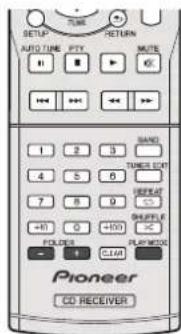
8 FOLDER +/-
Use to select the folder of the MPS/WMA disc (page 15).
9 OPEN/CLOSE
Use to open or close the disc tray (page 13).
10 Sound control buttons
Adjust the sound quality (page 12).
11 Volume control buttons
Use to set the listening volume (page 11).
12 MUTE
Mutes/unmates the sound (page 12).
13 Tuner control buttons
BAND-Switches between AM, FM ST (stereo) and FM MONO radio bands page 24.
TUNER EDIT - Memorizes/names stations for recall (page 24).
14Playbackmodebuttons
REPEAT - Press to change repeat play setting from a CD, iPod or USB (page 14).
SHUFFLE - Press to change shuffle play setting from a CD, iPod or USB (page 14).
PLAY MODE - Press to change the playback mode between CD and MP3/WMA disc (page 14).
15 CLEAR
Use to clear the programmed play (page 15).
Controls and Displays
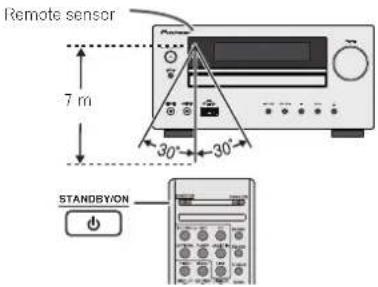
Test of the remote control
Check the remote control after checking all the connections. Point the remote control directly at the remote sensor on the unit. The remote control can be used within the range shown below:
Front Panel
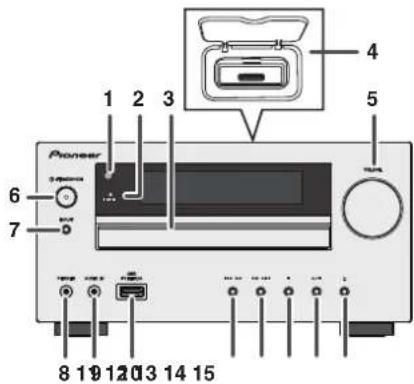
1 Remote Sensor
Receives the signals from the remote control.
2 Timer Indicator
Lights when the timer is set (page 26).
3 Disc Tray
Place the disc, label side up (page 13).
4 iPod or iPhone Docking Station
Dock iPod/iPhone (page 17).
5 Volume Control
Use to set the listening volume (page 11).
6 STANDBY/ON Button
Switches the receiver between standby and on (page 11).
7 INPUT Button
Selects the input source (page 12).
8 Headphone Socket
Use to connect headphones. When the headphones are connected, there is no sound output from the speakers (page 12).
9 AUDIO IN Socket
Use to connect an auxiliary component using a stereo minijack cable (page 12).
10 USB Terminal
Use to connect your USB mass storage device or Apple iPad as an audio source (page 19).
11 Tune Down, Skip Down Button
Selects the desired track or folder to be played back.
12 Tune Up, Skip Up Button
Selects the desired track or folder to be played back.
13 Stop Button
Use to stop the playback.
14 Play or Pause Button
Stops playback or resumes playback from the pause point.
15 Disc Tray Open/Close Button
Use to open or close the disc tray (page 13).
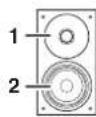
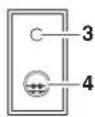
Speaker system (X-HM70 only)
1 Dome-Tweeter
2 Woofer
3 Bass Reflex Duct
4 Speaker Terminal
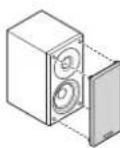
Speaker grilles are removable
Make sure nothing comes into contact with the speaker diaphragms when you remove the speaker grilles.
Connecting your equipment
Connecting your equipment
Before making or changing the connections, switch off the power and disconnect the power cord from the AC outlet.
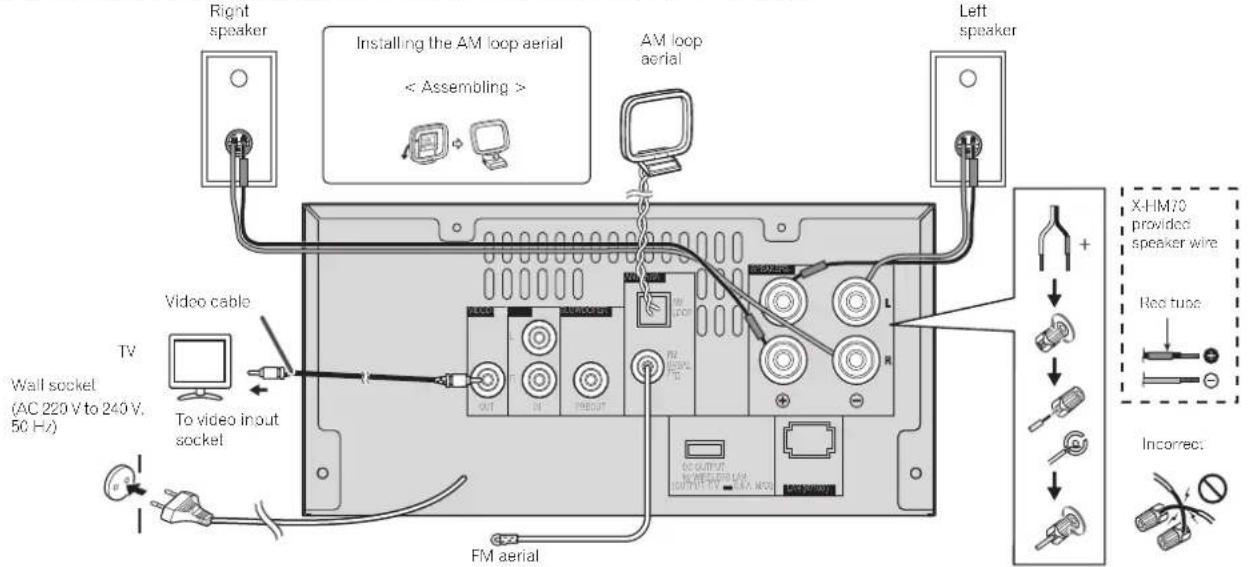
Aerial connection
Supplied FM aerial:
Connect the FM serial wire to the FM 7b ohms socket and position the FM aerial wire in the direction where the strongest signal can be received.
External FM aerial:
Use an external FM aerial (75 ohms coaxial cable) for better reception. When an external FM aerial is used, disconnect the supplied FM aerial wire.
Supplied AM loop aerial:
Connect the AM loop aerial to the AM terminal. Position the AM loop aerial for optimum reception. Place the AM loop aerial on a shelf, etc., or allach it to a stand.
Note
- Placing the aerial on the unit or near the AC power lead may cause noise pickup. Place the aerial away from the unit for better reception.
Connecting your equipment
Speaker connection
The provided speaker wire with the red tube is for the plus (+) terminal. Connect the wire with red tube to the plus (+) terminal, and other wire to the minus (-) terminal.
Use speakers with an impedance of 4 ohms as I impedance speakers can damage the unit.
CAUTION
These speaker terminals carry HAZARDOUS LIVE voltage. To prevent the risk of electric shock when connecting or disconnecting the speaker cables, disconnect the power cord before touching any uninsulated parts.
- Do not mistake the right and the left channels. The right speaker is the one on the right side when you face the unit.
- Do not let the bare speaker wires touch each other.
- Make sure that all the bare speaker wires twisted together and inserted fully into the speaker terminal. If any of the bare speaker wires touches the back panel, it may cause the power to cut off as a safety measure.
If not using the provided speaker wire
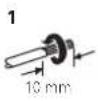
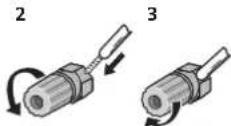
Bare wire connections
1 Twist exposed wire strands together.
2 Loosen terminal and insert exposed wire.
3 Tighten terminal.
X-HM70 only:
- Do not install your speakers overhead on the ceiling or wall. The grill is designed to be detachable, and as such it may fall and cause damage or personal injury if installed overhead.
- Do not allow any objects to fall into or to be placed in the basis reflex ducts.
Do not stand or sit on the speakers. You may be injured.
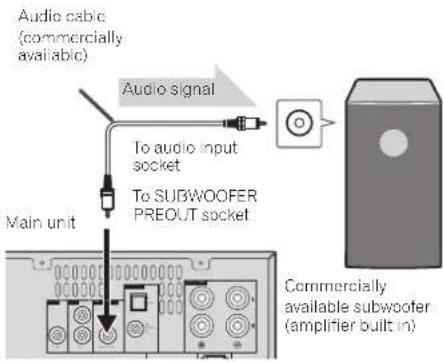
Using other subwoofer
You can connect a subwoofer with an amplifier to the SUBWOOFER PREOUT socket.
Note
4 Note
- No sound is heard from the subwoofer without a built-in amplifier.
Connecting iPod or iPhone to TV
Photo and video files from iPod or iPhone can be viewed by connecting the system to TV/monitor. If the TV/monitor has a video input, connect it to the VIDEO OUT socket at the back of the unit and set the TV Out on the iPod or iPhone unit to "ON" position.
Please make sure to set iPod unit to either NTSC or PAL to match your TV signal. Please visit Apple's homepage for further information.
- The video images from the iPod or iPhone will only be viewed when the iPod or iPhone is docked in the unit.
Connecting a TV, etc.
Connect to the TV using an audio cable.
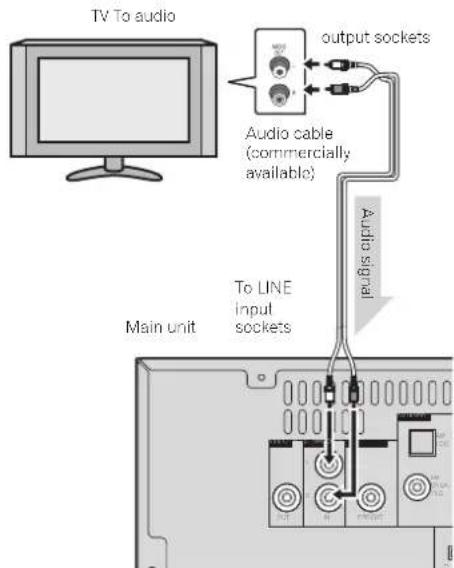
To select Line In function:
On main unit: Press INPUT button repeatedly until Line In is displayed.
- On remote control: Press LINE button.

Connecting your equipment
Connecting to the network through LAN interface
By connecting this receiver to the network via the LAN terminal, you can listen to Internet radio stations. To listen to Internet radio stations, you must sign a contract with an ISP (Internet Service Provider) beforehand.
When connected in this way, you can play audio files stored on the components on the network, including your computer, using NETWORK functions.
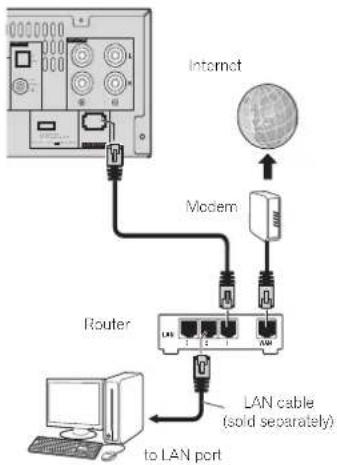
Connect the LAN terminal on this receiver to the LAN terminal on your router (with or without the built-in DHCP server function) with a straight LAN cable (CAT 5 or higher). Turn on the DHCP server function of your router. In case your router does not have the built-in DHCP server function, it is necessary to set up the network manually. For details, see Network setup menu on page 21.
Note
Refer to the operation manual of the equipment you have as the connected equipment and connection method may offer depending on your Internet environment.
- When using a broadband Internet connection, a contract with an Internet service provider is required. For more details, contact your nearest Internet service provider.
Connecting to a wireless LAN
Wireless connection to the network is possible through a wireless LAN connection. Use the separately sold AS-WL300 for connection.
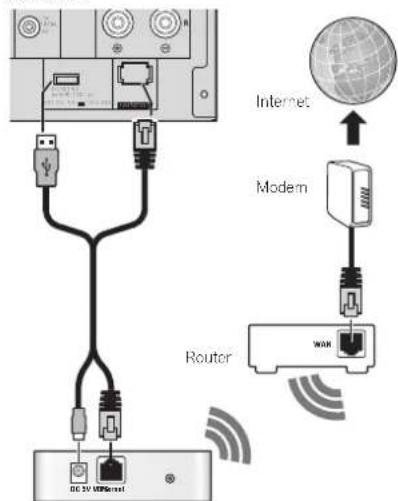
Wireless LAN converter (AS WL300)
For details, refer to the operating instructions of the wireless LAN converter (AS-WL300).
AC power connection
After checking all the connections have been made correctly, plug the AC power lead of this unit into the wall socket.
CAUTION
- Unplug the AC power lead from the wall socket if the unit will not be in use for a prolonged period of time.
- Handle the power cord by the plug. Do not pull out the plug by tugging the cord and never touch the power cord when your hands are wet as this could cause a short circuit or electric shock. Do not place the unit, a piece of furniture, etc., on the power cord, or pinch the cord. Never make a knot in the cord or tie it with other cords. The power cords should be rolled such that they are not likely to be stepped on. A damaged power cord can cause a fire or give you an electrical shock. Check the power cord once in a while. When you find it damaged, ask your nearest PIONEER authorized service center or your dealer for a replacement.
General control
General control
To turn the power on
Press the STANDBY/ON button to turn the power on.
After use:
Press the STANDBY/ON button to enter the power stand-by mode.
Note
However, if iPod/iPhone is docked, the unit turns charge mode, "iPod charge" will be dis- oviated.
- During iPod charge mode, press the STANDBY/ON button to turn the power on.
- Remove iPod to turn the power stand-by mode.
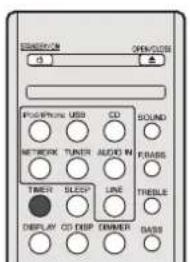
Setting the clock
In this example, the clock is set for the 24 hour (00:00) display.
1 Press TIMER button on the remote control.
The current date and time are displayed.
The first time you use the clock, you are taken to the clock adjust mode.
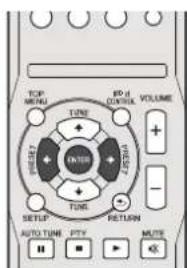
2 Press ENTER button.
3 U s← to set the day, then press ENTER.
4 U s→to select 24-hour or 12-hour display, then press ENTER.
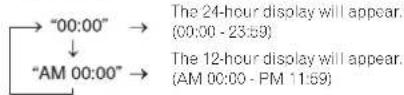
5 U s to set the hour, then press ENTER.
6 U s = 0 to set the minute, then press ENTER to confirm.
To confirm the time display:
Press the TIMER button. The time display will appear for about 10 seconds.
Note
- When power supply is restored after unit is plugged in again or after a power failure, reset the clock (See below).
To readjust the clock:
Perform "Setting the clock" from step 1. If the "Clock" does not appear in step 2, step 4 (for selecting the 24-hour or 12-hour display) will be skipped.
To change the 24-hour or 12-hour display:
1 Clear all the programmed contents.
Refer to Factory reset, clearing all memory on page 29 for details.
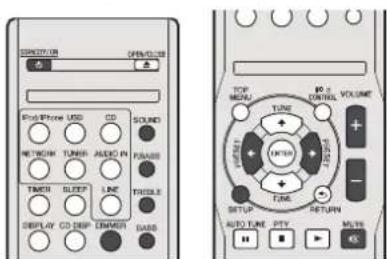
2 Perform "Setting the clock" from step 1 onwards.
Display brightness control
Press DIMMER button to dims the display brightness. The brightness can be controlled in four steps.
Volume auto fade-in
If you turn off and on the main unit with the volume set to 41 or higher, the volume starts at 40 and fades in to the last set level.
Volume control
Turn the volume knob towards VOLUME (on main unit) or press VOLUME +/- (on remote control) to increase or decrease the volume.
CAUTION
The sound level at a given volume setting depends on speaker efficiency, location, and various other factors. It is advisable to avoid exposure to high volume levels. Do not turn the volume on to full at switch on. Listen to music at moderate levels. Excessive sound pressure from earphones and headphones can cause hearing loss.
Auto power down setup
Set to automatically turn off the receiver after a specified time has passed (when the power has been on with no operation for several hours).
- Default setting: 6H
1 Press SETUP on the remote control.
- If APD does not appear, press ↑/↓ to select APD
2 U s i to specify the amount of time to allow before the power is turned off (when there has been no operation).
- You can select 2, 4 or 6 hours, or off (if no automatic shutoff is desired).
3 When you're finished, press RETURN.

General control
Muting
The volume is muled temporarily when pressing the MUTE button on the remote control. Press again to restore the volume.
P.bass control
When the power is first turned on, the unit will enter the P.bass mode which emphasises the bass frequencies. To cancel the P.bass mode, press the P.BASS button on the remote control.
Bass control
Press the BASS button, then press to adjust the bass.
Treble control
Press the TREBLE button, then press to adjust the treble.
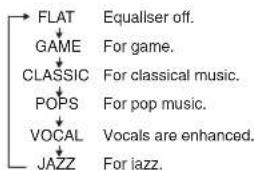
Equaliser
When the SOUND button is pressed, the current mode setting will be displayed. To change to a different mode, press The SOUND button repeatedly until the desired sound mode appears.
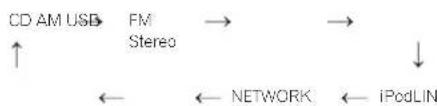
Input function
When the INPUT button on main unit is pressed, the current function will change to different mode. Press the INPUT button repeatedly to select desired function.
Note
- The backup function will protect the memorised function mode should there be a power failure or the AC power lead becomes disconnected.
Enhancing your system
The connection lead is not included. Purchase a commercially available lead as shown below.
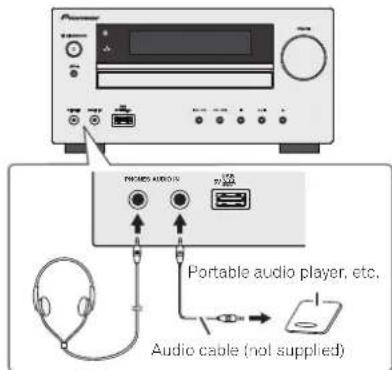
Listening to the playback sounds of portable audio player, etc.
1 Use a connection lead to connect the portable audio player etc. to the AUDIO IN socket.
2 Press the STANDBY/ON button to turn the power on.
3 Press the AUDIO IN button on the remote control or INPUT button repeatedly on main unit to select AUDIO IN function.
4 Play the connected equipment.
- If volume level of the connected device is too high, sound distortion may occur. Should this happen, lower the volume of the connected device. If volume level is too low, increase the volume of the connected device.
Note
To prevent noise interference, place the unit away from the television.
- When using video equipment, connect the audio output to this unit and the video output to a television.
Headphones
- Do not turn the volume on to full at switch on and listen to music at moderate levels. Excessive sound pressure from earphones and headphones can cause hearing loss.
Before plugging in or unplugging the headphone, reduce the volume. - Be sure your headache has a 3.5 mm diameter plug and impedance between 16 and 60 chms. The recommended impedance is 32 chms.
- Plugging in the headphone disconnects the speakers automatically. Adjust the volume using the VOLUME control.
Listening to a CD or MP3/WMA disc
Listening to a CD or MP3/WMA disc
This system can play back a standard CD, CD-R/RW in line CD formal and CD-R/RW with MP3 or WMA files, but cannot record on them. Some audio CD-R and CD-RW discs may not be playable due to the state of the disc or the device that was used for recording.
MP3:
MP3 is a form of compression. It is an acronym which stands for MPEG Audio Layer 3. MP3 is a type of audio code which is processed by significant compression from the original audio source with very little loss in sound quality.
This system supports MPEG 1/2/2.5 Audio Layer 3 (Sampling rates: 8 kHz to 46 kHz; Bit rates: 32 kbps to 320 kbps).
- During VBSE file playback, time counter in the display may differ from its actual playback time.
WMA:
WMA files are Advanced System Format files that include audio files which are compressed with Windows Media Audio codec. WMA is developed by Microsoft as an audio format file for Windows Media Player.
- This system supports WMA (Sampling rates: 32 kHz/44.1 kHz/48 kHz; Bit rates: 32 kbps to 320 kbps).
Disc playback
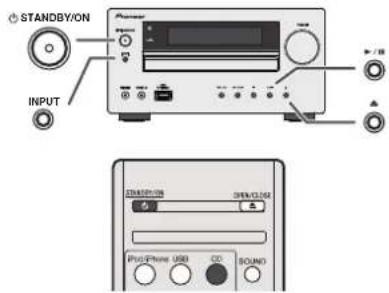
1 Press the STANDBY/ON button to turn the power on.
2 Press the CD button on the remote control or INPUT button repeatedly on the main unit to select CD function.
3 Press the button to open the disc tray.
4 Place the disc on the disc tray, label side up.
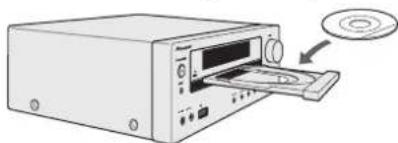
5 Press the button to close the disc tray.
6 Press the /×)ibutton to start playback. After the last track is played, the unit will stop automatically.
CAUTION
- Do not place two discs in one disc tray.
-
Do not play discs of special shapes (heart, cleft, oclagon, etc). It may cause mafuctions.
-
Do not push the disc tray whilst it is moving.
-
If the power fails whilst the tray is open, wait until the power is restored.
-
Be sure to place 8 cm disc in the middle of the disc tray.
Note
Due to the structure of the disc information, it takes longer to read an MP3/WMA disc than a normal CD (approximately 20 to 90 seconds).
- "MP3" or "WMA" will appear after the unit reads information on an MP3 or WMA disc.
- When the end of the last track is reached during fast forward, "END" will appear on the display and CD operation will be paused. When the beginning of the first track is reached during fast reverse, the unit will enter the playback mode (only for CD).
- Rewritable multi-session discs with unfinished writing, can still be played.
If TV or radio interference occurs during CD operation move the unit away from the TV or radio.
Various disc functions
| Function | Main unit | Remote control | Operation |
| Play | Press in the stop mode. | ||
| Stop | Press in the playback mode. | ||
| Pause | Press in the playback mode. Press the button to resume playback from the paused point. | ||
| Track up/down | Press in the playback or stop mode. If you press the button in the stop mode, press the button to start the desired track. | ||
| Fast forward/reverse | Press in the playback mode. Release the button to resume playback. |
Resume:
1 You can resume the track you stopped.
While a disc is playing, press the button.
2 The system stores the track you stopped and is blinking on the display.
To restart play, press the / button.
Play resumes from the beginning of the track you stopped.
To cancel the resume playback:
Press the bullon.

Listening to a CD or MP3/WMA disc
Advanced CD or MP3/WMA disc playback
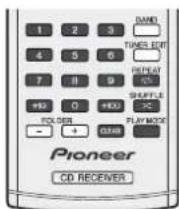
Direct track search
By using the numeric buttons, the desired tracks on the current disc can be played.
- Use the numeric buttons on the remote control to select the desired track whilst playing the selected disc.
The numeric buttons allow you to select up to number 9.
When selecting number 100 or higher, use the " + 100" button. - When selecting number 10 or higher, use the " +10 " button.
A. For example, to choose 13
1 Press the +10 button.
2 Press the "3" button.
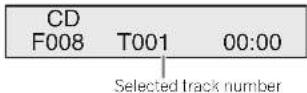
B. For example, to choose 130
1 Press the ^ 喜 + 1 0 0 ^ 喜 button.
2 Press the +10 button three times.
3 Press the "0" button.
Note
- A track number higher than the number of tracks on the disc cannot be selected.
During shuffle play, direct track search is not possible.
To stop playback:
Press the button.
Repeat play
Repeat play can play one track, all tracks or a programmed sequence continuously.
During repeat play. " appears.
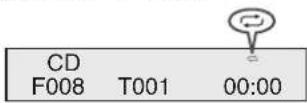
To repeat one track:
Press the REPEAT button repeatedly until "Repeat One" appears. Press the button.
To repeat all tracks:
Press the REPEAT button repeatedly until "Repeat All" appears. Press the button.
To repeat desired tracks:
Perform steps 1-5 in "Programmed play" section on this page and then press the REPEAT button repeatedly until "Repeat All!" appears.
To cancel repeat play:
Press the REPEAT button repeatedly until "Repeat Off" appears and "disappears.
Shuffle play
The tracks on the disc can be played in shuffle order automatically.
During shuffle play, ^ appears.
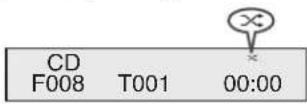
To shuffle play all tracks:
Press the SHUFFLE button on the remote control.
To cancel shuffle play:
Press the SHUFFLE button and "×" disappears.
Note
- If you press the button during shuffle play, you can move to the track selected next by the shuffle operation. On the other hand, the button does not allow you to move to the previous track. The beginning of the track being played will be localized.
-
In shuffle play, the unit will select and play tracks automatically. (You cannot select the order of the tracks.)
-
After performing repeat play, be sure to press the button. Otherwise, the disc will play continuously.
Programmed play (CD)
You can choose up to 32 selections for playback in the order you like:
1 Whilst in the stop mode, press the PLAY MODE button on the remote control to enter the programming save mode.
PROGRAM
P-01←T-
2 Press the button for numeric buttons on the remote control to select the desired track.
PROGRAM
P-01←T005
Listening to a CD or MP3/WMA disc
3 Press the ENTER button to save the track number.
4 Repeat steps 2-3 for other tracks. Up to 32 tracks can be programmed. If you make a mistake, the programmed tracks can be cleared by pressing the CLEAR button.
5 Press the 一 (一) button to start playback.
Programmed play (MP3/WMA)
1 Whilst in the stop mode, press the PLAY MODE button until 'PROGRAM' appears to enter the programming save mode.
Every time you press the PLAY MODE button, the playback mode changes.

2 Press the or nneric buttons on the remote control to select the desired folder.
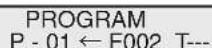
Then press the or button or numeric buttons on the remote control to select the desired tracks.
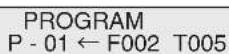
3 Press the ENTER button to save the folder and track number.
4 Repeat steps 2-3 for other folder/tracks. Up to 32 tracks can be programmed.
5 Press the /() button to start playback.
Adding tracks to the programme:
Slop In playing moe, then follow steps 2-3 to add tracks. The new tracks will be stored after the last track of the previous programme.
To cancel the programmed play mode:
During programmed stop mode, press the button. Press the PLAY MODE button to select the basic play mode, and all the programmed contents will be cleared.
Displaying disc information:
Press CD DISP repeatedly to change to the display of the elapsed playback time and The remaining playback time of the CD.
Various track information can be displayed while an MP3/ WMA disc is playing. Press DISPLAY.
Note
- When a disc is ejected, the programme is automatically cancelled.
If you press the STANDBY/ON button to enter the stand-by mode or change the function from CD to another, Inc programmed selections will be cleared. - During the programme operation, shuffle play is not possible.
The control buttons to change displays differ between the discs: for CD, CD DISP is used; for MP3/WMA disc, DISPLAY is used.
MP3/WMA folder mode (only for MP3/WMA files)
To play back MP3/WMA (Windows Media Audio) file
There are many music siles on the internet that you can download MP3/WMA (Windows Media Audio) music files. Follow the instructions from the website on how to download the music files. You can then play back these downloaded music files by burning them to a CD-R/RW disc.
- Your downloaded song/files are for personal use only. Any other usage of the song without owner's permission, is against the law.
About folder playback order
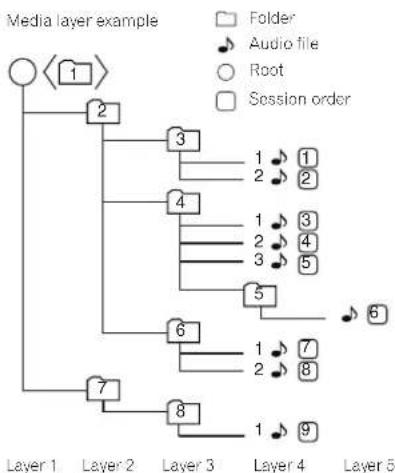
If MP3/WMA files are recorded in several folders, a folder number will be set to each folder automatically.
Press PLAY MODE to select the folder playback mode. These folders can be selected by the FOLDER +/- button on the remote control. If there is no supported file formats inside the selected folder, the folder is skipped and the next folder will be selected.
Example: How to set folder number if MP3/WMA format files are recorded as below figure.
1 ROOT folder is set as folder 1.
2 Playback will be in the order of the diagram below.
3 For CD MP3/WMA, 255 numbers of folders and files inclusive of the folders which have non playable files can be read.

Listening to a CD or MP3/WMA disc
Procedure to playback MP3/WMA disc with folder mode on
To play back CD-R/RW.
1 Press the CD button, and load an MP3/WMA disc. Press the PLAY MODE button to select the folder playback mode.
Disc info will be displayed.
2 Press FOLDER + / - to select desired playback folder. (folder mode on)
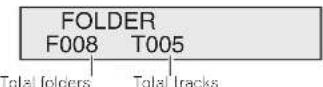
Playback will start.

Folder number
First track number in the folder
- Title, Artist and Album name are displayed if they are recorded on the disc.
In case of playback with the folder mode on, press FOLDER+/-, and the folder can be selected even though it is in playback/pause mode. It will continue playback/pause mode in the 1st track of the selected folder. - Display content can be changed by pressing the DISPLAY button.
Total folders and Total tracks (Stopping)
Folder number and Track number (Play)
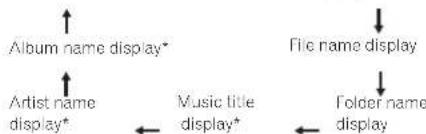
*The song title, artist name, and the album name will only be displayed during playback.
To cancel the folder playback mode, stop the playback, press the PLAY MODE button, and select the normal playback mode.
Note
If "Can't Play" is displayed, it means "Copyright protected WMA file" or "Not supported playback file" is selected.
Listening to the iPod, iPhone or iPad
Listening to the iPod, iPhone or iPad
Supported iPod, iPhone and iPad models:
iPod touch (4 ^th 5 ^rd 2 ^nd 1 ^st generation)
- iPod classic
- iPod with video
iPod nano (615/75/413/32/2n71 st generation)
iPhone 4/3GS/3G
iPac

Important
Pioneer cannot under any circumstances accept responsibility for any direct or indirect loss arising from any inconvenience or loss of recorded material resulting from the IPod failure.
Note
This system has been developed and tested for the software version of iPod/iPhone/iPad indicated on the website of Pioneer (http://pioneer.jp/homea/support/ios/cu/).
- Installing software versions other than indicated on the website of Pioneer to your iPod/Phone/Pad may result in incompatibility with this system.
Once iPod or iPhone is connected to the unit it will begin charging.
- You can recharge the iPad when the power is on or during iPod Charge Mode.
- When connecting the iPad, use only an iPad dedicated cable.
- Connect iPad to the USB terminal.
- iPod and iPhone are licensed for reproduction of noncopyrighted materials or materials the user is legally permitted to reproduce.
- Features such as the equalizer cannot be controlled using this receiver, and we recommend switching the equalizer off before connecting.
Connecting your iPod/iPhone
CAUTION
- When connecting an iPod/iPhone units, always use the universal clock adapter provided with your iPod/iPhone, or a commercially adapter designed to support iPod/iPhone. The iPod/iPhone cannot be connected without a universal clock adapter; attempting to connect an iPod/iPhone without a universal clock adapter will cause damage or malfunction.
- Unplug all accessories from the iPod or iPhone before inserting it into the dock.
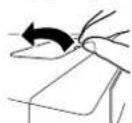
1 Open the dock cover by pulling up.
2 Attach the Universal dock adapter to iPod/Phone
connector port on this unit.
- An iPod iPhone universal dock adapter is not supplied with this unit.
When attaching the Universal dock adapter, be sure to orient the front-back directions of the Universal dock adaptor correctly. To attach, first place the protruding tabs on the front side of the adapter into the depressions on the iPod/ iPhone connector port and press into position. When attaching the adapter, be careful not to strike the connectors.
3 Connect your iPod/iPhone.
If an iPod/Phone is connected when this unit is in slantby mode, the power will turn on and playback of the iPod/Phone will begin.
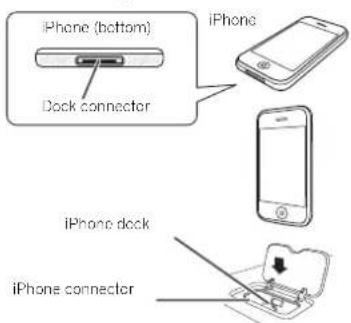
To remove adaptor for iPod or iPhone
Insert the tip of a screwdriver ("type, small") into the adaptor hole as shown and lift upward to remove.

To insert iPad adaptor
1 Insert the iPad connector to the iPad.
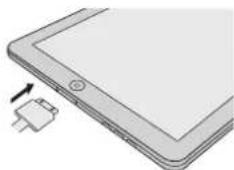

Listening to the iPod, iPhone or iPad
2 Connect the iPad to the unit via USB connector.
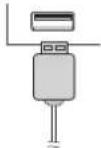
Note
USB connector do not support VIDEO out.
Playing an iPod, iPhone or iPad
This receiver has a dedicated iPod terminal that will allow you to control playback of audio content from your iPod using the controls of this receiver.

Important
If you connect your iPod to the receiver and it doesn't work properly, switch off the receiver and reconnect the iPod to it. If this doesn't seem to work, try resetting your iPod.
1 Switch on the receiver and your TV.
2 Switch the TV input so that it connects to the receiver.
3 If iPod or iPhone is connected via the iPod dock, press iPod/iPhone to select the iPod input. If iPad (or iPod/iPhone) is connected via the USB terminal, press USB to select the USB input.
The front panel display shows Please Wait while the receiver verifies the connection and retrieves data from the iPod. When the display shows Top Menu you're ready to play music from the iPod.
-
If after pressing iPod/iPhone the display shows iPod Disconnected, try switching off the receiver and reconnecting the iPod to the receiver.
-
The controls of your iPod will be inoperable when connected to this receiver.
Playing back files stored on an iPod
To navigate songs on your iPod, you can take advantage of the OSD of your TV connected to this receiver. You can also control all operations for music in the front panel display of this receiver.
Note that non-roman characters in the title are displayed as "A".
This feature is not available for photos or video clips on your iPod.
Finding what you want to play
When your iPod is connected to this receiver, you can browse songs stored on your iPod by playlist, artist, album name, song name, genre or composer. Similar to using your iPod directly.
1 U s to select a category, then press ENTER to browse that category.
To return to the previous level any time, press RETURN.
2 U s to browse the selected category (e.g.,
albums).
Use / to move to previous/next levels.
3 Continue browsing until you arrive at what you want to play, then press to start playback.

- If you're in the song category, you can also press ENTER to start playback.
Basic playback controls
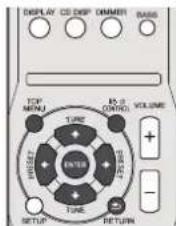
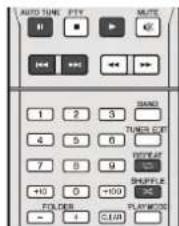
This receiver's remote control buttons can be used for basic playback of files stored on an iPod.
- Press iPod/Phone to switch the remote control to the iPod/Phone operation mode.
Watching photos and video content
To view photos or video on your iPod, since video control is not possible using this receiver, you must use the main controls of your iPod instead.

Important
To play photos or video on your iPod, you must connect the composite V/DEQ OUT jack and TV.
- You cannot use this function, when an iPod of fifth generation or iPod nano of first generation is connected.
-
Press iPod CONTROL to switch to the iPod controls.
-
The receiver controls will be unavailable while you are watching iPod videos or browsing photos.
- Press iPod CONTROL again to switch back to the receiver controls when you're done.
Note
- iPod/iPhone photos and video content can be viewed only when the iPod/iPhone is connected to the iPod or iPhone docking station.
Listening to USB mass storage device/MP3 player
Listening to USB mass storage device/MP3 player
Connecting a USB device
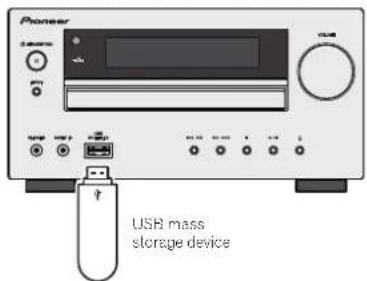
It is possible to listen to two-channel audio using the USB interface on the front of this receiver.
- Switch the receiver into standby then connect your USB device to the USB terminal on the front panel of this receiver.
This receiver does not support a USB hub.
- If iPad is connected, the unit will begin charging.
Playing a USB device
Important
- Pioneer cannot guarantee compatibility (operation and/or bus power) with all USB mass storage devices and assumes no responsibility for any loss of data that may occur when connected to this receiver.
Note
This includes playback of WMAYMP3/MPEG-4 AAC files (except files with copy protection or restricted playback).
- Compatible USB devices include external magnetic hard drives, portable flash memory (particularly keydrives) and digital audio players (MP3 players) of format FAT16/32. It is not possible to connect this receiver to a personal computer for USB playback.
- With large amounts of data, it may take longer for the receiver to read the contents of a USB device.
- If no file selected cannot be played back, this receiver automatically skips to the next file playable.
- When the file currently being played back has no title assigned to it, the file name is displayed in the OSD instead; when neither the album name nor the artist name is present, the row is displayed as a blank space.
Note that non-roman characters in the playlist are displayed as:
Make sure the receiver is in standby when disconnecting the USB device.
1 Switch on the receiver and your TV.
2 Switch the TV input so that it connects to the receiver.
3 Press USB on the remote control to switch the receiver to the USB function.
Please Wait appears in the OSD as this receiver starts recognizing the USB device connected. After the recognition, a playback screen appears in the OSD and playback starts automatically.
Basic playback controls
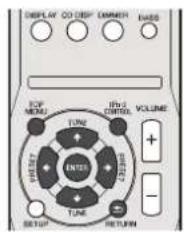
This receiver's remote control buttons can be used for basic playback of files stored on USB devices.
- Press USB to switch the remote control to the USB operation mode.
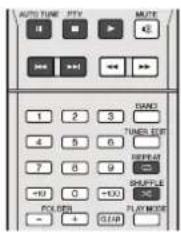
Important
If a USB Error message lights in the display, try following the points below:
- Switch the receiver off, then on again.
- Reconnect the USB device with the receiver switched off.
- Select another input source (like CD), then switch back to USB.
- Use a dedicated AC adaptor (supplied with the device) for USB power.
If this doesn't remedy the problem, it is likely your USB device is incompatible.

Playback with NETWORK feature
Playback with NETWORK feature
This receiver is equipped with the LAN terminal and you can enjoy the following features by connecting your components to those terminals.
- Listening to Internet radio stations
You can select and listen to your favorite Internet radio station from the list of internet radio stations created, edited, and managed by the SHOUTcast database service.
See Listening to internet radio stations below.
- Playback the music files stored in PCs
You can playback a lot of musics stored in your PCs using this unit.
See Playing back audio files stored on components on the network on page 21.
Besides a PC, you can also play back audio files stored on your other components with the built-in media server function based on DLNA 1.0 or DLNA 1.5 framework and protocols (i.e. network-capable hard disks and audio systems).
Important
- When you play back audiog files, 'Please Wait' is displayed before playback starts. The display may continue for several seconds depending on the type of file.
In case a domain is configured in a Windows network environment, you cannot access a PC on the network while you are logged onto the domain. Instead of logging onto the domain, log onto the local machine.
There are cases where the time elapsed may not be correctly displayed.
1 Switch on the receiver and your TV.
See Connecting to the network through LAN interface on page 10.
2 Switch the TV input so that it connects to the receiver.
3 Press NETWORK on the remote control to switch the receiver to the NETWORK function.
it may take several seconds for this receiver to access the network. The following screen appears when the NETWORK is selected as the input function.
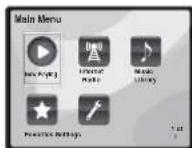
4 U s to select the category you want to play back, and then press ENTER.
Select a category from the following list:
- Now Playing - Display the Current status and station information.
- Internet Radio - Listening the SHOUTcast internet radio via network.
- Music Library - Playback the music files stored in PCs.
- Favorites - Favorite songs currently being registered.
- Settings - Perform NETWORK function settings.
5 U s to select the folder, music files or Internet radio station to play back, and then press ENTER.
Press to scroll up and down the list and select the desired item. When you press ENTER, playback starts with the playback screen being displayed for the selected item. To return to the list screen, press RETURN. When the items are displayed over multiple pages, use to quickly display different pages.
6 Repeat step 5 to play back the desired song.
For detailed operating instructions, refer to the section shown below.
- Internet radio stations - See Listening to Internet radio stations below.
- Music files stored in PCs - See Playing back audio files stored on components on the network on page 21.
Listening to Internet radio stations
Internet radio is an audio broadcasting service transmitted via the Internet. There are a large number of internet radio stations broadcasting a variety of services from every corner of the world. Some are hosted, managed, and broadcast by private individuals while others are by the corresponding traditional terrestrial radio stations or radio networks.
Whereas terrestrial, or OTA (over-the-air), radio stations are geographically restricted on the range of radio waves broadcast from a transmitter through the air. Internet radio stations are accessible from anywhere in the world, as long as there is a connection to the Internet, as services are not transmitted through the air but are delivered over the World Wide Web. On this receiver you can select Internet radio stations by genre as well as by region.
Depending on the Internet line conditions, the sound may not be smooth when playing Internet radio.
Note
To listen to Internet radio stations, you must have high-speed broadband Internet access. With a 56 K or ISDN modem, you may not enjoy the full benefits of Internet radio.
- The port number varies depending on the Internet radio station. Check the firewall settings.
- Broadcasts may be stopped or interrupted depending on the Internet radio station. In this case, you cannot listen to a radio station selected from the list of Internet radio stations.
About list of Internet radio
The list of Internet radio stations on this receiver is created, edited, and managed by the SHOUTcast database service.
Playback with NETWORK feature
Playing back audio files stored on components on the network
You can perform the following operations with the remote control of this receiver. Note that some buttons are not available for operation depending on the category currently being played back.
- Press NETWORK to switch the remote control to the NETWORK operation mode.
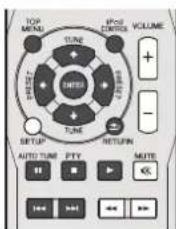
Playing back your favorite songs
Registering audio files and Internet radio stations
While Playing back a song, press ↑/↓ to select "Add to Favor", and then press ENTER.
The selected song is then registered in the Favorites folder. Note that only the audio files stored on components on the network can be registered.
Playing and deleting audio files and Internet radio stations in and from the Favorites folder
1 Select 'Favorites' from the Main Menu.
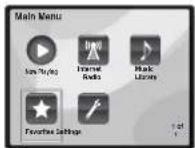
- U s to select audio file or Internet radio station, and then press ENTER.
3 U s← to select playback or delete options and then press ENTER.
- Selected item will begin playing
X-Deleteselected item from Favonites folder - Select to undo previous operation.
Network setup menu
Setting up the network to listen to Internet radio on this receiver.
1 Select 'Settings' from the Main Menu.
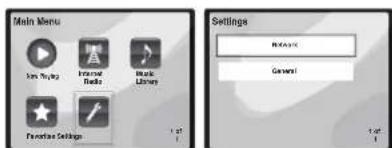
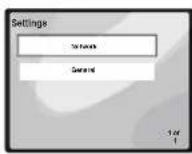
2 Select the setting you want to adjust.
Network - Adjust settings for the network (see Network settings below).
- General - Use to reset all network connection settings to their initial, factory-setting condition (see General settings on page 22).
Network settings
In case the router connected to the LAN terminal on this receiver is a broadband router (with a built-in DHCP server function), simply turn on the DHCP server function, and you will not need to set up the network manually. You must set up the network as described below only when you have connected this receiver to a broadband router without a DHCP server function. Before you set up the network, consult with your ISP or the network manager for the required settings. It is advised that you also refer to the operation manual supplied with your network component.
1 Select 'Network' from the Settings menu.
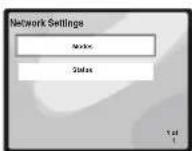
2 Select 'Modes' from the Network Settings menu.
In case you make changes to the network configuration without the DHCP server function, make the corresponding changes to the network settings of this receiver.
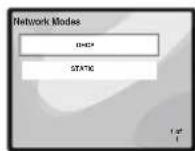
- DHCP (default setting) - Select if the server is DHCP compatible.
-When DHCP is selected, connection will begin automatically. Connection is complete when network connection details are displayed. Press ENTER to return to the previous screen.
-
STATIC - To connect to the server manually, follow the instructions listed below.
-
Press to delete the immediately preceding character.
- Press to switch between character types.
- Press 1/4 to choose the desired character from those displayed and press ENTER.
Once input is complete, or if you wish to cancel the
input operation, press until OK/CANCEL is
displayed, then use ↑/↓ to choose either OK or
CANCEL and press ENTER.
Note
STATIC is selected, the settings will be as follows.
Playback with NETWORK feature
IP (IP address)
The IP address to be entered must be defined within the following ranges. If the IP address defined is beyond the following ranges, you cannot play back audio files stored on components on the network or listen to internal radio stations.
Class A: 10.0.0.1 to 10.255.255.254
Class B:172.16.0.1 to 172.31.255.254
Class C:192,168.0.1 to 192,168,256,254
- MASK (Subnet Mask)
In case an xDSL modem or a terminal adapter is directly connected to this receiver, enter the subnet mask provided by your ISP on paper. In most cases, enter 255.255.255.0.
Gateway (Default Gateway)
In case a gateway (router) is connected to this receiver, enter the corresponding IP address.
DNS (DNS server)
Enter the DNS server address you received in writing from your internet service provider.
- Select Status from the Network Settings menu to show your current network connection mode and details.
General settings
1 Select 'General' from the Settings menu.
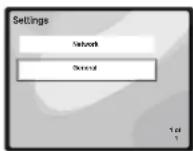
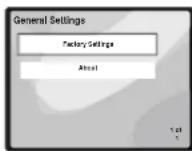
2 Select the item you want to set up from the General Settings menu.
- Factory Settings - Use to reset all network connection settings to their initial, factory setting condition.
When "Warning: All Settings will be lost! Are you sure?" is displayed, select + and press ENTER. While the settings are being reset, the screen will display a "Please Wait" message. Resetting is complete once the screen returns to the Main Menu.
-To quit the resetting, select X.
- About - Displays the MAC address of this receiver.
Network connection requirements
The NETWORK allows you to play music on media servers connected on an identical Local Area Network (LAN) as the receiver. This unit allows for the playing of files stored on the following:
- PCs running Microsoft Windows Vista or XP with Windows Media Player 11 installed
-
PCs running Microsoft Windows 7 with Windows Media Player 12 installed
-
DLNA-compatible digital media servers (on PCs or other components)
To play back audio files stored on components on the network or listen to Internet radio stations, you must turn on the DHCP server function of your router. In case your router does not have the built-in DHCP server function, it is necessary to set up the network manually. Otherwise, you cannot play back audio files stored on components on the network or listen to Internet radio stations. Network setup menu on page 21 for more on this.
Authorizing this receiver
In order to be able to play with NETWORK, this receiver must be authorized. This happens automatically when the receiver makes a connection over the network to the PC. If not, please authorize this receiver manually on the PC. The authorization (or permission) method for access varies depending on the type of server currently being connected. For more information on authorizing this receiver, refer to the instruction manual of your server.
About network playback
The network playback function of this unit uses the following technologies:
Windows Media Player
See Windows Media Player 11/Windows Media Player 12 on page 23 for more on this.
DLNA


DLNA CERTIFIED™ Audio Player
The Digital Living Network Alliance (DLNA) is a cross-industry organization of consumer electronics, computing industry and mobile device companies. Digital Living provides consumers with easy sharing of digital media through a wired or wireless network in the home.
The DLNA certification logo makes it easy to find products that comply with the DLNA Interoperability Guidelines. This unit complies with DLNA Interoperability Guidelines v1.5. When a PC running DLNA server software or other DLNA compatible device is connected to this player, some setting changes of software or other devices may be required. Please refer to the operating instructions for the software or device for more information.
DI.NaTM, the DI.NA Logo and CERTIFIEDTM are trademarks, service marks, or certification marks of the Digital Living Network Alliance.
Content playable over a network
- Even when encoded in a compatible format, some files may not play correctly.
- Movie or Photo files cannot be played back.
- There are cases where you cannot listen to an Internet radio station even if the station can be selected from a list of radio stations.
- Some functions may not be supported depending on the server type or version used.
- Supported file formats vary by server. As such, files not supported by your server are not displayed on this unit. For more information check with the manufacturer of your server.
Playback with NETWORK feature
About playback behavior over a network
- Playback may stall when the PC is switched off or any media files stored on it are deleted while playing content.
If there are problems within the network environment (heavy network traffic, etc.) content may not be displayed or played properly (playback may be interrupted or stalled). For best performance, a 100BASE-TX connection between player and PC is recommended.
If several clients are playing simultaneously, as the case may be, playback is interrupted or stalled.
Depending on the security software installed on a connected PC and the setting of such software, network connection may be blocked.
Pioneer is not responsible for any malfunction of the player and/or Ine NETWORK features due to communication error/ malfunctions associated with your network connection and/or your PC, or other connected equipment. Please contact your PC manufacturer or Internet service provider.
"Windows Media" is a trademark of Microsoft Corporation. This product includes technology owned by Microsoft Corporation and cannot be used or distributed without a license from Microsoft Licensing, Inc.
Microsoft@Windows@7,Windows@Vista,Windows@XP, Windows@2000,Windows@Millennium Edition,Windows@98, and WindowsNT® are either registered trademarks or trademarks of Microsoft Corporation in the United States and/or other countries.
Glossary
aacPlus
AAC decoderuses aacPlus developed by Coding Technologies, (www.codingtechnologies.com)


FLAC
FLAC (Free Lossless Audio Codec) is an audio format allows lossless codec. Audio is compressed in FLAC without any loss in quality. For more details about FLAC, visit the following website: http://flac.sourceforge.net/
Windows Media
Windows Media is a multimedia framework for media creation and distribution for Microsoft Windows. Windows Media is either a registered trademark or Trademark of Microsoft Corporation in the U.S. and/or other countries. Use an application licensed by Microsoft Corporation to author, distribute, or play Windows Media formatted content. Using an application unauthorized by Microsoft Corporation is subject to malfunction.
Windows Media DRM
Windows Media DRM is a DRM (Digital Rights Management) service for the Windows Media platform. It is designed to provide secure delivery of audio and/or video content over an IP network to a PC or other playback device in such a way that the distributor can control how that content is used. The WMDRM-protected content can only be played back on a component supporting the WMDRM service.
Windows Media Player 11/
Windows Media Player 12
Windows Media Player is software to deliver music, photos and movies from a Microsoft Windows computer to home stereo systems and TVs.
With this software, you can play back files stored on the PC through various devices wherever you like in your home. This software can be downloaded from Microsoft's website.
- Windows Media Player 11 (for Windows XP or Windows Vista)
- Windows Media Player 12 (for Windows 7) or more information check the official Microsoft website.

Listening to the radio
Listening to the radio
The following steps show you how to tune in to FM and AM radio broadcasts using the automatic (search) and manual (sleep) tuning functions. Once you are tuned to a slot on you can memorize the frequency for recall later. See Saving station preset below for more on how to do this.
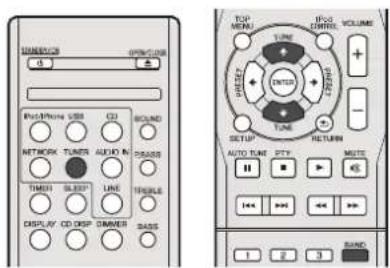
1 Press TUNER to select the tuner.
2 Use BAND to change the band (FM or AM), if necessary.
Each press switches the band between FM (stereo or mono) and AM.
3 Tune to a station.
There are three ways to do this:
Automatic tuning
To search for stations in the currently selected band, press and hold TUNE for about a second. The receiver will start searching for the next station, stopping when it has found one. Repeat to search for other stations.
Manual tuning
To change the frequency one step at a time, press TUNE ↑.
High speed tuning
Press and hold TUNE ↑/↓ for high speed tuning. Release the button at the frequency you want.
-Lights when a normal broadcast channel.
- Lights when a stereo FM broadcast is being received in auto stereo mode.
Improving FM sound
If the or indicators don't light when tuning to an FM station because the signal is weak, set the receiver to the mono reception mode.
- Press BAND to select FM MONO.
This should improve the sound quality and allow you to enjoy the broadcast.
Saving station presets
If you often listen to a particular radio station, it's convenient to have the receiver store the frequency for easy recall whenever you want to listen to that station. This saves the effort of manually tuning in each time. This unit can memorize up to 40 stations.
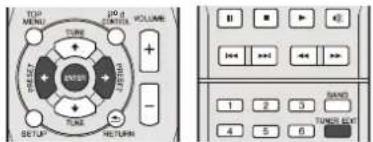
1 Tune to a station you want to memorize.
See Listening to the radio above for more on this.
2 Press TUNER EDIT.
The preset number is blinking
3 Press PRESET to select the station preset you want.
You can also use the numeric buttons. See Direct track search on page 14.
4 Press ENTER.
The prosel number stop blinking and the receiver stores the station.
Note
- If the receiver is left disconnected from the AC power outlet for over a month, the station memories will be lost and will have to be reprogrammed.
- Stations are stored in stereo. When the station is stored in the FM MONO mode, it shows as when recalled.
Listening to station presets
You will need to have some preset sroled lo do this. See Saving station preset above if you haven't done this already.
Press PRESET to select the station preset you want.
You can also use the numeric buttons.
Naming preset stations
For easier identification, you can name all of your preset stations.
1 Choose the station preset you want to name.
See Listening to station presets above for how to do this.
2 Press TUNER EDIT twice
The cursor at the first character position is blinking on the display.
3 Input the name you want.
Choose a name up to eight characters long.
- Use / to select character position.
Use ↑/↓ to select characters.
The name is stored when ENTER is pressed.
Changing the noise cut mode
If you find that the AM sound quality is bad even after trying the above, you may be able to improve it using a different noise cut mode. Just choose the one that sounds best. Default selling: Mode1
1 Press SETUP button after tuning to an AM radio station.
2 P r /stosselect "Noise Cut".
3 P r ← to choose a Noise cut mode (1, 2 or 3) then press ENTER.
Using the Radio Data System (RDS)
Using the Radio Data System (RDS)
An introduction to RDS
Radio Data System (RDS) is a system used by most FM radio stations to provide listeners with various kinds of information—the name of the station and the kind of snow they're broadcasting, for example.
One feature of RDS is that you can search by type of program. For example, you can search for a station that's broadcasting a show with the program type, JAZZ.
You can search the following program types:
NEWS News
AFFAIRS -Current Affairs
INFO - General Information
SPORT Sport
EDUCATE Educational
DRAMAR - Radio plays, etc.
CULTURE National
regional culture, theater, etc.
SCIENCE - Science and
technology
VARIED - Usually talk-based
material, such asQuiz shows or interviews.
POP M Poo music
ROCK M - Rock music
EASY M-Easy listening
LIGHT M - 'Light' classical music
CLASSICS - 'Serious' classical
music
OTHER M - Music not fitting
above categories
WEATHER - Weather reports
FINANCE -Stock market
records, commerce, trading
C0
CHILDREN Programs for
children
SOCIAL-Social affairs
RELIGION-Programs
concerning religion
PHONE IN - Public expressing
their views by phone.
TRAVEL-Heligay-type travel
rather than traffic
announcements
LEISURE - LEASURE INTERESTS
and hobbies
JAZZ-Jazz
COUNTRY - Country music
NATION M - Popular music in
a language other than English
OLDIES-Popular music from
the '50s and '60s
FOLK M - Folk music
DOCUMENT - Docummentary
Searching for RDS programs
You can search for a program type listed above.
1 Press TUNER then press BAND to select the FM band.
RDS is only possible in the FM band.
2 Press PTY.
SEARCH shows in the display.
3 Press PRESET to select the program type you
want to hear.
4 Press ENTER to search for the program type.
The system starts searching through the station presets for a match, slopping when it was found one. Repeal to search for other stations.
IF NO PTY is displayed it means the tuneer couldn't find that program type at the time of the search.
- RDS searches station presets only, if no stations have been preset, or if the program type could not be found among the station prosels NO PTY is displayed. FINISH means the search is complete.
Displaying RDS information
Use the DISPLAY button to display the different types of RDS information available.
Press DISPLAY for RDS information.
Each press changes the display as follows:
- Radio Text (RT) - Messages sent by the radio station. For example, a talk radio station may provide a phone number as RT.
- Program Service Name (PSI) - The name of the radio station.
- Program Type (PTY) - This indicates the kind of program currently being broadcast.
Current Tuner frequency (FREQ)
Note
- If any noise is picked up while displaying the RT scroll, some characters may be displayed incorrectly.
If you see NO TEXT in the RT display, it means no RT data is sent from the broadcast station. The display will automatically switch to the PS data display (if no PS data, NO NAME is displayed).
In the PTY display, NO PTY may be shown.

Note
In addition, there are three other program types, ALARM.
ALARMST, and NOTYPE. ALARM and ALARMST are
used for emergency announcements. NO TYPE appears when a program type cannot be found.
Timer and sleep operation
Timer and sleep operation
Setting the wake-up timer
Timer playback:
The unit turns on and plays the desired source (CD, TUNER.
USB or iPod/iPhone) at a preset time.
Before setting timer:
- Check that the clock is set to the correct time (Setting the clock on page 11). If it is not set, you cannot use the timer function.
- For timer playback: Plug in USB or load discs or iPod to be played.
1 Press STANDBY/ON button.
2 Press and hold TIMER button for more than two seconds.
3 P r button to select 'Timer Set' within ten seconds, then press ENTER.
4 Select the source you want played.
Use button lo select CD, TUNER, USB or iPod/iphone function.
5 Press ENTER.
6 Set the day(s) of the week.
Use button to choose the day(s).
The timer can be set as follows.
EVERYDAY SUNDAY MONDAY
TUESDAY WEDNESDAY THURSDAY
FRIDAY SATURDAY MON-FRI
TUE-SAT SAT-SUN
7 Press ENTER.
8 Set the switch-on time.
Use / button to set the hour, then press ENTER
Set the minute in the same way, pressing ENTER when you're done.
9 Set the switch-off time.
Set as above. pressing ENTER when done.
10 Use / button to set the volume.
11 Press ENTER.
The TIMER indicator light, and the settings are confirmed in the display.
12 Press STANDBY/ON to enter the power stand-by mode.
Turning the wake-up timer on/off
If you have already set the wake-up timer, you can switch it on/off.
1 When the power is on, press and hold TIMER button for two seconds.
2 P button to select 'Timer On' or 'Timer Off' within ten seconds, then press ENTER.
When Timer On is selected, the timer indicator light, and the settings are confirmed in the display.
3 When 'Timer On' is selected, press STANDBY/ON to set the stand-by mode.
Reusing the memorised timer setting
The former selling will be memorised once it is entered. To reuse the same setting, perform the following operations.
1 When the power is on, press and hold TIMER button for two seconds.
2 P r ←→ button to select 'Timer Call' within ten seconds, then press ENTER.
The TIMER indicator light, and the settings are confirmed in the display.
Additional Information
Additional Information
Troubleshooting chart
Many potential problems can be resolved by the owner without calling a service technician.
If something is wrong with this product, check the following before calling your authorized PIONEER dealer or service centre.
General
The clock is not set to the correct time.
→Did a power failure occur?
Reset the clock. (Refer to page 11)
When a button is pressed, the unit does not respond.
Set the unit to the power stand-by mode and then turn it back on.
If the unit still malfunctions, reset it. (Refer to page 29)
No sound is heard.
Is the volume level set to "Min"?
→Are the headphones connected?
Are the speaker wires disconnected?
CD player
Playback does not start.
Playback stops in the middle or is not performed properly.
→Is the disc loaded upside down?
Does the disc satisfy the standards?
Is the disc distorted or scratched?
Playback sounds are skipped, or stopped in the middle of a track.
→Is the unit located near excessive vibrations?
Is the disc very dirty?
Has condensation formed inside the unit?
Remote control
The remote control does not operate.
→Is the AC power lead of the unit plugged in?
Is the battery polarity correct?
Are the batteries dead?
→Is the distance or angle incorrect?
Does the remote control sensor receive strong light?
Tuner
The radio makes unusual noises continuously.
Is the unit placed near the TV or computer?
Is the FM aerial or AM loop aerial placed properly? Move the aerial away from the AC power lead if it is located nearby.
USB
Device cannot be detected.
→Is there any MP3/WMA file available?
Is the device properly connected?
Is it an MTP device?
Does the device contain AAC file only?
Playback does not start.
Is it a copyright protected WMA file?
Is it a false MP3 file?
iPod and iPhone
No sound is produced. No image appears on the TV/monitor.
→The iPod or iPhone is not playing.
→ The iPod or iPhone is not properly connected to the unit.
→ Is the AC power lead of the unit plugged in?
The video cable is not properly connected.
→ The TV/monitor's input selection is not properly set
→The iPoc TV out feature has not been set to output video
Audio from the iPod/Phone cannot be heard via the
headphones connected to the unit.
iPod or iPhone will not charge.
The iPod or iPhone is not making full contact with the
connector.
Using iPod (Bgeneration).
The Pod or Phone is not supported. Refer to Supported /Pod
iPhone and iPad models: on page 17 for compatible models.
"This accessory is not made to work with iPhone" or "This accessory is not supported by iPhone" appears on iPhone screen.
The iPhone battery is low. Please charge the iPhone.
iPhone is not properly docked.
NETWORK feature
Cannot access the network.
-
The LAN cable is not firmly connected. Firmly connect the LAN cable (page 10).
-
The router is not switched on. Switch on the router
- Internet security software is currently installed in the connected component. There are cases where a component with Internet security software installed cannot be accessed.
The audio component on the network which has been switched off is switched on. Switch on the audio component on the network perce switching on this receiver.
Playback does not start while 'Please Wait' continues to be displayed.
The component is currently disconnected from this receiver on the power supply. Check whether the component is properly connected to this receiver or the power supply.
The PC or Internet radio is not properly operated.
The corresponding IP address is not properly set. Switch on the built-in DHCP server function of your router, or set up the network manually according to your network environment (page 21).
The IP address is being automatically configured. The
automatic configuration process takes time. Please wait.
The audio files stored on components on the network, such as a PC, cannot be played back.
Windows Media Player 11 or Windows Media Player 12 is not currently installed on your PC. Install Windows Media Player 11 or Windows Media Player 12 on your PC.
Audio files were recorded in formats other than MP3, WAV (PCM only), MPG-4 AAC, FLAC, and WMA. Play back audio files recorded in MPS, WAV (LPCM only), MPFG-4 AAC, FLAC, or WMA. Note that some audio files recorded in these formats may not be played back on this receiver.
Audio files recorded in MPG-4 AAC or FLAC are being played back on Windows Media Player 11 or Windows Media Player 12. Audio files recorded in MPEG-4 AAC or FLAC cannot be played back on Windows Media Player 11 or Windows Media Player 12. Try using ancIner server. Refer to the operation manual supplied with your server.
The component connected to the network is not properly operated.
Check whether the component is affected by special
circumstances or is in the sleep mode.
Try rebooting the component if necessary.
The component connected to the network does not permit file sharing. Try changing the settings for the component connected to the network.
The folder stored on the component connected to the network has been deleted or damaged. Check the folder stored on the component connected to the network.

Additional Information
Cannot access the component connected to the network.
The component connected to the network is not properly set. If the client is automatically authorized, you need to enter the corresponding information again. Check whether the connection status is set to "Do not authorize".
There are no playable audio files on the component connected to the network. Check the audio files stored on the component connected to the network.
Audio playback is undesirably stopped or disturbed.
The audio file currently being played beck was not recorded in a format playable on this receiver.
- Check whether the audio file was recorded in a format supported by this receiver.
-
Check whether the folder has been damaged or corrupted.
Note that there are cases where even the audio files listed as playable on this receiver cannot be played back or displayed (page 22). -
The LAN cable is currently disconnected. Connect the LAN cable properly (see page 10).
There is heavy traffic on the network with the Internet being accessed on the same network. Use 100BASE-TX to access the components on the network.
Cannot access Windows Media Player 11 or Windows Media Player 12.
In case of Windows Media Player 11: You are currently logged onto the domain through your PC with Windows XP or Windows Vista installed. Instead of logging onto the domain log onto the local machine (page 20).
In case of Windows Media Player 12: You are currently logged onto the domain through your PC with Windows 7 installed. Instead of logging onto the domain, log onto the local machine (page 20).
Cannot listen to Internet radio stations.
The firewall settings for components on the network are currently in operation. Check the firewall settings for components on the network.
You are currently disconnected from the Internet. Check the connection settings for components on the network, and consult with your network service provider if necessary (page 21).
The broadcasts from an Internet radio station are stopped or interrupted. There are cases where you cannot listen to some Internet radio stations even when they are listed in the list of Internet radio stations on this receiver (page 20).
The NETWORK function cannot be operated with the buttons on the remote control.
The remote control is not currently set to the NETWORK mode. Press NETWORK to set the remote control to the NETWORK mode (page 20).
Troubleshooting of wireless LAN
Network cannot be accessed via wireless LAN.
Wireless LAN converter's power is not on (Wireless LAN converter's "Power", "WPS" and "Wireless" indicators are not all iii). Check that the USB cable connecting the wireless LAN converter to the receiver's DC OUTPUT for WIRELESS LAN terminal is properly connected.
The LAN cable is not firmly connected. Firmly connect the LAN cable (page 10).
- Wireless LAN converter and base unit (wireless LAN router, etc.) are loc far apart or there is an obstacle between them. Improve the wireless LAN environment by moving the wireless LAN converter and base unit closer together, etc.
There is a microwave oven or other device generating electromagnetic waves near the wireless LAN environment.
- Use the system in a place away from microwave ovens or others device generating electromagnetic waves.
-
Avoid using devices generating electromagnetic waves as much as possible when using the system with the wireless LAN.
-
Multiple wireless LAN converters are connected to the wireless LAN router. When connecting multiple wireless LAN converters, their IP addresses must be changed. For example, if the wireless LAN router's IP address is "192.168.1.1", set the first wireless LAN converter's IP address to "192.168.1.249", the second wireless LAN converter's IP address to
192.168.1.248, using values between 2 and 249 (such as '249' and '246') that are not assigned to other wireless LAN converters or to other devices.
- Wireless LAN connections cannot be established between the wireless LAN converter and base unit (wireless LAN router, etc.).
With the wireless LAN converter connected to the receiver, turn the receiver's power off, unplug the power cord from the power cullet, then plug the power cord back in and turn the receiver's power on.
- The wireless LAN converter must be set in order to establish wireless LAN connections. For details, refer to the operating instructions of the wireless LAN converter.
The wireless LAN converter is properly connected to the receiver and the wireless LAN converter's indicators are lit but the wireless LAN converter cannot be set from the receiver (the settings screen cannot be displayed).
If Network Modes in the receiver's Network Settings is set to STATIC and the IP address has been set manually, the IP address set in the wireless LAN converter may not match. In the receiver's Network Settings, set Network Modes to DHCP. After the setting is completed, turn the receiver's power off. Next, turn the receiver's power back on and check whether the wireless LAN converter's settings can be displayed with the receiver.
If the settings can be displayed, change the IP address settings of the receiver and wireless LAN converter as necessary.
The IP address settings of the receiver and wireless LAN converter do not match the settings of the wireless LAN router, e.g.
Check the IP address settings of the receiver and wireless LAN converter (including the Network Modes).
if the receiver's Network Modes is DHCP, turn the receiver's power off; then turn the power back on.
Check that the IP addresses of the receiver and wireless LAN converter match the settings of the wireless LAN router, etc. If the receiver's Network Modes is STATIC, set an IP address matching the network of the base unit (wireless LAN router, etc.).
For example, if the wireless LAN router's IP address is "92.168.1.1", set the receiver's IP address to "92.168.1 XXX" (1), the subnet mask to "255.255.255.0", the gateway and DNS to "92.168.1.1".
Next, set the wireless LAN converter's IP address to "92.168.1.249" (2).
(^*1) Set the "XXX" in "192.168.1.XXX" to a numor between 2 and 248 that is not assigned to other devices.
(12) Set the "249" in "192.168.1.249" to a number between 2 and 249 that is not assigned to other devices.
Try making the wireless LAN converter's advanced settings. The wireless LAN converter can be connected to a computer to make the advanced wireless LAN settings. For details, see the CD-ROM included for the wireless LAN converter. Check the settings of the wireless LAN router, etc., then change the settings of the wireless LAN converter. Note, however, that making the advanced wireless LAN settings will not necessarily improve the wireless LAN environment. Be careful when changing the settings.
The access point is set to conceal the SSID. In this case, the SSID may not be displayed on the access point list screen. If
Additional Information
not. set the SSID, etc., by making the wireless LAN converter settings on the receiver manually.
The access point's security settings use WEP 152-bit length code key or shared key authentication. The receiver does not support WEP 152-bit length code key or shared key authentication.
Network connections cannot be established even when the above measures are taken. Reset the wireless LAN converter. After this, reoc the wireless LAN converter's settings.
-Aboutresetting
1. Check that the wireless LAN converter's power is on.
2. Press the wireless LAN converter's reset button for at least 3 seconds.
3. Balance the reset button.
When the wireless LAN converter is restarted, the resetting procedure is completed.
Condensation
Sudden temperature changes, storage or operation in an extremely humid environment may cause condensation inside the cabinet (CD pickup, etc.) or on the transmitter on the remote control. Condensation can cause the unit to malfunction. If this happens, leave the power on with no disc in the unit until normal playback is possible (about 1 hour). Wipe off any condensation on the transmitter with a soft cloth before operating the unit.
If problem occurs
When this product is subjected to strong external interference (mechanical shock, excessive static electricity, abnormal supply voltage due to lightning, etc.) or if it is operated incorrectly, it may malfunction.
If such a problem occurs, do the following:
1 Set the unit to the stand-by mode and turn the power on again.
2 If the unit is not restored in the previous operation, unplug and plug in the unit again, and then turn the power on.
Note
If neither operation above restores the unit, clear all the memory by resetting it.
Factory reset, clearing all memory
If iPod or iPhone is connected to the unit, disconnect it.
1 Press the STANDBY/ON button to enter the power stand-by mode.
2 Press both STANDBY/ON button and button on the unit.
RESCETYES? appears.
3 PressAlt button.
RESET...appears.
If you don't press button within 10 minutes after STEP 2. RESET MODE is canceled.
CAUTION
This operation will erase all data stored in memory including clock, timer settings, timer preset, and CD programme.
Before transporting the unit
Remove the iPod, USB memory device and disc from the unit. Then, set the unit to the power stand-by mode. Carrying the unit with iPod or USB memory device left docked or discs left inside might damage the unit.
Care of compact discs
Compact discs are fairly resistant to damage, however.
mistracking can occur due to an accumulation of dirt on the disc surface. Follow the guidelines below for maximum enjoyment from your CD collection and player.
- Do not write on either side of the disc, particularly the non-label side from which signals are read. Do not mark this surface.
- Keep your discs away from direct sunlight, heat, and excessive moisture.
Always hold the CDs by the edges. Fingerrpints, dirt, or water on the CDs can cause noise or misracking. If a CD is dirty or does not play properly, clean it with a soft, dry cloth, wiping straight out from the centre, along the radius.
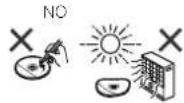

Cleaning the cabinet
Periodically wipe the capainel with a soft cloth and a diluted soap solution, then with a dry cloth.
CAUTION
- Do not use chemicals for cleaning (pellet, paint thinner, etc.). It may damage the cabinet.
- Do not apply oil to the inside of the unit. It may cause malfunctions.
Caution for when the unit is installed in a rack with a glass door
Do not press the OPEN/CLOSE on the remote control to open the disc tray while the glass door is closed. The door will hamper the movement of the disc tray, and the unit could be damaged.

Additional Information
About playable music file formats
The USB and NETWORK function of this receiver supports the following music file formats. Note that some file formats are not available for playback although they are listed as playable file formats. Also, the compatibility of file formats varies depending on the type of server. Check with your server to ensure the compatibility of file formats supported by your server.
Category Extension Stream
| MP3a | .mp3 | M | P | Sampling frequency | 44.1 kHz to 48 kHz u |
| Quantization bitrate 16 bit | |||||
| Channel 2 ch | |||||
| Bitrate | 32 kbps to 320 kbps | ||||
| VBR/CBR | Supported/Supported | ||||
| WAV | .wav | LPCM | Sampling frequency | 44.1 kHz to 48 kHz | |
| Quantization bitrate 16 bit, 20 bit, 24 bit | |||||
| Channel 2 ch | |||||
| WMA | .wma | WMA27/8 | Sampling frequency | 44.1 kHz to 48 kHz | |
| Quantization bitrate 16 bit | |||||
| Channel 2 ch | |||||
| Bitrate | 32 kbps to 320 kbps | ||||
| VBR/CBR | Supported/Supported | ||||
| WMA9 | Sampling frequency | 44.1 kHz to 48 kHz | |||
| Quantization bitrate 16 bit | |||||
| Channel 2 ch | |||||
| Bitrate | 32 kbps to 320 kbps | ||||
| VBR/CBR | Supported/Supported | ||||
| AAC.mda | .aac | MPEG-2 AAC MPEG-4 HE AAC (aacPlus v1/2) | Sampling frequency | 44.1 kHz to 48 kHz | |
| Quantization bitrate 16 bit | |||||
| Channel 2 ch | |||||
| Bitrate | 16 kbps to 320 kbps | ||||
| VBR/CBR | Supported/Supported | ||||
Category Extension Stream
| FLAC | Lac | FLAC | Sampling frequency | 44.1 kHz, 48 kHz, 96 kHz |
| Quantization bitrate 16 bit | 24 bit | |||
| Channel | 2 ch | |||
| Bitrate — |
a "MPEG Layer-3 audio decoding technology licensed from Fraunhofer IS and Thomson multimedia."
About status messages
Refer to the following information when you come up with a status message while operating the NETWORK function.
| Status messages | Descriptions |
| List empty, Add from Now Playing... | The list is empty. Please add from Now Playing. |
| No item | There are no items. |
| Rescanning devices... | Rescanning. Please wait. |
| Unsupported Format | This format is not supported. |
| Server Connection Error | Cannot connect to server. |
| Error opening stream | This is a stream error. |
| Already in favorites | This is already registered in your favorites. |
| Unsupported item | This item is not supported by this receiver. |
| Unknown error | An unidentified error has occurred. |
| Connection Error... | Cannot connect to network. |
Additional Information
Specifications
As part of our policy of continuous improvement, PIONEER reserves the right to make design and specification changes for product improvement without prior notice. The performance specification figures indicated are nominal values of production units. There may be some deviations from those values in individual units.
*The specifications are applicable when the power supply is 230 V.
Amplifier section
RMS Power Output .50W+50W
(1kHz,10%T.H.D.,4ohms)
Guaranteed speaker impedance, . . . . . . . . . . . . . . . . . . . . . . . . . . . . . . . . . . . . . . . . . . . . . . . . . . . . . . . .
Headphones . recommended: 32 ohms
Tuner section
Frequency Range (FM) .87.5 MHz 108 MHz
Antenna Input (FM) 75 ohms unbalanced
Frequency Range (AM) 531 kHz to 1602 kHz
Antenna (AM) Loop antenna
Video section
Signal level (Composite) Vp-p (75 ohms)
Network section
LAN terminal. Ethernet jack
10BASE-T/100BASE-TX
Other connectors
Power supply
Front USB connector. 5V,2.1A
iPod connector .V1.0A
Rear DC output connector (for Wireless LAN)
5V.600mA
Miscellaneous
Power source AC 220 V to 240 V, 50 Hz
Power consumption
Power on. .80W
Power stand by . 0.5 W or less
Dimensions
Width 215 mm
Height 11 mm
Depth. 353 mm
Weight 4.7 kg
Speaker (X-HM70 only)
Type
2-way type speaker system
2.5 cm Dornr Tweeler
12cm Wooler
Maximum input power. .50 W
Impedance 4 ohms
Dimensions
Width 148 mm
Height 263.5 mm
Deph 208 mm
Weight 2.7 kg/each
About iPod/Phone/iPad
Made for
iPod iPhone iPad
"Made for iPod," "Made for iPhone" and "Made for iPad" mean that an electronic accessory has been designed to connect specifically to iPod, iPhone, or iPad, respectively, and has been certified by the developer to meet Apple performance standards. Apple is not responsible for the operation of this device or its compliance with safety and regulatory standards. Please note that the use of this accessory with iPod, iPhone, or iPad may affect wireless performance.
iPod, iPhone, iPod, iPod classic, iPod nano and iPod touch are trademarks of Apple Inc., registered in the U.S. and other countries.
Disclaimer for Third Party Content
Access to content provided by third parties requires a high speed internet connection and may also require account registration and a paid subscription.
Third party content services may be changed, suspended, interrupted, or discontinued at any time without notice, and Pioneer disclaims any liability in connection with such occurrences.
Pioneer does not represent or warrant that content services will continue to be provided or available for a particular period of time, and any such warranty, express or implied, is disclaim
© 2011 PIONLLR CORPORATION
All rights reserved.

IMPORTANT

A propo de I'Pod/iPhone/iPad 31
La lecture commence.
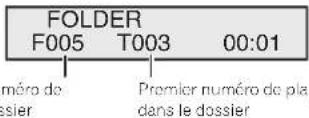
Class C:192.168.0.1 a 192.168.255.254
- MASK (Subnet Mask)
course, commerce, ventes, etc.
« This accessory is not made to work with iPhone » ou « This accessory is not supported by iPhone » apparait sur l'écran de iPhone.
A propos de I'iPod/iPhone/iPad
Made for

© 2011 PIONEER CORPORATION.
Directors: (a) Copyright 2001-2007 The DiCTF/BS Organization (directors.org); (b) Copyright 2003-2004 Convergence and Evolution of the Linus GmbH Limited under LGI '21'.
f. (prose) 63 Copyright: 2005-2004 Correspondence (integrated media): Griseol, I licensed under IGP 1719th copyright 2005-2004: the GIKL Foundation for the distribution of this title. liberty copyright 2004/ALSA Project. Licensed under IGF-121
Inderabtodnigicns. nLicenced under 5/2/2
Librad Costing (1) CC 2000-2004
Dividual Technologies, Inc. (2) LLC 2005-2006
Ibuprofen Copyright (C) 2005-2011 The SNO/SC Project. Licensed under SFU 2
18b.2007-2008 (c) Copyright 2011
2007 The Direct & Business (Direct.org; Copyright 1C:2006-2004)
Convergence (Integrated media)
ALI LCOGER UNDER SLU
© TULS Copyright (C) 2009, 2008, 2009 Simon Jossifsson
Copyright (C) 2009, 2007, 2009, 2008, 2008, 2005 Silvester
Mavrogenopoulos, licensed under GPL2.0
g.psp | licenced under IGPL 92
g.psp | licenced under IGPL 97
liblogzp Copyright 2009, 2002, 2003, 2004, 2007, 2008, 2009 Free Software Foundation. Inc. Licensed under GPL 92
-1
-
vc Copyright©2016 2020 The Vournals All rights reserved under the CC-BY-NC-ND 4.0 International license.
-
Licensee under LGPLv2.0
-
ibisLicensed under SFLv2 Licensee: Licensee LGPLv2.0 PLS/SP Copyright © 2007, 2007 Mosby Inc. http://creativecommons.org/licenses/by/4.0
-
licevny Copyright (C) 2007 Free Software Foundation, Inc. Intrust under IGF v2
L. Gogger copyright 2003, 2004, 2005, 2006, 2007, 2010, 2014 & © Smedt, Inc., 2014
- busbys Copyright: C 1998-2000 Drii Andreas Holndunen, Denys Vosarenko and others. Licensed under
bioRxiv. Copyright (C) 2023-20205 M. Dworkin, North A&d, Inc., Incyteur University
I transherer is copie du code source a partier i adresses Web (LNL) cldessous. I polywos comn pcrimcrtur/hmny/AVR
Remapore: coussu coupere maximaire & aucune question concerne le content du code source.
ABSENCE DE GARANTIE
COMMATI AICNFCNDFPROPROGRAMM FEST CONCEH+ATTTRGRAUTLAL ALUCINE GARANIS SAPIRQUANTI L PROGRAVME, DANS LA NEGUR ALTONSFEFFARTA1/2OHNFGULFUR SAUIEN INNOCONCATIRECIELES DESEN EUNSDUCHDAUTUREBOLG LES ALTRES PARTIES MERTITANTE L PROGRAMMATISDSSIOIN ENCTAT SANSALCLNT
GARANTI E QUIFI QUI NATUR,BE QUIFI OF
SOTI,EXPRESS CO UPLIFTEDY,LENTEDY,
GARANTI S IMPULCITAD,LENTEDY
COMMERCIA BATION FIDAL LATITUDE
A UN OBSERVATION, INDUSTRY, CREDIT & CONCESSIONS ONLINE COUIPENDA LIPIDANCE, FINANCE & OPERATING FINANCIAL QUALITY, COUNTRY, FINANCIAL INFORMATION, PROGRAMME/PROGRAM, SL. FINE SERVQUAL, FINANCE, FINANCE STRATEGIES, FINANCE, FINANCE STRATEGIES, FINANCE STRATEGIES, FINANCE STRATEGIES, FINANCE STRATEGIES, FINANCE STRATEGIES, FINANCE STRATEGIES, FINANCE STRATEGIES, FINANCE STRATEGIES, FINANCE STRATEGIES, FINANCE STRATEGIES, FINANCE STRATEGIES, FINANCE STRATEGIES, FINANCE STRATEGIES, FINANCE STRATEGIES, FINANCE STRATEGIES, FINANCE STRATEGIES, FINANCE STRATEGIES, FINANCESTRATEGIES, FINANCE STRATEGIES, FINANCE STRATEGIES, FINANCE STRATEGIES, FINANCE STRATEGIES, FINANCE STRATEGIES, FINANCE STRATEGIES, FINANCE STRATEGIES, FINANCE STRATEGIES, FINANCE STRATEGIES, FINANCE STRATEGIES, FINANCE STRATEGIES, FINANCE STRATEGIES, FINANCE STRATEGIES, FINANCE STRATEGIES, FINANCE STRATEGIES, FINANCE STRATEGIES,
CONNECTION EN AUCUR CASI SAUDI SIA LOIEN VISELUR L'EXSE OUI SUONE CONVENTION CORTE CISTERE ACC EAT SUJEUL, ADOX TELLE DE PROTEA: CHRONIC CLINICAL PROTEA AYANT LE DUPOUVOIRE MODIER IRE NUCIDE RADIOFERIE L'PROGRAMMATIC
CONFORMM FIM AUAI ALTORISATIONS C.DFSS, VJSPET FISIOHANSI F.VSA E. RENZER, M. GORENKO, P. KUBIN, L. KIRGAL, I. KUSTEL, DES DOOM MUSERS, COMPARIS TOUR DIMENSIONS: GERMAX, SPECIAUX.
ACCIDENTS OU INDIRECTS,
RPSL TANT DU LITATION OU DU,
PROGRAMME OU DU 'IMPOSSIBLE,
DU LILISHER 'LOGRAMER' (COMPOS),
MA SANS LIMITATION, LA FORT DE,
DOINPFES, OU FAIT QUEF DES,
DOINPHS SCATIENDURS IN IMPOSSIFS,
OU ENCIRE LES PERTRES ET ILLUVEES.
PARTE LE CONCESSIONANNE OU DU DES
TIERS, OU ENCIRE NAMUQUICMENT,
DU DROSETE A COCONCTON DES ACOCCES,
DU GAINOULAUX RÉSULTATS DE PRODUCTION,
DES DIETENTEUR OU CETTEAU PARITE,
A 4T CAVARE DE LA PROPENSITY DE TUSCS,
DOMASS'.
VIRUE: la vie est inférieure à chaque excise plus,
plus d'informat cns:
www.GNURG.org/ licenses/gp/2.0.html; www.GNURG.org/licenses/censes/old-censorshipgfp2.1.html; www.GNURG.org/ licenses/old-censorshipgfp2.2.html;
LICENCE PUBLIQUE GENÉRALE GNU
Version 2, June 1991 Copyright © 1980, 1991
From Software Foundation, Inc., St. Franklin Street, 1st Floor Boston, MA 02110-3321, USA.
I can see models of this condition in the model, distribution of modification and loss of the model.
provincialis necr in hiil hiipchip; 5. Is ci ne quen you would let r, ut lihei his GNU. Lesser General Pucic nLicense pille lae a privilece: imnncs.
LICENCE PUBLIQUE GENRALE LIMITE GNU
Are you able to modify the positions of all copies in this database? Do you have any other copies of this database that you can import, or how many copies can be obtained from the database? If so, how many copies can be obtained from each of these databases? Are there other ways to obtain copies of this database?
almacenamento USB/ player MP3 19
- España en 2018: A total of 34 million people live in the country.
- España is one of the most densely populated countries in the world, with a population of 150 million.
- Spain is the second-largest economy in the world, with a GDP of 17.6 billion.
EDUCATE - Material educativo
DRAMAR - Radionovelas, etc.
CULTURE - Cultura nacional o regional, teatro, etc.
SCIENCE - Ciencia y
technologia
COUNTRY Musca country
TUNER, USB 品 iPod/Phone.
5 Pulse ENTER.
"This accessory is not made to work with iPhone" o "This accessory is not supported by iPhone" Aparece en la planta del iPhone.
© 2011 PIONEER CORPORATION.
Blanke Kabelanschlüsse
"This accessory is not made to work with iPhone" oder "This accessory is not supported by iPhone" erscheint auf dem iPhone-Display.
Uber iPod/iPhone/iPad
Made for

© 2011 PIONEER CORPORATION.
WVA. 14
Mortortable H27006 (one copy) (P20001) 15
Moccartella MP3/WMA (so6 per file MP3/WMA).15
3 Connette I'iPod/iPhone.
"This accessory is not made to work with iPhone" o "This accessory is not supported by iPhone" compare sullo schermo dell'iPhone.
© 2011 PIONEER CORPORATION.
Tuttirdirittirservali.

BELANGRIJK

KLASSE 1 LASERPRODUCT
D58-5-2-2a A1 Nl
Diverse discturcts 13
Covariance of variances var. co CD of M2
WMA-disc 14
Luisferen near internet-radiozenders 20
Audicestarben arspelen die op apparaten in net network. 21
4 iPod of iPhone Dokingstation
Dock de iPod/iPhone (bladzide 17).
5 Volumeregeling
11 Tune Down, Skip Down-toets
Auto Power Down-setup
Grop B:172.16.0.1 to:172.31.259.254
Groep C:192.168.0.1 to 192.168.253.254
- MASK (Subnet Mask)
quizzen of interviews
POP M-Popmuziek
ROCK M - Rockmuziek
EASY M - Easy listening
SOCIAL Human interest
programma's over sociale
aangolegenheden
RELIGION Religiez
programma's
PHONE IN -Programme's
waarin mensen telefonisch
TRAVEL-Programmas over
re zen Imaar ceen
verseersinformalei
"This accessory is not made to work with iPhone" of "This
© 2011 PIONEER CORPORATION
Bocipoh3BCeHHe HcKa 13
Poeeppepepepepepepepepepepepepepepepepepepepepepepepepepepepepepepepepepepepepepepepepepepepepepepepepepepepepepepepepepepepepepepepepepepepepepepepepepepepepepepepepepepe pe
Pnwnnnnne nnnnnnne nnnnnnne nnne nnnnnnne nnnnnnne nnnnnnne nnnnnnne nnnnnnne nnnnnnne nnnnnnne nnnnnnne nnnnnnne nnnnnnne nnnnnnne nnnnnnne nnnnnnne nnnnnnne nnnnnnne nnnnnnne nnnnnnne nnnnnnne nannnne nannnne nannnne nannnne nannnne nannnne nannnne nannnne nannnne nannnne nannnne nannnne nannnne nannnne nannnne nannnne nannnne nannnne nannnne nannnne nannnne nannnne nannnne nannnne nannnne nennnee
MP3/WMA 14
Peknmp3/WMA (toBko jnnfaiNOB MP3/
(WMA) 15
IpocnyuBAHne iPod, iPhone nn iPad 17
HonepknnaemmoenPiPod,IPhone H iPad: 17
IouKIOHHe iPod/iPhone 17
HCHTHa aHTepa IPoH iPhone. 17
9erannnnaaipipipipipipipipipipipipipipipipipipipipipipipipipipipipipipipipipipipipipipipipipipipipipipipipipipipipipipipipipipipipipipipipipipipipipipipipipipipipipipipipipipipipipipipipipipipipipipipipipipipip
IpocnyuBbHne 3aONMHaOeO yCTpoNCBa
boIbOON emKocTN USB/MP3-nneepa 19
10nKnoCnHc yctpoHcTBA USB. 19
Bocipon3BeHne yctpoHcTa OSB. 19
Bocnpoun3BeDeneHc yHKnnei NETWORK. 20
IipociyuHbAHHe HHTepHET-paHocTaHnH 20
BocpoH3BeTHe ayHoofoaHOB, coxpaneHHix Ha
KOMHOHHeX B CTH 21
BochpolnBeichere MOBIMEX lece 21
Meio Network Setup (Hacropolika cetu) 21
Tpc6oBaHHK cctCBOMy HOJIKHOCHHIO 22
OBocipnH3BcHcHH Hpc3 cTb. 22
CiparOCHIK 2
PpocnyuBaanpepaonopepa 24
HcnoIb3OBAHnE CNCTeMbI paIIOaHHbIX
(RDS) 25
3HaKoMCTBO cCHcTcMoH RDS 25
Pa6oTa c TaHMePOM n CnAun pexnM 26
HaetpoKa TaHMcpa BKJIIO'CHHH 26
CIIaHnpeKHM 26
DOnonHnTeJIbHaN HOpMaun. 27
Tabnua nncnpabnoctc 27
KoHdHcaunn. 29
Bcnn no3nHkae npo6ema 29
Bo3Bpat K 3aBOJcKHM ycTAlOBKaM, OCHcKa BcH NAMrTH .29
Ipepe IpaHcHOpTHPOBkoN yctpOcTBA. 29
3XoJ1aROMHAKT-1HCKAMH 29
O BOCPOBNOBIMJX FOOPMAx MV36IKJIbIMX FAHIOB 30
Ocoo6eHHxIO coctOHnHO pechBepa 30
TexHHueckHe xapaKrepehctKN 31
iPod/iPhone/iPad
OTka3 OTOTBcTeCTBeHHocTH 3a coeepKHMoe TpeTbe
cTropohbl 31
CnCTema ceteBoro pecmbepa CD X-HM70 coctOH
OCHOBHOrO 6IOKA H CNTeMbI TpOMKOrOropHeJ.
CeTeBOI pecnBep CD XC-HM70 COCTOHT I3 OCHORHOrO
0Ioka.
PpHaJnxHocTn
Y6eHTecB HAHHHH B KOMUIEKTE CJEyHOHNX
pinnnaanncnioctch
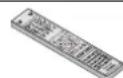
Nytb dntaHnOHoro
ynpaBneHn x 1
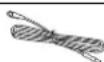
AHTeHHbI Ka6eb FMx1

PamouHa aHTeHHa AMx1
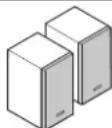
PpOMKOrOBOpTeHx2
(Tonbko X-HM70)
Hpa3Mepa «AAA»
X2
Bndeoka6bIbX1
Ka6eI rpoMkoROBOpTeNei
X2(Tonbko X-HM70)
RapantmHbI cepTnФKaT
Hnctpykun no
3kcnnyatau
OpraHbI ynpaBLeHnI N HdNkAToPbI
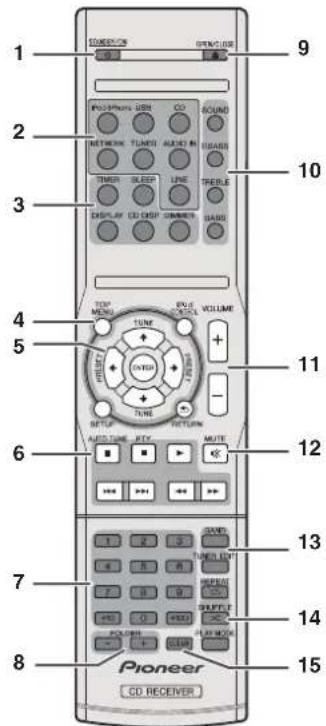
NybldY
1 STANDBY/ON
HcHIOJIeTcIbIcIKHOHmpeKHePcHbEto HpeKHOHmB BpeKIM OKJIaIIAHn (ctp. 1).
2KhoNKnBbOpaBXoJa
NCHIOHBSYETC LIA BMBOPA HCTOHNKIA DINBXOA K DAHHOYM cypehney.
3 Khonkn ynpaBneHn pecbepom CD
DIMMER - YMCHBIACTH HYNYBCHINHBACTRPKOTb HNCHIL. HMCCETCYCHTEYD08H2MCHINHHAEPKOTC (ctp. 11).
SLEEP HauMHTcI JIAMHcHITNII pCRHOJbBcHcHIOJI To IepeXoJiapeeeHaeBjEpKHMOJQHJAHHa (30 min.-60 min.
-90 min. -Off (Bskn.) BIMo60 MoMeNT MOKHO HIOpeHb octABeCbe CBeM OTKHOeHH HHTEM OHOKPATHO HOHAKTH KHOUKH SLEEP (ctp. 26).
TIMER -HcnoIbIyIeTraINaCTpOKnHaCOb,aTaKKe,IaHactpOKn HIOBepKn TaHcPOb (ctp.11,ctp.26).
DISPLAY -Oro6pkaeietnHopmauouoDkce MP3/WMA npi RDS
CD DISP OTo6paKaCT HnHOpMaIIHO O nHeKc (ctp. 15).
4 KhoNkynpabnenepecnBepom CD
HnnoBlyuIe IyO uHTK 3aUoPiPAMIOBAAHOHOBNocpOrrHeTeHH (ctp.15).
PpOBepKa npbTa dHcTaHnHOynpaBHeHH
Hpnpnpi Hpyntynoepnpcnnccoeonnnnn. HpaanbaaIyIbT IV npmaHO aHINK IV HA anapate. PnytIV MOKHO HIOHOBTB BY KYSBBHOM HIGE HINBOHO:
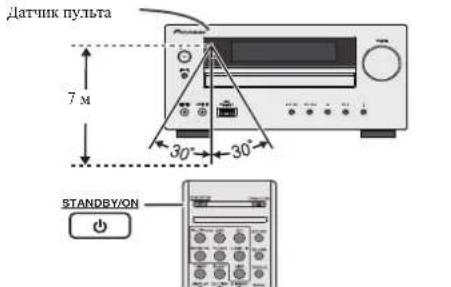
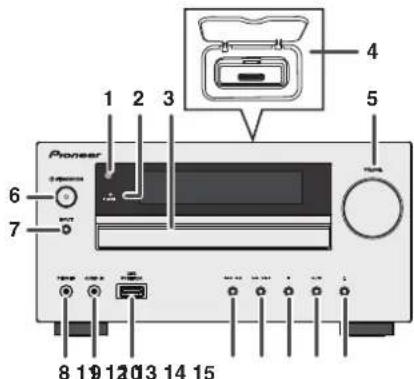
PepednnaHelb
1DatYHKINCTAHUHOHOROynpABNEHnI PIIHHMaCETAHNAOTyNtla/√V.
2IInikatopaiMepe 3aIopoeK, KOJIyUcHIOBHeiTaeMep (cp. 26).
3IOTOKJINDKO8
POMeTHeHtNcK, cToTPOHO C 3THKETKO BEBPx (ctp.13).
4 Ok-stanuaIaIPOI mII pIhone Iok-stanuaIaIPOI/pIhone (ctp.17).
5 Perynnpoabane rpomkoctn Hcnoaayctra yctanonkn oboe ypoBna rpmkoct (ctp.11).
6 Khoika STANDBY/ON
HCHIOJIeTcIIMKIIIOOHIEPcEHPaIIETOIEPEKIOHOEH BpeKmOxKdAIAI (ctp.11).
7 KHonka INPUT
HcnoBbayetraBbBbopaHctouhka axo#a (cTp.12).
8IHe3doDnHayuHKnOB
HCHIO3yIe DIIIOKIOHOH HAYIHHHKOB. TpH IIOIOHOH HAYIHHHKOB 38YK HE6yJET HOCTPOBOBTOHTBCN Kcp3r pOMKOROBOPOTCn (ctp.12).
9 THe3do AUDIO IN (aynIOBxoO)
HIOHOIbEycH DIOIOIOJIeHH BcHOMOTIEHIO KOIMONIEHa c NOMOIIIO KaBcN cMHIHATOpHmCtepe paeMEO (cp.12).
10 Pa3beM USB
HnnoBbyeTcIINoNIOKIOOHN B KaCCTBC HcTOOHHKA ayHNO 3aONHHIOIOIO CytpoHCTBa 60JIbIOH cEMKOHT USB HIIh Appl iPad (cip.19).
11 Khonka Tune Down, Skip Down
HIOB3yeiCnIbIb6opaTre6yemoiDopokkN HINHINKINBOICPOHSEHEHN
12 Khonka Tune Up, Skip Up
Hnbo3yctcBnBb6paTpe6yemOHDPoKKn HnBnKn BBOPOHN3BENHn
13 Khonka octaHOBK
HcnoIb3yETcHIOc1aHOBKnBOCHIpON3BeueHn.
14 Khonka Play or Pause
OctaHABINBACr Hn BO3O6HOB1Rt BOCIPOH3BCdHC CTOIKN
15 Khonka OTKpbTHRA3aKpbTHNAOTKa dNn DnCKOB
HnOeIyIe Tc IaT OTKpTHH HIN 3AkrpTHH NtKd IINKOB (cip.13).
Akyctnuecka cnCTema (ToIbko X-HM70)
1 KynonbHn TBnTeP
2 HNOKOACTOTHbI DnHAMNK
3Фаоаньерторьnpot
TepMHNAI TPOMKOROBOPHTEN
CbeMbte 3aunTHbpe ueTkn rpmKorOBopTeNe
1n pcnTnnnntnnnpemetok 1pOMKOBOPHTcN y6eHNTecb B 0ctyCTBnKoHrKaTc C nHaPpAMMn 1pOMKOBOpTeHEn.
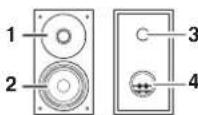
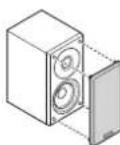
TITcTBHIIIpcHOBpMcHH
JepKHe KaBeB HHTAHH N3 BbHHMaR HUY K3
JIETKPOPTEK, HHKOJI He THTHIE 3a CAM KaB6E, HHKOJI
Ic NotarpaniHCTe No Ka6C7e NTaTHAI BTAxNtHM pyKaHM,
TAK KAK IIO MoKer CTtB IHPuHHoH KOpOTKO ZAMBuKHnH
HApKAEHJI EIKTPHECK TMOK. The CHTBHe TA Ka6BeH
HITANIA YCPTPOHCTBO, M6CEn, II pD, PpMCTeTNI H
32KHMai Te Ka6BeB. 3aHpeHaeTc 3aBA3bBAtb yHaH HA
Ka6EeIH HTHAHH NCB3bBbA ETO cpyHH Ma6EHHM
Ka6CnH NTaTHAI CNTyET PpOKaHbA B TAKHX MCCTax, rDC
BO3MOXHOCTb HAcTyHb H HIX 6yEt MIOBepOHTH.
PiOpEKeHHN Ka6Eh HTHAHH MoKEr CTb PPHHOH
BO3OPAHN HIN npopKeHHN OeKTPHcckHM TKOM.
11epHOHcckn IpOBcPte Na6Ct HTHAH. Eecn Ka6Ct
HITAHH IOBPeKeH, 6bpATIEc 3a CMEHHM KabeJEM B
6bnKaHHmYnoTHoMoeeHH cepHeHH nIeTTP PIONER
II IN K CBOCMI Hepey.
06ee ynpaBneHne
AЯ BKIOUeHnIITaHnI
HaKMHTe KHOIky STANDBY/ON, TIO6b BKOJIIOHTb HHTAHHe.
Nocne nCnOJIb3OBAHnA:
HJKMME KHOUHK STANDBY/ON,TOGBM BOHTB B PEKHM OKJUADJIH.
PnmuMeaHne
OJHKAe, ceky yctpOthIO Pod/IFhone yctAHOnHeHO hOKCTaHnHO, annapat npcKIOhAcTaeB PCKHM 3apKaKn. HaDnncE NOBHTBC HINKaHnA (IPod charge).
B Pekhme SAPKIIPOJ HAKKMTKE KHOHOKY STANDBY/ON. TROSA KIOHTOHITIANTIHCC
- CHIMITE iPod CIOK-STAHUN, "TO6B IIpeKOBIOHbB B PEXHM OKADJIAH.
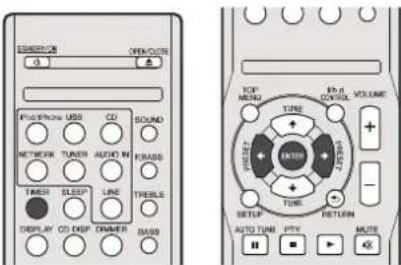
Hacrponka yacob
B 2TOMIINPMcpc,IaIbHACTPOCHbHa 24-HacBOOH (00:00)IOKA BHEHMEN.
1 HaxmTe KhoNky TIMER Ha nyIbte Dv.
OropaKaHOTcTeKyuHnE DaTn H BpeM.
HpHnepBOM HcnoBbONaHH qacOB BbI BOJIeTe RpeKHM
HactpoHKn Hacob
2 Haxmnte ENTER.
3IcnoIb3yIte KOnIKN dnyuCTaHOBKnDnA,3aTeM HAKmTE ENTER.
4 NcnoNb3yIe KhoNkn 1nn Bb6pa 24-acaBoro nn 12-acaBoro nok3a BpeMeH, 3aTe HaxMITE ENTER.
Ha HuaHue OTo6paHHTc 24-1aocobn
"00:00" nok3 npveMeHN. (00:00-23:59)
AM 00:00" nokaB pncm. (AM 00:00 - PM 11:59)
5 C NOMOUBIO / = yctaHOBHTaeHcIb,3aTeM HAXMTTE ENTER.
6IcnoB3yIte KHOKN 14YeTcHOBK MmHTy, 3ATM HAKMTTE ENTER IaN DnTBePckxDHeH.
IIOIIOBtBePckDHeHIOObpaKaemoro BpEmEHN: HAMKMOHOKNKY TIMER. OTObpaKaemoe BpEMHOBBHcH pIMpeHPO HA 10 cekHJ.
PnmuMeaHne
IINBBOCTAOHOBIOHHN3KKTPOINHTAHNOHCIOBTOPHORO HIOJIOHOHOOHENAIIAPATNAHIOHOCNEABAPHRHOOTOKHOHOOHN IITAHNNIEPEPYCTAHONREYACb(CM.HNKE)
DnpeyectahOBKn yacob
BbHIOHHe OhepaHH pauea HcYcTahOBKa YacOBc c mHa 1. Ech HnHmKanHrcc (Clock) ne noBBHTc Bmarc 2, To mar 4 (TBA Bb606 24-azacoboroo Hn 12-azacoboro nokaa Bpcemn) Byet npouyuen.
IInnepeKIOUeHnHa 24-YacOBn Hn1 12-YacOBn nOKa3 BpEmHe:
1 CTepeTb BCE 3aIporpammmpoBaHoe codepKHMoe. Iopao6hccm. paaed Boeapam K a6oobckum ycmahokcam, oocma cecn amammu na ctr. 29.
BbIopnHne Opepaun pa3dena《HactpOka cacob》,
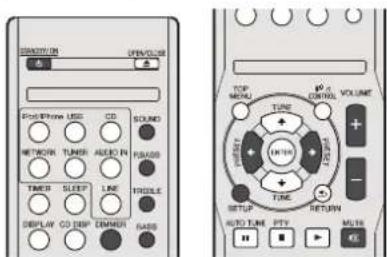
PerynpoBaHne npKocTn Dncnpe
JIMYEMHEJIHINKPOCTIHINHJHBNMITEKHOHNKY DIMMER. IMCCTCRCTYPE YPONHI HMIENHNIHAKPOCTIH
ABTomatueckoe nocteneHHoe HapactaHne rPOMKoCTN
PbBHKKHeHH H BHOHHeHH OCHOBHO 60ka C yPOBHem rpoKOeTH, yetaHOHHMa HaaCnHc 41 HnH BnHc. rpoKOeTH NaHHACTco Ma aChnH 40 HocTeCNHO napactact IO HOJIeHEIO YCTAHOBHEHHO yPOBH.
PerynpoBaHne rpoKoCTn
Tb6bYyHHTTHNYYMENHHITBTPOMKCTB,IOBEPHHTE peryIATOP TpOMKCTH VOLUME (NaOCHOBIMIoKE) HIN NAKMIXTE KIONKYVOLUME+/(na tyIte JY).
OCTOPOXHO
YPOBCH 38yKa np3aHaHIOH HaCTpoHKr rPOMKOCTH 3ABHCHT OIKI rPOMKOTOBOPHeJI, pAIOHOKeHH HpyTHX paAHHN XpAKTOPB. PekOMEHyETcNbEBTAR. BOJcEChTBH BACOXHX yPoBHCH rPOMKCTH. lIPH BKIOHCHHH YOPTBCH HA BHOHAE TPEPOKCH HnHOHYO MOHOCB. CUYHIN MYBHKY UHPcEHHX YPOBHKX IPOMKCTH.
HbSHTOIOB 3BOBCOBABJCTHC HAIYIMIKBOK H OBOBHAX TEJI@HOBOM MOKEF BmBBATb HOTIEPO CJHXy.
Hactpoika ABTomaTnueckoro OTKJIOUeHn IITAHN
YctaHABHBAET ABOTMATHCEKOCOTKINHEHNITIHINPAPECHBepa No HCTeEHINy cTAYONTEHO BpeMe (ecn nHTAHNE 6bIto BKIOICHO 6C3pa08TH B TcHNCHEKCOIKHXIACOB)
3HaCHHeNo yMoHuaHHo:6H
1 HaKMnTe SETUP Ha npIbTe DnCTaHIOHOHor ynpabHeHn.
- EcnH nncnnae Tc HnDnKaaHApD, nKmTc KIOIKN
↑/↓ nna nbioopa APD.
2NcnoJI3yTe KHOJIN / ,TO6bIa4aTb DONYCTHMOE BPEM OTOKJUQEHN NHTAHN (ecn peCNEBepHa60an).
MoHIO Bb6p42, 4 ILN 6 cAcB, IIIN OFF (BblK/I) (cJIHH He TpeSyEYI AHOMATHECKOE OTKHOHeHHe).
3 10 3aBepueHHo HaxMnTe RETURN.

Muting
PnHnKHTTH KHOIHK MUTE HnyIbte Iy 3Bk BpeMeHHO nHnTyrHaacte. HOBIOHnKMTcOry KNOIKy, DOR BOCTAHOBHEHN TPOKOCHN.
PerynpoBaHne Hn3Knx YacToT (peXmP.bass)
PnH HEPOMKIOOHINHTAHNIAMAPATBXOJITB P. Bass, IHHOTOPOMBDEIHTOCNBAHHEKTACNTB.IIITOMEHNE P. Bass HA KMIHTE KHONKY BASS h nyntb JY.
PerynpoBaHne Hn3Kx qactOT
HaKMHTE KHOIKY BASS,3aTeM HAOKMTE KHOIKH 一 / 111peyIHPOBKBHH3KHXHACTOT.
PerynpoBaHne BbICOKnx YacToT
HAnMHTC KNOKNY TREBLE,ATcEM HAnMHTC KNOKN / JIa peYHIOBKN BIAOKN XACTOT.
KbanaJ3ep
Ipn HnKaTHH KIOHN SOUND 11, HcNtTee 6yET OToOpKaTHc HAcTOHbKTEKUYIEO peKHMJI. HJHepeKLIeHIN HApyrOH peKMHnKMMTe HecKOJIbKo pa3 KHOINky SOUND, HOKA He OToOpBaHTC TcEaEMn peKMHbYdAHyIN.
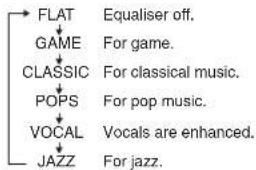
Функць BXOda
Hn Hkathnn Knohnn Ipu 0cnoonm 6toke TKynae ykuHHHmehHCH np ayroo peKHM. HauMHe HeCBOBko p3 KOHUYNPOU, TTObblabopbJKeJaemyo FkyuHHO
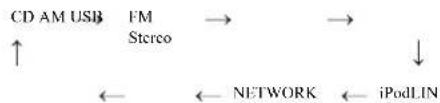
Ppimmeyane
-ПиabapHOMOTKIOHENHHITAHHHHTOcEHHHINH KABeJIITAHINH INPCMCSHHORTOKAyHKINH PC3cPbHPOBAHNAaHTTn3AHCCHHHBnAMrBp60oTH peHKHN.
CObepueHcTBoBaHHe BaWe CnTeMbI
CoHHHHeBHNNKabeBHe HxOHTB KOMUKEKT HOCTAHKn. 1IphoepTeHTe MEXOHNBCBnPdoJAcKac6cB, KaK hOKa3aHO HNKe.
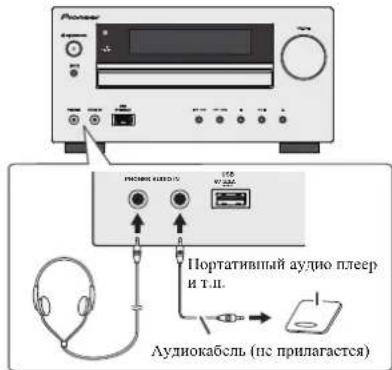
PocnyuBaanhe Bocnpn3BODmORo 3ByaHnC npotaTHBHorO ayDno npeepT.I.
1 Ncnon3yTe coeHnHTe hBhI k6ebnJn 10nkIOHNEHnnpTaTHBOHO ayHNO npeepa T.I.K rHe3dy AUDIO IN.
2 HAKMITE KHONKY STANDBY/ON, YTO6bI BKNIOHTB TINAHNE.
3 HaxMITE KhoNky AUDIO IN Ha nyIbTe DY mHnHeckoJIko pa3 KhoNky INPUT HA OCHOBOM 6Noke,TO6bI B6PbTaФyHKmIO AUDIO IN.
4 Bocpnn3BnTe NockHNOeHoe 60pOBOAHne. Eey npoee I pOcKCTIO HIOKIOEHOY eTOPOCTBa CTHIKOM BACOKN, MOKET ONOHNTyHKAJIeHNE 3bUaHII. EeIIO POHOJET, yMeHHNIte I pOcKOeTIO HOIOHIOY eTOPOCTBa. Eey npoee I pOcKOeTc cHINKOM INIKHN, yBeHHTE I pOcKOeTIO NOKIOeHIOY eTOPOCTBa.
PnmeHne
JINPPTBAPIMHINMYMOHNIXOMEXpactoToKHTe yetpoTbnoTNDaIHIOTc
PnHIOB3OBHNNBNEOOO6OpOABHHHOJIKHOHTAAYHOHBXoKTOMYyCTPOHcyT,ABNEOBHXoT-K TCEB3Opy.
Hayushikn
HcBKIOHAIITpOMKoCTbHaHOIHyIO MOIHIOCTbIph BIKIOHENAHIIAPATi ciYRIeMy3sKy IPICHpEINHX yPOBIXrPOMKoCTH.H36HTOIOC 3ByKOOCdABTCINHC H3 HayHHIOKOBnTOIOBIXTcFOHOOBMOKETBBBbTNTocpo Clyxa.
Hepel NOHIOHOHHEHOTKHOHHEH PAHYIIBKOB yMCHIEH TPOMOKCT.
V6eHIEe,HTO BAIIN HAYUHHK HMEKOTIIEKEP HAMETPOM 3.5 MM HMMTEANOT 16 70 50 OM.PekOMENyEMM HIMCIAECOCCTABNCT32 OM.
IpnIOHKIOUeHHHnAHyUHINKOBIOBtOMaTHPeCKH 0TKHOHauOTc rpoMkoROpOHTeHn.OTpyrHpyTRe IPOKoKc6b HMOuBOb pcyrIbTOpaVOLUME
Послuyшваиме ДИСКOB CD ИИ MP3/WMA
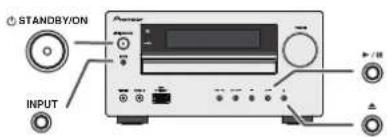
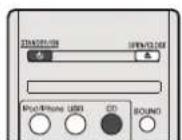
B301 CHTREMEOYBOCPOHBOHBCTAHAPINHE NCK CD,CD-R/RWbopmCATCD-NCD-R/RwCpaIaAMN MP3 HIM WMA,HOaHbHaHHBCO3MOKHA.HcKOtOPACIOHcK ayHO CD-RnCD-RW MOYI HE BOCPOHBOHBCTOB-3a COCTOHN HIN HIN KNAHcyTOHbHcHNOH
MP3:
MP3 HEBETC DOPMATOM CKATM, 3D IO6BENHATyPA, KOtOPAH o0b0aact MPEG Audio Layer 3, MP3 npcabTACT TnH ayHO KOkCA, KOTOpBI OOBAPABIBACCTCO CHAHTTCBIM CKAHTCM OTHEPOHAAIBOI AUYHOCHOTOHKIAIPN OHBEHMLBIX IOTEPX B KATCCTNVAHAA
3a cte TMAIOeepKHeBaeI paiMbpeG-1/2-5Audi Layer 3 (NaToB I dckPeTnauo: or 8 kTu do 48 kTu; ckopoeTn pepeanuamHx: or 32 k6/ekn 320 k6/ek).
Bo BpMBOBOPHOBDEHHAaIbVBRcETHEBpEMEH HbHIOO MoKOT OINHbOHTo AOKTHeCKOIO BpEMEH BOPOHOBTeHH.
WMA:
Фдлл WMA Альгоста сдампсьрмага Advanced System Format. короту nxmoцет в сбс уногфайс, симmaиьс cюшько КОЕКИ Windows Media Audio. Фдмг WMA papabotan KMOMANII Microsoft крфматухондддддддддддддддддддддддддддддддддддддддддддддддддддддддддддддддддддддддддддддддддддддддддддддддддддд徳в
JaHAA CHCTEMA NOJDPKBAHCT WMA(BACTOTI 1nckpeTHaHH:or32Kπ/40441Kπ/48Kπ;ckopoTH nepeaannnnx:or32K6/cekno320K6/cek).
Bocnpon3BeDHe Dncka
1 HaxMMTE KONKY STANDBY/ON, YTO6bI BKHOUYtB nHTAHue.
2 HaKMITE KHOHNY CD HA nyIbTe DY HnH HeCKoNko pa3 KHOKNY INPUT HA OCHOBHOM 6NOke, YTO6bl BbIbPaTb fyHnIOu CD.
3 HaxMMte KhoNky ,TTO6bIOTKpBITNoTOKdINHDCOB. 4 NmECTnB NoTOK dIN DCIOKOB,CTOPOHc 3TNKETKBBEPX.
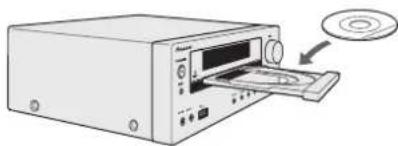
5 HaKMTe KONky ,YTO6b3aKpbItb NotOKnIaDcKOB.
6 TIO6bI HAHATB BOCNPO3BedeHHe, HAXMITE KHNKy II (↑). Nocne MCTB3BedeHnocnDHei DopOKKn yctpOCTBO ABOMATMueckn OCTAOHBNTC.
OCTOPOXHO
Hc nomcuaiHcBa HsCKa B OHN HOTOK DnHCKOB.
HcBocnpmboBDHTC Hnck CnHnAHLbHm npOoHcB (BΦpme cepua, BocMHPTaHHHaT.1.) 10 MoKet bHeBHbHeHncpHbHOCT.
Hc daBHt cHa IOTOK JIN HcKOB npH CRO JBHKCHHH.
EHNIPNOKPITNIKOTPAHPOCHOXOHTIABAPHHEOEOTKOHOUHENEHITINAH,NOJAOIXTNEOBOHOHOOCTNNCITINHAN
HOMCBAHTC HNCK HAMCTPOM 8 cm TOLKNO HHTpy NOKA
Ppimmeyane
H3-3a ctpyKtpn HfOpmaHH Ha hke, tpe6yter 601bue bpeMeHH TgTtEHH Tckc MP3/WMA no cpaBHeHHo c 601111111111111111111111111111111111111111111
PNCIE CHTBBAHNNYCTPOBCTOBHMOFAPMAHIOI HJCKPY MP3 HN WMA NBBTBCNTNHTKATOP
Eckn KOcHIOcHIOpOKKIOoTHACTe BO BpemB 6bTpoI IepcMOTIKI BIEe, HIOJIcHIOIOBHTI INIIKAIINN (F|ND), IV NCK CD 6yET OTOANONEN. Ecln NaVAnO nepnoI IOpOKKIOocTHraTeC NO BpEM BoCTpoI IepcMOTIKI H3aI, YcTPOCIHO BOIeT BpeKIM BOCIPON3BDEHN (TO1BKO 11.CD).
IpeaHnHcMaBHeM HMOReceCCHOIIe NCHC c HeBaeeBaeHHO aauHbCe Csoy MOET BocOpH3BOHTBck.
Eepn pabotc komrakt-tncKa BoHHKaiot TaeBHHOHHbHb HauHIOOMEXH, OTOBHHbE yCPOHTBO nOaTmOTOTeCNB3OpaHnPAHO.
Pa3nHbIe yHKmN dNdCKOB
| Назнayени | ОсноBNо БлOK | Пуньт ДY | Опeraцьn |
| Восрочи Вedeни | Паз KMITE в роз KMITE octanobKN. | ||
| Стон | Наз KMITE в роз KMITE BocpinonHreDeyHn. | ||
| Пayз | Наз KMITE в роз KMITE BocpinonHreDeyHn. | ||
| Паз KMITE кIOKу KIT ТOTБМ ROZOBORHTN. ВадимрочиDEHENCS MeCTA octanobKN. | |||
| Дорожka Варазд/ назд | Наз KMITE в роз KMITE BocpinonHreDeyHn. ПINКIMЕ OCTANOBKN. LecNTA KIOKу ПAZHMACETСВ роз KMITE octanobKN,Наз KMITE KIOKу KIT ТOTБМ BocpinonHreDeyHn. Жedламоу дOрожк. | ||
| БыICTpar пермOTka Варазд/ назд | Наз KMITE в роз KMITE BocpinonHreDeyHn. ОпИчESТЕ КIOKу ДЛВ BosOBHOBIIH BocpinonHreDeyHn. |
Bo306HOBNTb.
1 Bb MoXeTe BO36OBHTB BoCpOIN3BeHnE ToI DopOKKs, HA KOTOPoB Bb octAOHBINCb.
Bo BpemBocippon3BeJeHHaKaHaKMHTe KHOIky
2 CNTCTMA3ANOMHNT TYDOPOXKHYAKOTOPB BbOCTAHOBINHc, HnDAmCnnee6yTeMTMRATbNHNKATOP
TIOHOHOHOHBOHOPHOHEJHHHOHNKHOKNY
BCHIOHN3EBeHNE B06HOBHNEITc HcHamaTIOPOKKN, HA KOTOPO Bb OCTaONINHc.
ITNOTMeHbI BO3O6HOBJIeHHBOCnpon3BeHeHHA HxKmTe KhoIky
YCOBEPHECTBOBAHoe BOCPON3BeHeHne DnCKOB CD nIh MP3/WMA
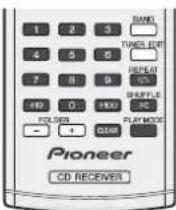
PpMaONKdoPOXKN
C HcHbTHoBAHmEH TPOHPbX KHOIOK MOIOHO BOPHOHBOHTH, JEAeMaHE DOpOxKHa TEKyIeM THcke.
NcnoB3yTe UHPOBBI KHOKN HA Nylte DY dny BbIbopaJXeAeMOI DOPKNO BBOBPEB OBCPONB3eHN Hb1nHOrO N
- UHPOBILCKHOHNIO3BOIANTBbIOpHOHcpa9.
-Пгньборе Нмога 100 ИИ Вьпш БСОньштесьknokрк(<100)。
-Пин ВБборе НОмЕР 10 HIN BИМЕ BOCHIOIByITCEK KHOIIKOI (+10).
A. Hanpimep, yto6bBb6paTb Hmep 13
1 HaKMTe KhONKy +10
2 HaxMMTe KONky «3».
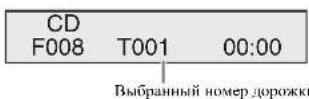
B. Hanpimep, YTO6bI Bb5paTb Hmep 130
1 HaxMMTe KhoNky «+100».
2 HaKMTe KONky (+10) Tpu pa3a.
3 HaxMMTe KONky «0».
PpimmeaHne
HcBbBbBbBbHOpemIpoOoKKn, npCbeMbuaouuHnHeIOIPOOeK HA IIeKcE.
BvIePbHIOBCPOHOJIeHINH BcUaHOMIOHPJKe IPOHMIOHCKOPOKHHCBOMOOHK.
ДяoctaHOBKNBOcnpOn3BeJeHn:
HaxMMrTc KhoNky
TOBTOHoe BOCnpon3BedeHne
Ipn nontopiom BocpoHcJIHIO MOKIO HcIpcHIO BOCPOH380bHbOJOpOKy, Bce OPOKHHIO JOPOKKB 3aIpormpmopnHIO nocJeOBaTeHIOCTH.
BoBcMBOBTOPHOROBOCHPOH3BcDcHHIOBBJACTCH HnHAKAAH(<)
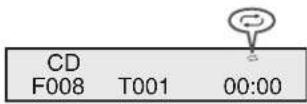
IINr noBToPa ODHOn DOpOJKN:
HakmHtRE ncktoKo pa Kaonky REPEAT, noka te noHNHTC HnHKnAa (Repee One). HkMnKTHe KhoNy 一 / 山 (一)
ДЯ NOBTOPA BCEX DOPOKEk:
HauHHMITE NcKtkoBPO KNOI KHTO REPEAT, NOKA IIOBBITC8 HIIHKINIKI (RePEAL All). HauHHMITE KHOUY 已 (已)
DnnoBtopaXeNaembIXdoPoXek:
BbHIOHHRE H1-5 Bpaiee(3aHpOpaMnHOBAHHe BOCIOHOBEHEHNE)HA TOI CIPAHNE H 3AET HECKOIBKPO pa3 HOAKHTE KHOHKY REPEAT, HOKA HE HOBHCTC HHDHKAIIH (Repeat All).
AnrOtMeHbI NOBTOPHOROBONPON3BeDEHnR:
HAnMHTe HcckOJIbKO paKnIky REPEAT, nOKa Ic NoBnTcA HnNkauuH «Repeal Off» n He NcHcEHTnNnKaHn «
Bocnpo3BeDeHHe B cIyuaHOM nopAKe
JIOOPKHa HICKE MOYF IOCIPPOHBOBHTBCN AORTMAHNECK B CSYAHIOM NOPAJE.
BoBpmaBoepnoBcDcHmBcTyauHOMnpaKHeHHBnCTeHHJHKuaHn(
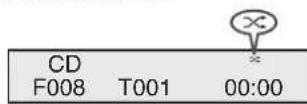
OTo6pBaJAtOSaBHABHcIcHsIN,IMHcHIOHHTCHnIe HBHABHcIbAibOMo,csHOnHIIaHIcHbHa HbNcKc.
Послuyшваиме iPod, iPhone iPhone iPad
IopdepxHbAeMbIe moDeni iPod,iPhone n iPad:
- iPod touch (4-e/3-e/2-e/1-e nokorene)
- iPod classic
iPodcBnneo - iPod nano (6-e/5-e/4-e/3-e/2-e/1-e 10KoJIeHHe)
iPhone 4/3GS/3G
iPad
BHHMaHHe
PIONC INPHIO6XOBCOTBCTBXHCCTBHTBECHTEHNOCT3AIPIMMHEKOCHEHHYEyHKINBOHNHIHE BCTCTHE HeyIOCTBHYPTbTBAHCAHHOTARPhHIA,BOHNIKUINI3-3AHCNCpABHOCTInI Pod.
PpimmeuHne
Ora cnTeMa 6nna papaobota n npotechponana JnB BcHn uporpammoIoo o6ceueichn iPod/iPhone/iPad, ykaanmho na ne6-calre Pioneer (http://pioneer.jp/homeav/support/ios/eu).
YcraHOBKa HbAipod/iPhone/iPad BpcchI nporpaMMHOO6eueHHN,OTTHHHXOTyKzAHHHxHaBeF-CanE Pioneer,MOKETbHT HeydHnH3-HaNEcOBMeCTHMOCHT C daHIOH CTCMHO.
PocieHOIOKIOHmHnIPODHHINPHKeKAnHPaYHaHHeTcB
BbMoKeTeIIOIaepKaHbTiPdUpH 8KIOVHeHHOM HINIH BpeKHMc SzapkIMh IPod.
11prnoTIOHcHHeHHip HAcHOyHTe ToTko KaBeJI, CueHJIbI IOpeJH3AaHHeHHn IuH pIAE.
PiOnKIOHrTe iPad K pa3emy USB
- iPod n IPhone nIeHnPoBan dNBoCpOHNBCdHn HcHbHnCHHX ABTOCPKHM INPBAWM MATEPHaIOB HmMATEPAHOH, HA KOTOPMe HAdTeH MeEIT IaJIbHoepappeHHHe Dn BOCPOINBeHn.
Taknke dyinHHIN, KAK kbnaiHcPnc Moryr ynpabrtncpechBepa, HO3OMY Hepei HIOKIOHHeHem peKoMeHdyeTeOROTKMOATyKbNAtHcP.
Iopknuoyne iPod/iPhone
OCTOPOXHO
IpnHIOKIOOHYNyTPOiOCTBIPoID/IPhone BcEJa
HnONMcyIyHHBepCaHmNIOk-ADTApTe,BOXyIMINn
KOMIKHEKTOBANKBMAHrTOIPoID/IPhone,NHNHEMOHNBCJ
IPoIDAAeAaHTERp,PaccuHAnAHMa HIOUdCpKky TPOiPTCB
IPoID/IPhone.YTOPTCBoIPoID/IPhone.NeHbN NOKIOHOATb
63YHNBECpaJIbHOrO 0OK-aADTcPb;POHbTKa NOKIOHOCHN
IPoID/IPhone 63YHNBecpaJIbHOrO 0OK-aADTcPb MOKeT
HbHaBH,NOpeKJeHHe NHeHepaHIbHoe
yHKnHOHNPOBAHNE yCTPOiCTBa.
- IpeC yctAHOBK B oDc-tAHHIO OoCo2HHTCC BcPipHAAJHeOHNOT iPOd HnI iPhone.
1 OtkpoTe KpbuKy DOK-CTaHcMn CHrTHeM BBepx.
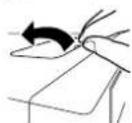
2 PodcoeHNHteYHBepCanbHbDok-aaTnTepK paBMyEyIPOd/IPhone Ha 30m anapate.
YHINBCPcAIAI HIOK-ADIANTCR IaIPOi PHoNC XBOaITB KOMIIIEKT HOCTAKHN TOHO AnIHAPATA.
1Pn noocnHINH yINBepcaIIOHO Jok-adaTcepa 6cHtceb B npABnHOp HcrttnaH npcnCn H naclcnctopo HYNBepcaHIOHOJok-aadantpe. DIO HOcooHHeHH CHaHAA BCTABbc BtctyHn Hncpncn CTOPOe aadantpeBaYrty6TeHH Hpa3cMn dI pOd/Phone N bAbaHTc Do fHKcaHH Ha MccTe. Pn HooCooeHHHH aadHepca cnapaee He yapntb no p43cMM.
3ПодкнючteБаWIPod/IPhone.
Ecxipod/iphoneIOIOKHOHAEiC,KOIAIOTAIHAPIT HxOHTCRBpckHMeOOKTANH,BKIOHTCRTHTAHNE,H HHTCHEOBCIOPOHBDEHEe IPOd/Phone.
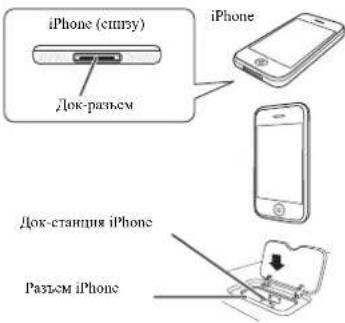
Nouck MaTePnana DnBocnpOn3BeDeHn
IINHIOIOHNIPoKpeHHpyMOHO HAHPMMyO B6BipbIe HcN,XPaHnHHeE B IPoD,IOuCkAMBCIOPOH3BeEIIHH,HCIOHTHTeIIO,Ha3BaHnHO aTbSOMa,NECHNN KAMPy IHH KOMIOHTOPY,TAKKC.KAK HcHcOpCpCTBCHHO HA IPoD.
1C NOMOJIbIO T/ BbIbepHTe KaterOpHIO,3aTEM HAXMITE ENTER dI npOnCTbIBAHN 3TOI KaterOpHIO.
- TIO6bI B IIO6e BVPREHpyTbE HnpeBdUyIIN yPOeHb MEHO, HAKMITE RETURN.
2IcnoNb3yTe / IINpIOnHCTbIBaHHBb6paHHKateropn (Hanp., alums (anb6ombl)).
- HenoIy3yIe KnoHKn 1A nIepxOJa Ha npCnBlyuHnn nn cIyouoyn yOyoBc.
3 PpOdoJXaIte npOnHcTbHaBHe Do Te Nop, noka He 6yEdt BbIpa HnporpaMMA, KOTOpY Heo6xOdHMo BOCpOuN3BeCTn, 3aTe HaxMnTe ▶ДЯ 3AnycKa BOCpOuN3BeDHeN.
Cobet
EINBBIHIXIOCTIEB KATEOPIONIEHEC.ⅡIIBHAKHA BOCIOPIROSEHINEKO MOKHO HAKATI KHOKI ENTER.
OchOBhIe opraHbI ynpaBnEHn BocpOn3BeDeHHem
Khoikni Nyhlta IVTOI perebna Moekho HcnoTobat TIOOCHOBORBO CPOBNIPOBCEHINAHJIOB, 3aIIaCauHHX na IPOD.
HakmIc iPod/iPhone npccknocnna nyta Jy B pekm ynpaieHH iPod/iPhone.
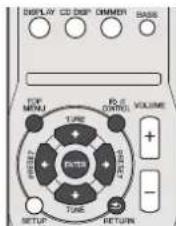
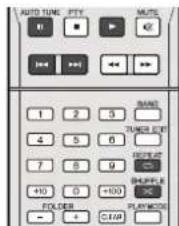
PpOcMoTp foTOrpaΦn n BnDeoKOHTeHTa
HINIOPOCMOTPAIOTOPADHHINBIEHOH iPod Heo6xHMO HINIOHBOTAHEMEHNTYIPINHINiOPOHIOHNOYIPANCTHCHEIOCTOI0RCPOCNPCIAIOEOMNIO

BHHMaHne
JINPPOCOTPAFOPTORAPAFHINBOCPNPHBDECNIIIBHTEOIIPodHeo6xHOHOIOKARIOHBKMOHOHHIbIpa3bEMVIDEOOUTKREHEB3Opy.
JianhanФуннини HeNTOCTyrrma nPHn NOKMOeYINHn IPOB HIOKOLIHNH INP DOAP NIEBOPOI KOKOJIaHn
Haxmte iPod CONTROL npeeknoenopraOB npaepnEiPOD.
Bo pncnpo hno oip no npocnpa 010pupnmeH yipuuee Hpeepn echOBtB 6ydt.
HoccoknHnnipncmptpa cpa nHaeHHMeIePd CONTROL,HTo6bHepeKIOHHTCBOgPAHO H3EmeHb ypanaehnepcehe
PpimMeaHne
KOTOPADH H HIOKOHTHT iPOi/PhoNE MOHO IPOcMATPBtL TObKO KOrA yTOpOCTBO iPOi/PhoNE HOHO KJOK-CTAHIN iPOi h11nPHoe.
Послшване 3аомнагшero yctpoicTba 6ьшоemkoctn USB/MP3-npeepa
PoiKlnHcHne ycTpoNCTBa USB
C nomonno HHTTpefca USB na nepeunen nanenny TTORE pecehepa moKHOIOPOOUIHBAIb IYBXKAHLBHH 38k c USB -yctpOCTb.
1 BknoHte pceBep nCnNoIb3yEmbI TeBEN3Op.
2IpeKIOUHTE BxOJ TeneBUN3Op TaKIM O6pa3OM, 0TO6bI OH NODKIOUANC K peCnBepy.
3 HaxMNTe USB ha nyIbe Dny dna nepeKnIOueHnepcNBepa Ha fynKuMo USB.
HaKpAHOM HcHcIe OTo6paKaTcR Please Wait. KOra
Hnnnpecnepnnaer paoonanae nnoNHOHnro
yeToPCTb USB. Iocne paOnoSHaHHa, Ha 3KpAHOM dHcHcE
OTo6paKaTcR 3KpAH BOCnPOH3BeCHHH, nABTOMaTHCCKn
HauHHaTeCRBOcPONBHeHHe
OcHbIe npaBHeHH Bocnpn3BeHeHem KInKn Hpyta JyToToro pceHepa MoKIO hnoJIbnato, nio octoHOro bocnpn3eHnHnHnFon, coxpanncnnnx Ha ycipohnBX USB.
HAKIMITE USB IIEPEKIOEHHIYIBTH IV B PECKM ynpaenr h USB.
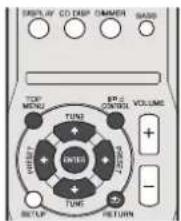
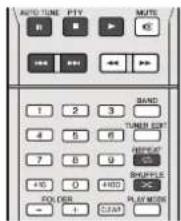

BHHMaHne
ECHH HANHE NOHNRECE COOENHEHO 6000K e USB
Error, nonpo8yHtBnONIHtCnEyIOoCC:
BbIKIOHHTpepeHHBep,3aTeM BKKIOHTe CHOBA.
3anono noctoeonntte yctpoetno USB k hknnoenmomypechepy.
- Bb69HTE JAPYTO HOTUHINK BXOJA (HAJIHNPEP, CD), 3ATTEM CHOHIE ENEKHOHTE HA USB.
AⅡHHTAHHAyCTBAUSBHCNOBbYIcncnHaJIbHH cerenoh aaintep(npHnraaemmK,TANHOy yctpoictry)
EJNTHOICBIACTCRBCHECMPOBSCMILCKOPCEBCFOHCIOILOCMOCYETPOHCTBOUSBCCOBMCCTMO
Bocnpon3BeDeHne c ФункцеN NETWORK
JaJIHnpeepo6pyoanTePmHHTOMLANH,poJIKIOUHOB KOMIOHCTbKJAHBM TcPmHHaAM,MOKHO BOCIOB3OBAITBCs CUYOYUMHfFHyHKHM
PpocnyuBaHne HHTepHeT-paHoctaHnM GoKHO Bb6paB H pOcIyUbaBt HIObHMbs HHTcpHcTe- paoCTaHnHn H3 cHnCKa HHTepHeT-paHocTaHnCn, COaDHaHO, peJaKTHpyEMOTo YipAraHReMOTo cepHHcom 6aBn daHmX SHOUTeast.
→CM. HpocryuuaaKaHe Hmephem-padocmaHnue.
BocPon3BdEHeNe MybIkaNbIbX paIyIOB, coxpaHEnbIX Ha KOMNbIbTepe
CIOMOHOBO DAHOHOI aHINAPATA MOHO BOOUPHOB3CTHN B0HIOHO KIOYHTEVO MY3HJX, COXPAIEITIII HAI
KOMILBIOPTPC
→CM.Boonpnoeoeiye auoobpaoo,coxpanenbix ia Kaonmnoenmax 6 cemu ha ctr.21.
Kpomc KOMHOTepa,MOKHO TAKC BOCIPOHNBOINb ayuhoqum,coxPAHEHHMe HA dpyTHX KOHIOHHTax c yfHKHIIE HCTPOEHNOHTo HmE-CpeBPA, OCHORAHOHOFo CXMCn II pOToKOJAX DLNA 1.0 HN DLNA 1.5 (HAPPMcp, JCKTNC Dnckn H ayuHOChCTMBA C03MOXHOCTLIO CEBERTOH NCHOHOBAHNI).
BHHMaHHe
Пин ВОПИЗЕ ДЕЛДАВ.DHДФДALIOH.NIEP.A HINILOM BOCIPONHDEJENH OTOBPAKETC《PleaseWalt》.OKPAN MOKCTOTOBPAKATCBNCCOKLBOKCOCKYINB3AHNCHMOCTHOT TINHA qHIAH.
B cayac konfhypanm Domena b cetenoepcE Windows, HOBMOHO HOIyHb JOCTYIK KOMIOBTOPE Ype3 cTb, IOKA Bn HAXOHTECB B OMeHE. BMEOTBXOJA BOMEH, BOITNTA JOKANBIH annapart.
B HEKOTOPBc c.iYbXb IPOUcIeIcB PcMBA GcIOPnO3BcDEHJI MOKOT eO60pAKTcB HeIPAHBHbHO.
1 BknHouHTpepeCBepn HcnoB3yEmbI TeEBN3Op.
CM. Nookouene K cemu uepes unmepeuec LAN ha erp.10.
2IpeeknIOuHTeBXoD TeNEBn3OpaTakHM o6pa3OM, 0To6bI OH nOdkNIOUaNC K peCnBepy.
3 HaxMMTE NETWORK Ha nyIbTe Dy Ia nepeKluOeHnpeCuBepa Ha yHKuNIO NETWORK.
JIOIOCTyNk cTt, JAHHOmy pceHepy moKet HOTpe6oBHcH HcckBoIckCckn.1PbBbOpe NETWORK B KaCCTbc FyHKnB XbOJa, OTOpKaBaTc CJIeDyUOHH 3xpan.
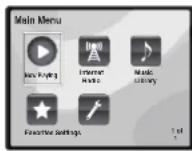
4 C nomoouh 1/1, BbI6epHe KateropHIOI IaB OBCPOH3BEOHnI, a3TeM HAXMMTO ENTER.
BbepnTe kateropno H3 cJeynioero cncka:
- Now Playing -OtobpaKeine TekyuIero cTatya HnHdOpMaIIOn o paJhOscTaNIIHN.
Internet Radio - PocijusiiuHaHHne HHTepHeHpaHIOEaTnIH SHOUTcast Yerpc3crt.
Music Library-Bochopur38eHeHMyBbIKbIBbHex faaiIOB, coxpanenHHa KOMMOTpe. - Favorites -Jiro6HMae neiH, JapeHtPrpOaHIIHMe B IaHHM MOHcET.
- Settings - BbnoTneHnacrpoek fynnnNNETWORK.
5 C nmoiho /I, BbI6peHne naKy, My3bIaNbHbIe faJIbI Hn INHeTpHET-pAHOCTAHuNO DnIg BCPOPNB3EHEIN, ⅢaTeM hAKMNTE ENTER.
HakHMHaeT 14 HINIOPOKPTKCHCNCKA BBEPNBHNB3N bBy6ePHTHE NHybHnI HAPAMETp. PIIH NkHHHENTER, 3aayKcAeTc NoCtPrnoBeTeHe N OTo6PbAaeCTe KpAln BoOpnRbDcNIIH DTHb6ApHnro pAnamctpa. IINBO3BpTaHa I0KpAln CnHKAc, NaKmHrE RETURN.
Icapnapametphto06paKaTOeTnIneKoKHXCTpaHnax, HIOHO3yHcKHOHNK / 1b6bctpoOTo06paKCHNApaHbIX ctpaHH.
6ДиВOCNPO3BEDENHHyHNOENCHN NOBOPRTe ⅢA5I.1HO6PbHbHcHETPKUHHcM.BaPd3E HnKc.
- Htneprp-tpuocctauu-Cm.1IpcxuaaueHnmepehpanoamui mKc.
MBykAaHbHe PaaHb, coxpanHenHbHe Ha KOMbHbTepe-C. Bocpoun3beDene AaynoaHae, coxpanHenHbX ha KOMoennmex a cemna 2P.21.
PpocnyuBaHne HHTepHeT-paNoctaHcN
HHTepHr-paHIO -ycnyra ayHnOtpaHCTTnnH, nepeaHtmaeC
pe3 HHTepHc. CyueChyBET MHOKcETO HHTepHr
paHIOCTAHNIH, TpAHCNPYIOHN paxTHN yCNYTH N3 KAKIOI
toKNMHPa. HeKOTOpbHE III INX IAXoJITcR NO BnaJeHHN,
ynpABIAHOCTB, H TPAHCNPYIOcTACTHBMMn HuaAMn, B TO BPCMA
kAK dpyTH COOTBCTBcyUOMNH TPAHIOHHHMn HA3CMHmH
paHOCTAHNIH MM PAIDOCETMH. B To IpeM KAK JIN
HA3CMHIX, IIINOTA (c BxIOOM B 30Hp), paoHOCTAHNIH,
HMCHOTCR GcPOAPWcNEKcOgPAHINCHIN IO DuaHO3OH
TPAHCNPYEMbIX PAHOIOHN oIE PEPAAHNO BA03Iyyx.,ocTyT K HHTCPr-PAHOCTAHNIH MOKcI PONBDOHTCBn I3 IIO60
toKNHMI, BCC BPCM, IOKA HMCCTCR HHTepHc-tcoCJHNHCn,
TAK KAc ycHyTH HepeJIoTHcHe IO BO3Iyyx, ape3 BCMeMHpyIO
ayTNHI. HaAHNOP cPcBcPo MKOH bBb6bHTb HHTepHc-
paHOCTAHNIH IO KaHpam, a TakKc No pcHOnHAM.
B 3AHNCMOCTN OICOCTOBHHIIHH HHTepHr, Ipn
BOcPnoBHcCIOHH HHTepHc-PAHO HOyAAHc MocKt
BOcPnoBHIOBHTbck HcpAONMOChPO.
4PnmeaHne
ⅡIpiPocnyuHbAHnH HHTcphCT-paHOctaHmH Tpc6yctcB BbOCOKOPcOHTOH NpPOKoONIOChmH DoCTYn B HTcPhCT.1Pi HcNOB3OBAHHH 56 K HTH ISDN MoJema, HcNOB3OBAHNC BcXx FyHKHnH HHTcphCT-paHOctaHmH MOKCT 6bHb HCBO3MOKHMM.
Homep HIOPI OI OHMAETC B AHHMCHOTN I INHTHEPIAI PAHOCTAIIHIN. IIOPOPLTEAATPOIKI 6bAPIMAYa.
B3ABCHMOCTHOT HHTEPHEI-paHOCTAHHH,TPAHCJHHM 10yT B6bIb IpekpaueHHI INIIEPBAHb. B TAKOM CUYAE, HOBMOKIO HOYCT NPOCYYIHAT, PAHOCTAHIIIIO, BB6pAHyO H3 cHcKa HHTEPHEI-paHOCTAHHHI.
O cnncke VHepeHt-paNoctaHcN
CnKoHrTcPHeT-paHIOCTAHUNH HaaHbHom pccHBpc co3aet,peAaTHpyETe,nypAaJIETeCEpHcOM 6aHm DAnhXs SHOUTcast.
Bocnpoun3BeDHeNe aynofoaHIOB,coxpaHenbIX HA KOMNHOENTAX B CETN
C NMOOJIbIOIyIaIyIaHHOrpoPcHBCpaMOKHO BbIOIHHTB cIeIyOHIOIeHApHHIOIIMHOHTE,IVIOBABHCNOCTOT CKYIIICBOCNPOH3BOHIMKATCOPHH,IKKOTOPAC KHOHNK IBOCTOYNHINIINJyUpAIBNCH
HAKHIETNETWROK DII HpeKIOUeHINI YIbTA IV B pexHM ynpaJIINH NNETWORK.
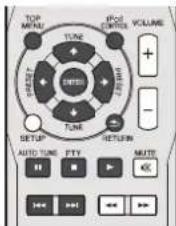
Bocnpon3BeDeHne IIO6mbix neceH
PerntpaayyaofoaainoN INHTpeHepT-padnoctauu
BoBpMa BocPmOB3eDnH NcHn HAXMMTe T/4, 106bl Bb5pat Add to Favor (DobabNTB bno6MhIbe), n3atem HAXMMTE ENTER.
BbopaHnA HcHs 3aTe mepctpnpyec B hainke Fafoties.
PiomHnte, 40 MoMoHIO 3apeHrTpoHbT ToIbK OyHNOfaiM, coXpaHHbc HA KOMOHCHTH A CCTH.
Bocnpn3BeHne uyanHe aymoaainOB n Hntepnet-paonctanu B nanke Faveorites
1 Bb6epTe «Favorites» B Main Menu.
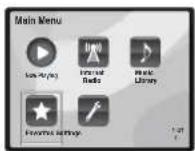
2IcnoNb3ayte KhoNk 1/4 nnBb6opa ayHnOpaIIa IIN HInTePHT-paHIOCTAHm N 3aTeM HaxMtTe ENTER.
3 NcnoB3yTe KHOKN DnB Bb6opa onuBBOCPON3BedeHn Hn ydaJIeHN H 3aTEM HAXMITEENTER.
-HaHHHaerBocHponBHeJeHHe Bm6paHHoro HapamEtpa
X ydaTCT b6paannn npapmepn Hnnu Favorites
Bb6epHrTe 7. TToBtOMMeHHrT, npEeTymyto onepaHno.
Mehno Network Setup (HactpoKa cTeN)
Haetponka cctn IpnocynnbaaHInrccnct-paHn haanHom sechpe.
1 Bb6epnte 念 Settings》B Main Menu.
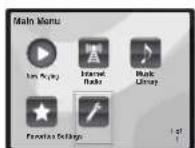
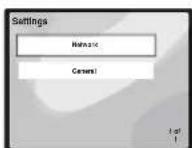
2 Bb6pepehactpoky, kotopyo tpe6yetca onepyrnpobatb.
Network-HaetpoikaHapimepoB cen(cm.HacpmoiKc cenu mke)
General HcnoHcyTc Tn C6pOa Nce Tnactpoek cteBEO IOIOIOIOHO HAHbHbHe 3AB0ckHE HAcPOIK (cm.Obue napamemnpnncmpou nct.2P)
Hactpoikn cTeN
EcH K TepMHany LAN dHHoTO pceBepa HIOKIOHEN
HIIPOKOIOIOIOI MauPHyTHAOT (co BCTPOOIOH OYIKIOIOIH DHCPCcpbPA) PpOCTO KBIIOHTO OYIKIOIOHDHCpeBPA, H
HET Heo60IOIOIOHT B pyHOI HAcTPOE CetH. OHCAHNOY
HIXe NaTPOIcy cETH IyKIO HOIOIOIT TOILKO TOPTA, KOITDA
HAnIOI pcBcPcNIOHc HIIPOKOIOIOHOmy
MapuipyHATOPy 63 FyKIOHN DHCP cpeBa. Pepe
HaTPOIKoC eTt, TaIPOCHTE y nponaJIepa HInTeHET cyJyTH
HN MeIOKcpeC tnc Tpc6yMeHe nactpoIKn. PckOMeYteTc
TAKKE IOOCMTpeBpyKOBIOCTBO IO yupABIEHIO K cTeBOMy
KOMONHHTY.
1 BbEpTe 网 R ^ 工 MeHIO Settings.
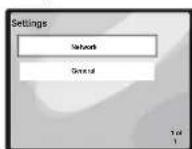
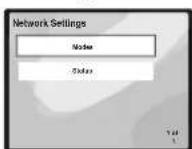
2 BbIepeTe «Modes» B MeHIO Network Settings.
B Cuyue B HcEeHm HHeHH B KOnHpyaun cTeH 6es cyHKuCn cepRepa DHCP, HbHIOHHT coHREtCTHyKuHcne HMCNCHB C bCTCBX IAactPoukKa dAmrO pccnBa.
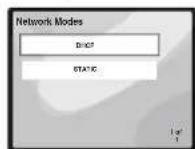
DHCP (nacmpnoka no yomtaaana) -Bb6epnre,ecnn cepnr comectm n cyhknuei DHCP.
PnBn6pe npaepnD HCHPIOKIOHcHHe HAHTeTcABOTMATNCCcknIOIOCTOHN3cBepnHO,KOJDAOTOBpKaTOETdAeEOBOIOHOIOHcHIOHHaKMMENTER,IO6bBePHyTcK IpeIbDyEmyKpaHy.
- STATIC LnypyrTOIIOKIOKIOHIN K cEBPbE CcETyHRE HHC1DyKUNHM, YK831BHHN HJHK6
IaHMMTEKNNK YINHEncpeCTeHHIOYUaTENI pRyTHNIIHOHMOHA.
TakMMTEKONIKY 1HNEpeKIOeHHMMeKJyTHAMMHCMHO
- HAKMHTE KAOIHKH 1/4, HAI BMOJ KENAMEMO CHMOBIR H3O OTOKMOH MEXICOBOT H HAKMHTE ENTER
IIO 3BHeH H BBOJ, H H ECH HeOxMO OMTMeHHb OIEpHBOBJA, HAKMITE KHOIKY ,IOKA HE OTo6paHTcOK/CANCEL,3ATcHcNOyITcKHOKN 1/4 JIb6opaTb6o OK,IH6O CANCEH HAAKMITC ENTER.
PnmuMeuHne
Fcnn BBbpaetcSTATIC, HactpoKb6ydyT cJeDytonmH. -IP (IP address)
BbOHTMHIN IP-aTcpeoKCH6bTHOpncnBnpcnax CteyouxHuaaHOOB. EeIN IP-aupec oupeJeHn BHe cTeyHHx HanaonOB, neoMOIOHOyET BOePONBCTH ayhoaiH, cooxpantCtbe IA KOMOTITAX Bcctn HnnpocuunBaH HInepet-pauhoctauHH.
Knacc A:10.0.0.1 no 10.255.255.254
Knace B:172.16.0.1 no 172.31.255.254
Knacc C:192.168.0.1,10 192.168.255.254
-MASK (Subnet Mask)
PnI pIOMM HIOKIOUeHH XDSL MOeMa HIIH aJauHTePA TepMHNA K IaHHOypeBey, BBEIIO MAcky IOeHTN, npEOCTABINIOH bOyMaRPObAePOM INIHTerpE cyUYH. B 60bnIOJIcTBC cYyAcN, BBOITc255.255.255.0.
Gateway (Default Gateway)
I\Pn I\NtKIOeHINIIIIO3a (MapIpyTHaTOpA) K 工 IITOMy PCBcHpy, BcHcITOn COOTBETCYBOHN IP-aDEC.
DNS (DNS server)
Bbncntc apcce DNS-ccnpepa, kotopn Bn no.tynnnn B nncmbnoofoepmc ot Baacro npobaicpa Hntcpctyayt.
Bb6ephe Status H3 MeHO Network Settings. 106bI noka3AT kTcYJINP pckHM NCTAHN cctCBTO RnKIOOJIHH
06une npaMeTpbl HacTpoKn
1 BbEpTe《General》B MeHIO Settings.
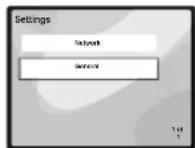
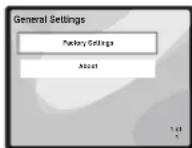
2 Bb6epnte napametp, kotopb Iheo6xoIMHO hactpoNTb, 33 MeHIO General Settings (O6uime napametpb HactpoNk).
Factory Settings HcnoTb3yctcr jIa6cbocA Bccx Hacrpoek cetB0TO HOKIOUChHHa HauHbJIbHbE 3aBOckHe IactpOKn.
- HaxMMe KhoNkY BAND, YTo6bI Bb6paTb pExHM FM MONO.
HnTOMKaeCTBOByKaONIOKIOBACHTBCHBAcmOKeTe NOyayh yOnOBtBHeOTnpocNHyHnHaHn.
CoxpaHenhe 3anporpammmpoBaHHbix paHnoctaHn HcBblxOHTC CTyMaTl KOnKpeHy paoHocTAnHIO, To yIOHO6, YIO6b peChEBP coXpaHINI IACTOTY IIIM b6dIPOI IOHNCK IIIOIO6 Heo6XIOHNIOE IPEMHI, TIO KOHOOMHT yCHINH, YcIPAHNII IO6XIOHNOCbI pncHIOHcckOoi HOHtAIOHKn JAIIOHO cYTOPOCTBO MOKET 3aOHMOHBAI do 40 CTAUHNI.
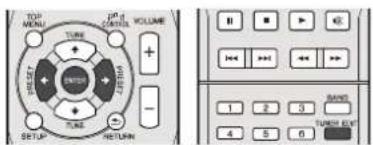
1 BInonNHATE NaPdoNocTAnHIO, KOTopyo Tpe6yTe3aHeNTbNAMrTb.
Piipoboee cm. paen Hpocayuaunane paduonepeoanmie.
2 HaxMMTe KhoNky TUNER EDIT.
MHaet 3aahHoe HcIO.
3 HxHIMaTe KhoNkI PRESET →ДЯ BAbOpa HYNKHO ZanporpAMMIOBaHNO PAHOMCTAHUNI.
Takke MoKHO HIOHIOHOBATI HIOPOBHE KIOHTKH.CM.IIpMoH NOKC DOPOKHK HA CTp.14.
4 Haxmte KhoNkY ENTER.
3aHpaIpAMMPOBAPHHHMOHEPhepeT MHTH, HpeCHBep COXPAHJDAHJIbA PAHOCTAHNI.
PpMueHne
TcHnpeCepBbDyTeNHHbOe MeoHaOTKTHIOHT OPO3tKH IpcmCmHNO TOKa, cOePcHMOOCAMHbIyEETyRHPKO, HIOHpEByeTIOHIOpEOIPOpAMMPOHOAHBE.
PaHIOCTAHINCOXPAHNOBETBAMNTHPBPEKHMTEpeo. Ecn PAHOCTAHINCOXPAHNTB PAMTN BPCKNMFCM MONO,UPHBBFOBE OHAOTOPKEE KAK
PpocnyuWBaHne 3anporpaMMpoBaHHbIX paHnOCTAHm
Ia 3Toro B pceBpepeo.0KHO 6bHc coxpaHcO HccKOBko
haoipampanpoabHHnx cTnHH. Ech rakHX cTnHH uEe HET,
oepaHTTEc K paTeTy CoXpaeue sanpozpaMupopanuHix
paocmaee HuaHic
Haxmaite KONKIN PRESET nIyBbOpa HyxHO3anporpammmPOBaHHo PAHOCTAHN.
TAKKcMoKHO HcHONJ3OBaTL HHPoBbIC KHOHNK.
PnncBaHbAHne Ha3BaHm 3anporpAMMPOBaHHbIM paNIOCTaHcIaM
JINO6BHeHHHpaOHTbBCEM3aHPOIpMMNPOBAHHM PAHOCTAHHMMOKIO pHCBOTb HA3BaHH.
1 Bb6epHTe 3anporpammmpoBaHHyO CTaHcHIO, KOtopo HooXoDMn PnncBOITb HmR.
JITTO,CM.PIOPOZyAunnane ZANIOZPAAMINIOPOAHN NPOAOOMAHNI BBUIC.
2 HaxmTe TUNER EDIT DbaXdbI.
IhPHTOMHnCHNCEAMHrAeKypCop Hn03HHINncpBoro CHMHOHO.
3BBeHTe HxHHe HMa.
Bb6epHtHe HsBaHHe JHHHO BOCbMH CHMBOIOB
HcnoB3yTe KHOHNK / 1A Bb6opa no3HH CHMBOTa.
HcnoBbtyIe KHOIIK H/1JIN BbIbOpa CmBOIOB.
Ha3BaHnC COXPAHCTcR INHAXaTHN KHOINK ENTER
I3MeHHepeKIma WymonoDaBHeHH
EeHJI JAE HOIE TIOHII HBIIOHEHHB BIIIIOIHCAHbIX
ponoTpy bI ybeHTreB I POxOM KaeTeB 3yAAHN B
THAHOIA AM, bI cMOXeero yTuYNHTI, hCNOIy ApyrO
peKHM uMoHOJABAHHeIN. IpocTo Bb6peCe pKHM c
hanTyHHM 3yAAHN
3aHaeHHne no yMoTuAAHmo:Mode1
1 Noche hactpoKHa AM-paiooctaHIO HaxMITE KhoNKY SETUP.
2 HaKMITE KHOKN ↑/↓, TTo6bI Bb6paTb «Noise Cut (UWMONoDaBHeHne).
3 Haxmte KhoNk /, 1yTo6blBb6paTbpexnM WymonodabneHn(1,2nn3),3aTeHaxmte ENTER.
IcnoJIb3OBAHne CnCTeMbI paIIOJaHHbIX (RDS)
3HaKOMCTBO C CNTEmoR RDS
CHeMa paHIOAHHHx (RDS)-3IO cHcTeMa, KOTOPa HIOHOHYETc BOHINHCTROM paHOCTAHIN H DHAHOHE FM IINPcOCTABCHN CNYWATcEM PAHNNHINH HIFOpMAHN HAPHPeM, HABAHn PAHOCTAHIN IOI TPAHCNPyEmo HPOPMMM.
OIOH H3 cyHKHH CHCTCMR RDS ABnTcB BO3MOKHOCTB
HONCKA cTAHNN, TPAHC.HHPYHOe Ip6yEMbI THI UPo pAMMb.
HaHNPMep, MOHO OcyIECTBbH IOH CK CTAHIN, KOITOPa
TPAnCYPcT IpORpAMMa B Jxapc JAZJ (XzA).
MOHO BEcTH HOOK CIPOrpAMM C1EJyUHX THIOOB:
NEWS HOBOCTH
AFFAIRS - tekyne co6bntn
INFO mfoa
SPORT-CHOT
EDUCATE -obpaIOBATEJIHAK HIOPOPMAI
DRAMAPaHocKeTakHH
CULTURE - HuaHuaHua H MeChTHa KyuTyPha JxHJHb TeHTp H.2.
SCIENCE -Hauki N. TECHNIKHE VARIORED - HUOPaMbIb, noctpoeimte na 6eece HIN 06hnnn, npaninncp BHKTOPHI HIN HHTCPBIO.
POP M -NON-MY3bKa
ROCKM-pOK-MyBnK
EASYM-NTKARMY3HKA
LIGHT M -dTeKai
KIAACCHHECKAR Mydbika
CLASSICS-epha
KINCCHECKMYHKA
OTHER M My3ka.IIE cooBCTcTbOyHn
HepeHicHHMM KATCOPHM
WEATHER BoKIN IIOPOHOI NOOJIOI
FINANCE -BnPKeRcHcROKn, KOMMpeckar,ToproBa HIOPOPMIAH T.1 CHILDNPnpPAMMBI
SOCIAL-06HIECTHEHHA
RELIION nporpmm o peimn
PHONE IN- npipammb
pnpyecmatphbaonie
06cyycknnc KAKOH-NBO TCMH
06hneHH CO CAYHINBAMN H
Tepehooy
TRAVEL-INTHECTHRN INOTDAN
LEISURE Cbo60AoHoeBpeM, HnttepeRs Xo60H
JAZZ-PAKIDINBIMYIKI COUNTRY -MYIKI
NATIONM IONYJAPHMA MYBIA HENAHINIKKIMYBIXO OLDIES-IIOIyAPHMA MyBIA 1950-x1960-x rooB
FOLK M - napitna Myaika DOCUMENT -
hy6nncnneckne npopamnn
PpimmeaHne
Cynctyot Taekr Tn DNOHNHTBHX THN pOPTAMM ALARM ALARMSTN NO TYPE ALARM N ALARMSTNIOHbYOTcIINOBaTCHHOpc3buaHbX CHryauHx. NO TYPE OropaKaactc,ccn nporpamma daHoroTHNa cnoepnykaHbAOTc.
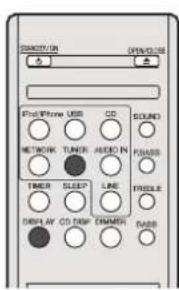
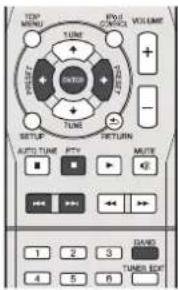
Ponck nporpaMM RDS
MoKIO OcIeTHTN, NIOCK TINON IporpAM, NEpeHsCIEITHX BIIIX.
1 HaxMMTE TUNER, a 3aTeM haxMMTE BAND IIN Bb6paI dnnanaa OH.
- CncreMa RDSIOCTyIHaTOBko B DhaHaa3OHe FM.
2 HaKMHTe KhoNky PTY.
Ha nncnne oToobpaKaetc SEARCH.
3 HaxmTE PRESET DnBb6opa Tnna nporpaMMb, KOTOPYXOTNE pocnytaB.
4 Hakmte KhoNkY ENTER nnonka nporpaMMb3aadaHoro Tuna.
Chema nHnHaer noHcK aHpOpaMnPoBaanix cTaanHc Bb6paHHTHIOI npoPamMb H IpeKpAHT CTO, KOrJa OHa 6yTeOHApKyHe. NOBTOPHe Tn DeiCTBn DnHOHCaDpyTHX paHOCTAHnH.
Etno oTo6paKaTea HnHnKaHn NO PTy, nnaHT, Tnepy H npOece HnKcHe y dAnocb OhApNkht bPoiPamMb TaanHrO ToH.
HHeCKrHbOBcHcEMRDSbHOITaTcERToIbKO No 3aepoPAMMPOBAHBMCTAHINMB.EeHn He 1aHOrpAmPbOAnIO HmOHN CTaONH INH cpeINHX yAaeTc HAHTNTHIPoPAMMb. HnHnHnE HOBBTCB HnHnC.NoPTY.HnHnKaHn FINISH OHuaCT, TTO NOHK 2aOHJUH
OTo6paKeHHe HnΦopMaun RDS
NCHIOUYIe KHOHNY DISPLAYIIMOTOBAPKENI PBNHX THTOB HINOPMADIN RDS.
Hakmte KhONy DISPLAY nnoyehn HnfoPMaRDS
IPIH KOKOM HOKATIH N KHOUKH DHLJIEH 3MHEAETC CIEUYOHIM O6PABON:
PaHOTekr (RT) Coobmenn, nepeTanaemn
paHIOCTAHmH. HanpMep, paHOCTAHmH, nepdAHOaH
TOKOW, MOKcI INePABATb HOMep TcFOHO B BnE
paHOTekra.
Hm nporpaammmoh ycnyrr (PS)-HaabaHne paanocetannn.
THI npiopramM (PTY) -Ot6pkaeact BtN pnpramM, rpanchepemy 8JHHnn MOMENT.
- Tckymar yactora tioncpa (FREQ)
POnmeyHne
11HPOBOSHHIOBOCHINHOONCXHEKOTOPAC CHMBOHTHA HINCTTCC RT MOrYTOtO6PAXKATLHINCPABNTIHO.
ECH HJ HJ LIEE RT OTOBAPHTT C0O6UHEHNE NO TEXT, 3NAHT, PAHNOCTAHC IN NCPEACT DAHNX PAHOTOKCTA. HJHUII HAIOMATINH ENEKHPUEETCB P EKHM HHPOPMAHCHCAYKbIPoPAMM (EC.HHETDAHHX 3AUPOPMMPPOBAHHO CTAHHHIOBBHTTC COO6UHEHNE NO NAME).
HaHcHHee PTY (THI HPOI pAMMb)MOKET OTO6paHTbcn HAHHCb NOPTY.
Pa6ota c TaMepom n cnpaun peXm
HacpoKa TaMepa BKnOueHn
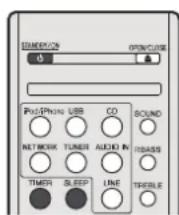
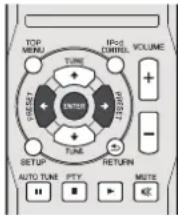
Bocnpon3BeDHeNc TaHMePOM:
YcTPOHCTBO BKNIOAeTCH NOCTPNOHBOHTKekAEMNHCTOHTHK (CD, TUNER, USB HIN IPod/Phone) B3aIaIIHOBpEm.
Ipepe ycTaHOBkoTaimepa:
Y6edTHTe, TTO tAa cyaTOnJIHII Hn pAnHbIoo npem (Haempka aoc 8a CTp. Ecn Taee He yctAHOBIEHM, dyHKIMO TAIIMEPAHIOBIOBTB HeIB3.
7JINBOCPOP3BENHEIcTaimepoPiKMOHTeYCTPOCTHBOSA,3aPY3HcNTHKNHHyCTAHOBHTBCBOKCTAHNIBOCPOPIHO3HOHmOe yctPOCTbIOpD.
1 HaxmTe STANDBY/ON.
2 HaxkMITE u ydepKmbaTe kHonky TIMER 50nee dByx C6KyHd.
3 B Teyehene DecaTn CekyHd HaxMMTe KhoNkY / 106blbBbPabT «Timer Set》(yctahOBka TaMepa), 3atEM HaxMMTe ENTER.
4 Bb6epHTe HcTOHHK DnBocpOn3BeDEHn. HcnoTbAye KnoH Ky ,TtObbl Bb6pahtyynHNO CD, TUNER, USB HNI iPod/Phone.
5 HaxmTe KhoNky ENTER.
BkIIOUeHHe/BbIKIOUeHHe TaMepa BkIOUeHHe
Ezui YKc zetayaboch Taimep BKIOCHNIA, CTO MOKHO BIKIOHOTB/BNKIOHHTB.
1 Ecnn nntaHne BklnOHe, HAKMITE u yedeKmbaTe KhoNky TIMER B TeueHene DByx ceKyHd.
2 B TeHHe He DecrHcKHyH HAKMHTe KHOHKy / 106bl BbIb4pTn NapameTp «Timer On» (TaHMep BKn) INN «Timer Off» (TaHMep BKn), 3aTeM HAKMHTe ENTER.
Ebnu Bb6paH napametr [Tuner On] 2aoperaee HINKATOP TaHmcpca, HnptopKaN NOtBcPkaIaOTer Ha nIeIe.
3 EcnBb6paHnapaMetp《TinerOn》,hakmteKhoNky STANDBY/ONnpyctahOBkpexmaOxudanH.
IOBTOPHOE INCNOJIb3OBAHHe 3aHeceHHoB I NaMrtb yCTaHOBN TaMepa
VcTaHOBka TaHMepa 6y,et 3aHOMHHATCBNOCHe e BBeDeHH.
JITIOIIOIIOIOHOHIOIOIOIOIOIOIOIOIOIOIOIOIOIOIOIOIOIOIOIOIOIOIOIOIOIOIOIOIOIOIOIOIOIOIOIOIOIOIOIOIOIOIOIOIOIOIOIOIOIOIOIOIOIOIOIOIOIOIOIOIOIOIOIOIOIOIOIOIO
1 Ecln nntaHne BkIIOueHo, HAKMNTe u ypeXNBaTe KhoNky TIMER B TeueHeNe DByx cekyHd.
2 B TeueHne DecaTHc KeyHd HAKMITE KHOHNY 106bIb5paTb NapametP «Timer Call (Bb3OB no TaHMEpy), 3aTeHnakMITE ENTER.
3aRaopaeTcNnHikatOp TImER, NHaCTpOKn HoiTHepKJdAIOiTcRb HAnCtllCC.
Cnraui pexm
Hakmte SLEEP nIe H3MeHHeNn nepNoa BpemeHn do nepeXoHa peCHeBa P eKIM OxKnDAnHn (30 min. - 60 min. - 90 min. - Off (BbKn).)
BIOKOOMOMEHTMOKHIOUPBOEPHECTOBILIEECSHBREMIOKHOHBMHYIETUMOHNKOPATHOTIOKHOHTHKHOOHIKSLEEP
DOnonHnTeJbHa HΦopMaζη
Ta6nua HncnpaBHOCTe
MHOHTHEMOOKHbHeIPO6JIbHMBLBdEeIMoKETpAepHHITb68 HBOHOHA CHINAHCTaNo 0652KJHBAHBA
EeHnTO-TO BnpAekc cTHM HcHcHcM,TO npcA BbOBOM
Bueo yhoHOMOeHHIO H. Iepa Hn OBpauHEm
ccpnncnnnncn pkmnnnn PIONER npOBpcr
nnneecnytnc
Obuie cBeDnna
Ha cbl He yctaHOBneHb Ha npabMbHoe BpeMa.
1IpoH3OIIbAparHHIOcOEtIOIOCHINIHITANH? PEPeCTAHONHTHECIM.(Cm.1p.11)
Pn Haxatnn KhoNKn yctpoCTBO He pearnpyET.
YCTAOBHTC YCTPOHCTBO B PCKHM OXHNDAHH 3ATCM BKTOHTC ERO CHOBIA.
- C. yu cipoihno BCE ehe pabotai hien pehpui bHBO, nepeyciuhnotheu (Cm.csp.29)
He cblweh 38yK
→YpOBeHbIpyMOCTH yctAHOKiEHN Ha «Min?
→PiOIOHOHeHbHayHHNK?
→OTeocmHnKa6n rpoMkoBOpHTcH!
PpOurpbBAtenb CD
Bocnpon3BeHHe He 3anyckaetc.
Bocnpm3BBeHene octahanibnaeTcnocepeHne HnE BbIbnHnRrTeD DonKhblbMoa30an.
→Hck sarpycken BepxHei ctopoHOB HHN3?
→HckcooBtctByerctHaapram?
→HckKckpBHeHnHnOapanH?
Bocnpno3bOAnMbte 38yKn nponpaadot mnn nppekpaaotctc B cepaene duOpoxKn.
→YcTpoHCTBOpacnoIOKeHO B6n3N HcToHHKa qpe3MePbIX
Bn6paun?
→HCKCHIBHOBHTP3HCH?
→BnItpH yctpoHCTBa 06pa3oBaIacb konIeHcaHH?
IyIbIy
IyblDy he pa60tae.
→11oocnnnncna6cn nntaannepecm.tona yctpoctba?
Ppnnn.1bna HIOIepnoctb 6aataeep
Papmaicb Gatapeien?
→HcnpaBnIIOc paCCToaHn Hn yro?
→1HaatnKnytaIYnonaTaerHntenCnHmcbet?
TOnHeP
PaHnO HenpepbIBHO n3daET Heo6bIyHbIe Wymbl.
Ycptphtno pammeKIOB bnn TcHbOpa Hn BmIoTepa? AHTeHMe FM npanMouAAnA ANPACIOHOJIpe IpaHILHO? OTOBHHBe AHTeHNY OANBIOIO ON KAB6I INITAHINIE PEEP. TOKA, eOH aPiNIOHOJIPEADOM.
USB
YcTPOHCTBO HeBO3MOXHO 06hApYKNTb.
→HMeetc Hn faaR bopMaTe MP3/WMA?
→YcTpoJIeTBO noIKNoHEnIO npaBnIbIIO?
→3ro ycrtpoHcTbO MTP?
→ Yerpoieirro coepaertto hko thaiit h opmarAAC?
Bocnpn3BeHHe He 3nyckaetcra.
→3to qai WMA, oxpaHnemn ABTOPCKHM npabom?
→Ooannn6nnn nnPm3?
iPod u iPhone
He BJIaTeTc 3ByK. Het N3o6paxeHn Ha TeneBnOte/ MOHITope
→ipodnni iPhone nC Boonpno3Boa
→iPod nn iPhone nepapnno noKtoeKannapary.
→PiOncoeunHnKabIbIITAHINHepeM.10KaycipoihTa?
→BndeokaeIbIOcoeHHeHpePAHbHO.
→BbOp BXOa TcTcBn30pa/MoHHTopa YcTaIIOBCh HcnpabILHO
→ΦyHKnna TB-bbXoHa iPod He HacipoeHa Ha 8nDeOHbxOa
3YKo iPd/iPhone He CmHHepeHayHHKH,HOHNHOHMe k amaparty.
IPod mnn IPhone He 3apxkaTcA.
iPod hIN iPhone He HEMOT HOHOIO KOHTAKTc pa5bEMOM.
→ HcnoBsbAaHcipod (3nokoeHne)
iPodHUIhIPhone HHeUOepeKHHaOKo. TIOCONMecTHMMMOeHM CM. IIOOeepcuaMaMe MOeH u IPod, iPhone H iPad: na crp.17.
Ha ekpane IPhe noBnBteC coo6uHene «This accessory is not made to work with IPhone» (3to obOpDbaHane He npedHa3NaHcNo IpaBoTc i PChne) nIe «This accessory is not supported by IPhone» (3to obOpDbaHane He npedepKbMaetc iPhone).
→PaepnepaepnepiPhone.3apnne iPhone
→iphone ncpapabnlo yctanbch BdoK-ctanhto.
Функua NETWORK
HeBO3MOxHO BOHTB Cetb.
LAN KABeCK MoKoB 6BeH REHJHKHO HOJIOHKHO HAIKOHO KOJIIOOHOT LAN KA6E3 (ctp.10).
→He Bknnoen MappyTHaTOp. BInouHTe MappTyTHaTOp
→ⅡnokmoHOMKOMHOHEBdAMHMOmEHTYcAHOHeIOPOPMMHOOEcbHHeHcCTbEMGbHACOHTNtHIEpH.EKtOKTOPLXcIyAA,NCOSMOKIOIOUYTbDOCTYNK KOHOMHOHY,IAKOPOMYcTANHOHTEOIOPOPMHOOEcbHHeHcCTbEMGbHACOHTNtHIEpH.
BKTNOCH ayINOKOMONOH B cTTH, KOPTH bIOT OKNCHBKTNOHTC AYNKOMONOHCT B cTTH DO BKTNOCH HANHOPECRPA.
Bocnpn3BeHMe HnHcTcN, nOKa OTObpaKaTeCn<Please Wait).
KOMHOHENT B AAHHHM MOMENT OTOOHN HOT DAHHORo peCHBepa HIN HCTOHHKA 0eKTPOHePHTI. PPOBEPbIE, HADKEHIO IN NIOOOHEN KOMHOHNT K AADHOmy peCHBepy HIN HCTOHHKY 0eKTPo3EPIHNI.
KombotepnnnHTepnet-paapaaet
HECOOTBeTCTByIOUIM O6pa3OM.
HertarneHHYIOYI YOHTAHON CHOTOHETCHRYOHIN IP-AP,CEC OKHINHYTE BCTOKNHYO yFHKYND DHCPC cEPREPA HAI
MauHpyTHIaOpE, HIN HAeHTPHe CcB KpyHNYK BCOCTETRCHC C cTeBcpeoD (ctp. 21).
→BaiHIOJIeTcA BIOMAIIECCKK KOHPYPAIIN IP-APpeCA. Piopecc ATOAMHHueckoi HOPWpypaH IN ppeyI HeKOTPOU BpemeHH. PtoKAYIcyIa, HOHOHHTte.
Hebo3MOHBOO BOCPOB3EYauDHOFbJIa, COXPAHEHHJIe HA KOMNOHENTAX B CENI, HAPNIMER, HA KOMNIOTEpe.
→ B amitnMMoment, nA Kombltopee I neyantoanert Windows Media Player 11 nWindows Media Player 12, Yerantobntc Windows Media Player 11 n Windows Media Player 12 n Kombltoep.
Aynnoa 3nnaHbB pOmaTxA, KPOc MP3,WAV (ToNko LPCM),MPEG-4 AAC,FLAC,H WMA.BocpoRbaTrte aynooaiy, 3nhaCahne B pOmaTARMP3,WAV (ToNko LPCM),MPEG-4 AAC,FLAC,HW WMA.POMHHTe. TIO HeKOTOphe aynooaiy, 3nhaCahne B HNNHX pOmaTAR,MOYTE HBCOPHOONBOHBAHJHOM PCHREPE.
Azybdoaii, 3aianiBnB o pompax MPEG-4 AAC HJ FLAC, BOCIOHOHHTN H N Wnd Media Player 11 HIN Windows Media Player 12. Azybdoaii, 3aianiBnB o pompax MPEG-4 AAC HIN FLAC, He MYT RcipOHBOHHTN H N Wnd Media Player 11 HIN Windows Media Player 12. Ptopojywe HIOIOIOBNIAPYOT Cephep. CM. pykoBOaI BO IO KCNHYANIIH K ceppey.
→HcpaaHbHOcpaBbAeKOMONCHTNOKIMOCHINIKCCTN PIOBpBe,He HJIOTHn HA KOMONEHTOCG6Be 06TcTcTcTa,HNHAXDcTcHnOH BpKmHcCtHa
-11pn HcooXnHMOCTH, nonTtaiTcB, npe3anyTHTb KMOHCHT.
KOMOHIOHNT,NOIOHOCHNIH K CCTH, HN NOHOPTOBET COBACCTIOH HCIOHOBBHHe PAI. NIOHbITREc HMEHHHT HAcTPOIKH KOMHOCHHT, NOIOHOCHHOH K CCTH.
→YdaenHn Hnoepcckna nnKa,coopaHnnHa KaOMONeHTte, KOJIIOHHeHHOM K cTeH. Ipoepbte NaKy, coopaHHHO Ha KOIMONeHTte, KOJIIOHHeHHOM K cTeH.

HeBO3MOXHO BOHTN B KOMNOHENT, NOKIOUOeHHBk CcTn.
KOMTOHHTNIOJIIOHOHII KcTeH,INHPABHILHOHaTPOeH. EChn KTHOTMATHOCHK ABTOHPCTER.TpOeTcA 3aHOBO BcCTH COOTBCTHYIOHIOHIOPOPAHIO. IOpCpctc,IEyTOAHNOHO HO CTOPHHeIe CoEOHHEHnHa Ha Do Not aorhtorize" (Ite IpoHOHTb ATOPTAIHIO).
→Ha KOMIOHORETE, HIOKIOHOHOM K CTeH, HE HmEeTcBocPOHBOHMx ayHOaHbI.1PpOBcPbA yHOaHbIM, COXPOAHHEHb HA KOMIOHORETE, HIOKIOHOHOM K CTeH.
Hexenatelbna octabOBka mHn HApuyehMe Bocnpon3BeDhena ayduocirHana.
→ Tckyuniu bocpnboHbIMnJ ayduhoJIbe no 6blnbanCbIΦpOme, bocpnboHbIMnH na Hainom pehceJI.
- IPOKpBtE, 3IaHsIH-THuHDOHfA18 B pOHTATE, PIOIDePbKaHcMOM, DHHHbPcHcPKHcM.
IpoBepbte, He noBpeKdEHa-nHn Hn HcNopCea-hn nannka.
-10HmHTT,TOB HcNtOpTbX CnyAa, TaHHn PecHCBep H MoKet BocPnHOBIOHbIh HIN OToBpaKaH JIae AUYHOaHIM, OTMeueHHbe KaK BocPNOBIOHdMaIe (ctp. 22).
IAN KABJI, B DAHNIH MOMCHT OKIUPCH. IHOJIOHIVTE I LAN KABJI, COOTCTRTHYOKHMIBOOPM (ctp. 10).
→Cte nperepyekiaHa-3a Hurepner,doctynK kortopomynpohboHHepe3oAnMObkyoBcTe.ⅡnAoDCytnaK konmoniHtB CcTn,ncnoNsYrte 100BASE-TX.
Hobo3MOxHo BoiBn Windows Media Player 11 nnn Windows Media Player 12.
Windows Media Player 11: B, HHHH MOMENT BRI ROHN HOMEN HEPEK ROMHHTEP, HA KOTOPOM YCTAHORIEH Windows XP HIN Windows Vista, BMEIO RIMIA B JUMEN, RUII RE Ha NOKAIIH annapar (ctp. 20).
BMECTO XHDAI BLOHE, BOHIE H NOLIK HBNHAIHAPIT (CIP. 20). Hebo3MOXHOPOCNPUATIHTHEPHT-PADNOCTAHUN.
→BДдIMМOMeITI DeTbIOTI NaTpOriKn ChTeMn3aONHTHIOCTyIAI KUMIOHETOB B CTeH.ПОБЕРБЯ HAcIPOJKNCHCTCMN ADOHTHNOCTyIAI DMOKIOJIHTOB CTeH.
→BaaHHHMMOMeHT COeUHHHeC HHTepHeI UpepHaHO. PPOhePte HacipoiKo CoeUHHHeH LIX KOMIIHOENTOB CetH, H npH HeooXdIOOCTN, 06patITcEb K PpoBaIepeCy ceteBOYcTyrTH (ctp.21).
TPhc.13uHIOI HnITHePHT-paHOCTAHNIH nIPOTHAOHOBJIbH IIN pIpeKpAuaHII B HeKOTOPXcLYCauXy, npocLytBAnHIIe HekTOp4Hb HnITHePHT-paHOCTAHNI bEIOBMOxIO, kaeO koe OIO OH MeTcOra B cIaNKe HnITHePHT-paHOCTAHNI bAIAMON PceHbep (cep. 20).
Фундзг NGK H Me KOT pa60Tb OT KONOK H nyIbte dy.
Пулб IV B.danbbH MOMENT He yctaHOBIEH B peKHM NETWORK. IIeKMITE NETWORK, ITObI HAcTpoTHI bIyIbI IV bPeKMHNETWORK (cyp.26).
YctpaHHe HeHCnpabHocTe 6ecnpoBodHOJIOkAIBHO CETN
Het doctyna K cetu yepe3 becnpoBNDHy nokalbhyo cetb.
→HeHKHOHOHOHHHTAHHEHPOObPAHOHOCHINHA6eCIPHOHOHOI KOJAHOHOCHIN (HEOTRACCCCIMHATOPPOcPOBaOBOBcHNA HCAE CIEPOHOHOHOJIOKAHOHOHCTePPOPs,《WPS》N Wiresss)。Y6eIHtCE,TOHPaBHIOHOIOCoEOHNKABEN USB DNOHOIOHOHOPOoPBOAOBcTcHnTAeCCpOBoHOHO HOHNOHOHOHCTePPOs,PCOUTPUT for
WIRELESS LAN (BMOHOCT, TOKA JIAO GOCIPROBOHOOJOKAOHOO CETH).
LAN KABeB MOKEJ 6nBn HENA EKHO HOKBOH. HAIKHO HOKOHOITE LAN KABeB (ctp.10).
1Ipc6ba3abetc HnHc6bcpnoHIO nokaiHIO cTHn OocioHb yctopcbTO (MapppyTHatOP6bcpnoHIO nokaiHIO cTHn I.HHOHTCn HA 60hIMoPacCTOKHHpyrOT npyra I.IH MEKHy HmHM HeMnIc HpeHcTBEYuHcpeSyEe6cbpnoHIO nokaiHIO cTHnpeMeCTHB pnc6ba3abetc HnHc6bcpnoHIO nokaiHIO cTHn 60hIX KOCOHMHYycipOCTBHy, H.1.H
→B6npiRpaOeepcI66cnpoBoHHIOHNOAIIIOHcETN HxaoHITcMHNKPOBOHOHNAHbHpyrOyctPoHCTBO, RABHOIOCCsHTOCHYHKOM 3NkCTPOMARHTIHHOH3UYCNHJ. -HCHIOJIByRcHcEMYbMeCt, yLIAEHHOMOTMHKNPOHOHBOHX HneH NnDpyTHXyCTPOHCTVB, HBAIOIHNX HCTOCHHKOM 3NkCTPOMARHTIHHOHO3UYCNHJ.
-Пир радоте ссстетмсбспсьдонилokашисьсьн,ИЗ BOМОКHOCTH,ИЗБeIaHT HeHIOJIbOBAHNYcYpOHTCH, BIAHIOJIINIXHOTNOKX TSTKPTOMARTHITHORO TSTHYNCHUY.
K MapuyHTHIOPy BEcPOHOHO HOJOKALIOHO cTeI NOKIOHOHO H EeKOHOHO H eEObOpaTOBHe CHTHBAHOHO HecPOBOHOHO H oKALHOHO cTeH. PnH OKeKIOHOHH HcKOLOHIX PEObOaBOHO BteEe HecPOBOHOHO HOJAKHOHO CTeH OHIOKHOHH HcKOLOHIX HcPObOaBOHO H eEObOpaTOBHe T HcKOHOHO H aPdEe HAmpHMe, c.HI MauOpHYPbTAtopHepoHOHO HOJAKHOHO cTeH HmET IP-ApDEC (192.168.1.1), To IIA NepBoHO pOcpoBaTOBHe EePOBOHO HOJAKHOHO cTeH yTaONBOHe IP-APDEC Ha (192.168.1.249), DnI RIOPOPOBOHO HecPOBOHO HOJAKHOHO cTeH YTAONBOHE IP-ApDEC Ha (192.168.1.248), HcNOHOY3A UtaONOOIOT 2 Do 249 (panPHMcp, 249) H (248)), KOTOpE hC nPbHoBOH dpyTIN HpeoPoBOHO HcNtHa HOJAKHOHO cTeH HIOApYHM YcypOH YcypOToBHe TAM
→PiBcYcUHONOHTHIOKIOHOeHINIIOEPOHOHOJOKOJIHOH CETH MCEKyIpeoepoAorEEMC HTHAHIA EeepnoPBOHOH JOKAOJIHOH CETN IOOHBMUCYpOHTCHROM (MapIIpyTHBOPOM EeepnoPBOHOH NOJAKOIHOH CETN II T.N.).
- PnHIOKHOHcHOM K pcHERepy IpcOpaOBaTeC HTHAH
6ecIPOHOHOI KOJIbAIHO CHTN, BIKHOHOIT HTHAIE PCHERePA,
OTcOeHHTE KaBcIbIHnTA O pO3ETK, 3aTe cIOBa cTbTaTe
KaBcIbIHnTA BPOSETK INBOHcTHe TPOHHe PCIEBpa
IpioeobpaHbAeBH CnHua HbeepoHOHIOKaihHOcTH
Jiueke BbHbNacpOeTaN TkoHbYtaaHnHbH
PoiokkHeHHIO bcecpoBaeIOkaiHOcTH.IIOpOioCC
EM.ⅢeTpkyHHIO KecyTAaHTNI ppocEbaosBaTeCnHtla
BeepoHOHIOKaiuHOcTH.
→PpOeBpAorBteBCHHbAeBepoHOHOJokhBOHcETn pabHbHOHOaKIOHcN K pccHBpy, Hropetro HIIHbATOPb, HO HeOBMOHO BnHOHTB C pCCBepa HApTPOHn PpOeBpAorBteC HnHbAeBepoHOHOAOKaBHBOHcETn (KPAH NaCTpoE h OrOpaKaTaTe).
FCHINPEXHMMNetwork ModesMHMOHNetwork Settings pechheba yctanboJI h STATIC, H IP-aepc IaeptoeII bpyhyo, moKet he cootBETCBOBaIb IP-aepc, HactpoehHH B npcoepoBaoTc CnHHLa 6ccnpoBHOH JokaihH cet. H
MENIO Network Settings pcchBepa yctAIIOBHTpeKIM Network Modes HDPC.11o 3aepeHHHnactpOHH BHKUOHHTc HTHAHPCPcEHBA.10oc3Ttoro,CHOBKHNOTH HTHAHPCPcEHBA nIPOBpTE,OTobpaKaHOTen HA pcEHBAHCTpOHHNIEpOeOpaHBeHJnIHnHdEeOBOHOJokaiHBo cETHi.
EeHn HaeTpoHHcHO T06pHaHToER, INH cHoXbDMHOCHTM MHeHrte HaTPOHH IP-APeOecpeHrca II IpeOepBaHOBtAEI CHHATAeepBOHOIOI NOkAIOH CETn.
→IaTpoKINP-APpeoBocpeoBepnHpeoBPOAOBATECNCHIA, 6ecipnoHOIOIOLOIOIOIOIOIOIOIOIOIOIOIOIOIOIOIOIOIOIOIOIOIOIOIOIOIOIOIOIOIOIOIOIOIOIOIOIOIOIOIOIOIOIOIOIOIOIOIOIOIOIOIOIOIOIOIOIOIOIOIOIOIOIOIOIOIOIOIOIOIOIOIOIOIOIOIOIOIOIOIOIOIOIOIOIOIOIOIOIOIOIOIOIOIOIOIOIOIOIOIOIOOO
EeHcPcHBMNocMoe PecnBepaYcHOBtIbH DHCPCBHKoHHTIaHepcepehpa,ATFCHOMOBCKIOHO
Y6eHITREc,HTA HAcTPOHK IP-AaPecoB peCHeBa H IINpO6Ba03TeA CnTHAIA 6ecPiPOHOI KOALHIHOI CETH COOTIECTyHHT HAcTPOKAM MauHiPyTHAtOpA 6ecPiPOHOI KOALHIHOI CETH, H.T.II.
Fen Hn peKHM Network Modes pceHepa yctAHHHeHn HA STATIC, HACPTPteIP-APcEe, COOHTCTBvONHH cettn oocHbHO rYcPOHCTBA (MapIpyTHaTOpBeCpNPOBHOJ nokAJIbHO cETHa, H.II.)
HAnHPMe, cCn MaHpHpyTAtop 6ePiPoBOHOHOHOHOHO HcHmEeIIP-apec<192.168.1.1> ToP-apecpeChBepa yctAHORHe Ia <192.168.1.XXX>(*I).MACKyNoCTEHYCTAOBUTE Ia <255.255.255.0>, mIo3H DNS -Ia <192.168.1.1>.
Ntioe TIOHO, yTcHnOHTE P-1,aPc Hneopbokotraet ECHHNA 6ebepoBDOTOKaONIETCetTHA<192.168.1.249>(*).
(^1) IJIANXXXB V 192.168.1.XXXZdAJIrneNOMcE 2o 2doKOTOPINHEIHPHBOERJYTHMYYCTOPIBGRAM
(^2) IJIA 249 18.168.1.249]3aJIteHomePOT 2 a249, KOTpOJI pI neoCIOI dpyTNI yTOcPTbON.
→PiHnIaIreBbHONIHbPacINHPHeHaCTpOIKH npEpaOABATeEHCHAIbCEbOPBOHOHKOJIHHoHcETn. ⅡA BnIOHmIIaPacINHPHEHbPAcPOeKcSCbPOBOHOH KOJIaHIoCtTHPcOpaOABATcBcHTnAeBCPOBOHOH KOJIaHIoCtTHMOKHO HOJIHOHbKcKMOJIHOHcKOMJIHOrpy. POJIOHee, cM. dHck CD-ROM, KIOHOHNHOH KOMJIHOHcIOBbTc HIOHOHO pOpaOABOTcBcHTnAeBCPOBOHOH KOJIaHIoCtTHNACPTOH MApUYYTHaTOpa BCIPPOBOHOH KOJIaHIoCtTHN. tH.,3aTeM HMeHHTe HAcPTOHKn PocOpaOABOTcBcHTnAeBCPOBOHOH KOJIaHIoCtTHN. OZdIaIOb6pOAtHC BImAHnE, YTO BIMHOHNHePacINHPHEHx HAcPToek BCIPPOBOHOH KOJIaHIoCtTHN. HeoOBSAeBHO bYdyuHHT paOboyko cpey BCIPPOBOHOH KOJIaHIoCtTH. ByIe BHMATEMHnPi TnHcMEHNHnHaCTpoek.
ToKa DoTyr Naeptocna Ha pKaHm cKpIrTO HcHTHHnKAtopaa SSID. B TmO CIyae, HnHTHnKATOP SSID MoKeT He OToBnKatLa Hn KpAe CnKHe Toek NDbEa B nPoTHOM CIyae, YcTaHOBHTe HcHTHnKATOp SSID H.T.N.BnHOHHN RpyHNYH MaHIOPOHpeoPbOPAHOHe HCHHa HsBeCpHOHOH NoKaTALNo CEt Hn PecHepe.
→BHaactpoikax6e3oAChocTHTOOKHOCOyTaHcHNOBByETc152- 6HTHHKINHHPPOAHHwEPnYiayHtHkHcHcC06HIM KHOOM.PecHeP He HOpEepKaHcE152-6HTHHKINH HPHPOPAHW WEP HnEyCTHnHcHnHcHnO C6OHmKHOOM.
CetBHeHIOIOHOHENHIEYcHbIHHHbIKCTN,JaKe cEHNHPINHTB HBe BnIIeKaIbHbIe Mepe, C6PcHne HAcTpoHKn InpOpaOBaTe TcHbHa 6ecIpOboHOnJ.10akblbHcETn.10cTe STOrO, cHbA BoIIOHNTHe HApTOKn InpOpa3oBAtcTcHbTa 6ccipPOBOHNOJOKACHbOHcETn.
Ocbpocnactpoek
1. 6eBteC, tOt BkOBHeIOIaIIne IpeoBpaBaTeA.II CHHNA 6cBpOHOH NOKLbHbN cTH.
2.ⅡA.KHNTRE KHOKNKc6OPOCA HnCTPOeK Ipeo6pa3OBaTeYAA CHIIaA 6ecPBOAOH NOkAIbHcETN MmHmMm 13 cckYN.HJ
3. Othythe KhoKHy c6pOa.
Ipi noBtropn 3anyckne pnoeopa0baTeRa CnHnA
6ecnpoBnIOI NkAIOI cETN PNOUpyc6pOa HaeTPOek
3aepnnae.
KoHdEhcaun
BHe3aHbE H3MCHHr TEMcPATpy, xpaHHeHc HII
KcJIyAHTAHnI INeB3HmAHIO HOHHHO OKpyKaHHnI cpe
MORYBHTBbATb KONCAHINBO BHTyR KOPNcya (pNHCMIOc
ycPoHCTBO CD n. I.) HnH hA aTHNKc DcTahHHoHHo
YiAPABHEHM. KOHNcaHUMOKe TBBtBbH NcHHpABHOCTb
ycPoHCTBA. B TAKOM CUYAE, OCTAHBe (OTIHHTHE BKNHOEHHM
63 DCKcBA yCPToHCTBC, NOKA 16 dyET BO3MOHIO NOpMAbTHO
BOOCUPOBHEDEHNE (upMHepHO 1 lac). PpeI paoTOI c
ycPoHCTBOyAaNTHe.HoByIO KOHNcaHIO II aTHNKc MkKor
TKaHIIO.
EcHn Bo3HkAeT npo6nema
EcHTOHOHeNoIepraeTcCHbHM HHeHHH MEOBCTBBM (MEXAHHCCKNUyap,UPCE3MPEHOe CTATNHCCOC KIEKTHPNCETHO, ANOMAJIHOe HANpIXeHNE HHTAHN H-3a MOHINH, H.T.I).HIN cEN OHIO OKCNYaTHpyeTc HENPABnHO, OHO MOKCT BHHH HcTPO.
Ecni Bo3nkaet TaKaI np6nMa, BbInOnHnTe cnedyooee:
1 YctaHOBnTe yCTpoNCTBO B pEXKm OXnDaHn N CHOBa BKJIOUHTe NTaHHe.
2 Ecn Hn BocCTA HABNBAeTc npEHHra pa6oTa yctpoCTBa,OTcoeMHNTe n CHOBA NOcEOHNTe yctpoCTBO N 3ATEM BKNOHTe NITAHNE.
PpimmeaHne
EHHHINOHINHIIIEPAHINHNHEHOCCCTAHHHHNAETPABOTY yctPOCTHB,NOHTHCNTBCIO NAMRTy cTAYOBKBYcTPOHCTBA HCKOONOC COCTOINHC.
Bo3BpAT K 3aBOcknM yCTaHOBkAm, OYNCtKa Bcei PAMrTH
F. iPod Hnni nPnHIOKIOOH KcYtpoIeTHy, oOoeJHHHTe ro.
1HaKMTe KhoNky STANDBY/ON,TO6bI BOITN BpeKIM OXmDAnH.
2 HaxMMTe KhoNky STANDBY/ON N KhoNky Ha annapate.
HOBTACTCRIMKANRA
3HaxmTe
PnBnTcHnnKaiNnRSET...
EEN KHOJIKA 一 _ 四 HNAKHMACTB C T ECHIEH 10 MHHYT IIOOIE IIIAIATA2PEKHMICSPCOTA HACTPOEKOMTHCBET
OCTOPOXHO
-Пин STОн OUIePANH UPOHTOHET CINPAHNE BCEX 3AeCECHHXB n pamTb dnnnH, Bkmoa YcTAnONKn YacOB, yctanOBKn TAIMePA. PcTbAPHTCmblNbIe NaTpOKN TIOHePA H UPOPMAMy DCD.
Ipeep TpaHcnpTnpoBko yctpOCTBa
Hbckhe ycpoiCTBO iPod,ycpoiCTBO HAMHT USB Hnck H3 aHapata. 3aTeM yctAOHOTBE anHAPAT B pekm OKHNAHIN. IcpchocKa annapata c octABNtBM D kO-tanHH ycoTPOB oIP HnH ycpoiCTBO nAMHT USB Hn
OCTABHIMMH BHTyPH NCKAMM MOKCT BHTBaT NOBPCJNCIHC AHHPHH.
YXoD 3a KOMnakT-DnCKaMn
KOMHAK-HEKCKDACOTHOYCTOBKNHIOBPEKJEHHNOMOHNH3aCOKENHnRpAINIPONEXPHTNNTKNAKOEMTOBHNIHYb c601DopOeKc.CcNyITt NIKCKyKa3AHBMHCTPKYHKIMHIIIOUYEHNMAKCHMBAHOI HAIKJKEHnOT BAUEKOWEJKHnIHOOPMDBRAE KOMHAK-DCK9K
HeJeTaeIeIaIIHnecIaIIOBoIcTOPOJIeNcKa,ocOSeHHIOHOCTOpE631KHeKTCK,CKOTOPOI cHITbBAOTCH CINHAIJIb. He HOpoeaiTe IYI HOpEJPXoHc.
1IpcdoxpanTc bannn nckn ot bo3neictbna npMoro
coimicnioro cBcTa, npcprpcBa H36bTuToHIO BtAaKIOCTH
BecnIaepKHe KOMHAKT-DNCKH 3a KpOMKH.OTHEATKHN IIIbIbE,TPbSb HIN BOHa Jua HOBEXPHCN KOMHAKT-DNCKHO MORYI BIABATTOMXHH IIN C60I DINOPECK.ECH KOMTAckD NICK 3AIPRCHEN HIN HC INPOHPBBACTER DOJIKHM O6P3OMO OHHTTE eor MAKKO CYOXTKAHKBIO, RHTHPAN eO pPMoO HENTPA NO PAUYCY.
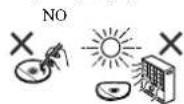

OuHcTka Kopnyca
PepnoDmuKCHN HPOTHRIE KOUPY MKNOJI KTHIOH O CHA6BM MMILINBMA pactBOPM,ATACM CYXOH TKAIIIO.
A OCTOPOXHO
Hc HcnoHbIyHe TJIaOHCTKx XMHNUCKHe BnICCTBa (6cHH,pa6aBHTbJIaKpACKn,HTn.)3To MoKeT hOBpeuHb KOpHyC.
Hc hcnnoyIeMa cnaBnryctyEeyoCTBa.3rO MoKet BrBNATb HcnpanpoTH.
Mepbl npdeoctopoxhoctn npy yctahOBke annapata BHTPNIQNk CO cTeKJIHHO DBepbIO
-He HaKaMaIe APEN/CLOSE HnyBte TYDnO tOKHmTIOKAAHCKPnAaKpBTOI cTeKINHHoDBePN.1Bcpe ByCT PnTnTcBObAT BHKCHNIO TOTKA DHC,TOMOKeT HOPeHbAIIHapA.

O BOCnpoN3BODnMbix φopMaTAX My3bikaihHbIX paJIOB
YnKTHIUSNNETWORKaHnHOpeepnepnnae cnyiHne pOmaTAt MybKaBnBbXbFbIob.
HOMHHTE,TOKOTOPBFOFOPMATHdAaHOHeIOCTYHHJINHOHCPOI3eHNN,NOTOH OHTEMeHN KAK BOICPOI3BOIMHE FOOPMTHdAaHOB.TAKKE,COBMCHTMOCTbFOOPMATOdHMCHRCETBCABHCMIOCHTOITHNACCPBCA.ⅡNOITBEPKCHHHCOBMCCHTMOCTHFOPMADHJOH,NIOIEpKHaAHMaBcCEPHPo,IPoepheCEpHep.
BxOaHTCHHb(FM) 75OM HCC6aIaHcHPOBaHHbI
YactoTHbI nnHaaOH (AM) 531 KTu 1602Kt
AHTeHHa (AM) .PamOHHa aHTeHHa
Bndeocekun
YpOBeHb CHHaHa (KOMIO3HTbH).Vp-p (75 OM)
Pa3dEn cetn
TepMaHa.1 LAN.. He3.o Ethernet
10BASE-T/100BASE-TX
Dpynhe pa3bEmbl
3nKtpnnrnnne
Hcpcnnn pa3bem USB 5B,21A
Paaemipod 5B,1,O A
3aHHpa3bem BixOa Hocr. rKa (H6ecupoBOHO
IokaJIbIOI cTeH) 5B,600 mA
OctanbHoe
HcOHTHIK UHTAHII . 220 B 20 240 B HepeM. TOKa, 50 Fu
IOTOC6JACMA MOHIOCTb
Bknnoe nntan 80BT
PeknM OKHJAHN 0.5BTHMHMeHBie
Pamcpli
Hnnnna 215 MM
Bbicota 111 MM
Iy6H 353 MM
Bcc. 4.7 kT
H3MCHBcI,PiHOCTaHaBAJIbBaC,IIpPbIBaTbC HJIN
HpckpaatbcbB HIOOC BpcMg63 IpcuynpcKJcHHN, H
KOMNAHNA Pioneer CHUMaER cce6IIOyIO OTBeTBeHHOCbB
CBH CNOTOOIMMH COBHTHM
KomnnaPioncc npcctabnactn Hn rapaHTnpcyt, Tc yuytnnoepueae coepekmmo 6ydyupooukntb npocetabnTbHn bvyTocytnnmBteeneonpceCIOIO pncpoA BpemcnH, nOkaIbnaCTcN OTIOBOI IOIOBOHII RAPAHIN, MBHOHNIOUpa3yMaem.
PIONEER CORPORATION, 2011.
Bce npaba 3aunuuehbl.
Software License Notice
Copyright: © 1998, 1999, 2000. This Open Source Software Center to and Clark Copper Copyright (C) 2001, 2002 Open mainlines. Permission is strictly granted, free of charge, to any person obtaining a copy of this software for associated documents ( files: "Software"). To die, in the Software without restriction), including without limitation the rights to use, copy, modify, merge, publish, distribute, sell, license, and/or sell copies of this Software, and to print to persons like whom his or her software is hired should be given
subject to the following conditions: The email copyright notice and IP-permission no.ice shall be included in all cases or substantial portions of the Software. THE SOFTWARE IS PROVIDED AS IS, WITH OIL WARRANTY OF ANY KIND. EXPRESS OR IMPLIED, INCLUDING BUT NOT LIMITED TO THE WAITING DELIVERY OF MERCHANTIAL UTILITY, FREESSE FOR A PARTICULAR PURPOSE AND NO INFRIMMENT (IN NO CREDITS) ALL THE AUTHOR'S OR COPYRIGHTS (IP- DFRS) AND THIS WORK BY ANY COMPANY DAMAGED OR ON OR LEAD LIABILITY BY OTHER IN ACTION OF CONTRACT TOGET OR OTR. OTR-WEIRIS ABRIISING FROM OUT OR FROM CONNECTION WITH THE SOFTWARE OR THE HE USE OR THE IDEAL DETAILS IN THE SOFTWARE.
libjpeg-6b
This software is used to part on the work of the Independent's FOG Group.
libpng
This copy of the flipping notices is provided for your convenience. In case of any discrepancy between this copy and the notices in the file pings that is included in the original digital-bullet: the latter will be cancelled.
If you notify libring you may insert additional mailers immediately for carrying in a sentence. libring copies are 12.6, August 10, 2001 through 1.2.35, February 11, 2009, are Copyright (c) 2004, 2006-2008 Glenn Handler's father, and are distributed to the publisher as part of the Locomotion series license as I concur 12.5 with this following individual posted to the list of Coebut, Inc., A.Thor.
Coo
illing version 1.0.7, July 1, 2002 through 1.0.5 - October 3, 2002 are Copyright (g) 2000-2002 Gluein Reminders Foundation, and are attributable to the author(s) of this work as: http://1.0.0 with the following individuals codes to the list of Supporting Authors
Simon-Pierre Codieu
S.Raymond
1.101010101010101010101010101010101010101010101010101010101010101010101010101010101010101010
C
There is no way against
In accordance with your enjoyment of the library against all rights reserved. There is no war only that, our efforts at the library will fulfill any of your particular purposes in order. This library is provided with all fruits, and the entire title satisfaction quality performance accuracy and effort is with the user
IPRings versions 07 January 1998, through 1.0.6, March 20, 2000, are: Copyright (c) 1995, 1999 © Hansard-Fehren, and are distributed according to the following terms of the copyright as follows: 2.96, with the following attribution rights to the list of Continuing Legal Authors.
10分Lane
Genn Fanders-Pehrson
Villeneuve Acte
Inp 86,1986
Copyright (c) 1996, 1997 Andreas Liège
Distributed according to the same
stockholder and license as listed on 10th August 2015. The following information is added to the list of contributing Authors:
BOWSER
Kevin Drapey
Santus
Magnus to green
Greg Roselofs
Library version 2.5, May 1985, Fromograph 2:86 January 1989, no.
Copyright: © 1995. 1996 Guy Price Schematic Group 42, Inc.
For the purposes of this oversight and beyond the "control building" realm, we have identified three key areas:
AoeessLiper
Dewey Martin
Cuy Fie Satei
Paul Schmidt
Jim Wegner
The PNS Reference Library is supplied 'AS IS', The Contributing Authors and Group 40, no.3: all-mailed warranties, expressed in pre-plied, including, without unmited, the warranties of merchantability and of fitness for any purpose. The Contributing Authors and Groups 41: Inc. assume no liability for direct, indirect, or contingent, special, exemplary, or consequential damages, which may result from the use of the 'PNS Reference Library, even if advised of the possibility of such damage.
Permisslon is hereby granted to use, copy, modify, and distribute this source code or port cons hereto, for any purpose, without fee, subject to the following restrictions:
hnsn of his
is misrepresented.
-
Altered versions must be plainly marked as such and must not be misinterpretation or being forged in any way.
-
This copyright notice may not be removed or cuture from any source or distribution in the form of a written or verbal agreement.
The Contributing Authors and Group 42:First, specifically commit, without any, and encourage the use of this source code as a component to supporting the PVS file
formal in commercial products. If you use this source code in a pretest,acknowledgment is required but we would be scorpe and are a long get copyrightfunction is available to convert use in"docl" words and text
```c
printf("%d\n", ©right(NULL))
Also, the PNG logo in PNG format, or course) is supplied in the files "log.cangang" and "print.log" and are available at http://www.png.com/09551
Lipong is OSI Certified Open Source Software, OSI Certified Open Source is a certification mark of the Open Source ILLustration.
Green Renders Prose
platinum.usc.edu/SourceCode/February 14,2009
libxml2
From date of otherwise noted in the source code, e.g. this hash.c.histo.c.trio the trio files, which are covered by a similar license but with different Copyright notices) all the files in Copyright (C) 1692003 David Villard, All Rights Reserved.
Permission is reserved granted, free of charge, in any person obtaining a copy of this software and associated documentation files (the "Software"), to deal in the Software without restriction on including without limitation the rights to use, copy, modify, merge, publish. This includes, in such cases, the right to copy the Software, and to permit persons to whom the Software is furnished to do so. The terms and conditions for copying and distribution are as follows: The above copyright cannot be used in any commercial or industrial use.
THE SOFTWARE IS PROVIDED AS 'AS IS' WITHOUT WARRANTY ANY KIND, EXPRESS OR IMPLIED, INCLUDING BUT NOT LIMITED TO THE WARRANTY ISSUES OF MERCHANT ANTABILITIES FITNESS FOR A PARTICULAR FLUOROSC AND
NON-BIN-SIP-TEMPORAL NOV.1974 THE DANH VILLA 10 BR LATI FOR ANY CLAIM, DAMAGE OR OTHER LIABILITY, WHETHER AN ACTION OF
CONNECTION WITH THE SOFTWARE ON THE USE OF OTHER DEALERS IN THE SOFTWARE
Zerogian is contained in this volume. The name of Daniel Valland shall not be used in advertising or otherwise to promote the sale, use or other uses in this software without prior written authorization from him.
libssh2
Copyright: doi: 10.2004/7/Sars.Siemmon sare@eiffisicsz.org
Copyright: © 2006-2007 The Witten Wijn
nc. All rights reserved
Both substitution and use in source and history forms, or in line without multifunctional, are permitted provides that the following conditions apply:
Redistribution of source code must refer to the source copyright notice, this list of conditions and the following circles may represent in any form must reproduce the above copyright notice, this list of conditions and the following circles may indicate the document creation and/or other materials provided with the distribution.
Neither the name of the copyright holder nor the name of any other contributors to this work are subject to any rights or products derived from this software without speci-c n or written permission.
THIS SOFTWARE IS PROVIDED BY THE COMPANY. THIS SOFTWARE AND SUBSTANCE ARE CURRENT CONTRACTS OF THE CANDIDATE. NONE ARE CURRENT CONTRACTS OF THE CANDIDATE.
DISCLAIMED IN NO EVENT SHALL THE COPIST BEAR OR CONTRIBUTIONS TO THE PRODUCTION OF ANYTHING IN EXCEPT NCID-NIAL SPECIAL EXAM. LIVING OR CONSEQUENT DISEASES
PRODUCTION OF SLIGHT ENDS 8000S OR SERVICES,LOSS OF USE,DATA OR PRODUITS OR BUSINESS IMPAIRMENTOWERS/CAUSE AND ANY OTHER IONG-OLABILITYWHEN IN CONVIACYSTRICT LIABILITY,OR TORT,INCLUDINGNIGRANCE OR STHRWES) ABISINGN ANY WAY OUT OF THE USE OF HISSOFTWARE EVEN IF ADVISED OF THEPOSSIBILITY OF SUICITANAS
#
Copyright: © 1999 Andreas Dliger
Copyright: © 2007 Theodora Lio.
Reconstruction and use is source and binary form, with without modification, are permitted; this provides that the following conditions are met:
-
Redesign butons of source code must retain the above copyright notice, and the entire permission shall not in any form, including the disclaimer of www.w3.org.
-
Electronic inputs in binary form must reproduce the above copyright text. This list of conditions and the following disclaimer: In the document citation and/or other materials provided with the distribution
-
The name of the author may not be used in connection to provide proofs provided from this work will not contain specific prior written content, saloon.
THIS SOFTWARE IS PROVIDED AS 'IS' AND ANY EXPRESS OR MYPLES WITHOUT PERMISSION, INCLUDING BUT NOT LIMITED. IF YOU LIKE THE WEARABLES OF MERCHANDIABILITY AND INNESS FOR A PARTICULAR PURPOSE, ALL OF WHICH IARC, INCIDEO DISCLOSED, IN NO EVENT SHALL I'T FAITH OR REFINANT FOR ANY DIRECT, INDIRECT, REACTIVE INDIVIDUAL SPECIALITY. EXCLUDING: THIS SOFTWARE'S USE BY ANYONE AT ANY TIME, THIS SOFTWARE WILL NOT LIMIT TO YOU. PROBLEM OF SUPPLYING OR ACCESS
INTERPRETION: HOWEVER CALLED AND ON ANYTHING OF FAIDUITY, WITH DILLER IN CONTRACT, STRICHTIARY, OR TORT (INCLUDING INFEGNANCE OR OTHERLY ASRISING IN ANYWAY OUT OF THE USE OF THIS SOFTWARE EVEN IF NOT ADVERTED OF THE POSSIBLE TY OF SUCH DAMAGE).
OpenSSL
The OpensSSL toolkit stays under a dual license, i.e. both the conditions of the OpensSSL License and the original OpensSSL core license apply to the toolkit. See below for the actual license texts. Actually both license holders are BSD-licensed Open Source software, but only one license holder related to OpensSSL please contact opensalescore@opensss.org.
OpenSSL License
Copyright (c) 1958-2000 The Copyright Project. All rights reserved.
Distribution and use in source and binary forms, with or without modification, are permitted provided that the following conditions are met:
1. Media communications or source code must retain the above copyright notice, this list of conditions and the following disclaimer:
2. Record/Exhibits in binary form (manual reproduced in the above copyright notice), this list of conditions and the following disclaimers in the document always agree with other materials provided with the distribution:
3. All advertising materials mentioning features or use of this software must display the following acknowledgment: This product includes software development and technical support for use in the OpenSSL tool. (http://www.copenss.org/)
The names OopenSSL Tookill and OpenSSL Project must be used to indicate or promote product is carried from this software without prior written permission. For written permission, please contact OpenSSL at: http://enssssssssssssssssssssssssssssssssssssssssssssssssssssssssssssssssssssssssssssssssssssssssssssssssssssssssssssssssssssssssssssssssssssssssssssssssssssssssssssssssssssssssssssssssssssssssssssssssss
This licence and distributed text terms for any publically viewed, in version or derived work of this article cannot be forged. So, this licence can not simply be copied and put under another distribution licence [including the GNJ Publ. licence].
GNU GENERAL PUBLIC LICENSE and GNU LESSER GENERAL PUBLIC LICENSE
IP: a product. Includes the following software license for use under the terms of GNU General Public License v2, GNU Lesser Gener. Public License v2.1 or LSFU
| | | | | | | | | | | | | | | | | | | | | | | | | | | | | | |
-
U.S.Copyright (C03-2006-2814. Addison-Wesley, Licensed under USP-LR2-1 Dec 1975) Copyright (C01-2007) The Direct & Organ Donation Act of Congress (Beechberg, 1998) Copyright (C01-2001) Convergence (Integrated media; Smith, 1995). Licensed under USP-LR2-1.
-
TruSeq 26 Copyright 2000-2004
Company of the United States Patent Office GmbH. Licenses under License 3/2017 -
- Copyright 2007-2010 The STK Trust: Licensee under SF, v2. Licensee: Copyright 2010 AIA Project: Licensee: v1 (G) v1.
-
Identities Copyright (C) 2000-2010
Underlying Technologies, Inc. Licensee
Unclear Grant No. 97 -
Ibid. Copyright (C) 2000-2014
Underlying Technologies, Inc. Licensee -
ibuprofen Copyright (CI 2005-2011)79
© NICEM Project License under Attribution
Lille 2002-2005 (ed. Copyright 2001) 2007 The Direct/F3 Organization (direct/Thug) Copyright 2003 2004 Convergence (Integrated media)
- -us-dil-glici-uncles uncer Glu2
guin Hicnncnng under Gp 6
Gru,5 Cnnpy 10006,2007,
2008,2009 Simon Joesfssen
Copyright (C) 2009, 2001, 2002, 2003,
2004, 2005 hoss
Maxroq amropulos, licensed under SPI12
quipt: iucnical under LGPI - qutmpayLncased under LGIF2 - ibnpct Copyright 2000, 2002, 2003, 2004, 2007, 2008, 2009 Free Software Foundation, Inc. - iucnical under S-PLS2
-gee.Licenced Under LSP/LP21 Total in Revenue under I.SPI 20.5 Vic Copyright (C) 1998 2006 The Vision Center, LLC licensed under S.P.L.P.
-egelLcensedunderGPLv2.0
--c.s.Located under SLP20
isBoth.Located under ULF.VQ.70
- USE Copyright © 2017-2027 Mixtio Size Ltd. Licensed under©PLv2
HNO_3 201 Cl_2O_4 FeS. Solid solution (formed monolayer (^N) )
- Copyright © copyright 2005, 2005, 2005, 2006, 2007, 510 Code GmbH AG (in German)
bioRxiv Copyright (C) 9'98/2020 IEEE Karl Andersen, Rob Landley, Derys Winkler and others. Licensed under \$F 5/2
- faxed Copyright (C) 2013-2015 M.
Pre-miss: Nersis & T. Lienard
Received: 16 March 2015
Can get corresponding open source code from the following URL:
http://www.nprison.com/ncrbs-mv/rw/AVR
can be suitable to ensure any questions that the source code for the open source code.
NO WARRANTY
BECAUSE THE ABOVE PROGRAMS ARE
LICENSED FREE OF CHARGE. THERE IS
NO WARRANTY FOR THE PROGRAMS TO
THE EXCTIPTMOTTED BY APPLICABLE
AW. EXCEPT WHEN OTHERS ARE STATED
N.W. FIGHTING THE COMPANY OHLIDNS
MAINTAIN OR HER PARENTS PROVIDE THE
PROGRAMS ASIST WITH OUT WARRANTY
OR THE PARTICULARS OF THE COMPANY
MEDIATE, INCLUDING DUTNOT LIMITED
Q. THE COMPANY WARRANTY OF
MERCHANT FITNESS AND FITNESS FOR A
PARTICULARLY PROPOSCE THE ENTERIC RISK
AS TO THE QUALITY AND PERFORMANCE OF
THE PROGRAMS AS-IS-WY-OU.
SHOULD THE PROGRAMS PROVE
DEACTIVE YOU ASSUMBE THE COST OF
ALL NecessARIL SERVIC INR REPAIR OR
CORRECTION.
N NO EVENT IS LESS REGULATED BY APPLICABLE LAW OR AGREED TO IN WRITING WILL ANY Copyright IT I 'DOLLER, OR ANY OTHER PART' WHO MAY MODIFY THIS PAGE OF THE SOFTWARE PROGRAMS AS PER THE ABOVE RULES TO YOU OR DAMINGS, INCLUDING ANY:
GENERAL SPECIAL,INCIDENTAL OR COVANCEDLNTED, DAMAGE ASURING OUT OF THE USE OF INABILITY TO USE HE PROGRAMS (INCLUDING BUT NOT) LIMITED TO LOSS OF DATA OR DATA 2018 RENDECE IN ACCURATE OR
LOSSES SUSTAINED BY YOU OR THE PARTIES OR A FAILURE OF THE PROGRAMS OR OBTAINED WITH ANY OTHER PROGRAMS, EVEN IF SUCH. HOLDER OR OTHER PARTY HAS BEEN AWONDED IN THE PROCESS OR WITHOUT.
Please refer to each license for further information.
http://www.gru.org/ licenses/gp-2.0.html, www.gru.org/licenses/byLicense.aspx 2.1.html
http://www.gru.org/licenses/byLicense.aspx 2.0.html
GNU GENERAL PUBLIC LICENSE
Vans van Z. J. de 1991
IntechOpen, Inc. 1981, 1991 Free Software Foundation, Inc.
51 Franklin Street, 11th Floor, Boston, MA 021-3103, USA
Everyone is referred to copy and attribute verbatim copies of this license document.
Preamble
The licenses for most software are designed to take away your freedom to share and change it. By contrast, the GNU General Public License is intended to guarantee your freedom to share and change free software to make sure the software is free for all its users. This General Public License applies to users of the Free Software
Foundations:software and its any otherprogram whose authors commit to using it. Isome other Free Software Foundationsoftware is covered by the GHL LesserGeneral Public License Instead You canapply it to your programs, too.
When we speak of free software, we are referring to freedom, not price. Our General Public License are designed to make sure that you have the freedom to distribute copies of free software and change for this service. You will know, that you receive access code or code on it. Get it if you want it: that you can change the software or use pieces of it in new free programs, and that you know you can do these things.
To protect your rights, we need to make restrictions that forbid someone to deny your rights or in any way to sue you. To cancel your rights, These malic-minded persons have a legal responsibility to stop you if they attribute copyright as the source of it to you merely it.
For each prime, I say it is unlikely to coproduce of such a program, whether girds or for a fee, you must give the recipients at the 'girds' that you love. You must make sure that they know how to do so, and get the source code and you must know how from where I can learn.
We protect you rights with two steps: 1) copyright the software, and (2) offer you this license which gives you legal permission to copy, distribute and/or modify the software. A for each, for each author's protection and ours, we want to make certain that everyone understands that there is no warranty for it. It's free software. If the software is
mited by someone else and passed on.
we want its recipients to know that what they have, and not the original, so that any programs intended by officers will not reflect on the original authors' calculations. Finally, any free program is threatened transiently by software patterns. We wish in this regard the changes that do not hold true of a free program will be visibly to obtain 'patent' licenses. In effect making the program proprietary. To prevent this we have made it clear that any patent must be licensed for every program's first line or much later than the precise terms and conditions for the application, distribution and modification following:
TERMS AND CONDITIONS FOR COPYING, DISTRIBUTION AND MODIFICATION
- This License applies to any program or other work which contains no notice placed by the copyright holder, saying it may be a distributed, noted the terms of this General Public License. "The Program", below, refers to any such
program or work, and a 'work host' on the 'Program' means either the Program or any derivative work on computer systems. The 'Program' can be building the 'Program' or a portion of it, either verbatim or with modifications and/or transits into another.
language: the/ma/ther, translation is included without limit on the term "modification" (Frida) because it is written as "you".
Activities other than copying, distribution and modification are not covered by this license; they are permissible in the case of running the Program. A program is not restricted, and the output from the Program is reserved for use only for the purpose of a work based on the Program (independent of having team made by name or sign). Program: Whether that is true or false on what the Program does.
- You may copy and distribute, in any medium or copies of this Program's source code on you receive it, in any medium, provided that you, conspicuously and appropriately publish on each copy an appropriate copyright notice and discuss the use of warranty, care included all the notices for which this document comes to the absence of any warranty, and give any other recipients of the Program a copy of this license along with the Program.
You may change a fee for the physical act of this offering a copy, and you may at your option on offer warrantly protection in exchange for a fee.
-
You may modify your copy or copies of the Program or any portion of it, thus forming a work based on this Program, and copy and distribute such modifications or work under the terms of Section 10(a) above, provided that you also meet all of these conditions:
a) If you must cause the modified file to stay company prominent notecas stating that you changed the files and the date of any change.
b) If you must cause any work that you distribute or publish, that in whole or in part contains or is copied from the Program, shall be published as follows:
c) Inlicenses shall be made for third parties, under the terms of this License.
d) If the modified program normally meets requirements in precisely when run, you must cause it, when started running for such interactive use in the most or any way, to print or display an announcement including an appropriate copyright notice and a monitor file (here is no warranty for errors, saying that you provide warranty), and that users may redistribute the program under these conditions without asking them to know how to view a copy of this License.
e) Except if the Program itself is interactive but does not normally print such an announcement, your work based on this Program is not required to print an announcement.
These requirements apply to the modified work as a whole. It containable sections of that work are not served from the Program, and can be reasonably considered independent and separate works in themselves; then the Lence and its terms do not apply to the Lence and its terms on that basis. It shall be separately wide. But what you distribute the same sections as part of a whole which is a work based on the Program, the distribution of the whole must be on the terms of this License, whose permissions for other licenses extend to the entire whole, and thus to each and every part regardless of who owns it. Thus, it is not the intent of this section in this right or control your rights to work written entry or you; rather, the intent is to exercise the right to control the activities of the publisher. This work cannot be used on the Program, in addition, mere aggregation of another work not based on the Program with the Program (or with a work based on the Program on a volume of a storage or distribution mind may not bring the other work under this scope of this License. -
You may copy and distribute the Program for a work review or file under Scier or 2 in object code or executable form under the terms of Sections 1 and 2 above provided that you also do one of the following:
a)Accompany with the complete corresponding machine-readable source code, which must be distributed under the terms of Sections 1 and 2 above on a medium, unit or customarily used as soft ware interchange;
b)Accompany with it with a written offer (for example, at least three years, in print any paper copy), as a charge to meet that your cost of physically performing source distribution, a complete machine-readable copy of the corresponding source code, to be distributed on the terms of Sections 1 and 2 above on a medium, unit or customarily used for software interchange or.
c)Accompany with it with the information you received as to the offer to distribute, to be responding source code, (this a verbatim is allowed only for noncommercial distribution and unless otherwise specified). For example, the program in object code or executable form with such an offer, in accord with:
Subsection 4 above. The source code for a work means the preferred form of the work for making mobile call letters to it. For an executable work, complete source code means all the source code for all modules it contains, plus any associated "surface deli" for files, plus the scripts used to control compilation and installation of the executable. However, as special exception, the source code distributed in this way may not be entirely valid (see the source's authorization binary form) with the major components compiler, kernel, and so on of the operating system on which the executable runs, unless that component itself accompanies the executable.
f) A distribution of executable or object code is made by copying access to copy from a designated place, then forming an electronic access to copy. For source code from the same place counts as distribution or source code, even though third parties are not required to copy the sources along with the object code.
g) You may not copy, modify, sublstantiate, or distribute the Program except as expressly provided under this License. Any attempt to otherwise in copy, modify, sublstantiate or distribute the Program is void, and will automatically terminate.
your rights under this License. However, persons who have received copies, or rights from whom you under this License will not have their Rights terminated so long as such parties remain in full members. You are not required to accept this License. Since you have not signed it. However, nothing else presents you permission to copy and distribute the Program or its derivative works. These additions are pitch-bitch by law if you do not accept this License. The whole, by modifying or distributing the Program for any work based on the (Program). you indicate your acceptance of this License to do so, and its terms and conditions for copying, attributing or modifying the Program or works based on this License. Such free use may be included in the Program for any work based on the (Program). In this case, automatically receives a license from the original License to copy, distribute, or modify the rights exercise of the rights granted herein. You are not responsible for enforcing compliance by third parties in this License; as a consequence of a court judgment or allegation of patent infringement, or for any other reason (red limit: in legal books), conditions are imposed upon you, whether by you or another agreement or otherwise that controls the conditions or this License, they do not excuse you from the conditions of this License, if you cannot to distribute so as to satisfy imitaneously your obligations under this License and any other pertinent old guidelines. Therefore,请您 sign your signature on the following form: I am /or/ this License. I am or/ or this License. I am or/ or this License. I am or/ or this License. I am or/ or this License. I am or/ or this License. I am or/ or this License. I am or/ or this License. I am or/ or this License. I am or/ or this License. I am or/ or this License. I am or/ or this License. I am or/ or this License. I am or/ or this License.
made generous contributions to the wide range of software and hardware.
To run the system in reliance on consistent application of that system, it is up to the authority or director to decide if she is willing to conduct software through any other system and a license cannot impose that choice.
This section is intended to make thoroughly clear what is being to be a consequence of the rest of this License.
If the platform used for use of the Program is restricted in certain countries it may be permitted by copyright law or laws. The original rights holder may refer to the Program under this License.
Program under this license may add an explicit geographical distribution limitation excluding those countries so that distribution is permitted only in a strong country (and thus excluded). In such cases, this License incorporates the limitations as it written in the body of this License.
The Program covers: Foundation may publish, review and/or sell new versions of the General Public License from time to time. Such new versions will be similar in spirit to the present version but may differ in detail to address new provisions or changes.
Each version is given a distinguishing vers or number, if the Program specifies a version number of this Version which includes its title and any later version, you have the option of following the terms and conditions either of that version or of any later versions published by the Free Software Foundation. If the Program does not specify a vers or number of this License, you may choose any vers or even published by the Free Software Foundation.
If you wish to include personal parts of his Program into other free programs whose distribution conditions are different, write to the author to ask for permission for copying. For more information about this program, please visit http://www.freesoftware.com Copyrighted by the Free Software Foundation, write to the Free Software Foundation: we sometimes move exceptions for this. Our decisions on will be guided by the two goals of prescribing the free status of all derivations of our free software and/or promoting the sharing and reuse of software generally.
NO WARRANTY
TBECAUSE THE PROGMAM IS
LICENSED-FREE OF CHARGE THERE
IS NO WARRANTY FOR THE
PROGRAM,TO THE EXTENT
PERMITTED BY APPLICABLE LAW.
EXHIX (WHEN OTHIRWIS-SIAHID IN WRITING THE COPIRISHI
HOLDER AND/OR OTHER PARTIES
PROVIDING THE PROGRAM AS IS! WITHOUT WARRANTY OF ANY KIND. FATHERED EXPRESSED OR IMPRESSED, INCLUDING BUT NOT LIMITED TO: THE IMPUCLO WARRINGS OF MFRCHANTARITY AND FITNESS FOR A PARTICULAR PLY,ROS-TH ENRICH RISCAS AS TO THE QUALITY AND PERFORMANCE OF HE PROGRAM/WHY U.S. SHOULD THE PROGRAM/PROVE DEFECT V YOU ASSUME THE COST OF ALL Necessary SERVICES, BEAR IF OR COMBINED. 12 IN NO EVENT UNLESS REQUIRED BY APPLICABLE LAW OR APPLICED TO IN INDIRECT OR ANY COVERAGE. HOLLIDIER OR ANYTHING BY ANYTHING MAY MODIFY ANYTHING OR BOTH THE PROGRAM AS permitted ABOVE BELEUDETO YOU FOR DAMAGE, INCLUDING ANY GFRENAL SPECIAI, INCIDENCE OR CONSEQUENT DAMAGE ASRINGS OUTOFT, EUSCE OR INADITY TO USE THIS PROGRAM INC. DUG BUT NOT LIMITED TO LOSS OF DATA OR DATA BEING REINDED INACCUPATE OR LOSS OF SUSTAINED BY YOU OR THIRD PARTS OR A FAILURE OF THE PROGRAM TO OPERATE WITH ANY OTHER PROGRAMS), TVN.50% (HOLLY) OR HIPPARTIES +N ADJAVELD OR PROPOSITY OF SUCHEARNES. END OF TERMS AND CONDITIONS How to Apply These Terms to Your New Programs If you disqualify in a new program, and you want to be of the greatest possible use to the cie, the best way to achieve this is to make it free software which contains system scan disk drive and change under these systems. I do so, attach the full owing notices to the program. It is safest to attach them to the start of each source file to most effectively convey the exclusion of warranty and each file should have at least the "color" print line and a pointer to whom the full notice is sent. The one line to give the program's name and an ose or what it does. Corresponding to: Cgjnyer name of author This program is free software you can distribute it as per modality under the terms of the GNU General Public License, which may be purchased from the free Software Foundation on either version 2 of the License, or fat your option any later version.
This program is distributed in the hope that it will be available on the Internet. Warranty: without warranty, this program will not replace the original warranty of MerCHANALIUIOR ITINSS FOR A PARTICULAR PURFUSION. See the GNL Gunner Public License for more details.
You should have received a copy of the GNL General Public License along with this program; if not, write to the Free Software Foundation Inc., 81 First-Strand, 45th Floor, Hoboken, NJ 02115-1321, USA.
A good information on how to contact you by electronic and postal mail. If the program is interested, please input a short notice like this when it starts in an interactive mode.
S-domain version 69, Copyright 1974 year name or author
S-domain version 69, in ARBIS ULYNTO WARTANY (or details type show w), in a is free software, and you are welcome to reduce abuse under certain conditions; type show c for all ages. The report of the comments show w and show s show a show a show the appropriate parts of the General Public License. Of course, this is a general public license, but may be modified by the users who sign the above and show s. if they can e every be mouse clicks or menu menus whatever suits your program. You should also get your permission from the program, if any. In sign a copy (or disclaimer) for the program, it necessary, here is a sample, after the names:
Yoyodyne Inc., hereby o's claims all copyright until the program "Gnivmiania" (with which makes passes al per laliter written by namesacked signature of y Coon, 1 April 1989. Ty Coon, President of Vice This General Public License does not permit incorporating your program into proprietary programs. If your program is a subroutine library, you may consider it more useful to import it linking proprietary appi cial ows of this library. If it is to what you want to do, use this NII Power Gunner Public License instead of this Public License.
GNU LESSER GENERAL PUBLIC LICENSE Version 2.1, January 1989.
Copyright (C) 1991, 1992 free Software Foundation, Inc.
a. Linkin Street, 11th Floor, Boston, MA 02101-1201 USA.
Evenona is permitted to copy and distribute verbatim copies of this license document, b. changing i n a step forward
This is the first, released version of the IonsGPI. It also counts as the successor of the GNU library "Public License", version 2, cannot the version number [2,1].
Preamble
The Licenses for most software are designed to take away your freedom to and change it. By contrast, the GNI Genera: Public Licenses are intended to give someone the right to share any changes in software. Is making sure the software is fair for all its users.
This license, the Lesser General Public License, applies to users who design or sell software packages. Typically libraries of the free Software Foundation and other authors who decide to use it. You can, as it too, but we suggest you think carefully about whether this license or the very general Public License is in its full extent. If a developer wants to make any part of his own, based on the express right of the user. When we speak of free software, we are referring to the version of your main package. Our German Public License is designed to be used for anyone who has this freedom to create a distributive code of free software (and charge for this service if you wish). That you receive source code or cargo will, if you want it. Then you can change this software and use pieces of it in new free programs, and that you are informed if you can do these things.
To prepare your rights, we need to make restrictions that force distributors to deny you these rights or to ask you to render these rights. These restrictions translate into setting some obligations for you if you should accept the terms of the合同 or if you modify it.
For example, if you do not, copies of the library, whether精品 or for a fee, you must give it the原件 all the rights. Final goal: given you, You must make sure The, they receive or can get the source code, if you link other codes with the library, you must provide complete object files to the recipient's, so that they can relink them with the library after making changes to the library and recommending it. Are you must show them these terms so they know their rights?
We needed your rights as well as sleep medication. (1) We copyright the library, and (2) We offer you this license, with a 7% query on each page. (3) We can copy, distribute and/or modify the library.
To protect each distributor, we want to make it very clear that there is no warranty for the free library. Also, if the library is modified by someone else and passed on to a different source, we will have no problem with the original version. So, The original author's result on will not be affected by problems that might be introduced by others.
Finally, software patents pose a consistent threat in the US alone of any free program. We wish to make sure that a company cannot effectively restrict the users of a free program by obtaining a restrictive license from a patent holder. Therefore, an invalid that any patent license obtained for a version of the library must be consistent with the law. Freedom of use specified in this license.
Moss, G.N. (1995). "The General Public License: A System of Rights and Responsibilities," in The General Public License. The License provides a set of rights and responsibilities for the use of the General Public License. This license, the G.N. License General Public License, permits users to design a license for their works, and is quite different from the General Public License. We use this license for all the licenses we accept to permit linking those works to other persons. When a program is linked with a library, whether it is actually using a published library, the compensation of the link is legally speaking a commodified work, a derivative of the original library. The general Universal Public License therefore permits us to link any linking party's code and contribution fits into the criteria of freedom. The Lesser General Public License permits more tax criteria for linking other code with the library. We call this law a "Lesser" General Public License because it does less to protect the users' freedom than the General Universal Public License. It also provides other free software over licenses Less or an additional license for sharing the code. These differences are not the reason we use the ordinary General Public License for many libraries. However, the Lesser license provides advantages in certain special circumstances.
For example, on rare occasions, there may be a special need to encourage the widest possible use of a certain library, so that it becomes a safe, friendly environment. To achieve this, non-free programs must be allowed to use the library. A more frequent case is that a free library does the same job as widely used non-free libraries in this case, there is little to gain by limiting the free library to free software only, so we use the Lesser General Public License. In other cases, permission to use a
part curo library in no-free programs enables a greater number of persons to use a large body of free software. For example, permission to use the GNU C Library in nonfree curo programs enables many more people to use the worldwide GNU operating system, as well as its variant, free GNU user operating system. Although the Lesser Genera. Public License is Less protective of the users' freedom it does ensure that the user of a program, that is indeed with the library has the freedom and the wherewithal to run this program using a modified version of the L library.
The precise terms and core criteria for
reporting, classification and replication
to follow. Pay close attention to the difference between a work based on the library and a
series that uses the library.The former
contains copies derived from the library,
whereas the latter must be compared with the library in order to run.
TERMS AND CONDITIONS FOR COPYING, DISTRIBUTION AND MODIFICATION
- This License Agreement applies to any software library or other program which contains a net license being placed on the system of the publisher. The terms and conditions are best kept in print before being published under the terms of this License - General Public License (also called "this License"). Each license is automatically signed by "you". All "I'm sorry" means a collection of software functions and/or codes, prepared so as to be conveniently linked with application programs (which use some of these functions and duties to be included).
The 'Library', now, refers to any such software library or work which has been distributed under these terms. A 'work' exists on the 'library' means either the Library or any derivative work under copyright law that is to say a work containing the Library or a portion of it, either written or with modifications, or written translated straightaway via a 'other language'. (Hobert Reller, translation is achieved without limitation in the term 'modification') "Sources model for a work's origins: the preferred form of the work or making it available" (p. 12). The 'source' is a source code source case monat zit the source code for a module contains it; plus any associated infrastructure definition I have, plus two scripts used to control completion and installation of the library.
Activities filter her copying, distribution and modification are not covered by this license; they are outside its scope. The actor or running a program using the Lbrans is not restricted, and output from such a program is covered by all its contents except a user's版权 on the library (except of the use of the Library in a tool for writing it). Whether that is true depends on the specific application of the program in that case that uses the Library does. So, may copy and distribute verbatim copies of the Library's complete source code as you receive it, in any medium, provides that you comply with and appropriately publish on each copy an appropriate copyright notice and disclaimer of warranty; keep intact; all
The notices that refer to this License and to the above reference of any warranty and, therefore, are copied of, this License along with the L. ovary. You may charge a fee for the physical sell of Transforming a cage, and you may at your option of a warranty protection in exchange for a tee.
You may modify your copy or copies of the Library or a portion of it, thus forming a work copy based on the Library, any copy and all its contents.
Most modifications or work under the terms of the Service Agreement, provided that you also accept all of these cases (1).
a) "To amend work must itself be a software library.
b) You must cause the files modified to carry prominent notices stating that you changed the files and the risks of any change.
cYou mustcause the whole of the work to be ended at to change to all third parties under the terms of this liqum
If the facility in the modified library refers to a fund or a table of data to be supplied by an application program that uses the facility, other than an argument passed when the facility is invoked, then you must make a good vote to ensure that, in the event an application does not supply such provision or table, the facility will report, and perform whatever part of its purposes remains meaningful.
For example, a function in a library to compute square root is a rule that specifies that it is entirely well defined and independent of the application. Therefore, Sub-section 20 requires that any application-specified "function" or table used by its function must be rational if the application does not supply it. The square root function must do some compute square roots.
These requirements apply to the first line work as a whole. If both side sections of that work are not derived from the Library, and can be reasonably compared in indeterminant and second-order cases, the author may use the same name, and his or her does not apply to both sections when you find it to belong as separate works. But when you discontinue the same sections as part of a whole which is a work based on this Library, the following section of the whole must be based on the term of this Library, whose permission for other clients extends to the entire whole, and thus to each and every client regardless of who wrote it.
Thus, it is not the intent of this section to claim rights or control your rights to work written—entirely by you; rather, the intent is to exercise the right to control the distribution of collective or collective works based on a library. In so last, more aggregation of another work not based on the Library with the Library or with a workload-based on the Library or with a volume of a storage or collection medium does not bring the other work under the scope of this License.
- You may opt to apply the terms of the ordinary GNB General Public License, instead of this license to a given agency of the library. In addition, you may amend all other terms of the original GNB General Public License, version 2. Instead of Is It's License, if it never contains then version 2 of Pro ordinary GNB General Public License has appeared, then you can see any (this version is published if you wish). Do not make any changes in these notices.
Once this choice is made in a green copy, it is irreversible for that copy, so the ordinary GNU General Public License applies to all subsequent copies and derivative works made from this copy. This option is useful when you wish to copy part of this code. In the binary file program that is not a binary,
- You may copy and distribute the library (or in position or derivation of 1, unclear Section 2) in object export or executable form under the terms of Sections 1.2 above provided that you accord carry it with the complete corresponding "meet-the-reusable source code", which must be translated under the terms of Sections 1.1 and 2 on a medium customarily used for software interchange.
If the number of objects made is made by offering access to copy from a designated place, then offering equivalent access to copy the source code from the same place satisfies the requirement to distribute the source code to all users. The process not only computes the copy the source code along with the object code.
- A program that classifies nondeterminative of any portion of the library, but is designed to work in the Library by being completed or linked with it, is called a "word that uses the Library". Such a word, in isolation, is not a part of the way of the Library, and therefore is unable to describe the type of the Library.
However, linking a work that uses the Library with this Library creates an exclusive title: it is derivative of the Library because it contains portions of the Library, rather than a "work" title. This is not an exception to Title 10, therefore covered by this License. Section 6 states terms for a distribution of such executed as
When a work that uses the Library" uses matter of from a header file that is part of the library. The object code for the work may be a derivative work of the Library even though the source code is not. Whether this is true, is especially significant if the work can be linked without it in a library, or if the work is "bad" a library, the threshold for it to be true is not precisely defined by aw. If such an object file uses only the following types: (1) hard drives, disks and accessories, and small machines and small internal functions (two lines or less - length), then the use of the object file is unrestricted, regardless of whether it is significantly a derivative work. Inevitably containing this object: code plus portions of it's Library will still fail under Section 4.1
Otherwise, if the work is a derivative of the Library, you may omit a attribute the object code to the work under the terms of Section 6. Any executables that are not included in the version of Section 6. weather or nothing they are linked directly with the Library itself.
As an exception to the Sections above, you may also combine or link a work that, as the Library's with the Library to produce a work containing portions of the Library. Also, a quote that works under terms of your choice, provided that the terms permit modification of the work for the customer's own use and reuse as engineering for debugging such modifications.
You must give preprinters notice with each copy of the work that the Library is used or it encodes that the Library and its use are covered by this License. You must supply a copy of this License. If the work during execution displays copyright violations, you must include the copyright notice for the library wrong them, as well as a reference directing the user to the copy of this License. Also, you must do公证 of these things.
comecte correspondirn machine- reacible source code for the library. Including whatever changes were used in the work (which must be illustrated in blue). I am not allowed, here, if the work is an executable limited with the Library.
with the complete machine-readable "very well known the library" article code and/or source code so that the user can modify the Library and then link to produce a modified . . . copyable command file the modified . . .目录,否则 understood that the user who changes the contents of definitions 1 uses in the Library will not necessarily be able to recomplete the application to use the modified shelllines.
b) Use a suitable shared library mechanism for linking with the Library & suitable mechanism is one of the first uses a minuscus copy of the library's already present on the user's computer system, rather than copying library functions into the executable, and 20 will operate proactively with an modified version onto the library. If this occurs inaccessibly, as long as the modified version is interface-compatible with the version that the library uses, it will be removed. c) Assume carrying the work with a written other value for at least three years, to give the some user the materials specified.) It is based on this above, for a charge no more than the cost of paying the third edition.
d distribution of the work is made by offering access to copy from a designated place, offer equivalent access to copy the above specified media or file from the same place. severity that the user has already
received a copy of these materials so you have already sent this user a copy.
I for an executable, the required form of the work that uses the Library must include any data and utility programs needed for reproducing the executable from it. However, as a supplement of examining the requirements, I will not include anything that is normally a directive to the source or binary form with which the major component's compiler, kernel, and so on of the operating system on with the executable runs, unless that component itself accompanies the requirements. I may happen that this requirement contradicts the license restrictions of other proprietary libraries that do not contain the necessary functionality in no system. Such a contradiction means you cannot use both them and the Library together in an executable that you distribute.
- You may place library facilities that are a work held on the library side by side in a single library together with other library facilities not covered by this
License, and discipline such a combination library, provided the following distribution of the work based on the Library and of the other libraries' facilities is either written, compiled, and provided that you do not use lists, diagrams, or copy the combined library with a copy of the same work based on the Library, uncombined with any other library facilities. This must be distributed under the terms of the Sections above.
courage a comment with the combined library of the fact that part of it's a work based on the literary, and explaining where to find the accompanying uncombined form of the same work.
-
You may not copy, modify, subsidize, link with, or distribute, but the receipt or expressly provided under this License. Any attempt otherwise to copy, modify, subsidize, link with, or distribute the License is void, and will automatically terminate your rights under this License. However, parties who have received copies, or rights, from you under this License will not have access to these licenses terminated so long as such series remains in full compliance.
-
You are not required to accept this License, since you have not signed it. However, nothing else gives you the right to use this License. The Library of its derivative works. These actions are prohibited by law. You do not accept this License. Therefore, by more firing or distributing the Library for any work based on the Library, you will be subject to a liability that is greater than the
Licence to do so, and all its terms and conditions for copying, distribute, but not modify or modify the library or users based on:
-
Each time you redistribute free Library for any work based on the Library, the rest part automatically receives a license from the original contributor to copy, distribute, link with or modify the Library's subject to these terms and conditions. You may not impose any further restrictions on the 'recipient' exercise of the rights granted here. You are not responsible for any printing compliance by third parties with this License.
-
It is as a consequence of a court judgment or at expiration of patent infringement or for any other reason not limited to patent issues, except that persons are required on you whether the patent application has been filed and/or the conditions of this License, they do not sue you from the conditions of this License. If you
cannot distribute your obligations under the Ibis章程 under these Ibis and any other legal obligations, then sa a consequence you may not disqualify the Library all. For example, if a patent holder would not permit yearly redistribution of the Library by all those who receive copies directly or indirectly through you, then the only way you could satisfy both it and his License use, he to be required entirely from his dilution of the Library. If any portion of this section is held in or unforfeitable under any particular circumstances, the balance of the decision is 'entitled to any law' and the action as a whole is 'entitled to apply in other circumstances.
It is not the purpose of this section to induce you to infringe any patents or a her property in right claims or in contest validity of any such claims. This section has the sole purpose of protecting the integrity of the free software of all rights, including the use of a license for electronic devices. Many people have made geneous contributions to the wide range of software distributed through that system in reliance on consistent application of that system. It is up to the author(s) to decide if she or he is willing to be eligible for software through any other system and a
This version is intended for use in:
thoroughly clear what is believed to be a consequence of the rest of this License.
12.1 the distribution and/or use of the Library is restricted in certain countries either by patients or by copyright granted interfaces, the original copyright holder who places the books under this License cannot sell or duplicate geographical distribution information excluding those countries so that their distribution is permitted only 10% among countries not fit to a excluded. In such case, this license incorporates the limitation as if written in the body of this License.
- The Free Software Foundation may publish revised or/or new versions of the Lesser General Public License from time to time. Such new versions will be similar in spirit to the previous version, but with some minor changes to address new problems or concerns. Each version is given a distinct regulating version number. If the Library specifies a version number of a License which applies to it and any later version, you have the option of following the terms and conditions as a fear of legal version or any later version published by the Free Software Foundation. If this library
does not specify a license versionnumber, you may choose any version of your publisher by the Free Software Foundation
- If you wish to incorporate parts of the library in order to install a system where this system will be able to run on a computer, then the following instructions will be used for software which is copyrighted by the F-Software Foundation, write to the F-Software Foundation: sometimes make explicit one's for this. Our decision will be guided by the two goals of preserving the free and open access of our libraries and ensuring the use of software generally.
NO WARRANTY
- "CITALLY" THE LIBRARY LICENSING OFFICE OF CHANGE, THEIRIS NO. WARRANTY OF THE LIBRADE TO THE EXTENT PAPERED BY APPLICABLE PROVISION FOR THE USE OF THE LIBRADE STATED IN WRITING THE FOLLOWS HOLDINGS AND ANYTHING OTHER MATTERES PROVIDE THE LIBRARY 'AUSING' WHIN 'L' WARRANTY OF ANY KIND, DIT DIR EXPRESSED OR EMPLOYED INC, DGR BUT NOT LIMITED TO THE MEDIEN WARD PATRICKS OF MECHANICAL AND FINANCE A PARTICULAR PURPOSE THE ENTER THE STAGE OF QUANTITY AND THE END OF FINANCE WHEN YOU SHOULD BE THE LIBRARY PROVE DEFECTIVE, YOU ASSURED THE COST OF ALL NecessARY SERVicing BEFORE OR CORRECT ON.
16 IN EVENTUALLY REQUIRED BY APPLICABLE JAW OR ASSEMBLED TO IN WRITING WILL ANY Copyright HOLD BY, OR ANY OTHER PARTY WHO MAY MOODY AND/OR BE DEDUCTIBLE THE LIBRARY AS BENTHED ABOVE BE LAIBLE TO YOU FOR DANVAGES, INCLUDING ANY GENERAL SPECIAL, INCIDUAL OR CONSEQUENTAL DAMAGES ASRISING OUT OF THE "TUTUL" OF THE TUTUL. (OR THE TUTUL) (OR THE TUTUL) (OR THE TUTUL) (OR THE TUTUL) (OR THE TUTUL) (OR THE TUTUL) (OR THE TUTUL) (OR THE TUTUL) (OR THE TUTUL) (OR THE TUTUL) (OR THE TUTUL) (OR THE TUTUL) (OR THE TUTUL) (OR THE TUTUL) (OR THE TUTUL) (TUTUL) (OR THE TUTUL) (OR THE TUTUL) (OR THE TUTUL) (OR THE TUTUL) (OR THE TUTUL) (OR THE TUTUL) (OR THE TUTUL) (OR THE TUTUL) (OR THE TUTUL) (OR THE TUTUL) (OR THE TUTUL) (OR THE TUTUL) (OR THE TUTUL) (OR THE TUTIL) (OR THE TUTIL) (OR THE TUTIL) (OR THE TUTIL) (OR THE TUTIL) (OR THE TUTIL) (OR THE TUTIL) (OR THE TUTIL) (OR THE TUTIL) (OR THE TUTIL) (OR THE TUTIL)
END OF TERMS AND CONDITIONS
How to Apply These Terms to Your New Libraries
I've developed a book library, and you want it in this? The greatest possible use is the public. We recommend 'making' this software for everyone can read/disclose and change. You can edit or copy from my preferred reading environment under these terms (as, alternatively, under the terms of the ordinary General Public License). To apply these terms, attach the following notices to the library. It is safer to attach them to a single chasm source file to most directly convey line exclusion of warranty, and each file should have at least one "copyright" line and a pointer to where I am writing.
can find to give the library's name and an idea of what I do.
Copyright © 2014 John Wiley & Sons
This library is free software for you to use.
Download it and/or modify freely (under the terms of the GNU License). General Public License is published by the free Software Foundation, either:
version 2.1 of the License, or (to your extent) any later version.
This library is distributed in the regular that it will be useful, but WITH OUT ANY WARRANTY: for those who wish to use this book, please use the following terms of reference: CRAFTABILICHOLD PUBLISSE. See the G.S.U Lasser General Public License for more details.
You should have received a copy of the BHU Master General Public License along with the following information:
- Copyright Information
- Publication, Inc. E1 Franklin Street, Fifth Floor, Boston, MA 02110-1001 USA
Also see in another on how to thank you by electronic and personal mail.
Yes, should also get your employer to if you work as a program manager or you ' re school. I have a great opportunity to be a copyright disclaimer of the library . If necessary , here is a sample of the names :
Yodaira, Inc., hereby to all matters all
coons' interest in the library: Vice
Librarian for working knowledge written by James
Sarafian.
signature of Yoon, 1 Apr 1960
Yoon, President of Vice "that's all there is it!
Примechанe:В coOTBETCTBn co CTaTbe 5 3aKaHa PocCnckOfФeepaunO“O 3aUnte npab NOTpeBnTeY"uKazAHMePapBnTeNbCTBa PocCnckOfФeepaunN No 720 ot 16 nHOy 1997 roDa kOpnpaunPioneer Europe NV yctaHbINBaetycIOBHe Ha cNeDyUOyI npOdoJXnTeMbHocTb cpoKa cnyk6bl OΦnuaJIbHo NOcTabnEMyx Ha PocCnckn pbHOK TObApOB.Aydno n BIndeoobopdyObaHne:7 netIpeHocHoe ayDnOobopdyObaHne:6 netIpyrOe obOpdyObaHne (HayuHnKn, MmKpOfoH n T.d.):5 netA bTOMobnIbHa nEKeTPOHnKa:6 net D3-7-10-6 A1 Ru
http://www.pioneer.co.uk
http://www.pioneer.fr
http://www.pioneer.es
http://www.pioneer.de
http://www.pioneer.it
http://www.pioneer.nl - http://www.pioneer.be
http://www.pioneer-rus.ru
http://www.pioneer.eu
© 2011 PIONEER CORPORATION.
All rights reserved.
© 2011 PIONEER CORPORATION.
HmnpTep: OOO "IIOHEP PYC"
125040, Pocca, r. MockBa, yn. PpaBbl, d.26 TeN.: +7(495) 956-89-01
PIONEER ELECTRONICS (USA) INC.
P.O. BOX 1540, Long Beach, California 90801-1540, U.S.A. TEL: (800) 421-1404
PIONEER ELECTRONICS OF CANADA, INC.
340 Ferrier Street, Unit 2, Markham, Ontario L3R 2Z5, Canada
TEL:1-877-283-5901,905-479-4411
PIONEER EUROPE NV
Haven 1087, Keetberglaan 1, B-9120 Melsele, Belgium TEL: 03/570.05.11
PIONEER ELECTRONICS ASIACENTRE PTE. LTD.
253 Alexandra Road, #04-01, Singapore 159936 TEL: 65-6472-7555
PIONEER ELECTRONICS AUSTRALIA PTY. LTD.
5 Arco Lane, Heatherton, Victoria, 3202, Australia, TEL: (03) 9586-6300
PIONEER ELECTRONICS DE MEXICO S.A. DE C.V.
Blvd.Manuel Avila Camacho 138 10 piso Col.Lomas de Chapultepec, Mexico
D.F. 11000 TEL: 55-9178-4270
Printed in China Imprimé en Chine <5707-0000-594-OS>