IP WiFi Autonome - Security Camera AVIDSEN - Free user manual and instructions
Find the device manual for free IP WiFi Autonome AVIDSEN in PDF.



| Product type | IP WiFi security camera |
| Brand | AVIDSEN |
| Model | IP WiFi Standalone (ref. 123985) |
| Video resolution | 1280 x 720 pixels (720p) |
| Viewing angle | 110° |
| Night vision | Automatic (infrared) up to 5 meters |
| Power supply | 5V DC / 1A (USB cable), 4 LR6 AA batteries or 4 rechargeable NiMH AA batteries |
| WiFi connectivity | IEEE 802.11 b/g/n 2.4 GHz, compatible with WPA/WPA2 |
| Storage | microSD card up to 128 GB (not included) |
| Audio | Built-in microphone and speaker for two-way communication |
| Motion detection | Yes, adjustable (sensitivity and time schedules) |
| Mobile app | IP Link (Android and iOS) |
| Protection rating | IP65 |
| Dimensions (W x H x D) | 100 x 70 x 55 mm |
| Weight | 180 g |
| Installation | Wall mounting (screws and plugs included) or on a flat surface with magnet |
| Usage | Indoor and outdoor (IP65) |
| Safety instructions | Do not expose to excessive humidity, direct sunlight, or chemicals; comply with local regulations |
| Maintenance and cleaning | Clean with a slightly damp soft cloth; do not use aerosols or abrasive substances; unplug before maintenance |
| Recycling | Do not dispose of with household waste; use selective collection points |
| Warranty | 2 years parts and labor (excluding damage by negligence) |
| Reset | Reset button at the back (press until beep) |
Frequently Asked Questions - IP WiFi Autonome AVIDSEN
User questions about IP WiFi Autonome AVIDSEN
0 question about this device. Answer the ones you know or ask your own.
Ask a new question about this device
Download the instructions for your Security Camera in PDF format for free! Find your manual IP WiFi Autonome - AVIDSEN and take your electronic device back in hand. On this page are published all the documents necessary for the use of your device. IP WiFi Autonome by AVIDSEN.
USER MANUAL IP WiFi Autonome AVIDSEN
2 - INSERTION D'UNE CARTE MICROSD (NON FOURNIE)
5 - DÉCLARATION DE CONFORMITÉ CE
DECLARATION DE CONFORMITE CE
A la directive RED
Battery-powered 720P IP WiFi camera
ref. 123985



CONTENTS
A - SAFETY INSTRUCTIONS 05
1-OPERATING PRECAUTIONS 05
2 - MAINTENANCE AND CLEANING 05
3-RECYCLING 05
B - PRODUCT DESCRIPTION 06
1 - KIT CONTENTS 06
2-CAMERA 06
C - INSTALLATION 07
1- INSTALLING THE CAMERA 07
2-INSERTINGAMICROSDCARD(NOT INCLUDED) 08
3-CONNECTING THE CAMERA 08
D - CONFIGURATION 09
1-CONFIGURING THE CAMERA AND ADDING IT TO THE APP 10
2- ACCESS TO ALL SETTINGS 11
2.1 - CONFIGURATION 12
E - OPERATION 13
1-LIVEVIDEO 13
2 - VIEWING VIDEOS TAKEN BY THE CAMERA 13
F-RESETTING 14
G - FAQ 15
H - TECHNICAL AND LEGAL INFORMATION 16
1-TECHNICAL CHARACTERISTICS 16
2 - WARRANTY 17
3- HELP AND ADVICE 17
4-PRODUCTRETURNS/FTERSALES SERVICE 17
5-ECDECLARATIONOFCONFORMITY 17
1 - OPERATING PRECAUTIONS
- The cameras must not be installed where the lens filter may be vulnerable to scratching and dirt.
- Do not expose the lens to direct sunlight or any reflected light source.
- Do not daisy-chain extension cords and/or multi SOCKET adapters.
- Do not install near acidic chemicals, ammonia or sources of toxic gases.
- The installation and use of the camera must comply with local laws.
2 - MAINTENANCE AND CLEANING
- Always unplug the product from the mains before carrying out any maintenance.
- Never use abrasive or corrosive substances to clean the products.
- Use a soft, slightly damp cloth.
- Never use an aerosol to spray the product as this may damage the internal workings.
A - SAFETY INSTRUCTIONS
3 - RECYCLING
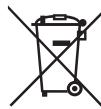
This logo denotes that devices which are no longer in use must not be disposed of as household waste. They are likely to contain hazardous substances that are dangerous to both health and the environment. Return the equipment to
your local distributor or use the recycling collection service provided by your local council.

B - PRODUCT DESCRIPTION
1 - CONTENTS OF THE KIT

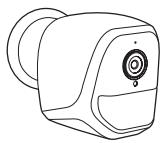





1 Camera
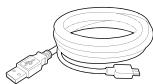
2 USB cable for powering the camera or recharging the batteries
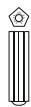
3 Wall plug for wall-mounting
4
news for wall-mounting
5
ol for resetting the camera
2-CAMERA
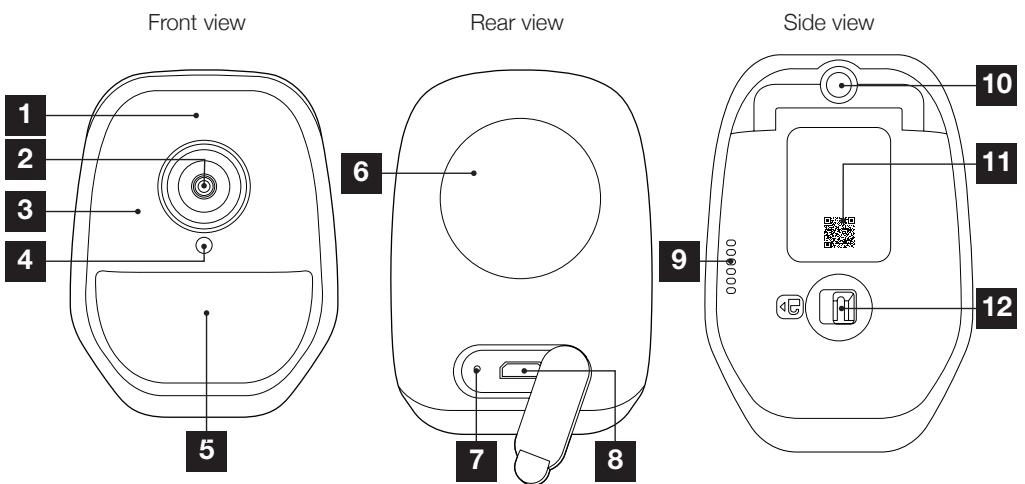
| 1 | Microphone |
| 2 | Camera lens |
| 3 | Infra-red light for night vision (all around the lens) |
| 4 | Dusk sensor for infra-red lighting control |
| 5 | Power indicator light |
| 6 | Magnet for wall mounting on the base supplied |
| 7 | Reset button: resets |
| 8 | Micro USB socket for powering the camera or recharging the batteries (cable supplied) |
| 9 | Loudspeaker |
| 10 | Screw-in foot plate (optional, not supplied) |
| 11 | QR Code to scan during set-up using the IP Link app |
| 12 | Access latch to batteries/power cells (not supplied) and to micro SD card slot (up to 128Gb, not supplied) |
1 - INSTALLING THE CAMERA
The camera can be powered by means of:
- A 5V USB port (telephone charger, PC, TV, etc.), where a minimum 1A is recommended
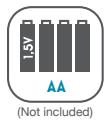
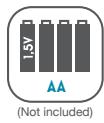
- By 4 LR6 AA alkaline batteries
- By 4 NiMH AA rechargeable batteries. In this case, the camera's wired connection can be used for recharging
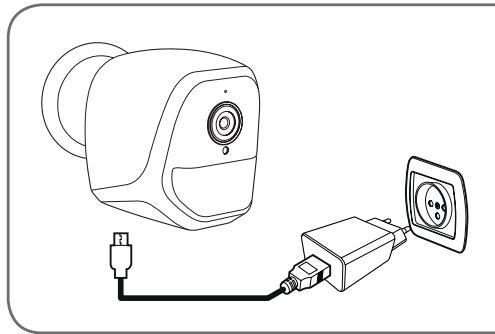
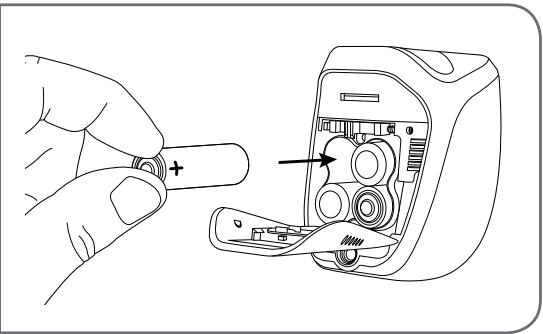
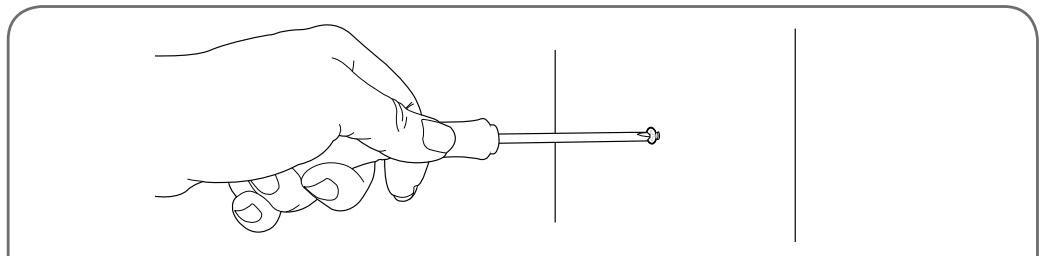
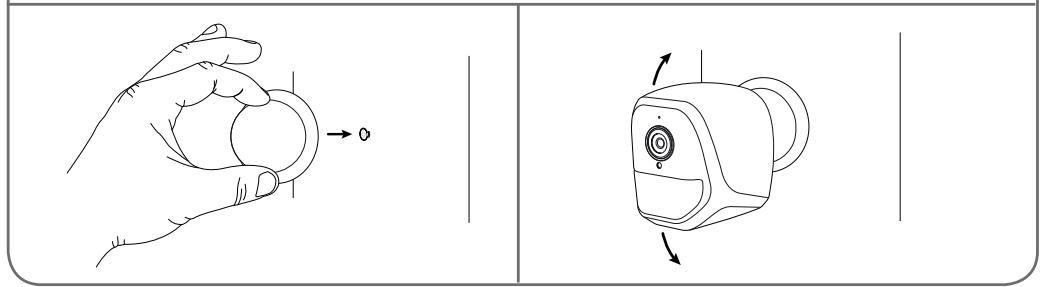
The camera can be attached to a wall, the ceiling or placed on a flat, horizontal surface.
Mount the camera using suitable screws and wall plugs for the type of surface (the screws and plugs supplied are suitable for solid walls).
Make sure the camera base plate is properly secured to prevent it from falling.
C - INSTALLATION
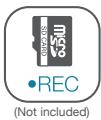
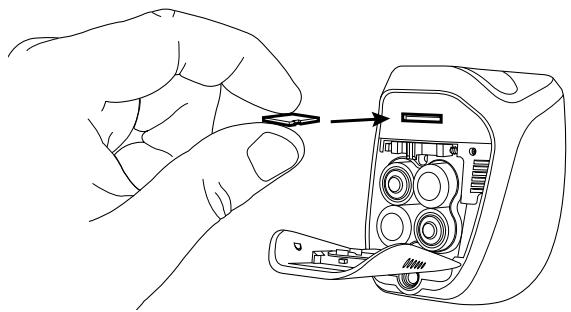
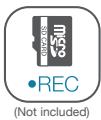
2-INSERTING A MICROSD CARD (NOT INCLUDED)
Your camera has a micro SD card slot, which gives it an internal storage memory. The maximum size is 128 GB. This use is optional, but it is necessary if you want the camera to record independently.
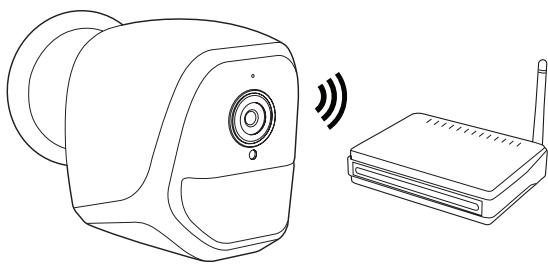
3 - CONNECTING THE CAMERA
D - CONFIGURATION
1 - CONFIGURING THE CAMERA AND ADDING IT TO THE APP
Note: the screenshots displayed have been taken from the Android version of the IP Link app. The iPhone version works in exactly the same way.
Download the IP Link app from the App Store or Google Play and then launch the app. Accept the authorisation requests sent by the app where required (access to the camera for scanning the QR Code, etc.).
Next, click on the icon.
The camera must be switched on and started up:
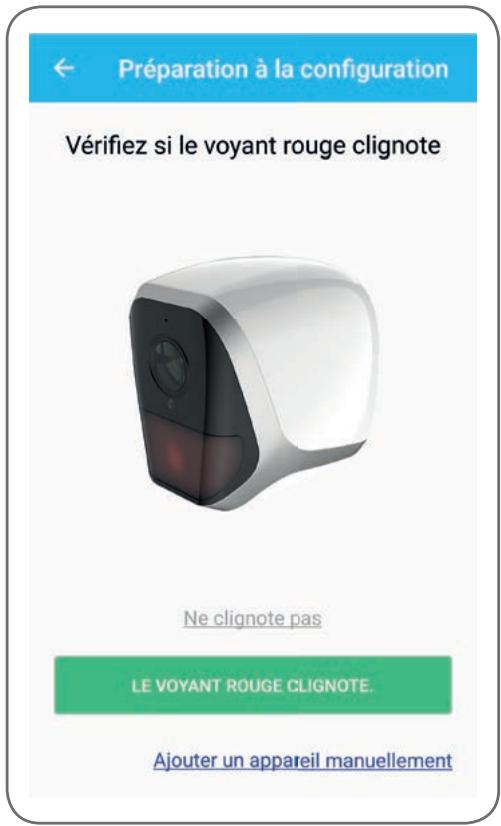
- If the camera does not flash red as requested, check the power supply and if necessary, restart the camera using the tool supplied: press the "reset" button next to the micro USB socket for at least 5 seconds and then wait.
- If you are sure that your camera is already connected to internet (for example: set-up already done on another smartphone), click on "Ajouter un apparéil manuellement" (add a device manually) to jump to the WiFi configuration step.
Click on "Le voyant rouge clignote" (the red indicator is flashing) when the camera is ready for the next steps:
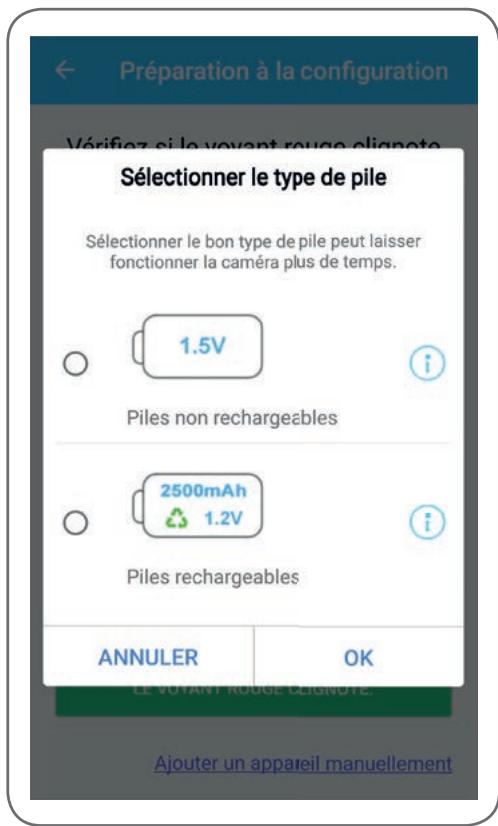
The app asks whether the device is being powered with rechargeable batteries or not, to ensure the remaining battery life is handled properly. Select the desired power option and then click on OK.
D - CONFIGURATION
Note: if you are powering the device with a USB cable, the response you provide is of no consequence.
Then scan the QR Code that appears underneath the camera:
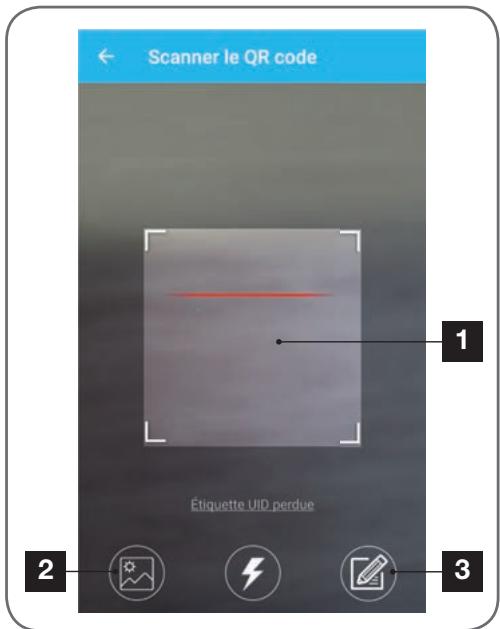
1 QR Code capturing zone
2 If you have a photo of the QR Code, you can use it by clicking here
3 You can also enter the ID of your camera manually by clicking here (the UID takes the format ABCD-123456-EFGHIJ and is marked on the camera near to the QR Code)
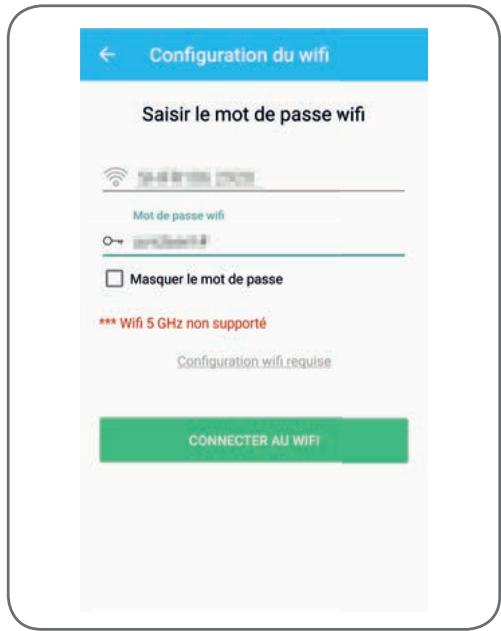
The app then asks you what network and what key it must send to the camera for internet access. By default, the name of the WiFi network is that to which your smartphone is connected.
Important:
Camera network compatibility: 2.4 GHz - 20/40 auto - WPA/WPA2.
Not compatible with 5 GHz WiFi, not compatible with WEP encryption.
Please check the WiFi settings of your gateway with your Internet service provider if you experience connection difficulties.
Click on CONNECTER AU WIFI (CONNECT TO WIFI) after having indicated theWiFi network to be used and the corresponding key.
The app will ask which password to associate with your camera. This password will have to be entered by any user providing them with access to the camera and images. We recommend a password with at least 8 characters and a combination of letters, numbers and special characters.
Ensure your smartphone's sound is enabled. Position yourself close to your camera with your smartphone (30cm) and click on SUIVANT (NEXT) to continue.
Your smartphone then sends the instructions to the camera. After a few seconds, once the camera has successfully connected to the network indicated by your smartphone, the camera emits a beep.

Configuration du wifi
Configurer le Wi-Fi

Temps resistant :178s
When your smartphone detects the presence of your camera on the network, it asks you which name it should use:

Use the names suggested by default by clicking on the name, or enter a name as desired and the click on ENREGISTERR (REGISTER). Pairing is now complete.
2 - ACCESS TO ALL SETTINGS
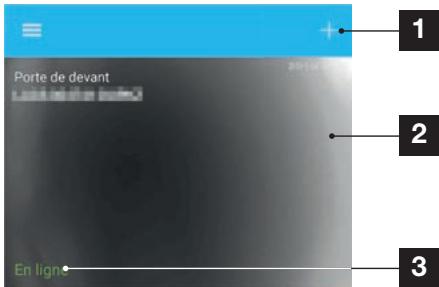
The app's default screen gives you access to images, its configuration, the contents of the micro SD card (not supplied) and the settings related to movement detection:
D - CONFIGURATION
| 1 | Add another camera to the smartphone |
| 2 | Preview of the video (refreshes automatically) |
| 3 | Connection status of the camera on the network |
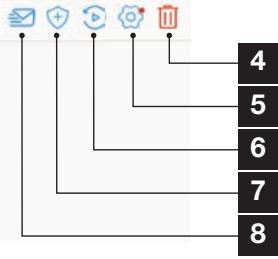
| 4 | Deleting the camera from the list of the app's known cameras (the camera will remain connected to internet). |
| 5 | Access to the full configuration of the camera |
| 6 | Access to the videos saved on the micro SD card inserted in the camera in calendar format (optional, not supplied) |
| 7 | Movement detection management: starting/stopping recording on the micro SD card when a movement is detected in the camera field The specific hours at which the movement detector should be stopped/restarted can also be specified, as can the angle of detection. |
| 8 | Enabling/disabling of “Do not disturb” mode: suppresses notifications in the event of movement detection (but keeps the movement detection active) |
2.1 - CONFIGURATION
After clicking on the image of your camera from the list of cameras, click on the icon to access the full configuration of your camera:
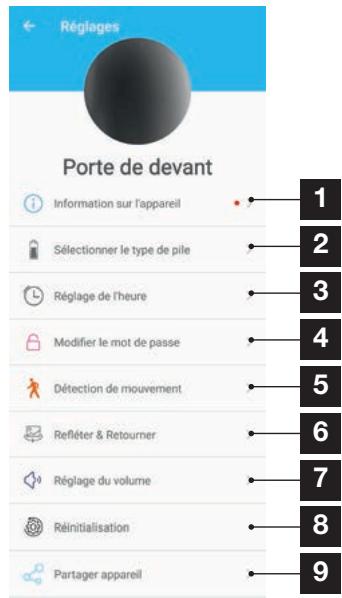
| 1 | Access to the personalised name of the camera and the version of the internal firmware. The presence of a red dot indicates the existence of an available update for your camera. |
| 2 | Selection of the type of batteries used to power the camera (rechargeable, or not) to consequently adjust calculation of the battery life displayed. |
| 3 | Setting of the time, time zone, enabling/disabling of daylight saving time. The time is used to programme movement detection slots, which are also embedded in the videos recorded. |
| 4 | Change of password required on login (the password created at the time of camera setup) |
| 5 | Enabling/disabling of the camera's movement detection. Automatic enabling/disabling of time slots can also be specified here for each day of the week, while the angle and sensitivity of the movement detection can also be adjusted. |
| 6 | Flip (mirror) and/or reverse the image if the camera is installed upside down. |
| 7 | Setting of the incoming (camera loudspeaker) and outgoing (camera microphone) volume This is also where you can switch off the light indicators at the front of the camera for more privacy. |
| 8 | Full camera reset |
| 9 | Camera sharing: here you can display and send the ID (UID) of your camera or an image of its QR Code. Note: the password that you created during set-up will also be required to enable the recipient to add and use the camera. |
1-LIVEVIDEO
From the list of cameras (home screen of the app after start-up), click on the image or name of your camera to display the live video:
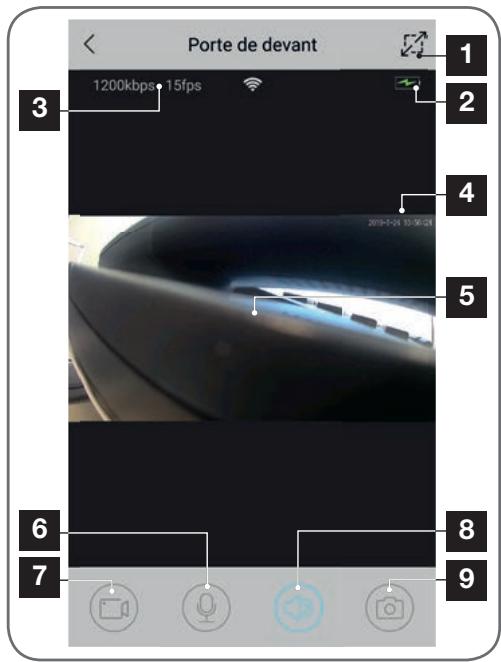
| 1 | Switching to landscape mode |
| 2 | Battery / power cell gauge |
| 3 | Current speed and number of images per second |
| 4 | Current date and time. This data is embedded in the image by the camera, and it also appears in the recordings. |
| 5 | Live video. You can zoom in by pinching the screen with two fingers |
| 6 | Smartphone microphone activation to speak through the camera's speaker |
| 7 | Start/stop of video recording (recording onto smartphone memory) |
| 8 | Switch camera sound on / off |
| 9 | Immediate photo taking (recording onto smartphone memory) |
2 - VIEWING VIDEOS TAKEN BY THE CAMERA
From the list of cameras, click on the icon to view the contents of the micro SD card (not supplied) and the recordings captured by the camera in your absence. If videos have been recorded on the MicroSD card (not included) inserted into the camera, their presence is indicated as follows:
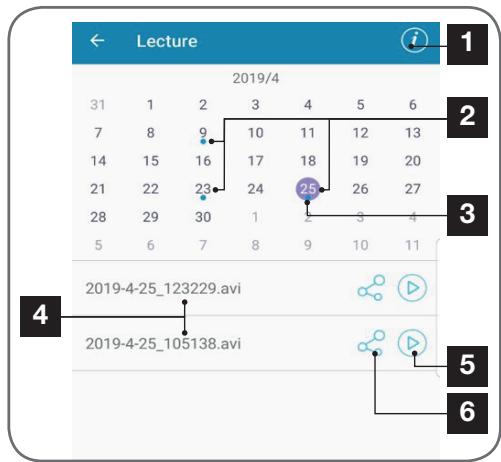
| 1 | Click here to access the enabling / disabling of looped recording (if enabled, the oldest videos will be overwritten by the most recent ones when the micro SD card becomes full) |
| 2 | The presence of blue dots next to the date indicates the presence of videos saved to memory. You can scroll through the months by sliding to the left or right. |
| 3 | The purple dot indicates the day currently selected |
| 4 | This list indicates the videos that have been saved based on motion detection for the day currently selected. Each video is named according to the start date and time |
| 5 | Click here to start viewing the applicable video |
| 6 | Click here to download, save or transfer the applicable video |
F - RESETTING
If there is a problem or in the case of a forgotten password, the configuration of the camera may be reset by pressing and holding the Reset button at the back until a beep is heard. Once reset, the camera will start up again. After 30 seconds, it is available for reconfiguration.
Note: Pressing the Reset button does not delete the camera from your app. If you keep the same password, the app. will provide access again. If you change the password, you will need to update it in the app to be able to assume full control of your camera.
| Symptoms | Possible causes | Solutions |
| Unable to install the IP Link app on my Android device | The version of Android on your device is out of date or incompatible. | Please contact the technical support of your device's manufacturer in order to obtain a recent Android version. |
| Google Play checks all the main components needed to run the app properly. If your equipment does not meet the necessary criteria, the installation will not be completed. | Try the installation on a different Android device. | |
| Unable to install the IP Link app on my Apple device | The version of iOS on your device is not up to date | Update the operating system on your device. |
| The camera is not detected as being online when wanting to connect it to a smartphone | Camera connection too slow | Temporarily connect your smartphone to the same network as the camera when adding to the app. |
| Cannot connect to camera over local network | Network/power supply issue | Check your network and electrical connections. Check the batteries or power cells. |
| Network configuration problem | Check your camera's network connection settings. | |
| The camera feed cannot be accessed over the internet | Network configuration problem | Check your device settings (box, router) |
| Movement detection is triggered unnecessarily | Unsuitable movement detection settings | Position the camera. Adjust the angle and sensitivity |
| The camera is not detected as being online when wanting to connect it to a smartphone | Camera connection too slow | Temporarily connect your smartphone to the same network as the camera when adding to the app. |
H - TECHNICAL AND LEGAL INFORMATION
1-TECHNICAL CHARACTERISTICS
| Camera | |
| Power supply | 5VDC / 1A or 4 LR6 AA batteries or 4 NiMH AA batteries |
| Wireless network interface | WiFi IEEE 802.11 b/g/n 2.4Ghz WPA/WPA2 compatible |
| Optical sensor | 1/4" CMOS |
| Minimum luminous intensity | 0 lux |
| Night vision | Automatic (dusk-to-dawn sensor) Range: 5m |
| Viewing angle | 110° |
| Buttons | WiFi setting reset button |
| Video compression | H.264 |
| Resolution | 1280x720 pixels |
| Audio | Built-in microphone and loudspeaker for two-way audio communication |
| Storage | 1 micro SD card slot up to 128 GB memory for storing video via remote access |
| Operating temperature and humidity | -10°C to 50°C, 10% to 90% RH, non-condensing IP65 protection rating for indoor and outdoor installation |
| Dimensions | L100mm x H70mm x D55mm |
| Weight | 180g |
H - TECHNICAL AND LEGAL INFORMATION
2 - WARRANTY
- This product is under warranty for parts and labour for 2 years from the date of purchase. Proof of purchase must be retained for the duration of the warranty period.
- The warranty does not cover damage caused by negligence, knocks or accidents.
The warranty will be void if the device is tampered with.
3 - HELP AND SUGGESTIONS
- If, in spite of the care we have taken in designing our products and drafting these instructions, you do encounter difficulties when installing your product or you have any questions, we recommend you contact one of our specialists who will be glad to help.
- If you encounter operating problems during the installation or a few days afterwards, it is essential that you are in front of your installation when contacting us, so that one of our technicians can diagnose the source of the problem, as it will probably be the result of a setting that is incorrect or an installation that is not to specification. If the problem is caused by the product itself, the technician will give you an RMA number so that you can return the unit to the shop. Without this RMA number, the shop may refuse to exchange the product.
Contact our after sales service team technicians:
0892701369
Service 0.35€ / min +prix appel
Monday to Friday, 9AM to 12PM and 2PM to 6PM CET.

Need some help?
Avidssy
will answer your questions on
www.avidsen.com
4-PRODUCT RETURNS - AFTER SALES SERVICE
If, despite the care we have taken in designing and manufacturing your product, it needs to be returned to our customer service centre, you can check the progress of the work on our website at the following address:
http://sav.avidsen.com
Avidsen undertakes to keep a stock of spare parts for this product throughout the contractual warranty period.
5 - EC DECLARATION OF CONFORMITY
DECLARATION OF EC CONFORMITY
Per the RED directive
Declaration of conformity with the RED Directive SMART HOME FRANCE
hereby declares that the equipment designated below:
720P HD indoor IP camera 123980
Complies with the RED 2014/53/EU directive and that its conformity has been assessed pursuant to the applicable standards in force:
EN60950-1:2006+A11:2009+A1:2010+A12:
2011+A2: 2013
EN62479:2010
EN301 489-1 V2.2.0:2017-03
EN301 489-17 V3.2.0:2017-03
EN300 328 V2.1.1:2016-11
In Tours on 06/05/19
Alexandre Chaverot, CEO
SmartHome France
19 avenue Marcel Dassault
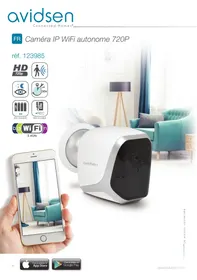
Autonomous IP wifi camera 720P
ref. 123985



INHOUDSOPGAVE
A - VEILIGHEIDSVOORSCHRIFTEN 05
1- GEBRUKSVOORSCHRIFTEN 05
2-ONDERHOUD EN REINIGING 05
3-RECyclAGE 05
B-BESCHRIJVING VAN HET PRODUCT 06
1-INHOUD VAN DE KIT 06
2-CAMERA 06
C - INSTALLATIE 07
1- INSTALLATIE VAN DE CAMERA 07
2 - EEN MICROSD-KAART PLAATSEN (NIET MEEGELEVERD) 08
3 - AANSLUITING VAN DE CAMERA 08
D-CONFIGURATIE 09
1- CONFIGURATIE VAN DE CAMERA EN TOEVOEGEN AAN DE TOEPASSING 10
2-TOEGANGTOTALLEINSTELLINGEN 11
2.1 - CONFIGURATION 12
E - GEBRUIK 13
1-LIVEVIDEO 13
2 - RAADPLEGEN VAN VIDEO'S DIE MET DE CAMERA ZIJN OPGENOMEN 13
F-RESETTEN 14
G - FAQ 15
H - TECHNISCHE EN WETTELIJKE INFORMATIE 16
1-TECHNISCHEEIGENSCHAPPEN 16
2-GARANTIE 17
3-HULP EN TIPS 17
4-RETOUR PRODUCT - SERVICE NA VERKOOP 17
5-CE CONFORMITEITSVERKLARING 17
A - VEILIGHEIDSVOORSCHRIFTEN
Compatible network camera: 2.4GHz - 20/40 auto - WPA/WPA2
Niet-compatible wifi 5 Ghz nicht-compatible WEPCoding.
1- INSTALLAÇAO DA CÁMARA
De segunda a sexta-feiran entre as 9h e as 13h e entre as 14h e as 18h.

Precisa de ajuda?
Avidssy
responde as susas perguntas nosite www.avidsen.com
Câmara IP interior 720p HD 123980
A Anything's done.
A good job is done.
A good job is a good job.
A good job is a good job.
A good job is a good job.
Important:
Compatible rete 2.4GHz - 20/40 auto - WPA/WPA2. Non compatible Wi-Fi 5Ghz, non compatible critografia WEP.
G - ΣYXNEΣ EPΩTHΣEΙΣ 15
E - TEXNIKEΣ KAI NOMIKEΣ ΠΛHPOΦΟPIEΣ16
1-TEXNIKA XAPAKTHPII2TIKA 16
2- EΓYH∑H 17
3-BOHGEIA KAI SYMBOYAE
4- ENIΣTPOΦH ΠPOIONTOΣ - EMΠ 17
5- H H YMMOP H CE 17
1 - ΠPOΦYΛΕΕΙΣ XPHΞΗΣ
H kaepa 8ev npenei va eYkaioitaiae anmuio onou to qiltpo tou qakou 8a ektiotai 8e tuxov ypatouviec kai akaapoeic.
O akoc npenei va ektithetaai aneuthetaiae c tou nliou n onoiabnnotnnyn t c uavaklaoeic.
Mny xpnoiunoiieiT noIunpica kai kaawia enktaoanc.
Na unv tov ykaotate kovta o npoiovta u xnmuoka eea, aumwia n oe nnye ceknounnc tokiow aeipw.
H kaepa 0 npenei va ykaioatai kai va xpnoiunoieitai ouuwova e Tnv tonik voofoeia.
2 - ΣYNTHPHΞH KAI KAΘΑΡΙΣΜΟΣ
- Piv ano Tny ekTeAeon ooiwOfnote epyaaiov ouvtnpnoc, aoouvOeTo Tpoqodotiko.
Mny katheta to npoiov oKAnpEc ndeltaPwTikEc ouieC.
XpnoiunoiieTe eva anlo alambda navi, a
Mny k to npoiov k o p a, kaohc evoexetai va npoknthetai n 0to eowtepikotou.
3-ANAKYKΛΩΞH
'AutoTo loyotuno anmuivei otoi axpntoe c ouokeuec dev npene va anoppintovtai mazi me ta oikiaka anoppiuata. O enikivuvc ouiec nou evexouevwca vanepiexouv umopei va blambdaouv tnv avtheta nivn
uyia n to npiBaalov. EniotpEpsiE autcTic
oukeuec otnv avtinpoosnia n
xpoimonoiote ta eaa eniAektknc
avakoiDn anoppmuatwv nou diatioevtai
ano to dnoac,


- - INSERTION D'UNE CARTE MICROSD (NON FOURNIE)
- - DÉCLARATION DE CONFORMITÉ CE
- Battery-powered 720P IP WiFi camera
- CONTENTS
- A - SAFETY INSTRUCTIONS 05
- B - PRODUCT DESCRIPTION 06
- C - INSTALLATION 07
- D - CONFIGURATION 09
- E - OPERATION 13
- F-RESETTING 14
- G - FAQ 15
- H - TECHNICAL AND LEGAL INFORMATION 16
- - OPERATING PRECAUTIONS
- - MAINTENANCE AND CLEANING
- A - SAFETY INSTRUCTIONS
- - RECYCLING
- B - PRODUCT DESCRIPTION
- - CONTENTS OF THE KIT
- 2-CAMERA
- - INSTALLING THE CAMERA
- C - INSTALLATION
- 2-INSERTING A MICROSD CARD (NOT INCLUDED)
- - CONNECTING THE CAMERA
- D - CONFIGURATION
- - CONFIGURING THE CAMERA AND ADDING IT TO THE APP
- Important:
- Configuration du wifi
- - ACCESS TO ALL SETTINGS
- - CONFIGURATION
- 1-LIVEVIDEO
- - VIEWING VIDEOS TAKEN BY THE CAMERA
- F - RESETTING
- H - TECHNICAL AND LEGAL INFORMATION
- 1-TECHNICAL CHARACTERISTICS
- - WARRANTY
- - HELP AND SUGGESTIONS
- 4-PRODUCT RETURNS - AFTER SALES SERVICE
- - EC DECLARATION OF CONFORMITY
- Autonomous IP wifi camera 720P
- INHOUDSOPGAVE
- A - VEILIGHEIDSVOORSCHRIFTEN 05
- B-BESCHRIJVING VAN HET PRODUCT 06
- C - INSTALLATIE 07
- D-CONFIGURATIE 09
- E - GEBRUIK 13
- F-RESETTEN 14
- H - TECHNISCHE EN WETTELIJKE INFORMATIE 16
- A - VEILIGHEIDSVOORSCHRIFTEN
- 1- INSTALLAÇAO DA CÁMARA
- Avidssy
- G - ΣYXNEΣ EPΩTHΣEΙΣ 15
- E - TEXNIKEΣ KAI NOMIKEΣ ΠΛHPOΦΟPIEΣ16
- - ΠPOΦYΛΕΕΙΣ XPHΞΗΣ
- - ΣYNTHPHΞH KAI KAΘΑΡΙΣΜΟΣ
- 3-ANAKYKΛΩΞH
Brand : AVIDSEN
Model : IP WiFi Autonome
Category : Security Camera