
NC - Loudspeaker BANG & OLUFSEN - Free user manual and instructions
Find the device manual for free NC BANG & OLUFSEN in PDF.



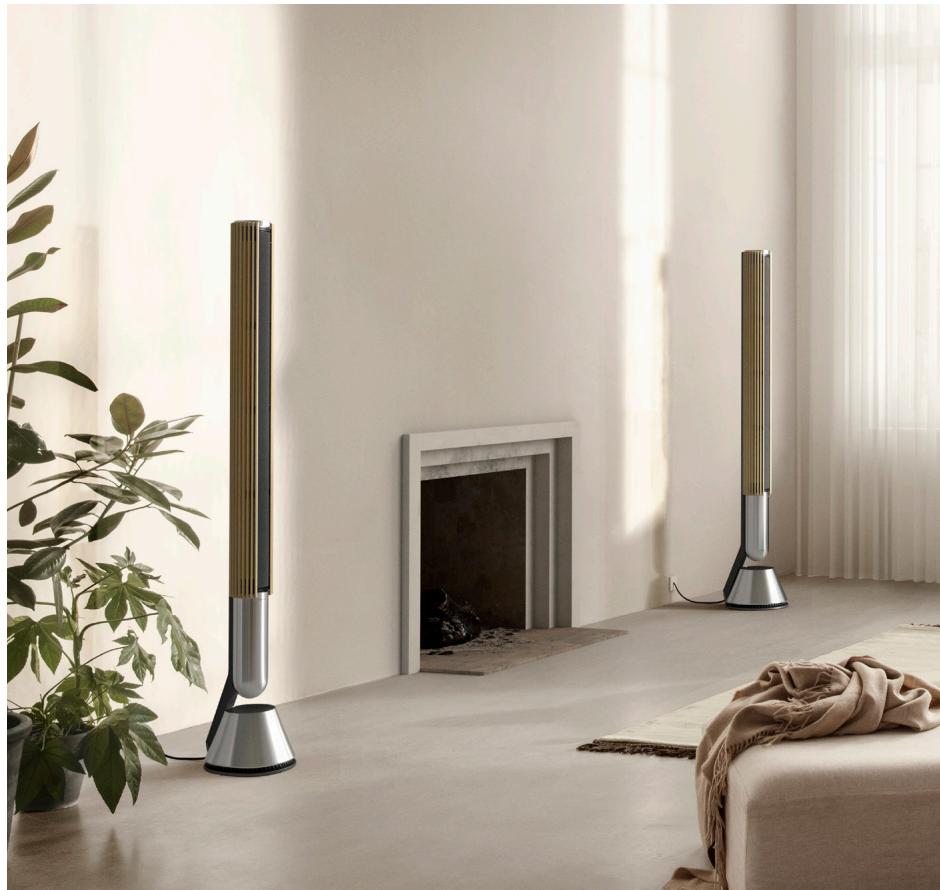
| Product Type | Wireless Stereo Speaker |
| Model | Beolab 28 (NC) |
| Brand | Bang & Olufsen |
| Dimensions (H x W x D) | 1130 x 193 x 213 mm |
| Weight | 28.5 kg |
| Power Supply | 110-240 V AC, 50/60 Hz |
| Power Consumption (Standby) | < 0.5 W |
| Wireless Connectivity | Wi-Fi 5 (b/g/n/ac), Bluetooth 5.0, AirPlay 2, Chromecast, Spotify Connect, Wireless Powerlink |
| Wired Connectivity | 2 x Ethernet, 1 x Powerlink, 1 x 3.5 mm Mini-jack / Optical, 1 x USB-C (service), 1 x USB-A (service) |
| Main Features | Built-in B&O Radio, listening modes (Optimal, Conversation, Social), beam width adjustment (WIDE/NARROW), acoustic calibration, 4 favorite buttons, top touch control |
| Supported Audio Formats | MP3, AAC, WAV, FLAC, ALAC (depending on source) |
| TV Compatibility | Compatible with Bang & Olufsen TVs (wired or wireless Powerlink) |
| Control App | Bang & Olufsen App (iOS/Android) |
| Housing Materials | Aluminum, acoustic fabric (interchangeable curtains) |
| Maintenance and Cleaning | Clean with a soft, dry cloth. Do not use abrasive products or liquids. The fabric curtains can be dusted with a low-power vacuum cleaner. |
| Safety | Do not expose to moisture or liquids. Do not open the device. Disconnect before cleaning. Keep out of reach of children. |
| Spare Parts and Repairability | The curtains are interchangeable (available in different colors). For any repair or spare part, contact an authorized Bang & Olufsen dealer. The device is not designed for user repair. |
| General Information | Warranty: 2 years (according to local legislation). Made in Denmark. For more information, visit www.bang-olufsen.com. |
Frequently Asked Questions - NC BANG & OLUFSEN
User questions about NC BANG & OLUFSEN
0 question about this device. Answer the ones you know or ask your own.
Ask a new question about this device
Download the instructions for your Loudspeaker in PDF format for free! Find your manual NC - BANG & OLUFSEN and take your electronic device back in hand. On this page are published all the documents necessary for the use of your device. NC by BANG & OLUFSEN.
USER MANUAL NC BANG & OLUFSEN
PykoBODCTBONoJIb3ObaTeJIA
Anvandarhandbok
用户指南
使用者指南
CONTENTS
English, 3
Dansk (Danish), 11
Svenska (Swedish), 19
Norsk (Norwegian), 27
Deutsch (German), 35
Français (French), 51
Espanol (Spanish), 59
Italiano (Italian), 67
Portugués (Portuguese), 75
Pycckn (Russian), 83
日本語 (Japanese), 91
Korean (Korean), 99
简体中文(Simplified Chinese),107
繁體中文(Traditional Chinese),115
Get started.
INTRODUCTION
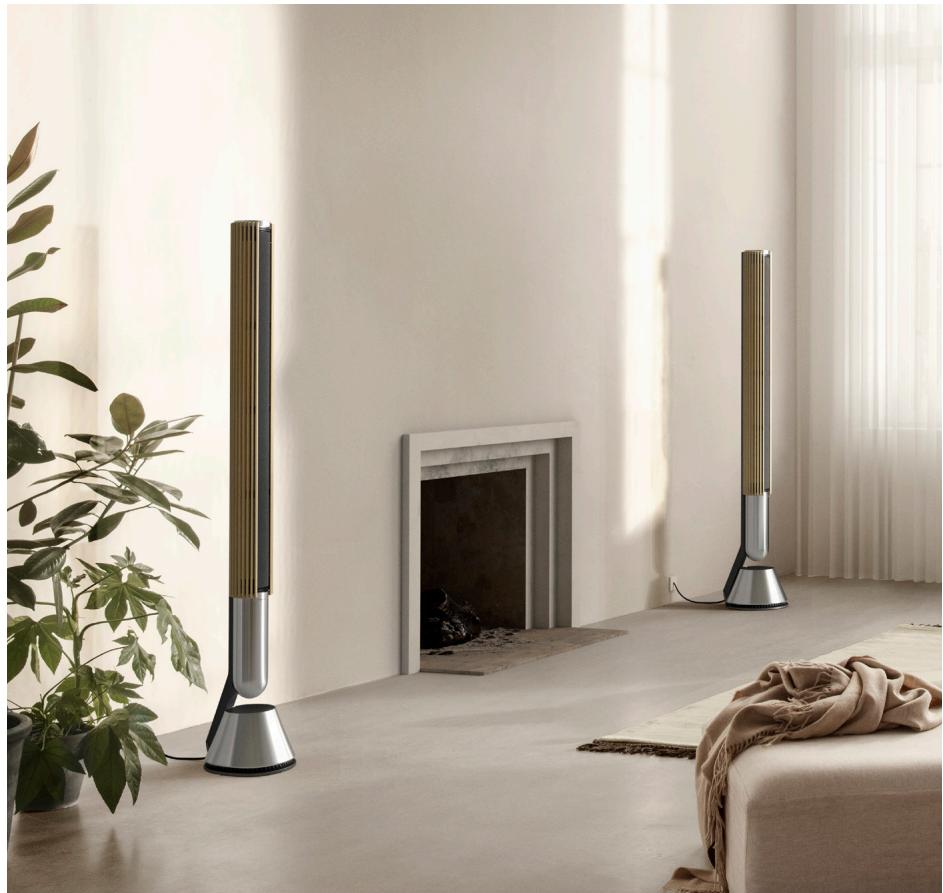
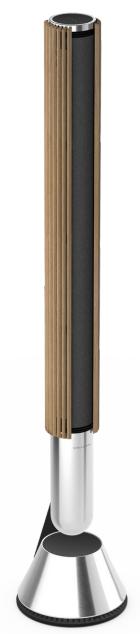
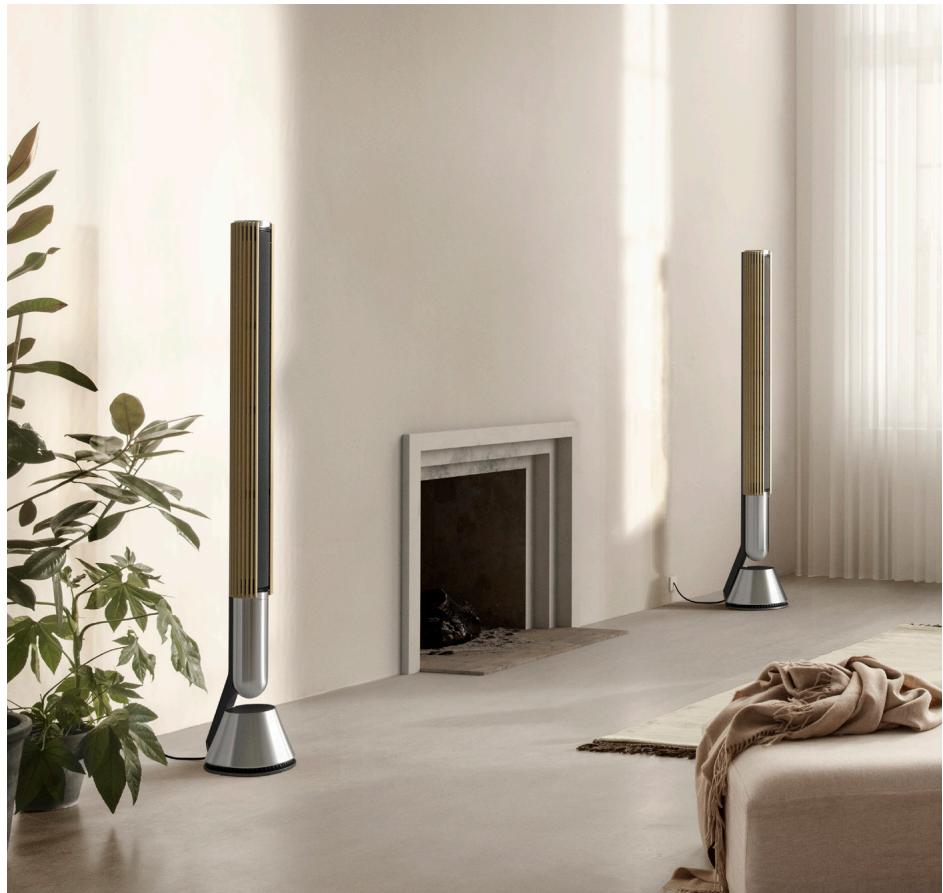
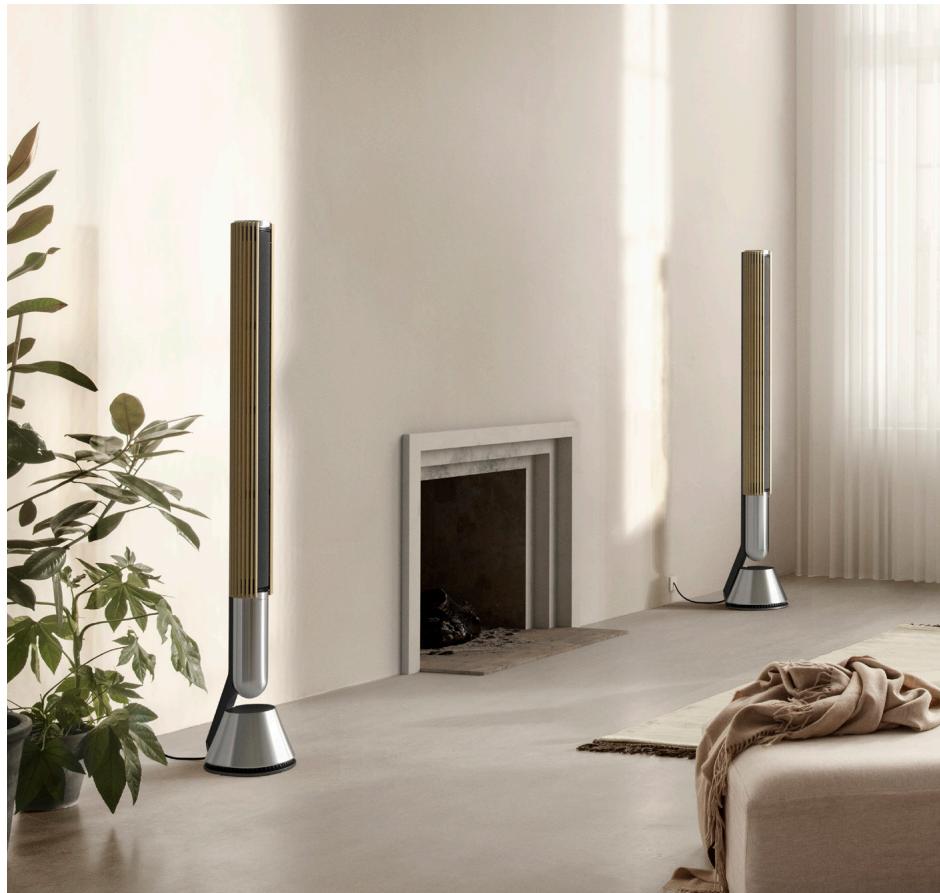
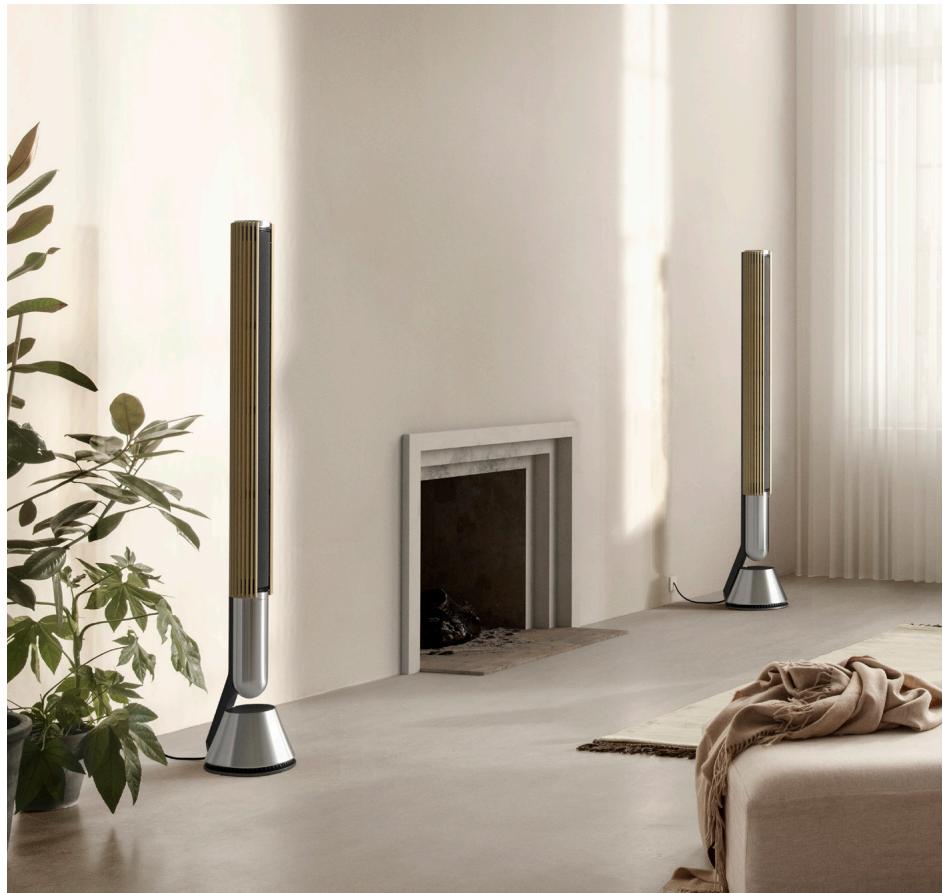
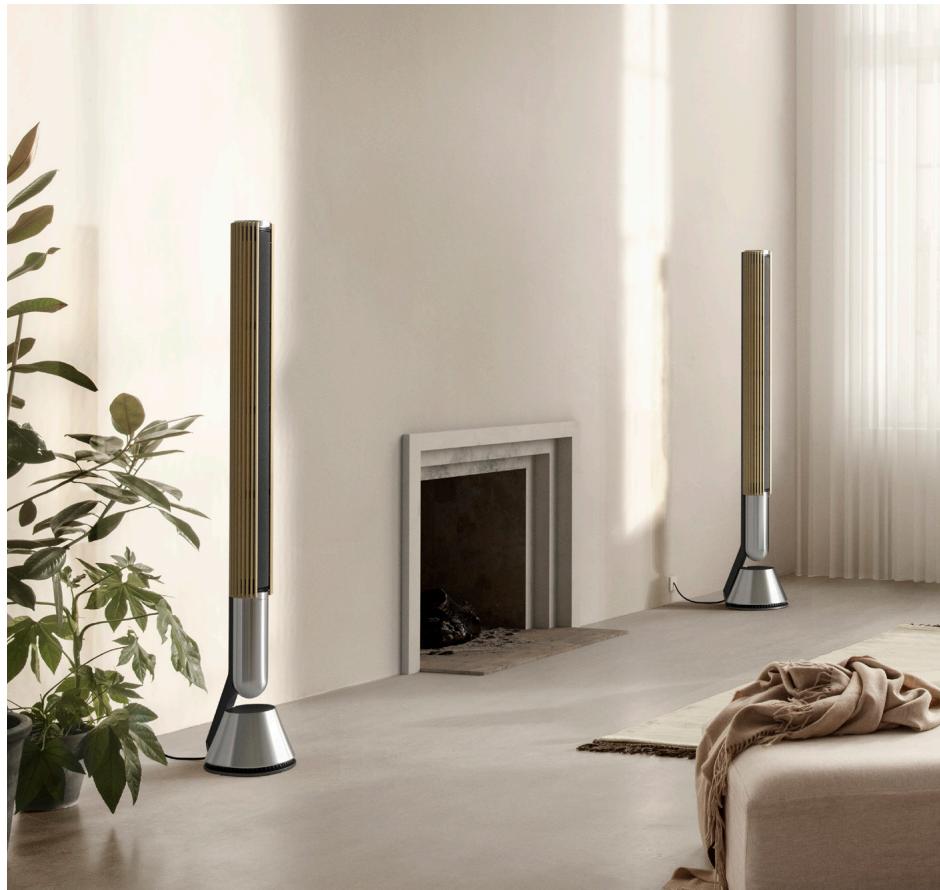
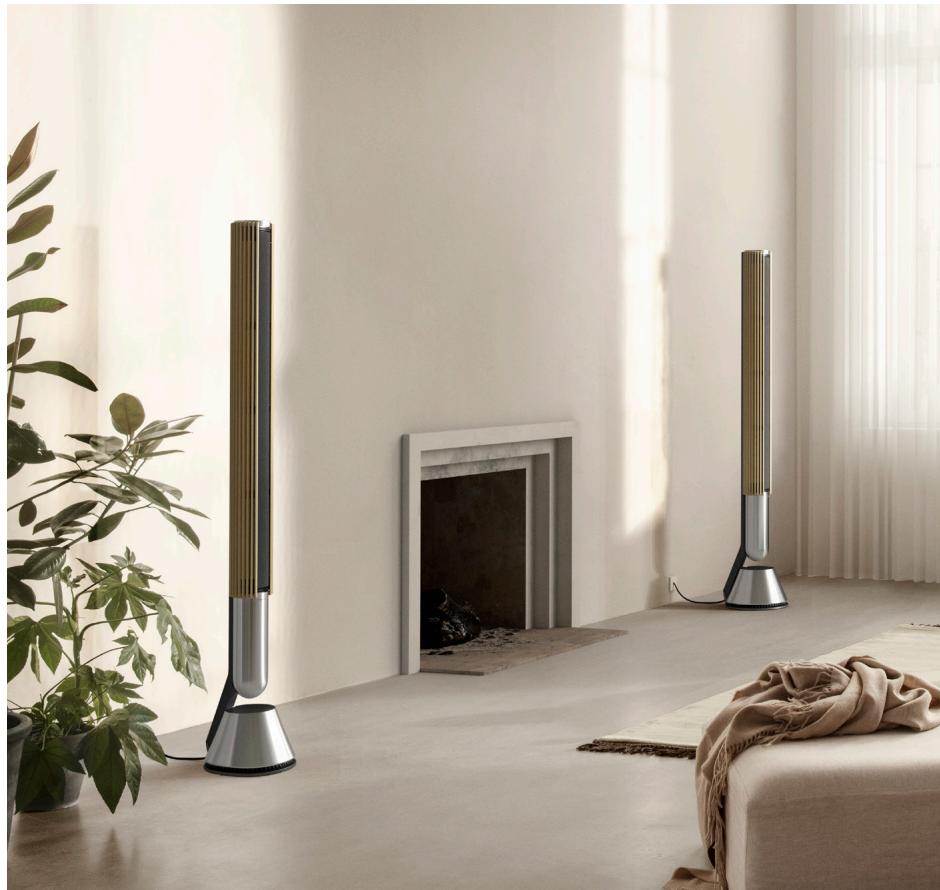
This guide contains additional information about the daily use of your Bang & Olufsen product and connected products and describes the features and functions of your Beolab 28 in more detail.
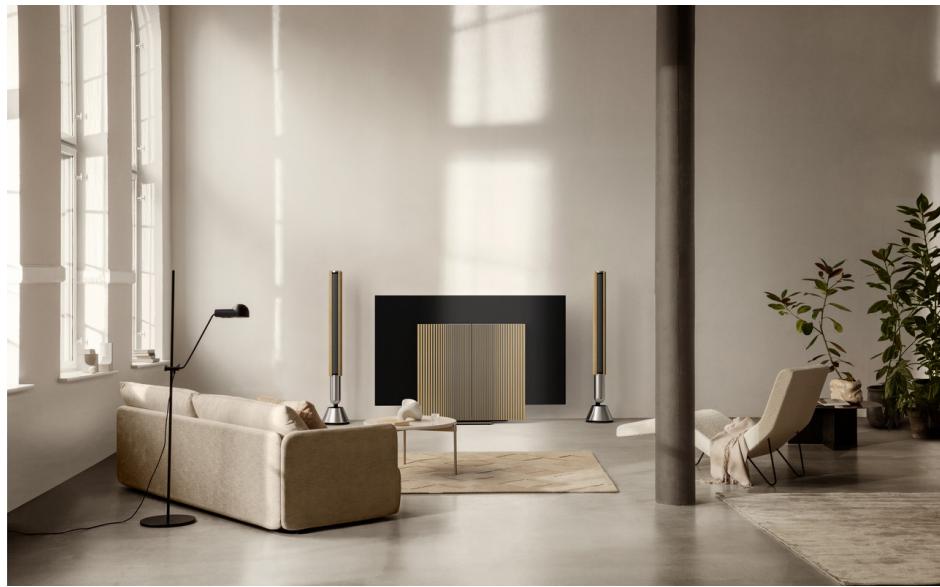
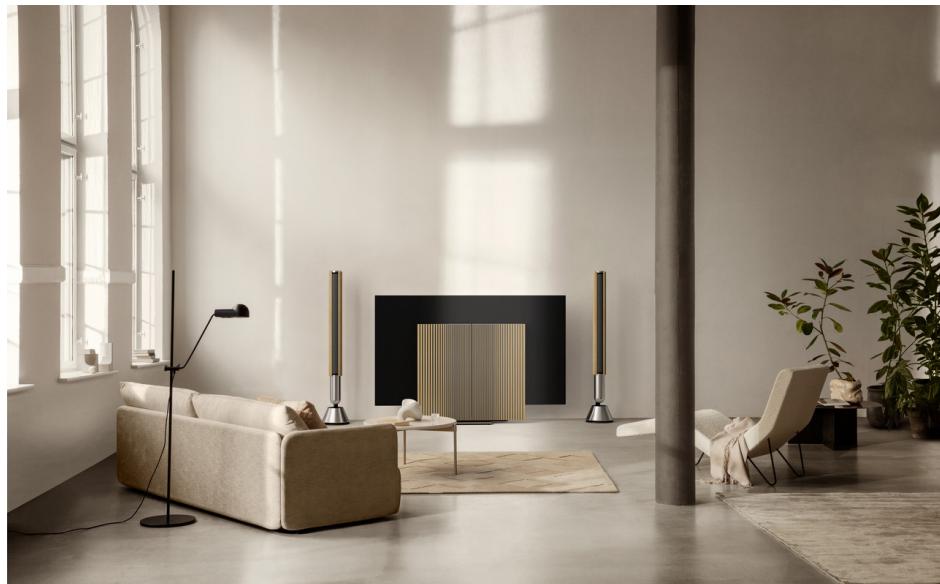
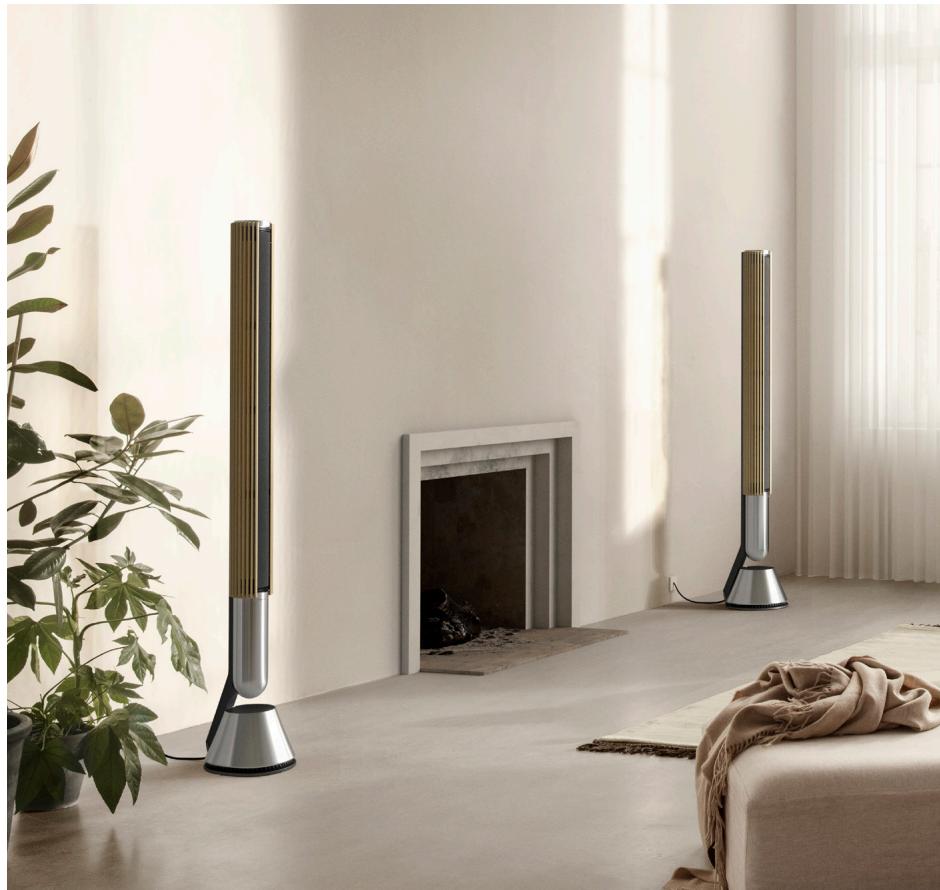
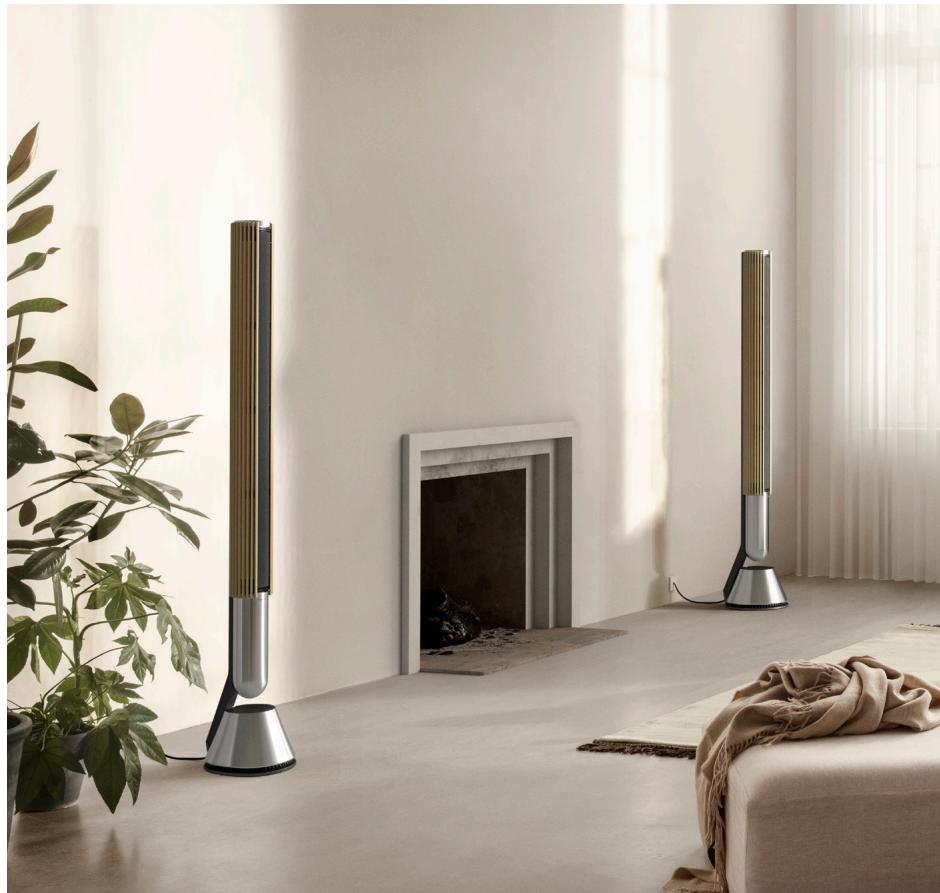
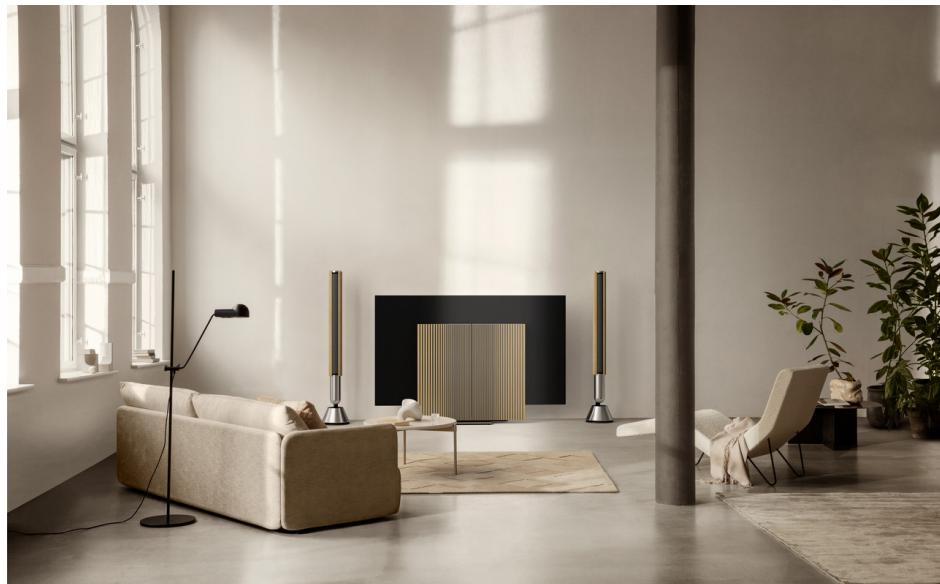
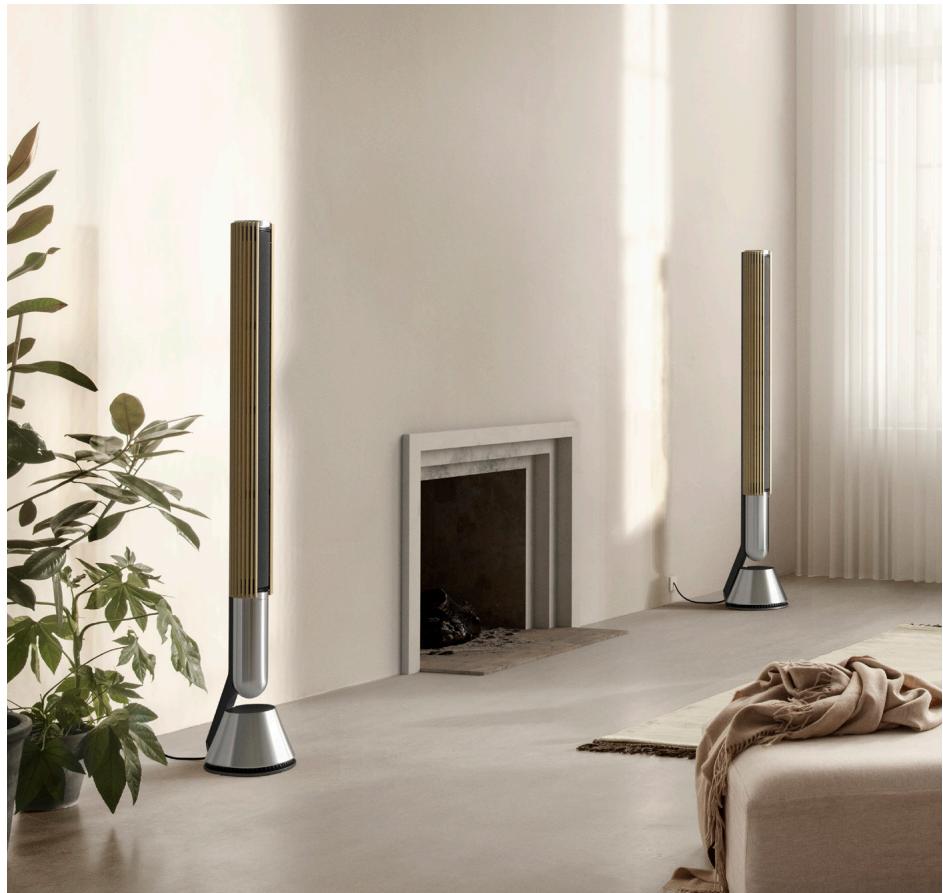
Your Beolab 28 can be used as a stereo music system as well as a pair of stereo speakers for your Bang & Olufsen television.
We recommend that your retailer deliver, install and set up your Beolab 28, especially if they are wall mounted.
Your Bang & Olufsen retailer is your first stop for all your service queries. To find your nearest retailer, see www.bang-olufsen.com

Download on the App Store
Get it ON Google Play
DOWNSLOAD THE BANG & OLUFSEN APP
To set up your product, download the Bang & Olufsen App from the Google Play Store or Apple App Store.
From this app you can set up your product and get the full Bang & Olufsen experience. Unlock the full product experience of audio personalisation, product support and new features at your fingertips.
When you first start the Bang & Olufsen App, you will be asked to create a user account.
To set up your speaker, click to add a new product. If you already have an account this can be found under settings.
REMEMBER WHEN SETTING UP
Make sure the products are assembled and set up correctly and according to the assembly instructions.
You can set up a stereo pair in the Bang & Olufsen App. When you set up your second Beolab 28 you will be asked if you want to set them up as a stereo pair.
This is something you can also always do later under Sound settings on the product page of your Beolab 28 in the Bang & Olufsen App.
During first time setup, make sure the product is connected to a network and software is updated prior to connecting them with a Bang & Olufsen television. This is all done through the Bang & Olufsen App.
When setting up your Beolab 28 as a stereo pair, make sure that all input cables are connected to the same speaker, which should be set up as the primary speaker of the pair.
DAILY USE
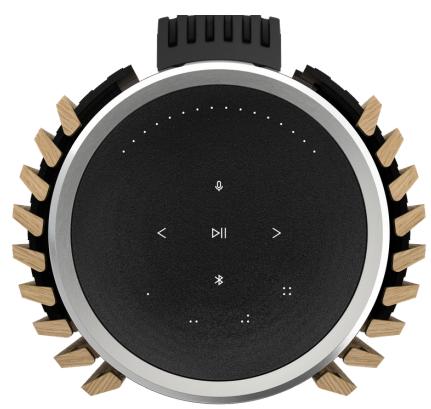
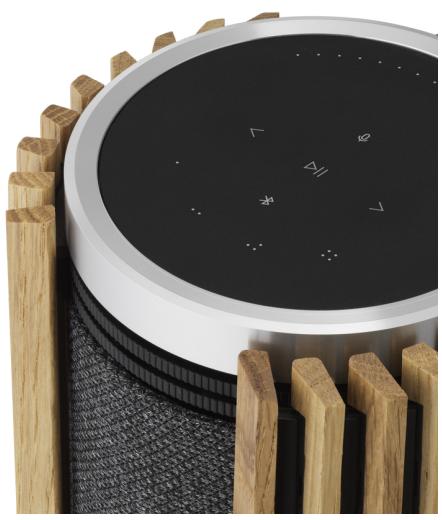
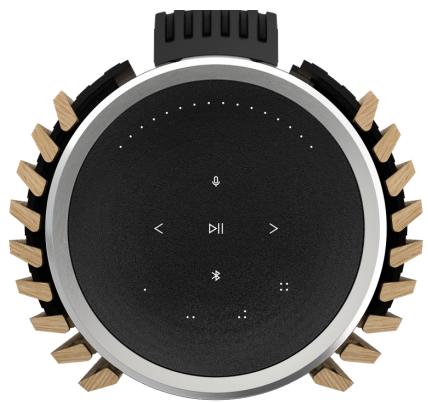
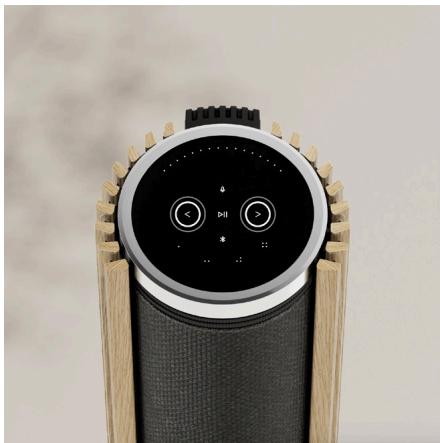
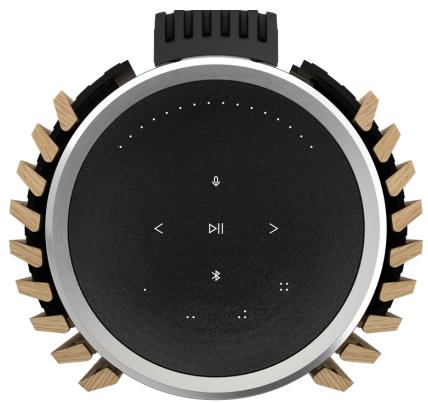
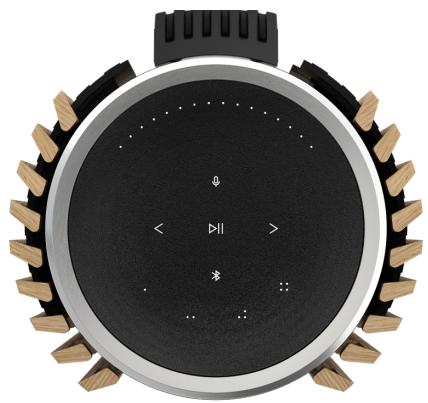
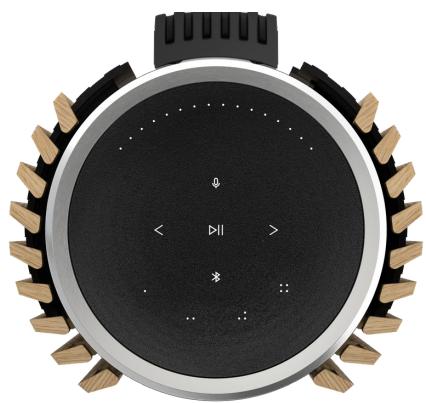
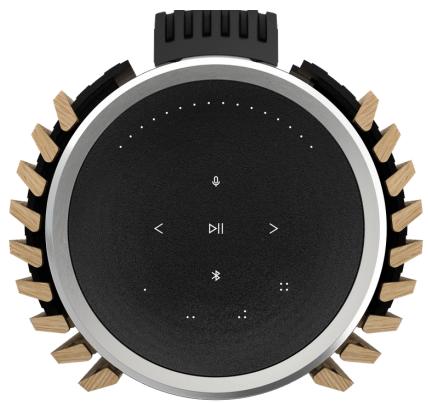
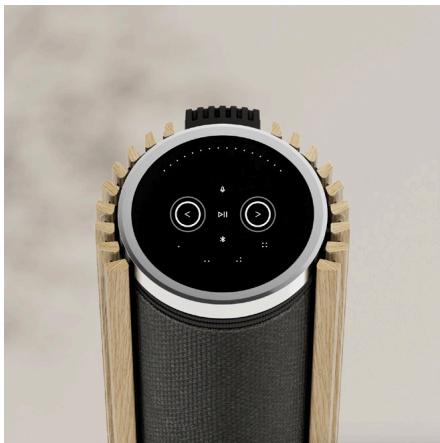
The touch surface on top of your Beolab 28 will light up when you approach, ready for you to control your music.
Tap to play or pause
< > Swipe in a circle near the edge to control volume
- + Tap on the arrows to switch tracks
Tap the Bluetooth button to switch it on or off
Note: In a stereo pair, the Bluetooth and microphone buttons are disabled on the secondary speaker. To operate these functions, use the buttons on the primary speaker.
FAVOURITES
Beolab 28 has four favourite buttons, where you can save your favourite listening experiences.
Radio
On your product page in the Bang & Olufsen App, go to Radio and then Search to pick a station.
Tap the More icon to assign it to a favourite.
Press the favourite button the next time you want to hear the station quickly.
Spotify Connect
Use Spotify Connect on the Spotify music streaming app to connect to your Beolab 28.
Play a favourite radio station or playlist, like "Jazz" or your "Discover Weekly" to the speaker via Spotify Connect and long press your chosen favourite button to assign it.
Access your favourite again anytime with a short press of the button.
CONNECT YOUR MUSIC
Connect your favourite music app to your Beolab 28 by using Apple AirPlay 2, Chromecast or Bluetooth and play wirelessly.
Use Airplay 2 or Chromecast to seamlessly connect your different wireless speakers into one system, allowing you to control speakers in tandem or individually.
Long press the Bluetooth icon to enable or cancel Bluetooth pairing.
SOURCES
You have multiple options for playing music on your Beolab 28 through the following sources:
Bang & Olufsen Radio
Stations available through the B&O App and Favourites.
AirPlay 2 & Chromecast
Streaming and multiroom capabilities.
Spotify Connect
Streaming and Favourites.
Bluetooth 5.0
Streaming available out of the box even if the product is not connected to internet.
Line-in/Optical
Connect 3rd party audio products.
Powerlink
B&O TV/Audio system.
Wireless Powerlink
B&O TV/Audio system.
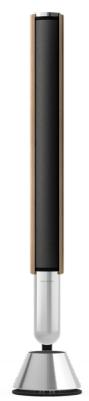
WIDE
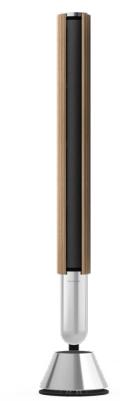
NARROW
BEAMWIDTHCONTROL
With Beolab 28 you can change the width of the sound for optimised sound for different experiences.
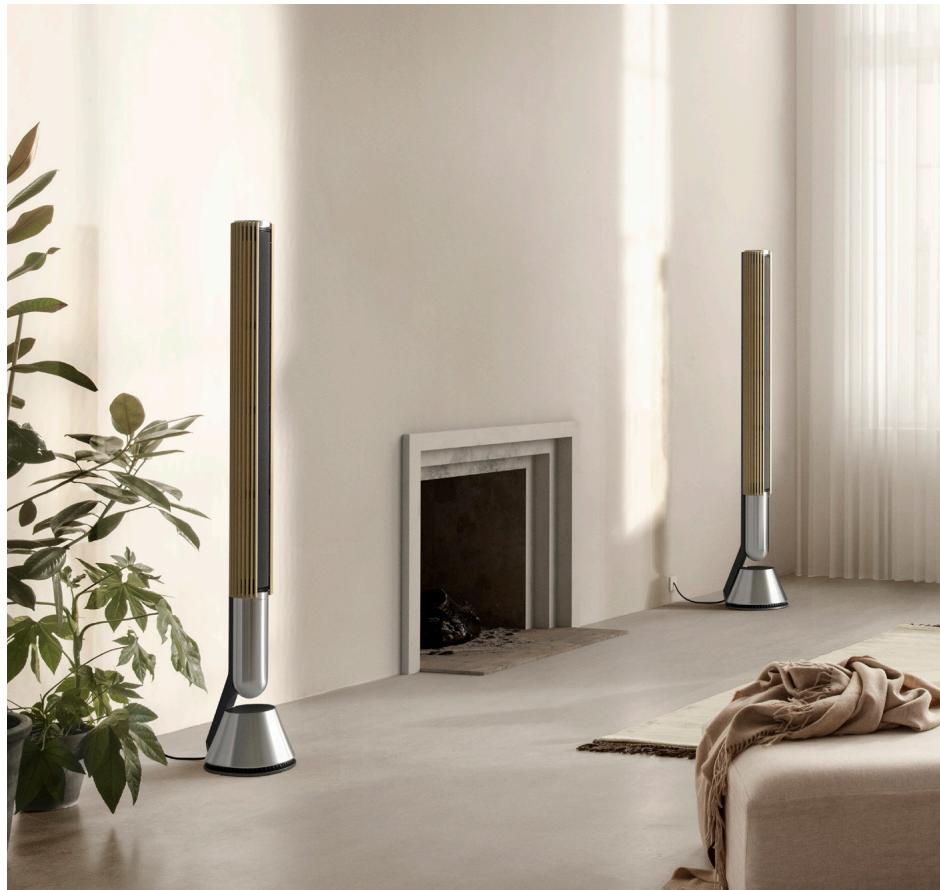
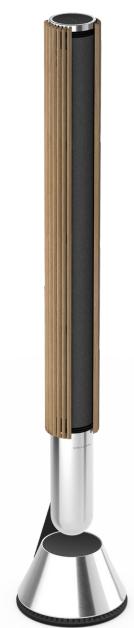
When the curtains are pulled back, the speaker is playing in WIDE mode.
WIDE mode is for more "Social" or passive listening situations. This will ensure that there is a more equal distribution of the direct sound across a wider listening area in the room.
When the curtains are closer together, the speaker is in NARROW mode. NARROW mode is for the "Sweet spot" or active listening and delivers precise stereo imaging for active listening. It is able to reduce the amount of energy in the reflections off the side walls of the listening room.
LISTENING MODES
Listening Modes consists of a wide range of controls that allows you to adjust the sound to your personal preference or to optimize for the current listening experience. Listening modes can be selected and customised in the Bang & Olufsen App on your Beolab 28 product page.
Listening Modes on Beolab 28 are equivalent to Speaker Presets on a Bang & Olufsen television.
You can save your own personally adjusted settings as Listening Modes, so they can easily be accessed again, or use the predefined settings designed for Beolab 28: Optimal, Speech and Social.
For each Listening Mode you are able to define the following control parameters:
Beosonic
Advanced digital sound algorithms developed by our acoustics team allows you to explore different audio spaces by simply moving the circle around.
Beam Width Control
Adjust whether the Beam Width in a Listening Mode is set as WIDE or NARROW.
Active Room Compensation
Active Room Compensation gives you an optimal tuning of your Beolab 28 according to the room it is placed in. You are able to select whether this tuning filter is turned on or off to a given Listening Mode.
Speaker Preset
Speaker Presets are used when Beolab 28 is connected to a Bang & Olufsen television, to set up speaker groups. Select the Speaker Preset number as the identification number for adding the speaker groups in the television menu, which you can configure in the menu under Listening Mode - Advanced.
Each preset is uniquely identified by a numerical ID in the range (0-99). This number is sent from the television through Powerlink or Wireless Powerlink data when a Speaker Group is selected.
Speaker preset number is the Listening mode identification number and it is selected in the Speaker Group in the television menu.
CONNECTING TO A BANG & OLUFSEN TELEVISION
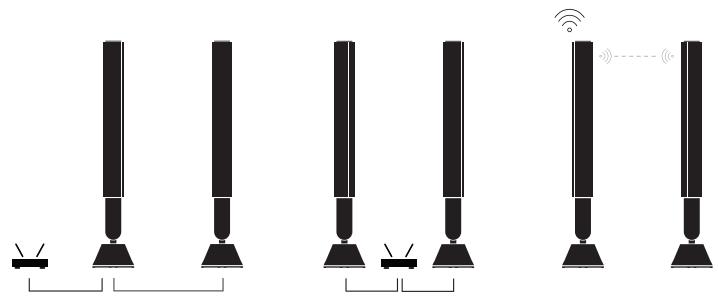
You can use your Beolab 28's as a stereo pair together with a Bang & Olufsen television, either through Power Link cables or wirelessly through Wireless Power Link.
During the first-time setup in the Bang & Olufsen app, you will have the option of selecting which type of connection you will use between your Beolab 28's and your television.
When Power Link is selected, it is permanently enabled and you can always connect cables to your television.
By selecting Wireless Power Link, the wireless pairing will be open for 15 minutes. This selection can always be changed or restarted in Product settings menu in the Bang & Olufsen App.
Find the relevant instructions for how to set them up with your television, in the guide for your Bang & Olufsen television model.
Once connected to the television, the user interface on top of the speakers will be disabled, except for the status LED in the middle.
The speakers will behave as a secondary system and are controlled and operated through the television.
Depending on the type of television, different cables and adaptors are needed. Cables and adaptors are available from your Bang & Olufsen retailer.
If you want to connect two speakers to one PL socket on the Soundcenter or television, it is not possible to loop the cable between the speakers, an extra Power Link splitter is needed, contact your Bang & Olufsen retailer for more information.
Nice to know.
NETWORK CONNECTIONS
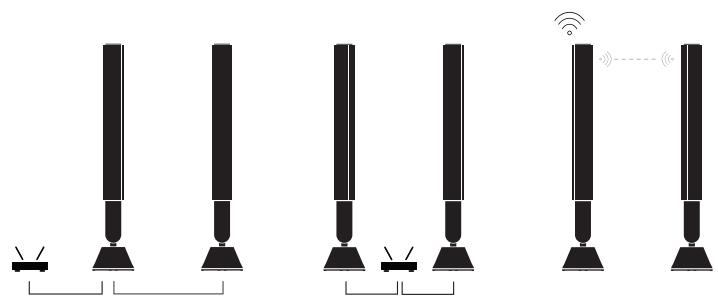
You have different options for connecting your Beolab 28's to a network.
You can connect them wirelessly through Wi-Fi, which can be set up in the Bang & Olufsen App.
You can connect each speaker separately by cabled LAN connection.
You can connect the primary speaker to a LAN output and daisy-chain the secondary speaker to the primary speaker.
AUDIO QUALITY FOR STEREO PAIRED SPEAKERS
When your speakers are paired together you can select the quality of the audio streaming between them in the Bang & Olufsen App.
The default mode is High Quality Compression to reduce the probability of dropouts when the network is congested. In installations with a wider-bandwidth network connection, it is possible to adjust the signal to an uncompressed audio signal, providing the highest possible audio performance.
CONNECTIONS
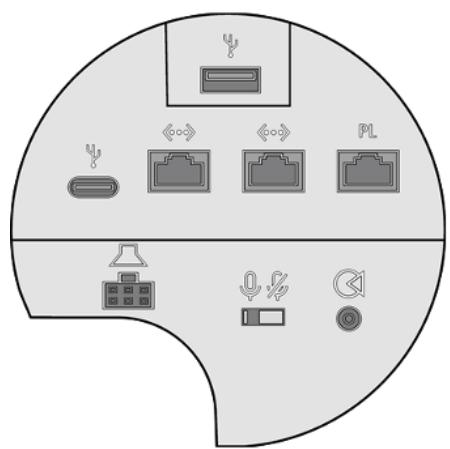
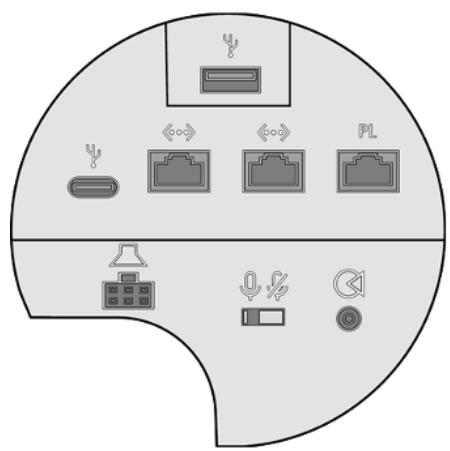
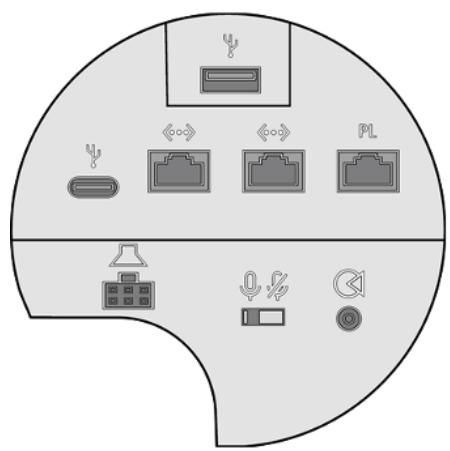
You can find the connection panel under the fabric cover on the speaker. You will need to remove the curtains and the inner fabric covers to access the connection well.
Wired connections:
Power Link
3,5mm minijack / optical input
Ethernet x 2
USB-C (for service)
USB-A (for service)
Wireless connections:
Wireless Power Link
WiSA
Apple AirPlay 2
Google Chromecast
Bluetooth 5.0
Wi-Fi b/g/a/n/ac (Wi-Fi 5)
LIGHT INDICATOR
The light indicator shows the status of the product. Please select a colour below.
ACTION
INDICATION
White
Solid
Connected to network, ready for use
Flashing slowly
Starting up
Flashing quickly
Room compensation in progress
Blue
Solid (5 sec)
Connected/Bluetooth paired
Pulsing
Open for pairing
Red
Solid
Static error, please call service
Flashing
Transient error, e.g. overheating
Amber
Solid
No network connection, connection lost
Flashing
Ready for network setup
Pulse
Connecting to network
Green
Pulsing
Software update in progress
Magenta
Solid (5 sec)
Connected/ Stereo Paired
Pulsing
Pairing Wireless Power Link
ACCESS POINT (AP) RESET
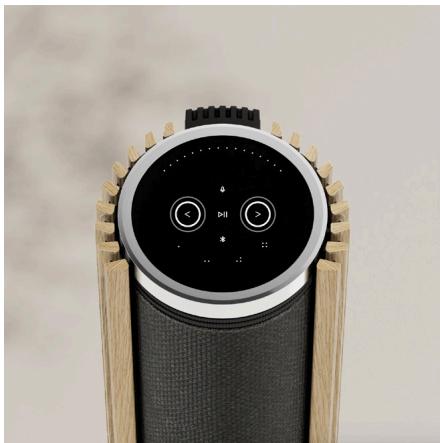
You can connect your Beolab 28 to a new wireless network or reset the connection, by holding the next and previous buttons on the top plate at the same time for 3 seconds. You will hear a sound prompt and the status indicator will turn amber.
In the product settings of the Bang & Olufsen app, select Re-Setup to connect the speaker to Wi-Fi.
FACTORY RESET
You can restore factory settings by pressing and holding the next and previous buttons on the top plate at the same time for 8 seconds.
Your speaker will begin the reset process and after approximately one minute, your Beolab 28 will be ready for first-time set-up again.
CURTAINS
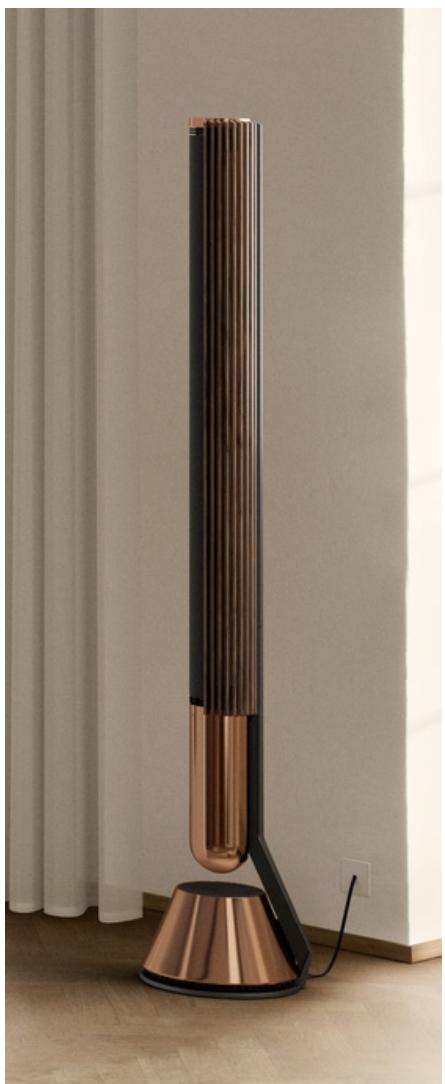
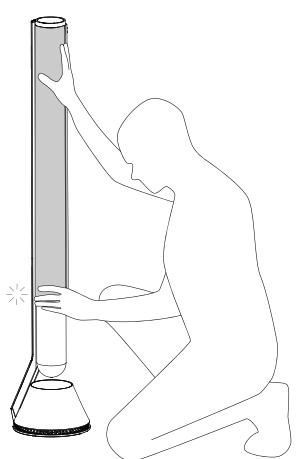
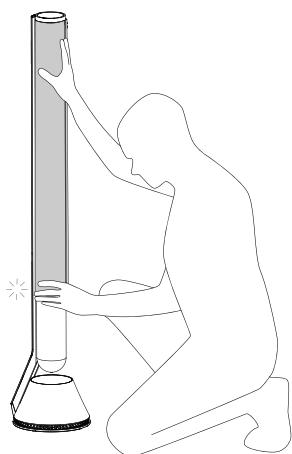
The curtains move as your Beolab 28 turns on or off as well as shows the beam width.
You can exchange the curtains, if you would at some point like to change the appearance of your Beolab 28.
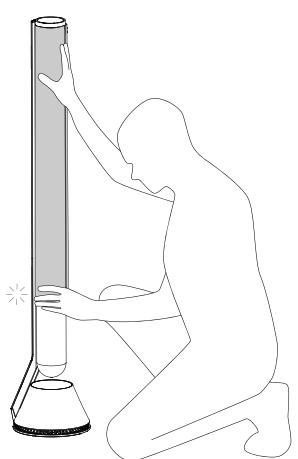
Be aware, that if you manually move the curtains of your Beolab 28 there is a possibility that they will detach from the brackets in either the bottom or the top.
If the curtains are not mounted correctly there is a risk they can fall off during movement and will be damaged.
If you move the curtains manually, make sure that they are still properly attached to the top and bottom, you will hear a "click" sound as they snap into place.
Find instructions for how to assemble and detach your curtains here.
Komigang.
INDLEDNING

Downloaded on the App Store
GETION Google Play
DOWNSLOAD BANG & OLUFSEN APPEN
For at indstille dit produit skal du downloade Bang & Olufsen-appen fra Google Play eller Apple App Store.
Active Room Compensation
Pulserer Åben for parring
Rd
NULSTILLING AF ADGANGSPUNKT (AP)
Download on the App Store
GETITION Google Play
HÄMTABANG&OLUFSEN-APPEN
Ladda ner Bang & Olufsen-appen fran Google Play Store eller Apple App Store for att konfigurera din produit.
ATT KOMMA IHAG VID INSTALLATION
Active Room Compensation

Downloaded on the App Store
GETION Google Play
LAST NED BANG & OLUFSEN-APPEN
Last ned Bang & Olufsen-appen fra Google Play Store eller Apple App Store for Å konfigurereproduktet ditt.
Fra davon appen kan du konfigurere produktet ditt og få hele Bang & Olufsen-opplevelsen. Lås opp—hele Produkttopplevelsen med tilpasning av lyd, produitstøtte og nye funksjoner rett for händen.
K O B L E T I L E N B A N G & O L U F S E N - T V
Pulsering Åpen for paring
Rødt
Fast Statisk feil, ring service
Blinking Forbigaende feil, f.eks. overoppheting
Guilt
Pulsering Pare tradlps Power Link
TILBAKE STILLING AV TILGANGSPUNKT (AP)

Downloaded on the App Store
GETION Google Play
LADEN SIE DIE BANG & OLUFSEN-APP HERUNTER
Active Room Compensation
Download on the AppStore
GETITION Google Play
DOWNSLOAD DE BANG & OLUFSEN-APP
Download de Bang & Olufsen-app uit de Google Play Store of de Apple App Store om uw product te configureren.
Active Room Compensation
Wifi b/g/a/n/ac (wifi 5)
LAMPJE
Knippert snel Verbinding makes met network
Green
Downloaded on the App Store
GETION Google Play
TELECHARGER L'APPLICATION BANG & OLUFSEN
Active Room Compensation
RéINITIALISATION DU POINT D'ACCès (PA)

Downloaded on the App Store
GETION Google Play
DESCARGAR LA APLICACION BANG & OLUFSEN

Download on the App Store
Get it ON Google Play
SCARICALL'APPDI BANG&OLUFSEN
Active Room Compensation
Connessioni wireless:
Wireless Power Link
WiSA
Apple AirPlay 2
Google Chromecast
Bluetooth 5.0
Wi-Fi b/g/a/n/ac (Wi-Fi 5)
SPIALUMINOSA
REIMPOSTAZIONE DELL'ACCESS POINT (AP)

Downloaded on the App Store
GETION Google Play
TRANSFERIR A APLICACAO BANG & OLUFSEN

Download on the AppStore

GETITION Google Play
СКАЧАЙТЕ ПИЛОЖЕН BANG & OLUFSEN
HTo6bI NaCTpoNTb yCTPOINCTBO, 3aRpy3nTe npinloKeHne Bang & Olufsen n3 Google Play nnn Apple App Store.
C nomoubIO 3Toro npinlooxeHn Bbl moKeTe HacTpoNTb npOdyKT IaI DocTyna Ko Bcem fynKuIam Bang & Olufsen. OTKpoITe IJIce6B BCE Bo3MOxHocTn npOdykTA, BKJIIOyA nepcOHaIN3aUIO 3Byka, noDepXky npOdykTA u HOBBe fynKUIn - I Bce 3TO y BAC NO pyKoJ.
Pn npBOM 3anycke npiloxeHne Bang & Olufsen nonpocnt Bac co3aTb aKKayHT.
YTo6bI NaCTpOHTb KOLOHky,doabTe HOBoe yCTpoiCTBO.EcInyBaC yXe eCTb yYeTHa 3aINCb,pepeiDnte B NaCTPOIKN.
ПИHACTPOIKEBAKHO NOMHHTb
Y6eIITecb, YTO n3dJIyra co6paHbI nHaCTpoEhbl npaBnIbHO n B COOTBeTcTBn C INHCTpyKUJyMaMn PO c6OpKe.
Bb moke Te hactpoNTb ctepeonapy B npinloxeHn Bang & Olufen. Nocle hactpoKn Btoporo yctpoNCTBa Beolab 28 oTo6pa3ntc3aPoc nX hactpoKN kAc ctepeonapbl.
3To moKHO cdeIb no3Ke B hAcTpoiKaX 3Byka Ha cTpaHnue npOyKta Beolab 28 B npInoJxHn Bang & Olufsen.
ItoKobayapeJaayrotobaKaaboTe,daJeecn npOyKT He noKnLIOeH K INHTepHety.
Active Room Compensation
Active Room Compensation no3BolareontimmaIbHO hAcTpoNTb Beolab 28 B coOTBeCTBm c nomeueHem, B KOtOpom OH haxoIHTc. Bbl moKeTe BKIOUaTb IIN BBKIOUaTb 3TO T fNJIbTp hAcTpoIKn dJa NcPOnb3yeMOrO peXIMa pocnyuBaHnA.
Предуновka (Preset) колонок
Korda Bb6paH Power Link, OH noCToHNO BkIIOUeH, I Bb CBeTa MoXeTe NoDkIIOUHTb Ka6eN K TeLeBn3Opy.
Пи Вьборе Wireless Power Link 6ecnpobodHoe copraKeHne 6ydtocTynHb TeueHne 15 MmHT.
3TOB Bb60BcERda MoXHO N3MeHHTb INI nepe3aNcyTtB B MeHIO HAcTpoE K npOJkTa B npINIOKeHn Bang & Olufsen.
HaIeTe COOTBcTCTBvOUIne INHcTpyKUIN NO INX NaCTpoIKe C NOMoUb TeVeBn3Opa B pyKOboDCTBe K BaIeM OmoJIe TteBn3Opa Bang & Olufsen.
Iocne noKIOUeHn K TeJeBUN3Opy nOJIb3OBaTeJbCKn INItePcEnc B BepXHeu cactN KOLOHOK 6yTeT OTKIOUeH, 3a NCKLIQUeHnEM CBeToDIOoA INHINKAaUNC COCTOHN IocpeDInHe.
Kolonkny BvIyT BvCTynaB B pOJI BCnOMoRaTeJbHoi CnCTeMbI, a ynpaBJeHne MM 6yJeT OcyuIeCTBJIaTbCyape3 TeJeBn3Op.
B 3aBcIMocTn OT TtNa TeIeBUN3opa Heo6xoIIMbI pa3HbIe Ka6eIи aIaIaTepebl. Ka6eIи aIaIaTepebl MOnHo npio6pctn y ToproBOrO ppeCTabITeJI KOMpaHmN Bang & Olufsen.
EcnBbXoTnTe pOcOeHNHb DBe KOJOnHKn K OJHOmy PL-pa3bemy Soundcenter nIJI TeneBn3Opy, Ho npn 3Tom HeBO3MOxHNO npOBecTn Ka6eMb MExNy DByMg KOJOnHkAmN, Heo6xoJIMo npIO6pctN DoJONHtEnbHy I Ka6eBbHy pa3BeTbNTeB Power Link. DOnJOnHtEnbHyU INHΦopMauzIO Bbl MoKeTe pOnyHTb y ToproBoro npedCTaBnteY kOMpaHnn Bang & Olufsen.
Интуpe scho 3HaTb
CETEBBLE COEINHEHNA
IocTynHb pa3hble BapnaHTbIOpkJIoueHn Beolab 28 K cetm.
BbMOKeTe BbIOJIHnIb NIOJIKIQUeHHe No 6ecnpoBODHO cETN Upe3 Wi-Fi, KOtOpoe MOxHo NaCTpOnTb B npINOJKeHn Bang & Olufsen.
Bb moKeTe noKJIIOuHTb KaJdyU KOJIIOHky OToJeIbHO c NMOOzbu Ka6eIa LAN.
Bb moKeTe noKIOUHTb OCHOBHyIO KOIOnHcy K BbIXOy LAN n oocJeIOBaTeIbHO noKIOUHTb BCnOMOraTeIbHyIO KOJOnHcy K OCHOBHO KOJOnHke.
KauctBO 3BykaДлЯ COПЯЖEHьIX CTEPEOKOJHOK
Korda Baun KoIohKn cOpJKeHb, Bbl MoKeTe BbIbpaT bKaYeCTBO nOTOKoBn nepeaCh 3ByKa MeJy HIMN B npilooJeHH Bang & Olufsen. Np yMOnuHaHIO uCNoJIb3yeTc pexm «CxaTne BbcOKoro KaYeCTBa», YTO6bl Cn3ntb BepoTHocTb npebiBaHn paObToPi n3aRpyKeHHocTn cEtN. B yctaHOBkax C IIpOKoPONIoCHbIM ceTeBBIM NOkLIouHeHMe MOxHO HaCTpoNTb CNrHaI Ha HeCxKaTb aUdINOCrHaI, oBeCneuHBa MaKcImaJIbHO BBICOKOE KaYeCTBO 3Byka.
I OДКЛЮЧЕНЯ
IIOJIKJIIOUCHENIA
PAnHeI npOKnIOUeHnnaXoDITcnpTkAneBOaNaHeBIO KOLOHKn.Bam nOTpe6yETc cHTb wTOpKn IN BNYtpEHnE TkAHeBbIe naHeI, YTO6blnOlyuNTb DocTyK CoedInHeHIO.
IpoBODHbIe nOJKNIOUChENIA:
BecnpobOdbie noKIOueHnA:
Power Link
Wireless Power Link
MmH-rHe3do3,5MM/ONTnUeCKn BXoD
WiSA
Ethernet x 2
Apple AirPlay 2
USB-C(ДЯоблужваня)
Google Chromecast
USB-A(ДЯоблухваня)
Bluetooth 5.0
Wi-Fi b/g/a/n/ac (Wi-Fi 5)
CBETOBOU INDUNKATOP
CBeTobOINHdNkATOp NOKa3bIaBcTe cTaTyc yCTpoiCTBa. BbIbePnte zBET HnKe.
ДиCTBnE
NIMKauia
Бeльni
CBeITcNIOCTOHHO
BbIOpJIHeNo IIOKJIIOUeHne K cTeN, rOToBHOcTB K NCIOJIb3OBAHNIO
Muraet MeIeHNO
3anyck
BbICTPO Mmraet
BbIOnHnEeTcAaIaTaunI NOI NOMeUHeNIE
CNHNI
He muraet (5 cek.)
Подклоченo / соржени no Bluetooth
IyIbIcIpyeT
OTKpbITДЯ coprJKeHnIa
KpaacHbI
CBETTCA NOCTOHHO
PerylaHna oun6ka — no3BOHnTe B cny6y nOdepxKn
Muraet
HeperynpaHna oun6ka, Hanpimep, neperepe
OpaHxKeBbI
CBeNTcnoTOrHNO
YTePraHo NpOKnIPOUeHne K INHTpeHepTeY
Muraet
YCTPOINCTBO ROTOBK HAcTPOKe NIOKJIIOUHENIA
IyIbIcIpyeT
Повлоченьек сети
3eJIeHbI
PylbcnpyeT
BbIIOJIHnEeTcO6HOBJIeHne IpOprpAMMHorO 06ecneueHn
IpynpnhbI
He muraet (5 cek.)
CoprajkeHne no Wireless Power Link
CbPOCTOUKNIOCTYNA
Bb moke Te noKIOuHTb Beolab 28 K HOBOI 6eCnpoBDHO CEIN Nn CbOcNt BOeHNHe, HaxAB IN yepxNBaO OJHOBeMeHNO KHOKN BpeNd Ha3aD Ha BepXHe I NaHEn B TeueHne 3 cekyHd. Bby UcbluNTe 3ByKOBo CNHaI, IN HnIKaTOp COCTOHHNc CTaHET JeJIbIM.
YtO6bI pOdkJIouHtB KOLOHky K Wi-Fi, B hAcTpoiKaX yCtpoiCTBa B npUloJxHn Bang & Olufsen Bbl6epuTe «IOBTOHNa HAcTpoiKa».
CБРС HACTPOEK K 3ABOДСКИМ 3HAЧЕНЯМ
Bb moke Te BocTaHOBnTb 3aObockne HacTroyn, Haxkab u yepKmba KhoPkn «Ha3aD» n «BpeE» Ha bepxHe NaeIi OndHOBpemEHo B TeueHne 8 cekyHd.
3To o3HaayeT,HTo c6poc hAcTropeK Beolab 28 3anyuH, n npimepno chepe3 MInHyTu KOOnHka 6ydt BVOBb roTOBA K hAcTropoKe C HynJ.
TOKN
LUtopKn DnBraioTc npn BVkIouehen n BbIKIOuehen Beolab 28, a TAKKe NOKa3bIAoi TO mnpHny lyua.
BbMOKeTe NOMeHbT bTOpKn, eCIn B KAKoI-TO MOMeHT 3axOTte N3MeHbT BHeuHbN Beolab 28.
ImeTe BviDy, yTo ecIn Bbl BpyHyIO cDVBHeTe 1TOpKn Beolab 28, eCtB BepoAHTHOCTb, YTO OHI oToCoeHNrTaO tCKoB BVn3y NnBvBepxv.
EcnI WTopKn yctaHOJIeHbI He npabINbHO, cyueCTByeT ONaCHOCt bNx naDeHnB BO BpeMЯ DnIXKeHnI NOBpeJXeHnI.

Download on the App Store
GRTON Google Play
Active Room Compensation
SerViSsNzJiTcRnIyFjLjOJHbAeNtBnng&OlufsenMfJ
JiE
bn6-000000000000000000000000000000000000000000000000000000000

Downloaded on the App Store
GETION Google Play
BANG & OLUFSEN ト登录
ARC(Active Room Compensation)
SFlIeKnAaTnEeHnEeHnEeHnEeHnEeHnEeHnEeHnEeHnEeHnEeHnEeHnEeHnEeHnEeHnEeHnEeHnEeHnEeHnEeHnEeHnEeHnEeHnEeHnEeHnEeHnEeHa
BANG & OLUTFSENTV
2개의 StFlKToIe ToEerHAnGcW, Bang & Olufsen AenAeTgAeNtQeSFlKToIe OoIO OStRlMng 10000000000000000000000000000000000000000000000000000000000000000000000000000000000000000000000000000
关联部

Downloaded on the App Store
GETION Google Play
- CONTENTS
- GET STARTED
- INTRODUCTION
- DOWNSLOAD THE BANG & OLUFSEN APP
- REMEMBER WHEN SETTING UP
- DAILY USE
- FAVOURITES
- RADIO
- SPOTIFY CONNECT
- CONNECT YOUR MUSIC
- SOURCES
- BANG & OLUFSEN RADIO
- AIRPLAY 2 & CHROMECAST
- BLUETOOTH 5.0
- LINE-IN/OPTICAL
- POWERLINK
- WIRELESS POWERLINK
- BEAMWIDTHCONTROL
- LISTENING MODES
- BEOSONIC
- BEAM WIDTH CONTROL
- ACTIVE ROOM COMPENSATION
- SPEAKER PRESET
- NICE TO KNOW
- NETWORK CONNECTIONS
- AUDIO QUALITY FOR STEREO PAIRED SPEAKERS
- CONNECTIONS
- WIRED CONNECTIONS
- WIRELESS CONNECTIONS
- LIGHT INDICATOR
- ACTION
- INDICATION
- WHITE
- BLUE
- RED
- AMBER
- GREEN
- MAGENTA
- ACCESS POINT (AP) RESET
- FACTORY RESET
- CURTAINS
- KOMIGANG
- INDLEDNING
- DOWNSLOAD BANG & OLUFSEN APPEN
- RD
- NULSTILLING AF ADGANGSPUNKT (AP)
- HÄMTABANG&OLUFSEN-APPEN
- ATT KOMMA IHAG VID INSTALLATION
- LAST NED BANG & OLUFSEN-APPEN
- RØDT
- GUILT
- TILBAKE STILLING AV TILGANGSPUNKT (AP)
- LADEN SIE DIE BANG & OLUFSEN-APP HERUNTER
- DOWNSLOAD DE BANG & OLUFSEN-APP
- LAMPJE
- TELECHARGER L'APPLICATION BANG & OLUFSEN
- RÉINITIALISATION DU POINT D'ACCÈS (PA)
- DESCARGAR LA APLICACION BANG & OLUFSEN
- SCARICALL'APPDI BANG&OLUFSEN
- CONNESSIONI WIRELESS
- SPIALUMINOSA
- REIMPOSTAZIONE DELL'ACCESS POINT (AP)
- TRANSFERIR A APLICACAO BANG & OLUFSEN
- СКАЧАЙТЕ ПИЛОЖЕН BANG & OLUFSEN
- ПИHACTPOIKEBAKHO NOMHHTB
- ПРЕДУНОВKA (PRESET) КОЛОНОК
- ИНТУPE SCHO 3HATB
- CETEBBLE COEINHEHNA
- KAUCTBO 3BYKAДЛЯ COПЯЖEHЬIX CTEPEOKOJHOK
- I OДКЛЮЧЕНЯ
- IIOJIKJIIOUCHENIA
- CBETOBOU INDUNKATOP
- CBPOCTOUKNIOCTYNA
- CБРС HACTPOEK K 3ABOДСКИМ 3HAЧЕНЯМ
- TOKN
- BANG & OLUFSEN ト登录
- ARC(ACTIVE ROOM COMPENSATION)
Brand : BANG & OLUFSEN
Model : NC
Category : Loudspeaker