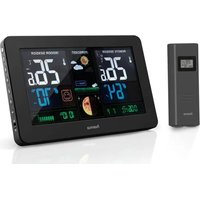
EWS-1500 - Weather Station HAMA - Free user manual and instructions
Find the device manual for free EWS-1500 HAMA in PDF.



| Product Type | Professional Weather Station |
| Brand | HAMA |
| Model | EWS-1500 |
| Monitor Power Supply | 6 LR6/AA batteries or 6 V adapter (not included) |
| Anemometer Power Supply | 2 LR6/AA batteries |
| Rain Gauge Power Supply | 2 LR6/AA batteries |
| Transmission Frequency | 433 MHz |
| Anemometer Range | Up to 100 m in open area |
| Rain Gauge Range | Up to 50 m in open area |
| Integrated Sensors | Anemometer with outdoor temperature/humidity (channel 1), rain gauge |
| Optional Sensors | Thermo-hygrometric for channels 2 and 3 (not included) |
| Indoor Temperature Range | 0°C to +50°C (+32°F to +122°F) |
| Outdoor Temperature Range | -20°C to +60°C (-4°F to +140°F) |
| Humidity Range | 20% to 99% RH |
| Wind Speed Range | 0–30 m/s (0–108 km/h, 0–67 mph, 0–58.3 knots, 0–11 Beaufort) |
| Rainfall Range | 0–9999 mm (0–393.66 inches) |
| Barometric Pressure | Display in hPa, inHg or mb; sea level pressure adjustment |
| Main Features | Weather forecast (12–24 h), DCF77 radio-controlled clock, wind alarms (gusts and wind chill), heat index, dew point, max/min memory, rainfall history (6 days/weeks/months), backlight, alarm repeat |
| Calibration Required | Orient anemometer north during initial setup and after each battery change |
| Maintenance | Clean outdoor sensors regularly; replace batteries with same type; recycle used batteries according to regulations |
| Safety | Install sensors in an open area, away from falling objects; do not expose monitor to humidity or extreme temperatures |
Frequently Asked Questions - EWS-1500 HAMA
User questions about EWS-1500 HAMA
0 question about this device. Answer the ones you know or ask your own.
Ask a new question about this device
Download the instructions for your Weather Station in PDF format for free! Find your manual EWS-1500 - HAMA and take your electronic device back in hand. On this page are published all the documents necessary for the use of your device. EWS-1500 by HAMA.
USER MANUAL EWS-1500 HAMA
D-86651 Monheim/Germany
www.hama.com
All listed brands are trademarks of the corresponding companies. Errors and omissions excepted, and subject to technical changes. Our general terms of delivery and payment are applied.
00087673
HEAT INDEX/DEW POINT
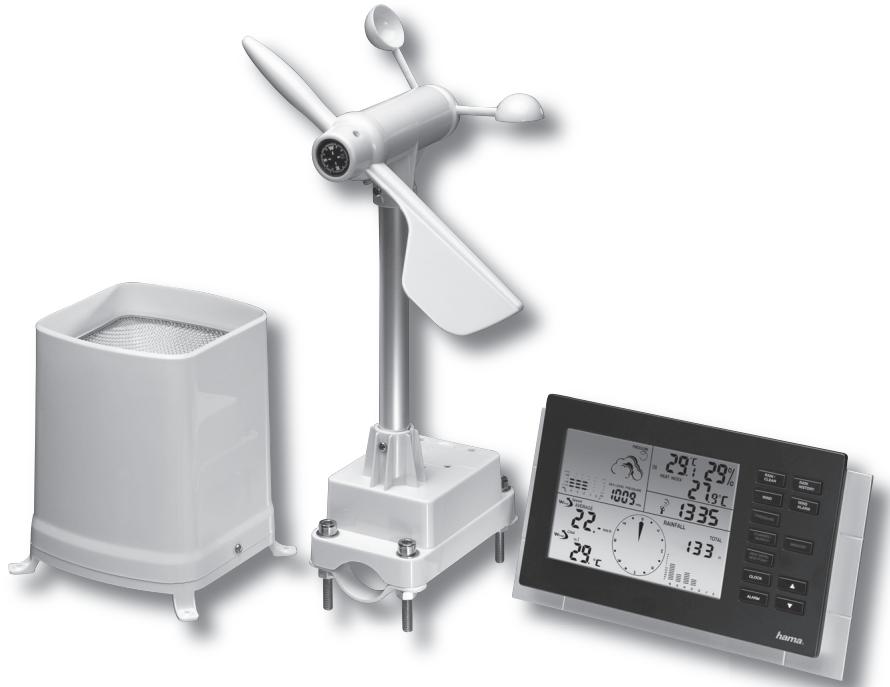
Thank you for purchasing the new generation of professional weather station. Designed and engineered with the state-of-art technology and components, this instrument will provide accurate and reliable measurement of wind speed & direction, wind chill, daily/weekly/monthly/accumulated rainfall, barometric pressure, weather forecast, indoor/outdoor humidity, temperature, heat index & dew point as well as radio-controlled alarm clock. Read this manual carefully to fully explore the features and functions of the new product.
In this package you will find:
- Monitor (Receiver)
- Anemometer (Transmitter - transmit wind & outdoor Channel-1 temperature/humidity data)
- Rain gauge (Transmitter - transmit rainfall data)
- Mounting hardware for rain gauge (4 sets of screws & plastic screw plugs)
- Mounting hardware for anemometer (2 pieces of U-shape metal plate, 4 sets of Hex screws & nuts)
One owner's manual
Additional tools needed for installation
- Small Phillips screwdriver
- Hexagonal Key
Electric drill
Pencil - Level
- Mast, 1-1.25 inch (2.54 - 3.18 cm) in diameter (to mount the anemometer)
Installation
The weather station operates at 433MHz and does not require wire installation among the component parts. To ensure successful installation and the best performance, we recommend you follow the installation instructions in the order they appear in this manual.
- Battery & adapter installation for the monitor (receiver)
Main power source: Open the battery door and insert 6 pieces of AA batteries according to the polarity indicated, close the battery cover.
Optional power source: Plug in a 6.0V adapter jack into the side of the unit for basic operation (Adapter not included)
Sea level pressure setting
After battery/adapter installation, the monitor will enter sea level pressure setting mode directly and the pressure reading will flash. Press " " or " " to set the sea level
pressure value. Press "PRESSURE" to confirm the setting and exit. This allows the unit to provide a more accurate weather forecast & pressure reading.
You can also set the sea level pressure any time after the installation is completed. For more information, see "WEATHER FORECAST & BAROMETRIC PRESSURE" section.
Note: you may obtain the current sea level pressure from the weather web site for your locate area.
2. Selecting a location for the anemometer
Select a mounting location for the anemometer that is:
- Outdoors, not blocked on top or sides, so wind can freely reach the anemometer
- Within 100 meter (328 feet) open area from the monitor. Reduce distance if obstacles is between the anemometer & the monitor
The best location for the anemometer is usually mounted on a mast in an open area where wind is not blocked on top or sides, or above roof level on the building where the monitor is located.
Testing the effective transmission range
Before mounting the anemometer, measure the distance between the monitor & anemometer and be sure it is within the effective transmission range. It is recommended to perform a simple RF transmission test before mounting.
1) Place the monitor in your selected indoor location and install adapter & batteries (see "Battery & adapter installation for the monitor" section above)
2)Place the anemometer horizontally in your selected outdoor location. Loosen the screws on the battery door with a small Phillips screwdriver and open the battery door. Insert 2 pieces of AA batteries according to the polarity indicated. Close the battery door and tighten the screws.
3)Hold "CHANNEL/SEARCH" button on the monitor for 3 seconds and the wind direction, temperature & humidity icons will flash on the display. The monitor is now searching for all remote sensors.
4) If valid wind direction, wind speed and channel-1 temperature/humidity readings are shown on the monitor within 10 minutes, the RF transmission is successful and the anemometer & monitor are within the effective transmission.
If above readings are not shown after 10 minutes of searching, the transmission is failed.
Shorten the distance between the anemometer & monitor. Reset the anemometer by removing all
batteries from the anemometer & wait for 10 seconds before re-installing the batteries again. Repeat step 3 & 4 until the transmission is successful.
5)Remove all batteries from the anemometer before mounting and calibration.
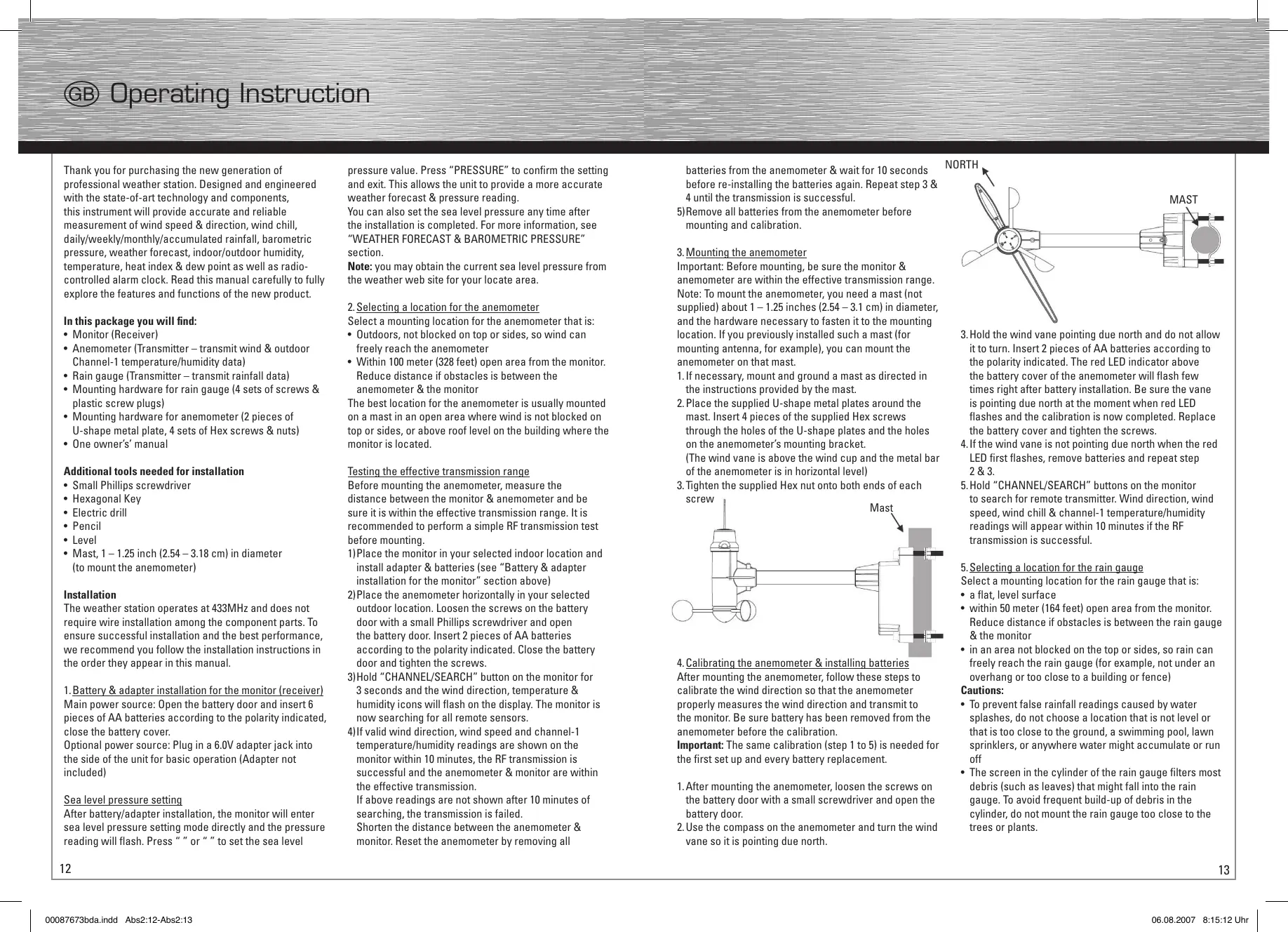
3. Mounting the anemometer
Important: Before mounting, be sure the monitor & anemometer are within the effective transmission range.
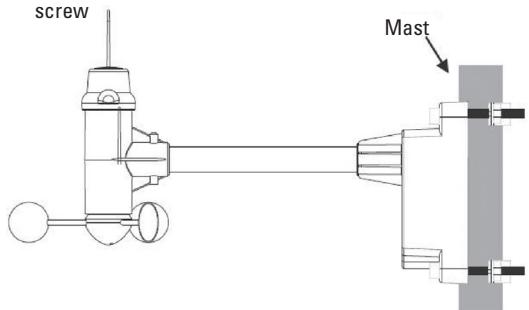
Note: To mount the anemometer, you need a mast (not supplied) about 1-1.25 inches (2.54 - 3.1cm) in diameter, and the hardware necessary to fasten it to the mounting location. If you previously installed such a mast (for mounting antenna, for example), you can mount the anemometer on that mast.
- If necessary, mount and ground a mast as directed in the instructions provided by the mast.
- Place the supplied U-shape metal plates around the mast. Insert 4 pieces of the supplied Hex screws through the holes of the U-shape plates and the holes on the anemometer's mounting bracket.
(The wind vane is above the wind cup and the metal bar of the anemometer is in horizontal level) - Tighten the supplied Hex nut onto both ends of each
4. Calibrating the anemometer & installing batteries
After mounting the anemometer, follow these steps to calibrate the wind direction so that the anemometer properly measures the wind direction and transmit to the monitor. Be sure battery has been removed from the anemometer before the calibration.
Important: The same calibration (step 1 to 5) is needed for the first set up and every battery replacement.
- After mounting the anemometer, loosen the screws on the battery door with a small screwdriver and open the battery door.
- Use the compass on the anemometer and turn the wind vane so it is pointing due north.
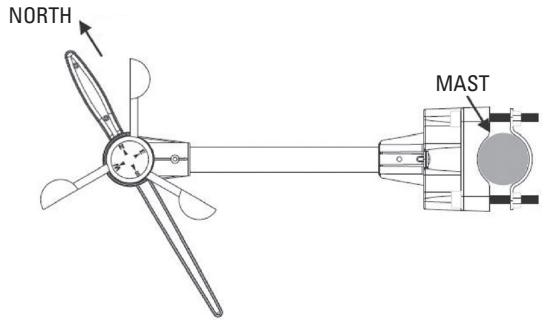
- Hold the wind vane pointing due north and do not allow it to turn. Insert 2 pieces of AA batteries according to the polarity indicated. The red LED indicator above the battery cover of the anemometer will flash few times right after battery installation. Be sure the vane is pointing due north at the moment when red LED flashes and the calibration is now completed. Replace the battery cover and tighten the screws.
- If the wind vane is not pointing due north when the red LED first flashes, remove batteries and repeat step 2 & 3.
5.Hold "CHANNEL/SEARCH" buttons on the monitor to search for remote transmitter. Wind direction, wind speed, wind chill & channel-1 temperature/humidity readings will appear within 10 minutes if the RF transmission is successful.
5. Selecting a location for the rain gauge
Select a mounting location for the rain gauge that is:
- a flat, level surface
- within 50 meter (164 feet) open area from the monitor. Reduce distance if obstacles is between the rain gauge & the monitor
- in an area not blocked on the top or sides, so rain can freely reach the rain gauge (for example, not under an overhang or too close to a building or fence)
Cautions:
- To prevent false rainfall readings caused by water splashes, do not choose a location that is not level or that is too close to the ground, a swimming pool, lawn sprinklers, or anywhere water might accumulate or run off
-
The screen in the cylinder of the rain gauge filters most debris (such as leaves) that might fall into the rain gauge. To avoid frequent build-up of debris in the cylinder, do not mount the rain gauge too close to the trees or plants.
-
Battery Installation for the rain gauge
-
Unscrew the 2 screws at each side of the transmitter. Carefully lift the top casing from the base.
-
Unscrew the 4 screws from the battery compartment cover (identifiable by the battery diagram markings). Remove the cover and insert 2 AA alkaline batteries as indicated by the polarity symbols marked inside the battery compartment.
-
The rain cup has been sealed to prevent tipping and damage during shipping. Before first use please remove the seal to allow the rain cup to fill and empty when rainfall occurs.
-
Replace the battery compartment cover and the screws.
-
Carefully replace the casing on top of the base. Replace the screws
-
Hold "CHANNEL/SEARCH" button on the monitor for 3 seconds and the total rainfall "---" will flash. The monitor is now searching for all remote sensors. Total rainfall reading (in this case "0" mm or inch) will appear within 2 minutes if the RF transmission is successful and the monitor & rain gauge are now within the effective transmission range.
-
If total rainfall "---" stop flashing and stay on the display after 2 minutes of searching, the RF transmission is failed. Shorten the distance between the monitor & rain gauge. Reset the rain gauge by removing all batteries from the rain gauge and wait for 10 seconds before re-installing the batteries again. Then repeat step 5 (& 6) until the RF communication is completed.
-
Mounting the rain gauge
Before mounting the rain gauge, be sure the rain gauge
& monitor are within the transmission effective range and batteries are installed.
-
Hold the base of the rain gauge flat against the mounting surface then use a level to make sure the rain gauge (as it rest on the mounting surface) is horizontally level.
-
Use a pencil to trace the inside of the mounting holes on the base of the rain gauge to mark the screw locations.
-
Drill a hole in the center of each marked location and insert the supplied plastic screw plugs
-
Hold the rain gauge against the mounting surface so the holes on the base are aligned with the plugs, then thread the supplied washer head screws into each hole and use a screwdriver to tighten them.
-
Installing additional remote thermo-hygrometer sensor(s)
Additional remote thermo-hygrometer sensors can be purchased separately (not supplied in the package). - Select a location for the remote thermo-hygrometer that is within the effective transmission range of 100 meters (328 feet). Shorten the distance if obstacle is between the monitor & remote sensor.
- Use a small screwdriver to loosen the screws on the battery door of the remote sensor. Insert 2 pieces of AAA batteries according to the polarity indicated.
3.Assign channel 2 or 3 to the remote sensor by setting the slide switch inside the battery compartment. (Channel 1 is used by the anemometer and should not be assigned to the new remote thermo-hygrometer) - Press "Tx" button inside the battery compartment of the remote sensor to transmit temperature & humidity data to the monitor. Then close the battery door and tighten the screws.
5.Hold "CHANNEL/SEARCH" button on the monitor to search for all remote sensors. The temperature & humidity readings of your selected channel number will be displayed on the monitor if RF transmission is successful.
Operation
Name and Functions of Buttons:
RAIN/CLEAR
Press functions: Read daily/monthly/weekly/total rainfall Hold 3 seconds: Clear rainfall record
RAIN HISTORY
Press functions: Read current & past 6 days, weeks or months rainfall data
WIND
Press functions: Read average & gust wind speed
WIND ALARM
Press functions: Read high gust wind alarm and low wind chill alarm
Hold 3 seconds: Enter high wind speed alarm & low wind chill alarm setting
PRESSURE
Press functions: Toggle pressure unit hPa, inHg & mb Hold 3 seconds: Sea level pressure setting
CHANNEL/SEARCH
Press functions: Select indoor, Channel 1, 2, 3 or auto scroll
Hold 3 seconds: Search for all remote sensors
MEMORY
Press functions: Read maximum/minimum records
Hold 3 seconds: Clear memory record
HEAT INDEX/ DEW POINT
Press functions: Read Heat Index & Dew Point
CLOCK
Press functions: Read time, calendar and day-of-week
Hold 3 seconds: Set Clock & Calendar
ALARM
Press functions: Read alarm time; enable/disable alarm Hold 3 seconds: Alarm time setting
UP
Press functions: 1 step forward in setting Hold 3 seconds: Fast advance
Down
Press functions: 1 step backward in setting Hold 3 seconds: Fast backward
SNOOZE/LIGHT
Press functions: Trigger snooze alarm & extend backlight
WIND ALARM
Press functions: Enable/disable high gust wind alarm & low wind chill alarm
WIND UNIT
Press functions: Toggle wind speed unit between Beaufort, mph, m/s, km/h & knot
RAIN UNIT
Press functions: Toggle between mm & inch rainfall unit

Press functions: Search for Radio-Controlled time
ZONE
Press functions: Toggle RC time & Zone time Hold 3 seconds: Zone time setting
C/F
Hold 3 seconds: Toggle degree C & F unit
Connecting with remote sensors
The weather station uses 433MHz radio signals to send and receive weather data between the monitors and remote sensors.
After battery/adapter installation, the monitor will automatically search for remote sensors.
You can also enforce a searching mode by holding "CHANNEL/SEARCH" on the monitor.
Follow the instruction in the "INSTALLATION" section to set up the sensors and wireless connection. If the connection cannot be established, reset the remote sensor by removing the batteries from the sensor. Wait for 10 seconds and reinstall the batteries. Then hold "CHANNEL/SEARCH" on the monitor to search for the sensors. If that continues to fail, shorten the distance between the sensor & monitor and reinstall the sensors if necessary (Details refer "INSTALLATION" section)
Anemometer (with built-in temperature & humidity sensor):
Important: Wind direction calibration is needed whenever the anemometer is reset (or during battery replacement) Searching mode display:
Wind direction, temperature & humidity information will flash
RF Connection completed:
Valid wind speed/direction & Ch-1 temperature/humidity readings appear
(It may take up to 10 minutes to receive all wind speed/ direction & Ch-1 temperature/humidity readings during the searching mode)
RF Connection failed.
"---" wind speed appears; no wind direction. Unable to display Ch-1 temperature & humidity
Rain Gauge:
Searching mode display:
Total rainfall information will flash
RF connection completed.
Valid total rainfall reading appears RF connection failed:
"----" stops flashing & stays on the total rainfall display (previous daily/weekly/monthly rainfall readings remain in record)
Additional remote thermo-hygrometer sensor:
Additional remote thermo-hygrometer sensors can be purchased separately (not supplied in the package). Important: Select Ch-2 or 3 for additional remote thermo-hygrometer sensor since Ch-1 has been assigned to the anemometer.
Searching mode display:
Temperature & humidity information will flash
RF Connection completed:
Valid temperature/humidity readings of your selected channel appear
RF Connection failed:
Unable to display the temperature & humidity readings of your selected channel
Weather forecast & barometric pressure
The unit predicts weather condition of the next 12-24 hours based on the change of atmospheric pressure.
The coverage area is around 30 - 50km . The weather forecast is based on atmospheric pressure change and is about 70 - 75% correct. As weather conditions cannot be 100% correctly forecasted, we cannot be responsible for any loss caused by an incorrect forecast.
| SUNNY | PARTLY CLOUDY |
| CLOUDY | RAINY |
| STORMY |
To obtain an accurate weather forecast & barometric pressure reading, you need to input your current local sea level pressure. After battery/adapter installation, it will enter sea level pressure setting directly and the pressure reading will flash. Press "▲" or "▼" to set the value and press "PRESSURE" to confirm and exit. You can also hold "PRESSURE" button to enter sea level pressure setting in normal display mode.
Press "▲" or "▼" to set the value and press "PRESSURE" to confirm and exit.
Press PRESSURE button to select pressure unit between hPa, inHg & mb.
Note: you may obtain your current local sea level pressure information from the weather web site.
IN/OUT temperature & humidity
Temperature & humidity readings are shown on the upper right of the display.
Press "C/F" button to select temperature unit C/ F. Press "CHANNEL/SEARCH" repeatedly to select indoor, Ch1, Ch2, Ch3 or auto-channel scrolling display modes.
Note: The outdoor temperature & humidity sensor is built inside the anemometer and is assigned to channel 1.
Additional remote thermo-hygrometer sensor(s) can be purchased separately and they should be assigned to Ch-2 or 3 only.
Ice Alert
Ice alert indicator 喜 appears on the display next to the wind chill reading when outdoor channel-1 temperature falls to or below 4C (or 39.2F). It provides an early alert for possible icy road condition to driver.
IN/OUT heat index
Heat Index combines the effects of heat and humidity. It is the apparent temperature of how hot the heat-humidity combination makes it feels.
Press "Heat Index/Dew Point" button once to show the respective indoor or outdoor heat index on the display. "HEAT INDEX" icon will appear.
IN/OUT dew point
Dew point is the saturation point of the air, or the temperature to which the air has to be cooled in order to get condensation.
Press HEAT INDEX / DEW POINT button twice to show the respective indoor or outdoor dew point reading on the display. "DEW POINT" icon will appear.
Daily, weekly, monthly & accumulated rainfall
The wireless rain gauge provides daily, weekly, monthly and accumulated rainfall measurements.
Press "RAIN/CLEAR" repeatedly to switch between the different modes and the corresponding "DAILY", "WEEKLY", "MONTHLY" or "TOTAL" icon will appear
indicating your current display mode.
In daily, weekly or monthly rainfall display, hold "RAIN/CLEAR" to clear all daily, weekly & monthly rainfall reading to zero. In total rainfall display, hold "RAIN/CLEAR" to clear total rainfall reading.
Press "RAIN UNIT" on the back casing to change the unit between mm and inch.
Rainfall history
This unit has a large capacity memory that can store and display:
- Daily rainfall (up to last six days as well as current day)
- Weekly rainfall (up to last six weeks as well as current week)
Monthly rainfall (up to last six months as well as current month)
Press "RAIN" to select daily, weekly or monthly rainfall display mode. Press "RAIN HISTORY" repeatedly to scroll through the current & last 6 days/weeks/months data corresponding to your selected rainfall mode. On the bar chart display, the "0" represents the current period. -1, -2, etc indicate the prior periods. The precise rainfall reading of the selected period will be shown on the display.
Example 1:
In April, press "RAIN HISTORY" repeatedly in the monthly rainfall mode until -3 bar chart is shown. The bar chart and reading indicate the monthly rainfall record in January (from 1st Jan to 31st Jan)
Example 2:
On Wednesday, press "RAIN HISTORY" repeatedly in the weekly rainfall mode until "1" bar chart is shown.
The bar chart and reading indicate the weekly rainfall recorded last week (from last Sunday to last Saturday).
Example 3:
On Friday, press "RAIN HISTORY" repeatedly in the daily rainfall mode until -2 bar chart is shown. The bar chart and reading indicate the daily rainfall record on this Wednesday.
Wind speed & direction
The weather station uses the anemometer to sample the wind speed and direction. You can set the monitor to display the wind speed in miles per hour (mph), kilometers per hour (km / h) meters per second (m / s) knots and Beaufort. Press "WIND UNIT" on the back casing until the desired unit appears.
The monitor displays 16 wind directions (N for north, S for south, SW for south-west and so on).
Press "WIND" to select gust & average wind speed display.
Wind direction: Average wind direction over a 2-minute period
Average wind speed: Average wind speed over a
2-minute period
Gust wind speed: Maximum wind speed over a 10-minute period
| Beaufort | Knots | Wave height (meter) | Wave height (feet) | WMO description | Effects observed on the sea |
| 0 | under 1 | - | - | clam | sea is like a mirror |
| 1 | 1 - 3 | 0,07 | 0,25 | light air | ripples with appearance of scales; no foam crests |
| 2 | 4 - 6 | 0,15 - 0,3 | 0,5 - 1 | light breeze | small wavelets; crests of glassy appearance, not breaking |
| 3 | 7 - 10 | 0,6 - 0,9 | 2 - 3 | gentle breeze | large wavelets; crests begin to break; scattered whitecaps |
| 4 | 11 - 16 | 1 - 1,5 | 3,5 - 5 | moderate breeze | small waves, becoming longer; numerous whitecaps |
| 5 | 17 - 21 | 1,8 - 2,4 | 6 - 8 | fresh breeze | moderate waves, taking longer form; many whitecaps; some spray |
| 6 | 22 - 27 | 2,9 - 4 | 9,5 - 13 | strong breeze | larger waves forming; whitecaps everywhere; more spray |
| 7 | 28 - 33 | 4,1 - 5,8 | 13,5 - 19 | near gale | sea heaps up; white foam from breaking waves begins to be blown in streaks |
| 8 | 34 - 40 | 5,5 - 7,6 | 18 - 25 | gale | moderately high waves of greater length; edges of crests begin to break into spindrift; foam is blown in well-marked streaks |
| 9 | 41 - 47 | 7 - 9,7 | 23 - 32 | strong gale | high waves; sea begins to roll; dense streaks of foam; spray may begin to reduce visibility |
| 10 | 48 - 55 | 8,8 - 12,5 | 29 - 41 | storm | very high waves with overhanging crests; sea takes white appearance as foam is blown in very dense streaks; rolling is heavy and visibility is reduced |
| 11 | 56 - 63 | 11,2 - 15,8 | 37 - 52 | violent | exceptionally high waves; sea covered with white foam patches; visibility further reduced |
| 12 | 64 & over | 13,7 & over | 45 & over | hurricane | air filled with foam; sea completely white with driving spray; visibility greatly reduced |
(Reference table based on observations of the effects of the wind)
Wind chill
Wind chill is the apparent temperature felt on exposed skin due to the combination of air temperature and wind speed. The wind chill reading on the monitor is calculated based on the temperature measured from the anemometer (channel-1) and the average wind speed.
To change wind chill temperature unit, press "C/F" button on the back casing.
Gust wind & wind chill alarm
High Gust Wind Alarm
You can set the monitor to sound an alarm for about 1 minute when gust wind reaches or exceeds a set limit. Press "WIND ALARM" to silence the alarm sound. The related high alarm icons will continue to flash until the alarm condition is no longer met.
High Gust Wind Alarm Setting:
- Press "WIND ALARM" to show high gust wind alarm display. "ALARM" icons appear in the gust wind display area
- Hold "WIND ALARM" button to enter its setting mode and gust wind digits will flash
Press" "or"V"to set the value - Press "WIND ALARM" to confirm setting and exit Press "WIND AL" repeatedly to enable or disable the gust alarm. HI appears when it is enabled.
Low Wind Chill Alarm
You can also set the monitor to sound an alarm for about 1 minute when the wind chill reaches or falls below the set limit. Press "WIND ALARM" to silence the alarm sound. The related low alarm icon will continue to flash until the alarm condition is no longer met.
Low Wind Chill Alarm Setting:
- Press "WIND ALARM" repeatedly so "ALARM" icons appear in the wind chill display area
- Hold "WIND ALARM" button to enter its setting mode and the wind chill digits will flash
- Press "▲" or "▼" to set the value
- Press "WIND ALARM" to confirm setting and exit Press "WIND AL" repeatedly to enable or disable the wind chill alarm. Lo appears when it is enabled.
Maximum & minimum records
Press "MEMORY" repeatedly to view the maximum & minimum values of temperature, humidity, heat index, dew point, wind speed & wind chill readings. The corresponding "MAX" and "MIN" icons will appear. To clear the memory record, hold "MEMORY" in the max/min display mode
Radio-controlled clock
The unit will start synchronizing the radio-controlled clock after battery/adapter installation. The antenna icon will flash during synchronization. If the reception of radio-controlled time is successful, antenna icon with full signal strength will appear on screen.
The radio-controlled clock will have a daily synchronization at 02:03 & 03:03 everyday. Each reception cycle is around 2.5 to 10 minutes.

searching for radio-controlled clock signal

reception is successful

reception is fail
Antenna icon disappear
reception is disabled
Antenna icon without signal strength indicates the past reception is not successful (Daily synchronization is still enabled). To enforce searching of radio-controlled time signal immediately, press repeatedly until the antenna icon flashes. If reception continues to fail, try other locations later. Place the unit away from source of interference such as mobile phones, appliances, TV etc. To disable the radio-controlled time reception and stop the daily synchronization, continue pressing until the antenna icon disappears.
Clock & calendar
Press "CLOCK" to toggle display between time, calendar and day of the week.
Clock & calendar setting:
Note: You need to set clock & calendar when your weather station cannot receive radio-controlled time signal in your location.
- Hold "CLOCK" button to enter clock setting mode.
- Using “▲” or “▼” to adjust and “CLOCK” to confirm, the following values can be set in sequence: 12/24hr format > Hr > Min > Yr > D/M or M/D format > Month > Date > EXIT
Home time, world (zone) time
Hold "ZONE" to enter world (zone) time setting mode. Press "▲" or "▼" to enter the desired hour offset value from -12 to +12 hours. Press "ZONE" to confirm each setting.
Press "ZONE" button to toggle between home (radio-controlled) time and world (zone) time. "ZONE" icon appears when world (zone) time is selected. When zone time is not used, set zone time to "0".
Alarm setting
Press "ALARM" button to show alarm time and the "ALARM" icon will appear. Press again to enable or disable the alarm. Bell icon appears when alarm is enabled.
Hold "ALARM" to enter alarm time setting mode. Press "▲" or "▼" to enter the desired Hour/ Min values and press "ALARM" to confirm setting.
Snooze & backlight
When alarm is going off, press SNOOZE/ LIGHT to trigger snooze function and "Zz" icon will appear. To stop alarm for one day, press "ALARM" key. In normal display, press SNOOZE/LIGHT for an extended backlight if adapter is not connected.
Low battery indication
Low battery indication is available for the monitor itself and all of the remote sensors. Replace the batteries and follow the setup procedure in this instruction manual. Important: Wind direction calibration is required for the anemometer during battery replacement (Details refer "Calibrating the anemometer & installing batteries" section)
Battery disposal
Replace only with the same or equivalent type recommended by the manufacturer.
Please disposal of old, defective batteries in an environmentally friendly manner in accordance with the relevant legislation.
Specifications
Indoor Temperature: 0C to +50C (+32F to +122F
Outdoor Temperature: -20 C to +60 C (-4 F to +140 F)
Temperature Resolution: 0.1 degree C
Indoor & Outdoor Humidity: 20% - 99% RH
Humidity Resolution: 1% RH
Channel for Temp & Humidity: maximum 3
Wind speed range : 0 - 30m/s
:0-108km/h
:0-67 mph
:0-58.3 knot
:0-11 Beaufort
Rain Gauge reading : 0-9999 mm
: 0 - 393.66 inch
Transmission (Anemometer): up to 100M (228 feet) in open area, RF434 MHz
Transmission (Rain Gauge): up to 50M (164 feet) in open area, RF434 MHz
Clock: DCF77 Radio-Controlled, Quartz back-up Power
AA x 6 pieces for the monitor, optional 6.0V adapter (not included)
AA x 2 pieces for anemometer
AA x 2 pieces for rain gauge
Registration and Safety Certification/General Information
This device bears the CE symbol as specified by the provisions of Directive R & TTE (1999/5/EC). Hama GmbH & Co. KG hereby declares that this device is in compliance with the basic requirements and other relevant guideline and regulations of the 1999/5/EC guideline. You will find the declaration of compliance and declaration of conformity in the Internet at http://www.hama.com