2870W - Wireless Ethernet Bridge SMC - Free user manual and instructions
Find the device manual for free 2870W SMC in PDF.



User questions about 2870W SMC
0 question about this device. Answer the ones you know or ask your own.
Ask a new question about this device
Download the instructions for your Wireless Ethernet Bridge in PDF format for free! Find your manual 2870W - SMC and take your electronic device back in hand. On this page are published all the documents necessary for the use of your device. 2870W by SMC.
USER MANUAL 2870W SMC
Wireless Ethernet Bridge
EZ Connect™ g Wireless Ethernet Bridge
EZ Connect™g Wireless Ethernet Bridge
Pont Ethernet sans fil EZ Connect™
Bridge Ethernet inalambrico EZ Connect™
EZ Connect™g Bridge Ethernet wireless
EZ Connect™ g Tradlös Ethernet-brygga
EZ Connect™ g Bridge Ethernet Sem Fios
EZ Connect™ g Wireless Ethernet Bridge
Quick Installation Guide
Installationskurzanleitung
Guide d'installation rapide
Guía de inicio=rápido
Guida rapida all'avvio
Snabbinstallation
Beknopte installmentehandleiding
Manual de instalacao rapiida
Kort installationsvejledning
Contents
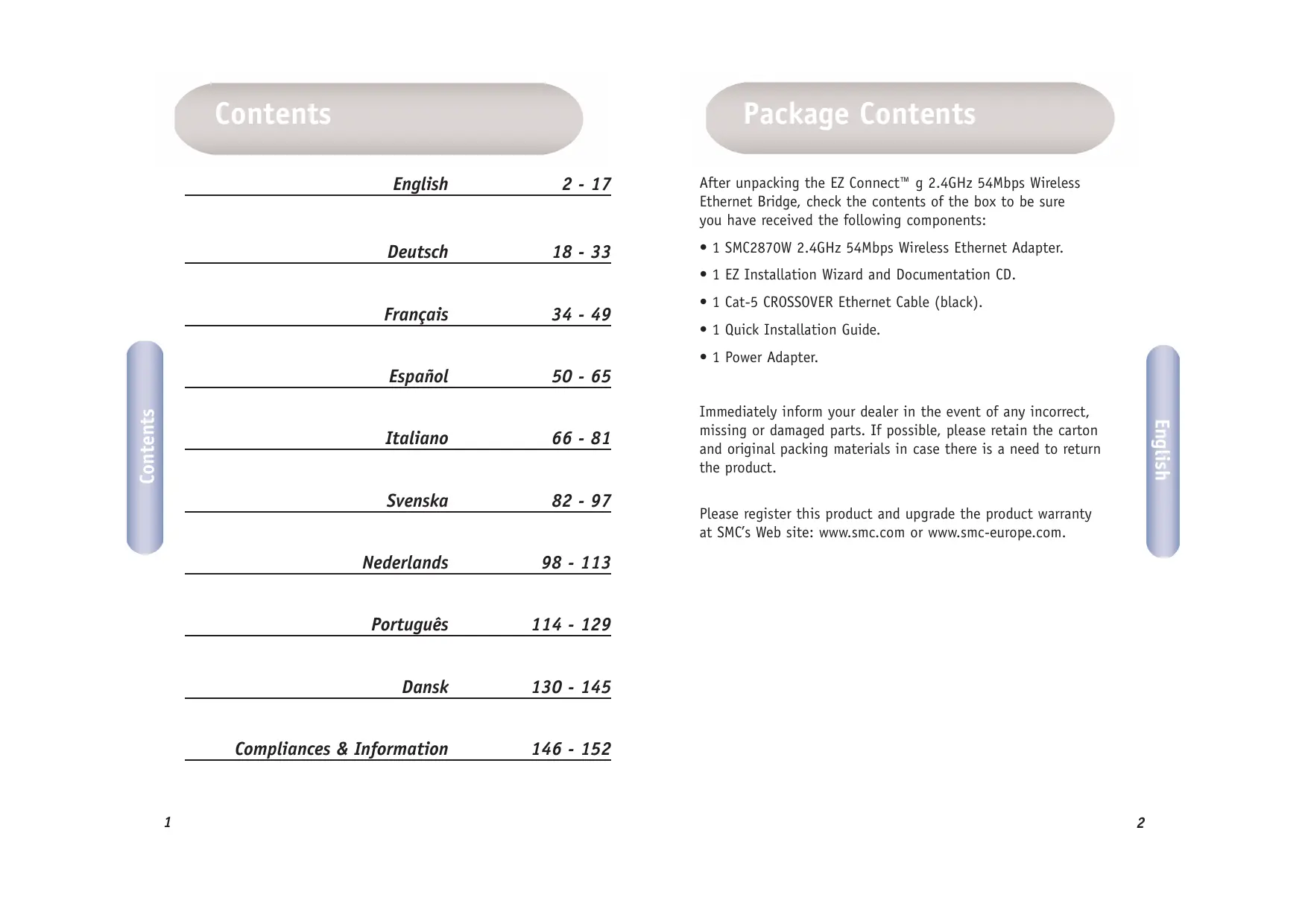
| English | 2 - 17 |
| Deutsch | 18 - 33 |
| François | 34 - 49 |
| Espanol | 50 - 65 |
| Italiano | 66 - 81 |
| Svenska | 82 - 97 |
| Nederland | 98 - 113 |
| Portugues | 114 - 129 |
| Dansk | 130 - 145 |
| Compliances & Information | 146 - 152 |
Package Contents
After unpacking the EZ Connect™ g 2.4GHz 54Mbps Wireless Ethernet Bridge, check the contents of the box to be sure you have received the following components:
- 1 SMC2870W 2.4GHz 54Mbps Wireless Ethernet Adapter.
- 1 EZ Installation Wizard and Documentation CD.
- 1 Cat-5 CROSSOVER Ethernet Cable (black).
- 1 Quick Installation Guide.
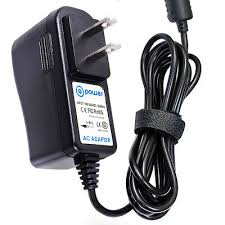
- 1 Power Adapter.
Immediately inform your dealer in the event of any incorrect, missing or damaged parts. If possible, please retain the carton and original packing materials in case there is a need to return the product.
Please register this product and upgrade the product warranty at SMC's Web site: www.smc.com or www.smc-europe.com.
System Requirements
To use the EZ Connect™ g Wireless Ethernet Bridge, you must have:
- A web browser, such as Microsoft Internet Explorer 5.5 or above installed on one PC at your site for configuration of the Wireless Ethernet Bridge.
- A CD-ROM drive.
- An AC power outlet to supply power to the Wireless Ethernet Bridge.
- A Wired or Wireless Network Adapter.
- An available RJ-45 (UTP) port on an Ethernet hub or switch.
- A TCP/IP network protocol installed on each PC that needs to access the Internet.

Hardware Description
The EZ Connect™ g Wireless Ethernet Bridge supports high speed communication up to 54Mbps. It incorporates support for PRISM Nitro which provides enhanced throughput and range. This device is fully compliant with 2.4GHz DSSS and OFDM CSMA/CA wireless networking as defined in IEEE 802.11b and 802.11g. It can be connected via an RJ-45 connection to devices such as Nintendo GameCube, Microsoft Xbox, Sony PlayStation II, and Ethernet ready embedded devices. It can also function as an IEEE 802.11g Access Point, giving you the capability of creating a new 802.11g wireless network. In addition, this product supports Wireless Distribution System (WDS) for repeater functionality to extend the range of your wireless network.
| LED | Status | Function |
| Power | On (Green) Off | Power on. No Power. |
| Wireless LAN | Blinking (Green) On (Green) Off | Wireless LAN connection is transmitting. Wireless LAN connection is active. Wireless LAN connection is not active. |
| LAN | Blinking (Green) On (Green) Off | Wired LAN connection is transmitting. Wired LAN connection is active. Wired LAN connection is not active. |
Applications
SMC's EZ Connect™ g 2.4GHz 54Mbps Wireless Ethernet Bridge (SMC2870W) can function as:
- An Ethernet to Wireless Bridge, providing a wireless connection via an RJ-45 connection to devices such as Microsoft Xbox and Ethernet ready embedded devices.
- A standard IEEE 802.11g access point.
- A wireless repeater, allowing you to effectively extend the coverage of another SMC2870W that is configured to operate in Access Point mode.
This solution offers fast, reliable wireless connectivity with considerable cost savings over wired LANs (eliminates long-term maintenance overhead for cabling). Just install enough wireless access points to cover your network area, plug wireless cards into your notebooks or install wireless adapters into your desktops, and start networking.
Use this device in conjunction with SMC's EZ Connect™ g Wireless Cards to create an instant network that integrates seamlessly with Ethernet LANs. Moreover, moving or expanding your network is as easy as moving or installing additional access points – no wires!
EZ Connect™ g wireless products offer a fast, reliable, cost-effective solution for wireless Ethernet client access to the network in applications such as:
Video Game Systems
Provides wireless Internet access for users of video game systems such as Nintendo GameCube, Microsoft Xbox and Sony PlayStation II.
- Remote access to corporate network information E-mail, file transfer, and terminal emulation.
- Difficult-to-wire environments
Historical or old buildings, asbestos installations, and open areas where wiring is difficult to employ.
- Frequently changing environments
Retailers, manufacturers, and banks which frequently rearrange the workplace or change locations.
- Temporary LANs for special projects or peak periods
Trade shows, exhibitions, and construction sites that need a temporary setup. Retailers, airline, and shipping companies that need additional workstations for peak periods. Auditors who require workgroups at customer sites.
- Access to databases for mobile workers
Doctors, nurses, retailers, or white-collar workers who need access to databases while being mobile in a hospital, retail store, in an office, or on a campus.
SOHO users
SOHO (Small Office and Home Office) users who need easy and quick installation of a small computer network.
1 Hardware Installation
- Select the Site: Choose a location for your Wireless Ethernet Bridge. Usually, the best location is at the center of your wireless coverage area, if possible within line-of-sight of all wireless devices.
- Place the Wireless Ethernet Bridge in a position that gives it maximum coverage. Normally, the higher you place the antenna, the better the performance.
-
Position the antennas in the desired positions. For more effective coverage, position the antennas along different axes. For example, try positioning the antennas around 45 to 90 degrees apart. (The antennas emit signals along the toroidal plane – and thus provide more effective coverage when positioned along different axes.)
-
If used in Wireless Bridge mode, you MUST use a crossover cable from the host device to the SMC2870W. Connect the provided CROSSOVER Ethernet cable to the RJ-45 socket of the host device that you want to connect to your wireless network.
- If used in Access Point mode, connect the Ethernet cable. The SMC2870W can be wired to an Ethernet network through an Ethernet device such as a hub or a switch using category 3, 4, or 5 UTP Ethernet cable and an RJ-45 connector.
- Connect the power cable: Connect the power adapter cable to the 5 VDC power socket on the rear panel.
Warning: Use only the power adapter supplied with the SMC2870W.
7. Check the LED's on the front of the unit to make sure the adapter is turned on properly and the status is okay.
2 Using the EZ Installation Wizard
The installation method makes the process as simple and Plug-and-Play as possible. Please be sure that you have successfully completed the previous steps before proceeding.

- Insert the EZ Installation Wizard and Documentation CD.
- Click the [NEXT] button to continue.
- The wizard will scan for available SMC2870W's and then list them on the left column. Click [NEXT] to continue.

- You will be asked to enter the password to modify the current configuration settings. By default, the username is admin and the password is smcadmin. Please enter this information and press [NEXT].

- You will then be given the option to enable either [Wireless Bridge] or [Access Point] mode. If you are trying to create a new 802.11g network for your wireless clients to connect up to, please select [Access Point] and click [NEXT]. If you are trying to give an Ethernet-equipped device wireless connectivity, please select [Wireless Bridge] and click [NEXT]. If you have selected [Wireless Bridge], please go to Step 6. If you have selected [Access Point], go to Step 10.


- Wireless Bridge configuration: If you are connecting to an existing wireless network, select [Infrastructure] and enter the SSID of your network.

- Now you will be asked to configure the Network Settings. If you are connecting to a network with a DHCP server, select [Use DHCP server] and click [NEXT]. If you do not have a DHCP server on your network, input a static IP address and click [NEXT].

- If you have enabled Wired Equivalent Privacy (WEP) or Wi-Fi Protected Access (WPA) on your wireless network, please enter the private security key settings now. Select the drop down menus of [Security Mode] to choose between WEP and WPA. Select the drop down menus of [Key Length] to choose between 64 or 128-bit encryption.

- Finally, please verify all the settings you have entered. If any configuration changes still need to be made, please click [BACK] and make them now. Otherwise, click [NEXT] to make the settings take effect. This will take a few seconds. Please go to Step 14.

- Access Point configuration: To disable SSID broadcast, select [Invisible]. Please enter your desired SSID, Channel and Wireless Mode settings and click [NEXT] to continue.

- Now you will be asked to configure the Network Settings. If you are connecting to a network with a DHCP server, select [Use DHCP server] and click [NEXT]. If you do not have a DHCP server on your network, input a static IP address and click [NEXT].

- If you want to enable Wired Equivalent Privacy (WEP) or Wi-Fi Protected Access (WPA) on your wireless network, please enter the private security key settings now. Select the drop down menus of [Security Mode] to choose between WEP and WPA. Select the drop down menus of [Key Length] to choose between 64 or 128-bit encryption.

- Finally, please verify all the settings you have entered. If any configuration changes still need to be made, please click [BACK] and make them now. Otherwise, click [NEXT] to make the settings take effect.

- You have now completed the configuration. You can now begin to use your EZ Connect™ g Wireless Ethernet Bridge.
Packungsinhalt
SMCs EZ Connect™ g 2.4GHz 54Mbps Wireless Ethernet Bridge (SMC2870W) kan fungere som:
Federal Communication Commission Interference Statement
This equipment has been tested and found to comply with the limits for a Class B digital device, pursuant to Part 15 of the FCC Rules. These limits are designed to provide reasonable protection against harmful interference in a residential installation. This equipment generates, uses and can radiate radio frequency energy and, if not installed and used in accordance with the instructions, may cause harmful interference to radio communications. However, there is no guarantee that interference will not occur in a particular installation. If this equipment does cause harmful interference to radio or television reception, which can be determined by turning the equipment off and on, the user is encouraged to try to correct the interference by one of the following measures:
- Reorient or relocate the receiving antenna.
- Increase the separation between the equipment and receiver.
- Connect the equipment into an outlet on a circuit different from that to which the receiver is connected.
- Consult the dealer or an experienced radio/TV technician for help.
FCC Caution: Any changes or modifications not expressly approved by the party responsible for compliance could void the user's authority to operate this equipment.
This device complies with Part 15 of the FCC Rules. Operation is subject to the following two conditions: (1) This device may not cause harmful interference, and (2) this device must accept any interference received, including interference that may cause undesired operation.
IMPORTANT NOTE:
FCC Radiation Exposure Statement
This equipment complies with FCC radiation exposure limits set forth for an uncontrolled environment. This equipment should be installed and operated with minimum distance 20cm between the radiator & your body.
This transmitter must not be co-located or operating in conjunction with any other antenna or transmitter.
Industry Canada - Class B
This digital apparatus does not exceed the Class B limits for radio noise emissions from digital apparatus as set out in the interference-causing equipment standard entitled "Digital Apparatus" ICES-003 of the Department of Communications.
EC Conformance Declaration - (C①
SMC contact for these products in Europe is:
SMC Networks Europe,
Edificio Conata II,
Calle Fructuós Gelabert 6-8, 20, 4a,
08970 - Sant Joan Despi,
Barcelona, Spain.
This RF product complies with R&TTE Directive 99/5/EC. For the evaluation of the compliance with this Directive, the following standards were applied:
- Electromagnetic compatibility and radio spectrum matters (ERM)
EN300 328-1 (2001-12)
EN300 328-2 (2001-12)
- Electromagnetic Compatibility (EMC) Standard for radio equipment and services
EN301 489-1
EN301 489-17
- Safety Test
EN60950
(1) Warning
In a domestic environment this product may cause radio interference in which case the user may be required to take adequate measures.
Warning!
Full installation manuals are provided on the Installation CD-Rom. Manuals in other languages than those included on the CD-Rom are provided on www.smc-europe.com (section support).
Firmware and Drivers
For latest driver, technical information and bug-fixes please visit www.smc-europe.com (section support).
Limited Lifetime Warranty Statement
For detailed information on SMC's limited lifetime warranty please check the English full manual on this CD-Rom or visit www.smc-europe.com (section support, product registration).
Contact SMC
Contact details for your relevant countries are available on www.smc-europe.com and www.smc.com.
Statement of Conditions
In line with our continued efforts to improve internal design, operational function, and/or reliability, SMC reserves the right to make changes to the product(s) described in this document without notice. SMC does not assume any liability that may occur due to the use or application of the product(s) described herein. In order to obtain the most accurate knowledge of installation, bug-fixes and other product related information we advise to visit the relevant product support page at www.smc-europe.com before you start installing the equipment. All information is subject to change without notice.
Limitation of Liability
In no event, whether based in contract or tort (including negligence), shall SMC be liable for incidental, consequential, indirect, special or punitive damages of any kind, or for loss of revenue, loss of business or other financial loss arising out of or in connection with the sale, installation, maintenance, use, performance, failure or interruption of its products, even if SMC or its authorized reseller has been advised of the possibility of such damages.
Copyright
Information furnished by SMC Networks, Inc. (SMC) is believed to be accurate and reliable. However, no responsibility is assumed by SMC for its use, nor for any infringements of patents or other rights of third parties which may result from its use. No license is granted by implication or otherwise under any patent or patent rights of SMC. SMC reserves the right to change specifications at any time without notice.
Trademarks
SMC is a registered trademark and EZ Connect™ g is a trademark of SMC Networks, Inc. Other product and company names are trademarks or registered trademarks of their respective holders.