
UA-20 - Audio Interface EDIROL - Free user manual and instructions
Find the device manual for free UA-20 EDIROL in PDF.



| Brand | EDIROL |
| Model | UA-20 |
| Product Type | USB Audio Interface |
| Dimensions (approx.) | 150 x 100 x 40 mm |
| Weight (approx.) | 0.2 kg |
| Power Supply | USB Bus (500 mA max) |
| Audio Resolution | 16 or 24 bits, 44.1 kHz |
| Number of Audio Channels | 1 stereo input, 1 stereo output |
| Audio Connectors | RCA stereo input, RCA stereo output |
| MIDI | MIDI In/Out (DIN 5-pin) |
| Operating Modes | Advanced (special driver) and Standard (OS driver) |
| ASIO Compatibility | Yes (ASIO driver provided) |
| Supported Operating Systems | Windows 98/Me/2000/XP, Mac OS 8.6-9.x |
| Main Functions | Audio recording and playback, MIDI interface, direct monitoring |
| Maintenance | Wipe with a soft, dry cloth. Do not use solvents. |
| Safety | Do not expose to water or moisture. Disconnect before cleaning. |
| Spare Parts and Repairability | Parts not available at retail. Contact an authorized service center. |
| General Information | Compact USB audio interface for computer, with audio and MIDI inputs/outputs. Powered via USB port. |
Frequently Asked Questions - UA-20 EDIROL
User questions about UA-20 EDIROL
0 question about this device. Answer the ones you know or ask your own.
Ask a new question about this device
Download the instructions for your Audio Interface in PDF format for free! Find your manual UA-20 - EDIROL and take your electronic device back in hand. On this page are published all the documents necessary for the use of your device. UA-20 by EDIROL.
USER MANUAL UA-20 EDIROL
Thank you, and congratulations on your choice of the UA-20.
Before using this unit, carefully read the sections entitled: "USING THE UNIT SAFELY" (P. 3, 4) and "IMPORTANT NOTES" (P. 5, 6). These sections provide important information concerning the proper operation of the unit. Additionally, in order to feel assured that you have gained a good grasp of every feature provided by your new unit, this manual should be read in its entirety. The manual should be saved and kept on hand as a convenient reference.
Copyright © 2002 ROLAND CORPORATION
All rights reserved. No part of this publication may be reproduced in any form without the written permission of ROLAND CORPORATION.
-For the USA
FEDERAL COMMUNICATIONS COMMISSION RADIO FREQUENCY INTERFERENCE STATEMENT
This equipment has been tested and found to comply with the limits for a Class B digital device, pursuant to Part 15 of the FCC Rules. These limits are designed to provide reasonable protection against harmful interference in a residential installation. This equipment generates, uses, and can radiate radio frequency energy and, if not installed and used in accordance with the instructions, may cause harmful interference to radio communications. However, there is no guarantee that interference will not occur in a particular installation. If this equipment does cause harmful interference to radio or television reception, which can be determined by turning the equipment off and on, the user is encouraged to try to correct the interference by one or more of the following measures:
- Reorient or relocate the receiving antenna.
- Increase the separation between the equipment and receiver.
- Connect the equipment into an outlet on a circuit different from that to which the receiver is connected.
- Consult the dealer or an experienced radio/TV technician for help.
This device complies with Part 15 of the FCC Rules. Operation is subject to the following two conditions:
(1) This device may not cause harmful interference, and
(2) This device must accept any interference received, including interference that may cause undesired operation.
Tested To Comply With FCC Standards
FOR HOME OR OFFICE USE
Unauthorized changes or modification to this system can void the users authority to operate this equipment. This equipment requires shielded interface cables in order to meet FCC class B Limit.
For Canada
NOTICE
This Class B digital apparatus meets all requirements of the Canadian Interference-Caising Equipment Regulations.
AVIS
DECLARATION OF CONFORMITY Compliance Information Statement
Model Name: UA-20
Type of Equipment: USB Audio Interface
Responsible Party : Edirol Corporation North America
Address: 425 Sequoia Drive, Suite 114, Bellingham, WA 98226
Telephone: (360) 594-4276
USING THE UNIT SAFELY
INSTRUCTIONS FOR THE PREVENTION OF FIRE, ELECTRIC SHOCK, OR INJURY TO PERSONS
About WARNING and CAUTION Notices
| ▲WARNING | Used for instructions intended to alert the user to the risk of death or severe injury should the unit be used improperly. |
| ▲CAUTION | Used for instructions intended to alert the user to the risk of injury or material damage should the unit be used improperly. * Material damage refers to damage or other adverse effects caused with respect to the home and all its furnishings, as well to domestic animals or pets. |
About the Symbols
| A | The △symbol alerts the user to important instructions or warnings. The specific meaning of the symbol is determined by the design contained within the triangle. In the case of the symbol at left, it is used for general cautions, warnings, or alerts to danger. |
| B | The ○symbol alerts the user to items that must never be carried out (are forbidden). The specific thing that must not be done is indicated by the design contained within the circle. In the case of the symbol at left, it means that the unit must never be disassembled. |
| C | The ●symbol alerts the user to things that must be carried out. The specific thing that must be done is indicated by the design contained within the circle. In the case of the symbol at left, it means that the power-cord plug must be unplugged from the outlet. |
ALWAYS OBSERVE THE FOLLOWING

WARNING
- Before using this unit, make sure to read the instructions below, and the Owner's Manual.

- Do not open or perform any internal modifications on the unit.

- Do not attempt to repair the unit, or replace parts within it (except when this manual provides specific instructions directing you to do so). Refer all servicing to your retailer, the nearest EDIROL/Roland Service Center, or an authorized EDIROL/Roland distributor, as listed on the "Information" page.

-
Never use or store the unit in places that are:
-
Subject to temperature extremes (e.g., direct sunlight in an enclosed vehicle, near a heating duct, on top of heat-generating equipment); or are
- Damp (e.g., baths, washrooms, on wet floors); or are
- Humid; or are
- Exposed to rain; or are
Dusty; or are - Subject to high levels of vibration.


WARNING

- Make sure you always have the unit placed so it is level and sure to remain stable. Never place it on stands that could wobble, or on inclined surfaces.

- This unit, either alone or in combination with an amplifier and headphones or speakers, may be capable of producing sound levels that could cause permanent hearing loss. Do not operate for a long period of time at a high volume level, or at a level that is uncomfortable. If you experience any hearing loss or ringing in the ears, you should immediately stop using the unit, and consult an audiologist.

- Do not allow any objects (e.g., flammable material, coins, pins); or liquids of any kind (water, soft drinks, etc.) to penetrate the unit.

WARNING
-
Immediately turn the power off, and request servicing by your retailer, the nearest EDIROL/Roland Service Center, or an authorized EDIROL/Roland distributor, as listed on the "Information" page when:
-
Objects have fallen into, or liquid has been spilled onto the unit; or
- The unit has been exposed to rain (or otherwise has become wet); or
- The unit does not appear to operate normally or exhibits a marked change in performance.

- In households with small children, an adult should provide supervision until the child is capable of following all the rules essential for the safe operation of the unit.

- Protect the unit from strong impact. (Do not drop it!)

- DO NOT play a CD-ROM disc on a conventional audio CD player. The resulting sound may be of a level that could cause permanent hearing loss. Damage to speakers or other system components may result.

CAUTION
- Try to prevent cords and cables from becoming entangled. Also, all cords and cables should be placed so they are out of the reach of children.

- Never climb on top of, nor place heavy objects on the unit.

- Disconnect all cords coming from external devices before moving the unit.

- Should you remove the optical connector caps, make sure to put them in a safe place out of children's reach, so there is no chance of them being swallowed accidentally.

In addition to the items listed under "USING THE UNIT SAFELY" on page 3, please read and observe the following:
Power Supply
- Before connecting this unit to other devices, turn off the power to all units. This will help prevent malfunctions and/or damage to speakers or other devices.
Placement
- Using the unit near power amplifiers (or other equipment containing large power transformers) may induce hum. To alleviate the problem, change the orientation of this unit; or move it farther away from the source of interference.
- This device may interfere with radio and television reception. Do not use this device in the vicinity of such receivers.
- Noise may be produced if wireless communications devices, such as cell phones, are operated in the vicinity of this unit. Such noise could occur when receiving or initiating a call, or while conversing. Should you experience such problems, you should relocate such wireless devices so they are at a greater distance from this unit, or switch them off.
- Do not expose the unit to direct sunlight, place it near devices that radiate heat, leave it inside an enclosed vehicle, or otherwise subject it to temperature extremes. Excessive heat can deform or discolor the unit.
- To avoid possible breakdown, do not use the unit in a wet area, such as an area exposed to rain or other moisture.
Maintenance
- For everyday cleaning wipe the unit with a soft, dry cloth or one that has been slightly dampened with water. To remove stubborn dirt, use a cloth impregnated with a mild, non-abrasive detergent. Afterwards, be sure to wipe the unit thoroughly with a soft, dry cloth.
- Never use benzine, thinners, alcohol or solvents of any kind, to avoid the possibility of discoloration and/or deformation.
Additional Precautions
- Use a reasonable amount of care when using the unit's buttons, sliders, or other controls; and when using its jacks and connectors. Rough handling can lead to malfunctions.
- When connecting / disconnecting all cables, grasp the connector itself—never pull on the cable. This way you will avoid causing shorts, or damage to the cable's internal elements.
- To avoid disturbing your neighbors, try to keep the unit's volume at reasonable levels. You may prefer to use headphones, so you do not need to be concerned about those around you (especially when it is late at night).
- When you need to transport the unit, package it in the box (including padding) that it came in, if possible. Otherwise, you will need to use equivalent packaging materials.
-
Use a cable from Roland to make the connection. If using some other make of connection cable, please note the following precautions.
-
Some connection cables contain resistors. Do not use cables that incorporate resistors for connecting to this unit. The use of such cables can cause the sound level to be extremely low, or impossible to hear. For information on cable specifications, contact the manufacturer of the cable.
Handling CD-ROMs
- Avoid touching or scratching the shiny underside (encoded surface) of the disc. Damaged or dirty CD-ROM discs may not be read properly. Keep your discs clean using a commercially available CD cleaner.
Copyright
- Unauthorized recording, distribution, sale, lending, public performance, broadcasting, or the like, in whole or in part, of a work (musical composition, video, broadcast, public performance, or the like) whose copyright is held by a third party is prohibited by law.
- Do not use this unit for purposes that could infringe on a copyright held by a third party. We assume no responsibility whatsoever with regard to any infringements of third-party copyrights arising through your use of this unit.
Contents
USING THE UNIT SAFELY 3
IMPORTANT NOTES 5
Contents 7
Features of the UA-20. 10
Awesome, high-quality, 24-bit sound 10
Mic/guitar input. 10
Direct Monitor function 10
WDM/ASIO 2.0 drivers included.. 10
MIDI IN/OUT interface 10
Check the contents of the package 12
Names of things and what they do 13
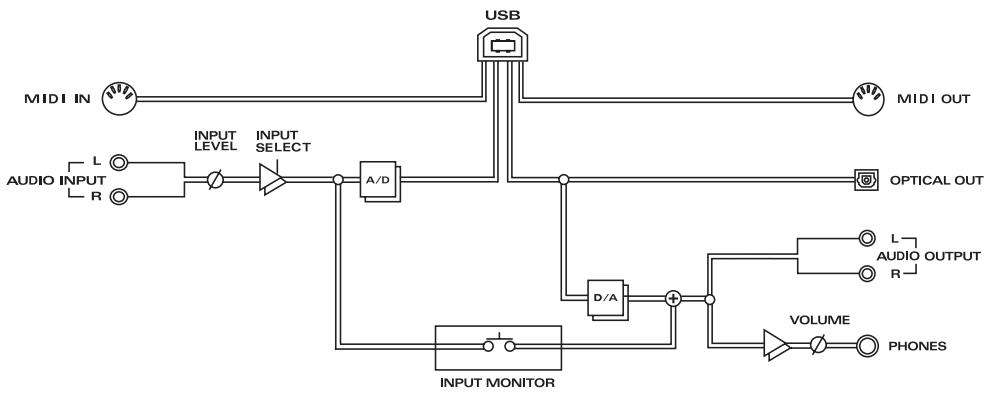
Block diagram 15
Getting Connected and Installing Drivers (Windows) 16
What is a driver? 16
Advanced mode and Standard driver mode. 16
Installing the special driver. 17
Installing the OS-standard driver 31
Settings and checking 36
Getting Connected and Installing Drivers (Macintosh) 42
What is a driver? 42
Advanced mode and Standard driver mode 42
Installing the special driver 43
Installing the ASIO driver 51
Installing the OS-standard driver 53
UA-20 application guide 56
Basic use. 56
Recording a guitar or bass. 57
Recording from a mic. 58
Recording from a keyboard 59
Recording an analog signal from an audio device 60
Recording a MIDI device 61
Digitally recording the output of the UA-20 on an MD 62
Adjusting the audio latency 63
Using ASIO Direct Monitor 64
Troubleshooting 66
Problems related to the USB driver 66
Problems when using the UA-20. 70
Deleting the special driver 79
Deutsch
UA-20 application guide. 157
UA-20 application guide. 196
Main Specifications 242
Features of the UA-20
Thank you, and congratulations on your choice of the UA-20. The UA-20 is a USB audio interface that can be connected to your computer by a single USB cable, allowing you to record and play back audio data in high-quality digital form.
Awesome, high-quality, 24-bit sound
You can use your computer to digitally record and play back unbelievably high-quality audio in 24-bit format.
- Your application must support 24-bit audio data.
Mic/guitar input
The high-impedance inputs allow not only mic but also guitar or bass to be connected directly. RCA phono-type output jacks and a digital output jack (optical) are also provided.
Direct Monitor function
The Direct Monitor function allows the input signal from each input jack to be directly monitored in real time from headphones or the analog outputs, without routing the audio through your computer application. You can also switch the monitor function on/off from an ASIO 2.0 compatible application.
WDM/ASIO 2.0 drivers included
You can enjoy high performance when using WDM-compatible applications such as SONAR, and ASIO-compatible applications such as Cubase and Logic. Of course you can also use the UA-20 with applications that support MMD (Windows) or SoundManager (Mac OS).
- Roland will provide no guarantee or support regarding operation with sequencer software or audio editing software made by another manufacturer. Please contact the manufacturer of the software you are using.
MIDI IN/OUT interface
A set of MIDI IN/OUT connectors is provided for easy connection with MIDI devices.
What is USB?
USB stands for Universal Serial Bus. It is a new interface used to connect various peripheral devices to a computer.
USB allows more than one peripheral device to be connected via a single USB cable, and also allows data to be transmitted more rapidly than conventional serial ports. Peripherals can also be connected or disconnected with the power turned on, and the computer will automatically recognize the peripheral that has been plugged in. (Some peripherals may require settings or other operations to be performed.)
- Microsoft and Windows are registered trademarks of Microsoft Corporation.
- Screen shots in this documents are reprinted with permission from Microsoft Corporation.
- Windows® XP is known officially as: "Microsoft® Windows® XP operating system."
- Windows® 2000 is known officially as: "Microsoft® Windows® 2000 operating system."
- Windows® Me is known officially as: "Microsoft® Windows® Millennium Edition operating system."
- Windows® 98 is known officially as: "Microsoft® Windows® 98 operating system."
- Apple and Macintosh are registered trademark of Apple Computer, Inc.
- MacOS is a trademark of Apple Computer, Inc.
- All product names mentioned in this document are trademarks or registered trademarks of their respective owners.
- OMS is a registered trademark of Opcode Systems, Inc.
- FreeMIDI is a trademark of Mark of the Unicorn, Inc.
- ASIO is trademark of Steinberg Media Technologies AG.
Check the contents of the package
UA-20
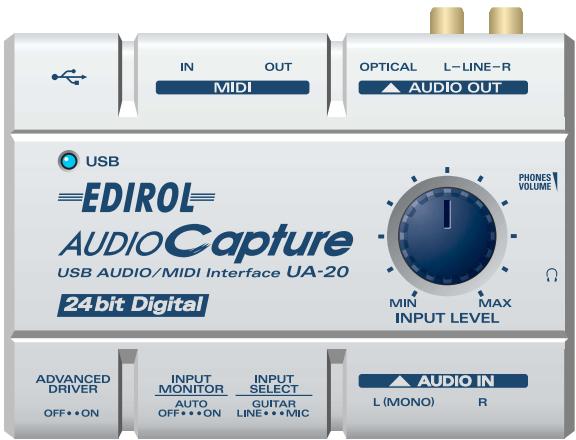
USB cable
Use this to connect the USB connector of your computer with the USB connector of the UA-20. For details on connections and driver installation, refer to Getting Connected and Installing Drivers (Windows → p. 16 or Macintosh → p. 42).
- Please use only the included USB cable. If you require a replacement due to loss or damage, please contact a "EDIROL/Roland Service Center" listed in the "Information" section at the end of this manual.
CD-ROM
This contains the driver required in order to use the UA-20.
Owner's Manual
This is the manual you are reading. Please keep it on hand for reference.
Names of things and what they do
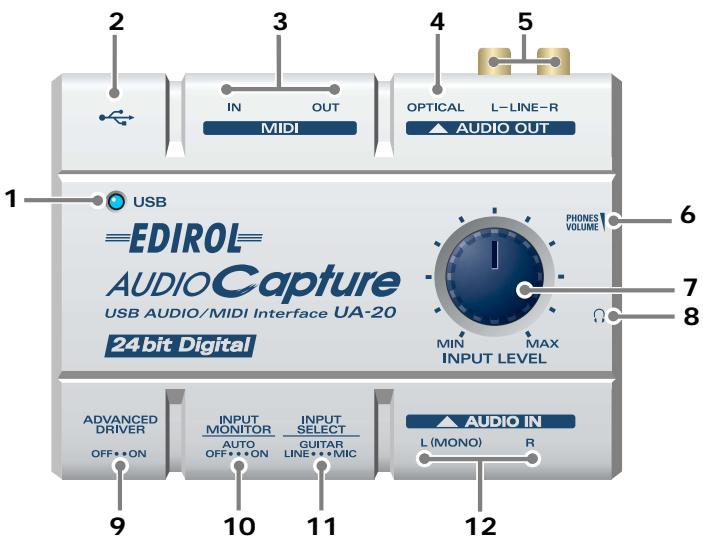
1. USB indicator
This will light when you use the USB cable to connect the UA-20 to your computer, and the computer has recognized the UA-20.
2. USB connector
Audio signals and MIDI signals can be transferred when the UA-20 is connected via a USB cable to your computer.
3. MIDI connector
Connect these connectors to a MIDI device (such as a sequencer) to exchange MIDI messages.
4. Digital output connector
Connect a coaxial cable here when you want to digitally output an audio signal to a digital recorder such as MD or DAT.
5. Master output jacks
These are output jacks for analog audio signals.
6. Headphone volume
This adjusts the volume that is output from the Headphone jack. It is not possible to adjust the volume that is output from the Master output jacks.
7. Input volume
This adjusts the volume at which the input signal from Input jacks.
8. Headphone jack
A set of headphones can be connected here. The Headphone jack will output the same sound as that of the Master output jacks. Sound will be output from the Master output jacks even when headphones are connected.
9. ADVANCE (mode select) switch
This switches the operating mode.
On (Advanced mode)
The driver included with the UA-20 will be used to record/play/edit audio on sequencer software or waveform editing software with high audio quality and stable timing. Using the dedicated driver provided on the included CD-ROM, you will be able to record, play, and edit audio on your sequencer or waveform editing application with high quality and stable timing. Normally, you should use this.
Off (Standard Driver mode)
Select this mode when using applications that use the audio driver included with your operating system, and utilize functionality specific to your operating system.
10. Input monitor switch
This selects whether or not the signal input to the input jacks will be output to the headphone jack and the master output jacks.
| ON | The input signal from the Input jacks will be output to the Headphone jack and the Master output jacks. |
| AUTO | Settings or operations in an ASIO 2.0 compatible application such as Cubase will be able to control the monitoring setting. |
| OFF | The input signal from the Input jacks will not be output to the Headphone jack or the Master output jacks. |
11. Input select switch
Set this as appropriate for the device that is connected to the input jacks.
| LINE | When connecting an audio source or MIDI sound module via an analog audio connection |
| GUITAR | When connecting a guitar |
| MIC | When connecting a dynamic mic * The miniature mics (condenser mics) included with some computers or sound cards are not supported. |
12. Input jacks
These are input jacks for analog audio signals. You can connect dynamic mics, guitars, or audio devices. You must set the Input select switch to the position appropriate for the device you have connected.
If you connect a guitar or mic only to the L jack or R jack, the signal will be monaural.
Getting Connected and Installing Drivers (Windows)
If you are using a Macintosh computer, please proceed to Getting Connected and Installing Drivers (Macintosh) (p. 42).
What is a driver?
A "driver" is software that transfers data between the UA-20 and application software running on your computer, when your computer and the UA-20 are connected by a USB cable. The driver sends data from your
application to the UA-20, and from the UA-20 to your application.
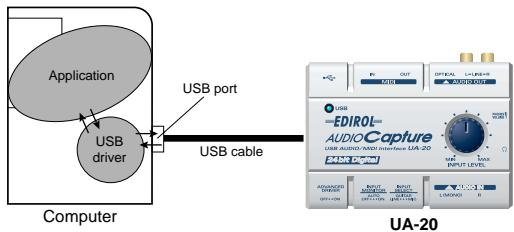
Advanced mode and Standard driver mode
The UA-20 has two operating modes, Advanced mode and Standard driver mode, and a different driver is used by each mode.
■ Advanced mode
The UA-20 will operate in this mode when the rear panel ADVANCE (mode select) switch is turned ON. The special driver included on the CD-ROM will be used, allowing audio to be recorded/played/edited with high quality and stable timing. In Advanced mode, audio signals can be transferred between the UA-20 and the computer at a resolution of 24 bits and sampling frequencies of 44.1kHz . Select this mode if you are using an application that allows high-quality audio recording/playback/editing, such as an application that supports 24 bit audio (e.g., the Cakewalk series or Cool Edit) or an ASIO-compatible application (e.g., Cubase VST or Logic Audio). (→ Installing the special driver (p. 17))
Standard driver mode
The UA-20 will operate in this mode when the rear panel ADVANCE (mode select) switch is turned OFF. The standard USB audio driver included with Windows will be used. In standard driver mode, audio signals are transferred between the UA-20 and the computer at a resolution of 16 bits and sampling frequencies of 44.1kHz . Select this mode if you are using an application that uses Window's own functionality, such as an application that uses the computer's CD-ROM drive to play back CD-audio, or an application that uses the software synthesizer included with Windows.
The standard driver that is included with Windows does not support ASIO.
(→ Installing the OS-standard driver (p. 31))
- If you want to use MIDI, use Advanced mode.
Switching between Advanced mode and Standard driver mode
If you first install both the special driver and the standard driver, you will be able to switch between Advance and Standard driver modes by operating the UA-20's ADVANCE (mode select) switch.
- In order for the setting of the ADVANCE (mode select) switch to take effect, you must exit all sequencer software and other applications that use the UA-20, and re-connect the UA-20.
Installing the special driver
The installation procedure will differ depending on your system.
Please proceed to one of the following sections, depending on the system you use.
- Windows XP/2000 users. (p. 17)
- Windows Me/98 users. (p. 29)
Windows XP/2000 users
The CD-ROM contains two types of driver for Windows XP/2000.
Normally, you should use the WDM driver.
WDM driver
You should use this driver if you have specified WDM driver mode for SONAR or a similar application. This will provide the highest-quality audio performance.
- It is not possible to use 24-bit audio with applications that do not support a WDM driver mode, such as Cool Edit or Media Player.
MME driver
This driver allows you to use 24-bit audio even from applications that do not have a WDM driver mode, such as Cool Edit. It is not possible to use the MME driver from WDM driver mode of an application such as SONAR.
- It is not possible to install both the WDM driver and the MME driver. You must select one beforehand, and install only that driver. If after installing one of these drivers you decide to change drivers, you must first delete the already-installed driver and then install the new driver. (→ Deleting the special driver (p. 79))
- The WDM driver and the MME driver can be installed using the same procedure.
Windows XP users
1
With the UA-20 disconnected, start up Windows.
Disconnect all USB cables except for a USB keyboard and USB mouse (if used).
2
Open the System Properties dialog box.
- Click the Windows start menu, and from the menu, select Control Panel.
- In "Pick a category", click "Performance and Maintenance".
- In "or pick a Control Panel icon", click the System icon.
3
Click the Hardware tab, and then click [Driver Signing].
Open the Driver Signing Options dialog box.
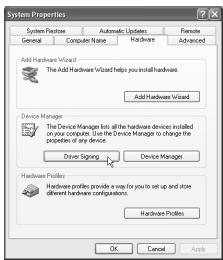
4
Make sure that "What action do you want Windows to take?" is set to "Ignore".
If it is set to "Ignore", simply click [OK].
If it is not set to "Ignore", make a note of the current
setting ("Warn" or "Block"). Then change the setting to "Ignore" and click [OK].
After installing the driver, restore the original setting.
(→ If you changed "What action do you want Windows to take?" (p. 23))

If you are using Windows XP Professional, you must log on using a user name with an administrative account type (e.g., Administrator). For details on user accounts, please consult the system administrator of your computer.

Depending on how your system is set up, the System icon may be displayed directly in the Control Panel (the Classic view). In this case, double-click the System icon.

If you changed "What action do you want Windows to take?" in step 4, you must restore the previous setting after you have installed the driver. (→ If you changed "What action do you want Windows to take?" (p.23))
5
Click [OK] to close the System Properties dialog box.
6
Exit all currently running software (applications).
Also close any open windows. If you are using virus checking or similar software, be sure to exit it as well.
7
Prepare the CD-ROM.
Insert the CD-ROM into the CD-ROM drive of your computer.
8
Click the Windows start button. From the menu that appears, select "Run..."
Open the "Run..." dialog box.
9
In the dialog box that appears, input the following into the "Open" field, and click [OK].
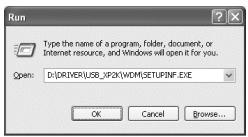
D:\Driver\USB_XP2K\WDM\SETUPINF.EXE
- The drive name "D:" may be different for your system. Specify the drive name of your CD-ROM drive.
10
The SetupInf dialog box will appear.
You are now ready to install the driver.
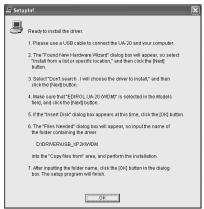

If you are using the MME driver, input MME instead of WDM.

In this manual, the location of folders and files is given in terms of the file path, using \ as the delimiter.
For example,
USB_XP2K\SETUPINF.EXE indicates the SETUPINF.EXE file found in the USB_XP2K folder.
11
Set the UA-20's ADVANCE (mode select) switch to the ON position.
12
Use the USB cable to connect the UA-20 to your computer.
Near the task bar, your computer will indicate "Found New Hardware". Please wait.
13
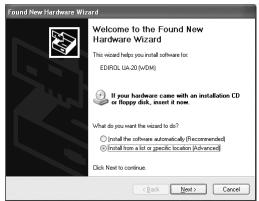
The Found New Hardware Wizard will appear.
Make sure that the screen indicates "EDIROL UA-20 (WDM)", select "Install from a list or specific location (Advanced)", and click [Next].
14
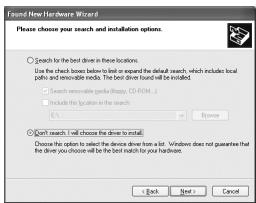
The screen will indicate "Please choose your search and installation options".
Select "Don't search. I will choose the driver to install", and click [Next].
15
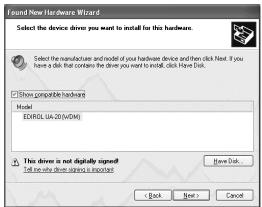
Make sure that the "Model" field indicates "EDIROL UA-20 (WDM)", and click [Next]. Driver installation will begin.

This unit is equipped with a protection circuit. A brief interval (a few seconds) after connecting a USB connector is required before the unit will operate normally.

In the case of the MME driver, make sure that "EDIROL UA-20 (MME)" is displayed.

In the case of the MME driver, make sure that "EDIROL UA-20 (MME)" is displayed.
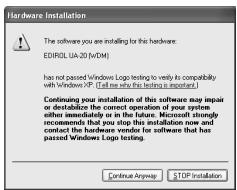
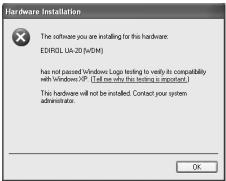
If the "What action do you want Windows to take?" setting was not set to "Ignore", a "Hardware Installation" dialog box will appear.
If "What action do you want Windows to take?" is set to "Warn,"
- Click [Continue Anyway].
- Continue the installation.
If "What action do you want Windows to take?" is set to "Block"
- Click [OK].
- When the "Found New Hardware Wizard" appears, click [Finish].
- Perform the installation as described in the "Troubleshooting" section on Device Manager shows "?","!”, or "USB Composite Device" (p. 68).
16
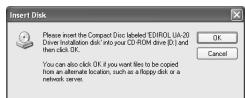
The Insert Disk dialog box will appear. Click [OK].
17
The Files Needed dialog box will appear. Input the following into the "Copy files from" field, and click [OK].
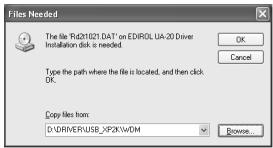
D:\Driver\USB_XP2K\WDM
- The drive name "D:" may be different for your system. Specify the drive name of your CD-ROM drive.
MEMO
The Insert Disk dialog may not appear. In that case, proceed to step 17.
MEMO
If you are using the MME driver, input MME instead of WDM.
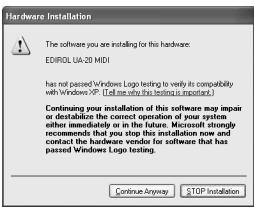
If the "What action do you want Windows to take?" setting was not set to "Ignore", a "Hardware Installation" dialog box will appear.
If "What action do you want Windows to take?" is set to "Warn",
- Click [Continue Anyway].
- Continue the installation.

The Found New Hardware Wizard will appear.
Verify that "EDIROL UA-20 (WDM)" or "EDIROL UA-20 (MME)" is displayed, and click [Finish].
Wait until "Found New Hardware" appears near the taskbar.
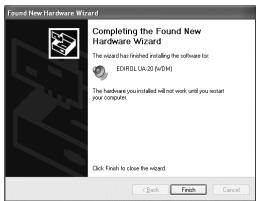

When driver installation has been completed, the System Settings Change dialog box will appear.
Click [Yes]. Windows will restart automatically.
If you changed "What action do you want Windows to take?"
If you changed the What action do you want Windows to take? setting, restore the original setting after Windows restarts.
- If you are using Windows XP Professional, log on to Windows using the user name of an administrative account (e.g., Administrator).
- Click the Windows start menu, and from the menu, select Control Panel.
-
In "Pick a category", click "Performance and Maintenance".
-
Depending on how your system is set up, the System icon may be displayed directly in the Control Panel (classic view). In this case, double-click the System icon.
-
In "or pick a Control Panel icon", click the System icon. The System Properties dialog box will appear.
- Click the Hardware tab, and then click [Driver Signing]. The Driver Signing Options dialog box will appear.
- Return the What action do you want Windows to take? setting to the original setting (either "Warn" or "Block"), and click [OK].
- Click [OK]. The System properties dialog box will close.
Next, you need to make the driver settings.
(→ Settings and checking (p. 36))
Windows 2000 users
1
With the UA-20 disconnected, start up Windows.
Disconnect all USB cables except for a USB keyboard and USB mouse (if used).
2
Log on to Windows as a user with administrative privileges (such as Administrator).
3
Open the System Properties dialog box.
Click the Windows Start button, and from the menu that appears, select Settings | Control Panel. In Control Panel, double-click the System icon.
4
Click the Hardware tab, and then click [Driver Signature].
Open the Driver Signing Options dialog box.
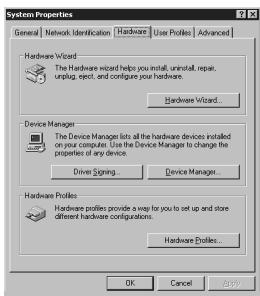
5
Make sure that "File signature verification" is set to "Ignore".
If it is set to "Ignore", simply click [OK].
If it is not set to "Ignore", make a note of the current setting ("Warn" or "Block"). Then change the setting to "Ignore" and click [OK].
After installing the driver, restore the original setting. (→ If you changed "File signature verification" (p. 28))

If the UA-20 is already connected to your computer and a message of "Add New Hardware Wizard" is displayed, go to the included CD-ROM folder named DRIVER\USB_XP2K\WDM or DRIVER\USB_XP2K\MME, open the file Readme_e.htm, and read the "Troubleshooting" section entitled "You attempted to install using the above procedure, but were not able to."

If you changed "File signature verification" in step 5, you must restore the previous setting after you have installed the driver. (→) If you changed "File signature verification" (p. 28))
6
Click [OK] to close the System Properties dialog box.
7
Exit all currently running software (applications).
Also close any open windows. If you are using virus checking or similar software, be sure to exit it as well.
8
Insert the CD-ROM.
Insert the CD-ROM into the CD-ROM drive of your computer.
9
Click the Windows Start button. From the menu that appears, select "Run..."
Open the "Run..." dialog box.
10
In the dialog box that appears, input the following into the "Open" field, and click [OK].
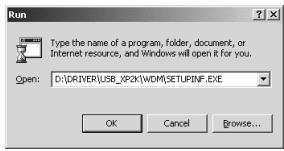
D:\DRIVER\USB_XP2K\WDM\SETUPINF.EXE
- The drive name "D:" may be different for your system. Specify the drive name of your CD-ROM drive.
11
The SetupInf dialog box will appear.
You are now ready to install the driver.
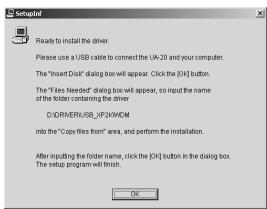
12
Set the UA-20's ADVANCE (mode select) switch to the ON position.

In this manual, the location of folders and files is given in terms of the file path, using \as the delimiter. For example, WDM\SETUPINF.EXE indicates the SETUPINF.EXE file found in the WDM folder.

If you are using the MME driver, input MME instead of WDM.
13
Use the USB cable to connect the UA-20 to your computer.
If the "File signature verification" setting was not set to "Ignore", a "Digital Signature Not Found" dialog box will appear.
If "File signature verification" is set to "Warn,"
- Click [Yes].
- Continue the installation.
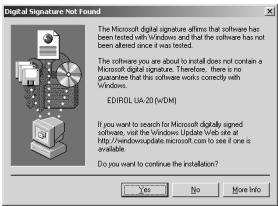
If "File signature verification" is set to "Block"
- Click [OK].
- When the "Found New Hardware Wizard" appears, click [Finish].
- Perform the installation as described in the
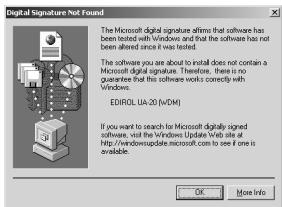
"Troubleshooting" section on Device Manager shows "?","!or USB Composite Device (p. 68).
14
The Insert Disk dialog box will appear.
Click [OK].
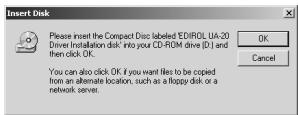
MEMO
This unit is equipped with a protection circuit. A brief interval (a few seconds) after connecting a USB connector is required before the unit will operate normally.
NOTE
If the Insert Disk dialog box does not appear, please read The "Insert Disk" dialog box does not appear (p. 68).
15
The Files Needed dialog box will appear.
In the Copy files from field, type the folder name that is shown in the dialog box, and click [OK].
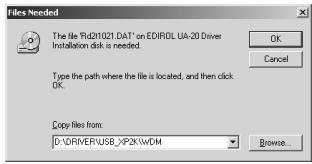
D:\DRIVER\USB_XP2K\WDM
- The drive name “D:” may be different for your system. Specify the drive name of your CD-ROM drive.
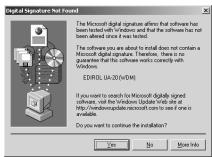
If the "File signature verification" setting was not set to "Ignore", a "Digital Signature Not Found" dialog box will appear.
If "File signature verification" is set to "Warn,"
- Click [Yes].
- Continue the installation.
16
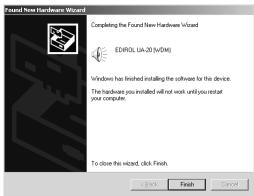
The "Find New Hardware Wizard" may be displayed.
Verify that "EDIROL UA-20 (WDM)" or "EDIROL UA-20 (MME)" is displayed, and click [Finish].
If the "Find New Hardware Wizard" dialog box is not displayed, proceed to step 18.
17
The System Settings Change dialog box may appear.
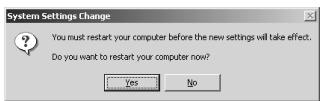
Click [Yes]. Windows will restart automatically. If the System Settings Change dialog box does not appear, restart Windows from the Start menu.

If you are using the MME driver, input MME instead of WDM.
If you changed "File signature verification"
If you changed the "File signature verification" setting in step 5, restore the original setting after Windows restarts.
- After Windows restarts, log in to Windows as a user with administrative privileges, (such as Administrator).
- In the Windows desktop, right-click the My Computer icon, and from the menu that appears, select Properties. The System Properties dialog box will appear.
- Click the Hardware tab, and then click [Driver signature]. The Driver Signing Options dialog box will appear.
- Return the "File signature verification" setting to the original setting (either "Warn" or "Block"), and click [OK].
- Click [OK]. The System Properties dialog box will close.
Next, you need to make the driver settings. (→ Settings and checking (p. 36))
Windows Me/98 users
1
With the UA-20 disconnected, start up Windows.
Disconnect all USB cables other than those for a USB keyboard or USB mouse.
2
Exit all currently running software (applications).
Also, close any open windows. If you are using a virus checker or similar software, be sure to exit this as well.
3
Prepare the CD-ROM.
Insert the CD-ROM into the CD-ROM drive of your computer.
4
Click the Windows Start button. From the menu that appears, select Run....
Open the Run... dialog box.
5
In the dialog box that appears, input the following into the "Open" field, and click [OK].
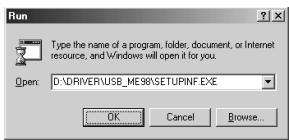
D:\DRIVER\USB_ME98\SETUPINF.EXE
- The drive name "D:" may be different depending on your system. Type the name of your CD-ROM drive.
6
Open the SetupInf dialog box.
You are now ready to install the driver.
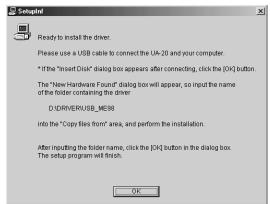
7
Set the UA-20's
ADVANCE (mode select) switch to the ON position.

If the UA-20 is already connected to your computer and a message of "Add New Hardware Wizard" is displayed, go to the CD-ROM folder named
DRIVER\USB_ME98, open the file Readme_e.htm, and read the "Troubleshooting" section entitled "You attempted to install using the above procedure, but were not able to."

In this manual, the location of folders and files is given in terms of the file path, using \as the delimiter. For example, USB_ME98\SETUPINF.EXE indicates that the SETUPINF.EXE file is located in the USB_ME98 folder.
8
Use the USB cable to connect the UA-20 to your computer.
9
If you are using Windows 98, an Insert disk dialog box will appear.
Click [OK].
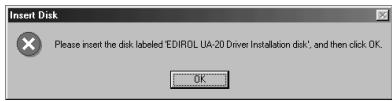
10
The New Hardware Found dialog box will appear.
In the Copy files from field, type the folder name that is shown in the
SetupInfo dialog box, and click [OK].
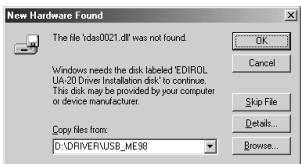
D:\DRIVER\USB_ME98
- The drive name “D:” may be different depending on your system. Type the name of your CD-ROM drive.
11
Once the driver has been installed, the New Hardware Found dialog box will close.
In the SetupInf dialog box, click [OK]. The SetupInf dialog box will close.
Next, you need to make the driver settings. (→ Settings and checking (p. 36))
MEMO
This unit is equipped with a protection circuit. A brief interval (a few seconds) after connecting a USB connector is required before the unit will operate normally.
NOTE
If you are using Windows 98 and the Insert disk dialog box dose not appear, please read The "Insert Disk" dialog box does not appear (p.68).
NOTE
If the New Hardware Found dialog box does not appear, reinstall the driver using the same procedure as described in The "Insert Disk" dialog box does not appear (p. 68).
Installing the OS-standard driver
The procedure for installation and settings will depend on your system.
Proceed to the appropriate section as follows.
- Windows XP/2000 users............(p. 31)
- Windows Me users. (p. 32)
- Windows 98 users. (p. 33)
Windows XP/2000 users
1
With the UA-20 disconnected, start up Windows.
Disconnect all USB cables except for a USB keyboard and USB mouse (if used).
2
Exit all currently running software (applications).
If you are using a virus checker or similar software, be sure to exit it as well.
3
Place the UA-20's ADVANCE (mode select) switch in the OFF position.
4
Use the USB cable to connect the UA-20 to your computer.
The UA-20 will be detected automatically, and the driver will be installed.
5
When installation is complete, restart Windows.
Next, you will need to make the driver settings. (→ Settings and checking (p. 36))

If you are using Windows XP, the installation has been completed when the message near the taskbar saying that "Found New Hardware" has disappeared.

This unit is equipped with a protection circuit. A brief interval (a few seconds) after connecting a USB connector is required before the unit will operate normally.
Windows Me users
1
With the UA-20 disconnected, start up Windows.
Disconnect all USB cables except for a USB keyboard and USB mouse (if used).
2
Exit all currently running software (applications).
If you are using a virus checker or similar software, be sure to exit it as well.
3
Place the UA-20's ADVANCE (mode select) switch in the OFF position.
4
Use a USB cable to connect the UA-20 to your computer.
5
Windows will detect the UA-20, and the "Add New Hardware Wizard" dialog box will appear.
Make sure that Automatic search for a better driver (Recommended) is selected, and click [Next].
6
Driver detection will begin.
7
When the driver has been found, driver installation will begin.
8
Once the driver has been installed, a dialog box will inform you of this. Click [Finish].
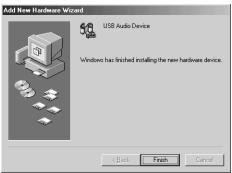

This unit is equipped with a protection circuit. A brief interval (a few seconds) after connecting a USB connector is required before the unit will operate normally.

Depending on your system, a certain amount of time may be required for the device to be detected after the driver has been installed.
9
Restart Windows.
Next, you will need to make the driver settings.
(→ Settings and checking (p. 36))
Windows 98 users
The USB composite device driver is installed first, then the USB audio device driver is installed. Use the following procedure to install the drivers.
1
With the UA-20 disconnected, start up Windows.
Disconnect all USB cables except for a USB keyboard and USB mouse (if used).
2
Exit all currently running software (applications).
If you are using a virus checker or similar software, be sure to exit it as well.
3
Set the UA-20's ADVANCE (mode select) switch to the OFF position.
4
Use a USB cable to connect the UA-20 to your computer.
5
USB composite device
will be detected automatically, and the "Add New Hardware
Wizard" dialog box will appear. Click [Next].
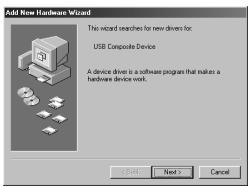

This unit is equipped with a protection circuit. A brief interval (a few seconds) after connecting a USB connector is required before the unit will operate normally.

If this dialog box does not appear, refer to "Find new hardware wizard" does not execute automatically (p. 66).
6
When "What do you want Windows to do?" appears, select "Search for the best driver for your device (Recommended)", and click [Next].
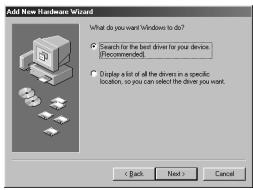
7
A dialog box like the one shown will appear.
Check CD-ROM drive, and click [Next]
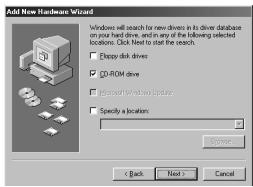
8
A dialog box like the one shown will appear.
Click [Next].
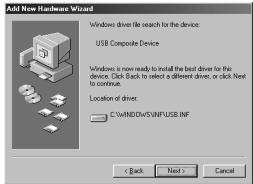
9
File (driver) copying will begin.

If the display indicates "Can't find an updated driver for this device", check "Updated driver", and click [Next].

Depending on your system, the Driver location may differ from the illustration, but this is not a problem.
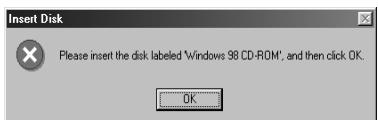
If the Windows CD-ROM is not inserted in the CD-ROM drive, a "Insert Disk" dialog box may appear. In this case, insert the Windows CD-ROM into the CD-ROM drive and click [OK].
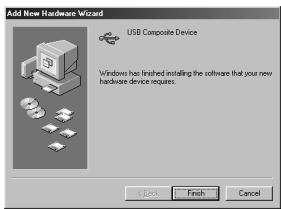
10
When installation of the USB Composite Device driver is completed, a dialog box like the one shown here will appear.
Click [Finish].
11
Next, the USB audio device will be detected automatically, and the "Add New Hardware Wizard" dialog box will appear.
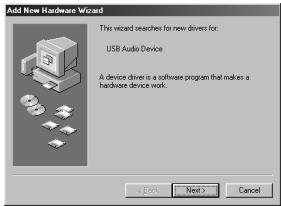
Click [Next], and proceed with the installation in the same way as in steps 8-11 (p. 34).
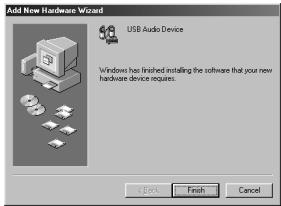
12
When installation of the USB audio device driver is complete, a dialog box like the one shown here will appear.
Click [Finish].
13
Installation of the USB composite device driver and USB audio device driver has been completed.
Restart Windows.
Next, you will need to make the driver settings. (→ Settings and checking (p. 36))
Settings and checking
■ Specifying the audio and MIDI input/output destination
Windows XP/2000/Me users
1
Open Control Panel.
Click the Windows Start button, and from the menu that appears, select Settings | Control Panel.
Windows XP
Click the Windows start button, and from the menu that appears, select Control Panel.
2
Open the Sounds and Audio Devices Properties dialog box (or in Windows 2000/Me, Sounds and Multimedia Properties).
Windows XP
In "Pick a category" click "Sound, Speech, and Audio Devices". Next, in "or pick a Control Panel icon", click the sounds and Audio Devices icon.
Windows 2000/Me
In Control Panel, double-click the Sounds and Multimedia icon to open the "Sounds and Multimedia Properties" dialog box.
3
Click the Audio tab.

Depending on how your system is set up, the Sounds and Audio Devices icon may be displayed directly in the Control Panel (the Classic view). In this case, double-click the Sounds and Audio Devices icon.

If the Sound and Multimedia icon is not displayed, click "Show all control panel options" in the frame at the left.

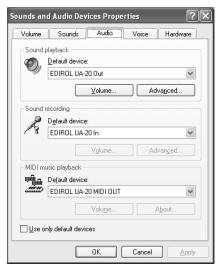
For MIDI music playback, click the located at the right of [Default device] (or in Windows 2000/Me, [Preferred device]), and select the following from the list that appears.
MEMO
For details on Advanced mode and Standard Driver mode, refer to Advanced mode and Standard driver mode (p. 16).
| Advanced mode | Standard driver mode | |
| Sound playback | EDIROL UA-20 OUT | EDIROL UA-20 (Windows XP) USB Audio Device (Windows 2000/Me) |
| Sound recording | EDIROL UA-20 IN | EDIROL UA-20 (Windows XP) USB Audio Device (Windows 2000/Me) |
| MIDI music playback | EDIROL UA-20 MIDI OUT | MIDI cannot be handled when using Standard Driver mode. |

Close the Sounds and Audio Devices Properties
dialog box.
Click OK to complete the settings.
Proceed to the next section.
→ Volume Control setting (p. 40)
Windows 98 users
1
Open Control Panel.
Click the Windows Start button, and from the menu that appears, select Settings | Control Panel.
2
Open the Multimedia Properties dialog box.
In Control Panel, double-click the Multimedia icon to open the "Multimedia Properties" dialog box.
3
Click the Audio tab.
4
Specify the "Preferred device".
Click the Playback field and Recording field, make the following selections from the list that appears, and click [Apply].

| Advanced mode | Standard driver mode | |
| Playback | EDIROL UA-20 Out | USB Audio Device |
| Recording | EDIROL UA-20 In | USB Audio Device |

For details on Advanced mode and Standard Driver mode, refer to Advanced mode and Standard driver mode (p. 16).
5
Click the MIDI tab.

Set "MIDI output".
Select [Single instrument], and choose one of the following from the list that appears, and click [Apply].
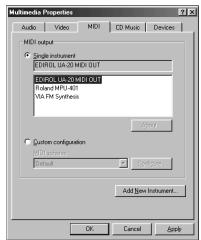

For details on Advanced mode and Standard Driver mode, refer to Advanced mode and Standard driver mode (p. 16).
| Advanced mode | Standard driver mode | |
| MIDI output | EDIROL UA-20 MIDI OUT | MIDI cannot be handled when using Standard Driver mode. |

Close the Multimedia Properties dialog box.
Click [OK] to complete the settings.
This completes MIDI and audio input/output destination settings. If you installed the standard Windows driver, make settings for the Windows volume control. Proceed to the next section. → Volume Control setting (p. 40)
Volume Control setting
If you installed the standard Windows driver, set the Windows volume control.
1
Open the Volume Control.
Click the Windows Start button, and select Programs | Accessories | Entertainment | Volume Control.
2
Raise or lower the slider to adjust the volume of the UA-20.
If you have installed the Standard driver, the UA-20 can use the Windows volume control to adjust the output volume.
Items that can be set
| CD Player | Controls the volume of “audio CDs” on the internal CD-ROM drive of the computer. (*1) |
| WAVE | Controls the volume of sound output from the “EDIROL UA-20” audio output device. Digital output and analog output will change. |
| SW Synth | Controls the volume of the software synthesizer built into Windows. |
- 1 If the CD playback volume does not change when you adjust this control, then change the WAVE volume. If you are using Windows 2000 and the CD Player is not displayed, check "Enable digital music CDs for this CD playback device" in Digital CDPlayback.
→ When playing audio CDs from the computer's internal CD-ROM drive, or using the UA-20 to play game music (Standard driver mode only) (p. 41)

If the Volume Control is not installed on your computer, use the Control Panel icon Add or Remove Programs to install it. For details on installation, refer to the Windows manual or Help.

You will be able to use the UA-20 at the best audio quality if you set the Volume Control volume to the maximum setting.

If Mute is checked or if the slider is lowered all the way, no sound will be output from the UA-20.
When playing audio CDs from the computer's internal CD-ROM drive, or using the UA-20 to play game music (Standard driver mode only)
Windows XP/2000 users:
- Open the System Properties dialog box.
Select Start | Settings | Control Panel, and in the Control Panel, double-click the System icon.
(Windows XP- Click the Windows start button, and from the menu that appears, select Control Panel.)
- Open the Device Manager.
Click the Hardware tab, and click the Device Manager button.
- Open the CD-ROM drive's Properties.
In CD-ROM drive, double-click the CD-ROM drive that you are using. In Digital CD Playback, check the "Enable digital CD audio for this CD-ROM device" item.
Windows Me users:
- Open System Properties.
Select Start | Settings | Control Panel, and in Control Panel, double-click the System icon.
- Open the CD-ROM drive's Properties.
Double-click the CD-ROM icon, and then double-click the CD-ROM drive that you are using.
- Click the Properties tab, and in Digital CD Playback, check the "Enable digital CD audio for this CD-ROM device" item.
Windows 98 users:
- Open the Multimedia Properties dialog box.
Select Start | Settings | Control Panel, and in Control Panel, double-click the Multimedia icon.
-
Click the Music CD tab, and check the "Enable digital CD audio for this CD-ROM device" item.
-
Depending on your system, playback may still not be possible. For details, please contact the manufacturer of your computer. If you are using a PC-card (PCMCIA) type CD-ROM drive, playing back WAVE data from a CD-ROM or playing an audio CD may cause interrupted sound, or possibly no sound at all.
Getting Connected and Installing Drivers (Macintosh)
If you are using a Windows computer, please proceed to Getting Connected and Installing Drivers (Windows) (p. 16).
What is a driver?
A "driver" is software that transfers data between the UA-20 and application software running on your computer, when your computer and the UA-20 are connected by a USB
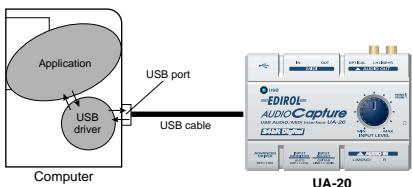
cable. The driver sends data from your application to the UA-20, and from the UA-20 to your application.
Advanced mode and Standard driver mode
The UA-20 has two operating modes, Advanced mode and Standard driver mode, and a different driver is used by each mode.
■ Advanced mode
The UA-20 will operate in this mode when the rear panel ADVANCE (mode select) switch is turned ON. The special driver included on the CD-ROM will be used, allowing audio to be recorded/played/edited with high quality and stable timing. In Advanced mode, audio signals can be transferred between the UA-20 and the computer at a resolution of 24 bits and sampling frequencies of 44.1kHz . Select Advanced mode if you are using an application that is able to record/playback/edit high-quality audio, such as a 24 bit audio application or an ASIO-compatible application such as Cubase VST, Logic Audio, and Metro.
In Advanced mode, the UA-20 cannot play back audio data (audio CDs or warning sounds) from the Macintosh sound manager.
(→ Installing the special driver (p. 43))
Standard driver mode
The UA-20 will operate in this mode when the rear panel ADVANCE (mode select) switch is turned OFF. The standard USB audio driver included with MacOS will be used. In standard driver mode, audio signals are transferred between the UA-20 and the computer at a resolution of 16 bits and sampling frequencies of 44.1kHz . Select this mode if you are using an application that uses MacOS's own functionality, such as an application that uses the computer's CD-ROM drive to play back CD-audio, or an application that uses the software synthesizer included with MacOS. The standard driver included with MacOS does not support ASIO. Note also that the use of Mac OS 8.6 is not supported.
(→ Installing the OS-standard driver (p. 53))
Switching between Advanced mode and Standard driver mode
If you first install both the special driver and the standard driver, you will be able to switch between Advance and Standard driver modes by operating the UA-20's ADVANCE (mode select) switch.
- In order for the setting of the ADVANCE (mode select) switch to take effect, you must exit all sequencer software and other applications that use the UA-20, and re-connect the UA-20.
Installing the special driver
You must install the MIDI driver even if you will be using only audio on the UA-20. Be sure to install the MIDI driver.
Use either OMS or FreeMIDI as the MIDI driver.
If you are using OMS (p. 44)
If you are using FreeMIDI. (p. 48)
-
Either OMS or FreeMIDI must be installed in your Macintosh, as appropriate for the sequencer software you are using.
-
If the power of the UA-20 is turned on, a message like the following will appear when the Macintosh is started up. Perform the steps described below as appropriate for the message that is displayed.
If the screen indicates:
"Driver required for USB device 'unknown device' is not available. Search for driver on the Internet?"
→ click [Cancel].
If the screen indicates:
"Software required for using device 'unknown device' cannot be found.
Please refer to the manual included with the device, and install the necessary software."
→ click [OK].
■ Installing the UA-20 driver (OMS)
Use the following procedure to install the UA-20 driver. The included UA-20 OMS driver is an add-on module for using the UA-20 with OMS. In order for you to use it, OMS must already be installed on the hard disk from which you started up.
If you would like to learn more about OMS, refer to OMS_2.3_Mac.pdf in the OMS Driver folder within the Driver E folder of the CD-ROM. You will need the Adobe Acrobat Reader in order to view OMS_2.3_Mac.pdf.
- Disconnect the UA-20 from the Macintosh before you perform the installation.
1 Exit all currently running software (applications).
If you are using a virus checker or similar software, be sure to exit this as well.
2 Prepare the CD-ROM.
Insert the CD-ROM into the CD-ROM drive.
3 Double-click the UA-20 OMS Driver-E Installer icon (found in the Driver E-OMS Driver folder of the CD-ROM) to start up the installer.
4 Verify the Install Location, and click [Install].
5 If a message like the following is displayed, click [Continue].
The other currently running applications will exit, and installation will continue.
6 A dialog box will indicate Installation completed.
Click [Restart] to restart your Macintosh.

OMS can be found in the OMS Driver folder within the Driver E folder of the CD-ROM.

The indication for the installation location will differ depending on your system. Make sure that the startup disk for the system you are using is selected.
OMS settings
To check the OMS settings, you will first need to connect a MIDI sound module to the UA-20's MIDI OUT connector. For details on connecting a MIDI sound module, refer to the owner's manual for your MIDI sound module.
1
Set the UA-20's ADVANCE (mode select) switch to the ON position.
2
Use the USB cable to connect the UA-20 to your computer.
3
From the CD-ROM, drag the Driver E-OMS Driver- Settings folder into the Opcode-OMS folder on the hard disk of your Macintosh to copy it there.
4
In the Opcode-OMS Application folder where you installed OMS, double-click OMS Setup to start it up.

5
If a dialog box like the one shown here appears, click [Turn It Off]. A confirmation dialog box will then appear, so click [OK].
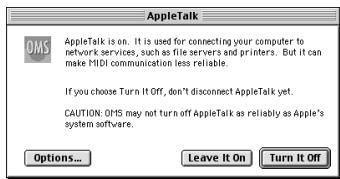

This unit is equipped with a protection circuit. A brief interval (a few seconds) after connecting a USB connector is required before the unit will operate normally.

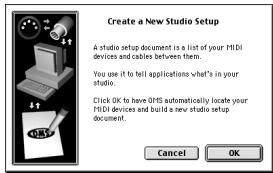
The Create a New Studio Setup dialog box will appear.
Click [Cancel]. If you accidentally clicked OK, click [Cancel] in the next screen.

Choose "Open" from the File menu.
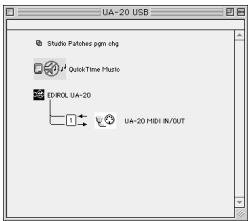
From the Settings folder that you copied in step 3, select the UA-20 USB file, and click [Open].
A screen like the one shown here will appear.

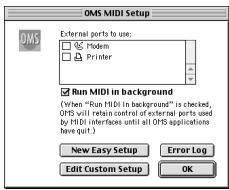
From the Edit menu, select OMS MIDI Setup.
In the OMS MIDI Setup dialog box that appears, check Run MIDI in background, and click [OK].

From the File menu, choose Make Current.
If you are unable to select Make Current, it has already been applied, and you may continue to the next step.
A diamond mark () indicated the settings are enabled.
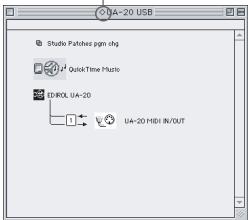

We recommend that you turn off AppleTalk, by selecting Chooser from the Apple menu.
10
Verify that MIDI transmission and reception can be performed correctly.
From the Studio menu, choose Test Studio.
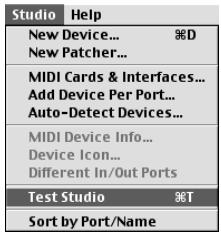
11
When you move the mouse cursor near the sound generator icon, the cursor will change to a shape.
Click on the sound generator icons that are encircled in the illustration shown at right. If sound is heard from the sound module, the settings are correct.
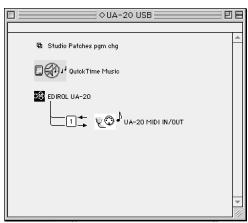
12
Exit OMS Setup.
From the File menu, choose [Quit]. If the AppleTalk confirmation dialog box appears, click [OK] to close the dialog box.
This completes connections for the UA-20 and Macintosh, and installation of the MIDI driver.
Next, you need to install the ASIO driver. (→ Installing the ASIO driver (p. 51))

If the UA-20 does not produce sound, refer to No sound (p. 70).
■ Installing the UA-20 driver (FreeMIDI)
Use the following procedure to install the UA-20 driver. The included UA-20 FreeMIDI driver is an add-on module for using the UA-20 with FreeMIDI. In order to use it, FreeMIDI must be installed on the hard disk from which you started up.
- Disconnect the UA-20 from the Macintosh before beginning the installation.
1
Exit all currently running software (applications).
If you are using a virus checker or similar software, be sure to exit this as well.
2
Prepare the CD-ROM.
Insert the CD-ROM into the CD-ROM drive.
3
Double-click the UA-20 FM Driver - E Installer icon (found in the Driver E - FreeMIDI folder of the CD-ROM) to start up the installer.
4
Verify the Install Location, and click [Install].
5
If a message like the following is displayed, click [Continue].

This installation requires your computer to restart after installing this software. Click Continue to automatically quit all other programs. Click Start button. Click Cancel to leave your disks untouched.
Cancel
Continue
The other currently
running applications will exit, and installation will continue.
6
A dialog box will indicate Installation completed.
Click [Restart] to restart your Macintosh.
FreeMIDI settings
To check the FreeMIDI settings, you will first need to connect a MIDI sound module to the UA-20's MIDI OUT connector. For details on connecting a MIDI sound module, refer to the owner's manual for your MIDI sound module.
1
Set the UA-20's ADVANCE (mode select) switch to the ON position.
2
Use the USB cable to connect the UA-20 to your computer.
3
From the CD-ROM, copy the Driver E - FreeMIDI Driver - Settings folder onto the hard disk of your Macintosh.
4
Open the FreeMIDI Applications folder from the location into which you installed FreeMIDI, and double-click the FreeMIDI Setup icon to start it up.
5
When "OMS is installed on this computer..." appears, click [FreeMIDI].
6
The first time the software is started up, a dialog box saying "Welcome to FreeMIDI!" will appear. Click [Continue].
7
When the FreeMIDI Preferences dialog box appears, click [Cancel].
8
When the About Quick Setup dialog box appears, click [Cancel].
9
From the File menu, choose Open.
MEMO
This unit is equipped with a protection circuit. A brief interval (a few seconds) after connecting a USB connector is required before the unit will operate normally.
10
Select UA-20 USB from the Settings folder you copied in step 3, and click [Open].
11
Verify that MIDI transmission and reception occur correctly.
From the MIDI menu, choose Check Connections.
12
The mouse cursor will change to the shape of a keyboard. Click the sound generator icons encircled in the diagram at right.
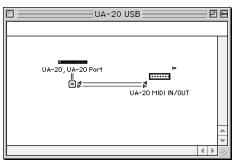
If you hear sound, MIDI messages are being sent from the Macintosh to the sound module.
13
Once again choose the MIDI menu command Check Connections to end the test.
14
From the File menu, choose Quit to exit FreeMIDI Setup.
This completes connections for the UA-20 and Macintosh, and installation of the MIDI driver.
Next you will install the ASIO driver. (→ Installing the ASIO driver (p. 51))

If the UA-20 does not produce sound, refer to No sound (p. 70).
Installing the ASIO driver
You must install the MIDI driver even if you will be using only audio on the UA-20. Be sure to install the MIDI driver before you install the ASIO driver.
This section explains how to install the ASIO driver that allows the UA-20 to be used by your sequencer software or audio editing software. For details on installation and settings of the ASIO driver, be sure to also read the Driver E-ASIO Driver-Setting ASIO Driver-E.HTM document on the CD-ROM.
In Advanced mode, the UA-20 cannot play back audio data from the Macintosh's sound manager (such as audio CDs and alert sounds).
The ASIO driver of the UA-20 supports the following audio input/output channels.
Audio input.....24/16 bit1 stereo ch. (2 monauralchs.)
Audio output.....24/16 bit1 stereo ch. (2 monauralchs.)
Here we will explain how to install the ASIO 1.0 16 bit-compatible driver.

ASIO (Steinberg Audio Stream In/Out Interface)
This is an audio interface standard promoted by the Steinberg Corporation. When the UA-20 is used with ASIO-compatible software, the synchronization precision will be improved, allowing a more sophisticated music production environment.
If your ASIO-compatible software supports ASIO 2.0 or recording/ playback of 24 bit audio data, using the following drivers will provide a higher quality environment.
| ASIO-compatible software | Driver to use | |
| ASIO2.0-compatible | 24 bit compatible | |
| × | × | UA-20 ASIO 1.0 16 bit |
| × | ○ | UA-20 ASIO 1.0 24 bit |
| ○ | × | UA-20 ASIO 2.0 16 bit |
| ○ | ○ | UA-20 ASIO 2.0 24 bit |

From the Driver E-ASIO Driver folder of the CD-ROM, copy [UA-20
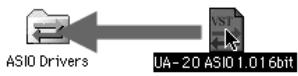
ASIO1.0 16bit] to the [ASIO Drivers] folder within the ASIO Drivers folder of the ASIO-compatible software you are using (e.g., Cubase VST, Logic Audio, Digital Performer, Metro, or SPARK LE).

Start up your ASIO-compatible software (e.g., Cubase, VST, Logic Audio, Digital Performer, Metro, or SPARK LE).

Open the Audio setting dialog box of your ASIO-compatible software, and select [UA-20 ASIO 16bit] as the ASIO Device.

The Audio setting dialog box will be named differently depending on your software. For details refer to the manual of your software.
Installing the OS-standard driver
1
With the UA-20 disconnected, start up Mac OS.
2
Exit all currently running software (applications).
If you are using a virus checker or similar software, be sure to exit it as well.
3
After starting up Mac OS, select Apple System Profiler from the Apple menu.
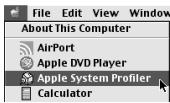
The "Apple System Profiler" dialog box will appear.
4
Click the Devices and Volumes tab.
5
Set the UA-20's ADVANCE (mode select) switch to the ON position.
6
Use the USB cable to connect the UA-20 to your computer.
7
Wait for approximately five seconds.
The UA-20 will use the driver included with Mac OS.
While you are waiting, the screen display will not change, but the UA-20 is being detected. Do not touch the mouse or keyboard.
MEMO
This unit is equipped with a protection circuit. A brief interval (a few seconds) after connecting a USB connector is required before the unit will operate normally.

In order to check that detection has been completed, once again go to "Apple System Profiler", and select "Update all information" from the C
In the USB area, three audio devices will be displayed.
| System Profile | Devices and Volumes | Control Panel2 | Exte | |
| USB 0 | Audi (ED/ROU, UA-20) | |||
| 1.5.5 | Audi (ED/ROU, UA-20) | |||
| Audi (ED/ROU, UA-20) | ||||
If these are displayed correctly, driver installation has succeeded. In the File menu, click Quit to close "Apple System Profiler".
If they are not displayed correctly, disconnect the UA-20, wait for about ten seconds, and then repeat the procedure from step 2.
Next, you will need to make the driver settings.
Settings the sound input/output

From the Apple menu, select Control Panel - Sound.
The Sound dialog box will appear.
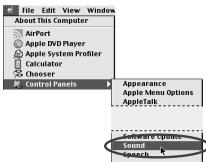

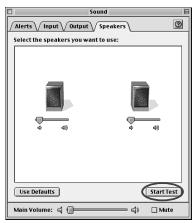
Click the Speakers tab or Speaker Settings.
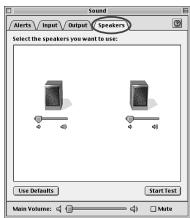

The main volume slider will not move.

With the volume turned down on the UA-20 and on your peripheral audio equipment, click [Start Test].
Test signals will be output from the UA-20; left first, then right, as indicated in the screen.

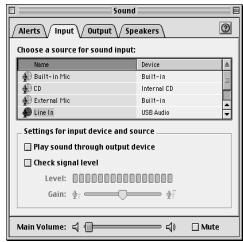
In the Sound dialog box, click the Input tab.
In Choose a source for sound input (Device), select USB audio.
- Do not check "Play sound through output device".

When you are finished making settings, close the Sound dialog box.
From the File menu, select Quit.

The output volume of the UA20 cannot be adjusted with the Mac OS sound dialog box. Make volume adjustments through other means, such as on the speaker system you are using.

If USB audio is not displayed, close the "Sound" dialog box, and disconnect the UA-20's USB cable from the Macintosh. Perform the driver installation (p. 53) once again.
UA-20 application guide
This chapter explains the various ways the UA-20 can be connected, and introduces some of its applications.
- To prevent malfunction and/or damage to speakers or other devices, always turn down the volume, and turn off the power on all devices before making any connections.
Basic use
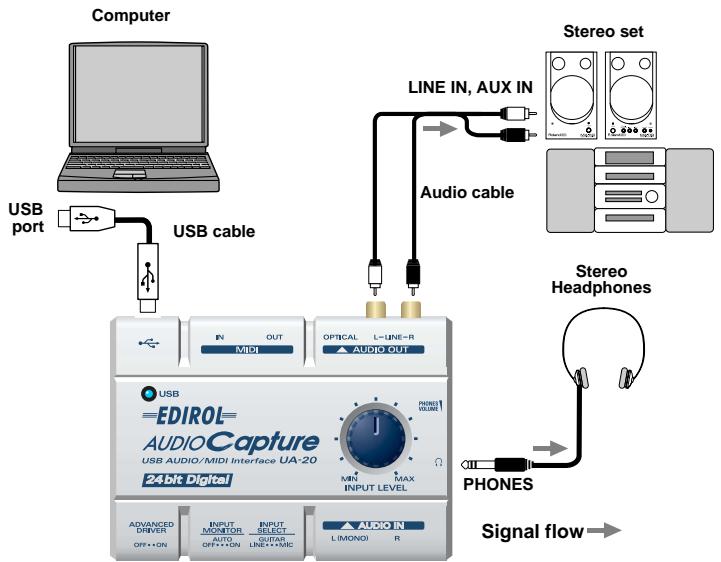
As shown in the diagram, you can connect headphones or monitor speakers, and monitor the playback sound from your application or the sound from the instrument or audio device to which the UA-20 is connected.
Recording a guitar or bass
When you play your guitar along with audio data from your computer to record your performance on a sequencer, only the guitar will be recorded on the computer.
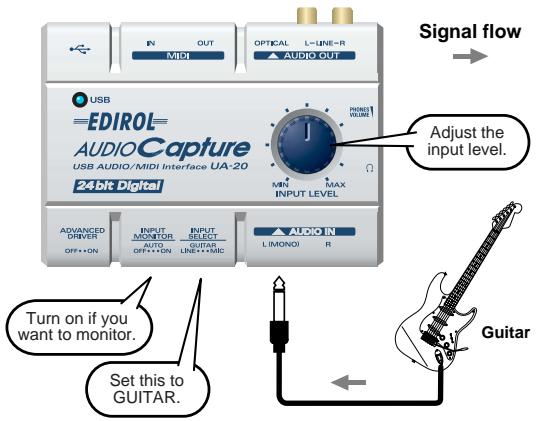
Use the Input volume to adjust the input level.
Check the input level on the application that you are using.
If you turn the input monitor switch to ON, the sound will be output from the headphone jack and the master output jacks.
Recording from a mic
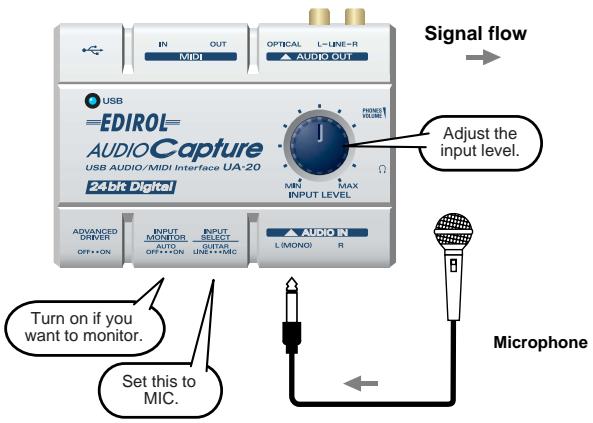
Use the Input volume to adjust the input level. Check the input level on the application that you are using.
If you turn the input monitor switch to ON, the sound will be output from the headphone jack and the master output jacks.
-
Howling could be produced depending on the location of microphones relative to speakers. This can be remedied by:
-
Changing the orientation of the microphone(s).
- Relocating microphone(s) at a greater distance from speakers.
- Lowering volume levels.
Recording from a keyboard
Here's how you can send a keyboard performance as audio data to your computer, and record it on sequencer software.
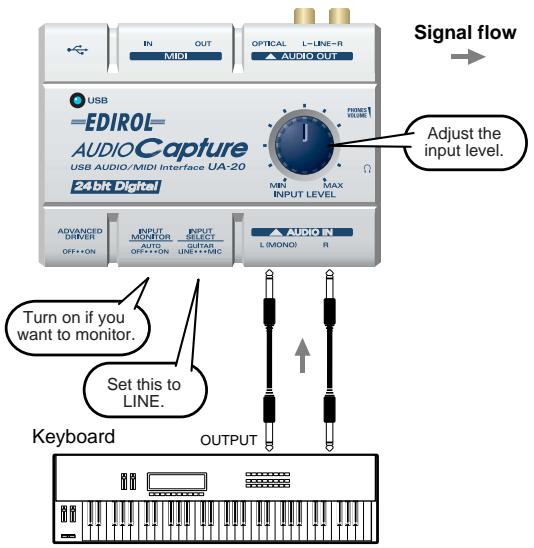
The sound that is input to Input jack L(MONO) will be recorded on the left channel, and the sound that is input to R jack will be recorded on the right channel.
Use the Input volume to adjust the input level. Check the input level on the application that you are using.
If you turn the input monitor switch to ON, the sound will be output from the headphone jack and the master output jacks.
Recording an analog signal from an audio device
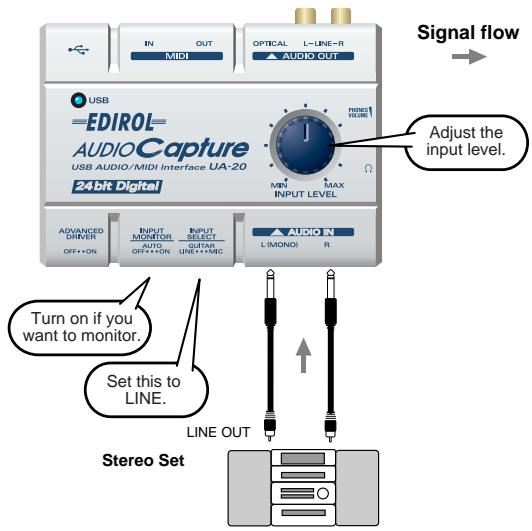
The sound that is input to Input jack L(MONO) will be recorded on the left channel, and the sound that is input to R jack will be recorded on the right channel.
Use the Input volume to adjust the input level.
Check the input level on the application that you are using.
If you turn the input monitor switch to ON, the sound will be output from the headphone jack and the master output jacks.
Be careful of looped connections
UA-20
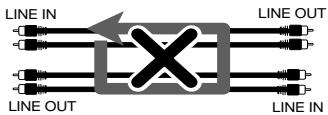
Loop Connection
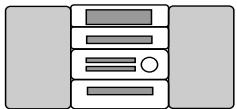
Stereo Set
(cassette player)
If the UA-20 is connected as shown above to a device that outputs ("thru-s") the input audio (such as a cassette player that is in recording mode), turning on the Input monitor switch will cause the sound to loop between the UA-20 and the other device, causing oscillation and producing an unexpectedly high volume. Be aware that such connections may cause the system to malfunction, or your speakers to be damaged.
Recording a MIDI device
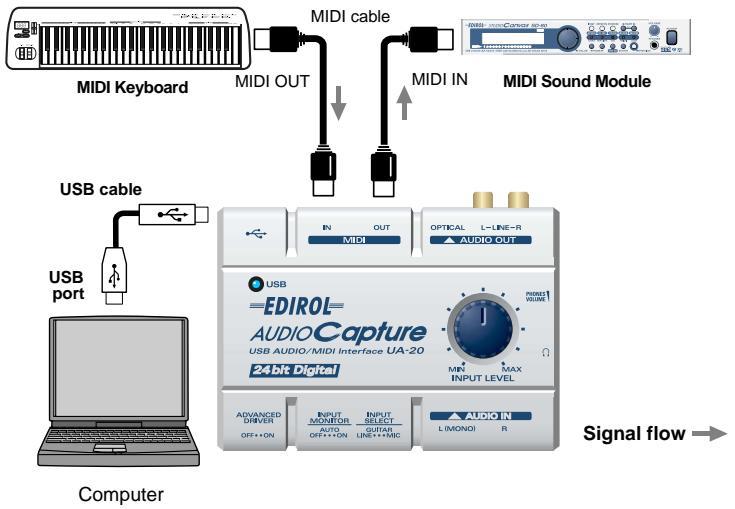
The MIDI messages from a MIDI keyboard connected to the MIDI IN connector can be sent via the UA-20 to sequencer software on your computer.
The MIDI messages from the sequencer software on your computer can be sent for playback to a sound module connected to MIDI OUT.
Digitally recording the output of the UA-20 on an MD
Make connections as shown in the diagram.
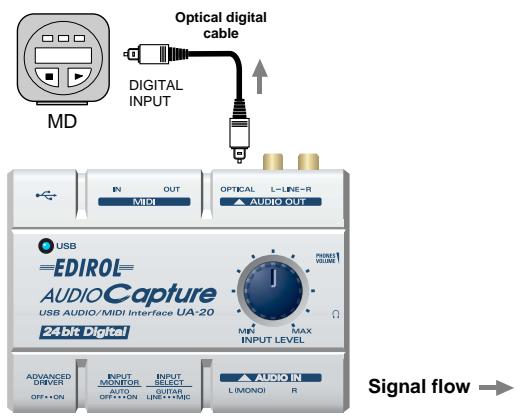
- The UA-20 does not support audio formats of professional digital devices.
On the UA-20, the input from the input jacks cannot be output directly to the Digital output connector. The Digital output connector will always output only the audio signal from the computer.
Adjusting the audio latency
When using the UA-20 in Advanced mode, you can change the driver settings to adjust the latency of the audio. To adjust the latency, change the Buffer Size in the driver settings dialog box.
- Latency is the time delay from when an application plays back audio data until the sound is actually heard from an audio device such as the UA-20.
1
As described in "Opening the special driver settings dialog box (p. 65)", open the "Driver Settings" dialog box.
2
Adjust the driver buffer size.
The following setting will produce the shortest latency.
Windows:
Set "Audio Buffer Size" to the far left (Min).
Macintosh:
Set "Buffer Size" to the far left (Min).
3
Click [OK] to close the driver settings dialog box.
4
Restart the application that is using the UA-20.
If you are using an application that has a function for testing audio devices, get it to perform its tests.
5
Play back audio data on your application.
If interruptions occur in the sound, repeat this procedure, and gradually increase the buffer size specified in step 2 until interruptions no longer occur.
- Depending on the application you are using, there may be a buffer size or latency adjustment function among the audio settings of the application as well. For details, refer to the operation manual for your application.
Using ASIO Direct Monitor
If you are using the UA-20 from an ASIO2.0-compatible application in Advanced mode, the UA-20's Input monitor switch can be controlled automatically from the application.
1
As described in "Opening the special driver settings dialog box (p. 65)", open the "Driver Settings" dialog box.
2
Make the following settings.
Check the "Use ASIO Direct Monitor" check box.
3
Click [OK] to close the driver settings dialog box.
- Depending on your application, there may also be an ASIO Direct Monitor setting among the audio settings of your application. For details, refer to the operation manual for your application.
- When using ASIO Direct Monitor, monitoring may switch on/off at unexpected times, depending on the application settings and on the recording procedure. If this occurs, uncheck the check box in step 2 to disable ASIO Direct Monitor.
Opening the special driver settings dialog box
If using the WDM driver on Windows XP/2000:
- Open the "Control Panel" and double-click "EDIROL UA-20".
-
The "EDIROL UA-20 Driver Settings" dialog box will appear.
-
In Windows XP, click "Switch to classic view" to switch the display to the classic view. EDIROL UA-20 will not be displayed unless the classic view is selected.
If using the MME driver on Windows XP/2000:
- Open the "Control Panel", and double-click "System".
- Click the "Hardware" tab, and click the [Device Manager] button.
- Double-click "Sound, Video, and Game Controllers".
- Double-click "EDIROL UA-20".
- Click the "Properties" tab, and in the "Multimedia Devices" area, double-click "Audio Devices".
- Select "EDIROL UA-20", and click the [Properties] button.
- Click the [Settings] button, and the "EDIROL UA-20 Driver Settings" dialog box will appear.
If using Windows Me/98:
- Open the "Control Panel", and double-click "Sound and Multimedia". (In the case of Windows 98, double-click "Multimedia".)
- Click the "Devices" tab, and double-click "Audio Devices".
- Select "EDIROL UA-20 Audio", and then click the [Properties] button to open Properties.
- Click the [Settings] button, and the "EDIROL UA-20 Driver Settings" dialog box will appear.
If using Macintosh:
Open the ASIO Control Panel from the Audio Settings dialog box of your ASIO-compatible application. The name of the Audio Settings dialog box and the procedure for opening the ASIO Control Panel will differ depending on your application. For details, refer to the operation manual for your application.
Troubleshooting
Troubleshooting
If an unexpected problem occurs while using the UA-20, read this chapter first. It contains numerous tips for resolving problems.
If you are using Windows or Macintosh for the first time, and as a result find it difficult to follow the procedural explanations, please refer to the manuals that came with your computer or operating system.

Problems common to Windows and Macintosh

Problems occurring only in Windows

Problems occurring only in Macintosh
Problems related to the USB driver

An "Unknown driver found" dialog box appears, and you are unable to install the driver

"Find new hardware wizard" does not execute automatically

"Find new hardware wizard" ends before the process is completed
- It may take about 15 seconds (or more) after the USB cable is connected for the UA-20 to be detected.
- Is the USB cable connected correctly?
- Make sure that the UA-20 and your computer are correctly connected via a USB cable.
- Is USB enabled on your computer? Refer to the operation manual for your computer, and make sure that USB is enabled.
-
It has been found that in some cases, not all of the Windows 98 files required to support audio via USB are installed when a computer is shipped. Please contact the manufacturer of your computer.
-
Does your computer meet the USB specifications?
If you are using a computer that does not fulfill the electrical requirements of the USB specifications, operation may be unstable. In this case, you may be able to solve the problem by connecting a USB hub.
- Does "Unknown device" appear for "Other device" or "Universal serial bus controller"?
Use the following procedure to delete "Other device" (Universal Serial Bus Controller) "Unknown device", and then restart your computer.
- In the Windows Control Panel, double-click System. The System Properties dialog box will appear.
- Click the Device Manager tab.
- Double-click "Other device" or "Universal Serial Bus Controller" to display a list of devices.
- From the list, select the unknown device and click [Delete].
- In the dialog box that asks you to confirm the deletion, click [OK].
- Verify that "Other device" or "Unknown device" is not displayed in the list, and click [Close] to close the dialog box.

"Found unknown device" appears even though you installed the driver
If your computer or USB hub has two or more USB connectors, and you connect the UA-20 to a USB connector to which the UA-20 has never been connected before, the "Unknown device" dialog box may appear even on a computer onto which you have already installed the driver.
Refer to Getting Connected and Installing Drivers (Windows) (p. 16), and install the driver once again. This is not a malfunction.

Driver is not installed correctly
As described in Deleting the special driver (p. 79), delete the USB audio device driver that is installed in your computer, and then install the UA-20 driver once again as described in Getting Connected and Installing Drivers (Windows) (p. 16). Also check whether there is an "Unknown device" in "Other devices" or "Universal Serial Bus Controller".
If you find one, delete it.

Can't install/delete/use the driver in Windows XP/2000
- Did you log on to Windows as a user with administrative privileges?
In order to install/delete/re-install the driver in Windows XP/2000, you must be logged into Windows as a user with administrative privileges, such as Administrator. For details, please contact the system administrator for your computer system. - Did you make "Driver Signing Options"?
In order to install/re-install the driver, you must make "Driver Signing Options".
(Windows XP → p. 18, Windows 2000 → p. 24)

Windows XP/2000 displays a "Hardware Installation" or "Digital Signature Not Found" dialog box
- Did you make "Driver Signing Options"?
In order to install/re-install the driver, you must make the settings described in "Driver Signing Options".
(Windows XP → p. 18, Windows 2000 → p. 24)

Device Manager shows “?”, “!”, or “USB Composite Device”

The "Insert Disk" dialog box does not appear
Use the following procedure to re-install the driver.
- Turn off the power of your computer, and start up Windows with all USB cables disconnected (except for keyboard and mouse).
- After Windows restarts, use a USB cable to connect the UA-20 to your computer.
- Click the Windows [Start] button, and from the menu that appears, choose Settings | Control Panel.
- Double-click the System icon. The System Properties dialog box will appear.
- Click the Device Manager tab.
-
Check whether you can see an indication of “?Composite USB Device”, “?USB Device”, “!USB Device”, or “USB composite device” displayed below “Sound, Video, and Game Controllers”, “Other Devices”, or “Universal Serial Bus Controller”. If you find any such indication, select it and click [Delete].
-
A dialog box will ask you to confirm deletion of the device. Verify the contents of the dialog box, and then click [OK]. In the same way, delete all indications of “?Composite USB Device”, “?USB Device”, “USB Device”, and “USB composite device” that you find.
- If you find EDIROL UA-20 with a yellow “!” or a red “?” displayed beside it, delete this in the same way.
- When you have finished deleting the unwanted devices, click [OK] in the System Properties dialog box.
- Turn off the power of the UA-20, then delete the driver. (→ Deleting the special driver (p. 79))
-
Restart Windows. Then install the driver once again. (→ Getting Connected and Installing Drivers (Windows) (p. 16)).
-
If the problem still occurs after you have taken the above measures, please refer also to the Readme file for the USB driver. The Readme file is on the CD-ROM.
Problems when using the UA-20

Operating system becomes unstable
Operation becomes unstable when the computer is started up with the UA-20 already connected
Please start up your computer with the UA-20 disconnected, and then connect the UA-20. On a computer that uses a USB keyboard, starting up the computer with the UA-20 already connected may cause operation to become unstable. In this case, start up the computer with the UA-20 disconnected, and then connect the UA-20.

No sound
- Have you specified the MIDI data output destination for your operating system? You must specify the UA-20 as the audio data output destination for your computer. For details on how to make this setting, refer to Settings and checking.
(Windows, Settings and checking (p. 36)/
Macintosh, OMS settings (p. 45), FreeMIDI settings (p. 49))
- In your playback software, have you specified the audio data output destination?
For some software, such as Cool Edit Pro LE, you will need to specify the UA-20 as the output destination for audio data. For details on the procedure for making settings, refer to the owner's manual for your software.
- Are you running multiple applications?
If multiple applications are running simultaneously, an error message may appear. If this occurs, click [OK] and exit the other applications.
Even if an application window is closed, it is still running if it appears in the taskbar. Be sure to exit unneeded applications displayed in the taskbar.
Was the driver installed correctly?
In order for you to play back audio data via the UA-20, the driver must be installed. For installation and settings, refer to "Getting Connected and Installing Drivers". (Windows, p. 16 / Macintosh, p. 42).
- Is your computer in Suspend or Sleep mode?
If so, get your computer to resume normal operation, then exit all applications that are using the UA-20. Next, turn the UA-20's power off, then switch it on again.
- Did you reconnect the USB cable?
Exit all applications that are using the UA-20, and exit all applications that are using the UA-20, and re-connect the UA-20.
- Have you selected "Game compatible device" or "Voice modem" as the output for the audio track?
If game compatible device or voice modem (the actual name will depend on the computer you are using) is selected for the audio track of your software, the audio track may not play back. Do not select these devices as the port.
- Has your computer been set to enter Sleep mode?
If your computer enters Sleep mode, exit the software you are using, and then restart your computer. We recommend that you set your computer to not use Sleep mode.

Is OMS/FreeMIDI set correctly?
As described in OMS settings (p. 45) or FreeMIDI settings (p. 49), check the OMS or FreeMIDI settings. Also make sure that the device for MIDI IN/OUT is correctly selected in the MIDI settings of your MIDI sequencer software.

Is the OMS setup enabled?
If a diamond-shaped symbol is not displayed at the left edge of the title area in the OMS setup window, the setup is not enabled. From the OMS File menu, choose "Make Current". (OMS settings (p. 45))

- Are you attempting to play back an audio CD using your computer's CD player? (Standard driver mode)
If you want to play an audio CD from your computer's internal CD-ROM drive, refer to When playing audio CDs from the computer's internal CD-ROM drive, or using the UA-20 to play game music (Standard driver mode only) (p. 41).

- Are the volume control faders raised? (Standard Driver mode/Windows XP/2000 WDM driver)
Adjust the volume of the faders as described in Volume Control setting (p. 40).
Can't play back / record MIDI

- Has the MIDI device you are using been set correctly?
In order to record/play MIDI tracks using the UA-20, you must correctly install the UA-20 driver (Getting Connected and Installing Drivers (Windows) (p. 16)). Also make sure that the input port and output port are set as follows in your software.
| INPUT port | OUTPUT port |
| EDIROL UA-20 MIDI IN | EDIROL UA-20 MIDI OUT |

- Has the MIDI device you are using been selected correctly? Select [UA-20 MIDI IN/OUT] as the MIDI output device.

- Are the track outputs set correctly?
MIDI tracks to which no MIDI playback device is assigned will not be heard. If you want to play back a MIDI track, you must make sure that the MIDI device you want to use is displayed in your software as the MIDI output port. For details, refer to the owner's manual for your software.
Interrupted notes or delays occur during MIDI playback

In Windows XP, enable background processing.
Make the following settings so that MIDI processing will occur smoothly.
- Click the Windows start button, and from the menu that appears, select Control Panel.
- In "Pick a category", click "Performance and Maintenance".
- In "or pick a Control Panel icon", click the System icon.
- Click the Advanced tab.
- At the right of the Performance field, click [Settings]. The Performance Options dialog box will appear.
- Click the Advanced tab.
- In the Processor Scheduling field, select "Background services", and click [OK].
- In the System Properties dialog box, click [OK]. The System Properties dialog box will close.
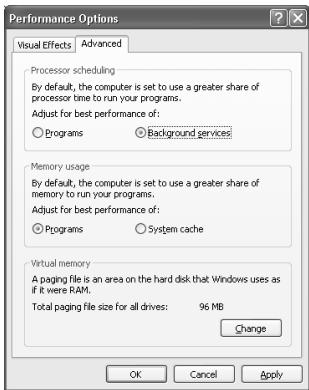

Distortion occurs in the sound from devices connected to the input jacks
If you are inputting audio from Input jacks, use the UA-20 Input volume to reduce the input level.

Sound from devices connected to the input jack is not heard in the headphones
Is the headphone volume set appropriately? Turn the knob clockwise to adjust the volume.
Is the Input monitor switch turned on?
Is the Input select switch set correctly?

Volume from a device connected to the input jacks is too low
- Are you using a cable that has a built-in resistor? Use a cable without a built-in resistor (e.g., Roland PCS series).
Is the Input volume raised appropriately? Turn the knob clockwise to adjust the volume.

Guitar sound is too weak
- Connect your guitar to input jack L.
- Set the Input select switch to GUITAR.
Noise is heard during audio playback

Is a mic or guitar still connected?
If a mic or guitar is connected to the UA-20, disconnect the mic or guitar, and turn the input sensitivity knob all the way to the left.
Disconnect any audio devices you are not using.
- Noise is sometimes heard in the line input or mic input.
If a USB-compatible MIDI sound module and the UA-20 are connected via USB to the same computer, and the outputs of the MIDI sound module are connected to the line input jacks of the UA-20, noise from your computer may be heard via the MIDI sound module from the UA-20, depending on the computer you are using. If this occurs, you can either connect the MIDI sound module and the UA-20 in parallel using a self-powered hub, or connect the MIDI sound module via its serial or MIDI interface.
- Are two or more audio devices such as the UA-20 or a mixer connected to your computer?
Try connecting only a single UA-20 unit, and check whether the noise disappears. If numerous audio devices are connected to a computer, noise may occur depending on your system. In such cases, connect only the UA-20 to your computer.

- Does your sequencer software support ASIO 2.0?
If your ASIO-compatible software does not support ASIO 2.0, it will not operate correctly if you use [UA-20 ASIO2.0 16bit] or [UA-20 ASIO2.0 24bit] as the ASIO driver.
In this case, select either [UA-20 ASIO1.0 16bit] or [UA-20 ASIO1.0 24bit] as the ASIO driver.

- Does your sequencer software support 24-bit audio?
If your ASIO-compatible software does not support 24-bit audio input/output, it will not operate correctly if you select [UA-20 ASIO1.0 24bit] or [UA-20 ASIO2.0 24bit] as the ASIO driver. In this case, select either [UA-20 ASIO1.0 16bit] or [UA-20 ASIO2.0 16bit] as the ASIO driver.

Is the UA-20 connected to a USB hub?
Try connecting the UA-20 directly to the USB connector of the Macintosh itself.
Macintosh
- Are you using a USB device other than the UA-20?
Try turning off the power of all USB audio devices other than the UA-20.
Windows Macintosh
- In some cases, you may also be able to solve this problem by grounding the chassis of your computer, or the grounding connector of the AC power supply plug of your computer. In addition, you can check whether any devices that produce a strong magnetic field are located nearby, such as a television or microwave oven.
- Also check the troubleshooting item Sound is interrupted during audio playback (p. 75)
Sound is interrupted during audio playback
Windows Macintosh
- Are many applications running on your computer?
If you use many applications or start up other applications during playback, playback may be interrupted, depending on your computer system. Please exit unneeded applications, and try again. If this does not resolve the problem, try restarting your computer.
Windows
-
Graphic accelerators may cause noise to be heard during audio playback. Use the following procedure to turn the graphic accelerator "Off".
-
In the Windows Control Panel, double-click Display to open the Display Properties dialog box, and click the Settings tab.
- Click Advanced, and in the properties that appear, click the Performance tab. For Windows XP, click Advanced, and then click the Troubleshooting tab. For Windows 2000, click Advanced, and then click the Troubleshooting tab.
- Set the Hardware acceleration slider to None, and click [OK].
- In the Display Properties dialog box, click [OK] to close the dialog box. Then restart your computer.

- Try using the following procedure to change your disk drive settings.
The following setting item may not exist on some computers.
- In the Windows Control Panel, double-click System.
- Click the Device Manager tab.
- Double-click Disk Drives to see the list of devices.
-
From the list, select GENERIC IDE DISK TYPE??, and click Properties to access the GENERIC IDE DISK TYPE?? Properties dialog box.
-
In the ?? field of GENERIC IDE DISK TYPE??, there will be a number that differs depending on your computing environment.
-
Click the Settings tab, place a check mark in the check box for the DMA option, and click [OK] to close the dialog box.
-
Depending on your system, a DMA Settings dialog box may appear. Check the contents, and click either [OK] or [Cancel].
-
In the System Properties dialog box, click [OK] to close the dialog box. Then restart your computer.

Try installing more memory.
Installing more memory will increase the performance of your computer. For details on how to install more memory, refer to the operation manual for your computer.

- Does your computer satisfy the requirements of the USB standard?
If you are using a computer (such as a computer that you yourself assembled) that does not satisfy the electrical requirements of the USB specifications, you may experience interruptions in the audio. If this occurs, you may be able to solve the problem by connecting a USB hub that contains its own power supply.

- On some computers, audio playback may be interrupted due to the Power Management settings in the Control Panel.
The Power Supply Properties that you see when you double-click Power Management will differ depending on your computer system. One example is given below, but you should also refer to the operation manual for your computer. Some computers may not have all of the following setting items.
-
Click the Windows Start button, and select Settings | Control Panel to open the Control Panel.
-
In Control Panel, double-click System to open the System Properties dialog box.
- Click the Device Manager tab.
- Double-click System Devices to display the list of devices.
- From the list, select Advanced Power Management Support. Then click Properties to open the Advanced Power Management Support Properties dialog box.
- Click the Settings tab, and in Troubleshooting, place a check in the check box for Don't Poll Power Supply Status. Then click [OK].
- In the System Properties dialog box, click [OK].
- Restart Windows.

- If you are using the special driver, you can solve this problem in the "EDIROL UA-20 Driver Settings" dialog box. For details, refer to the section "Something is wrong with playback; sound is interrupted or notes are missing" within the Readme_e file located in the folder in which you installed the CD-ROM.

Depending on the virtual memory setting or network-related settings, noise may occur. Please make the following settings before use.
- In Chooser of the Apple menu, set AppleTalk to "Inactive".
(This setting is not changed as a result of turning off AppleTalk, as requested by OMS when sequencer software is started up. You must change the setting yourself using the "Chooser".) - In the "Memory" Control Panel, set Virtual Memory to "Off".
- Depending on the way in which you connect to the Internet, use the UA-20 with the following settings.
If you connect to the Internet via a LAN cable
Use while the LAN cable is connected.
If you connect to the Internet via the internal modem port, or are not connected to the Internet
In the "TCP/IP" Control Panel, set "Connect via" to "PPP".
After you have made the settings, restart your Macintosh.
- Do not use software that accesses the network (such as a Web browser) at the same time that you are using sequencer software or audio editing software.

- Try increasing the Buffer Size in the ASIO Driver control panel.
The name of the settings dialog box will differ depending on your software.
- If you change the buffer size, you must exit the software and then restart it.
- Roland can make no guarantee of, nor provide support regarding the operation of sequencer software and audio editing software made by another manufacturer. Please contact the manufacturer of the software you are using.

Playback or recording halts midway through, and then becomes impossible
- Was a heavy processing load experienced while using the UA-20, such as accessing the CD-ROM drive or a network?
If an operation involving a heavy processing load is performed while the UA-20 is in use, it may not operate correctly. If this occurs, stop playback/recording, and then try resuming playback/recording. If you are still unable to play back/record, exit all applications that use the UA-20, switch off the UA-20, then turn it on again.

Recording produces a silent (blank) file
Try setting the bit rate to "16 bit or higher".
If you are using Windows 98 Second Edition and your recording software is set to a bit rate setting of 8 bits, a silent file may be created, effectively making recording impossible. If this occurs, set the bit rate to "16 bit or higher", and you will be able to record normally.
Is the Recording source select switch set correctly?
- In your operating system, is the audio data input destination set correctly?
- On your recording software, is the audio data input destination set correctly?

Game background music does not play
- Does the game use an audio CD for background music? (Standard driver mode) If the game uses an audio CD for background music, refer to When playing audio CDs from the computer's internal CD-ROM drive, or using the UA-20 to play game music (Standard driver mode only) (p. 41).
Deleting the special driver
If you were unable to install the special driver according to the procedure given, the UA-20 may not be recognized correctly by the computer. In this case, use the following procedure to delete the special driver, and then follow the procedure in Getting Connected and Installing Drivers (Windows, p. 17; Macintosh, p. 43) to install the driver once again.
Windows XP/2000 users
In order to delete (uninstall) the driver, a user with administrative privileges such as Administrator must be logged onto Windows. For details, contact the system administrator of your computer.
- With all USB cables disconnected, start Windows. (USB keyboard and USB mouse excepted)
- Log on to Windows under a user name belonging to the Administrator group, such as "Administrator".
- Turn on the UA-20's ADVANCE (mode select) switch.
- After connecting the UA-20 to your computer via a USB cable, turn on the power of the UA-20.
- Exit all applications before deleting the driver.
-
Open the Control Panel, and double-click System.
-
In Windows XP, click "Switch to classic view" to switch the display to the classic view. EDIROL UA-20 will not be displayed unless the classic view is selected.
-
Click the Hardware tab, and in the "Device Manager" area, click [Device Manager].
- Double-click "Sound, Video, and Game Controllers" to view the list of devices.
-
From the list, click "EDIROL UA-20 (WDM)" or "EDIROL UA-20 (MMX)" to select it. Then right-click, and from the menu that appears, select "Delete".
-
If "EDIROL UA-20 (WDM)" or "EDIROL UA-20 (MMX)" does not appear in the list, refer to the "Can't install/delete/use the driver in Windows XP/2000" section (p. 68) in "Troubleshooting".
-
A dialog box will ask you to confirm that you want to delete the device. Verify the contents of the dialog box, and click [OK].
- Close the Device Manager window, and click [OK] in System Properties.
- Disconnect the USB cable from the UA-20.
- Restart Windows.
Windows Me/98 users
- With all USB cables disconnected, start up Windows. (USB keyboard and USB mouse excepted)
- Turn on the UA-20's ADVANCE (mode select) switch.
- After connecting the UA-20 to your computer via a USB cable, turn on the power of the UA-20.
- Exit all applications before deleting the driver.
- Open the Control Panel, and double-click System.
- Depending on the state of your computer, System may not appear in the Control Panel. In this case, click "Show all control panel options".
- Click the Device Manager tab.
- Double-click "Sound, video, and game controllers" to see a list of devices.
- From the list, click "EDIROL UA-20" to select it, and click [Remove].
- A dialog box will appear, asking you to confirm that you want to delete the driver. Verify the contents, and click [OK].
- Click [Close] to close System Properties.
- Disconnect the USB cable from the UA-20.
- In Control Panel, click Folder Options and then click the Display tab. (In Windows 98, click Start → Settings → Folder Options)
- In Advanced settings of the View tab, remove the check mark for "Hide protected operating system files (Recommended)", click "Show hidden files and folders", and then click [OK]. (In Windows 98, this will be "Show all files".)
- Click Start → Find → Files or folders.
- In "Search location", select "Local hard drive". Then in "Name of file or folder", type "0005." and click [Begin search].
- Of the files that are found, delete the five files Rdas0005.DLL, Rddp0005.dat, Rddv0005.drv, Rdvx0005.vxd, and Rdwm0005.sys. If the list shows Rdif0005.inf or RolandRDIF0005.INF, delete these files as well. * Never delete any file other than the files specified here.
- Restart Windows.
Macintosh users
- Disconnect the USB cable (by which the UA-20 is connected) from your Macintosh.
- From the system extensions folder, drag "USB UA-20 Driver" into the trash to delete it.
- Delete UA-20 from the OMS Folder inside the System folder, or drag UA-20 Driver from the FreeMIDI Folder to the trash.
- Drag the ASIO driver that you installed in Installing the ASIO driver (p. 51) into the trash to delete it.
- Restart the Macintosh.
D:\Driver\USB_XP2K\WDM
"Driver required for USB device 'unknown device' is not available. Search for driver on the Internet?"
'Software required for using device 'unknown device' cannot be found.
Please refer to the manual included with the device, and install the necessary software".
This installation requires your computer to restart after installing this software. Click Continue to automatically quit all other programs and run the program again. Click Cancel to leave your disks untouched.
Cancel
Continue
A diamond mark () indicated the settings are enabled.
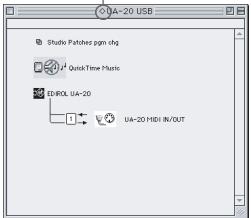

This installation requires your computer to restart after installing this software. Click Continue to automatically quit all other programs. Click Start button. Click Cancel to leave your disks untouched.
Cancel
Continue
[UA-20 ASIO1.0 16bit] in den Ordner [ASIO
UA-20 application guide
D:\Driver\USB_XP2K\WDM
"Driver required for USB device 'unknown device' is not available. Search for driver on the Internet?"
"Software required for using device 'unknown device' cannot be found.
This installation requires your computer to restart after installing this software. Click Continue to automatically quit all other programs and run the program again. Click Cancel to leave your disks untouched.
Cancel
Continue

A diamond mark () indicated the settings are enabled.
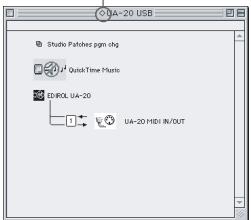
10
This installation requires your computer to restart after installing this software. Click Continue to automatically quit all other programs and run the program. Click Cancel to leave your disks untouched.
Cancel
Continue
UA-20 application guide
Réglage de la latence audio
Modo driver Advanced e Standard
Modo driver Standard
D:\Driver\USB_XP2K\WDM
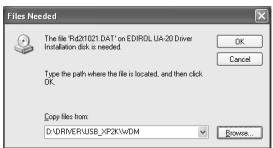
"Troubleshooting" intitolata "You attempted to install using the above procedure, but were not able to."

Modo driver Advanced Standard
Modo driver Standard
"Driver required for USB device 'unknown device' is not available. Search for driver on the Internet?"
→ fareclcus[Cancel.]
"Software required for using device 'unknown device' cannot be found.
Please refer to the manual included with the device, and install the necessary software".
→ fareclc su [OK].
Nella cartella Opcode-OMS
A diamond mark () indicated the settings are enabled.
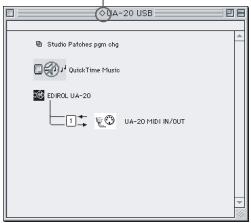
10
This installation requires your computer to restart after installing this software. Click Continue to automatically quit all other programs and run the program. Click Cancel to leave your disks untouched.
Cancel
Continue
Logic Audio, Digital Performer, Metro o SPARK LE.
2
Cubase VST, Logic Audio, Digital Performer, Metro o
SPARK LE.
3
[UA-20 ASIO 16bit] come ASIO Device.

UA-20 application guide
D:\Driver\USB_XP2K\WDM
"Driver required for USB device 'unknown device' is not available. Search for driver on the Internet?",
→ haga cli en [Cancel].
Si la pantalla indica:
"Software required for using device 'unknown device' cannot be found. Please refer to the manual included with the device, and install the necessary software",
→ haga clic en [OK].
This installation requires your computer to restart after installing this software. Click Continue to automatically quit all other programs and run the program. Click Cancel to leave your disks untouched.
Cancel
Continue

A diamond mark () indicated the settings are enabled.
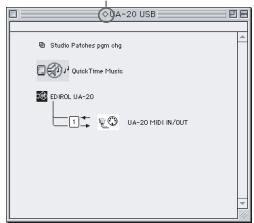
10
This installation requires your computer to restart after installing this software. Click Continue to automatically quit all other running applications. Click Cancel to leave your disks untouched.
Cancel
Continue
Cuando aparezca "OMS is installed on this computer...”, hagablick en [FreeMIDI].
6
Cubase VST, Logic Audio, Digital Performer, Metro o
SPARK LE).

UA-20 application guide
Record: 1 pair of stereo
Playback: 1 pair of stereo
Full duplex
Signal Processing
PC interface: 24 bit
Sampling Rate
Digital output: 44.1 kHz
Nominal Input Level
-45 - -10 dBu
Input Impedance
LINE: 22 k ohms
GUITAR: 470 k ohms
MIC: 22 k ohms
Nominal Output Level
-10 dBu
Output Impedance
1 k ohms
Residual Noise Level
(input terminated with 1k ohm,
Master Volume =
Input Monitor = off, IHF-A, typ.)
Master Out: -105 dBu or less
Interface
USB
Digital output
Optical Type
(conforms to S/P DIF)
- Connectors
Input Jack (1/4 inch phone type) x 2
Digital Out Connector
(Optical type)
Headphones Jack
(Stereo miniature phone type)
Master Out Jack
(RCA phono type)
MIDI Connectors
Power Supply
Supplied from the computer
Current Draw
170mA
- Dimensions
149 (W) x 110.5 (D) x 42.8 (H) mm
5-7/8 (W) x 4-3/8 (D) x 1-11/16 (H) inches
Weight
210g / 8oz
- Accessories
Owner's Manual
USB cable
CD-ROM
(0dBu = 0.775Vrms)
Information
When you need repair service, call your nearest EDIROL/Roland Service Center or authorized EDIROL/Roland distributor in your country as shown below.
-EDIROL
AUSTRALIA
EDIROL Australia Pty. Ltd.
72 Central Avenue
Oak Flats NSW 2529
AUSTRALIA
TEL: (02) 4257 9091
http://www.edirol.com.au
EUROPE
EDIROL (Europe) Ltd.
Studio 3.4 114 Power Road
London W4 5PY
U.K.
TEL: +44 (0)20 8747 5949
FAX:+44(0)2087475948
http://www.edirol.com/europe
Deutschland
TEL:070033476520
France
TEL:0810000371
Italia
TEL:0293778329
U.S.A./CANADA
EDIROL Corporation North
America
425 Sequoia Drive, Suite 114
Bellingham, WA 98226
U.S.A
TEL: (360) 594-4276
FAX: (360) 594-4271
http://www.edirol.com/
Roland
AFRICA
EGYPT
Al Fanny Trading Office
- EBN Hagar A1 Askalany Street
ARD E1 Golf, Heliopolis,
Cairo 11341, EGYPT
TEL:20-2-417-1828
REUNION
That Other Music Shop
(PTY) Ltd.
11 Melle St., Braamfontein,
Johannesbourg, SOUTH AFRICA
P.O.Box 32918, Braamfontein 2017
Johannesbourg, SOUTH AFRICA
TEL: (011) 403 4105
Paul Bothner (PTY) Ltd.
17 Werdmuller Centre,
Main Road, Claremont 7708
SOUTH AFRICA
P.O.BOX 23032,Claremont 7735
SOUTH AFRICA
TEL: (021) 674 4030
ASIA
CHINA
Roland Shanghai Electronics
Co., Ltd.
5F.No.1500 Pingliang Road
Shanghai, CHINA
TEL: (021) 5580-0800
Roland Shanghai Electronics
Co., Ltd.
(BEIJING OFFICE)
10F.No.18 Anhuaxili
Chaoyang District, Beijing
CHINA
TEL: (010) 6426-5050
HONG KONG
Tom Lee Music Co., Ltd.
Service Division
22-32 Pun Shan Street, Tsuen
Wan, New Territories,
HONG KONG
TEL: 24150911
INDIA
Rivera Digitec (India) Pvt. Ltd.
409, Nirman Kendra Mahalaxmi
Flats Compound Off. Dr. Edwi
Moses Road, Mumbai-400011,
INDIA
TEL: (022) 493 9051
INDONESIA
PT Citra IntiRama
J1. Cideng Timur No. 15J-150
Jakarta Pusat
INDONESIA
TEL: (021) 6324170
KOREA
Cosmos Corporation
1461-9, Seocho-Dong.
Seocho Ku, Seoul, KOREA
TEL: (02) 3486-8855
MALAYSIA
G.A. Yupangco & Co. Inc.
339 Gil J. Puyat Avenue
Makati, Metro Manila 1200,
PHILIPPINES
TEL: (02) 899 9801
SINGAPORE
CRISTOFORIMUSIC PTE
LTD
Blk 3014, Bedok Industrial Park E,
02-2148.SINGAPORE 489980
TEL: 6243-9555
TAIWAN
ROLAND TAIWAN
ENTERPRISE CO.,LTD.
Room 5, 9fl. No. 112 Chung Shan
N.Road Sec.2, Taipei, TAIWAN
R.O.C.
TEL: (02) 2561 3339
THAILAND
Theera Music Co., Ltd.
330 Verng NakornKasem, Soi 2.
Bangkok 10100, THAILAND
TEL: (02) 2248821
VIETNAM
Saigon Music
138Tran Quang Khai St.
District 1
Ho Chi Minh City
VIETNAM
TEL: (08) 844-4068
AUSTRALIA/
NEW ZEALAND
NEW ZEALAND
Roland Corporation Ltd.
32 Shaddock Street, Mount Eden
Auckland, NEW ZEALAND
TEL: (09) 3098 715
CENTRAL/LATIN
AMERICA
ARGENTINA
Instrumentos Musicales S.A.
Av.Santa Fe 2055
(1123) Buenos Aires
ARGENTINA
TEL: (011) 4508-2700
BRAZIL
Roland Brasil Ltda
Rua San Jose, 780 Sala B
Parque Industrial San Jose
Cotia - Sao Paulo - SP, BRAZIL
TEL: (011) 4615 5666
CHILE
Comercial Fancy II S.A.
Rut.: 96.919.420-1
Nataniel Cox #739, 4th Floor
Santiago - Centro, CHILE
TEL: (02) 688-9540
MEXICO
Casa Veerkamp, s.a. de c.v.
Av. Toluca No. 323, Col. Olivar
155, New National Road
Patras 26442, GREECE
TEL: (061) 043-5400
HUNGARY
Intermusica Ltd.
Warehouse Area DEPO' Pf.83
H-2046 Torokbalint, HUNGARY
TEL: (23) 511011
IRELAND
Roland Ireland
Audio House, Belmont Court,
Donnybrook, Dublin 4.
Republic of IRELAND
TEL: (01) 2603501
ITALY
Roland Italy S. p. A.
Danvik Center 28, 2 tr.
S-131 30 Nacka SWEDEN
TEL: (08) 702 0020
SWITZERLAND
Switzerland
Roland (Switzerland) AG
Musitronic AG
Atlantic Close, Swansea
Enterprise Park, SWANSEA
SA7 9FJ,
UNITED KINGDOM
TEL: (01792) 700139
MIDDLE EAST
BAHRAIN
Moon Stores
No.16, Bab Al Bahrain Avenue,
P.O.Box 247, Manama 304
State of BAHRAIN
TEL: 211 005
CYPRUS
Radex Sound Equipment Ltd.
- Diagorou Street, Nicosia,
CYPRUS
TEL: (02) 66-9426
IRAN
MOCO, INC.
No.41 Nike St., Dr.Shariyati Ave.,
Roberoye Cerahe Mirdamad
Tehran, IRAN
TEL: (021) 285-4169
ISRAEL
Halilit P. Greenspoon &
Sons Ltd.
8 Retzif Ha'aliya Hashnya St.
Tel-Aviv-Yafo ISRAEL
TEL: (03) 6823666
JORDAN
AMMAN Trading Agency
245 Prince Mohammad St.,
Amman 1118, JORDAN
TEL: (06) 464-1200
KUWAIT
Easa Husain Al-Yousifi
Abdullah Salem Street,
Safat, KUWAIT
TEL:243-6399
LEBANON
Chahine S.A.L.
Gerge Zeidan St., Chahine Bldg.
Achrafieh, P.O.Box: 16-5857
Beirut,LEBANON
TEL: (01) 20-1441
QATAR
Badie Studio & Stores
P.O.Box 62
Doha, QATAR
TEL: 423554
SAUDI ARA
aDawliah Universal
Electronics APL
Corniche Road, Aldossary Bldg.
1st Floor, Alkhobar,
SAUDI ARABIA
P.O.Box 2154, Alkhobar 31952
SAUDI ARABIA
TEL: (03) 898 2081
SYRIA
Technical Light & Sound
Center
Khaled Ebn Al Walid St.
Bldg. No. 47, P.O.BOX 13520,
Damascus, SYRIA
TEL: (011) 223-5384
TURKEY
Barkat Muzik aletleri ithalat
ve ihracat Ltd Sti
Siraselmiver Caddesi Siraselmiver
Pasaji No:74/20
Taksim - Istanbul, TURKEY
TEL: (0212) 2499324
U.A.E.
Zak Electronics & Musical
Instruments Co. L.L.C.
Zabeel Road, Al Sheroog Bldg.
No.14, Grand Floor, Dubai, U.A.E.
TEL: (04) 3360715

- FEDERAL COMMUNICATIONS COMMISSION RADIO FREQUENCY INTERFERENCE STATEMENT
- FOR HOME OR OFFICE USE
- NOTICE
- AVIS
- DECLARATION OF CONFORMITY COMPLIANCE INFORMATION STATEMENT
- USING THE UNIT SAFELY
- INSTRUCTIONS FOR THE PREVENTION OF FIRE, ELECTRIC SHOCK, OR INJURY TO PERSONS
- ALWAYS OBSERVE THE FOLLOWING
- WARNING
- CAUTION
- POWER SUPPLY
- PLACEMENT
- MAINTENANCE
- ADDITIONAL PRECAUTIONS
- HANDLING CD-ROMS
- COPYRIGHT
- CONTENTS
- DEUTSCH
- UA-20 APPLICATION GUIDE. 157
- UA-20 APPLICATION GUIDE. 196
- MAIN SPECIFICATIONS 242
- FEATURES OF THE UA-20
- AWESOME, HIGH-QUALITY, 24-BIT SOUND
- MIC/GUITAR INPUT
- DIRECT MONITOR FUNCTION
- WDM/ASIO 2.0 DRIVERS INCLUDED
- MIDI IN/OUT INTERFACE
- WHAT IS USB
- CHECK THE CONTENTS OF THE PACKAGE
- UA-20
- USB CABLE
- CD-ROM
- OWNER'S MANUAL
- NAMES OF THINGS AND WHAT THEY DO
- USB INDICATOR
- USB CONNECTOR
- MIDI CONNECTOR
- DIGITAL OUTPUT CONNECTOR
- MASTER OUTPUT JACKS
- HEADPHONE VOLUME
- INPUT VOLUME
- HEADPHONE JACK
- ADVANCE (MODE SELECT) SWITCH
- ON (ADVANCED MODE)
- OFF (STANDARD DRIVER MODE)
- INPUT MONITOR SWITCH
- INPUT SELECT SWITCH
- INPUT JACKS
- GETTING CONNECTED AND INSTALLING DRIVERS (WINDOWS)
- WHAT IS A DRIVER
- ADVANCED MODE AND STANDARD DRIVER MODE
- ADVANCED MODE
- STANDARD DRIVER MODE
- SWITCHING BETWEEN ADVANCED MODE AND STANDARD DRIVER MODE
- INSTALLING THE SPECIAL DRIVER
- WINDOWS XP/2000 USERS
- WDM DRIVER
- MME DRIVER
- WINDOWS XP USERS
- 1
- 2
- 3
- 4
- 5
- 6
- 7
- 8
- 9
- D:\DRIVER\USB_XP2K\WDM\SETUPINF.EXE
- 10
- 11
- 12
- 13
- 14
- 15
- 16
- 17
- D:\DRIVER\USB_XP2K\WDM
- MEMO
- IF YOU CHANGED "WHAT ACTION DO YOU WANT WINDOWS TO TAKE
- WINDOWS 2000 USERS
- IF "FILE SIGNATURE VERIFICATION" IS SET TO "BLOCK
- NOTE
- IF YOU CHANGED "FILE SIGNATURE VERIFICATION
- WINDOWS ME/98 USERS
- D:\DRIVER\USB_ME98\SETUPINF.EXE
- D:\DRIVER\USB_ME98
- INSTALLING THE OS-STANDARD DRIVER
- WINDOWS ME USERS
- WINDOWS 98 USERS
- USB COMPOSITE DEVICE
- SETTINGS AND CHECKING
- SPECIFYING THE AUDIO AND MIDI INPUT/OUTPUT DESTINATION
- WINDOWS XP/2000/ME USERS
- WINDOWS XP
- WINDOWS 2000/ME
- SET "MIDI OUTPUT
- CLOSE THE MULTIMEDIA PROPERTIES DIALOG BOX
- VOLUME CONTROL SETTING
- GETTING CONNECTED AND INSTALLING DRIVERS (MACINTOSH)
- USE EITHER OMS OR FREEMIDI AS THE MIDI DRIVER
- INSTALLING THE UA-20 DRIVER (OMS)
- OMS SETTINGS
- EXIT OMS SETUP
- INSTALLING THE UA-20 DRIVER (FREEMIDI)
- FREEMIDI SETTINGS
- INSTALLING THE ASIO DRIVER
- SETTINGS THE SOUND INPUT/OUTPUT
- UA-20 APPLICATION GUIDE
- BASIC USE
- RECORDING A GUITAR OR BASS
- RECORDING FROM A MIC
- RECORDING FROM A KEYBOARD
- RECORDING AN ANALOG SIGNAL FROM AN AUDIO DEVICE
- BE CAREFUL OF LOOPED CONNECTIONS
- RECORDING A MIDI DEVICE
- DIGITALLY RECORDING THE OUTPUT OF THE UA-20 ON AN MD
- ADJUSTING THE AUDIO LATENCY
- USING ASIO DIRECT MONITOR
- OPENING THE SPECIAL DRIVER SETTINGS DIALOG BOX
- TROUBLESHOOTING
- PROBLEMS RELATED TO THE USB DRIVER
- FOUND UNKNOWN DEVICE" APPEARS EVEN THOUGH YOU INSTALLED THE DRIVER
- DRIVER IS NOT INSTALLED CORRECTLY
- CAN'T INSTALL/DELETE/USE THE DRIVER IN WINDOWS XP/2000
- WINDOWS XP/2000 DISPLAYS A "HARDWARE INSTALLATION" OR "DIGITAL SIGNATURE NOT FOUND" DIALOG BOX
- DEVICE MANAGER SHOWS “?”, “!”, OR “USB COMPOSITE DEVICE
- THE "INSERT DISK" DIALOG BOX DOES NOT APPEAR
- PROBLEMS WHEN USING THE UA-20
- OPERATING SYSTEM BECOMES UNSTABLE
- NO SOUND
- CAN'T PLAY BACK / RECORD MIDI
- INTERRUPTED NOTES OR DELAYS OCCUR DURING MIDI PLAYBACK
- DISTORTION OCCURS IN THE SOUND FROM DEVICES CONNECTED TO THE INPUT JACKS
- SOUND FROM DEVICES CONNECTED TO THE INPUT JACK IS NOT HEARD IN THE HEADPHONES
- VOLUME FROM A DEVICE CONNECTED TO THE INPUT JACKS IS TOO LOW
- GUITAR SOUND IS TOO WEAK
- NOISE IS HEARD DURING AUDIO PLAYBACK
- MACINTOSH
- WINDOWS MACINTOSH
- SOUND IS INTERRUPTED DURING AUDIO PLAYBACK
- WINDOWS
- PLAYBACK OR RECORDING HALTS MIDWAY THROUGH, AND THEN BECOMES IMPOSSIBLE
- RECORDING PRODUCES A SILENT (BLANK) FILE
- GAME BACKGROUND MUSIC DOES NOT PLAY
- DELETING THE SPECIAL DRIVER
- MACINTOSH USERS
- RÉGLAGE DE LA LATENCE AUDIO
- MODO DRIVER ADVANCED E STANDARD
- MODO DRIVER STANDARD
- MODO DRIVER ADVANCED STANDARD
- SIGNAL PROCESSING
- SAMPLING RATE
- NOMINAL INPUT LEVEL
- INPUT IMPEDANCE
- NOMINAL OUTPUT LEVEL
- OUTPUT IMPEDANCE
- RESIDUAL NOISE LEVEL
- INTERFACE
- CONNECTORS
- CURRENT DRAW
- DIMENSIONS
- WEIGHT
- ACCESSORIES
- INFORMATION
- EDIROL
- AUSTRALIA
- EUROPE
- U.S.A./CANADA
- ROLAND
- AFRICA
- EGYPT
- REUNION
- ASIA
- CHINA
- HONG KONG
- INDIA
- INDONESIA
- KOREA
- MALAYSIA
- SINGAPORE
- TAIWAN
- THAILAND
- VIETNAM
- NEW ZEALAND
- CENTRAL/LATIN
- AMERICA
- ARGENTINA
- BRAZIL
- CHILE
- MEXICO
- HUNGARY
- IRELAND
- ITALY
- SWITZERLAND
- MIDDLE EAST
- BAHRAIN
- CYPRUS
- IRAN
- ISRAEL
- JORDAN
- KUWAIT
- LEBANON
- QATAR
- SAUDI ARA
- SYRIA
- TURKEY
- U.A.E
Brand : EDIROL
Model : UA-20
Category : Audio Interface